

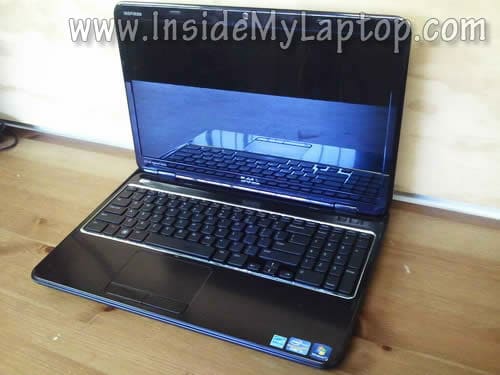
In this guide I explain how to disassemble a Dell Inspiron N5110 laptop also sold as Dell Inspiron 15R.
I will disassemble the base and remove the motherboard in order to access the DC jack board and hard drive.
Here are some major disassembly steps I will go through:
STEP 1-4: Accessing both memory slots and removing DVD drive.
STEP 5-12: Disconnecting and removing the keyboard.
STEP 13-18: Removing the palmrest assembly.
STEP 19-20: Disconnecting and removing the display assembly.
STEP 21-25: Removing the motherboard.
STEP 26-27: Removing the DC jack board. Accessing the cooling fan assembly.
STEP 28-29: Removing the hard drive.
UPDATE: I just published a new guide explaining how to replace the LCD screen on a Dell Inspiron 15R N5110.
Well. Let’s start taking it apart. Make sure the computer is turned off.
STEP 1.
Unlock and remove the battery.

STEP 2.
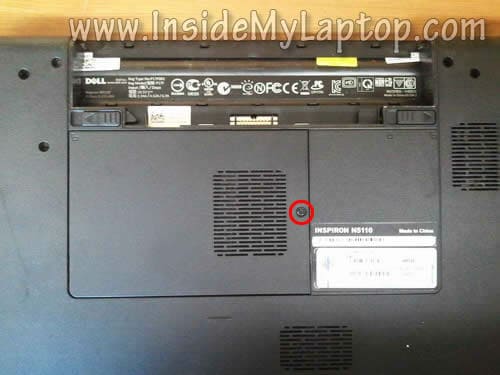
Remove one screw securing the memory cover.
Lift up and remove the cover.
STEP 3.
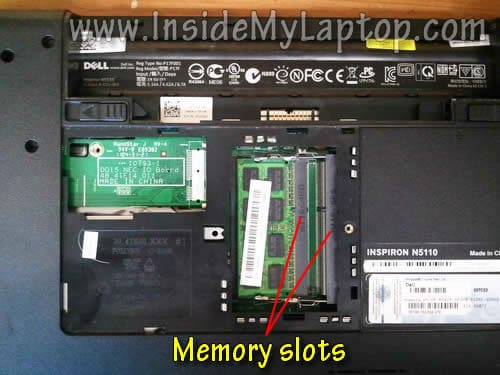
Under the memory cover you’ll find two memory slots.
In my Dell Inspiron N5110 I had only one memory module installed.
It’s not necessary to disconnect the memory module from the motherboard for the purpose of my guide. I’ll leave it connected.
This laptop will take up to 8GB (2x4GB) DDR3-12800 SODIMM memory modules.
STEP 4.
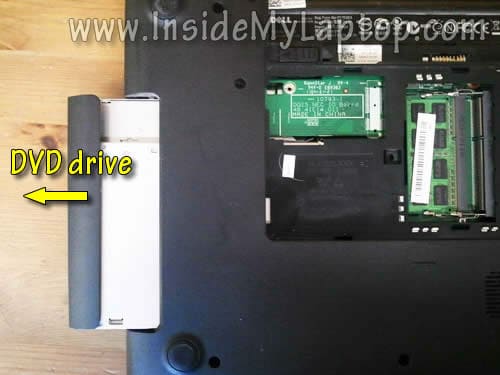
Pull the DVD drive to the left and remove it.
There is no screw securing the DVD drive.
STEP 5.
You’ll find four spring loaded latches securing the keyboard.
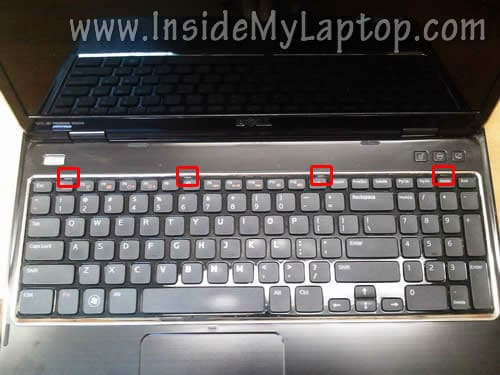
STEP 6.
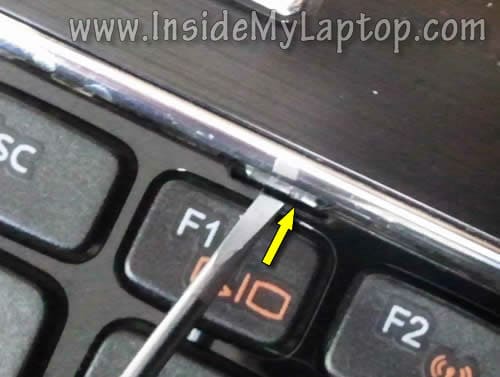
Push on the latch with a small flathead screwdriver.
When the latch pushed in, lift up the keyboard a little bit so the latch doesn’t snap back in place.
Do the same with all three remaining latches.
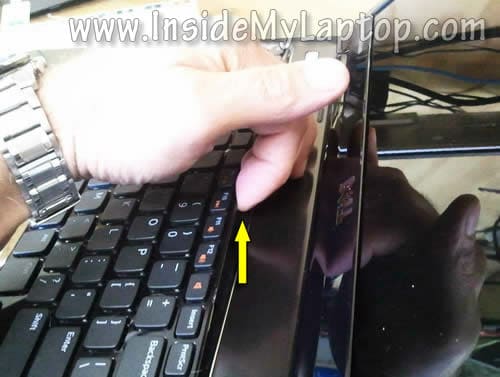
STEP 7.
Now insert your fingers under the keyboard and carefully pull it up.
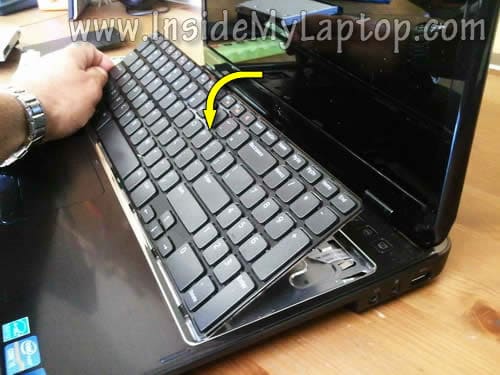
STEP 8.
Continue removing the keyboard.
Lift up the upper part of the keyboard and move it towards the display.
STEP 9.
Turn the keyboard upside down and place it on the palmrest.
Now you can access the keyboard cable connector.
It’s necessary to unlock the connector and release the cable before removing the keyboard.
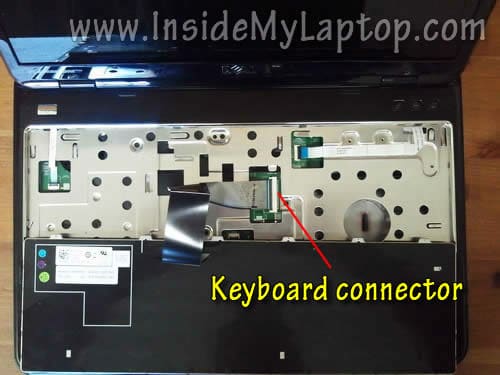
STEP 10.
Here’s how to unlock the connector.
Lift up the left side of the brown retainer with your fingernail.
The retainer will open up at a 90 degree angle and the connector will be unlocked.
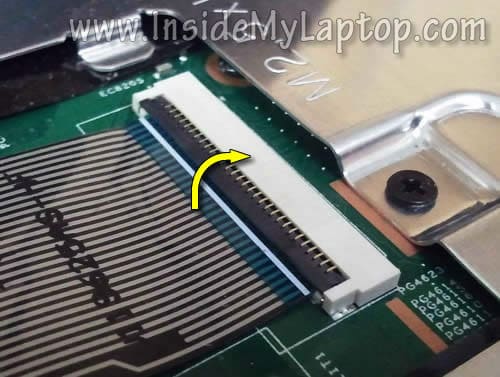
STEP 11.
Now you can pull the keyboard cable from the connector.
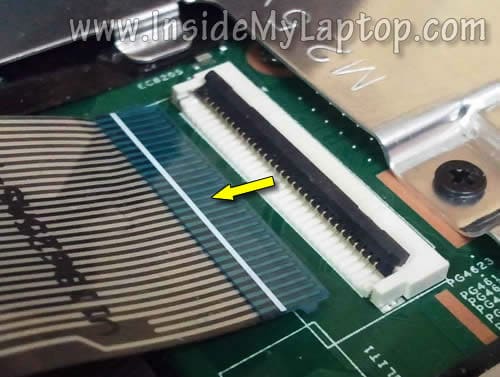
STEP 12.
Remove the keyboard.
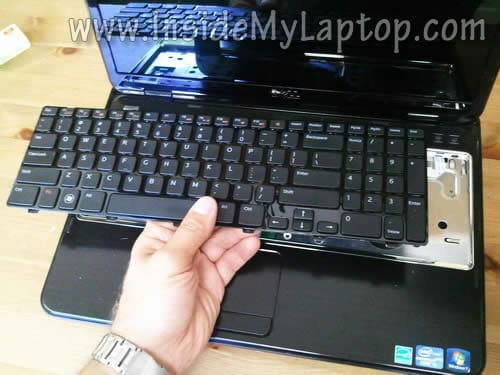
STEP 13.
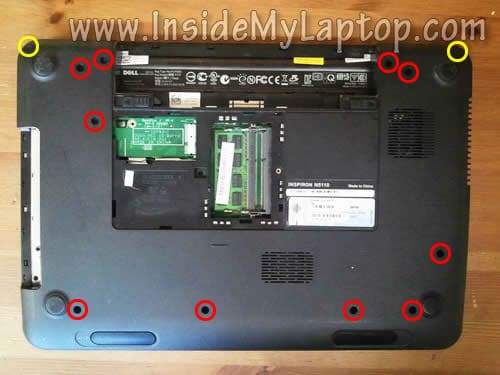
Remove all screws from the bottom.
There are two rubber screw seals in the upper left and right corners (yellow circles).
STEP 14.
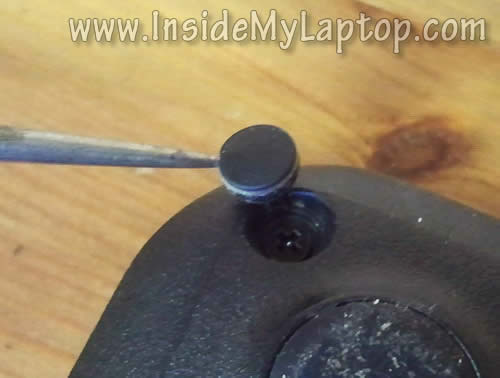
You can remove the rubber cover with a sharp object.
After that remove both screws found under those covers.
STEP 15.
Remove four screws securing the palmrest assembly.
Disconnect the following cables from the motherboard:
– Power button board cable.
– Media board cable.
– Touchpad cable.
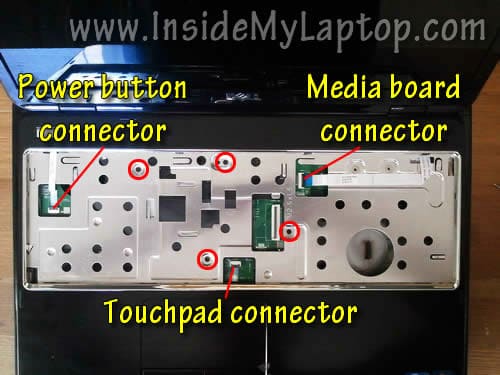
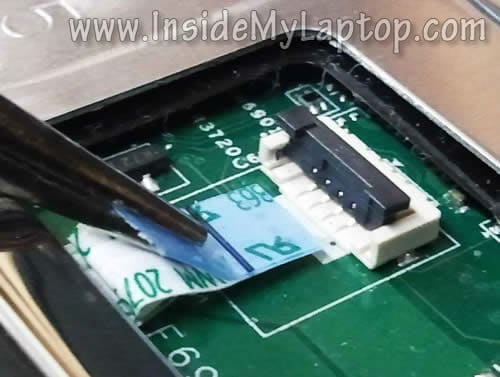
You disconnect all three connectors the same way we did it in steps 10 and 11.
Lift up the connector retainer and pull the cable.
STEP 16.
Now you can start separating the palmrest assembly from the bottom cover.
Insert a piece of plastic between the palmrest and bottom cover and separate them.
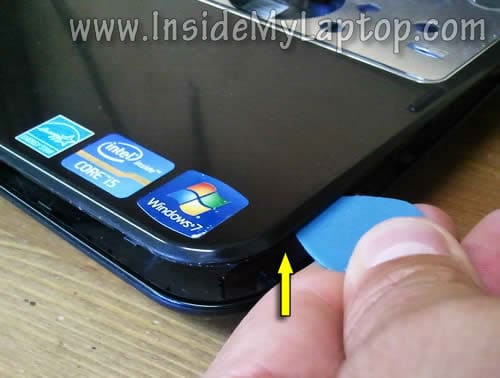
STEP 17.
Continue lifting up and removing the palmrest assembly.
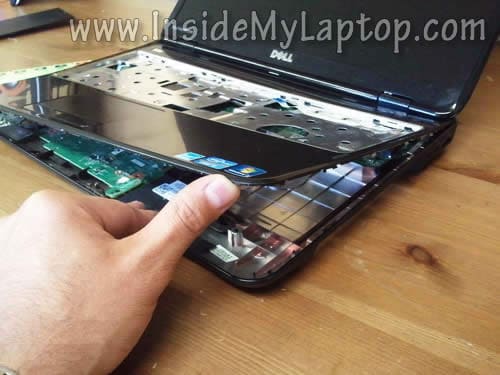
STEP 18.
The palmrest assembly removed.
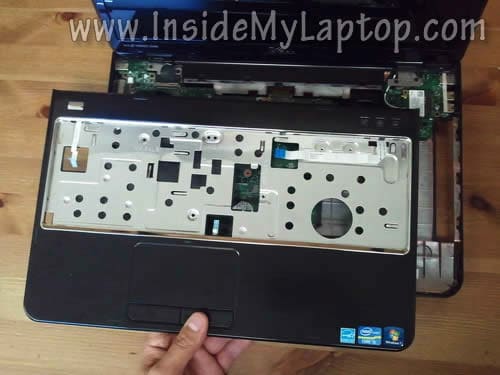
STEP 19.
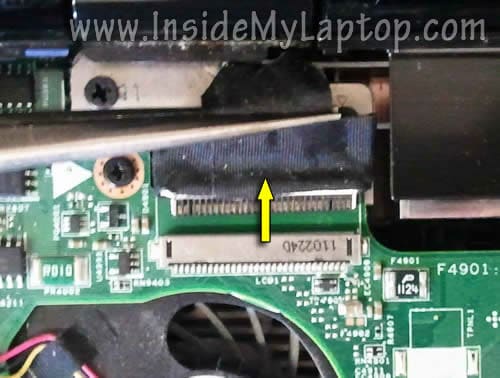
Disconnect the video cable from the motherboard.
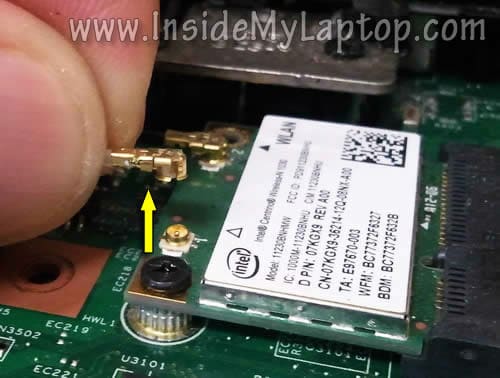
Disconnect both antenna cables from the wireless card.
Remove four screws securing the display hinges.
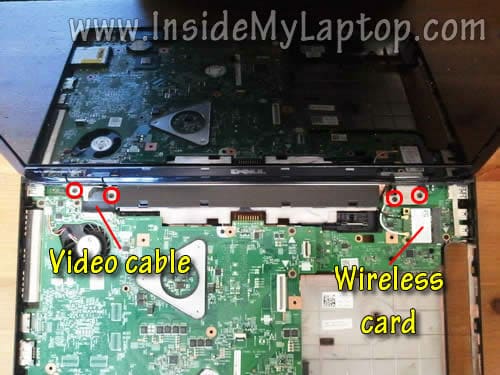
Here’s how to disconnect the wiereless card antenna cable.
Simply lift up the gold connector and unsnap it from the wireless card.
Here’s how to disconnect the video cable.
Move the connector towards the display and unplug it from the motherboard.
STEP 20.
Lift up and remove the display assembly.

STEP 21.
Remove the plastic cover located under the display assembly.
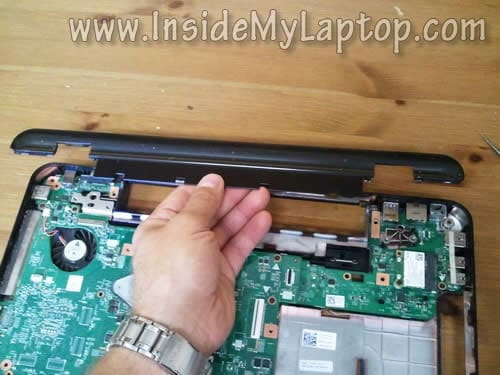
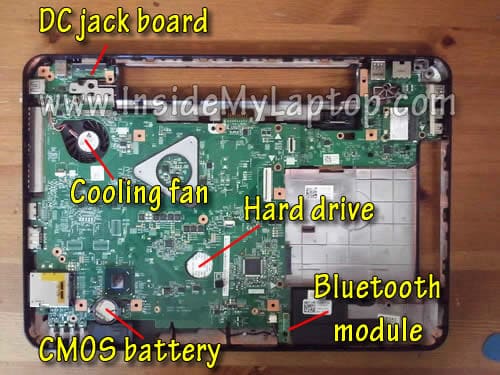
When the palmrest assembly is removed you can access the CMOS battery and Bluetooth module.
The cooling fan can be accessed only when the motherboard removed.
Same story with the hard drive. It’s mounted UNDER the motherboard.
If you want to replace the DC jack board, it’s necessary to remove the motherboard too.
Let’s remove the motherboard.
STEP 22.
Remove four screws securing the motherboard.
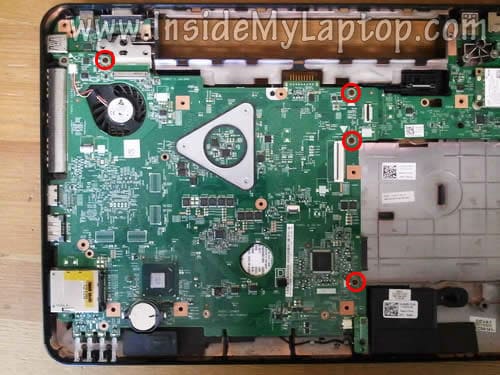
STEP 23.
Unplug the speaker cable from the motherboard.

STEP 24.
Carefully lift up the right side of the motherboard and disconnect it from the I/O board.
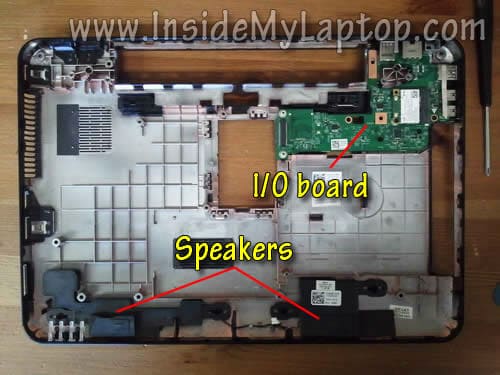
The I/O board has the following ports on it: USB ports, audio jacks, Ethernet (LAN) port.

STEP 25.
Lift up and remove the motherboard.
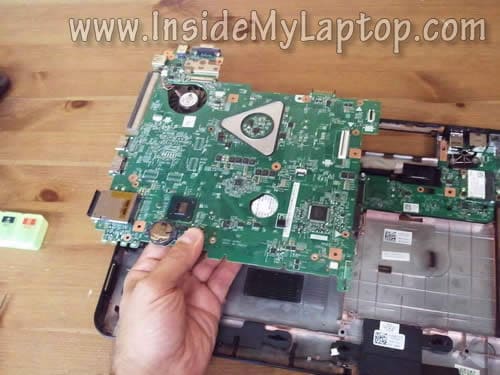
The I/O board and both speakers are attached to the laptop base assembly and can be removed if necessary.
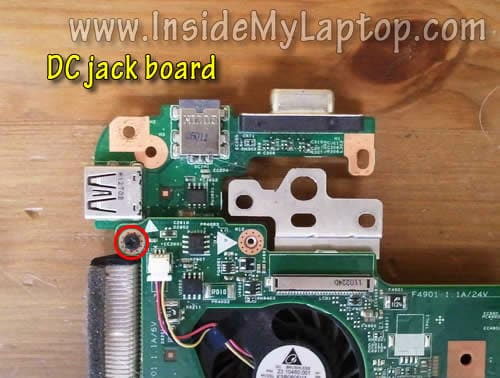
STEP 26.
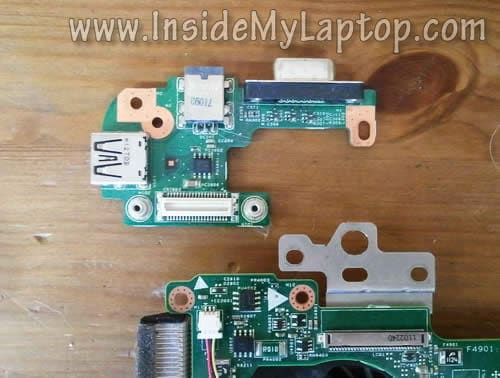
Remove one screw securing the DC jack board to the motherboard.
STEP 27.
Separate the DC jack board form the motherboard and remove it.
NOTE: if your Dell Inspiron N5110 has a failed DC jack it’s easier to replace the entire board than the jack itself.
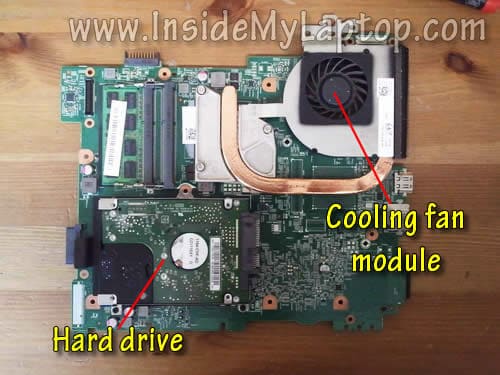
Turn the motherboard upside down.
Here you can access the cooling fan assembly and hard drive.
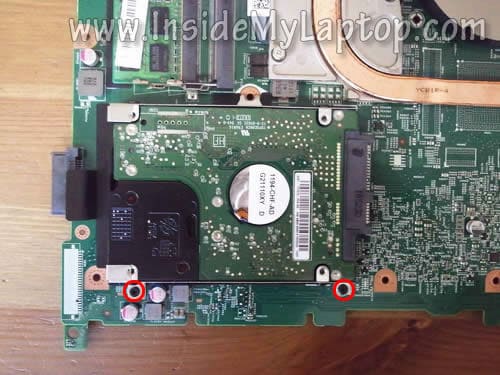
STEP 28.
Remove two screws securing the hard drive mounting bracket.
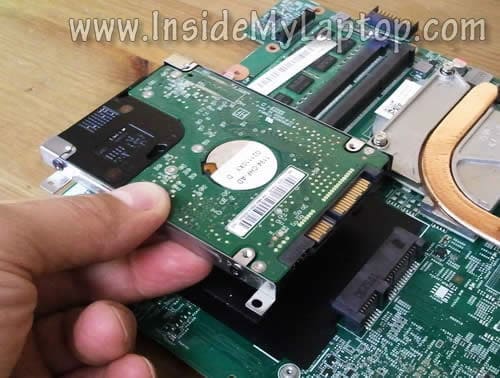
STEP 29.
I had some trouble disconnecting the hard drive because it was glued to the motherboard with some adhesive rubber.
First I had to lift up the left side of the hard drive a little bit and separate it from the motherboard and after that disconnect from the motherboard.
In my Dell Inspiron N5110 I had a regular 2.5″ SATA hard drive installed.
It’s possible to replace it with any other larger capacity 2.5″ SATA hard drive or 2.5″ SATA SSD.
Replacing this regular hard drive to a 2.5″ SATA solid state drive will improve laptop performance significantly.
Joy Blakley
Awesome! My son’s Dell Inspiron has a bad connection somewhere in the video feed/hinge area going to his screen, and I got an estimate of $369 for the repair… He and I have discussed it, and I’m going to give it a try myself! If all else fails, I just got a new Dell Inspiron for $399, and I’d rather purchase another for him than pay almost that much for a repair!
IML Tech
@ Joy Blakley,
If you think the problem is related to the video cable try replacing the cable.
You’ll have to remove the palmrest assembly as it shown in the step 19 in this guide.
After that disassemble the display panel and remove the screen (as it shown in my other guide for this laptop).
Only after that you’ll be able to replace the cable.
Keep track of screws. Make notes.
seraphia
Fantastic clear pictures and text, thank you. Just replaced the motherboard on this model and after assembling again the 3 beep code for system board and or memory continued. So I tested with other new memory. Still…3 beep code. So I then got a replacement motherboard new, not refurbished and again, still getting 3 beep code. Any ideas?
Joel
Great tutorial, thank you. I have a problem though, I had recently bought a 2 GB stick of RAM for this laptop but it doesn’t want to fit in the top slot? Would you know how to fix this? Thanks.
IML Tech
@ Joel,
Probably you had purchased wrong memory type. Make sure your new memory is DDR3, not DDR2. A DDR2 memory module will not fit into the DDR3 slot.
Stan
I have a Dell Inspiron 15R that recently quit charging the battery. The DC socket does power up the unit with the charger cord attached. The battery icon indicates that it is not charging. I tried a new battery and updated the device manager, tried a different charger and cord and downloaded the latest Bios release for this unit. Nothing seems to work. Everyone suggests that it’s probably the motherboard, and the instructions that you provide make it pretty straight forward to follow for replacing the board, but I can’t help but wonder why the charger board wouldn’t be the first logical reason for the laptop not recognizing the battery or charging it. Your thoughts are appreciated. Thanks
anon
It’s lid sensor, not bluetooth module. This notebook have a intel centrino 1030 or dw1702 bluetooth combo card.
Paul
Hi there, Just want to say that my friend poured water into his Laptop and these instructions helped to dismantle, dry and reassemble his machine.
It’s now working perfectly and we are very grateful to you.
Joe
Just replaced new motherboard getting 3 beep code and laptop won’t turn on. Any ideas what this is? Help would be greatly appreciated
IML Tech
@ Joe,
Check memory. Make sure it’s seated properly.
John
Mine is 6 months old….a couple days back there was a weird noise under the trackpad…ther was some vibration and it then crashed. i started it over..and it worked..same thing happened again and now it doesnt start..i am trying startup repair..but i’m guessing its a hardware problem…any ideas on where the problem is and what i could do?
John
Oh yea..btw it was a clicking noise right under the mousepad..so it could probably be hard disk related…will i have to replace the hard disk
Sanjay
Would you happen to know what type of CMOS battery the N5110 needs? I’ve searched Dell, but could not find specs on it. Would like to purchase one before opening up the machine so as to minimize downtime. Thanks!
IML Tech
@ Sanjay,
I think this laptop has a regular CR2032 coin battery which you can buy in any convenience store.
Eddie Tech
My dell inspiron N5110 does’nt switch on. I have tried removing the battery and switching on with its power cord but it still doesnt come on. It power adaptor and the batter are working fine but the laptop does not switch on. Can anyone help me troubleshoot the problem.
Romba
My webcam has gone not detected on the computer, the webcam module is working well when checked on a different machine.
So what are the possibilities? I guess the worst case should be an issue with the motherboard, but other than that, can there be some issues with the video cable as well? But my display is working perfect so far!!
Dave
@Eddie Tech,
I’m having the exact same problem. At first the laptop would turn on sometimes, but now it won’t turn on at all. There is also a high pitched noise emitted by the laptop when the power button is pressed or the laptop is plugged in. Any ideas?
Randers Newman
Many thanks for putting these very good instructions up.
Has helped me no end.
Jackie
Hi,
I have this same laptop. It was making clicking noises under the mousepad, figured it was hdd problem. Took it apart and replaced with a new hard drive. Put it back together and when press the power button: power button lights up, the IO board lights (three buttons) light up, fan spins for a bit. However, screen doesn’t light up and then the fan stops. Took it apart, inspect the monitor wire, looks good. Put it back together again and everything works.. reinstalled windows problems: power chord has problem charging and no audio. (Forgot to connect the audio)
So, took it apart and connected the audio wire, then put it back together… Same problem now, all lights and fan but no screen, same as before.
I was wondering… is this a motherboard problem or a screen problem? Is there any way to find out besides buying a new screen.. then figuring it’s a motherboard problem?
Thanks
Steve
Hi there! I’d took a look at your manual and it’s very good! I was going to write one by myself but now I clearly understand that this work is done already. Thanks for a good job!
Just one more thing – in (21) you’ve written that this thing in a bottom of MB is Bluetooth – it’s not. This is a Hall switch that turns sleep mode on when you close your laptop display. You can easily check this by placing some small magnet (ex. earphone) nearby when laptop works – it will go sleeping 🙂
mykel
thank you very much for your clear , it made me change/upgrade my hd easier…thumbs up,
by the way my laptop is 1 yr & 5 months old,the routine was after whole day usage the next time when it opens will do system repair then ok again,troublesome as it also boot windows slowly, thought it was just os problem tried to re-installed everything but still have the issue…no noise from hd thus i rule out initially changing the hd but after using dell diagnostics/hd status utility and checking the error code found out that facility is failed/unknown
thanks again and godbless
Leonard
Hi i am Leonard i disassemble mi laptop to get to the fan and blow it because it was getting to hot and i thought it was dust in the fan well the problem is that i didn’t saw how the little plastic conectors that conect the keyboard and the motherboard lifted up and i broke them all of them, what i want to ask is if you can buy that little plastic thing or if there is some way to repair them, also sorry for my bad english . I would be really happy if somebody can response me.
IML Tech
@ Leonard,
I doubt you can buy these connectors separately.
viresh doshi
Hi
My Dell Laptop died and would not start up and so this guide saved my life and I managed to pull out my hard drive with the very informative instructions.
regards viresh
Ricky, from the Phils.
Based on my experience with Dell Inspiron N5110 here in the Philippines, it doesn’t have a decent quality hardware. After a year of using my laptop without abuse, i found some annoying problems with its CMOS battery, touchpad, internal keyboard and even its earphone and speaker sockets… Damn it! .. most likely i need to spend another few more hundred bucks to get all these issues fixed.. Dell hardwares really suck… the same with my HPcompaq Laptop… huhu..sigh..
the only laptop I have that is not a pain in my ass.. is my Samsung R series.. I’ve been using it like more than a year and it’s as old as my Dell Inspiron N5110. and you know what? I only had a problem with its main external battery and nothing else…after 8 months of use which i got it replaced through its warranty service for free. Anyway, i just have to stay away from DELL next time…
But since i still have this laptop i’ll just try to deal with this for now.. So, first i have to change its CMOS battery.. and Mr IML Tech guy here said that its just a normal CR2032 coin battery type. I hope I can pull this off through this guide… thank Sir in advance for this helpful tips.. keep it up!… helping people in your own little way it’s another great way to make life meaningful… kudos to you!
Ric
Hi – Does anyone know if you can upgrade to a led backlit keyboard for the dell inspiron 15r n5110
abbey
abbey from wisconsin here!! thanks insidemylaptop.com, you saved my bacon!!
Pete
Thanks so much for putting these instructions up – a tremendous help for us when we needed to replace the fan assembly. Pity Dell’s build quality has dropped so markedly, but this page hopefully helped enable us to postpone buying another machine for a while!
sean
the gold connectors for the wireless antenna card when trying to put it all back together, wherre do they which ones go where.
I have 2 long, 2 short and 2 black and 2 white. One black and one white for the short, the same for the long.
sean
hello me its me again.
i still need help i am trying to put this laptop back together and i’m on step 19 part 2 when lifting the gold connectors i need to know which connectors go where.
please reply back to me i need help to put my buddy’s laptop back together.
IML Tech
@ sean,
I think you can see that on the picture.
Both cables connected to the wireless card. The black cable connects to the connector which is closer to the screen.
Midhat
Hi. Thanks for this guide. I want to clean the fan and heat sink for my 15R Laptop. Do I need to take EVERYTHING apart to reach the fan like in this guide?
IML Tech
@ Midhat,
You can try cleaning the fan by spraying compressed air into the fan grill on the bottom of the laptop.
If you want to access the fan and clean it manually you’ll have to go though all disassembly steps.
Unfortunately, there is no easier way to access the cooling fan.
George
Hi There,
Your instructions have been very beneficial in disassembling the laptop. The laptop would not power up (this is my sisters laptop), she had jacked the USB connector for a cooling board and I found that the USB port on the DC jackboard was broken out the back and a small piece of the metal backing had landed on the pc board. I ordered the DC jack board from your recommended Ebay site. Note: I also got a new motherboard from Dell and along with the DC jack board replaced these items.
After I got it back together, the laptop would not power up still but it would finally with the battery installed. I realized that the computer was running off the battery alone and would not charge as well the I/O board was not functioning as none of the USB ports on the I/O board would operate but the USB port on the DC jack board did operate.
My main question is: If the I/O board is not functioning( probably taken out the same time the DC jack board broke out), would this prevent the battery from charging or the computer from operating without the battery installed? The computer ran until the battery discharged and is not charging at all as well as the USB ports on the I/O board not functioning.
Your input would be greatly appreciated
IML Tech
@ George,
First of all, I would check connections between the motherboard, DC jack board and I/O board. It’s possible you didn’t assemble it correctly. Also, make sure the AC adapter is good.
It’s hard to tell. The I/O board is part of the motherboard. It’s possible that failed I/O board preventing the entire system from functioning properly.
Again, check connections.
You can try to assemble the laptop outside the case and test.
Dj Berty
Tank you so mutch……
Merci beaucoup vraiment complète les informations
Très bien fait
Mark
Hi,
Thanks for The great guide.
I just did it and put it all together with no ISSUES but one.
Everything is ok except The laptop screen that remains black.
I put a external video and it’s working ok.
Is there anything I can do before sending to a technical support?
The video cable can be connected by mistake upsidedown?
Thanks a lot!
Agent99
Hi,
How can we replace the wifi antenna cable?? can you post pictures to disassemble the screen and replace the wifi cable.
Thanks.
joey
how do you put it back together
Sachin
Hi,
Your steps was clear but i would like to know how i can replace the cable connecting the webcam to the motherboard. I have a loose connection i think because the webcam gets detected when i keep my screen at a particular angle.
IML Tech
@ Sachin,
Check out this guide for taking apart the display panel:
https://www.insidemylaptop.com/replace-screen-dell-inspiron-n5110-laptop/
Try reconnecting the cable on the web camera, maybe it’s just loose connection.
If reconnecting the cable doesn’t help I’m afraid you’ll have to replace the video harness. The web camera cable is part of the video harness.
NKBedi
Hi. You have done a good job by giving the steps to dismental the laptop.
My problem is that my Dell gives 3 beeps on start and no display. Diagonastic say mother board or processor is not working. But some times it woks normal by itself. Your recomendations.
IML Tech
@ NKBedi,
Could be failing memory module. Try new memory. Or if you have two memory modules installed test the laptop with each memory separately and find out which one is failing.
Alohran
Pal, your guide was GREATLY CLEAR in order to disassemble my laptop. Used to have a dell inspiron 1525 and disassembling it was a main pain in the ass. Now this time it was a piece of cake, both disassembling it and reassembling it back again. I even took the speakers off and stuff.
Problem is the following: I disassembled my laptop because after a storm, some water fell above the laptop through a unnoticed hole in the roof. I left my laptop filled with rice in order to suck the moisture from inside and it worked wonders, as after I turned the laptop off lots of water poured through the ports, for example. Now I dried evertyhing and cleaned everything up, reassembled and voilá, my keyboard is simply crazy. For example, if I hit the “A”, not only pops the A but also the q, the 1 and the Z. Same with other keys whom also makes the above and below keys appear as pressed. Some others are ok. What can I do? What’s the problem? I’m wondering if I need to clean something in the keyboard or if the cable connector ain’t well connected, I don’t know… Please help.
Thanks in advance!!!
IML Tech
@ Alohran,
This could be either failed keyboard (most likely) or failed keyboard controller on the motherboard (less likely). You cannot tell until the laptop is tested with another working keyboard.
Just install a new keyboard. They are cheap.
You cannot disassemble the keyboard for cleaning.
Make sure the wireless card enabled in the device manager. Can you see the wireless card in the device manager at all?
Remove the wireless card and take a look inside the slot. Maybe the connector was damaged by water. If you see any corrosion inside the slot clean it up with a toothbrush and alcohol.
Alohran
And btw, I just noticed that I also have issues with the WiFi. I powered the computer off, disconnected and re-connected both black and white cables, re-powered the computer on and I’m still wifiless. What can that also be?
Thanks in advance!!
Gary
Thanks for you work got laptop up and running again very happy
Alohran
Well, it seems the problem with my WiFi was related to keyboard, as somehow the wifi radio keys were being “insta-pressed” and keeping the wifi off. When I was able to hit them back my wifi revived, but the keyboard is still malfunctioning. Unfortunately, there’s few keyboards for sale here in my country, so I’m using a external usb one.
Now I have a new issue: up until a couple hours back, everything but the keyboard was working fine. But suddenly, the screen turned black like when you hit the media panel button, and never turned on again. I restarted the laptop and remains black, while if I plug the laptop to a HDMI screen I can see it working fine, while the screen remains black. What can that be? How to fix it?
Thanks in advance!
Guccigugu
Thanks for this. But after reassembling it and when i power it on it shows a white screen. Please help. Thanks
paul
Great guide, thanks! Saved my a couple of hundreds dollars at the local PC shop
Margaret
Thank you, Thank you. I’m a 50+ year old single mom my daughters laptop broke a few days ago. I had no money to fix it and with school is about to restart. I was in a panic. I took the laptop apart with your instructions and found the problem. Thanks again
John
Great instructions. Made my job of reseating the video so easy. Thanks so much.
Gordon Wearsch
I got a 3 beep code and then it would not bootup or even start
I have had this problem several times and for some mysterious
reason, everything would work fine! I used it last night without a
hitch. Now this morning I get the 3 beep code and no power at all
What should I check and what should I do?
Thanks
IML Tech
@ Gordon Wearsch,
On Dell Inspiron N5110 laptop 3 beeps indicate chipset error (motherboard failure).
It means the motherboard has to be replaced.
If the laptop is still under warranty, use Dell service. If not, probably it’s time to move on and buy a new laptop.
Scott
IN OTHERWARDS IF YOUR LAPTOP’S HARD DISK FAILS/BLOWS UP THROW OUT THIS LAPTOP!
IML Tech
@ Scott,
Not necessary. Replacing the hard drive is not very difficult. Yes, it requires some tech skills but possible to do at home.
Christine
YOU SAVED MY LIFE !!! THANK YOU THANK YOU THANK YOU
Jonathan
Hopefully someone is still reading comments to this post! We have a broken keyboard connector (as seen in step 10). Before finding these instructions, it was improperly forced up with a screwdriver and snapped in half. Any idea where a replacement for this part might be found? would be willing to take an otherwise worthless unit off someone’s hands for cheap (free?) and promise to recyle the rest after I get that part out…
Thank you,
IML Tech
@ Jonathan,
Do you still have broken pieces?
Heres what you can try.
1. Insert the keyboard cable back into the connector the way it was before.
2. Place two broken pieces back in place.
3. Secure connection with sticky tape. I think duct tape will be strong enough to keep everything in place.
Jonathan
Thanks, IML – I passed your suggestion on to the owner of the laptop, will let you know how (if) it works out! I’ll still look for an otherwise dead machine for spare parts – he only got in that deep because he was investigating a broken hinge mount.
Hari
My inspiron 15r N1510 beeping once and not booting up. But when I disconnect the power card and reconnect after 15 minutes every thing going fine. Please find me some solution.
Many thanks in advance.
IML Tech
@ Hari,
Unfortunately, one beep on startup might indicate a problem with the motherboard.
Just in case, try removing RAM (memory) modules one by one and test the laptop with only one module installed.
If the problem doesn’t go away, most likely the motherboard failed.
ron gressitt
hi my dell n5110 has the 3 beeps at startup I have replaced the motherboard with a new and still have the same issue , I have also changed the memory. thanks for your thoughts… ron g
IML Tech
@ ron gressitt,
Have you tried removing RAM modules one by one and and testing them individually?
Mario Masias
I replaced my HD on R15 M5110 as it was going bad ( still worked but couldn’t pass Dell diagnosis test ) HD working fine but now it will not charge, and no adapter is recognized by BIOS or system. Worked fine before replacing HD now nothing what should i do? replace the jack? is a software thing? lost here
IML Tech
@ Mario Masias,
In this laptop the DC jack is located on the I/O board. In order to remove the hard drive you had to remove the motherboard and separate it from the I/O board.
It’s possible there is bad connection between the motherboard and I/O board (shown in the step 24). You’ll have to take it apart again and check the connection between the motherboard and I/O board.
ron gressitt
yes and have replaced with memory from working laptop , I have also disconnected keyboard and hdd . could cpu be the issue ??
IML Tech
@ ron gressitt,
According to Dell, three beeps indicate a problem with the motherboard. Take a look at the chart posted in this thread. A failed CPU would give you seven beeps.
It’s possible your new motherboard is defective.
By the way, check connection between the motherboard and I/O boards shown in the step 24. Maybe it’s not seated correctly. This is just a guess.
ron gressitt
good news I found the problem with my 3 beep dell to be the USB Audio Ethernet Board . thanks for your help …
deepak
my laptop n5010 giving 8 beeps and display won’t turn on. and a part of laptop’s mother board is overheated
Just check the image its heating just there. ” Where the “Coo” is written in image, just below it ”
https://www.insidemylaptop.com/images/Dell-Inspion-N5110-disassembly/Dell-Inspiron-N5110-disassembly-26.jpg
IML Tech
@ deepak,
8 beeps can be an error message for the LCD screen failure.
Test your laptop with an external monitor. Can you get external image to work?
If external video works fine, probably you’ll have to replace the screen.
dalamavi
I broke the 2 black retainer from the connector before reading this guide: then the power button is not working after assembling back.
Please help me
shailendra singh
it is really helpful to me
Andy
@ron gressitt, I have the same problem with you. In this laptop the DC jack is located on the I/O board
vaishakh
My dell inspiron shut down suddenly become overheating….what is it’s problem.
TAMMY
My laptop wants an system password I don’t have it
Erik
This guide was very useful when I replaced my HDD with a SSD. Thanks!
However, in the process one of the little metal three-prong tabs surrounding the memory module (visible in step 3) came loose and subsequently fell out. What are those tabs for? Should I bother with re-opening my computer to replace it, or can I just leave it out?
IML Tech
@ Erik,
I’m not sure about the purpose of this tab (maybe for grounding) but I think you can leave it out.
Marvin
have a problem need help with. Somewhere between palm rest board, motherboard and io board.
a part came loose when I was putting it back together it was laying between the IO board and the palm rest board. I have know idea where it goes. The part is marked ” hall sw1 hall2 c7001 r7002. many other numbers. looks to me that the part #may be this #1152-22-22 I just need to know where it goes??????? The piece is 1″ x 3/8″ appox. On green board.
Marvin
as I come to learn its the Reed Sensor circuit board “h7prc”. still don’t know where it goes!! So if you can help I need it..
Marvin
never mined I found where it goes
Sheetal Jain
Dear Inside my Laptop Team,
I Have 1 Inspiron N 5110 Model Laptop, in that due to Laptop Fell Down to the Railway Palte form the Bottom Base screw holder broken down it seems. due to this while opening the Laptop the Right Hinge and upper body of Bottom base automatically coming out in opening the laptop.
now the Wifi cables-2 No’s already got disconnected (automatically)
I request your team to kindly send me immediately what should i have to do with procedure & picture (how to open the Laptop & close after changing the Bottom Base)
Tim McCoy
Thank you for the detailed specs.. made my job much easier. I love the pictures with the screws highlighted!
I can’t believe that Dell buried the hard drive so deep inside. It took over an hour to get to it and another hour to assemble.
Amrita
Hi IML Tech
I Have one Inspiron N 5110 Model Laptop, in that due to Laptop Fell Down to the Floor, the Bottom Base screw holder broken down it seems.
Due to this while opening the Laptop the Right Hinge along with the metallic base and upper body of Bottom base automatically coming out in opening the laptop.
Could you please let me know what are the parts needs to be changed to repair my laptop and how much the estimated cost.
Larry
Thanks for for this info. Easy to follow. I would’ve never figured out how to take this thing apart without help.
Awesome.
Larry
cj
Thank you. I was able to take apart my laptop and fix my problem. Your tutorial was perfect! Thanks, again.
Maranda
I replaced the AC/DC USB board jack because my old one was broke and not charging. Once replaced, I plugged in the power cord. I turned on the power botton and it lights up a few seconds and goes off. The screen never comes on. What could be causing this?
Andrew
I hit my laptop (inspiron N5110) it was a soft hit but after I did it my laptop screen went white, so I turned it off and back on and it was the same with 8 beeping sounds. Any ideas about what’s wrong with it?
Sidra
I want to change my wi-fi card of dell inspiron N5110. How do I do it?
Little Timmy
I threw my computer out the window of a 3 story building it hit the room smashed into 2 pieces then landed in a pool How do i fix it?!
Bruce
Your diagramming was a Godsend, as the Bluetooth unit (or hall switch -whatever) had fallen off and I could not figure out where to replace it until I found your website. You are a prince among men!
dennis boe
Great site, Can i ask how do i replace trim around screen as this was knocked over and grabbed by the lid assembly , which caused bottom trim at hinges to break , this of course does not close properly now and am hesitant to prize things apart mainly on left bottom side, i have concerns therefore about this causing more damage, as disabled retired veteran i not only have to be aware of costs, but use this for charity fund raising.
regards
Dennis
Awais Mehmood
My laptop get wet in rain. I remove battery, follow your instructions and dry it. Its working fine now. Thanks
Tim
Hello,
I replaced the hard drive myself. Installed the OS. Went to install drivers and the computer died. Took the battery from my Dell n5110 and turned her back on. I then took out the battery (while plugged in) and it died again! Is the DC jack fried on this thing as well you think? It belongs to a teenager and I know the it would die as soon as I removed the battery, but it worked while plugged in. Maybe I damaged the DC jack? Thank you for your response
Bryan
Thanks for the breakdown. Very helpful. Couldn’t believe they made the hard drive so damn hard to get to, put a panel in for crying out loud.
Muneeb sabir
Hi brother thanks for the instruction I want to remove the bios password and don’t want to broke it while opening so it is done bcz of you thanks scnd I want to know 2 thing first is that can you upgrade the gpu of this board and if you can which model r port type is required and second can you change its processor although it is good but I want to just know I was looking pics but it doesn’t say about gpu removing r placing and another thing you didn’t mention that you strips that you remove of pad keyboard etc they have a little black plastic cover on board when you want to put them back you have to open it place the connectors and then close the cover I hope it whould help someone and if you can plz reply me to my mailing Adress and thanks aloat god bless you you are doing a great work thanks again
faycel
thank u very mutch about this job
Dominique
Thanks for all those informations
That s help me to open my laptop
Drew
Thanks sooooo very much for this tutorial. Changed the Dell stock HD to a crucial 480GB SSD. This was the first time I ever did anything like this, and THANKS to your easy to follow instructions and pictures I did the whole thing in under an hour. YOU ROCK!!!!
cmoslinker
Thank you so much…I changed the HHD by a SSD, I replaced the DVD player by a 2nd HDD caddy with the old HDD Inside and I added 4Go for a total of 8Go…I did the whole thing in under two hours…Now I have to install Windows 10…Thanks again
ravi
Thanks and its very use full for me
Ward
Marvin – where does the HALL 2 part go?
thanks
D Wolner
My USB 2.0 is working, but the two USB 3.0’s re not working. I think it’s a driver issue. I’m also having trouble with connecting to internet.
Is there a specific connector, separate from the USB 2.0 connector(s) for the USB 3.0 that may have come apart? Is that even possible?
Any other ideas?
IML Tech
Dell Inspiron N5110 USB 3.0 ports located on the I/O board. If USB 2.0 ports working and USB 3.0 ports not working, most likely there is a problem with the I/O board.
You can try reconnecting the I/O board on the motherboard, as shown in the step 24. It might help but if you disassemble the laptop, probably it’s better to buy a new I/O board just in case. It’s not expensive.
Ethernet USB 3.0 WiMax Board (48.4IE15.031) available here:
https://amzn.to/2RDIZwr
D Wolner
I replaced the IO board and Network adapter to address USB 3 ports and Internet connection that were not working.
Even after installing new parts USB ports and internet connection still don’t work.
I bought an external wireless adapter (connected to USB 2.0 drive) which allows me to connect to the internet, but that ties up my only USB port
Any ideas what is going on? I want to get behind this. My only USB port is tied up by external wireless adapter, signal strength of internet connection is weaker than if internal wireless adapter worked.
Thanks, Dan
IML Tech
If new I/O board didn’t fix the USB 3.0 ports, it’s either software related issue or there is a chance of failing motherboard.
You can download a live Linux OS (Ubuntu for example) and make a bootable USB drive. Boot your laptop from the Linux USB drive and test all ports and network connection in there. If everything works fine in Lunux environment there is a problem with your Windows OS. Testing laptop in Linux will help to figure out if this is OS or hardware related issue.