

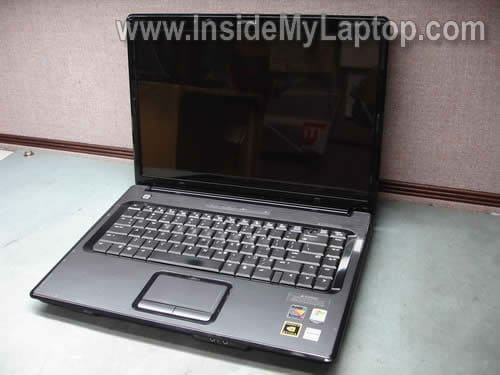
In this guide I explain how to disassemble a Compaq Presario v6000 series laptop.
Most likely this guide will work for some other Compaq Presario models.
Let’s take it apart step-by-step.
STEP 1.
Turn it off, unplug the AC adapter and remove the battery.
Remove three (yellow) screws securing the power switch cover.
Remove three more (green) screws securing the keyboard.

STEP 2.
Start removing the power switch cover as it shown on the picture below.
Be careful, there is a cable under the cover connecting the LED board to the motherboard.
Do not move the cover too far.
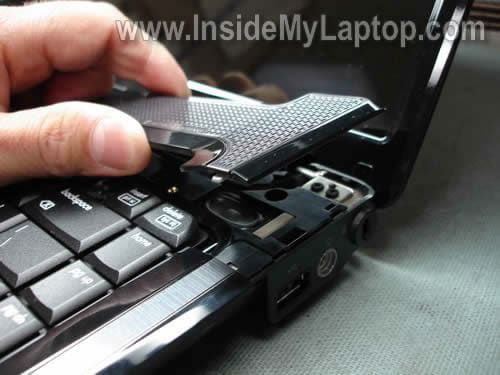
That’s the cable I was talking about.

STEP 3.
Now you can lift up the keyboard and access the cable connector underneath.

The cable connector has to be unlocked before you pull the cable.
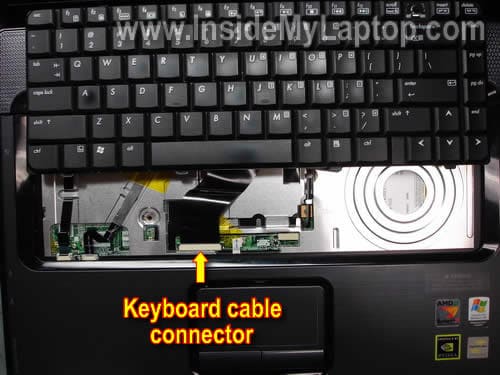
STEP 4.
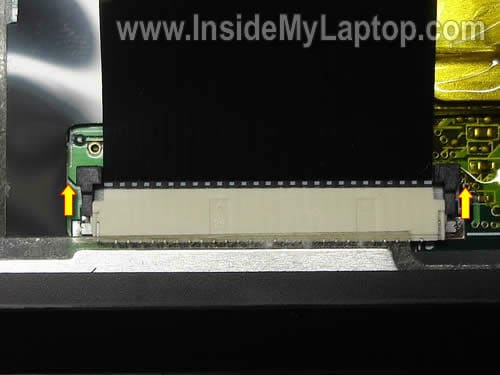
In order to unlock the connector, you’ll have to move the brown clip about 2 millimeters into the direction shown by two arrows. The brown clip must stay attached to the white connector base.
On the picture below the connector is shown in the unlocked position.
Now you can pull the cable and remove the keyboard.
STEP 5.
Disconnect the LED board cable from the motherboard.
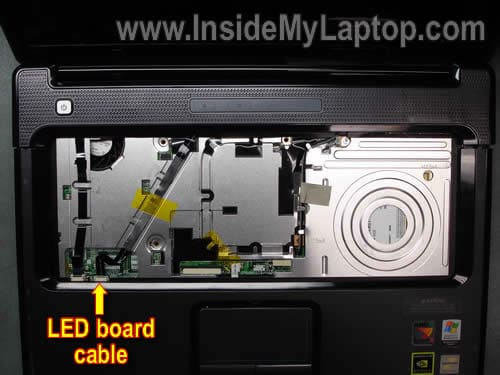
STEP 6.
Remove the power switch cover.
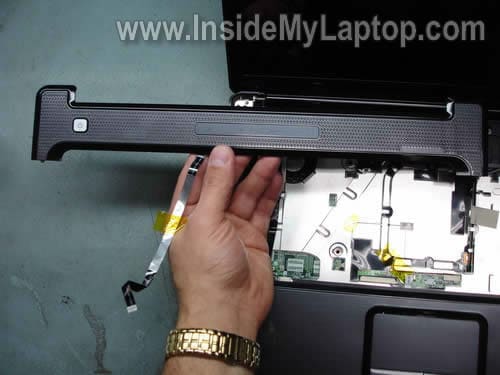
STEP 7.
Remove one screw securing the CD/DVD drive.
Push the CD/DVD drive from the case with a screwdriver and remove the drive.
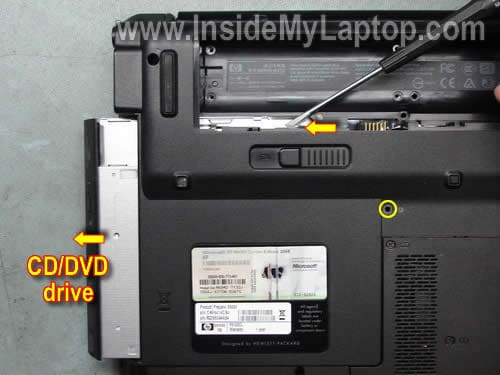
STEP 8.
Remove screws securing the hard drive and memory covers.
Remove both covers.
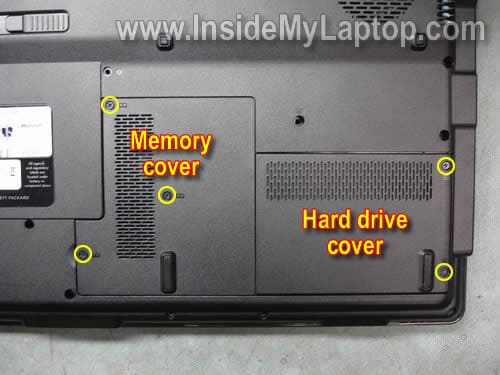
STEP 9.
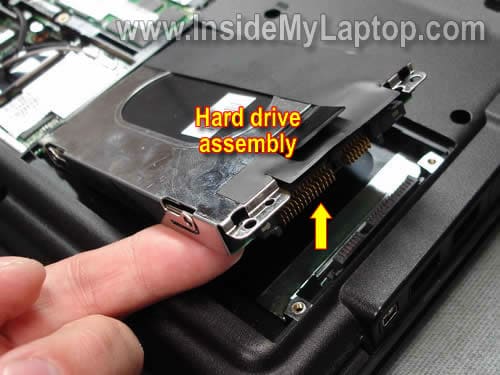
Lift up the right side of the hard drive to disconnect it from the motherboard.
Remove the hard drive assembly.
STEP 10.
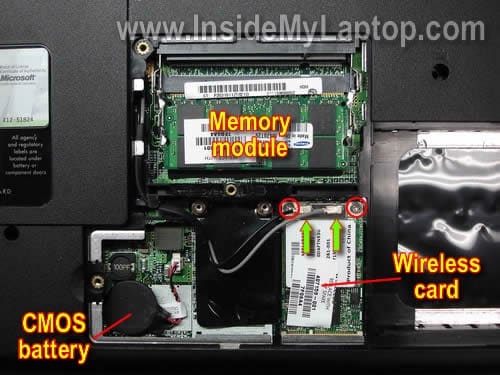
Remove the memory module.
Disconnect two antenna cables form the wireless card (green arrows). Remove two screws securing the wireless card. Remove the wireless card from the laptop.
Also, you can access and remove the CMOS (RTC) battery here.
STEP 11.
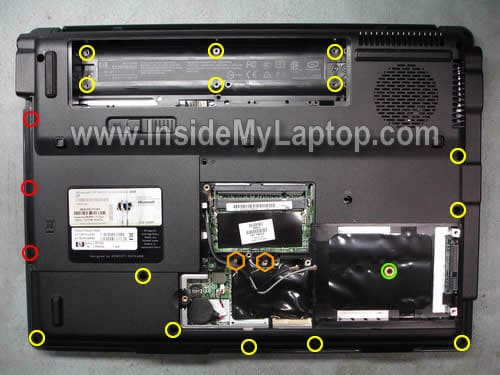
Remove all screws from the bottom. Do not forget three screws in the CD/DVD drive compartment (red circles) and one screw in the hard drive compartment (green circle).
Remove two hex studs found on the left side from the Wi-Fi card slot.
STEP 12.
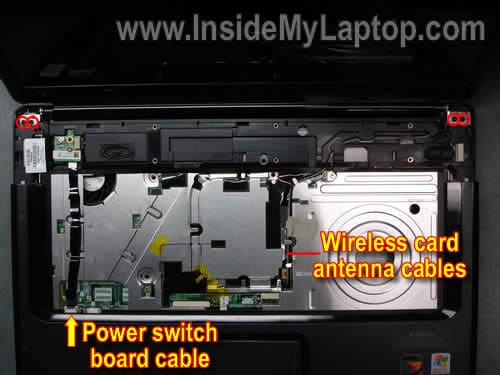
Pull the wireless card antenna cable through the opening in the top cover.
Disconnect the power switch board cable from the motherboard.
Remove four screws securing display hinges.
STEP 13.
Disconnect the LCD cable. You’ll find this connector close to the left hinge.
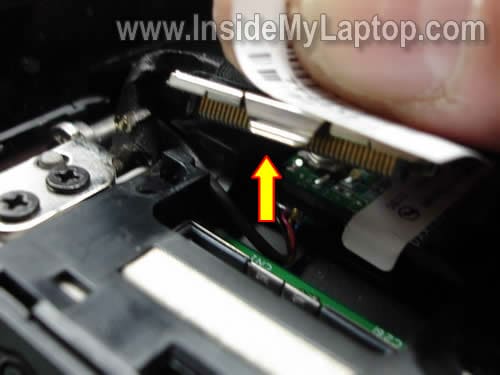
STEP 14.
After I disconnected the LCD cable, I found that there is one more cable running from the display panel to the power switch board.
It’s easier to disconnect the cable from the power switch board if you remove the board first.
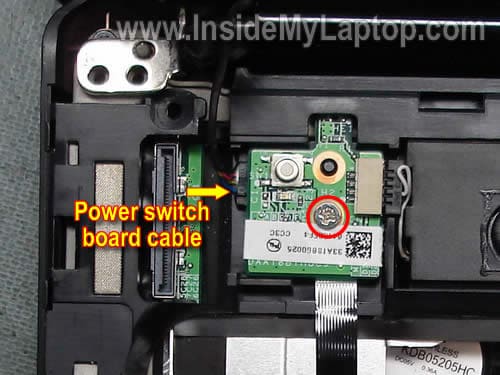
STEP 15.
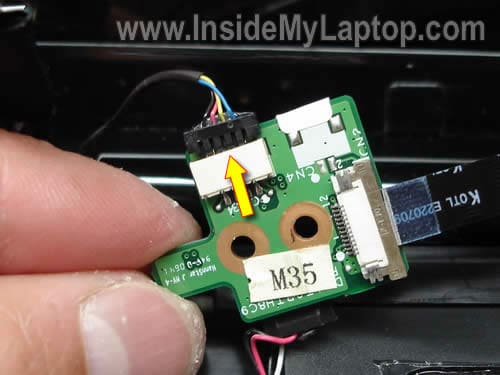
Remove one screw securing the power switch board, lift up the board and turn it over.
Now you can unplug the cable.
Put the power switch board back in place.
STEP 16.
Remove the display panel assembly from the laptop.
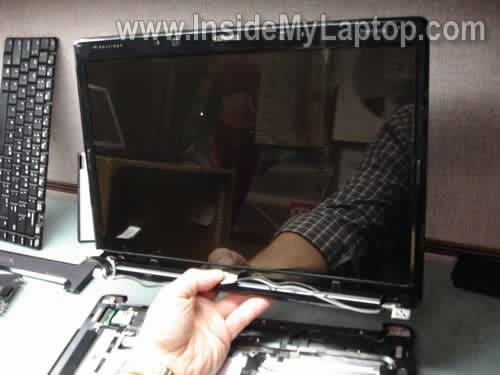
STEP 17.
Remove four screws securing the top cover assembly.
Disconnect the touch pad cable from the motherboard.
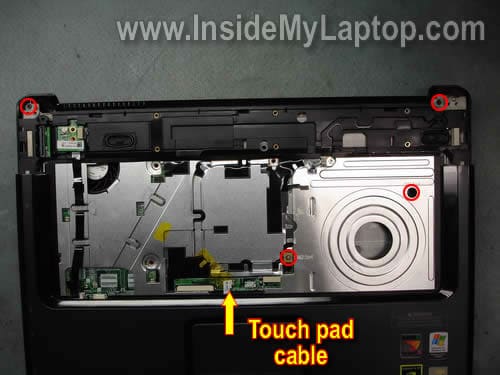
STEP 18.
Start separating the top cover assembly from the laptop base.
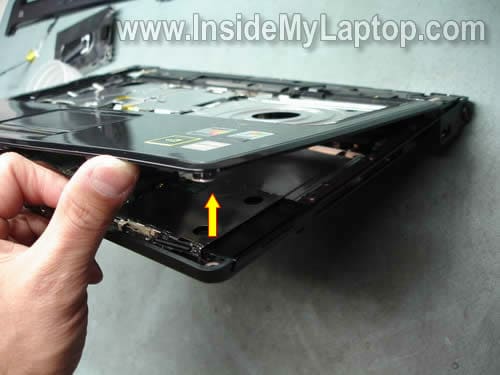
Continue removing the top cover assembly.
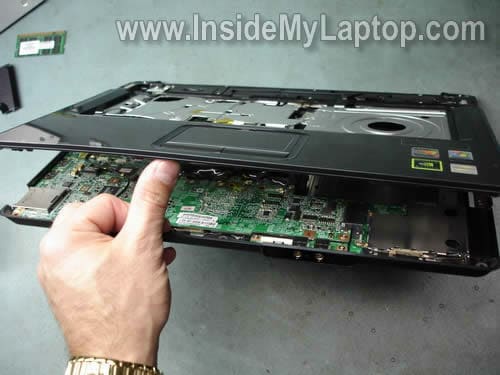
As a case cracker I’m using a guitar pick.
Insert the guitar pick between the top cover assembly and base and move slowing along the side. This will help to release hidden latches.
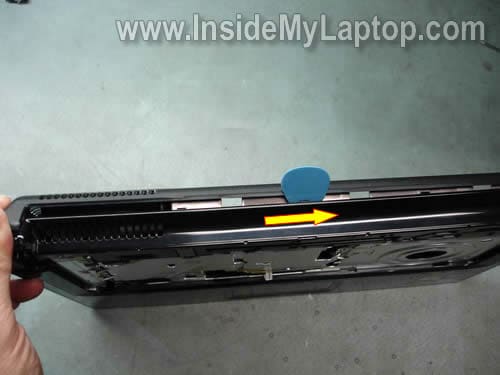
STEP 19.
The top cover assembly removed.
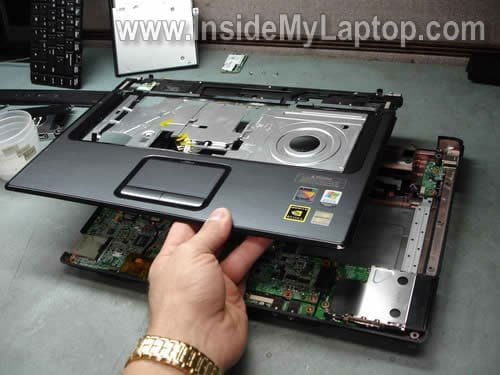
STEP 20.
Remove six screws securing the motherboard assembly.
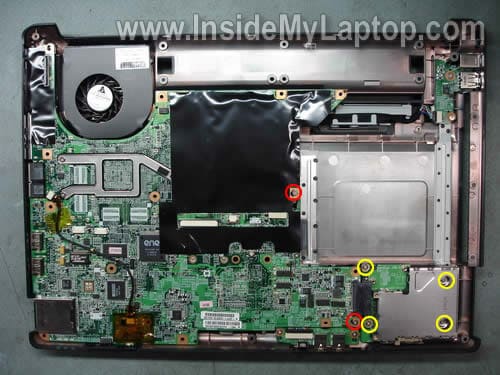
STEP 21.
Lift up the right side of the motherboard and disconnect the PC card slot.
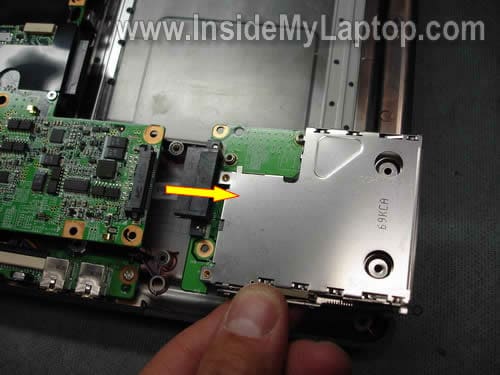
STEP 22.
Remove the motherboard from the base. Do not forget to disconnect the audio board cable on the front.
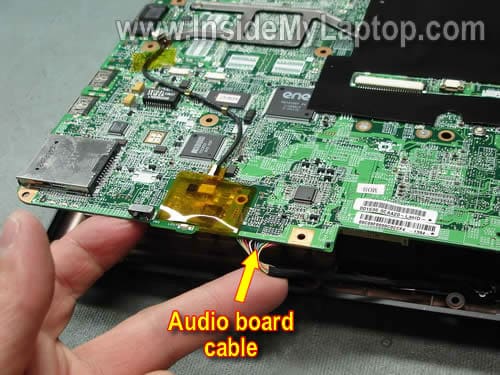
STEP 23.
Turn the motherboard upside down and disconnect two more cables underneath.
Those are the power cable and USB cable.
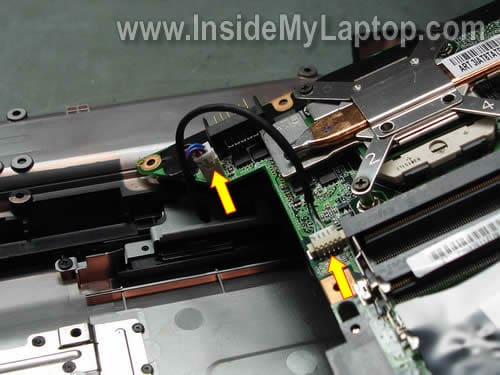
STEP 24.
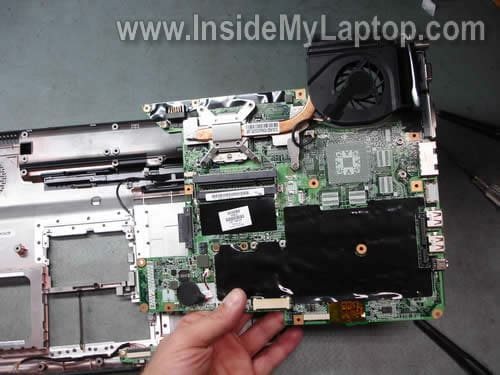
Remove the motherboard from the base completely.
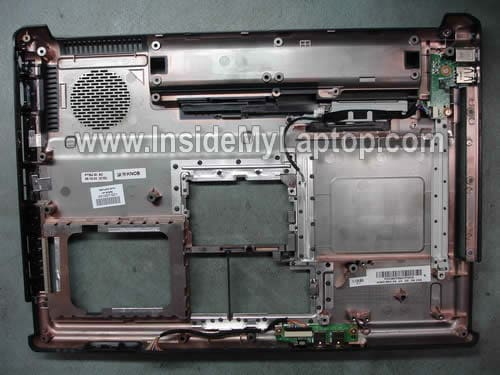
The base without the motherboard installed.
STEP 25.
Loosen five screws securing the heat sink assembly.
Disconnect the cooling fan cable from the motherboard.
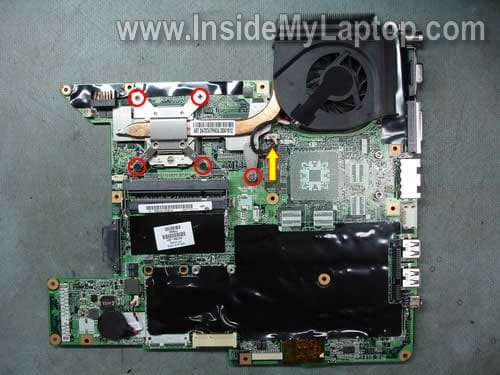
STEP 26.
Lift up the cooling module assembly.
Now you can access the processor (CPU).

abi amata
Your work is superb.
omp
great work! helped a lot with my V6310
fitrijohari
thkz for the link…to be specific my laptop model V3614 AU…roughly, the exterior look is quite similar..is the internal layout is same with v6000 version?
lets say i just want to clean the fan…am i must disassemble the lcd?
how to minimise electrostatic from the body besides using the strap?
tq…act i never disassemble this laptop…i hope everything will be fine…its quite expensive if send it to the laptop service shop just for cleaning the fan…
Tracey
My screen on my hp dv6-1259dx is broken (hit with a pillow, and has funny lines all over it) How do I change the sceen on my own. I cannot find any screws for the top where the screen is, like all the sites say to find? PLEASE help !!!!!!
IML Tech
Tracey,
There should be eight screw covers on the front bezel. You’ll find screws hidden under those covers.
As an example, take a look at this LCD screen replacement guide for HP Pavilion dv2000 notebook.
Also, you’ll find LCD screen removal instructions in the official service manual for HP Pavilion dv6 Entertainment PC.
The instructions are shown in the recycling section, on the page 156. It’s not necessary to separate the display panel from the laptop base in order to replace the broken screen.
Simply remove the screen bezel, remove the cracked screen and replace it with a new screen.
Anjum
Thanks man very nice.!!!!
AJM
I have a DV6426 that is dead it wont POST, no lights, etc. The power brick is good 18v and the blue light at the plug on the laptop glows when plugged in.
Do the motherboards have some type of fuse on them to prevent spikes, etc. or do you have any other ideas as to what might be causing the problem?
Thanks
IML Tech
AJM,
Probably this is a known motherboard failure. Maybe your laptop is good for a free repair from HP.
Bead
Thanks so much for your instructions. It gave me the confidence to work on grandsons laptop. I’ve replaced the motherboard and so far everything is working just great.
mexictech
Thanks so much for your instructions, this issue help me to disassemble Compaq Presario v3000 laptop, im fron mexico
vahid
WOW ! it works ! I tried it as my last chance , thanks a lot .
Anon
Thanks for the guide. Mine went dead a few days ago, so I used a heatgun and repaired it in a way similar to fixing Xbox 360 GPUs. Works fine now, but the laptop’s design sucks. It seems to be made in such a way that the motherboard warps over time from the heat, breaking the solder points on the chips.
Cameron
Thanks so much for the mobo replacement guide. My wireless stoped working a few weeks before my laptop quit working and would only keep turning off and on every 20sec or so. I’m gonna replace the mobo now, hopefully this will also fix the wireless issue? You should ad paypal to the form of donations, I woulda donated something. Take care!!
Angell
My laptop is a compaq presario v6000 with windows vista. When I first turn it on, it is asking me for a password….The problem I am having is….I downloaded the software and when it rebooted it asked for the password right in the beginning, I thought for sure it was asking for the administrator password which I have, but it still will not work. I tried to reboot use the reboot disc and it’s not recognizing the disc at all. I asked a friend at work and he said to hold down the Ctrl + Alt + Esc and that didn’t work. Then he said Ctrl + Alt + F4 and that didn’t work. Is there a way to over ride this without taking it to a repair shop? I went and they want 50.00. just to get into the setup portion F10 so that it can be changed…Please Help
IML Tech
Angell,
Is it asking for the BIOS password? If yes, than $50 to clear it sounds like a good deal.
I don’t know how to clear the BIOS password on a HP laptop.
CPrivitera
thank you so much for your posting these directions….I have this laptop and I’ve followed your directions to get it apart…. but…it seems to be welded to the touch pad? it is literally pulling the space bars on the touch pad in when i try to take the cover off…. Any suggestions?
Tilda
I’m having overheating problems and think the vid card is about to go too. Do I need to take the whole thing apart to get at the fan?
Thanks for sharing your knoweldge btw!
Taras
CPrivitera : i thought the same thing at first and then realised theres two screws holding it down. Look on the board next to the small battery, near the wireless card slot, there are two hexagon screws that are attached to the touch pad
Taras
Hi,
i replaced the system board in my laptop because the graphics went. I’ve put it back together but the power button doesn’t work, i’m having to turn it on via the ‘HP Quick Launch Buttons’. Anybody any idea why my power button will not work, the two plugs are attached properly and the ribbon is plugged in properly…any suggestions. Also the light on the front keeps flashing at me when i have the battery plugged in, even when its turned off it flashes at me. (its not the harddrive light or the on light) Can anybody help. i’d like to stop the flashing and get my speakers working again.
kenny
i am kinda confused, not by your guide, which is great by the way, but by the fact that after i had taken the laptop apart and replaced the motherboard and put it back together the power switch board cable was missing. i don’t know if i am just dumb and miss placed it or if some little gremlin came and stole it, but my question is where the other end of the power switch board cable is suppose to plug into into?
kenny
i don’t know if i was was clear enough on what i meant, but i am talking about the cable from step 14 and 15.
Pepi
I am replacing my motherboard on my V6310US because of intermittent WLAN working. When I removed the Fan/Heatsink, some of the silver tore and some stuck to the CPU and some to the Fan/Heatsink.
Do I need to remove all of the silver tape and replace it, or just put some heatsink compound on and not worry about it.
Also, what about the two pads,
Basically where all should I put heatsink compound?
Thanks,
Good advice on the disassenmbly!!
IML Tech
Pepi,
You can remove silver tape from the heat sink and CPU and replace it with thermal compound.
Clean CPU and heat sink with paper towel soaked in 99% alcohol before applying thermal compound.
Do not remove thermal pads. You can reuse them.
Pepi
“Do not remove thermal pads. You can reuse them.”
Should I put heatsink compound on both sides of thermal pads, or just use strictly the thermal pads?
IML Tech
Pepi,
When you use thermal pads you don’t need to apply thermal compound on them.
Just install thermal pads back in place as before.
remon
Hello,
I have a compaq presario v6000 and a problem with it! When i push the powerbutton all led lights burn but the computer doesn’t start up. Do you know anathing about this problem.
rehan
Awesome, today i just replaced a keyboard for my customer by following ur steps and it saved me money which i used to giv to other engg for just replacing keybord, thnx a lottt
salman
my laptops keyboard’s o,9,l,and . is not working please help me
IML Tech
salman,
If all other keys work fine and only 9,O,L fail, most likely this is bad keyboard.
You’ll have to replace the keyboard.
sree
I’m unable to connect lan cable to my presario v6000 laptop ,as soon i connect the “Network manage” section shows the cable plugged then unplugged .
What should i do to connect lan cable if lan card has failed?
Is there a pcmia slot in presario v6000 model?
Teslo
Hi! After I disassembled my Presario V6000, and assemble it back, my Fan won’t start at all. I mean, I only did the 19 steps (I did not take the motherboard out). I cleaned the fan with a brush, and assemble it back. Any suggestion would really be appreciated!
Thanks in advance!
Manuel
Hi, i have a problem, my compaq´s screen broked power cable and i need know how i can open it, somebody know how i can open it?
thanks
Mike
Is there an easy way to resolder the power input connector to the main pcb,
Other than a complete disassembley and removal of the main pcb?
I suspect I have a broken solder connection at the connector.
I have intermittent charge and it is not the connector on the cord.
Mike
IML Tech
Mike,
You still have to go from step 1 to step 19 and remove the top cover assembly.
After that you can try removing the power jack board without removing the main board.
Instead or replacing just the DC jack, you can replace the entire DC jack board. It’s way easier to replace the whole board.
Che
Hi
Great info thanks! if you dont mind answering a question but Im lookig to mod my v6000 cover it has a compaq Q but I would like to replace it with a Q that was illuminated like apple how would I go about doing that? thanks
Brian
Excellent guide! 🙂
David
Do all the power board switch’s have three cables connected to them? I took my laptop apart and could only find to cables plugged into it and no spare third cable to be found. Needless to say I’m wondering if this is my problem. Any help would be great, O yeah the problem. When I go to hit the power button the lights on the strip come on for one quick second and a whole lotta nothing happens. The screen doesn’t try to turn on either. Have a good night and thanks!
Jill
question: where is the second memory slot located?
Steve
I am having trouble with the cd/dvd drive in my HP DV6000. Sometimes it is recognized and listed in My Computer and Device Manager and other times it is not. I have tried several “fixes” and repairs, but it is still intermittant. While it is recognized it works fine. When it is not recognized it still acts like it is reading the drive. Troubleshooting I’ve read says anything from replace the drive to software fixes to remove the battery for a time, to cracked solder joints to a bad motherboard controller. I don’t want to spend any money until I get a good idea of what it might be. Any help would be appreciated.
IML Tech
Steve,
First, I would try reconnecting the drive. Maybe it’s bad connection between the DVD drive and motherboard.
Remove the drive and plug it back in. Test after that.
Mark
My Presario is really overheating. The left of the screens’ hinge gets very hot.
IML Tech
Mark,
Isn’t it where the cooling fan and heat sink located?
Try cleaning the heat sink and most likely it will fix the problem. You can blow off the heat sink with canned air.
Steve
Mr. IML Tech,
I tried reconnecting the drive. I even swapped it out with a different drive. Same problem. I’m thinking the motherboard controller is bad. Maybe a cold or cracked solder joint. I’ve read that one can “reflow” solder by heating the MB to 325 degrees in an oven. I don’t want to risk destroying the motherboard. can you suggest other ideas? I am fairly tech savvy. Not afraid to dig into the guts of my laptop. I think I can R and R the MB no problem. How do I determine what the part number is for my MB. I have an AMD dual processor.
IML Tech
Steve,
If you tried replacing the drive and it didn’t help, most likely this is motherboard related problem.
Use an external USB optical drive maybe? 🙂
There should be a sticker under the memory module. Remove both memory modules and look at the sticker. The HP part number looks like that: XXXXXX-001.
vivi
hi
thanks for a great guide. i’ve disassembled my laptop thanks to this. I’m looking for a cause of no sound and no sound card being detected in the system. i’ve managed the OS to detect it on some very rare occasions but I couldn’t find the cause in software part of a laptop. I’m looking now on the board for some physical damage or loose cable but with no luck.
do you have any ideas?
IML Tech
vivi,
Try reinstalling the audio driver.
If it doesn’t help, back up your data and reinstall OS.
If the sound card still not detected, even after reinstalling the OS, most likely you have a problem with the motherboard. The sound card integrated into the motherboard.
Chris Hunter
Hi, IML Tech! Thanks for this GREAT resource!
I have this exact laptop model (Compaq Presario V6000) and I’m having some issues with overheating – even to the point of the laptop shutting down on its own, and I have it sitting on a laptop cooler.
I primarily have these issues when I do a lot of video stuff – watch videos, especially YouTube videos, or when I want to convert videos with my video program.
It gets the hottest in the upper left hand corner of my laptop, right underneath the power button.
Do you have any ideas or tips about how to resolve this? I was thinking that I could change the HDD to an SSD to help with some of the heat issues, but in your reply to Mark below (or above – LOL!), it seems that it may not be the HDD.
Love to hear from you about this. Hope I can get this resolved soon.
Thanks a lot!
Chris
IML Tech
Chris Hunter,
Most likely your laptop overheats because the heatsink is full of dust and it kills normal airflow inside the heatsink.
Buy a can of compressed air and blow off the heatsink. Try doing that without laptop disassembly.
Chris Hunter
Thanks a lot, IML Tech! I’ll try that today and see how it works!
Chris
Jeff Z
Thanks for this guide. It was already a big help with the keyboard my enthusiastic 3 year old “enhanced”. Now my cooling fan is making awful noises and I can see how to replace it. The only question I have, I can find a fan with heat sink and a fan without the heat sink. I can’t tell from the online pictures if there is a way to just replace the fan, leaving the heat sink in place. Or if I have spring for the extra $15 to get the heat sink and fan together.
IML Tech
Jeff Z,
If they sell fan separately, there must be a way to replace just the fan.
vivi
IML Tech: the OS doesn’t see it, after reinstalation it was there for about 15 minutes and then disappeared after a reboot. I will try to install Ubuntu and see if it can detect my sound card.
But in the meantime I’ve got another problem. I’ve opened the laptop using this guide to look for some physical damage that may explain lack of sound (it’s not my laptop so I guessed anything could have happened to cause that), buuuut… I’ve found nothing. Even worse, now when I put it back together at first it turns on perfectly normal, but after a few minutes and reboot… nothing. Black screen and not even BIOS boots on. I know it worked because when I removed RAM it started to make loud beeps like it should.
So I left it for another day, and it’s the same – works at first, but doesn’t turn on after restart.
Any ideas why?
I have disassembled it again to check everything but it’s still the same.
IML Tech
vivi,
Maybe you forgot to connect the cooling fan? It’s possible the laptop overheats.
Could be bad connection between the video cable and motherboard. Check this connections.
You can disconnect the video cable from the motherboard and test your laptop with an external monitor. Does it work fine this way?
Sheraz Chowrdry
Hi
The keys for the touchpad on my v6000 aren’t working. Looking closer I can see that the blule cable/connector is disconnected and it is do damn short, I can’t see how I can reconnect it. Could you please help out here?
Regards
IML Tech
Sheraz Chowrdry,
How do you want me to help you? 🙂
If you know the cable is bad and disconnected, you’ll have to buy a new cable, replace it and connect properly.
balaji
It is an excellent. Thank you for sharing your knowledge and time.
V.Balaji
India
Amina
Dear Repair help
Please could you help me with my laptop.
It is a compaq pressario v6000. About 5-6yrs old.
I have had trouble with turning it on now for a week. It tries to do the system repair and fails. It wont get to the desktop screen at all. It will run a system check/repair and does this for 30mins and thats it.
I have tried to run system repair with the configurations but it fails.
I have taken the HDD out and put it back but still nothing.
Is there any other help or guidance please?
Regards
Amina
for any readers that can help.
thank you
england – london
IML Tech
Amina,
Most likely it’s either failing hard drive or corrupted Windows OS.
Enter the laptop BIOS setup menu. Can you see the hard drive test utility in the BIOS? Run the hard drive test.
If the hard drive pass test, most likely there is a problem with your Windows OS. In this case you’ll have to backup data and reinstall Windows OS from scratch.
Here’s how you can back up data: https://www.insidemylaptop.com/recover-files-from-broken-laptop/
By the way, if you don’t have hard rive test utility in the BIOS you can download and run SeaTools from Seagate. This utility works well with many different laptop hard drives.
Andrew J
I have a V6000 and it just stopped working today but over the last year I have lost the wireless and external video. I see the links to the class action suit against NVIDIA and I know I have a laptop from that time period.
Any chance I can fix this or am I done? (new motherboard?)
Hector Oswaldo Rodriguez
I have a Compaq V6000 series laptop, long time ago the wireless is not working, I’m using a USB external wireless right now, the issue here is I using a port and sometimes I need tu use the 3 my laptop has, did somebody know if the wireless card can be fix by runing a program or need to be replace?.
IML Tech
Hector,
It’s hard to tell if this hardware or software issue.
You can try reinstalling Windows and see if the wireless card comes back. If not, this is hardware failure.
By the way, instead of using USB wireless card, you can buy an ExpressCard/54 wireless card. Your laptop has one ExpressCard/54 slot, right?
James
Hi … great guide.
My Pressario V6500 switches on (lights come on for just a second or two) then immediatley switches itself goes off again.
Would like to fix my laptop … Any suggestions where the problem lies?
IML Tech
James,
First of all, I would test the AC adapter. It’s possible the adapter is dead and the battery doesn’t have enough charge to start the laptop.
If it’s not bad adapter, probably you have a problem with the motherboard. Possible graphics card failure, it’s a known issue with dv6000 series laptops.
Patrick
Hey, I really appreciated you taking the time to post these pics. I’ve been using the tech manual I first used to replace my keyboard. I figured it was time to blow out the heat sink because the laptop’s been running noticeably warmer considering the fan seems to come on more often without the processor being used as much in the background.
The top cover seems to be stuck around the front center area. Could this have been done at the factory to prevent normal users from getting to their laptop?
IML Tech
@ Patric,
Sounds like you didn’t remove all screws.
Maybe you missed two HEX studs by the memory slots?
Patrick
That was EXACTLY it. Thank you very much. The tech manual never mentioned those. Awesome guide, btw.
Will
I don’t know if it’s just mine, but does your V6K run a little hot even with regular use. It gets a too toasty for my liking. I took it in a while back when the Wireless went out and they said that the motherboard was burnt up practically. Also i was wondering if there was a upgraded heat sink that they sell after market to push more air under it. I’ve got it on a pair of 60mm fans that’s plugged into a power strip but it’s still pretty warm.
Christina
how do u find a cmos battery for the compaq presario v6000?
Gem
I have a problem with my V6000, since cleaning the fan following the disassembly method, the battery is undetected in the laptop. I also have a problem with the laptop spontaneously losing power and because the battery is undetected it violently turns off without prior warning. This has happened anything from a few seconds after turn on to up to 30 mins after using the laptop. Any suggestions as to how to go about fixing this?
Pete
Just a small tip I have been using for a while now: I run a small Massey fan right on the CPU heat sink, angled all the way down and have since noticed a significant decrease in heat buildup. That ought to help alleviate heat issues some of you have mentioned.
Jared Hamilton
Great website & very helpful. Disassembled my v6k & reassembled with little issues but I do have one problem now. The computer is not reading the memory card reader. Any suggestions on how to fix it would be greatly appreciated. Thanks
Jack
Hi. I have a presario V6000, and was confused when I started uo my compter a week ago. My computer was working fine, for all of it’s life, until then, when it came uo with a white screen, completely blank, apart from a row if streaks of red at the bottom of the screen. I know it isn’t the screen, because there are no sounds coming from the interior of the computer. Any thoughts as to what this may be, and if it is something I can save?
Rayner Diaz
Hello,
Your website is very helpful, I would like to know if I can buy a keyboard for my PRESARIO V6000? has to be brand new! and if you do have one please let me know how much and if have to be cash or if i can buy it with credit card thank you.
Relic
Excellent guide, I had a few extra screws to remove, but no biggie, I couldn’t get any info from HP/Compaq.
My problem is the power jack, this one is shot, the laptop was given to me after the original owner went through 3 adapters. All he wanted was his tunes and pics off the HDD, I pulled the HDD and burned them for him, he told me the laptop was mine.
Local repair shop said it was the jack. My question to you… can I replace it with a 90W jack, which I’m assuming is a bit “beefier”, seems to have the same 1.65mm pin. I know the adapter supplies the 65W, not the jack, just wondering if swapping it out to a 90W jack will make a difference, or if it’s even possible?
Here’s a brief history…
He bought the laptop used, worked for 3 months, battery stop charging, he bought a new adapter, wouldn’t even boot if plugged in.
Adapter lasts 3 months, same issue, buys another adapter, figures the kids are jerking the cord.
Adapter lasts 3 weeks, in the end he has to hold the adapter plug at an angle to make it work, it dies.
Buys his last adaptor, nothing happens, no power at all, he gives the laptop to me.
Once again, thanks for the tutorial, figured while I was in there I may as well pull the HSF and get some AS-5 on the CPU, Intel goop has never impressed me.
Bob
I have a Compaq Presario V6000 that I received a CMOS CheckSum error on boot up. After reformting the system, I don’t get that message anymore. But, it still randomly shuts off. Sometimes it won’t even boot. The front lights will just flash but nothing will fire up.
I want to experiment with this machine and try to fix it. Should I try a new CMOS battery? Or do you think I have multiple issues?
IML Tech
@ Bob,
I think it’s more than just bad CMOS battery.
Normally a laptop will start even if the CMOS battery is removed. I’m not sure if this is true with older laptops like Presario V6000.
Reformatting the system has nothing to do with CMOS error (which occurs before Windows starts loading).
Is it possible the discharged CMOS battery is part of the problem? Yes. Try replacing it.
Also, you can try reflashing the BIOS.
Bob
@IML Tech,
Ok, I’ll for sure try that. I did re flash the bios after I reformatted the machine. I also noticed that the system time was all out of whack. It was even throwing weird errors in Windows and AVG. I’ll try replacing the batter for fun and if that doesn’t fix it, I may just retire the machine.
Thanks for your help man!
ben
Hi, i have v6425tu laptop, i recently installed windows 7, i found that the hdd is always in a temp range of 50-60 celsius, is this normal?
I was planning on inceasing the ram from 512mb to 2gb, will this reduce hdd temp in addition to improving performance?
Also what is the black plastic sheet stuck onto that hdd metal casing? and what is the use of the plastic sheet placed between the hdd and metal casing?
Will removing these plastic sheets help reduce hdd temp?
…..please do reply…….
(maddeningly curious)
IML Tech
@ ben,
Sounds like it’s high. I just tested two dell laptop and both had hard drive temperature around 38 Celsius.
Maybe you should try cleaning up the cooling module (heatsink and fan)? This might help.
Are you running Windows 7 with 512MB RAM. 🙂
Actually, it might help I think. With 512MB RAM your laptop using swap file which is located on the hard drive all the time and probably it’s increasing the temperature.
You’ll definitely improve the laptop performance.
It’s done for the hard drive and motherboard protection.
J.T.
These instructions worked great for me… I was able to add copper shim over the northbridge, change CPU cooling fan, and even changed out busted hinges. Thanks for posting these!
Daniel Church
This is exactly the same as my F500, actual number F503AU. The graphics card has cooked twice now and is real expensive to replace. I have been heating it with a heat gun to re flow the graphics card.
Joe
Perfect! Thank you very much for this guideline! Without it its nearly impossible to open this thing!
Let me however post a little problem in your description which either could be a mistake or because I opened the Presario V6500.
In Step 17 there is one screw in the middle to be taken out. Its probably the same screw which you refer to in Step 20. It is already taken out at that point.
I hope my feedback could help – thank you!
Rick
step 17… you forgot a screw… suggesting the guitar pick at the beginning 18 would be helpful, rather than after it… If you email me, I can point out the screw you’re missing in step 17.There’s a couple more on 20 as well… Step 25 says “loosen four screws”, the photo correctly shows five screws.
IML Tech
Hi Rick,
Not sure about the step 17. I checked the service manual and it shows 4 screws.
Fixed step 25.
Thanks.
trukker1998
I finaly fixed my led board!, now need i to fix my keyboard :D.
Rick
Suggesting the guitar pick is a great idea! I think suggesting it at the beginning 18 rather than after it would be a lot more helpful for a lot of people… Great work…
Btw, here’s the screw…
http://i45.tinypic.com/11bhf6h.jpg
Massi
Hi @IML Tech,
Thanks a lot for the tips, it’s very helpful 🙂
I have a Compac Presario V6000 which is old and overheating. I decided to disassemble it following your steps in order to get to the fan and clean it.
After reassembling the laptop, it doesn’t turn on anymore.
It seems that I messed up something and the power is not supplied to the motherboard. I verified many times that everything is correctly connected but the problem still remains.
What do you suggest me?
IML Tech
@ Massi,
Maybe you forgot to connect the power cable to the motherboard. This cable shown in the step 23.
richard
very well put together site it really helped i would have been lost without your help thank you
Mark
Can’t thank you enough for your GREAT instructions! I was able to disassemble and fix my daughter’s laptop. It was overheating, and all I did to fix it was totally disassemble and clean it, but also repair (JB Weld) the broken “display hinge mounting” bosses … and now it runs at normal temperatures. THANKS AGAIN!
Steve
Thanks really like the color identification of the screws for each step Merry Christmas
Sven
After reassembling my Compaq Presario V6000, the laptop doesn’t recognize the adapter cable anymore. I haven’t gone past step 10, so I really haven’t done anything with/near the adapter input..i think.
The adapter cable is brand new, so I very much doubt that could be the issue here.
Any thoughts on what I might have done/how to fix it?
Thx.
IML Tech
@ Sven,
The power board connected to the motherboard via a cable shown on the step 23. I assume you didn’t unplug this cable, right?
Just in case I would check voltage on the AC adapter. Maybe it failed (just a coincidence).
Peter Potter
My compaq presario v6000 has died on me, when switched on the monitor remains as if switched off, I have connected an external monitor but still no joy. Can it be saved or is it a trip to the rubbish dump?
IML Tech
@ Peter Potter,
I assume the AC adapter works. If not, maybe the laptop just doesn’t have power.
Try removing memory modules one by one. This could be just failed memory.
Also, this very well could be failed graphics chip. A known issue with this model.
Readingmo
Thank you for the directions and photos. It was very helpful
Jim
In step 23, which is the usb cable and which is the power cable? I think I damaged the one on the right. Is the one on the left for power and can I just connect that one and not the one on the right?
IML Tech
@ Jim,
The upper arrow points to the power cable.
WY
I wish i was of the age of 18 so that i could buy you a cup of beer(donation)…thank you so much, i have been looking for this for ages!!
Dg
I have left one screw! 🙂
VW
Hi!
I have a Compac Presario V6000 which is old and overheating. I decided to disassemble it following your steps in order to get to the fan and clean it. Overheating was strange after wile! Fan was working like crazy but air was cold! And finally laptop turns off when i start using internet or some programs!
I clean! To clean fan I remove fan completely!
Now is have problem! When turning on fan working ok and then faster and faster but air coming cold. Looks like ok, loading windows and then After some 30-50 sec , maybe 1min laptop turns off and blue screen come up with bla bla bla,, “a problem has been detected and windows has been shut down to prevent damage to your computer” “Unmoutable boot volume!” “If problems continue, disable or remove any newly installed hardware or software.” “disable BIOS memory options such as caching or shadowing.”
There is more, but looks like nothing important.
Then laptop after turning off starts again, then blue screen with message and off, then again starts him self on and again the same!
Do I have to replace thermal pads and paste? can that helps?
Thanks!
Please help!
David R
I got a top cover assembly on Ebay and I just need to replace it, because my speakers and touchpad isn’t working properly. Do I have to remove the CD, HD, memory cards etc in order to do this?
IML Tech
@ David R,
You can leave memory modules connected but you’ll have to remove the hard drive and DVD drive. There are some screws located under them.
Lee
My laptop look like it works. The blue lights come on around the keyboad..but the LED screen is pitch black..
Colin
What the Compaq/HP manual dont tell you is about the clips on the Zero insertion force connectors. Many thanks
Kikito
Just wondering, is there any screw below of the touchpad?
I cannot remove the top case from the laptop base because there is something[below touchpad] which isn’t allowing to.
Do you know what’s it?
Bilawal
te touch led panel of my laptop is not working . the light is on but it is not responding. kindly help
sachin
Plz where i can get all these flexy cables online?? Plz let me kno..
IML Tech
@ sachin,
Try ebay.
Pjotr
I have a V6000 on which the touch-pad part on the power switch cover did not function OK. Even the least inivisible stain made it to lock at all sorts of moments, mostly when you don’t want that…:-)
Thanks to this thorough explanation I found out that it could effectively be disconnected without affecting the power button. In my case the computer, when turned off, would not only start by pressing the power button but also touching this pad, no matter what I touched… Even an alcohol wetted cotton swab was enough to activate. The power button did not call the routine to turn off or restart the computer (with Ubuntu linux) but since disconnecting this pad it works as advertised. I conclude that this touchpad and it’s associated firmware does not function properly. Volume control is done now by software only and I assigned other (function) keys to control it (Fn-Up/Fn-Down)
Arjun
Thank you very much sir… your explaining method is very good then my computer class teacher…always i`m failed computer test and practical class…when i found your easy method in net through my friend just i tried your steps and i got 90% marks ….thank you sir…i would like to become computer expert with your guidance…and also want to become great troubleshooter ….thank you sir once again……please send me some tips which help in future ….
IML Tech
@ Arjun,
You are welcome! I’m glad to help.
By the way, if you search for “Laptop Repair 101” on google you’ll find my tutorials for troubleshooting laptop problems.
This might be helpful to you.
Zastinc
it’s really a nice guidence for removing each things inside laptop very safely.Thank
Matt
Great guide. I had what I thought was a dead machine – display would never come on. I stripped it down, de-dusted it and then reassembled it and now it works. Probably something needed re-seating (at least the display connector) but only this guide made it possible. Many, many, many thanks.
Madhav
Great guide. I had what I thought was a dead machine – display would never come on. I stripped it down, de-dusted it and then reassembled it and now it works. Probably something needed re-seating (at least the display connector) but only this guide made it possible. Many, many, many thanks.
Dr Strangelove
Step one: two of the three (yellow) screws are longer than the all the other bottom screws. the two corner power strip screws should ONLY go back into those holes. the rest of the black screws are the same length.
Step 17: the bottom screw with the red circle is a motherboard screw, the top plate screw is above and to the right of this screw. but ya gotta take it out eventually, so what the heck.
AWESOME WORK! i had the biggest problem with the keyboard cable – that connector is weird. turned out i had no power and had to reseat (or maybe just seat, huh?) the power cable. WHEW!
Now i have a V6101 with a Turion 64 x2 TL-60. Yeah Baby! Dr Strangelovewhere/how can i send a paypal to my new BFF?
Peace out!
elky
..
pics for the above V6000 are gone.
are they ever gonna return?
IML Tech
@ elky,
Try now. Don’t forget to refresh the page.
elky
… pics are back. thanks soo much.
gonna save to hard drive this time!
paypal has a gift.
colin the stupid
Hello Author,
Very very good guide, thanks… Today I followed your steps and they were amazing. My fan had stopped working altogether. It didnt fix it, but I am wiser
I have a V6000, my fan is slightly different in that it sits on a tripod placement, not 4 screws but three. Ive used the vacuum cleaner to vacuum out the fan.. as Ive done lots of times with no probs, literally for 8 years. Now the laptop starts only if its cold, and runns for a v short time till it freezes and then I have to force shut down. If I start again straight away, I get a black screen and 3-2-3-2 beeps pattern but no start, and no fan noise. only an external fan has helped matters, for about half an hour.. The question.. as the machine is 8 years old, should I just walkaway?? Its been problem free to now,.. even though on XP.. thanks.. hope you can reply
IML Tech
@ colin,
It’s possible your laptop has a different issue, something like a well know GPU failure very common for this model.
This machine wasn’t one of the best even 8 years ago. 🙂 I would just move on and buy a new one.
Sandip
Hi
i have compaq presario v6000 LAPTOP for long time. Now problem is its battery is gone its not chargin. battery was dead for about 6 month so then i use direct plugin charger for power supply.
but now problem is when i start laptop with direct power supply from charger after few min (about 20 min ) later laptop is turn off automatically and after few hours when i try to turn on it strat again but 20 min and turn off .
what is problem here problem in charger or in mortherborad?
Sam
This post is quite detailed,but i don’t know how to remove the two hex studs in step11,can you tell me what tools do i have to remove them?Thanks!