


In this guide I’ll be taking apart an Acer Aspire 3620 laptop.
This particular computer
was shutting down by itself while running some intensive applications. I found that the cooling module (heat sink and fan) is completely clogged with dust and needs a good cleaning. Unfortunately, in this model the cooling module is buried deep inside the laptop case and it’s necessary to take the whole thing apart in order to access it.
Step1.
First of all turn off the computer, unplug the power adapter and remove the battery.
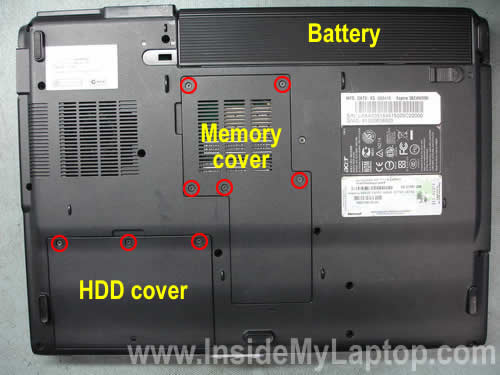
Remove the hard drive and memory covers from the bottom.
Step 2.
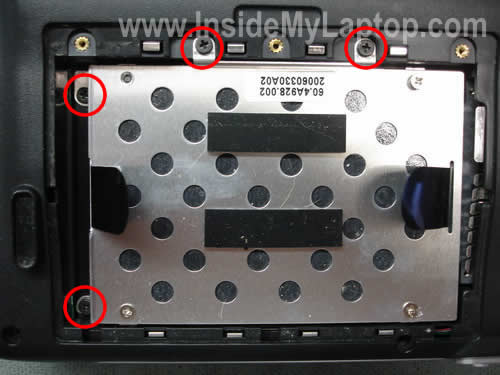
Remove four screws securing the hard drive assembly. After that slide it to the left and disconnect it from the motherboard. Now you can remove the hard drive assembly .
If you are replacing the HDD, you’ll have to transfer the mounting bracket to the new one.
Step 3.
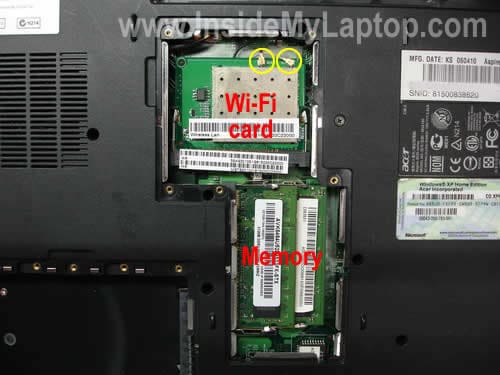
Remove both memory modules.
Disconnect two antenna wires from the wireless card (two yellow circles) and remove the wireless card.
Step 4.
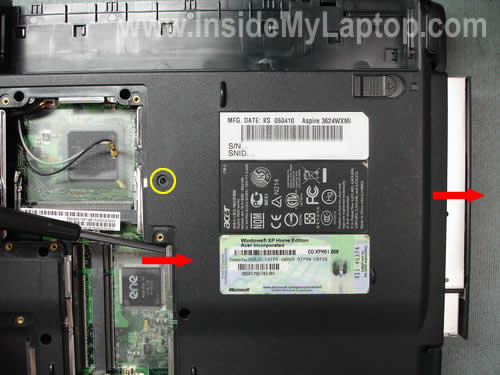
Remove one screw securing the CD/DVD drive. Push the drive from the laptop with a screwdriver.
Pull the drive out and remove it.
Step 5.
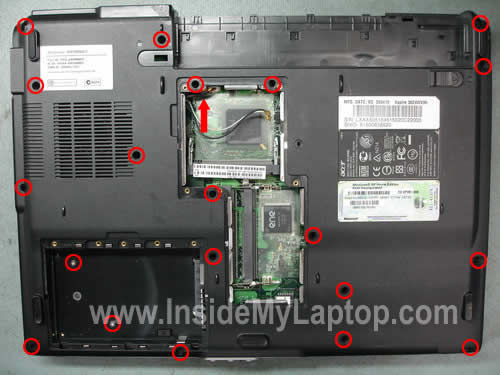
Remove all screws from the bottom.
Disconnect the cooling fan cable from the motherboard.
Step 6.
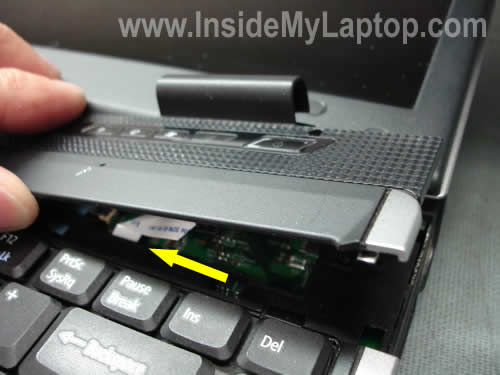
Start removing the keyboard bezel as it shown on the picture below. Be careful, the bezel has a circuit board which is connected to the motherboard.
Step 7.
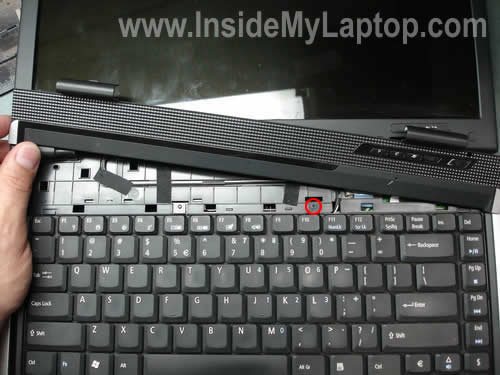
Place the bezel so you can access one screw securing the keyboard and remove it.
Step 8.
Lift up the keyboard and place it upside down on the palm rest.
Before you can remove it completely, you have to disconnect the cable.

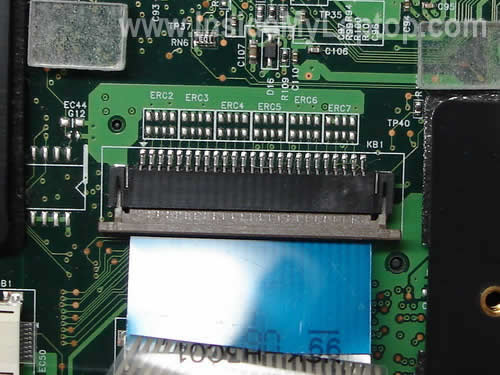
On the picture below you see the keyboard cable connected to the motherboard.
In order to unlock the connector, move the brown retainer about 2-3 millimeters towards the palm rest.
Do not disconnect the retainer from the connector, it must stay attached to the base.

On the next picture you can see the same connector in the unlocked state. Now you can pull the cable and remove the keyboard.
By the way, if you are only removing or replacing the keyboard, you can follow steps 6-8. You don’t have to remove anything from the bottom.
Step 9.
Disconnect the cable connecting the bezel to the motherboard and remove it.
This cable belongs to the power button board which is attached to the bottom part of the bezel.
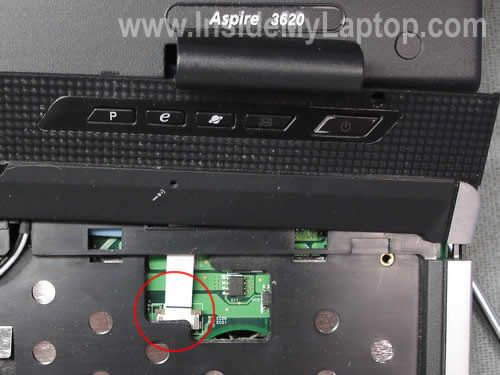
Step 10.
Pull the wireless antenna cables through the opening in the top cover.
Disconnect the video cable from the motherboard. Remove two screws securing the display panel.
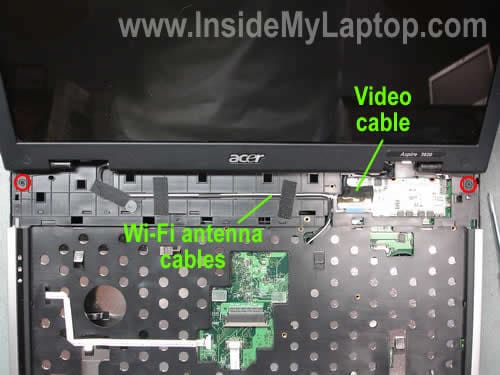
Step 11.
Now you can remove the display panel assembly.
In the next post I will explain how to remove the screen.
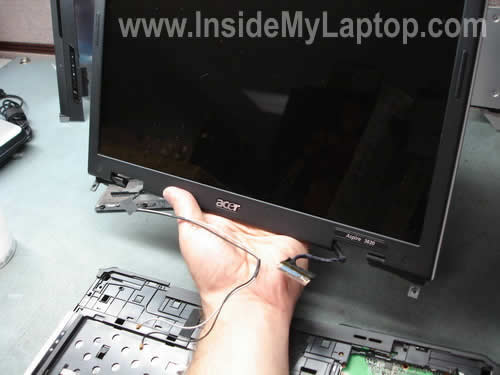
Step 12.
Disconnect two white cables from the motherboard same way you disconnected the keyboard cable.
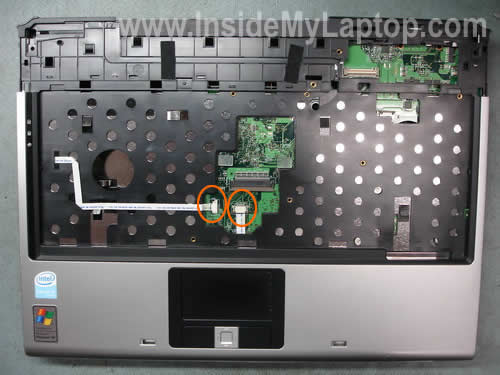
Step 13.
Start separating the top cover assembly from the bottom cover.
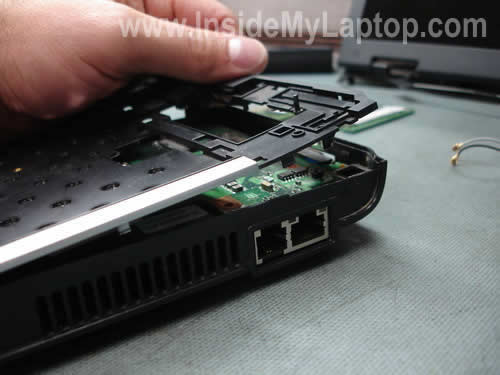
Remove the top cover assembly.
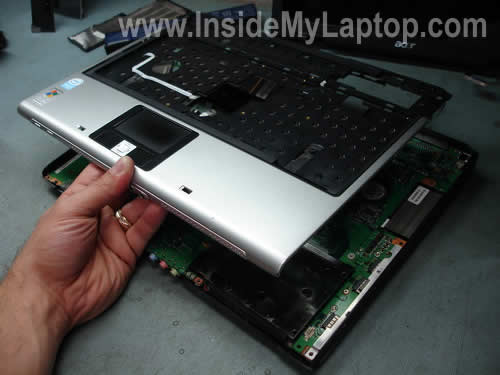
Step 14.
Remove five screws securing the laptop motherboard.
Disconnect the speaker cable.

Step 15.
Start removing the motherboard from the left side as it shown on the picture below.
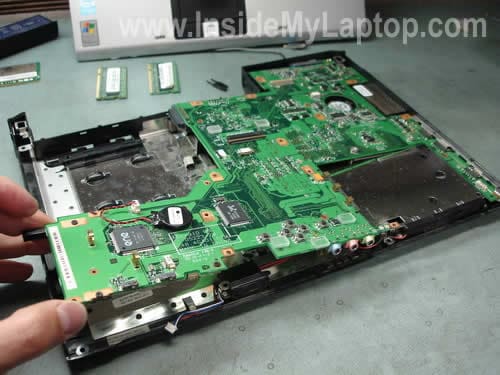
It has been removed.
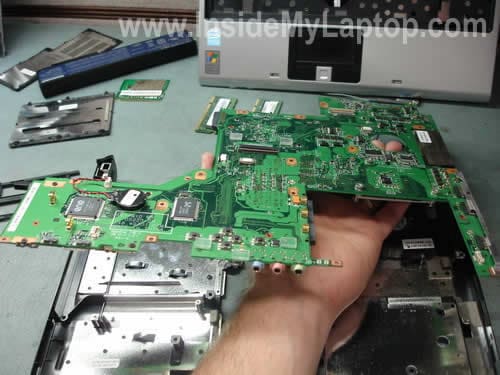
On the next picture you see the bottom part of the motherboard.
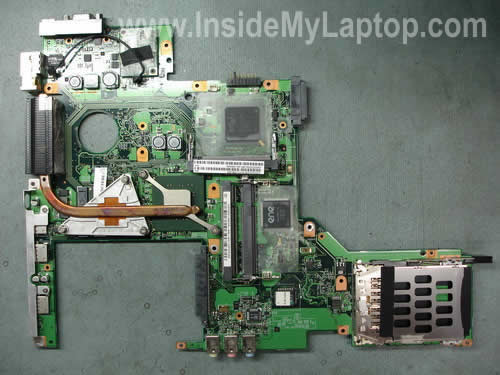
The cooling fan is attached to the base assembly and can be easily removed and replaced now.
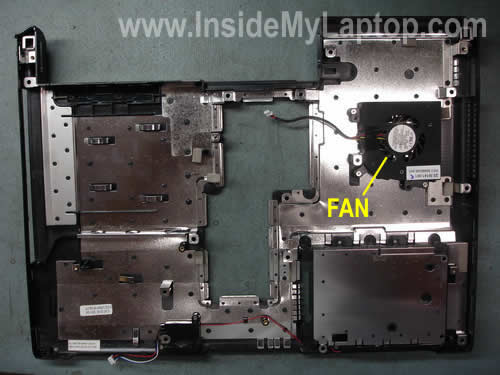
Step 16.
Now I’m going to remove the heat sink.
Remove five screws securing the heat sink and carefully lift it up.
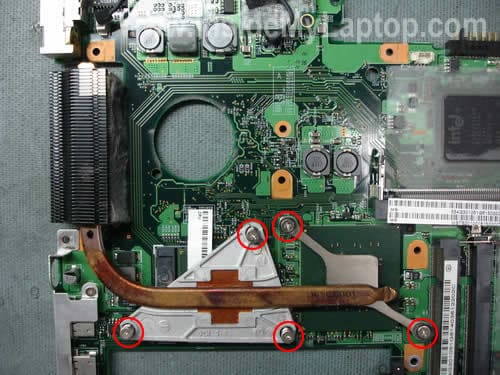
As you see, the heat sink is completely clogged with dust. I’m going to use compressed air to clean it.
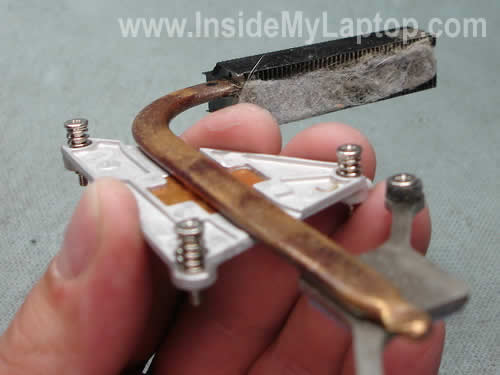
If thermal grease on the top of processor looks dry, you’ll have to replace it with new grease. Otherwise, you can reuse old grease, just spread it evenly on the top of the processor and install the heat sink back in place.
Nick
Thank you so much for this guide.
Nick
Today, I cleaned my cooling module step by step as you described. It took me 1 and half hours, but my laptop finally work great!!!
Thanks again.
MonroeGal
Thank you for the great guide.
However, I’m still having a problem with the LCD on my Gateway MX6437. My cat peed on the bottom of the screen, and the screen went dark. The screen still works if you shine a bright light on it, so the light source behind the screen seems to have stopped working. I first replaced the inverter for the LCD, which didn’t help, and then I replaced the screen with its built-in backlight, which didn’t help either.
What could the problem be and how do I fix it ?
Thank you.
— MonroeGal
Joscelyne
I was wondering if you do have to replace the cooling fan or can you just clean it and put it back in?
IML Tech
Joscelyne,
If the fan still spins and doesn’t make any noise, why would you replace it?
Is it just dirty? Simply clean the fan with compressed air.
Adriel Cedeno
Hey IML Tech,
Today I followed this guide in order to clean my mothers laptop. Everything was going perfectly until I reassembled the laptop. I started up with laptop and the monitor didn’t work. I tried taking the whole thing apart and redoing it twice. I know for sure that the Video Cable is plugged in and so are both of the Wifi card cables that are connected to the screen. If you have any ideas of about what the problem may be please respond as soon as you can.
Thanks In Advance,
Adriel Cedeno
vladimir
where CMOS?
Kenneth
Great guide, was curious if you might be able to think of what I can’t. My kid spilled some soda on my laptop, Acer Aspire 3680, layout is very similar to the 3620. Basically, I let it dry out, worked fine afterwards, then about a week later it started having problems booting up, always could tell if it was going to or not based on if the CPU fan would kick in. Another week later the entire thing goes dead. I’m still getting the power light to come on when I press the power button, but no matter what I do the CPU fan won’t kick on and it won’t boot up. I’ve used the guide to pull it apart and cleaned off all the left over stickiness from the soda and inspected the motherboard for any burn marks indicating that it might be fried, checked CPU fan to see if it’d spin, etc. Everything looked good, put it back together and still nothing. Any ideas?
patrick
Thanks for this manual!
Darren
Thanks for the info I went through all the steps cleaned out the dust, put it all back together but now it won’t turn on.
Any ideas what I could have done wrong?
I have an acer 2420
Thanks
IML Tech
Darren,
First of all, check both memory modules. Make sure memory modules are connected properly.
Did you remove the heat sink while cleaning the laptop? It’ possible you accidentally pulled the CPU from the socket. Make sure the CPU is seated correctly.
Try reseating the CPU and make sure the socket is locked.
Jeremy
Just an off note. It is a better idea to always replace the thermal grease when removing a heatsink from a processor. Trying to reuse the old grease will usually lead to overheating problems in the future. Just my opinion, based on 10 years experience!! (I recommend Arctic Silver 5 thermal grease — a little expensive but the best stuff out there!)
John
Hi,
I still have the same problem with my Aspire 3620. It randomly performed a shut down. Instead of taking it completely apart, I’m not technically adept, I decided to use a fan from the outside for cooling. It’s not the ideal solution, but it works.
Khanh (VietNam)
Thank you so much
Dave
Is it possible to replace the vga fan, cost and labor? mine totally stopped working, its been 3 years now. I have the aspire 5560 ati x1600, the shape and model looks identical to the aspire 3620. the computer it self is still working but i have an external fan underneath and external side fans.
plz dont say “buy new laptop”
Shane
Thanks for the Guide, I have the Acer 3620. The problem I have is that I can’t get any power into my Laptop. I have 3 adapters. The original one broke so I was using a spare one from another laptop while I awiated my new adapter. But now none of them work on my Laptop. Could it be a problem with the power connection on the motherboard of the laptop? Is there anyway to test for it? I used your guide to clean my cooling module but I could see any damage to the power connection on the motherboard. Any tips you can give me would be great.
IML Tech
Shane,
First of all, you test the AC adapter and make sure it puts out correct voltage.
Test the power connector? Yes, it’s possible but you’ll have to disassemble the whole laptop and access the power connector. After that you plug in the known good AC adapter and test with a voltmeter if power gets to the motherboard. If the motherboard get’s power from the adapter but appears to be dead, most likely you have bad motherboard.
Chris
Thanks a lot! I replaced the cooler and cleaned the heatpipe. I couldn’t plug off the speaker cable but it wasn’t necassary anyway.
Sarah
Hi — Excellent and detailed instructions which make it seem a much less daunting task for a novice. Thank You!
I am preparing to open up my Aspire 3003 to replace the dying CMOS battery, but I have no clue where it is, how to get at it, and what type it is. Might it be the same as the 3620? And is its location shown in any of your photos?
IML Tech
Sarah,
In my guide you can see the CMOS battery in the step 14. It’s on the left side of the motherboard, on the fight side from the square ENE chip.
Sarah
Thank you, Sir! Are there any steps I can skip if I only want to get at the battery?
Sorry – your own fault for being helpful! 🙂
IML Tech
Sarah,
In order to access the CMOS battery, you’ll have to go through steps 1-14. You can skip removing RAM modules in the step 3 but that’s about it. You don’t have to remove the motherboard from the base. You can access and replace the CMOS battery as soon as you remove the top cover (step 14).
Mate
It is posible to remove the processor and change it without professional tools?
IML Tech
Mate,
Yes, it’s possible. The only professional tool you need is a small screwdriver.
Ben
Sir,
How will i know if the memory for the Aspire 3620 is upgradable and compatible with a SS-DIMM DDR2 from the original containing SO-DIMM DDR1 333 and it states at the back panel MFG Date: KS 060124 Aspire 3623NWXCi with model number: MS218
Thank you.
Ben
Mate
Thank you so much
pozdrowienia z Polski 🙂
Jack
Hello,
Does anybody know what is written on the left cable, shown in step 12?
And how many pins does it have(like 12 or 16)?
Regards,
Jack
Kemcho
Hey IML Tech,
Today I followed this guide in order to clean my mothers laptop. Everything was going perfectly until I reassembled the laptop. I started up with laptop and the monitor didn’t work. I tried taking the whole thing apart and redoing it twice. I know for sure that the Video Cable is plugged in and so are both of the Wifi card cables that are connected to the screen. If you have any ideas of about what the problem may be please respond as soon as you can.
Thanks In Advance,
Adriel Cedeno
I have the same problem…black screen…. when i push the button the fan start and immediately stop… should i replace the fan…?
IML Tech
Kemcho,
In order to start any laptop with video you need only three components: motherboard (with video card), CPU and memory.
Did you remove the CPU? Make sure it’s seated correctly and the socket is LOCKED.
Did you remove memory modules? Make sure memory installed correctly.
Test your laptop with an external monitor. Can you get video on the external monitor?
The Tenor Man
Thanks for all of the help and photos….
I cleaned my fan and re-doped the chip but it the computer was still shutting down. I’ve narrowed it down to a faulty heatsink. It would get really hot near the chips but no heat was transferred down the “pipe” to the fan area….
I never thought a heatsink would go bad but apparently the gas that is sealed in the “pipe” had escaped…..
Aden
Thanks for this guide, very useful for anyone looking for take apart howto instructions for this 3620 model Acer Aspire.
It’s a shame what would otherwise be a good value computer is plagued with this dust+heat problem.
Garry
Yea, you can completely take the laptop apart of you can just get some canned air and and blow the dust and crap off the heat fins like I did. My ACER kept shutting down when watching DVD’s for extended periods from heat. I blew out the heat exchanger next to the LAN port and problem solved.
Andrew
Well I’m almost done but I’ve forgotton which color wire goes on which side of the Wi Fi card and I can’t tell by the photos. Please Help!!!
Andrew
Found it on another site. White is main, Black is Aux. Thanks for the guide, worked out great!
IML Tech
Andrew,
Same like in Toshiba laptops but it shouldn’t really matter. Both antenna cables are identical. You’ll get connected even if the black cables goes to main and white to auxiliary.
Kevin Dempsey
Hi, I have the Acer Aspire 5610 and it has a built in webcam. There seems to be connection problems with it connecting to the USB connections on the M/B. I’ve had to disable it in the Device Manager settings. I’d really like to have it connected properly. Can you help please?
Many thanks,
Kev
Jared
Hi, is there any simple way to replace the CMOS battery? anyway Thanks for this it really helps.
IML Tech
Jared,
Not really. The CMOS battery is connected to the motherboard and hidden under the palm rest. You’ll have to remove the top cover (steps 1-14) in order to access and replace the CMOS battery.
Wiq
Thanks for the tips & pics! It helps me a lot!
Noresh
Hi There,
Appreciate if you could label the CMOS battery!!!
Thanks
IML Tech
Noresh,
You can see the CMOS battery in the STEP 14. In the lower left corner. The CMOS battery is on the right side from the ENE chip.
Carl
Thanks replace the cooling fan but the laptop willn’t turn back on and power cable bad and can’t find a place to replace it
Jon
I used your instructions to get at the cooling fan in my Acer 3610. Some minor differences, but your clear, illustrated instructions helped give me the confidence to pursue and get the dirt out of the cooling system. This both reduced the cooling cycle frequency, and cut way back on the noise from the fan – which was getting so bad that my friends on Skype were having difficulty hearing me over the “buzz-saw” sound from the computer.
Thanks for the help, and keep up the good work.
By the way, I just donated $10 via PayPal. I don’t know what the standard is in this business, but it felt right to me.
Jon
IML Tech
Jon,
Thank you for your generous donation. I just got it.
cyber j
Thank you so much..
It’s really a big help..
Cant do it with out this page..
more power..
Tom
Thanks, helped me in the deconstruction of my 3610. Different but similar enough, Thanks.
Jeff
Your instructions enabled the disassemble to repair of bad DC connector on a slightly different model. We soldered in an external connector to get around replacing the original connector board. I don’t have cash now but I will try to get back to this site later. Once again, thanks so much!
Plaxiotic
I disassembled my Acer Aspire 3620 and removed the ribbon cable for my power button to the motherboard, and I can’t remember which way it goes. Does the side with the contacts on it face up or down on the power board and motherboard?
somoni
hi i have a problem with my aspire 3620
everytime i open it it turns of itself because it gets overheated . i got the cooling fan cleaned but in vain. the problem still persists.could anyone suggest me what to do?
IML Tech
somoni,
Can you hear the cooling fan spinning before your laptop shuts off? Maybe the fan is dead and has to be replaced.
Hannah
omfg! im not doing that.. you have to take the whole blody thing apart!.. and yoou dont even say how to put it back together… stupid tbh.. i might aswell ask my dad or someone to do it.. or take it to repair! duh! easyest option
IML Tech
Nannah,
I though for MOST people it would be pretty obvious how to assemble the laptop back together, but especially for you I can provide special instructions 🙂
– In order to disassemble the laptop follow from Step1 to Step16
– In order to assemble the same laptop back together follow from Step16 to Step1
Good luck!
PvdB
First time I had no parts left after reassembling. 🙂
Truly a Great Gide
I followed it through the end. And it worked.
thanks for offering this online.
Pvdb
Amber
Good Morning IML Tech!
After dropping my laptop recently, the A/C adaptor will no longer plug in securely and I can not charge my battery. I notice from your awesome pictures that the DC in jack is attached to the motherboard. My question to you is: Will I have to replace the entire motherboard or is it possible to just replace the DC in jack? Your help is greatly appreciated and will decide my next course of action. Thank You.
brian
looking for info on 3618 for dc connector repair the battery and back layout look a little different also was wondering if the front part above the key board will come off the same thanks for any help
Charlie
I followed the above steps and cleaned out my fan, but after re-assembling the laptop the screen is now blank. The laptop comes on, but the screen doesn’t come on at all. Someone mentioned the problem may be with the video card. Are you able to help me with inatructions on how to work about that? My laptop is an Acer 3680-2682.
I have an unrelated question. Probably you could direct me to the right forum. I recently received an Apple Clamshell laptop. What good can I make out of it. eg, how do I go about making it able to receive wireless internet?
Melissa Courtney
Thank you very much for this guide – truly is one of a kind. I have an Acer 5420 it’s a bit different but after taking apart and putting back together the guide worked great. My computer has been on for longer than a few minutes and it’s so nice. I do have to replace the keyboard because of my stupid mistake trying to reassemble it accidently ripped the connector. Oh well I don’t have to get a new computer anymore and you saved my computers life. Thanks A lot
Andrew
Just got done tearing apart my 3620 for the second time (Once to do the above procedure, and once to replace the DC jack). This guide is invaluable in the process. I had a computer repair shop take out and solder in the new jack for $30 + $3 for the jack off E-b@y. They told me that it would have cost over $200 to do it all! A little tip for those attempting this, if you strip the only screw holding the keyboard down (like I did) and steal a screw from the portion holding down the hard drive (like I also did) the longer screw will block the battery from being pressed in securely. Doh! It did fit with a little pressure but their is now a little nick in the battery case. Oh well. Thanks again!
Rafael
Great help guide, but I’m stuck because of my particular model.
Currently, I need to remove the laptop top cover assembly, but it simply won’t budge. If I try to lift it up from the edges, it feels like something is holding it in place in the middle, even though I’ve unscrewed everything from top to bottom.
How do I get it off?
(I have an Acer Aspire 7530)
Nicholas
Thanks for the awesome guidelines!
I have almost the same model as yours.
I’m glad that my laptop problem (overheating) is gonna be solved.
Now, my turn to try to fix it by cleaning the dust.
roland
Top Post, though I have yet to use it, I will be.
As a periodic task, on my 3620, I just stick the vacuum cleaner nozzle to the underside, until I hear the fan spin, & remove clods of dust from the grill with a needle. Then vacuum the side exhaust. That is not as comprehensive as this though.
Barry
great post its always challenging getting laptops apart, many thanks
aas
can I just remove the back cover and then clean the heatsink? though the motherboard is faced down, right? I just worry about damaging the keyboard connector.
Andy K
I have removed the fan from an acer C310. I would like to test the fan as it was not working. I see it is a 5v fan. Does anyone know the function of the wires (white,orange,red), so I can test it before buying another. Thanks
Prashanth
Thanks much for the writeup. My acer 3620 was heating up frequently and I used your instructions to open it up and clean the heat sink. It worked!
AJ
Very well done.
I am a Sr. Network Engineer, and I wish everyone would document so well.
This article prevented me from throwing out a friends laptop, and she can not afford another things being what they are.
Much Thanks,
AJ
mrsheikh
I have Acer Aspire 3684 NWXCi Notebook that gave sound as if fan or hard drive is stuck, not sure and not getting started. In the begining it gave sound and turned offffffff. but trying to switch again and again (4-5 times) it seems to be totally dead. pushing the power button gives a click sound and in a matter of 2 sec the power indicator turns off. Could you suggest me the defect and its solution if possible.
mrsheikh
jumme@umulig.dk
Thanks a lot. Had the same problem with random instant shotdowns.
Fan was clogged, I didnt bother to renew the termal paste, though.
I hope the suddan random shutdowns will stop now.
IML Tech
@ jumme,
In most cases just cleaning the fan and heatsink should be enough to stop overheating.
Tam
Hi. I would just like to say that I ran across this guide a fair while ago, and it was invaluable to me to help repair my laptop, I have an Acer Aspire 3620.
I used this guide to disassemble my laptop for the purpose of replacing the DC power jack (a replacement easily and cheaply found on Ebay).
To the people that have replied that after they have re assembled the laptop to find that the monitor did not show any display , I had this problem too the first time that I stripped my laptop.
Before you remove your keyboard bezel (Step 6), take note of a small black pin that protrudes from the bezel. When depressed (normally when you have the screen on the laptop closed) this cuts off the signal to the screen.
When reattatching the keyboard bezel, make sure that this little pin goes through the little hole in the keyboard bezel, otherwise it will be stuck down and you will have no display on your screen.
Tam
Edit to my last comment.
I wrote that in the midst of disassembling my Acer 3620, and when I switched it on after reassembling I had the black screen problem too., although I could faintly see the Acer logo.
This time when I had reassembled – I swore that I had pushed it in correctly – but the video cable in step 10 had come loose, so, be sure to recheck that as well 🙁
Deep
Thanks so much for this demo!!! My 5 year old asus 3620 laptop breathed life again tonight 🙂
I spent couple of hours since first time I am disassembling laptop or pc for that matter. I had ubuntu installed and now it looks perfect. Cool air is finally blowing through the heat sink. Actually I washed the heat sink and the fan. Luckily the thermal paste was still there on the processor heat sink.
Do you have any other demo or do you know if someone has this on the net like yours for fixing the hp laptop dv9000 video issue i.e it has horizontal lines all over the display and it runs only on safe mode. Anyone?
rey
hello:
I need your help who knows in how to remove a bios password in acer aspire 3620 laptop.
please help me. what sulotion in this problem..I really really need to help this problem.
EdArnhem
I am following the method described. I am now at the point of re-applying thermal grease. I am not sure if both CPU and GPU need the grease. The GPU seems to have some sort of grey-bluish padding attached to the heat-pipe. Is that enough, or should the grease be added?
IML Tech
@ EdArnhem,
Apply thermal grease only on the CPU. Do not remove thermal pad from GPU.
Rocco
Can you replace or upgrade the video or graphics card on an Acer Aspire 3620 so it will work with Windows 7 ?
IML Tech
@ Rocco,
You cannot upgrade the video card. Acer Aspire 3620 has integrated video. It means the video card is built into the motherboard and cannot be removed, replaced or upgraded.
EdArnhem
it worked all the way. Thanks a lot!
Bob
Thanks so much for this step by step. It was extremely helpful.
jezi
sir, can you give step by step procedure on disassembling acer aspire 4750g? i think my fan and heat sink is clogged up with dirt too, because my laptop suddenly shuts down that never happened before. thanks.
virgil
thanks now my acer aspire laptop didn\t over heat … by the way please make about hinge problem po laptop ang case of lcd of laptop being broke or having crack thank you very much
John
Thanks for this lesson, I hope to get another 5 years out of this old laptop!
Sharon Rice
thanks. While I’ve got it this far open, can you replace just the USB connection slots ( I am down to one of three – the plastic on the connectors broke), or do you have to replace the entire motherboard?