

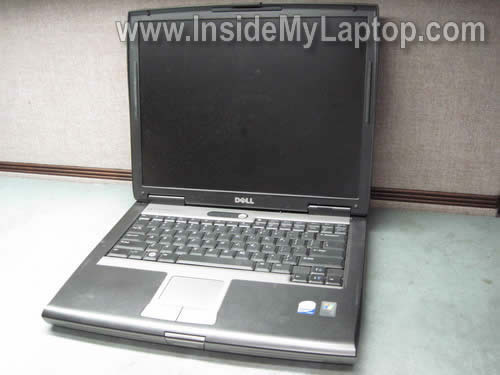
In this guide I explain how to access the memory module installed into the internal slot on a Dell Latitude D520 laptop.
You can use this guide for removing/replacing the keyboard or replacing/upgrading both memory (RAM) modules.
Dell Latitude D520 has two RAM slots. One of them can be easily accessed through the door on the bottom. The second one is hidden under the keyboard.
Before you start the disassembly process, don’t forget to turn it off and remove the battery.
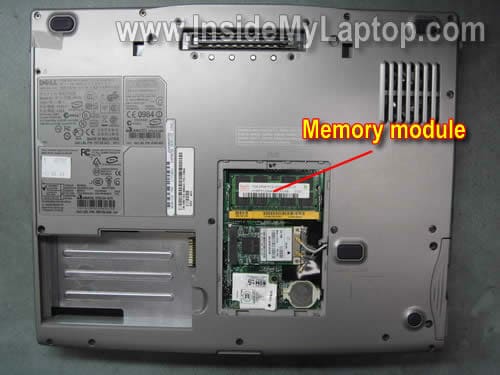
On the following picture you can see the memory module installed into the external slot located on the bottom.
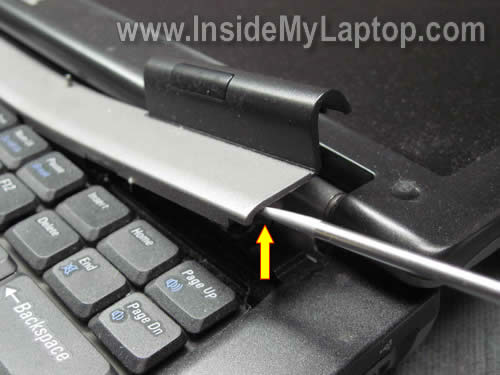
We’ll start removing the keyboard with removing the bezel.
Insert a flat head screwdriver under the right side of the bezel and carefully lift it up.
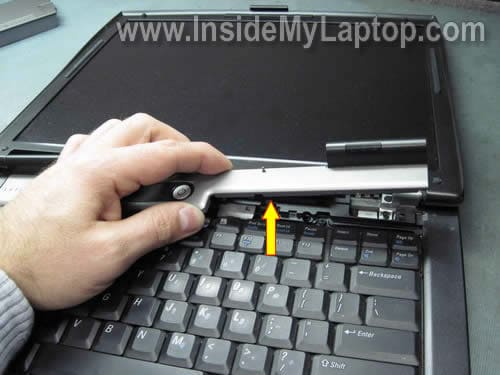
Continue removing the keyboard bezel with your fingers.
Now you can remove two screws securing the keyboard.

Carefully lift up the keyboard and place it upside down on the palm rest.

Under the keyboard you get access to the cooling fan.
If the cooling fan looks dirty, you should clean it up.
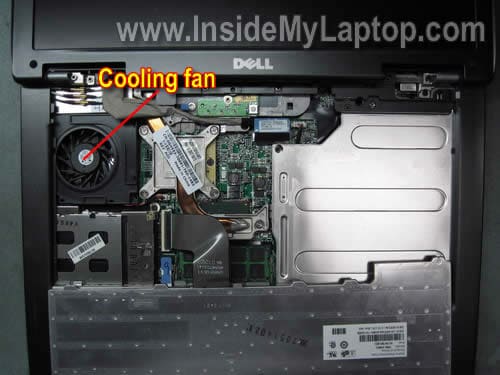
In order to access the memory module installed in the internal slot, you’ll have to turn the keyboard as it shown on the picture below.
It’s not necessary to disconnect the keyboard from the motherboard.

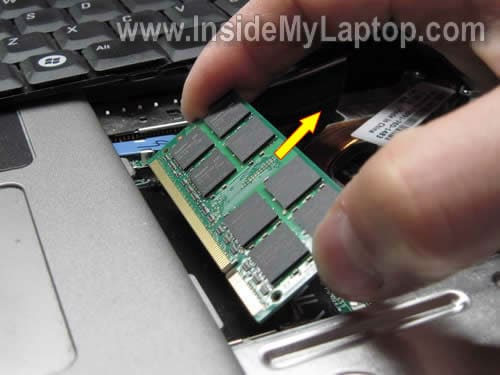
To remove the memory module simply spread latches on both sides until the module pops up at a 30 degree angle.
Now you can pull the memory module from the internal slot and replace it with a new one if needed.
Dell Latitude D520 can take up to 4GB RAM total. You can install up to 2GB RAM sticks into each slot.
Dell recommends using PC2-5300 DDR2-667 200pin SDRAM SODIMM modules.
It’s possible to use faster memory modules. For example PC2-6400 DDR2-800 should work fine, but they will clock down and run at PC2-5300 speed.
It’s not necessary to change any settings after upgrading laptop memory. The laptop will detect and configure it on its own.
Ease
Very helpful. Can I upgrade the graphics card or install another?
IML Tech
Ease,
I believe in this model the video card is integrated into the motherboard.
The video card cannot be removed, replaced, upgraded.
Adam
very helpful – much more visually useful than Dell’s own website ! Thanks 🙂
Miroslav
I have the same question for DELL Studio 1440, where is the internal memory module?
I have opened my DELL Studio 1440, and I was not able to locate internal or 2nd memory module.
Thank you so much!
IML Tech
Miroslav,
According to Dell Studio 1440 setup guide, this model has only ONE user accessible slot (page 58). I guess another memory module soldered directly to the motherboard.
Again, there is only one slot on the bottom. You can install 1GB, 2GB or 4GB RAM module into this slot.
Miroslav
Thank you so much.
Took me several days to extract any answer from Memory Upgrade People, or DELL Support. They were only guessing and they all were next to useless.
This is 1st time I have accurate technical reply.
You people are excellent. I am recommending you to everyone I know.
Sincerely,
Miroslav
meyes
My xp or seven in d520 not dectect any card lan same for pcmcia lan whts the problem
thanks for help
IML Tech
meyes,
Your description is not very clear.
It’s not detecting just the PCMCIA card or internal LAN (Ethernet) port too?
If the laptop cannot see both, the internal LAN port and external PCMCIA LAN card in two different Windows OS, this sounds like motherboard failure.
meyes
the internal card lan not detected (xp or seven)
mettrie
very helpful, easy to understand and perfect pictures to show what and how to do .
thanks a lot
Eder
Thanks, very Helpful.
But i would like to know how to replace the hdd.
Regreats.
Saludos
Jason
Your step-by-step directions are dead on perfect. I upgraded the one under the keyboard to 2GB and it’s just fine. But when I upgrade the one under the computer to 2GB with the identical type that worked in the first slot, the computer won’t turn on. An error flash code appears in my num, caps, and scroll lock lights, and the computer won’t turn on. Any ideas?
IML Tech
Jason,
1. The bottom slot could be bad.
Remove memory module from the slot located under the keyboard and test in the bottom slot.
2. The second memory module could be bad.
Try installing the secondary memory module into the slot under the keyboard and see if it works.
Aaron
Also there are 2 different types of Dell Latitude D520 the chipset is the difference. If your Laptop has the i940 chipset you are limited to only 2 gigs but if you have the i945 chipset you can upgrade to 4 gigs ram.
Steve
For Jason..”Your step-by-step directions are dead on perfect. I upgraded the one under the keyboard to 2GB and it’s just fine. But when I upgrade the one under the computer to 2GB with the identical type that worked in the first slot, the computer won’t turn on. An error flash code appears in my num, caps, and scroll lock lights, and the computer won’t turn on. Any ideas?”
Aaron’s comment “Also there are 2 different types of Dell Latitude D520 the chipset is the difference. If your Laptop has the i940 chipset you are limited to only 2 gigs but if you have the i945 chipset you can upgrade to 4 gigs ram.” is the clue. If you have the i940 chipset, the bottom memory slot will only accept a 1 Gb memory or less. You can put 2 Gb under the keyboard and a 1 gb in the second slot and although the system will see 3 gb of memory at boot up, windows will still only see 2 gb of memory.
as77
how can I find out which chipset my D520 has?
jayson
Upgrading the internal memory on my Dell D520 was easy. Thanks for your help.
relaxedKangaroo
Thank you for answering all the questions I had in my mind.
You have made my day a whole lot easier regarding updating my d520.
Again,thank you.
Ricardo
Ok!
this status was help!
Thank you very much!
Dave
Thanks swapped memory modules under keyboard to back and back to under keyboard and system booted up
Frank Furter
I replaced the memory on my dell laptop and I pooped my pants.
Jim
Great site! Thanks for the info on the Dell D520. Excellent!
J
vinay
I have a query that can we change the hard disk of dell latitude D520 ?