

Here’s how you can replace or upgrade memory (RAM) in a Toshiba Portege M400 Tablet PC.
As you see on the picture below, there is no access to the RAM slots on the bottom.
Why? Because both RAM slots are hidden under the keyboard.
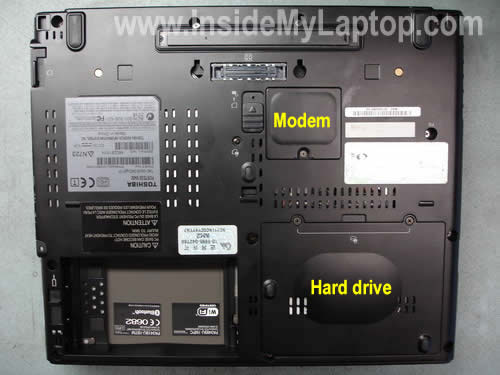
According to manufacturer specifications a Toshiba Portege M400 Tablet PC can handle up to 4GB memory total.
That means you can install up to 2GB module into each slot.
Toshiba Portege M400 laptop configured with PC2-5300 DDR2 667MHz RAM.
You can easily upgrade RAM to 4GB yourself; all you need is a couple of screwdrivers, two 2GB modules and 15 minutes of your time.
Before you start turn off the computer, unplug AC adapter and remove the battery.
Now I’m going to remove the keyboard.
Carefully insert a small flathead screwdriver under the bezel and lift it up.
Continue removing the bezel with fingers.
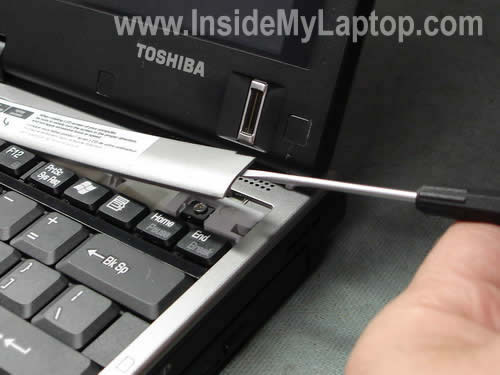
The bezel has been removed.

Now remove two screws and release a small plastic latch in the middle.

Lift up the keyboard as it show on the picture and place it upside down on the palm rest.
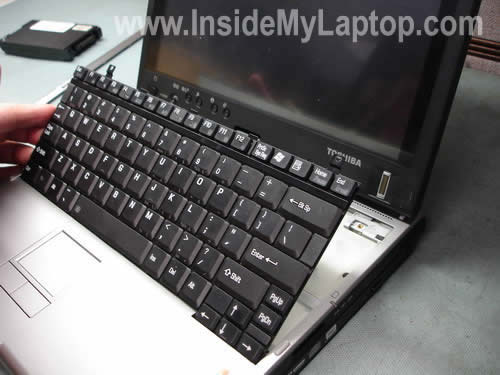
You’ll find two covers under the keyboard.
Both memory modules are hidden under the right cover. Remove two screws and remove the cover.

In my case both RAM slots are occupied with 512MB modules.
I’m going to remove both modules and replace them with new once.
Spread latches on both sides with thumbs.

The RAM module will pop up at a 30 degree angle.
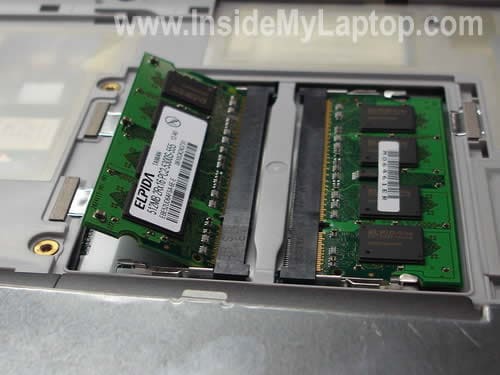
Carefully pull the module by the edges and replace it with a new one.
Repeat three last steps with the second RAM card.

Ahmed
HI
Thanks for Website its helps me a lot to open My laptop to upgrade RAM.
Thanks
AHMED
Chet
Thanks very much — your instructions and pictures enabled me to do what I needed!
Christopher
Thank you so much, I have a main PC but used this laptop for my Batchelors. Now I can keep it and not fork out a load on a laptop/tablet for my masters thanks to you. THANK YOU SOOOO MUCH!!!
Rob
Thanks a lot. I was having a heck of a time figuring out where to upgrade the RAM and your instructions kept me from removing every screw in the machine!
Bobby
Thank you, Great Help 🙂
Nate
Thank you so much for this. You helped me upgrade the RAM on a friend’s laptop. I appreciate the time you put into the guide.
Jerrick
So Helpful! I just saved some money and time!!!
Van Porter
Thanks for the help!!! I saved lots of time and money because of you
Mark
Wow, Thanks so much Great job. Question, The screws that hold the cover to the memory slots are really tight. How much pressure downward can I put on this area?
IML Tech
Mark,
I’m not sure why you are experiencing a problem. Make sure to use the right screwdriver which fits screws tightly.
Aries
Thanks a lot.. It really helps me to upgrade the RAM.
advo88
Hey, do you need to upgrade both with a 1 GB? I only bought one 1GB RAM module. Is that okay or do I need to replace both modules?
IML Tech
advo88,
Yes, you can replace just one memory module.
advo88
Thank you for your guide! I followed everything to the letter but now my screen won’t work. Help?
IML Tech
advo88,
Apparently the memory module is not installed correctly. Try reconnecting it.
Also, there is a chance that your new module is bad, but I cannot tell without testing it.
Try installing the old one back in place and test the laptop again.
advo88
Thank you for your reply! I tried re-installing the old module but the screen still doesn’t work. I’m not sure what the problem is? But I haven’t killed the computer have I?
jditmore
Thanks so much for the information. This not only showed me how to get into my laptop, but saved me time and money. Much appreciation!!!
Golthier
That’s very useful info for all Toshiba Laptop users….It’s very simple if you follow the pics above…
Well done…
Frank
Thanks for taking the time to do this. It is very much appreciated! You saved me hours of looking for the location of the memory!
Ray
i was told that mine had 2 * 1Gb on board. Thanks to your description I was able to open the system and see there was only one 2Gb. So I’ve saved buying 2*2Gb and just bought one. Thanks
Chris
This was great, I just bought a used tablet and wanted to upgrade the memory, this link made it so easy to do. Thanks !
Brad Fallon
The only thing that’s worth doing is checking to see that your system recognizes the memory. Assuming you’re running Windows, go to Start->Control Pane->System. It should show you the amount of RAM that you think you have.
Ram
Awesome Presentation with step by step pictures
peter
Thanks a million. just upgraded to 4 GB. Windows 7 was unusable with 1 gig. Will try to make a donation
chris
Thank you, it was a snap.!
MKS KDMR
Thank you. Very useful.
Rob
Hi. Found this really good. Only problem is that my model – Toshiba Portege R400 only has one slot. I replaced the existing stick with a 2gb one. System now shows me up to 3gb of RAM now.
Had wanted to increase it to 4gb, is there any way of doing this? If there is only one port, what’s the maximum RAM I can go to?
Thanks. Rob
John
do u know where the sound card is located? i cant seem to get mine to work in xp
ahmad
i cannot lift bezel in portege m780 🙁