

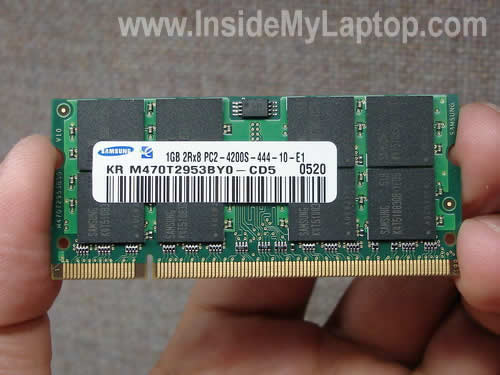
Dell Latitude D610 laptop has two memory slots available for upgrades.
This model can take up to 2GB RAM total, so you can install up to 1GB module in each slot.
You should use PC2-4200 DDR2-533 SODIMM RAM.
Your computer will work in dual channel mode (recommended) if you install two identical memory modules. In my case, I’m going to install two 1GB PC2-4200 modules.
RAM Slot B can be accessed through the door on the bottom.
Slot A is hidden under the keyboard, so we’ll have to remove it. If your laptop was configured with only one memory module, you’ll find it in the Slot A.
Before you do anything, do not forget to remove the battery.
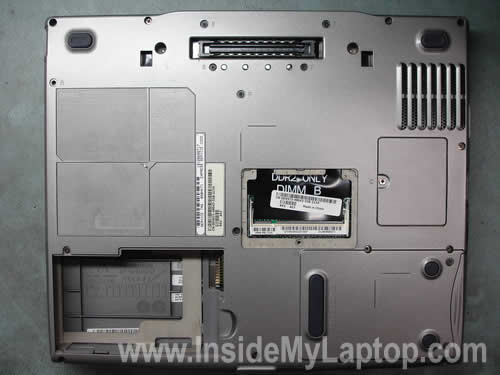
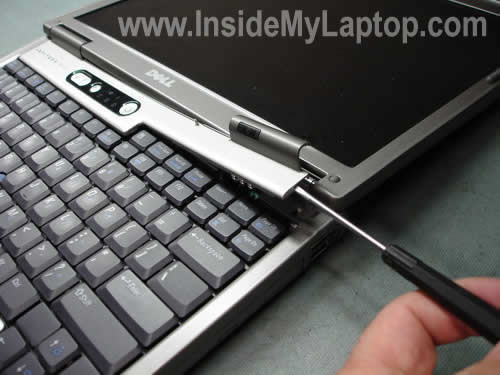
Let’s remove the keyboard. Insert a flathead screwdriver under the bezel and and carefully lift up it up.
Remove the bezel.
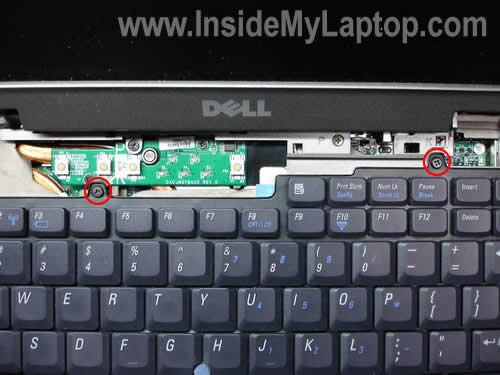
You’ll find two screws securing the keyboard. Remove both screws.
Now carefully lift up the keyboard.
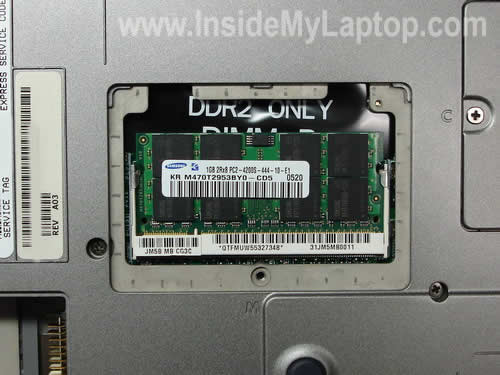
You’ll see the default memory module right above the touch pad buttons. It’s possible to replace it without disconnecting the keyboard.
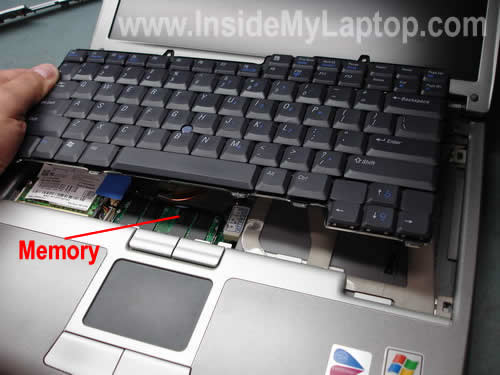
I will disconnect the keyboard so I can make better pictures for you.
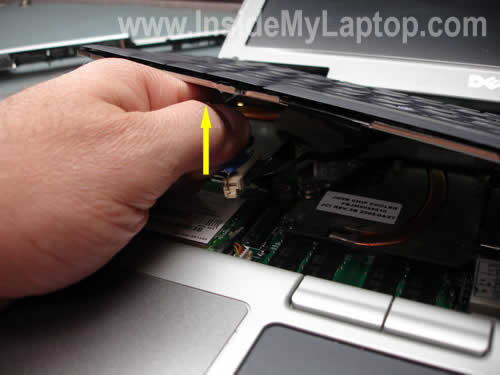
Simply grab the blue tag attached to the cable connector and pull it up.
Now you can remove the keyboard completely.
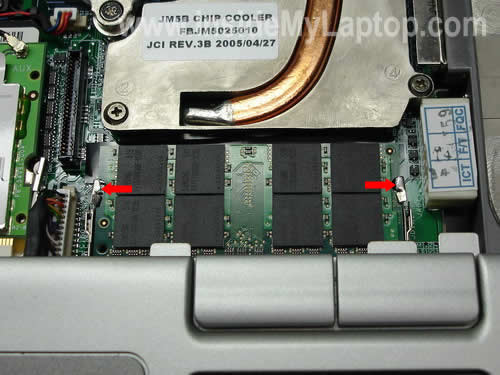
On the picture below you can see the default memory module installed into the slot A.
In order to remove it, spread latches on both side with your fingers.
The module will pop up at a 30 degree angle.
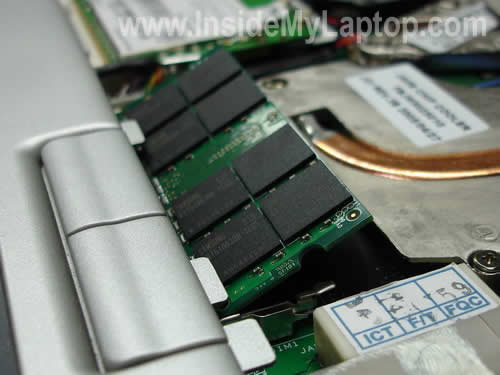
Now you can pull the default module from the slot and replace it with a new one.
I’m installing a 1GB RAM into this slot.

Finally, install another 1GB module into the slot on the bottom.
Turn on the laptop and you are ready to go!
Slawe
Good job, thanks.
Andy Seymour
Thanks for your help, I would have stuggled without it.
David Eversole
Thanks so much for your clear, easy to follow directions. I suspected the other slot was under the keyboard, but had no idea how to get to it. You made it easy!
Dr MAGDY SOBHY
Dear
Thanks very much for your efforts.
Your describeing is very accurate particularly the pictures.
You succeeded
Thanks again.
Dr.Magdy Sobhy Nazeer
shyam narayan
that was great and most helpful to
Avi
Good job man…
Really helpful.
Cliff
My computer will not see the new memory on the bottom. I’ve changed both memory around and both are good. The computer only sees the memory under the keyboard. I’ve checked the CMOS and there’s no way to add memory there. Any ideas?
Deb
Did this with my old Dell Inspiron which was very easy but confused as to where the other stick of ram was hiding. Thanks for the pictorial steps.
Kevin
This was a great help – I couldn’t find the addtional memory slot until I found your article.
just brilliant
many thanks
KC
Will
Superb advice !
mike
where is the hard drive on a dell 610 and how do i replace it thanks
Bianca
Thanks for the assistance, it was straight forward and I was able to do this myself saving me tons of money.
Syngin
Thanks. I was wondering where this illusive RAM slot was.
Jay
Thanks, this will help. I need to upgrade the memory in the A slot.
Recently, my D610 would not power up. It fired up for about 10 seconds then quit with no message. It turned out that the B slot was the culprit. Now the D610 works fine but only if I leave the B slot empty.
Do you know of any inexpensive fix for that?
Dave
Thanks, never had a laptop apart before,very easy.
MIKE
It couldn’t have been made any easier. My eleven year changed ours. Thanks.
Dave
Thanks! Nice pics made it simple..
Lance
Wow, I would never have thought a 2nd slot was concealed under the keyboard. Even if I did know, I would never have tangled with it without your pictures. Wow, that was easy! Thanks!
Patrick
Thank you very much! The instructions were easy to follow. I would have had a tough time with the under-the-keyboard memory socket without these instructions. Thanks!
Jimbob
Excellent description and illustrations. Sites like this are few and far between.
Steve
Wow thanks! I was about to remove every screw from the bottom in hopes of reaching the memory slot inside (I know nothing about laptop innards). This saved me a BUNCH!
Marla
This was great! I’m normally and “electronically challenged” individual, and even I could do this! Thanks so much!
Rachel
This is great info. I am awaiting my new 1Gb module from Dell as I write this. Question, my current system has a single 512Mb module in I suppose slot A. If I add this new DIMM, should I put it in B or switch them around. Is there a benefit to having the larger module in a particular slot? thanks so much for this site!
IML Tech
Rachel,
It doesn’t matter. You can leave the 512MB module in the slot A and install a new 1GB into the slot B.
DJ
Thank you! Very helpful. I was able to upgrade easily… never have upgraded memory before.
Dianne
I would love to be able to put 4GB of RAM on my Dell Latitude D610. Do you know of a way to do it? — a bios hack, or a replacement motherboard, or ???
Rich
I replaced my 256Mb SODIMM with a 1 GB DDR2(667/533/400Mhz)SODIMM in slot A(Underside) of my Dell Latitude610 notebook and it power/booted up just fine. Then I opened slot B(under keyboard) and did the same and made the exact same replacement and it wouldn’t power/boot up. I ended up restoring the original 256Mb SODIMM in B out of necessity and will use it at 1.25Gb total RAM since it wouldn’t allow the upgrade on slot B. Any advice?
IML Tech
Rich,
1. It’s possible that the second 1GB module is defective. Here’s what you can try. Remove RAM modules from both slots. Now insert the first 1GB module into the slot under the keyboard and test the laptop. After that move the module into the slot on the bottom and test again. If the laptop works fine with this module, remove it and do the same with the second 1GB module.
Will it work with both modules installed into both slots? If the laptop starts fine with the first module but not with the second one, the second module could be defective.
2. Could be some kind of memory compatibility problem. Take a closer look at both 1GB modules. Are they exactly the same? Do they have the same type of chips installed?
3. It’s possible that Dell added support for your memory with the BIOS update. Go to their website and find if there is a newer BIOS available for your laptop. Try updating the BIOS. Be careful doing that, read instructions.
Anbes
Many thanks for the clear instruction especially for pointing out that one needs to install two identical memory modules in order to make the laptop work in dual channel mode.
Al
Thanks for the illustrated step-by-step instructions. It made the work of replacing both memory modules a breeze.
Sam
Great information. Thanks so much for posting these clear & concise instructions!!!
Harry
Excellent tutorial… clearly illustrated step by step without wordiness! Thanks for the help.
Joseijas
the procedure is very professional and well guided. Excelent job. Thank you.
Tim
Thanks for the step by step, very good info.
Clay
Let me add my voice to the chorus of thank-yous. I just installed 2 1GB modules in my Dell D610 with no problems following your very clear instructions. The system booted and the new 2GB memory was recognized with no problem. THANKS!
Tom
Awesome!! your step by step instructions made my upgrade easy. Zero issues adding 2-1 GB modules and it only took minutes. Thanks
CG
Excellent instructions & photos. I installed 2 1-gig sticks in minutes with no issues. Now it’s running much faster than before.
frank
How do I check that my d610 takes ddr2 and not ddr memory?
IML Tech
Frank,
In the service manual for Dell Latitude D610 it says:
NOTE: You can only use DDR2 memory modules in your computer.
Manix
You must not install 2x1GB modules. It works also one 2GB module inside for example slot B (under the bottom cover). Slot A should be free (under keyboard). It was checked many times. Enjoy 😉
carl
Thanks….you made it extremely simple!
dina
how do i change my labtop cover model Dell studio 1535???
IML Tech
dina,
It’s explained in the service manual for Dell Studio 1535/1536 laptops.
Marcin
Hi,
Thanks, you made it really easy.
Luke
Good guide, thanks.
Alex
Man, You Awesome!!!!!!!!!!!!!!!!!!!!!!!!!!!!!!!!!!!!!!!!!!!!!!!!!!!!!!!!!!!!!!!!!!!!!!!!!!!!!!!!!!!!!!!!!!!!!!!!!!!
Rick
Great Job, This was very helpfull! Thank you!
Terry
I followed your easy to follow instructions and installed 2×1GB modules. The laptop started and then shut off almost immediately. I checked to make sue that the memory was installed correctly and retried with the same results. I reinstalled the original 512 card and it still does the same thing. Any suggestions on what I could have done wrong?
Chris
Thank you for the walk through. I’ve built many towers, but never worked on a laptop before. The example photos and explanations that you gave were superb.
Keep up the great work.
–chris
Attia
Many thanks , this will help to upgrade 20 laptops in my company
david
Hi all – what would be faster – to install ONE 2gb chip that is 800mhz, or to install TWO 1gb chips that are the standard 677 mhz (and benefit from dual channel mode)? Also, if I go with the one 2gb chip, can I leave in the existing 512 mb chip in the device (for a total of 2.5gb ram), or will this wreak havoc because they are different speeds?
Thanks all!
-Dave
IML Tech
david,
If the laptop memory bus speed is 667MHz, you will not benefit from installing a 800MHz memory module. It will work, but will run at 667MHz.
I would definitely go with two identical 1GB modules and benefit from dual-channel mode.
Shouldn’t be any problem and you’ll get 2.5GB RAM total, but the faster memory module will run at the speed of the slower module.
IML Tech
Terry,
Make sure that memory modules are installed correctly. Apparently, they are not pushed all the way down the slot.
Try reconnecting them again.
al foster
i have a acer aspire 5100 and the mouse or keyboard wont work any ideas
IML Tech
al foster,
If both, the keyboard and touchpad failed at the same time, most likely there is a problem with the motherboard. Both devices are connected to the motherboard through different cables and I really doubt that it’s just a connection related issue.
There is a discussion about Acer Apire 5100 laptop here: Taking apart Acer Aspire 5100 laptop
Dave
Very cool. My uncle just sent me a D610 that had been used at his office. It has 1GB of mem right now, but I’ll consider upgrading it. I’m going to have to open it up to see if it has just one 1GB stick or two 512 sticks.
Hey IML Tech, any recommendation on where to purchase replacement batteries? The one on mine seems to be completely dead and I think Dell sells them for $120. That’s probably more than the laptop is even worth at this point.
IML Tech
Dave,
I think $120 is too much. You can find a new battery for Dell Latitude D610 laptop on eBay.
photosolve
Hi,
I’ve got a D610 that no longer works on the USB ports. I’ve gone through driver upgrades, and nothing appears to work. Is this a motherboard replacement issue? Thanks for any assistance!
Best,
Phil
Sasi
Thanks Tech. This guide is very helpful in upgrading my laptop. thanks again.
Dave
Hey I found this on newegg. Will this work? 2GIG for 19.99 seems like a good deal. http://www.newegg.com/Product/Product.aspx?Item=N82E16820146517
ControlDesigner
Thank you for the guide. Very helpful!! Keep you the good work man!
Dave
I bought the ram from newegg I mentioned on the 10th. Thanks for the tutorial. It was a lot easier to take off the keyboard than I expected. 🙂
Dan
How do i find the graphics card inside the laptop???
i can’t determine what one i have as i installed windows 7 and drivers got reset…? and 3d acceleration was disabled…. hellllpp!!?? 🙂
IML Tech
Dan,
I guess you can find some information about your video card in the laptop specifications. Can you find laptop specification on the manufacturer’s web site?
Manoj Khandelwal
Very important information is provided in easy steps. safety may also need to be mentioned while working with electronic circuit boards to avoid static hazard.
David O
Worked perfectly as you described on my newly purchased refurbished 610 from Dell Direct. The pictures in the tutorial were wonderful as well
Took the suggestion of Dave above and got the 2X1 GB kit from NewEgg for 19.99. great deal and works perfectly.
Azat
Can D610 Detect 4GB (2x2GB) of RAM ?
IML Tech
Azan,
Dell says this laptop will take up to 2GB total. Can it detect 4GB? I don’t know. You’ll have to try.
Angelo
Excellent instructions and exceptional pictures. Can’t wait to complete my upgrade. Thanks for taking the time to be so accurate.
ken
i ‘ve upgraded my dell d610. using PC6400 memory 2GB, is it OK for my notebook?
thanks for your answers.
i think my dell D610 work faster now.
IML Tech
ken,
It’s OK.
ken
need i clean fan?how?
: )
Emma
Well replaced the RAM module (B) with a 1gb just as required.
However, now I turn lap top on and it says MEMORY CHANGED, then it turns itself off.
What can I do?
IML Tech
Emma,
Isn’t it asking you to press a button to accept the memory change? Can you enter the BIOS setup menu at all?
Harry Johnston
I have a std D610 with 512m. Can I install a second 512 using a different number….PC2-5300S-555-12-A1?
IML Tech
Harry Johnston,
Yes you can. As long the second module is PC2-5300 it should work.
Jasper
The upgrade worked like a charm.
Thanks for the clear explanation.
Alex
Can I upgrade RAM memory using a different bus speed?
Currently I have 256MB DDR2 533 MHz, can I install an additional 1GB 667 MHz or a 2GB 800 MHz ?
Will this work ?
Thanks.
Jose
Hey man… awesome tutoriall… one issue though, I have same problem as Emma, the computer says: Memory Changed and it stays there. no response from keyboard.
I used 1gB X 2 PC2-5300 memories.
The one it used to have it’s a 512mB PC2-4200
It’s ok to change from 4200 to 5300 or it will not work?
Connie
Thanks for the tutorial! I changed my ram out by myself and everything worked perfectly!!
gw
installed 2 identical 1 gig memory modules ddr2 4200 533, but computer only recognizes 1 gig installed
John
Great guide – gave me the confidence to tackle the upgrade. It was as easy as described. Initially it only recognised 1GB but I found that the second module hadn’t been pushed firmly enough into its socket. I removed and replaced it and it then found 2GB on start up.
On restart you will get a ‘memory has changed’ message. Wait a few minutes and eventually you will have the option to press F1 to continue. I see that some people just get the ‘memory has changed’ message and nothing else. Maybe the module under the keyboard isn’t pushed home enough and this causes this error? Worth trying I guess.
PC is much quicker. 2 x 1GB modules cost me £27 from Crucial with next-day delivery and it was well worth it. I was thinking of buying a new laptop – don’t need to now 🙂
IML Tech
This is a very common mistake. If you laptop recognize only one module after the upgrade, make sure the second module is seated correctly.
fatherdaddy
For the Dell D610, what about using PC2-5300 667MHz? is that better, the same, or worse than using 533MHz?
IML Tech
fatherdaddy,
If the laptop bus runs at 533MHz than you will not benefit from using a 667MHz memory module. This module will work fine but will slow down and run at 533MHz.
You can use a 667MHz module but it doesn’t mean that your laptop will run faster. It will be the same as using a 533MHz module.
TK
Worked like a charm. Excellent instructions.
Stranger
Thank you. This made it so easy. My wife thanks you too. She has no patients for the old slow laptop, now she has a new friend in the fast easy laptop.
Skip Arbuckle
Very helpful! Worked just like you said it would. My donation was a good investment. Thanks.
Needed?
I’m wondering If it is needed to install one on the bottom, or is that just to have more ram?
Grant
My D610 latitude is showing 1016 MB memory my bottom slot is empty do you think I can add a 556 meg of ram chip under the keyboard and a 2 gig chip in the bottom slot and have 2.5 GIG of ram?? will it work ?? or do you know… thanks Grant ps please send me a note to my e-mail address so I can find your reply… again tks
Sancho
THANK YOU!
John
@Grant, I would advise against that, mixing memory is never a good idea. If it’s possible get 2x2gb if the mobo will allow it. If you have XP/Vista 32bit that’ll only recognise 3 or 3.5gb of that. Or you just get another 1gb one.
Brad
Thank you! This was easy!
From Newegg.com, I bought this for $26.99 with free shipping. Best deal they seemed to have listed this week for a pair.
Kingston 2GB (2 x 1GB) 200-Pin DDR2 SO-DIMM DDR2 533 (PC2 4200) Dual Channel Kit Laptop Memory Model KVR533D2K2SO/2GR – Retail
Item #: N82E16820134804
raf
how to clear Dell d610 latitude laptop bios password (foto please).thanks
jodi
your instructions were perfect!! thanks.
STEVE
HI, I HAVE A LATITUDE D610 AND IT HAS A 400MHZ RAM AND i BOUGHT A 533 MHZ RAM TO PUT IN THE B SLOT. WILL THESE TWO WORK TOGETHER OR WILL I HAVE TO BUY ANOTHER 533 FOR THE A SLOT?
THANKS MUCH…..STEVE
Julian Griffiths-Searle
Thanks for this invaluable advice! I hadn’t realised the default memory slot is under the keyboard.
The instructions were so much clearer than the YouTube video provided by the memory manufacturers, Crucial (though the memory price and remaing service is fantastic!)
Alan
It got a little tricky after I dropped the screw in the machine and then finally found it but tried to put in the wrong one . YOU did a FANTASTIC JOB with instructions and I was able to upgrade my laptop to the full 2GB!! Thanks again
Scott
That really helped! Thx. I had truble on the screw removeing the keyboard but eventuly got it.
Allan
Fine guide. Thanks.
When inserting the new memory module, check that the connector has completely sunk in the socket. The brass on the connector must only barely be visible.
To avoid static electricity it is best to work bare-footed. Easy and effective advice.
DC
Thank you for the clear instructions and photos! My computer is functional once again!
Richard
Often my D610 would not boot, not even display any message on the screen thus fail even POST and would flash “A” is Caps Lock LED. Or would boot up and “blue screen” chrash durring work.
Cause was having any DDR2 memory in DIMM B bottom slot. Tried 3 diferent DIMM’s all OK in top slot but D610 needed bottom slot empty. BIOS detected the whole 2GB in the one top slot and surprisingly said it was detected as dual mode even through only 1 “2 GB DIMM” in top slot only. Glad to have it now running ok now.
IML Tech
Richard,
Apparently the B slot is bad. I wouldn’t replace the motherboard because of that. Just run the laptop with the memory module installed into the slot A.
2GB should be enough.
Ed
Your instructions and pics are clear and concise, very well done. I put a 1gb in the top and a 1gb in the bottom and could never get the full 2gb to boot. I noticed “Richard” in response 104 having the same difficulty. I finally left 1gb in the base and put the original 256 in the bottom and all is well. The question is whether Windows XP pro 32 bit can address the full 2gb. Thanks again.
Fafan
Dear all,i have 610 and spec prosesor 1,8.can i upgrade to max spec prosesor? and how to upgrade?thx
Nathan
Is it possible that my Dell Latitude D610 only has one memory slot? It came with 512 and I bought a 1gB stick thinking my computer would accommodate both, but there only appears to be one. Whether I open the back or remove the keyboard, I seem to be accessing the same slot. When I remove all of the ram in sight, there is only room for one stick…? I don’t know what’s up. Any insight?
IML Tech
Nathan,
Accessing the same slot? It doesn’t make any sense.
One memory slot is located on the bottom and another one under the keyboard. It cannot be the same slot.
Marty
I bought 2 sticks of Crucial 1 Gig memory to replace the 2 sticks of 512 already in it. It worked fine with the 2 sticks of 512 but it would not boot with the 2 Gigs, no matter which stick was in which slot. It would boot with either 1 Gig stick in the top slot and the bottom slot empty. It would also boot with a 1 Gig in the top and a 512 in the bottom slot, therefore the bottom slot doesn’t appear to be bad. What gives, why can’t I use the 2 sticks for the full 2 Gigs?
Rachel
Will the laptop work if you just install one 1G module and keep the original memory card in the other slot? Because, um, I tried that – replacing Slot A with 1G but keeping Slot B as it was; then the other way around – and my laptop wouldn’t even start up. It would sound as if it was going to start, but then, sort of like with Richard (104), would flash the number lock and the light two away from that (sorry – the lock with a lightning bolt in it?) simultaneously before turning itself off again. When I paired the original cards together again, everything went back to normal.
I did all that before finding this page, and thus before reading what you wrote about it never being a good idea to mix memory modules. Do you think that’s why my computer wouldn’t boot up, or could something else be wrong? If I buy a matching 1G, will that problem go away? Or should I give up on 1G altogether and try two modules with less memory? Please let me know if you have any advice at all – I know very little about computers (obviously), but I don’t have money to take my laptop to a professional. Thank you!
Jon
Hi, I wish I’d tried to add more memory B4 the bios update toVer.06, oh well. Here’s my story: I have a 512 DDR2 from a laptop that had been drenched in beer, while on. Ouch!!! I salvaged the ram, HD, screen, and mobile P4. The rest is a gooey sticky loss. The 512 DDR2 looks exactly like the one shown in the tutorial. HOWEVER it is 2Rx 16 architecture. and guess what. my D610 wont boot with it in the bottom slot (B). Ladies and gentlemen THAT is the crucial factor in the equation. Low density ram versus high density ram. I may try to test the SODIMM in the top slot under the keyboard but I am 90% certain that this is the issue. Hey anyone got the bios password unlock trick? Flashing to new version wont clear a bios password. Thanx
Jon
Hello again. Well well well. I was wrong. the chip in slotA was also x16 architecture but was PC2-3200. or in other words like to bios said 400Mghtz. The ram in slot A was hynix 512 2Rx16 PC-2 3200-333-12. Eight chips, four per side, and thus seen as dual channel. NOW i have 2Gb total matched sticks I bought a Fry’s Black Friday sale 2008 for cheap cheap. They are Patriot 5300 dual 667MHz Signature Line memory in a bubble pack with a green card inside. Fry’s sticker also says PSD21G667SK. Memory is only seen as 533MHz in bios. and I do not know if there will be considerable improvement. Seems to me XP cannot use efficiently more than 1gig. I will contact a poster on craigslist and get the Dell Win7 upgarde disk he’s offering for sale. Does Anyone Know…if I upgrade to Win7 will I then be able to install XP using my COA (its a full retail version) on another machine or do I lose that COA as the Basis for my Win7 upgrade?
Shawn
Thank you soooo much! You were a great help!. I’ll recommend you if anyone needs help.
biser
this lap-top carye no moore then a 2 GB RAM,1x1GB, 4200 Speed,ddr2 -its limit ot this mashine,buy it moore than enouhf
Rob
To those whose laptops are not recognizing the full 2GB from both slots: go back and recheck the fit of the 1GB card in the slot beneath the laptop. I was having the same problem with my machine only recognizing the 1GB card that replaced my original 512 MB card in the main slot. Then I realized that the second card slot has the same pop-up mechanical action as the main slot under the keyboard, and must also be released with the tiny latches and popped up before inserting the new card. I initially just tried pushing it into place and snapping it down, but it failed to seat properly. When I finally got the slot to angle up, the card went all the way in and the bios recognized the full 2GB memory on the next boot.
Other than this glitch, the step-by-step went beautifully and my thanks to the author for the clear photos and instructions!
JW
Hey, I just tried this on my D610 today, with two sticks of PC2-4200 DDR2 533 SODIMM Laptop Memory RAM, 1 GB each. I ran into the same problem as others, where the computer wouldn’t boot with ram in the access port location. It does work with just one of the sticks in the other port, and I did check to make sure I got it in all the way.
Is there any reason anyone knows that this is a problem? Is it something Dell is aware of and can fix, is it a problem with the memory I bought (although not according to the writeup here) or is there anything else to go off of? I’d appreciate some help, as I really want to be able to get this to work. Thanks.
Ale
You Were A Superb Helper For Me And My D610 Thank-You For This.
I have not yet upgraded my RAM because I have not purchased more yet but this was great help because when I do purchase RAM I will be ready to know how to install it.
~Alex
(PS:I Am Also Going To Use This For My Keyboard Replacement.)
=D!
JOe
Hey, just a quick note of thanks for the photos and step-by-step. I just upgraded my MacBook memory from the standard 2 1GB SODIMMS to 4GB total and was able to use the Mac memory in my Dell D610. No BIOS issues, just plug and boot… Gotta love to recycle! Peace Out!
john
Thanks – worked really well!
John
Outstanding, easy-to-follow directions! For about $80 and 10 minutes, I’ve doubled the speed my laptop runs at. I’ll probably get another year or 2 out of this thing.
Chris
I just went through this and now the laptop won’t turn on. When I press the power button there is sound and it seems like it will start but then the number lock and scroll lock lights flash for a second and then the laptop turns off. I also forgot to take the battery out (it’s been a LONG day). Does that mean I didn’t discharge my static electricity properly and fried the laptop?
Thanks.
IML Tech
Chris,
Make sure RAM modules are seated correctly. Try reconnecting them.
Curtis
Thanks for posting such clear directions! I used this to do a memory upgrade on my Dell Latitude D630 (3 keyboard screws, instead of the 2 in the D610), and was done in < 5 minutes. Nice work making this easy on the rest of us.
randy michaud
is it possible to install two two gigabyte ram sticks instead of two one gig’s plz and ty for the answer
IML Tech
randy michaud,
I checked a few memory sites. They all say 2GB is max for this model.
Chris
I tried installing 2 x 2 GB sticks. The d610 wouldn’t start. So I guess it really supports 2 x 1 GB max.
Kind Regards
Chris
IML Tech
Chris,
Thank you for your comment. Some people asked me if this model will support 4GB.
arthur dolan
I’ve installed the new memory and it works, but I keep getting the memory has changed error. So I went back to the original config and it still comes up.
obsy
is it possible to upgrade the graphics memory and the prosessor speed?
THABIT
i think these instructions are really great. i have a question, what if i mistakenly insert the ram models which are not supported by this computer what is going to happen? and what if the ram were fake?
IML Tech
THABIT,
You cannot do that. Different memory types (DDR, DDR2, DDR3) have a notch located in a different spot. For example, you cannot install a DDR2 module in DDR slot, it will not fit.
Bruce L
Great instructions! But…
I just installed two proper 1G memory modules but the system only recognizes 1G total. I’ve switched the cards so i know both are functional individually but can’t get the system to recognize 2 at once. It appears to be the bottom side slot – and it is properly seated. Do I need to do something to get this to activate? Is this a dual channel thing?
Klaas van der Heide
Thanks for the clear pictures. I just ordered 2 Gb. Can someone tell my how sensetive the D610 is for brands. Looked it up at Dell site and then ordered the right brand. I know from PD motherboard that they are not so sensetive. Is a laptop diverend?
One
thanks for this guide, was very useful.
Stan
WOW, was this easy, worked like a charm.
Farid Rahman Gauhar
Thank you so much with the help of the above instruction i could installed one gb of ram in back side of my laptop once again thankxxx
Ralph
You are the best!! Thank you so much.
Clint
I have the same problem as Bruce L, July 26th 2010:
Great instructions! But…
I just installed two proper (Dell brand) 1G memory modules but the system only recognizes 1G total. I’ve switched the cards so i know both are functional individually but can’t get the system to recognize 2 at once. It appears to be the bottom side slot – and it is properly seated. Do I need to do something to get this to activate?
IML Tech
Clint,
Not sure why your laptop cannot see 2GB. Maybe you should try BIOS update?
Nope, you don’t have to configure anything. New memory should be detected and configured by the laptop automatically.
JW
I also have the same problem as below, memory seated correctly, 2 x 1gb chips, and they both work in the slot under the keyboard. However, if there is ANY chip in the accessory slot under the computer, it will not turn on and the power light flashes (if there is a chip under the keyboard and if there is no chip under the keyboard).
Is there a fix to this? It seems there are lots of people with this problem.
If there is no fix, with a 2 gb chip under the keyboard function the same way as 2 x 1gb chips?
IML Tech
JW,
Sounds like a failed memory slot to me.
If that’s the case, you’ll have to use the laptop as is. The laptop not worth replacing the motherboard.
Toby UK
Just upgraded my d610 to 2Gb following your instructions.
Perfect, really easy to follow and saved me ages guessing where the internal slot was.
many thanks for doing this 🙂
Santhosh
Thanks a lot for your help!
Your document proved to be very useful 🙂
Lawrence T. McFadden
I just tried this on my Dell Latitude D610 today, with two sticks bought at Best Buys and made by PNY of 1GB DDR2 PC2-5300 which stated compatible with / Avec / Con = PC2-4200 (533 MHz) Laptop Memory RAM. I put 1GB in each of the two slots. I ran into the same problem as others, where the laptop won’t turn on. When I press the power button there is sound and it seems like it will start but then the number lock and scroll lock lights flash for a second and then the laptop turns off. I started over and took the bottom card out then reseated the card under the keyboard and tried again. I thought I had it seated correctly the first time, but I must not of because this time it booted with .99 GB of memory. I then put in the bottom card and then it booted to 1.99GB. Everytime I put the cards in or out I removed the battery. 2GB total for this computer with 1GB cards in each slot. Dont use a single 2GB card in one slot. So RESEATING the cards a few times is the answer to most of the problems.
gabe
Awesome description.Thank you very much for your effort.
Mike
I just bought a D-610 which has currently 256MB of RAM. It hasn’t arrived yet, but if it has 128MB in both slots, would it be okay to keep one in and replace the other with a 1GB Kingston PC2-4200 DDR2-533 SODIMM ?
If so, which slot is best (if there is a best?) for the new 1GB board?
If not and I took both 128MB modules out, which slot is best to install the new 1GB? (If it’s possible to leave one slot empty?)
Thanks in advance and great documentation above!
Geno
Mike:
1. You must have matching module sizes if using both slots.
2. I would install the new 1GB into the slot under the keyboard, this way if you decide to add a second one later, it’ll on take a few seconds to pop it into the bottom slot.
3. You can leave either slot open.
Geno
Sue Falls
Thanks for the helpful information and step by step . I just upgraded the memory on my D610 and every thing went as planned. My computer recognized the new memory, asked me to hit F1 key to continue booting up, and works great. No issues. For any one thinking of doing this, I used (2)1G Crucial memory modules, upgrading from (2) 512 Dell modules installed in the laptop, as originally ordered. I shopped around and found Crucial, via Newegg, had pretty good pricing ($37 for the 2 GB kit) and no shipping cost. (I have nothing to do with Newegg or Crucial, just thought I would share my experience.) Thanks again, very helpful.
Dorothy Wethington
Can’t believe I was able to do this. Was entirely due to your instruction. I did what another person did…used the Crucial site to determine what memory I could upgrade with, ordered it and it arrived (free shipping) in 2 days. I put the memory into the slots as you directed, put the battery back in and started it. The computer immediately recognized there was something new, instructed me to hit F1 and waalaah, I’m up and running and so much faster than the old 512 RAM!! Now I have something to attach to my electronic embroidery machine to download patterns. I am so happy. Thank you!
ronnie
i just tried installing 2-1gig modules in my latitude d610.would not start.tried reseating ,dont
know how many times.reconized 1.5 gig one time.then screen went crazy .finnally i have given
up.went back to the 2-512s it had to start with.dont know anything else to try.
Robert
you guys who only got 1 gb to show after putting in 2 gb may not have pushed the memory cards far enough into to the slots. There is a tab that goes into a groove on the card betwwen the contact s. Push untill the tab goes all the way into the groove.
Scott
Wow thanks! That was pretty easy per your instructions.
Jim
Excellent instructions! Less than 10min. time to complete. No problems here…Thanks!
Jose
Worked fine with 1Gb x2 Kingston Value Ram, thanks a lot for the tutorial.
kc
Hello, can you use the memory from a Dell 520D to upgrage a Dell 610 D? the mem on the Dell 520D is only 512MB
IML Tech
kc,
Most likely this upgrade should work fine.
Dell Latitude D520 runs on PC2-5300 DDR2 memory.
Dell Latitude D610 runs on PC2-3200 DDR2 memory.
PC2-5300 memory is backward compatible to PC2-3200 memory. It means you can use it.
Elle
Very helpful information. Just upgrade & my laptop works fine and faster. Thanks.
Chris
Hi,
I just installed two 1GB Samsung cards in my Dell D610 (DDR2 1GB PC2-6400 (800MHz) CL 6-6-6, Unbuffered SO-DIMM, Single Module, Laptop Memory, Samsung MV-2S1G4/US). BIOS shows the correct speed (2048 MB, 800 MHz), but system properties only shows 2GB at 335 MHz. Why is the speed lower when looking at the system properties? Should I be worried?
Thanks for the help! Would not have attempted without it!
Chris
S. Brooks
I bought the 1G memory card from Dell to upgrade memory. Old memory card was located underneath keyboard. Instructions were easy to follow and I replaced old card with new card. Now, the computer will not reboot. Any suggestions?
IML Tech
@ S. Brooks,
Make sure the new memory module installed correctly. Try reseating the memory module.
Al
Just changed from 1gb to 2gb and sure it enough, when I restarted, system only showed 1gb. Went back in and saw that I had not pushed the memory card far enough (under keyboard). Thanks a bunch for this guidance. Otherwise, I would have taken it to the shop. 10 minutes tops.
Q
Following your instructions, It worked flawlessly. No issues at all. Make sure it was seated properly, start it up, hit F2, computer recognized 2GB at 533Mhz (I thought it was 637Mhz but that’s ok). My system is now faster than it ever was before. Thank you for your detailed instructions. 10 minute job. I bought Memory Master branded RAM 2GB (2x 1GB) 29.99 at Fry’s Electronics.
Kam
When i power on of my D610 – i only found below
===
****MANUFACTURING MODE: LEVEL [67] ******
PRESS FN-X TO RETURN THE SYSTEM TO NORMAL RUNNING MODE
====
after pressing Fn+X nothing will happend.
Can any one told me the main problem!!!!!!!!!!!!!!
I am very upset now.
Lesley
thanks for posting this!!! I just plugged in 2 GB of PC2-6400 and runs happily (and is in dual channel mode). I took this option since I could find it cheaper than the 5300. from what I read it will still run as 5300 memory (lower than rating) but should be really stable.
it did initially give me a ‘memory has changed’ 1 line of text and the option to continue or go into setup. i went into setup just to confirm all was well (it was) and then continued without incident. definitely remove the battery (the main one, not the little watch type clock one buried somewhere in there) before changing the memory, and watch for static, those little boards are stupidly sensitive, probably more so than the cpu.
Leonorah
Thank you so much for your simple and easy to follow instructions! No problem whatsoever.
michael
I also have the latitude D610. wanting to upgrade memory cards… i seen only can install 1GB in each slot… theres no way to have maybe 2GB in each slot , making total of 4GB? Maybe I need to look into buying a better verison of a laptop to play the games and the things I been wanting to do and just use this one for other things. The game I have tried downloading was 4GB… thats double of what this computer seems to hold. please help me if its possible to have more than just 2GB total to this computer , thanks! Mike
IML Tech
@ michael,
I believe for this laptop 2GB is max.
Playing games? Probably you need a new laptop for that.
This is wrong. The game could be 4GB but you saving it to the hard drive, not memory (RAM). You can download and save this game on your laptop if you have enough hard drive space but probably it will not run smoothly. Check RAM requirements for the game.
michael
on the latitude d610 i also need more space on my drive what brand which one do i need to install to have more room
Joseph
Hi, My Dell D610 Latitude laptop will not recognize any RAM chips in the memory bank under the laptop. The memory chips, however, are being recognized in the bank under the keyboard. Why is this happening? I would like to upgrade to 2GB RAM. Currently I have 1GB RAM in the bank under the keyboard and the laptop is real slow. I have tried the original 512MB chips in the bank under the laptop and that is not being recognized either. I currently have 1GB RAM DDR2 PC2-5300 200 pin 667MHz 2Rx8 in the bank under the keyboard. I am hoping the bank under the laptop is not defective. I have never used it before. What should I do? Help! Thank you
IML Tech
Joseph,
It’s possible the memory slot on the bottom is defective.
Joseph
Hi IML Tech,
Happy Holidays ! I tried with the guitar pick at least 10-15 times in different positions and angles, however, my Dell D610 Latitude still does not recognize the memory chip in the memory bank under the laptop. Somebody suggested I do a Bios update. What do you think? Thank you
IML Tech
Joseph,
You said you tried original sticks in the bottom slot and they were not recognized either.
I’m afraid the memory slot itself is defective. There is not much you can do.
You cannot fix the memory slot at home. I don’t think this laptop worth replacing the motherboard.
Probably it’s time to move on and buy a new laptop.
Magic Roy
easy 5 min operation, now running 2gb…..thanks a million for the keyboard removal instructions. That was the only thing holding me back.
Joseph
Thank you. I am quite disappointed with DELL. I never ever used the memory slot under the laptop and just when I want to add more memory, find out it’s defective !! Unfortunately the warranty expired couple years ago. DELL needs to have better Quality Control ! I will never buy their products again. I will start buying HP from now on.
IML Tech
@ Joseph,
Are you sure it’s defective. Just in case try reinstalling memory module a few times. Maybe contacts inside the memory slot got oxidized and reinstalling the module will clean them up. Also, try another memory module. Maybe your new module is defective.
WW
Very good instruction. Thank you. Comments also helpful.
Very soon i will need to upgrade from 1 GB to 2 GB.
Ronald Samul
I prefer to not remove the keyboard to see if there is another 1MB there. Can you tell by any of the serial numbers on the slot for the 1MB on the back if there is another under the keyboard or do I have to disassemble the keyboard.
IML Tech
@ Ronald Samul,
Did you mean 1GB?
Here’s what you can do.
1. Take a look at the memory module installed in the bottom slot. This should be easy.
2. Take a look in computer properties how much memory you have installed.
Let’s say you have a 512MB RAM in the bottom slot but in computer properties you see 1GB. It means you have another 512MB RAM module installed in the slot under the keyboard.
Richard
Am really thankful for the information i got on web.I have been thinking of upgrading my Dell’s memory.Now i am sure a can purchase the right cards and fix them myself.
You are great
God bless you.
Richard M.
What if my laptop doesn’t work in dual channel mode? What sort of performance should I expect if I add 1 G to the existing 512MB?
hh
your instructions are very clear and concise. i was able to do this in about 3 minutes. Thank you!
David
Hi.
I want to install only one 1GB RAM module. Can I leave second slot empty or do I have to put two 512MB RAM modules in each slot?
IML Tech
@ David,
You can install only 1GB and leave the second slot empty.
But if your laptop supports dual-channel mode for memory, it’s better to install two identical 512MB RAMs in both slots.
In dual-channel mode two 512MB RAMs will perform better than one 1GB RAM module.
DBoyd
Very Good walk-through.
Thanks!
David Janis
Thank you for the instructions on installing more memory on my Dell D610!!!!!!!!!!!!!!!!!!!!
j
good tutorial. thanks.
Shohel
I am fetching a problem in my dell latitude d610 laptop since some days. when I open MS word or excel, Save as dialog box is displaying automatically. If cancel it, displaying again and again. I reinstalled Windows Operating system. But the problem is not resolved. What should I do. Please Help me.
Marilyn
My old Latitude D610 has little memory. I have about a 5-year old,1 GB memory chip that was for a Dell Inspiron I bought. The Inspiron had VISTA, which wouldn’t work with my dial up at the time. However, Dell support sold me this 1 GB chip, thinking memory was the issue. I returned the Inspiron, but forgot to return the chip for a refund within the return time period. SO: Can I use the Dell memory chip that was for the Inspiron in this Latitude D610?
I may give it a try if I knew that this memory chip would not do damage.
Also, thanks for the great illustrations.
Bill
Outstanding article. Easy to follow, great pictures. I upgraded to 2GB in about 15 minutes with no problems.
viru tyagi
how to insert new graphic card of 1gb in dell latitude d610..
Ray
Excellent instructions
G
Oh, same as toshiba tecra 8100 i just tried to get under the keyboard, why did i not think of it myself. Not gonna put in 1 gig instead of what is already there, but was curious where that second slot could ever be. Now at least i am out of free will (happily) settling for 1,5 gig, if at all, i’ll see i guess. Curiosity satisfied anyhow, so thank ya, (for what, if at all, but it hopefully matters). Bye.