

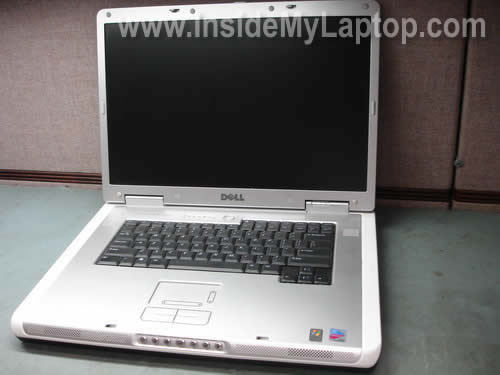
In this guide I explain how to upgrade memory (RAM) in a Dell Inspiron 9300 laptop.
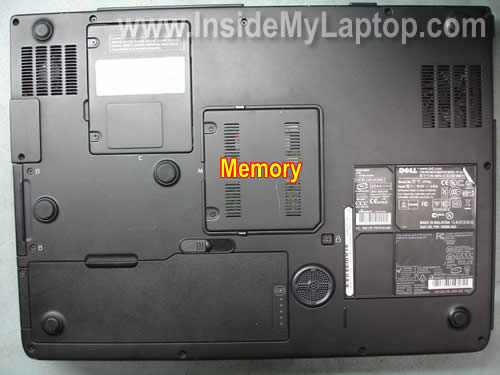
This model has two memory slots available for upgrades and both slots are accessible through the service door on the bottom.
Even inexperienced users can upgrade memory in a Dell Inspiron 9300.
Let’s do it step-by-step.
STEP 1.
Turn off the computer and remove the battery.
Remove couple of screws securing the memory cover. Remove the cover.
STEP 2.
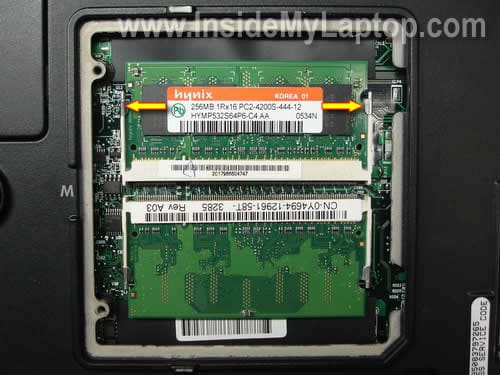
Under the cover you’ll find two slots. In my case both slots are occupied by two 256MB PC2-4200 RAM.
In order to remove the memory module you’ll have to carefully spread latches on the sides.
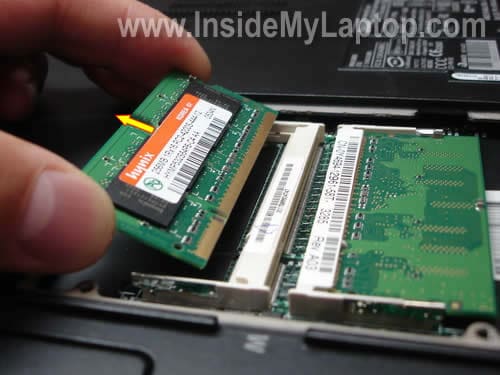
The memory module will pop up at a 20-30 degree angle.
STEP 3.
Pull the memory module from the slot. Do the same with the second module.
Total RAM supported by Dell Inspiron 9300 is 2GB.
Each slot can take up to 1GB module. You can use DDR-2 PC2-4200, PC-5300 or PC2-6400 modules.
By the way, you can install different size modules into different slots.
For example, you can keep one of the 256MB modules in one slot and install a new 1GB module into the second slot. In this case the laptop will see 1.25GB.
STEP 4.
New RAM modules should be detected and configured automatically. You don’t have to change anything in the laptop settings.
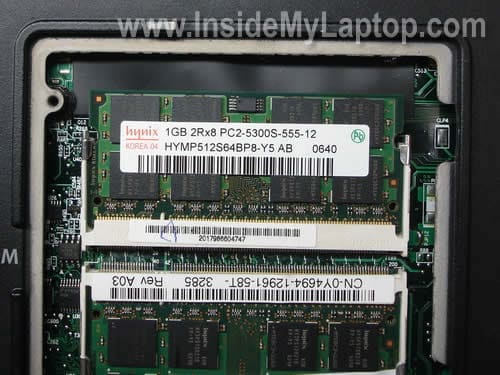
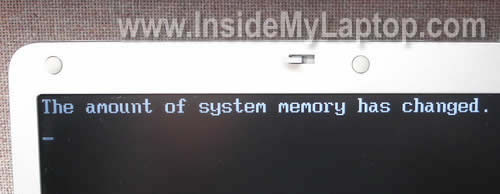
When you turn it on, you’ll see the following message on the screen: “The amount of system memory has changed.”
The laptop may freeze temporarily at this screen. Do not turn it off, just wait.
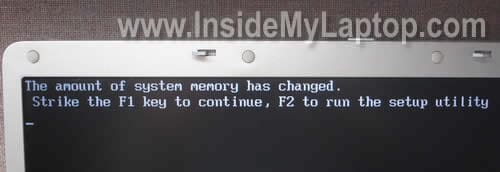
After a while, you’ll get another message: “Strike the F1 key to continue, F2 to run the setup utility”.
If you press on F1, the laptop will start loading Windows.
If you press on F2, it will take it to the BIOS setup menu.
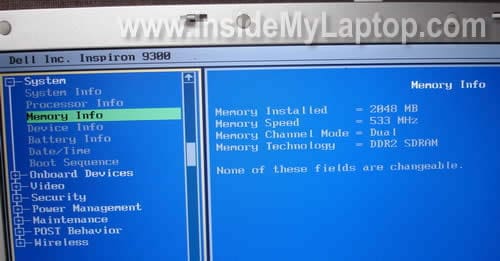
In the BIOS setup menu you can confirm that both memory modules are detected and recognized correctly.
As you see, in my case the BIOS sees 2GB RAMÂ running at 533MHz.
Lesleigh
First time I upgrade computer myself thanks to this guide. Saved me $45.
Chris2.0
Worked for me as well!
I actually tried a 2GB DDR800 chip as well, but the laptop gave me a memory error and refused to show anything over 2048MB…
Popped in a 1GB DDR800 chip & works great!
Dave
Really appreciate the time you spent with this. As a college kid I’m looking to save bucks – not spend them on Geek Squad for the 10 minute installation.
Straight fwd, and the pictures were great too. Thank you, kind sir.
mamakilya
yes thank you very much! I have a Dell 9100 and this seems to have helped me, even though it’s not a 9300. Now the question is, how can I find out which brand/kind of card to put in/. Should I call dell tech support?
thanks for the detailed instructions again!
IML Tech
mamakilya,
It’s Dell Inspirion 9100, right?
This laptop has two memory slots and you can install up to 2GB RAM total. Up to 1GB memory module into each slot.
You should use DDR400 PC3200 SODIMM modules.
Any well known brand memory should work just fine.
Andre
I just purchased these sticks of memory:
http://www.newegg.com/Product/Product.aspx?Item=N82E16820104025
But the 9300 isn’t picking them up. Did I buy the wrong kind?
BillZ
I just purchased the same Kingston 2 x 1gb set, as they exactly matched the Dell Memory Upgrade tool certified memory specs, so please tell me they can work.
IML Tech
BillZ,
You’ll find out if your new memory works pretty soon, when you receive it. 🙂
Mary
hi!
just discovered this great site!
however, i’m a complete newb on this kinda stuff and was wondering if this process is the same for Dell XPS M1530???
(my laptop is super slow and i’ve only had it for 2 yrs…i don’t do much with it, just web browsing and school work…not much downloading or anything…)
i’m officially buying more RAM this week, but dont really know what to buy…and how much RAM i would need…
thank you!
IML Tech
Mary,
Both memory slots in Dell XPS M1530 could be accessed on the bottom. Take a look at the step 2 in this guide for XPS M1530 laptop. Yes, the memory replacement procedure will be very similar.
You can install up to 4GB RAM in this laptop. Up to 2GB RAM module into each slot. You should use PC2-5300 667Mhz DDR2 SODIMM modules.
Pam
I have a Dell Inspiron 9300 and the B slot doesn’t seem to be working. The RAM is fine I’ve tried it in the A slot and it works. Is there anyway to fix this slot? Thanks in advance for any help you can give to me.
IML Tech
Pam,
Unfortunately there is not much you can do to fix the faulty memory slot. The slot is soldered directly to the motherboard. There are many small connectors soldered to the motherboard. Most likely one of them is bad and has to be resoldred. I don’t think that you can do it at home without special soldering equipment. I’ve never done it myself.
You’ll have to use the laptop with only one working slot or replace the entire motherboard.
JoyBell
I have a Dell Inspiron 9300 with Windows 7. I have bought new ram, Kingston 1GB DDR2-533 PC2-4200 x’s 2 to upgrade my machine. However, the computer recognizes the new ram, but windows won’t start…Do you have any thoughts on this?
Thank you.
LR
Im also having the same problem as JoyBell. I have a Dell 9300 w/ windows 7 I bought my ram thru
dell 1gb ddr2 pc2-6400 x2 the computer recognizes the new ram, but windows won’t start. I have bios version A05 dell doesnt have an update. I spoke w/ dell techs and they told me that I should use
pc2-4200 i dont think that is the problem. I think its windows 7.
Thanks
Chris Nielsen
Is it possible to upgrade a Dell 9300 Inspiron to 4GB of RAM?
I just purchased 2gb DDR-533 PC2-4200 form my mini 10 but found out the memory is only good for the 10v. When i purchased they say it is compatible with the 9300 inspiron. I know this requires pairs. If I purchased another could I upgrade my 9300 Inspiron to 4GB of RAM?
If so… Would I need new BIOs and what version?
Discodaisy
I have a Dell Inspiron 1545 and the memory on it is 1GB – I want to upgrade it. Do i follow the same method as above? Also, what memory cards will I need?
Thanks.
Michael
Upgraded an Inspiron 9300 in seconds with these instructions. Worked perfectly with 2x1GB. Many thanks indeed.
Jordan
I upgraded to G.Skill 2x1GB DDR2 PC4200 and it won’t boot. Running Windows 7 32bit and it runs fine with the 2x512mb, but not with the 2x1GB. I can get it into safe mode fine, but gets to the loading Windows logo and sits and swirls forever.
IML Tech
@ Jordan,
It’s possible one of the new memory modules is defective.
Try removing new memory modules one by one. Will it stat properly with only one 1GB module installed? Try installing them into different slots.
nomadd
Hi,
I am having a similar problem mentioned above. Crucial 2x1GB RAM causes Win7 to hang on boot. Any solutions out there? Would reformatting with Vista or XP make a difference? Thanks.
Mike
Hey all,
I have had hte same problem with the Dell 9300 upgarde to 2GB. The solution that worked for me (however drastic and overkill it might be) was to re-install windows and switch the RAM right before the re-install. Worked like a charm and 9300 running quicker than ever now. Hope this helps!
Lyle
Thanks for the info. Upgrade of 2 by 1gb from 4AllDeals – using windows 7 – working great and is faster..
laptop king
I have a dell xps m1710 but I can’t boot up and when it dose I have line on the screen any help
Wendy Bowditch
I have a Dell Inspiron 9300 that i want to rebuild. I need to put more Ram into it, how can I find out which brand/kind of card to put in it.
Aad Moret
Your tutorial was very helpfull. Thanks a lot!