

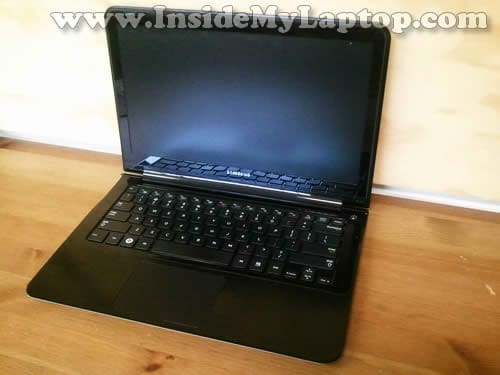
In this guide I’ll be taking apart a Samsung 900X notebook. I’m working on notebook model NP900X3A.
Most important components in a Samsung 900X notebook located under the bottom cover.
I’ll show how to remove the bottom cover and access the internal notebook components.
Before you start, make sure the laptop is turned off.
STEP 1.
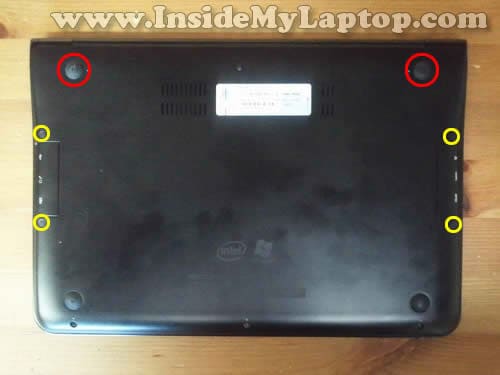
Some screws securing the bottom cover are hidden under the rubber feet (red circles) and rubber covers (yellow circles).
The rubber feet are glued to the bottom cover with double sticky tape.
STEP 2.
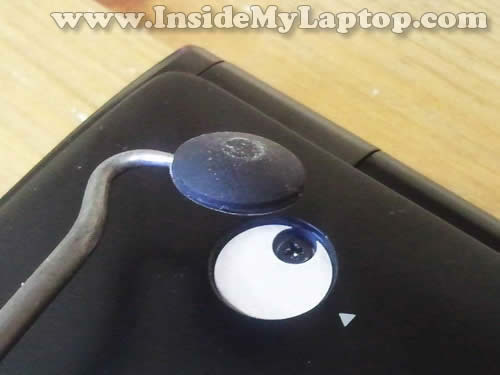
Using a sharp object carefully lift up the rubber feet and unglue it from the bottom cover.
STEP 3.
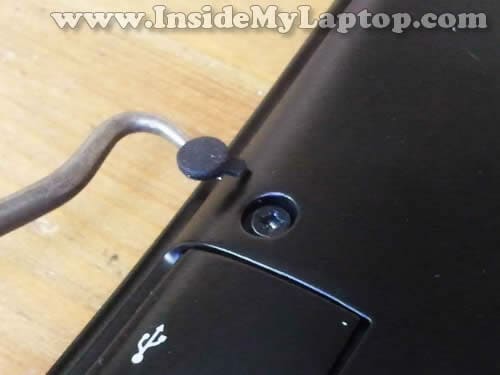
Remove four screw covers.
STEP 4.
Now remove all screws securing the bottom cover.

STEP 5.
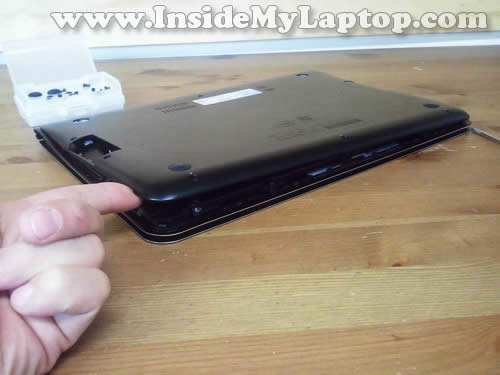
Start separating the bottom cover from the notebook.
STEP 6.
Lift up and remove the cover.
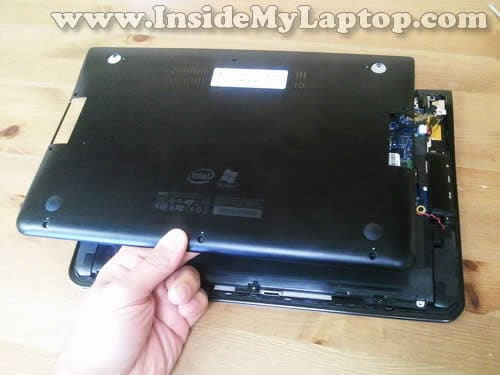
Now you should be able to access most major notebook components. Let’s look at them one by one.
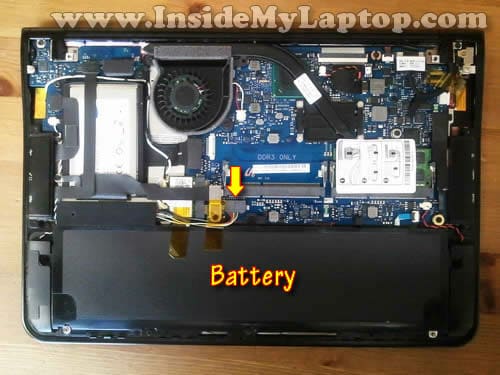
The notebook battery secured on the bottom and connected to the motherboard via a cable.
Do not forget to unplug the battery from the motherboard before you start removing other laptop components.
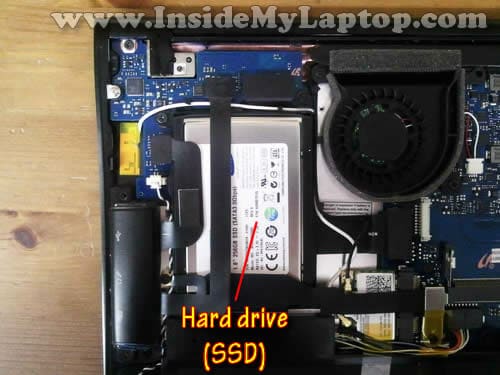
The hard drive is mounted in the upper left corner.
Samsung 900X comes with a 1.8″ SATA SSD.
In my notebook I had a 256GB SSD installed.
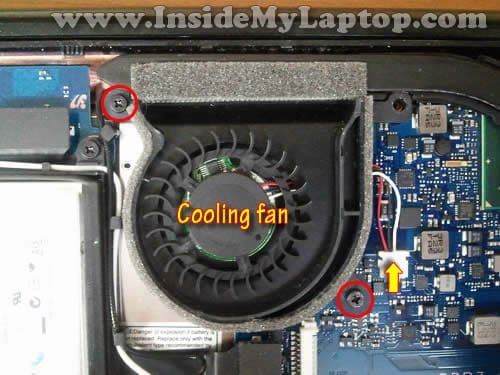
The cooling fan doesn’t have the cover.
It’s very easy to remove and replace the cooling fan in this notebook.
All you have to do is remove two screws and disconnect the fan cable from the motherboard.
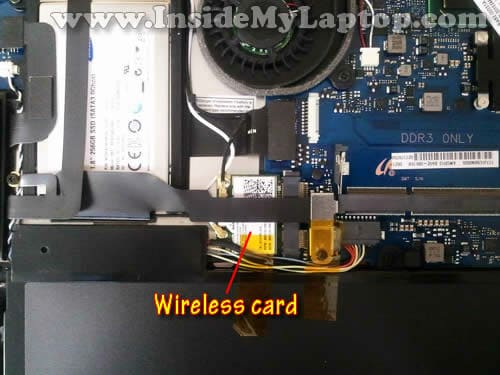
The wireless card mounted right above the battery.
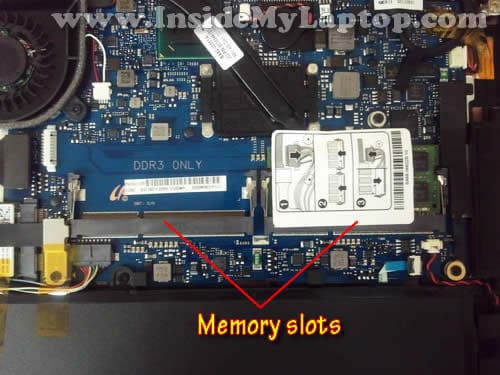
Samsung 900X notebook has two memory slots. You can use DDR3 memory only.
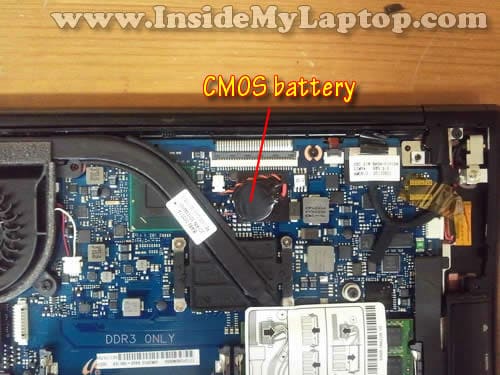
The CMOS battery is not soldered to the motherboard. It can be unplugged and replaced.
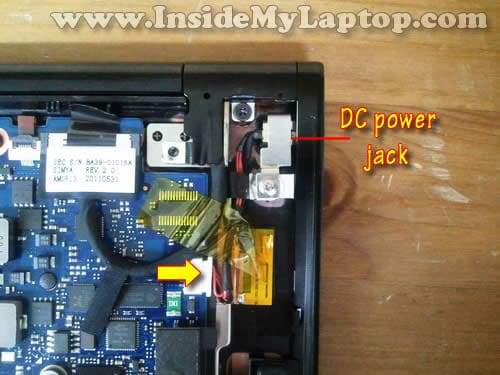
The DC power jack is located in the upper right corner.
The DC jack attached to the cable which can be unplugged from the motherboard. If the DC jack fails, you have to disconnect the failed DC jack harness and replace it with a new one.
The DC jack is secured in place by the mounting bracket and one screw.
Dipak
I’ve got red yellow and blue pixels appearing on the screen of my 900X. They are always there and seem to be slowly multiplying.
Any ideas on what the cause is?
IML Tech
@ Dipak,
Can you test the laptop with an external monitor? Do you have the same problem with external video or it appears only on the laptop screen?
Bale
Hi IML Tech,
My Samsung 900X1A screen is a bit loose and it wobbles a bit every time I open up the lid. Am I able to find the hinges to tighten the screen if I open up the back casing of my laptop according to your instructions here?
Regards,
Bale
phil n
Thanks for all the helpful stuff – I fixed an overheating CQ50 following your guide.
With this one is removing the keyboard easy after doing the above.?
Rustyinmd
How do you get into the lcd assembly to replace a broken screen?
Scaboful
Hi Rustymind
I’ve got a Samsung 900X1A-A01US Laptop with a broken screen. I’ll be notified as soon laptopscreen.com has the compatible screen on stock, after that i’ll publish a video on youtube for replacing it. I’ve opened it so far, the screen is very tricky. If you can afford the 350 USD for the whole screen instead of only the panel, it’s very easy to install.
I’ll update a newer video to my youtube channel (search for “Scaboful”). Hope this helps.
kennuth1
Hi , I have a different problem.. Any ideas? Really appreciated..
My Samsung 900x1A is really nice, but it is very hard to use wirelessly…
It picks up only 1bar, whereas smaller samsungs (e.g 110, etc. ) have 4 bars from my router…
I tried replacing the wireless adapter i think it was (like a micro ssd size thingy inside but it
didnt help..) Any ideas of things i can try?
Thx, ken
Kristin
Will this give me access to clean the keyboard too? My son splashed oj on my laptop and while it works fine, the keys are terribly sticky.
IML Tech
@ Kristin,
I think it will be necessary to replace the keyboard.
Unfortunately, this guide will not allow you to replace the keyboard. In order to replace it you’ll have to disassemble the entire laptop and remove the motherboard.
Sal
Hi there, I just wanted to say thanks you are awesome my Series 9 had a faulty DC jack i am about to replace it myself do i need to solder anything? since i have no idea how to solder…
Do you know where to buy a new battery for this ultrabook? Thanks for all your help you are a lifesaver
IML Tech
@ Sal,
Is it same laptop as shown in my guide?
You don’t have to solder anything. The DC jack attached to the power harness and can be unplugged from the motherboard. You can find a new DC jack on eBay. I posted a link in my guide, it’s above the last picture.
In order to replace the jack you’ll have to remove the bottom cover from the laptop, unplug the old jack and replace it with a new one.
A new battery also should be available on eBay.
Nima
Hi.
I have the same laptop and the charger wire is cut. i can solder it back if i can open it. any ideas how i can open the Charger?
Thanks.
Lubo
Hi
I have samsung 900x i7 full HD and it is too hot when processor is on 15% , It is so hot that I can’t even tuch it from the bottom . Is this OK?
IML Tech
@ Lubo,
No, it’s not OK.
You can remove the bottom cover and take a closer look at the fan and heatsink. If the cooling module clogged with dust, cleaning might helps.
Des
My Samsung 900Xc notebook keyboard is totally not working. The rest of the laptop is working. How do I check the keyboard internally. Maybe the glass of wine my daughter spilled on it in Africa is the cause. Thanks
IML Tech
@ Des,
You can test the laptop with an external USB keyboard. If everything works fine, apparenlty only the laptop keyboard was damaged.
Mathew
Hi There,
I’ve hunted high and low for a 256 GB SSD that fits this machine. Where did you get your? any recommendation?
Thanks
Raay
Where is the CPU, by the way your a genius
Greg
Hi,
My DC Jack has failed, It wont securely hold the power adaptor in place. You mentioned a link to where I can buy a new one on ebay, but I cant find the link on this site or in this post. Could you please forward me the link so that I can replace the DC jack?
best regards
Greg
IML Tech
@ Greg,
Just search for “Samsung 900x jack” on eBay and you’ll find it.
albert guedes
But the Samsung series 9 have a mSATA adapter , but in text say that is only SATA. There diferences betwen the models ?
Steve
Hi, I face a problem with my 900x that I havent´t seen before; my girlfriend tried to install WiN 8.1, didn´t work and afterwards we tried to use F4 (recovery) to set back to the original status of software – didn´t work out. in boo modus it is looping, F2 to boot menue is not accessible and F4 is going back to restart. Message on screen shows: “All boot options are tried Press F4 key to recover with factory image using Recovery or any other keys for next boot loop iteration.” => any key brings me back to this message and F4 just doesn´t work. Do you have any idea´s ???
IML Tech
@ Steve,
Did you try to install Win 8.1 from a CD? Maybe she reformatted the drive and erased the recovery partition?
Shani Clarke
How do I replace the screen on my 900 series?
The laptop got knocked off the table and the screen is black on half of the screen? I have got quotes to get it fixed and it will cost me $600 and I can buy a new screen for $200 I have googled it but not found a page that shows me how to take the screen out and put in a new one? Thank you to any one who can help me.
Shani
Lecaros
do you know where the graphics card is?
Samsung NC10
Dear,
I am finding difficult to know how to replace my Samsung NC 10 keyboard.Please can you tell me how to do that.
Gary
Hi
I have a 900X4C i7 I had the problem with a line down the screen but it fixed itself after about 3 weeks. I just updated to Windows 8.1 and the next day while I was on line the unit shut down completely”, no warning, no error message. Now it won’t start at all ???? Any suggestions.
Gary
Jacqueline Martinez
Hi my name is Jackie I have a 2012 Samsung and I just had the screen replace. It was working fine until the I can’t charge it any more the Jack broke. pleaÑe help I’m not working I need to fix so I can use my computer to find a job
IML Tech
@ Jacqueline Martinez,
If the jack is broken, you’ll have to replace it. There is not much I can do to help. Sorry.
Paul Dredge
Hello,
Know this was done along time ago but I don’t suppose you know what cable was used for the normal sata connection. Wants to change mine from mSATA to 2.5 SATA
John C
Hi I love my NP900X4C-A05AU with a 256G SSD. What is the biggest SSD drive that I can replace it with and what model would fit inside. Thanks for your site.
ZiCott
I have a 900x with a 128SSD – mSATA version. On amazon you can get up to 512GB if you want to DIY Upgrade. If yours came with a 1.8″ SATA SSD you must continue to use the same 1.8″ SSD, they also have 512GB storage capacity.
john
What type of screwdriver do you need to take the screws holding the keyboard in place? These screws are smaller than outer screws. I bought two sets so far and none fits. Thank you
ark
I broke my screen and need to replace it. I try to buy one on Ebay but I need the proper reference: I have a notebook 900X model NP900X4D. What is my screen’s reference?? Tks
Jones^Y
I have the same question as john, posted 20 December 2015.
“What type of screwdriver do you need to take the screws holding the keyboard in place? These screws are smaller than outer screws. I bought two sets so far and none fits. Thank you”
Nisha
Hi
i wanted to know where i can get a keyboard for my samsung 900X laptop model NP900X3C