


In this guide I explain how to take apart a Dell Inspiron N5010 laptop.
I believe this model also called Inspiron 15R. Also similar to Inspiron M5010 model.
I’m doing this disassembly in order to access and remove the hard drive.
Dell Inspiron N5010 doesn’t give you an easy access to the hard drive. I’ll be removing the keyboard and top cover assembly.
Before you stat the disassembly process make sure it’s turned off and battery removed.
STEP 1.
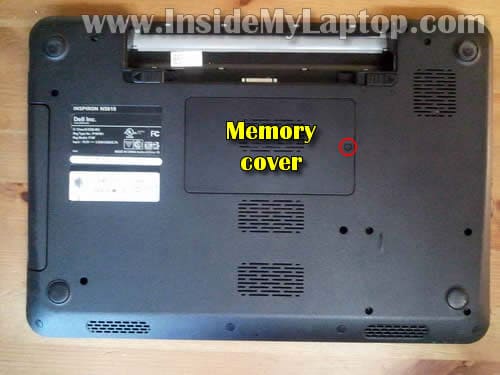
Remove one screw securing the memory cover.
Lift up and remove the cover.
STEP 2.
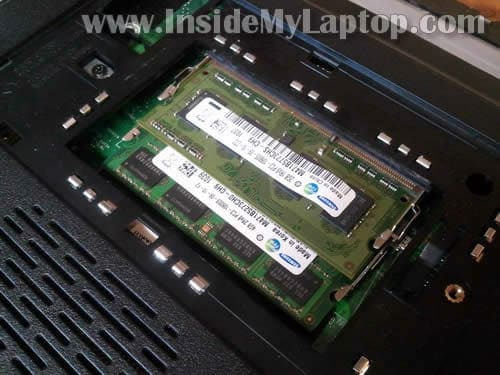
Both memory slots/modules can be easily accessed on the bottom of the laptop.
Dell Inspiron N5010 (Inspiron 15R) can support up to 8GB RAM. You can install up to 4GB RAM module into each slot.
Memory type used: PC3-10666 DDR3-1333 204pin SDRAM SODIMM.
STEP 3.
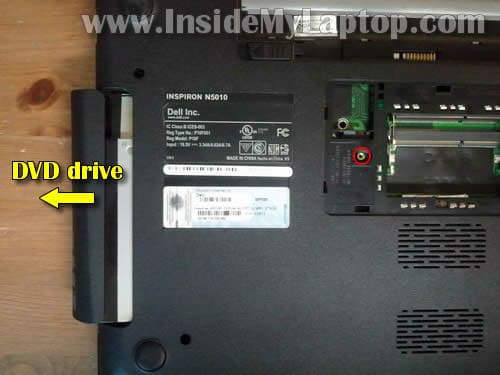
Remove one screw securing the DVD drive.
Pull DVD drive to the left and remove it.
STEP 4.
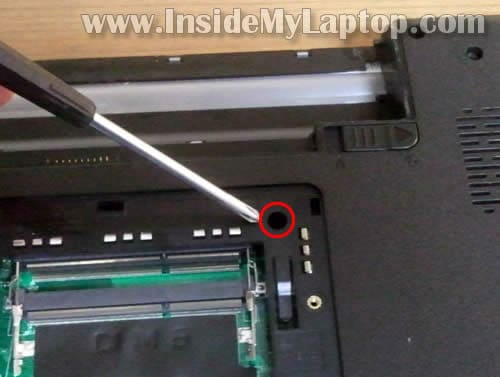
There is one screw securing laptop keyboard on the bottom.
This screw located in the memory compartment.
Remove the screw.
STEP 5.
There are four spring loaded latches securing the keyboard on the top.
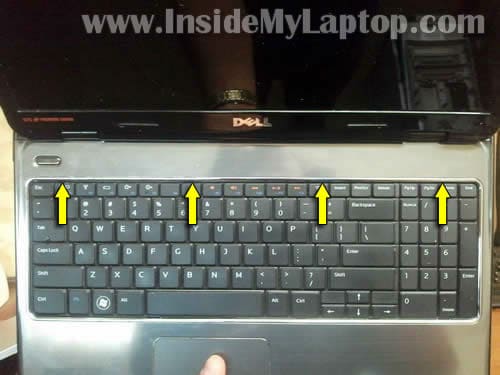
STEP 6.
Push on the latch with a small screwdriver and at the same time lift up the keyboard a little bit.
Do the same with all remaining latches.

STEP 7.
Turn the keyboard upside down and place it on the palmrest.

STEP 8.
Now you can access the cable connector.
Before you remove the keyboard you’ll have to unlock the connector and release the cable.
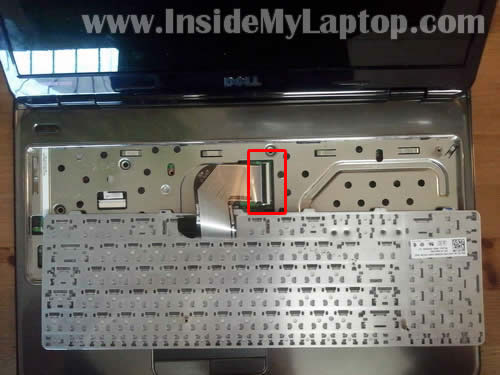
STEP 9.
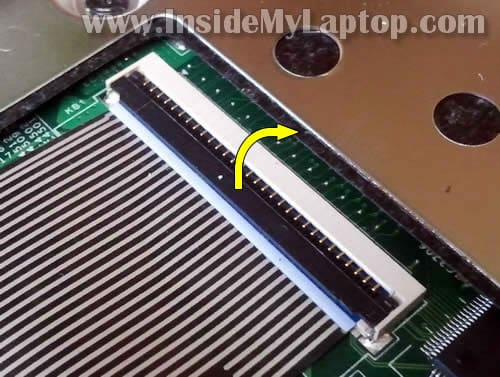
On the following picture the connector shown in the locked position.
Lift up the left side of the locking tab. It will open up at a 90 degree angle.
STEP 10.
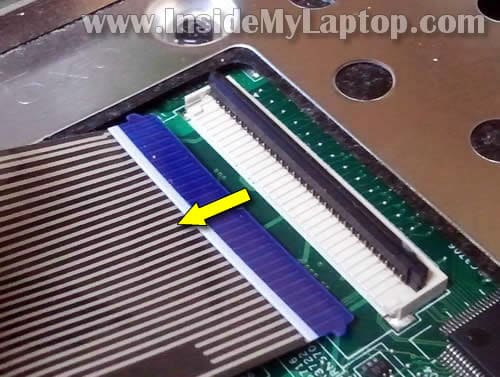
On the following picture same connector shown in the unlocked position.
Now you can pull the cable.
STEP 11.
Remove the keyboard.
Replace it with a new one if needed.

STEP 12.
Remove all screws from the bottom.
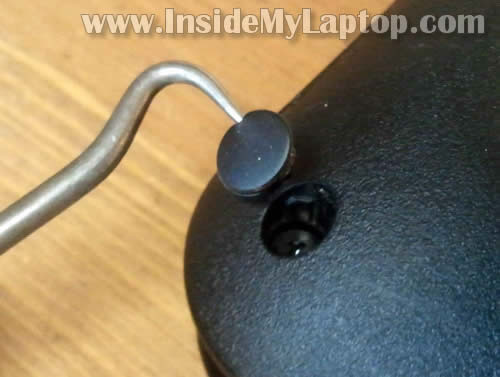
Six screws (green circles) are hidden under rubber covers.

STEP 13.
You can remove rubber covers with a sharp object. After that remove screws.
STEP 14.
Remove five screws securing the top cover assembly.
Disconnect the power button cable, status light cable and touch pad cable from the motherboard.
Use same technique as shown in steps 9-10.

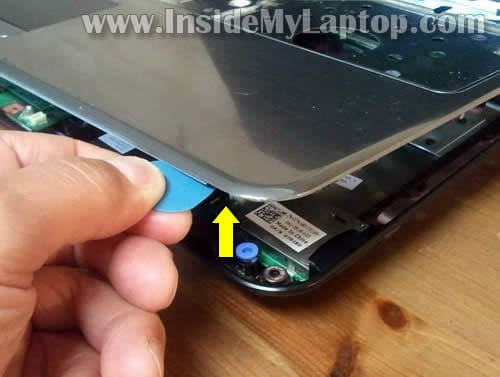
STEP 15.
Start separating the top cover assembly from the base.
STEP 16.
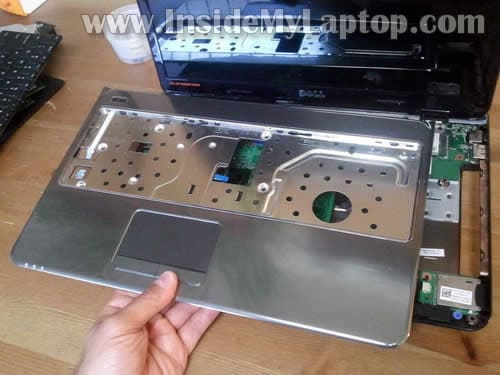
Remove the top cover assembly.
STEP 17.
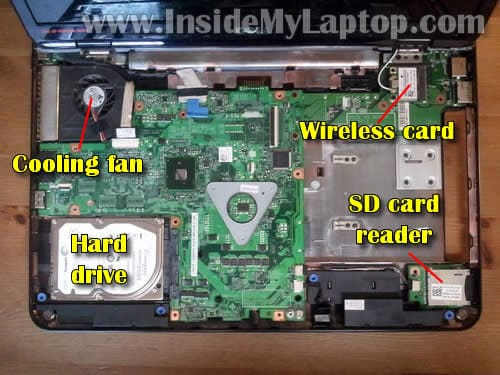
Under the top cover assembly you’ll get access to the hard drive, CPU cooling fan, wireless card and SC card reader.
STEP 18.
There are four screws securing the hard drive on the bottom of the laptop.
Remove all four screws.

STEP 19.
Now slide the hard drive to the left to disconnect it from the motherboard.
Lift up and remove the hard drive.
My Dell Inspiron N5010 had a regular 2.5″ SATA HDD installed.
It’s possible to upgrade this drive with any other large capacity 2.5″ SATA HDD or expensive (but fast and noiseless) 2.5″ SATA solid state drive (SSD).

In the next guide I explain how to remove and replace damaged LCD screen.
Rich
Helped me to replace damaged keyboad on Dell Inspiron N5010. Thank you.
Next I’ll upgrade memory.
wolverine
it’s the same way for dell inspiron N4010?.thank you.
IML Tech
@ wolverine,
In very general, all steps should be similar but Inspiron N4010 and Inspiron N5010 are two different models and have different locations for screws, cables, etc…
You can get official service manual for Dell Inspiron N4010 from Dell website here.
wolverine
thank you for the advise IML Tech 🙂
vivek
Step no 4 the image which is circle in not present in my dell N5010 plz reply ……..waiting
messenger
thank you it helped me
OLANREWAJU A
i have problem with dell 610.it work only with battery but if i connect power adapter it would not power.what can i do.
i will also appreciate if you direct me where to download books for laptop repairs.thanks
blog
it’s the same way for dell inspiron N4010?.thank you.
Simon Jenkins
Is it possible to upgrade the processor to somethign which is VTI enabled (i.e to run virtual servers) ?
Thanks
Simon
PCBUG
Hi Steve,
I am your web site member. I have some problem in Dell Inspiron N5010. Laptop fell on the floor and after that i tun it on but after 30 seconds the laptop switch off automatically. I Throughly check the HDD (working file), then check RAM (both working properly) then check Charger (working perfectly) to me every things seems to be working but whenever i turn it on and windows try to load, the laptop switch off automatically after 30 seconds. If i turn it on again same result turn it off automatically after 30 seconds. So could you help me to sort out this problem. Thanks
IML Tech
@ PCBUG,
Take a closer look at the cooling fan. Maybe the fan stopped working after you dropped the laptop? It’s possible the laptop shuts down because of overheating.
buckeye
In Step 4, I don’t have another screw location to allow the keyboard to be removed. So how does one gain access to the guts if the laptop? I can’t seem to figure out another way to get inside.
The warning on the Dell Manuals say that this particular screw may not always be present in all computers.
Please advise.
Thank you!
mickey
Hi,
i need help i have dell inspiron n5010 and has video card is intel r graphic
so can i change it with ati card
please
and thank you for this topic
IML Tech
@ mickey,
Are you sure the video card can be replaced? I believe it’s integrated into the motherboard and cannot be replaced with another one.
Leslie
Hi there! That was easy however when I followed the same steps to put it back together… It doesn’t even start now!! What could I have done? I just took out the hd and put it back in, as it said data disk failed. I thought that maybe it just got jostled, but now it won’t even turn on…
IML Tech
@ Leslie,
Maybe it’s not connected properly? You can try reconnecting the hard drive.
jacob
Buckeye asks on the 10th December about the missing screw from step 4. If there iss no screw the keyboard is stuck with double sided tape. Gently, but firmly, lift and the tape will seperate.
Derek
@Leslie,
Did you ever find a fix? I am experiencing the same issue. When i plug the cord in and hit the power button the light flashes once and then flashes every so often after that. Still nothing turns on…
IML Tech
@ Derek,
Sounds like motherboard related failure.
a7mad saad
IML Tech :
iam very sorry to disturb u .. iam from egypt , my laptop is n5010 i5..
i hear a very little soud from the lift front of the my lap ” hard position”
.. my room is very quiet..this sound bother me
i sent my lap to several IML Technician, and they told me to sent my lap the to the dell Authorized distributor to check the hard ,, they replace the old by new one ,,but i still hear that sound ..
this soubd like zzzzzzzzee zzzzzzz zzzzzzzz.”i cant describe it correctly”
but i notice that the sound have a relation with the middle 3 light …
iam very sorry for distrbing u ,, but please reply please
IML Tech
@ a7mad saad,
Unfortunately I cannot tell what is causing the problem without looking at the laptop.
It’s possible this sound coming from one of the components on the motherboard.
rahul
can i install a graphic card in my laptop? plz rply.
IML Tech
@ rahul,
I don’t think so. I don’t think this laptop can take an external video card.
ziyadkv
very nice.Is there a guide like this for dell inspiron n4050?
Paul
Hi
can you please help and advise. My Dell N5010 screen does not show any thing at all. If I plug in another monitor it all works Ok . Can you tell me how do I know if its the screen that needs replacing or the inverter or the screen cable is faulty. I have seen how to replace screen , this i can do , how do I replace the cable and inverter. Your help would be greatly appreciated.
Thank You
Paul
SWAPNIL
LOVED IT THANXX MAN
Troy
Derek,
Any luck getting your laptop up and going? I just changed out my hard drive and have the same periodic power button flashing but nothing else happens. Anyone else?
suman
what is the dimension of the harddisk?is it 9.5mm or lesser pls reply?recently my harddisk was corrupted.my lappy is out of warrenty & they are asking 14000 for it.so i decided to go for other harddisk available not from dell.so can u recommend me which one to get?
pls reply its urgent..
Dan
@troy same problem with me, initially thought it was a hard drive problem, but as soon as I switched them over won’t start up, just an intermittent flashing led and behind the power button. Have I bricked it 🙁 can anyone help?
Arg v
@suman any 2.5″ hard disk that you find on amazon or ebay will do. it doesn’t have to be dell
Nathan
My daughter dropped the laptop and broke the screenHow easy are the to remove and replace Where should I buy one?
Twents
Hi there,
I have a N5010 also, thinking of putting an SSD into it but i have heard that some laptops need thinner (7mm) ssd’s than others. Is this the case with the N5010?
Cheers.
IML Tech
@ Twents,
A regular 9.5mm SSD should fit just fine (I checked it on Crucial site).
Paul
Troy/Dan I got the same as you – reseating one of the memory sticks got mine going again
Good Luck
Dim
Thank you! man! 🙂
Clair Bourne
My daughter accidentally spilled water on her laptop and none of the keys would work then it just started making a whining noise. She had just downloaded all her end of school and graduation photos and thought she had lost them all. My old laptop was dead, the hard drive corrupted, so I suddenly wondered if we could put her hard drive in my old computer. I looked online and found your site and within an hour we had rescued all her files including her photos (they are now backed up!!). Thank you so much for posting this information for everyone, you are wonderful!!!!
Andrew
I have a problem with my Dell currently, suddenly I will get the blue ring of death and everything grinds to a halt either executing commands extremely slow or freezing. Most of the time I’m forced to do a hard reboot to get out of it. I’ve had the performance tab up, and my memory and CPU aren’t being taxed too much, It happens often when I am using firefox or chrome, suddenly it can’t handle loading pages. I’ve cleared cache, and all browsing files. I’ve used adaware and spybot to empty temporary internet files cache and check for spyware, I’ve run diagnostics on hard drive, memory, nothing is showing up. I’ve defragged my drive, still persists. Do any of you have an idea of where I need to check next?
Kar
Laptop overheats! Battery needs replacing in a year’s time.. Is it possible to get a backlit keyboard for this>>>>>
brandon
were would i find the prossesor mine hase a intel corec i3 and i want to put in a i5 or even i7 if i can
Ehan
I have Dell Inspiron n5010 laptop my laptop dropped by me and now its giving me 3 beep and break and again beep no display what is a problem please help me….?
IML Tech
@ Ehan,
Check the memory modules. Maybe one of the modules got dislocated when you dropped the laptop. Try reconnecting memory modules.
Ben
Hi I have the dell 15r and was wondering if it was possible to replace the optical drive with an ssd boot drive? Thanks
IML Tech
@ Bin,
I think you can do that with a 2nd hard drive HDD caddy for Dell Inspiron 15R laptop.
Pugazhl
I have a Dell N5010. Got hard drive problem(I heard this is problem specific to this model). As I din’t wish to replace it with a new one, I tried to format it. I did it by removing the hard drive as you have explained in this page. Then connected it to another system using external casing(Hard drive enclosure). But when I connected to another system and tried formatting the drives, the systems hangs and couldn’t format the drives in the hard drive. Can u help me in fixing that rather than just replacing it with a new one ? Is there a way to format the hard drive and make it working? At least to recover the unaffected sectors in the hard drive, so that the drive may be useful ?…… Awaiting your reply ….
IML Tech
@ Pugazhl,
If the hard drive is failing you have to replace it. You cannot fix the hard drive.
Shashank
Hi,
I own the dell inspiron 15R, for a week time the laptop goes very slow. the boot up diagnostics says hardware issue with error code 2000-0146. now it does not even bootup., any idea how i can at least got backup of the data stored in d and e partition (non winodws partition).
please reply on my email if possible.
regards
IML Tech
@ Shashank,
Sounds like hard drive failure.
If the hard drive failing because of a few bad sectors, you still should be able to recover data.
You can try booting the laptop from a Linux CD and save files to the external hard drive.
Also, if the hard drive sill spins, you can try this method:
https://www.insidemylaptop.com/recover-files-from-broken-laptop/
Sandip kc
I spilled milk in my n5010 laptop. Milk was very little amount but enough to damage motherboard. I have sent it for repair. Milk only went through touchpad gaps. Is there any possibly if it could damage hard disk too?
sandip
Which hard disk does Dell n5010 uses? I sent my dell laptop for repair, they couldnot repair it instead they replaced by 500gb hard disk with 160gb old toshiba hard disk. And this disk doesnot work at all. So before claiming my hard disk I want to know which hard disk does it has by default.? Is it seagate or any other brand, please let me know as fast as possible.
IML Tech
@ sandip,
Who replace the hard drive? Dell did???
After replacing the hard drive it’s necessary to reinstall the OS. Did they reinstall it?
Jessica
I updated my laptop and as soon at it updated, my laptop turned off. I tried to turn my Dell Inspiron N4010 back on but all I get is a black screen with a blinking cursor on the top right hand side. My F8 or F5 doesn’t work and I’ve tried F2 and F12 but nothing. Plus the computer place wants to charge me 50.00 just to tell me what’s wrong with it.
Is there anything I can do?
IML Tech
@ Jessica,
Here’s what you should try first. Unplug the AC adapter, remove the battery. Push the power button and hold it down for a few seconds. Now plug in the AC adapter and try turning on the laptop again.
I don’t know why the F12 doesn’t work. Try tapping on the F12 key a few times as soon as the laptop is turned on, even before the Dell logo appears on the screen.
F12 key should bring you to the boot menu when you can select diagnostics and run it.
A blinking cursor might indicate the hard drive failure. It’s possible your hard drive was on the verge of failure and running Windows updates killed it completely. Again, try F12 and run diagnostics. If the hard drive failed, it will give you an error message during the diagnostics.
Zagadoria
Awesome article… really helpful 🙂
shyantan
i am using dell inspiron N4010 laptop is the unfixing of laptop is same as this one
Taranveer
my hard drive crashed about a week ago but somehow i was able to retrieve some important data from it.
all i want to know is that if i want to replace my hard disk can i replace it with another hard disk of some different company and can i replace it with a 500gb, 2.5″ hdd instead of what it is now… i.e. wd hdd 320gb 2.5″ ??
IML Tech
@ Taranveer,
There should be no problem if you replace a 2.5″ 320GB SATA hard drive with a larger 2.5″ SATA hard drive.
AJ
My laptop is getting super heated up at near the middle of the laptop base,i.e., near the RAM. Please tell me the reason for this,,,
Jonathan
Hi i have the N5010 core i3 just yesterday my drive crashed an all my data including partitions so i now have to buy a new drive, just needed to know can this machine support a 1TB?
Mohsin Rasheed
can Dell Inpsiron 15R (N5010) SATA Hard Drive Adapter Interposer Connector is different then Dell Inpsiron 15R (N5110) SATA Hard Drive Adapter Interposer Connector?
Kindly reply as soon as
IML Tech
@ Mahsin Rasheed,
I searched for both connectors on eBay. It looks like they are similar.
Don
I am in need of the small grey plastic locking strip for the keyboard cable, as shown in the image called Unlock Connector. I broke mine by pressing too hard to get it to pivot up. Is this a part anyone has that you can drop in an envelope for me. It comes out of the plug fairly easily.I do’t see it listed as a part that I can purchase anywhere. Don
Chris
Hi IML Tech, i have a problem on n5010 15R i receive an error 5300:0119 nine beeps. problem with display. I use my externel monitor. Another problem is the font, it display different as expected.
Can you help me how to figure this out? What parts are to be replace
Thanks!
James
Hello, I just replaced the hard drive in a n5010 I5. I was very careful with the cables etc and the reassembly. My problem is that now the computer will not power on the lights just blink intermittently and nothing ever happens. Have you ever run into this problem before? Thanks for any help you may offer.
Benjamin Tarachi
Sir,
I am ashamed to say I have nicked my Dell 15RN keyboard and I require a new one. Do you by any chance know where I can buy one?
Thank you
syed muhammad ali shah
hi friends… i have dell n5110 inspiron corei5 . i have a problem my laptop didnt fully off after shutdown.the power light remains on .then i off it by hold the power button for a while.plz anyone know reply me
Joy
I hev a problem w/ my dell inspiron 15R (n5010) the lcd is broken where did i buy tnis lcd my location is quezon city phil. Tnx……
Sean Conover
I Am Having A Problem With My Dell N5010. It boots Up Extremely Slow ( About 2 HRS) When finally Does, I Get A Black Screen. In The Bottom Right Corner It Says ” Windows 7 Build 7601 This Copy Of Windows Is Not Genuine” That’s It. When I Go Into task Manager, There Are No Processes Or Applications Running. please Help. It just Started Doing This Out Of Nowhere
Johnny J. Says
Very good detailed instructions. It took me just about a half hour from start to finish. Lucky for me, the keyboard wasn’t sticky taped down like many others have said.
I noticed that the fan wasn’t working properly before I opened it all up, so I blew powdered graphite into the motor housing and all is well now.
It also helped to just remove ALL the screws on the bottom and the case comes apart real easy.
All screws are exactly the same size on mine, except for the 4 screws that hold in the H.D.
Be patient when re-inserting the ribbon wires back in the clips. There are 4 including the keyboard one. They have blue tabs on them to hold while you slide the actual connector end under the clip. Put the wire in all the way firmly & gently clip the plastic piece down over top. Don’t force it! If it won’t close easily, try reseating it again & start over. If you snap off one of those fold over plastic clips, specially the keyboard one, It’s new MotherBoard Time. I’ve a feeling this is why people are having problems getting their machines to power on or work correctly after re-assembly.
Be patient, don’t rush through the project, take pictures if you have to along the way, and things will go much more easy for you. THANKS AGAIN TO THE TECH WHO TOOK THE TIME TO WRITE ALL THIS. Great detailed pics!!
Peace. Johnny.
darkwereling
The bar that hold the keybourd cable came off how do you put in back on?
Sam
http://www.anandtech.com/show/6725/the-full-intel-ssd-525-review-30gb-60gb-120gb-180gb-240gb-tested
Can I add the Intel 525 SSD to this laptop?
Price factor, won’t allow me to take-off the HDD
Pankaj
Hi,
I have a problem with my dell Inspiron N5010 core i3
Actually i have sent my laptop for repairing and they remove 2gb RAM out of it because they said it was corrupted and now my laptop again has a problem and this time its working fine with UBUNTU but my windows is not opening.
So is it a problem of corrupted RAM or something else?
IML Tech
@ Pankaj,
Run Dell diagnostics. It has a test for memory.
Turn on the laptop, press the F12 key and select diagnostics.
If everything pass test, most likely this is software related issue. In this case you’ll have to repair or reinstall Windows OS.
keshav
my dell laptop n5010 is locked with system password.can you help me to locate the jumper on the motherboard so that i can reset the password.
Pankaj
my dell inspiron N-5010 hard drive is locked so plz
Naseeruddin
Hi i hv an inspiron n5010 i hv recently replace the hard drive, which was damange as my lapy fall down, after the replacement all was gud n zen after 1day i was watching a movies when sudenly there was no sound cn u help me plzz i cnt get sound i hv updated the driver also bt again no sound help me plz
Robyn
Hi,
First off: thanks for taking the time and making the effort to publish this information!!
I have a Dell N5010 with intermittent screen issues. The screen sort-of came to life eventually when you wiggled it back and forth for a while but now it only displays an image if you twist (I know – it hurts me to even type this) slightly. Connecting an external monitor works once you’ve booted to an OS. I’m going to probably have to replace the drive on this thing, so I’ll be in it anyway. I learned how to loosen the LCD from this video:
http://www.youtube.com/watch?v=Gx_y2XBUOuA
and checked for loose connections, but everything appears to be okay, so I’m wondering where else to look… near the MB, perhaps?
Thanks in advance for replying… 🙂
pravin ram
i have problem in speakers can you help me i am in tiruppur
Zia ur Rehman
It would very helping, your efforts are realy appreciated, gud job man
Steve
Thanks!
mujtaba
Sir,
I would like to know that can i upgrade my hard disk for dell inspiron n 5010 laptop from 250 GB to 1 TB and what RPM is good
kindly reply at the earliest
Thanks
jitu
my charger indicator light is not working ??
what should i do??
IML Tech
@ jitu,
First, try reseating the battery. Maybe it’s not connected properly.
Does your laptop start from AC adapter when the battery removed?
abhishek
i have dell inspiron n5010 its keyboard caught red ants and went inside frm keyboard hole inside can u tell me the solution to get rid of the ants?????
RaviG
Hello Techies, I have N5110 Inspiron. Can I replace the default HDD with a SDD for my laptop. Any help is appreciated.
vivek
Hi my Inspiron 15R is become very slow, I did disk defragmentaion, run dell dignosis software..didnt detect anything (all test are pass), still I am suffring from this problem, this problem was stareted from when blue screen error came on my screen, and my laptop stop working completly dead for few hrs, after 2-3 hrs when i tried to start it i was working but with above mentioned problem..so please suggest me what should I do.
IML Tech
@ vivek,
If all hardware passed diagnostic test, it must be software related problem.
You can back up your data and reinstall OS from scratch. It’s hard and very often not efficient try to repair Windows OS.
Ravi
My dell n5010 sometimes goes overheated. Fan is working properly and I formated it a few days before. should i change the fan or what should i do??
chetan
Thanks. This is very helpful.
To take out this hard drive is hell of efforts. Such a complex design.
behzad
hello.i have a small piece of a hardware in 2cm length located in bottom of my motherboard and the left side of right speaker.when it is installed my battery and wireless dont work.can i remove it?what s that?
IML Tech
@ behzad,
Maybe Bluetooth module? Not sure 100%. Find the part number and google it.
indigo
Hi,
Thanks for the detailed post!
My insprion 15R got a wired problem.
It will not boot unless and until i heat t it with an hair dryer.
Any help will be appreciated.
Thanks 🙂
IML Tech
@ indlgo,
Could be motherboard related failure. Probably when you heat the laptop, you indirectly heat the motherboard.
Solcier
I recently upgraded my inspiron 15r (n5010) with 2x4gb ram sticks. now my laptop’s not booting to windows7 anymore, however I can see in the bios that the installed ram is 8gb. I needed help/advice. thanks in advance
IML Tech
@ Solcier,
Try reseating RAM modules and try booting again.
Also, you can run Dell diagnostics and test RAM. It’s possible new RAM is faulty.
In order to access diagnostics, press F12 when Dell logo appears on the screen and select Diagnostics.
Also, did you try installing just one 4GB module at a time?
Div
Hello. My laptop inspiron n 5010 get shutdown automatically after few seconds of i power it on.. i had clean my lappy.. bt prblm not solved .. plz help me.. my all imp data in it… .
Swtos
is there any mSATA slot??
SUMIT
CAN ANYONE TELL ME THE WAY OUT OF MY PROBLEM, MY LAPTOP IS NOT STARTING. .WHENEVER I PUSH THE START BUTTON IT STARTS BEEPING AND LAST UNTIL I SWITCH OFF IT WITH DEAD SCREEN.BUT PUTTING IT FOR SOME REST SAY ABOUT 20 HOURS ,IT AGAIN STARTS BUT WHEN IT GETS HEAT UP SCREEN GOES DEAD AND ONLY THING CAN U HEAR THE BEEPING SOUND.
IML Tech
@ SUMIT,
First, I would try reseating both memory modules. Just remove memory from slots and install back in place. Test the laptop. Could be just bad connection between memory and slot.
If it doesn’t help, try removing memory modules one by one and test the laptop with only one module installed. It’s possible one of the modules failed and the laptop doesn’t start because of that.
ravi Kalsariya
I havone issue in my laptop.
Issue: windows 7 logo and everything is display double double, not clear display, please give me solution.
Laptop: Dell Inspiron N5010
Bios: A11
HD: 250 GB
RAM: 4GB
Processor: intel i3
IML Tech
@ ravi Kalsariya,
You’ll have to test your laptop with an external monitor. If external video work fine and the problem appears only on the internal screen, most likely the laptop screen is bad and has to be replaced.
turtle girl
Hi i have dell inspiron n5010 i recently face a problem with it. after i turn on the power switch it will take like 1 min and gives a 1 click sound and closes direct. we clean it already and try to remove the ram on the backside but still giving the same result. what could be the problem. can you please help me and advice how to make it work.
thanks a lot.
IML Tech
@ turtle girl,
Turn on the laptop and listen closely for the click sound. Is it coming from the area on the left side of the trackpad? If yes, it’s possible the hard drive failed and has to be replaced.
glenn
perfect instructions made a daunting task ridiculously easy. thank you.
Garry
Can anyone please tell me how to reset the CMOS on this Unit, removing the CMOS battery does not do it….thanks
Rocco
Hi i have a dell i3 n5010, i face problem in battery, when power cable remove then system turn of and battery indicator light is blinking red as well as white, red-white blinking, i think battery timing is zero, cal u tell me how i fix this problem.
IML Tech
@ Rocco,
I would test the laptop with another battery. Without testing it’s hard to tell if the problem is related to the battery or motherboard.
craig
hi there i recently changed the hard drive on my dell n5010 following the guidelines shown but now i cant turn the machine back on.
Theres no power light, no noise or any other signs of power to the laptop???
The light on the AC adapter is still on and both battery and mains adapter were working fine before i changed hard drive.
i have put the old HD back in the machine thinking it maybe the cause but still the Laptop has no power?? Some help would be amazing, thank you!!!!
IML Tech
@ craig,
It’s possible you forgot to connect the power button board cable. It’s shown in the step 14 – it’s the left arrow pointing down.
Or this cable not plugged correctly. Check the connection.
craig
@IML TECH
Hi yes ive checked all cables and they are all fitted correctly??
IML Tech
@ craig,
It’s hard to figure out what is wrong without seeing the laptop.
Here’s what you can try.
1. Remove the top cover assembly.
2. Separate the power button board from the assembly and try connecting it directly to the motherboard.
Try turning it on without top cover. It’s not necessary to connect the keyboard and trackpad for that.
If the laptop turns on this way, put it back together and try again. I think it’s just some kind of connection related issue.
anand krishnan
sir, i own a dell inspiron n5030. it is working fast.. it has 3 gb ram and 500 gb hrd drive..runs on a windows 7 . can u suggest me some tips…
IML Tech
@ anand krishnan,
What tips are you looking for? 🙂
I believe this model can support up to 8GB RAM.
Also, you can upgrade from HDD to SSD to make it even faster.
akshit
I have a Dell N5010. My laptop is not starting at all. Out of the three white lights,only the extreme left and extreme right is glowing. The middle light glows only at the time of pressing the power button.NO POST NO BOOT. I was using a defective battery from last 3 months
Jim
I recently dropped my Inspiron 15R on the floor. During boot up, it gets to the Dell logo, and eventually displays the message “PXE-E61 Media test failure, check cable.” Any advice on what I am looking for here? I do not find any cables disconnected. Thanks!
Jim
Found my Dell disk with diagnostics on it. Ran through all the device tests. All pass except the SATA disk tests. Confidence test, Drive self-test, Read test, Seek test, and Verify test all fail. SMART test passed.
Confidence test result messages:
Hard disk failed to perform confidence test properly
Performing a read test at beginning of media
No additional sense information
Test results: Fail
Error code: 0F00:1348
Message: DISK-Block 0: Drive aborted the command, update firmware
Does this mean what I think it means…replace the hard disk? Thanks!
IML Tech
@ Jim,
Yes, it looks like the hard drive failed and has to be replaced.
You get “PXE-E61 Media test failure, check cable.†message when the laptop cannot see or read the hard drive.
Elaine
Thxs for your guide! N5010 replaced heat sink due to overheating and frequent shut downs. (Best buy tech said that was the problem). Now computer tries to boot–goes to “fix files window”–click yes–begins loading and shuts off. New fan cooling then nothing.
Ran diagnostics and all passes until SYSTEM test and images fade on screen and computer turns off. Any ideas?
Took apart second time and made sure all connections were secure.
IML Tech
@ Elaine,
Did you apply new thermal grease on the processor when replace the heat sink? If not, probably the laptop shuts down because of overheating.
Rajeev Ranjan
what are the screws used in dell inspiron 15r, i mean the dimension or size of screws.
IML Tech
@ Rajeev Ranjan,
I’m not sure about that. I don’t keep track of screws.
Even in the service manual Dell doesn’t tell the size of screws.
sameer
Sir, My laptop Dell N5010 mousepad surface is not working. Give me the required repairing tips and guide to replace parts if required.
senthil
My friend has given this laptop. i used this site, done well. really lot of thanks.
Philip
Really helpful, thank you!
adfurgerson
I am trying to get advice on an Inspiron 5010, it is completely dead and not making any noises or lighting any lights. Is there a way to test whether the DC charging board is powering the motherboard?
Mike
Awesome instructions, thank you. Saved me much time getting a hard drive replaced.
faisal
Thanks man,,,it was immensely helpful.
Ravina
Hi, I wish I saw this website before I attempted to disassemble & clean my laptop – these are really clear instructions! Instead I fumbled a bit and ended up bending my keyboard slightly. And when I put it back together it took me 3 attempts before it powered on properly with the display working. My laptop is running A LOT quieter now (the fan is clear of dust!), its running slower (takes a long time to open applications) & the Internet seems to freeze up often. Did I do something wrong when reassembling it? I’m really regretting taking it apart myself 🙁
Jitendra
This site was very very useful. Gives such detail instructions. I could do this practically within minutes. Thanks much
Naveen Viswam
Thank u very much.
it was very helpful for beginner’s. thank u so much for creating such a wonderful website.
behzad
Hello.I have a problem with my inspiron5010.
I disassembled my dell as your pictures below,but now that i assemble my laptap it doesnt turn on.
I have checked my adapter and battery.they are OK.but i can not turn it on.
IML Tech
@ behzad,
Why did you take it apart? What happens is you push on the power button? Any lights, sounds, anything else?
behzad
I take it apart because the fan sounds very bad and I wanted to clean it.
Nothing happen when I press power key.nothing at all.
Thank you,
IML Tech
@ behzaad,
Make sure the power button cable properly connected to the motherboard.
This cable shown in the step 14 – the left arrow pointing down.
It’s possible you just forgot to plug it in.
Blaž Leskovar
Hello!
So if I have understood all the comments correct you can not put a new(better) graphics card in this laptop?
Thanks for the reply
Rupesh
Thnks
With this I have successfully open up my laptop
Raman
My inspiron 15 R has max waves audio system …..but from past 2 days its speaket is making sound while i put on some audio and video…..pls. help what to do…..!!!!
maulik
sir
I have dell m5010 which have amd motherboard and it short out.
I want to change my motherboard
can I put i3 or any other motherboard ???
plz help
scotty
Dell Inspiron N5010 laptop
has no sound but it shows it’s working how can i get my sound back? if i hook up my laptop to my projector thur a HDMI Port,everything works just no sound it if not hooked up to a hdmi port
or ear phones, how do i fix this problem?
anirudha raut
sir i am form india. sir i had dell r15 n5110 laptop its window is not working proply .. after welcome not its show blank page i.e green colour … what has happened to it pls. reply me on my mail..
Cornel
hi
How can I make my Inspiron 15R less noisy? The cooling fan seems to be always on and at high rotational speeds..
Thanks
C
Josh
During step 14, i accidently pulled out the blue tape above the power button cable and now my laptop wont start. Is the blue tape important? How do i fix this. Urgent.
Panagiotis
Hi, i have a dell inspiron 15R N5010.i had a problem and it was necessary to remove the one ram card and it remains one with 2 gb.i want to replace it with one of 4 gb only the one slot.So, i have to take the same model of ram card like the previous??(for example PC3 10600 sodimn 10 2 F12)?exactly the same type but at this time with 4 GB?
Allan
Hi, I put a new HDD in my 15R N5010 following your instructions no problem but I damaged the clip on the moterboard that holds the power switch. It will not hold the cable now so when its on I can,t turn it of apart fron a new board can you suggest anything?
Jim
Hello, I have a Dell Inspiron 15R (N5010) Laptop that I purchased in 2011, but now it has started shutting off and when i took it to the Dell Service centre the technician said that the Graphic Card needs to be replaced or otherwise the complete Motherboard needs replacement. He mentioned that the Warranty will be 1 month to max 3 months. Pl. Let me know if I should get the Motherboard replaced? Does the replcement last long and should I spend 13 thousand Rs on Motherboard replacement. Let me know if its worth it and how long does the motherboard replacement last?
Sravan Reddy Marpu
Hi sir I am Sravan Reddy my laptop specifications are (N5010,I3 Processor,500GB harddisk,4GB Ram and Graphic card,”2010 year model”).
I am facing a problem with my laptop like when i on my laptop power light is showing and it doesn’t display the screen and also when laptop runs middle light will be blinking nut now its not blinking and no problem with battery…..
Can i know what’s the problem with that will you please help me to solve that???????
Waiting for your reply,
Thanking you,
Sravan Reddy.
David
Thanks for the help. This was a great tutorial.
Sam Rouse Jr
Thanks I.M.L. for taking the time out for producing this guide. My household found it very useful. Keep up the great work!
LarryF
Many thanks for this guide. It was easy to follow and ACCURATE! In the Step2 photo, there are silver ‘squares’ in groups of three around the opening. I have one that came off. Can you advise what they do and what will be affected if one is missing? Thanks very much.
Niranjan
Which screwdrivers did you use?
Neeraj
Hi Sir I have Dell Inspiron N5010 laptop. When I on my laptop , it takes much time with a different window blue desktop without of any icons. Earlier it was showing icons but I was not able to open any icon and it started hang.