


In this guide I’ll explain how to take apart an Acer Aspire 5100 laptop.
I’ll show how to remove major internal components.
In the next article I’ll explain how to remove the screen.
First of all, make sure the computer is turned off, the power adapter is disconnected and the battery is removed.
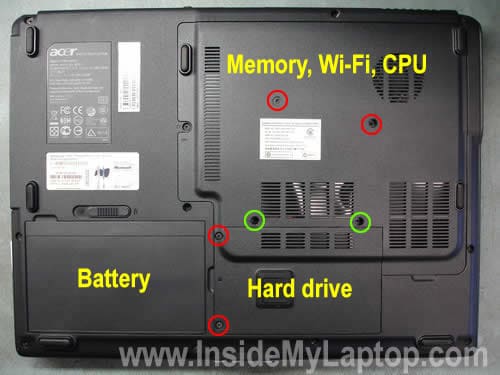
Both memory modules, wireless card, cooling and and hard drive can be accessed from the bottom.
Remove four screws marked with red circles and loosen two screws marked with green circles. Remove both covers.
Removing DVD drive:
1. Remove one screw (red circle) securing the drive.
2. Push the drive from the case with a flathead screwdriver.
3. Pull the drive and remove it.

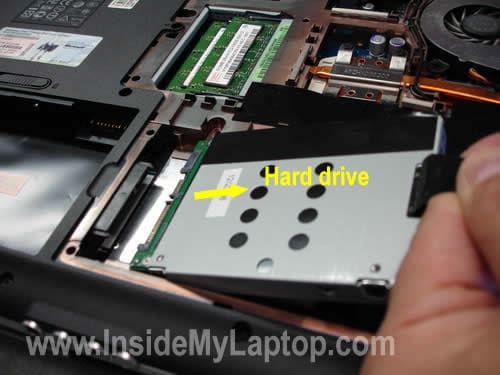
Removing hard drive:
1. Pull the hard drive to the right side until it’s disconnected from the motherboard.
2. Lift up the hard drive.
If you are replacing the hard drive with a new one, you’ll have to transfer the mounting bracket to a new drive.
My Aspire 5100 had a 80GB 5400RPM SATA HDD installed.
You can upgrade it to a larger capacity HDD or SSD.
Removing memory modules:
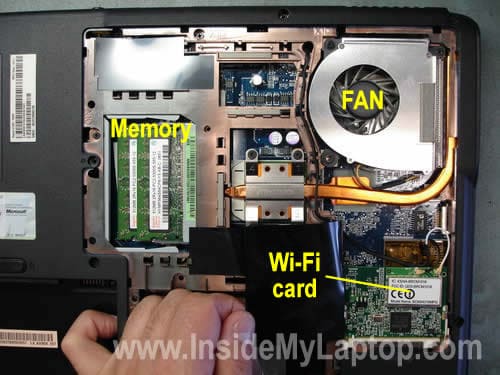
1. Carefully spread latches on both sides of the memory slot until the module pops up at a 30 degree angle.
2. Pull the module out by the edges.
Acer Aspire 5100 has two memory slots. You can install up to 4GB RAM total. Up to 2GB module into each slot.
You should use PC2-533 DDR2-667MHz 200pin SODIMM RAM modules.
Removing wireless card:
1. Disconnect both antenna cables. Grab the antenna cable connector with your fingers and unsnap it from the connector on the wireless card.
2. Spread latches on both sides of the wireless card same way as you did with RAM modules.
3. When the wireless card pops up at a 30 degree angle, pull it from the slot by the edges. Remove wireless card.
Removing cooling fan:
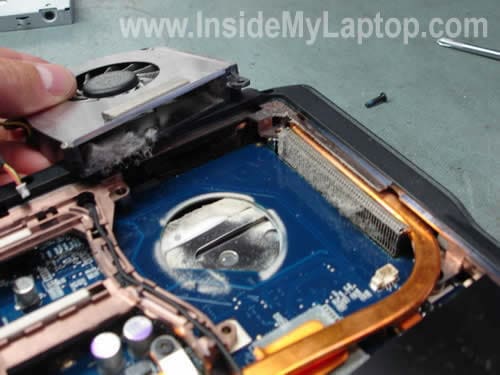
1. Remove two screws securing the fan.
2. Carefully disconnect fan cable from the motherboard.
3. Lift up and remove the fan.

My laptop had a lot of dust trapped between the fan and heatsink. This dust buildup kills normal airflow inside the cooling module and causes overheating. You can blow off dust using canned air.
Here’s how you can replace thermal paste between the heatsink and CPU.
Removing laptop keyboard.
In the following steps I’ll explain how to disconnect and remove the keyboard.
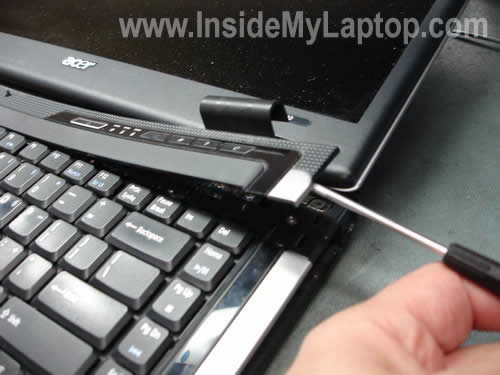
1. Lift up the bezel with a flathead screwdriver as it shown on the picture below.
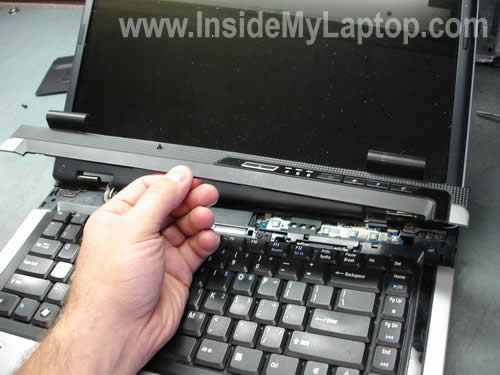
2. Remove the bezel.
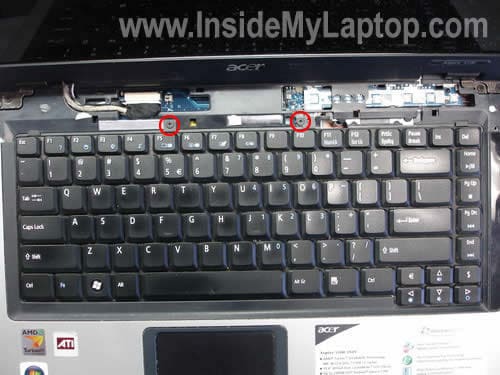
3. Remove two screws securing the keyboard.
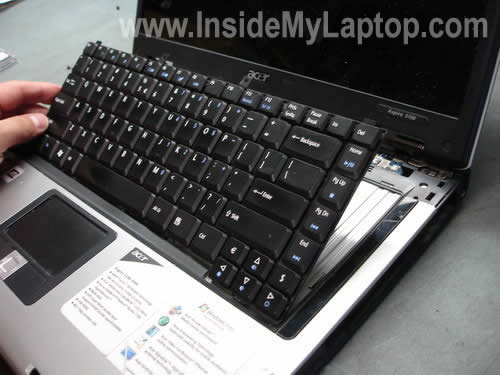
4. Carefully lift up the keyboard, it’s still attached to the motherboard.
5. The keyboard is connected to the motherboard via a flat ribbon cable. Before you can remove it completely, you’ll have to unlock the connector and release the cable.
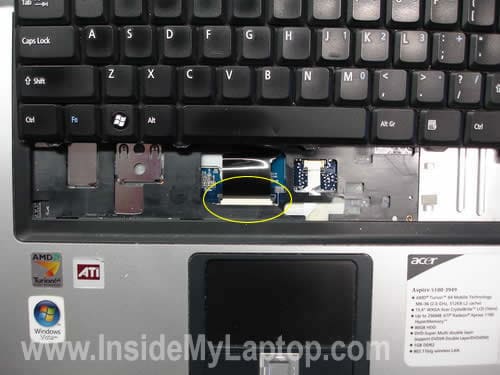
6. Carefully move the black tab about 1-2 millimeters up with your fingernails as it shown on the picture below.
DO NOT SEPARATE THIS TAB FROM THE CONNECTOR, IT HAS TO STAY ATTACHED TO THE CONNECTOR.
If you break the connector, you’ll have to replace the whole motherboard. Be careful.
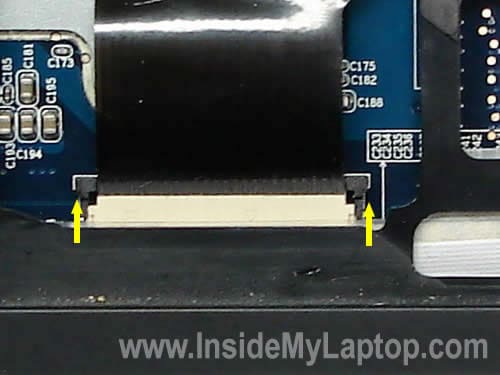
7. Now you can release the cable and remove the keyboard.

Ashley
I have tried to upgrade my hard drive in an Acer Aspire 5633WLMi without success – the drive gets to the bios screen with the Acer logo but does not boot into windows. I have cloned the new drive using Acronis Migrate Easy 7.0 and HD Clone without success…Any advice
dan
thanks so much…my harddrive just went caput and I had no idea how to remove it! though, I still have some trouble remove the DVD drive since it’s busted as well…anyways thanks again.
GHUGAN
what to do if the screen stop at acer bios and automaticlly start entering setup but hang. please help me.
Heri Sanchez
Hi, I am fixing this acer 5100 lap top but the clips that holds the keyboard connector are broke,Do you know if there is another way to repair it with out replacing the hole motherboard?
I think that the keyboard works but I have no idea where to purchase the clips you mentioned in step 7.
Gracias
IML Tech
GHUGAN,
1. Could be bad memory. Try removing one of the memory modules and start the laptop with only one module installed. Try different modules in different slots.
2. Remove the hard drive. Try entering the BIOS setup when the hard dive is removed. A bad drive could freeze the system.
IML Tech
Heri Sanchez,
Do you still have the broken piece? You can try this. Insert the keyboard cable into the connector and put the broken piece too. After that secure the connection with sticky tape. Might work.
IML Tech
Ashley,
Not sure what’s going on. Try entering the BIOS setup menu and then load default settings. Can you see the new hard drive in the BIOS? Try rebooting the laptop again.
danny
i have an acer 5100 laptop, and i set a recovery, and forgot it. is there any way i could recover the password?
slashignore
Have anyone successfully unmounted the bracket of the original hardrive? In my case it really feels like the screws are glued and I cant get them loose, not even with the help of my good old friend “CRC 5-56” :\.
I don’t want to take the risk and mount the new drive without the bracket as it functions as pressure protection.
Daniel
Hey there. Thanks a lot for this tutorials, I happen to have the same model of this Acer Notebook, so it was pretty cool to find a tutorial on taking it apart.
I´ve read around that it´s possible to replace CPU on this notebooks. My processor as you know, is the Turion X2 with 1.6Ghz and L2 cache of 512k. I´m a 3d animator and I use Maya to animate 3d rigs.
It obviously run a little slow, specially when I´m working on the graph editor. Takes ages to move a keyframe.
I belive my processor is the TL-50. I would like to replace for a TL-60, which is 2.0Ghz and has L2 of 1MB. Since they´re are for socket S1, I think it could work, but would be nice to know about someone that has acctually done that ( if you know or have done yourself).
Also is there any chance to replace for a faster graphics card. Mine is the Radeon 1100 128mb shared.
bye and thanks
james
Hello, great post. I have the same laptop and my hard drive went dead. I am trying to buy a new hard drive and having trouble what will this laptop fit. The laptop initially came with Hitachi Travelstar 4K120 HTS421212H9AT00 Hard Disk Drive ….i am confused in what to buy like does the laptop take SATA or ATA ..i have no knowledge in SATA or ATA. Pls let me know your thoughts.
THanks
James
IML Tech
James,
A SATA hard drive has two flat connectors. An IDE hard drive has two rows of pins (47 pins total).
If you google for HTS421212H9AT00, you’ll find it’s an IDE hard drive (not SATA).
So, you’ll have to search for a new IDE hard drive for notebook computers.
Graham
I’m trying to replace the hard drive in one of these laptops. The WD 80Gb drive has a smart drive failure warning.
I’ve tried installing a Seagate Momentus ST9160821AS 160Gb drive, but the system then becomes unstable. It won’t always boot from the hard drive, or, just get random characters on screen when doing a memtest86+ from an ubuntu boot cd. Is there some incompatibility here?
IML Tech
Graham,
Remove the hard drive and run Memtest86+ again. Do you still experience the same problem (random characters) when the hard drive is removed? Maybe your problem is not related to the hard drive at all?
Dawna
I have an acer 5100-3583. The CD/DVD drive is very sluggish and won’t read half of the time. The 3rd party warranty we got is no help at all so we are going to replace the drive. I looked at SlimDrives and they have SATA and IDE/Atapi. NewEgg has a nice Sony that has an ATAPI interface. Which one do I need to get? I think the latter, but I wanted to confirm. Also, I see that you just push the drive out. Does it mean that the new drive will just push right in without the use of any additional cabling?
Thank You.
IML Tech
Dawna,
I think the best way to find a new replacement CD/DVD drive is using the manufacturer’s part number or drive model number. Remove the faulty drive and take a look at the sticker. Try to find the manufacturer’s part number. Search for this part number on the Internet.
That’s right. There is no cable between the drive and motherboard. The optical drive plugs into the connector on the motherboard. You’ll have to transfer the mounting bracket from the old drive to the new one.
Graham
I removed the hard drive and successfully completed two passes of memtest86+.
But when I tried to install Vista, I got two blue screens suggestive of hardware failure. Eg stop 0x07
I’m changing to different memory and will try again.
IML Tech
Graham,
Run the hard drive test. I usually use Hitachi’s drive fitness test.
Graham
I tried Hitachi’s drive fitness test ( off Hiren’s utility Cd ) and got random characters filling the screen.
I tried to install Ubuntu server just as a test, and the installer reported a bios error. But I don’t see any new bios’s available. It failed to install past me setting the keyboard.
So, I tried Seagate’s seatools for dos, and the new drive is fine. I then zeroed the whole drive ( as Vista would crash with the partitions I had setup ), and managed to install vista. However, when I tried to enter the user account name, the 5100 froze on me. Third time lucky I managed to create an account.
I’ve had the mouse freeze on me, and page fault in non paged memory, and this is with a new stick of DDR2 667 2gb. 🙁 which I passed with memtest86+ twice.
I installed speedfan and temperature is about 60 deg. C.
So, hardware issues somewhere but not sure what to check next.
Anton
Hi!
How can I get under the touchpad? Its left button started to work funny recently (it reacts even if I touch it gently). I tried, but I couldn’t get the upper panel off.
IML Tech
Anton,
1. Remove the keyboard. Disconnect all cables found under the keyboard. Remove screws found under the keyboard (if any).
2. Remove screws from the display hinges and unplug the video cable. Release the wireless card antenna cables. Remove the display panel.
3. Remove all screws from the bottom of the laptop. Also, there could be (not sure 100%) a couple of screws on the back, they are securing the hinges. Remove them too.
4. Carefully separate the top cover from the base assembly. Now you should be able to access the touch pad buttons.
Graham
I’m now finding that with Vista installed, it tends more often than not to POST. Just a blank screen with the hard drive light on.
I have to remove the power, remove the battery and try again when it will then boot.
I suspect a flaky CPU and/or motherboard now.
Anton
Graham,
I have the same issue, but with XP. I don’t know what causing it, but just disconnecting power (leaving battery in) for a couple of seconds helps.
Tony Q
Are there any guides on how to remove the motherboard?
Tunde
I have a compaq nc6400…the charging point on the mobo won’t charge my battery.
pls anything i can do to correct this?
IML Tech
Tunde,
First of all check the power adapter. Could be damaged cable inside the power cord.
Also it’s possible that you have bad battery.
If there is a problem with the power jack, you’ll have to remove the motherboard and resolder the jack. You’ll find laptop disassembly instructions in the official service manual.
martin
Hi there,
the touchpad on my acer aspire 5100 tends to stop working after the system boots up. Everything in the system is telling me that it’s working correctly, but in reality it’s not working at all. Do you have any idea what could be wrong?
IML Tech
Martin,
Check the touchpad settings, maybe the touchpad is disabled.
For example, on a Toshiba laptop you can enable or disable the touchpad with Fn+F9 shortcut. Maybe you have a similar shortcut on your keyboard?
akil
My laptop has vertical lines that cause it to freeze up shortly after booting up.Thought it was a virus so i formated my system and it still happens,because my fan blew i think my processor is damaged will replacing the fan make everything ok?
Matt
Great guide, waiting for RAM upgrade to arrive tomorrow and this is a big help. Have a quick question, hard drive went bust under warranty and when i got my laptop back with a new drive the touchpad wasn’t working fully. Just left click, right click and move cursor… I miss being able to use the silver scroll key and being able to scroll using the edges of the pad. Assumed a driver issue so installed latest drivers but to no avail. I’m running XP. Can anyone help? Thanks
IML Tech
akil,
Replacing the fan will not fix the problem, I don’t think it’s related.
Test your laptop with an external monitor. If you get vertical lines on both internal and external screen, most likely there is a problem with the graphics card.
Just in case. If you have two memory modules installed, try removing them one by one and test the laptop with each module separately. A bad memory module can cause different problems.
IML Tech
Matt,
I think you are missing some kind of touch pad management software. Try downloading it from the manufacturer’s website. As last resort, you can reimage the hard drive using the recovery disc. Reimaging the hard drive should take everything back to factory defaults. Do not forget to back up data first. The recovery process erases everything from the drive.
chris
good instructions for this ACER 5100 laptop But are instructions available to dissassemle the rest of this laptop to access the motherboard and CPU to repair and replace them
Marcus Evans
I am trying to instsall a 500gb on an aspire 5100 will I have any problems and do i need to install 4gb mem or will 2 be sufficient
IML Tech
Marcus Evans,
I’m not sure if an Aspire 5100 can support such a large drive.
If your laptop can support a 500GB drive, it’s not necessary to upgrade the memory. It should work fine even with 2GB.
Graham
An update on my situation. I spoke with Acer tech support .. who told me it was out of warranty. Thanks Acer. They did quote me for a new mobo.
In deperation, I bought a new WD 160Gb drive to replace the new Seagate momentus 160Gb drive. I then cloned the original faulty drive to the new drive using a desktop PC ( the sata connections are the same for laptop and desktop drives ).
It now works flawlessly. Either the Seagate tools couldn’t detect the problem, or, there is some critical timing issue that was causing the problem.
Doris
This is a wonderful site,thanks for it.
I have an Acer Aspire 5100-5023 w/AMD Turion 64×2 @ 1.8 Ghz, Radeon Express 1100 -512mb HyperMem, 2GB DDR2. I have been trying to decide whether it is my graphics card or RAM that is unable to keep up with some of the programs I am using because at times the whole system seems to slow to a crawl. I was sure it was RAM related since the slow-down didn’t start until after I had installed Office 2007, but now I’m unsure since it happens even without Office running. Any thoughts or suggestions? I have considered changing both the RAM and graphics card, could you suggest a possible replacement for the graphics? Thanks.
IML Tech
Doris,
Could be a software related problem, maybe your laptop is infected with a trojan or spyware.
Instead or replacing the hardware, I would try to reinstall software first.
Backup all personal files and reimage the hard drive back to factory defaults from the recovery disc. This will take your laptop back to the original default state and you can start from scratch.
Shay
My acer 5100 starts to boot up but it hits a black screen and it keeps reloading that page. Form my research it seems like the hard drive is dead. Is this the problem or is it something else?
IML Tech
Shay,
Could be software related problem. Here’s what you can try.
1.Press F8 button on startup and it will take you to the boot menu. Select “Last Known Good Configuration” and press Enter.
2. Try reimaging the hard drive using the recovery process. This will take your laptop back to factory defaults.
3. Run diagnostics test on the hard drive. You’ll find many HDD testing tools in the Ultimate Boot CD.
Jim
Laptop was loading xp service pack 3 and upon restart went through startup sequence and stopped at window login. Keyboard, touchpad, usb ports donot work. I can’t login. Will not boot CD either. HD seems to start fine, just all input devices disabled. Help!!!
IML Tech
Jim,
First of all try this. Restart the laptop and press F8 when laptop starts. It should take it to the boot menu. Select “Last Known Good Configuration” and restart the laptop. Can you boot now?
Jim
Keyboard is NOT working on boot up.
IML Tech
Jim,
I don’t think it’s a software related problem. If the keyboard is not working on startup, apparently there is something wrong with the hardware (probably motherboard related).
Do you have an external keyboard for this laptop? You can try booting with an external keyboard and access the BIOS setup menu. Set BIOS to defaults.
Tim
Hello, I have a acer 5100 and I was wondering if I can reformat a laptop hard drive with a desktop computer? I made a back up CD of my acer but it won’t accept it. I screwed up by putting in a partition and put windows vista on it so I had wind XP & vista. The vista was slowing the computer down bad so I used partition magic 8.0 to delete the vista partition and now I can’t enter my windows XP. Can I use the back up CD I made of the hard drive and reformat it through my desktop? Thanks for the help
Jim
The only keyboard that will connect is a usb. I have tried an external usb keyboard and it will not work. This problem has been a first for me. I guess I will need to get an usb hookup for the hard drive.
IML Tech
Tim,
I would call Acer and purchase a new set of recovery discs from them. It shouldn’t be very expensive.
IML Tech
Jim,
That’s a good idea to recover files from the hard drive.
1. Purchase an external USB enclosure for notebook hard drives.
2. Remove hard drive from the failed laptop and install it into the enclosure.
3. Connect the enclosure to any working computer via USB and wait until your hard drive is detected and installed.
4. Transfer files.
Chevy Monster
Oh man, thank you so much. Such a simple suggestion solved my touchpad problem. Sometimes you get stuck in comfortable routines. I repair desktop and laptops. The touchpad on my new-to-me Acer Aspire 5100 stopped working, except right at the desktop for a couple of seconds at bot. I’ve been trying to resolve this for 3 days. I had no idea there was a ‘fn’ toggle to disable it, right there in front of me on the ‘f7’ key! Thanks a bunch, dude!
Vali
Hy,
I’ve got problems with my usb. All ports seemes to be dead. It’s the same laptop with yours, do you have any idea how to repair them? They appear in windows but when i plug some device in one of them stops and say unrecognized device. I’ve read a lot of posts about usb on acer and seems that is a big problem. Do you have any idea on this? Could they be disabled or changed without to change motherboard?
Thanks,
Vali
Tom
Is there a manual availeble for installing bluetooth (internal)? Because i’ve got the button, but the hardware is just forgotten 😉
IML Tech
Tom,
Maybe in the service manual? Comment 36.
hnkelley
Thank you for this web site and the Acer instructions. Great stuff!
I’m repairing a laptop for a co-worker, an Acer Aspire BL51. She DROPPED the poor thing and the screen came completely off, the WiFi wires broke,and the camera wires broke.
I fixed the screen easily enough by building brackets for the hinges; the cable was OK. The other wires will be easy for me.
But there is a new twist… The battery ran out of juice, so she gave me the charger. It didn’t help, so I tested it and found it was broken. She sent me her other charger, which I tested and know to be working. With it plugged in, the laptop still would not power up, so I let it charge for more than 24 hours. Still will not power up. I tested with the battery in and with the battery out, but no go. What happens when I press the power button is the power light comes on and the fan starts up, then, after about a second, it all shuts off. That’s it, nothing more. The laptop was working fine before the battery ran out. I had reconnected the screen for testing and all seemed fine. I can find no loose connections and there is no loose junk inside (I removed something that looked like a pair of super-sized cat claws made of plastic.)
Any suggestions? Is there something about the panel at the top edge of the keyboard which contains the power button, etc. that is critical? I know there is a little button there that tells the laptop the screen is closed. That switch works fine. Surrounding that button, but not touching it, is some foil that seems to be a ground point that should be touching matching ground points on the body of the laptop like a jumper. Jumpering those points did not help.
Any ideas you can give would really be helpful! Thanks.
HNKelley
Ashley
hello,
your website helped a lot, thank you.
i have a question though.. I am trying to replace a cracked acer 5100 screen and I think i did everything right. However the BACK of the laptop pop’ed off when I was trying to remove the screen. I dont think it pop’ed off by me doing anything wrong to it, is this normal? I dont want to go on a buy a whole new screen if the back of the computer is broke now.
Ashley
(in addition to the comment above)
lol sorry
the back is still connected by two little wires that go through a hinge on the left side of the base of the computer though. do you think it should just screw back on once i get a new screen?
IML Tech
HNKelley,
I don’t think so. You said the laptop turns on when you press on the power button. Apparently, the power button board is working properly.
Emily
Hi,
I dropped a book on my open laptop on the key board. the screen went blank and when i boot it up the screen is still black. I tried hooking it up to an external monitor. nothing happened. the hard drive light doesnt flicker and when i touch the caps lock key and the numlock key nothing happens.
Help?
Thank you
IML Tech
Emily,
Check the memory module. Maybe it popped up from the slot. Try reconnecting the module.
Ashley
thanks for skipping my question!
IML Tech
Ashley,
I didn’t skip your question. I’m just not sure what you are asking about. 🙂
I guess it’s normal because you are taking it apart. Just put it back in place as it was before.
They are wireless antennas.
I don’t know. How can I tell without looking at the laptop? 🙂
By the way, did you find instructions for taking apart the display panel? I linked to it at the beginning of the post.
HNKelley
IML Tech,
Thank you for the reply.
I asked about this and she said it was not connected when dropped. Following your advice, I tested the power input of the laptop and found it to be fine, so I retested the charger. Guess what… another bad charger. The laptop connector of the charger has a loose wire and the first time I tested it, I got lucky. Now I know how to make it work long enough, so I was able to finish the repairs to her laptop and get it back to her. 🙂
Thank you again for the help and keep up the great work!
HNKelley
Inez
I want to upgrade my computer to 4GB from 1GB but I am afraid I will lose the programs I already have. Is it possible to switch without a problem. I have acer 5100-3583
Than you for your help.
IML Tech
Inez,
You will not loose any programs. Your programs are stored on the hard drive, not in the memory.
Alan Mcgookin
Hi all can someone please help we have an acer aspire 5100 we had a dvd/r drive and it stopped reading we purchased a new sony drive however it will not read post bios stage abd is not visible in the system requirements if any 1 knows how to fix please drop a line on the site kind regards
A
IML Tech
Alan Mcgookin,
Not all optical driver are interchangeable. It’s possible that your new driver is configured differently. For example, your old drive was configured as “Slave”, but the new Sony drive is configured as “Cable Select” or vice versa. It’s just a guess.
When you are replacing the optical drive, it’s better to go with the factory replacement.
Can you see the DVD drive in the BIOS when the hard drive is removed?
Will Robinson
Hi, Has anyone replaced the motherboard for the Aspire 5100???
Jeff
Nice site!
Didn’t see a pic of the BIOS chip. Do you have 1 or know where it’s located? I’m trying to scrub a hardrive for a customer as they forgot password for BIOS and Windows (media SP2) administrator. There is only a limited account that can’t install or uninstall software. The BIOS must be set to disable boot to USB/floppy/CD. I tried another hardrive that had XP on it and that wouldn’t work either. Tried all the normal hacks for windows admin but they don’t work. Can I replace the BIOS chip with 1 that allows boot? Please advise.
signed
Locked up tighter than…
usguvna
My ACER 5100 screen won’t come up, just a black screen. I think the computer is still working but I can’t see what I’m doing. My research shows I should replace memory (i did get a memory message about 30 minutes before this started) or the video card. Does this sound right? Where is the video card?
Thanks.
usguvna
Also I did try connecting to an external monitor but didn’t get anything screen wise.
Daryl Miller
I was told today that the motherboard on my acer 5100 needs to be replaced, its under warrenty by staples, they want me to send it to them for repair. Thats fine, but all they want to do is replace the motherboard and reset the hard drive to factory settings. I have to much business stuff to loose that was not backed up from December. Any chance that the harddrive can be saved or pulled and installed in another computer to retrieve documents? Will replacing motherboard require resetting harddrive? Thanks
Anthony
I have a laptop acer 5100 that makes a clicking noise coming from the fan. It stops sometimes, but it later goes berserk. It doesn’t sound like the hard drive. And I opened it up, cleaned out the dust and it still won’t work. There is not a computer technician guy out here to help me. Any idea? I am not sure if I need to replace the fan
Malalon
Thanx Folks. You’ve saved my laptop 🙂
ian
hi i have a problem with my acer aspire 5100…i can only use it for 2 hours max! after 2hrs of use the mouse, keyboard wont respond anymore and the sound stop working too…when i turn it off and on again there’ll be no display. but if i let it off for a couple of hours and turn it on again its back to normal lik nothng happened…whats the deal with it?
hussain
Nice Guide.
My Acer Aspire 5635 WLMi keys, (minus) key and (apostrophe) key behave strangely. Whenever a textbox is made activate these two keys start typing automatically into the textbox continously.
1) Is it a hardware fault?
2) I have connected a external keyboard and the problem persists as the built-in keyboard is active. So can i disable the built-in keyboard. I run WinXP.
IML Tech
usguvna,
Yep, could be memory problem. Do you have two memory modules installed? Try removing them one by one. The laptop should start when a good working module is installed. When you find which one is faulty, you can replace it with a new one.
IML Tech
Daryl Miller,
Yes, you can do that with an external USB enclosure.
1. Remove the hard drive from your laptop.
2. Purchase an external USB enclosure for notebook hard drives in any local computer store for about $20-30 or even cheap online. Make sure the enclosure matches your hard drive. If you have a SATA drive, you’ll have to purchase enclosure for SATA drives.
3. Install your hard drive into the enclosure.
4. Connect this enclosure to any other working computer.
5. The hard drive will pop up in “My Computer”. Now you can access your data and save it.
No, normally replacing motherboard doesn’t require reimaging the hard drive.
IML Tech
Ian,
Heat related issue? Can you hear the fan spinning? Maybe the fan stopped working and the laptop freezes because of overheating. Check the fan.
IML Tech
hussain,
Sounds like you have stuck keys. If that’s the case you’ll have to replace the keyboard. Yes, it is a hardware failure.
I don’t think that you can disable the keyboard through software or BIOS settings, but you can disconnect the internal keyboard cable from the motherboard and use just an external keyboard.
By the way, if you still have the same issue when the internal keyboard is disconnected from the motherboard, there could be a problem with the keyboard controller on the motherboard. In this case you’ll have to replace the whole motherboard.
ian
Heat related issue? Can you hear the fan spinning? Maybe the fan stopped working and the laptop freezes because of overheating. Check the fan.
yes the fun is working when it happens, the thing is, windows didn’t hang when it happens cause when i press the power button windows shutsdown normaly..
:/
hussain
Thanks for the reply IML Tech.
Will try disconecting the internal keyboard and check.
Chris
Thanks a lot,
Now I had the guts to open it, however I think its too late, my USB ports and cam are dead, I think due overheating:S
I watched my cooler of the laptop, and indeed it was full with dust… AND!!!!! The dust was black…. How strange…
Thanks anyway
Michael Burgess
I need to find and replace the CMOS battery. Is this possible without sending it back to Acer?
ray
hello hope u can help me,i’ve just been give acer 5100.half the programmes wont open keep get loads of errors, sorry to say but know very little about computers, have no recovery disc tired systems recovery no joy. tired tuneup 2009.
thank you.
IML Tech
ian,
Also, that could be memory related problem. Run memory test and see if it comes with errors.
If you have two RAM modules installed test your laptop with each module separately. Remove one and test the laptop, then remove the second one and test again. Does it fail the same way with only one module installed?
IML Tech
ray,
Sounds like a software problem and you’ll have to reinstall the operating system. Call Acer and purchase the recovery disc from them, it shouldn’t be very expensive. Run the recovery disc and reinstall everything back to factory defaults. It should fix the problem.
IML Tech
Michael Burgess,
I believe you’ll have to disassemble the whole laptop and remove the motherboard. I think the CMOS battery is soldered to the motherboard.
Derek
My 5101AWLMi originally had one 512 MB RAM stick.
I just installed an upgrade from Crucial (2 x 1GB sticks).
It only reports 1GB of RAM though. Any thoughts why it only sees half of the new memory ?
Rodney Williams
I have an aspire 5100. It crashes everytime it goes into windows. Won’t open in safe mode. Bios password protected I don’t know the password. Tried some standard back door passwords no luck. For $150.00 Acer will remove something off the hard drive which we remove the bios password. Someone mention something about jumpers but I don’t have any idea. I have a windows xp disk but I can’t access the cd drive. Anyone have any ideas or potential backdoors for Phoniex bios.
ian
thanks for the reponse!
ok i’ll the memtest though i already tried the second suggestion you gave(tried to tun the lappy with one memory at a time and still the same problem)
will inform you tomorrow thanks!
^_^
Kev
Hi, I’ve been searching for a site like this for nearly a year! Well done on the photos and descriptions.
I have a problem with the Logitech built in webcam. There seems to be a faulty USB connection to it. Can you point me to the internal connections to the webcam please? Its for the Aspire 5610.
Many thanks in advance.
Kev
IML Tech
Kev,
I don’t know that of the top of my head, but this cable will be coming from the display panel. 🙂
You can remove the keyboard bezel and take a look at the cable coming from the display assembly.
There should be LCD cable, wireless antenna cables and webcam cable. Follow the webcam cable to the connector.
ray
i hope u can help me, i have a akhter arima m621 uc,i have been to the main web site found spec on it but can’t find what it is, e-machine or gateway
i am after sercive repair manual.i am after upgrading the harddrive from 40g to what ever it will take plus upgrading the drives.
thank you.
IML Tech
ray,
I’m not familiar with this model, but if it takes a 40GB drive, it will take a larger drive too.
I think you can safely install 60GB, 80GB, 100GB or 120GB drives.
tim
I have an ACER 5610.
When it boots the hard drive light stays on and the POST runs, but after a while it has a number of PXE errors and says Operating system not found.
When i hit the power button again and restart the machine it will run OK.????
I have tried a BIOS flash to version 3.60 which worked fine and have just done a full restore but the initial problem still remains.
Could it be the sign of the hard drive on its way out or a motherboard problem??
Thanks
shani-o
I’m soooooo glad I found this site! And I think it’s awesome that you’re answering questions.
I have an Acer 5100… I bought it in 06, it crashed in under a year, and I ended up fiddling with it, then putting it aside. I want to resurrect it now, and I’m willing to replace whatever, but I’m not sure what the problem is.
When it *does* boot (from ‘last known good config’), the pointer freezes and then the screen turns white or fills up with lots of vertical blue and white stripes.
I’ve tried restoring it to factory settings, both with and without recovery disc, but when I go into BIOS to change the boot order first (I get a PXE error, and I saw elsewhere that boot order is the prob) the BIOS page crashes and turns gray with black stripes.
I’m sure something is seriously wrong, but I have no idea what it is. Some people say motherboard, others say hard drive. Thoughts?
Brian Gasiorowski
This is a very good site. Just had a problem come up yesterday with the keyboard not working for my aspire 5100. Fortunately I found your site and read the pointers. Using your very clear instructions I removed the keyboard and reconnected it in case there was a bad connection. That did not fix the problem. Next, using an external keyboard connected to the USB found that everything else works fine with the computer. Is there anything else you would suggest I check before replacing the keybaord?
Gus
Hi,thank you very much for your help,just changed
my lcd converter on my acer laptop according to your helpful hinds and diagnostic knowhow,EVERYTHING is aok,i thinks i just saved a boundle of $$$$.Thanks again GUS
IML Tech
tim,
Try reconnecting the hard drive. Maybe it’s not making good connection with the motherboard. Unplug the hard dive and plug it back in. Test the laptop again.
IML Tech
shani-o,
Sound like a problem with the graphics card. The graphics card is integrated into the motherboard and cannot be removes, so it’s a problem with the motherboard.
I don’t think it’s related to the hard drive. The laptop crashes when you are in the BIOS setup menu. At that time the hard drive is not working. This problem is not related to the hard drive.
IML Tech
Brian Gasiorowski,
So, the laptop keyboard stopped working at all? Do you know if the keyboard stopped working only in Windows? Did you try entering the BIOS setup menu and testing the keyboard in there?
Your keyboard failure is not common. Usually laptop keyboards do not fail like that. In most cases you can get some faulty keys, but not the whole keyboard.
Try reflashing the BIOS with a newer or even the same version.
Unfortunately, I don’t know for sure what’s wrong with your laptop. Could be just a bad keyboard or could be a faulty keyboard controller on the motherboard. The only way to find out is installing another working keyboard. If it doesn’t fix the problem, most likely it’s bad controller, which means you have to replace the whole motherboard.
tim
Re: response 100.
Thanks for the quick response.
I have on a few occassions re-seated the hard drive, re-seated the RAM and cannot work it out. When you chose the F12 boot menu the 120GB seagate drive is not available in the boot menu. The light is constantly ON for the hard drive and it is spinning but the heads are not clanking. I even tried cleaning the pins on the hard drive connector with a cloth. Should i try contact cleaner??
Again just now i pushed the power button and restarted the machine again and she came up normally. AHHHH, damned confused…
Any ideas??
Tim
tim
I just cleaned the hard drive contacts and also placed a small piece of EPP foam at the end of the hard drive to push it up with constant pressure against the contacts. Will let you know if that fixed it once it is powered off and left overnight. Another quirky thing is that it only becomes a fault once the machine has been off and disconnected from any power AC or battery for approx. overnight??
Thanks for your very helpful website. Great work.
Tim.
Gary
I’m having trouble with my Acer Laptop. The touchpad mouse is not working, but if I attach another mouse, it works fine. But the keyboard will not work. None of the buttons will work, and the fan keeps running. Do you think the internal keyboard cable is loose, and if it is, how can I fix it? Thanks in advance.
wes
I have a problem where I must apply pressure on the left side of the track pad. If I don’t the computer will begin to run very slowly and eventually freeze. Any suggestions? I have an Acer Aspire 5100. Thanks!
Brian G.
Getting back to your question to me (# 102 above), the laptop keyboard doesn’t work at all. When this problem first came up a few days ago I also had an issue with a few startups that did not proceed all the way to the windows login prompt but started a continuing series of loud beeps. I eventually did get to point that laptop was starting up properly up to the login prompt screen, then along with using the seperate keyboard connected via USB was able to login and the computer worked fine. However, sfter one day of success with the seperate keyboard, I’m now back to the issue that startups do not complete (do not get to the login screen) and the continuing series of load beeps commence. I need to unplug and remove battery to get the the computer to power down. I’ve not checked the bios. I think I’ve read some things written above about this, but at this point am not really familer with how to do this or if i can do it without being able to get through login.
IML Tech
tim,
It sounds like either you have a faulty hard drive or there is something wrong with the hard drive controller on the motherboard. Unfortunately, the only way to find out which one is causing it is testing the laptop with another known good hard drive.
If you experiencing the same problem even with anther hard drive, apparently it’s bad controller on the motherboard, which means you’ll have to replace the whole motherboard.
IML Tech
Gary,
I guess the first thing to try will be reconnecting the touchpad and keyboard cables, just to make sure it’s not a connection related issue.
By the way, did you notice that your internal keyboard is not working only in Windows. Can you enter the BIOS setup menu and navigate the BIOS using arrow keys?
IML Tech
wes,
Try reconnecting RAM modules. Remove modules one by one and test the laptop with each RAM module in each slot separately.
It’s possible that one of the slots is failing or one of the RAM modules is not making good contact with the slot.
IML Tech
Brian G,
What if you unplug the internal keyboard and use the laptop only with the external one. Can you boot to the login screen this way? Will it make continuing series of load beeps on startup when the internal keyboard is disconnected from the motherboard?
Gary
From question #109: Hi, I opened up the keyboard and noticed the cables were not loose and installed fine. After putting everything back together, the computer started to work fine. But then the next day, it was the same problem again, with the touchpad and keyboard. That’s what its been doing, one day it will work fine, the next it won’t, meaning the touchpad/keyboard.
How do I enter the BIOS setup menu? Is that when I turn the computer on, it says “Press any key to cancel disk scan” or something like that? If so, the keyboard doesn’t work for that either.
shani-o
Thanks for the help!
markj
I have an Acer Aspire 5100. It boots but first I hear 1 beep followed by 2 beeps then all of the regular normal sounds but the screen remains blank throughout the boot. I’ve tried connecting to an external monitor but it doesn’t feed to the external. Is it the motherboard or something else?? Thanks so much. M
ray
i have a acer 5100 i was having problems with some of the programmms you suggested a recovery dics. but i found afile containing recovery booster(full back up)
so i click ok. said restart computer. on restarting, it gets as far as windows logo then went back to bootin up,, got to windows logo again
just keeps going on and on repeating its self .i can get into set up but dont really no what to do.
many thanks if you can help ,ray
wes
“I have a problem where I must apply pressure on the left side of the track pad. If I don’t the computer will begin to run very slowly and eventually freeze. Any suggestions?
Try reconnecting RAM modules. Remove modules one by one and test the laptop with each RAM module in each slot separately.
It’s possible that one of the slots is failing or one of the RAM modules is not making good contact with the slot. ”
Tried what was suggested and unfortunately that didn’t help. I tried removing the hard drive and that didn’t help either. Any other suggestions? The spot that i apply pressure is just to the left of the track pad. Thanks for the help!
IML Tech
Gary,
Usually you press Esc, F1 or F2 key as soon as logo appears on the screen.
IML Tech
markj,
I don’t know what this error code means for an Acer 5100. Could be bad memory or video card.
Try reconnecting memory modules, removing them one by one and starting the laptop with each module separately.
markj
I disconnected the inner memory module and booted…nothing not even a beep. I removed the outer and inserted the inner and booted and nothing except a clicking sound from the cd drive. I let this go for a few minutes then it shut itself off. I reinstalled both modules rebooted and it continued with the clicking sound. I spanked the bottom of the PC…that’s right spanked it, shut it off, pressed on the inner card and started it up and SHAZAM! It works! Thsnk for all your help. MJ
Gary
Hi, I can get into the BIOS Setup menu, is there anything that I need to do on there to fix the touchpad/keyboard. Sometimes it works, and sometimes it doesn’t. What could be the problem. Thanks again in advance. This is regarding my touchpad and keyboard from question #112.
Brian G.
Hi IML Tech,
As you suggested (response 111) I unplugged the internal keyboard and booted up with just an external keyboard attached. The PC started up fine. I will try to use it this way for a couple days to make sure no other problems arise. If all keeps working well it looks like probably I should go ahead and try to replace the internal keyboard. Anything else you think I should check first? Thanks for all your help!
Brian G.
One more question, while using the external keyboard my screen is fairly dark. Is there a way to brighten since I don’t have the “normal” keys from the laptop keyboard available for this purpose?
Garth
I reloaded my driver for the audio to work on my acer 5100. It is saying device working properly, i’m not hearing any audio either from the speakers, headphones nor the output jack.
IML Tech
Gary,
If the keyboard works 100% in the BIOS setup menu, but fails intermittently in Windows, that could be software related issue. Try reinstalling Windows.
If the keyboard fails in both BIOS and Windows, I rally cannot tell without testing the laptop with another working keyboard. Could be just a bad keyboard, or could be bad keyboard controller on the motherboard.
IML Tech
Brian G,
Can you change screen brightness through power settings in the control panel?
IML Tech
Garth,
That could be software related problem. Try reinstalling Windows from the recovery disc. Do not forget to back up all personal data before you run the recovery process.
If you still experience the same problem (no internal or external sound) even after reimaging the hard drive back to factory defaults, there could be a problem with the sound board which is most likely integrated into the motherboard.
Art
Problem with Acer 5100. Keyboard error message displayed when booting or keyboard will be unresponsive after sometime. There are times that I can get into the BIOS settings screen, but the system will hang-up after a while. Also, there’s a buzzing sound coming from the speakers. Is there such a thing as a “grounded” keyboard?
Brian G.
Thanks for your response to my question about screen brightness. Do you have any further comment on my question #121? I wrote:
As you suggested (response 111) I unplugged the internal keyboard and booted up with just an external keyboard attached. The PC started up fine. I will try to use it this way for a couple days to make sure no other problems arise. If all keeps working well it looks like probably I should go ahead and try to replace the internal keyboard. Anything else you think I should check first? Thanks for all your help!
eric
i am trying to replace the dvd on an aspire 9410, just so i don’t break anything else. any tips?
pelin
thank you very much; with your help I could remove my fan and clean it 🙂
Graeme
Can I replace the current HDD in my Acer Aspire 5100 laptop with laptop HDD from any brand and model as long as they are same types of disk? such as Western Digital, or Seagate etc? or does it have to one defined by Acer?
IML Tech
Graeme,
Sure you can. Just make sure the new drive has the same interface. If you have a SATA drive installed, your new drive also must be SATA.
matthew
hi there i have an acer aspire 5100 and im going to put in 2X 2gb RAM, are the ports for the ram in the same place or is one under the key board like on some laptops, also my screen often gets a blue line of pixels along the right side of my screen only about 2mm, i was wondering if this was because of the LCD screen or something to do with a setting on my laptop? sometimes it goes away after the screen saver comes on…
Alex
I have an Acer 3100 – it’s almost the same as 5100. Mine has PATA hdd – but another 3100 on my company uses SATA hdd. On the bios setup it shows 2 controlers (SATA & PATA). Is it really possible it has both interfaces?
IML Tech
matthew,
Both memory slots are in the same place. Both slots could be accessed through the door on the bottom. You can see both RAM modules on the third image.
Sounds like a problem with the screen.
IML Tech
Alex,
I guess SATA for the hard drive and PATA for the CD/DVD drive. Just a guess.
jeffy
Hi, I have a ACER 5100 and my computer is blank. It sounds like it is running. I tried hooking it up to another monitor and still doesn’t work. Just the power light is on and I hear the fan. I first thought maybe it overheated but the fan is working. Please help if you can
IML Tech
jeffy,
1. Power off the laptop, remove the battery, unplug the power adapter and wait for a minute. Plug in the adapter and try turning it on.
2. Remove RAM modules one by one. Test the laptop with each RAM module installed into each slot separately. One of the RAM modules could be bad.
3. Try starting the laptop without the hard drive and DVD drive.
If nothing helps and you still have the same problem even after removing/reseating RAM and removing HDD and DVD drive, most likely there is a problem with the motherboard.
Willy
My Aspire 5101 died supposingly during WinUpdate, I was afk. Now the laptop goes on from the power button and gives power to cpu, dvd and even the hdd seems to be spinning from what I could hear. Problem is the screen is blank and doesn’t even let me to the bios, nor does boot from DVD/CD. So should I just take out the hdd and throw the rest away or what? I appreciate any suggestions, already got the usb-keyboard idea by reading the earlier comments, thanks.
PS. I can’t locate the laptop’s manual so I haven’t got 100% accurate info about what’s the BIOS button on these, Home, Insert, Esc? =)
Willy
Jeffy, Did you update your Windows just before? Your problem seems to be the same.
Willy
My Aspire 5101 died supposingly during WinUpdate, I was afk. Now the laptop goes on from the power button and gives power to cpu, dvd and even the hdd seems to be spinning from what I could hear. Problem is the screen is blank and doesn’t even let me to the bios, nor does boot from DVD/CD. So should I just take out the hdd and throw the rest away or what? I appreciate any suggestions, already got the usb-keyboard idea by reading the earlier comments, thanks.
PS. I can’t locate the laptop’s manual so I haven’t got 100% accurate info about what’s the BIOS button on these, Home, Insert, Esc? =)
EDIT: Jeffy, Did you update your Windows just before? Your problem seems to be the same.
I just tried to boot without DVD and HDD.
Mike F
Hi – I have a acer 5100 and it says resource conflict 4 times on startup then won’t boot into windows but restarts. found the fan full of dust. maybe overheated chipset. does anyone know of this problem and a fix. otherwise I will sell laptop for spares. everything else is good
Brendan
I have been getting the BSOD and memory dump. It appears the issue only happens when I turn the computer when I am using it. If I keep it on a flat surface, I don’t seem to have an issue. Most recently, I received the BSOD and when trying to start the computer, the BIOS does not see the hard drive, if I turn the computer, it does see it, starts to load windows, but then I get a black screen. I can only assume it is a hard drive error, or mother board issue. Anyone else have this problem?
Thanks,
IML Tech
Brendan,
Could be memory related problem:
1. Bad memory module.
2. Loose connection between the memory module and slot.
3. Defective memory slot.
Try reconnecting the memory module. Move it into the empty slot if you have any.
Do you have two modules installed? Test the laptop with each module in different slots separately.
IML Tech
Mike F,
Try minimizing the laptop. Remove hard drive, DVD drive, wireless card, modem, etc… one of these parts could be bad and causing the problem. Leave just main components needed to boot the laptop: motherboard, CPU with the cooling module, memory. If you still experience the same problem with the bare bone system, apparently it’s related to the motherboard. If that’s the case, you’ll have to replace the motherboard.
Skippy
I have a really weird problem with a 5100. The POST was reporting the HDD as gibberish and not booting, so I thought the HDD was duff. I replaced the HDD with the same model and buttoned everything back up, but it was still reporting gibberish. Now here’s where it gets strange, I removed the memory/cpu cover to check that nothing was loose I quickly tried it while the cover was off and it started up fine, as soon as I replaced the cover it started reporting the HDD name as gibberish and wouldn’t boot. I tried this several times and it was consistent, with the cover off it booted, with the cover on it wouldn’t. I gave it a thorough once over looking for shorts, but there was nothing obvious. I even tried replacing the screws one at a time and not tightening them as much, but to no avail.
Before I completely strip it down I was wondering if this was something you may have come across before or whether you may have an idea as to what is going on.
Many Thanks
dave p
My daughters’ Acer Aspire 5100 (BL-51)”died” suddenly upon startup (i.e. it just didn’t start).As seems to be the case with a few others computers here, upon pushing the power button all lights come on the fan runs for about 10 seconds, the harddrive seems to spin, and then everything just stops (the fan continues to run at low speed). In order to get the fan to stop, the power button needs to be pushed and held for about 5 seconds. During this process there is no bios screen or anything else that shows up on the monitor – it stays black. When I first took the computer apart there was quite a bit of dust packed in the fan/radiator area – that has been cleaned. In addition, when this first happened I was led to believe that it was probably a bad processor due to overheating. I replaced the processor to no avail. I’ve also checked the memory modules by swapping their positions, reseating them and trying to startup with one at a time. Any ideas or next steps in trouble shooting? Thanks in advance
IML Tech
Skippy,
Sounds like a problem with the IDE channel on the motherboard.
Is it possible that you are using wrong screws? Maybe they are too long and when you put them in, one of the screws is touching the motherboard ans shorting something?
Here’s another guess. The motherboard is failing and apparently there is a bad solder joint somewhere on the motherboard. When you install/remove screws you actually flexing the motherboard making it work/fail.
I guess in order to narrow down the problem, you’ll have to remove the motherboard, build the laptop on your bench (outside the case) and find out if it works this way.
Nope, I’ve never seen something like that before. Please post here if you will find the solution.
IML Tech
dave p,
…I replaced the processor to no avail. I’ve also checked the memory modules by swapping their positions, reseating them and trying to startup with one at a time.
If it’s not memory or CPU, most likely there is a problem with the motherboard.
Here’s you can try.
You can remove the motherboard (looks like you’ve done before) and assemble a basic system outside the laptop case.
All you need is the motherboard, CPU with heat sink, memory and external monitor. Try turning it on. If still nothing, most likely the motherboard is bad. If the laptop starts with video and works fine, start assembling it back together piece by piece and test after each installed part.
Dani
hi,
i dropped my acer aspire and now the battery charger won’t fit in the hole properly.. i think the component inside is pushed too far in.
any way of this being fixed?
IML Tech
Dani,
It’s necessary to disassemble the laptop and take a closer look at the power jack. Is it fixable? It depends on how badly the jack/motherboard are damaged. You cannot tell without removing the motherboard.
rob hadcroft
hi,ihave an acer aspire 5650 and the cdrom has stopped working,the device manager says it is working,looked at the event viewer and there is an error code id 11 the driver detected a controller error on device cd rom0,also went on microsoft help and it says replace the wire,but there is no wire as you no,slots onto the motherboard.my cdrom is a matshita dvd ram uj845s would be glad of your help thanks rob
IML Tech
rob hadcroft,
Have you tried booting the laptop from a bootable CD? Can you?
If the laptop boots from a CD but the CD/DVD drive doesn’t work in Windows, it’s possible you have a software related problem and Windows has to be reinstalled.
Jack
I bought a used Acer 5100 and I cannot get the keyboard to function at boot. With out that I cannotinstall my OS to make the cd work or even access the setup function. I suspect that it was flashed wrong. Is there a way to reset the bios or cmos? Other than that the mobo may just be dead or a power chip that I cannot replace.
thanks
Jack
p.s.
I did try another known good keyboard
IML Tech
Jack,
I’m not sure if it’s going to help but you can try using an external USB keyboard.
John Edwards
Hello Sir
I have a friend’s Acer Aspire 3100 laptop and it has an issue where the laptop freezes whenever any usb device is inserted. It then has to be turned off to commence operations. At first I thought (was hoping) it was software related but after reloading the OS ans all the drivers I still have the problem.
What do you think? Do you have a solution and if so, can you let me know what I can do to renmedy this?
IML Tech
John Edwards,
If the laptop fails the same way with many different USB devices, then most likely you have a problem with the USB controller which is integrated into the motherboard. I guess you’ll have to replace the motherboard or use the laptop as is.
Also, you can try updating/reflashing the BIOS. I’m not sure if it’s going to help but at least something to try.
JC
I have fixed computers for a living for the last 15 years full time so i know a little of what I am talking about though I do not work on laptops full time. This is a defective product and the culprit is most likely the motherboard. I have worked on two of these. Here are the symptoms:
USB stops working
CD/DVD stops working
Keyboard/mouse fail
Black screen
BIOS errors- PCI errors usually
Time setting in bios lost
Freeze if you get it to boot
It is not a BIOS issue,OS issue, memory issue, hard drive issue, cd issue, keyboard issue, mouse issue. I have tested/replaced all of these. It is a motherboard issue- defective from the manufacture.
This is a progressive issue- whatever you have will get worse. Cut your losses. Pull the hard drive and put the data somewhere else.
I have purchased for my employees/family/clients 30 Acer products over the last few years but I WILL NEVER PURCHASE ACER AGAIN!
BUYER BEWARE!
Brian
IML Tech,
Just to let you know that I’ve fixed my Acer laptop fully by purchasing and installing a replacement internal keyboard (bad keyboard was the only problem). This relates to my question #98 and your response #102. Thanks for your help!
Jose
Hello, my acer 5100 has problems with the keyboard, touchpad and us ports. They just don’t work. I think It is a board problem. Do you think it is the end of this laptop? any advice?
IML Tech
Jose,
Turn on the laptop and try entering the BIOS setup menu. I’m not sure which keys you should use, try Esc, F1, F2. Can you? This will tell you if the keyboard works in the BIOS. Can you navigate the BIOS using keyboard keys?
If the keyboard works fine in the BIOS setup menu, your problem could be related to the operating system. Try reinstalling it from the recovery disc.
If the keyboard do not work on the BIOS level, there could be a problem with the motherboard.
Amit
I have Acer Aspire 5100. I am facing the two problems. First one is, when I press the power button some time it is show own but hang after that. The light is on on the power button but no processing is done. Second when I am working on it or move the laptop from one side to another side the screen hang up. Please guide me at my email id how I solve this problem.
Amit
My another problem is that Laptop comes with Microsoft Vista Operating system. Now I want to change with Window XP. Where I get the drivers of my laptop Acer Aspire 5100 with Windown XP. Please guide at my email id. Thanx.
Alan
Hello
My scree is bad on my 5100 where can I purcase one and is it hard to change myself. I also need to purcahse a power cord.
Thanks
alan
Theresa
I have the acer aspire 5100 and I play the sims 2 alot and I wanted to upgrade my video card at one point. Is that possible or is it built into the motherboard?
Im also have issues with my DVD-r/CD-r drive. fists problem with it is sometimes it cant find the drive unless I open and close it or if I go to Hardware changes and just refresh till it finds new hardware. 2nd problem is when it is working I cannot burn a dvd or cd. I can put files in to burn but when I click burn it says there is no dvd/cd in the drive. With that all said should I just buy a new dvd/cd drive for it? I know once I read it could be the lens in the player thats not letting me burn. But not sure let me know what you think. Thanks!
michele
161. John Edwards,
/*
I have a friend’s Acer Aspire 3100 laptop and it has an issue where the laptop freezes whenever any usb device is inserted. It then has to be turned off to commence operations. At first I thought (was hoping) it was software related but after reloading the OS ans all the drivers I still have the problem.
*/
Hi,
my usb are broken (i’ve tested in XP & linux)
buy a pcmcia/usb adapter (i’ve do it)
Rod
Nice site! I have a weird situation with my acer 5100. A friend connected a 3G device, and the system asked something like ‘hit enter to continue’. But now the keyboard does not respond; no touchpad either; I attached a external kb but no response, external usb mouse, nothing either; I turned off the notebook, but it loads back into windows and asks the same question; I tried to force in safe mode, but can’t press F5, F8, neither enter bios setup thru F2, cause there no keyboard response. So I thought the only chance would be resseting the bios – oened the bottom but I can’t see any battery, jumper, nothing? I tried to interrupt boot sequence thru battery removal, nothing; and installing a new windows, but it asks for ‘press C to continue’… WTF? Thank you for any ideas!!! Rod – Brazil
Why buy acer?
The laptop boots into Vista no problem and runs it no problem (except noisy fun and sluggish graphics), but if I try to install an OS (any) laptop powers off at the loading setup files from DVD, it also powers off after ~7% memtest. After it powers off, if you try to run memtest again, it will power off almost immediately, even if you enter BIOS, and will not load Vista (will give a physical memory dump screen). The only way to circumvent this would be to do a total power reset unplugging all sources of electricity, and then it would boot normally again. I run the memtest with the stock memory that came with it, and still same problem. Any thoughts? (p.s. why are their MBs so bad, and who makes the best ones, also what do you think about Asus vs Acer)
Need Help!!
hi…i have Aspire 5100 n i need help with problem….for some reason my laptop starts making loud noises…it sounds like its grinding something…i believe it to be the fan got dust n i opened it up to clean it but it was clean…so now i have no idea what to do…i cant use my laptop cuz this noise is making me have headaches.
Plz help!!!!
craig
hi could someone help please, i was using laptop (not heavy handed)when the left touchpad button decided to collapse i have took the top off to try and reconnect but have had no joy , what shall i do?
Mike Merriman
I have an ACER 5100, for several months now the touch-pad has not worked, I have checked that the software is loaded O.K. Also for several months the Power ON, HD Caps Lock etc lights go out when the laptop has been of for about 10 mins, recently the speakers have started to crackle if the Laptop is moved, if the case if flexed the crackeeling stops for a while but the Laptop hangs. Please Advise
Mike Merriman
Correction
Also for several months the Power ON, HD Caps Lock etc lights go out when the laptop has been ON for about 10 mins, etc
TIM
From Post 108.
Hi guys, i can report that the problem with my Aspire 5610 must be the controller on the hard drive. I installed a new 160GB sata Samsung drive and the machine boots correctly and straight away. Unlike needing a second start as in the past. Thanks for your advice. Now I am happy again..
Tim
IML Tech
Rob,
This is a really weird problem. Sounds like a 3G device damaged the motherboard somehow.
IML Tech
Why buy acer,
Could be overheating. Take a look inside the heat sink. Do you see a lot of dust inside? Blow off dust using canned air. Clean the heat sink and test the laptop again. There is a good chance that cleaning the heat sink will fix your problem.
IML Tech
To comment 170,
If the cooling fan started making noise, cleaning it will not help. You’ll have to replace the fan.
IML Tech
Mike Merriman,
It’s really hard to tell what’s going on with your laptop. Could be some kind of grounding issue but in order to narrow down the problem, it’s necessary to disassemble the laptop and take a closer look inside. Could be loose connection somewhere on the motherboard. There is no simple answer.
Kevin
Hi,
I have two broken acer aspires and now on my third it is not from manufactor issues. It is that my dear wife keeps manageing to drop them and bust the dc power port off. so my question is I have tried to search the part number for my 5100z and come up with nill. The other is an 5610z witch i can get the part but can not solder to save my life. I guess my questions are 1. for the 5610 where can i get an external case for my hard drive? ( bought 1 from R.S. and it was the wrong one.) 2. could you point me in the direction for a new power card for my 5100?
IML Tech
Kevin,
Do you have a SATA or IDE hard drive installed into your laptop.
I’m not sure what you call the power card. Is it the power jack? You can buy it on eBay.
Done365
I have a similar problem at that of Theresa. My 5100’s factory UJ 850 DVD drive used to disappear every now and then. I would have to go to the device manager and refresh until it came back, but now it’s gone and won’t return. What can I do?? I am not convinced that it’s the drive, becuase it’s light is lit and when a disc is put in it spins it’s heart out. What’s going on??
Thanx in advance and I appreciate your forum.
IML Tech
Done365,
First of all, try booting from a bootable CD. You can use Windows installation CD, live Linux CD, etc…
If the laptop boots from a bootable CD but the drive will not appear in the My Computer, most likely it’s a software related problem.
In most cases removing the UpperFilters/LowerFilters registry entries works well.
nabil
how to find bluetooth on aspire 5100 and change it ?
IML Tech
nabil,
In order to access the bluetooth module in an Acer 5100 laptop, you’ll have to remove the motherboard. The bluetooth module plugs into the connector which is located very close to the audio jacks.
Justin
i have a similiar acer….5610z and its meesed up….i took it apart and can clearly see the piece that u plug the charger into on the motherboard is broken off from where it was soldered….ive been searching and havent found the answer….is it possible to just take the memory and hard drive out of that one and buy a shell witha motherboard and put my old harddrive and memory into the shell? can u even buy a shell of a laptop??
David
hi i have the same laptop when i turn it on i get 3 beeps but no
display, any advice?
IML Tech
Justin,
You can try resoldering the broken power jack back to the motherboard.
I guess it’s possible but basically you’ll have to buy a whole new laptop.
IML Tech
David,
Could be memory error.
Try reconnecting memory modules. Try removing modules one by one and test the laptop with each one separately.
ElliottB
I have an Acer 5100 that has been acting strangely lately. It works fine but sometimes it hangs and I have to disconnect the power cord, the battery, and wait for a few minutes. Then everything works until it happens again.
I suspect that the CMOS battery is the culprit.
Also the hard drive is partitioned into two drives and both drives (C D) are less than 10% empty. I don’t know if this has any bearing on this condition but I thought it worth mentioning.
IML Tech
ElliottB,
I really doubt that your problem is related to the CMOS battery. I believe the laptop should work even if the CMOS battery is dead or removed at all.
What do you mean by it hangs and I have to disconnect the power cord, the battery, and wait for a few minutes.
The laptop will not start at all, it freezes or what?
ElliottB
It freezes. I cannot re-start it unless I remove the power cord and battery, and then replace them.
Once the screen went into bluish green horizontal stripes and had to be re-booted.
I have also noticed that occasionally the system clock on the task bar loses time.
Micky
Thanks for this guide, it has helped me replace my Acers keyboard.
Micky
IML Tech
ElliottB,
Test laptop memory, you can run Memtest86+
If the test comes up with memory errors, it’s possible that one of the modules is bad.
If it’s not memory, there could be a problem with the video card/motherboard.
sony0193
how do i remove the ram modules? theres 1GB in the laptop, i want remove the 1GB and put two 2GB ram modules (4GB)
Thanks
tango
I repair laptops full time and have to say that the acer aspire 5100 must be one of the worst laptops ever to come from acer. It has all of the acer faults combined in one machine, i had one come in the other day and could not do anything with it, constantly freezing up solid even when i managed to get half way throu a re-install so i remembered something a fellow tech said about a memory test or something with linux so fed up i tried to install it and it did,the whole program straight away, the usb ports and keyboard still did not work so i put a pcmcia usb card into the slot and atached a mouse and that worked also, i’m thinking now “this must be my lucky day dont push it ” but i did and via another lan card connected to the internet and downloaded the usb ,keyboard and touchpad drivers, sadly the usb ports still dont work and i cannot get the webcam to work Yet,but have got further than i ever expected to.
I gave it another push and re-installed vista on it and am writing this on it at the moment(never thought i would be)
I will post more info if i get any further with this long term project(the customed just donated it to me yesterday for science).
I hope some of this makes sense,
chow Tango
lloan
Excuse me, do you notice that silver button below the mouse area? Well um, mine doesn’t work or at least I don’t know what it is for lol – Could you elaborate as to what this button does? Thank you! ^-^
bob
took my accer 5100 apart to fix ac plug and now i dont remember where two wires go ones white one black coming from lcd screen i think they connect to someplace on motherboard
IML Tech
sony0193,
1. Carefully spread latches on both sides from the memory module.
2. The memory module will pop up at a 20-30 degree angle.
3. Pull the module from the slot by the edges.
4. Replace it with a new one.
IML Tech
bob,
These are wireless antenna cables. Both cables connect to the wireless card. You can see them on the picture 5.
Micky
Any idea how to change the touchpad on this laptop?
Dave
Upon powering up, my 5100 runs for about 5 seconds, then shuts itself off. Strangely enough, after another 5 seconds or so, it restarts itself, and repeats the cycle over and over. It doesn’t post, so it’s not an OS or software issue. It does this whether on battery power or a/c. Would it overheat that quick? Bad motherboard? Thanks.
Micky
I wish to upgrade my Acer 5100 HDD, however, I think its partitioned, as I have C: & D: showing in “My Computer”. What software would you recommend to clone my HDD to a larger capacity one, which will automatically create C: & D: on the new larger drive?
Thanks in advance
Micky
Anglina
I dropped my acer laptop and now the screen is pitch black. the power button turns on 4 a few seconds but the screen wont turn on and then it shuts off. what do i do???
tom evans
I have a Acer 5610z that was given to me. I need to reset the BIOS password. I understand that removing the CMOS battery won’t work, and the security chip
must be replaced.
Any truth to this?
Your help is greatly appeciated.
IML Tech
Micky,
You’ll have to remove the top cover assembly.
Here are three general steps:
1. Remove all screws from the bottom of the laptop.
2. Disconnect cables located under the keyboard. Remove screws, if there are any.
3. Separate the top cover from the base assembly.
When the top cover is removed, you can access and replace the touchpad.
IML Tech
Dave,
I don’t think it’s overheating. Check memory modules, try reseating them. Try starting the laptop with only one module installed. Remove all devices you can access: hard drive, DVD drive, etc… Try starting the laptop without them.
If nothing helps, probably it’s related to the motherboard.
IML Tech
Micky,
For cloning drives I usually use Norton Ghost 2003.
IML Tech
Anglina,
I’m not sure if you feel comfortable doing that, but I would recommend taking the laptop apart and reseating all cable and internal components. It’s possible that your laptop will not start because something is loose inside.
First, try reconnecting memory modules and test the laptop. It shouldn’t be very difficult but might help.
Dhanta
I got a problem with my Acer 5100
yesterday, my lappy was okay. Only my bluetooth device wasn’t recognized, the bluetooth light never worked. the nite of that day, i was using my acer but something happened…the screen coloured stripes crash appeared…so i forced to turn it off by press hold the power button…after i turned on it back, all of components such as keyboard,touchpad, and usb do not working any more, but the bluetooth device came back normal…i ve tried the f2 button at bios but not any effected…same as the ctrl holding and fn+f7…all of them didnt make some effects…
how i solve this problem??
is this hardware problem?
should i take this to the acer?
thx
Richard Zegers
Thank you, thank you, thank you!. Although I have an Acer Aspire 5610z, your instructions saved me time and money. Great job! Thx
Pasi (Finland)
Thank you!
I have an Acer Aspire 3100 and these instructions helps me so much!
Good Job!!!
Bob
My Aspire 5100 just stop working tonight. I went to turn it on and nothing happened after I pushed the power button. When I plug in the power supply, the front light comes on, but the power button does not turn on the laptop. I unplugged it from the power supply and removed the battery for 5 minutes, but that did not fix it.
Do you think it is a bad power button? Kind of strange it just stopped all of a sudden.
Bob
Bob
Disregard my last question. I did a search on “acer laptop will not power on” and found the answer.
Remove the power plug and battery. Hold down the power button for about 30 seconds then plug in the power cable. I pushed the power button again and the laptop turn on and booted up fine. Really weird problem. I wonder what causes it?
Bob
IML Tech
Dhanta,
Can you enter the BIOS setup menu and try using the keyboard in BIOS. Can you? If the keyboard doesn’t work in BIOS, most likely it’s a hardware related problem.
Is it still under warranty? If yes, definitely send it for repair to Acer.
IML Tech
Bob,
Yep, that would be the first think to try if your laptop stopped booting. It works well and not only on Acer laptops.
What causes it? I don’t know.
Vida
Hello,
I must say I was very happy to have found your site and to read some of the upgrades that I can do for my Acer!! Thank you
about a week ago I was plugged into the internet w a wired cnction, i tripped and the ethernet cable was ripped out of the port on the side of the comp. now if i try to cnct to the internet through the same port the green light by the port only lights up 10% of the time… if that. If the ethernet cable is plugged im no longer able to cnct to the int. Do you think this may be something i can fix myself like replacing the port?? or would I be wiser to take it into a comp prefessional?
Thanks for your time, Vida
John
Hey,
I have a Acer Aspire 5100-5023 with a ATI Radeon Xpress 1100. Is it possible to upgrade it to something better? If it is any suggestions. Thank you.
John
Dhanta
Thanks IML Tech for ur respond…
No, I cant…I couldnt get into the bios setup…all keys on board didn’t work anything…because i shut the power off at BIOS, now after booting, the windows error recovery appeared but still i couldnt choose any option…then it entered to startup repair command box…but still i couldnt do anything about it…
I dont know if the warranty is still valid or not…currently, i live in Indonesia but this laptop was sent from US…My brother bought this laptop around 1,5 years ago and he doesnt know where the book warranty is…
But, I got info that Acer has Acer Care Service in my city…maybe, i’d like to give them a call..
thx
Jim Brokaw
Short version: I think I’m screwed.
Longer version: Haven’t been able to boot my system for 18 hrs or so. In SAFE mode, the list of system files always halts at agpCPQ.sys. My bonehead guess would be that the next file is trashed. WORST: When I try to launch D2D recovery using ALT-F10 (having checked BIOS for D2D enabled), I get a brief msg indicating that the system is entering recovery mode, but then–the WINXP load logo, and things grind to a halt. Have attempted disconnecting/reinstalling the battery; the hard drive; the memory sticks.
Any thoughts???
Jim Brokaw
FOOTNOTE:
Before attempting to restore the drive using the default recovery image, I backed up my crucial data using a SATA enclosure to another machine
Jim Brokaw
Update: Using another machine in my household, I created a Ubuntu install disc, and ran a user session on my Acer Aspire 5100 from the DVD drive. After logging in as root, I copied the SATA drive to device null, expecting to encounter a slew of hardware errors. There were none! My best guess now is that I’m infected with a virus of some sort.
IML Tech
Vida,
In most laptops the eithernet port is soldered to the motherboard. In order to find out what is wrong you’ll have to disassemble the laptop and take a closer look. Can you do it yourself? If not, I would take the laptop to a professional repair shop.
IML Tech
John,
I don’t think so. I believe the video card is integrated into the motherboard and you cannot remove/replace/upgrade the card. You are stuck with what you have.
IML Tech
Jim Brokaw,
Maybe you have a faulty hard drive? Try testing the hard drive with Hitachi’s drive fitness test.
Jim Brokaw
IML Tech,
Thanks for the suggestion. No joy however. I created an ostensibly bootable CD using the ISO image for the drive fitness test I downloaded from Hitachi, and verified that my dvd drive is at the top of the boot sequence. However, I was unable to launch the DFT–the machine proceeds to boot from the hard drive. Hard to imagine what could cause this except some sort of windows-based virus. No problem booting using the Ubuntu CD.
David
Hi,
I have the Acer Aspire 5100 and have no problems with it. However, I want to transfer what has been filmed on a camcorder to the laptop but this model doesn’t have the 4-pin IEEE 1394 port. How do I go about this?
Thanks in anticipation for your help.
David
IML Tech
David,
You can buy a PCMCIA card for your laptop with IEEE 1394 ports. You plug this card into the PC slot in your laptop and get 2 IEEE 1394 ports.
Google PCMCIA IEEE 1394
Jim Brokaw
Better luck this time–I burned the CD again and was able to run the Hitachi DFT. It indeed reported an error without further detail, and referred me to my drive mfr for diagnostic tools. Oddly, the Seagate Tools pkg showed no errors at all. At this point I’ve ordered recovery media from Acer. (And that’s another issue–why should I have to pay for recovery media when the partition on the drive is nonfunctional??)
In any case, thanks for your help!
Dawna
Thank you for your great site. I have an acer 5100 laptop. my son has it overseas and will be sending it home to me because yesterday the screen started flickering. today, he turned it on and the screen is very dim and he can hardly see it at all. The laptop is running fine except for the screen problem. I told him to send it home and I will look at it. If you could give me some ideas of what this could be and where I would look for the problem it would be greatly appreciated.
IML Tech
Dawna,
Most likely this failure is related to the inverter board which is located inside the display panel. I explain how to disassemble the display panel here:
How to remove LCD screen and replace inverter board in Acer Aspire 5100 laptop
Most likely it’s necessary to replace the inverter board.
Gabby Yoingco
I’m trying to fix my Acer Aspire 5100 and I want to replace my RAM, Hard Drive and Video Card. My question is, what would be best? To replace my motherboard or to buy all of this?
Thanks Alot!
Harry Linssen
I have the same problem as #52 – Vali:
A 5102WLMi Aspire notebook, and all 3 USB ports show OK in Device Manager, but can’t recognize any device plugged into them.
Tried Chipset Driver updates, BIOS Phlashing, several different OS clean installs – no go!
Googling shows quite a few people with this problem, but Acer doesn’t own up to it being a regular issue they should fix.
A PCI adapter serves to some extent, but bandwith doesn’t seem big enough for my Logitech webcam – it freezes after a few seconds, and stays frozen.
Help, somebody!
prometheus
Hi,
On our aspire 5100 we installed 4 gb ram (2x2gb) about a year ago.
At that time it was running vista home premium (the version which was pre-installed).
Windows recognized 3.25Gb of ram.
We formatted, and reinstalled win vista (original, came with laptop), but now vista only recognizes 2.3gb of ram.
Re formatted again installed xp this time.
Only 2.25gb are recognized.
in bios all 4gb are recognized.(3.8 to be exact)
We tried to switch ram modules around, same thing, even replaced one with a 1gb module but still, windows only recognizes 2.25gb..What is the problem?
Doug Seton
Hi, a beer was tipped over onto my laptop and I caught it very quickly – it was a small amount and I popped off some of the keys and wiped under them . It was near the shift key on the right lower side of the keyboard . For a while the screen wouldn’t show anything legible and then after a few days it worked fine until now . The screen is very jumpy and grainy but you can still read what’s on it . Could I get some circuit board cleaner and take the key board off perhaps ? Great tutorial and well photographed ! THanks !
IML Tech
Harry Linssen,
To me that sounds like a problem with the motherboard.
IML Tech
prometheus,
Did you install SP1 for Vista?
IML Tech
Doug Seton,
Apparently, you’ve damaged the motherboard.
I doubt that cleaner will help. You’ll have to remove the top cover and take a closer look at the motherboard to find out what’s going on. I you find corrosion, you’ll have to replace the motherboard.
Vero
Hi! I just received a “damaged” Aspire 5100. The USB ports, keyboard and mouse pad aren’t working. Apparently the first thing to go down were the USB ports, then the keyboard and pad stopped working as well.
It boots up nicely, but I can´t click on the username to enter the password.
Any ideas??
IML Tech
Vero,
Apparently there is a problem with the motherboard. There is not much you can do.
Without USB ports you cannot use external keyboard or mouse.
Without keyboard and touch pad you cannot enter the BIOS setup and check the settings.
I guess you’ll have to replace the motherboard.
Iain Foster
Bought my son a laptop, Acer 3634Wlmi.The laptop picture is dim(You can just make itout).Currently it works with an external monitor, so I bought a second hand screen and replaced the other 1.Still the same problem. Managed to get another 3634 , which had screen flicker. I replaced that screen with the second hand screen and the screen works perfect. So know I know the problem in the other 3634 is elsewhere, somewhere in the base.Any ideas?? Both laptops work excellently. thx in advance Iain. P.S Have checked all connections from screen to base(only 3 lol), and all fine
Carl
I have a used acer aspire 5100, every now and then the screen either goes black or white with horizontal gray lines. I reseated the lcd connecter and still same thing.
Should i replace the lcd or is it a inverter issue?
IML Tech
Iain Foster,
Did you replace just the LCD screen or you replaced the whole display assembly (with LCD screen, inverter, cables, etc…)?
IML Tech
Carl,
You still can see the screen and it’s bright even though it has only horizontal lines, so it’s not related to the inverter.
You’ll have to test your laptop with an external monitor. If external video works fine, you have either bad LCD (most likely) or bad video cable (less likely).
Iain Foster
I’ll be as clear as I can. First Acer 3634 has dim screen.Works fine with external monitor. I got a second hand screen(whole display).We will call this Fred. I changed whole display, Just disconnected 2 wireless and mobo connection. I then connected up Fred to first Acer. The result is the same(dim screen). I have second Acer 3634. This has a screen with colours running vertically across screen in lines, but if you hold top corner of screen(squeeze)you get clear picture. So I replaced whole display with Fred, same procedure as above. Second Acer now works fine.No problems. So I can deduce that first Acer problem is not inverter or backlight because Fred works in second Acer. I haven’t gotten around to testing first Acer screen in second Acer. But from Fred I know screen is not problem. Any ideas?? any more info you need please ask. thx again Iain
Iain Foster
Just to add to above. Both acer’s work fine and boot up normally. On first acer although screen is dim that is only problem, because you can just about make out what u doing on screen. So o/s working normally.
Iain Foster
Also, as regards to second acer original screen(coloured lines running across screen) until you squeeze in certain place(Top left corner of display). Im guessing some water got into it, or bad connection? I have seen diagrams to seperate sheets and clean the display. Just wondered which prob it was. thx again Iain
Doris
Hi, wonderful site!
I have an Acer Aspire 5100 running Vista Home Premium, 32bits, at 1.8ghz.
I recently had the RAM upgraded from 2gb to 4gb, replaced with identical product.
The new 4gb shows in BIOS and System Information but still only shows original 2gb on Task Manager Performance and system is not using the added memory. Acer wants to charge big money for a phone call because warranty has expired. Do you have any ideas on what might be happening or how to get the system to actually ‘use’ the added memory? Any help at this point would be much appreciated.
JJ
hello mr tech first of all very very good quide.
here is my concern I have an aspire 5515 is very very close to the 5100 visually its almost the same thing but inside it came with a amd athlon single core 2650e clocked to 1.60 ghz 3 gig of ram vista 32 bit and a built in ati radeon x1200.
i’ve been researching and discover that my board uses a s1 socket and that the board and the version of the bios will support a turion x2 prossesor ive been looking to see if anybody has done this and theres some people that claim they swap the athlon for an athlon x2 but the original prosessor only uses about 15 watts and the one that tey claim to change was 55 watts soo i dont think thats true im looking at a turion x2 tl66 2.3 ghz running at 35 watts will this work and will the power supply handle the difference and will the temperature be ok thaks for looking and hope anybody has something to say to me thanks
IML Tech
Iain Foster,
You are correct. It sounds like the first Acer laptop has a problem with the motherboard. Fred assembly is working fine with the second Acer laptop, so Fred has no problem with LCD or inverter.
I guess you’ll have to replace the motherboard on the first Acer laptop.
IML Tech
Ian Foster,
Sounds like bad connection somewhere on the LCD controller board. I really doubt that you can fix it at home. You’ll have to replace the LCD screen.
IML Tech
Doris,
Try upgrading your Vista to SP1. Make sure the laptop has the latest BIOS installed. Update the BIOS if needed.
Check out other downloads available for your laptop, maybe Acer issued some kind of update which improves the system performance.
Here’s an example. I had an HP Pavilion dv5000 notebook and the CPU speed never was reported correctly in the system properties. I tried everything to fix it but nothing worked. Finally, I fixed it by updating the BIOS to the latest available version.
josie millington
Great site very helpful. having terrible problems with my daughters acer aspire 5100, keeps hanging soon after start up, cant do anything with computer except turn it off, recently reinstalled xp, but this was a problem prior to this also cleaned out fan ,very dusty
thanks for your help
IML Tech
josie millington,
First of all, I would suggest testing laptop memory and hard drive. You can run Memtest86+ and test RAM.
By the way, if you have two memory modules installed, try removing them one by one and test the laptop with each memory module separately. If the laptop works fine with one of them, but hangs when another one is installed, the second module is bad.
If the laptop hangs with each module, apparently your problem is not related to memory.
Run diagnostics on the hard drive. Remove the hard drive and find out who made it. After that visit the manufacturer’s website and download the hard drive test. Test the hard drive.
JefFLH
I think my hard drive is toast on my Acer Aspire 5100. It won’t boot, comes up with a menu recommending “Launch Startup Repair” or “Start Windows Normally”. Neither seems to do the trick. The hard disk light comes on for awhile, then goes our. If I launch Startup Repair, it flashes an unreadable (very quick) blue screen, then restarts all over. Starting Windows normally just doesn’t go either. My question is, does it sound like the hard drive? If so , can I replace it with a comparable SATA drive and use my factory rrestore disks to make everything good again? Thank you,
Jeff
IML Tech
JefFLH,
Yes, your problem could be related to the hard drive.
Also, it’s possible you have a problem with memory. Before you purchase a new hard drive, run memory test. You can use Memtest86+.
If you don’t want to test the memory, you can try removing memory modules one by one and run the restore with only one memory module installed. If everything works fine with one of the modules installed, most likely the second one is defective and has to be replaced.
Yes, you can do that. The restore disc doesn’t requires the original drive to be installed. You can install a compatible drive and run the restore. It will reimage the drive back to factory defaults.
JefFLH
I forgot to mention, I tried using the restore disks and it quit when I believe it was trying to write to the hard drive and stated “Restore Failed”, Reason 0xa000000e.
Jeff
Angie
Hello, I have an Acer Aspire 5100 I’ve only had it for a little over a year and I guess it got a virus and shut down and it had black screen with words saying somehting about scan. My son was using it at that point so not sure. I tried to shut down and it was slow it took hours to go to window screen. I called acer but the restore didn’t work. I thought I had a recovery disk stuck it in to override and it worked fine but color looked different. Come to find out it was sons Dell XP because the key code wouldn’t work. I called Acer to pay for a recovery disk, they sent it and it was loading everything went through like 45 minutes and then said it was writing the files and finishing and then black screen. Why did it work with the Dell XP but not teh original recovery disk? What can I do now?
IML Tech
Angie,
So it took you hours to boot to the desktop? There could be a problem with the hard drive.
Access the hard drive, find out who made it and visit the manufacturer’s website. Download the hard drive diagnostics utility and test the drive. If it fails, you’ll have to replace the hard drive.
If you cannot find diagnostics utility, try Hitachi’s drive fitness test, I linked to it in Useful Links on the right side. Hitachi’s DFT works with many different drives.
Angie
I think mine was doing the same as Jeff’s above #253 before I put in the recovery disk.
Thejasvi
Hello IML Tech,
Many thanks for the tech support you offer. I purchased Acer 5100 in Nov 2006 and it was opened last week for the first time to upgrade RAM from 512 MB to 2 GB. It is working fine. Yesterday I was surprised to see a small dipression, a centimeter wide, on the panel caused just below the function key. It appears that the panel has melted from inside and I think it due to over heating. I am worried about the safety of my system. I have cleaned the fan and the ventilation using a vacuum cleaner. Should I attempt to clean the heat sink. Would you recommend cooling pad to take away excess heat? Please suggest.
WhAr
I have an Acer Aspire 8920G on wich I managed to spill beer right into the keyboard, some keys arent working after that, might be a minor cleaning job or a replacement of Keyboard, either way I really need to know how 2 properly dissasemble/remove keyboard without causing any damage
Anthony
I gotta say I love this acer 5515 its a great laptop for the money. I would like to upgrade my acer’s wireless card to a wireless N, is this possible and if so where or what site could I go to to get a N card to install in my acer? I have wireless N at my home now and I would just love to experience 300mbps. Any help lemme know?
gyoingco@gmail.com
I have a used Acer Aspire 5100, every now and then, it either automatically shutsdown or the screen goes blue with a message saying: “Checking Memory Dump Files”.
What is the problem and what should I do?
Thanks!
Karla
Hi.
Great site…really easy to understand instructions!
I have an Acer Aspire 5100 and the only problem with it is the CD/DVD drive. It doesn’t read any discs that I put in, but when I double click on the CD icon a box pops up that says the CD is a blank one and do I want to format it. It hasn’t been working for nearly a year now, and until I came across this site I didn’t expect to be able to get it fixed – warranty has run out and it will take too long and too much money. However, I am sure that I can follow your instructions to take the CD/DVD drive out. Now my two questions are…do you have instructions on how to install a new drive? And, do you recommend that I replace it myself? (Is it safe or will I likely break the whole computer? lol)
Thanks in advance for your help!
Angie
Hello, I am unable to test anything with my hard drive because my computer doesn’t ever get past the black screen. A little back ground, I put in my sons dell xp recovery by accident and overrode everything on acer 5100. I realized when I went to register the prI oduct. My computer worked fine, so I am pretty sure the hard drive works. I called acer to purchase recovery disk and when I received them they went through the process but when it said at the end, the loading all files it went to a blank screen and the fan still runs. I never get past that screen. I called acer paid for their support, they said dell xp is still sitting there and I tried downloading iso burner from another computer onto a cd to load to my acer but nothing happens it still does’t get past the blank screen…I have tried researching but haven’t found anything out there. Can I just purchase a new windows software that overrides everything and get a new product key?
Chris
Hey, i dont understand why you need to remove the hard drive, dvd, wireless card and all that just to clean out the fan. I took the panel off the back of my acer and used a knife to clean some dust inbetween the fan and the bronze part and my computer is running much faster now.
Can someone explain if i can clean it out more without removing all those other parts (dvd, wireless card, hard drive, ram, keyboard, etc.)
Thanks
IML Tech
Chris,
You don’t have to remove all these parts. In my guide I explain how to dissemble the laptop, not just clean the fan.
You can remove just the cooling fan and clean it with compressed air.
raj
i bought a 2nd hand laptop cheap because it had a problem with its keyboard. i ordered a keyboard in ebay and replaced the old keyboard.
but it doesnt work. i try to readjust the connection and sometimes i get stuff like
wd;t and thats it in a text pad or sometimes
00000000000000
or
]]]]]]]]]]]]]]]]]]]]]]]]
and it goes on..
what am i doing wrongly?
IML Tech
raj,
If the laptop didn’t work properly with the old keyboard and a new one didn’t fix it either, apparently there is a problem with the keyboard controller on the motherboard. Most likely you’ll have to replace the motherboard.
raj
i replaced my laptop keyboard, however it doesnt work. i try to readjust the conection, then sometime i get my pc beeping as if a key is held, i open text pad it show 000000000000000 or sometimes ]]]]]]]]]]]]]]]]]]]]]]]]]]]]]]
whatever
kumar
when i remove keyboard i noticed that one side of the keyboard connector is disconnected while the other is still conected but i can still lock the keyboard together with the mother board. however it doesnt detect the keyboard or it make as if its holding some keys… any work around?
Iqbal
Is there any reason why you could not go upto a 320GB hard drive on a Aspire 5611AWLMi? It’s currently got 80GB and upgraded to 3GB RAM. Cheers.
IML Tech
Iqbal,
This is relatively new laptop and I think it can handle a new 320GB hard drive without any problem.
raj
i disconected the keyboard and using a usb keyboard however i again notice that sometimes it just go crazy and start holding on [[[[[[[[[[[[[[[[[[[[[[[[[[[[[[[[[[[[[[[[[[[[[[[[[[[[[[[[[[[[[
IML Tech
raj,
Is it the same problem as you experienced with the internal keyboard? Sounds like a faulty keyboard controller on the motherboard.
tom209
How do you access the CMOS battery? Where is it located? I need to have some stuff reset
JV
I have an acer aspire 5100 its about 2 years old and about a year back I put an extra gig of ram in it but now it wont start with both cards in the slots it only works with one ram in the first slot waht should i do?
JOSEPH
I HAVE AN ACER 5515 AND SOME OF THE KEYS ARE STUCK. EVERY ONCE IN A WHILE IT WORKS AND AM ABLE TO LOGIN. BUT MOST OF THE TIME IM STUCK AT THE LOGIN SCREEN DUE TO KEY BEING STUCK AND NOT BEING ABLE TO INPUT PASSWORD. ALSO WHEN NOTEBOK STARTSUP I HERE BEEPING. IS THERE ANYTHING AT ALL I CAN DO TO CHECK AND FIX THIS WITH REPLACING KEYBOARD
steve merrell
hi, this is really useful website. do you offer advice? i have an acer 5100 series, approx 3 yrs old. just developed a problem with it, keeps freezing/locking up. i’m convinced this is a hardware fault. i originally thought the hard drive was packing up so i changed it from a 100gig pata to a 250gig pata, doubling the ram mem from 1gig to 2gig at the same time. i ran the recovery disc which reinstalled xp media center back to original factory settings. problem still keeps occuring though. you can tell when it’s going to happen as the sound played by the computer is distorted. any ideas? i took it to repair centre and they just said it was fine after running windows updates. took it home, hey presto problem re-occurred about 2hours later. the repair centre said they reseated the processor. i think it’s motherboard related, probably a dry joint? don’t have enough pc savvy to go any further though. any advice would be greatful. steve
Mark
><
I think my laptop is overheating but I’m not sure.
It starts to boot up but then i start to hear a weird messed up clicking/beeping noise,
which seems to be becoming from the speakers.
Shortly after, most of the time before I get to the account selection screen, it locks up, the screen goes black or the mouse/keyboard just stop working.
The cpu fan kicks on for a couple seconds then it goes off and a couple seconds later it comes back and stays on.
Any idea what it could be?
I’ve taken it apart partially and blown out all the dust but it still doesn’t work.
Mark
Hi, i have an Acer aspire 5100 with dual core 1.6 cpu (laptop not working) and an Acer aspire 5100 single core 2.0ghz cpu (working), the question is can i put the dual core straight into the single core without any problems also would it be worth doing it?
Thanks
IML Tech
Mark,
I think you can do that if both motherboard have the same socket. I’m not sure if it will be necessary to reinstall Windows or the new CPU will be detected and configured automatically.
Ant
Hi, i have an aspire 5100, core duo 1.6, 2gb ram, the problem is i left the laptop on when i came back the led on the power supply was flashing and the laptop was off, now with a new, correct power supply it shows no sign of power at all, i have stripped it down and checked the power socket on the board and checked for burn marks but nothing!
Hope someond can help?
IML Tech
Ant,
Sounds like a problem with the motherboard. It’s possible that you have a blown power fuse. In most cases you can find the power fuse somewhere close to the power jack. You can check the fuse for continuity with a multimeter. If the fuse is OK, I guess you’ll have to replace the motherboard.
tusar
Hi All,
I have Acer Aspire 5100 laptop with (AMD Turion Processor-2GHz,60GB-PATA HDD, 1GB DDR2).I bought it 2 years back,now it’s working fine.
I want to upgrade the laptop. Please tell me upto how much RAM and HDD I can upgrade.
My expectation is HDD – 250GB and RAM – 4GB.
Is it suppot SATA HDD.
Please suggest
Cheers,
Tusar
IML Tech
tusar,
You can install 4GB RAM. 2GB module into each slot.
You have a PATA hard drive installed, so you cannot upgrade to SATA because it has a different connector. Any large PATA hard drive should work just fine. I think you can go with 250GB.
amit
Hi there,\r\n
my acer aspire 5100 laptop’s does not boot (even with a boot CD). The repair centre has said that the hard disk is the problem. The solution recommended is replacement of the hard disk (with the old hard disk be returned to me for recovering data) or they ”redo” the current HD but at the cost of all data loss.
i want to replace the hard disk as I do not want to lose the data. Can you pl guide how do i go about doing this and also recovering the data from my current hard disk. The laptop is currently not starting at all.
Can you pl advise.
thx/amit
IML Tech
amit,
I don’t know how badly your hard drive damaged but you can try the following method.
1. Buy an external USB enclosure for laptop hard drives. Make sure to choose the right one. If you have an IDE hard drive installed, you’ll have to buy an IDE enclosure. If you have a SATA hard drive installed, you’ll have to buy a SATA enclosure.
2. Remove the hard drive from your laptop.
3. Install the hard drive into the enclosure and connect it to another working computer.
If the hard drive damage is not too bad (maybe a few bad sectors), you should be able to access it through My Computer and back up the data.
rhino
hey all, i have an aspire 5100 cant set the time clock any more guess the battery needs changing on the mobo like a pc but i been told cant be changed. but sounds like you guys changing lots of things here so any ideas pls or can i change the mobo and upgrade to a dual core to speed things up a bit still on a single core 1.6 ghz
IML Tech
rhino,
What do you mean you cannot set the time clock? You cannot enter it at all or the time sets back to defaults when you restart the laptop?
I believe the CMOS (RTC) battery is soldered to the motherboard. Yes, you cannot unplug the battery like in a desktop computer, but you can unsolder the old one and solder a new one (if you can find a replacement battery).
Cornel
HI, can you help me? I need a new body case for my Aspire 5100. Is it posible? where can i buy a new body case? will it be easy to changed?
IML Tech
Cornel,
By the body case you mean the bottom case assembly?
It’s not easy to change. You’ll have to disassemble the whole laptop and remove every single part.
rhino
yes i mean it resets when i boot up, and like you said finding the little sucker is an issu. Thats why i thought about a mobo upgrade can it be done is it self explanitary i have built many pc but never fiddled with a lap top
rhino
Hey, do you happen to know what make and size the cmos chip is may have found somewhere but dont want to pull apart just yet
thanx agaun for all your info
Kortz
I need to replace Acer Apire DC Power Jack. Is there any further instruction available that I can follow to reach the broken DC Power Jack ( or reach the motherboard) ?
Burak Pilavci
One of my notebook’s usb ports is not working, the one next to the power jack. Another one at the back is working. What might be the problem? Should I replace the power jack+2 usb ports attachment or can I get that usb port fixed?
Phil
Hey,
A friend of mine had a little problem with the right click, so somehow she tried to open it with her nail file (please don’t ask me why!) and since then she doesn’t have any sound on her computer. Now I wasn’t there when this happened, maybe a driver problem occurred at the same time, I don’t know. I should go to her house next week so I’ll figure it out.
Do you know if I can fix the right click?
Do you know if a cable for the sound is going near this pad?
Thanks
Phil
PS: I’ll might find somewhere in my house a usb mouse anyway
PPS: I’m reading everything here, but it is going to take some time!
Burak Pilavci
@ Phil
Speakers’ cables and and the part attached to mainboard are close to touchpad so she might somehow have broke a cable or sth. You should take it part and see. It’s very easy and explained above.
I m still waiting a reply to my problem as well…
MikeL
I have an Aspire 5100 that seems to come on, but the screen doesn’t light up. I have connected it to a monitor and tried the Fn/F8 key and still nothing.
I think the video card is integrated into the moboard, right?
Is it hard to change/worth changing a motherboard on a 2 year old laptop?
Thanks.
Adam
Hi all-
Would anyone happen to know where I could get a replacement CMOS battery for this machine? Or even what kind of battery I would need to get?
Thanks in advance
ryan
i get beep beep when i start my acer aspire 5100, it only starts when i put pressure to left of keypad, then if i make slightest movement when im using it it freezes and i get a blue screen. i’ve replaced the hard drive but still getting same problem, from reading other posts it sounds like motherboard is knackered or has a loose connection!
Where is the CPU chip???
as i have read other posts that if it has a loose connection it will have the same effect so i want to check it but cant seem to locate it, any ideas??
IML Tech
ryan,
Maybe it’s bad memory module or defective memory slot? Do you have two memory modules installed? Try removing them one by one and installing into different slots. Test the laptop with each module installed into each slot.
Ben
I just purchased a new 120gb SATA hard drive for an Acer Aspire 5100. My question is the connection for the HDD looks different from the connection in the laptop. Are all SATA HDD compatible or do you need a certain make/model?
IML Tech
Ben,
Both connectors have to match. Apparently, you purchased an IDE hard drive instead of SATA hard drive.
IDE and SATA hard drives are not interchangeable. If your laptop requires a SATA hard drive you cannot use an IDE hard drive.
c bo
my acer 5100 laptop keyboard and touchpad has froze up on my , i use it at all but i can still turn it on ,
IML Tech
c bo,
Can you use the keyboard in BIOS? If you can, you might have a software related problem. Try reinstalling Windows from the recovery disc.
john ramsey
acer tavelmate 2300
want to look for Keyboard Connector part on motherboard as i can fix it but want to buy parts as dont know where to find the connector parts.
Dodi
I always get lcd screen vibrates the picture when laptop getting hot ..starting by noise like GSM wave on TV. an then everything mix in the high vibe, the vibration cannot stop until i turn it off and wait till it cool.
I already check the flexible cable an it socket, it is looking good nothing bad connect.
I also do the memory check, there is no error .
Can you explain me how to repair it..??
Thanks in advance
May The force be with you
-Dodi Suwardi-
Dodi
uppss…Forget to write my notebook type, it is Acer Aspire 3680. celeron 1.7 Ghz 1Gb memory
-regard-
-Dodi Suwardi-
zach
Hi, I really think I have a problem. My Aspire 5100 has 2 problems but I think they are connected because they happened at the same time, apparently when you try to boot the computer up most of the time the screen does not come on but you can hear the fan and you can see the power light on. And number 2 is that when the computer finally comes on it sometimes freezes and turns to a blank screen of what ever color I was looking at with vertical lines. Is this a software problem or may I need to buy a new laptop.
this has been going on for a couple weeks now, any help would be appreciated. Thanks in advance.
P.S. I have had this computer for about 2 years now
Mike
What is the slot under the plastic to the left of the cooling fan for? It looks like you could plug some kind of expansion card in there but what kind??
IML Tech
Mike,
I don’t have this unit in front of me and cannot see the slot, but maybe it’s for the Bluetooth card?
glenn
i have recovery cds for the acer aspire 4315-2535
there is an error message after first disk is installed
but a windows xp cd trial will work
any way to get the vista cds to work
Nes09
I’m having the same problem with my Acer 5100 Aspire as ryan :
“i get beep beep when i start my acer aspire 5100, it only starts when i put pressure to left of keypad, then if i make slightest movement when im using it it freezes and i get a blue screen…”
Every ten or so reboots will work and I am able to access Windows and everything else as normal. However, if I have more than one application is running my comp will freeze for over 20 minutes and then power off. Sometimes I get the blue screen (of death). Afterwards, and everytime that I’d attempt to restart I’d see the pxe rom media test failure error that prompts me to check a cable. All of this led me to believe that my HDD may be corrupted. Recently, I have found that if I squeeze the sides of my laptop (discovered out of frustration) during boot up that windows will start, half of the time abnormally, but my comp seems to respond to pressure.
If there is anyone who has any insight on this issue and can help me out I would greatly appreciate it. I dont wanna replace my HDD if this same thing will keep happening…
Donovan
I got myself a free ( broken down ) acer aspire AS5101AWLMI,
it has the following problem:
in the bios there is no HDD or DVDrw visible ….it’s just blank. Replacing the HDD gives the same result.
Also did a succesfull bios upgrade, new CPU, new ram, but the problem remains with the following error:
PXE-E61: media test failure, check cable
PXE-M0F: exiting PXE ROM
after some adjustment i’ve turned off the LAN booting option, removed the HDD & DVDrw an managed to install Ubuntu from an USB stick to an USB stick and IT WORKS!!!
now i can use the laptop with my USB stick as an HDD with Ubuntu…
It’s not ideal sollution, slow booting, freezing up for a couple of seconds and more minour stuff.
But i still want to get the HDD and DVDrw working again, so i can install windows 7 on it….
anyone had any idea what the problem is and if it’s something that can be fixed?
any help will be most appreciated!
Donovan
IML Tech
Donovan,
Apparently the IDE controller on the motherboard is fried and because of that HDD and DVD drive are not detected. There is not much you can do except replacing the motherboard with a new one.
nicole
I’ve got the exact same problem as c bo— my acer 5100 keyboard and mouse pad are frozen. If I take it apart, what would i need to look for in terms of what to fix?
IML Tech
nicole,
First of all make sure your problem is not related to software. Can you use the keyboard in BIOS? If you can, try reinstalling Windows. It’s possible that you have software related issue.
debbie
i have an acer laptop and when i turn it on the key board and mouse are completely frozen i tried another mouse and key board and they wouldnot work either is there any thing i can do to fix it?
Jeff
Acer Aspire 5100- spilled coffee on the keyboard- Shift key sticks- so can not enter password-
Is there any way to run keyboard diagnostics ? Thanks, jeff
jergrif73
I have an Acer Aspire 5100 laptop of which the keyboard and the touchpad will not respond.
Steps that I have taken:
Fn+F6
Fn+F7
Hard reset:
I have also performed a hard reset (taking the battery out and unplugging the AC power cord, then holding down the start button for sixty seconds, then restarting the computer with out a battery but with the AC plugged in)….
Uninstall of devices through Device Manager:
I have checked the device manager and both devices are running properly…I have uninstalled them and reinstalled them through the device manager….
Install of new drivers
Reinstall of Windows Vista
History:
This same thing happened a couple of weeks ago and I was able to fix it then…I thought that I fixed through uninstalling and reinstalling in the device manager, but it didn’t work this time…I was thinking also that maybe deleting them in the registry might do the trick….I have a USB Keyboard plugged in right now and a mouse….
Also, I can not use the keyboard, even before Windows boots up…
ck
My 5100 doesn’t power up one day, just completely dead, anybody has this experience?
It’s only 1.5 years old, not the battery for sure as I’ve tested it on another similar laptop…
Fuse? Power unit?
Thanks.
Zak
hey hows it going im just wondering whats wrong with my laptop(acer aspire 5100) every time i play games it has this big lag for a few minutes then i goes back to normal then dose it again so just tell me what to do to stop it from doing it Please
IML Tech
Zak,
It’s hard to tell what is wrong. It’s likely that your problem is software related. Have you checked the laptop for viruses and spyware?
Tom
“Would anyone happen to know where I could get a replacement CMOS battery for this machine? Or even what kind of battery I would need to get?”
go to any supermarket/hardware store/camera shop and they will have the battery you need. its just a 3v lithium battery. its a small round coin-like battery, normall used in watches and cameras.
hope it helps even though its a month later than when you posted.
IML Tech
Tom
I think in an Acer 5100 the CMOS battery is soldered to the motherboard as in many other newer laptops.
Catani84
Well…since IML Tech doesn’t really help you guys with the usb,touchpad and keyboard issue I’ll try to give you a hand. First of all this particular model of Acer is a piece of crap….if you google a little bit you’ll find that there are litteraly thousands of people with the same problem. It’s apparently a motherboard issue that Acer was aware of from the beggining. If you’re able to enter BIOS then a simple OS reinstall will do. For the ones that aren’t able to enter bios at all well….there’s one last (not so great) solution. Use a PCMCIA USB card and use and external keyboard and mouse. And you’ll also find out that the webcam is no longer working(since it uses also a usb connection to the motherboard). Afterwards if you want to reinstall the OS it will get interesting…since you cannot actually “press any key to boot from CD or DVD”. You’ll have to format the HDD first,externally (because then the installation from the CD will start automatically). Hope this helps you guys.
PS: There’s one last solution…Change the motherboard (200$ ..not such a great price though)
Cheers
IML Tech
Thanks Catani84 for your suggestion.
I agree. If the touchpad and keyboard stopped working in Windows, try booting the laptop is Safe Mode and find out if they work in Safe Mode.
If the touchpad and keyboard work in Safe Mode but not in Windows, most likely it’s a software related problem. Reinstall Windows from the recovery disc.
Lauren
help! i have an acer 5515. the mouse was working fine yesterday morning as i was taking a bunch of programs that i don’t need off my computer. the same day when i use it at night, MY MOUSE DOESN’T RESPOND. the mouse only works if i press F8 and go to system repair (the first option). i know from reading some articles that this is a software issue, but how can i fix it if i can’t get past the password screen (keybord doesn’t respond on safe mode, safemode with networking, etc.) idk how to format my computer, i don’t have a backup disk,and i don’t have a way to put windows back on my computer (the computer came programed with vista already on it) and i don’t want to wreck it for good
IML Tech
Lauren,
You can try starting the laptop with an external USB keyboard. There is a chance that it will work.
Start in safe mode. If the external keyboard works login and use system restore. Restore the operating system back to the day when it worked properly.
Chris
Hey What is the empty slot underneath the black film above the memory?
Lanny McCormick
I am having the same problems as several of your other customers, keyboard unresponsive, and I can’t help but notice the “copout of an answer” that is being given to most of the consumers with this problem! When the keyboard on a laptop that is prctically brand new goes out and it is a motherboard issue, that only suggests one thing to me, and others I am sure, and that would be that your laptop is a waste of my hard earned money as well as my time in even considering the purchase! I am curious if there is gonna be a recall on the items seeing as its obviously a manufacturing issue? I spent a hell of alot of money buying this poorly thought out contraption only to be met with disappointment at the answer to how it can be repaired! Never again will I consider your product as its obviosly not worth the taxes I paid on it , let alone the purchase price!!!
ken cheung
Hi, I am trying to reset the bios, by taking out the cmos battery. I found a battery underneath the wireless card, is this the bios cmos battery ? It seems to be glued on, how can I take it out please ?
The aspire 5100 laptop wont post, The problem started when I used a toshiba charger (which had the same output 19v _ 3.42A) now the laptop starts for 1 second and then turn itself off after 1 second without posting, can you please give me some advice ?
Thanks so much.
kenny
ken cheung
Hi Tech,
Thanks for helping me, I have just spent a sleepless night reading about AC/DC and polarity, I am quite sure that this Toshiba AC/DC Adaptor 19 v 3.42 A center positive adaptor should have worked with this Acer 5100. Do you have any clue why this isnt charging or posting ?
Thanks again,
Kenny
ken cheung
Hi IML Tech,
I have made some progress thank you, now I can turn on the laptop.
Now I am having difficulty reformatting the harddrive using xp home cd, it loads all the drivers from the cd “set up is loading files” but it freezes at the “set up is starting windows” stage, I have tried using different ram but the problem still persists.
I am reformatting it because I suspect a virus is causing boot issues – it freezes everytime at the windows start up logo screen and safemode will not work either – please help me ? I am running out of time.
thanks,
Kenny
ken cheung
this is now the second night i have not slept, i have tried a lot of things and this laptop will still not reformat, I am still stuck at “set up is starting windows” stage
pressing alt and f10 with d2d turned on in the bios will not give the factory restore option, instead it beeps once and the screen stays black with a single white flashing cursor. In a moment of absolute rage I took it out and plugged it into my desktop, reformatted the entire disc, wiped it clean, stuck the harddrive back into the laptop, ran the xp cd…..still freezes in the “set up is starting windows stage”
I tried to install xp on it using my desktop, this time it gets past the “set up is starting windows screen” but 20 seconds later after the windows logo screen, it gives this blue screen error
0x0000007B (0xf78A2524 0Xc0000034 0x00000000 0x00000000)
I am not sure it this is relevant. I sspect I am missing a sata driver or something. I am so tired, the pressure is really on, if anyone can help me, I will be beside the computer. Thanks.
ken cheung
Great I have been making progress with the help of my friend Bob. By using Windows 7, the computer is now up and running again…..Hurray !!
Just letting you know that Windows 7 is an exceptional piece of software, well worthwhile checking out.
Now all I am missing is the web cam drivers. Can’t complain tho, at least the seemingly impossible situation was resolved by windows 7.
Come on Linux ! catch up !
ken
p.s. if you have a copy of the web cam drivers, it would be much appreciated. the driver isnt on acer’s website.
pkvisd
It really hard to put the black tab back in together
Sean
Hi,
How can I replace the power jack on an Acer Aspire 5100? I’ve been able to confirm that both the battery and ac adapter work. At first, when I giggled the power cord, the power light would flash on and off sporadically. Now I’m not getting anything.
Any help would be greatly appreciated.
Cheers!
Sean
reberta
hi., i would like to no how to restore my computers memorie to like wen i first got it with nothing on it but what it came with
jacobino
yaaay..! you are a nowadays hero..!
; )
really, thank you for being the one who share and teach all this vital information.
cheers,
daniel
carlos
I have an Acer Aspire 5610z laptop, and all of a sudden when trying to power it up, it turns on for about 30 seconds, you can hear the CPU fan turning… then the fan just stops, and nothing boots up, nothing on the screen at all…
does anyone know what is going on, or how i can fix it?
martin
I have an Acer Aspire 5633 which looses internet connectivity after a random period of time. It does not matter whether it is wireless or via ethernet cable. I have to reboot during which it starts a disk check. Also noticed it is not keeping the time or date whenever I update it. Any idea what is causing the problem?
Martin
Also forgot to mention when asking the laptop to shutdown, nothing happens for 2 minutes then it shutsdown?
cheryl
i have an acer aspire 5100. i let my brother borrow it for a few months and he returned it f.u.b.a.r.’d! i’m getting an error message. rescorce conflict
ERROR
Resource conflict – PCI in slot 03
Bus: 06, Device:04, Function:00
what does this mean??
when i press f1 to continue the windows loading screen comes up but it wont do anything else.
help please!
Nassiml
Hi,
I have an Acer Aspire 5100. The left mouse button. broke. The plastic underneath is broken i think. Can I get another part or can I just use a Wireless mouse instead.
Thanks
IML Tech
Nassiml,
I believe this plastic button is a part of the top cover assembly. You’ll have to replace the entire top cover assembly in order to fix it.
Or… you can use an external USB mouse.
Joe
Hi… I have had my laptop for about 2-3 years now, and lately(has happened 1-2 times) I will return home from work and open my laptop, only to find that my screen is black and I can’t really do anything. Well in the past, as this happens I just turn it off and turn it back on and the screen turns back on. Now, it hasn’t turned back on, so I plugged my laptop into the monitor upstairs and it works, so I have figured out that it is the screen somehow. So, I am wondering… how do I know what to replace…? The Inverter, or the screen itself? The screen is completely black, there is nothing on it, it is not turned on…
IML Tech
Joe,
If the laptop works fine with an external monitor but there is nothing on the LCD, most likely the problem is somewhere inside the display panel.
I don’t think it’s related to the inverter board because you have no image on the screen. With a failed inverter you should get at lease a very faint image. In your case the screen is completely blank, so it’s not the inverter.
It’s possible you have:
1. Bad connection between the video cable and LCD screen/motherboard.
2. Bad LCD screen.
3. Bad video cable.
I would try reconnecting the cable first. Reconnect on both ends, on the back of the LCD screen and motherboard. There is a chance to fix the laptop this way.
Joe
Also, minor problems that I could use help with…
-USB ports no longer work, except for the single port on the left side of the keyboard near the ethernet plugin, and even that one doesn’t work consitently. When I plug things into them it says “computer unable to recognize device” and it does this for anything i plug in there..
– MY CD-ROM drive hasn’t been detected for almost a year now. It is just no where to be found… can’t play/burn cds because its as if I don’t even have a drive…
IML Tech
Joe,
Could be software or hardware related problem. Try reimaging the hard drive from the recovery disc. If USB ports still fail even after you reimaged the hard drive back to factory defaults, it’s a hardware problem.
Also, could be software or hardware issue.
Can you see the CD/DVD drive in BIOS? If you can, find a bootable CD or DVD. You can use Windows installation CD, life Linux CD (Knoppix for example), recovery disc or any other bootable disc. Try booting your laptop from a bootable disc. If you can boot the laptop from a CD/DVD but the drive doesn’t appear in Windows, most likely it’s a software related problem. Try this fix from Microsoft.
Joe
Thanks for such a quick response, I am going to turn my laptop off now and mess with the cables some more, I suppose and hopefully this will fix the problem. Thanks again.
Joe
Hmmm…Just put my laptop back together and the screen still doesn’t want to work, I tried disconnecting/reconnecting all the cables…and still nothing. So it seems I am going to have to buy a new LCD screen..even though I don’t have the money for it.
I don’t have the recovery CD, can I download one somewhere?
IML Tech
Joe,
Is LCD completely dead? Does it change color at all when you turn on the laptop (you might test it in a dark room)?
Does the laptop still work fine with the external monitor?
wallis
I have an Acer Aspire 5610z laptop, and all of a sudden when trying to power it up, it turns on for about 30 seconds, you can hear the CPU fan turning… then the fan just stops, and nothing boots up, nothing on the screen at all…
would you know what is going on, or how i can fix it?
IML Tech
wallis,
Could be memory failure. Do you have two memory modules installed? Try removing them one by one and start the laptop with each module separately.
Chuck
First of all thanks for the site. Much valuable info!!
I’ve got an Acer 5050 with a bad power jack. I’ve seen tutorials on replacing a jack in general, but nothing for the 5050. The lappy was dropped on its side part of the jack was broken off. I’m more than ready to replace it, but none of the tutorial jacks look like mine. Any suggenstions…
Sean
Hi IML Tech,
Do we have to donate money in order to get an opinion? (See post #340, July 29)
Thanks,
Sean
Martin
Hi. great-site.
I was wondering if you have any experience of ACER ASPIRE 9301AWSMI? Mine has recently stopped driving the external display. I have obviously tried all the software configs to make sure nothing has messed up, and they all seem fine. The laptop appears to think the monitor is there when it is plugged in, but the monitor is not actually being driven (it’s fine when tested with another PC).
So, I would like to open things up to see if there are any bits that can be replaced, or at least removed for inspection. i know the VGA connector has some play in it, so I’m wondering if something could have come loose.
There are numerous screws underneath but I’m a little anxious about just undoing everything.
If you could advise that would be most welcome.
Thanks, Martin.
Kevin Dempsey
Some time ago I asked your advice regarding the built in web cam on the Aspire 5610. I’d like to thank you for helping me out with this problem on this infernal laptop. The advice that you gave fixed a problem which a whole building full of tech guys couldn’t sort.
The problem is the web cam works only intermittently. The reason is that the very small wires are routed through the base of the lid, under the right hinge, under the panel leds and plugged onto the m/b at JP38. The exact spot at where these tiny wires are prone to bending is at the hinge area and this should be the first place that people should look where connection problems are occurring.
Many thanks.
Kev
Divine
My laptop charger is not working and i bought a new acer charger but still not working. i don’t know what to do next. please if it the fault of the power system what should i do. Acer Travel mate 4200
Petrocles
I have an acer aspire 5100 series. I broke the screen but using your guide i replaced the screen with no problems. However, i attempted to install a payg usb modem and it crashed the laptop (froze). Since then it always crashes on the windows xp loading screen (freezes and does nothing) whether on safe mode or last known good configuaration or normal. i have opened the pc and cleaned the fan.
i suppose the next step is to attempt to format and re-install but i have documents which i need to retrieve from hard drive.
excellent website 🙂
IML Tech
Petrocles,
I don’t think that LCD replacement is related to laptop freezing in any way.
You can get your files using an external USB enclosure.
Chris Shepherd
I have an Aspire 5100 and have had an issue with intermittent and random shutdowns. I think I have cured this but now upon switch on, everything appears to start but I have a blank screen. I have subbed a new screen in with the same outcome, not sure if the hard disk is going live though, would replacing this be your next step? Help anyone, it’s driving me mad!!
IML Tech
Chris Shepherd,
Check the memory module. If the laptop starts without video, the first think to check is RAM.
Make sure it’s connected correctly. Try reconnecting RAM modules.
Try removing RAM modules one by one. Test the laptop with each one separately.
Chris Shepherd
Firstly, thanks for getting back to me, really appreciate it.
I should point out that I did have a power connection problem which I believe is resolved now, although it did result in a failed restore which half formatted the hard drive. Even so, I would expect the message ‘nltdr is missing’ and be able to access BIOS to run from back up.
Have tried all permutations of RAM installation with no success. New hard drive has come and been installed, (waste of money but they’re pretty cheap these days) and it didn’t work.
The unit powers up, appears to try to reference the hard disk but obv there is no OS to load and because I have a blank screen, which flashes on start up but nothing else, I can’t tell it to boot from disk. Any further suggestions would be greatly appreciated!
Jana
I have an Acer Aspire 5670 and am experiencing intermittent problems. Sometimes when I start it its fine, most times the mouse and keyboard does not work, when the keyboard doesn’t work sometimes the wireless internet and usb ports don’t work either. I have not idea what is wrong with it. Also, I have an Acer Aspire 5000 that won’t even turn on, the motherboard needs to be replaced. Would I be able to put the motherboard from the 5670 into the 5000?
Lucia S
Hi, I’d like to replace my external hard drive and really appreciate the advice you’ve provided… can you tell me what I need to do back up wise before I do this– and is it something that you believe a total newbie can do without wrecking the laptop?
Really appreciate your site.
Many thanks,
Lucia.
Lucia S
Oops, meant to write that I want to replace my laptop (Acer aspire 5103) internal hard drive and need your advice about what to do back up wise before I attempt this… also, could you advise me whether 250 gb is the biggest memory it will take or could I go higher?
(at present have 2gb ram).
Really appreciate your help.
IML Tech
Lucia S,
It depends. I don’t know what you want to keep from the old hard drive. Most people keep just “My Documents” folder which includes “My Pictures”, “My Music”, “My Videos”, “Favorites” etc…
If you don’t want to keep anything, you don’t have to make any preparations. Simply replace the hard drive and run the recovery disc to reimage it back to factory defaults.
If the laptop works fine with a 250GB drive, it should work fine with any other larger drive. I think you can safely use 320GB or even 500GB drives.
Costas
Hi
I have Acer Spire 5101AWLMi. From building had 512 ram and 6 months before I upgrade to 2GB ram and worked perfectly. Now suddenly does not recognize the 2 ram and must be only one in the ram slot to boot. Otherwise, with the 2 ram on their slots doesn’t even boot and doesn’t open to give access at bios. So I have to put only the one ram to work. I try the ram on other laptop and works fine. I also test the HD and works fine as well. Could you please help on that?
Imtiaz Sharafali
I would like to know how to replace a defective wiring from the integrated webcam on an acer aspire 5100. It seems like there is a lose connection cause the webcam come on and goes off everytime the screen is tilted.
Tony Hughes
I accidentally dropped my laptop,when booting it up im getting a message saying file may be damaged it gives option to start up windows or to automatically repair itself, tried both options but none working,have also tried when starting up f8 options ie last good configuration etc,my final try was my manual (i want to restore my computer to its original settings without a recovery cds) it set up to do this but failed also now when starting up im just getting a blank screen HELP
chris tman
hi i need hellp my acer aspire 5100 is playing me up i keep geting a error code 200 can you hellp plesssss
Andy Buckingham
Not sure if you can help, i’ve got an Aspire 5103 Laptop and my left hand touchpad button has physically boken so that the plstic button is dropping loosely below the surface and gets jammed. Can the touchpad be easily removed or do you know anywhere where touchpad reaplacements can be obtained ?
Thanks
IML Tech
Andy Buckingham,
I’m looking at a Toshiba laptop with exactly the same problem right now. 😛
I believe this button is a part of the top cover assembly.
Tony Hughes
Forgot to say in note its a acer aspire 5315
Sean H
I am attempting to repair a Aspire 5100 series, model BL51. Here is my current issue: originally the laptop was giving a missing file error when booting windows XP. Decided to dump and reload windows for my friend. However when I got the laptop home I find that it does not detect the Hard Drive or CD-ROM. I pulled the hard drive and Cd-rom both out and plugged them back in thinking maybe my connection got loose with no luck. I plugged the hard drive into a pc (using a cool little adaptor) and can see that the drive is ok. However I still cannot get the laptop to detect the hard drive or cd-rom drive. I can hear the cdrom spin and I think I can hear the hard drive spin. But no luck on detecting either one. Not sure what my next step should be. Is it possibly the motherboard? How expensive is a new motherboard for this laptop?
IML Tech
Sean H,
Enter the BIOS setup menu. Can you see drives in there? Try loading default BIOS settings. Try reflashing the BIOS.
Mihai D
Hi, i have an aspire 5100 and for the last 5 days i have a problem with it. i change its position or angle for example if i take it from the table to put it on my lap it freezes. If i keep it on the table everything looks fine and it works normally, but everytime i change its position it stops responding. thanks.
IML Tech
Miahi D,
Instead of moving the laptop, try applying some pressure on different parts of the top cover (keyboard bezel, palm rest, etc…) Will it freeze the laptop?
If the laptop freezes when you press on the top, it’s possible that you have a faulty motherboard. Just a guess.
Also, try reconnecting memory modules. It’s possible that one of the modules is not making good connection with the slot.
scott
when i boot the laptop it sporadically locks at a black screen which continually scrolls through the message below.
INTEL UNDI, PXE-2.0(build 082)
FOR REALTEK RTL8139(X)/8130/810XPCI FAST ETHERNET CONTROLLER v2.13(020326)
PXE-E61: MEDIA TEST FAILURE, CHECK CABLE
PXE-M0F: EXITING PXE ROM
it wont go any further. if you shut it off it will reboot to the normal desktop or it will do it again. it has on occasion made it to the desktop and flashed over to this black screen and displayed the same message.
the laptop is 2 years old and has nothing fancy on it. it has also been wiped clean once of all NON OS files and programs. the system now looks as if it just came from the store.
IML Tech
scott,
Usually you can see this message when the laptop is trying to boot from network. It happens because:
1. The hard drive is dead.
2. Laptop cannot see the hard drive.
3. There is nothing installed on the hard drive (no OS).
Here are some troubleshooting steps:
1. Enter the BIOS setup menu and make sure the laptop can see the hard drive.
2. Try reconnecting the hard drive. Unplug it from the motherboard and plug back in. It’s possible the hard drive is not making good contact with the motherboard.
3. Try replacing the hard drive.
If you have the same problem with a new hard drive, apparently the motherboard has a faulty IDE channel or defective HDD connector. If that’s the case, you’ll have to replace the hard drive.
First of all, try reconnecting the hard drive.
Pavel
I need to replace a fan on my ACER- Aspire 5100 BL51
the thing is that my fan has a number ending in 2K00.
Questions:
1. Will any of those fans fit my laptop?
2. Is it better to buy new or pulled part?
Thank you.
IML Tech
Pavel,
The description says that fan fits Aspire 5100 model BL51. That’s your model.
I would personally prefer a brand new fan.
Loriane
i have an acer aspire 5100 laptop. It has been spilled with water after that it doesnt boot up but the power indicator would light up even I after I dried it up many times. CAN YOU PLS HELP ME…? thanks!
IML Tech
Loriane,
Most likely you damaged the motherboard and it has to be replaced. It’s necessary to disassemble the laptop and take a look inside to find out what else is damaged.
desiree7790
Acer 5100, the screen started to be black, after while, it’s turn off, when I try to turn on, it just keeps on for some seconds and turn off again, I tried to do different things like remove battery and use the cord only, but nothing happens , how can I fix it?
IML Tech
desiree7790,
Take a closer look at the screen when it goes off. Do you still can see a very faint image on the screen?
If the image is still there, most likely you have a problem with the screen inverter board which is located inside the display panel under the LCD screen. The inverter works like a power supply for the backlight lamp. When inverter goes bad, the screen backligth stops working.
Billy Gonzales
Hi. I have an Aspire5000 that won’t turn on. I plug in the charger and the green charging comes on but as soon as I hit the power button, the green light turns to yellow, then dark for 5 seconds, and the laptop won’t turn on. Then the green charging light comes on again. Once the power button is pushed, the laptop dies again. Please help.
IML Tech
Billy Gonzales,
Here’s my guess.
1. Could be faulty AC adapter.
2. Motherboard problem.
Sean H
I just checked this web board again and saw you replied to my question. I will try flashing the bios next. To answer your question it does not see any hard drives or cd-rom drives in the bios. Does this sound like a BIOS issue or a motherboard issue? If you think it is a motherboard issue where can I order a new board?
IML Tech
Sean H,
Most likely the motherboard issue. I guess IDE channels/channel is fried.
That’s a good idea. Who knows, maybe reflashing the BIOS will help.
I’m not working a lot with Acer laptops but I know that the best way to find a replacement part is searching by the manufacturer’s part number.
Not sure when Acer places the part number but it must be somewhere on the motherboard.
Here’s my suggestion:
1. Remove the motherboard and find the part number. Maybe it’s on a sticker in the memory compartment or under the keyboard. It will look something like that: DAZG1SMB8E8. Will be different numbers but same format.
2. Google the part number.
Sergio_1210
Hi!!
I have a problem with my acer aspite 5100…when connect any USB (cam, pendrive, external, etc..) in any port the laptop freezes 🙁
¿Some idea, causes or solution?
thanks!
p.d: sorry for my bad english 🙂
IML Tech
Sergio_1210,
It’s hard to tell what is causing the problem without testing the laptop. Could be software related issue.
1. Go to the device manager and delete all entries related to USB ports. Restart the laptop and let it re-detect USB ports. Test the laptop if the problem is fixed. If not, go to the step 2.
2. Back up all personal data and reinstall Windows from scratch. You can reinstall Windows from the recovery disc.
If reinstalling Windows from scratch doesn’t help, most likely there is a problem with the motherboard. You’ll have to replace it with a new one or use the laptop as is.
Also, you can try using a PCMCIA-USB card instead of regular USB ports. You plug this card into the PC slot and get 2 or 4 USB ports on the other end.
Bobby Turner
Hi, I have an acer aspire 5100, it has a bluetooth switch on the front which is not connected to a bluetooth device, i.e. when you click the switch it says ‘No bluetooth device’. I was wondering where to install a bluetooth module if i purchase one, and if you have a guide for it.
Thanks in advance.
IML Tech
Bobby Turner,
The Bluetooth module is mounted inside the case. You can see it on the page 66.
The Bluetooth connector is on the motherboard close to the audio jacks. You can see the connector on the top right picture.
The Bluetooth module itself is shown on the same page on the bottom right picture.
Mihai D
I saw your answer and i tried to fix the RAM but everything seemed to be alright. Instead after this when i tried to turn on the PC, the screen stays black, the BIOS, RAM check , virtual cache and all of that things that appear when the laptop starts doesn’t show up anymore. also the HDD led is lit up. thanks a lot.
Sergio_1210
A lot of thanks IML Tech
Your response has been very helpful!
😉
Adrian R
Here’s my problem… today my Aspire 5110 went into standby mode and didn’t wanna wake up when I hit a key.
I had to power down and after that it didn’t make it to the boot screen. I mean, I press the power button, the power and hdd leds light up and the screen stays black. The keyboard is not responding either (can’t access the bios). The cpu fan revs up for a couple of seconds, then drop down to normal speed.
I checked the ram and cpu (since I have a replacement just sitting around), but no luck.
At this point I’m suspecting the motherboard.
Any ideas (before I order a new motherboard)?
Thank you.
Mihai D
I have the same problem as Adrian R. if the motherboard is the problem do you have any idea how much does it costs to replace it?
Adrian R
Acer Support says it costs @199 to have them replace the motherboard (plus shipping, of course).
They would not sell the motherboard … “not a user replaceable part” .. what a joke…
So the best bet is ebay.
phill
Hi, got 5100 and reinstalled windows but now the webcam does not work the light comes on but its just a grey square where the webcam picture should be. I tried installing the driver more than once but still doesnt work any suggestions?
nick
i have a aspire 5100. runs really slow since i installed norton 360 want to replace ram. it has 2 512mb now what kind should i get to replace it ? and will i lose any thing or have to reinstall anything?
thanks nick
IML Tech
nick,
Acer Aspire 5100 can take up to 4GB or memory, so you can install up to 2GB memory module into each slot.
You should use PC2-5300 DDR2-667 200pin SDRAM SODIMM modules. In short it’s called PC2-5300 memory for notebooks. By the way, if you run XP, it will see only about 3GB.
Nope, you will not lose anything. All your data is stored on the hard drive, not in memory.
aaron alexander
hi, aspire 5100 with i believe a dead motherboard. i only used the hdd memory for music, pics, video nothing too personal. should i invest in a harddrive enclosure to access the memory and wipe it? i am selling the dead laptop to an online company. Should i be worried about passwords or anything? thank you for any answers.
Jake
If you’re upgrading your RAM to 4 GB, don’t flash the BIOS with version 3.15. Earlier BIOS version worked for me after that.
Caitlin
Hey, I have an acer aspire 5515, the built-in wireless card has stopped working. Ive tried all the software fixes I could.
How ever I am curious to know if taking the wireless card out and replacing it will be as simple as the 5100 model., please email back
Chris
Hello, I got an Acer Aspire 5630. After a restart from safe mode. My laptop wont boot, no bios, CD/DVD drive/fan spin for a while and turns off. The power led just stays on with a black screen.
Is the bios the problem or my motherboard?
Richard
Hi
I have anAcer D620 eMachine where the power jack is faulty. As it was under warrranty it was sent in to Acer who are claiming physical abuse (??) On searching the internet here in South Africa it appears that this is a relatively common problem. Any advice as they now want about $300 to repair / replace the motherboard
Many thanx
Tam
I have an acer aspire 5100 and the first thing that happened while it was still under warranty was the orbicam stopped working. acer sent instructions on how to download an update it never worked. rolling the OS back to windows xp media center edition had it working a few days but then it was out again.Customer service gave me the run around until the manufacturer warranty ran out. Next thing to happen was the usb ports stopped recognizing anything. I was thinking it was a driver issue but i am unable to find any and windows is telling me the drivers are up to date. The final thing to happen was the keyboard and touchpad stopped working pcmcia usb card enabled me to connect an external mouse and keyboard but I will be out of luck when this too fails. While searching for a solution I found that the issues I am facing are common with this series, I am at a loss as to what I should do and where I should look next.
Mad
I have an Acer Aspire 3100 and i want to know if ill work without a wi-fi card, because i lost it one time that i tried to change it… pleae answer me via email!!!
thanks!!
IML Tech
Mad,
The laptop will work even if the Wi-Fi card is removed.
Mad
can you help me!!
the thing is that wen i start my pc it gives me an error about a Resource conflict – PCI in slot 03
Bus: 06, device:04, function:00
Bus: 06, device:04, function:01
Bus: 06, device:04, function:02
Bus: 06, device:04, function:03
i have an acer aspire 3100 laptop
pleaseeeeee help me out! 🙁 it wont boot to vista
IML Tech
Mad,
Try removing the Wi-Fi card and start the laptop with the wireless card removed. Can you?
If not, most likely this is the motherboard failure.
Zack
Hi
Is it possible to upgrade the Aspire 5100 video card ? How do I do it ?
I have the Radeon 1100 xpress. Appreciate your help.
IML Tech
Zack,
It’s not possible. The video card is integrated into the motherboard and cannot be removed and replaced.
Dowayne B
I have an Acer Aspire 5100 with Vista on it. I don’t have a recovery disk because they didn’t supply one and when I went to make one, it didn’t work right and I never got any answers. Well, it was working one night and I got up the next morning and it won’t start-up. I hit the power button and it goes where it show the whit Acer screen with the blue writing. I have no idea how to recover this or anything. Please help. I was looking for the cmos battery but cannot find in hopes that it would reset it. Please Please help me. Thanks.
IML Tech
Dowayne B,
Here’s what you can try.
Turn on the laptop and press F8 when Acer logo appears on the screen. Hopefully it will take you to the boot menu.
Select Last Known Good Configuration and press Enter. Wait until the laptop reboots and restores Windows. It might help.
Ben
Hi. I have an acer aspire 5100 and just looking to upgrade the memory on it. Have you got a link to some that would be suitable please. Looking to go to 4GB if thats possible? Thanks if you can help me.
IML Tech
Ben,
Acer Aspire 5100 will take up to 4GB total. You can install up to 2GB memory module into each slot.
Use PC2-5300 DDR2-667 200pin SDRAM SODIMM.
Ben
Acer Aspire 5100 will take up to 4GB total. You can install up to 2GB memory module into each slot.
Use PC2-5300 DDR2-667 200pin SDRAM SODIMM.
Thanks.
Rafael
Man, absolutely thanks.
I had to adjust the cable for the LCD cause it was blinking.
Since I knew how to find it… peace of cake with this tutorial.
And the best is that I saved some good money.
God bless ya!
Ding
Thanks to this site, it helps me a lot and save money for the repair of laptop!
Dario G/
I have a Acer Aspire 5100-5674 / model BL51 and I need to replace the motherboard but on Ebay got many of them.. what’s the reference number or code to buy that match with my laptop?
IML Tech
Dario G,
Take a look at the sticker in the memory compartment and search for the motherboard part number. It looks something like this MBABE02001.
After you find the part number, search on eBay.
randy
I have a BL51, Aspire 5100. I have 2- 2 gig memory chips and they were working perfect. I upgraded the CPU to a TL-50 and flashed the bios. Now both memory banks won’t work. The laptop will only run with 1 -2 gig chip. It doesn’t seem to be the chips. I’ve switched them and they both work but only at 1 chip at a time. I also put the chip in another laptop and it was fine. Any thoughts on what it might be?
IML Tech
randy,
Do you mean one memory bank stopped working completely, or you still can use both banks but only with one module at a time?
Randy
My bad, I should have clarified. Only one memory bank works now. The one closest to the motherboard is the only one that works. just seems like a coincidence that right after I flashed to 3.13 it stopped working. Worked perfect before. Thank you for your help.
IML Tech
Randy,
Not sure what’s going on but it does look like a coincidence. Is there any way to downgrade the BIOS. Do you want to try that?
Randy
I downgraded to version 2.84 which was the only one I could downgrade to. I originally had version 1.xxx. Still doesn’t work. I’ll run on 2 gigs. I have a new problem, now the touchpad doesn’t work. It’s funny, I have 3 Acer laptops and never had one bit of a problem untill now. Oh well, I’m going to either replace the touchpad or buy a new laptop. Acer’s been good to me so far but if things are going to start going I mine as well cut my losses before they mount up.
BTW, I love the site, thank you for your help, happy holidays!
murat
hello there. do you know how can I share my RAM with my graphics card? i have aspire 5100, 2GB of RAM and ati radeon X1300 on the board. it uses 128MB of graphics memory, i want to boost it up to 256MB. thanks…
IML Tech
murat,
I doubt that you can do this. 128MB is your maximum and it’s allocated automatically by the system. I believe you cannot boost it up to 256MB.
gaurav chauhana
i have an acer laptopmodel-5100.but my loptop not working properly .i know what is the problem of laptop.my laptop motherboard not sense the harddisk and cd-rom.i think my laptop ATI got damage.so plz tell me what should i do thank.
IML Tech
gaurav chauhana,
1. Try loading default settings for the BIOS.
2. Try reflashing/updating the BIOS.
If steps 1 and 2 do not help and the laptop still cannot see the hard drive and optical drive, most likely you’ll have to replace the motherboard.
Randy
I have 2 Acer 5100 laptops with basically the same problem. One was my son’s that he was using for college. I liked it so much after setting his up that I bought one for myself. After 2 years or so he reported that his stopped working. I told him to bring it home with him and I would fix it. I did not have any luck so I gave him mine. He called 2 days later and said that mine was doing the same thing. I had used mine daily for almost 2 years with no problems whatsoever so I suspected something in his environment. After a lot of questions and answers I believe that I isolated the problem to a full size USB keyboard (the musical variety) that he had plugged into both of the laptops. The keyboard had an AC adapter but my son did not use that, so the keyboard was drawing all the power from the USB bus.
That said, both of the 5100s lock up when you attach any USB device to any of the USB ports. One of the units will actually unlock if you remove the USB device, reinsert it and then remove it again. The second 5100 has to be crashed and rebooted. Have you heard of this problem before? Is there a separate USB board or module off the motherboard or do I have to replace the entire motherboard?
Thanks – Randy
IML Tech
Randy,
You said your son was using laptop with a musical USB keyboard. Most likely he has to load some kind of special device driver for this keyboard.
I’m thinking maybe the keyboard driver is causing this problem?
Try uninstalling this driver if you can or reinstall Windows from scratch. If all USB ports start working after reinstalling Windows, it’s a software related problem.
Jeannette
I have this laptop. Can the video be upgraded, ie installing an additional video card?
IML Tech
Jeannette,
You cannot upgrade the video card in this model. The video card is integrated into the motherboard. You are stuck with what you got.
Also, there is no way to install an additional video card.
Almeida
Hi
My laptop is working very slow now a days. When surfing on the internett, playing songs from my extern hdd. What can I do to make it faster? I`m thinking to increase the RAM, by inserting two AMD Athlon 2,8 Ghz or similar. What do you recomend?
Thanks for your support.
IML Tech
Almeida,
Was it faster before? Maybe you have too much software running at the same time? Maybe your laptop is infected with spyware?
I don’t know if increasing RAM will help because I don’t know the operating system you are running and how much RAM you have installed already.
I’m sure that replacing the CPU will not help a lot.
Gilian Hermse
Hi,
i’ve bought an Acer Aspire 5102 WLMI (it’s just the same as the original 5100, only with different stickers) from a friend of mine. I’ve bought it very cheap because the sound wasn’t working.
I thought it was a driver issue because that friend isn’t that good with computers, and i repair and sale them for living.
So, i i went to the hardware properties, and indeed, there was no sound-card installed, but there wasn’t a piece of hardware what wasn’t installed, so i thought it was the problem of the OS (Vista Home Premium with no services packs) So, i grabed the Recovery DVD’s and started recovering. With a new version of Vista updated to SP2, still no sound card installed, or a alert with the unkown hardware. So i downloaded Everest Ultimate, he couldn’t find a sound card either. Then i booted up from a , some older, Ubuntu Live DVD, he could find the sound ( An ATI/Realtek sound card, wich does make sence because of the ATI chipset.) But i could not get any sound from it, Ubuntu said that it was his own fault because he didn’t have the right drivers.
Now i’ve installed Windows 7 Ultimate, and still the same problem under Vista?
I tried to get the latest BIOS on it (3.-) but there isn’t a feature to enable/disable the sound. What can i do?
IML Tech
Gilian Hermse,
I looks like the sound card is bad. Unfortunately, you cannot replace the sound card because it’s integrated into the motherboard.
pankomputerek
I have got the same laptop my dvd drive keeps falling out … 🙁 and it flases opens etc… but is not recognised by bios or system ANY SOLUTION PLEASE
anonymous
Hi i have acer aspire 5102wlmi. While bootingup i get “0200 Fixed disk failure”. I changed the HDD but the problem persists. i guess the HDD controller is gone.is there any way to change it ? if socansome one post instructions/pics. has anyone facedthe sameissue.
To run the laptop, i have a small wedge down the right hand corner under the screen. If i move my laptop my HDDgoes for a spin for 10 mins thencomes back or sometimes hangs completely.
any help is appreciated
Rick
Do you still have that DVD drive? If so, isn’t there a tab in the back of the drive, where the connector is? I’m trying to find a photo of this drive on ebay, but only ones for Toshiba or Gateway seem to have this tab. Trying to figure out if I can make one, or just buy a used one.
zox
I have acer aspire 5102 with 2Gb RAM and ati radeon x1100. Can I install windows 7 with Aero? thanks
Eric
Hello, i have the acer aspire 5100, and about 6 months ago while surfing the internet the mouse froze and does not move any longer. I can still turn on the laptop but cannot log onto any user name. I also believe the keyboard is broken somehow, because while on the log on menu it does not register the caps or number lock keys on the keyboard bezel. What can i do to fix this? Thanks
mitzy
i have the acer/aspire 5100-3357 with amd turion 64 mk-36 (2.0 ghz, 512kb l2 cache and 120gb hdd.
I need to upgrade and I cannot get a straight answer from acer unless I pay, since I am out of warranty they will not even giveme upgrade info.
Can anyone help so that I can upgrade my memory and harddrive?
chris
wow, quite the response(s) here! is this the most popular acer or what?!? 🙂
just wanted to say thanks so much. troubles galore with this lappy, but when i finally sourced a lot of it being down to overheating issues i used your tut to take out the cooling fan. i should actually post you a pic of what i found. it was such a solid thick rectangle of grey that i initially mistook it for a sponge-like dust filter… before i realised it was the dust itself! omg!
thx again. great work here. truly.
MD Cowboy
Just a couple of questions…
Will a 320 or 500 GB SATA 7200 RPM drive work on an Aspire 5100? Also has anyone installed Windows 7 and what kind of problems did they encounter? Acer say’s its not compatable but I don’t believe that.
Thanks!
JP
I have installed and have been using Windows 7 on my 5100 with no problems whatsoever. I do recommend though, that you do a “clean install”. I tried an update from Vista and wasn’t satisfied with the results.
mjasinski12000
I have also installed windows 7. It is running great so far. The only thing that I need is the driver for the touchpad. If anyone has a link it would be greatly appreciated
mjasinski12000
Nevermind, I found it on synaptics web site.
oswald
My aspire 5100, modelnr BL51, has a 120gb SATA hard disk. I’ld like to replace it with an SSD drive. Either a Kingston or an OCZ. The main reason to do this is because of the noise. Faster speed is a bonus.
Is my current harddisk 150 or 300 SATA? If it is a 150, will an SSD work? Since SSD is 300.
Susan
Hi..I have been trying to solve a USB prob on my Acer 5199,,the fan was replaced as well as the Harddrive, for 2 months I have searched and asked for a solution, came upon this website and was reading the posts..I see post #412 has the same problem but I did not see a solution, so I will ask.. I have just reinstalled Windows XP for the 2nd time..It is XP spk2, I also tried it with service pack3 but no go.. I am actually going to try and older bios version to see if it will solve the prob unless someone can give me and idea please. When any thing is plugged into one of the 3 usb ports, it comes back “hardware unrecognizable” etc. I have managed to get everything else working on this thing except the usb..Please help.. Acer wants me to pay them $169.00 and send them the laptop..after which I am sure the bill would go up from there..I have already spent the $$$ on a fan (was very hard to find one working) and the HD..plus the time spent working on this thing..the computer seems to be a nice one..but totally useless without usb capabilities. Hopefully this is the place for the solution..TY
IML Tech
Susan,
If I understand correctly, you reinstalled Windows XP from scratch but it didn’t fix your USB ports. Sounds like a problem with the USB controller on the motherboard. Unfortunately, the only way to fix it would be replacing the motherboard.
Alternatively, you can use a USB PCMCIA adapter.
Susan
I see I am dyslexic..lol.. supposed to read Aspire 5100.
Zeus
I Have 2 memories one is 512mb and other is 2Giga separately they work fine but together the don’t .Bios after couple of seconds just hangs I suspect that both slots should be the same size I that could an issue? Is there anybody who has installed memory on the ACER 5100 with different memory banks?
IML Tech
Zeus,
Not sure why you having this problem. Using different size memory modules in different slots shouldn’t be a problem.
I don’t have an Acer 5100 laptop myself and cannot confirm that, but I really doubt that you MUST install identical modules into the slots.
Have you tried installing both modules into different slots? Can you find another memory module for test?
Maybe your 512MB and 2GB modules are not compatible somehow.
Kris
hi mr. IML Tech,
i’ve browse the whole thread cause i have seen similar cases to what i’m experiencing now… it started with my usb ports… all of a sudden they are not being recognized… the next day… my laptop would start but after the booting process the screen remained black… i was freaked out cause i know that using the recovery disks means i would lose my files in the drive c: luckily i was able to get one chance to open it and transferred my impt files to drive d: because still my cd burner did not work my usb did not work… and now comes the frustrating part… since then i have been trying to get into the recovery process… but everytime the booting part comes up it hangs and i have been constantly trying to find ways to get into the recovery process… please help or please give me a response if there are any possible ways to fix this or if u haven’t tackled this kind of problem yet… btw ur site is very informative… i am really hoping u could help me out on this one… thanks very much….
IML Tech
Kris,
Do you have two memory modules installed? Try removing memory modules one by one and run the recovery process with only one module installed (try different modules).
It’s possible that one of the modules is bad.
If replacing/reseating memory modules doesn’t help, probably this is the motherboard related failure.
kris
with regards to my problem i am using an Acer 5101AWLMi… and this would be it’s 3rd year…
Liz
Hi,
I have just received a ‘Samsung SN-S083 Notebook 8x DVD±RW DL & DVD-RAM SATA Internal – OEM’ to replace the current one in my Acer Aspire 5100. When I tried to put the new one in the connector is not the same so will not fit……do I have to buy an adaptor?
Yanhong Xiong
Hi, My Acer 5100 (Model No: BL51) can be started, but the keyboard and mouse doenot reponse at all, even I tried a USB-connected keyborad and mouse which donot work either, can someone tell me what to do with this? thanks a lot and happy holiday to you and your family ! -Yanhong
Timothy
Hello My Acer 5100 (Model No: BL51) will not boot up. It will power up to the acer screen, then pause the cuts back off. Do you have any ideas.
Thanks
Tim
Nav
Hi Mr IML Tech,
When I switch my laptop on it beeps 3 times and then nothing, it doesnt boot up or anything, yet it stays on until I switch it off again. Do you have any ideas?
Thanks
Nav
Shamir
I would like to know that is posible to buy a case for a laptop, (dell inspiron 1525), not a case for protection but like get the motherboard,screen and stuff out and put it into a new laptop case, i want to know where i can buy one.
Jack
I have a problem with my acer laptop. I turn it on and an error message appears, so I reboot the computer and it is not reading the disk. What do you think can be the problem?
Please reply
acer
I wanted to update my computers memory, I came across a 256mb, ddr, 333, c l 25 memroy slot with the brand infineon. This memory card was previosly in a compaq presarrio laptop. Will it be ok if i installed it into the extra memory slot in my computer (acer aspire 5100), and will it be compatiable.
chris
hi i have an acer 5100 , my lcd does not light up , i can see that its on , what i mean is that displays but very very dark , can someone tell me what needs to be changed? thanks 🙂
IML Tech
chris,
Most likely it’s either bad inverter board or faulty backlight lamp inside the LCD screen.
First, I would try replacing the inverter board. If no help, try replacing the LCD screen.
Here are instructions: https://www.insidemylaptop.com/remove-lcd-screen-replace-inverter-board-acer-aspire-5100-laptop/
Mike Robison
My daughter has a 5100 that she spilled tea on. Some of the keyboard keys no longer work. I bought a replacement keyboard through ebay, but it does not have the same connector. It is too wide for the slot. It turns out that there may be more than one keyboard for the 5100. My question is does anyone know if the one I bought (NSK-H353D) can be trimmed to fit the slot for the one I have (NSK-H351K)?
IML Tech
Mike Robison,
You cannot do that. You’ll have to buy the correct keyboard.
Cindy
My acer was getting slow. It just had msn messenger on it and a few other programs. it still had around 89% free space on it. i desided to put in the recovery disk to clean it out completly. its been a while since i use it as a main computer (i sued it only with msn messenger) so i wanted to restore it. The problem is that now when i put in the recovery disk it will start up and when it gets past 25% the computer will turn off. I kept trying and trying to restor it but each time it just turns off. i have mad sure it is conected to the outlet sevral times already and it has been. I have no idea what it can be. any idea would be greatly appreciated.
IML Tech
Cindy,
It’s possible that your laptop shuts down because of overheating. It happens when the cooling module (heat sink and fan) gets clogged with dust. Clean the cooling module if it’s clogged with dust and try running the recovery disc again.
Here’s what you can do without taking your laptop apart. Buy a can of compressed air and spray it into the air intake on the bottom of the laptop. This will clean most dust from the cooling module. Try running the recovery disc after that.
This also could be related to overheating.
Trevor
I have a travelmate 4230 and I was using my computer earlier but not when I try to turn it on nothing happens. The fan turns on for about 3 seconds and then stops. No beeping, no monitor, no hard drive operations.
What do I do? Is it the mother board? Is it the hard drive?
Please let me know.
Thank you for your assistance
IML Tech
Trevor,
Could be faulty memory module.
Do you have two memory modules installed in your laptop? Try removing them one by one and turn on the laptop when only one module is installed.
It’s very unlikely that both modules failed at the same time. The laptop should start properly when the bad one is removed.
mad
My 5100 is DEAD after a failed BIOS update to 3.10 (or was it 15?)
Booted up from a CD and launched FreeDOS.
Ran the upgrade program and fed it the BIOS file.trouble
The update stopped after a few %, and locked up completely. It remained there for a few hours until all I could do was remove the battery cold.
Now it shows NO response whatsoever when I hit the power button. Absolutely no sign of life whatsoever, not even a LED when I plug in the power.
How do I go about troubleshooting? Do I have to replace the BIOS chip manually perhaps? Where is it placed on the motherboard?
IML Tech
mad,
It’s possible that the motherboard failed while updating the BIOS.
I believe even with corrupted BIOS you should get the power LED when the AC adapter is plugged.
I’m afraid you’ll have to replace the entire motherboard.
mad
Isn’t this Acers responsibility? I’ve had my share of frustrations from the bad driver support they offer, but this really takes the cake; a BIOS file that irreversibly self-destructs my entire laptop.
But I’m sure they have a clause in there that they take no responsibility for BIOS upgrading. F*** Acer and their planned obsolescence.
Any more ideas what I can do to diagnose the problem?
Deb King
I am confused – hope you can clarify for me. I have been told that my Acer Aspire 5100 Model BL51 needs new hard drive. I removed the drive and i is a Hitachi Travelstar 120GB ATA/IDE drive. Your answers to previous questions say that I should be able to go to a 250GB Hard Drive and you say to look for SATA – but is that right????? If my factory drive is IDE then should I be buying SATA? I am having trouble finding a 250 GB drive that says IDE on the web… Your link above “where to order replacement parts” takes me to Ebay, but the 250 GB hard drive all say SATA . Thanks for a great site!
Deb
IML Tech
Deb King,
Apparently, Acer Aspire 5100 laptops had two different hard drive types installed. In the laptop I used in this guide it was a SATA hard drive. In your laptop you have an IDE hard drive installed.
Nope, you should be buying another IDE hard drive.
I don’t think that large IDE hard drives (for notebooks) are very common. You can replace your failed drive with another 120GB or use a 160GB IDE drive.
meshababy1
i have a problem with my acer.. well the little metal rod in the charger hole broke .. is i fixable and how can i fix it? please help!!!!
IML Tech
meshababy1,
Sounds like the power jack is broken.
It’s necessary to disassemble the laptop, remove the motherboard and replace the damaged power jack.
Isabel
I have an Acer Aspire 5100. The laptop keyboard doesn’t appear to be working. Windows boots up as far as the login screen but I can’t type anything in. The fn keys don’t work (eg to get into safe mode or the bios) which seems to confirm the keyboard isn’t responding.
Also the mousepad or a USB mouse that I tried don’t work. I wondered if you have any suggestions what may be wrong and where to start looking. I really appreciate your help.
IML Tech
Isabel,
If the keyboard stopped working on the BIOS level, most likely this is a hardware related failure. I cannot tell if this it the keyboard or motherboard related failure without testing the laptop.
If you are ready to disassemble the laptop, here’s what you can try.
1. Try reconnecting the keyboard cable on the motherboard. Maybe the connection is loose.
2. Disconnect the keyboard cable from the motherboard and start the laptop. If the touch pad works fine when the keyboard is disconnected, it’s possible that you have a faulty keyboard.
3. Leave the keyboard connected and disconnect the touch pad cable instead. If the keyboard works fine when the touch pad is disconnected, it’s possible that there is a problem with the touch pad or touch pad cable.
meshababy1
so that means the powerjack is not part of the motherboard? and to replace the powerjack, where would i by a replacement and how much does it usually run for?
RamProblems
Great site! Sorry for the noob question, but I have a Acer Aspire 5100-3949. I want to upgrade the ram because it’s SO SLOW (running Vista). I have 2 x 512MB [2Rx16 DC2-4200S-444-12] in there right now and was either going to get 2x1g or 2x2g sticks, but I’m not 100% sure if I should get the kind stated above [PC2-533 DDR2-667MHz 200pin SODIMM RAM] because I bought my labtop several years back and don’t know if it’s outdated or not. Would someone kindly offer me some advice and point me in the right direction? Thanks guys!
IML Tech
RamProblems,
You should be able to use 2x2GB and max your memory to 4GB.
PC2-5300 DDR2-667 200pin SDRAM SODIMM RAM should work just fine.
AL-X
Ok i have read alot of what people have to say on this site. and i have a problem as many of you here 😉
well my aspire 5100 have gone black screen but everything else works (HDD, DVD,Fan,lights).
Sometimes when i boot up the Acer logo apears and boots up windows for some secs then the screen goes black with white lines or red lines.
if i reset it (take of battery and unplug AC and holding in on/off boton) i could go on for some seconds again.
if i dont reset it i wont go on.
i was thinking that maybe its the heat or the memory or maybe even the GPU so i open up my 5100.
i cleaned the fan and put some new Cpu paste on CPU and GPU.
that didnt work.
Maybe its the memory. i removed the 2 modules and placed them at difrent modes.
I started up by useing one at the time.
its boot up for some minutes with one of the memory modules.
so my question is, could this be that both of the memory mofules are faulty.?
or could it be the GPU?
And another strange thing, if i take out both memory modules and boot up without them i only gets black screen.
greeksouvlaki69
I have an Aspire 5100 and everytime I turn on my laptopp it beeps 2 times then I get the following message:
ERROR
Resource Conflict – PCI in slot 3
Bus:06, Device:04, Function:00
ERROR
Resource Conflict – PCI in slot 3
Bus:06, Device:04, Function:01
ERROR
Resource Conflict – PCI in slot 3
Bus:06, Device:04, Function:02
ERROR
Resource Conflict – PCI in slot 3
Bus:06, Device:04, Function:03
When I press F1 to continue, nothing happens..PLEASE HELP!!
meshababy1
my acer aspire’s metal rod is broke, but my question is , is the power jack connected to the motherboard?is it fixable?
wezzie
Just replaced my LCD screen (Acer Aspire 5630) following your great instructions, now I need to repair or replace the touchpad buttons or left button, any easy ideas to remove top cover to get at the parts without taking the laptop apart?
Cheers Wezzie – Greta site by the way
IML Tech
wezzie,
There is no easy access. You’ll have to disassemble the laptop in order to remove the top cover.
This service manual for Acer Aspire 5680 / 5630 / 3690 will be helpful. It’s a 8MB pdf file and will take some time to download.
wezzie
Ok great thanks IML Tech for the link but unfortunately it’s not working (the link is broken)
Wezzie
wezzie
Link is back up and I have downloaded the manual
Thanks for that
Gary Bryanton
Hello i have a acer 5100 laptop that the keyboard and touchpad do not work .So i purchased a new keyboard and the darn keyboard and touchpad still do not work tried unplugging keyboard and the touchpad cable and hook up usb mouse and keyboard from my acer desktop ,and they also are a no go.Seems like no power on usb ports.On start up i get the acer logo then it just goes to a black screen.Could the motherboard be defective and is there a way to check the motherboard?Thanks in advance for any feedback
Jordan
First, the laptop would not turn on most of the time. I kept it on forever instead of turning off when I could get it to go on.
Than it constantly crashed with a blue screen with something like remove space, BIOS, etc.
Now it just won’t turn on again after my brother redid the whole operating system.
He thinks the screen is broken. I do not know. I put the power on, the fan goes, but I see nothing. This has been one of the original problems since the start, but now I can’t get it to wotk at all. Any advice?
THANKS!
IML Tech
Jordan,
Could be bad memory (RAM). If you have two memory modules installed in your laptop, try removing them one by one and test the laptop with each module separately. If one of the modules is bad, the laptop will work fine when this module is removed.
I doubt that your problem is related to the screen but I cannot tell without testing.
If it’s only a bad screen, you should be able to use the laptop with image output on the external monitor.
Test your laptop with the external monitor. Can you get external video?
Jesse
Great Site! Helped a lot. Unfortunately, I found it after I ordered a SATA harddrive only to find out my laptop has the IDE. Thanks anyway, I’ve learned a lot.
IML Tech
Jesse,
If you don’t know what to do with the SATA hard drive, you can spend about $10-15 more and buy an external USB enclosure.
After that install the hard drive into the enclosure and you get a brand new external storage.
Mac
Anyone has a service manual or tips for disassembling an Acer Aspire 5551?
or post it here for evry1 who’s stuck like me to see… Thnx
RGJ
Isabel, did you find how to fix the keyboard, mouse and USB ports? I have exactly the same problem, I get to the logon screen, but can’t type or use the mouse.
Roger Goodell
I have owned a 5100 for 3 years and I must say as the base config…it is bad. Stick windows 7 64 bit and put in total 4 gb of ram = very nice and snappy computer. Added ATI unified drivers and boosted video speed as well. Must say the best 399 computer purchase ever (black friday sale). Add win7 29.99 (student sale) and ram 85 dollars = best computer less than 520…ever
Donald
Hi
Unfortunately, this series of motherboards (Aspire 5100) have (often )similar troubles.
If you’re lucky , only USB ports (and Cam) are not working, but generally, the problem involves DVD drive, touchpad and keyboard. The main solution is replacing defective motherboard, but in this case, the less expensive solution is purchasing a PMCIA USB2 card, in order to ‘save’ your notebook.
If you’re able to do it, you have to verify ‘south bridge’ weldings ( ATI chip near touchpad connector) and refreshing them , but if anything (excluding USB ports) is working, the only way is a PMCIA USB card
Regards
Donald
IML Tech
Doanld,
Using a PCMCIA USB card will be a good alternative to replacing the entire motherboard.
Paul S
I recently got a “Acer Aspire 300” Laptop At a thrift store when I got it home it had a “Password” protection how would I remove the internal battery to reset the “BIO’s”?
Thank You “paul”
John
hey, could you tell me if Acer Aspire 5100 which has 100 GB PATA hitachi drive in it currently should be compatible with 320GB PATA disk caviar blue from WD?
Kevin Young
There is a small piece of hard rubber inserted between an air inlet and the fan. How important is it that the rubber piece be kept in place? Is that so large items are not introduced into the computer or for another reason?
ritesh
i upgraded my 2gb ram to 4gb – 2X2gb ram same kinds…..well it sees 3800mb in bios but will only see 2gb in vista 32bit….anything that you know might help me….thanx
Jade
Hey,
my Acer Aspire 5000 fan doesn’t spin. When i turn it on the green button light comes on but my screen is completely blank and my fan doesn’t spin my sister said the fan melted a bit but i don’t know. Do you know something that might help me?
Jason
If the fan isn’t spinning and your screen does not come on, only the green power light, the likely cause is a fried processor. When the fan stopped spinning, the processor overheated causing failure. There is a chance the motherboard circuitry could have been damaged in the process as well.
IML Tech
Jason,
From my experience, CPU failures are not as common as motherboard failures. If you don’t know which one is causing the problem, I would definitely try replacing the motherboard first.
But first of all, check the memory. It’s possible one of the memory modules is bad on not seated correctly.
Here’s what I would try:
1. Try reconnecting memory modules, try installing them one by one in different slots and test the laptop.
2. If you have only one memory module installed, try replacing it with known good memory.
If reseating/replacing memory modules doesn’t help and the laptop doesn’t start, most likely this is the motherboard failure. Try replacing the motherboard.
Manuel
I need the drivers for akhter computer laptop m621 uc can you help me please? thanks
Chris
i upgraded my 2gb ram to 4gb – 2X2gb ram same kinds…..well it sees 3800mb in bios but will only see 2gb in vista 32bit….anything that you know might help me….thanx
32bit only supports up to 2, you need to get a 64 bit version or try updating your BIOS. Or just switch to windows 7 and solve a lot of problems
IML Tech
ritesh said:
Chris said:
According to Windows developer center, physical memory limit for Vista 32-bit is 4GB, take a look here:
http://msdn.microsoft.com/en-us/library/aa366778%28VS.85%29.aspx
I’m not sure why you can see only 2GB, maybe some kind of Software/hardware limitations.
Are you running Service Pack 1? If not, try upgrading to SP1.
Petr
I read with a hope Your responses – You might know how to help me…
I want to buy ACER ASPIRE 5100. They say that it hangs during the welcome screen of XP. THey reinstalled the XP (that means that the RAM and HD are OK, right?) – and it does the same thing. SHould I buy it? Any chance to fix it?
THank You A LOT!!!!
Petr
IML Tech
Petr,
I wouldn’t buy this laptop. Sounds like a possible problem with the motherboard/video card. Safe your money for a working laptop instead.
Simon
Hi,
I’m looking to buy a used motherboard for a 5101AWLMi – do you know whether a board advertised as HCW51 L02 will fit?
Any help will be much appreciated.
Thanks.
Petr K
THank You SO MUCH for the reply! Unfortunately, I did not look here, I though I’d get a notification email… Stupid me. So, I did by the laptop, and indeed I am lost now.
Again, it is Acer Aspire 5100. When I got it, it booted XP SP2, but froze fully after about 20 seconds after displaying desktop. DUring that time, I could move the mouse, open programs etc – everything looks perfect… but after that, nothing, freeze. It did this every single time, even in safe mode.
I tried to install new windows. First XP SP3, then SP2. In both cases, it started loading things from CD, and froze exactly at the moment when it showed a message: starting windows now… (so it was installing for about 2 minutes). Then, it froze completely again.
THen, I tried to install perhaps 8 years old linux (SuSe 7). It formatted the disk… and froze later during the installation. I tried to boot – it shows a nice picture of a penquin, starts booting, checks the disk… and freezes later on again.
Now with the formatted disk I tried to install windows again – and it freezes in 2 minutes again. Exactly at “starting windows”.
Help! THank You, Petr
Petr K
If it can help… SuSE version was 7.1, and it froze when installing glibc, The Shared Libraries. Petr
Jeffrey Kurzyniec
Hello i have had my aspire 5100 for a few years now i bought it brand new from circuit city after i graduated high school and its worked fine but lately it has had a problem with starting up when i power it up it shows the aser loading screen then goes to a black screen that says
intel undi, pxe-2.0 (build 082)
copyright (c) 1997-2000 intel corporation
for realtek tyl8139(x)/8130/810x pci fast ethernet controller v2.13(020326)
then it blinks
pxe-e61: media test failure, check cable
pxe-m0f: exiting pxe rom.
Was just curious if anyone had a clue what was wrong with it or how i could fix it. i had my brother in law look at it and he said one of the soter points was broke on the board and there was probably no fixing it but i was just curious if anyone had experienced this before and if they were able to fix it or if im outta luck and am going to be in search of a new laptop. thanks for the help.
Petr K
CONTINUATION OF PREVIOUS POSTS:
After lots of research and dismantling, days, I have found that ATI IXP 460 must have gotten hot at some point – the clear plastic above it is partially melted/glued to it and there is even a small melted dent at the bottom edge of the keyboard, to the left of the touchpad.
So, the chip is the culprit.
I spent all my money on this laptop… is it really GONE?? is there any way how to make it work?? If not – can I make the laptop work partially at least? (with some very old system, or external keyboard, etc…)
THanks a lot
Petr
And, Thank You guys for having such a wonderful forum – I have found here info I never dreamt existed.
matt kowalski
I’ve got exactly same problem Jeff…
“intel undi, pxe-2.0 (build 082)
copyright (c) 1997-2000 intel corporation
for realtek tyl8139(x)/8130/810x pci fast ethernet controller v2.13(020326)
then it blinks
pxe-e61: media test failure, check cable
pxe-m0f: exiting pxe rom.”
But I can’t find solution to it… I took my laptop apart to llok for some loose connectors or liquid damage of some kind but i couldn’t find anything. There’s something wrong with connections from hdd to motherboard definitely.
icttech
Re: media test failure
In my experience, if you have confirmed there are no loose connections, the cause is usually due to a faulty HDD.
You might want to try these other tests first, before comfirming the worst…
http://www.computerhope.com/issues/ch000229.htm
Hope this helps.
Doja
I HAVE A ACER ASPIRE 5100 LAPTOP WHEN SWITCH ON THE SCREEN IS BLACK . I HAVE IT OVER 2 YEARS, NO PROBLEMS UNTIL 2 DAYS AGO. THE MAINS LIGHT IS ON & FANS SEEMS TO BE WORKING, APART FROM THAT IT WILL NOT BOOT UP. PLEASE HELP ME
kevin harte
hi i have an acer 5680 and when i turn it on the screens white with colored lines on it cant see anything else have had the screen tested and changed the inverter but still the problems the same
do i need to change the whole of the motherboard or can i just change the graphics card as i have been told that would sort it many thanks in advance
Chris F
Hey
I have a Acer Aspire 5100 running on Windows XP Home Edition. Left my laptop on for a few days ( i know this not a good idea). Came back to it and when I moved the mouse to get it off the screensaver, the whole thing froze. Resorted to switching it off by the on/off button. On reboot, it got as far as the windows xp loading icon and then screen went blank. Noticed that the edges of the keyboard was extremely hot, felt like I’d burnt my finger it was so hot. Anyway, checked the hdd in another computer and it seems to be fine, however on loading the computer again after checking the hdd, there was nothing, just a blank screen. I think it could be the motherboard that has gone. If so, could you tell me whether or not it is worth getting it repaired or simply to get another laptop
cheers
Roy Dickinson
I have been given a 5100 (neighbour was gonna heave it out the window) told me of a problem on the left mouse-button and keyboard. I checked the laptop for damage, and then confirmed the ribbon-cable on the keyboard was seated properly – zero response from the keyboard on boot (neighbour kept his SATA HD) – is there a way to confirm it’s the keyboard that’s in need of replacement? dont wanna start throwing money at this if the keyboard isnt the problem.
Eddie
I having problem with my acer 5100, they said they changed the mother board which is the problem, acording to them. but still dealing with it. it does not pass power to the unit, neither charges the battery, but some times works ok, I change the power cord as well. also gets overheating even with a cooling pad under the pcu and when this happens I have no control over the mouse, actives different comands by itself, may you have an idea what’s going on?
IML Tech
Eddie,
If you replaced the power adapter but the problem still exists, there must be something wrong with the DC-IN power jack or motherboard itself. Replacing the motherboard should take care of the problem.
Andy
Am very thankfull to u ur screen shots solved my problem. Thank u very much.
rajko
Hi,
i have same problem as ” DOJA”. laptop is acer aspire 5101 ANWLMi and when i turn it on the screen is black!!! fan and main light are working. any suggestions?
IML Tech
rajko,
Take a closer look at the laptop screen. Is is completely black or you still can see a very faint image?
Test your laptop with an external monitor. Can you get video on the external monitor? If not, it’s possible you have memory failure.
Try reseating memory modules. Try removing memory modules one by one and test the laptop with only one memory module (either one) installed.
Tanya
I have an acer aspire 5100 when i turn it on i either get 2 short beeps and i get a blk screen saying some message with f1 and f2 as an option or it will go to a blank blk screen. every now and a again i can get it running. what is going on with this thing?
IML Tech
Tanya,
Not sure 100% but possible memory (RAM) failure.
Do you have two memory modules installed? Try removing them one by one and test the laptop with each memory module separately. It’s very unlikely that both modules failed at the same time.
The laptop might start properly when the bad memory module is removed.
rajko
.Hi again,
i tryed with external monitor but screen is black. Tried to remove memory module and put in second slot, also nothing… still cant boot 🙁
Maybe this will help: when my laptop ”died” i connected external HDD and maybe some electrical shock happened :S so my guess is that motherboard is problem. In computer service said me also that but i think that they didnt checked that at all. this is second time when my screen was blank, first time i removed battery and left laptop for 1-2 hour and than all was ok. but now it isnt !
help please
IML Tech
rajko,
Do you have only one memory module installed? It’s possible that this module is bad, so moving it to another slot will not help.
You’ll have to find another known good memory module and test the laptop.
If new module doesn’t help, most likely this is the motherboard failure.
Houwie
Can you please tell me where to find the CMOS battery. I have a similar laptop Acer Aspire 5650 and have bootproblems.
Gianpaola Many
It is possible to replace only the backligth (without having to replace all the lcd ) of my acer laptop? Where do I buy a cheap backlight (only) , My laptop is an Acer Aspire5100-5840
serie # LX AX90X 088
Thank you so much .
Gianpaola M.
alok
hi,
i have a acer aspire 5100 laptop. my laptop was infected with some worms,so i formatted it n i installed Windows XP. But now my laptop works for some time and it automatically shuts down,even with the main power cable connected. I have also noticed the laptop to be warm/hot then normal.. Please can you help me with this issue..
thanks
IML Tech
alok,
Did you check power settings? Maybe the laptop goes into hibernation because you are not using it?
fahmy
dear
my laptop sound have problem i think its software
its hardware problem
it say shhshshshshhshs and the laptop jamed dierctly or stop in work
what i mmake
Dan
Hi.
My Acer 5100 laptop won’t start anymore. It was working propertly until i shut it down, then upon startup it doesn’t show anything on the screen, and it keeps going to a power on, power off cycle every 3 seconds . I opened it up and i found one of the foam thingie (covered with a metal mash) tuching one memory module. I removed both the memory modules, and now the laptop starts, it;s not restarting, but nothing comes on the screen. I’ve tried with another memory module but the same.
What can i do ?
Homer
Hi…my acer 5100 won’t boot up…it starts…goes into check disc mode and at 70% it says : “\windows\DUMP41ee.temp is cross linked on allocation unit 973303″…any ideas? Thanks.
troyka
For Alok if possible that the fan is plug with dust or cotton like stuff, is a simple fix, just open the back cover and remove it with a dust blower can, i did mine just with a q-tip and worked just fine, good luck!
Michael
Is it possible to let me know where the position is off the bluetooth module in Aspire 5100?
nick005
Hello, Thanks for the guide.
dan
i forgot my password for my Acer Aspire 5100 windows vista how do u reset your password????
how much r they in the stores
Azul
Me again. . . oh may! I didn’t notice that your site is in English, so I guess I must to repeat mi comment and questions.
My Apire 5100 runs but doesn’t recognize the mouse, the keyboard and someone said that it could be the Motherboard. Could it be possible? I’ve having my laptop since the last 4 years.
I saw at your tutorial and feel myself confidence to disassamble the keyboard but I made a mess.
The picture isn’t clear so I couldn’t define If the plug connector is complete or just the plastic part 🙁
Thank you for your help.
cosm
hi there, I have an acer 5102 wlmi, I escaped oil on the “z,x,c” buttons. I have to push the button more to work..what to do? thank you!!
IML Tech
cosm,
You cannot disassemble the keyboard for cleaning.
Wait for a while. If the problem will not fix itself overtime, you’ll have to replace the keyboard.
Lelu
My laptop has been running pretty hot lately, so I thought I’d try cleaning out the fan, but it turned out to not be too dirty. I did notice that the vent in the back is covered with black plastic, and the fan itself doesn’t actually have an opening to blow out air into that back fan. What’s up with that?
Fran
hey in picture Nº 5 (the one showing the wifi card)… on the top left of the board (right on top of the memory slots) there’s a black cover… under that black cover there’s an empty connector (i have a 5102wlmi)…my question is… what is it for? what can I attach to it?
IML Tech
Fran,
I don’t remember what kind of slot it is but maybe it’s for WWAN card? You can use this card to get wireless service through your cell phone service provider.
Fenton Holland
I have a acer aspire 5100. It shows how to take Dvd/cd out but it doesn`t show how to replace a new one. I know it has to have a connection some where, Could you help me out here?
IML Tech
Fenton Holland,
Just transfer the face plate and mounting brackets to the new drive and plug it in. Not sure what connection you are asking about.
Dariyan
OKay, so my southbridge was wasted and i ordered a new motherboard- attached everything together and the computer turned on, fan started running, hard drive light blinked came on , dvd driver could read- but i have a blank screen… 🙁 ram is 2gb strong and should be still working well. And i dont think the monitor is bad either, seeing as it was working just fine before i replaced the mobo. so any ideas?
Dariyan
do i just need a bios flash or a cmos reset im checking the ram one more time.
Dariyan
took the whole thing apart and put it back together. battery charges, no beep, hard drive spins, dvd spins, just the black screen whats going on?
armand
hi,
i have a acer aspira 5100 but is in german lenguage, how i can change the lenguage in english without change the programs, can you help me please?
Daniel
my fan is not working and i think it messed up my cpu and doesnt load up what should i do
Adam Betz
Great Article! Been looking for something like this for my personal laptop :]
My problem … my laptop loads the BIOS, but only SOMETIMES can it recognize that the hard disk and DVD drive are attached. Other times, it does not believe I have them connected, and returns to a blank console, and does not boot the OS. This usually happens if I jostle or move the machine … to fix this, I usually ctrl+alt+del to restart the BIOS, and try various tapping or shaking the laptop until it “sees” that I have these devices attached. Once done, I have to be very careful not to “move” the machine, for fear that it will suddenly crash.
Does this sound like a busted drive, or a busted connector cable? And if the latter, is this integrated into the motherboard? If this is so, it sounds like mother board is toasted :[ ….. anything I could do in this case?
Steve
I have an Acer Aspire 5100 and I recently tried to do a factory restore through the Alt+F12 method and it got to about 25% and shut off. Now when I try to repeat the process, it shuts off after about 2 minutes. I can’t even re-install the OS. Replaced the thermal compound, and cleaned the fan. Battery works fine and charges, so I know the power cable works too. Any help would be greatly appreciated because I use this laptop for school. Please email me any info. Thanks.
IML Tech
Steve,
Take a closer look at the fan. Does it spin at all? If not, this could be heat related failure.
Also, this problem could be related to the hard drive or memory failure.
If you have two memory modules installed, try removing them one by one and run OS restore with only one memory module installed. The restore should finish properly when the bad module is removed.
You can test laptop memory with Memtest86+ utility.
You can use Seagate SeaTools or Hitachi Drive Fitness test to test the hard drive.
wanderin
Help needed! I have an acer aspire 5100 and all usb ports will not work. some how it started working for a while then , cant even get in to check bios settings. after shut down and reboot it refused to let the keyboard, mouse or usb ports work I know its not a hard drive problem because I changed out the drive to no avail. what could be the problem and how do I get it back to normal again? after boot up the keyboard, touchpad bouse and buttons
IML Tech
wanderin,
If all three (keyboard, touchpad, usb ports) stopped working all together, most likley this is mohterboard failure.
Can you enter the BIOS setup menu using the keyboard keys when your laptop starts?
Martyn Sumners
Hi there,
I am upgrading the hard drive to 250gb and installing windows 7. That’s the easy bit. 4gb of ram is already installed and I have seen that I can get an amd 64×2 processor which would be to speed it up. Is that easy to install or does it have to be soldered in. Does it need to be done by a pro?
Thanks
Martyn
Athanasios
hi!
i dont know if it is the right place to ask since my question has nothing to do with hardware,but i downgraded my aspire 5100 to XP and i try to install the Chipset_ATI_8.251.060427_XPx86 (that is, the driver for the graphic card i guess) which i downloaded from acer’s website and i get a message that the directory path plus the installation folder have combined more than 88 characters. it asks me to change the path or the folder name but i dont know either of them.
any help please?
Michael
Hi, I have a problem with my aspire 5100 camera, it comes on but all I get is a grey screen.Can someone please what the problem could be.Thanks.
IML Tech
Michael,
Try removing the webcam from the device manager. Right click and uninstall.
After that restart the laptop and let it redetect the webcam.
IML Tech
Martyn Sumners,
You don’t have to solder anything. The CPU installed in a socket.
You simply open up the socket, remove the old CPU, install the new CPU and lock the socket.
After you remove the motherboard it takes a few seconds to swap the CPU.
Michael
I have uninstalled camera through device manager and rebooted and the camera is detected but when it initializies instead of a picture I get a grey box.
IML Tech
Michael,
It’s hard to tell what is wrong. Could be bad webcam or software issue.
You can try reinstalling Windows from scratch. If the webcam exists even after that, most likely it’s bad webcam module.
If you don’t want to reinstall the OS.
Buy one with the cable. When you get it, you unplug the existing camera from the motherboard and plug the new new. After that start the laptop and test the camera. If the new camera works fine, you’ll have to disassemble the display panel and replace the webcam.
Michael
Hi, Thanks for your reply, I have changed the webcam but I still get the same problem as before that is the camera comes on and actually takes pictures but all I get is a grey box.Shortly before it went grey I was having a problem with the usb ports, as now they’re working as 1.1 instead of 2.0 so I don’t know if it is related.
IML Tech
Michael,
Ohhh! You didn’t mention USB failure before. Most likely it is related.
The laptop webcam is actually a USB webcam. It’s connected to one of the internal USB ports on the motherboard.
If all laptop USB ports stopped working properly, most likely the internal port failed too and because of that the webcam cannot start.
If that’s the case, there is not much you can do. The USB port controller integrated into the motherboard and when it fails, the whole motherboard has to be replaced. If you need USB ports, you can use an external PCMCIA USB card.
Here’s another guess. Maybe there is nothing wrong with the webcam BUT you have a faulty webcam cable. It’s possible the webcam cable failed (maybe there is a pinched wire inside the harness) and because of that all USB ports and webcam stopped working.
You can try disconnecting the webcam cable from the motherboard and test the laptop USB ports after that. If they still not working properly even after you disconnected the webcam cable, most likely it’s just failed USB controller on the motherboard.
Bill
This problem with the built-in USB hub may not always be hardware. Can someone with working USB 2.0 on an Aspire 5100 check their driver and version in device manager? Mine shows as only supporting USB 1.1, which I’m fairly sure wasn’t the case when it was new. I’m thinking one of the MS Vista patches overwrote it with a less-capable driver. If so, it would help to know….
Michael
Hi Bill,
Mine are the same working as 1.1 when I know they are 2.0. And every time I connect a device it tells me it would work faster if I connect to a high speed hub from a list of unused ports.The thing is there are only 3 usb ports on my 5100 so I have no idea how to access these ports. The other thing is if like you say it could be one of the updates it would be interesting to know which one.Every thing worked OK upto a few weeks ago well apart from the fact that I have to keep the HDD tightly wedged against the connection and the error message about the Realtek media cable not connected.
Bill
Hi Michael, you might check in ControlPanel/System/Hardware/Device Manager to see which driver is installed for your hub. The “USB2 Enhanced Host Controller” is the one you’re interested in. Have a look at Driver/Properties for that device.
Bill
Sorry, that should have been:
“ATI I/O Communications Processor USB 2.0 EHCI Controller”.
What mine shows for it is
C:\Windows\system32\drivers\usbehci.sys
version
6.0.6002.18005 (lh_sp2rtm.090410-1830)
Bill
I see that there are several later versions of that driver mentioned in the MS Knowledge Base.
See:
support.microsoft.com/kb/972485/
support.microsoft.com/kb/981214/
support.microsoft.com/kb/980078/
support.microsoft.com/kb/968764/
Some experimentation may be needed
Michael
Hi Bill,
Mine shows the same as yours.
Bill
Great. I wonder if someone who does not have this problem would please check theirs?
Michael
Another new developement today the touchpad packed up as well. I think my 5100 is trying to tell me something.
Michael
Hi Touchpad working again.
Sezinando Manna
Has anyone seen the CD/DVD drive stop working? Mine stopped a while ago and after I sent it in during the warranty period, it stopped working three months later. I also read up and heard it was a defect with the mounting bracket. I also heard somewhere else that it’s the controller on the Motherboard. Has anyone solved this yet?
rey
i have acer 5100 loptop its blank screen, have power, no beef sound, fan working i clean the dirt on the area . i try to do the memory card removing and one by one installation but still the blank screen. what else is the possible problem.
IML Tech
rey,
Did you test the laptop with an external monitor? Can you get image on the external screen?
If both internal and external monitors have no image, and removing/replacing memory didn’t help, most likely this is motherboard failure.
Just in case, unplug the adapter, remove the battery, wait for a few minutes, plug the AC adapter and try turning it on. Sometimes it helps.
Amy
I’m having problems with my ethernet port. My wireless internet is fine, but when I plug in a LAN cable, I get minimal to no connectivity. Is there any way to replace the port?
IML Tech
Amy,
1. Test your laptop with another LAN cable. Maybe your cable is bad.
2. This could be software related problem. Backup data and reinstall Windows from scratch.
3. If new cable and freshly installed OS do not help, probably it’s bad LAN port on the motherboard.
Instead of fixing the existing LAN port (which is not cost effective), you can use an external LAN PC card.
Find our which port you have available in your laptop, it’s either PCMCIA slot or ExpressCard slot.
Buy an external LAN PCMCIA card or LAN ExpressCard, plug it into the laptop and you get a new LAN port.
serlopez
Hi, Bill.
my problem is I have a acer 5100 and for a while not recognizing the dvd reader, some advice to solve the problem.
and I’ve read in other page. and say to heat the microchip, which is not where it is.
if you were so kind to advise me.
thank you very much
IML Tech
serlopez,
Could be software related problem.
Try starting the laptop from a bootable CD (Windows installation CD, live Linux CD, etc…) Will it start?
If you can boot your laptop from a bootable CD but cannot see DVD drive in Windows, probably this is software problem.
wrenhal
in regards to the person that was missing his DVD drive…. I was missing mine for a long time also… and I know that this isn’t going to help but the other day my son crashed the system .. It was locked up, and when I shut it down and rebooted.. all of a sudden the drive was there and working…
IML Tech
wrenhal,
If your DVD drive doesn’t appear in My Computer, try running this fix from Microsoft.
wrenhal
also wanted to say that I couldn’t boot from a disc either, so I was unable to boot from Linux, or the restore discs. If you can’t either then maybe taking it apart and making sure the dvd is seated really good in the connector. Don’t know why mine started working.
IML Tech
wrenhal,
If you cannot boot laptop from a bootable CD, it could be one of the following:
1. Bad connection between the DVD drive and motherboard. Try reseating the drive.
2. Bad DVD drive. Try replacing the drive.
3. Something wrong with the motherboard. Probably not worth fixing. Either use the laptop as is without DVD drive or buy an external USB DVD drive.
wrenhal
Now for a question of my own…. I was wondering what the slot is to the left of the fan in the pictures. Is there a way to insert a PCIe video card to make it work better??
IML Tech
wrenhal,
No, you cannot do it. There is no slot for the video card.’
In this model the video card integrated into the motherboard and cannot be removed, replaced or upgraded.
Shea McWilliams
I have an Acer Aspire 5532 and both of my USB ports have broke. How can I replace those or should I buy a new laptop?
IML Tech
Shea McWilliams,
Usually USB ports soldered to the motherboard or separate board.
Does your laptop has a PCMCIA or ExpressCard slot?
If yes, you can buy a USB PCMCIA or USB ExpressCard, plug into the slot and get 2 or 4 USB ports.
Michael
Hi ,this morning I switched on my acer aspire 5100 and was rewarded with a black screen not even the the boot screen nothing and than I couldn’t switch it off.I have tried to get it to work but no luck.Any ideas?
Jose
I think I have a problem w my hard drive because it start running smoothly and after a few mins on it freeze and I have to restart it So I can use it and the same problem over and over, can u plss tell me if that the problem I have so I can go buy another hd.. And thank you…
John
I have an Acer Aspire 5100 that doesn’t recognize the internal keyboard, touchpad or external keyboard plugged into any USB slot. F2 on startup doesn’t get me to bios. Recovery disk loads fine, but process must be terminated because keyboard doesn’t respond.
IML Tech
John,
I think you are correct. Sounds like motherboard failure.
John
I just saw response to 570 on page 20. Sounds like my motherboard is dead.
matthew
I have an acer aspire 5100 and the charging piece inside the computer is broken of
IML Tech
matthew,
I guess you are talking about the DC jack.
It’s necessary to disassemble the laptop, remove the motherboard and replaced the jack.
Tim
Thanks so much for this! I have been nervous about digging in. I wanted to know if video can be upgraded? I have a new camera from microsoft. It’s an hd camera and the resolution on the laptop i guess is too low, i have to stay on the lowest resolution setting of the camera to get a picture. is that a new motherboard? video is on the motherboard? thanks Tim
IML Tech
Tim,
Nope, the video card (graphics card) is not upgradable because it’s integrated into the motherboard.
spincer
i was unable to use my keyboard but after the lesson,i was now able to use it
Guy
My 5100 touchpad buttons are messed up, how can I get it out and replace the touchpad?
Thanks Guy
IML Tech
Guy,
The touchpad buttons are part of the palm rest assembly.
You’ll have to disassemble the laptop and replace the palmrest assembly.
leublios
Hi , great work there with photos and stuff. Very good effort.
As you mention, video card is integrated into the motherboard and cannot be removed, replaced or upgraded. By reading the manual i see that the graphics card ATI X1300 use shared memory up to 512 mb. The sticker on right bottom side of the keyboard on my Aspire 5100, indicates the graphics card as “up to 896mb ATI mobility radeon x1300 hypermemory”.
i have upgraded the RAM to 4GB (my Vista 32 bit should use 3+ not the whole 4GB).
what i am asking is if there is a way to reach the 896MB in the graphics card or even 512MB by setting up the laptop through vista or any other program.
i don’t know how to set it up like that (if it is possible) or where to get instructions on how to do it.
i would appreciate your advice on that.
IML Tech
leublios,
Sorry, I’m not very good with software. 🙂
I believe the laptop changes size of video memory depending on the load. When you play games, it allocates more memory. When the laptop not loaded, it allocates less memory. I don’t think you can manually assign memory for video use.
zagzter
hello there!
I have the acer aspire 1670 and i have a bios autostart password enabled. When i installed Windows 7, i restart my laptop and then the keypad does not work. I cant put the bios password and i cant enter to bios menu or boot menu! I try the FN+F6 or F7 but nothing happens!
I am on mountains now and the only thing to do is to work with my laptop!i really need help!i send this message from my mobile!please help me!
(sorry for my english…)
colmart
I have an Acer Aspire 5102WLMI with AMD Turion 64 x2 TL 50.
I have a SSD (SATA), but after the purchase of said SSD I discovered that the HDD was PATA.
I once read an article about how one could fit SSD into older laptops replacing the DVD/CD-rom with a sort of a caddy-thingy that enables you to mount the SSD into the caddy and just replace the entire DVD tray. The upgrade is also including av new TL 66 CPU boosting CPU as well as storage. I can not return SSD to get my money back. So I need help finding av way to make the SSD work for my Acer Aspire 5102 WLMI.
I can not track the article I once read, nor can I find any caddies that will fit for my Acer Aspire 5102.
Is there anyone that can help me with a link or even some technical data for the Aspire? Is it even possible to do this? What kind of connections does the DVD player use? Is it regular SATA II or is it also that dang Pata connection like on the HDD?
I hope someone can help me cause I would not like to take the laptop apart just to discover that the SSD is impossible to use for this laptop.
IML Tech
colmart,
Most likely it was an article about installing a second 2.5″ SATA HDD or SSD HDD instead of the optical SATE drive in a Dell laptop.
I doubt that you can install a new SSD hard drive instead of existing PATA hard drive.
colmart
Pls read comment below to get a full grip of my situation.
According to Sisoft Sandra it seems that the DVD rom is hlds gcc-4244n.
It does seem like also the DVD rom is a craxxy ATA. Is there others that know for sure?
Pls help me out here so I might make the SATA SSD work. Would hate to have wasted my hard earned cash on a SSD I might not be able to use. I spent just over 200 $ on SSD and CPU hoping to bringing new life into the old laptop.
As I am raked for cash I have not other options then to make this work. As there is so few manufactorer of Pata SSD those are out of my reach due to cost.
Is there there any kind of adapters or smart tech bits I can use for making the SSD work in full speed on the Acer Aspire 5102 WLMI? (Btw Sisoft Sandre tells me Acer Aspire 5100, but all stickers on laptop says Aspire 5102WLMI.) Dont know if that really matter but now you know.
If there does excist adatpers or other ways of making sure I can use SSD I would appiriciate it.
IML Tech
colmart,
It’s very easy to find out. Remove the optical drive and take a look at the connector.
colmart
Pls also read comment # 619 + #620 first.
The more I read about Pata vs SATA the more confused I get. Ok the Acer Aspire was a low-priced laptop when it was bought in 2007. But even so how come a big producer like Acer still used old standards the other companies faded away allready? It seems that SATA was defacto standard from 2003 allready. So really the business plan for Acer is to sell old worn-out standards and technology to a price regular consumer applaude because they in their ignaroance og lack of knowledge and or money can afford? Even though Acer will make a rather big pile of cash when despite low priced products they uses outdated parts?
I will for sure never touch another Acer product. 🙁
IML Tech
colmart,
Nope, they started installing SATA HDDs into aptops just a few years ago.
Many brand new laptops still equipped with ATA optical drives.
colmart
I was afraid of that yes. But i have seen many types of adapters over the years. And maybe there excist an adapter of some sort that will let me use the SSD via the Pata connection to mb?
Even if SSD will max out Pata transfer rate with ease I will still gain substantial growth in speed over the standard 4.200 rpm HDD. So if anyone knows of adapters or cables with SATA in one end and PATA the other let me know. It will not sit well if I have wasted my money on a product I can’t use at all. Especially with christmas coming up and I rather should have put money into gifts. 🙁
colmart
Still searching for a way to use my new SSD (SATA) on the Acer Aspire 5102 that has IDE connections between both HDD and DVD.
Today I come across an interresting picture that might show there is an adapter thing out there.
Here is the pic, pls take a look for yourself if you see the caddy had IDE connection on the inside, but there is also a SATA stickker on the caddy. So if one can go from SATA on the Caddy to IDE on the drive one would think there should be possible to go to other way also?
IML Tech
colmart,
I don’t see any IDE connector on the caddy. It has only SATA connector and SATA sticker.
colmart
Great news 4 me 🙂
Found a way around the problem. Might not be sleak or elegant but it will let me us SATA SSD and thereby speed up performance. The solution is is a pcmcia Raid Controller. Cheap and easy.
The controller has 2 x SATA conections. So if I even find a smooth clean external 2.5″ HDD bay it will all be fine. Otherwise I will just plug in the SSD and use duck tape to tape the drive on the back of the screen.
colmart
What are those wide pins inside the caddy? Those are not SATA. Those are for the old cable we all used to have inside the cabinets for CD-rom etc? Sata are small and narrow. This is wide like the old IDE connection, and that leads me to belive you can put an IDE drive inside the caddy and connect with good old IDE the drive to the caddy and then put caddy into laptop.
Anyway that does not matter for me cause I just found a brand new roll of ducktape so I will ducktape the SSD to the back of screen and use the pcmcia SATA raid controller. This is cheap and affordable even if christmas is coming 🙂
IML Tech
colmart,
Dude, those wide connector inside the caddy are SATA connector.
Kevin McCabe
I am trying to replace laptop dc jack socket on my acer aspire 5100 . do I have to take everything apart to get to the mother board?
IML Tech
Kevin McCabe,
Yes, it’s necessary to disassemble the whole think and remove the motherboard.
Jamie
Hi there,
I have an Acer 5100. I have 2 users setup on this laptop and for some reason the second user cannot alter any of the default power settings in the power settings tool. Even with both users set to Admin the first one works fine but the second one switches back to default as soon as its changed. Any help would be great.
Also I was wondering if the laptop will support windows 7. Thanks!
IML Tech
Jamie,
Have you scan the laptop for viruses/spyware.
If it’s not infected, probably this is some kind of software related problem.
Create another user (admin), transfer data from the old account to the new one. Delete the old account.
Max
I have problems with overheating on Aspire 5100. I cleaned out the dust from the fan about a year ago. It worked fine, but now the fan wont kick on. I mean I have to take the cover off and spin it manually until it spins by itself. The overheating is probably also caused by the old thermal compound on my processor, which I will change tommorow, but having to spin the fan everytime I turn on the computer is pretty annoying.
I had problems with the fan being slow before and I also had to spin it manually, but it eventually began to spin without my help. But this time its been like two months and I still have to spin it Any idea whats wrong?
IML Tech
Max,
Sounds like it’s time to replace the fan. Apparently the fan bearing is damaged and because of that the fan will not kick in by itself.
Max
Okay, thanks. I applied a new thermal grease, but the temperatures are still around 75°C on full load and the computer is sluggish. So a new fan should solve it, shouldn’t it?
IML Tech
Max,
Take a closer look at the cooling fan. Does it start spinning at all? Maybe the cooling fan is bad and the laptop runs hot because of that.
Matt
Thanks for the guide, I had one of these laptops and they are one of the easier brands to work on.
colmart
Well so much for the pcmcia route for SSD on the old Acer.
Turns out the cable from the pcmcia raid controller to the SSD is not firmly connected. Several times it has resulted in no connection adn dead pc. As of now I have scrapped the pcmcia and are now looking into the caddy way again.
I will try to put sata SSD into the caddy via a Pata to Sata Adapter. http://www.cooldrives.com/2sahadrtoide.html
I am not sure if this will work for i dont have the excact messures for the caddy. But as soon as I have the hardware delivered I will try.
If anyone has done this allready pls let me know how it worked.
Googou
Just to say that this is a great page !
Congratulations IML Tech !
Btw I have a question : I have seen on your pictures that you’ve a SATA HDD, I have a PATA one, but I’m pretty sure that the SB400 can handle SATA, so have you heard something about the possibility of upgrading to SATA ? (without changing the mobo ^^)
Thank you !
Bendee
Nice article it really helped me a lot especially when my laptop overheated. I decided to open it up and found out that there was dust building up on the fan.
Now, my problem is my DVD Drive. Followed your instructions but it stil wouldn’t come off. Do I actually need to open it using a screw driver? What I did is pressed eject while the Laptop was on then turned it off then unscrew that little screw on your picture. It didn’t work. It won’t pull out.
Max
Sometimes when I turn on the computer it spins really fast by itself, but stops after a while and most of the time it just starts to spin slowly and then stops after a few seconds. By the way when I press my finger against the middle of the fan, so that it spins faster, the temperatures drop immediately.
dabond
i have an Acer Aspire 5100 labtop. i bought from someone and the usb ports are not working. even the bluetooth and webcam. pls can u help me. i am desperate right now
DeadFlush0
Take the battery out hard reboot it without battery in it see if it works….
ray
i hav a acer aspire 5100 the problem is when i start up the screen is bright then all of asudden,
the screen goes almost dark. i hav tired the fn- 6 if i hold them both down then release them the screen is abit brighter . then straight away goes dark again .i hav also tired the brightness key to joy. hav u any ideas please before i sling it at the wall.
HAM
Can you fit a 1TB hard drive in this model of laptop? I have read that the 1 TB’s are thicker (11-12mm) than the 500GB and lower (9.5mm), and so not all laptops can be upgraded to this level.
Jesse
Alright. I wanted to ask this here, because there might be some different insight on this. Unfortunately, the prognosis seems a tad grim. A few days ago, while I was browsing a website at a friend’s house, my laptop just suddenly froze. Or at least I thought that’s what happened. Come to find out, my keyboard and touchpad spontaneously stopped working. I tried to plug in a wireless mouse and keyboard and that didn’t seem to work at all. Apparently this is a fairly prevalent thing with the 5100 Aspire series. At least so I’ve read on another forum. So, I’m curious if anyone might know if this is a problem with the keyboard, or the motherboard. If it’s just the keyboard, I may just try replacing it. If it’s the motherboard, then it’s not really worth replacing it at this point.
I’ve had the laptop over 6 years now and it hasn’t caused any real troubles at all. I’m just hoping that this isn’t the death of my laptop. It’ll boot up just fine, but I can’t run anything or access the bios or anything because the keyboard and touchpad don’t work. I can’t boot up into a windows recovery either because of it. I’m going to try cleaning it out, make sure the connections are secured and stuff and put it all back together and hope it works. but I doubt it.
So, I’d like to hear you’re thoughts on this.
Brian
Does any one know if you can add a mini PCIe ssd to this laptop? I was contemplating either a 32gb or one of the Intel 80Gb variants.
Michellev D
My son decided his Acer Aspire 3100 need a drink of vodka and orange juice….This was about ^ month ago so I have gotten it out of the closet and started to work on it It comes on fine and the battery will stay charge but there is no picture…Does anybody have any ideals and we also cant find the disc that came with it
Stephen
I’ve had this laptop for a few years now. I’ve updated but still use this laptop for my iTunes.
Recently i can’t add any more music or videos to my iTunes as there isn’t enough memory.
I’m completly useless at PC’s and Laptops and know nothing about them.
I believe i can add more memory in “slot 2” which is empty??
I’ve seen memory for this laptop on Ebay. Could i just purchase one of thess and pay somebody to put it all together?
I hope somebody can help. Thank’s.
IML Tech
Stephen,
Most likely you cannot add more music because your hard drive is full. It’s not memory related, it’s space related.
Adding more memory will not fix this problem. You need to clean up the old hard drive OR upgrade to a larger hard drive.
Jon
Thanks for this just want to clarify is the ram 533 or 667?
the ram you specify has both numbers and im not sure which one to buy
IML Tech
Jon,
DDR2-667 memory is backward compatible with DDR2-533.
You can buy either one.
Jon
Hi another question. I am planning to get a larger hard drive. just wondering if it would work with a higher rpm hard drive or i must stick to a 5400rpm thanks
IML Tech
Jon,
You can use 7200RPM drive.
Hakan Almerfors
Hi, my aspire 5100 all of a sudden stopped working. When I plug the electrical cord in the charging light goes on – when i press power nothing happens and the battery light goes out only to turn on again when I remove and insert the cord again. I tried to start it without battery but then it is completely dead.
Question: Reading the posts above it sees it should be possible to run it without the battery, is that true?
IML Tech
Hakan Almerfors,
It’s possible there is a problem with the motherboard.
Normally, you should be able to run the laptop without the battery.
tullio
Ringrazio anticipatamente della consulenza che mi sarà data.Per sostituire il cd/dvd del computer acer 5720 la procedura è simile a quella relativa al ACER 5100?
Ho problimi, inoltre, con la webcam regolarmente non riconosciuta.
Cordialità Tullio Mannarino
IML Tech
tullio,
I think your Acer Aspire 5720 laptop would be similar to Acer Aspire 5520. Check out these instructions for Acer Aspire 5520 laptop.
Most likely the CD/DVD drive secured by one screw on the bottom of the laptop.
Remove these screw and pull the CD/DVD drive from the laptop.
Check your webcam in the device manager. Is it detected in the device manager?
Right click on the webcam, uninstall it. Now reboot the laptop and let it reinstall the webcam driver. Hopefully this will fix the problem.
alfons schorr
Hei wer kann helfen,habe einen Acer Aspire 5100 Laptop geschenkt bekommen war kein arbeitsspeicher babei jetzt habe ich mir einen gekauft Hynix 1GB 2Rx8 PC2-5300S-12 aber es geht nichts Laptop geht an aber kommt kein Bild und ich weis das er geht.normal.
Bitte Helfen.
Danke.
IML Tech
alhons schorr,
The laptop doesn’t start after memory replacement? Make sure your new memory modules seated correctly. Try reseating it.
Ray
What can be done about the pathetic usb ports?
IML Tech
Ray,
Are they broken?
You can use an external USB PCMCIA card. Plug this card into the PC slot and you get 2 or 4 additional USB ports (depends on the card).
Stephen
Hi.
My acer aspire 5100 screen stays completely black. The laptop turns on and powers up. However, the screen is blank. If it hit Fn+F6 twice. The screen shows the image of the laptop, but then flickers back to being blank again. I’m assuming it could be a video card issue.
Any ideas?
IML Tech
Stephen,
After the screen goes blank take a close look at the screen. Is it really BLANK? Does it have a very faint image?
If the image is still there, most likely you have either bad inverter board or failed backlight lamp inside the screen. In this case try replacing the inverter board first and if it doesn’t help, replace the LCD screen.
Martin
I have the same issue as comment 664 except I don’t get anything on the screen. Fn+F6 does nothing for me. I pull the power plug and battery, slap the notebook above the hard drive and it will come back up, silly as it sounds.
I did think it was my hard drive, so I purchased another one to replace it, but the problem persisted.
I’m wondering if it’s worth it getting it fixed. any suggestions?
Graham Fitton
Start-up conflicts-wireless card playing up
I have started to have problems with my acer.initially the dvd drive disappeared,followed by conflicts on start-up and then i noticed the wirless connection/card seemed to fail intermittently.
thought i was up for a cmos battery and when i looked it was soldered in.
As i had removed the wireless card to gain access,logic says what if the battery was touching the board.
CURE-.Sellotape under wireless board where it may come into contact with battery.
Also secured hard-drive hard into socket with the edge cut-off a milk bottle top.
Booting fine,although Dvd is still dead.I have seen all the cures posted for DVD drive touching casing and this does not appear to be the case-sellotape again,over everything.
Hope this helps.
Graham
IML Tech
Martin,
Try reconnecting RAM modules. It’s possible one of the RAM modules make bad connection with the slot. Also, try removing RAM modules one by one.
Jasper [NLD]
I just have say how great it is thay you help out all these people here!! Even more respect for hte patience you have with all of them!
The majority do not even bother to read the replies…. If more people would just start at page 1 and start reading, I’m sure they can make their own action plan based on all the great advices you’ve given over the years!
So people……. First read, try some things and then ask the question while telling what you’ve allready tried, this makes troubleshooting even easier….
My issue is a 5100 going from working randomly to –> “blue crash screen” –> Black screen with white stripes.
Usally after that it will just startup with a black screen and a dash in the upper left corner doing (appereantly) nothing….
Sometimes needs up-to 25 times ctrl-alt-del before it will start back up again. (Always starting with a disk check after that…)
Will try the following first:
1.
– Power off laptop
– Remove battery
– Remove power cord
– Wait some time
– Plug in power cord
– Turn Laptop on
* See if this will start it back up again the first time.
2. If the black screen with cursor appears, connect external screen to see what happens.
3. Perform RAM check (Or remove modules to see wich one is faulty)
4. Try start up without HD/DVD
5. Flashing the BIOS to the latest version
6. Set it on fire and enjoy watching my last Acer ever go up in flames…… 🙂
* I’ll post the outcome here…….
Greetz, Jasper
Rob
I took my acer apart recently to fix a motherboard problem, it seemed to run fine, but after it was on for a while, it suddenly switched off. The battery charging light even went off. And it refused to turn back on. If I plug it back in, the charging light comes on, then I press the power button and the power light would flicker for a split second, then nothing, and the charge light would go off again. I thought she was done for, but after a few minutes, it powered back on again fine. This doesn’t seem good, and I assume its not a problem that is just going to go away. Do you have any idea what this may be?
IML Tech
@ Rob,
This could be heat related issue.
Maybe you forgot to plug in the cooling fan or forgot to apply thermal grease on the CPU.
The laptop starts and runs fine until the CPU gets too hot. After that the laptop shuts down. It will not turn on right away because the CPU is still hot. It will turn on later again when the CPU cools down.
Check the cooling fan. Make sure there is thermal grease between the CPU and heat sink.
Mel
I found a 4gb DDR2 soDIMM memory chip and I was wondering if it would work for the aspire 5110.
James
Hi there
Thanks for providing the info here, it really helped me when my Acer as5103 was overheating.
Are you able to help me with an issue regarding the ‘clickability’ of my left mouse button? It works (so assume all s/f is ok) however it becoming more difficult to get it to respond when clicked, sometime i have to click 3-4-5 times (pushing very hard) before it responds.
I’m guessing the components have worn out (it’s 4 yrs old) and need replacing. Would you be able to provide instructions as to how I might be able to do it and also what replacement component I need to buy?
Thanks
LEX
If you are having start up issues and going to BIOS to reset settings does nothing and you wind up with the same DOS screen try to remove the hard drive , becareful with the pins, and wipe the connections with a cleaning solvent, not water based, reinstall hard drive , watch the pins, make sure the connections are lined up, screw cover back . reboot, for some reason this model has a loose hard drive connection so repeated dropping or jarring of the lptp will cause this problem.
rafael
Hi guys , i have a problem here …
my laptop after iniciate , i start to ear some music and suddently it stops and the speakers start to make really bad noises , 1 minute later the computer keyboard doesnt work and on the screen it apears a blue image….
Can some1 help?
Andy F
Hi
Issue – No Sound (Acer 5103 WLMi)
No entry in the Sounds and Audio Devices Properties/Audio/ Sound Playback Default Device
Any clues?
Thanks
Nathan
My Acer Aspire 5102 keyboard and mouse won’t function. Help? I have tried everything and only the power button works. USB keyboard and mouse don’t work either. I can’t boot into anything else and can’t use BIOS
Mauve
Gee whiz, and I thghout this would be hard to find out.
pedro
i have a Acer 5100 Turion that will not boot, no post, but does power on…. that’s it though. i removed drive, memory, battery… still can’t get it to get into error. no beeps are heard after initial power on either.
anything else to try?
choz
I have a Acer 5100, got booting problems with it. But what I need to know first, does it should work without battery and with AC connected? Because it just won’t boot with or without the battery, with AC connected. It starts and stops after a second.
choz
Forget what I said, the ac cord was the problem, it was cut. I repaired it and it works now.
Vlad
some info for people wanting to upgrade: i have an aspire 5102wlmi, and i just upgraded the processor from the tl-50 (90nm technology) to a tl-60 (65nm technology), i removed a 1gb memory module and inserted a 2gb one so now i have 3gb of ram. it all works well, without any freezing or other problems whatsoever…i wanted to see if the 65nm processors work for myself, so now i’ll probably get an even better one, like the tl-64 or tl-66…
Vlad
PS: before i did the upgrade, i flashed the bios to version 3.13, so you may want to do that beforehand
MJ
ok, just upgraded the memory to 4 gigs, not a problem at all, but I’m trying to figure out what the extra memory slot is for. you can kind of see it in the bottom right of the “Removing wireless card” picture. anyone know what this is?
this is the wifes computer w\ vista home premium, 32 bit, but the computer shows it has all 4 gigs of memory.
Vlad
@MJ what extra memory slot? where in that picture? I can’t see it, and I can’t see it in my laptop also. The only memory slots that you can fiddle with are the ones where you put your 4 gigs in. I recently upgraded mine from 3 to 4 gigs, with 2x2gb corsair sticks, and planning on upgrading to a TL-66 or 68 CPU… that and a HDD upgrade and that’s about all you can upgrade on an Aspire 5100 series
Anthony V
Hey, I’m thinking about replacing the cpu in my acer aspire 5101 (an AMD Turion 64 X2 TL-50) with an AMD Turion 64 X2 TL-66. Anyone foresee any problems with this? (Mainly concerned about the change from 90nm to 65nm). Also I would like to replace my RAM with 4GB of Kingston DDR2 PC2- 5300 667MHz?
Cheers, Anthony
Jen
Hi everyone,
I have Acer Aspire 5100 – 3825
The CPU is AMD Turion 64 Mobile Technology MK-36 (2.0 Ghz, 512KB L2 cashe)
So I would like to upgrade for faster CPU what do you recommend?
Thanks in Advance,
Jen
german
I broked the lached of the memory, can I replace them? how?
IML Tech
@ german,
I don’t think you’ll be able to replace memory slot latches at home.
Here’s what you can do.
Insert memory modules into the slot. Place something on the memory modules (for example a piece of pen eraser and close the cover.
The pen eraser will apply pressure on the memory card and keep it in the right position.
Divyesh
I have this laptop since 6 months but facing a battery problem last month any idea ? how could increase battery life ?
IML Tech
@ Divyesh,
It’s not clear what issue you are facing. If the battery discharges too quickly, maybe it’s time to replace the battery.
Sam
I have these problem. first, when i boot my Acer laptop..there was this message error bus slots 00, 01.02, 03, and 04.
press F1 to resume…then i after pressed the key the OS wont boot up….can somebody tell me what ‘s the problem of my Laptop?
IML Tech
@ Sam,
Probably motherboard related failure.
Try removing wireless card, hard drive, disconnecting the keyboard. Turn on after that. If the message still there, I think this is bad motherboard.
Bo
Trying to reinstall ATI driver on Acer Aspire 5100. Tells me the path is too long. Must shorten. ATI websight tells me it’s an ATI graphics1100. Thanks.
IML Tech
Bo,
Do it say that when you try to run the executable file?
Is it located in a zipped folder? Have you tried unzipping it and run from the unzipped folder?
Just a guess.
Jay
Hello. I have a virus on my hard drive (despite having Norton installed) and cannot boot the laptop. I have tried a number of things and having read a different website am going to try to mount the hard drive as an external drive to get rid of the virus. I purchased a SATA enclosure but it does not have the right connector. Can you please help me understand exactly what HDD is installed on Acer Aspire 5100 and what enclosure I should get?
Thank you in advance for your assistance.
Jay
IML Tech
@ Jay,
If the virus is so bad, most likely you’ll have to reinstall OS from scratch. I would suggest reinstalling the OS just to make sure it’s virus free. You can backup data using an external USB enclosure.
If it’s not a SATA hard drive than it must be IDE hard drive.
Also, read this guide for data backup tips: https://www.insidemylaptop.com/recover-files-from-broken-laptop/
KK
Hi
I have an Acer Aspire 5100 laptop running Windows vista. The laptop was never dropped or was subjected to any physical abuse. Off late it started to reboot all of a sudden and it will not find its hard disk.
I removed the harddisk (let us call H1) (SATA) from it and swapped it on a HP Laptop (having a hard disk H2) which took a similar form factor hard disk. The HP machine was happy enough to recognise this hard disk (H1) and continue to work with out any problems.
I took Hard disk H2 from HP laptop and fitted it on the Acer Laptop . Even after this the Acer reboots and doesn’t find its hard disk now and then. i.e if you leave the laptop switched off and stationary for 2 hours – when you boot, the laptop will find its hard disk.
So I deduced it is a problem with the Acer Laptop rather than the hard disk.
If you move the acer laptop or do something to its physical position (this also depends, some times it doesn’t matter even if you move, it keeps working) the Acer stops recognising the hard disk (irrespective of which ever hard disks) – The BIOS itself doesn’t show the Hard disk.
However after 2 hours of rest or something similar (after poweing off the laptop) – the laptop finds its hard disk and boots. Once booted if you don’t move it – it keeps working as long as you want or when it stops finding the hard disk due to some minor movement. Once it starts to have a IO problem , rebooting the machine however many times won’t find the hard disk once it starts to miss its hard disk – but after 1 or 2 hours it does find its hard disk ( no physical effort is needed).
The Acer is working with out any problems for days together if I am using a USB stick to boot and work with Linux which is on the USB stick.
I am making a wild guess that there is some connector problem between the hard disk and the control board – however the hard disk slots pretty well in the area it is supposed to fit.
I presume that the connection errors is on the other end (the connector to the board). Is it something fixable at home – what am I supposed to look for?
Or is it some bios issue? I have the latest BIOS available for this model from Acer website.
Any help is appreciated.
IML Tech
@ KK,
I think you are correct, there is a problem with the Acer laptop and unfortunately I think this problem is motherboard related.
It’s possible the motherboard has a micro crack and that’s why it’s failing when you move the laptop (you basically flex the motherboard).
This is an older laptop and I don’t think it’s worth the motherboard replacement. Sorry for a bad news.
Nope, it doesn’t sound like BIOS related issue. I’m pretty sure this is hardware related problem.
Brent
I have this laptop recently the usb ports stopped working displays message usb device not recognized have checked out the device manager one of the root hubs has changed to device unknown i have disabled and enable the drivers uninstalled the drivers and restarted the computer many times also checked the acer web site for new drivers but no sign of anything useful any help would be great
IML Tech
@ Brent,
Probably this is motherboard related issue. Before you give up, test your laptop with Ubuntu OS (live Linux CD).
Burn Ubuntu OS on a CD and boot your laptop from it. Test all USB ports in Ubuntu OS. If they still do not work, probably this is motherboard issue.
In this case you can buy a PCMCIA USB card, plug it into the PC slot and get working USB ports.
If USB ports work in Ubuntu OS but not Windows OS, try reinstalling Windows OS.
Nelly
This is very helpfull. thank you guys.
Bent
I have an Acer 9303WSMI and my cooling fan is dead.Any knowlegde how to dismantle this laptop?How to enter the fan?
IML Tech
@ Bent,
Acer 9303WSMI could be similar to Acer Aspire 9300.
If this is the same model, in order to access and replace the cooling fan you’ll have to remove the motherboard.
The laptop disassembly procedure starts on the page 60.
Hope it helps.
norman
i have a problem with acer aspire 5101awlmi ,i had to replace the hard drive and when i put my restore disc in it boots to the language screen but i cannot go any further as the mouse and keyboard dont seem to work,,i have tried a usb one but that wont work either…any sugestions please,,i need it working…thanks
IML Tech
@ norman,
Was it working before the hard drive replacement.
Here’s something you can try. Remove the hard drive and enter the BIOS setup menu. Can you use the keyboard in the BIOS?
nathan
Hey,
i have this laptop and there is an empty slot. I was hopeing you would explain what that was.
it’s reight above where it says “memory in the one picture.
PLEASE HELP!!!!!!!!!!!!!!!
IML Tech
@ nathan,
The service manual (Chapter 5, page 88) says it’s: “Mini card connector”.
I’m not sure what you can install in there.
Nadia
I have an acer aspire 5100 and what part exactly is the spot where you plug the charger in the computer? what do they call it? because ive been trying to find a new one to buy. mine is messed up, the metal pin inside of mine is weak and keeps moving over so that my laptop wont charge anymore. i used to have to either push it back over after everytime i used the charger or hold the charger cord over to the right side of my computer tightly so that it would charge, i know that this is the problem, but i just need help with the name of this piece.
Thanks
Ladark
i have Aspire 5101… LCD screen display does not show anything and keyboard is not working when i power on… so i linked with a desktop CRT monitor and switched display mode …. after that i can see display on desktop CRT monitor and keyboard is still not working… can u tell me which causes can be and how to fix it?
bibi
i have this type of laptop my wirless is disconected what can i do
Thiago
Parabéns muito bom, salvou meu note!
Dirk
Hi, very informative your guide!
can you explain how to get to the touch-pad, my left mouse-key broke. Until now I was’t able to open the case. Thanks for you help in advance!
Greetinx from Germany
Best regards
Dirk
harold
hi i have this aspire 5100 i have issue on gaming even with the lowest specs of games even a browser games i failed to play it moves slowly and even a movie it looks like buffering i update latest driver and latest codec for the video still no go, i try to degrade the OS into xp but can’t install the windows. any idea pls i need help
kenzy
good day sir! mine is aspire 5100-3336 i format my laptop, where ca i get the boot disk “Erecovery” to return to factory setting, and where to get all the drivers especaly for the graphics…thanks sir
remus
hello bibi
you can try to buy another wireles card or buy one Alfa adaptor
dee
can only get my acer 5100 to boot up if i lean on the left hand side below fn key after it comes on it is ok for awhile.tried replacing the hard drive. that didn’t fix it. can anyone help
ollivia kennedy
hi i need help asap with an acer aspire 5100 i brought from my mate it loads up to acer then when i try to get in to it alls it does is go over this intel undi,pxe-2.0 (build 082)
for realtek RTL8139(X)/8130/810X PCI Fast Ethernet Contoller v2.13 (020326)
PSE-E61: Media Test Failure,check cable
PXE-MOF:EXITING PSE ROM.
CAN I PLEASE GET SOME HELP ON WHAT IS WRONG AND WHAT TO DO THANKYOU SO VERY MUCH
OLLIVIA KENNEDY
IML Tech
@ Ollivia Kennedy,
Most likely it happens because the laptop cannot see the hard drive. There are a few different possibilities:
– the hard drive missing
– the hard drive wiped out and not partitioned
– the hard drive failed
Enter the BIOS setup menu and take a look if the hard drive detected by the BIOS.
You see this message because the laptop skips the hard drive and trying boot from the network.
Mike Hopkins
I have a 5102WLMI – It want boot – get black screen after a short blink – keyboard does not work – external video does not work or external keyboard. I have reseated the memory – tried one at time – does not work. will not boot with hard drive out. the fan does come on. tried boot with out power or battery and it still will not boot after all back in.
thanks in advance Mike
IML Tech
@ Mike Hopkins,
Sounds like a problem with the motherboard. Probably the laptop not worth fixing.
Janko
Hi,I have a problem with this model acer aspire 5100 which is to be heated and a lot of that when I’m on the internet slows to brzinom.I would like to know what it is if anyone knows let me say
IML Tech
@ Janko,
Most likely it happens because the cooling module (heatsink) clogged with dust.
Clean up the heatsink and fan and see if it fixes your problem.
Also, could be fan failure. Make sure the fan spins when the laptop is hot. If not, you’ll have to replace the fan.
PCLAVER
jai un pbleme avec mon acer 5100, depuis un moment quand j’allume j’ai ce msg “enter sata port 0 hdd user password” aider moi SVP!
Kat
Hi, I have a 2006 Acer Aspire 5100 that no longer works (I brought it to get fixed because it wouldn’t turn on, I paid the guy almost $400 to give me a new motherboard, a rip-off, I know) and then 4 months later it never turned back on again. So, needless to say, I got a new laptop but I kept the old one because there are a LOT of files I wanted from the old computer, some that were even accidentally deleted while it still worked that I was in process recovering when it crashed for good. I bought cables that are supposed to be able to connect from the non-working computer to my new one, but I can’t figure out how to disassemble and re-wire the whole thing without screwing something up or losing data. What I’m asking is, what are the odds of taking the SATA drive out instead and putting it into a Flash drive 2.0 USB enclosure to use the whole drive as a large flash drive, and retreave my lost data? Do I need to take out the memory chip too for this to work, and how do I go about connecting them to the new computer to get files? I know I would have to see what size the SATA drive is and buy a properly sized enclosure. Thank you for your help.
rich p
my laptop doesn’t respond to keyboard or mouse, and usb connections dont seem to work.
IML Tech
@ rich p,
Does it start at all? Does it boot into Windows?
Any errors at all?
zalo
hi my aspire 5100 has windows 7 64 bits but it slows when use to many programs, would like to update my drivers please help me thaks
Jason
I have a acer aspire 5100 w/ Vista showing nothing on the screen @ boot with both sticks of memory in it . Removed one stick of memory and I get an error saying ; RTL 8139 (X) / 8130 / 810 X PCI Ethernet controller v2.13 ( 020326 ) PXE-E61 ; media test failure , check cable . PXE-MOF ; Exiting PXE ROM . It worked fine until I dropped a heavy book on the keyboard while it was on , then it locked-up – I shut it down . When I tried to restart it all I saw was a blank screen , no beeping , no noises of any kind . I went into Bios and my HD is not shown – it should be at # 1 SATA – WD1200BEV , nothing there . I carefully disassembled the HD to see if the heads were stuck or if there was any kind of visual damage to it after the book fell on it and it looked to be O.K. . I even tried switching the sticks of memory from one slot to the other and that didn’t work . It will only show something on the screen with 1 stick of memory in it . I changed the booting sequence around in several different ways , didn’t work , so I would change it back each time to the original configuration . I tried booting from the DVD using my Vista disc and 1 stick of memory and it loaded the files . When the screen came up asking what do want to do : Install or Repair , I chose repair and another box came up that should have shown my C; drive in it , but it was blank . Some people say it’s the HD thats bad , well , if thats the case why am I getting an error message about a PCI Ethernet controller . Another person said something that kind of made sense , maybe the housing for the memory is damaged since it will only work with 1 stick in it . I don’t know how to test it without actually replacing it . I’ve been trying to find out where this PCI Ethernet controller is located to see whats going on there . I guess I’ve rammbled on enough and hope that there is someone out there that can help solve this problem without loosing my laptop .
Paul
Hi My acer 5102 stopped in a scan and now on startup i get error 0200 failure fixed disc 0 so I guess the hard drive is dead. I cannot enter the bios because it needs a password. I don’t think I ever set one and have tried some shown as defaults on other websites but no luck. I have a restore factory defaults CD but will this work with a new drive without having access to the bios? Any help please>
Kevin Haney
I have an Acer 5100 model BL51 and wanted to upgrade the hard drive before it dies. Your photo of the hard drive bay shows what looks like a SATA connector on top of the IDE connector. All I have is an IDE connector but the bios has SATA boot selection. Different motherboard or is the SATA connection in a different spot. Thanks for any help you can give me.
Jessa
Hello! I have an Acer Aspire 5100, but its charger is not working anymore. Will any acer charger fit the laptop? Thank you!