


In this guide I will take apart a Sony Vaio VGN-CS215J laptop in order to replace failed DC jack. I think this guide will work for all other models in the Sony Vaio VGN-CS line.
During this disassembly process I’ll go though the following major steps:
STEP 1-5: Removing the hard drive, DVD drive. Accessing both memory modules.
STEP 6-12: Disconnecting and removing the keyboard.
STEP 13-16: Removing the bottom cover.
STEP 17-18: Disconnecting and removing the cooling fan assembly.
STEP 19-29: Disconnecting, removing and replacing the DC jack harness.
It’s hard to replace the DC jack on this model. If you have never fixed a laptop before, you don’t want to start with Sony Vaio VGN-CS. I think Sony engineers tried their best to make the DC jack cable replacement as difficult as possible. Well… they succeeded.
STEP 1.
Turn off the computer. Unlock and remove the battery.

STEP 2.
Loosen/remove screws securing the hard drive and memory covers on the bottom.
Lift up and remove both covers.

STEP 3.
Remove one screw securing the hard drive caddy to the case.

STEP 4.
Slide the hard drive assembly to the left to disconnect it from the motherboard.
Lift up and remove the hard drive.
Sony Vaio VGN-CS215J I has a regular 2.5″ SATA hard drive installed.

Both memory slots/modules accessible on the bottom.
It’s not necessary to remove memory modules for the purpose of my repair so I’ll leave them connected to the motherboard.

STEP 5.
Remove one screw securing the DVD drive.
Pull the DVD drive to the left and remove it.

STEP 6.
Remove four screw securing the keyboard on the bottom.
Make notes where these screws are located. It’ll make your life way easier during the reassembly process.

STEP 7.
Insert a piece of soft plastic under the top side of the keyboard and lift it up.
Continue removing the keyboard with your fingers.

STEP 8.
Lift up the keyboard and turn it upside down on the palmrest. Be careful. The keyboard still connected to the motherboard.

STEP 9.
Now you can access the keyboard cable connector.
In the following two steps I explain how to unlock the connector and remove the cable.

STEP 10.
The keyboard connector has a locking tab.
Slide the locking tab about 1-2 millimeters to the shown direction. The tab must remain attached to the white connector base.

STEP 11.
On this picture the connector shown in the unlocked position.
Now you can pull cable from the connector.

STEP 12.
Lift up and remove the keyboard.

When the keyboard is removed you can access the wireless card and modem.

STEP 13.
Turn the laptop upside down and remove all screws located on the bottom.

Again, keep track of all screws locations. All screws are different. You can put the on a piece of paper in order removed.

STEP 14.
Unplug one cable located in the memory compartment.

STEP 15.
Now you can start lifting up and removing the bottom cover.

STEP 16.
Remove the bottom cover.
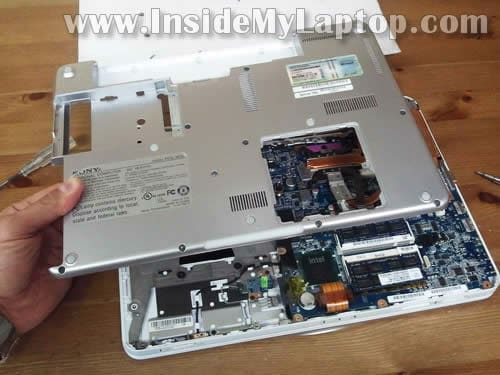
The bottom cover has been removed.
The DC jack located in the upper right corner and the cable routed under the heatsink.

STEP 17.
Remove four screw securing the cooling fan assembly (fan and heatsink).
Disconnect fan cable from the motherboard.

STEP 18.
Lift up and remove the cooling fan assembly. Probably it needs some cleaning.

STEP 19.
Here’s one more surprise. The DC jack cable routed UNDER the metal frame.
In order to replace the DC jack properly it’s necessary to disassemble the whole thing apart.
I’ll replace the DC jack without taking the hole thing apart. It’s not the proper way but I’ll try it anyway.
WARNING! You can damage the laptop doing this. If you are not sure. Stop right here. I’m not responsible for any damage you can cause to the computer. 🙂

STEP 20.
Remove five screws securing the battery board.
Lift up the battery board to disconnect it from the motherboard (there is a connector underneath).

STEP 21.
Disconnect the DC jack cable from the battery board.

STEP 22.
The DC jack cable routed under the plastic part.
Push the DC jack cable though the hole  and pull on the other side at the same time.

STEP 23.
Pull the DC jack cable thought the opening again and release the cable as it shown on the following picture.

STEP 24.
The DC jack cable running under the video cable.
Unplug the video cable from the motherboard and put it aside.

STEP 25.
Now continue unrouting the DC jack cable.

STEP 26.
Here comes the most difficult part.
Remove all screws shown on the following picture. Again, keep track of screws.
Be careful with the display because it will be loose.

STEP 27.
Insect a plastic stick between the top cover and metal frame and spread them wide enough to remove the DC jack.
One more surprise was waiting for me. The DC jack was glued to the metal frame.
I had to use a screwdriver in order to separate the cable from the frame.

STEP 28.
Finally pull the failed DC jack harness from the laptop.

STEP 29.
Now insert the new DC jack harness back in place. It’s not easy but definitely possible.
On the following picture I have a new DC jack installed.
Before crewing all together, make sure all cables are routed correctly.
I would suggest you taking close up pictures during the disassembly process. This will help you to route cable correctly.

Joel
Super awesome post. This helped me immensely with replacing the fan on my wife’s Sony laptop. Thanks for taking the time to put this together!
Adam
Thank you so much for this post as I have found it really helpful. The DC jack on my laptop had stopped working properly and everywhere I went I was quoted around £80 to fix it. Having followed your instructions I fixed it myself in about an hour! Thanks
Melissa Kelly
You are awesome! We replaced a broken fan that had a bad bearing. Your instructions and steps helped us easily replace it with $8 worth of parts. For what could have been hundreds in repair bill from a tech. For those reading this, it really was easy, you just need to really take your time and go methodically!
Thank you so much!
JR
After I replace the harness the computer wont start the battery light is on but computer is dead..Can you help me??Thanks
Joseph
You can skip steps 7-12 if you are just replacing the DC Jack.
BVH
Thank you so much for going to the trouble to post these thorough instructions! I just finished replacing the dc jack harness on our Vaio, thanks to you. And this is the first time I’ve opened up a computer. The photos (including red circles around the screws to be removed) were invaluable.
A couple of comments about the process. Follow the recommendation to keep very close track of the screws! Every time I removed a set of screws, I placed the screws on a separate sheet of paper, creating a rough map of their locations. I laid the sheets out in order of steps, putting parts and their sets of screws together.
Have another person around. I sometimes needed extra hands to hold a torch, or pull a cord through while I held parts open.
Step 13: Our Vaio had one MORE screw in addition to all those circled in the photo – one under where the hard drive had been. Step 21: I wonder if there is some trick to removing the DC jack cable from the battery board; it was very difficult, as the connection seemed to be locked, with no obvious means of unlocking it. Step 27: Before starting this step, you want to (carefully) open the laptop a bit — that is, open the hinge. It took me some time to realize this; I couldn’t for the life of me pull things apart as needed while the computer was closed.
Overall, this procedure was very straight forward except for the last couple of steps (27-29), where things got tricky. But it WAS doable, even for a total novice. The only people I wouldn’t recommend it to are people that are both 1) inexperienced with computer repair AND 2) not generally handy.
Again, I am so grateful for these instructions. They resurrected our dead laptop, at a time when we couldn’t afford to pay anyone else to do it for us.
peter
Your demo is so much appreciated, I fix my old vaio under your instruction!
Michele Dell'Aquila
Thank you for the information. Have been very useful.
However, it happens that inserted the power the PC turns off. When turned on again tells me the following messages:
PX-E61: Media test failure, check cable
PX-M0F: Exiting PXE ROM
Can you help me?
garegin
You got two errors.
1. to get the top case out, you have to remove the black screw next to the battery and the silver screw inside the hdd caddy bay.
2. open the screen before unscrewing it. you can break stuff if you move the screen without it being screwed down
garegin
PX-E61: Media test failure, check cable
PX-M0F: Exiting PXE ROM
that means its not seeing the hard drive.
check the hdd connection.
Joe
Very nice guide. Have you found the the CMOS battery when you disassambled your Vaio. I can’t find it anywhere.
Elliot
This guide has just saved me a lot of time as this Sony laptop is a real pig to take apart, and I’m used to doing this type of thing!
An option to see larger pictures would be even nicer, but I’m not complaining, and I’m happy to make a donation for all your time/effort.
IML Tech
@ Ellion,
Thank you very much for your generous donation!
simone
Thank you very much! Really helpfull!
Preston
Thank you for all your efforts, I look forward to my DC jack arriving soon and fully utilizing your guide.
s
very very thanks
Ashok
very well made instructions. You might have thought this machines are out off date-mine is still running and the credit goes to you. Cannot appreciate enough as to how helpful it has been. Keep the good work. have your website in my favourites folder for future references. For JR check you memory card, replace it correctly or change it, it may work. could not find the battery for the CMOS battery.