

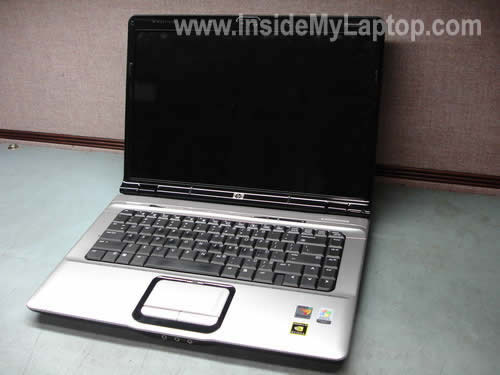
In this guide I explain how to take apart a HP Pavilion dv6000 series laptop.
I will show how to remove the memory modules, hard drive, wireless card, CD/DVD optical drive and keyboard.
STEP 1.
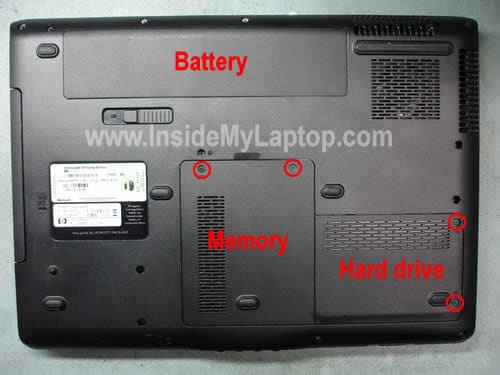
Turn off the computer, unplug the AC/DC power adapt and remove the battery.
Remove screws from the memory and hard drive covers. Remove both covers.
STEP 2.
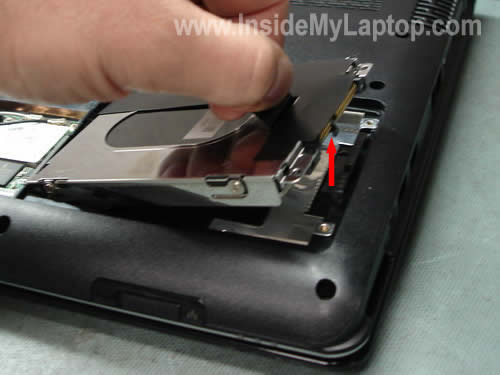
Lift up the right side of the hard drive and disconnect it from the motherboard. Remove the hard drive.
STEP 3.
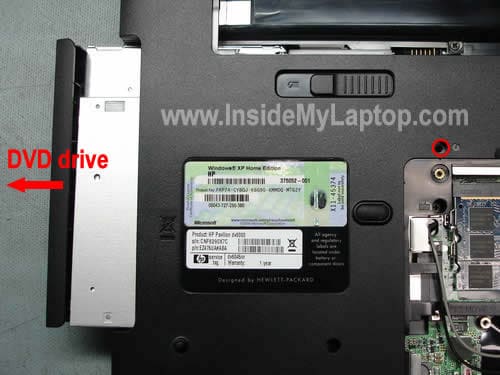
Remove one screw securing the CD/DVD optical drive. Pull the drive to the left and remove it from the case.
STEP 4.
In order to remove the memory module, spread the latches on both sides of the slot.
The memory card will pop up at a 20-30 degree angle. Carefully pull the memory module from the slot by the edges. Remove both modules.
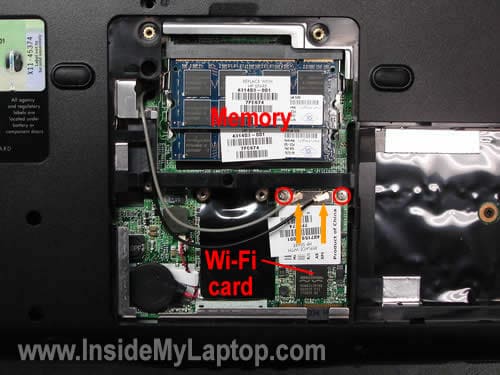
There are two wires connected to the wireless card (Wi-Fi card). These wires are antennas.
In order to disconnect the antenna cable from the card, grab the gold connector with our finger tips and unsnap it from the card.
Remove two screws securing the wireless card. Pull the wireless card from the slot.
STEP 5.
Now I’m going to remove the keyboard.
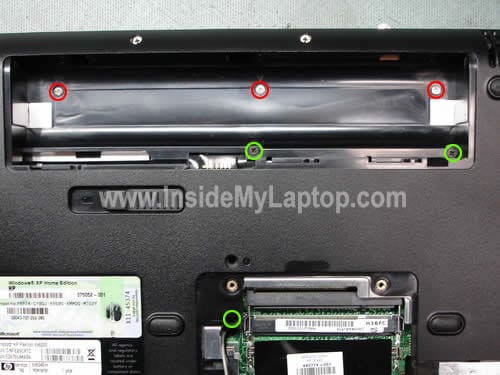
Remove three screws securing the keyboard bezel, I marked them with red circles.
Remove three screws securing the keyboard, I marked them with green circles.
By the way, if you are replacing the keyboard, you don’t have to remove memory, CD/DVD drive and wireless card. Simply go from the step 1 directly to the step 5.
STEP 6.
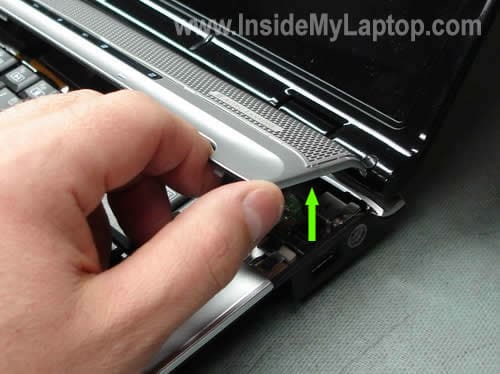
Start lifting up the bezel and separate it from the top cover.
Do not lift it up too far because there are wires connected to the bezel. You can see these wires on the last picture.
STEP 7.
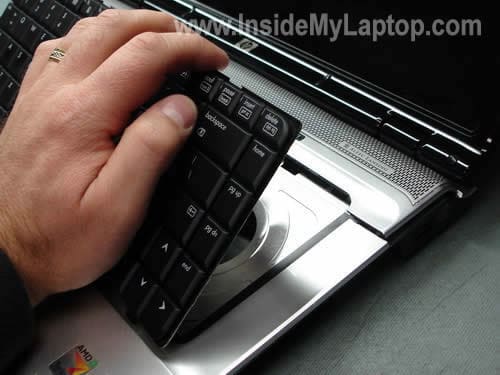
After you release the bezel, you’ll be able to lift up the keyboard as it shown on the picture below.
Leave the bezel attached to the motherboard.
STEP 8.
The keyboard is connected to the motherboard via a flat ribbon cable. Before you pull the cable you have to unlock the connector.
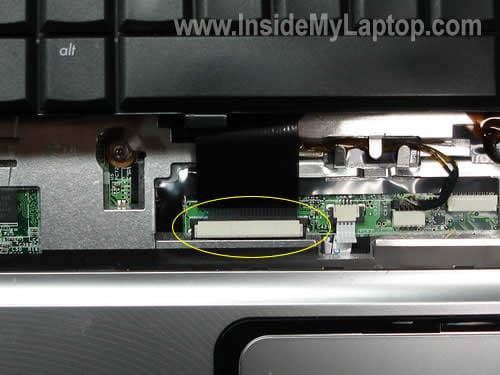
STEP 9.
Here’s how to unlock the connector on the motherboard.
Very carefully move the cable locking tab to the direction shown by two red arrows using your fingernails.
Move it abut 2 millimeters, not more. The tab must stay attached to the connector. All you have to do is release the cable.
WARNING! If you destroy the connector, the internal keyboard will not function anymore. You’ll have to either use the laptop with an external keyboard or replace the motherboard.
The connector is permanently soldered to the motherboard.
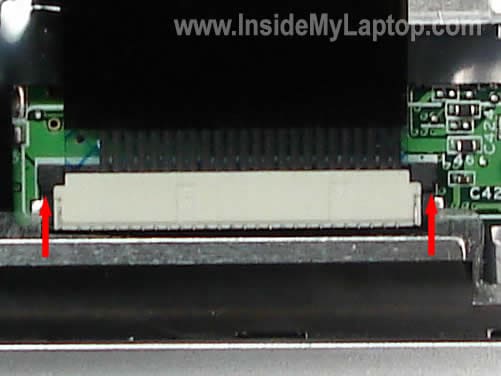
After the cable has been released, you can pull it from the connector and remove the keyboard.
Replace it with a new one if necessary.
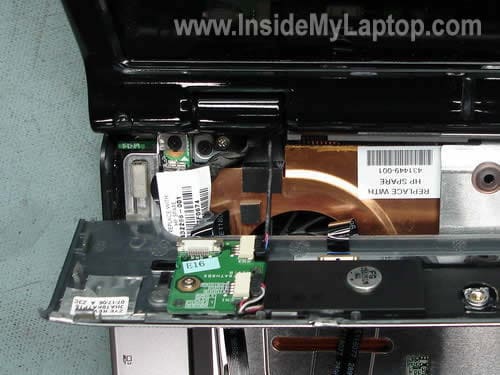
On the picture above you can see how the bezel with all cable connected.
Be careful when you lifting up the bezel in the step 6, you can accidentally disconnect the cables.
Also read how to remove the screen and inverter.
UPDATE: In one of the next guides I published  complete disassembly instructions. They should fit HP Pavilion dv6000 model.
John
Thanks for the guide!
I want to replace the keyboard on my HP Pavilion dv6045nr because it has a few sticky keys. By any chance do you know the keyboard part number?
IML Tech
John,
I believe the keyboard part number will be the same as for all laptops in dv6000 series.
Here it is: 441427-001 (US keyboard).
Mike
Before I read this I dissasembled the unit. I completely removed the bezel. While doing so I lost one of the little brown clips holding the ribbon cable to the bezel. Where can I find a replacement, and what are they called?
Nicky
Thank you! I was able to reconnect a laptop screen connection that had gotten unhooked.
Matti
Hi:
Thank you for guide. Can you please help me i have some problem with WI-FI switch I can not switch on (switch is moving but light does not turn on and i can not get WI-FI connect).
How can I repair it? Thank you for your help.
IML Tech
Matti,
Read the third comment in this thread. Don’t you qualify for a free repair from HP?
Matti
Thank you very much for your help. HP will repair it free.
Dave
My daughters HP dv6149us DVD drive has come completely loose from the housing. The one screw that holds this in place has come out still attached to the unit. It looks like the plastic where it is part of the bottom case has broken, thus alowing it to slide out. Can this be fixed? or will I need a whole new computer?
Help?
Dan
I see the part where you disconnect the wireless antenna cables, so you can pull them through the chassis and remove the display? But when you want to reassemble the laptop, how do you get the antenna cables to snake back through to where they need to be?
IML Tech
Dan,
Yes, you can pull the cables and later, when you reassemble the laptop, just run them back through the hole. There shouldn’t be any problem doing that.
Bob
My laptop’s ac adapter is kind of loose. It turns on and off (between using the battery and the power from the outlet) when I jiggle the plug. Any help?
IML Tech
Bob,
That could be:
1. damaged power cord.
2. bad/loose/broken power jack.
You’ll have to test the power adapter with a multimeter to find out if it’s bad.
mike
How much further to take out the fan? Mine is louder and seems like its going bad. ;(
Vik
I own a 2 year old HP Pavilion dv6000 and for the past couple of weeks i have noticed that the fun is running at I believe full speed non-stop. It does occasionally stop but starts off again. I dont know why this happens as I am not even running a movie or playing games.. its sitting idle which makes me think that the processor power consumption is not high and should drive the fan speed.
anyone can shed light on this?
thanks
IML Tech
mike,
The cooling fan is located deep inside the laptop. You’ll have to open up the case and remove the motherboard.
IML Tech
Vik,
Most likely it happens because the heat sink is clogged with dust and the laptop simply overheats.
Delisha
Great info & pics. My problem is the wifi-switch moves but stays amber & can not connect wirelessly
but can connect wired. So in your opinion would I need switch or new wi-fi card & how do I get to the switch. Im a bit nervous about going any futher in dissasembly, Im done with step #4
Thank You & Happy Valenines Day
Luca
Hi.I have a DV6146EU Pavilion (DV6000). My problem is with the graphic card, infact when i switch-on the laptop i hear one long beep sound and then two short beep sounds. So i’d like to dismount the laptop to understand if it’s possible to adjust it. My question is: is the only possible action to subsitute the motherboard?
Luca
I own a 3 year old dv6000 (dv6146eu) and now present a problem with the graphic card: black screen and beep sounds at start-up. Is it possible to change it?
Pav Singh
You rock with your directions- made for dummies! I have never touched an electronic like this before, but it was easy to do task, not to forget the $298 that HP was charging to do it. Thanks a bundle! 🙂
Bob
Thank you very much for the guide! $18 for a new keyboard, and 8 minutes of my time and we are back in business. Don’t have to tolerate a dorked shift key!!!
Tom Fisch
I have the dv 6000. My internal microphones will not work and I can’t find them listed anywhere.
Is it possible they were not plugged in when Hp replaced the motherboard?
If so how do i check this out?
Neil
Hi, I have a two year old hp dv6200 series laptop was interested to know if you can remove the graphics card and upgrade it, it currently has a nvadia geforce go 7200. This is no longer good enough for my games, is it possible to change it
Andrew
I need to do some internal work on a HP pavilion DV6000. I tried to go to the comcast website and was denied access through the technicians page and the customer page wouldn’t load up. Any suggestions? It seems that the hold up is around the mouse pad. What am I missing here?
Gamaliel
I have a dv6245 HP, I power it up but lcd stays like if its off. After further inspection i found the fan burnt and partially melted. Does this mean my processors & boards are gone or is it just a replacement of fan I have to worry about.
nunya
Hey, thanks for this!
TAKE NOTE TROUBLESHOOTERS: This disassembly guide took care of the dreaded flickering screen issue that is apparently pretty common on the DV6000 (part of a larger warranty program that I don’t qualify for). I’ve had this laptop 2 years and it’s been absolutely problem free until a month ago. The flicker gradually got worse and the general trend is eventually you see nothing. I simply followed this guide to get inside the case, made sure all the connections and pieces involved were sitting solid and put it back together and the problem has disappeared.
You are the MAN!
I was just about to drop $1500 on a new laptop.
There are a lot of complaints about this HP model, but it’s been a great laptop for me. Glad to keep it for a while longer.
XP Clean install
Centrino Duo 1.6Ghz
Nvidia GeForce Go 7400
2gb Ram
320 gb upgrade for stock 70gb hard drive in the mail and will try upgrading to Vista Ultimate since they finally came up with a video card driver for Vista.
nunya
Andrew,
You are missing a screw. Look again.
Same thing held me up for about 2 minutes.
IML Tech
nunya,
Did you reconnect the video cable? Maybe connection between the video cable and motherboard wasn’t good?
Robson
i need to replace the motherboard of a Hp pavilion dv6000 laptop
can you help me out?
ceci
how do you take apart the rest of the laptop?
like getting under the mouse pad?
IML Tech
ceci,
In the comment 18 I posted a link to the official maintenance and service guide (3.28MB pdf file). In the guide you’ll find step-by-step disassembly instructions.
Evette
I have hp omnibook (XE) but needs to be unlocked what do I need to do to unlock this thing? thanx for your help
Kev
Hi, I have a DV6615en model and for some reason it works fine with a battery but when I attach the AC adaptor it will randomly switch off with a click?
Does anyone have any ideas as to what it might be, could it be a faulty AC board?
Thanks.
IML Tech
Kev,
Not sure what’s going on.
Try this.
Remove the battery and start the laptop from the AC adapter with the battery removed.
Will it work this way? Can you make it fail if you wiggle the adapter plug inside the laptop a little bit?
Kev
Hi, if I take the battery out and start it, it gets to where I have to choose OS and then it goes ping and turns off.
Wiggling the AC plug makes no difference?
Cheers for looking into this for me.
IML Tech
Kev,
I asked you to start without battery and wiggle the plug because I thought your laptop has a problem with the power jack. If the laptop loses power when you move the plug, apparently the power jack is not making good connection with the motherboard and has to be resoldered or replaced.
You said that wiggling the AC plug makes no difference, so I assume it’s not the jack.
You asked:
I believe this model doesn’t have an AC board because all circuits are located on the motherboard. You can see the internal parts diagram in the maintenance and service guide on the page 26.
I think there could be a problem with the motherboard.
By the way, it would be a good idea to test the laptop with another AC adapter, just in case.
Kev
Hi, when I said AC board I meant a USB/power connector board.
Apparently it has had a new motherboard, battery and charger brought by the previous owner, I brought it to see if I could have any luck with it.
Ptra
I have two HP dv6000 laptops (slightly different models)
Alright, I slipped on ice and fell in a puddle of water today. My bag hit the ground really hard so my can of juice exploded all over my laptop. The liquid poured slowly in my bag from one end of the laptop to the other. I turned off power and let it dry for a bit. Then I stumbled across this guide.
I removed the hardrive from the “wet” comp and padded dry everything I saw was wet. I moved the hard drive to the other comp. I was able to turn it on and everything on the hardrive was in working order (except for a few drivers that needed to be installed.) I backed up nearly everything onto an external hardrive and then waited till the “detected new driver” to disappear. Then it recommended me to restart the comp. So I did.
When it was reloading… it keeps going to “no operating system found”. I am so confused. Could you help please? Thank you.
Ptra
Ps. I also removed the other computer compartments as well to dry it easier…. and I padded dry everything that was reachable.
Anything that would save my old comp would also be appreciated.
Thanks
IML Tech
Ptra,
That’s weird. So the hard drive worked fine until you restarted the laptop?
Try reconnecting the hard drive, maybe it’s not making good connection with the motherboard. Can you see the hard drive in the BIOS setup menu? Does it spin at all?
IML Tech
Ptra,
Not much you can do here. Just wait until all components are completely dry and try assembling it back together. See if it works after that.
Ptra
I am not much of a computer expert… how do i check the BIOS setup menue? It says “no operating system found” and none of the F2-F12 work. Well, actually, I think F10 works, but then it says “please wait” at the bottom left forever…like it never changes or moves further than that.
I tried removing the hardrive and reconnecting it, same problem. It is weird how it worked untill I restarted the computer the first time.
IML Tech
Ptra,
I don’t remember off the top of my head, but usually you have to press Esc or F1 or F2 as soon as HP logo appears on the screen. Maybe F10, I don’t remember.
Take a look below the HP logo. Does it say: “Press F… key to enter Setup” ?
Can you access the BIOS setup menu when the hard drive is removed from the laptop?
By the way, was the hard drive wet when you removed it from the first laptop? Take a closer look at the circuit board on the hard drive. Can you see any signs of liquid damage?
What if you install the original drive into the second laptop, will it work just fine?
Ptra
when i put the original hardrive it works fine again.
i dont know how to open the harddrive to look for liquid damage. I know there is a manual. but it is much more difficult to read and see and to be honest, the pictures in the manual suck.
BTW i found your pictures very very helpful. If yuo have a harddrive one, it would be great.
IML Tech
Ptra,
Apparently, the first hard drive was damaged somehow. I don’t know what else could be wrong.
You don’t have to take it apart. On most laptop hard drives you can see the controller board on the bottom of the drive – a green circuit board with bunch of traces. Do you see any liquid damage on that board? Maybe the drive failed because of liquid intrussion? Just a guess. Can you hear the drive spinning when you turn on the laptop?
Do not open the drive, you can easily damage it.
Ptra
Thanks. Doesn’t seem to be working. Weird. However, I thought that my “wet” comp was dry enough to put back together. So I did that.
After it was assembled, I turned it on (with power and battery) and it goes on for a few seconds with lights on the touchpad (QuickTime, sound and whatnot)… The screen remained black, after 2-3 seconds, the power cuts off (same sound when I do a manual power cut-off when I hold the power button)… So I didn’t know what was going on. I took out my 4gig ram and I tried turning it on again to see if it is the motherboard. I read somewhere that if the ram is out and the computer beeps a couple of times and remains on, then the motherboard was still fine. I don’t know about that. But that is what happened. The comp remained on until I either closed the lid or opened the lid, then it would restart “coming” on again, with a few beeps. However, the screen is still off.
Secondly, then attached a secondary monitor to the laptop, put back in the ram, and then turned on the comp. It went for about 2-4 seconds, and then the power cut off.
Maybe it is the ram. Nope. I am currently using the 4gig ram in this laptop right now (the other computer), and it is working fine.
I don’t know what is happening. Any help would be nice, or if you could direct me to some resources. Thank you
IML Tech
Ptra,
Sounds like a problem with the motherboard.
You can try disassembling the laptop to barebone system (system board, CPU, memory) and try turning it on. If the laptop still shuts down on its own after 2-3 seconds, most likely it’s bad motherboard.
Ptra
It only shuts down after 2-3 seconds when the RAM is in. If i remove the RAM, it stays on..but with nothing showing
Ptra
Does the casing on the bottom get removed by just unscrewing the screws aound the outside (on the bottom?
IML Tech
Ptra,
It’s not that easy. You have to disassemble the laptop from the top.
1. Remove all screws and components from the bottom.
2. Remove keyboard.
3. Remove display.
4. Remove top cover.
5. Now you can access and remove the motherboard.
You’ll find complete disassembly instructions in the maintenance and service guide.
Realiks
Hi guys you are my last hope.
I’m trying to fix my hp dv6000. The motherboard is dead, I’m trying to remove it so I can put a new one in. But I’m having some problems with the disassembly. The main board is stuck at the Fan and usb ports. Here are 2 picture of the situation.
http://i41.tinypic.com/3522po7.jpg
http://i42.tinypic.com/10qmmuw.jpg
I hope you can help me.
You can always contact me
rubenbasyn[at]hotmail[dot]com
IML Tech
Realiks,
In the comment 53 I posted a link to the service manual. The manual has the motherboard removal instructions. Take a look and find out what you are missing.
Also, did you read the comment #3. I guess your laptop doesn’t qualify for a free repair from HP?
Realiks
Yes I did it 🙂 Thanks allot man ^_^
The laptop isn’t qualified for free repair. I looked on the hp website.
I’m going to order a new motherboard right away. But I think I won’t get the right board. Every board they sell on ebay has an extra chip on it. Mine doesn’t
Anny ideas?
http://i40.tinypic.com/sx2n9y.jpg
IML Tech
Realiks,
That is strange. Do you know if your laptop has a discrete video card? Maybe all motherboards on eBay have integrated video and that’s why there is an extra chip.
Anyway, I would suggest searching for a new motherboard using the part number from the original board. I would strongly recommend buying the same board unless you are 100% sure the board from eBay is compatible with your laptop.
Find the part number (it might look something like that 434723-001) and google it.
Realiks
http://i43.tinypic.com/209ncix.jpg
look there ain’t an extra chip on it. Were is the part number located ? There are allot of stickers on it but none of them seems to be the right one.
ps: don’t mind my crappy english i’m from belgium 🙂
IML Tech
Realiks,
Usually they put it on a sticker close to the memory slot. I can see it on your picture. Doesn’t it have the part number.
You should look for XXXXXX-001 number.
Your English is way better than mine. I’m from Russia. 🙂
IML Tech
Forgot to mention. Also, you can find the part number in the maintenance and service guide for your laptop.
Realiks
Ok I’ve found it: 443775-001
Now I have a dilemma I have the chose to buy from deferent sellers. One from the UK (with is the closest) Than a few from the Usa and allot from china. But I’ve heard that the one’s from china are a bit crappy and they die very quickly. So what would you do? I think a will buy the one from the UK if it die’s I can send it back because it’s the closest.
IML Tech
Realiks,
I think it doesn’t matter where they sell motherboards, most likely they are all made in China. Personally, I would prefer to buy from the closest source.
Realiks
Yes I think I will buy one from the UK. Are there any other important things before I order it? Or is the part number the only important thing?
Realiks
Oja I forgot something, does it mather that my new board has a black amd socket?
IML Tech
Realiks,
If your new motherboard has the same part number as the original motherboard, it should be 100% compatible.
Shouldn’t matter.
Realiks
Ok, well thanks allot for the advise, you’ve really helped my allot. I’m ordering the new board right now and also a arctic silver 5 thermal paste for the cpu and gpu 🙂
I will post an update if the board has arrived
NH Hiker
I needed to replace my power supply for my dv6000. The PC was working fine on the old power supply, but the wire was breaking. I bought one off of eBay and all the power factors matched. When I plugged in the new one, the PC went totally dead in less than 30 seconds. Now it doesn’t get a pulse with either the old power supply or battery. What do you think happened and what’s the remedy? Thanks
jimmy
hi.
my dv6000 got problem with graphic card,anyone known where i can buy it
robert
i have a dv6000, i baught it used off a friend , it is over 4 years old , and last month, feb of 09 , i called about issues with the lap top and they eventually had me send it in, they replaced the motherboard , keyboard, case , battery , wireless card , power supply , dvd burner and mouse, free of charge, all i had to do was give them hell for about 3 days. it is a recall on these , makes the wireless not work and they over heat. so give them hell and they will replace the laptop for you, email me if you want the number , i have the executive phone number, very helpful.
rhusk1005 AT neo.rr.com
Mark
So that’s what holds the CD in!!!
Thanks so much for the article
and the time that you put into
this!
Hans
Hi,
I have a DV9700 that has been STEPPED on.. while the lid was closed. Needless to say, the LCD is broken. I wish to turn this machine into a Media Centre by removing the screen and connecting an external monitor (TV). Only problem is, the external screen isn’t getting any signal. Any thougbts on how to manage this?
With regards, Hans
Tom
Currently repairing a DV6000..Seems like the lid switch is going bad, as the screen flickers then the laptop goes into standby mode..I turned off the standby function when the lid closes & the laptop works fine..Where is the lid switch located?
IML Tech
Tom,
This laptop has a magnetic switch. There is a magnet inside the display panel. I believe it’s located on the left side from the LCD screen, about 2 inches above the hinge. When the display is closed, the magnet activates a switch located inside the laptop base.
IML Tech
Hans,
I assume the laptop still works even though the screen is broken. Will it start at all?
Connect an external monitor to the VGA port and turn on the laptop. Now try to switch video from the internal to external mode. Press and hold down the Fn key and at the same time press on the F4 key. Will it switch to the external monitor?
IML Tech
jimmy,
Isn’t it integrated into the motherboard? If that’s the case, you’ll have to replace the whole motherboard, not just the graphics card.
Realiks
Hi, I’m back. My new motherboard just arrieved and Iv’e uninstalled the cooler. Do I have to apply new thermalpaste ? Because there are some little stickers on the cooler.
masssimo
hello. io ahve a pavillon dv6146, but do not start.
and do one long beep followed by two short beep, then the system start but the monitor remain black.
anyone have solved this problem?
Andre
Hello, i have some problem with the little battery inside u know.. that is making the clock and date restarts every time i turn on the notebook. How can i change that? thanks mate
Robert
Hi,
Firstly, great work and many thanks for the very useful guide.
I’ve got a bit of a different problem. My caps lock light – its very faint and I have a feeling its burnt out or is on its way out. Is this attached to the keyboard, or is it a main board light?
Thanks
Rob
Hans
The laptop screen has been removed but at first I couldn’t boot the damn thing. Later I found out that if I took out one of the memory cards out of the memory bank (the one that covers the other, I assume this is memory bank 2)
It’s not either of the memory cards because I tried each seperately and the system boots perfectly.
Am I stuck with only one memory bank now? Or is there something I can still try here?
Everything else works like a charm now with the external monitor hooked up btw.
Thanks,
Hans
Sid Hollands
I need to replace my motherboard (I am told)on my HP Pavilion dv6000 which refuses to boot and just beeps at me. Will you be continuing with this series on insidemylaptop.com .
cara mullen
My sons HP Pavilion’s dv6000 screen does not work any more. I hooked it up to an external screen, tried the Fn F4. Nothing happened. So what is my next step? I also took out the screen and checked the connections.
IML Tech
cara mullen,
The next step. Follow the link in the comment 3 and find out if your laptop is covered by the extended warranty.
IML Tech
Sid Hollands,
Download the maintenance and service guide for HP Pavilion dv6000 laptops. I posted a link in the comment 18.
You’ll find step-by-stem motherboard replacement instructions in the service manual.
Kevin Jackson
IML Tech,
Wow great site. I’m wondering if the dv6000 mb is compatible with the zv6000? My zv is old (4 yrs ago) and my son’s dv is 2 yrs old… but with a cracked screen.
Thanks!
Kevin
IML Tech
Kevin Jackson,
Nope. Two completely different units. I would suggest replacing the cracked screen on dv6000. I linked to the screen removal instructions at the beginning of this guide.
Rizwan
Hi Tech,
Thanks for the wonderful guide. I have dv2630ea and i want to upgrade its video (graphics) card which is currently nVidia Gefore 8400M GS. its only 64MB. I am looking for any upto 256MB. Kindly suggest what are the options and guide me which steps to follow to find the card in the machine and to replace it.
Thank in advance.
IML Tech
Rizwan,
Isn’t the video card integrated into the motherboard. I think it is. If that’s the case, it cannot be removed/replaced/upgraded.
Yousonofagun
I have one of those lemons that HP sold me… dv6000z CTO notebook RD167AV. The GPU is an nVidia GeForce 7200 Go.
Is it possible to completely rid myself of the current defective system board/GPU… and entirely replace this with a compatile system board/GPU from another brand?
I dont know whether laptops are designed like desktops PC’s… you can literally mix and match motherboards/GPU’s etc.
Please advise me as to what system boards will properly function if I want to switch out the defectice HP system board.
Thanks in advance
Yousonofagun
I guess I should rephrase my question……
If I own a dv6000z CTO notebook RD167AV… and I am sick and tired of the defective GPU/system board installed in this laptop. Are there any other system boards available (I prefer to steer clear of the HP brand) that can be placed into my laptop?
Currently the CPU is AMD Turion X2 TL-60… and the GPU is nVidia GeForce 7200 Go.
Would it be possible to completely switch to an Intel CPU, system board and upgraded GPU? The way I understand it is… these 3 components are integrated into one board.
I dont know if the above questions made any sense lol…. just trying to probe possible routes, instead of sending my dv6000z to HP for a 3rd repair (all they do is switch out the defective part with an identical defective part).
I paid $1600+ for this notebook and hope that there are other compatible system boards for this model.
Any help would be appreciated.
IML Tech
Yousonofagun,
You can replace the motherboard but you’ll have to find another one with the same part number. Basically, you are replacing your defective HP motherboard with a similar working HP motherboard.
You can do it in desktops but not in laptops. In some cases you can find a better motherboard (more video RAM, bettery chipset, etc…) but this motherboard has to be designed for your laptop. You cannot install motherboard from a different laptop brand.
If your laptop is still under warranty, I would suggest sending it to HP for repair.
11beagle
I have a HP Pavilion dv6636nr that the built in webcam doesn’t work anymore.
I downloaded the latest HP webcam driver version 6.1003.101.0
The webcam is listed in the Devise Manger but has a yellow flag + This device cannot start. (Code 10).
I have tried everything I know including the newest Vista sp 1 driver update.
Any suggestions or is the webcam dead?
IML Tech
11beagle,
Access the device manager, find the entry for your webcam (could be listed in USB devices), right click on the entry and uninstall. Restart the laptop and let it detect the webcam. Does it help?
Also, you can try reinstalling Windows.
If nothing helps, probably it’s bad camera.
11beagle
I tried all the above with no luck. It must be the camera.
Thanks for the info!
DV6000Hell
Hi,
I have unscrewed all of the screws and my beautiful laptop is now a mess. I need to replace the usb d/c power cable. But to get to the connections, I need to take the main face plate off (the one surrounding the mounse pad). But when I pull, it pulls off all around the edges like something attatched in the middle is holding it down. I don’t want to pull more for fear of breakage. Help.
Dee
di tregale
my kid split coke at a few keys om the keyoard. the keys imdtweem V&M womt work… tried to pull them up & fix them & i camt evem get them ack om mow ..cam this get fixed?
Manuel G.
Wow, this site is wonderful. Over the course of the last few weeks I’ve had a problem with my dv6000 laptop and have been spending alot of time searching for an answer, so I’m confident in saying that this is easily the most user-friendly tech site I’ve come across.
I have what seems to be a unique issue that maybe someone can help with. A while back my computer started looping between the start-up BIOS and the Vista loading screen when I would boot it up. Somehow or another I ended up at the recovery console and tried to reinstall windows (I think the original problem was with the MBR, but learned of this too late.) The reformat of the drive went through, but then the recovery console froze. I had to hard reset the laptop and when it came back up, I got an Err2Err3 message. Apparently this is the sign of a missing operating system, so a few days later I tried adding Ubuntu (by this point I was willing to lose my data, I was just trying to get my computer working again.) Ubuntu went through the entire install process and gave me an error message at the end. Then it took me to the liveboot version desktop and froze up on me after I started clicking around, exporing it. I had to do a hard restart.
Here’s where things get really weird. After the failed install, the liveboot cd would not even load for me and the error message changed from Err2Err3 to “Operating System not found”. I turned off the computer in disgust and left it alone for about a week.
Last night, I turned it back on to tinker with it again and somehow the liveboot cd worked. Thankful that the voodoo gods were apparently too preoccupied with something else to focus on this cursed machine, I got to the liveboot Ubuntu screen and ran the internal shredding application. I figured nuking the hd and starting over clean would be my best option after all the trouble I’d experienced. (Trouble which, I must mention, had no easily accessible precident online when I looked for it at every step of this horrible adventure.) Unfortunately for me, the curse was back and the shredding application started returning errors. (Not sure if you’re familiar with Ubuntu, but it gives progress at every step of the shredding process in the form of a “–mb of –Gb shredded” type of count which, for me, came in increments of 13mb. When I say that it was returning errors, what I mean is that after the first 1Gb or so, every progress update was followed by an error message.) With no obvious way to stop the shredder, I did a soft reset and got out of the liveboot desktop, but the shredder was still running onscreen in a BIOS-looking text (black background, white text). I hard resetted yet again.
So, that where I am. I tried another liveboot shredder called KillDisk and it progressed to a certain point, then froze. Being the hard-resetting master I was, I hard reset the laptop, put it away, and walked off feeling utterly defeated. The fact that even a disk shredder would not work on the unit suggests to me a bad hd, but I’m not sure. I could see in the start-up BIOS that the system was registered as a Vista unit, but couldn’t see any details on the harddrive. I had to get the motherboard replaced a while back and I’ve heard that bad motherboards can affect an hd, so maybe that was the problem? What I’d like to know is a)has anyone ever heard of a harddrive rejecting a shredder and if so, was there a solution that would allow the hd to be wiped and reused, b)if the harddrive is faulty, can I just buy a new one, pop it in and treat the computer as new when installing the OS?, and c)Kind of an off-shoot of b, but is there any other issue that could kill a harddrive that I should be aware of? I don’t wanna throw a new one in there if it will just suffer the same fate.
Sorry for the verbose post, but I know how important accuracy is in diagnosing…well, pretty much anything. But especially computers. Any help would be GREATLY appreciated.
P.S. I’m outside of HP’s warranty and my geek squad warranty might have been invalidated due to all the tinkering I’ve done. Just wanted to throw that out there.
IML Tech
DV6000Hell,
In the comment 18 I posted a link to the maintenance and service guide. You’ll find step-by-step disassembly instructions in there. Check out the manual.
IML Tech
di tregale,
Yes, you can fix this by replacing the keyboard.
IML Tech
Manuel G,
I think you might have a problem with the laptop memory. You have two memory modules installed. Try removing them one by one and test the laptop with each memory modules separately. Does it make any difference?
Sameer
Thank you.
You are truly the man…
Never opened a laptop before…
this is great.The dv6000’s are quite buggy.After my
laptop went under warranty for the vanishing wlan issue…Only six months later it has developed a
1 long beep 2 short beep problem (vga!).I am thinking of getting a dell or acer since hp’s are very unreliable…
DV6000HELL
Thanks IML Tech.
I printed a copy of manual before I started but was still unable to open it. Later I discovered the dv6000 has 2 GOLD BOLTS that require a 3/8 socket to unscrew. (I actually used the business end of a small allen wrench to loosen the bolts. Worked fine.) The Bolts are shown in the photo for step 4 (just to the left of the antennas that connect to the Wi-Fi card).
REMOVING THESE BOLTS IS NOT LISTED IN THE MANUAL and that’s why I had such a hard time.
Thanks for your help. Your site is one of reasons I had the courage to try to open my laptop. Now, I just hope I can put it back together!
THANKS
Patrick
I have a dv6227cl that just recently starting doing reboots before anything comes on the screen. The media card slot light stays on the whole time. The laptop just stays that way for about 5 – 10 seconds and reboots over and over again. I sent it in because of the wireless issue and it was returned to me stating that there was “liquid damage” to the keyboard, memory area, and they didn’t do anything to it except to somehow manage to take the “h” key off and lose the little supports under it. Is there anyone with a broken keyboard that would ship it to me if i paid the shipping? And does anyone have a clue as to being able to start up the laptop? I had the problem before, but that was with a cracked lcd that i replaced using this site. Thanks for your hard work!
IML Tech
Patrick,
I cannot tell if your problem is related to the liquid spill or not but if the laptop was working fine before and suddenly started doing reboots, that could be related to the memory modules. Try reseating both modules. Try removing them one by one and test the laptop with each one separately.
Nevin
Hi,
I have a dv6000 and I see the same issue faced by others..1 long beep followed by 2 short ones. Has anyone fixed this successfully..?..is it an issue with the system board..?..how much did you end up paying for the board and any pointers where you purchased the board would be appreciated..thanks in advance..
Nev
IML Tech
Nevin,
You have two memory modules installed, right? Try removing them one by one and test the laptop with each one separately. If you getting same beep error message with both modules installed separately, most likely it’s related to the motherboard. I doubt that both memory modules can fail at the same time and at least one of them has to be good.
Matt
My problem is that my powerOn button no longer functions properly. Where once i simply had to tap it I know have to apply significant downward pressure with a screwdriver for it to turn on. I took it apart and nothing seems to be broken. Any thoughts?
IML Tech
Matt,
I believe the power button is located on a separate board, isn’t it? I guess you’ll have to replace the power button board.
cruiser
i have a hp Dv6000 upon start up it gives me one long beeb and two short beebs and nothing shows up on the screen. what does this mean is it the motherboard or something else? i have looked at all the posting that you have and have seen many people with the same problem but didnt see an answer on what it is. i have called hp and they said that iam out of warrenty they didnt give me a real answer except to buy a new one. so any dionostic help will be good and then i will take it apart and fix it my self.
thanks for the very good site.
IML Tech
cruiser,
I already replied to you in a different thread but here it goes again.
Test the laptop with each memory module separately. If it works fine with one module and fails with the second one, the second module is bad.
If the laptop fails same way (beep error) with each module installed separately, most likely your problem is related to the motherboard.
Alex
I am pretty sure that I need to replace the motherboard, however, I’m a little confused as to how. Please list the items that I need to remove in order to replace it. Also, is it safe to assume that everything I remove from the old motherboard should be installed into the new one?
And lastly if I am replacing the motherboard with the exact replacement, should I back up anything or create a boot disk, etc.?
IML Tech
Alex,
You’ll find step-by-step motherboard removal instructions in the service manual for HP Pavilion dv6000 (it’s a 3.3MB pdf file).
Yep, you’ll have to transfer some parts.
If you are replacing one motherboard with another compatible one, you don’t have to reinstall software. The new motherboard should work with the old load.
But I would suggest backing up files as a precaution if something goes wrong.
Brock Samson
Hello, I have an HP Dv6636nr, I seem to be having a problem with the DVD drive. I use certain programs to back up my dvd’s and they were working fine up until about a week ago. Suddenly the programs would freeze and the DVD drive would stop working. I went to best buy and the Geek squad guy ran their diagnostic tool that told me I had a couple of lovely Trojan viruses, My Trend Micro Antivirus software was unable to even find them so i resorted to doing a destructive reboot. Everything seemed to be working fine until I tried to start backing up my dvds again. Now my drive wasn’t even showing up, After refreshing my Device Manager several times it would reappear, but would stop working halfway through the backup. Also, when the drive is working it is extremely loud and I can feel it vibrating. I think the drive may be loose, how can I fix this?
Richard
I am a technician and have a hp Dv6000 which upon start up gives one long beep and two short beeps and nothing shows up on the screen. For sure that seems to be memory error. My modules are PC2 class 5300. I tried resitting the modules nothing worked. I decided to use PC2 class 4200 and the laptop started up OK. I used the laptop for one day then it went back to same problem. I doubt whether it is the memory bank, nor motherboard. Could it be BIOS problem or can someone help me
Skyler Holmes
Hi. I need help. My HP dv6000’s Cd/DVD Drive has stopped working. I don’t know what to do. A computer guy I know said that if i wiggle the drive connection it would probably work. but I don’t know how to get to that.
Tim G
Hello All,
I have been having a problem charging my laptop for about four months. It started with the AC cord breaking, so i went to the local radioshack and purchased a replacement connecter and soldered it to the old adapter. About a month after i started using this radioshack connecter it would not charge unless i had the connecter positioned in a center way. Now the charging pin has broken out of the power connector, but i can still get it to charge. I have read on the internet that my problem is probably just that the power connector is loose and i need to solder it back to the motherboard. Can anyone tell me if that is the correct thing to do or should i try something else first? I can lift the bezel enough to see the power connecter…
Amit Kumar
Sir
I have Hp Dv6000 Laptop .
Its lcd screen is most of the time showing black..
however some times for few second I got its LCD normal.
What was the problem and how it will rectify.
It is out of warrenty.
Thanks
Amit Kumar
thechemist
Great site. Very helpful from what i can see so far. I’m having a problem that I have not seen posted so far. I have a HP Pavilion dv6119US 2 yrs old. About 1 week ago the sound stopped coming from the internal speakers but when i connect to the external speaker plug up front I get sound just fine. Mute, volume controls all work as expected with external speakers. I used info from the HP service manual and removed the internal speakers and tested them outside the PC with another audio source and they will produce sound just fine. So I spent about 3 hrs last night with HP tech service from India and update audio drivers etc but in the end it was all a wasted of time. It was obvious they had not encountered this problem before. It appears to me not to be a software problem but most likely some failure on the audio sound card that controls the switching of sound between the internal and external speakers. Do this seem reasonable to you? Would replacing the audio card likely fix this? Thanks for your time to reply.
IML Tech
thechemist,
The audio jack has a small connector inside which switches from external to internal mode when you unplug headphones or external speakers. Apparently this switch got stuck in the external mode.
They did, they just don’t know how to fix it because they never seen a laptop. 🙂
That’s right, but again, most likely the problem is inside the audio jack.
You cannot replace the card because it’s integrated into the motherboard.
Lawrence Roberts
This site is great! I used your directions to open up my DV 6000 which I got about a year and a half ago. My problem is that I am having trouble using the power cord to charge the battery or run the computer. The problem started a slight need to adjust or jiggle the cord to make a good connection. It progressed or regressed to the point where it virtually has to be held by hand in place to keep the connection and even that is beginning not to work. I was told that it probably needs to have the motherboard replaced?? I was hoping I could sloder or improve the connectivity once I got inside. With your help I’m inside but I don’t see anything loose? What do you think I could try short of sending it off for service. I’ve been quoted around $300 to fix the problem!
Tony
Hi gr8 article, and most useful, although my wife managed to cure the stickyness caused by a soda pop spill, buy using wet wipes and cocktail sticks to rub the stickyness away from under each key, then leaving in the airing cupboard to dry. Now works a treat. Removing the keyboard first did help with access. 🙂
Tony Li
Thanks, I broke my laptop trying to fix it. I was careful as possible but now it won’t boot. Not the first time I done a laptop tear down but definitely the last.
For all others trying to take it apart and fix it: LET A PROFESSIONAL DO IT 🙂
IML Tech
Tony Li,
Why do you think the laptop is broken? Did it boot before you start taking it apart?
Maybe something is not seated correctly. Try reconnecting the memory module first.
thechemist
Thanks for your reply. While I have not yet fixed the problem, I have at least found the cause with helpful information I found on another site (http://forum.notebookreview.com/showthread.php?t=225809). As it turns out the problem is due to a sever crimp in the ribbon cable that connects to the power button as this cable is also connected to the internal speakers. Basically the OEM cable is poor quality as this failure is quite common withe the HP DV6000 laptop and with other similar models. So the fix is to replace with a new cable. The photos you provided shows the cable attached to the keyboard bezel but i will have to remove additional components to get at the other end of the cable to do the replacement. If you have any more photos that show which components to remove to get at the other end that would be very helpful.
Sarah
The “release” switch for the external battery on my HP Pavillion laptop is stuck in the “release” position but the battery is stuck in place. It seems like this should be a simple thing to fix and yet… I asked HP if they could fix it and they quoted me over $300, and although I have a warrantee at Future Shop, where I bought it, they said it would taken 10 business days to ship my laptop to HP, have them fix it, and then ship it back.
It seems like there should be an easy way to solve this problem… is there?
Beth
I have two hp laptops. The dv6607nr which i need to replace to heat sink/cooling fan. After reading the manual, is it truly necessary to remove the display to replace the fan? And if any one has replaced the fan, how much time should I plan on? Also it appears that the instruction manual works for both of these models. Are there any other recommendations that you may have in the repair of these laptops.
The dv6500 which, after reading, I’m finding it to be a common problem with the display going blank. The display is getting to the point that it has to be a certain position for us to see anything. Doy you recommend that I order new parts for it before I take it apart, or take it apart and check the connections? Not looking forward to fixing that.
This will be my first time doing this any and all advice will be appreciated.
Beth
Well, I fixed the fan on my computer. Wasn’t that bad, took about 3 hours to dissassemble and reassemble. I have 2 screws left over and the other fan had a crack in it. Fixed that and put it away in storage for a spare. I can say that the manual tells you to take apart more than you have to. All in all for my first time doing this it wasn’t so bad.
Now for the monitor on the other computer. Still need some ideas as to whether or not I should take it apart to check the connections or if I should just replace it. Any advice would be great.
Thanks.
david
i got a vista that worked fine till a couple months ago but then turned off or something. THen i noticed a amber light by the internet switch can you tell what is wrong with it.
david
Sorry, I was talking about the wifi card.
Jim
Beth,
I too need to replace my heatsink fan…
How did you get down to it?
Any advice?
Dave
Hi,
Looking at DV6000 for a friend. Keeps shutting down after being used for a few minutes – noticed the heat in the area of the laptop around the fan was very hot.
So I’m looking at changing the fan (and the screen as well but that’s another story…. I see Beth managed to find a manual ..was that the HP support site ??
Mehmet Naci ÃœLGER
I should tell something about my HP Notebook case ( HP Nightmare)
My sister bought HP DV6338se notebook. It is special notebook !!!, What a special notebook!! As HP DV6000 series have BGA chipset problem, My sister notebook went down step by step; First we lost “Wireless Adapter”, Second “Lan Adapter” and Finally we lost everything, It was not working. We bought it from US but We live in TURKEY. We tried to get it repaired in TURKEY under Global Warranty. HP Turkey has not intent to repair it, so I have to repair this silly branded notebook on my own.
I have purchased mainboard from Ebay. I choose different motherboard because original motherboard (HP Spare part number 443775-001) VGA chipset was embedded Nvidia Go 6150 and its performance was too bad for me, so I choose DV9000 series motherboad (HP Spare part number 432945-001) its VGA chipset is Nvidia Go 7600 (256Mb dedicated RAM).
I thought, both mainboard are in same shape but They aren’t so I had to do some work on this new motherboard
1.Second Hard Drive Port removed (It didn’t fit my notebook enclosure)
2.Front side chassis, Power LED, Battery Charge LED and HDD LED and their resistors are replaced from broken motherboard (443775-001) and placed in new motherboard (432945-001). Because DV9000 series motherboard’s Power LED, Battery Charge LED and HDD LED’s are in additional card and mine doesn’t have such a card and doesn’t place in chassis to put it in
3.Caps lock LED and its resistor are replaced in new motherboard (432945-001) because LED place doesnt fit for my enclosure.
4.Touchpad switch , touchpad LED and their resistors are replaced in new motherboard (432945-001) because toucpad switch, toucpad LED’ place doesnt fit for my enclosure.
5. Battery connector removed back. (That was the hardest job to do, It wasn’t easy to disassemble from board )
so I thought I had completed everything but I realized that My screen back light doesn’t turn off when I close lid.
I did some search in Internet and with comparing two motherboard, I found the LCD Back light Lid Magnetic Switch.
[B]As mentioned above there are no mechanical switch inside notebook. There is only magnet in LCD enclosure and magnetic sensor switch in main enclosure.
magnetic sensor is 3 pin electronic part. It is like a BSD type transistor. I have look with magnifier and its part number ” FD720 ” It is located , just above external VGA port ,in motherboard.[/B]
My new motherboard doesn’t has this part so I remove it from my broken motherboard to new motherboard.
Now it is working very well.
When I got problem with HP DV6338 notebook, I did some search and learn that I am not alone. Too many people are struggling HP notebook problems. With my experiences I learn that HP is not good at producing notebook, They are good at producing printer only.Other problem is that, They do not care their customer.I think that is main problem for HP.Every electronic stuff may go down or broken but good companies provide good,fast and reliable solution for their customers. I am sorry to say that but HP doesn’t provide.
I hope these information’s help others.
Regards
Mehmet Naci ÃœLGER
TURKEY (My Country original name is TÃœRKÄ°YE)
Sharon McCauley
Howdy.
I just acquired an older used Sony Vaio from some friends, and the audio out (headphone) jack has been completely destroyed. (Teenagers will be teenagers!) Anyhow, I opened it up to see how bad the damage is (and it’s real ugly). And I noticed that right next to the (I guess you would call it a micro-connector, a white plug-in type) with 4 pins that feeds the 2 internal speakers, there was ANOTHER unused micro connector (w/3 pins) also marked with a “J”. I’m guessing that is Sony’s convention for audio..Anyway I ohmed it out and found that the extra 3 pin is coming straight from what’s left of headphone jack. My question is, if anybody knows; Can I plug into 3 pin connector, run some wire to outside of unit, and put a female stereo mini on there and still make use of headphones with laptop??
Thanks so much for your time, this is a great site.
Methos
Amazing tutorial. Great job, great site. I recommend it a lot.
…And HP Pavilion dv6000 works great with Ubuntu!
pracas upreti
i was worried about my left hand speaker on my dv 6000 series hp laptop, you have described the every aspect,
great tutorial ,
juliet
can anyone help? i have a dv6000, a 26 months old laptop , out of warranty, giving me sound error. it’s a one long beep followed by two short beeps and totally blank screen, what can i do? i have shown to several technicians, and few of them said it was the memory, some said it was the video card or both, but none of them can fix my laptop, my place is quiet far from the HP service center. The same thing happened when my laptop was just 8 months with me, could it be a factory defect? that time it was under warranty and was fixed by the HP service center.
I am so upset with the product, please tell what i can do?
Jack
Juliet
I might be able to fix your computer. I live in PA,and you?
Email me at goldfish25@gmail.com.
Jack.
Jack
Great tutorial, well explained and good photos!
comdummiemom
Release battery button and Battery stuck !!
To Sarah who posted on May 11th or anyone…
My son has the some problem last night. Check on most forum says if get it fix will cost about $300-$500; and one says try to push by using picks.
I found only one pick & I try to find some material like picks push it into 6 of the hold button where u connect the battery to lap top.
You’ll get the idea where are the hold button if you still have the poster size picture.
september
Since there are two modules for memory and they sit ontop of eachother how do you know which is mod 1 and which is mod 2?
IML Tech
september,
Is there any particular reason you want to know which one is module 1 and which one is module 2?
september
Oh and also, an HP rep told me my DV6000 could use 2G MAX – but the place where I bought it from told me I could install 1 2G and leave the 512 in – this puts me over 2G, is that ok?
IML Tech
september,
According to HP specification a dv6000 notebook will take up to 2GB RAM max. If you leave the 512MB in one slot and install a new 2GB module into the second slot, you’ll get 2.5GB total. Will it work with 2.5GB? I don’t know you have to try but I would suggest to follow HP specifications.
If you want to max your memory, remove both 512MB modules and replace them with 1GB modules.
MICHAEL VEASEY
WHAT A FANTASTIC ARTICLE, PIECE OF CAKE MEMORY UPGRADE FOR DV6000,WICH
STAPLES DUDES WANTED 30 BUCKS,I’LL EAT THE PIZZA AND DRINK THE BEER MYSELF,
THANKS TO YOU AND THIS FINE ARTICLE,WILL RECOMMEND THIS SITE TO FRIENDS…..
THANKS,MIKE
Gustavo
Hello! My name is Gustavo, I have an HP dv6258se and happened to miss a few keys on the keyboard, follow this tutorial to disassemble my laptop and set the flat cable of the keyboard. PERFECT! Now the keyboard is working 100%. Thank you for help, and for those who are afraid to do, I can say it is very easy to open, only to watch the flat cable because it is very sensitive. A hug!
Tim
Some of us have this same question but no answers. the battery lever is pushed all the way to release but the battery stays stuck in the unit.
How do we fix this?
Mike
My dv6000 motherboard is dead, so I have ordered a replacement. Is there a guide such as this one on how to replace the motherbpard?
Dan S
I have a solution to the Pavilion stuck battery switch problem that was suggested by another commenter. I used a plastic guitar pick to gentle lift each end of the switch from underneath. This had the effect of releasing something and the switch slid back. Then I was able to remove the battery with no problem. Guitar picks are very soft so I don’t think there is a risk of snapping off anything from the computer.
Jazza
I have a dv6000 and also had the stuck battery slider problem, Very easy to fix, You need two flat screwdrivers and a bit of patience. The battery normally pops out on the side closest to the slider but if you get the screwdrivers in the opposite side and gently lever it outwards and upwards the locating tabs will be dislocated and the battery pops straight up and out, very easy. Just dont be rough or you will break the base plate. The sliders that lock into the battery get stuck on a piece of plastic inside and just needs to be flicked out and they snap right back into place! Since i fixed this i have never had another problem.
Fred
URGGENT!!!!
I have dv6000. following is the problem details:
– Soon I turn it on, it shows a black screen with message –
“the file is possibly corrupt. the file header checksum does not match the computed checksum”
– After this, it will not go further in bootup. I am afraid of re-building the machine that I might loose all the imp data.
-OS : Windows Vista Home Edition that came with HP new Laptop
-It looks more to me a HW issue then OS issue.
Any help ???
IML Tech
Fred,
Could be memory related problem. Try removing RAM modules one by one and start the laptop with each one separately.
ophir
great !!! very helpfull
thanks alot
dee
wanted to know from the last pic you have weher do i go from there to replace the motherboard? you stop at the bezel but nothing further. is everyhti9ng now exposed so i CAN exchange the motherboard? HELP!
Mel
Hi! I have a DV6000 that accidentally fell to the floor. The laptop works fine, but the power button and the internal speakers only work if I press firmly on the left side of the bezel. I removed the bezel and pushed all of the cables back again but I still have the same problem. Is there anything else I can try to get this fixed?
Thanks!
Neil
Directions are lacking in how to pull the cover apart, it seems to be stuck around the mouse area. Is there a scew holding it together? I’m able to loosen the cover on the sides. Any help would be appricated. I’m replacing the sound module.
IML Tech
Neil,
You’ll find these instructions in the service and maintenance guide.
Fer
Hello Fred, I think that your problem is not a hardware but a software prob. You should try testing basic things like the memory and hard drive. If it doesn’t even boot or let you get into the bios I think it might be a memory error. Should test various things.
ferd
Anyone know the location of the fuse on the mother board?
Hedgehunter
Hi,
Great tutorial great site… I have a DV6000 and took the motherboard out but can’t find the replacement number on it? Every other component has it but the mobo has not got it on… Mine is a webcam type of pavilion… SN:DV6154eu
IML Tech
Nedgehunter,
Did you look in the memory slot area? Make sure to check out both memory slots.
Hedgehunter
HP site told me: 433280-001
Tere
My daughter left my HP Pavilion laptop on all day and all night and admitted she did this all the time. She left the internet cable on as well. My issue is now I have a black screen but the lap on lights above the key board turns on and off. What could it be? The mother board? could it have heated up? Need Help!
IML Tech
Tere,
It’s hard to tell what is wrong. Try what Myles suggested in the previous comment:
Myles
Search YouTube for the black screen problem for the DV6000. There’s a guy there who shows how to do it in 3 steps:
1) remove your battery (after powering down and disconnecting from AC power)
2) with all power still OFF and battery out, hold power button down for 30-60secs at least
3) plug back in to AC, but without the battery and boot.
Problem should be solved.
You can resinstall the battery and you’re good…or so the description went.
Kevin Powers
I’m just snakebit with HP. I find my DV6000 was not available to be recalled by them. It won’t power up by the power switch and I suspect the power cable or the board under the switch. Quick play works but that’s as far as it will go.
Mohammed
my monitor is disarranging and it boots automatically
when i press F8 button at start to choose (start normal windows) it shows anther option that choose low resolution !!!!
—–
my question is
why is my monitor is disarranging and the mouse is all over the the screen ??
Theresa Baca
my friends son pee’d on my hp pavilion dv9000 laptop and then turned it on, I striped it down to the mother board and am now i am blowdrying it to dry it up but the fan smells burnt, how do I test the fan to see if its still working?
scott
I took the laptop apart to see if the fan was bad and after putting it back together the screen is black. Ive checked all connections and cant seem to locate the problem. Please help !!
scott
have tryed the power off battery out thing with no luck. Tryed to do bios thing no luck
Sanni Kay
My hp dv6000 is booting without the screen. the screen is black and you see the lights on bezel blinking. Tell me what to do pls.
IML Tech
Sanni Kay,
Start your laptop with an external monitor attached to the VGA port. Can you get video on the external monitor?
Brian
I have a dv6000 and spilled some water on the keyboard the other day. The keys have been a bit weird since so I decided to restart my comp, for the first time since the spill, to see if that would solve the issue. When it went to boot up, a screen titled PhoenixBIOS setup utility screen came up and I can not get past this screen. Any advice?
IML Tech
Brian,
It’s hard to tell what is going on. First of all, I would try disconnecting the internal keyboard and starting the laptop with an external USB keyboard. If you still experiencing the same problem, apparently you’ve damaged the motherboard.
If the laptop works fine when the internal keyboard is removed, try replacing it with a new one.
Garrett
I was recently dual-booting Windows 7 and Windows Vista on my dv6000. I was on W7, and I hibernated, and when i came back, there was no wireless network at all, and i went into Device Manager, and my Broadcom 4321AG 802.11a/b/g/draft-n wireless adapter had totally dissapeared. So i thought it was a windows 7 problem, so i rebooted to Vista. Same problem. so, i cleared my hard drive and did a totally fresh Vista install. I updated to SP2 by hooking up a network cable from my router, just to see if it would do anything. That was a few days ago. Today, all of a sudden, a balloon pops up with the whole “Installing new device driver” or whatever it says, and then it says that it failed to install my broadcom wireless adapter! so i was curious, and went into device manager, and it actually showed the wireless card, but with the yellow triangle with an ! in the middle of it. I updated the driver for it, it worked, and i was getting the internet in my browser (without a network cable plugged in). But then, while leaving music playing on itunes for a party, the wireless adapter just dissapeared, because i came back and had the same problem i had at the beginning. I found this page, looking for instructions on how to take out and reinsert my wireless card. So i did that, and it is the same problem, nothing more or less. Is there a problem with my wireless card? My motherboard? (i hope not)
IML Tech
Garrett,
Try removing the wireless card and cleaning contacts with pen eraser. Maybe the contacts got oxidized.
If it doesn’t help, try replacing the card.
You cannot tell if it’s bad Wi-Fi card or motherboard until you test the laptop with another known good Wi-Fi card.
Tariq
I haave a hp pavillion dv600and if i connect a projector to do presentations it is not showing the image on the projector. If I press the function and f4 buttons it switches over to the different options but does not show the image through the projector. Occasionaly the image will flicker through the projector but only for a millisecond. if i connect the projector through another laptop it works fine.
Thanks
Peter
Wonderful walkthrough!
A couple of weeks ago, my internal speakers and microphone stopped working, followed a couple of days ago by the power button. The sound is still available through the jacks on the front, and as far as the OS knows the sound card is working fine.
Any ideas before I go pulling up the bezel to try re-seating cables?
Thanks again!
Znake
I have the same problem as Peter. My mic and speakers stoppedd working suddenly. I notice that when i press the top left corner i get sound from the speakers and this is a cable fault. I would like to know, in a begging state, how to fix these cables.
Thank you for your time
george tarleton
i have a dv6000. the power button and internal speakers stopped working. thanks to your site i was able to replace the power button ribbon, but that did not fix the problem. then i replaced the power button circuit broad, but that did not fix the problem either.
i can still turn it on by pressing the “quick time” button.
any ideas on what to do next.
thanks for your site.
george tarleton
Rico Young
i have the hp pavilion dv6837cl. is it possible to upgrade the cpu and graphics card?
gabe
hi i have a hp dv6105us and i want to replace the usb drive next to the powerjack i was wondering if i still had to take out the hard drive and all that other stuff
Moz
Thanks
can u show how to open the backside ,and fan
so we can open and clean te fan etc
thanks
Regards.
Dave Francis
Hi IML Tech
I posted re my HP zd7000 -zd7143ea 17″ only displaying when the power lead is connected.
Obviously not a 6000 so am I looking for help in the right area?
Thanks
Billybean
Brandon
what you explained was simple.. but im having a hard time removing the palm rest.. the only thing holding it back is the touch pad and i dont see any screws that need to be removed… please reply if you know anything
george tarleton
i posted a question (180) on 24 july and have not heard anything. are you not replying to questions any more?
thanks- george tarleton
Alex
Hey thanks a lot for the explanation. It was very helpful. My screen decided that it no longer wanted to be attached to the laptop today so this came in very helpful! Thanks!
Peter
To george tarleton and Znake, (and anyone else with an identical problem of the power button failing along with the speakers and microphone)
I have a suspicion that we have laptops from the same batch and that there might be a manufacturing defect (maybe design flaw) that causes these to fail in the same way. I’d like to pose that maybe there’s a recall of some sort needed.
With that in mind, I’d just like to ask how many people have had this kind of problem, and when did you buy your dv6000?
george tarleton
peter- i bought mine dec 2006. i already replaced the power ribbon and the power button, but still has not fixed the problem.
any one with any ideas of what else might be wrong?
thanks.
Bryman
i have a Dv9629us…..it looks pretty much the same as this……do you suppose it comes apart the same??
IML Tech
Bryman,
dv9000 series laptop looks very similar to dv6000 but it’s bigger.
I posted some partial disassembly instructions for dv9000 series here.
If you need to replace the motherboard, you can find instructions in the maintenance and service guide on HP website.
Woody
To Peter,
I have a dv6125 that I purchased in November of 2006 as part of a bundle (printer and camera) at OfficeMax. The microphone and speakers broke in summer of 08 and I elected to limp by by plugging in speakers and mike when I needed to … and this past summer when the power button finally got so bad it required Herculean force, a swap of the ribbon cables fixed all three problems … (and of course disabled the mostly-useless Quickplay buttons — booting up now takes longer as there must be something that tried to activate the QP buttons and finally times out)
R Lee
I have the cooling fan making some grinding sounds sometimes. I want to replace JUST the fan and was wondering what what I need to dissamble. Can I go in from the top (bezel, keyboard, etc…) or does it need to be done by taking the entire bottom cover off? Thanks.
IML Tech
R Lee,
In this model there is no easy access to the cooling fan. You’ll have to take apart the whole laptop. Download maintenance and service guide from HP website, it has step-by-step laptop disassembly instructions.
george tarleton
to IML Tech- i replaced my power button ribbon and the power button itself. the internal speakers and power on/off button still do not work. do you have any suggestions on what to try next?
thank you – george tarleton
IML Tech
george tarleton,
Not sure if I can help you.
I believe the power button board is connected directly to the motherboard via the ribbon cable. When you push on the button, the signal goes to the motherboard though the cable and the laptop turns on.
If you replaced the power button board and cable but the power button still doesn’t work it could be one of the following:
1. The ribbon cable is not connected properly. Make sure the orientation is right and check both connections.
2. One of the parts (power button board or ribbon cable) is defective.
3. Motherboard problem.
I don’t know what else it could be.
bill
How do i install a wifi card on my dv6700?
IML Tech
Bill,
Same way you install the memory module. Insert the Wi-Fi card into the slot and push it down. Secure the card with two screws. Connect two antenna cable to the card.
mindfixer
The blue caps lock led on my dv9500 has stopped working – is this a user fixable item? Is it part of the motherboard?
george tarleton
top tech- thanks for info. i was thinking along the same lines also. i am stumped. not want to replace the mother board but my have to after rechecking everything else.
thanks so much for all your help and your clear instructions. they took the fear out of going outside the box, or inside the box, in this case,
best of luck.
george tarleton.
Finn Taylor
Hi,
I have a hp dv6500 notebook.
For some reason my wireless card only picks up our wireless network from about 2-3 m from the router even though all the other laptops some of which are 1-2 years older than mine can pick it up at the other end of the house.
I was wondering what sort of card I would need to get to replace it? or if there is some settings I can change in order for it to pick up the network better ( same problem happens with other routers also)
Cheers
Jimi M
Hi I am trying to save the data off the hard drive but it’s got some strange connectors. How do I get it connected to a normal IDE cable so I can extract the data?
Carissa
Dear IML Tech,
I have the hp pavillion dv6324us and some of the keys on the keyboard do not work 90% of the time. The g,h,backspace, esc and a few other keys will all stop working at once. I was told that the connector for this string of keys may be loose. Do you think this could be fixed by taking out the keyboard and making sure all of the connectors are all the way in place? Thank you!
IML Tech
Carissa,
It’s possible that some keys are failing because of bad connection between the keyboard cable and motherboard. Reconnecting the cable may fix it.
If reconnecting the cable doesn’t help, most likely you’ll have to replace the keyboard.
Brad
I have the same problem and I purchased my DV6113 around December 2006. Good to see that I am not the only one frustrated by this.
To george tarleton and Znake, (and anyone else with an identical problem of the power button failing along with the speakers and microphone)
I have a suspicion that we have laptops from the same batch and that there might be a manufacturing defect (maybe design flaw) that causes these to fail in the same way. I’d like to pose that maybe there’s a recall of some sort needed.
With that in mind, I’d just like to ask how many people have had this kind of problem, and when did you buy your dv6000?
Josh
I had a similar issues where “g,h,backspace, ‘, and esc” all stopped working. occasionally they will work, but they all go in and out at the same time. Will a keyboard replacement fix this? My HP is out of warranty so its my only hope besides an external keyboard which just sucks.
IML Tech
Josh,
It’s hard to tell if you have a bad keyboard or faulty keyboard controller (motherboard failure).
First, I would try reconnecting the keyboard cable, maybe it’s not making good contact with the connector.
If reconnecting the cable doesn’t help, try replacing the keyboard. A new keyboard shouldn’t be very expensive.
If you still experience the same problem with a new keyboard, most likely it’s the motherboard problem.
tom wills
to the person with the wifi problem. i had a simular problem and hp said there was a recall and fixed it for free. if that helps. you can contact them thru their website or get their number from there and call. also make sure the wires to the antenna are connected to the wifi card. it shows it in this sites part on how to take it apart
Rosi
I have a problem with the little transmitter for my wireless mouse. It seems to wobble around in the USB port. Even when I move it to one of the other two ports, the same problem arises. Any solution to this?
IML Tech
Rosi,
Test your laptop with another USB device. If you have same problem, I guess you have bad USB ports.
Unfortunately, USB ports are soldered to the motherboard.
You’ll have to use the laptop as is or replace the motherboard.
Tina Thorsen
I have been trying to figure out the problem with my friend’s HP DV6000 series laptop. It has that same problem as mentioned above. In fact, while searching the web, I have found numerous complaints of the same issue: power button does not work or hard to press, no sound, no microphone. After scouring the web, I came across one that said HP does a free repair for two years from the date of the original warranty begin date. However, my friend’s laptop is three years old. The rep said it is a motherboard problem and that he would give me a deal, since this laptop originally had a fault. HP is repairing the motherboard for $274.54, a discount off the original motherboard price of $487.00.
Jungart
Hello,
Maybe somebody sugest me how I can solve my problem with power in my HP Pavilion 6000.
I just dont have any power even I connect with power of course my HP. When I like to start system in one of three blue light in the front ( left side) the middle one ( with flash sign)switch the blue light 3 times Please forgive me my language but english is not my origin for all help I will appereciate
Jungart
Desirae
I had this problem less than a year after I got my computer. HP fixed it and then told me to extend my warranty. I purchased one for 140 dollars. Well my computer’s wireless stopped being detected again and I know the black screen issue is soon to follow. I called HP turns out they had an extended warranty – FREE. But it expired in June. I don’t get why they made me pay for mine. Oh yeah, they’re greedy LIARS.
Anyway I found a DIY on youtube. I’m going to try it because it looks like it has already helped many people.
http://www.youtube.com/watch?v=ctHTF3oNdxI&feature=related
GOOD LUCK!
cass
Jungart,
sounds like your battery or power supply is bad.
I had the same problem with 2 different laptops.
One happened to be the battery and the other it
was the power supply.
Another one i fixed it ended up being too hot and
would only work after the laptop was cooled down
with either a fan or left sitting for a few hours. That one
ended up being the thermal pad on the CPU was
messed up. Here’s how to check for that…
…First, I unplugged the battery and let the laptop cool, overnight
or if you have a strong fan. then i tried a KNOW GOOD battery.
If this works, then it’s your cpu/thermal pad. if not then you
may have the other issue i mentioned above.
However, in the case of sever overheating, you may need a
new CPU altogether.
Good luck.
Cass.
Eva
Sounds like you have the same problem I had. The motherboard is toast. It was recalled in this model, hopefully yours is still under warranty. Mine was not.
Pandajack
Hi, anyone know with these instructions if I can repair my lcd. the wire is either loose or worn and needs replacing as it works when ya wiggle it. Or if someone knows (can post pics) of where/how to get to this wire.
thanks
Pandajack
Never mind, I found your other post. Very informative, but from what I understand I will have to completely take apart the laptop both LCD/Keyboard to get to the wire I need to check correct?
Thanks
IML Tech
Pandajack,
If you want to reseat cable on the back of the LCD, you don’t have to remove the keyboard. Just follow these instructions.
If you want to reseat cable on the motherboard, you’ll have to remove the keyboard bezel. Follow steps 5 and 6 in this guide. The cable connector is located under the keyboard bezel, close to the left hinge.
Philip
CHANGING PART #449454-001 the power board. do I need to remove the keyboard to change this part???
IML Tech
Philip,
Not just the keyboard. You’ll have to disassemble the entire notebook.
Philip
CHANGING PART #449454-001 the power board. do I need to remove the keyboard to change this part???
DO YOU HAVE AN ILLUSTRATION TO DO THIS or is this best left to a service center??
IML Tech
Philip,
You can find disassembly instructions in the service manual. It’s not for beginners.
asanka
hp pavilion dv6000 is my laptop, it’s broken, no disply but power is on,
IML Tech
asanka,
The first think to check is the laptop memory. It’s possible that one of the memory modules is bad or doesn’t make good connection with the memory slot. Try reconnecting memory modules. Try removing them one by one and test the laptop with each module separately. It might start properly with a good memory module.
ramon
hello ,very interesting post
i have a problem with my hp dv6446us laptop, the laptop doesnt have audio and the hardware manager sais that there isnt a sound card connected to the laptop …..what should i do???
gvs
Hi
I like your instructions and will appreciate your advice on the following.
I have HP dv2035us laptop. Has served me well for 3 years now. Only problem is grinding noise from under the laptop where the fan resides (top left corner, under the power button). I googled quite a bit and figured a few solutions. I tried using the compressed air gun from the holes hoping that if something is stuck in the fan it will be removed. It didnt work. The only other option, I have to is to open up the back plate of the laptop and physically see if there is something stuck in the fan or if the fan has become loose for some reason. So I was wondering if you had any instructions to open the back of the laptop to reach to the fan (under the power button) to clean/reseat/change that fan.
thanks in advance.
Please either reply here or copy at my email address I would appreciate that.
gvstemp
IML Tech
gvs,
It’s not easy to access and replace the cooling fan in a HP Pavilion dv2000 notebook. The cooling fan is mounted under the motherboard. You’ll have to remove the motherboard first and after that you’ll be able to replace the fan.
Cheryl
Have you found a solution to this problem? I’m having the same problem with my HP 9600. The battery will no longer charge, so now that it’s dead, I’m not getting any lights at all.
Please let me know.
Thanks.
richard
Hi all, I just wondered if anyone could tell me where the webcam cable leads to on the dv6000, does it connect to the motherboard or does it connect to somewhere on the screen bezel?
I ask as my model does not have a built-in webcam, and I would like to add one.
PJ
Has anybody heard of the system reset switch that is located on the mother board? if not u will half to pull off the keyboard and the keyboard bezel and remove the whole top cover get to the mother board and just below where the keyboard attaches to the mother board there will be a little button but u will need to hook the power button up because u will need to hold the button and the power button for 5-10 seconds and try to see if that will fix you problems and for anybody having over heating problem try putting thermal paste on the cup and the video card chips as hp does not do that and they leave a small gap between the heat sink and the video chip.
PJ
Also the webcam has a cable that will connect to the mother board under the keyboard.
David
Problem: When turned on the blue lights on the bezzel come on, fan turns on, but screen stays blank. Will flash off (with a beep) and come back on like it is trying to restart. Repeats this on loop.
Already done:
Starting with one memory module, tried both, neither worked.
Hooked up an external display, still blank screen.
Sending it back to HP but wanted to see if you guys had any ideas. I’ll let you know what the solution from HP was if I get one.
Bob
I have a HP 6700 that will power on for about 10-15 seconds and then power off by it self. Doesn’t matter if on battery or AC adapter. HP says motherboard is bad. Is this worth fixing and how hard is it? I have heard that the interal power supply could be bad or the soider that connects the ac adapter inside the machine is broke. Any thoughts? feel free to email too.
THanks Bob
emka900
hi i had open up my laptop disame that in the picture and after i put all in one again it will not work i put in batery and after 10sex its start flashing power led light ant it will not turn on what shall i do
Kyle
I’m having some trouble with my HP pavilion dv2000, it seems that it doesn’t want to turn on no matter what i do. Does anyone a suggestion? thank you
IML Tech
Kyle,
Is it completely dead? Can you see any LED lights when you press on the power button.
If the laptop is completely dead and makes no noises and has no lights, check the power adapter. Maybe the adapter is bad.
If the laptop turns on but there is no video on the screen, check the memory module. One of the modules could be bad. Try removing memory modules one by one.
Kyle
When i plug it in lights come on, it just plain doesn’t turn on though.
Matt W.
Hi!
My audio port (aka headphone jack) is broken, and needs to be replaced. I found a replacement part on eBay, which arrived today, but I don’t know how to go about actually installing it. I took off the memory cover as shown above and can see the old audio port, and it actually looks to be a relatively simple fix as there is only one thing that appears to need plugged in, but it appears difficult to get to. Are there step-by-step directions somewhere similar to the ones above but to get to the audio port instead? I have the same model pictured (dv6000), except mine has the fingerprint recognizer for easy log-in.
Thanks a bunch to anyone who can help!
Matt
IML Tech
Matt W.,
The audio jack is soldered directly to the motherboard. Replacing the audio jack is not as easy as you think.
You’ll have to disassemble the laptop, remove the motherboard, unsolder the broken audio jack and solder a new one.
You can download the maintenance ans service guide for HP dv6000 notebook and remove the motherboard following instructions in the guide.
Jeremy W
Hello,
I have a problem with my Power jack inside my computer and i was wondering how to get to the braces that hold it on the inside off. I already ordered the part i need off ebay and also was wondering if i need to solder the new part to it also. So far i got the Bezel and keyboard off, but don’t know where to go from there. Thx for any help that you give.
Jeremy W
IML Tech
Jeremy W,
It looks like in HP Pavilion dv6000 laptop the power jack is located on a separate power board and the jack is soldered to that board.
1. If you purchase the entire power board, you don’t have to solder anything. Just unplug the old power board and replace it with a new one.
2. If you purchased just the power jack, you’ll have to desolder the broken jack from the power board and solder the new one.
The complete laptop disassembly instructions could be found in the maintenance and service guide (click on the link).
Warren
Hi guys,
I have pulled my dv6000 apart twice now. I believe if you follow the manual and proceed with care its is quite easy. I thought I’d let you know what I did.
I had the wireless stop, then the display disappear, so the computer wouldn’t boot.
These are classic symptoms of a problem with the NVIDIA graphics processor chip.
HP know about this problem, they replaced my mainboard once, but didn’t connect the heatsink to the graphics processor, so it died again. It was now out of warranty so I decided to fix myself.
HP are completely uncaring, and totally unhelpful. So screw them.
I always wore my anti-static wrist band, to protect items like the RAM memory.
Once I had the main board out, I did a “reflow” on the graphics chip. This chip is the one not quite as big as the main AMD processor chip, and has NVIDIA printed on it.
The problem for me, and commonly for others, is the graphics chip overheating and coming un-soldered off the board. You can’t see this, as its underneath the chip, where it sits on little balls of solder that connect it to the board. The symptom may be intermittent red, blue or green tinges to the monitor before it dies.
The reflow involves getting the chip hot enough to remelt the solder and reconnect to the board.
There are plenty of guides if you google. I protected plastic parts on the board with foil, warmed the non-chip side of the board for a minute with a heat gun on low, then gave the chip area about two minutes with the heat gun on high. It is then important to let the board cool down completely before touching it again. I also made a disc of copper, by coiling thick wire, some people use a penny or similar, to put between the back of the chip and the copper heat sink. I also used lots of heatsink paste to get a good thermal link.
I think a solid piece here, rather than the silly piece of foam material placed there in manufacture, also helps press the graphics chip to the board and stop it rising off again.
So far this cure has worked for me. Do this reflow if you have nothing to lose. It could be hit or miss, but if your computer is dead anyway….
ellen-grieves
I have a problem with this model. It won’t turn on at all anymore and it’s been almost a month and I found no problems I could identify. I want to connect my laptop to an external monitor but doesn’t it need to be working for me to do that?
IML Tech
ellen-grieves,
Yes, in order to use the laptop with an external monitor you have to be able to turn it on first.
If the laptop is completely dead and there are no lights when you plug the AC adapter and push on the power button, check the AC adapter. Maybe it’s just a bad adapter.
greg
hello recently i got ahold of a dv6000 laptop someone gave it to me cause it’s not working but i want to fix it because it’s in perfect cosmetic condition …. when i turn on the laptop the lights led blue just blink then shuts down and restarts continues to do that no picture on the sreen or anything…. i called hp and it did fall under an extended warranty but was a little late calling in so couldn’t take advantage of that …. the rep that i was talking to said it was a problem with the motherboard could it be that it needs to get replaced or is there a certain part that i can replace only… ?
IML Tech
greg,
It does sound like a problem with the motherboard. Unfortunately, I cannot help to fix the motherboard because I don’t work on the component level.
I think you should try calling HP again and talk to another representative. It’s a known issue and if you are persistent enough you might get a free repair or at least a discount for replacing the motherboard.
Tom C
I am trying to replace my motherboard since everywhere I go I was told it would cost $700 or so.
I want to buy one from a power seller on E-Bay but I can’t figure out how to get the motherboard out. I have disassembled everything as per your instructions on “How to take apart an HP DV6000 Laptop” I had hoped once I got the keyboard off I could see how to get to the motherboard but I don’t see it.
Can you help?
Thanks,
Tom
IML Tech
Tom C,
There is a link to the official service manual in the comment 243. Follow the link, download the manual. It explains how to remove the motherboard step by step.
Josh G
Thanks for the great overview. One thing I noticed was that, you only have removed 3 screws and I had to remove a total of 6 to replace the keyboard.
Other than that thanks!
IML Tech
Josh G,
I guess you were working on a different model. HP Pavilion dv6000 has only three keyboard screws.
bugoy
thanks this is a very useful step. But one thing, how to find and remove video card? if its what you call it. I have a problem with my dv6000, when powering first one long beep then two short one and then no picture. What could be the problem? Thanks so many……
IML Tech
bugoy,
It does sound like a problem with the video card, but… the video card is integrated into the motherboard and cannot be removed and replaced separately. When the video card fails, the whole motherboard has to be replaced.
will
Hi IML Tech,
The plastic spindle on my cd/dvd drive is broken and won’t hold the disc anymore cause there’s not enough springs to hold it in place.
Also, the outer plastic faceplate/panel for the cd drive popped off.
(my laptop slipped off the bed & landed on the carpet – twice! 🙁
Any ideas? Do I need to get en entire new drive, or can i replace only the broken parts?
Very helpful pics & description, thank you,
Will
IML Tech
will,
I think you’ll have to replace the entire driver.
It’s possible to replace the front bezel but I really doubt that you can find the spindle.
will
Mr. L_Tech,
Thank you for such a quick reply.
I was afraid you might say that … frustrating to have to replace a $50 component due to a broken 25 cent part! …… for want of a shoe …. the horse/computer was lost!
Any idea where I might find a new drive, and a reasonable price range for it?
Muchas gracias,
Will
IML Tech
will,
I think you can find a new DVD drive on eBay for about $40.
Do you really the internal drive? Maybe you should buy and external USB drive and use it when needed?
will
>> I think you can find a new DVD drive on eBay for about $40.
Good guess! – I found some used ones on eBay for about $40, new ones are in the $65 to $90 range. The used drive seller guarantees it & has a great rating – My only concern is that its a slightly diff model, and I haven’t been able to find the exact part # drivers anywhere online.
My original (AD-7560A)seems to have been a Sony, the replacement is either a Slimtype (?) or Lite-on (or are these the same Mfr – Does LiteOn make Slimtype? …. model# DS-8A1H)
>> Do you really the internal drive?
>> Maybe you should buy and external USB drive and use it when needed?
I’ve actually been using an $80 LiteOn external dvd drive , but besides it being a pain in the neck to carry it all around everywhere (especially on trips – I just got back from one), it is getting Very, VERY slow. Its from Walmart and I still have 8 or 9 days I can still return it, but on a trip 2 weeks ago, it was taking about an hour just to rip ONE SONG from a music CD, which used to do several songs in a minute. Most of the time it won’t even recognize a disc being in the drive, and it stopped playing DVD’s.
I never had any problems with my internal. I’m not positive that its not a Win Vista problem, but I decided I wanted to get my internal drive working.
So I finally decided to fix it, then found your great site & saw mechanically it wasn’t too difficult.
Will
will
P.S. Any reliable places to search for current drivers for the aforementioned DS-8A1H ?
I came up empty on my searches. If I buy the internal drive on ebay, I want it to work!
The replacement drive is a close match, but not the exact one specified at “HP Part surfer”.
P.P.S.
There seem to be a lot of slimey, scamming junk sites out that just try to infect your computer.
IML Tech
will,
The best way to find a replacement drive is searching by the HP part number.
Remove the broken drive and search for a label with the part number. It looks something like that – SPS: 373315-001. You’ll have different digits, but the format will be the same: XXXXXX-001
Google this part number or search on eBay and most likely you’ll find the replacement.
DAE
I have a HP Pavilion dv6500 with 2.0 GB RAM and wouldl like to speed up the processing time. Would you happen to know whether I can increase the RAM memory from current 2.0 GB on this laptop? If so, to how much RAM, etc? Thanks!
DAE
IML Tech
DAE,
HP Pavilion dv6500 can take up to 4GB RAM total. You can install up to 2GB memory module into each slot.
Memory to use: PC2-5300 DDR2-667 200pin SDRAM SODIMM
Gene
I have an HP laptop. dv6000 I think. The comp wont power on now, but the lights on the bezel will come on. I can hear my disc drive spin a few times upon power up.
Took it to a repair shop, and they wanted $300. They said that the solder connecting the video card to the motherboard came loose (or something to that effect.) Said it was common, but didnt actually look inside.
Is there a way I can fix this? I am very computer competent. I build my own desktops, but just am not that familiar in the laptop world. I have a solder gun. Can you help?
IML Tech
Gene,
In a Pavilion dv6000 notebook the video card is integrated into the motherboard. If the video card fails, you have to replace the motherboard.
Is it a known issue? I think so.
Josh H
I am looking to uprade my graphics card and I am having trouble finding one that is compatible.
I currently have an Hp Pavilion dv6000 Series Model-dv6915nr
Video graphics-NVIDIA GeForce Go 7150 M
I am clueless and while there are thanksgiving sales going on, I want to find a good deal.
Any help is greatly appreciated, Thank you JH
IML Tech
Josh H,
You cannot upgrade the graphics card in this model because it’s a part of the motherboard.
Ziggy
I was recently asked to fix a dv6000. Upon pressing the power button, the blue leds would come on, and I could hear the CD seek, but it would not boot, and nothing was showing on the screen. I was asked to recover the files off the hard drive first, so I removed the hard drive and copied the files. Before taking everything apart, I re-installed the hard drive, and attempted to power on again. Guess what, it started up perfectly. Some of the subsequent power on’s didn’t work, but just pressing the power button in a different way caused it to power on. Seems the power switch area/cable/connector is a problem. This guy has a slightly different but related problem: http://www.youtube.com/watch?v=tLlDLVXvRA4
RYAN
i have a hp dv6626us, my screen cracked and i am searching for a replacemnt, as well, the plastic cover broke at the hinge… my big problem is when i try to hook up and external monitor using the FN key, nothing happens, the laptop powers on, and the disc drive spins, but nothing else….help please !!!!!!
IML Tech
RYAN,
Take a look at this post: https://www.insidemylaptop.com/remove-replace-lcd-screen-inverter-hp-pavilion-dv6000-laptop/
It explains how to replace the screen.
I believe on some laptops you can switch video from the internal to external mode only after you login into your account. Maybe you cannot switch because the laptop boots to the login screen and stays there asking for the password. Just a guess.
By the way, can you see light or parts of the normal image on the cracked screen? If yes, most likely you’ll be able to use the laptop after you replace the screen.
Kevin oneil
I am having trouble with my wireless internet on this. Should i swap out wi-fi card? oneilkevin14 AT yahoo.com
IML Tech
Kevin oneil,
I believe you are not the only one experiencing a problem with the wireless card on a Pavilion dv6000 notebook.
Chloe
IML Tech, the problem with the Pavilion dv6000 “lights come on but the monitor will not reboot or computer does not come on” is the motherboard. HP is aware of this problem. If you check with people who’s having this problem, they’ve probably had their laptop for 2 years. The problem that I have at this point is saving my files so I can work!!!!! Is there anyway this can be done?
I won’t be buying any other HP products. The service (or lack of service) that they provide for the problem that they know exists is awful. They should inform all owners that the motherboard will go out after 2 years and offer the patch to fix it before the consumer experiences the problem.
If anyone is having this problem every now and then, I encourage you to go ahead and save all of your needed files elsewhere, because eventually you won’t be able to get on your laptop. Mine has been down for 2 days now and I started having this problem @ the end of October. Initially I just thought the laptop was in sleep or hybernate mode.
Much success to all…
QuickApprentice
Someone just gave me an HP Pvilion dv6000 for free,I assume at the time the laptop is useless,In fact it isn’t,i’am not a pro,but know my way around it,the laptop first problem was it was going into hibernation,so i fixed that,second the speakers are believe they are ruined,no sound,even an updating the driver,the power button is useless,,,i touch the blue lights the laptop turns on,lol.The wireless card is not funtioning,,,,wow but i will make everything work,just need the time and effort,,and people please realize that is a particualr model gives you problem not everythimg in HP is worthless i preffer an HP than a Compaq,even though both merge.
RYAN
thank you IML Tech,
there is no image at all when my laptop powers up, the cracked screen is really bad without a single inch of it not being damaged, im hoping to get a screen soon so we can only wait and pray. if you have any other ideas, id greatly appriciate them… thanks again
Crystal
The LED for my caps lock stopped working last week, caps lock still functions normally though. I have searched the HP manual and website for info about just replacing the LED…is that possible? How do I find the part #? Thanks…
Jorge Bobe
Well I guess i spoke too soon,,The laptop,no matter i did the PC Recovery the hibernation issue still exists,,the WIFI card went bad,and my last problem the audio aint there either,,,seen some sites with great prices on this type of mothernaord which is a an AMD Turion 64,not very fond with AMD processors due to heating up,but would love to get and answer from the pro,if I
can replace with a Intel dual core since these laptops came with 4 different processors.
Talal Sadiq
I only need to replace the keyboard, what steps I need to follow?
ryan
hello all…. well i still havent been able to get a screen for my dv6626us, but when i tried to hook it up to an external monitor, the unit would not stay on with out the charger plugged in and when i did plug it in the hard drive did not spin nor did the hard drive indicator come on…. i havent been able to get the external monitor working either… does this sound like a case of the motherboard that i have read about? if so what is the best course of action? should i just get a new laptop or should i get a new motherboard? how hard is it to take the info off my hard drive and get it put on my new unit if i go that route? please i need help, without my laptop, i will loose all my music files which i use for dj’ing.
IML Tech
ryan,
It’s hard to tell without looking at the laptop but this sounds like a problem with the laptop memory or motherboard. Try removing memory modules one by one and test the laptop with each module separately installed into different slots. If still nothing, probably the motherboard failure.
Depends on the prices for a replacement motherboard. Most likely it’s not cheap and I would replace the laptop.
The easiest way would be using an external USB enclosure.
Quick Apprentice
People is not the end of the world if the laptop never comes to life,,,nowadays there is a adapter you can plug to your working pc via USB and to an eide or sata hardrive and recover every important file you have there,In fact i have been writing about tthe free laptop HP DV6000
It finally died down,lol,and the reason i laugh,i was playing a game two nights ago and the damn thing heat so bad ,tyhe next day it didn’t want to turned on,now since this laptop uses Intel and AMD chips i wonder if i can purchase a Intel instead od a AMD,,,,,,I guess i will go for a Dell Inspiron instead HP,,,,so far in printers you’re king,lmao
Meredith
When I turn on my HP Pavillion dv600, it goes to the HP intel screen and then after a few minutes says “Operating System not Found”
I am not very technical, does anyone have any suggestions?
Joe m
i was just got a Pavilion dv6000 which i was told that the motherboard was dead because when i press the power button it would trun off again but when i got it to turn on everything loaded up could the problem be with the bezel?
H.A
Hi
I have DV6700 Special Edition CTO notebook.
I have followed the above instruction (Step 1 and 5) to remove the Key board from it. BUT the Speaker Bezel doesnt budge? Is there something else to it.
Thanks
Bizz
I would like to see how the sound card of this series laptop would be removed. I have an audio issue that seems to be unresolvable, I already tried everything, the sound will reappear randomly but not very often, and I believe replacing the whole sound card would be the solution.
IML Tech
Bizz,
The sound card is built into the motherboard and cannot be removed. If you have a problem with the sound card, the entire motherboard has to be replaced.
azlan
i need to clean my heat sink how do i remvoe the parts?
IML Tech
azlan,
You can clean the heat sink when you remove the keyboard and bezel as it shown on the last picture. Do you see the fan in the right corner? Spray compressed air into the fan. This will remove most dust from the fan and heat sink.
It’s not necessary to disassemble the entire notebook.
Tina Rich
Hi
I have had my Pavillion DV6000 for almost 3 years now. I had the usual screen problem and also have the wireless recognition problem intermittently.
But today my laptop booted up and I went out of the room to get a drink. Came back and the screen was black. Now when I press the power on button the three blue lights on the front of the laptop flash 3 times then go off and nothing happens.
Is it dead or is there anything I can do?
Thanks in anticipation.
IML Tech
Tina Rich,
Sounds like a problem with the motherboard. It’s a known issue and HP even fixes some out-of-warranty laptops at no charge.
Alan
Hi,
I have a dv6000 and my cooling fan doesn’t work. Is it replaceable by following your instructions or do you have to disassemble the laptop even further?
mike n
My screen recently cracked on my hpdv6000 laptop. I am curious if i was to pop the hardrive or memory out and put it into another laptop will I be able to get the information off of it? I plan to replace the screen but i have important work tied up in this that i need asap. thankfully i have access to another dv6000 but i did not want to try this without knowing if i would be doing unnecesary damage. . .
I also tryed hooking the laptop up to a projector to view the screen since i am almost positive only the screen is damaged. The windowsxp loading screen with the blue bar came up clear, but afterwards the screen went white and said “searching. . .” on the projector. Am i missing a step in making this work or is this not a possibility?
IML Tech
mike n,
In order to transfer data it’s not necessary to remove memory. You’ll have to remove only the hard drive and install it into an external USB enclosure.
If another laptop has same hardware as the damaged laptop, there shouldn’t be any problem. If the hardware is different, you may get a BSOD error on bootup, but it shouldn’t damage any files on the hard drive.
Apparently, after displaying Windows loading screen, the laptop switches to the internal LCD.
Here’s what you can try.
When it says “searching”, hold down the Fn key and at the same time press on the F4 key. It should switch video from the internal to external mode.
Grant
Is the memory module shown in step 4 the same thing as a memory stick? And if not do you know how to remove / get to the memory sticks?
Johnny
Hello
I have an hp dv6500 and i want to do an processor upgrade from t5250 to an t7200. is there and easiest way to do that without taking apart the keyboard and everything ? can you do a post on how to change only the proccesor on dv6000 the easiest way and removing only the absolute neccesary parts please ? it would be very helpfull.
sorry for my english and i hope you understand what i meant to say. Thanx in advance
Matheus
Hi!
I am trying to change the processor,
Can i dissemble the laptop without removing the wireless card?
i got a bad screw, i was not able to remove it
Sorry my bad english
Thank you
IML Tech
Matheus,
Nope, you’ll have to remove the wireless card and top cover assembly. The laptop has to be disassembled completely in order to replace the processor. You’ll find instructions in the maintenance and service guide which could be downloaded from the HP website.
EVShep
I just replaced my DVD/CD drive and it works once in a while. I have tried everything and nothing works. I think this is a hardware problem, however I’m not sure of the steps I need to take to repair. Also when I download or play games my computer runs extremely hot.
Dave Naert
I have a Pavilion dv6000, the speakers do not work but the jack for ear phones does. I I replace the speaker bar will that solve my problem with the main speakers or is it the sound card on the mother board. The ear jack once again does work. How do I know if it is the speaker bar or sound card.
Thx
Dave
IML Tech
Dave Naert,
If you can hear sound from headphones, most likely the sound card works properly.
Maybe the connector inside the headphone jack got stuck.
Joseph
Hi!
I have an HP Pavillion dv6812 (dv6700 series) and both speakers and DVD drive don’t work anymore. They’re both recognized in the BIOS during startup but when it’s on, none of them appear in my system. My friend told me it may be a hardware issue. Can you guys enlighten me on this? I haven’t tried cleaning my laptop thoroughly, and I do hear a certain noise when it’s on. It’s becoming bothersome as it also has a hard time starting up. I would have to restart it a couple of times before it completely boots properly.
Any suggestion would be of great help. I don’t want to go back to HP, since it’s already out of warranty and I know that it’s gonna cost me BIG BUCKs just to have them fix it.
Thanks in advance!!!
Shari
I am dealing with the same issue with my DV9000 (DV9816wm to be exact). When I put a disc in the drive it sounds like it’s reading it, but nothing happens. I go to My Computer and it shows the cd drive, but when I click on it I get “no application” error. I have tried unistalling and reinstalling, updating driver and the regedit, and it says it installs successfully, but nothing has helped so far. Help?!
IML Tech
Shari,
Do you have this problem with both CDs and DVDs?
Try booting from a bootable CD/DVD, you can use the recovery disc for this test.
If the laptop fails to boot from the bootable disc, it’s definitely not a software related problem. Apparently the drive itself is bad and has to be replaced.
Just in case, try reconnecting the drive to the motherboard. Remove it from the laptop and install back in. Maybe the connection between the drive and motherboard is bad and reconnecting the drive will fix it.
alba
Thanks for posting these instructions. I was able to replace my LCD screen in about 15 minutes.
Lisa
My dvd drive doesn’ work and doesn’t show up under my computer…so when you remove the one screw connecting the dvd drive, then remove the drive from the computer, does this disconnect the drive from the mother board?
IML Tech
Lisa,
Yes, it does disconnect the DVD drive from the motherboard.
Maybe your problem is software related? Can you boot the laptop from a bootable CD or DVD disc? Try booting from the recovery disc.
Check the BIOS settings and make sure the CD/DVD drive is the first device in the boot devices list.
Insert the bootable CD/DVD into the drive and restart the laptop. Will it boot from the disc?
If not, most likely the drive is bad and has to be replaced.
arvilla
i got hp pavillion at best buy and they played a around with me untill my warennty ran out one time sit in there building for an hour and a half i kept telling them somethingand they said they couldent find what i was talking about all the test came out and when i found it MY self they took it and had it for two weeks and told me it was fixed and it was doing the same thing when i next worked on iot. was wrong with my lap top they said they sent it to hp three times one time they could not find any think wrong with when i got it back i have no wireless so it went back and they told me it was it was the ram now howw meny time do u know ram go out they had it for three weeks then and now the warinty is out they tell me that i need a new motherboard i am saying what the heck this went on for two years the first time i took it back was a week after i got it and told them something was wrong and i want another one . and the kicker to the story is after the werannty was out and the motherboard went out they told me the motherboard was on recall i am beside my self with hp and best buy
Vernon Middlebrook
I have a HP Pavilion DV6000 and I have owned it for about 4 years. When I turn in the power it gives me the self check code of 3 beeps and 1 long. The screen will not light up but the hard drive is running. After checking on the HP site about the codes, I’m pretty sure it’s the motherboard cause I have replaced the hard drive. But I don’t wanna keep forking out money fro parts when I’m not sure. I’m I right about the beeps? Is it the motherboard?
IML Tech
Vernon Middlebrook,
Why do you think that replacing the hard drive killed the motherboard?
Anyways, try removing memory modules one by one. If the laptop gives you the same beep error with only one module installed (either one), most likely you are correct – it’s the motherboard failure.
Jeff
My friend broke her dv6000 screen and I’m going to replace it for her. The laptop still functions for the most part, just limited visibility. How do I know which screen she has so I can replace it with the same screen (matte or glossy)? I tried searching around the control panel for it but couldn’t find it. Doubt she still has the manual. Thanks for the help.
fawad
Hi,
I have this dv6807us model. THere is some problem with the VGA chip i guess. When I turn it on it the blue light starts but nothing comes on the screen, The fan makes a lot of noise and it becomes very hot. Some times it starts when it goes in sleep mode it don’t start again and then I have to shut it down and it never starts again. Please help.
IML Tech
fawad,
Could be motherboard failure. Unfortunately, there is not much you can do. If the motherboard (or video chip) is bad, it has to be replaced.
Just in case, you can try removing memory modules one by one. Maybe one of the modules is bad and the laptop will not start properly because of that. Try it just in case.
Streets8r88
Hi,
I have an HP Pavilion DV6405US. After it went out of warrenty I had some issues with it and it crashed. Starts up to the Windows Vista Home Edition blue introduction screen and is not respondent to commands at all. And I’ve tried everything possible to reload windows with hp tech support and guides. I’m at the conclusion something internal is dead. I was curious if you had any recommendation on the part that would be the primary cause that needs to be replaced.
IML Tech
Streets8r88,
It’s hard to tell which part is causing the problem. Could be bad RAM or bad hard drive.
Try removing memory (RAM) modules one by one and test the laptop with each memory module individually. If it starts fine with one module but not with the other, most likely the second memory module is bad.
If it fails with either memory module installed, most likely it’s not memory problem.
Test the hard drive. Search for the hard drive testing utility in the BIOS ( if you can access the BIOS menu).
ab dhan
hello Good afternoon everybody i have hp laptop model no 6000. but one problem first distop ma change the passport but how do change passport all users please some help me?
john
i have a hp pavilion dv6000 i was wondering what kind of transfer cable would it use for example sata/ide to usb. as i want to transfer stuff on my harddrive to my other computer because my laptop motherboard has fried and i have important stuff i require from it please contact me soon with a anser anyone
IML Tech
john,
I believe all HP Pavilion dv6000 laptops come with SATA hard drives.
By the way, the hard drive in your laptop has a connector which has to be removed before you install it into the enclosure. Simply pull the connector off the hard drive .
You’ll need an external USB enclosure for SATA hard drives. After that you remove the hard drive from your laptop and install it into the enclosure. Connect this enclosure to another working computer (laptop or desktop) and your drive will pop up in My Computer.
Access the drive and back up the data.
Derek83
Today I cleaned out my fan and heatsink to do so I removered the Bezel on my DV 6660 SE upon reassembling it will not power up. when I press the power button the lights on the bezel will light up for a second and then turn off, the same will happen with the quickplay button on the bezel. I have tried resetting the various ribbons and have gone as far as removing the keyboard and making sure that they are seated properly on that end as well. I am out of ideas, please help!
IML Tech
Derek83,
Not sure what’s going on. I cannot tell without looking at the laptop. Sounds like connection related problem. Did you check if memory is seated correctly?
James
The issue with the DV2000, DV6000, DV9000, and TX1000 laptops happens to be both your fan, video memory, and video card.
If you update your BIOS that will help with the overheating, and update your video card drivers directly from Nvidia for the GO6150 series.
If you do not update these files, you will need to have a BGA reflow service to fix your chipsets to restore your wireless and video.
Anthony
I have had problems with my internal speakers and microphone not working on a dv6149us. After reading the various treads in this forum I replaced the 2 ribbons, LCD?? and the power button board ribbons, which resolved the speakers problem. This was diagnosed by applying pressure between the power button and QuickPlay buttons. Prior to changing the board ribbon cables, with remote assistance from Microsoft (1000% better than HP), the bios was flashed, updated and/or changed the UAA and driver, and all setting were checked. The external microphone jack does work. My question is.. Because the the intermittent connect with the power button board ribbon cable is it possible to have surged the power button thus rending only the internal microphone inoperative? The internal microphone does plug into the PBB or no? Any help that you can give me would definately be appreciated…..and thank you!
Derek83
yeah, I did check to see if the memory was seated properly. I did I larger disassembly after my last post and reassembled it to no avail. Im not sure what the problem is. TIme to start looking for a new laptop I guess.
Corey
i have this laptop and my audio and my cd/ dvd drive do not work any more. i have tried talking to hp. i have tried taking it it a computer repair. i have tried reformatting the harddrive. i have tried changing the cd/dvd drive but nothing seems to work. can you help me
gemesq
I have the hp dv6415. The power cord tip broke inside the port. How can I dissassemble the pc to get to the power board to remove broken tip and/or replace powerboard?
IML Tech
gemesq,
Take a look at the following guide:
https://www.insidemylaptop.com/disassemble-hp-pavilion-dv6500-dv6600-dv6700-dv6800-notebooks/
Juli Denning
I think the power supply cord is messed up to my laptop – HP Pavillion dv6000. Can I use a regular adapter as I use it at home on the kitchen table? I’m not sure if I should take the battery out or not. Besides that, I don’t know how to get the battery out. Currently, it only has a black screen and will not boot up.
IML Tech
Juli Denning,
Please provide more details about the failure.
Can you see any LED lights on the front when the power supply plugged in?
Can you hear any noises when the laptop turned on?
Can you see anything on the screen? Will it change color when the laptop is turned on?
Edwin
Is there a compatible motherboard for the dv6000 series. I have one that seems to have all types of problems, wifi, sound, power, now it just won’t boot up. I just want to throw it out the widow at this point. HP did issued a free repair on this model, but didn’t notify it’s customer, which I would have consider just plain courtesy. Now that that program is over, they want to charge that same client to service/replace the motherboard, with the same type of motherboard. So that 6 months down the line, if not sooner, the same thing will happen.
Anyway, just had to get that out I guess. Is that a compatible or comparable motherboard for this series of laptops?
Thanks Edwin
IML Tech
Edwin,
You’ll have to search for the replacement motherboard by the HP part number from the original failed motherboard.
Find SPS# part number which is XXXXXX-001. It’s located somewhere on the sticker in the memory compartment.
After that google the part number.
Oscar
I have the dv6815 and a few days ago, out of nowhere, it won’t boot up. I hit the power buttons, and the led lights will turn on for a second, it beeps and it sounds like the harddrive is kicking on, but then it just turns off. Nothing is visible on the screen since it only stays on for about 1 sec.
When I plug in the power cord, the light ring around the laptop connection lights up so it looks like it is charging. But it doesn’s seem like the battery is charging at all. Normally you can feel the bottom of the laptop when its charging and it feels a little warm. But right now it doesnt feel warm at all and that’s why I think its not charging. What can this be? Is there a simple repair?
I live in Anaheim, CA. If anyone know how to fix this or a good place to take it into, please let me know.
IML Tech
Oscar,
First of all I would test the AC adapter to make sure it outputs correct voltage. Maybe the voltage is wrong and it’s enough to light up the ring around the power socket, but not enough to power up the laptop or charge the battery.
What happens if you plug the AC adapter when the battery is removed?
Bobby
First off, Thanks for the info!!
Two quick questions.
My wireless card stopped working like everybody else.
On your wireless card the Black wire is on the right and the Grey on the left. Mine is opposite, It has been in for repair once before for the same issue. could that be the prob?
Like a few others when I press the power button the all the lights that are supposed to come on will light up for a second and then turn off.
It worked fine sat night, then I went to turn it on today and nothing, Maybe like 1 out of 15 tries the HD will kick on but then turns right off.
Any Ideas??
Thanks
IML Tech
Bobby,
This shouldn’t be a problem. These cables are antennas for the wireless card. If in doubt, you can try connecting them like on my picture.
Probably same issue like with most dv2000, dv6000, dv9000 notebooks. HP knows about this problem.
Tom Martin
how do i disasy my hp dv 5000?
Thanks…
IML Tech
Tom Martin,
You can use instructions in the official service manual.
gowtham
how to replace my cmos batt in hp 6226tx. ur page is superb with pictures. thanku for this
IML Tech
gowtham,
It’s very easy. The CMOS (RTC) battery is located in the memory compartment. You can see the CMOS battery in the step 4, it’s on the left side from the Wi-Fi card.
Simply disconnect the old CMOS battery from the motherboard and plug in a new one. That’s it.
Ahsan
How will I know if the hard drive that I have in my notebook, is sata or ata?
Jason
So I was wondering if you could help me out. I changed my touch pad in my dv6324us and was un plugging the connector that goes to the LCD screen and the connector broke. (gold wire can be seen in picture associated with step 8) Is there any way you could tell me the color order of the wires starting from the left? Any help would be greatly appreciated.
Jason
Just for clarification it is the wire that can be seen in step 8. Apparently a 8 and a ) next to each other pulls up a cool guy.
Tony Elmer
Thanks for posting, this saved my HP Laptop from the scrap heap.
Malik
Trying to remove keyboard on my HP Elitebook 6930p, the keyboard cable connector locking tab has come off. Is it available as a spare part? The connector itself is fine. Before I buy a replacement keyboard, is there any hope for securing the cable to the connector?
John
I have a HP DV6000 laptop running Windows 7 32 bit. All the drivers and the BIOS have been updated.
The display randomly goes dark . I can see the display is still working and if I close the lid and reopen it slowly the lights come back on but eventually go off again. If I connect an external monitor the computer works fine. I can disassemble and reassemble the laptop without any problem.
Thanks
IML Tech
John,
Most likely it’s either the inverter board or backlight lamp (mounted inside the LCD screen) problem.
I would try replacing the inverter board first. There is a good chance to fix the laptop.
Take a look at this link:
https://www.insidemylaptop.com/remove-replace-lcd-screen-inverter-hp-pavilion-dv6000-laptop/
You’ll see how to access the screen inverter.
Mojammel
Hi,
I have a HP Pavilion DV6000 Laptop.I have a problem with this display.When I turn on my Laptop,it’s screen getting white,there is no data found.Just like a whit screen.I could not find anything on the screen.Would you please tell me how can I solve this problem?
Kgayler2162
I have a Hp Pavilliondv6000, When I push power button it flashes for 1 sec. then nothing. The battery and the power supply are working fine. the store I bought it says I should buy a new one for the cost of sending it out to be repaired. How do I tell if it is the mother board? The tech said something was fried, don’t know what. Could it be the memory that causes this specific sympton/problem? Please Help.
IML Tech
Kgayler2162,
If the laptop fails with a known good AC adapter, most likely this is the motherboard problem.
Claudio
First of all, thanks for this blog, it is very useful.
I have a question, the touchpad on the laptod isn’t working fine, when I apply pressure on it, it start moving in a crazy manner, but when I use it normally it doesn’t respond at all.
Can it be fixed?
TIA
Oscar
Thanks IML Tech. I’m planning to test the laptop with another ac power supply. I hope that’s all that’s wring but I haven’t tested yet. When I take out the battery and plug in the ac adapter the same thing takes place. The ring lights up and it will only turn on for a sec and then nothing.
Reuben
Hi, I have a dv6211tx. Question can I replace the its current hard drive which is a
Brand Fujitsu
Model MHV2120BH
Packaging Bare Drive
Interface SATA 1.5Gb/s
Capacity 120GB
Cache 8MB
Average Seek Time 12ms
Average Latency 5.56ms
RPM 5400 RPM
Form Factor 2.5″
With any larger hard drive (500 GB upwards) which is SATA 3.0 Gb/s to 6.0 Gb/s, but the same form factor, cache, RPM
Adrian
We have a wireless router, and our laptop used to pick it up fine, now it absolutely refuses to pick up networks. I have checked the WLANSVC, which appears to be working fine, does this mean my Wi-Fi card is fried?
IML Tech
Adrian,
Make sure the wireless card is ENABLED. Take a look at the wireless card in the device manager.
Also, if your laptop has a physical switch for the wireless card make sure it’s turned on.
Can you see the wireless router at all?
brian
Hi,
The speakers of my laptop often didn’t work, also the quickbuttons didn’t work all the time.
But now it doesn’t even turn on. The blue battery charge led doesn’t turn on and i get zero response at all from my dv6000.
Anybody any idea?
I couldn”t find a fuse on the mainboard.. maybe because there is no fuse on the mainboard? 🙁
Chuck Benesch
I have a HP DV 6700 laptop and it does not turn on, acyually it starts then clicks and shuts of in loop. I understand this modle has a mother board problem. it is out of warrenty.
Question: Is there a differnt motherboard that I can get and install? the replacement board that HP has put in, when they did do a warrenty would do the samething in a few months.
great site, I plan to sdo the repairs myself.
Thanks
IML Tech
Chuck Benesch,
How it clicks? Does it sound like a hard drive click?
I don’t know. I guess it depends where you buy the motherboard. If you buy already “fixed” motherboard, it might fail again.
nico
I just wanted to thank you that you, whenever in the past, took the time, took the pictures, put all the work in to post it up on this website and made this accessible.
As the DVD drive of my dv6000 stopped working and I ebayed a new one, I started today by step
by step unscrewing all the screws at the bottom piece, thinking this would be the only and logic way for me to get to the DVD drive. Then when I was frustrated with not being able to lift off the bottom piece, even though all the screws were out – I had the brilliant idea (lol) to now check online and see if it is maybe somewhere described how to do this.
So, I find your site – and see that all I needed to do was loosen “one” screw to get the DVD drive out!
And that alone spared me so much headache and whatever other nonsense since I would have probably ripped it appart – that this deserves a BIG THANK YOU for posting up this info on how to disassemble your dv6000 laptop! – I TRULY APPRECIATE IT!
nico
IML Tech
nico,
You are welcome! Glad to help.
Brano
Hi man,
very nice guide. thx a lot for it. however I have problems with overheating (I guess as sometimes when I play games computer just turn off) so I’d like to clean up cooler fan. can you advice how to do it? pictures would be nice. I have hp dv 6000.
thx a lot in advance.
BR,
Brano
Tom Wade
I have an HP DV6000
The on/off switch is not responsive.
The DVD button will turn on the system but it goes to the player screen
However, I can get into bios and move around
The on/off switch is suspect…..
My question is about parts availability and/or other possible solutions
IML Tech
Tom Wade,
You’ll find just the power button switch or entire power switch cover with cables on eBay.
moccor
what happens if i switch the grey and black wires and try to use the laptop?
IML Tech
moccor,
Are you asking about Wi-Fi antenna cables?
jrricky
hello, so my battery died last night (i told mom to not let it die, always keep it plugged in when using) turning the laptop off and now my laptop wont power on. Ive had problems with power button so I thought that was it so all i needed to do sometimes was tap on the quickplay panel a bit, but that didnt work. the battery charge LED light is on when plugged in so it couldnt be the AC/DC connector (which I fixed a month ago). I tried pluggin in and out the cable that connect to quickplay panel but that didnt seem to help. What could be the other problem? Are the cables not working (one looks a little flimsy)? Is this dire, is my motherboard dead?
thanks.
jrricky
Hi again. Disregard my question. The motherboard works perfectly. Its the flat cables that connect to the quickplay/power panel that seem to be having the problem. I removed and reattached and now it turns on. Gonna buy some replacements.
Bill3
Hello,
On my daughter’s DV6000, the speaker has quit working and the power button no longer is lit up when the pc is on. However, if you press down slightly on the top left corner (around the power button), the speaker will work plus the power button is illuminated. I tried taking off the bezel but didn’t notice anything loose. Any ideas?
Thanks for your site!
IML Tech
Bill3,
Turn on the laptop when the bezel is removed. Find the spot where you have to apply pressure in order to make the speaker and power button work.
Maybe it’s just loose connection between one of the cables and board. Try reconnecting all cables you can access.
Lou
Hi i have a question about my laptop is dv6000 and i bought it back in 2008 in circuit city when was alive, and one Friday night i was working on my laptop and it was powered up charged full battery plug in into the charger all day. That night i was watching a movie and when back to my laptop the icon battery was empty it has a x on that and no power the blue light was gone on the laptop, but the laptop was still running on the empty battery. I shut it down by my self the laptop. Plug it in again the charger to the laptop nothing, no blue lights like usually I see. I was blaming the charger i said the charger problem, i ordered the new one same adapter for that model it fits no power. Took the battery out just on power nothing put the battery in is trying to power it up but the battery is empty the lights up front blinking 2 times nothing. The old charger I opened it test inside it was fine but i through it in the garbage. The new adepter works fine because i cheeked the meeter tested good. On Tuesday i decided to open the laptop and test the DC JACK works, but have no idea what is going on please somebody tell what to do what to buy replace inside the laptop. I don’t have a spare battery to try different one just on the battery, but i m confuse why not just on the charger when i took the battery out it want power on but on the battery is trying. I bought new adapter. Please comment me if i need something else to do or need to buy a new laptop.
Renee
Thank you sooooooooooooooo much for this particular laptop disassembly. I had a customer that needed a new lcd screen and I was a little nervous doing this on my own. I read through everything twice, followed along in the pics and I realized how easy it was and now I don’t have to bother anyone else and wait for them to do it.
I will be sending a small donation for your hard work. Keep it up and if you have a mailing list, make sure my email address is included.
Thank you again!
Renee
Her-Computer-Services
Central, NJ
IML Tech
Renee,
Thank you for the donation!
Lou
Hi i have a question about my laptop is dv6000 and i bought it back in 2008 in circuit city when was alive, and one Friday night i was working on my laptop and it was powered up charged full battery plug in into the charger all day. That night i was watching a movie and when back to my laptop the icon battery was empty it has a x on that and no power the blue light was gone on the laptop, but the laptop was still running on the empty battery. I shut it down by my self the laptop. Plug it in again the charger to the laptop nothing, no blue lights like usually I see. I was blaming the charger i said the charger problem, i ordered the new one same adapter for that model it fits no power. Took the battery out just on power nothing put the battery in is trying to power it up but the battery is empty the lights up front blinking 2 times nothing. The old charger I opened it test inside it was fine but i through it in the garbage. The new adepter works fine because i cheeked the meeter tested good. On Tuesday i decided to open the laptop and test the DC JACK works, but have no idea what is going on please somebody tell what to do what to buy replace inside the laptop. I don’t have a spare battery to try different one just on the battery, but i m confuse why not just on the charger when i took the battery out it want power on but on the battery is trying. I bought new adapter. Please comment me if i need something else to do or need to buy a new laptop.
Vann
Please help me..Whenever I turn on my laptop, an error “Operating System Not Found” appears. Then after a few tries of restart, i can now use it normally. But the problem is,it always hangs and stops unpredictably. I don’t have the copy of the recovery disc.I tried to use the recovery manager to bring it back to its original factory condition,but it stops during the process. I’m running out of ideas,please advise.
kami
hello,, my hp pavilion dv6000 is been damaged! i tooked out the hard disk,because i have my every important files,pictures and mmm in it, i would like to know how can i transfer my files from this hard disk to another computer?
yours sincerly
kami
IML Tech
kami,
You’ll have to buy an external USB enclosure (about $10-15). Install the hard dive into the enclosure and connect it to another working computer.
lookes
hi my hp pavilion dv 6000 does not charge. the blue ligkt is on but it does not charge plase help me.
James
The issue with the DV2000, DV6000, DV9000, and TX1000 laptops happens to be both your fan, video memory, and video card.
If you update your BIOS that will help with the overheating, and update your video card drivers directly from Nvidia for the GO6150 series.
If you do not update these files, you will need to have a BGA reflow service to fix your chipsets to restore your wireless and video. What will happen is you will get no video, all blue lights, and the system will cycle on and off every 1 to 2 minutes.
Joe Weimer
I just wanted to say that my laptop speakers and power button were not working and I bought two power ribbon cables on the internet for $15 and HP wanted me to pay $300 or just buy a new laptop. I used your guide in taking it apart and had the new ribbon on in 20 min and booted right up with sound. Thank you very much for making this avaliable. I was a little nervous about taking my laptop apart. but soon realized just how easy it was.
The first thing I noticed was my internal mic quit working, then the power was getting hard to press down, then the speakers quit and the blue power light was out. All it takes is 20 min a small screw driver and a $8 power ribbon cable.
Maureen
Hopefully someone can help me. My sons computer is broken the hinges on the back for the monitor are ruined and the screen needs to be replaced. Anyone know where I can get a hold of hingers for a hp g50. Any information would be greatly appreciated.
Maureen
Steve
I want to know if I can plug in some type of external wi-fi antenna to my HP Pavilion dv 9000 Laptop.
IML Tech
Steve,
There are no external antennas like that but… you can use an external wireless PC card with external antenna connector.
Cess
hi, i have a dv6000 hp laptop, and the sounds stopped working out of no where. theres also a red mark on the sound icon saying “No audio output device is installed”. I’ve restarted my laptop to original factory settings, but the sounds still wont work. Is it there a problem with my sound card? i was thinking of buying a usb sound card, but the usb ports also dont read anything i input in it for some reason. is there any way to fix these problems?
IML Tech
Cess,
Probably motherboard failure.
Technotch
thanks a bunch!!!! it made my job really easy… more power to your site!
fisterc
My laptop is currently overheating and I am assuming that the cpu fan needs to be replaced. I bought the Belkin laptop cooling pad first and it helps but not enough. I bought the replacement fan but I’m not sure how to install it. Why, on earth would they not have an easy set-up like the hard drive ( where you unscrew two screws, unlatch and change out)? It seems like that’s the thing that goes first on a laptop… Do I have to follow all of the above directions just to change out the fan?
IML Tech
fisterc,
There is no easy access to the fan from the bottom. You’ll have to disassemble the whole thing.
The service manual has step-by-step disassembly instructions.
fisterc
Just saw the directions of the cpu fan change out on another page. Thanks for the step by step instructions. I think it will help out more putting it back together than taking apart…
Dan
I have an hp dv6000,i want to change my 80 gb hard drive to a bigger one,what is the most my dv6000 will handle?What is the most one slot of ram will hold,this laptop has two slots.Also what kind of ram do i have?Right now it says i just have 1024 ram!!!What kind,ddr,ddr2,ddr3?????This laptop is almost 5 yrs old.Please reply,thank you.
svtf0rd
ok i have an hp g50 lap top.
i build computers gamers i fix alot of computer im pretty sharp.
but this lap top has me stumped .
wont power up at all no power lite no charge lite .
if i remove the battary and un plug the cmos battery and plugin the power chord.
it powers up to cmos error.
hit f1 to load defaults boots right up.
replug the battary and the cmos battary .
will run for days go in out of sleep mode no prob
un plug power chord will run fine off that batt too.
untell i just down
then back to same no nothing wont power up no liights no nothing
tell i pull the battarys and reset cmos im sure this means somthing butt what im thinking
bios or motherboard this lap top is only 2 years old and out of warrenty
ive tryed new battary and new power chord still the same need help
Joe
my hp dv6000 motherboard went out after overheating again and again, so i purchased another one online using the part number from the motherboard. I had problems when I first turned it on it said wrong wireless card so i had to take out the wireless card and restart it. after updating the driver it works fine, but the audio does not work. i updated it, bought new ribbons for the speakers. but the speakers work and all the buttons, when i hit a button it makes a beep sound like it always has. it says the audio is working fine and drivers are up to date but it just wont come out the speakers. what could it be?
Brian
Hi,
I have an HP DV 6000 laptop running Windows Vista SP2. Recently the DVD drive disappeared from my device manager. I followed recommendations about removing the filters from the registry, etc… I even ran the Microsoft Fix It tool without success. After much frustration I did a clean installation from the recovery partition. This did not fix the problem either. This laptop is a friends and I have one similar so i put his DVD drive in my HP and it worked fine. I installed my dvd drive into his computer and it didn’t show up. The BIOS shows the dvd drive but due to HP’s bios options, I cannot alter anything concerning it. My thoughts are something is wrong with the motherboard. My last resort is to reset the BIOS by pulling the battery. Any help is appreciated.
Thanks!
IML Tech
Brian,
Yep, sounds like a problem with the motherboard. I guess you’ll have to replace the motherboard OR buy a portable external USB DVD drive.
I don’t think that removing the BIOS battery will help. Try reconnecting the DVD drive a few times. Maybe the connector got oxidized and reconnecting the drive a few time will clean it.
Kenneth
Brian, I have one of these laptops, I also have been having the same problem with it. I have noticed that if I run it only on battery power, then shut down, recharge & turn back on it works fine. But, if I try to connect the power to the wall while it is on it will shut off and not turn back on,,,unless I let it sit for weeks, then eventually it will turn back on. A few days ago I left it on by accident until the battery went dead, now again it won’t turn on. So I ordered another laptop and decided to try this, I will let you know how it goes, at worst I will havbe to replace the mother board to get it working again, Thanks for the help, Ken
phong
I have HPdv6000, when I press on the power button, all the lights come on and then off right away. It keeps doing that every time I try to turn it on. Please help me with that problem, thank you
johnny
Hi
I have a HP DV6736NR. After I pushed the power button, all the lights came on. 1 second later, after the hard drive clicked, the power went off. Then the power cycles about every 5 seconds. Is the problem from the motherboard? thanks for your help
johnny
Pastor Ed
This HPdv6000, fell from a chair to the floor. Looks as if the unit is booting up but no video…blank screen. Any leads to give me?
IML Tech
Rastor Ed,
Check memory modules. It’s possible that one of them got dislocated. Try reconnecting memory modules first.
steve
Hi to all with the dv6000 the main problem for the boot-up not work was the GPU (Chip Creep) Where the GPU or even the cpu has pulled away from the motherboard. It needs to be re-soldered back to the MB. We have had alot of problems with this model not a good product from hp. But remember that you will need some sort of packing on top of the GPU i.e 0.55mm copper plate thats half a mil. Take care when doing so……..
IML Tech
Steve,
Why did you mention CPU? The CPU is not soldered to the motherboard.
steve
My last post was pointed towards the display not working on boot up……
Arvin
I disassembled my laptop and now I have two left over silver blue screws and don’t know where they go. Please help .
dp
i have a dv9623cl (dv9000) laptop and the dvd/cd rom drive is not detected in bios. i have test 2 other drives that i know work in my other laptops and the drive works in my other laptops, however none of the drives work in the hp9623cl…
i have removed upper and lower filters, updated bios, and even deleted all partitions, installed xp, then reinstalled vista. everything works except the dvd drive.
i don’t want to assume the motherboard is at fault since this laptop has been taken care of and never taken apart. it seems to be a corruption in HP’s bios.
any suggestions? any links to how i can try a bios flash compatable with this computer that doesn’t come from HP???
IML Tech
dp,
I think this is motherboard failure. Probably bad IDE channel on the motherboard.
I guess you’ll have to use an external USB drive now.
I wouldn’t even try that. Reflashing the BIOS with a wrong version will ruin the motherboard and there is a good chance the laptop will never boot again.
Schneeps
Hi there, I have the HP DV 6000 AMD laptop running Windows 7 64bit with 4gb ram. It was running fine until a few weeks ago. Now if I am doing simple things like, moving folders form one drive to the other or using itunes, it will use 100% of its CPU and the crash.
Is this a fault with the motherboard as Windos seems to be working just fine.
IML Tech
Schneeps,
Sounds like software related problem. Most likely there is a conflict between one of the running applications and Windows.
Look in Processes tab in Windows Task Manager to see what process clogging the CPU.
Alex Schmitt
I have a HP pavilion dv6000 and ive had it for a year or 3. weve replaced the hard drive before and have wiped it numerous times. Now within the past 2 months or so it has gotten as slow as a heard of turtles stampeding through peanut butter. Ive checked viruses, deleted temp. files and all of that good stuff. I cant figure it out though. does anybody have any ideas as to what i can do to help solve this.
IML Tech
Alex Schmitt,
I would test the hard drive. Could be hard drive failure.
It’s an HP laptop, right? Enter the BIOS setup menu and find out if you have hard drive test in there.
Run the hard drive test.
Alexotero
i have a dv6000 and everytime i go to turn it on , it turns on the lights for about 3 seconds then it just shuts off.
Naveen
I have a dv6236US. My kid spilled water on it some 4 moths back and the mother board is fried. I bought a new mother board from ebay last week and replaced it. The laptop will not boot. But the power LED glows when I connect the adapter with the battery in the laptop. If I remove the battery, even the power LED will not com up.Pressing the power switch does nothing. Please advise.
Josheroni
IML Tech,
Every once in awhile my computer would have this whirring sound that was pretty loud. This sound has become consistent when i turn it on. I believe it’s coming from the fan area, What can i do to fix it?
Naveen
I have a dv6236US. My kid spilled water on it some 4 moths back and the mother board is fried. I bought a new mother board from ebay last week and replaced it. The laptop will not boot. But the Battery LED glows when I connect the adapter with the battery in the laptop. If I remove the battery, even the Battery LED will not come up.Pressing the power switch does nothing. Please advise.
**** Corrected ***** its the battery LED that comes up…… Remaining all do not.
Kim
My hp dv6000 is completely dead. I want to know how I can copy everything I have on my hard drive onto a desktop. Thanks you =)
IML Tech
Kim,
1. Remove the hard drive from the failed laptop.
2. Install this hard drive into the external USB enclosure.
You’ll need a SATA enclosure, not IDE as shown in the guide.
3. Connect this enclosure to any other working PC/laptop and access your files.
If you get “Access denied” message, you’ll have to take ownership over files first.
Alex
Hello, exscuse for my bad english language but i’m from Italy. Please I want to know what just remove to replace the touchpad? STEP 1 and STEP 5 only? Or all STEPS? Thanl you in advance. Regards.
IML Tech
Alex,
Remove and replace the touchpad?
For that you need a different guide published here: https://www.insidemylaptop.com/disassemble-hp-pavilion-dv6500-dv6600-dv6700-dv6800-notebooks/
You’ll have to go though all steps from 1 to 18 and remove the top cover assemble. Only after that you’ll be able to access and remove the touchpad.
MarmiteX
Thanks!!!
Trevor
I have come to this site to know how to remove and replace the key pad on a hp pavillion dv 6700.
I went through all the steps and all went find until I put it all back and now when I turn on the laptop it makes beeping noises.
any ideas ?
IML Tech
Trevor,
Did you remove memory modules? Maybe memory not seated correctly. Try reconnecting both memory modules.
Scott
I have a dv6000 laptop in which neither the mouse pad or usb are working when you boot via the power button to windows, but they work fine if I go through the multimedia option to play a dvd/cd only. Could this be a OS issue?
IML Tech
Scott,
It does sound like OS issue.
If mouse pad and USB ports work fine though the multimedia option, it means all hardware operates properly.
I guess you’ll have to backup data and try reinstalling OS from scratch.
xp or Linux: Hmmm
I need to replace the power button on my dv6000. Whats the part number (its scratched off this one) and who sells them.. Thanks!
IML Tech
xp or Linux,
What is your laptop model number.
Not just dv6000 but the full model number (for example dv6040us). It should be printed on the bottom sticker.
Mark
HP dv6000: I had the same problem that alot of hp laptops have had. It wouldn’t turn on, black screen. I fixed that problem, But now the touch mouse and keyboard will not work. I have taken it apart several times to make sure that everything was connected the way it was suppose to be and still the same results. Does anyone have any ideas on what I missed?
Michelle
I have a Compaq Presario V6000 one day the screen distorted and froze. I tried to reboot and nothing. I took it to Geeks and was told the motherboard was bad, it was cost too much to fix so buy a new one, and my Hard drive was fine but it would cost $150 to get the data. So, I went to Fry’s and got the same information. I want to get my data off the hard drive but I think $150-$200 if outrageous. Is there ANYTHING I can do to get this information for less than $150
IML Tech
Michelle,
Yep, sounds like a well known GPU failure. This laptop not worth replacing the motherboard.
You can do it yourself.
You’ll have to remove the laptop hard drive. I explain how to disassemble Compaq Presario V6000 in this post: https://www.insidemylaptop.com/disassemble-compaq-presario-v6000-laptop/
Hard drive removal instructions shown in steps 8-9.
After that you purchase an external USB enclosure for notebook SATA hard drives. You can buy it online or in Fry’s (probably $15-30).
Finally, you install the laptop hard drive into the enclosure and connect it to another working PC or laptop. The hard drive will pop in My Computer. Access the hard drive and backup your data.
Joe Tyberghein
I have a laptop HP dv6000 and the top will only open about an inch. It was working fine until I loosened some screws in the case. I put everything back the way it was but I can no longer open the unit to use.I do not want to force it and cannot get it apart to fix whatever went wrong. Any ideas?
ellie
Hi I just changed MB And LCD screen on HP dv6700 per your great instructions, computer boots up looks good but keypad and touchpad not working I have checked connections and they are OK is it possible that cables got damaged and can they be fixed without buying new pads how can I determine any help thank you so much
IML Tech
ellie,
I cannot answer this question without looking at the laptop.
Could be loose connection, bad cable, incorrectly plugged cable, etc…
Huarlei Oliveira
I have a pavilion dv6646us, webcam, drive cd / dvd does not appear in My Computer or in Device Manager and wired network card does not work, is recognized but not working, you can give me some help? Sorry for my English.
IML Tech
Huarlei Oliveira,
This could be software related problem. You have too many different devices failed on one laptop.
Back up your files and try reinstalling Windows OS from the recovery partition.
Miguel
The screen of my laptop was lock , when the try to open the break the inch , where I can find parts , and it is any sensor bloking the power to start up .is HP inspiron enterteinment PC
Thank you
federico contreras
I have a pavilion dv6000us, drive cd / dvd does not appear in My Computer or in Device Manager any help.????? i already check everything that can cause the problem but everything works fine in the computer. this is the only problem.
Jim in Mpls
Thank you so much for the great “How to” page… it appears my motherboard died on my HP Pav DV6000….is this something that a person following your guide can replace? Other than where the keyboard cable connects to the motherboard, I did not see reference to removal of the motherboard. Seems like this is a known propblem for this laptop. Any suggestions?
AzzA
I Have fried my motherboard, according to the man in the shop. So I bought a used one (tested as working) off tinternet. It was labelled as the correct model number. I followed your excellent instructions and replaced the fried board. As far as i could tell everything went ok bar one centre screw holding keybord which won’t go in. Now when i try to fire up all lights come on and hard drive tries to start, but after two seconds it just gives up and goes off. It is a hp pavilion dv6700. Don’t know what could cause this. Any ideas welcome. Thanks in advance.
Eric Lyons
Thank you so much for taking the time to put together this guide. I had a question before I start taking apart my laptop. I have a dv6000 and the touchpad does not work. Just stopped working one day. Everything else works fine. In the mouse driver section, Synaptic’s mouse is disabled, and I am unable to enable it. It can’t find the touchpad. I have tried uninstalling and reinstalling the driver, but no luck. Could this be a loose connection? I’ve taken pretty good care of the laptop. Any suggestions before I go all open crazy on the computer would be greatly appreciated!
Thanks,
Eric
Matelaud SYLVIN
I have a Hp Pavilion dv6000 (hard disk 75 Gb,512 Memo Ram) running windows vista for 2 years. Now i want to install the( windows7 64 bit) i can’t do it.I need more details about this problem.
Shawn Dempsey
Thanks alot for this reference guide maaann!.. helped me in replacing my work laptop keyboard, on which i managed to spill a full glass of wine!…and im a newbie with laptops, managed to repalce it using your guide.
Matt W.
Hi!
I need to replace the USB/Power Connector Board on my dv6000 laptop (You can see the part just under the arrow in your Step 6 above). I have looked at HP’s manual ( http://h10032.www1.hp.com/ctg/Manual/c01035677.pdf ; the procedure in question is 5.19), and it appears to require a lot of disassembly when the part in question is just under the keyboard/switch cover. Is it really required that I FULLY remove the hard drive, display assembly, keyboard, and speaker assembly? There are two screws that need removed to release the power board (along with disconnecting two cables), and I was wondering if I simply loosened the switch cover and top cover with everything else intact (except the optical drive), would I be able to reach the screws without fully disassembling it? Is there enough “play” in the switch cover that I could push it over a couple of centimeters to reach the screw without detaching all the cables? Do you have another guide that shows this procedure anywhere? I have never worked on a computer before, but have worked with small parts, and have “jewelers” tools that I think may come in handy here.
It really APPEARS in the pictures (and just by looking at where it is on the laptop) like it should be easier to get to than the instructions say it is. If there is any “shortcut” or tips you can give me for doing this, I would really appreciate it.
Matt
Loretta
Hi I have a dv6000 HP limited edition laptop and it turns on fine but when I go to move it the laptop will reset and reboot automatically. I was told it needs a new internal hard drive from HP from what I told you do you recommend a new hard drive as well or is something else wrong?
Kari
Thanks so much for your great step by step guide on repairing laptops.
I am having just one problem and wondered if you knew or could suggest why my computer does not want to shut down now that I have replaced the heatsink and fan assembly.
It boots up fine and seems to work well, but when I click on shutdown it just sits there with the “Shutting Down” on the screen and doesn’t do anything else. I had to force shutdown to get it to turn off.
Any help would be appreciated.
IML Tech
Kari,
I don’t think this problem is related to the heatsink replacement. Probably just a coincidence.
Enter the BIOS setup menu and run hard drive test. Maybe the hard drive is going bad.
Let it seat at “Shutting Downs” screen for a while, maybe it’s finishing installing some updates.
Justin B.
This is to Matt W’s question.
I have been doing computer repairs for over 10 years and from my experience, I basically do the exact same thing when working on laptops so be safe and follow this guide. b
There are shortcuts to everything of coarse… so yes you MIGHT be able to wing it in but when working with your laptop, it is not a risk you want to take. Besides loosing data, you have to buy a new laptop which you know are exspensive. From what I see above, there’s no shortcuts or risky things there. PLEASE REMEMBER that this is just my opinion and I did not write this article or work for the site. Good luck though on whatever you end up doing.
Justin B.
This is for Loretta’s question. Without somebody literally having the laptop in their hands, it could be just about anything or any 1 wire loose or shaking. It doesn’t sound like a hard drive issue though because if it turns back on, the hard drive is to big to slide in and out of the sockets.
Maybe try another battery or check to see that it is charging right. Your motherboard could also need replacing which is another possibility. Just wanted to tell you not to listen to HP because in 10 years I haven’t heard of that ever happening or because a cause since it turns right back on.
*** make sure it isn’t virus or software issue – alot of them will reboot your machine due to the virus. PLEASE REMEMBER that this is just my opinion and I do not work for or own this site. Good luck on your adventure.
Kari
I posted this on another board too by accident.
I have followed your “How to disassemble HP Pavilion dv6500, dv6600, dv6700, dv6800 notebooks.â€and it worked beautifully. However when my husband tried to use the dvd drive it won’t work and there are no lights on it. There aren’t any directions in your “How to…†of any connectors or power cords, wires etc that had to be disconnected on removal or on re-install.
Any help would be greatly appreciated.
Thanks
Monica
My special edition will not turn on. The blue lights blink but I get nothing. I will removed the hard drive and get the files off as you suggested above. However, after reading all the posts above I am still not clear on what I can try to fix it. Can you help? This site is great, thanks.
IML Tech
Monica,
Which light is blinking? The blue light around the jack?
I would test the AC adapter, maybe it’s not putting out correct voltage. Try it first.
Mike
I have quite an issue with my HP dv6000. Took top panel where speakers are off to fix hinge for screen. Noticed there was some a little cable or two by power button that were unplugged. Plugged them back in and fixed my issue. Now every time I turn on laptop after a few seconds a consistent popping/humming is coming from side where power cord plugs into laptop. What can I do?
Steve
Hey thanks for the guide!
Whenever i boot up my hp pavillion dv6000, it comes up with the “Operating system not found”. I went into the BIOS and discovered that the computer didnt recongize the hard drive!
I was wondering what other hard drives are compatible with the dv6000 as i am going to replace it.
Thanks again!
IML Tech
Steve,
Maybe it’s just bad connection between the hard drive and motherboard? Try reconnecting the hard drive.
If it’s bad, any 2.5″ SATA hard drive should work fine with this laptop.
jairald
my laptop fell down and the screen turn half lower part black and the half function does it need replacement?
Chris
Hey I have the very similar dv9000 model and its getting slow. I was wondering if there is any way to replace that CPU myself, or if its not worth it and I should just buy a new laptop? Drop me an e-mail if you have any advice. Thanks
Andrew
Anyway to boot the laptop without using the button. I cannot tell if the motherboard went bad, or just the power button…
Domingo
I think i have a similar problem as Andrew. My computer won’t turn on, BUT when ever i plug in the charger all the proper lights come on. I press the power button though and… nothing.
nate
i got a laptop from a buddy and i replaced dc power and on step 8 im missing the connector the third slot to the right of the keyboard ribbon cable….laptop wont run without it…any help?
thx 4 your help
nate
also with my previous comment it shows the power light on. when it is plugged it but i am not able to turn it on i push it and nothing happens. i took it apart again and the cable is no where to be seen i dont even know where it was or what it went to
technology
Hi hpdv6000 totally dead I think water damage what do you think might be wrong with
Domingo
HA, a break though in my laptop.
Last night I managed to turn it on and heard everything inside breathe to lief again! It was at like 3 0’clock in the morning though, so I had to turn it back off. Good news, I know its the LCD that must be broken(it just showed a black screen), and the bad news… I can’t get it to turn on again 🙁
I have an external monitor ready and now I cant get it to turn on 🙁
Jad
Hi, I really need some help. I want to know whats wrong before taking my hp pavllion dv600 to service centre. Problem is that the charger doesn’t charge the battery at all. Charger is fine with other laptops. I also charged battery through some other laptop and after that it works fine when plugged into my laptop until it finally dies. Laptop works absolutely fine till the battery has the juice. All the leds glow on pressing the power button. Even the around the charging port. So what could be wrong? Please reply
IML Tech
Jad,
I think this is motherboard failure.
Jad
Darn! I wish that wouldn’t have been the case 🙁
Will I have to replace the whole motherboard now?
Cindy
I have a problem with my hp dv 6000. Whenever it gets really hot, it would just shut down. So i’m wondering if the fan inside my laptop is gathering dust. Do I have to follow these steps so I can clean my fan? The only way to stop my laptop from burning out is to put an electric fan in front of it. Its winter and im it’s too cold to use a fan…
IML Tech
Cindy,
Most likely you are correct. Your laptop shuts down because of overheating.
Before you take it apart, try cleaning the cooling fan with compressed air.
Dan
Good day all,
I have been struggling with a DV6000 with a black LCD screen (no backlight because I can see the icons). I noticed that when pulling power from the inverter (left side plug) and plugging back in it will light up and stay lit till shutting down then problem repeats. I have tried another inverter with same results. Please if anyone can help me out with this it would be greatly appreciated…
Dan
IML Tech
Dan,
It’s hard to tell what is wrong, probably failing backlight lamp inside the screen. I don’t think this is cable related issue. The laptop screen wouldn’t stay on for a while with a damaged cable.
If we assume the new inverter is good, the next step would be replacing the LCD screen (because the backlight lamp mounted inside the screen).
Dan
Ok tried new screen still acts the same, I’m at my wits end with this thing two LCD screens and two different inverters and still same issue no way. Could it be possibly be the motherboard? I think I would see other issues but have not…
IML Tech
Dan,
Could be a problem with the LCD cable. You mentioned that disconnecting it from the left side of the inverter board temporarily fixes the screen backlight.
It’s possible there is a pinched wire inside the LCD harness.
Probably the next step would be replacing the LCD hanress. If it doesn’t help, there must be a problem with the motherboard (I assume your new inverter and LCD are good).
Mahmoud
Hi,
i have problem with my laptop it stop working when i prss Power button it flash for 1 second and it did not work, so what is the problem….?
Kevin
I left my laptop in the car the other night and it was pretty cold. I went to my car at break time (i was at work) and watched a video. Something told me to take it inside, but I did not. I shut it down and left it in the car. When I got home, I turned it on and hooked up my external hard drive. The window I had open suddenly became fuzzy and laptop froze, (no mouse movement or anything). I took the battery out and unplugged it to shut it down. When I went to turn it back on, it now does a continuous start up loop but never loads. Also, I can hear the fan and the hard drive attempting to power up, but it just shuts back off every 2 to 3 seconds. I’m worried because the hard drive light on the front will come on but goes off.
IML Tech
Kevin,
Try reseating memory modules. Try removing them one by one. Test the laptop with each memory module separately. Could be bad memory module.
Rob
I have a dv6700 and after getting it back from a PC repair place the cover (the strip that goes over the power button and lighted controls, etc) won’t fit on properly and I asked them to correct it and they “could not figure out why” it was like that. So it now has a piece of electrical tape wadded up under the left side. It really just looks like they didn’t put it on right and I really want it to be fixed. What’s the simplest way to remove that part specifically? Do I need to go through all the steps you illustrated above up until that part to remove just the cover? I kind of tried to pry it up but it didn’t seem like it wanted to come off.
eree
after opening it and giving the NVIDIA GPU a heat( 3beeps problem) , i connect the battery and i got a horrible smell for 2 sec then it was automaticly shut-down
what’s wrong :S
colochoclab
Just a quick note to say “THANKS!” for the awesome step-by-step instructions!
With the tutorials, I was able to successfully install a new AC power board and a new power button board. My HP now runs like new!
Without the tutorials, I would have been lost trying to do this myself! Great job!!!
-Lab
vijendra
I want a little help. I have this dv6000 laptop. My internal dvd drive is not working. I have purchased external dvd drive. It works fine when the widows is open. But when I want to boot from this external dvd drive, it doesnt boot. The bios boot order does not have option for this.
please help me solving this problem if you can. I in a big trouble….I need to boot my pc with the dvd.
Visitor
My computer says “No Audio Output Device is Installed” with big red X. I have tried everything like rebooting, recovery, updating audio, and guides that hp has provided for this problem but there is currently no luck. I need help please.
Lakshmi
How to check microphone set up.. is that inbuilt or is that the one which v use with hands free.. People from other side on video calls are not able to here me.. i think its problem with microphone. how do i check it.. and how to set it up… please i need help…
Rob
I have to ask someone that can help me…can you ? 🙂
A friend give me a dv6 700 with nvidia chipset, so is the GPU.
Since boot (that is inside bios too), video is divided into 6 parts and resolution cannot go beyond 640×480.
I though to flash bios with latest release from hp website, after doing that nothing changed, BUT when I selected load default values…Everything was allright.
After that notebook was ok but when i done “the Windows 7 check performance” (I don’t know its english name) pc froze and when I turned off, after reboot the problem come again.
Doing same operation ( loading default or flashing bios with the same version) take no effects.
Please help me!
Rob
zaheer
My HP Pavillion DV6000 motherboard is totally screwed up by local technician. It now in the state that, only blue lights appear on the laptop but no activity on hard disk. Possibly motherboard would have failed. Any idea how best we can replace?
The Old Skeptic
My DV6000 functions properly in every respect – except – after turning on and allowed to warm up for about 5 minutes, a fan in the upper left corner looking down at the keyboard, starts making a terrible, continuous whirring sound. How do I access and replace this fan?
IML Tech
The Old Skeptic,
The cooling fan mounted deep inside the laptop, under the motherboard.
In order to remove and replace the cooling fan, you’ll have to disassemble the whole thing.
You can find step by step instructions in the service manual available from HP website.
Gareth Shelwell
My laptop would not turn on so after checking all the wires etc. i discovered that the wire that connects the bezel (the one with the power button on it) has been severed. You can see it on the last picture its the one with the black wire that runs under the LCD, now what i need to know is what color goes in which hole of the plug?? Then i can have a crack at soldering it. Thanks
Ashwin
I have dv6000 series HP laptop (DV6125SE). recently for about 8 months, wireless device does not seem to be working. It shows only red lamp even when the switch is in on position. I updated all drivers from HP site, but it still does not go to amber. In Device manager, this device is not listed under Hardware.
Any idea what would be the problem?
Nicole
I see that another userposted the following:
My computer says “No Audio Output Device is Installed†with big red X. I have tried everything like rebooting, recovery, updating audio, and guides that hp has provided for this problem but there is currently no luck. I need help please.
I am having the EXACT same problem with mine! When I upgraded to Windows 7 it seemed to fix the problem, but two days later “No Audio Device installed” came up again. I can’t really update the drivers if the device itself is not showing up. What should I replace? Is there a test of something that I could do to see what is not working properly? Thanks for this great article! I guess if I have to, I will replace all the hardware.
Mike
DISPLAY PROBLEM
I have a HP pavilion dv6000 with the display dividing into four small screen (About 5″X5″) This happen since the laptop starts to bootup (When the BIOS screen appears). I already updated the video driver, I also updated the BIOS firmware, I uninstalled the video driver to force the laptop to took for the video driver and install it, but nothing has worked so far. When I connect a monitor to the VGA port it work perfectly. Can any one on this forum give an idea about what to do to repair my laptop? What do I need to replace ? The LCD?, The Inverter?
Any help would be greatly appreciated, Thanks.
IML Tech
Mike,
I believe this is LCD screen failure and you have to replace the screen.
The external monitor works fine, it means the graphics card works properly.
This is NOT inverter problem, that’s for sure.
Mike
Thanks IML Tech.
I really appreciate your help for leading me in the right direction. As soon as I replace the LCD I will post back the result, in case someone else is going trough the same situation. Thanks again.
Mike
Robert Dobbs
I need advice. My hp pavillion dv6000’s cd rom just quit, there are no lights, or anything, and I hardly use it. I have a spare, but would like to fix the one that’s in the machine now….HELP
IML Tech
Robert Dobbs,
First, I would try reconnecting the failed DVD drive. Maybe it’s just bad connection.
If it doesn’t help, test your laptop with a spare DVD drive, make sure it works.
If your laptop works with a new drive but not with the original one, the original drive has to be replaced. I don’t think you can fix it at home.
Jordan
The breakdown of how to take apart my laptop was fantastic, I took it step by step and learned a lot along the way. However when I put everything back in place (reversed the steps I took) my laptop would not turn on. It is plugged in to AC and the blue light is light up saying it is charging and the front indicator is also glowing blue showing that it is charging but when I press the power button nothing happens. I am not sure what I could have done wrong or if there are any difficult to reverse steps that I may have not completed accurately. Any advice would be greatly appreciated
IML Tech
Jordan,
How far did you take it apart?
Check both memory modules. Make sure both modules seated correctly. This is one of the most common problems after reassembly.
Justimagine
Hey!
I have a HP Pavilion dv6000, with some problems. When I try to start it up, it starts up all fans and lights, runs for 2 seconds, then shuts down and try to restart itself 2-3 seconds later. Any ideas on what I could check for problems?
Thanks in advance!
SD
Hi,
Here is the answer to screen dividing in 4 parts(even in bios). I have the hp pavillion dv6628us, windows vista. I had the same problem, Installed the older version of video driver, It came back to normal screen. When I restarted the laptop, it again went to 4 parts, i did the same thing again, installing the older version of display driver. It worked.
So give it a try.
Paul
Thanks first for your very informative site. I have a HP dv6700 Laptop that the battery lock is needing attention. The slide still works but is not tight like it use to be to the case. I put the battery in wrong by putting in the side of the lock instead of the outer edge of the laptop first–Dummy Me!
Should I leave it alone or should I try and tighten it up. Do you have a step by step tutorial on how to repair or replace the Battery release?
Thanks again for this site!
Regards,
Paul
Paul
I forgot to ask–I also have a ze4900 that the CPU Fan’s not working–what tips or checks should I do in order to see if the fan’s good or bad and also a step by step remove / replace tutorial.
Thanks again–Paul
sar
even, I have the similar problem as explained by justimagie!
Adam
i want to know what are the cables that come from the screen to the power button board… i know one comes from the speakers but does anyone know what the other ones are??
IML Tech
Adam,
There are three cables connected to the power button board:
1. Speaker cable.
2. Power button cable (flat one).
3. Microphone cable (this one runs from the display panel).
lois
My touch pad is wearing out. The left click button doesn’t respond all the time. The button seems loose and teeter-totters. Is it a simple fix? What do I need to fix it?
IML Tech
lois,
This button is a part of the top cover assembly. You’ll have to replace the top cover or… use an external mouse.
jnanatara
My laptop was serviced by HP several months ago. They replaced keyboard and cover, & mouse pad. I often use mute button on keyboard cover quick play console. Sound started to be distorted from internal speakers on music’s high notes. Later internal speakers stopped altogether. (out of warranty) Headphones and external speakers work. Looking at the inside of the headphone jacks, they don’t look odd or different from Mic’s jack, so I don’t think it is broken. Device Mngr does not show any exclamation points and driver has been tested with both rollback and updates. Windows software thinks the sound is fine and working, but no sounds, windows or mp3s or media player etc come from the internal speakers. I did recently move/travel with the laptop from one state to another.
Could this be just a loose connection hardware problem or do my speakers need to be replaced?
Kindly advise.
IML Tech
jnanatara,
1. Try inserting and removing the head phones plug a few times very quickly. There is a small switch inside the audio jack and it’s possible the switch got stuck in the “internal” mode.
2. Test your laptop with Ubuntu live Linux CD. Boot your laptop from Ubuntu disc and test speakers. It’s possible your Windows driver not working properly or has wrong settings. If laptop speakers work in Ununtu, this is not hardware related issue.
krishnan
I have this dv9000 laptop. My internal dvd drive is not working. I have purchased external dvd drive. It works fine when the widows is open. But when I want to boot from this external dvd drive, it doesnt boot. The bios boot order does not have option for this.
please help me solving this problem if you can. I in a big trouble.I need to boot my pc with the dvd.
IML Tech
krishnan,
Here’s something to try.
Remove the internal DVD drive and try booting with the external USB DVD drive connected.
I think you can boot from the external drive this way.
Chris G.
Can I put a laptop screen and cover with webcam (complete lid) from a hp pavilion (dv6745us) onto a hp (dv6226us) the doesnt come with cam ? WIll the cam work ? is there a separtate input jack for cam ?
Thanks, Chris G.
IML Tech
Chris G,
I think you can. I believe both laptops has similar WXGA screens so there shouldn’t be any problem with the video cable compatibility.
I don’t know if your motherboard is “web cam ready”. You’ll have to remove the keyboard and take a look if the motherboard has webcam connector. If it has the connector, the webcam should work after you install the driver.
ashok
hi,
i have a hp pavilion lap top zv6000, the screen does not stay open. please guide me how to open the back cover of this lap top in order to change the hinge. also where to buy the part.
thanks for your help,
ashok
IML Tech
ashok,
You’ll have to disassemble the laptop and remove the display panel. You’ll find instructions in the HP service manual.
ahmad
hey,
plz i need help my hp dv6000`s screen does not work properly sometimes i have to hit it to work.. what kind of problem may i have, and can i fix it by myself.. thanks in forward
IML Tech
ahmad,
It’s hard to tell what’s going on.
Could be loose memory module. Try reconnecting both memory modules.
Could be bad connection between the video cable and motherboard. Try reconnecting the cable.
Alpha
Pls, can u reach me with steps on where to solve my hp startup problem. I noticed it is somehow associated with d bezel near d speakers. This problem affects my wlan, webcam, cd etc thanks
anil bhargava
Hello friend,many thanks for this video. dv 600 speakers no sound but ext. headphones are o.k. found that the sound cable from the power swich to speakers is damaged or mal functioning. the power switch is powering and well .although I have to apply lot more pressure to pu the laptop on. My question are there different cables which connect the power and sound function or I need to replace only the power cable. Should I only buy the power cable or should I also changre the switch also.Thanks
matt
my wireless does not work on my computer how could i fix it it works sometimes but not all the time
IML Tech
matt,
It’s hard to tell if you have hardware or software problem because it works intermittently.
From my experience, wireless card malfunction is a known issue with HP Pavilion dv6000 series and might indicate the motherboard failure.
I believe it’s somehow related to the know graphics card issue.
norm
Must I follow all the steps starting with step remove the hard drive just to replace the key board?
IML Tech
norm,
No, it’s not necessary. In order to remove the keyboard, just follow steps 5-9.
AJ
My fan is running too fast and sometimes seizes, how do I make it so it doesn’t seize and overheat?
IML Tech
@ AJ,
Probably it rungs too fast because the heat sink is clogged with dust and the processor overheats.
Try cleaning the heat sink from dust. After that the processor will work in normal temperature range and the cooling fan shouldn’t spin so fast.
Fahad
Thankyou very much.
Brent
This helped me out so much. My laptop would over heat if i had it on anything that wasnt power saver mode. I did this cleaned out all the massive dust balls in the fan and put new thermal paste on the CPU. Now i can run it on high performance and it doesnt over heat and the fan runs quiet.
Thanks
L H
People like you really rock!
I have some pc background but when I see things like this it gives me the confidence I need to repair my broken stuff… otherwise it just sits in a closet! (Who can afford to repair a laptop for $300?)
Thank you for sharing your knowledge.
ann
I replaced my wifi card a year ago. Now again I am having wifi problems and the wan-on button stays orange. I ordered another wifi card and in replacing it I cracked the antenna cable. So now I need to replace this antenna cable. Can you please tell me how much I need to take laptop apart in order to get to where the antenna is plugged on the motherboard? Also, since this I have lost track where the white or black connections should be … does this matter?
Thank you!!
ann
I have an hp pavillion dv7
Rupa
Hello,
My key betwee B & M does _ot work. You ca see my typi_g.. A_y solutio_.
Rupa
Carlos
Great tutorial..
Woudl have been nice to see how to remove DC jack
Kevin
Hey this is really great. I have some problems with my HP DV6000. One; the screen is not showing (backlight is non working I have replaced the inverter already and worked for a couple days then no more also smelled like something was melted?) 2nd, fan is not on I’m guessing maybe a bunch of dust is clogging it. I would really like to fix these problems and I will admit I am no computer tech repair nor do I have any knowledge on this sort of thing (I repair amplifiers often but no laptops) if anyone can guide me through this I’d really appreciate it. Also point to where the fan is located and what caused the screen to malfunction like that. If anyone can help me shoot me an email kevin_nieto2007 AT yahoo DOT com. Even some diagrams of this would be good.
Elle
Thank you! This was very helpful (:
andrew
Thank you for this guide, this is wonderful and helpful website.
Exilius
I have a question. I am not very great with computer tech’s and all and I really wanted to clean the fan of my laptop. But the procedures seemed a bit complicated and I am afraid that I will not be able to put it all back into my computer. Do you have a separate guide as to how to assemble the computer back in? I am not very confident in my own skill. Thanks in advance
Muito bom esse tutorial.
Gostaria de saber como limpar o dissipador do meu notebook HP Pavilion dv6000. Meu notebook está desligando sozinho porque está esquentando demais. Acho que é acúmulo de sujeita. Por baixo não encontrei opção. Será que tem remover o teclado ? Desde já agradeço a atenção.
Twig
Any suggestions with getting the wires back into the bezel accidentally pulled to hard and had them come out. Having a ruff time trying to get them plugged back in. 2 ribben wires
Randy J
How do remove and replace hinges from my HP pavilion entertainment pc?
IML Tech
@ Randy,
Instructions should be in the HP service manual.
torben skriver
HP Pavilion DV 6000 etc.
Get a can of compressed air, and blow into the two air in- out lets at bottom and left side. Supply with vaccum cleaner hose at oposite side to enhance the process.
To open up a laptop is tricy buisness for amateuers.
The main ussue with hp pavilion is black screen. The videocard is not cooled properly and soldering get melted loose.
Repair is possible at 125 USD, but permanent result is problematic.
See video at YOUTUBE. and decide if you are the man for repair of laptops yourselv.
There are really many laptop owners with abv. problems
Good luck. Torben Skriver Denmark
Fadi Bas
hey I have a Hp 6530s, and need to get to the CMOS battery to remove the bios password. or is there any other ways. Please help.
Thankyou
Gee
My CD-Drive doesnt work on my HP Pavillion dv6000 laptop. Where can I buy a replacement CD-Drive and is it easy to do it myself? I dont know anything about computers.
Yuwee
I opened up my dv6000 and it gives me 3 beeps and the screen just stays black. I read about it being the ram being dirty , can you guide me on how to clean my ram?
IML Tech
@ Youwee,
Try reseating RAM modules.
Also, you can clean pins with pen eraser.
IML Tech
@ Gee,
Take a look at the step 3, it shows how to remove the DVD drive. Basically, there is only one screw securing the drive.
You can find a new or used DVD drive on eBay.
Nick Staib
This is an very good guide – nice one!
I wanted to remove the hard drive (just to double-check that a new ‘USB external drive’ interface worked – it did…) and this article was helpful as it wasn’t particularly intuitive that the drive is lifted up at the connector end… (I didn’t realise that HP use an ‘adapter’ on the pin end of the drive).
Erin
hi, I’m having problems with my webcam, i’ve figured out this isnt a software issue, it must be hardware, as the laptop only seems to reconise the webcam if the laptop is almost closed 🙁 Is there any way i can take the cover off the front of the laptop in order to access the wiring to the webcam? I’m thinking maybe something has just come loose and needs re-soldering? Any help would be much appreciated 🙂 x
IML Tech
@ Erin,
Sure you can do that. I explained how to remove the front bezel in this post:
https://www.insidemylaptop.com/remove-replace-lcd-screen-inverter-hp-pavilion-dv6000-laptop/
Is there any way i can take the cover off the front of the laptop in order to access the wiring to the webcam?
Try reseating the connector on the webcam, maybe it got loose.
kumar
I have a HP Pavilion dv6700, it just went out one day, I tried turning it back on and the powerlights just blink and turn off again then light up and turn off again and thescreen doesn’t even turn on,plz send me better solution for my laptop…
IML Tech
@ kumar,
If I understand correctly, the laptop just keep turning on and off by itself without showing any video?
I think this is failed motherboard (probably failed GPU) – it’s a known issue with HP Pavilion dv2000/dv6000/dv9000 laptops.
tim
Hithe cables on the 6pin white and 4pin black have come apart and split into two. The black part on the inverter socket has red yellow black blue, but there are 6 on the white onw, with strange light colours. DO you know how I can rejoin these please?because getting a part is very hard to get, it would be great* if you can help, thanks very much. The inverter i believe it is fine it is just the wiring on the left that has come apart
tim
I think it is called the ‘diplay cable’ that goes from inverter to button board …do you know how to fix/rewire it?thanks
IML Tech
@ tim,
You don’t fix the display cable, you replace it with a new one.
Jake
I have a dv6700 that I recently disassembled and reassembled to clean the fan, but now it has no sound, I tried updating the drivers but that didn’t work, could you please advise?
IML Tech
@ Jake,
I’ll be referring this guide:
https://www.insidemylaptop.com/disassemble-hp-pavilion-dv6500-dv6600-dv6700-dv6800-notebooks/
1. Take a look at the step 10. The speaker cable connected under the yellow arrow. Maybe this cable is disconnected?
2. Also, it’s possible you forgot to plug in the audio board shown in the step 22.
Happy
Good evening
1.I have have this laptop (DV6000) when i push the start button it fires for less then a second and turns off. whether the battery is in or its plugged into the wall (blue ring is lite) when it plugged in.
After doing this a few times I can see that the fan starts to turn before it powers down.
With this description what would you say is the problem?
2. I have completely disassembled the computer and found a good amount of lint in the fan and removed it. it was not as much as in that video but it was a good amount, would this stop it from booting?
all this and it seems the same as all the other described problems yet none of the videos show exactly the same problem I’m having where it powers on/off but wont boot.
I really want to check everything before I reassemble.
IML Tech
@ Happy,
If the blur ring is on all the time I assume the AC adapter works properly.
Probably it’s one of those laptops with well known NVIDIA chip failure.
HP had a special program for replacing failed motherboards at no charge but I believe now this program is over.
Probably it contributed to laptop overheating and NVIDIA chip failure.
Laura
I needed to replace my HP Pavillion DV6700’s keyboard and your instructions helped me accomplish it in under 15 minutes. Thank you!
uriah afoakwa
Please my uncle sent me hp dv6000 laptop and the webcam is not working,it’s thart the webcam needs some drivers.Thank you
IML Tech
@ uriah afoakwa,
How it’s not working?
Can you see the webcam in the device manager?
Donna
I have a few problems with my hp pavillion dv 6919ca.. one since I had to replace my power jack now my touch pad doesn’t work.. I am thinking I put wires in wrong backwards what ever do you have a diagram on what way the wiring should go? yes i know I should have taken notice but I totally forgot when I went to put it all back together..
problem #2.. my device manager doesnt recognize my cdrom drive.. it shows up in bios under boot options but i did the remove upper and lower filter things from registry to no avail when I put a cd in it you can hear it run but it doesnt go anywhere.. I am running windows 7 and its been since I installed that OS i have been having problems.. any help would be appreciated. ty
IML Tech
@ Donna,
I don’t have a close up diagram but maybe I can explain.
The touchpad cable has four silver traces on it. When you install the touchpad cable these traces should be facing you (not the motherboard). Basically, you push the cable back into the connector with traces looking up.
By the way, here’s complete laptop disassembly guide:
https://www.insidemylaptop.com/disassemble-hp-pavilion-dv6500-dv6600-dv6700-dv6800-notebooks/
It’s hard to tell what’s going on. Could be failing drive or Windows OS related problem.
Here’s something to try. Do you still have Windows OS installation disc? Try booting laptop from this disc. Can you boot?
If the drive spins but will not boot, probably it’s bad drive.
If the laptop can boot from a CD but the drive will not appear in Windows, probably this is Windows OS related issue. Try reinstalling OS again.
Syndi
I have a dv6000 which has a webcam however, it does not show up in device manager. I have tried installing drivers which does not work because the webcam cannot be located. HP states it is a hardware issue but would like to know how I can remove the lid (without damage) to check on connection or replacing cam.
IML Tech
@ Syndi,
I have published dv6000 display disassembly guide here:
https://www.insidemylaptop.com/remove-replace-lcd-screen-inverter-hp-pavilion-dv6000-laptop/
You can access the webcam module if you remove the screen bezel as it shown in the step 3.
The problem sounds like a hardware related issue but unfortunately I cannot tell if you have bad web camera module or failed cable.
You should try reseating the web cam cable connector first.
wbe
My HP DV6000 laptop would not power on when the Start Button is pressed. When plugged into Electricity, the blue ring light shows on but still the power on light cannot come up talkless of booting.
I removed the rechargeable battery for some minutes plugged again to AC/DC without the battery, and it still wont power on. Then I replaced the battery again, put the power plug to AC/DC yet it still wont power on. What could be the problem? I need your help urgently.
IML Tech
@ wbe,
Could be one of the following:
1. Failed power button board (not likely though).
2. Motherboard failure (way more likely on dv6000).
I cannot tell what is causing the problem without testing the laptop.
By the way, what happens when you push on the power button? Does it make any noise at all? Maybe fan spinning?
Eric
I have just about the same problem as wbe who posted on Feb. 5th. When I try to power up my computer, either from a full restart or to return from hibernation, all the lights across the top go on, and from the disk access light, I can see that the disk drive was accessed very briefly, but then it never proceeds – I don’t see the HP logo that normally comes up before Windows starts up.
I have tried removing and replacing power, removing and replacing the battery, re-seating the memory cards — nothing seems to help.
Is there some sort of BIOS battery that needs to be replaced?
Eric
Update: I replaced the CMOS battery and it didn’t make any difference. What could it be?
Travis T.
Ok, I have to say my problem with my HP pavilion dv6000 is alike how it is described above and by others on this page; however, I think I can provide more detail of my problem. My problem is that when I restart my laptop it begins as normal from the quick launch program logo and starting options for the program flashes for a few seconds then a dos typing space flashes and disappears, as normal. After this, the Windows program and start screen turns on, however a black screen is held and stays until the power is drain. I did do some troubleshooting advices such a turning it completely off, removing the power and battery and restart. I hit control+alt+delete but only restart to the same process to the black screen. I know the power is good from it holding the power, the screen is good from showing graphics, so I’m not sure if its restarting all the correct programs, or if the system is over heating. Please send a message for help. Thanks.
IML Tech
@ Travis T,
Try booting in Safe Mode. Turn on the laptop and press F8 when HP logo appears on the screen. The next window should shown a few boot options. Try Safe Mode. Will it work in Safe Mode?
Derek
Pictures look great, should be enough to get to my air fan & clean it. Yet, this is all that I want to do at the moment & I’m a bit apprehensive taking the cover off of my laptop as I’ve never done so before. Nervous I may tweek something or the such.
What is the simplest way to get to the air fan on the HP Pav 6000 model in this case?
Every video post I’ve found starts at the air fan inside of the laptop already!
In addition or before this step (although I assume it has got to be good to get inside and clean the accumulated deby that compressed air can’t get to on occasion) how can I get the system to detect an inoperable air fan? If possible?
Since I notice the lack of, into zero air intake/outake of the vents; the laptop shutdown when processing was up and no longer runs on power settings High Performance at all, Balanced for a limited & varied amount of time, & Power Saver with low low settings only and still gets hot. (But it’s always hot! ??? Pre-issue as well…) Any tips,advice,troubleshooting, direct solutions are greatly appreciated.
Thanks to all that take the time to post pages such as this & answer questions on forums!
Ricardo
Hi, first of all, really nice guide. I opened up my laptop following everything, i just needed to clean the fan, but i think i messed up on step 6, because after i put everything back the power button just won’t work. I tried everything and i think it’s possible that the cable is ruined or something. I did try to push it a little bit and turned on the computer and it worked, then when i assemble again it won’t work.I don’t know where to find this cables other than buying a used one for spare parts.
Those cables will enter with the letters up no?
Hal
@Derek I realise this might be a little late for you, but hopefully it can help anyone with the same problem.
I find the least invasive way of accessing the cooling fan is to undo the three screws under the battery compartment and lift up the control panel above the keyboard. This gives you an exposed view of about half the fan, which is usually all you need to free it up from anything which may be clogging it.
Andrey
Hi guys!
I have a dv6358 and it’s not working, but I need to get a mac address of my Ethernet adapter. Is it written there somewhere inside? because I can see, that it is for the Wi-Fi card, and it’s quite easy to get to it, but I’m not that sure about Ethernet adress. How many steps do I take, like do I need to remove the keyboard?
John R
Hi,
please show how to change the mouse pad by just unscrewing the minimum number of screws and parts to be removed. I have a HP dv6700.
thanks
IML Tech
@ John R,
The complete laptop disassembly shown in this guide:
https://www.insidemylaptop.com/disassemble-hp-pavilion-dv6500-dv6600-dv6700-dv6800-notebooks/
You’ll have to go though steps 1-18 in order to remove the top cover.
After that you should be able to figure out how to replace the touchpad mounted on the back side of the top cover.
may
Can you tell me what the varying sizes of screws are that piece together the dv600? Also, where can I find replacement screws?
Thanks,
jesse
Where can I find a wifi card for a pavilion.dv6000
IML Tech
@ jesse,
There are different Wi-Fi cards for HP Pavilion dv6000 notebook available on eBay.
Tommy
My dv 6000 is totally dark when power on. Is this video card problem on motherboard. If so, how to repalce it? Need your advice.
IML Tech
@ Tommy,
It’s hard to tell. Could be failed memory, bad video cable, bad LCD screen, failed motherboard.
HP Pavilion dv6000 laptops have a known issue with the NVIDIA chip failure.
kayleigh
Hi im having some problems with my HP DV6000 where it will just freeze and lock up in normal mode but works fine in safe mode and safe with networking mode.
On power up it will say after i has frozen (and i need to pull the plug) that it suffered and error and this error was the BSOD however I never see this BSOD on screen.
Ive ran numerous virus/malware/spyware scans they are all clean, ive updated all the drivers they are fine, and ive compressed defragged and chkdskd it all numerous times I have came to the conclusion it may be a hardware fault.
Would you say this sort of thing could be Motherboard or CPU failure? The Cpu run at between 65c and 79c on a normal day. I think that is a bit too high personally. Do you think that maybe it could also be Win7 that is doing this? I have an XP disc I could boot into however once I do that there is no turning back as I dont have a win7 disc, Any information would be awesome. thanks
IML Tech
@ kayleigh,
Here’s what I would try to do:
1. Test laptop hard drive.
2. Test laptop memory.
If both pass test try reinstalling OS from scratch. If the problem still there, most likely this is motherboard related.
There are some know issues with the VGA chip on motherboard in HP Pavilion dv6000 laptops.
ron
my hp dv6000 is making interminted whirling noise, the only way to make it stop is to shut it off does anybody know what the problem is.
Maniel
Hello my dv 6000 wont start up at all when plugin the power showss it charging the battery it do nothing mmore imade surethat call the connectors are connected but nothing is it dead just need to be replaced with a new mobo or does any one suggestions
shadi
Professorial Esquire:
I’m Shady Palestine Make Maintenance Technician special hardware electronic and Laptop I loved working out aHP Pavilion dv6500 device does not work permanently have examined the entrance fallow Fujth 19 volt starting Mosvet no PQ16 (BA7VIS) Vogt inside 18 volts and 29 volts and abroad 18 volts
ICI Maxim No. 8724 graduated 5 volts 3.3 volts
Mosvet NO PD 1110 home 18 volts abroad 4.3 volts
Mosvet inside 18 volts and abroad 4.9
ICI Maxim 8770 entry 18 volts do not go out any volts of any man-legged ICI
ICI NO. KB3926Q is responsible for opening and closing the device share of the voltage on the legs Vogt that the highest volts is 3.3 only exists
IC No. sil 6236 There are 19 volts and exit 5 volts and 3.3 volts
There is also a 3.3 key fallow
looking forward to hear from you soon. If you cant support me please advice to whom may I can contact .
Al
Hi, my dv6000 wont start up at all when I switch on. Only one second, sometimes two or three on, starting up and immediately off and I can’t go any further. It looks like power fails. Tried without HD, battery and memory modules but nothing changed. Starts, leds on and immediately turns off.
How can I go on and check the trouble?
Thank you so much for any suggestion.
gamewii9x
i just touch the cable of the bezel,then plugged in,i/o button does not work,cannot turn on laptop,but when i touch dvd icon on bezel,laptop will turn on….any body has problem like me???
techie2013
Hello I damaged my laptop it was on sitting on the desktop and it was on and open and I drop a glass candle on the keyboard, it wasnt a hard fall but hard enough to damage the display. the colors is mixed up with teal blue screen. I tried updating the NVIDIA GEFORCE GO 6150 but that didnt work. I do repair laptoops and went to school for it but I’ve never seen this problem before….
This is Techie is stuck and need advice thanks I can do a print screen so you can see what im talking bout. email me thanks for the help.
IML Tech
@ techie2013,
Did you test the laptop with an external monitor? Do you see bad image on both screens?
If the bad image appears only on the laptop screen but not external, most likely this is not the motherobard/video card related issue.
Could be failed LCD screen.
Also, check connection between the video cable and motherboard. Maybe the cable got unplugged a little bit causing this problem.
nel
hello i burned the outer casing of my laptop…how can i change it??
Jim
My mothers hp pavilion dv6000 has an issue with screen. One side is blue like the windows 7 login page and the other side is black. I have tried everything that I could think of or fpound on line, but i have yet to figure out the problem. Im not sure if its graphics card, ram, hard drive or mother board. I took picture of it if you want to see what it looks like. Just let me know or if you need more details send m e an email. thanks
usleble
Thank you for the detailed How To!
Okpara Solomon
I burned my Hp dv 6000 ADAPTER.
I mistakingly pluged it on a very high voltage power supply/ electric generator set and i started perceiving funy odour. And immediately the generator set sstoped.
Is there anytin i can do to repair it!
Pepe
Hi I have a dv2000 with black screen of death, upon opening found that the two large chips under keyboard had what appears to be a small amount of blu tac, not sure if this is actually some sort of heat conducting compound or someone else’s quick fix (is a second hand machine) Are these the video chip and another? other labeled intel, think is actually the main processor .
Found info on chips as follows.
1st chip has large i and following
LE82PM965
SLA5U
E751A651
M (in a cirle) C (in a circle) 06
2nd chip clearly marked intel and has following code
NH82801HBM
L748LA17
SLA5Q
M (in a circle) C (in a circle) 05
any thoughts on this appreciated
swilly(william hall)
After removing all the parts from the HP PAV 6000, there are still good parts and pcs? Question like removing hard drives and using them as external removeable drives with the aid of an adapter cable. Can this be done with the slimed down dvd-rw CD reader writer Modle TS-L632 ? Is there a configureation cable sold or something out there to were it can be patched into a working desk top? Please help if you can, thank you for your time.
IML Tech
@ swilly,
Yes, you can do that. You can use these drives as external drives in USB enclosure OR install them into a desktop. No special configuration needs. They use same SATA cables. You might need a 3.5″ mounting bracket to install laptop HDDs into a desktop but that’s about it.
Yes, you can use this drive as an external DVD drive. You’ll have to buy a special enclosure. Probably available on eBay.
I don’t think you’ll be able to boot from this drive, most likely your PC or laptop will not recognize it but you can use it as an external drive.
Precious
My laptop just stoped coming on, no sign of coming on and no light but if i charge it, it shows it is charging, but when i try to on it, it does not come on, please what could be the problem
IML Tech
@ Precious,
Here’s what you should try first.
1. Unplug the AC adapter.
2. Remove the battery.
3. Push on the power button for a few seconds.
Wait for 30 seconds, plug in the AC adapter and try turning it on again.
If this doesn’t help, probably this is motherboard related failure. HP Pavilion dv6000 laptops have knowns issue with the graphics card failure.
Amanya Chris
my pc does not connect to any wireless network, what can i do? thax Am In Uganda
Don
My HP dv6000 has started to shut down within a few seconds of turning it on. I “half disassembled” it to where I could blow out the fan, thinking that that was the problem. It seem to be not. What I notice is that when I turn the system on, the fan spins for a few second then everything shuts down.
Can you say what seems to be the problem?
Steve jones
Hi
Great guide, I have an HP dv 6700 entertainment model laptop. Initially it kep shutting down on high temperature, CPU reporting 90oC Plus….I theottled the CPU to 60% in the power ( advanced options) and now the CPU runs at around 55-60oC and the GPU at 50oC……..I don’t use the laptop for anything demanding, just Internet browsing office etc….it works well like this.
The only time the temperature is n issue, is if I boot from a CD or DVD e.g. Acronis true image, where it seems the power option settings do not apply, and sometimes it shuts down on high temperature ( I assume) before the backup is complete…..so most of the time it works well..
I am familiar with building / troubleshooting PC’s, but never worked on a Laptop before, think it may be a good idea to strip it down; as per your guide and reseat the CPU and GPU with new thermal paste….MX4 seems to be a front runner….have done this on a PC, so am familiar with the procedure…..the other, quicker option is to blow through the casing slits /slots with a compressed air can and try to clean up the heat sink etc this way……maybe this will be enough ! Do you think reseatingthe CPU and GPU with some good thermal paste is worth doing ? And will give some good results, or should I just go for the air in a can first and see what happens…..just don’t want to waste money on can of air if not beneficial or a strip down is considered the best way to go.
Thanks
Wonderhorse
Hi, my HP dv6000 crashed yesterday with a frozen screen as I was left-clicking and dragging the cursor to expand a window. I powered the laptop down by holding the power button for 5 seconds, but after that the dv6000 had a black screen and it would not re-boot until I had removed the first RAM chip. Now works fine, as long as I don’t put any RAM into the first socket. I tried replacing with known working RAM but it won’t boot at all unless that first RAM socket is left empty. I read someone else had this same issue further up the page here, but there was no response. Is this now a hardware issue, e.g. faulty motherboard, or something which could be addressed by flashing the firmware? I had 2 x 2gb RAM (though system recognises only 3gb of that), now just 1x 2gb strip working in socket #2. I replaced the original 2 x 1gb RAM strips but as I say the dv6000 wont boot unless socket #1 is empty. Running a lot cooler now that I air blasted the fan area.