


In this post I explain how to take apart a HP Pavilion dv5 laptop (Pavilion dv5t-1000 model).
I’m taking it apart in order to replace the noisy cooling fan which is mounted deep inside the case under the motherboard. In order to replace the cooling fan I’ll have to disassemble the whole unit.
Let’s take it apart step-by-step. Before you start, make sure the it is turned off.
REMOVING HARD DRIVE, MEMORY, WIRELESS CARD AND DVD DRIVE (Steps 1-7).
STEP 1.
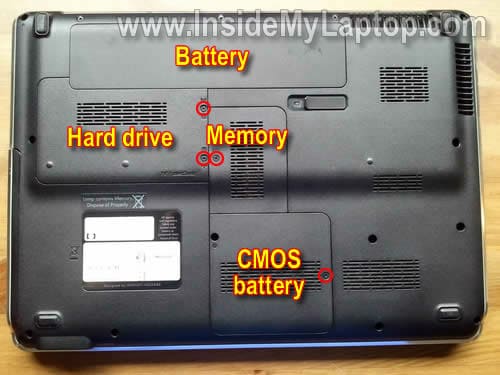
Remove the battery.
Loosen four screws securing the hard drive, memory and CMOS battery covers. Remove all three covers.
STEP 2.
Lift up the left side of the hard drive assembly and carefully slide it to the left.

STEP 3.
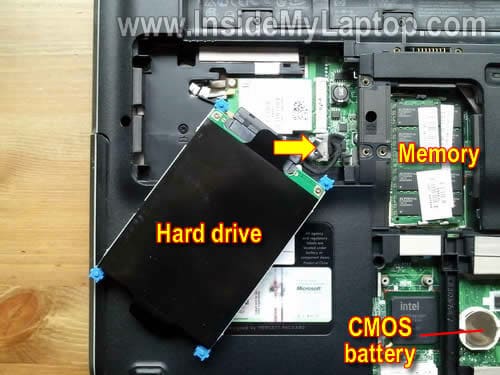
Remove the hard drive assembly and disconnect the hard drive cable from the motherboard.
Remove both memory modules.
If needed, remove the CMOS battery (I’ll keep it connected to the motherboard).
STEP 4.
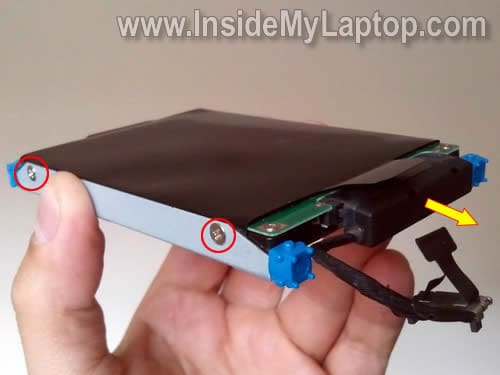
If you are replacing the hard drive, you’ll have to disconnect the hard drive cable and transfer it to the new one.
Also, remove four screws (two from each side) and transfer hard drive mounting brackets.
HP Pavilion dv5 has a regular 2.5″ SATA HDD installed.
STEP 5.
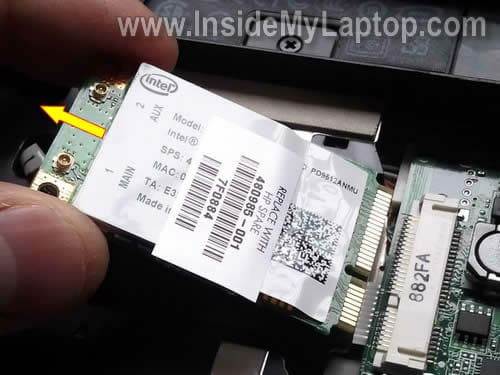
The wireless card located under the HDD.
Disconnect both antenna cables and remove one screw securing the wireless card.

STEP 6.
Remove the wireless card same way you removed memory modules.
STEP 7.
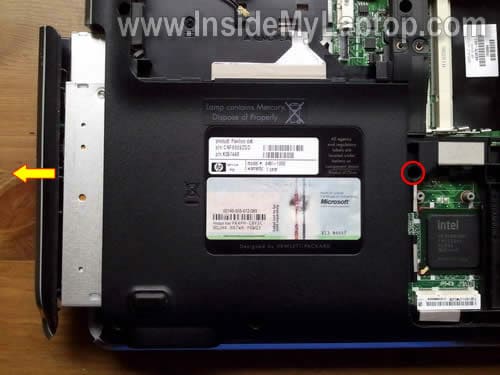
Remove one screws securing the CD/DVD drive and pull it from the case.
REMOVING KEYBOARD AND KEYBOARD COVER (Steps 8-18).
STEP 8.
Remove five screws (yellow) securing the keyboard cover.
Remove two more screws (red) securing the keyboard.

STEP 9.
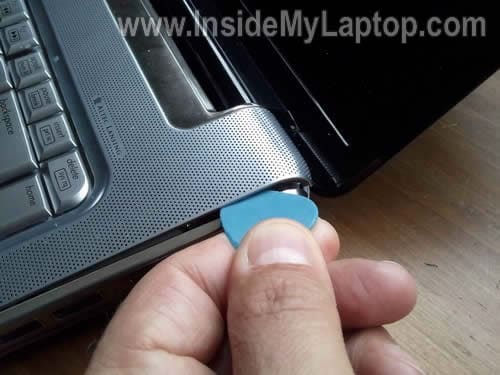
Insert a piece of soft plastic (I”m using the guitar pick) between the keyboard cover and bottom case and carefully lift it up.
STEP 10.
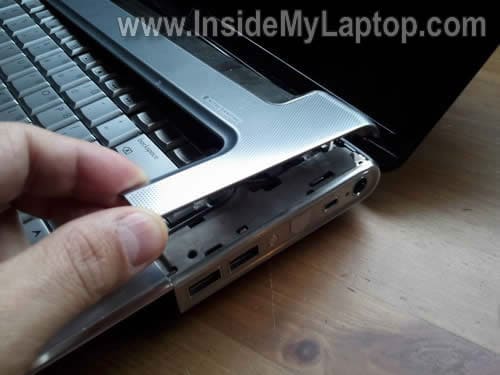
Continue removing the cover with your fingers.
Be careful, there are two cables running from the keyboard cover to the motherboard. You’ll see this cables on the next pictures.
STEP 11.
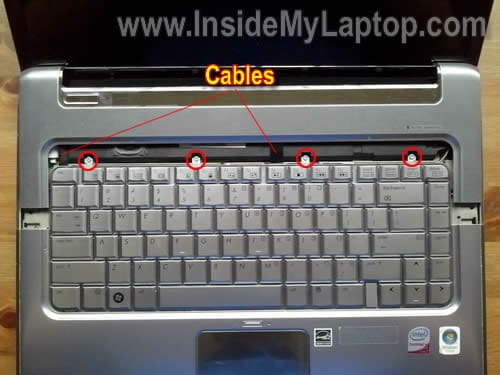
Place the keyboard cover so you can access four screws.
STEP 12.
Remove screws and lift it up.
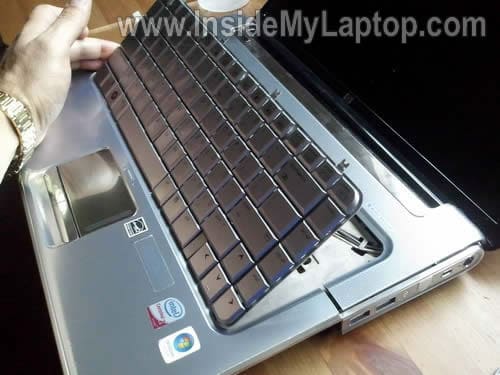
STEP 13.
Now you can access the cable connector.
Before you can remove the keyboard, you have to unlock the connector and release the ribbon cable.
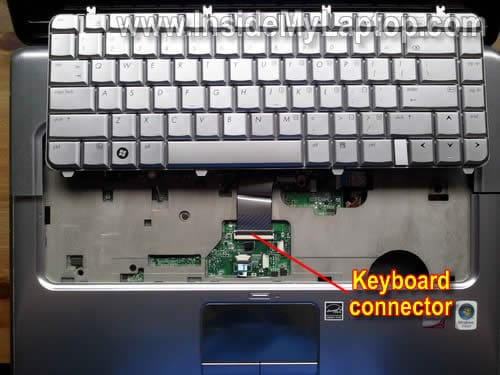
STEP 14.
On the following picture the connector shown in the locked position.
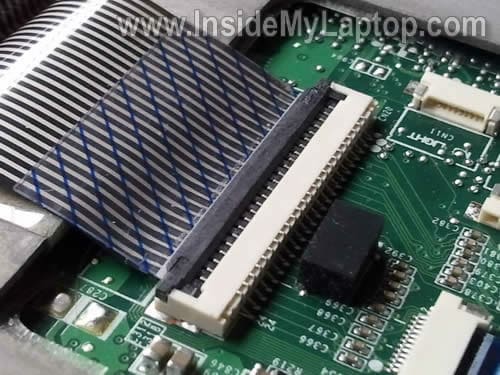
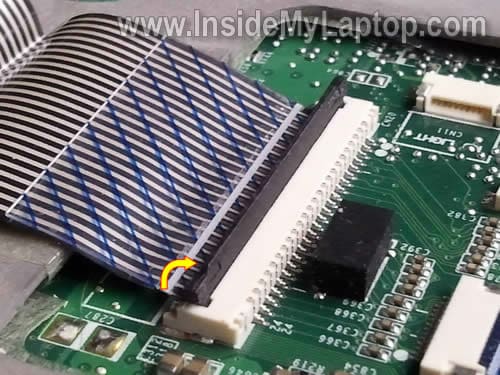
STEP 15.
In order to unlock the connector, lift up the brown piece so it opens up at a 90 degree angle.
On the following picture the connector shown in the unlocked position.
Now you can pull the cable.
STEP 16.
Remove the keyboard.
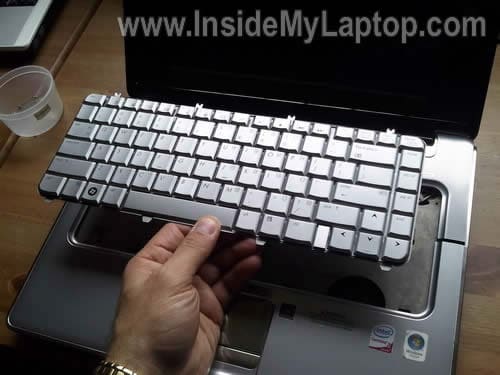
STEP 17.
Disconnect the power button and LED board cables from the motherboard.
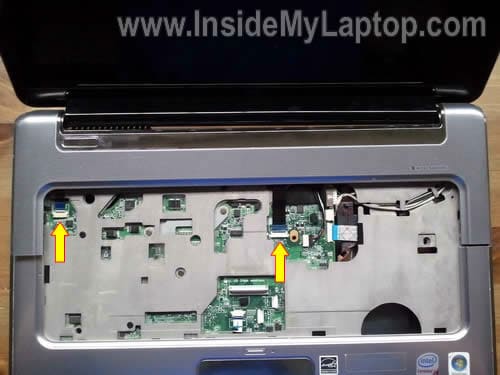
STEP 18.
Remove the cover.
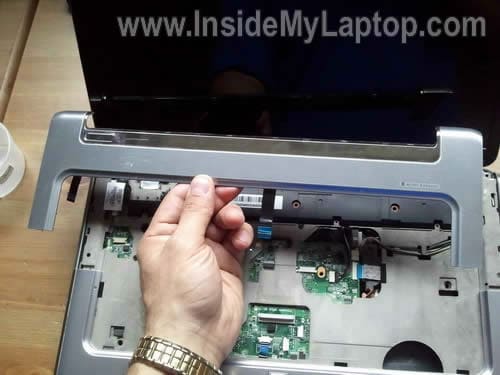
REMOVING DISPLAY AND TOP COVER ASSEMLBY (Steps 19-26).
STEP 19.
Disconnect the video cable from the motherboard.
Disconnect the webcam cable.
Pull both wireless antenna cables though the opening in the top cover.

STEP 20.
Remove four screws (two on each side) securing the display assembly hinges.
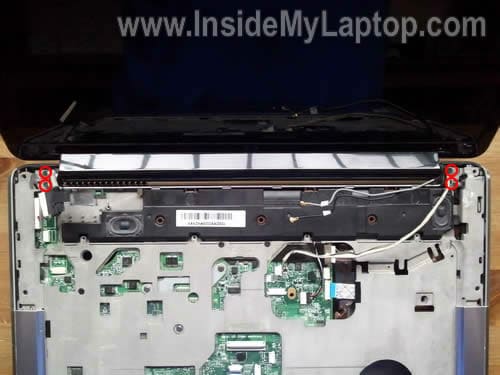
STEP 21.
Remove the display assembly.
In the next guide I explain how to remove the screen.
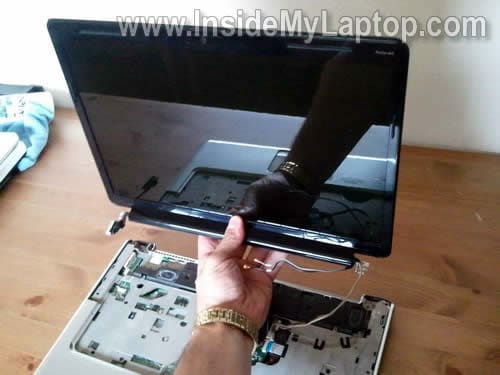
STEP 22.
Disconnect the speaker assembly cable and remove it.

STEP 23.
Remove all screws from the bottom.

STEP 24.
Remove four screws securing the top cover assembly.
Disconnect the touchpad cable.
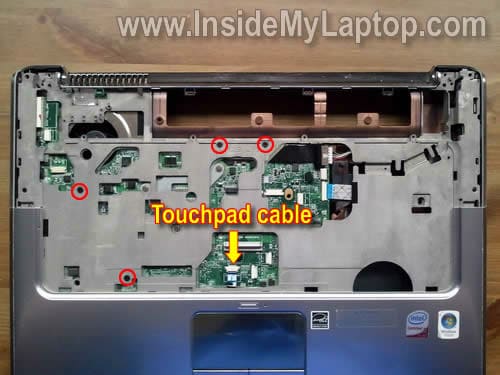
STEP 25.
Start removing the top cover assembly.
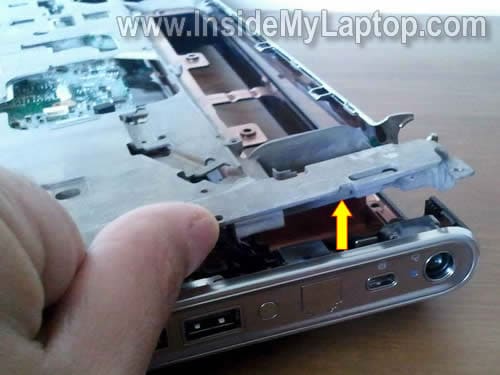
STEP 26.
The top cover assembly has been removed.
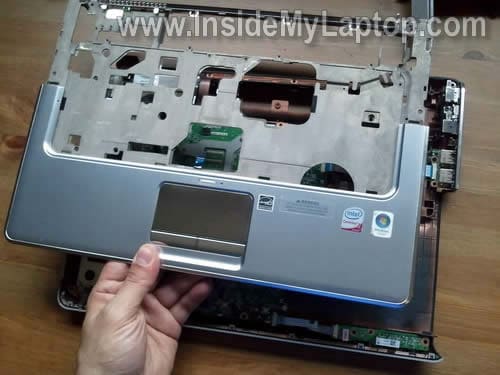
REMOVING MOTHERBOARD AND COOLING FAN ASSEMLBY (Steps 27-32).
STEP 27.
Disconnect the power jack, USB board and audio jack board cables from the motherboard.
Remove one screws securing the motherboard. It’s hidden under the audio jack board cable.
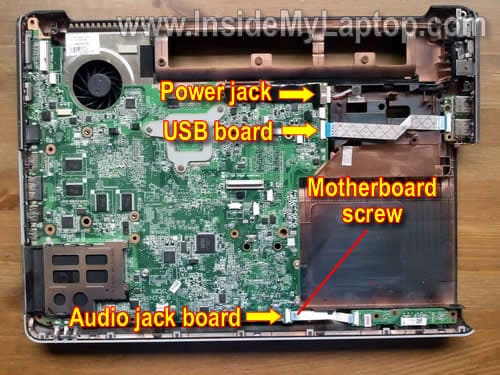
STEP 28.
Lift up the right side of the motherboard.

STEP 29.
Remove the motherboard from the base.

STEP 30.
If you need to replace the DC power jack, you’ll find it mounted in the top right corner of the base.
In a HP Pavilion dv5 laptop the power jack is not soldered to the motherboard. It’s attached to a power cable.
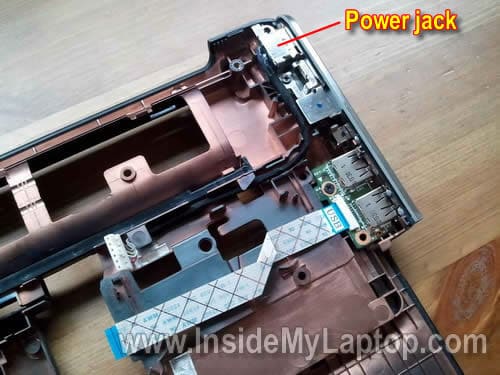
STEP 31.
Loosen three screws securing the cooling fan assembly.
Disconnect the cooling fan cable from the motherboard.

STEP 32.
After the cooling fan assembly removed, you’ll have to clean remaining thermal grease from the CPU and GPU chips.
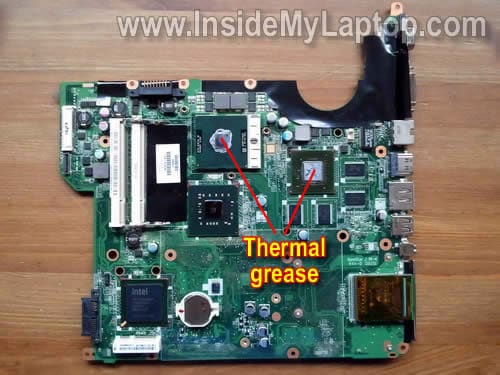
Now you can install a new cooling fan assembly.
I purchased a brand new assembly and it came with thermal grease and thermal pads pre-applied.
If you are installing a used assembly, you’ll have to apply thermal grease on the processor and transfer thermal pads from the old assembly.
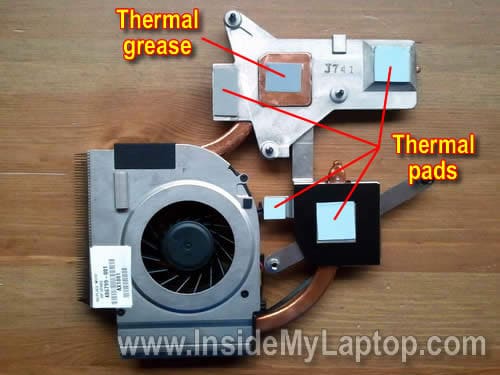
Different HP Pavilion dv5 laptops have different cooling fan assemblies. It depends on the CPU installed (AMD or Intel) and type of graphics memory (discrete or UMA graphics subsystem memory).
Here’s how to find the correct fan/heatsink assembly.
1. Download the official service manual for HP Pavilion dv5.
2. Find the motherboard part number. Usually it’s located on a sticker under memory modules.
3. Compare your part number with all motherboard part number listed on the page 20 in the service manual. This will help you to find out what type of motherboard you have installed.
4. Find the correct fan/heatsink assembly part number in the same manual on the page 21. Search this part number on Google and you’ll find it.
Brandon
Hi,
I used this guide for replacing my keyboard. I spilled a few drops of soda and some keys stopped working. 🙁
This guide worked great! Thanks for explaining how to disconnect the keyboard.
I’m typing this comment on my new keyboad.
Dan
thank you for putting together a pictorial on both the display removal and laptop dis assembly. I just used it to remove and replace the display LCD. It now has an orange tint to the display. Any ideas on what could be causing it? Thanks
IML Tech
Dan,
Check video cable connections on the motherboard and back of the LCD screen.
Take a look inside the video connector on the motherboard (step 19 in this guide). Make sure all pins inside the connector are straight. Maybe you accidentally bent one of the pins while connecting the video cable.
Also, make sure the video cable on the back of the LCD screen is plugged correctly. Try reconnecting it.
Carlos
Muy buen post, mi notebook tenia un problema con la pantalla y era que el conector estaba movido, gracias a tu guia consegui resolver el problema . Gracias
Krista Chirayunon
Liquid spilled on my laptop. I cleaned everything out per the directions from above. It powers on fine, the sound works, however the keyboard and mouse dont seem to be working. Any suggestions?
IML Tech
Krista Chirayunon,
First of all, stop using the keyboard ASAP and remove the battery.
It’s possible that liquid went down to the motherboard. It’s necessary to remove the keyboard and take a closer look underneath.
Krista Chirayunon
I took apart the whole computer and can not see any water damage. On reboot, I can enter the enter key to run set up, or hit F8 for repair…after that I can not use key board anymore. Any other suggestions??
Joey
Great tutorial! I had a loose video connection due to loose hinge screws. Your step-by-step photos were perfect.
killerboy vol
OMG THIS IS THE INFO I WANTED ITS EVEN BETTER THAN THE VIDS
THANKSSSS SO MUCH I AM GONNA USE THIS AWESOME TUTORIAL TO CLEAN MY FAN
could u tell me more about cleaning the fan
ismajl
hallo ich muste mein lüfter umbauen und es hat geklappt dank dieses anleitung
lee drummond
Hi, i need to solve flickering screen problem. can you advice on what needs to be taken out (bare minimum) also how do i clean inside as my laptops getting so hot..Help really appreciated
IML Tech
lee drummond,
What kind of flickering problem?
The image disappears but the backlight stays on or the backlight flickers but the image is always on the screen?
Probably the cooling fan and heatsink are clogged with dust.
1. The long way: disassemble the laptop, remove fan and heatsink, clean it up.
2. The short way: find compressed air and blow inside fan grill on the bottom and sides until all dust is gone.
Lamin
My hp dv5 is beeping and the screen is keeping moving
guy
I`m attempting to follow these instructions in order to clean my fan/heatsink, however, when I attempt to remove the keyboard there seems to be a 3rd screw underneath the keyboard on the left side holding it down that i can’t access from the back of the computer. Do you know how i can get to it? my model is a dv5-1004nr. The screw seems to be approximately under the w key.
IML Tech
guy,
I think I marked all screws but… you can find instructions in this official service manual.
guy
please ignore my previous question, the peg where a 3rd screw would have been was just extremely stuck. (imperial stouts and keyboards don’t mix well) Thanks for the great guide.
killerboy vol
some of my keyboard keys are not working
killerboy vol
im using on screen key board , i hav open my lappy 2 times but still same
keys that r not working
9 0 – = o p [ ‘ ; l . / del etc…
IML Tech
killerboy vol,
If some keyboard keys stopped working, it could be one of the following:
1. Bad connection between the keyboard ribbon cable and motherboard. Try reconnecting the cable.
2. Bad keyboard. Replace the keyboard and most likely the problem will be fixed.
3. If replacing the keyboard doesn’t help, most likely there is a problem with the keyboard controller on the motherboard. In this case you’ll have to replace the motherboard OR use the laptop with an external USB keyboard.
Jovan
I have a dv-5 and the screen has gone black. It won’t start up, but the Capslock and Numlock keys are flashing a code that HP says is a CPU problem. Many people on the internet have said that by reseating the CPU, it will sometimes start up. It is the only tip I have found that I haven’t tried yet and was wondering if I have to take the front of the computer apart to get at it, or if I can just take the back off and get at it?
P.S. It is actually a friends laptop and they asked me to look at it before they took it to the big-box retailer they bought it from who has a terrible comp dept.
Andy
Hi, this is an amazing tutorial, though I’m not sure if you can help me. A few days ago my computer turned on, and froze on the black screen. I turned it off and now it doesn’t want to turn on. The day before it was on all the time and it wansn’t way to hot, but the comp was warm all over…is it possible that something burned? It actually worked all day fine until the morning it could power on.
IML Tech
Andy,
Do you get any light on when AC adapter plugged in and you try turn it on?
1. Unplug the AC adapter and remove battery. Wait for a few minutes, plug the AC adapter back into the laptop and try turning it on.
2. If it doesn’t help, try removing memory modules one by one. Test laptop with each memory module separately. One of them could be bad.
deviljunk
my dv5 1104ax is not turning on…when u push d on button it just flashes the light on d keyboard panel & turns off…doesnt even wait for a second & nothing comes on the screen & even d fan turns of as soon as d light goes off(d duration of it is hardly a second)…one important observation is d HDD light doesnt flash at all how much i may try den also…i did power drain for residual power…not working…gave 2 hp tech support they kept for 2 months & thy still dont know anything except they say they have 2 change motherboard & processor(i am a bit skeptical about this solution as i feel rather buy new laptop than changing the heart & soul of laptop)…any suggestions please help
IML Tech
deviljunk,
First of all, make sure the AC adapter works properly. I would suggest testing laptop with another adapter.
If the AC adapter works properly, I would test voltage on the motherboard (where DC jack wires connected to the motherboard). If there is no voltage coming, there is a chance of bad DC jack.
If motherboard gets power but will not turn on, probably this is motherboard failure.
CPU failures are very rare, most likely it’s just bad motherboard.
deviljunk
i have also checked the memory modules one by one in different slot yet not working
Patty Smith
Thanks. Great info and very clear instructions.Awesome.
Hell Angel
Hi, I folowed your instructions and they made the job a lot faster thx, but after putting it back to gether my screen doesnt work properly it keeps turning on and off and the words are all blury.
I already checked the cabels and they are connected, do you have an idea of how to fix this?
Bodene Robertson
hi thanks for this it helped me to cleam my fan… but i put it back together and the laptop turns on and seems to be working but screen is just black, any idea of what i have done wrong?
IML Tech
Bodene Roberstson,
Check connection between the video cable and motherboard. Maybe the cable is not plugged correctly.
Make sure memory modules seated properly. Try reseating them.
Arazand
Have problems with freeze and overheating. Disassambled the whole thing. And noticed that one of the three (believe its the northbridge) “glossy” cores didn’t have thermal paste stuck to it, there was thermal paste on the heatsink but the bridge was clean as new. Its not the CPU or GPU at least. This led to BIOS crashes, or so the computer claimed. I’m going to change thermal paste and see if that works.
izaac
i have hp dv5 model. i opened my laptop , clean every stuff and reassembled but now it turn on but after 5-6 min , it turn off. i left it in power but after 5 min i realized that it’s power stop after 5 to 10 min. when you plug out AC and again put it , it start charge for few min and again same result. what could be the cause for this problem. please help me out
IML Tech
izaac,
It’s not very clear. The laptop stops charging after 5 minutes or it turns off after 5 minutes.
if the laptop turns off by itself, check the cooling fan. Maybe you forgot to connect the fan?
izaac
i got the problem but don’t know the solution. my fan is connected and working normal with out load. but with little load or heavy programs it turned off my system.even i can’t boot my system , because my fan start moving so fast and turned my computer shut down. then i played my system in safe mode. in safe mode it work normally. but when i opened some heavy program or other load stuff in safe mode , same was the result. it fan started again with extra noise and then turn off my laptop though i clean my fan and it’s not heating anymore. now in my normal window i uninstall all heavy program and other stuff plus bring my graphics low just for time being. i can’t open heavy stuff now. with out load it’s working now fine but with load it fan start extra noise.my 2 Gb ram is out of work now and i have 1 Gb ram now. but i think it’s not matter of Ram. my fan providing information to bring my system down.
may
Thanks you so much,
All steps are very well explained. I had an issue with my HP dv5 1120ev screen flickering consistently. Some time taping back side of LCD or moving the screen backward resolve the issue temporarily. I opened up as explained in Step 8 to 18. There was not any damage to video cable and i observed that a screw was lose on left hinge of LCD (screws are shown in step 20). so when ever we move the LCD handler / lever that is tighten with screw is moved a bit from its place and pull the video cable along with its jack. i just tighten the screw and pull the cable slightly from LCD to the board to give it a margin for movement. Slightly press the connector into its slot and that all.
In fact this is a design defect in dv5. the company should increase the cable length and bind the cable from both edges on LCD & on the board before the connectors so that if there is any displacement / pull force in cable it never impact the connectors on both edges of the cables.
Claudio
I have a Dv5-1015el Laptop, when i turn on, only the keyboard led flashing and notebook doesn’t start.
Can you help me?
IML Tech
Claudio,
Did you check memory modules? Try removing memory modules one by one.
Jen
I’ve gotten to step 17, and these connectors confuse me. I have no idea how to disconnect them, and am scared to push/pull/tug/twist too hard for fear of breaking it. Any advice?
IML Tech
Jen,
I don’t have this laptop in front of me but I believe these connectors don’t have locking tabs.
I believe you just have to pull carefully by the blue tab and remove cable from the connector. When you assemble it back together, you place the cable back in the connector and push it in.
Jen
Thank you! I was trying to remove the mounting part, and not just slide the cable out. I appreciate your tutorial so much!!!
JOSE DESOUZA
Hi,
I have dv5 1159se, and after installing a motherboard, it powers on and never boots , I have windows seven on my hard drive but never boots neither from dvd or usb. Can you help me out?
IML Tech
JOSE,
What happens when you push on the power button? Do you get any video at all? Can you see HP logo?
jose
yes, when i tun power on it goes to logo pass it and then keeps on running but never boots. I select the dvd, orhard drive, or even usb boot, but it never does. Sincerely,
JOse
Marie
You are a lifesaver! I finally got fed up with the noisy fan in my dv5 and bought a replacement, but nowhere online could I find clear instructions as to how to pull the old one out. You’ve saved me having to mail the whole thing in for repairs – thank you!
Rajeev
Will this guide work for DV5 1104tu. Becoz thats the which I have and want to remove video cable and LCD
E.S.
This is a great walkthrough. I’m stuck at removing the hard drive and the memory, though. The memory looks like it should just slide out away from the hard drive, but it’s sticking, and I don’t want to give it a good yank until I’m sure I’m pulling in the right direction.
Also, the hard drive. It attaches to the motherboard with that silver cap. Does the cap come up, or slide to the side, or is there a release somewhere?
Alex
Well your work is kind of confusing, but i just wanted to take my fan out so i can clean it. Is there a better way that i can do so?
IML Tech
Alex,
What exactly is confusing? Too many steps? That’s the way is.
If my guide looks confusing, do not disassemble the laptop yourself.
Try blowing air into the fan grill on the bottom and side, this should remove most dust from the cooling module.
Jeremy
is it possible to change or upgrade the graphics card on this laptop?
IML Tech
Jeremy,
No, it’s not possible. The graphics card integrated into the motherboard and cannot be removed/replaced/upgraded.
someguyhere
I have an hp dv5-1116us.
My laptop was overheating so I took it apart and replaced thermal paste. However, I removed the thermal pads thinking I could just use paste, but I found out that the gap is too big so It’s not making enough contact. The cpu no longer seems to be overheating but the gpu is running hot.
I found thermal pads at www.frozencpu.com, but I’m not sure about the thickness since I no longer have the old thermal pads. Do you think 1.5mm thick is about right?
IML Tech
someguyhere,
I think 1.5mm is about right. Should be enough to close the gap between the heatsink and GPU chip.
Sherry
Hey man, thanks a ton!
I have a question, the screw on top of my WIFI card…
is scratched.
I tried all screw drivers nothing works. it’s just like the head is scratched of it.
What should I do? 🙁 is removing the wifi card necessary to disassemble till the part to get to
cpu, I need to Apply thermal paste also re-connect the video cable because I have heating issues.
Also there is a vertical line on my laptop, if I apply some places pressure or something it goes away. So it could be that.
Thank you so much!
Becks
Hello Hello,
I took apart my laptop to clean it and when I put it back together everything works apart from the screen. On a black start up screen it seems to be flickering white in the bottom right hand corner which blend to black on the top left. There is also a strange bit of blue in the top left.
When displaying an image it has transposed it by about 2.5cm to the right as well as have it in the right place. The shift between the two images are on horizontal pixels so it looks kind of like its trying to show two images at once with horizontal stripes through it.
I’ve taken it apart quite a few times to check connections but I was wondering if you knew anything that would have caused it and how it might be fixed?
Thank you.
Litto
I have a problem in dv5 1104tu. Problem is when i working with the laptop its automatically restart and after a 15 sec its again restart . this was going on and on .. i can’t work with this laptop for long time ….. , I reinstall the OS (VISTA). but its also come same problem please help. . is this any hardware problem .
Litto
I have a problem in dv5 1104tu. Problem is when i working with the laptop its automatically restart and after a 15 sec its again restart . this was going on and on .. i can’t work with this laptop for long time ….. , I reinstall the OS (VISTA). but its also come same problem please help. . is this any hardware problem . please help………………………………………………….
Julian
Thanks for this tutorial. I’m not sure if you can help me but I’ve been having problems with my screen flickering. I replaced the video cable and it seems to work better but there is stillsome flickering (especially when I move the screen itself). It’s not my graphics card as I connected the laptop to a monitor and it works fine. Do you have any ideas? Thanks a lot.
IML Tech
Julian,
How it’s flickering?
If the backlight goes off for a while but the image always on the screen, this could be failing inverter board or backlight lamp inside the screen. If you have to guess, try replacing the inverter board first. It’s easier and cheaper.
murray
hope you can help .. im having power problems with my dv5-1110em
the light on the dc jack is not glowing when i plug in ac adaptor
when i press the on button without the ac adaptor in the small lightning light on bottom left of laptop flashes twice .. do i need a new ac adaptor or a new dc jack plug ???
please help as laptop has all my work on it
IML Tech
murray,
There is no way I can tell what is wrong without testing your AC adapter.
Can you find a voltmeter? Test your AC adapter first.
It’s possible the AC adapter is dead and the battery doesn’t have charge to start the laptop.
Allan Potiphar
Excellent instuctions IML Tech.
I have my in laws laptop (HP Pavilion D5V-1222TX) to fix with a peculiar problem. Maybe you can help ?
The fault is No power up, everything dead after ON button pushed (No front LEDs either)
Power Adapter measures 19.8V output (OFF Load) – (12V @ the M/board header, and the input (power) LED ON OK. New battery was purchased before I got it. Stripped laptop down to see if anything dislodged. All looked OK except the cooling fins were about 80% blocked with lint etc. Cleaned out cooling system and loaded with new thermal grease. Re assembled but same fault persisted.
Any idea’s please ?
IML Tech
Allan Potiphar,
If the laptop appears to be dead with a good working AC adapter, most likely it’s either bad/defective DC jack or failed motherboard.
You said you got 12V @ the M/board header. I’m not sure if this is right voltage. Shouldn’t it be around 19V? Just a guess.
I think you can try replacing the DC jack harness, just to make sure it’s not the problem.
The next step is taking it apart completely, minimizing to bare bone system: motherboard, CPU, memory and testing in this basic configuration.
If it’s still dead, probably this is motherboard failure.
Gopal
Hi, Hope you can reply and help me please…i have a dv5 which i had repaired at non HP technician ( out of warranty) for keyboard problems…now it is working but at start up says ” serial number not found”…..what could be reason ….is there chance of some genuine parts being replaced by duplicates ??? how do i check and correct this . Please help. Regards
IML Tech
Gopal,
Did he replaced the motherboard? If yes, I think the serial message appears because your new motherboard has no serial number stored.
It’s possible to change/set the serial number into the motherboard but this utility available only for certified HP technician. Ask your tech, maybe he has it.
I don’t know what he replaced in the laptop.
Rich
Hi, I have a HP Dv5us laptop and I think the LCD is going bad. Example number 7 is what happens. It only occurs when it gets hot, or I jerk my laptop a little bit like if its on my lap and I get up off the bed or something. Thank you
IML Tech
Rich,
If your LCD screen looks like one of the example 5, this is LCD screen failure.
You’ll have to replace the screen.
LUHEN
PLEASE HELP!!!!!!!!!!!!!!!!
MY HP DV5-1002AU NOTEBOOK WHEN I TOUCH THE START BUTTON FAN COMES ON THE KEYBOARD LIGHTS BUT THE SCREEN DOES LIGHT ITS BLANK DARK THE CAPSLOAK AND NUMLOCK KEY BLINK NONSTOP IT DOESN’T DO ANYTHING FROM HERE ON. WHAT DO YOU THINK THE PROBLEM IS WHAT CAN I DO?????????
Dinesh
Hi,
My HP Pavilion dv5 is not booting. When I power it on, it only showing the HP logo and bottom appear a message that say “Press the Esc key to access the main menu”. I press the ESC key but it doesn’t happend nothing and not boot.
When i turn on the laptop i press function key and nothing, botton appear the message that say for example “F10 – Bios Setting” but it doesn’t happend nothing and not boot. I tried to boot from the Recovery Disks but the result is the same.
Can you help me?
IML Tech
Dinesh,
Try removing the hard drive. Can you enter the BIOS menu with hard drive removed? Sometimes a failed hard drive might halt the entire system.
Also, try the following.
Disconnect AC adapter, remove battery, press on the power button for a few seconds. No plug in the AC adapter and try turning it on again.
Steph
Luhen,
I’ve seen my computer do that too. I took my computer to the tech guys at my school because it was running slowly. We took the bottom covers off and he removed the ram chip and wrote down the model number so I could get a new piece, as I had an extra slot. Then it was put back together but when it was turned on, the computer behaved as you described. The screen was black and showed nothing and some keyboard lights were flashing, which was definitely not normal. Turned off, he pulled the ram out and stuck it back in and the computer worked normally again.
It could be some loose connections in your computer preventing it from starting up. If you’ve been messing about with your computer like I had, or if it’s fallen and got bashed, consider checking connections.
Computers can be really sensitive sometimes. Once I screwed the screws on the bottom in too tight and the DVD drive got itself stuck and wouldn’t open! What is with that?
Best of luck for fixing your computer.
Andrew
Many thanks for this and the guide on how to take apart the display panel and remove the LCD screen.
Can’t thank you enough. Very helpful.
Cheers,
Andrew
jeman
I have a HP550 laptop, SN: CNU8335126, Keys T and Y are not woking or show up on MSWord or when typing. All other keys are ok. Please assist.
IML Tech
jeman,
If only two keys stopped working, most likely you a have a failed keyboard. You’ll have to replace the keyboard with a new one.
iomsn
Thanks for this excellent howto! Everything clearly shown.
In step 25 you should also encircle the lower left screw.
Cheers!
Ã…shild
Hi!
Love the tutorial! However I do not dare to try it myself as I’m not a computer wizard. 😛
I just have a few questions I hope you could answer. I got my fan cleaned out about 6 months ago, but the core temperatures are already back at 80 celcius… (it was sometimes 96 (!!!) before I got it cleaned) I am wondering if it would do wonders if I replaced the cooling fan, and if so… which one is the best to choose? I have a dv5-1040eo.
Thanks a million! 🙂
jeman
I was thinking if it’s possible to change only the two keys.
Thanks anyway, I’ll replace the whole keyboard.
Alan
This is a great tutorial, thank you. I’ll be following it as soon as I get some spare time.
Which brings me to a question. Thanks to your help I’ve found the model of the heatsink used in my HP-dv5.
I think I only need to replace the fan in my laptop as it has recently started to make a strange humming noise all the time. The laptop is not overheating so I think the problem is only with the fan.
Is it possible to only replace the fan or will I need to buy the entire heatsink? And if it is possible to just replace the fan are they pretty generic?
Thank you in advance.
jit
thank you for the guide,
it helped me.
John
When I power up my HP DV5 1000 laptop computer I get a blank screen, the caps lock and numbers lock blink once every 4 seconds. According to the HP website, it was a CPU faliure. Although I am a total NOVICE when it comes to computers, I decided, what the heck, I would follow your tutorial and fix the problem myself. Low and behold it was easier than I thought. Your step by step instructions helped me disassemble my laptop in less than an hour and a half, replace the CPU, and reassemble the laptop in about an hour and a half. I figured this would fix my problems but of course things aren’t as easy as I thought. I still have the blank screen and the caps lock and numbers lock lights are still blinking. I have done a hard reset, removed the memory and replaced it, checked the BIOS battery and checked the hard drive. Any other suggestions? PLEASE don’t tell me i need a new motherboard, i might as well buy a new laptop since a new motherboard will cost about as much as a new laptop.
IML Tech
John,
You’ve replaced CPU and memory and still getting same problem?
I’m afraid this could be motherboard failure.
The last thing you can try is minimizing the laptop as much as you can. Minimize it to barebone system: leave only motherboard, CPU and memory.
Test barebone system with an external monitor connected to the VGA port. If the problem still there, most likely this is motherboard failure.
Federico
Jonh, Im having the same problem as you, and it seems lots of people having the same issue. Here is a thread that appears to be help for some: http://h30434.www3.hp.com/t5/Other-Notebook-PC-questions/dv5-1002nr-fix-for-black-screen-and-2-blinking-lights/td-p/213318
I will try to disassemble my laptop following this amazing tutorial, I will post the results later.
Best regards
John
Looks like I have a $500 paper weight. I disassembled my laptop and tried the barebone approach with no luck. I still get the blinking LEDs and blank screen. I did find a link talking about the same problem I was having and the guy ended up taking it to a computer store to have it repaired. The repair shop couldn’t even figure out what the problem was. Thanks for your help.
IML Tech
John,
If the barebone approach didn’t work, most likely you have a problem with one of the following: motherboard, CPU or memory.
There is no way I can tell which one is failing without replacing them with known good parts.
John dv7
John,
My name is also John, and I’m having the same issue but with a dv7, so my paper weight costs $200 more than yours! I have replaced my motherboard and tried stripping the memory, etc out of it. The only thing I haven’t done is replace the CPU. My computer runs an AMD Turion 2 CPU. If you have a (possibly) working Turion 2 CPU, I might be able to take that off your hands and see if it works in mine. And if so, I’d be happy to pay you for it.
Have you run across any solutions yet? I’ve scoured the internet and not found any solutions to this.
Lisa
Hi, Your guides have been so very helpful. But I am stuck. The laptop is a pavilion dv5-1200nr. I replaced the video cable first….several months back because it was flickering….which fixed the problem like a charm 🙂 and your site guides were most helpful. Then it started not booting up all the way and shutting down without warning and running VERY hot. So I have replaced the fan unit and put it back together and it is running cool and boots right up. My problem NOW is that my screen is weird….it is not flickering but rather has horizontal repeats of the same thing over and over….and they move up and down the screen….at varying speeds. I hooked it to a external monitor and it did the same thing. Do I have something connected wrong? Is my video card bad? I can not find anything anywhere that is similar to what it is doing. I can video the problem and submit it to you if asked. THANKS!
IML Tech
Lisa,
If you see same problem on both the internal AND external screens, most likely this is graphics card (video card) failure.
John
Hi John dv7,
Sorry to say I have NOT found a solution to the problems we are having with our HP paper weights. I too have been spending my spare time searching the Internet hoping to find a miracle that will bring my laptop back to life. Here is a forum I found that pretty much explains the probability of getting the HP pavillion to work again. CoreyX64 post tells the whole story. http://www.aoaforums.com/forum/crashed/48573-hp-pavilion-dv5.html
My laptop came with an AMD Athlon x2 which is a lower grade than yours. I suggest you check out ebay to find the higher grade processor you are looking for……..GOOD LUCK
Milenski
That’s freakin ridiculous… having to disassemble the whole thing to get tho the fan?! WTF?!
Alf
Thanks so much for this great tutorial.
John, I have the exact same problem, blinking leds, CPU problem according to HP, only, if I turn on and off the laptop some 60 or 70 times, it suddenly starts and works great, as long as I dont suspend, reboot or turn it off. I’ve had it running for up to 3 days.
So much for HP Quality.
IML Tech
Alf,
I think most likely this is motherboard related failure, not CPU.
Stepjarsteve
Just wanted to thank you for the directions. No way I would have been able to take apart and put together without your step by step tutorial. At first a single beep would sound when i turned it on. After taking it apart, I cleaned the clogged fan and replaced the processor. Worked for a little bit but soon stopped. Too much thermal grease. I did not know too much is bad. Anyway after replacing the fan and the processor a third time, all seems to be working so far. I must of takin everything apart about 12 times and tried different things and everytime i used your step by step directions a little less each time. Eventually I was breaking it down in about 15 minutes. And for me, a novice, thats an accomplishment. Anyways just wanted to thank you and my son has his laptop back for college. P.s. the one problem is I could not figure how to remove the power plug from motherboard but didn’t need to to flip motherboard around. Thanks again.
david
First off, a big Thank You for creating this guide. Sure the HP Service Manual is helpful, but I find this much more informative and user friendly. OK so my issue is, I HAD no issues with my DV5. I used your guide to disassemble the laptop so I could paint the plastic casing parts of the computer (note to all interested: I’d avoid clear coat, it ruined a beautiful paint job :/ ) After finishing the project and re-assembling, I am finding myself getting a…white screen of death?? I’ve done some research and found that (go figure) it has to do with the display so I disassemble again to make sure all connections are secure to the inverter and the video cable are both seated properly and they are, so what would you say my issue might be? The computer has never had any issues other than overheating slightly which I’m not too concerned about because I don’t notice any performance differences. If it worked before I took it apart, and there were no drops/impacts during disassembly to cause malfunction, what could be going on?
Thanks again for the guide,
David
IML Tech
@ david,
Do you mean the laptop turns on and the screen is completely white?
I would check connection between the video cable and LCD screen. It’s possible you accidentally pulled the cable during disassembly.
David
THANKS. We were able to fix a flickering screen by simply taking the inverter out and re-installing it, tightening and cleaning along the way. Flicker is gone!
Michael Neill
Thanks for the guide, very clear.
My issue was the heat sink external radiator clogged and I found that if I stop at step 22 the HS was clear enough to use air to get it clear of the accumulated dust blanket.
Thaks again for the guide.
Michael
brenda
I have an hp pavilion dv5-1004nr and the problem is that it turns off suddenly after using it for a while. I’m not sure if its a problem with the fan because it was working fine before and the laptop doesn’t feel that hot when it shuts down. I recently had it taken apart to have the power jack replaced, and after the person put it back together the laptop wouldn’t get past the screen with the loading bar. Now it does load but it takes longer than usual for it to get past the loading bar. What could be wrong with it?
Lisa
Regarding this:
“If you see same problem on both the internal AND external screens, most likely this is graphics card (video card) failure.”
Ok, my next question is that I can not find instructions how to replace the graphics/video card. What I need to know is if that is part of the whole motherboard unit. I have the lap top completely apart again and guess that I just dont know where if the graphics/video card is separate and if so then where it is located.
This is the unit I am working on:
pavilion dv5-1200nr
Any direction you can give me would be grand and very appreciated 🙂
Chris
Hi
Thank you very much for the tutorial, I would like to ask how to plug the wireless antenna cable back in?
(the cable that is connected to the display ( as shown on step 19 ) , I have no idea how to plug the wireless antenna cable
🙁
Dawit
Thank you very much, cost was going to be around $500 minimum just to pull apart and repair HP’s thermal paste stuff up but now thanks to you, all it has coated me is $16.95 for the thermal paste thank you.
Rosy
Hi I followed this guide to clean a problematic fan and over heating dv5, but upon reassembly and boot up, it now doesnt work! 🙁 am stumped, followed instructions and put everything back together properly.
A ll i get is a black screen, no start up sound and flashing lights – caps lock and num lock, please help, I only recently got this laptop working again after a hard drive failure 🙁 🙁 🙁
IML Tech
@ Rosy,
Did you remove RAM modules during the disassembly? If you did, make sure memory seated correctly.
Rosy
Ummm i removed the two memory cards, if thats what you mean, sorry not good with which bit is which, just double checking now cables are in ok if, not will try putting them in again. Do you think it is something simple or potentially bad? 🙁
IML Tech
@ Rosy,
If the laptop worked before and stopped working after reassembly, most likely it’s something simple like bad cable connection. This is just a guess. Unfortunately, I cannot help without looking at the laptop. Make sure everything is assembled correctly, cables plugged correctly and all screws located in right places.
Rosy
Tried putting them in again, really worried now still not booting or anything
cd drive made noise on start up and lights to show power supply but caps lock flashing, very stressed now, can’t afford to take it anywhere 🙁 I was very careful when i cleaned and took apart 🙁
Rosy
Ok thank you, will check all the cables tomorrow (uk time here) and make sure all are attached correctly etc, Thank you for the help, will keep you updated.
Rosy
Hi just to update,
checked all of the laptop – turned out the fan wire had come loose so it wouldnt boot because the fan was not working! glad it was something simple in the end and not anything like static or any damaged parts!
Relief! 😀
Thank you for your help 🙂
Andreas
Hi,
Thanks a lot!!
My HP Pavilion DV5-1115eo was completely dead. Thanks to your step-by-step-guide and your answers, I found out that the +20V lead from the incoming contact to the motherboard had its insulation worn off and was in contact with the chassis. I found this after testing with only motherboard, memory and display. Then I managed to turn it on. After putting back various pieces and testing for a while without getting a clear picture as to where the problem was, I suddenly saw a spark(!) at the point of worn insulation. It was at the 90 degree turn at around the middle of the length of the cable. I took of the black, woven, outer shield and put on some tape instead, and now it’s working like a clock (for 10 minutes, so far 🙂
Thanks again!!
Boderick Ormand
Hello. I have a problem with my laptop. The model number is dv5-1234se. The problem is that it now stops at the initial boot screen — the HP invent one. Normally it only lasted a few seconds, but when I woke up the other day, it stopped going past that (it was working perfectly fine the night before). It currently only reacts to two buttons: Escape and F2 (the startup check). when you press f2, it says: “F2…Startup check”, and when you press escape, it says: “ESC…Pause Startup”.
I really don’t have any money available to me right now, so taking it into a repair shop is my final option. I would really appreciate any advice you can give me on this, and will answer any questions you have to the best of my ability (I do have a digital camera available to me, so I can try to get you any pictures you need. No matter what happens though, thank you for your time.
IML Tech
@ Boderick Ormand,
It’s hard to tell what is causing the problem. Could be hard drive or memory failure.
Enter the BIOS setup menu and run hard drive and memory test. Many HP laptops have both tests imbedded into the BIOS setup menu.
Boderick Ormand
That’s one of the problems. I can’t access the BIOS at all. It freezes after I press the button to access it. It also freezes when I just leave it be, like I mentioned earlier.
Samuel Hertzberg
Hey, thanks for the great tutorial! However, I have a question; when I took the laptop apart to clean the cooling fan and heatsinks, I noticed that the GPU has thermal paste on it even though the service manual and your tutorial say that there should be a thermal pad on it. In any case, I replaced the thermal paste on both the CPU and the GPU (I didn’t have the thermal pads at the time) and reassembled everything. The system is working great but there is still some overheating. I feel that the CPU doesn’t overheat at all anymore but the middle part of the laptop where the memory modules are housed and the approximate area where the GPU is overheats considerably. Do you think I should replace the thermal pads on the heat sink assembly? I’ve never heard of thermal pad application on a GPU; I always thought they should be covered with thermal grease. What do you think?
Many thanks!
P.S. Guys, if your laptop does not boot at all and nothing appears on the screen, recheck your memory modules. I didn’t seat them correctly at first and I thought I had fried the laptop!
TrojAndroidZ
Hi IML Tech,
I have an hp dv5 laptop and recently, it hasn’t power up since the ac adapter was busted. I replaced the ac adapter with new and working one and tried to boot up again but it failed. The only LED that lights up was on the laptop side power jack LED indicator. All were dead even the fan. We’ve tried to isolate the problem by removing all peripheral devices and mobo cpu, ram but still no life. We even tried to blow heat gun on mobo might be cold solder but still the same.
I would appreciate any help about my problem. Thanks.
Vetech
Hi IML Tech;
I have a battery alert 601 on my HP Pavilion 1010ef and cannot get past sart-up and recovery manager.
I think the CMOS battery needs replacement but I cannot find it on the HP Spare Parts site.
Can I replace the battery myself ? Which battery do I need to order from the electronics shop?
Which precautions to take when replacing?
Thanks for any help and thanks for the nice tutoriel.
V.
IML Tech
@ Vetech,
Is it HP Pavilion dv6-1010ef notebook? You didn’t provide the full model name.
If it’s a dv6 notebook, the CMOS battery can be easily accessed under the memory cover on the bottom.
CMOS battery: CR2030 – a regular CMOS Lithium 3V battery.
VeTech
Hi,
I now opened my laptop HP pavilion dv5 to replace the CMOS battery. It is exactly as shown in the photographs 2 and 3… I want to take the battery out to replace it but I don’t see how to get it out of the white plastic holder.
Can you tell me how to do it without breaking anything?
Are all CR 2032 batteries the same?
IML Tech
@ VeTech,
Take a very small flat head screwdriver and insert it between the battery and white housing. Lift up the battery.
aslan
çok saÄŸolun. bu görüntüler çok iÅŸime yarayacak 🙂
Peter
Hello!
This is a great site and it helped me to replace fan on HP dv5 1120se. But! After assebmbilng the laptop (for the third time) screen is flickering, colours are strange an objects are not clear. Something similar Hell Angel wrote in post nr. 27. The diagnosis WAS that LCD panel gone bad. But yesterday I connected a 100% good working complete LCD screen with the from anodher dv5 to my laptop and it was the same. I belive the graphic card is Ok because i can see picture on the external monitor but it appears when the win7s little circle appears. I can’t se BIOS booting. Have You any idea?
Thanks in advance for Your help
IML Tech
@ Peter,
You said the laptop works fine with the external monitor. I assume the motherboard works fine.
You said the problem reappeared on a 100% good working LCD screen. I assume this is not LCD related issue.
It means the problem could be related to the video cable.
1. Possible poor connection between the video cable and motherboard. Try reseating the connection.
2. Possible video cable failure. Try replacing the video cable.
Peter
No, I don’t belive it is the cable problem . I tried with the complete display assembley as You hold it in Your hand in step 21. If You send to me Your e-mail address I can send to You video of booting my laptop. My nightmare is that there is somethin wrong with that white video connector on the mainboard (step 19).
Fuji
On my HP pavilion Dv5 1155eo the screen is 100% black, the fan just keeps on going and external monitors doesnt work either. the laptop doesnt process anything either i think (not sure since screen is black and i dont hear the windows sounds of it loggin to my user /skype etc) things ive tried to make it work is, remove battery/ power cord –> hold power button for 30 secs (too lazy to write any more, you know what its suposed to happen) but nothing changes.. so im wondering if theres a possibility of it bein a hardware fault?
IML Tech
Fuji,
Most likely this is some kind of hardware failure.
One of the possible reasons – failed memory module.
Here’s what you should try first.
Remove memory modules one by one. Test the laptop with each memory module separately. Try different slots. Basically test the laptop with each memory module in each slot. If one of the modules is bad, the laptop should start properly when the defective module is removed.
ttgraham
I have inherited an HP dv6-1004nr which when turned on just issues 3 beeps and repeats until the power plug is pulled. Any thoughts? I have tried new memory modules and the same things happens.
IML Tech
@ ttgraham,
If new memory didn’t fix it, most likely this is motherboard related issue.
By the way, did you try installing memory one by one into different slots? One of the memory slots could be bad. Just in case try running it with memory installed in one slot.
volpesce
I have, for a very long time already, a HP dv5 1010ed.
It runs ubuntu from the beginning I am still very satisfied with this system.
However the last couple of month’s my screen freezes and the system is not responsive anymore.
The only way to recover from this is a hard reset, and wait for a while before starting up the system again.
I think it has a heating issue, as the laptop is getting quite hot. I even elevated it which did give some relieve. But we are back to a usability of roughly 30 to 50 min before a freeze.
I checked the temperatures of the CPU and HD. The HD is around 60 ° deg both CPU run on a temp between 92 and 98 deg. I am not sure if these temps are high or not.
Can someone tell me if replacing the fan, or cleaning it, will help resolving this freeze issue. Or that I should think into another direction.
Thanx in advanced.
Volpesce
IML Tech
@ volpesce,
This is very high temperature.
If the cooling fan still spins, I think cleaning it should fix the problem. Actually you clean the heat sink, not the fan. Most likely it’s clogged with dust.
Here’s something to try before you pull it completely apart. Find an air compressor or buy a can of compressed air and blow air into the fan grill on the bottom until all dust is gone. Test the laptop after that. Does it run better now?
volpesce
@IML Tech,
I checked the temperatures of the CPU and HD.
The HD is around 60 ° deg both CPU run on a temp between 92 and 98 deg.
I am not sure if these temps are high or not.
This is very high temperature.
What kind of “normal operation” temperatures should I expect from the CPU and HD??
I mean in this configuration. I know the lower the better. But what is the maximum I can achieve with this laptop (e.g. as it was new). Does anyone have any idea’s about this.
The next thing is to mod. the laptop for better cooling. I could install a better cooling unit (heat sink / fan) or something alike. Any idea’s on this.. someone..
If the cooling fan still spins, I think cleaning it should fix the problem.
Actually you clean the heat sink, not the fan. Most likely it’s clogged with dust.
Here’s something to try before you pull it completely apart.
Find an air compressor or buy a can of compressed air and
blow air into the fan grill on the bottom until all dust is gone.
Test the laptop after that. Does it run better now?
Indeed the fan is still spinning, and loudly too. But that is expected when the temperatures are high.
Thanks for the advice of first trying to remove the dust.
I did not have any means of bowing (apart from my own longs though) so I used the vacuum cleaner to suck some dust away.
With this action I already reduced the temperatures to a current maximum of 70C for both CPU’s and 35C for the HD.
Normal operation seems to be around 65C, if it becomes higher the fans puts some extra effort in cooling the system down.
I am not sure if I blowing with compressed air works better, It will for sure spread the dust more. But the is more pressure behind compressed air w.r.t. the vacuum cleaner, so for sure I will try that too.
I will buy a can of compressed air today, and try to clean it a bit more.
Thanks again for the advice.
Volpesce
IML Tech
@ volpeske,
I don’t know what would be max for your laptop but I just checked temperature on two laptops seating on my bench:
1. Dell Inspiron 1520.
Hard drive – 32C.
CPU – 46C.
2. HP Pavilion dv7.
Hard drive – 21C.
CPU – 38C.
I guess your numbers should be close.
TigerMom
I have a HP dv5 that the screen is 100% black (my kids pulled the power cord out an it went dead, it has since charged for 24hrs) you can hear it starting up after you have powered off for 30 seconds, but nothing happens except the CAPS LOCK button and NUMBER LOCK button both keep flashing off and on. They have never done this before, what does this mean? Thank you.
IML Tech
@ TigerMom,
First of all try this. Unplug the AC adapter, remove the battery, push on the power button for a few seconds. Now plug in the AC adapter and try turning on the laptop.
Gus
I need to replace a motherboard for a Pavillio dv5-1125nr, S/N: CNF 841549G,
P/N: FR977UA#ABA.
Any advice were to get it at decent price?
IML Tech
@ Gus,
Here’s the motherboard part number: 482325-001. Search on eBay.
The best price for brand new motherboard is $99.99
Bradley McClellan
I have an HP Pavilion dv5. The machine ran fine except it would not charge the battery. Now however it will not even start with the power supply. I was told that the A/C adapter was loose from the board and not repairable, however in disassembling the machine I found that it is only attached to the board by a cable. I cleaned everything while I had it apart. I also checked and made sure all the cables and ribbons were in fact attached. I tried to start the machine, but it still would not start. I have not checked yet to see if the PS is in fact working. If the battery is completely dead could this cause a dead short and prevent the machine from powering up?
Alex
This really helped, friend!
Thank you so so much! You got me to fix my laptop! 😀
Aeren
Hi, great piece, can you tell me where the bios chip is located on the board?
Cheers
JEwokey
Thank you for posting a visual on how to disassemble an HP laptop. I’m wondering if you might have some suggestions for me. I’m having a similar issue that prompts us to take our laptops apart which is getting the blinking Caps Lock and Num Lock lights. The sequence is hard to identify because the lights never stop blinking, instead it’s a single blink pause for about a second or two before repeating at the same at the same rate. My assumption was it was a CPU issue (since I identified the blinking as being a single blink sequence. I bought and replace the CPU, still no luck. I then decided to replace the motherboard and still same issue. So now I have a new motherboard and CPU but still can’t quite identify why my laptop won’t boot up. Any suggestions?
Chris Johnson
Excellent instructions.
My goal was accessing LCD connector cable.
I have a couple suggestions that may help others in the future.
This from step 19:
“Pull both wireless antenna cables though the opening in the top cover”.
Possibly you can show where the wireless cables terminate from the underside. I left them connected because from the top view, the termination point was under the metal cover, I didn’t think I could access the termination point
While jockeying the display around, I pulled one of the wires free and freaked out until I flipped the unit over and discovered the termination point was exposed with the removal of the hard drive. (from step 3)
My other area of some difficulty was in this section.
“How to remove LCD screen from HP Pavilion dv5 laptop”:
My bezel was a different configuration than the one you display. When I began to loosen the plastic trim, mine immediately separated the back cover leaving me now looking at the back of the LCD. Next issue was removal of the plastic trim that covers the hinge and a connector. This requires removal of 4 screws and then prying the plastic apart. This was a little scary as I wasn’t sure the plastic was only snapped together… it was, I persisted and removed the bottom half of the plastic covering.
All in all, some of the best instructions I’ve seen, you gave me the confidence to tackle this project.
Natalie
Can you tell me where the thermal fuse is located?
Thanks
moo
Thank you! Very helpful!
Arvin
Hi! The disassembly guide was awesome. Thank you for this.
My HP DV5-1125nr is presently not booting after evolving from series of problems.
A week ago after a clean windows7 reinstall my screen started to freeze couple of times after reaching the OS. Tried safe mode and windows said it has recovered from an error. It worked a few more times before it started giving BSODs. I rebooted and it became frozen at the “hp invent” boot screen with the Press ESC for startup menu. It just stuck there and no other keyboard buttons work. I cant even access the bios. After a few restart I now get blackscreens and 2-blink LED code. Trying the hard reset does not work. I disassembled the laptop using your guide for inspection. Except for some dusty heat sink, no other visible problems seen. When i put everything back, the laptop can now boot again but only until the hp log screen. I still cant even access the bios. I tried removing all peripherals, reseating RAMs, and every other possible fix I saw online with the same problem (seems this problem is fairly common). I can hear the cpu fan working by the way. I also tried resetting the cmos by removing the button cell. But to no avail.
This notebook is too expensive when bought just to die like this.
I will appreciate any ideas about fixing this. Thanks for the great guide.
IML Tech
@ Arvin,
This could be hard drive failure.
Can you get into the BIOS when the hard drive removed?
Also, you can remove the hard drive and try booting the laptop with Ubuntu disc (live Linux CD that you can make yourself). Will it run from a CD when the hard drive removed?
Ashley
Someone please help. i am ordering a motherboard from a second hand seller and he doesnt know if it is out of a hp dv5 1210ax or 1215ax. my question is will a 1210ax fit in a 1215ax laptop and will everything work such as screen, power, keyboard and mouse. any answer will be greatly appreciated. i know they have the same dimensions to the tee. but im worried i just wasted money on it.
IML Tech
@ Ashley,
Most likely this will work just fine.
bryan
have hp dv5-1004nr , replaced motherboard , and i went to start computer and power butoon blinks on thats it, no noise to more lights. any ideas?
IML Tech
@ bryan,
Check memory modules. Make sure memory seated correctly.
Didn’t you forget to lock the CPU in the socket?
Johnson
It’d be awesome if you could do this for HP pavilion g6. I want to replace the display cover. Can you help me out, I have looked at the laptop manual and I don’t really understand it.
IML Tech
@ Jpohnson,
Here it is:
1. Taking apart HP Pavilion g6 laptop.
2. Removing LCD screen from HP Pavilion g6 laptop.
Alex
Hi. Thanks for tutorial.
Im wondering if i need to apply thermal grease where thermal pads come into contact, and will thermal grease with silver be suitable?
Carlos Garzon
You are the best! …. cool, awesome…people !..learned a lot and best yet put it together with your guidance…Thanks
fur
Is ıt nessecary to clean remaining thermal grease?? I cleaned the fan, scratch a lıttle bıt of the chıps and put the fan back on.. problem??
Nelson
Can you show how to replace video card please?
IML Tech
@ Nelson,
You cannot replace the video card. The video card integrated into the motherboard and cannot be removed/replaced/upgraded.
If the video card failed, the whole motherboard has to be replaced.
Nelson
After reassembling all the parts, my labtop started up. After logging in to window vista. I put the comp aside to let it finishing opening all the start up program. Then I went to washroom. After coming back, my labtop shit down with just the led light beside the power cord light up. I tried pressing the power button, replug the power core but nth happened. No light and anything. Then took the comp apart again and reassembled t once again. When I press the power button, this time the volume wifi power panel blinked for half a second then nth else happened. Please help!
IML Tech
@ Nelson,
I really cannot help without looking at the laptop. Probably this is some kind of connection related issue. Make sure everything connected properly. Also, check the fan. Maybe the laptop shut off because the fan wasn’t working.
Nelson
@ Labtop Tech
Thanks for your reply.
The problem is not even the fan and other hardware seem to be running when i pressed the power button. everytime when i do a hard reset and power it up, the panel blinked and died, not even blinking when i pressed the power again unless i do another hard reset.
I will disassemble it once again and make sure every cable and parts are secured. I got some thermal grease and I will try putting them on. Hopefully it will work.
Nikos
Hello from Greece,
My problem is that with the power adaptor plugged the light beside the plug comes on but nothing else happens. Pressing the power seems nothing to change. I have tried with or without the battery. Nothing changed.
Having anything on mind?
florin
what`s the thickness of the thermal pads?
Kunnar
hey i did what i saw and put everything back like they were and if i start it now it just gos on and then its just shuts down i tried everything take off RAM sticks and tryd with one and then other but still same tried to without hard disk same tried recover same so basically i get same result that leads to no where pls help me
IML Tech
@ Kunnar,
I really cannot tell what is wrong without looking at the laptop.
Most likely this is some kind of connection related problem. Something not plugged it correctly, memory not seated properly, etc…
Did you remove the CPU? Make sure it’s seated correctly and the socket is locked.
Make sure the cooling fan plugged in.
florin
can I put this wireless card in the laptop?
IML Tech
@ florin,
This card is 802.11a/b/g/n which requires 3 antenna cables and in your laptop you have only 2 cables, correct?
I’m not sure if you can install this card. It might not work correctly.
Hammad
Thanks very much for such a fantastic step by step pictorial guide. The fan in my laptop had stopped working and the laptop was automatically shutting down after approximately 30 minutes after startup. I was prepared to give up on the laptop until I found this guide! After spending $9 on a new fan and spending about 2 hours dis-assembling and reassembling the laptop, the laptop is operational with a working fan. You easily saved me a few hundred bucks (the cost of a new laptop). If there is a way to donate money to support this website, then do let me know – I would be happy to contribute.
James Hinman
I am having challenges with my dv5 webcam device. I have reinstalled the Cyberlinks youcam driver, ATI vidio card, HP Quickplay and I keep getting the notice “NO WEBCAM DEVICE FOUNDâ€. What would you suggest is the fix and how would I go about doing it? Thanks for the great video on taking apart the dv5.
Steven
thanks for the guide! my hp’s been overheating and im gonna do a full cleaning/upgrade with a new hard drive, ram, probably a new cpu fan/heatsink. Although this guide isnt 100% identical to my hp bc its an amd turion model i think this guide is close enough
Anna
Thanks a lot! The guide worked great and I’m not someone who usually takes laptops apart! I needed to change the fan after 4 years.. overheating .. saved me a lot of money! So thanks again from Austria!
richard
Thanks for posting this, it was really helpful.
Melissa
I used your tutorial to get to my fan and clean it. Your directions were great. When I was taking off the display assembly, I tried to leave the 2 cables attached, but they came loose. I was wondering where the need to attach for the reassembly.
IML Tech
@ Melissa,
I’m not sure which cables you are talking about.
Gary in NYC
Thanks for your informative article on disassembling the HP dv5. I have taken mine apart a few times to replace the touch pad, whose buttons tend to wear out prematurely (I’ve since started using an external mouse to end the insanity). However, I’ve since run into a major problem where the motherboard was shorted out due to exposure to liquid. It wasn’t much either! Anyway, your guide helped me figure out where to look for the motherboard part number without taking the whole thing apart (just under the memory).
There were several variants to the HP dv5 series, where it came with different video card and CPU options. The GPU appears to be welded onto the motherboard, so I take it that all replacement motherboards will come with it installed already?
IML Tech
@ Gary in NYC,
You are correct. The video card integrated into the motherboard.
By the way, take a closer look at the damaged motherboard. If you see any corrosion try cleaning it up with a toothbrush and 99% alcohol. After that let it dry and try turing on. There is a chance the motherboard will work after the cleaning.
Chris
Your descriptions and photos are incredibly clear…Well done! Great job!
Makis from Creta, Greece
Excellent tutorial. One minor detail, at least in my case, in step 12. The keyboard had to be slightly pushed front towards the screen before one could lift it, since it had a sort of safety catch below it, holding it in place. Not too much, just a couple of millimeters, but gave me the impression there was a screw I forgot to remove. Thank you !
Regin
Thank you so much for the tutorial
Mithun
Hey,
I just wanted to know if the trackpad/touchpad FFC cable is detachable on both ends.
Thanks
Nacho
Thanks! what is the thickness of the thermal pad? 2mm or 3mm? I’ll buy one on ebay.
greetings from Spain
Eryk
How do I remove the memory
IML Tech
@ Eryk,
The memory slot has two latches securing the memory module on both sides. Carefully spread latches until the memory module pops up at a 30 degree angle. Pull the memory module from the slot.
John
I used your step by step instructions to replace the motherboard in my HP dv5 1000 laptop a few years back. NOW I am having a problem with the screen. When I power up the laptop the backlight comes on for a few seconds then goes out. About a minute later (after it has gone through its booting up) the back light comes on again for another few seconds and then goes out. If I use a desk lamp I can see the desktop images on my screen but after awhile the screen gets vertical lines on it. If I close and open the screen real fast the images of my desktop reappear but without a backlight. Since my backlight comes on during initial power up I know the CCFL bulb is still working. Could the Inverter be causing the problems I am having or could there be a short somewhere in the connection from the motherboard to the screen? The vertical lines on the screen have me baffled as to what the problem is.
IML Tech
@ John,
It’s possible the laptop has failed display cable. A failed inverter or backlight lamp would’t cause lines on the screen.
Also, it’s possible you have two failing components: the display cable and backlight lamp or inverter.
Before you replace the cable, test your laptop with an external monitor. Make sure the external video work properly and has no lines.
John
Thanks for your quick response. The external video worked fine and had no lines. I thought maybe the display cable was being pinched or shorting out. I have disassembled the display panel and I see no obvious signs of wear on the cable. Could it be that the cable was getting pinched in between the hinge and the top cover assembly? I did notice that the tape holding the video cable in place came loose and was there was some cable slack behind the back cover and the LCD screen. If this doesn’t fix the problem what would you suggest i do, replace the video cable, the inverter or the backlight?
IML Tech
@ John,
A failed/damaged video cable doesn’t always have obvious signs of wear.
Here’s what you can try. With the laptop disassembled, try turning it on and move/wiggle the display cable.
If moving the cable affects video on the screen somehow (lines appear/disappear, backlight turns on/off, video gets garbled, ect…) most likely the cable is bad and has to be replaced.
I don’t think the inverter is your problem because you mentioned lines on the screen. The inverter board only affects the backlight.
I would probably try replacing the cable first and if it doesn’t help, replace the screen.
Is your laptop worth fixing? 🙂
John
With the laptop disassembled the screen works perfectly but has no backlight. I moved the video cable left and right, up and down in every direction and saw no lines. I left the laptop on for 15 minutes and repeated the movement with no lines or problems, Still no backlight. For around $10 I can replace the inverter and I think it is worth a try. If that doesn’t work a new ccfl bulb runs about $12 but the process of replacing it seems like a lot of work for a laptop that is 5 years old. As for getting a new screen, it’s just not worth it. I do want to thank you for your suggestions and for posting this tutorial.
IML Tech
@ John,
Yeah, try replacing the inverter first.
Also, try reconnecting the display cable on both ends, on the motherboard and back of the screen.
It’s possible you had lines because of bad connection.
John
Seems like right after you fix one thing, another problem pops up. I found a frayed wire on the display cable so I replaced that and I replaced the screen inverter. That fixed the vertical lines and backlight problem. Now I have a problem with the bottom left corner of the screen heating up. It is VERY hot to the touch and it is causing the screen to cast a half moon black mark covering 50% of the start icon. Any ideas what this could be? It is just hot on the screen not anywhere on the body of the laptop itself. The cover that lays across the inverter is warm but nothing to worry about.
IML Tech
@ John,
Not sure what is causing the problem but I think it’s either bad inverter or something is wrong with the backlight lamp inside the screen.
Is the inverter board the same as the original one?
John
I replaced the screen inverter and a frayed display cable which fixed the vertical lines and backlight problem. Now I have a problem with the bottom left part of the screen getting VERY hot. The body of the laptop itself does not get hot, just the screen. When it heats up, the screen has a half moon black spot covering 50% of the Start Icon. Any ideas what could be causing this? Could there be a problem with the CCFL bulb?
John
The inverter is the same part # as the old one. I double checked that before I installed the new one. I have replaced everything but the backlight bulb. I am going to accept defeat and agree that it must be a bad CCFL bulb. It is not worth my time and trouble to replace the backlight on a 5 year old laptop. Guess I will use my laptop until it won’t work anymore then sell it for parts. THANKS again for all your help.
jessica
Just loved this guide. Well, my boyfriend did as he is trying to fix his HP dv5. All slightly bewildering to me – lolol. You mention a DC Power Jack which caught his attention as when he presses the on button the lights flash and then nothing; no screen, no fan.. The charging light is nice and pretty on the front. Could this power jack be the problem? I know I shouldn’t ask questions like this after you have gone to all the trouble to make the guide but he is obsessed with fixing it and it’s driving me ever so mad – lol. Love and hugs if you can help. Besides the cheek of asking this question, your guide is the best on the net and far better than the YouTube ones. Thanks again
Tim
I Followed directions and replaced motherboard. But I get Start up repair screen. After a half minute of scanning the screen gets fuzzy and my dv5z-1000 shuts down. What could be the problem?
–thanks
Steven
Excellent stuff! I had to replace my cooling fan because the bearings were failing & it was noisy as! Your guide made the job simplicity itself and the re-assembled laptop works perfectly. Thanks!
yochanan benson
Pls when i turn my dv 5 pavilion on it last for nt more than 1.5 minutes and goes off after i changed the fan but can the thermal grease be the problem cus i did not apply it ?
IML Tech
@ yochanan benson,
First of all take a look at the fan itself. Does it spin at all? Maybe the fan is bad or there is a problem with the motherboard and it cannot start the fan.
If you start the laptop when it’s cold, probably it should last for more than 1.5 minutes even with old thermal grease.
weslink
when i power on my dv5 caplock and other light keep on blicking. i removed and i troubleshoot with difference Ram and it display. when i off it and and turn on sometimes it display somes times it keep on flashing. i dissembled the motherbord and wash it with methylated spirit and heat the vga wiht heater. as directed by some Technicians but not yet fix.
AFL
Since 2009 it worked quite well until last week when a trojan called CRYPTOWALL 3.0 destroyed all my files….. I had to re-install every software from HP, but it does not switch on when hot.
I guess the fan has stopped working … Don’t know if it is related to the virus.
It’s terribly complicated to dismantle …. Your guidance is very useful.
osman
fotoğraf ve önerilerizden çok faydalandım çok teşekkür ederim
Dan
Thanks for the great pics and instructions. Worked very well.
Ehsan
Thank you for the useful guide and great pictures. I could have convert my broken laptop to a desktop with your help.
carlo monroy
sir just a little question…… mother board 100% working key board ok hard drive ok memory card 100% ok.. the only problem is black screen, i try to use external monitor and it works properly but when i use the original monitor black screen will appear.. any suggestions sir?? do u think i should replace the lcd or should i clean the video cable>??? hoping for immediate responce thnxxxx hptech…
palo
you’re the man, man! i never i’d take apart this thing…and with these steps it’s been a breeze. and oh yeah, im donating
Jake
About HP Pavilion dv5-1334 with remote… Hum! The laptop work fine, But the cover and the rest look very bad very use up – The hard drive cover and the memory cover are missing
But the laptop work fine. Question, is it worth to fix that laptop, it got nice feature on it.
A new laptop with all those feature must be expensive, god am little bit confuse about it
Thanks in advance guys.
jiten
Sir
I have hp dv5 laptop.my mother board fail. It has AMD.CAN I REPLACE IT WITH INTELL.
Thanks
mus teb
i have an hp notebook envy dv5,,i was using it and decided to shut it down but it failed to show screen again at power on,,,all lights are ok and the fan but black screen. in the morning i put it on and it workec again normally but after a shutdown again no display. what can be the issue with this machine.thanks