

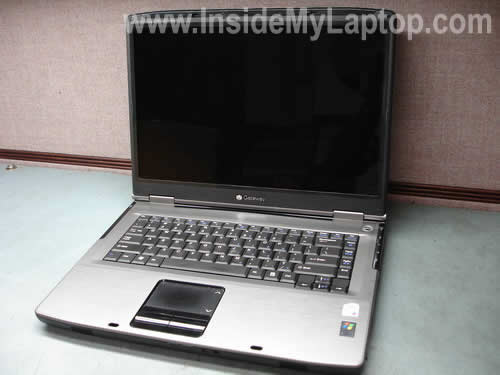
In the following guide I take apart a Gateway NX570X laptop.
I think my disassembly instructions will work for other Gateway NX570 models too.
In my case the battery started charging intermittently with the AC adapter connected.
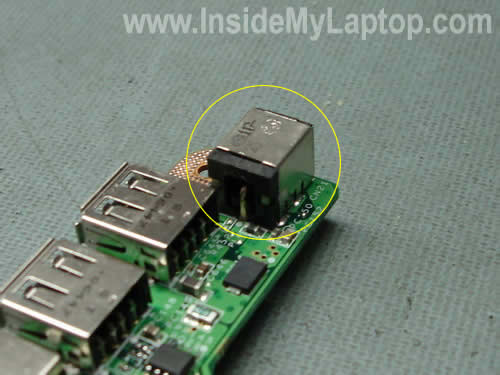
In order to charge it I have to adjust the AC adapter plug inside the power socket on the back of the laptop. Apparently, there is a problem with the power socket (DC jack) and it has to be replaced or resoldered.
I’ll be removing the system board so I can access and repair the jack.
STEP 1.
Turn off the computer, unplug the AC adapter and remove the battery.
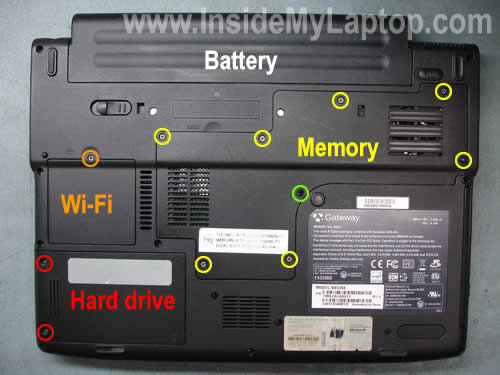
Remove seven screws (yellow circles) securing the memory cover.
Remove one screw (yellow circle) securing the keyboard. There are two more keyboard screws under the memory cover. You can see them in the step 5.
Remove one screw (orange circle) securing the Wi-Fi card cover.
Remove two screws (red circle) securing the hard drive. In order to disconnect the hard drive from the motherboard, you’ll have to slide it assembly to the left, lift up and remove.
STEP 2.
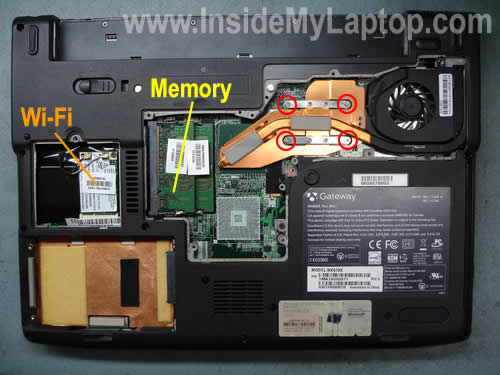
Disconnect two antenna cables from the wireless card, simply unsnap them from the card using your fingers. Remove one screw securing the wireless card and remove the card.
Remove both memory modules.
Loosen four screws securing the heat sink assembly (red circles).
STEP 3.
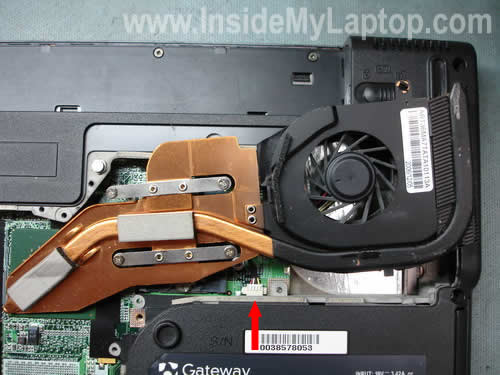
Carefully lift up the heat sink assembly and separate it from the motherboard.
Disconnect the cooling fan cable from the motherboard.
STEP 4.
Remove one screw securing the CD/DVD drive. Push the drive to the right and remove it.
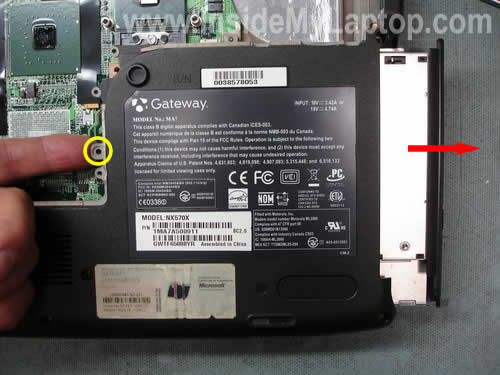
STEP 5.
Remove all screws from the bottom case. Two screws marked with green circles are securing the keyboard.
If you are replacing the keyboard, you simply remove one green screw in the step 1 and two green screws in the step 5 and then proceed to steps 7,8,9,10.
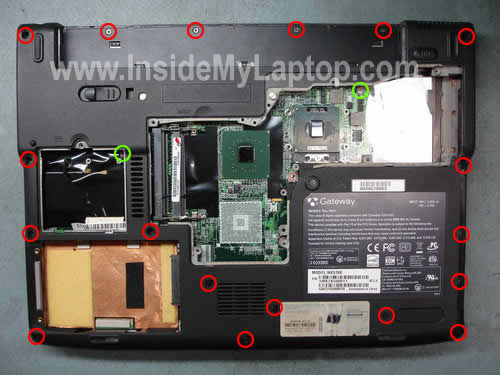
STEP 6.
Remove two screws from the hinge cover.
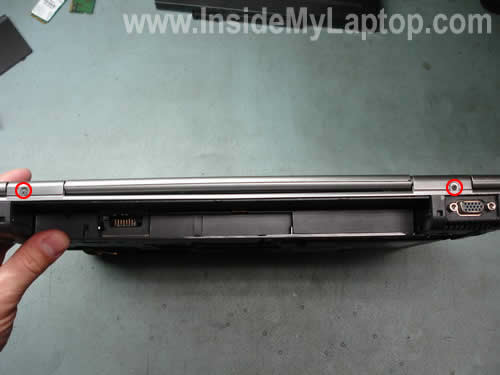
STEP 7.
Start removing the hinge cover with a small flathead screwdriver and continue removing it with your fingers.
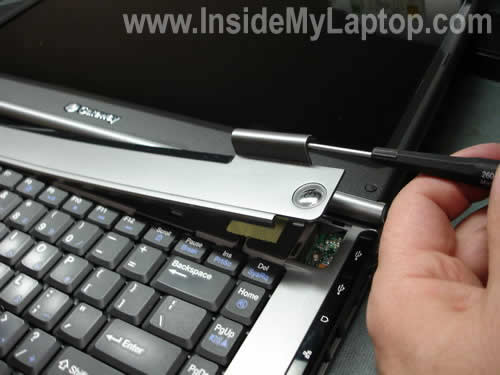
STEP 8.
Remove the cover.
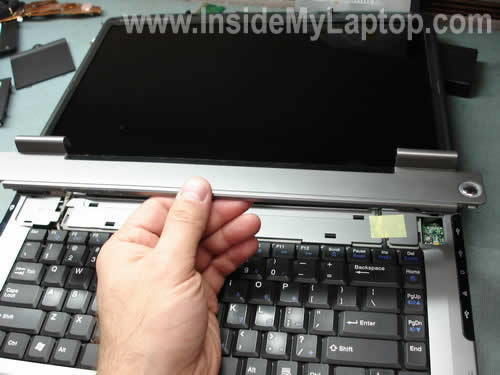
STEP 9.
Lift up the keyboard as it shown on the picture below and place it upside down on the palm rest.
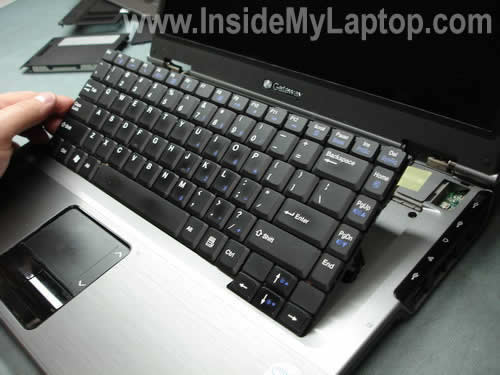
STEP 10.
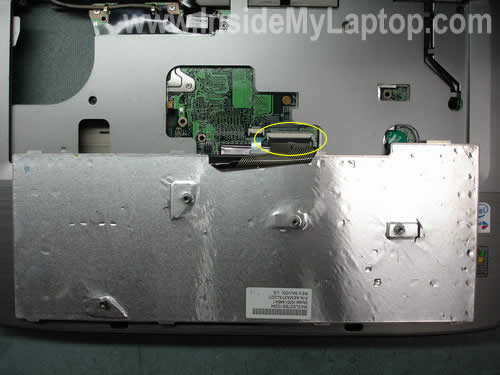
Unlock connector on the system board. Release the cable and remove the keyboard.
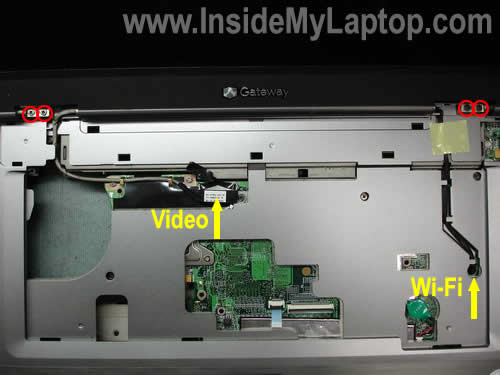
STEP 11.
Release the wireless card antenna cables.
Unplug LCD cable from the system board.
Remove two screws from each display hinge.
STEP 12.
Carefully lift up and remove the LCD assembly.
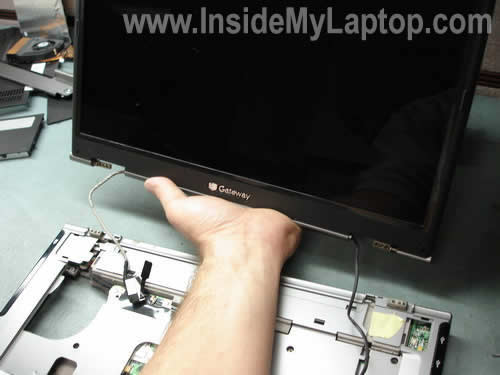
STEP 13.
Remove four screws securing the top cover.
Unplug the touch pad cable from the system board.
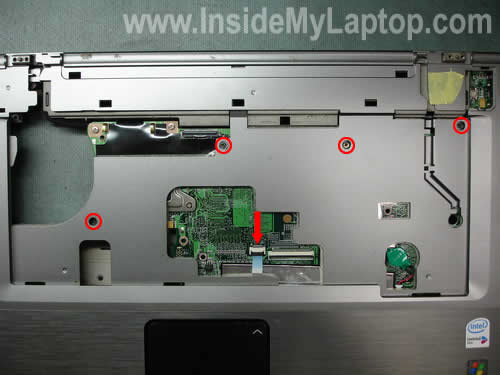
STEP 14.
Lift up and remove the top cover assembly.
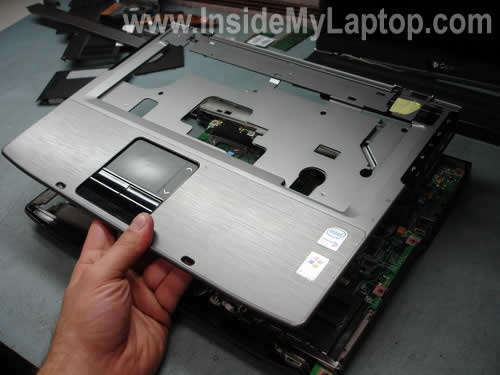
STEP 15.
Remove five screws securing the motherboard.
Unplug the speaker cable (left) and the Bluetooth card cable (right) from the system board.
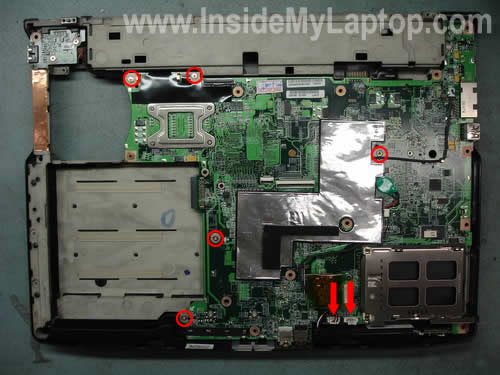
STEP 16.
Start removing the system board from the left side.
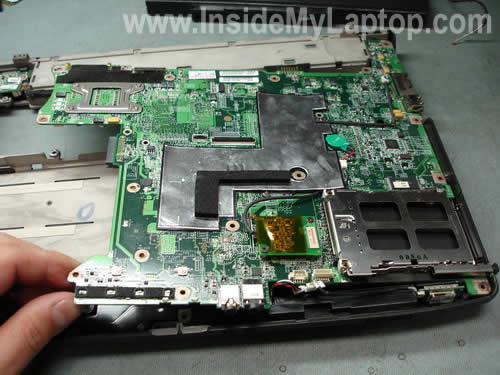
You’ll have to disconnect one more cable shown on the picture below.
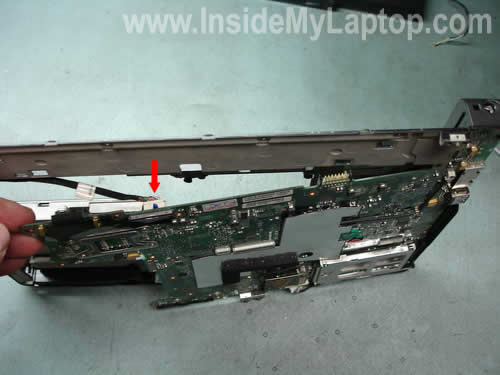
Finally, the system board has been removed.
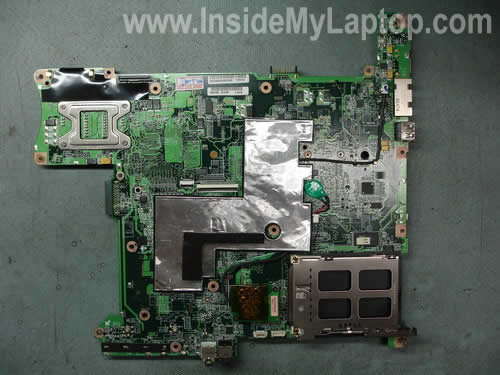
Now you can access and repair the power jack.
IML Tech
Today I tried to install a generic copy of Windows XP Professional on this Gateway NX570X laptop and I got an error during the installation process.
The Windows installation was interrupted with the following message:
Setup did not find any hard disk drives installed in your computer. Blah, blah, blah…
The hard drive was installed and I even tried another one, but without any luck. Still the same error message.
After some research I found the problem.You are getting this error message because the laptop is missing driver for the SATA hard drive. You have to load the SATA driver by pressing F6 right at the beginning of the installation process.
Here’s step-by-step walk through instructions:
1. Go to Gateway website and navigate to support and downloads.
2. Select HDD downloads.
3. Download driver for SATA hard drive. In my case I had to download file: D00455-001-001.exe
4. Unzip the file and press on F6flpy32.exe to create a floppy disk with SATA drivers. Follow instructions in the read me file.
In order to install SATA driver you’ll need and external USB floppy drive.
1. Connect the USB drive with the created floppy disk to the laptop.
2. Restart the laptop and start installing Windows XP.
3. Right at the beginning it will ask if you want to load additional SATA driver and you can do so by pressing F6.
4. Navigate to the driver mentioned in the read me file and load the driver.
Now you can install a generic copy of Windows XP on your Gateway NX570X laptop.
I guess you don’t have to go through this procedure if you use the original recovery disc because the SATA driver is preloaded.
Sam
Thank you!!!
I have same laptop with exactly same problem!
Took it apart, reattached the power socket and it’s back to normal now.
Sam
Dr Watson
Thanks!!
Had a go and took it apart.I solderd the connector out and it looks like i buggerd the whole thing up.
What can i do with this pile of scrap now any ideas??.
I was thinking i could convert it into a smart toaster???
Thanks again Doc!!
nigel
hello i have gateway laptop computer model #M320 i am wondering if one has to go through the same procedure as with the model NX570X to repair the
power jack. thanks waiting for your reply
IML Tech
Nigel,
I’m not familiar with model #M320 but I can tell you that laptop disassembly procedure is very similar for most brands and models.
Dr Watson
Update
The pictorial was spot on and a really fine job.
The power jack however was totaly f*k*d so i solderd some pig tails onto the system board(as i have been unable to find a replacement) then added some nice 2 way connectors.
(Temporary) Job Done.
Thanks!
Michael
This guide worked for the MT6711. The pictures look exactly like my laptop. Thanks.
tm
I have looked through this guide and from my memory I believe it will also work on a Gateway MT6452 notebook. Thank you SO much for you help. I need to repair this computer for a friend and have searched the internet for days literally to find a guide and this is the first one I’ve found. Thank you very much.
galo pesantes
exellent instructions i am please, great work, very helpfull
jake
thanks a million, you are the man
Becky
I am trying to repair my gatway solo 5030. works fine except for the colors. It goes back and forth between ok to mottled. I am also having trouble getting the bottom cover off of the parts computer I am using. seem to have one more screw hidden by the mic and sound jacks. any suggestions?
Becky
I got it apart. I had to pop up the keyboard carefuly as not to break it an the hidden screw was under the left bottom corner of it. Switched out the screen after changing out some of the other parts and no improvement. There is a strip across the top back of the lcd that may be the problem but I was not comfortable trying to change that out without some guidance. would like to switch back to the other screen if I can fix it as it does not have the scratches on it.
yucan2
So how do you unlock the connector on the system board to remove keyboard?
IML Tech
yucan2,
Very carefully! If you break the connector, you will not be able to fix it.
The keyboard connector has two pieces – the white base and the brown (black) locking tab. You open the connector the same way as you open the display on your laptop. One side of the connector stay attached to the base and the other side goes up at a 90 degree angle. I hope you understand what I’m talking about. You open the locking tab with your finger nail. When you do that, one side of the tab goes up at a 90 degree angle, but the other side must stay attached to the connector base.
After the locking tab is opened, the keyboard cable is released you you can pull it from the connector.
Trevor
This tutorial was spot on. Awesome job guys. I was able to open up and fix my new boss’ daughter’s laptop and look like a hero.
Thanks a ton,
Trevor
yucan2
Thanks for the info. however I don’t seem to be able to locate any locking mechanism on my board to release the keyboard. I have a MX6027 and the connector actually appears to be soldered to the board though I realize that this is quite unlikely. Any suggestions. I’m just about at the point of just chucking it for parts.
Your picture above looks like my connection though as do all the other illustrations.
yucan2
🙂 Ignore the above. Thanks to re-reading your post, I got it. Thanks again. This is an excellent service you have provided.
Moshe
Dear Sir
First , I want to thank you for all the dis assembly instructions, they are very helpfull.
I have the same Laptop Gateway NX570X, with different problem, but very close issue, (Power in the Motherboard). I hope you can assist me with this.
On the same Motherboard, in the opposite of the DC power jack, It seems that one of the Component has been BURNED. The Component is between the LEGS of the Power Jack…..Its write on the Print PC…PL.
I can NOT identify if its, A FUSE, or Capacitor or Resistor.
I can send you a picture as attachment, if I will have your email, if Necessary.
I will appreciate if you can help with this.
And If you know the Description of the Component, Pls let ,me know, where can I Buy it?
Thanks
Moshe
melkobi_at_gmail.com
Corey
ok i have a situation… my plug started to malfunction and eventually stopped working.
i then bought some new jacks.
when i finished it, the solder job looked good but it didnt work so i took the jack back off.
i think i burnt the mother board with my cheap ass iron on the spot where the pin goes.
i dont know whats wrong please help
Bill
Hey IML Tech, thanks for the great pictorial and instructions. I was about to toss my NX570X notebook after 45 minutes fighting to split the shell. Your screw location discoveries were “on the money”. I stripped the connector off today, and like you, I pulled the plated thru hole out of the circuit board and the connection from the top to the bottom of the circuit board was broken, the same as you. Question: did your repair succeed to simply connect the top circuit to the bottom circuit? Some of the circuit boards have multiple layers and I am concerned that pulling out the plated thru hole might have broken a connection on an inner layer. There is a connector in the mail to my house from ebay for about $10 (including shipping). I will finish the job when it gets here.
IML Tech
Bill,
Yes, my repair was successful.
Here’s what I did.
1. I found a not needed resistor and cut off one of the legs.
2. I made the hole for the “+” pin (the damaged one) in the motherboard wider with an awl.
3. I installed the power jack back on the motherboard. As the hole for “+” pin was wider, I was able to insert the piece I cut off of the resistor in the same hole.
4. I bent this piece so it touches traces on both sides of the motherboard and soldered it.
I hope you understand what I’m talking about.
Also, make sure to read the comment #22 in the post I just linked to. Peter Caines posted a good idea too.
I think this motherboard has only two layers. At least, I didn’t have any problem with my repair and the customer didn’t come back. 🙂
To be honest, I’ve repaired many jacks on many different laptop brands: Toshiba, HP, Dell, Sony, Gateway, but I haven’t seen a motherboard with multiple layers yet. Maybe I’m just lucky?
Tech
Thank you Very Much for this Post.
I am repairing Laptops on the side, and I am currently Learning. Instead of Having to take 3 hours to take apart a Laptop it took me 15 minutes with this guide for this particular Laptop, The laptop i took apart was NX570S So it works perfectly for my model laptop too. Thank you very much
-Happy Repair Tech
Gerry Murray
Sincere thanks for this post. It was crucial in helping me do my first ever laptop repair.
It looked like it was the usual DC connector problem but I noticed that the PSU light was flickering like there was short in the unit, Sure enough, when i opened the unit up, I found a decoupling capacitor was getting warm on the motherboard near the DC conector. Removing this component fixed the unit. I’m gambling slightly that the component was non-essential and, from the operation of the unit, hat seems to be the case.
Many thanks again for a very helpful page.
Cheers
Gerry Murray
Glasgow
Scotland
Guy Brunelle
I am hoping you can help me. I have a broken left hinge on my mx6421. Can you tell me the steps in placing it. The cost to have a shop do it will be $200 including the hinge. I bought a hinge online, but now need to install it. Many thanks.
Guy
gabrunelle@yahoo.com
IML Tech
Guy Brunelle,
Recently I posted a disassembly guide for MT6740, it explains hot to take apart the display panel.
How to remove LCD screen from Gateway MT6704 (Model MA7)
Can you use this guide for replacing broken hinges?
Gerardo
Excelent Job , congratulations , very clear instructions
Beverly
Hello and thanks for the instructions. These instructions are on point for the Gateway MX6447 as well. I followed the directions to replace the power jack, but it’s still not working. I scorched the motherboard just a bit while soldering the jack. Could this be the problem? Any assistance is greatly appreciated.
IML Tech
Beverly,
I cannot answer your question. It’s necessary to see the motherboard.
Jeremiah
Thanks for these great tips. I am a technical engineer who has done several laptop repairs/field replacements, and NEVER have I seen one as convoluted as this. The keyboard ribbon cable posed some trouble (hot glue took care of this), and the solder was a bit messy, but other than that, this guide was accurate, informative, and an excellent resource. Thanks for putting it together!
Tom
Thanks for the great site, was able to repair my gateway mx6447, the only difference was the cpu cooling attachment points, other than that everything was the same.
IML Tech
Tom,
Thank you for mentioning the laptop model. I’m sure my instructions will work for many different Gateway models.
Mike
I’m having problems with my wife’s MX7118. The PSU light stays on intermittently & the system powers up but shuts down after a few minutes. On the front panel when it is charging should both the blue & amber lights be lit up (when the unit is off)? The A/C cord light is lit as well. I attempted to take it apart but apparently am missing a hidden screw (or 2?). I’m also suspecting that the A/C cord itself is bad, it is an aftermarket unit w/ several end connectors & it feels very loose. Does anyone have any experience with this particular model? Thanks!
IML Tech
Mike,
Before you go any further, check the AC adapter. I really don’t trust all this universal adapter with multiple heads.
PC Guru To The Stars
I wanted to say thank you for posting this, it saved a lot of trial and error. I would like to add one thing and I hope you put it in your description.
The clips that hold the mouse and keyboard ribbon cables – they just FLIP UP – do not remove them by pulling them backwards (toward the cable). If you DO remove them completely, pay attention to the little holes – they sit on the pins then fold down to lock the cable in place. If you break the tabs off (like I did….) hot glue works great to hold them in place. Be sure to test the keyboard and mousepad are working before you put the cover on (where the power switch is) as it will save you MUCH trouble.
mark
I would like to say, this was great instructions and I was able to fix my laptop.
The person who put this together knows how to write a procedure.
Thank you from the bottom of my heart.
Mark Kreifels
ZHANGXUZHE
A great thank to you!! this is the best instruction i have ever see
now i wiil be able to fix my power jack
all because of you so i can do it it’s you!!! you!!! you!!! man!!!!!!
ONCE AGAIN ,THANK YOU!
GeorgeR
hey there,
awesome Site!
so where can i find a new power adapter to solder to the motherboard?
thanks,
G
hexpek
Thank you for a great guide.
Rob
Wow, thanks for the detailed instructions. Im working on my wifes Gateway MT6711 which appears nearly identical. Hopefully I will recieve the new power jack in the mail this week and can get it back together
I had the same problem you mentioned about the sleave coming out of the motherboard attached to the + connector on the jack…….
I cant really tell where it needs to attach to the trace on the jack side of the board? Any advice?
Thanks again!
Rob
Charlie
I’m attempting to ri see under eset the bios/hdd master password on my nx570x by removing/unhooking the cmos battery. I see in the picture under step13, near the lower-right corner there’s a circular opening with a round green-plastic-covered object with a wire connected to a plug. Is that the cmos battery? I’m just so used to desktops where they’re so much easier to find. If that’s it if you could confirm. If not, could you point me to it? I’ve already unhooked that wire plug and just waiting. Thanks in advance.
the Jack
@ Mike:
I had an MX7118 — I’d bought it refurbished, and it turned out that some bright bulb ‘fixed’ some issue the original owner had by soldering the right-hand screen hinge so it would no longer turn, so that normal use for ~2 years made the metal bars attached to the hinge shear off from the stress of bending every time the screen angle was adjusted; after the bars snapped off, power to the backlight was interrupted and my screen went dark. My repair guy suggested that buying a compatible model and moving my HD into it would probably be cheaper than the labor involved in opening up the whole screen assembly and likely doing some soldering and/or replacing of parts, so I now have a virtually-identical MX7122 (and the old MX7118 for parts).
I’ve used the universal AC adapters with multiple heads like you mention, and the compatible head on the Cables Unlimited model I had did fit very loosely, as you mention. I found that the universal models had a longer usage life (6-14 months) than most non-Gateway replacement AC adapters, which tend to heat up so much their plastic cases warp and they die within a couple of months — or in one case less than a month! — but at the moment I’m using the Gateway-branded adapter that came with my MX7122. It’s model 0220A1890, manufactured by Li Shin International Enterprise Corp., and not only has a transformer (the box the half of the cable that goes to the wall plugs into) that stays relatively cool — warm but not excessively hot when in use — it’s about 6′ long wall-to-laptop, much longer than most generic replacement adapters. I definitely recommend getting a Gateway brand adapter cable, as the difference in quality (especially usage life) really is worth the extra cost. One tip if you’re going to stick with the uiniversal: make sure the switch that sets the voltage doesn’t get bumped while the cord is in use; some of these universal adapters have quite loose voltage switches, and the wrong voltage can damage your wife’s laptop. Consider sticking something to either side of the switch so it can’t move to a different voltage on her. You might also consider using some electrical tape to keep the end of the cord in place at the back of the laptop.
On the front panel, the blue LED light indicates when the computer is powered on, and the amber one is lit only when the battery is charging. The amber light should be on when the laptop is off if it’s plugged in and the battery is charging. If the blue light is also on when the laptop is shut down, I’m not sure what could be causing that. There are blue LED-lit icons below the touchpad buttons, also — the far left one indicates whether the laptop is plugged in (even when off), the one to the right of that is lit when the laptop’s wireless connection is active, and the far-right one lights up whenever the HD is active (so it often just flickers when you’re writing to or reading from disk). I don’t think the icon lights could be ‘bleeding through’ to the bar-shaped front panel light, though.
Some things to try:
Make sure you don’t just need a new battery. If the amber light is staying on all the time (when there’s AC power available) it’s not charging up all the way. The MX7122 I got second-hand had nothing wrong with it* except needing a new battery, but the problems the previous owner described having with it sound like yours. It’s handy to have a backup battery anyway, and if it turns out you need to replace her laptop, you can still recoup most of the cost of the second battery via eBay if it turns out the battery wasn’t the (or the whole) problem.
A laptop that shuts itself down can be caused by too-high internal temperatures… which in many cases is a result of the fans and/or heatsink being too dusty. (*This was the one other problem with the MX7122; when I ran any RAM-hogging programs, or just too many at once, it would overheat and even shut itself down a couple of times.) Unfortunately, the fans and heatsink on the MX7000 series Gateways are not easily accessible. They are in fact about as inaccessible as laptop fans can be. IF you’re hardware-savvy enough to be comfortable getting into the guts of your wife’s laptop, get yourself a can of compressed air and a magnetized screwdriver, and open it up. (Blowing air in through the outside vents probably won’t do much if any good if there’s enough dust inside to cause a problem.) The NX570x instructions on this page are close enough to get you through most of the disassembly on a MX-7118; the main differences are in the layout of the underside of the case. If you’re not comfortable doing that yourself, it’s worth paying $75-120 for a professional to open it up, clean the fans and heatsink, and — importantly — get it back together again. (Putting a laptop back together is trickier than taking it apart, trust me.) You’ll need the magnetized screwdriver because some of the screws are just about impossible to remove otherwise, but you can try magnetizing a screwdriver you have by scraping the tip across a solid magnet until you can pick up a paperclip (or one of the screws that comes out easily) with it. I hopefully don’t need to remind you to keep the magnet itself far away from the computer. Before you open up the computer (or pay someone else to) though — at least in terms of fixing the immediate problem of the laptop shutting down — check how hot the bottom of the computer is getting before it shuts down. If it’s barely getting warm to the touch, hold off on cleaning the fans until you’re sure it’s worth doing. You’ll still probably want to clean the fans eventually, though, as laptop fans accumulate a lot of dust and will run inefficiently, reducing performance, unless they’re cleaned every year or two.
There’s a remote chance the problem is malware having gotten into her computer. You can rule this out by taking her hard drive out (very easy — just flip the laptop up with the two LEDs facing up and the keyboard facing away from you; that panel just below and to the left of the blue and amber LEDs is the hard drive, and all you need to do to get it out is unscrew that one screw and pull it out like a drawer) and putting it into a HD enclosure, which you can then attach to another computer as an external drive so you can run virus scans on it. I recommend AVG, Spybot, Malwarebytes and Kaspersky’s online scan (yes, run all four) which are all free. Some anti-virus software will shut down the computer to protect it from an existing malware infection, while some viruses will shut the system down either to prevent the user from finding/fixing the infection or because they spread by hijacking startup processes. The computer you use to run the scans from should be safe even if the external drive being scanned is infected, but it’s a good idea to have a resident-protection program or two running, such as Spybot’s TeaTimer (included in the Search & Destroy download).
If neither replacing the battery nor cleaning out the fans solves the problem, and virus scans all come up clear, you’re probably looking at a more serious problem… possibly the motherboard. If that’s the case, you might want to just do what I did and pick up a compatible model from the MX7000 series on eBay to move your wife’s HD into.
Good luck!
Benny
Hello…..there………… I have a mt6451 i have problem with wireless adapter I have a Linksys router in work perfect on my other pc , my gateway wireless is missing,sometimes work,sometime not , someone get give me an idea,plase is gonna help me a lot , thank you this webside is excellent,to find nice persons, help other to fix computer, and save some money……………. Im been waiting for a respond,, see ya
IML Tech
Benny,
1. Try reinstalling the wireless card driver.
2. Try reconnecting the wireless card, maybe it’s not making good contact with the slot.
3. Replace the wireless card.
Mihai
Hello,
I have a question. Could you please send me some pictures of this motherboard detailing the power jack and power button on both sides? please? My motherboard (gateway MT6709) is damaged around that area and I am trying to fix it
Thank you, Mihai
Joe Detroit
I replaced the lcd on a nx570s and now the external monitor shows but not the new screen. Before I replaced the screen, neither showed. Is there a way to test the screens? Maybe the old screen was not the problem.
Ashley
Thank you so much. You are a wonderful person.
CPUWIZ
Disassembly works exactly like this on MT6840’s, just thought I’d mention it.
jonny
can you upgrade the video card
IML Tech
jonny,
You cannot. The video chip is integrated into the motherboard and you cannot remove it and replace with a better one. You are stuck with what you have.
Julian
This also works for the Gateway ML-6227b Laptop disassembly, just two screws different. I just re-soldered the + pin without removing the DC socket and that seems to have done the job. I do wish I had read the reply that told how the keyboard cable clamp works before I started, luckily I didn’t break anything before I worked it out for myself.
Thank you so much for publishing this guide, you are a real Godsend!
alex
Thanks this was helpful however my mx6429, the lcd just turned all black for no reason, I tried reattaching the cable but no luck, any ideas what it could be?
KWaropay
Awesome guide. Worked for my Gateway MT6840 (MA7) laptop!!! Thanks for taking the time to make this guide!
Note, I had no problems after the copper sleeve popped out with the rear pin. I’m a hack when it comes to electronics soldering…but all I did was make sure I put adequate solder on that pin before inserting it into the mortherboard. to mak sure I had a solid connection on both sides of the board. I did scrape the green coating a little bit on the one side to make sure the solder adequately contacted this area. That seems to have worked just fine. If you have the skills to fortify the rear pin then by all means do it. I don’t have all the tools and took the risk not doing it!!!
Hakka Cracker
Thanks a million for posting such detailed instructions and pictures. It saves me a lot of time.
BTW, an resistor near my DC jack was burnt. Anywhere to buy (economically, of course, otherwise with today’s laptop price it doesn’t make sense to spend more than 50 bucks on this 3 years old laptop) used motherboard? Googled a little but could find only expensive ones.
wayne
I have a E475M Gateway that shows no signs of life. I tested the a/c power and battery and both are ok but no lights, fans, nothing. I am thinking that maybe my problem is the connection to the motherboard- is there any way to check before I tackle this.
Thanks,
Wayne
Chris
Great instructions – thank you so much for taking the time to publish this… you are a rock star!!!
ALan L
I have a Gateway Laptop, purchased new in 2006, has worked flawlessly until NOW. The CD/DVD RW drive reads intermittently.
The drive IS recognized by the computer, and the device checks out as “Device is working properly” when I check the properties. I put a disk in, it spins, and searches and finds nothing. No matter what type of disk and what type of info is on the disk, it is not reading the disk.
I am not sure if this is germane, however a few weeks before all this happened I installed Roxio. I have the same program on my standalone PC. I NEVER had any problems on the PC., therefore am reluctant to blame the program for the issue of the DVD drive failing to read/record disks.
I use the laptop daily and carry it to/from work; often it’s in my car for extended periods (NEVER in direct sunlight).
Any thoughts on what is causing the problem would be appreciated. What plan of action should I take?
Replace the drive?
Remove it and re-seat the contacts?
Are there contacts that may have loosened?
I am NOT the worlds best tinkerer and have limited tools, thus am reluctant to taking apart the laptop.
Joe Martin
I have a blank screen. I have replaced the screen and the converter and still a blank screen. Is there something else I am missing?
IML Tech
Joe Martin,
Is it completely blank or you still can see a very faint image?
Can you get video on the external monitor if you connect it to the VGA port?
Brock Madill
My NX 570 recently started freezing and displaying a screen full of vertical lines. Eventually the screen went blank and the only way I could even boot it up at all was using an external monitor and in Safe Mode. I ended up reformatting and reinstalling Vista and thought it was going to work, but soon after it started doing the same thing again.
I suspect it is the video card, but I am unsure if it can be replaced, fixed or if the entire mother board must be replaced. The video in my laptop is the ATI Mobility RADEON x1400 graphic, which sounds like it should be a separate video card. Does anyone know if it a dedicated video card or have any solutions for me?
Michael Mil
I have a gateway laptop that slowly stop powering. I replaced the battery. The replacement worked but the power connection had a short. I followed your awesome directions. I am in the process of fixing the power connection. I need to know where to get a replacement part or do I need to replace it? Where to find parts? Thanks for an awesome attention to detail.
IML Tech
Michael Mil,
First of all thank you for the donation.
I cannot tell if the power jack in your laptop has to be replaced without looking at the laptop. If the laptop switches from AC power to battery power when you wiggle the adapter plug inside the connector, most likely the power connector has to be resoldered or replaced.
Mart W.
Hello,
First off, awesome site! Excellent work friend.
I have a MT6840 that will not power up at all. I removed the mainboard and examined the DC power connector and found it intact and secure. I also examined the entire mainboard and did not find any obvious signs of overheating/abuse etc.
Battery and Power adapter tests good.
Any suggestions?
Thanks again!
karla
Thank you this is exactly what i was looking for!
question though.
i just recently got my computer checked by a professional
and he told me my motherboard is damnaged.
i need to know how to replace this
and what is the cheapest i can buy a motherboard for.
i am not an expert but i caught on quick!
im sure anyone one figure this out but it took me
about 5 minutes to learn how to get my data out of my hard drive
and i only spend $15 on on the hard drive enclosure.
anything will help!
thank you!
IML Tech
karla,
In the post above I explain how to remove the motherboard in order to replace the power jack. You simply swap the motherboard with a new one and install it back into the laptop.
How much for a new motherboard? I don’t know, search on eBay or google it.
sammy
Hi … I just want to know how to connect traces with cable Cause same thing happent to me when i was replacing my jack and now laptop only work with battery power .. would you please explain or show some photo on how to connect traces with cable
thanks
Lawrence
I have the same problem with the Gateway model 6520GZ. Do you or anyone here have disassembly instructions for this laptop?
Thanks,
Lawrence
IML Tech
Lawrence,
Check out the “Gateway laptops” category on the right side of the website. Maybe you’ll find something similar in there.
Ron
Thank you very much for the excellent tutorial! I was looking for information on a Gateway MX6650 and it was nearly an identical procedure. I was unable to remove my DC-jack because it had 5 pins and I couldn’t keep more than one heated at the same time, so I removed as much solder as possible, cleaned up, and resoldered nice and neat in place and it works like a charm. Even if it only lasts 5 or 6 months like some people have said, it’s worth it for now! Thanks again and awesome work!
Keith Baron
Thanks for the excellent instructions; they worked perfectly for my wife’s ML7227b: power problems. Unfortunately, I didn’t find this website until I’d already damaged the keyboard, trying to remove it. When I eventually got the motherboard out, it appears to have been “tracking”, if that’s the correct term, around the power jack area. We already had it repaired once (“dry joints in the power area”) so I think we’ll call it a day now, but I’m glad I managed to get it apart, and back together again.
Aaron Walker
Thank you so much!!! I just replaced the power jack on my gf’s gateway MX6440, thought I did everything right and wouldn’t work. I thought maybe I burned out surrounding components. I didn’t realize the power jack had to contact both sides of the board with that sleeve. I’ll try to jumper the two contacts when I get home. Hopefully it will fix it.
Ron
It worked for the MT6705 with virtually no modification. Now I have to replace the DC-IN jack.
DallasNaijan
Having problems with the Gateway MA7 as the screen doesn’t turn on. Is the there a specific device on the motherboard that has burnt out? I read earlier that the video card is integrated onto the motherboard and that it cannot be simply replaced or removed…..Is there a solution around this…..please advise?
IML Tech
DallasNaijan,
Did you test your laptop with video output on the external monitor? Can you get any video on the external monitor?
Also, take a very close look at the laptop screen (do it in a dark room). Can you see any faint image on the screen at all? Does the screen change color from black to light black when the laptop is turned on?
Gil
I have this laptop and I was told by the laptop place where I took it that I need a new motherboard. None of the motherboards that I can find online have processors in them. Does this mean that the processor is movable from one motherboard to another? If so, how? And if not, then where can I order a new motherboard with a processor and all else that is necessary for me to take it apart as shown above, switch the motherboards, and put it back together? Motherboards due come with all the ports for wireless cards, hardrive, ram and such right?
IML Tech
Gil,
Yes, you’ll have to move the processor from the failed motherboard to a new one.
The processor is located right under the heat sink which I’m removing in steps 2-3.
The processor is locked in the socket on the motherboard.
In order to remove the processor and transfer it to the new board you’ll have to go through the following steps:
1. Unlock the processor socket by turning the screw-lock into the open (unlocked) position. You’ll find this screw on the socket.
2. Carefully lift up the processor from the socket.
3. Make sure the socket on the new board is unlocked.
4. Insert the processor into the socket. Make sure the processor is position correctly and pins layout matches the socket.
5. Lock the socket.
Do not forget to apply thermal grease on the processor before installing the heat sink.
ade
Thank you! Great instructions. I took my Gateway apart to fix the power jack and then put it together again following your instructions. You made it easy!
The tip about labelling the screws is invaluable! I think its best to put the little screws in small envelopes or ziplock bags. Each back should be labelled to reference the position they came from (Location on the laptop, the number of screws as well as the sequential order in which they came off the machine. THis should helpp greatly when putting the machine back together again.
James
I was able to change my own mother board on my Gateway 6214 laptop breathing new live into it because of this
AWSOME web page…
Thank you
Freebird2k
I have gateway 4026 laptop. I was successful to dissemble the laptop.thanks for the photo to give me the idea. I wanted to check the power jack since the plug in to the laptop from ac adapter melted in the jack. i replace the jack from ac adapter and it melted again over time about a week.
the jack in the laptop seems to be fine. any idea why its doing that?
thanks
Freebird2k
Meka
I have a gateway m305crv after removing all the screws I couldn’t get the screen detached I’m having problems with the power jack as well now the plug is shorting out please help thanks
IML Tech
Meka,
Maybe there are some screws securing display hinges on the back side of the laptop?
Mark
I have the same model computer and also have power issues. Mine has a problem with the coaxial DC connector plug instead of the jack. It has been pulled sideways and now has a short in the plug. Do you happen to know the size or specs on the plug? The ac adapter works just fine. I could either buy a whole new one or just replace the plug on the existing one. I would rather fix the existing one. Any ideas?
Megan
I wanted to know how to open it simply to clean the lint off of my fans because the computer keeps overheating but the fan is still running and I wanted to at least try to see if cleaning would help before I plunk down 130$ to get it replaced.
Brent
Im trying to upgrade ram in a gateway MX7118 there are only 2 small panel covers on the back the memory isnt located behind either of them. I tried to take it all the way apart but was unsuccesful. I removed all the screws but it wouldnt come apart. I have removed all visible screws.
Help please
IML Tech
Brent,
Take a look at this user’s guide for Gateway Gateway MX7118 Notebook. The memory slots is located under the cover on the bottom. I’m not sure why you cannot find it.
There is only one memory slot available for memory upgrade in this model because 512MB of RAM integrated into the motherboard.
The Gateway MX7118 will take up to 1.5GB RAM total (512MB base memory + 1GB installed into the slot).
You should use PC2700 DDR SDRAM SODIMM module.
Nate
Thanks for the info. My laptop has been gathering dust for a long time now (over a year) I followed your directions and was able to get it back up and running. I had an extremely difficult time getting the part out. I tried a solder sucker and wick but neither worked. What finally did the trick for me is I cut the metal sleeve in half so I was able to work on pulling out two pins at a time instead of all 6. You could do this with a band saw, hack saw or a dremel. I only did this as a last result but it sure made removing the connector easier.
Kelly
I have a Gateway MT6840 laptop that I was told needs a new motherboard. I would like to try to replace it myself, but I have never done anything like this before and don’t have a whole lot of time to fiddle with it. I’m a full time student and work full time.
I absolutely love this site for helping people like me, but doesn’t someone here want to make some extra cash and replace my motherboard for me! The computer repair place here said it would be cheaper to buy a new one. I don’t want to do that unless I absolutely have to. Any takers?
Jim
“I’ll have to connect traces with a cable.”
This was your last statement while replacing a power connector. Where is the rest of the description? I need it. I have a MA7 which I am in the middle of repairing (on my own – I am not a computer tech). I did damage the sleeve and now I need to know where to connect the input pin.
HELP!
IML Tech
Right now I’m fixing power jack in a Gateway MT6707 laptop (Model No: MA7) and it looks like the laptop is identical to this Gateway nx570x. Same body, same disassembly steps.
Jim
That link is the one I have been looking at but the layout is not the same asan MA7. Also, you said in your description that the sleeve connected the power to both sides of the board. So, how would I get power to both sides if I am connecting only to the connector’s solder side as shown. I tried soldering to one side of the hole but that turned out to be ground. Do I solder to the other side of the hole that appears to be connected to PC1 and PR8?
IML Tech
Jim,
You will not believe but I’m working on a laptop with problem like that RIGHT NOW. 🙂
The power jack got disconnected from the motherboard and while removing the jack I pulled the sleeve again. Apparently, it’s not designed to be repaired.
If you solder the power jack like that, most likely the laptop will not power up because the power has to get to both sides of the motherboard. The power goes from one side to the other through the copper sleeve inside the hole. Without the sleeve it will not work.
Unfortunately, there is not much space around the “+” hole on the motherboard, so you have to be very careful.
Here’s what I did:
1. Using a small screwdriver I scratched off the green paint from the traces around the “+” hole until copper trace is exposed. Did it on both sides of the motherboard. Coated cleaned area with fresh solder.
2. Cut off one leg-connector from a new resistor. I’m going to use it as a bridge to connect traces on both sides of the motherboard.
3. Widened the “+” hole on the motherboard with an awl so I can fit in both, the power jack leg and my bridge into the “+” hole.
4. Inserted the leg-connector I cut off from a new resistor into the “+” hole and shaped it as U. Soldered my bridge on both sides of the motherboard to terminals prepared in the step 1.
5. Inserted the power jack into the motherboard and soldered. The “+” connector is soldered to the bridge.
I was using my multi-meter all the time and tested continuity while doing the repair. I wanted to make sure that my bridge is soldered to proper terminals without shoring other traces.
I hope you understand what I’m talking about. I know that it would be good to see the picture of my repair, but the laptop is already assembled and charging the battery.
Works fine so far.
Jim
Your help has been sensational. I got my Gateway with the power connector problem working. I really appreciate the way you responded immediately to my questions while you were working on the Gateway that you had. This saved my daughter a great deal of money.
I tried to make a contribution by clicking on the “Donate” button but Paypal doesn’t seem to like that for some reason. Is there some other way to make a contribution?
Danny
Just wanted to say thanks for posting this, great time saver
your the Best
Danny
paul tiffany
Good Morning, Tech.
My Gateway “jack’s” been repaired, with silver solder for strength, and is working fine.
However, there’s a “no battery detected” icon AND, sure enough, it doesn’t work with a
battery. Some say to replace the motherbrd, but I think there’s a component, ON the brd, that I can replace.
What’s your take on this?
IML Tech
paul tiffany,
Did you have a chance to test your laptop with another known good battery? Could be just bad battery.
If it’s not the battery, I don’t know which component on the motherboard is causing the problem. I don’t fix motherboards on component level.
Justin
Hi, I have an MA7/MX6596 with a cooling problem. The fan starts up when the computer starts up, and then shuts off after 15 to 30 seconds, and then does not come back on at all. The laptop gets very hot, and this concerns me, but it has never shut off because of a thermal overload (assuming this laptop even has thermal protection). The fan is clean and I haven’t found any way to manually enable it to see what the issue is. Should I just assume the fan is failing and replace it? Any help would be greatly appreciated.
IML Tech
Justin,
It’s hard to tell if the fan is failing or not. I guess it has to turn on eventually, but I don’t know if the CPU temperature reaches that critical point.
You can try SpeedFan software to monitor the fan and CPU temperature. Maybe it will help to figure out what is wrong.
Justin
Actually, I downloaded and installed Speedfan a few weeks ago to monitor my temps, and I did hit the critical mark according to the temp indicators (they all showed little flames beside the numbers) and so I purchased a cooling unit that sits under the laptop (it was on sale) and that seems to have stopped the laptop from overheating (at least it hasn’t gotten so hot that the flame indicators were present on the temp readings). I would assume that the fan not turning on when I have flaming indicators via Speedfan means my fan is not turning on when it should be, but then, why does my fan run when I first start up the laptop? (questions, questions) I can purchase a used fan fairly inexpensively and was considering doing this just to test it out and see if the old fan is the problem. Any recommendations? By the way, thank you for your help.
IML Tech
Justin,
It’s hard to tell if you have a faulty fan or there is a problem with the motherboard. I guess you should buy a known good fan for test. If the problem still exists, there is something wrong with the motherboard.
Why the fan starts when you turn on the laptop? That’s a good question and here’s my guess.
Maybe the motherboard sends maximum possible voltage to the fan at the beginning and it’s enough to start the fan. After that, the voltage going to the fan is lower and it will not start. This is just a guess and I could be wrong.
Here’s another idea just in case if there is a problem with the motherboard. You can probe the motherboard with a voltmeter and find terminals with voltage needed for the fan. Solder the fan directly to these terminals.
Basically, the fan will run all the time as soon as the laptop is turned on, but it should work. Do it only if you have nothing to lose.
Justin
I think I might have it, I recently had to replace the hard drive (the old one crashed) and had to reinstall everything and I might have not installed the correct chipset drivers, as the fan runs when I am in BIOS but not when Windows XP starts up.
IML Tech
Justin,
I don’t think that cooling fan is controlled by the operating system.
But if you suspect that your operating system is causing the problem, you can boot your laptop from a life Linux CD (Knoppix for example) and find out if the fan works fine with another OS.
Knoppix runs from a CD and doesn’t use files on the hard drive at all.
Bob F4
I just used these instructions to transplant the insides from my old, broken apart MX6425 laptop into a case for an MX6453 laptop I got off of eBay.Your directions worked like a charm! I did have to go off the map a bit and extract the glass from my old LCD screen to install in my new case, but that, too, woked with no issues.
Sam
MX 6454 looks the same
darkness
gatway ma7 will not power on… after looking through your guide and taking everything apart, we discovered the problem. the tip of the ac power cord was not working. we tested the current on the entire cord and it worked fine. they we had the idea that maybe it wasn’t getting enough volts. 19 volts everywhere except for connecting tip. long story short, sodered on a new one. now we get power readings throughout the motherboard at high levels but laptop will still not turn on. problem half solved… my laptop would not work without the battery connected and charged. will only run off of dc power after being charged by ac. but battery will not hold a charge if unplugged. why?
Joseph
I just wanted to thank you exceedingly. The MT6707 had screws in the same location and your instructions were fabulous (though I myself didn’t have the skill it took to re-solder the power jack and took the naked board to the local college and payed a computer engineering student a little money to solder that part for me). THANK YOU!
Rob
I am having a problem with my NX570X shutting down unexpectedly. At one point I actually received some type of error message saying something about a faulty fan. Does this model just have the one fan that you pictured in your directions? I took that out and cleaned it. it was covered in 3 years of dust. It does turn but after no time at all the laptop shuts itself down. Any advice? And is there another fan somewhere?
IML Tech
Rob,
This laptop has only one fan.
Here’s what you can try.
Remove the fan cover, turn on the laptop and keep looking at the fan. Will it spin at all? It should start at some point.
If the fan never starts spinning, it’s possible you have a failed fan.
If that’s the case, the laptop shuts down because of overheating.
Dakota
Does this Laptop have a CMOS battery? i recently replaced the hard drive in one of these, and it will now not even bring up the BIOS for me to change to boot order to CD drive first, it crashes on the gateway screen, any ideas?
IML Tech
Dakota,
Take a look at the step 11. The CMOS battery located in the lower right corner, close to the arrow pointing to the Wi-Fi antenna cables.
You can access the CMOS battery after the keyboard is removed.
Patrick
this is a great website. I’m trying to disconnect the touchpad cable in step 13. How do i do this without breaking anything?
Dan
Hello, I have this same exact problem with my Gateway 🙁 I am not savvy enough to try this on my own. Is there anyway I could pack and ship my laptop to you so this reapir can be made properly>? I would pay you accordingly of course. I still have the original box and packing materials so it would be safe in transit. I love my NX570 and this is the only issue I have with my laptop.
Please let me know if you can help me out.
Have a Great Day !
Dan
Max
I have the gateway ML 6703 – it looks like it has the same body as the laptop pictured above and a little while ago it stopped working. It wouldn’t charge even when i got a new battery and charger. Someone said it could be there’s a loose connection or something with the regulator. Can u show me where that would be located on this laptop?
Thanks a lot!
IML Tech
Max,
It’s possible you have a problem with the power jack shown on the last two pictures.
It’s necessary to disassemble the laptop and take a closer look at the jack. Maybe the jack has to be resoldered or replaced.
Max
I gave up on this thing. I didnt think i could get it fixed so I got a laptop about a year ago to replace it. So now its mostly taken apart and i highly doubt ill ever get it back together. Do you think i can sell some of the parts? Like maybe the keyboard and RAM cards ( i dont want to sell the harddrive cuz i still got my stuff on it). What other parts would be worth selling?
Thanks for your help!
IML Tech
Max,
You can sell keyboard, RAM modules, cooling fan, LCD screen, inverter, video cable or entire LCD assembly, etc… I’m not mentioning all small plastic pieces.
Max
ok and about the cooling fan though, on the bottom of it, it has this small piece of silver foil looking attached to it but part of it came off and is stuck on the square thing under it. Is that anything important? and the wifi card – i see its screwed in but there are also 2 cables connected to it, how to is disconnect it?
Thanks for your help!
Sam
This part is for Max:
the same thing happened to mine and when i put the laptop back together it started to over heat really easily. So i had to open it again and put some thermal compound between the fan and cpu which fixed the over heating problem. Hope that helps!
And now i have a question as well:
when i took the power jack off, i had to pull it out because i didn’t do such a good job with removing the old solder off. But i managed to stick a new power jack in there and along with the old solder still there, i just put some new solder on to hold the jack in place. Now, the laptop still doesn’t charge, so is that old solder my problem?
Tim
Hi Great guide. Got the thing apart but the power jack (seems like a common problem) has way more bits on the motherboard around it than the one in your pictures. My soldering isn’t good enough…I don’t know if anyone’s will be.
Anyway thanks for the guide.
Mark
Ah thanks! This worked great. My wife’s laptop was doing the notorious turning on/off when you moved the power connector up and down. I re-soldered the power connector on the underside of the mobo and everything is working great. Everything took me less than an hour, thanks to this guide that is.
edwin roldan
this is great you are good! but it looks complicated just to get to that, can you just remove the battery and use that as your power source? please help!
IML Tech
edwin,
I don’t understand your question.
Jager
My laptop is making a grinding noise from the cooling fan and someone said it could be the hard drive anyone know what it really is? It started when i hit my table and moved something i guess…
IML Tech
Jager,
Remove the hard drive and turn on the laptop. Wait until the fan kicks in and listen.
If the laptop makes noise with the hard drive removed, probably it’s your fan.
corey
I am thinking of getting a completely new motherboard so I can upgrade the graphics card. I currently have the integrated video card it came with and I want something better that will be able to handle games. Plus I figure it’ll be a good learning experience. What do you think?
IML Tech
corey,
I doubt you can find a new motherboard with better video card. I doubt it even exist. Do a research.
Matt
My left hinge broke away from the frame, I was wondering what the best fix is. The gray part on picture/step 12, totally broke off with the hinge. I am afraid that the monitor will quit working because it its hard on it to open and close.
Jason
I just completed your DC jack repair, and believe the sleeve on the + also came out. Can you explain or do you have a write-up on “make a modification so traces on both sides of the system board are connected”
Shawn
Oh my god…thank you. You are AMAZING. I bought the Gateway M6320 laptop off craigslist for $50 because it wouldn’t turn on. I just wanted the HD and RAM…But fumbled around with cord to see it would charge at a certain angle with lots of pressure lol. Followed your guide (never even seen the inside of a laptop before) and ended up with a brand new laptop!!! Tysm! 😀
IML Tech
Shawn,
I guess you are ready for your own laptop repair business. 🙂
Dionel
I have a nx570s where is the bluetooth located?
daren
my gateway mt6707 turned off and has never came back tryed pulling the bat and power cord to reboot but nothing any insite do u think its the power jack or mother board?????
IML Tech
daren,
Did you have a chance to test the AC adapter with a voltmeter?
It’s possible the laptop doesn’t turn on because the AC adapter is dead and the battery has no charge.
I would test the adapter first.
Renae
Hello,
It seems like you know exactly what you are doing. So this question probably may seem like the dumbest question on your forum. 🙂
I have a Gateway MA3 Model. Obviously it has gone haywire on me.. I should have backed up my files prior to this mishap, however, like many people, we think a blue screen will never happen. ugh
I am looking to pull out the hard drive and send my files to an external hard drive. However, I am having a hard time getting the back case off.
I was wondering if you knew how to do this?
I have removed all the screws including the ones from the back lip.
Thank you very much for your time.
-Renae
IML Tech
@ Renae,
Why do you want to remove the back cover? In most cases the hard drive can be accessed through the door on the bottom of the laptop. What is your laptop model (not MA3, another one. Should be somewhere on the front bezel or top cover).
You can try this. Turn on the laptop and press F8 as soon as Gateway logo appears on the screen. From the menu select “Last Known Good Configuration”. There is a chance it will boot your laptop back to normal and you’ll be able to backup files without disassembly.
John
The screen on my M465 is flashing on and off (it gets worse as the machine warms up. It was also rebooting on it’s own. I have the laptop disassembled,
The connector for the touch pad was brittle and literally came apart during the process. I don’t use the touch pad anyway.
I am wondering if you can give me some suggestions concerning the screen flashing and the rebooting issue??
Thanks
Jeff
My friends Gateway NX570X laptop shut down while they were watching a video on it, they said that there was no error messages, it just shut down…. And it will not re-start, you try to turn it on and nothing, it’s just dead, the battery is brand new and it is fully charged, the power supply is brand new as well and works just fine, i did open up the back and found that the exhaust fan is full of dust and nicotine, this thing is completly clogged up, although the fan will spin freely. I’m thinking the CPU, or the mother board went bad due to overheating, any suggestion would be very helpful.
Thanks..
Jerry McCarley
When I power up my NX570X Gateway laptop, the gateway logo appears and then I get (the blue
screen). I’ve tried the mashing F8 when the logo appears but it don’t help. I mash F10 an the boot
menu come up. It say’s no TPM or TP has problem.
3063M System RAM Passed
1024 KB L2 Cache
System BIOS shadowed
Video BIOS shadowed
At the bottom it has Press F2 to enter SETUP
It stays this way for about 2 minutes an then it goes to the blue screen.
When I go to setup all I can do is ghange password. I don’t know
enough about it to do anything else. Can you help me?
Stephanie
How do you unplug the white piece that the wires for the cooling fan go into on the motherboard? Do you just pull? Or is there some type of clip to press or squeeze? I’ve tried gently tugging but it doesn’t seem to budge and I don’t want to yank the wires out of the white piece they hook into. Thanks
IML Tech
@ Stephanie,
Take a closer look at the connector. It has two pieces: female part soldered to the motherboard and male part.
You carefully pull the mail connector (which has wires attached) using your fingernails. Do not pull by the wires.
justice
im am pretty skilled with a soldering iron i have a propayne weller wsta6, but ive never tested my skills on an IC board so i guess you could say im not that skilled… but im confident! any sugestions on desoldering the power jack, im working on the replacement jack tutorial on the MA7 youve posted. everything up to removing the power jack was helpfull. keep in mind the laptop is not important. im in a learning process so ill just replace the mobo if i have to..any help would be apriciated!
garry
Im stuck at the display cable connected to motherboard
does it pull up out of motherboard or out towards touchpad
i cant see its covered in black tape
help!!
IML Tech
@ garry,
Pull up out of motherboard.
garry
nevermind i managed to get the motherboard out
the solder contacts on the jack look
a brownish colour does this mean a cold solder
sorry first time doing this
garry
Luna
Hi I have a problem. I am normally good with computers but this one has me stumped. I am also not familiar with Gateway. My mother and fiance got into a fight and she threw his computer on the ground. Its left hinge was already broken but when he turned it back on it keeps getting a message about something like systems arent found or something. I took it apart, and cleaned it out really well from dust and things, even the fan which was much needed. I put it back together and got the same message. It acts like it wants to turn on, goes through the loading screen like when you let it die before you charge it, then when it gets about 1/3 to half way across the message pops up.
This is a Gateway MX6421.
IML Tech
@ Luna,
It’s possible the hard drive was damaged.
Eric
Can you explain in more detail about you made a modification to connect both traces after you removed the power jack? I have that same problem and I’m not sure how to do that.
Thanks,
Eric
Matthew
Thanks for these awesome guides! Just installed new power plug for Gateway MX6453. Only one screw different on the model. It has one less than yours, but everything is close enough that it works. Laptop running again. Thanks!
santa
Hello, how are you? I have on my desk a Gateway 6020GZ, which has the integrated burning PQ38, I ask because I see that is very similar, I thank you if you can tell me what kind of integrity (integrated above numbers), apologizes for the English, the translated with google translator, I’m from Montevideo, Uruguay, thanks and sorry for the inconvenience
sarah
hi
i have a problem great instruction , installed new dc re- putting together but hit a snag
step 10 says in reverse connect system board but it broke in half and I can not see how to put the platis thing back. will it work in two halfs
do I need tobuy an ew one if so what is it called and can you give instructions how to instal this fidle part as the plastic thing came out.
Maria
Hi im having some trouble taking out the green screw thats appears in the first photo, its like stuck to the plastic, ive tried everything to take it out, but it wont seem to loosen up. Got any solution for me?
Lisette
Hello, so I tripped on the charger and the inside of the computer thing broke. Would I need Togo to a shop to have it repair? Or can I do it myself? It’s that thingy in the inside of the computer when you charge it that broke.
IML Tech
@ Lisette,
I guess you are talking about the DC jack which is shown on the last picture of my guide. Correct?
In order to fix the DC jack it’s necessary to disassemble the laptop, remove the motherboard, and replace the DC jack (requires soldering). Can you do it yourself? If not, you’ll have to take it to the repair shop.
justin
I used this guide to disassemble my Gateway MT6728 and it was the same for the most part. I spilled iced tea inside and wanted to clean any residue to see if I could get it running again as it was dead after the spill. Still no luck, though. The symptoms are: Blue power button lights up, front LEDs light up, cooling fan runs, CD drive appears to spin or some other component makes a noise. Screen remains black/blank and can be shut down again by pressing the power button.
I let it dry initially, took everything apart, cleaned inside, reseated the ram, HD. Also tried to boot without HD, swapped the RAM in opposite slots, tried booting with/without battery still to no avail.
Any ideas?
Silent
All the pictures are Broken.
IML Tech
@ Silent,
Probably the server was busy. Refresh the page (F5).