

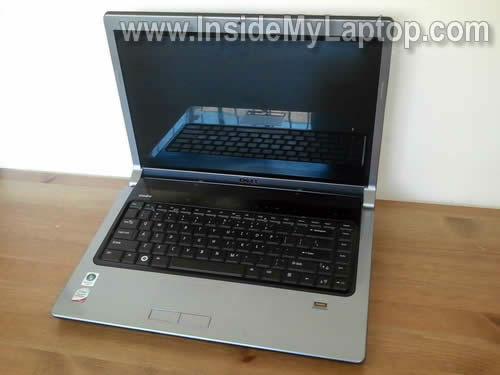
In this guide I explain how to take apart a Dell Studio 1537 laptop.
I think this guide might work for all models in the Dell Studio 15 line. If it works for you, please mention the model number in comments after this post.
I will cover the following disassembly steps:
1. Removing the memory and hard drive. Steps 1-7.
2. Remove the fan assembly which includes the cooling fan and heatsink. Steps 8-12.
3. Cleaning the heatsink assembly and and taking apart the cooling fan. Step 13-14.
4. Removing and replacing the keyboard. Steps 15-21.
Before you start, make sure the computer is turned off.
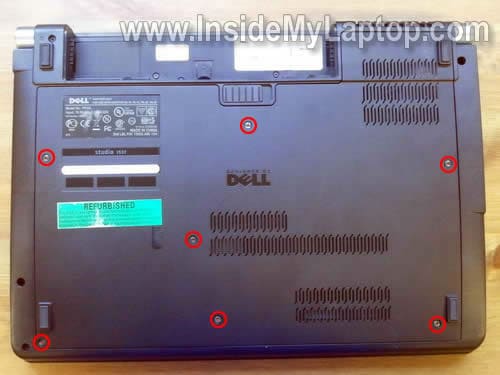
STEP 1.
Remove seven screws securing the bottom cover.
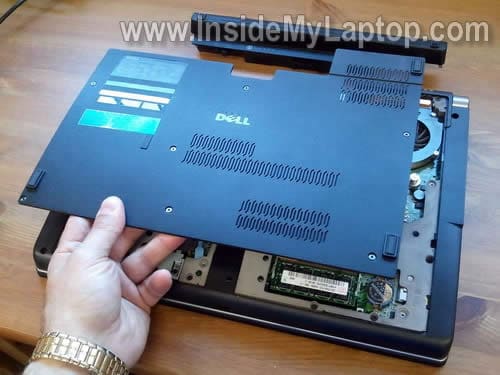
STEP 2.
Lift up and remove the bottom cover.
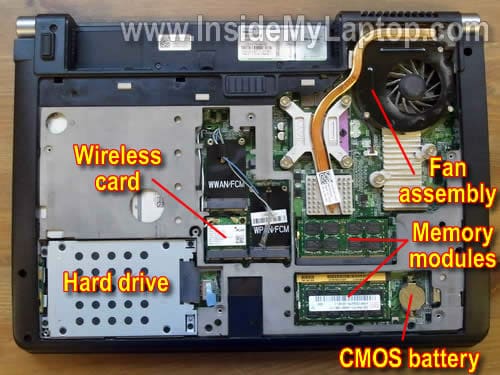
When the bottom cover is removed you can access the hard drive, wireless card, both memory modules, CMOS battery and fan assembly.
STEP 3.
Remove four screws securing the hard drive.
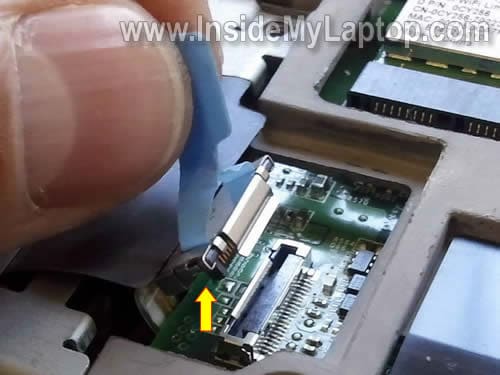
Disconnect the hard drive cable from the motherboard.
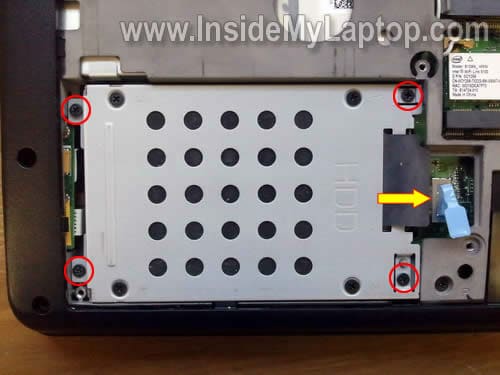
In order to disconnect the hard drive cable, simply lift it up by the blue tab.
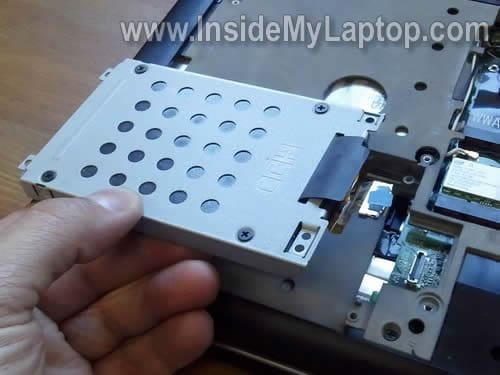
STEP 4.
Remove the hard drive assembly.
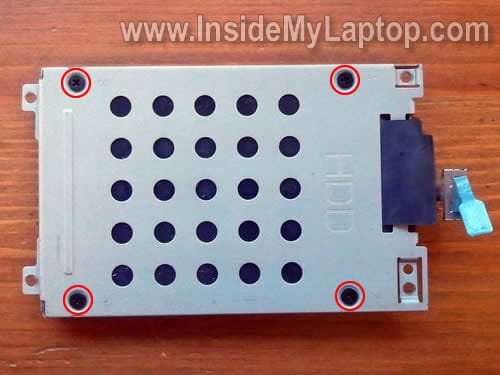
STEP 5.
Remove four screws securing the hard drive to caddy.
STEP 6.
Disconnect the hard drive cable.
Now you can replace the drive with a new one if needed. It’s a regular 2.5″ SATA HDD.
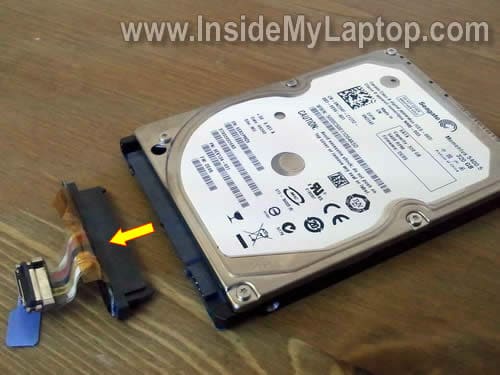
STEP 7.
Both memory modules located under the same bottom cover.
In order to remove the memory module, spread latches on both sides of the slot and after the memory module pops up at a 30 degree angle pull it from the slot by the edges.
Dell Studio 1537 can take up to 8GB RAM total. You can install up to 4GB RAM module into each slot.
You should use DDR2 PC2-6400 SODIMM memory modules.
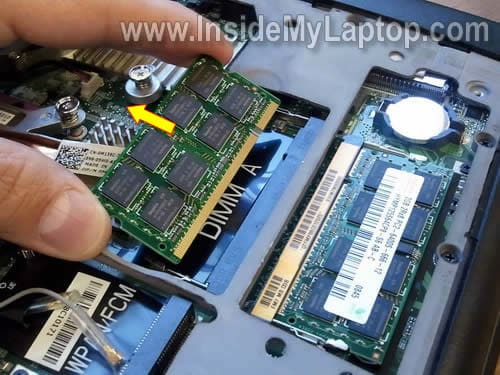
STEP 8.
Loosen four (red) screws securing the heatsink.
Remove one (yellow) screw securing the cooling fan.
Disconnect the cooling fan cable from the motherboard.
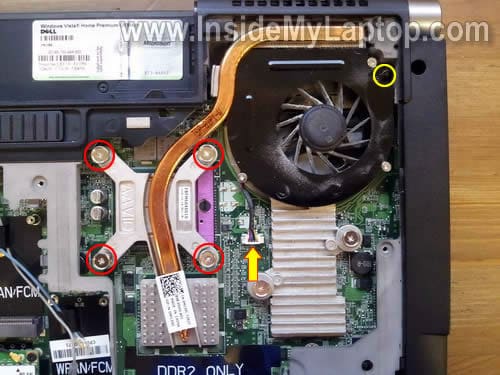
STEP 9.
Carefully lift up the cooling fan assembly and separate it from chips on the motherboard.
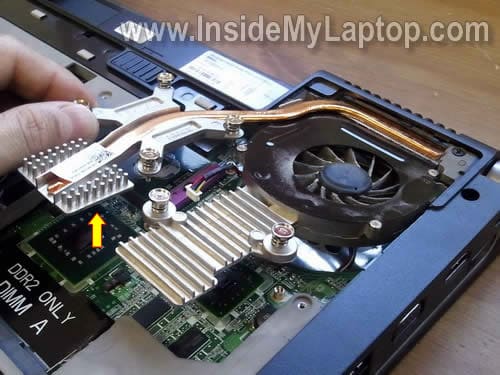
STEP 10.
Remove the fan assembly.
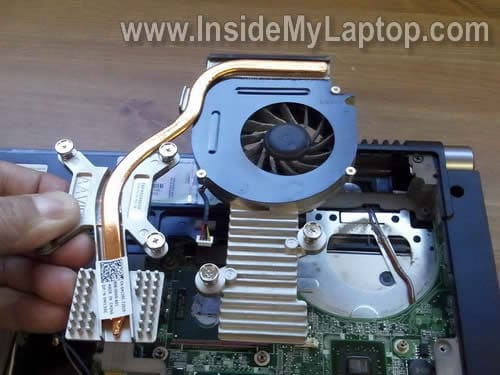
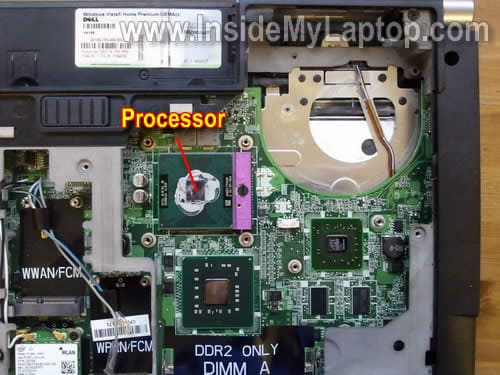
If thermal grease on the processor looks dried out, you can clean it up with a paper towel soaked in alcohol and apply new thermal grease.
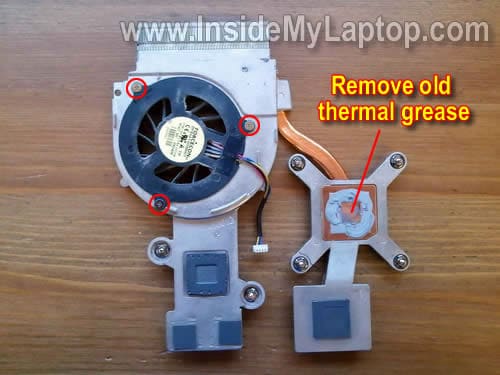
STEP 11.
Remove three screws securing cooling fan to the heatsink.
Remove old thermal grease from the heatsink if needed.
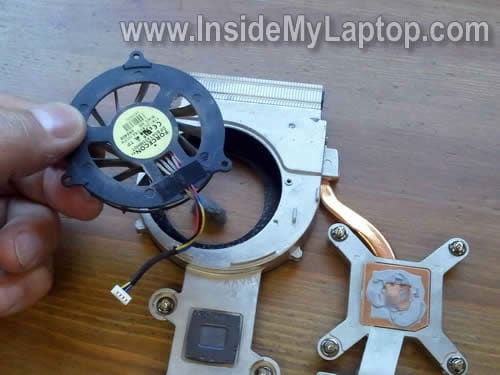
STEP 12.
Separate cooling fan from the heatsink assembly.
You can see it’s possible to replace just the cooling fan without replacing the whole fan assembly.
STEP 13.
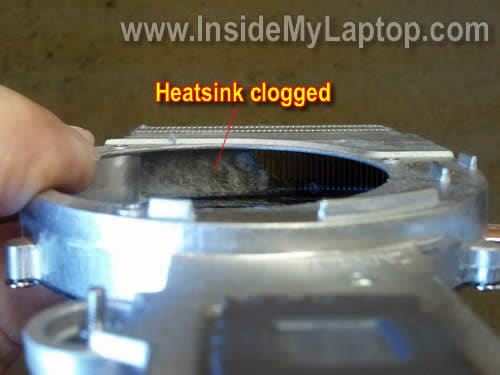
When the cooling fan removed you can take a closer look inside the heatsink.
In my case the heatsink was clogged with dust. My customer complained that his Dell shuts down while running games and now I know why.
The laptop was shutting down because of overheating. Cleaning the heatsink will fix this problem.
STEP 14.
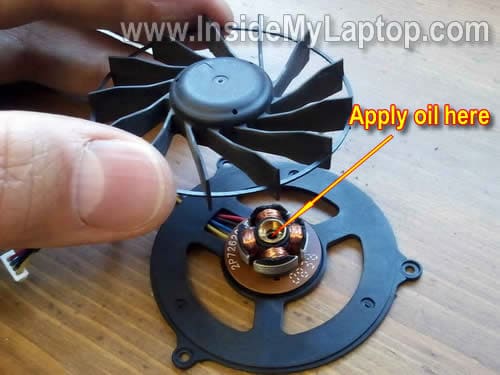
If your cooling fan makes noise, you can take it apart and apply a small drop of multi-purpose oil.
This might help to fix the fan noise. If not, you’ll have to replace the fan.
In the following steps I’ll show how to remove the keyboard.
If you just replacing the keyboard, it’s not necessary to go though all previous steps.
STEP 15.
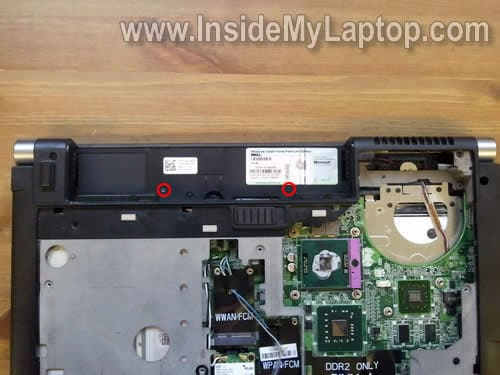
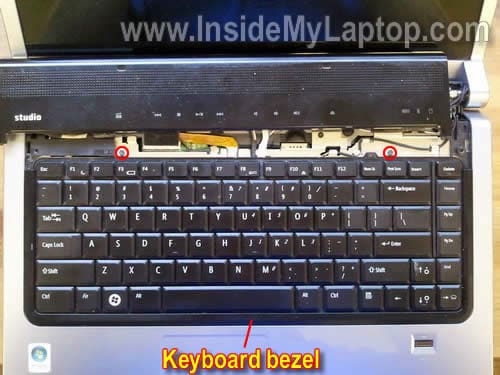
Remove two screws securing the keyboard.
STEP 16.
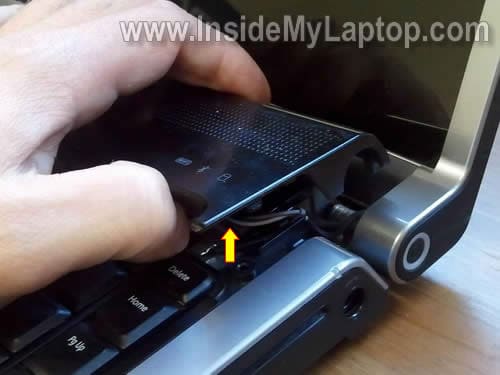
Lift up the switch board cover.
Be careful, the switch board still connected to the motherboard.
Ideally, you have to remove the cover without disconnecting the cable.
STEP 17.
Remove two screws securing the keyboard.
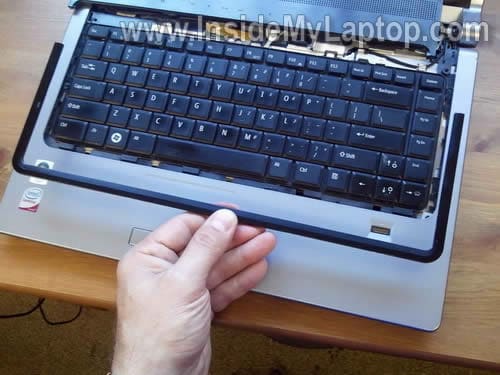
Carefully remove the keyboard bezel.
The keyboard bezel removed.
STEP 18.
Lift up the keyboard and place it upside down on the palm rest.
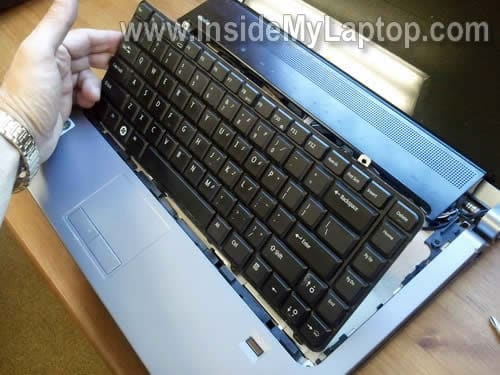
Now you can access two keyboard cables connected to the motherboard.
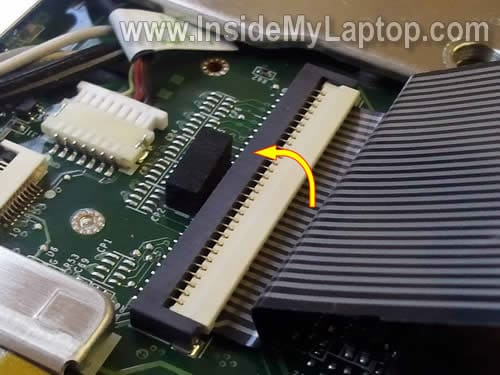
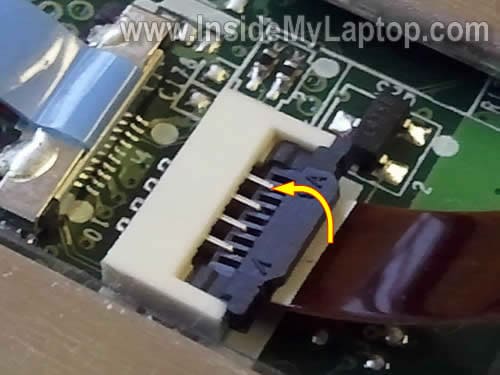
In order to remove the keyboard you’ll have to unlock both connectors and release both cables.
We’ll start with the wide cable.
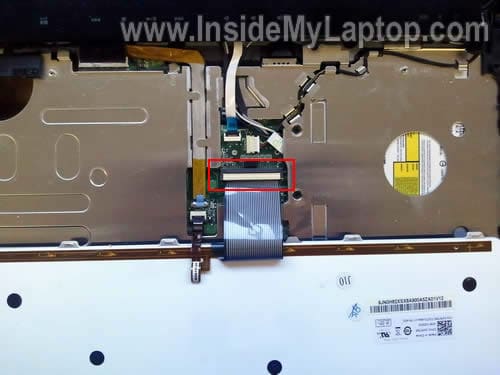
STEP 19.
On the following picture the big connector shown in the locked position.
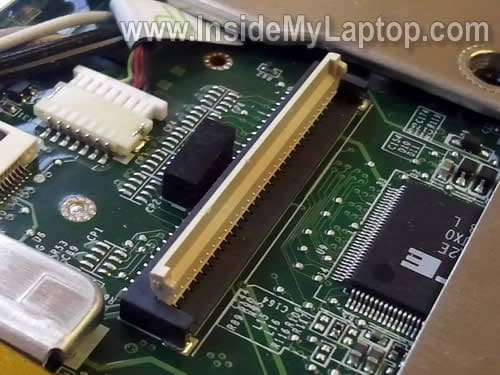
The white lock opens at a 90 degree angle.
On the following picture the connector is shown in the unlocked position (the keyboard cable already removed).
STEP 20.
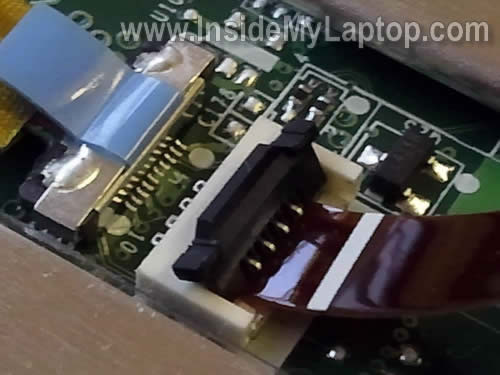
The small connector opens up exactly the same way.
On the following picture the small connector shown in the unlocked position. Now you can pull the cable.
STEP 21.
After both connectors unlocked and cables released, you can remove the keyboard and replace it with a new on if needed.
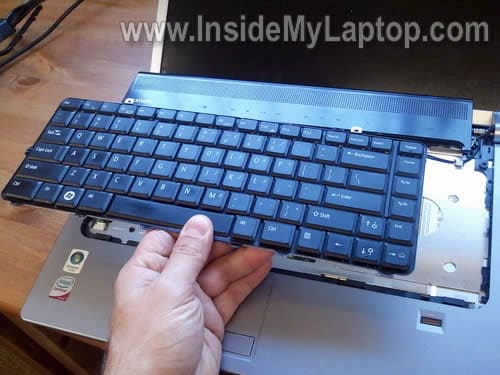
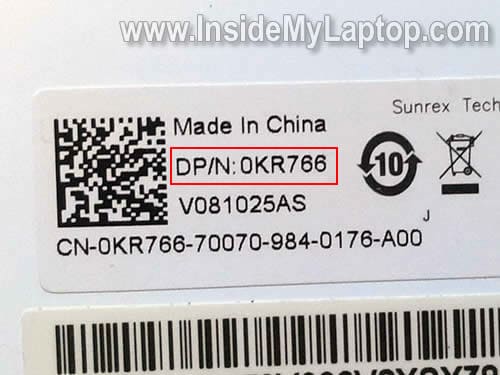
Alternatively you can search for a new keyboard by the Dell part number.
In my case the keyboard part number is 0KR766.
rhenzhen
Nice instruction. Though i have a question to ask. How to replace the touch pad of this Studio? I have Dell Studio and the Left button suddenly stopped working, right button is working fine and the touchpad itself… I re-factory install install it again and still not working. Any help? Thanks!
IML Tech
rhenzhen,
Most likely this button is a part of the palmrest/touchpad assembly.
You’ll have to remove the palmrest assembly and take a closer look at the bottom.
Here’s Dell Studio 1535/1536/1537 Service Manual.
The manual explains how to remove the palmrest/touchpad assembly.
mike
the power button to my studio 1537 detached from some tiny wires. Not sure how to replace, if i am able to find a power button part, which steps should i take to open the laptop?
IML Tech
mike,
Take a look at this service manual for Dell Studio 1537 laptop. It has step by step disassembly instructions.
amit persaud
Great website with great guide! its been very helpful – ever more helpful than the service manual.
Kudos!
Ricardo
Verry nice tutorial, this is as good as they get.
The removal of the LCD is tricky, I fixed the video cable but broke the INTERTER or LCD flat cable, which resulted in buying a new LCD.
The trick as I recal is in carefully disconect two cables a large grey flat cable and a smaller one that can go unoticed that is in the middle of the screen.
Greetings
zack mccolskey
i need help removeing the cd/ dvd rom out of my dell studio 1537
IML Tech
zack mccolskey,
It’s necessary to remove the top cover assembly (palmrest assembly) in order to remove the optical drive.
Follow disassembly instructions in this service manual for Dell Studio 1537 laptops.
rejin
Hi,
My Dell Studio 1537 laptop have MB issue. The indicator on the CHARGER goes off, when i connect it to my laptop(like a short circuit).
I could not try to run the laptop on Battery, because by battery is already drained off.
Can i get the MB serviced or should i get it replaced..???
I am out of warranty. 🙁
timbo
i am in afgan and i dropped my Dell Sudio 1537 laptop were the power button connects. The 3 wires ( red, brown, black ) broke lose from the little board, can you tell me in what order the wires go on the board ?
thanks
Dubois
How change inverter studio dell 1737 ? I have a problem with this inverter. Thanks for response.
IML Tech
Dubois,
The inverter board located inside the display panel but… in order to disassemble the display you’ll have to remove it from the laptop first.
The inverter board mounted below the LCD screen, take a look at this picture.
You’ll find step by step disassembly instructions for Dell Studio 1735/1737 here.
ashley
i have a cracked Studio screen and I want to replace it myself.. are these tricky? all the vids are on laptops with visible screws
IML Tech
ashely,
No, it’s not tricky. It’s same like removing LCD screen on most other laptops, just no screw on the bezel.
What model you have?
Benny Rios
Thanks a lot , Guy’s you instruction are helping me a lot, Im been Learning, God bless you, keep on help people to fix their self computer , saving money , best regards Benny 2011
Olof
Thanks for an excellent guide and a great site. Really appreciated.
Apator4225
Thank’s for the great step by step tutorial. I have a Dell Studio 1537 video inverter question. My screen went black one day. After a few tests i realized my video inverter was broken. I just received a new one in the mail. For some reason I’m having a problem locking the cable inside the video inverter connection. After I insert the cable and lock it, i pull on the cable slightly to make sure it’s secure but it always comes out with ease. Is there a trick to this or am i just doing something wrong. Thank you for your help in advance.
elena encinias
daughter spilled tea on laptop. i immediately turned off,unplugged turned upside down and wiped it up as best i could. let it dry overnight and turned on this morning it turns on but stays on dell loading page. so the above instructions to take apart will work to clean the inside of it or would more disasembly be needed to clean it right?
Mongia
Nice work this was very helpful. keep it up
Vita
Hi,
My CD DVD drive (this model) does not work. It ejects discs right away. I suspect that my toddler might have inserted something there, or it just needs cleaning. Could you, please, post how to get inside the slot drive? Thanks a lot!
sam k
Thank you for this great tutorial but i replaced the keyboard and the back-lit won’t work anymore. keyboard doesn’t lit up anymore and yes the keyboard is back lit keyboard. any idea? Thank you
morag
Hi there, I have a query regarding the mouse pad on my dell studio laptop. I spilt a drink which seeped into the two buttons. I turned the laptop upside down and tried to remove the liquid with a pice of tissue as best I could but now both buttons at the bottom of the mouse pad do not work. Is there a way of removing the buttons or keyboard in order to clean the area and resolve the issue?
aditya jadhav
i have a laptop of dell studio 1537, the problem is that my LCD light get flickering when i open my laptop i have to see that i open at degree may be around at 30/40* then it get start for a while then again if i touch the screen again it goes off & turns black without changing the inner content then again i have to put in sleep mode then start at right angle so that it does not flicker & my screen don”t go off (black),so any one of you have a solution for this,instead of giving to the dell Tech…hopefully i think u might got the point what i mean too & secondly another problem is that my dvd/rw is not working properly if i insert disc then the disc get stuck in it & does not even read & eject it out….i m really in the mood to fix this problem plz anyone of u can help it out to me:)
stewart
hi i have same problem as this guy
i have a laptop of dell studio 1537, the problem is that my LCD light get flickering when i open my laptop i have to see that i open at degree may be around at 30/40* then it get start for a while then again if i touch the screen again it goes off & turns black without changing the inner content then again i have to put in sleep mode then start at right angle so that it does not flicker & my screen donâ€t go off (black),so any one of you have a solution for this,instead of giving to the dell Tech…hopefully i think u might got the point what i mean too & secondly another problem is that my dvd/rw is not working properly if i insert disc then the disc get stuck in it & does not even read & eject it out….i m really in the mood to fix this problem plz anyone of u can help it out to me:)
have we a solution
KT
Just want to say that a couple of my keys stopped working on my Dell laptop. After uninstalling and reinstalling the keyboard driver I realized that maybe my keyboard was damaged. So I took the advice from this website. Ordered a new keyboard from Amazon.com, followed the instructions for removing the old keyboard and replacing it with the new keyboard. I am proud to say that everything is working again.
john
I have a Dell Studio 1550 and when I open the screen or while lifting when it tilts there is sound of tiny bits falling or sliding. Also when this happens there are tiny sparks and smoke coming from what i believe is a heatsink. Could you please tell me what could be the reason?
My laptop is no more under warranty.
Just wantd to let you knw of damage in the past –
Long time back the outer plastic on the hinge of the power button cracked (like in step 16 pic). For last 2 years there was no problem and I dont think it is the coz of the problem.
IML Tech
@ john,
I have no idea. Maybe falling screws shorting the motherboard? Just a guess.
john vermeeren
we have a dell studio 1550.
I have problems with the on /of switch.
Is it easy to be replaced? open complete laptop?
which dell part would it be?
IML Tech
@ john vermeeren,
The on/off switch located on the right side of the display panel. Correct?
In order to access the power switch board you’ll have to disassemble the display panel. After that take a closer look to find out which part is broken. Is it the power button itself or the plastic cover?
Here’s service manual for Dell Studio 1555. I hope it’s similar to 1550.
Click on the Power Button Board link to see how the on/off switch mounted inside the display.
marcos
i have a problem with pawer botton it disolded then now i dont know what the coorrect order
of the 3 wires and the left hand there is the wifi botton and i have the same problem
but there are 4 wires could you help me what is the correct order
IML Tech
@ marcos,
I don’t have this laptop anymore and cannot tell you the order.
By the way, the power button/wireless button cable is relatively inexpensive.
Simone
My little cousin got a coin stuck in my cd slot of my 1537 and now my laptop has a virus, but when I try to put my reinstalling cd in it the slot ejects the cd because the coin is in there… How do u take aprlart the cd rom part
IML Tech
@ Simone,
Here’s official Dell Studio 1537 service manual.
The manual has instructions for removing the optical drive. I think you should be able to remove the coin if you remove the cover from the optical drive.
Bryan Goth
Hi,
Great instructions. My issue is that I have a faulty magnetic lid switch on my Dell Studio 1555 laptop. The switch gets stuck in the off position after the laptop is turned off. When I turn the laptop on, the screen usually won’t come on unless I hit the mouse pad area several times before turning it on.
Do you have instructions on how to replace the magnetic lid switch?
Thanks!
Bryan
Roy Machin
the battery on my studio will not charge (new charger and battery). it tells me it does not reconize
battery or charger although both are Dell. How do I get in to check problem.
Thanks, Roy
IML Tech
@ Roy Machin,
If the laptop doesn’t charge a brand new battery with brand new AC adapter, most likely this is motherboard related failure. The battery charging circuit integrated into the motherboard and the battery connected directly to the motherboard. There is not much you can do about it besides replacing the entire motherboard.
Also, there is a chance of the DC jack failure. Maybe the jack is broken and has to be replaced.
Here’s Dell Studio 1537 service manual.
I don’t remember off the top of my head, but I believe you’ll have to disassemble the whole laptop in order to access the DC jack harness. The service manual has complete laptop disassembly instructions.
New DC jack is available on eBay.
Again. If the laptop doesn’t recognize the battery, most likely this is the motherboard related failure.
Roy Machin
Thanks for info. Will give it a try for someting to do. let you know how I get on. Will use it or bin it.
Thanks. Roy
Paul Calf
IML Tech/ Roy
I have the same problem with the computer saying it doesn’t recognise the ac adapter. The computer works but won’t charge the battery. Previously If I moved the cable it would eventually charge the battery, but now that has even stopped working.
What colour wire on the power switch is responsible for charging the battery, I assume it has come lose? I managed to remove the tape covering all the wires from the power switch, but it was very hard to check if any had come loose. Please help. Roy please let me know how you got on.
Thanks
Paul
IML Tech
@ Paul Calf,
This could be one of the following:
1. AC adapter failed. It’s possible there is a short somewhere inside the AC adapter cable and it’s not working because of that.
2. DC jack failed. Buy a new DC jack harness and replace it.
Fran
Thanks for this useful how-to. As a newbie I have a few questions.
The screws on the cooling fan assembly are numbered. They indicate the proper order *when disassembling* (1 to 6), don’t they? And *when reassembling*, same order or reverse order (6 to 1)?
My 1537 is 3 and ½ years old. I will apply some new thermal paste on the CPU. Is it also recommended to replace the thermal pad on the GPU with a new one, or any other action I could take for an optimal cooling of the GPU?
Thanks
Tony
Hello, I have a dell studio 1537. My problem is that it’s stuck on sleep mode. I turn it on and it sound like is on but the screen won’t turn on and it won’t boot. Also the lights that let you know it’s thinking (on the right hand side) don’t flash or anything… Please help me.
Robert
Time to take apart my studio.
It’s five years old. Never been cleaned and the Wireless is stuck in the off position.
Make or break. Kinda hope I break it.
Robert
Computer is now silent and with wireless working again.
Winner
Manish
Hey,
Thanks for your post. It helped me lot. My Studio 1537 laptop was shutting down because of overheating. DELL guys says it will take 3-4 working to diagnose the problem.
I read your post and managed to clean the heatsink and problem resolved.
– Manish
Glenn
I have a studio 1537. The screen functions properly but none of the keys on the keyboard respond. The two rectangular buttons below the space bar function properly. Basically, none of the keys on the keyboard are functioning. Could it be the ribbon cable connection? If it is how do I check it and if not what else could it be?
IML Tech
@ Glenn,
First, try using the keyboard before Windows OS loads. Turn on the laptop and press of some of the functions keys (Esc, F1, F12) as soon as Dell logo appears on the screen. These keys should take you to BIOS setup menu, boot menu. Do they work?
Try reconnecting the keyboard cable as it shown in the step 15-20. Unplug the keyboard cable from the connector and plug it back in. Lock the cable and test the laptop. If the keyboard still doesn’t work, try replacing it with a new one.
Gene
The area to the left of the mouse pad is very hot, thought about getting a new computer because of it, suggestions? Studio xps 15
sandeep
I opened my studio to clean the heat sink.. while the thermal grease was dry just on the chip which I believe is for the graphics (it had ‘ATI’ written on it) the other spot looked wet enough..
I cleaned the fan, and re-assembled it.. the laptop however doesn’t turn on now.. the volume bottoms in the touch area keep blinking.. and I also don’t feel the fan is turning anymore..
Please help..
IML Tech
@ sandeep,
Check out RAM modules and make sure they are seated correctly. Just in case, reseat both memory modules.
If reseating RAM doesn’t help, there is a chance you pulled the CPU out of the socket while removing the heat sink.
In this case, you’ll have to reseat the CPU. Remove the heat sink, unlock the CPU socket, reseat the CPU and test the laptop.
john
I have the Studio 1537 and when I try to turn it on it goes to the Dell logo screen, but I can hear my hard drive getting stuck and not booting up so it just goes to a black screen with a blinking cursor. I am pretty certain that I have to replace the hard drive, but am in Afghanistan and would like another opinion. Thanks
IML Tech
@ john,
If the hard drive failed you don’t have lots of options available.
First of all, if you have any important data saved on the hard drive you should remove it from the laptop.
Later, when you have time and resources you can try to recover data.
Here’s what you can do to make it work for now. You’ll need another working computer with an optical drive for that.
Download Ubuntu OS.
Burn this image on a DVD.
Boot your laptop from this DVD. Alternatively, you can install Ubuntu OS on a USB flash drive.
Ubuntu OS offers LAN and Wi-Fi support, internet browser, music player, video player, etc…
Without removing failed HDD from the laptop it might not boot properly from USB flash drive or DVD.
Ramu
i have a studio 1537. when i press the power on button display will not be on. i attached the additional monitor to the laptop, it shows no signal. i think display ic complaint. cpu is working. how to find out the problem and how to solve the problem. please help me.
IML Tech
@ Ramu,
Try removing RAM modules one by one. Test the laptop with each module separately.
There is a chance it’s just a failed RAM module.
Dominique
Hi
I want know how to replace c-mos battery???? Also, I want bypass my password in the bios. Anyone can help me about the password???? Thank you
Dominique (I have Dell studio 1537)
Alvaro Ramirez
Have dell Studio 1735, when I turned on, beeps and then turned off, was told to replace mobo, bought one on Amazon, installed and still doing the same, do not boot, any help will be deeply apreciated.
Dirk
Good instructions on this site nice and easy to understand.
I have a problem with my dell studio 1737. A few months back I lent my laptop to a friend and got it back with a few grey lines showing on the bottom of the screen. It was still readable so I figured the lcd needed to be replaced. A few days later the laptop stopped charging. As I am in the Philippines Dell tech support is virtually non existant. Anyway I took it to a tech in Manila and he said he couldnt fix it. I got the laptop back still not charging and now the screen is totally blank. I am stumped. Not sure if its a motherboard issue or the charging module. I cant turn in on at all ?
IML Tech
@ Dirk,
It’s hard to tell what is causing the problem without testing the laptop with another working AC adapter.
It’s possible you have two different problems – failing screen and failed adapter.
Here’s what I would do:
1. Test the AC adapter with a voltmeter. If it’s dead, replace the adapter.
2. If the laptop doesn’t charge with a new AC adapter, try replacing the DC jack board. I see this part selling on US eBay for $3.59 with free shipping.
3. If the laptop still doesn’t charge even after replacing the DC jack board, most likely this is motherboard related failure.
Ujjal
can you please suggest me on this : i have laptop screen 15.4″ in dell inspron 6400 model can i fix the same screen on Dell studio 1535 laptop ??
Pls suggest…..waiting for your valuable suggestion.