

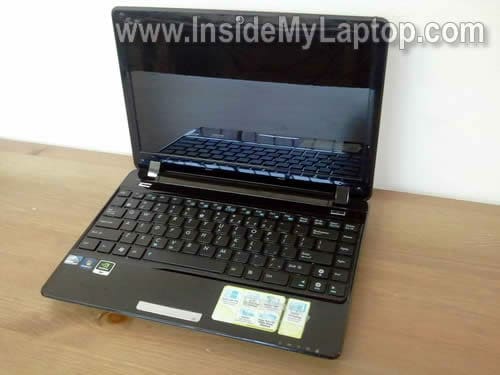
In this guide I’ll be taking apart a Asus Eee PC 1201n netbook. I will show how to remove both memory modules, keyboard, top cover, hard drive, cooling fan and CMOS battery.
Most likely this guide will work for other Asus Eee 12XX models. If it works for you, please mention the model number in comments after this post.
Make sure the laptop is turned off.
STEP 1.
Remove the battery.
Remove two screws securing the memory (RAM) cover and remove the cover.

STEP 2.
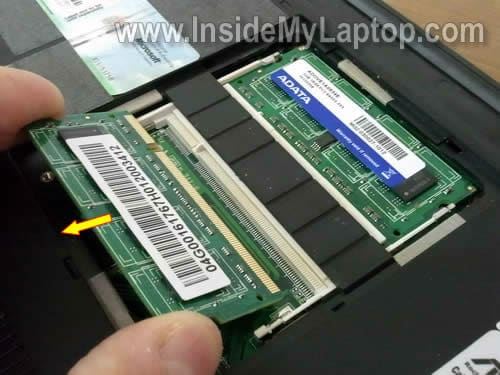
Both memory modules can be easily accessed through the door on the bottom.
Spread plastic latches on both sides of the memory slot until the memory module pops up at a 30 degree angle. After that carefully pull memory module from the slot by the edges.
In the following 7 steps I’ll be removing the keyboard.
STEP 3.
The keyboard secured by four latches on the top.

STEP 4.
Press on the latch with a sharp object and at the same time pull the keyboard a little bit up.
Do the same with remaining three latches.

STEP 5.
After all four latches are released, you can lift up the keyboard.

STEP 6.
Be careful, the keyboard attached to the motherboard with a flat ribbon cable.
Before you can remove the keyboard, you have to unlock the connector and release the cable.

STEP 7.
In order to unlock the keyboard connector, move the brown clip about 2-3 millimeters towards the display.
The brown clip must stat attached to the white base.
On the following picture the connector shown in the unlocked position.

STEP 8.
After the connector unlocked, you can release the cable and remove the keyboard.
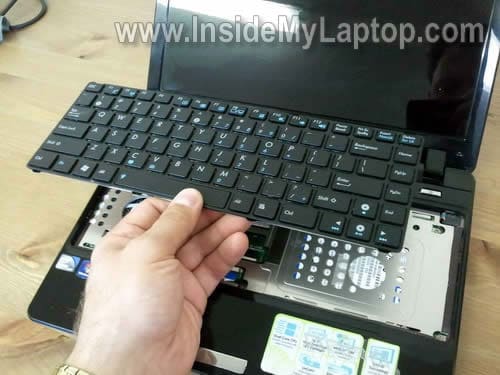
You’ll find a few keyboard part numbers on the sticker. I’m not sure which one is the official Asus part number, but you can search on google for all of them.
I think one of these part numbers will lead you to the replacement keyboard.

In the following 5 steps I will show how to remove the top cover.
STEP 9.
Remove all screws from the bottom of the netbook.

STEP 10.
Remove all screws securing the top cover assembly.
Disconnect the touch pad cable.

STEP 11.
You unlock the touch pad connector same way you unlocked the keyboard connector.

STEP 12.
Start separating the top cover assembly from the netbook base. You can use a piece of soft plastic to separate the top cover. I’m using the guitar pick.

STEP 13.
Remove the top cover assembly.

STEP 14.
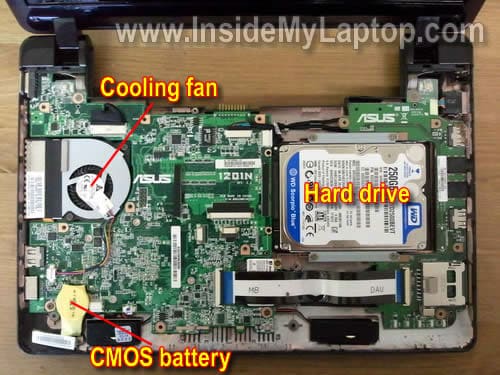
After you remove the top cover assembly, you can access the hard drive, cooling fan and CMOS battery.
STEP 15.
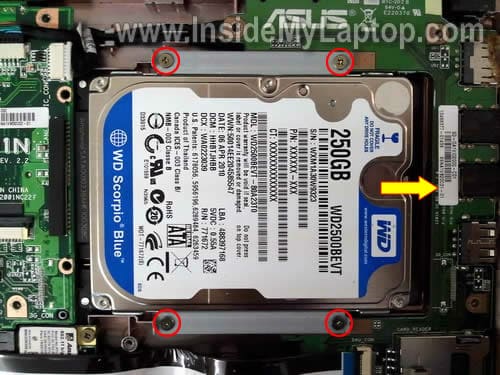
Remove four screws securing the hard drive assembly.
Slide the hard drive assembly to right to disconnect it from the motherboard.
Lift up and remove the hard drive.
As you see, it’s a regular 2.5″ SATA hard drive for notebooks.
STEP 16.
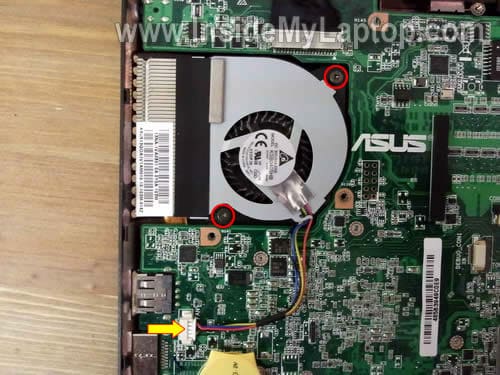
In order to remove the cooling fan, you’ll have to remove two screws and disconnect one cable from the motherboard.
After that the cooling fan is ready for the removal and replacement.
In the following guide I explain how to remove and replaced LED-backligt screen in Asus Eee PC 1201n netbook.
Nati
Your site is amazing, you are helping me a lot every time
Thank you
Mike
Very clear guide, but I have read somewhere that you should not remove the 4 screws underneath at the battery end because they do not secure the top cover or keyboard.
vlanch
thanks a lot sir! its a big help….
ratnasambhava
This guide was very helpful, but is there any chance you’ll do a guide that goes more in depth, like how to repair/replace a damaged power jack on a 1201n? I’m having a bit of an issue finding any relevant info about a process like that.
IML Tech
ratnasambhava,
Take a look at this YouTube video about taking apart an Asus Eee PC1201n laptop.
Martin Goldberg
Your site was very helpful. My ASUS screen is okay, but the wire connecting it to the PC seems to have frayed and now the screen only works at a limited range of angles. I will try to replace the cable using your guide to disassembling the PC.
IML Tech
Martin Goldberg,
First, try reseating the cable. Maybe it’s just loose connection.
If it doesn’t help, replace the cable.
PPQ
pls anyone knows where to get new/used motherboard for my 1201ha ? 🙁
Jerome
this has been incredibly helpful. I am in the midst of doing a tablet conversion with the Asus 1201N and this has been really useful for me. If you have a couple of photos of the motherboards taken out of the casing that would really help me out a lot.
Frank
Great site! Any chance u know where I can get a motherboard for the 1201N? Can you see a part number on the board? Also do you have an article on how to remove and replace the motherboard?
Thks again!
cosmin
million of thanks…its the first time when i opened a laptop…my neighbour asked for my help…and this post made me to try …and finish in best way…great job …tyvm
doron
WOW !!
Thanks a lot, i was sitting fascinated infront of this guie/howto.
now i fill safer, that in case that something is wrong with my netbook i’ll be able to fix it by myself (at least upgrade hard drive… and not pay thousands of money )
really thanks.
it’s great job and service to the people.
doron
israel
Dzonis
thanks indeed! this guide helped quite a lot.
Marko
GREAT GUIDE! THANK YOU!
Asad
Sir, Can you please post how to take apart the Asus eee pc
1201T ? I need to replace the fan. It’s construction is a bit different from the 1201n. Many thanks.
jose
Hi! i followed this manual to take apart my notebook (there is a problem with the dc jack, and when ytried to start again the blue lights of the on/off button turns on, but no fan/ nor screen is turned on!!!!
know how to fix it??
regards
jose
Susan
I need to fix jack only. What is the minimum I have to dismantle to do this? thanks
IML Tech
@ Susan,
The power jack? You’ll have to disassemble the laptop completely and remove the motherboard.
The DC power jack soldered to the motherboard.
ERROL BLAKE
Thanks. I need to change to motherboard of my 1201N. Where do I access Model No of the board, and can I purchase it from Amazon
IML Tech
@ ERROL BLAKE,
Normally the part number printed somewhere on the motherboard.
Look for a sticker in the memory compartment. If it’s not there, probably the sticker is somewhere under the keyboard or even top cover assembly.
I found one used motherboard on eBay for $200. Didn’t find any on Amazon.
Is this laptop really worth replacing the motherboard?
wesley
hi i have a problem with my 1201N
everything is fine when the battery is connected and is connected to the ac source
but if i remove the battery and use only power from AC i get intermittent shut downs even when in the bios post
this also happens if i only use the power coming from the battery.
IML Tech
@ wesley,
I don’t think this is heat related issue because the laptop works fine (as you said) when connected to both power sources.
I don’t think this is DC jack related issue because the same problem happens when the laptop runs only on the battery power.
I think this could be motherboard related failure but I cannot tell what exactly is failing.
Darren
Only the very first photo is visible… the rest are red “X” in a box. Can you please fix it? I could really use this information! Thanks.
Darren
Gah! Nevermind… the original link gave me a plain text version of this page, but after posting a comment, it reloaded the HTML version. Thanks.
edward
how do i reattach the touchpad and make it.functional again? my asus dropped…and the whole piece with the touchpad came off. any ideas? thanks
wesley
@IML Tech,
sorry for the late reply, yes i think its not heat related too.. i think its the motherboard? do you have any idea what part?? is there something like a battery sensor? cause sometimes it cant detect the battery, sometimes it detects it but not charging.. i know the battery is good, cause when you run it in battery it says 3 hrs plus and then it will shut down after few minutes
skisgirl
my asus eee pc 1201N PU17 SL screen cracked while the netbook was running. There was no way to view the screen, obviously. So, turned off and took to pc repair to replace the screen. They were unable to obtain the correct screen, for some time, but then supposedly did and stated that the pc wouldn’t operate. Stated that it is possible the the motherboard was damaged because the screen was damaged while it was turned on. is this potentially the case, or is there something they were overlooking? or, were they just stupid? or, if they were correct, is it worthwhile to replace the mainboard/motherboard? the darn thing is brand new, hardly got to use it, and stupidly broke the screen (long and very stupid story) and just hate to chock this up to a loss if I can repair this on my own. so far, with your instructions, i can easily replace the screen, but not sure what else to do. i would be grateful for any ideas. i am a do-it-yourself type person, so it is not beyond me to attempt to repair this, but not sure if i was correctly informed to begin with. thank you for your consideration.
IML Tech
@ skisgirl,
I don’t think you can damage the motherboard this way.
Probably not unless you can find a cheap replacement motherboard.
What’s going on with the laptop? Is it turning on at all?
simon
how do i fix my keyboard the backspace key is not responding…rply plz
IML Tech
@ simon,
If only one key failed and all other keyboard keys are working properly, most likely this is failed keyboard.
You cannot fix the failed key. You’ll have to replace the entire keyboard.
JAKi
Hello, thx for tutorial, but i have problem with my Asus EEE 1001HA netbook, battery is under the motherboard so i can’t reach it. There is pic: http://i49.tinypic.com/1z3qm12.jpg. I guess its this black&red cable(look pic.: http://i48.tinypic.com/2ziplci.jpg). Last night i unplugged it and today i tried to plugin and turn on my netbook, but same thing is happening only bios screen showing and freezed there. I don’t know what else to do to restart my bios…? Tyvm
Milan
Hello,thank you for the tutorial.
I am interested in audio before it becomes digital for hdmi exit.Whould you know these points,please?
regards,
Milan
shay
step 16 – removing the fan is not detailed. i got here and then discovered that the fan is still stuck, and also the cable won’t disconnect.
can you elaborate?
Brian
Hi,
Does anyone know if ASUS will be able to fix these two problems I have on my 1201N netbook. I didn’t feel like calling a waiting on hold, so I asked here. 🙂
1. The socket (hole where you plug in the charger) on the side of the netbook is really bad, meaning the adapter doesn’t fit anymore, the plug basically just hangs in the hole, I have to put my alarm clock on the plug positioned in such a way that holds it in place, other wise it will just fall out. I don’t think it’s the adapter itself, but I did replace it from a different company not asus (forgot which one) and it was not a snug fit at all, even when I first tried it.
2. I am also missing two keys on the keyboard, the B and X keys are missing, but ALL keys DO WORK, they are just missing.
Thanks in advance!
Brian
raven
HELP PLEASE….I am in URGENT list of type & size and quantity of Eee Pc 1201 series.
Was in the middle of something when I had to move and I can’t find screws any where.
got lot’s of boxes unpackes though…………………LOL
Thanks eveer so much for reply ASAP.
Raven
raven
I need the SCREWS for the Eee PC 1201 Series to reasemble it.
I wish I had access to this wonderful site when I took the unit apart.
Raven
sean collins
after I took the hard drive out and put a new one in for the eec pc and put it back together it just had the same error the error is
reboot and select proper boot device or insert boot media in selected boot device and press a key
roxo
Thanks for showing detailed procedure – wow……….. it helps a lot………
DaveP
Brilliant instruction manual.
Very good step by step imstructions, with photographs, to do virtually anything one is likely to do.
I wish all instruction manuals were like this.