


In this post I explain how to take apart an Acer Aspire One netbook.
In this particular guide I’m taking apart an Acer Aspire One A0751h netbook (Also says Model No. ZA3 on the bottom).
I don’t know if all Acer Aspire One netbooks are similar but I think this guide should work for a few different models. If the guide works for your netbook, please mention the model number in comments after the post.
First of all, make sure the netbook is turned off and battery removed.
STEP 1.
I’ll start taking it apart with removing the keyboard.
The keyboard is secured on the top with four spring loaded latches.
I pointed to these latches with yellow arrows.

Push on each latch with a sharp object.
When you push on the latch, the keyboard lifts up a little bit and the latch remains in the pushed position.
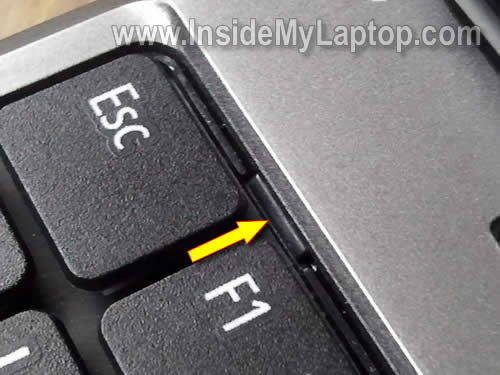
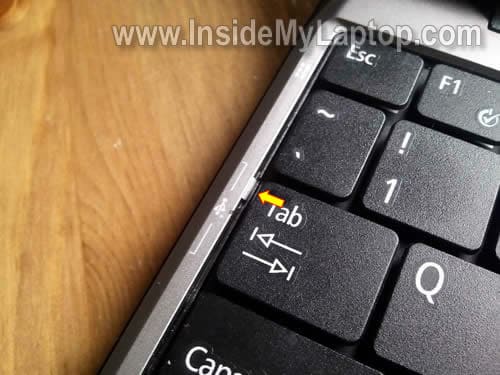
There are two more plastick latches on the left and right sides of the keyboard.
These two latches do not move, they are part of the top cover assembly.
STEP 2.
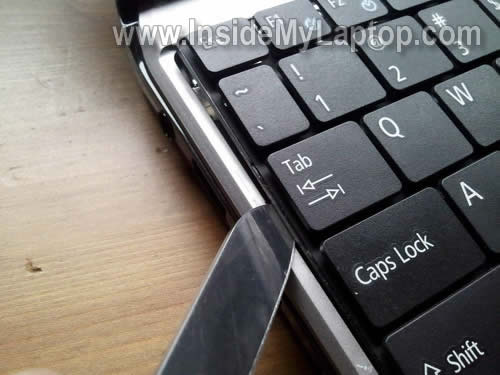
Insert a thin object (I’m using a knife blade) between the left side of the keyboard and top cover and carefully lift it up.
I assume that four spring loaded latches on the top of the keyboard still pushed in.
STEP 3.
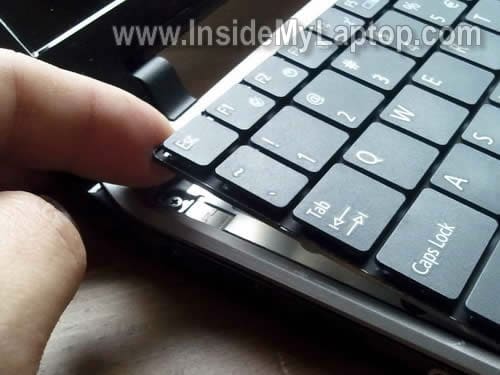
After the left side of the keyboard lifted up, you can continue removing it with your fingers.
STEP 4.
Lift up the keyboard and place it upside down on the palm rest.
Be careful, the keyboard still attached to the motherboard.
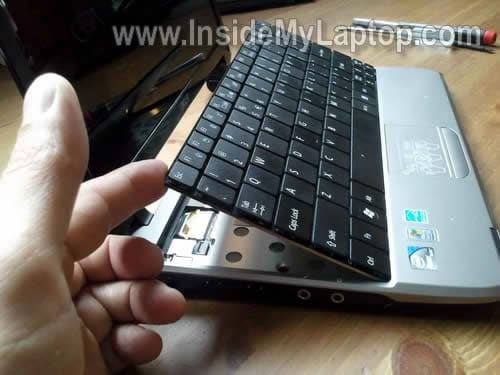
STEP 5.
Now you can access the keyboard cable connector.
NOTE: you cannot remove the keyboard until the connector is unlocked and ribbon cable released.
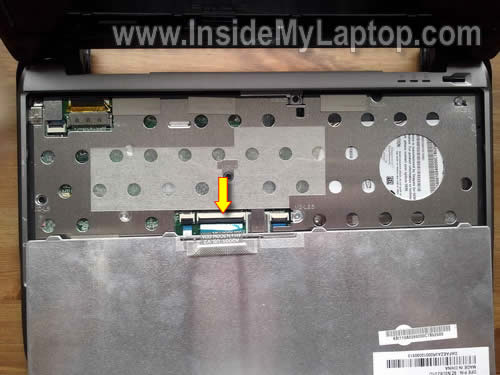
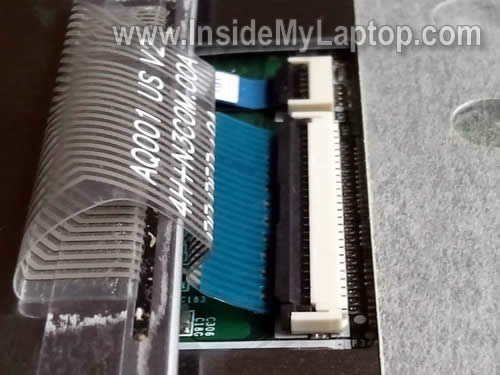
STEP 6.
On the following picture the keyboard connector shown in the locked position.
In order to unlock the keyboard connector, you have to lift up the left side of the brown clip so it opens up at a 90 degree angle.
NOTE: the brown clip must stay attached to the white base.
On the next picture the same connector shown in the unlocked position.
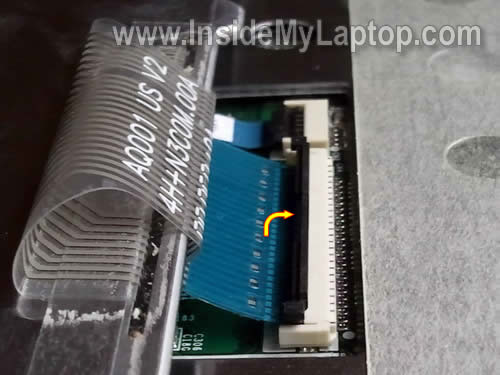
STEP 7.
Now you can pull the ribbon cable from the connector and remove the keyboard.
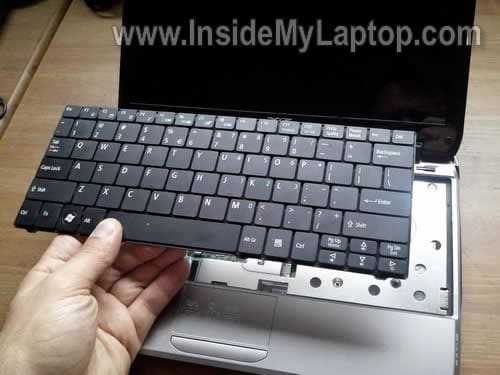
The keyboard has been removed.

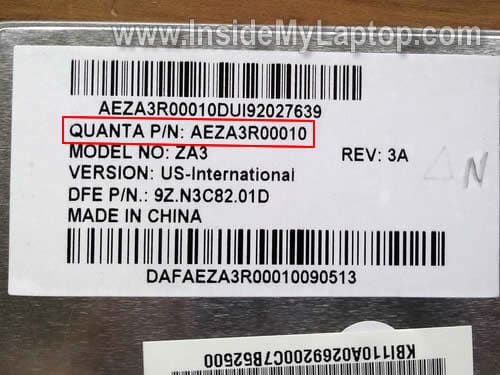
You can search for a new replacement keyboard using the part number printed on the keyboard label.
In my case the keyboard part number is: AEZA3R00010
In the following few steps I explain how to remove netbook hard drive, memory module and wireless card.
STEP 8.
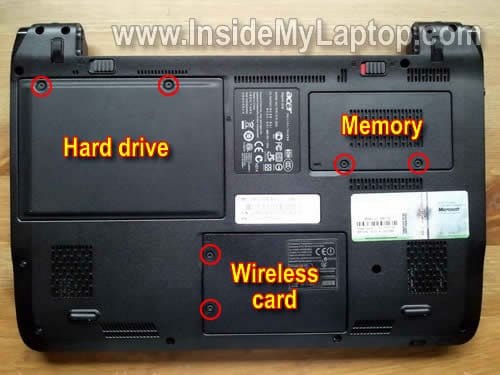
Remove six screws securing the hard drive, memory (RAM) and wireless card covers.
Remove all three covers.
STEP 9.
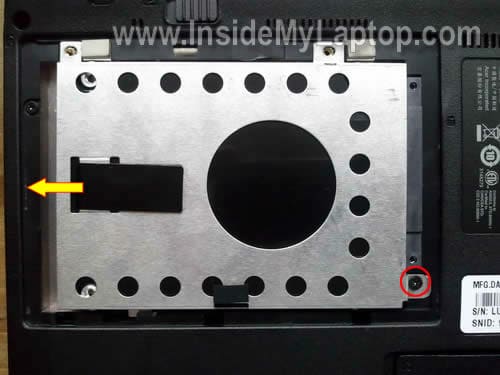
Remove one screws securing the hard dive assembly and slide the whole assemble to the left.
After the hard drive disconnected from the motherboard, you can remove it from the netbook.
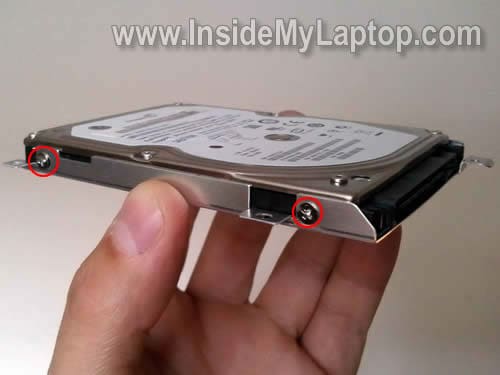
If you are replacing the hard drive, you’ll have to transfer the caddy to the new drive.
In order to remove the caddy simply remove four screws (two screws on each side) and separate it from the hard drive.
In my Acer Aspire One netbook I found a regular 160GB 2.5″ SATA hard drive installed.
Any larger 2.5″ SATA hard drive should work just fine.
STEP 10.
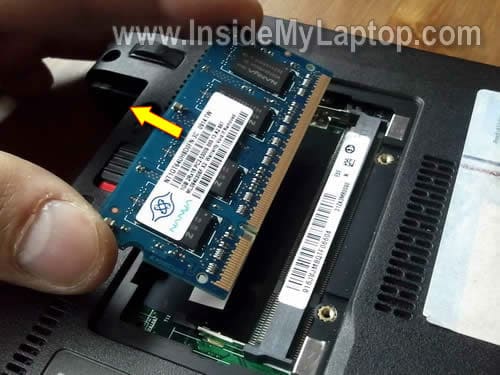
In order to remove the memory module carefully spread latches on both sides of the memory slot.
After the memory module pops up at a 30 degree angle remove it from the slot by the edges.
In my Acer nebook I found only one memory slot.
I believe you can install up to 2GB DDR2 RAM module into this slot.
STEP 11.
Finally, let’s move to the wireless card.
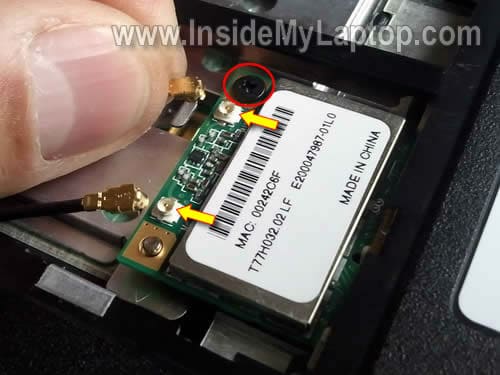
Disconnect two antenna cables from the wireless card.
Remove one screw securing the wireless card.
STEP 12.
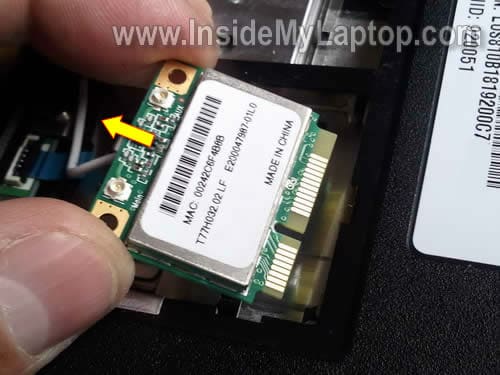
Remove the wireless card same way you removed the memory module.
In the next post I explain how to remove the LED-backlit screen from same Acer Aspire One A0751h netbook.
bid
Hallo, Nice to meet you.., Please i need help..,
I have troble at my AO 751 one, its won’t detect HardDisk & Battery.., in normal to swicth “ON” , it’s No power, only if i put out of the battery .., and only use cargh and it’s Ok.
So i change with the others Hard Disk.., but still “No Hard Disk Found”. Thank’s Before…..
Snuffy
You might try a RESET… removed battery, remove power cord… hold down power(start) button for 3 min… install batter, see if netbook will start….. If it starts but can not find the HDD then you need to load the SATA Driver… my way, set Boot to f12 – then place the drivers needed on a USB Flash drive…boot to USB and install Drivers….
Julie
Just wanted to say thanks-this was very helpful!
James
Can you show me how to change the CPU in this product?
IML Tech
James,
I’m not sure if you can replace the CPU.
There is a chance the CPU soldered to the motherboard and not replaceable.
Louise
Hi
I am replacing the jack plug on this machine, however I have been unable to locate a jack for this particular model.
Can anyone help?
Thanks
Oliver
Hey this guide was very helpful, thank you for putting it together.
rich
hello, i have a a0751h and the cmos battery must be getting bad, it wont keep date and time after a little while its off. i’ve reset it a couple of times do you know where the cmos battery is and a place to buy a new one..thanks
david
i have a acer aspire one za3 a0751h-52bp but has a password set in biosand forgot what it is – how do i reset it?
dave
Hi, thanks for the helpful article. The reason I’m looking is I’m wondering if it’s possible to replace that piece-of-junk atheros wireless card with something that will do WPA? Any thoughts on that?
Naushad
I have Acer Aspire One A0751h netbook (Model ZA3), i want to format it and reinstall WinXp. But it has not any CD/DVD Drive.
I won’t to buy external USB CD/DVD Drive. So, without CD/DVD Drive how i will reinstall WinXP.
Is there any way to reinstall WinXp because my system is running very slow.
Plz Advice
IML Tech
Naushad,
I don’t know if this laptop is capable of booting over a network. If yes, you can try installing Windows XP over network.
Check out this guide.
JC
I need help..i don’t know how to remove/change battery of my acer za3..please help
talon69
David,
i have a acer aspire one za3 a0751h-52bp but has a password set in biosand forgot what it is – how do i reset it?
talon69
sorry problem with posting! The default BIOS password is 1234
HTH
zul
i have notebook acer aspire 4730zg and currently having a monitor problem…..pls give me an advice
IML Tech
zul,
It’s same like saying: “My car doesn’t start. What is wrong?”.
There is no way to guess what is wrong because you are not providing any details.
Do you get any image on the screen at all?
Is your image garbled, distorted?
Is it flickering?
Can you get any image on the external monitor?
Does your laptop turn on at all?
Vilan
Reply To Naushad
— || I have Acer Aspire One A0751h netbook (Model ZA3), i want to format it and reinstall WinXp. But it has not any CD/DVD Drive.
I won’t to buy external USB CD/DVD Drive. So, without CD/DVD Drive how i will reinstall WinXP.
Is there any way to reinstall WinXp because my system is running very slow.
Plz Advice ||–
You can install windows using a usb drive. Try google for answers.
Virginia
I have a KAV60 Netbook. It took so long for the replacement part to come in the amil that I’ve forgotten where I pulled it from. Where do i attach a new internal power source?
Michelle
I have an acer aspire one. Pressure was placed on the screen by my child. The screen is partially black and distorted. Is this repairable and if so how?
David
Hi,
Love the clear detail you give, really great job. I wondered if you had an angle on getting to the power point in the laptop, My acer will not poer up or charge any more. They was a period where if i held in certain position it worked but no more. Tried alt power source to no avail and wonder if just loose connect at laptop end.
Any help would be grat, Cheers D.
mara
OHMYGOD THANK YOU!!!
Maggie
Thanks for such an amazing post, it is very helpful. However, the cooling fan on my model is full of dust. How do I get to it? I want to clean it, but I really don’t know how to get off the cover of the whole netbook. I don’t wanna mess anything up, obviously I’m not an expert ^^
IML Tech
@ Maggie,
In order to access the fan you’ll have to disassemble the whole thing but you can try the following.
Buy a can of compressed air and blow air into the fan grill on the side (and bottom if there is one). This should clean the fan and heatsink.
doitnowwayne
I want to temporary short out the battery to disable bios password. Anyone knows where is the battery on the motherboard for A0751h ZA3?
Thank ahead of any help
Wayne
chillo
My acer screen is so dim, i think the backlight is the problem. i still see the image, but the light is so dim! ive tried to adjust the brightness but it getting more dim. when i hold the screen hardly, it becomes dark. i have searched that the inverter or ccfl was damaged. can somebody help me to fix this? and where to buy the inverter or ccfl? and also, can i replace by myself? without going to the technician. tnx!
IML Tech
@ chillo,
What is your Acer Aspire model number? Is it like one in this guide? If yes, I explained how to replace the screen in the following guide: https://www.insidemylaptop.com/remove-screen-from-acer-aspire-one-netbook/
But this model has a LED-backlit LCD screen which doesn’t have inverter board. If the screen stopped working properly, it could be bad screen ( or failed video cable or motherboard issue).
Phil
Hello,
I have an Acer Aspire One ZA3 and i have a problem with either my hard drive,my graphics card or my CPU… You see when I turn on my netbook nothing happens…it’s just a black screen and even if i leave it like that for hours nothing happens…the lights of CPU and Caps Lock turn on and then off but the Bluetooth light remains on. I feel there’s something wrong with the graphics card and I don’t know if I can replace it… All I can hear is a strange noise coming from the right of the netbook (as you see it standing over the netbook) and it seems like something is starting to move and suddenly it stops…and this goes on forever!!!
Any help would be useful because I use my netbook a lot!!!
Thanks
IML Tech
@ Phil,
You cannot replace the graphics card. It’s integrated into the motherboard.
Isn’t it coming from the hard drive area? Maybe the hard drive failed.
Remove the hard drive and try turning on the laptop without it.
Phil
Hello again,
I removed the hard drive and it has the same problem but now there is no strange sounds… so maybe the sounds were coming from the hard drive but that wasn’t the problem… any suggestions for what might be the problem???
Thanks!!!
IML Tech
@ Phil,
There is one more thing you can try. Remove the memory module from the slot and try turning it on (you’ll still have built in memory).
If still nothing happens, probably this is motherboard related issue. If that’s the case, the netbook not worth fixing.
Dennis
Thanks for the help. The keyboard replacement is easy, but I disturbed the touch pad connector next to the keyboard connector which is now intermittently a problem and will need more attention. Be careful not to move it or it’s lock down tab, as I did before reading this post. I will be makng a donation!
IML Tech
@ Dennis,
Did you damage the connector? Did you accidentally pulled the touchpad cable?
If the connector is not damaged, just unlock it and try reseating the cable.
Terri Rawlings
Hi and hello, I have a challenge in accessing the power plug on my wife’s Acer Aspire One model number KAV60. Unfortunately I was unable to find a disassembling procedure that covered this model, In the end with some gentle force I was able to gain enough access to super glue and hold it in position until dry. It seems to have done the trick. To reduce the risk of further damage by taping the plug in position on a foam support.
I found your series quite helpful and will return the next time I have a challenge.
Louise
Good Morning,
What a great site. Thank you for doing this.
My issue is, I think, the same as the post on December 30 by Terri Rawlings. There is a problem with my plug. It will not stay in place; therefore, does not charge the computer unless I hold it tightly. I have tried to tape it but that doesn’t seem to work for very long.
I’m wondering how he got to it and would it be easy for me to figure out how to super glue it in place (if that’s the problem). It’s almost as though the stem of the plug is too short or too wide and doesn’t make contact.
Thank youl
IML Tech
@ Louise,
It will be necessary to disassemble the laptop.
After you go though all steps shown in this guide you’ll have to do the following.
1. Remove all screws from the bottom of the laptop.
2. Removed all screws found under the keyboard and disconnect cables from the motherboard.
After that you should be able to separate the top cover assembly from the base and access the insides of the laptop.
bryan
i have an acer aspire kav60, screen is very dim, I;ve updated the bios- still dim, I’ve pressed the fn and brightness buttons, still nothing, I;ve changed the screen still nothing, please help.thanks
IML Tech
@ bryan,
I believe this laptop has a LED backlit screen installed, so there is no inverter board between the screen and motherboard.
If you replaced the screen but it didn’t fix the problem, it could be the following:
1. Bad connection between the video cable and motherboard. Try reconnecting the cable.
2. Failed video cable.
3. Motherboard problem.
I cannot tell which one is failing without testing the laptop with known good parts.
By the way, did you buy a brand new replacement screen. Is there any chance your new screen is defective?
Daniel
Hello, i want to tell you that you 1 awesome site!
I will donate for you if you can help me with my situation..
Look 1 day my brother pushed me and my Laptop felt down and then when i looked at the screen i saw some lines. Basically from the right i see my desktop and in between is sometimes black or white.. and next of the white screen is same as the right one. E.x: Now i see double desktop and between them is white. What’s the problem?? I opened the screen and watched if some cables werent on their positions but nothing. all are right.
I think that the problem is the connection with my motherboard.. what do u think??
Please reply via email!!!
Thank u for your time..!!!
IML Tech
@ Daniel,
I would test the laptop with an external monitor. If the external video works properly and the problem appears only on the laptop screen, most likely the LCD screen was damaged. You’ll have to replace the screen.
I don’t think this is connection related issue.
George Boston
How do U remove the back. my power jack is broken
IML Tech
@ George Boston,
Most likely the motherboard is attached to the bottom cover, so you’ll have to remove the top cover.
1. Remove all screws from the bottom of the laptop (in step 8).
2. Remove all screws securing the top cover assembly and disconnect all cables (in step 7).
3. Separate top cover from the bottom cover and see if you can access the power jack.
Check out other (complete) disassembly guides for Acer laptops and you’ll get the idea.
Shelia
Thank you so much!! My keyboard went out, I bought a new one, but Best Buy wanted $129 to replace it. I did it in less than 10 minutes thanks to your instructions!!
Brandon
My laptop says no bootable device–please restart system. I don’t know what the problem is I have an Acer aspire one model no. ZHG could you please reply
IML Tech
@ Brandon,
Most likely the hard drive failed. The laptop shows this error message because it cannot see the hard drive.
If that’s the case, the hard drive has to be replace and OS reinstalled.
Jimmy Ryder
Hi, I have an Acer Aspire One (model ZA3) which came with the Win95 installed. I installed Windows 7 on it but works REALY slow. I do like the size of the laptop and the layout of its keyboard so I would like to keep it if I can upgrad the inside (motherboard, hard drive and memory). Is it possible to put in a new motherboard, HD and everything else so I can continue using my laptop?
Thanks alot and look forward to your reply !!! 🙂
Kenneth L Abraham
Very good one, I learnt alot from this.. Thank you very much. Kenneth