


In this post I explain how to replace or upgrade memory (RAM) on a Dell Latitude D830 notebook.
Also, these instructions should work for a Dell Latitude D820 and maybe some other models. If it works for you, please mention the model in the comments.
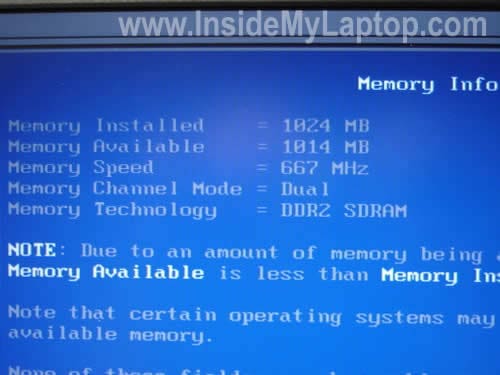
You can check the amount of installed RAM in the BIOS setup menu. As you see, in my Dell I have 1024MB (or 1GB).
Dell Latitude D830 has two RAM slots. You should use PC2-5300 SODIMM which runs at 667MHz.
You can use same memory type for a Latitude D820 too.
Dell Latitude D820/D830 can take up to 4GB memory total. You can install up to 2GB module in each slot.
Now the tricky part.
One slot (DIMM B) can be easily accessed on the bottom of the laptop. Â Another one (DIMM A) located under the keyboard.
Yep, in order to access the first memory slot we’ll have to remove the keyboard.
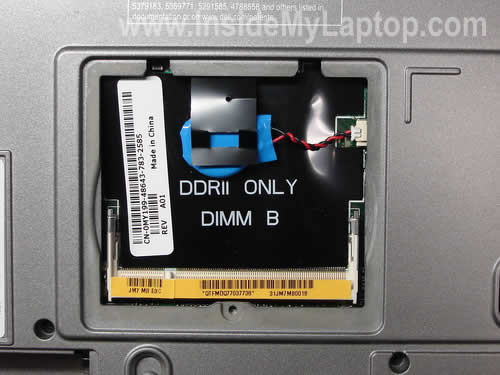
Before you start, please turn off the computer, unplug the AC power adapter and remove the battery.
STEP 1.
Lift up one side of the keyboard cover with a small flat head screwdriver.
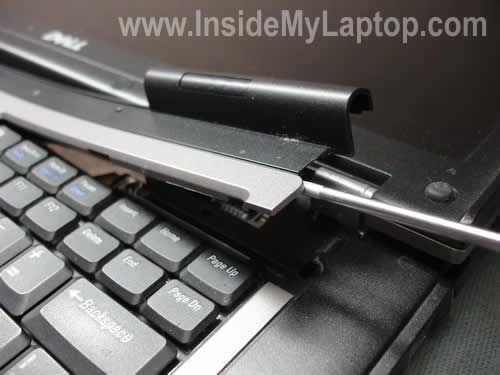
STEP 2.
Remove the cover.
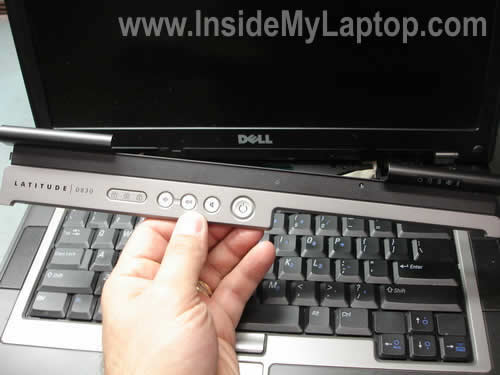
STEP 3.
Remove three screws securing the keyboard.

STEP 4.
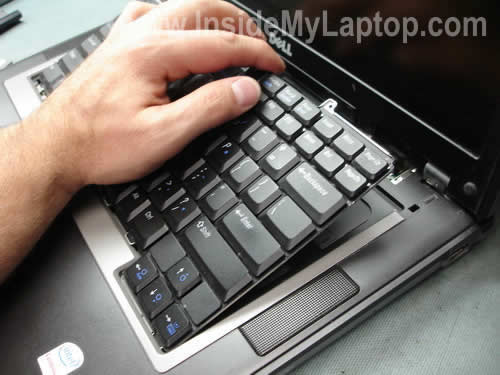
Lift up the keyboard from the top cover and move it towards the display panel.
Be careful, it’s attached to the motherboard via a flat ribbon cable.
STEP 5.
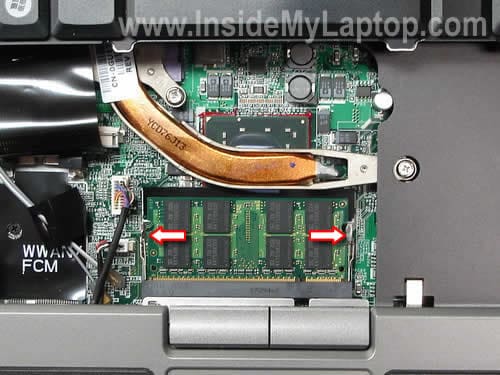
The DIMM A is located just above the touch pad buttons.
In order to remove the existing memory module carefully spread latches on both sides of the slot.
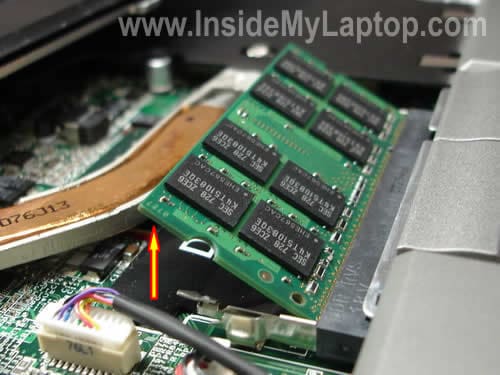
The module will pop up at a 30 degree angle.
Pull the RAM by the edges.
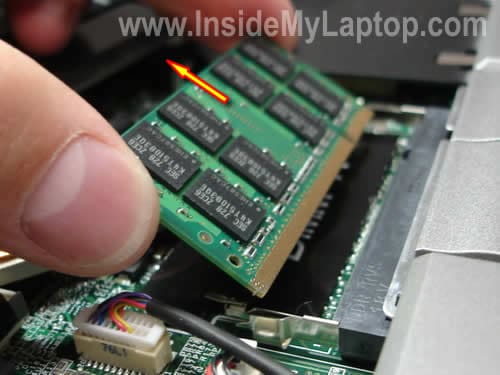
Now you can install a new memory module into the slot DIMM A.

In this notebook RAM can run in dual-channel mode which doubles the amount of available bandwidth and improves the laptop performance.
In order to run dual-channel mode you must have two identical memory modules in slots A and B.
For example, if you have a 1GB module installed into the slot A, you have to install an identical 1GB module into the slot B. In this case it will run in dual-channel mode.
Chris
Thank you!
Your instructions help a lot. I just ordered 4GB memory kit for my laptop.
Andrew Nicholson
Excellent and very helpful guide. I recently bought two memory modules – when I opened the slot at the rear of my laptop I was confronted by only one memory slot and wondered what on earth to do with my second memory module! Now I know – thank you!
Nelson Torres
I have a Dell latitude d610 It doesn´t work, I bought the AC power adapter for It , but the jack have 5 holes I wasnt to know, where can I see whas kind of plug need my laptop or how can I replace the jack
Thank you
RON LUCERO
I followed directions and replaced 2-1GB Memory modules with 2-2GB Crucial Kit on my Dell Latitude D810 [4GB max]. Upon startup, I received a message recognizing a change to memory but also stating to reseat memory. After about 30 seconds of nothing more, another message popped up with options to enter Setup or onboard diagnostics. I opted for Setup. Bios recognized only one of the 2 modules so I reseated both. My system recognizes B module but reports A is empty. Any ideas on how to mitigate? I’m thinking I will swap modules and clean contacts on modules and if this results in “B is empty”, then I might have a bad module. How do I get back to onboard diagnositcs or otherwise check for a bad module?
IML Tech
RON LUCERO,
That’s exactly what you should do.
Swap memory modules. Test both memory modules in both slots. If the same module fails in both slots, apparently the module is bad.
RON LUCERO
Many thanks……it turns out that module in A was not snapped into place properly [despite deliberate ‘snapping’ into place the first time]. Now, system reports 4GB RAM but unfortunately only 3GB is functional because of reserves. I ran the free tests offered by PC Pitstop and it reports [as before] that RAM is not as fast as its “peers” in Pitstop’s database. I was hoping for some improvement, but background software and/or hardware configuration must be the culprits – my next endeavor.
Don Moore
According to Dell, A 64bit operating system is required to utilize 4GB of RAM or more. A 32bit operating system with Latitude D830 will recognize 3-3.8GB
J. Taylor
thanks for the step by step. BTW, its a horrible way to get to slot A …left a couple dents at the edge!
Once upgraded it only show 3.49GB .. Windows XP SP3 .. is that normal?
Denis T.
Thank you so much ! It took me less than 5 minutes thanks to you !
Ken Schwarz
Awesome! Thanks so much 🙂 This worked perfectly on my Latitude D810. Thanks for this very helpful post.
tom J
J. Taylor: thats normal with 32-bit operating systems.
they can only adress 4GB of memory (this includes your videocard memory and all other internal memory too)
you can solve this by using a 64-bit OS
Reuben
The Intel Core 2 Duo T7300 processor in my Dell Latitude D830 is very fast.
Here is a discussion of the performance: http://bit.ly/1UbiZb
KT
Mahalo, you just saved me so much money, I do have to let the geeks do it…
Alex
Thanks a lot! These instructions work perfectly for a Latitude 620 as well.
t
Apparently D830 supports 8gb ram with latest bios update, and 6gb without update (2+4gb). Might be true for other models with same intel chipset.
bruce
many thanks. upgrading my d820 was much less painful than my first thoughts. can’t say as i agree with putting dimm a under the keyboard; what a pain to get at!!
viosabio
Thanks for this info, it was very helpful and i managed to install my 2 x 2GB memory modules without breaking the computer or damaging it.
Just a question about the dual channels, does it matter if i install 1 module 2GB Samsumg and 1 module 2GB Hynix?
IML Tech
viosabio,
I believe they recommend installing the same brand in both slots, but if you have two identical modules (size and speed), you should be fine.
sami
128 MB of display drivers memory will take some of from main memory on 32 bit system.
Gaurav
i have a dell latitude D 810 and already have the max 2 gb memory ( 1 gb x 2) I was told by dell that thats the max it can handle. are you saying i can put 2gb x 2 to a total of 4 gb?????
IML Tech
Gaurav,
I’m saying that you can put 4GB in a Dell Latitude D830, not Latitude D810.
dpom
I have a Dell D830 running Windows 7 64 bit with 2 x 4gb RAM installed, so I have a total of 8 GB!!! The machine really flies!!!
uanianu
sir/madam
i have dell latitude 820 i encounter problem while booting, It never go farther than dell logo when power button is pressed, tried several times it just stays at dell logo screen even though completion bar goes 100 %. well i thought i could be the memory problem and i open back
cover took memory out after shutting down power and put same module back into the
slot, now i am having another problem? when tried to boot sys
system memory have changed
if you have not changed..
please reseat the memory
which i already did ? what could be the possible problem?
i had dual boot system window xp an linux on it.
uanianu
IML Tech
uanianu,
Your laptop has two memory modules, correct? Try removing them one by one and test the laptop when only ONE memory module installed. Try different slots. It’s possible that one of the modules is bad.
Bob A.-confused
Memory upgrade for my D830. Presently has matching 512gb chips. Want to increase performance and baught single Dell 2GB stick 9PC2-5300 SODIMM). If I remove one of the 512 sticks (slot B) and replace with the 2GB stick you indicate it will not run as dual-channel. Would I get better performance with 2-1GB sticks so that it will operate in dual-channel mode? Would it perform better with the 1-512 stick and the 1-2Gb stick?
bc
Thanks, Great Instructions!
Robert
I have 2 gig (667MHZ) in my machine now. I opened up the back and discovered that the DIMM B slot is empty which would mean that I have one 2 gig DIMM in the DIMM A slot… when I ordered new memory from DELL they sent me two 2 gig (800MHz) DIMMs and it appears that the 667MHz DIMMs are not longer available. The question I have is, How critical is it to be using tow DIMMs rated at the same speed? Can I just install one of the new (800MHz) DIMMs into slot B and leave the (667MHz) DIMM in slot A?
Stu herrmann
Thank you. Only saw 1 space for memory until I found this site.
Byron
Thanks for this detailed “how-to”. I watched a video on Dell’s website, but being able to read it was easier to grasp.
I noticed one used indicated he dented his case trying to get the keyboard cover dislodged. I am concerned about that as well. Should we use a plastic/carbon screw driver. I used to have a couple of those to keep from pinching bicycle tubes when changing a flat, but have no idea where they are today.
Thanks again.
Heiko
I have some problem with D830. In slot A theres a 2Gb. I´ll put a another 2Gb (or 1Gb) RAm into the Dimm B. The system starts fine, the Bios setup recognize the new RAM, but in the WinXp prof there I get some problems. I can´t get to the controll panel, some licences manager doenst work.
I changed also the DIMM A and put there 2 Gb of the same manufacture like the 1G bin DIMM B – no success. Who can help me?
Thanx Heiko
IML Tech
Heiko,
I don’t think that your problem is related to RAM modules. If the laptop can see all RAM installed and starts properly, it means the laptop and RAM work fine.
Could be software related problem.
Back up all personal data and try reinstalling Windows from scratch.
en2
I have latitude 820 with 2gig (677)RAM i’m thinking about upgrade, there i find out that latitude 830 with 64bit OS supports up to 8Gb RAM. The question is will it be the same with 820?
IML Tech
en2,
According to specifications for Dell Latitude D820 laptop (http://www.dell.com/downloads/global/products/latit/en/spec_latit_d820_en.pdf) you can install 4GB maximum.
With 64bit OS you should see and use all 4GB.
jaume
Hi,
I have Dell precision M65 workstation mobile.
I installed 2x2gb ddr2 PC2-6400 (800), but only I can see 3.25GB to 667, but DELL have 800Mhz RAM for M65.
Why this problem whit the memory speed?? I have Kingston KHX6400S2LLK2/4G memory installed.
Thank you for your guide & help!!
IML Tech
jaume,
According to the specifications, your Dell Precision M65 laptop has 667MHz front side bus. Even if you install faster memory modules (800MHz in your case), they will run at 667MHz. That’s why you see 667MHz in the BIOS.
You see only 3.25GB installed because it’s limitations of your 32-bit operating system (XP I guess). In order to take advantage of all 4GB RAM installed, you’ll have to run a 64-bit OS.
mpr1960
I have just upgraded my lattitude d830 to 4GB of ram. Why doen’t the system recignize the upgrade it still shows 2 GB?
Don
I am currenly running a D830 with XP 2002 service pack 3, with 2GB Ram running at 789 M (According to the System profile). The question I have is can I put the 800MHz PC2-6400 chips in my system to upgrade it to 4GHz?
IML Tech
Don,
PC2-6400 memory chips will work but most likely your XP will not see all 4GB. XP has some limitations.
For example, I’m running XP SP3 on my desktop and I have 4GB installed, but in system properties I can see only 3.25GB of RAM.
Phil Lesh
As far as installing a 64-bit OS, either XP 64 bit or Win 7, how difficult is it to get apps to run on the 64 bit environment? Do I need to buy 64 bit versions of things like Dreamweaver, Illustrator, Photoshop and Office apps? Or will my existing apps run on the 64 bit OSes?
I’m already thinking of upgrading my system HD to a solid state drive, but if I could upgrade to windows 7 and two 4Gb DIMMS, that’s probably a much more cost effective speed increase. I just don’t want to have to buy or upgrade all of my apps all over again.
IML Tech
Phil Lesh,
I believe that 32-bit applications will run in 64-bit OS without any problem.
Goran E
Thank you very much for the excellent guide!
I would probably have broken something if I didn’t follow it.
Replaced 2x512MB with 2x1GB Kingston in my old D820. Works fine!
hal williamson
have new dell d830 that came with wireless wlan card not installed were does the card install and how do I install it
thanks hal
IML Tech
hal williamson,
The wireless card slot is located under the cover on the bottom of the laptop.
Take a look at this Wi-Fi card removal guide, it explains how to replace the card.
http://support.dell.com/support/edocs/systems/latd830/en/SM_EN/minicard.htm#wp1084976
Before you purchased the card, make sure you have two wireless antenna cables installed.
suha
hi dear
im using Dell latitude since a year , weeks ago half screen looks dark er than the other half which is much bright, this is if you were near the screen, but if you were far a little, you can see the screen half black and half bright, verticaly ,
the other issue i noticed there is a led light under the screen, suppose to light the key board at night , but it never works , how can i make it work,
thanks in advance.
IML Tech
suha,
I think this is LCD screen failure. You’ll have to replace the screen.
Have it ever worked? Maybe you can enable/disable this light though a shortcut on the keyboard or in the BIOS menu?
Klaus
Thanks your Information. I can confirm that Dell Latitude D830 handles 8GB of Memory.
(on Dell’s webpage it is also stated that the D830 can handle 8GB of RAM with the A15 Bios)
For all folks interested in updating, here my configuration:
* Bios:
A15
* Ram modules:
2x 4GB DMS Certified DDR2 PC2-5300 CL5
(Part number 50191)
I did some research on ‘DMS certified’ in order to figure out if their RAM is worth buying. DMS buys RAM from different manufacturers, and then tests and certifies and *guarantees* that is runs with certain (mostly) laptop models.
The DMS modules I bought run flawlessly. I am pretty impressed, since not even Dell currently offers 4GB RAM modules for the Latitude D830.
I bought my 8GB RAM the from for 275 Canadian dollar. A really good price, considering that the only other 4GB module which was somewhat confirmed to be compatible with the Latitude D830 are from Kingston and 8GB cost about 500 Canadian Dollar.
Enjoy, Klaus
glnz
Dear IML Tech – Many thanks for your thread
https://www.insidemylaptop.com/replace-upgrade-memory-ram-in-dell-latitude-d830-notebook/
which I used to upgrade my wife’s RAM and install a Dell bluetooth chip.
BUT my wife’s Dell Latitude D830 is overheating like crazy and it’s probably dust. QUESTION – how do I open the laptop enough to get to the dust? Is there a picture guide for opening ALL THE WAY???
Please also see
http://en.community.dell.com/support-forums/laptop/f/3518/p/19310897/19761306.aspx#19761306
for a picture of what the dust looks like inside AFTER the D830 is open — but how do I get there, and then how do I get back?
THANKS!!!
IML Tech
glnz,
1. You can remove just the keyboard as it shown in my guide. After that you get some limited access to the cooling fan. Blow compressed air into the fan until it’s clean. Just block the fan with something before you blow air so the fan doesn’t spin like crazy.
Most likely cleaning the fan this way will fix your problem.
2. If you would like to get full access to the fan, you’ll have to remove the top cover (palm rest).
Take a look at this service guide for Dell Latitude D830 notebooks. Just follow all disassembly steps until the top cover removed.
John
can Dell Latitude use 1 memory card to work or does it nee both of them?
Joseph
i have a dell latitude d820 ..i need to replace screen. do u have tutorial on that?
John
Great information. Was wondering… I have a Dell Lat D830. I need to replace the old MB with a new one that Dell just sent me. Do you have instructions to replace the MB on a D830 or should I check Dell sites for instructions.
Thanks
IML Tech
John,
I don’t have motherboard replacement instructions for this model but you can get it from the Dell website.
Here it is: Dell Latitude D830 manual.
Arsalan
Hi, i have dell lat 820 with 1 gb ram, now i just wanna upgrade to 2 gb. Tell me should i install another 1 gb ram in slot b or should i remove 1 gb and install a 2 gb ram in one slot, which way is better as far as performance and speed?
IML Tech
Arsalan,
I would go with another 1GB module in the second slot. If you have two identical RAM modules (1GB in your case) installed in both slots, the laptop memory will run in dual-channel mode which is better performance.
oladapo
am having dell d800 with ram of 512mb how can i boost my ram apart from entering another ram into slot
Spider
I put in 2 x 2 gb cards but system shows on 3.5gb. will it operate as a 4 gb machone or would i have to upgrade the os to 64 bit? if so, how complicated, costly is that? is it worth it?
oocand
Buenos dÃas, tengo una Latitude D830 y no prende la fuente esta buena, estoy sospechando que es el teclado, quisiera saber si hay alguna manera de prender en computador sin el teclado usando un puente o jumper?
Si alguien me puede ayudar se lo agradecerÃa,
Muchas gracias.
IML Tech
oocand,
There is no jumper. In order to test the laptop without keyboard, you’ll have to unplug the keyboard cable from the motherboard.
If the laptop still doesn’t start, even when keyboard disconnected, you have another problem.
First, I would check memory modules. Try removing memory modules one by one. One of the modules could be bad.
Charles Jenkins
This was very helpful. Changed out in no time flat! Awesome Illustration. More Please!
Thanks,
C.J.
raultaboraz
Hi all,
Just to explain my success with my latitude D820… I have upgraded to 4GB (2 x 2GB modules) with standard PC2 5300 Kingstong memory, and it works very well (HACKINTOSH OSX 10.6.7). The model is KVR667D2S5/2G KINGSTON. I was doubting about official dell memory or specific, but for me it runs well with standard memory (667Mhz – 5300 CL5)
The problem was that laptop usually fails on first recognition (at least my case, even with its original memory). I can see “reseat memory” or “system is not well configured” or something else. My solution was unplug battery and unplug bios battery connector. Then change both modules and then plug bios battery and laptop AC, then it boot perfect!
I just want to share with you. Thank you for your info.
DCarusso
Awesome.. Thanks for the pics. Dell D820 had 1GB RAM and was acting up all these years. I had no idea this was the issue. I used paging file and this is not really efficient and will slow down the machine espacially when multiple windows are open. Now I can do just about anything and no problems. The laptop is now running on memory with no paging file and everything is so smooth. I’m trully amazed at the difference so I just had to post this.
Ralini Pradeep Adatrao
Awesome….
Alexander
OK, I looked up DDR2 modules for my Latitude D830, and I just want to make sure I found some good ones.
http://www.google.com/products/catalog?q=DDR2+memory+module&hl=en&safe=off&prmd=ivns&um=1&ie=UTF-8&tbm=shop&cid=10567635596097983162&sa=X&ei=2bhvTvr7DsmmsALPl7jwCQ&ved=0CI8BEPMCMAAWill these work? Keep in mind I don’t have a big budget, and I think these are a good price so far.
IML Tech
@ Alexander,
NO, THIS MEMORY WILL NOT WORK.
You need memory modules for a laptop, not desktop.
Laptop memory has 200 pins.
Alexander
Ok then, how about this one?
tony
recently re-installed windows XP and now my Dell D830 is not recognising the crucial 2MB ram I nstalled. Any ideas?
IML Tech
@ tony,
Reinstalling OS shouldn’t affect memory at all.
Check out the BIOS settings. Can you see memory in there?
Did you have same XP installed before?
jim
Great DIYjob!!!
Very helpful. Love the graphics/pictures!
tran
thank you so much,
Very helpful with pics and instruction,
Marco Polo
Thanks for the pics. Worked fine.
Regards, Marc
Bas
Thanks for the guide. Wouldn’t have found the DIMM A slot without it.
Johnny Bob
Thanks for the helpful tutorial and discussion.
I managed to get my D830 taken apart and put back together without breaking anything. I didn’t know what I was doing *before* I had read your tutorial and took out the hard drive by mistake. No harm done except for a few heart palpitations. When I booted up thereafter it warned that my date and time might be incorrect and asked to run Setup or a Diagnostic. I didn’t have any idea which to select, but tried the Diagnostic then aborted because it was taking too long. I then did the bootup without running Setup, and all seems OK except the calendar date and time were wrong – easy to reset from within Windows.
I note that Dell recommends in its D830 Service Manual, as does the Crucial instructional video, that after removing the battery you press the power button to ground the motherboard before doing any work inside. I didn’t notice this fact mentioned above.
Some comments above about using more than 4G RAM (such as 8G) would only apply to a 64-bit op system. If I understand correctly a 32-bit op system cannot recognize more than 3-3.5G RAM. As for whether a 64-bit D830 could really accept and use 8G RAM seems unclear.
I chatted with a Crucial tech who said using PC2-6400 800 MHz rather than PC2-5300 667 MHz RAM would improve performance, contrary to your comment above that it will only run at 667 MHz maximum even if 800 MHz RAM is installed. Which is correct? That may determine how I decide to upgrade. I currently have 2G PC2-5300 and could buy another stick of the same kind. Alternately I could buy two sticks of 2G PC2-6400 to get the 800 MHz speed – if it really works that way(?).
Happy Holidays!
IML Tech
@ Johnny Bob,
According to Dell this model will take 4GB RAM max. I mentioned that in the post.
Latitude D830 specs says it’s DDR 2 667MHz Memory. Can it run at 800MHz, not sure. Just buy PC-6400 if in doubt.
JoBro
Excellent advice, under the keyboard is the last place I would have thought to look for the 2nd module
han
I’ve installed 2x 2Gb DDR2 PC2-6400, 800MHz memory in my Dell D830 Latitude and it works fine. This laptop is running Windows 7.
thanks for the advice!
Mary
Thank you so much for the video. I’ve never taken a laptop apart but needed to replace my (2) 1G’s on the Dell with (2) 2G’s. After following your tutorial and booting it up, the middle diagnostic light blinked and the laptop wouldn’t start. I switched the two 2G modules around and tried again – Voila, success. Somewhat of a nusiance to remove the keyboard but worth it. Thanks again for the info.
pythonfan
Thank you very much for this tutorial. However, some information is outdated: My D830 runs just fine with 5 gig (4+1). The trick was the following:
* Have a current Bios
* put the 4 gig module in Slot B
Thanks go to Speicherbauer.de where I bought the module.
Robinz
Thank you very much! It worked fine for me (4GB) and now my laptop runs Windows7!
However I noticed that the centre-bottom edge of the screen (at the sign “DELL”) gets really hot (maybe at the possible lcd inverter possition). I don’t think that was happening before memory upgrade. I’m not sure anyway. Is this normal or not? May I caused this problem? Can I solve that?
Thank you
Bob
Thanks for the clear, concise directions, without which I would *never* have found DIMM slot A. Your info made it an easy job and everything went flawlessly. I hit the tip jar, and encourage everyone else to do the same. 🙂
Costis
Nice tutorial! Helps a lot.
A general #00 cross point screwdriver is needed in order to remove the three keyboard screws and a 1.8mm will help opening the lid.
My Ubuntu is happy now with 4GB!
I just installed two KVR800D2S6/2G 6400 CL6 Kingston SO/DIMMs and everything went fine thanks to you!
Hector
se puede tener dos memorias de 4GB y un disco duro de 160GB y si trae una tarjeta graficadora en la latitude D830 con el procesador Intel Core Duo T7500
Cyndi
I bought My laptop and it was upgraded from a Windows XP to a Windows 7 ( but is still a Dell Latitude d520) will this make a difference?
IML Tech
@ Cyndi,
This will not make any difference.
rc-technologies
perfectly thourough and precise. Well done. excellent photography.
Alejandro Pastelero
thank you for your precise manual. According to your detailed instructions I replaced my RAMs within 10 minutes and upgraded my DELL D830 from 2 GB to 4 GB memory. This is worth to donate.