

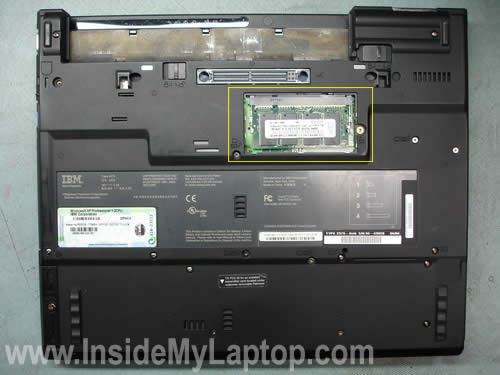
Using this guide you’ll be able to replace or upgrade the memory modules (RAM) in IBM ThinkPad T40, T40p, T41, T41p, T42, T42p series laptops.
In my case I’ll be working with a ThinkPad T41.
It came with 512MB RAM installed. There are two 256MB modules.
One of them can be easily accessed through the door on the bottom. The second module is hidden under the keyboard.
Before you start, turn off the computer, unplug the adapter and remove the battery.
Removing memory module located on the bottom.
Remove the cover on the bottom.
Spread latches located on both sides of the slot until the module pops up at a 30 degree angle, as it shown on the picture below.
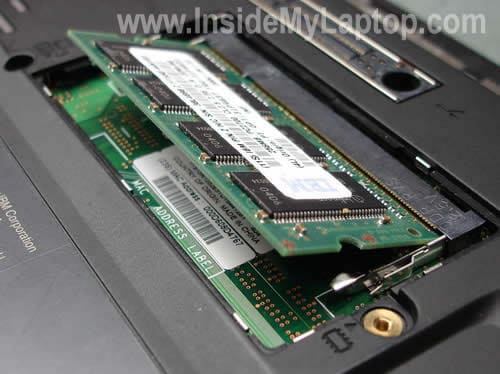
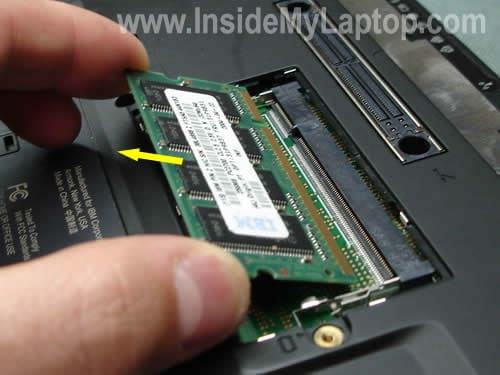
Grab the RAM module by the edges and pull it from the slot.
Removing memory module located on under the keyboard.
The second slot is located under the keyboard, so we’ll have to remove it first.
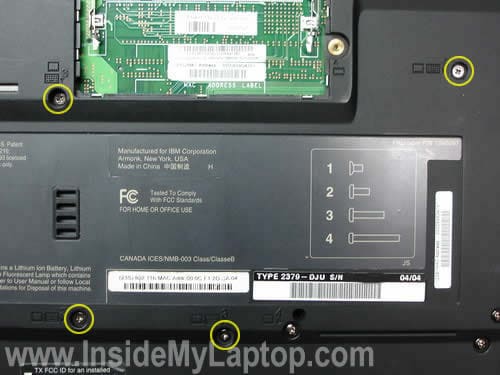
Remove four screws on the bottom.
Insert a small flathead screwdriver between the keyboard and palm rest and carefully lift up the keyboard.
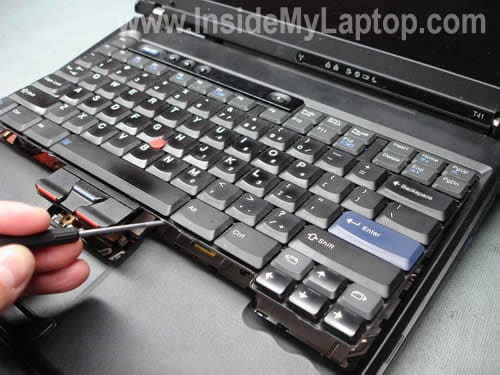
Place in on the palm rest so you can access the cable.
Disconnect the cable from the motherboard.
Now you can access the second memory module and upgrade it.
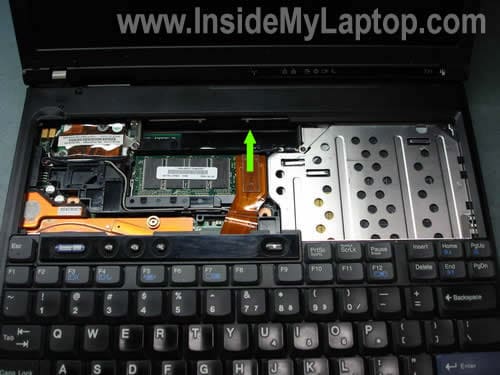
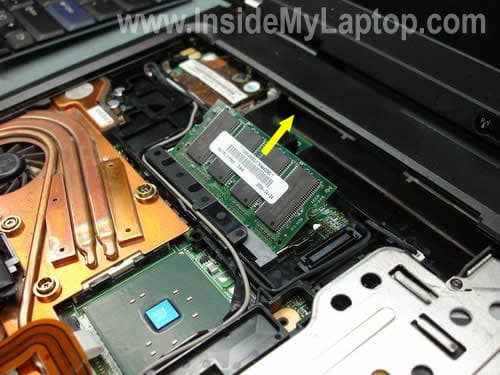
Remove the internal module the same way you removed the first one.
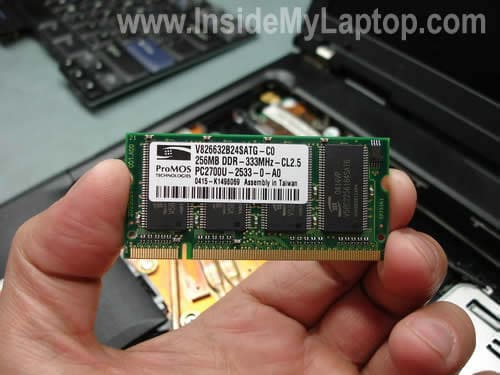
On the picture below you can see the original module.
According to the official hardware maintenance manual for ThinkPad T40/T40p, T41/T41p, T42/T42p, these model can take up to 2GB memory total.
You can install up to 1GB module into each slot.
You should use PC2700 (DDR-333) 200-Pin SODIMM RAM.
Ed
I have 256MB PC2100 RAM installed in my ThinkPad T40. I want to upgrade. Should I look for PC2100 or I can install PC2700?
IML Tech
Ed,
You can go with PC2700 RAM which is backward compatible with PC2100.
Gord
Hi…just wondering, if there are two 256mb installed, do I have to replace both or can I just replace the easily accessible one with a 1g card?
Many thanks
IML Tech
Gord,
You can replace just one memory card on in the bottom easily accessible slot. If you install a 1GB module, your laptop will see 1.25GB total
Gord
I appreciate it thanks.
Gord
pojok
After waiting so long, finally I found “short & clear”, step by step tutorial. Thanks, I appreciate it.
kris
Hi,
These instructions were very helpful for the upgrade.
Thanks
Rory
Hi, an excellent tutorial, i was wondering would a similiar process be followed for an IBM Thinkpad t20 as the T40s laptops to upgrade memory. Also how would you increase the c hard drive memory on this laptop?, i want to hold on to the laptop but the memory is small 512mb and the c drive has only 6gb.
Roger
I installed 1 gb in the bottom slot making a total of 1.5 gb now. laptop locks up on occasion now where it didnt do this at all with the 512mb memory. any ideas on what could be causing this?
talbert
Hi Roger.I think your 1GB memory card might not be compatible with your original one.It is said that it’s better to choose the same type memory module on the old laptop because of the compatibility ,or choose the memory with good performence in compatibility.Try another brand,kingston is a good choice
IML Tech
Rory,
You don’t have to remove the keyboard in a ThinkPad T20 because both memory slots can be accessed through the bottom door.
According to the hardware and maintenance manual, there are many different optional hard drives listed for this model, up to 60GB drives. Check out the page 171. By the way, in the same manual you’ll find instructions accessing both memory slots.
IML Tech
Roger,
Here’s what you can try. Remove memory modules one by one and test your laptop with both memory modules installed into different slots.
If your laptop works fine with the original 512MB module installed into both slots but locks up with the 1GB module, it’s possible that your new module is defective.
If your laptop works fine with both modules installed into the first slot but locks up with both modules in the second slot, it’s possible that you have a faulty memory slot.
talbert said:
Yes, it could be compatibility issue, but before you buy another module I would try my suggestion.
Also, you can remove the 512MB module and run Memtest86+ on the 1GB module. If the module fails test, it’s bad.
Ray
To Roger:
Using 2 Identical Ram modules will allow it to work in Dual Channel, currently you are in single channel mode and the issue you are having maybe because part of what your system is trying to read from Ram might be split between the 2 rams, and locks up trying to access large data.
Scott
Ray
so how do you fix this issue?
Mike
Just insall 2 identical RAM modules of exactly the same specification (brand and speed, size etc.) and this will allow dual channel operation.
DOMAN
IBM has had a habit of being conservative on memory and you might try low density modules in any of the TPs. I had trouble with a pc2700 in my t41 and when I installed a pc2100 it worked fine. I also had a problem with HI Density PC133 in a a20 and had to buy LO Density modules. HI density works in a t23 but not in the a Series.
Fran
Really helpful instructions. Thanks
JOHN WILLIAMS
This tutorial gets 5 stars! Outstanding! Thank you!
Margie
Hi,
THANK YOU!! I never thought that I’d tackle the job of upgrading memory myself – but the steps necessary were so clearly posted that I knew that I could do it. Also, thank you for saying exactly what RAM I needed to buy.
You made something that was so alien to me simple.
THANK YOU!!!
Mahmoud
Thanks!!! i was woundering where that annoying 256mb memory is hiding 🙂
Barry
Of all the sites viewed to upgrade RAM, this was the most precise and clearly presented information available.Going from 256mb to 2GB is like owning a new notebook!
Thank You.
KPACABA
Needed to replace the keyboard. Thanks for the detailed help!
Mark Boernerr
I was given a IBM t41 with out a hard drive or installation disk. I’ve called IBM and they will sell the disk for $45. I’ve found 2x1gb 2700 ddr notebook memory from an HP computer for $20. I want to put a 160-250gb hard drive in the machine. the original disk calls for a 40 gb drive, will there be any problem installing all the new parts and getting this machine up and running? thanks for any imformation.
Mark
Jonathan
Thanks for the helpful advice. I am trying to upgrade my T40 which has only the base 256MB RAM. I bought a Kingston 1GB 2100 module, and I am having a similar problem as one of the previous posters. The computer beeps but won’t start up. I am guessing that it’s either a compatibility issue with the original module, or it’s faulty. I was told to upgrade the BIOS but that didn’t work. Any other suggestions/thoughts?
IML Tech
Mark Boernerr,
I don’t think that the restore CD calls for a 40GB drive. I have a ThinkPad T42 myself and recently I replace the original 40GB drive with a 80GB drive. After that I was able to use the same original restore CDs set. Also, I have an extra 1GB module installed and it didn’t cause me any problem during OS installation.
The question is if your laptop can handle a new 160-250GB drive. I don’t know that, haven’t tried it myself.
IML Tech
Johathan,
Make sure the memory module is installed correctly.
Test your laptop with the original 256MB module installed in both slots and after that test it with a new 1GB module installed into both slots.
Will it work with each module separately?
Dale
HI,
I am having trouble with the Blue Screen of Death….. randomly.
I have read that the Ram may be the culprit. I decided to look in the machine. My T42(refurbished by IMB) had one 512 pc2700 memory card inside(not the one easily accessible) I decided to put the card into the easily accessible slot to see if the laptop runs better.
If I want to add another 512 card, should it also be 2700?
Thanks
Dale
IML Tech
Dale,
Yes, if you want to add another memory module, you should use a PC2700 module.
Dale
Thanks a bunch. BTW… the machine has never worked so quickly as it does now. Apparently it did not like the other slot it was in.
Dale
Lister
I just purchased an IBM Thinkpad T41 from a friend, with 512 DDR installed on it, and i also have 2 1gbDDR from my other laptop when i upgrade to 2gb per slot.
now, i want to use that 2 1gbDDR to my T41, is it possible? this is the specs of my 1gbDDR PC2-6400 240-Pin DIMM
Thanks…
Lister
IML Tech
Lister,
You cannot use PC2-6400 DDR2 memory modules in an IBM ThinkPad T41 laptop which require DDR PC2700 memory modules.
DDR2 memory is not backward compatible with DDR memory.
If you would like to upgrade to 2B, you’ll have to buy two 1GB PC2700 modules.
joe shmo
i installed (2) 1gb cards and my computer wouldnt start, then i took one out and it runs fine. any idea why my computer will not run with (2) seperate 1GB card?
IML Tech
joe shmo,
First of all. Does your laptop support 2GB RAM? Maybe 1GB is maximum you can install? Check the user’s guide.
If your laptop suppose to support 2GB, try the following. Test the laptop with each RAM module installed into each slot.
If the laptop works with one module installed into both slots but no with the other module, most likely the second module is bad.
If the laptop works with both modules installed into the first slot, but doesn’t work with both modules installed into the second slot, there must be a problem with the memory slot on the motherboard.
Thomas Jakobsgaard
IML Tech,
I have an IBM Thinkpad T43 (product/model 1871W8B) born with 2 x 256mb RAM. I don’t have the users guide available; I would like to upgrade to maximum RAM. Does your above reply (#31) regarding T41 applies to T43 as well?
Kind regards
seany
hi, i just purchased a 1gb card for my t40, was reading through everyone elses replies and i think i have come upon the same problems.
the 1gb card wont work in either slot and i have moved the original 512mb card to the bottom memory slot and it runs fine in that. trying the 1gb card on its own brings all the beeping up and then with the 2 cards together it brings up the blue screen, i have checked on the BIOS screen and it says that the memory is 1532mb or something like that, so it shows that it is workin but then the blue screen comes up.
i have very limited knowledge of computers and so i am totally stuck here?? the 2 cards are different brands so i dont know if that is a contributing factor?
i am completely stumped. any help is much much appreciated
thanks
Nick
This works perfectly. No other comment to make. Thanks
Secret Squirrel
Brilliant! I had a couple of 512MB modules lying around and installed them in my T41 in 5 minutes. Thanks heaps.
Benny Blanco
This is a very good tutorial. Great job!
I have a problem with a T42. It works but locks up and gets a blue screen with the following error:
*** Hardware Malfunction
Call your hardware vendor for support
NMI: Channel Check / IOCHK
*** The system has halted ***
I suspect it is a memory OR motherboard problem. The laptop works no problem if placed on a flat non-moving surface using the touchpad but it will lock up if the trackpoint mouse is used. I removed the extra memory module, etc, but still not improvement.
any suggestions?
Antinerd
Thanks so much for this tutorial! I installed a pair of 1GB Avant AVK6428U52C5333K6 so-dimms, chips by South Korean Hynix Semiconductor (bought dirt cheap!). Put both so-dimms into a T42. On first boot-up, went to into BIOS, saw the 2048MB, hit F10 to save and exit. The T42 booted beautifully into XP Pro. Been using the T42 a lot for the past couple of days, with no lockups or blue-screening.
Thanks again, I would have been fighting with the keyboard removal, without your step by step!
M
Wow!
This is so helpful!!! Thanks for your time. Really appreciated.
grateful
Thank you for the really great advice. I never thought I would remove my entire keyboard and be able to put it back and the laptop still works!!!
Zinzan
Thank you so much a 2 minute job and works a treat.
Ruth
Hi,
I just installed in my T41 IBM Thinkpad 1GB memory DDR PC2700 333 MHz. Now my laptop is asking me to install new hardware. I am not sure what to do now. I am not sure this hardware is on the list the computer has for me to select. Any suggestions.
IML Tech
Ruth,
Your laptop detects new hardware after upgrading the memory module? That’s strange. I’m sure it’s not related to the memory you just installed.
Eduardo
Hi,
I’ve an IBM Thinkpad T42 (type 2373) with an original 512Mb RAM in the slot under the keyboard. Last month, I’ve bought a 1Gb memory module PC2700. I’ve installed it on the 2nd slot (the one with easy access). It was working properly until yesterday, when a blue screen says out of memory. Now, when I took the 2nd memory out (1Gb), It works fine. When I put the module in the notebook, It do not start. Do you know what could be wrong? Thanks in advance.
ibizurf
Hi there, thanks in advance for all your tutotial you rock
My ask is if you have al really dealed with t40´s series reflow video card
with a heat gun you can get the laptop back to life
I have done this procedure at least 10 times in some t40s Some of hem worked aswell but some did not function anymore
when I plug the jack it flashes de battery led once, and if I push the power button it flashes again but no power comes
In the Mainboard busses a little sound which it makes me thin some micro was overheated
Can you give some advice for this problem?
I have 3 or 4 T40s Mobo whit this problem
once again thank you in advance
Grettings from México
IML Tech
ibizurf,
I’ve never done it myself.
fricker88
Thanks sooo much. Great tutorial
ibizurf
hi, thanks for your answer,
if some day you get a t40 serias that the video seems to loose and the system halted
is the video card soldering, so you need to reflow the soldering
so common on t40’s
you can find the procedure on youtube, as markes as t40’s reflow
grettings
!
gfwFLA
Thank you for an informative site!
fabsteel
Just installed a second Crucial 1GB card. she screams baby!! thanks for the quick instructions
Jim S
I have a T41 laptop. It had 2X512 MB memory cards when I got it. I just bought a 1 GB memory card and tried to replace the 512 MB card in the slot on the bottom and the computer wouldn’t boot. I then put the 512 MB card back in the bottom slot and put the 1 GB card in the slot under the keyboard and it worked fine and recognized all 1.5 GB.
Aditya
Dear Sir,
Have a ibm thinkpad t40 laptop, with 2 * 256 mb ram
Want to upgrade it to atleast 1 gb
Found the following ram available on some site. Can i use this ram
Also can i use any other similiar compatable ram, incase orignal ibm ram is not available
PC2700 (DDR-333) 200-Pin SODIMM RAM
Please do let me know
IML Tech
Abitya,
Any brand should works just fine.
Dave Burton
Some of these machines take DDR2 instead of DDR memory. I just worked on a T43 (type 1875) which takes DDR2. (Other than that, the instructions above are correct for this machine.) The www.crucial.com site says you can install a maximum of 1GB per memory slot in this machine, but actually it will accept a 2GB DDR2 stick and work fine.
However, there’s a BIOS bug which prevents most OSs (including XP) from seeing more than 2GB of memory, so if you install a 2GB stick of DDR2 RAM in an XP computer you might as well leave the other memory slot empty. (I’ve read online that Windows 7 can find and use 3GB if you put 2GB in one slot and 2GB in the other, but I’ve not verified that myself.)
This machine does have a slightly backlevel BIOS (v1.24, vs. the final v1.29), but I doubt that a BIOS flash will fix it.
Dave
(Geeks Alive! Computer Rescue)
Ntsamba Knight
Dear Sir,
I have an IBM Thinkpad Laptop T 41….. i bought the laptop this year 2009 July.
the problem is that when i switch it on the laptop freezes, i cant use it in anyway
when it freezes. I tried restalling XP on the Laptop but even during the installation process it would freez. Please help me what could cause such a problem.
IML Tech
Ntsamba Knight,
There is no simple answer to your question. First of all, I would suspect the laptop memory.
If you have two memory modules installed, try removing them one at a time. Test the laptop with only one memory module in place. This way you can find the faulty memory module.
If you have only one memory module installed, try replacing it with a known good module.
parobk
Funny –
My T42 does the same – Pulled both 512 modules. Tried booting with (2) 1GB PC2700 333 modules, no go. Each 1Gb Module works in each slot. Each 1GB module works along with one of the old 512’s (for a total of 1.5GB)…. but can’t get the (2) 1Gb to work together!! UGGGHH
(Laptop turns on, fan spins, battery light eventually turns amber, no video)
Possibly a BIOS update would help some of us out??
Brandon
I have a T42 Series laptop that I got a number of years ago and I use it for business travel. I love this computer and recently had it set up with all of the newest operating systems as well as Picasa picture viewer and several adobe applications for my work. In doing all of this I had the gentleman who set the computer up take all of the big RAM using graphics out that were slowing down my run time but the computer is still slow. I would love to know how much RAM I can put into this computer and if it will make it faster because now it is a 2 cup of coffee computer just to watch it start up.
Thanks
IML Tech
Brandon,
I’m not sure if you finished reading the post before posting your question. It says:
According to the official hardware maintenance manual for ThinkPad T40/T40p, T41/T41p, T42/T42p, these laptops can take up to 2GB memory total. You can install up to 1GB memory module into each slot.
You should use PC2700 (DDR-333) 200-Pin SODIMM RAM.
It depends. If you have only 512MB installed, upgrading it to 2GB will definitely make your laptop faster.
Roy
Hi, i have an T42 and my laptop has 512 ram and 60Gb of hard disks space. I had this laptop since 2005 and now after all these years the computer has become slow, i like my laptop because its small and light weight. Now i would like to know if i upgrade the ram to 1 or 2 GB would i be able to run smoothly windows 7 or vista, and is there any way i could also change my hard drive. would it be worth it or should i just buy a new laptop.
IML Tech
Roy,
I have a ThinkPad T42 myself and really like this laptop. I have 1.5 GB RAM installed (1GB + 512MB). Vista runs pretty smoothly and I believe Windows 7 will run even better, haven’t tried it yet on this laptop. Go with 2GB if you can.
I believe you can safely upgrade to a 120GB hard drive and maybe even 160GB drive.
It’s up to you, but I really like my ThinkPad laptop.
Tracey
Glad to hear you like the IBM T42…I have one and love it but like Roy, its running slower and I’m thinking of upgrading the memory as while I can afford a new laptop…I don’t want to trade in my thinkpad..love the size and everything about it…except the speed!
Can you recommend where to purchase and what specific memory disks I might need? I’d like to do like you mentioned and do the 1GB +512 MB but having never purchased them before don’t know where to start.
IML Tech
Tracey,
These days you can purchase laptop memory everywhere. In a local electronics store or Internet.
If you have more money than time, go to the store.
If you are ready to wait for a few days, buy it online.
All you need to know is the memory size and type.
I guess you want to get 1GB module. Search for 1GB PC2700 SODIMM.
Lida
What harddrive do you recommend? Will the computer automatically recognize the new memory or are there additional steps once the memory is installed?
IML Tech
Lida,
There are many different brands out there. I cannot recommend any particular brand. If you buy a brand new hard drive, it shouldn’t really matter who makes it.
The new memory module should be detected and configured automatically. No additional steps needed.
Nick
I changed the memory in my T42 and now am having trouble with my screen going in and out I removed nothing but the keyboard.
Tom
I have a IBM T42. has a total of 768MB mem. I picked up 2X1GB mem, installed it properly and the machine locks up while XP is loading usually right after the “welcome” comes on the screen. The bio is showing 2gb installed. Any idea why it is locking. My bios is the up to date.
IML Tech
Tom,
Not sure what’s going on. I guess one of the new memory modules could be defective. Try installing new memory modules one by one in different slots. Try starting the laptop with each module installed separately. Can you start the laptop with only one 1GB module installed?
Run Memtest86+ and test both modules.
franky
Hi… All,
I have IBM T40 and it’s always hanging and to hard for startup too.. I’ve already replaced the hard disk and the memory but always same problem. I assumed that it’s motherboard problem.
I need somebody to help me to teach me how to remove the motherboard with another one…
hopefully, somebody can answer and help me..
Thanks,
Franky
IML Tech
franky,
Here’s the link for IBM/Lenovo hardware maintenance manuals.
Download HMM for your laptop. You’ll find instructions for replacing the motherboard in there.
Erik
Hi IML Tech, thanks for the great tutorial! Excellent step by step instructions!
I have a T40, model 2373 with 512MB RAM installed under the keyboard. I have purchased 2 x 1GB DDR333 SO-DIMM PC2700. I have replace the 512MB with a 1GB and also installed the other 1GB from the bottom of the laptop. When trying to start the laptop the screen is only black and the laptop does not boot.
I have tried to swich the 1GB’s with same result. I have also checked each 1GB’s individually and both are working properly. When I replace one of th 1GB’s with the old 512MB it works fine. I was under the impression that I could install 2 x 1GB on my T40…?
Any idea what could be wrong?!
Thanks,
Erik
Jeff
Great instructions, thanks. I tried to upgrade the back cover RAM, but the card I have is a tiny bit too big. When I put the original RAM back in, I went to start the laprop up and nothing is happening. No lights, no beeps, nothing. Tried taking RAM out and starting, nothing.
Any ideas?
Thanks
IML Tech
Jeff,
Make sure the old memory module is connected correctly and seated all the way down into the slot. Try reconnecting the memory module.
Debbie
Great directions! I have a T42 and I’m having trouble removing the screws. I have tried all different sizes of the Phillips Screwdriver, but upon a closer look, the screw seems to need a screwdriver with a square-ish tip. Do you know what screwdriver I need? I googled, but it seemed to tell me to get a flat tip screwdriver which I don’t think would work. Also, it seems like there are only 3 screws that need to be removed for the T42. Is that right? Thanks in advance for your help!
Martin
I have the same problem as mentioned in post# 57
“My T42 does the same – Pulled both 512 modules. Tried booting with (2) 1GB PC2700 333 modules, no go. Each 1Gb Module works in each slot. Each 1GB module works along with one of the old 512’s (for a total of 1.5GB)…. but can’t get the (2) 1Gb to work together!! UGGGHH
(Laptop turns on, fan spins, battery light eventually turns amber, no video)”
i have another T42, both where bought at the same time. the other one has no problem booing with both modules installed using BIOS 3.16! I tried all versions from 3.16 to 3.23…nothing worked. Anyone any idea?
Question
I have the same problem. I have two 1gb ram and it works fine when used single. However, if I use the two at same time computer crashes. Anybody know solution to this?
I was under impression that T41 max is 2gb. Maybe not?
Roland
To answer the question above,
I would contact your closest dealer to see if your computer will accpet new DDR memory or refer to your user manual to see what the specifications are , or the lenovo website.
to answer your question , I have a t40 laptop that I aquired from a company, before or after i worked for IBM cant remember, but the laptop i use has 512mb or ram – smaller HDD on board video and it runs windows 7 fine. was a small problem locating the sound drivers and the wifi drivers but worked non the less. Good luck and go for gold.
Jamal
Great info/walkthrough. Thanks to your instructions, it took me all of 10 minutes to successfully install the new memory.
Thanks
Ryan
I am having the same problem as post 57, 72, and 77. Both sticks of ram are in working order they just wont work together. Both of the ram slots work. Why wont it run? Manual says it will support 2 1g of pc 2700. Is there jumpers i need to pull? Change the voltage on the battery pack? Is there a way to change the voltages in the bios? I flashed the bios and there is nothing i can adjust there. Any help would be appreciated. I am running windows xp but that cant be the problem could it?
Thank You, Ryan
GoldBeachBiker
Thanks for the advice and help. Much appreciated. I bought a refurb T42 w/ 1 gig of memory and an XP Pro OS. Best money spent in quite a while. I feel that T42s are toMacs and Dells, as most MP3 players are to iPods. iPods are grossly overated, way too expensive, require Jobs’ proprietary software, almost impossible to bypass iTunes, and the music quality does not match my simple Samsung unit. Macs generally suck.
Salvador
I have a toshiba equim and a t41, can i put the ram of the toshiba equim in the t41??
can i putthe toshiba equim ram in my
salvador
Are these rams compitable???
compaq ram M470T6554E23-CE6
TOSHIBA EQUIM M470T6554C23-CD5 .
Only the last few ltetters are different…
Can somebody advice whether i can put the toshiba ram in the compaq..
Thanks.
Petko
I have problem with IBM T40, its like sound card is dead, I can’t get in device manager on sound card yellow question mark and then I install drivers, but no, its like its not inside(sound card), I flashed bios and again same problem…I checked in BIOS I can turn of/on LAN and other parts like serial port etc… but there is no option for sound card to turn it on or of…
HELP!!
Paul
Hi – I currently have a T41 with 768Mb RAM installed. I’m considering upgrading to 2GB – do you think it’d be worth it?
KHappe
I am experiencing the same lockup after upgrading to 2GBs.
Anyone have a solution for the 2GB lockup on the T42s?
IML Tech
KHappe,
Find out if there is a newer version of BIOS available for downloads.
Try updating the BIOS.
KHappe
I have the latest version of the bios and the Embedded controller. From what I can tell I have installed all of the latest versions of bios, drivers etc.
IML Tech
KHappe,
Did you try reseating memory modules? Maybe one of the is not connected properly.
Try memory modules one at a time in different slots.
khappe
Each memory module tests out completely fine. I have also ran the Thinkpad’s PC Doctor against the memory( both installed, booted from PC Doctor CD). But it locks up just a few seconds after the OS starts up. The behavior existed in XP and I installed Win 7 and it happens there to.
IML Tech
khappe,
It’s hard to tell what’s going on.
There is a chance that this is some kind of compatibility issue between laptop motherboard and memory brand you are trying to use.
In a case like that I would test the laptop with different RAM brand.
I’ve seen compatibility issues before (with different laptop brands) but it’s not very common.
khappe
I tried a different brand of memory, and I have the same issue. I guess I have a faulty T42.
KHappe
I borrowed an older version of the Kingston memory and it worked.
So
Kingston Technology KVR333X64SC25/1G PC2700 1GB ValuRAM CL2.5 SODIMM Memory
works and
Kingston ValueRAM 1GB 333MHz PC2700 DDR1 Notebook Memory (KVR333SO/1GR)
does not work
IML Tech
KHappe,
Thank you for your comment.
That’s what I thought. Apparently, you have to find memory which is “certified” for this laptop.
John
I have a Kingston Technology RAM 1GB 333MHz PC2700 DDR1 (KVR333SO/1GR, same as KHappe’s, but Tech, not Value) and it works great on my T40p; guess that the Kingston Value is not compatible
richard
hi do they have to be matching pairs or u can put one 256 and one 1g
A. Rizzo
Thank you for showing how to remove the keyboard!!!!! The instructions at the Lenovo website were wrong, and I was getting frustrated trying to follow their directions!
chris
i installed a second 512mb memory module in my t41 ibm think pad, how can i check if it was sucsessfully installed?
IML Tech
chris,
Turn on the laptop. When it boots to the desktop, Right-Click on My Computer (or Computer) and click on Properties.
The installed memory should be reported in the system properties.
If you see more RAM reported, it means it’s installed properly. 🙂
Aceh
I just replace memory ram 1gb in the bottom only.It worked but I have got so many error message what should I do?
Mark
So what brand has been proven to be 100% compatible. Kingston?
antivirtel
Hi!
Thank you for the useful informations!
Regards, antivirtel
Daniel
In your blog, use PC2700 (DDR – 333) – PIN SODDIM RAM to upgrade the notebook Think pad models T40/T40P, T41/T41P, T42/T42P. But teh datasheet of the Think pad T40 said that must be used DDR SDRAM SO-DIM (PC2100). Also like to know if the 2GB range in a single slot, or are spread over both. Thanks for your help
Frantz Tassy
Daniel,
I believe it has to be spread out over both slots, which means that it’s 1 GB max per slot. The laptop itself has a maximum of 2 GB so I think that even if you tried to put 2 GB in each slot, it either wouldn’t boot up or it would max out at 2 GB RAM.
cord
much appreciation for the help 🙂
John
My
T 40 is still locking up.
I cleaned the cpu fan.
Now what ?
I did figure how to repalce the ram chips.
I cleaned the fan blades. It is still hot and locks up.
Not as soon as B 4.
Now what do I do?
I am knott a Geek.
Just a dude.
An old dude.
IML Tech
@ John,
It’s possible that thermal grease between the heatsink and CPU dried up and has to be replaced.
Here’s an example: https://www.insidemylaptop.com/apply-thermal-grease-laptop-processor/
Hal
What an easy computer and thanks for the memory spec. Well done.
Kevin
Hi, Thanks for the tutorial it really helps a lot. I have a question here though, can i installed other RAM beside PC2700 (DDR-333) 200-Pin SODIMM RAM that you recommend? because i’m about to buy one of these rams before read this article. They are Vgen Sodimm ddr2 1gb pc5300 and/or Vgen Sodimm ddr2 1gb pc6400. Can my IBM T40 use these RAM ?
IML Tech
@ Kevin,
No, you cannot use DDR2 memory in your laptop. The motherboard supports only DDR memory, not DDR2.
You’ll have to go with PC2700 modules.
Clément Boulay
J’ai fait la mise à jour tel que recommandé (2X 1 Go) et ça fonctionne merveilleusement bien.
Un grand merci pour les explications claires et détaillées. Je n’ai prie que 15 minutes pour faire le travail. 🙂
Super!
Suresh Palaniswamy
I have Thinkpad T42 and the specs are:
Inter(R) Pentium(R) M
1.80GHz processor
592 MHz, 1.00GB of RAM
How much memory can i increase and how much speed can I increase, please suggest,
Thanks
peter
Thanks for these clear instructions. Wanted to put a new pair of RAM in because i needed to upgrade to a linux needing more memory than the laptop curently has, this should fix the problem nicely, and i can probably refit the old ram chips in an even older laptop XD.
Kudos on the work,
Peter.
Will C.
I am going to get the RAM tomorrow and if it is the right kind i will reply again
CaptainSSK
Thanks for great site. Can I add 1gb and leave the 256 in order not to deal with the keyboard? Or only a 512?
IML Tech
@ CaptainSSK,
If your laptop can support up to 2GB RAM total, you can remove the 256MB RAM module from the bottom slot and replace it with a 1GB module. It should work.
Gautham
Just now i changed the ram(2gb (1gb-2) to my ibm thinkpad t42.Its working great……………..
desplano
Thanks. Just swapped out both 256Mb modules in my T40 2373-19U for 2: 1GB DDR PC2100 SO-DIMM / 266MHz / CL-2.5 / PATRIOT PSD1G26616S.
They were just $24/ea. The laptop runs much, much snappier.
Frank
Thanks for help.
Regards,
Frank
NITIN SHARMA
which type of ram supported in t41 my laptop have 512 mb ram so i am upgrade my laptop with 1gb so in the 2nd slot which supported ram 256,512,1gb
Peter Phiri jnr
can my PC work with just one ram module?
please reply asap
HÖLYKËY99
what happens when I Remove the memory module located under the keyboard.?