

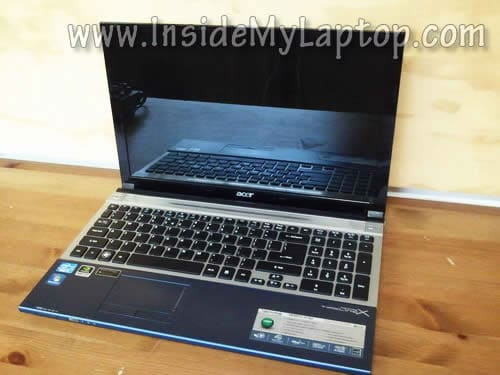
In this guide I’ll be removing and replacing the LCD screen on an Acer Aspire 5830TG-6782.
Most likely you can use this guide for other models in the Acer Aspire line. If it works for your laptop please mention the model number in comments after the post.
First of all make sure the computer is turned off.
STEP 1.
Using a sharp object remove the screw cover located in the lower left corner of the display bezel.
After that remove the screw.
STEP 2.
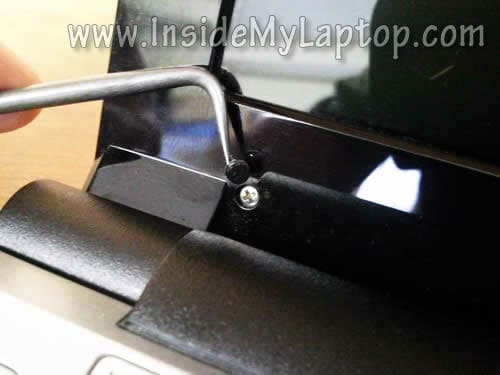
Remove the screw cover from the right side of the bezel.
Remove the screw.
STEP 3.
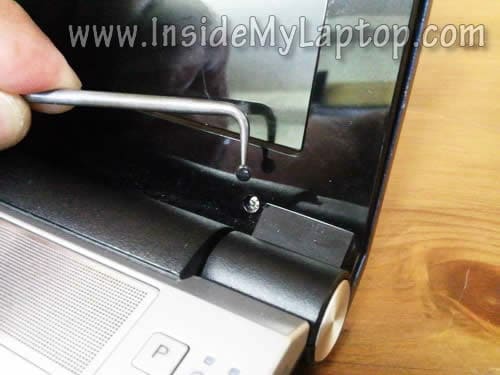
Insert your fingers under the bezel and start separating it from the display cover.
You’ll have to wiggle the bezel in order to unlock hidden latches securing the bezel. Also, you can use a guitar pick or any other piece of plastic to separate the bezel.

STEP 4.
Continue removing the bezel on the top side of the display assembly.
STEP 5.
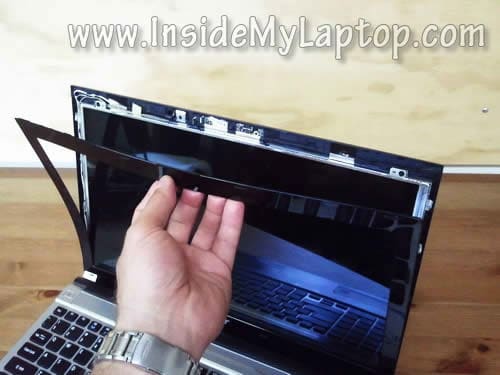
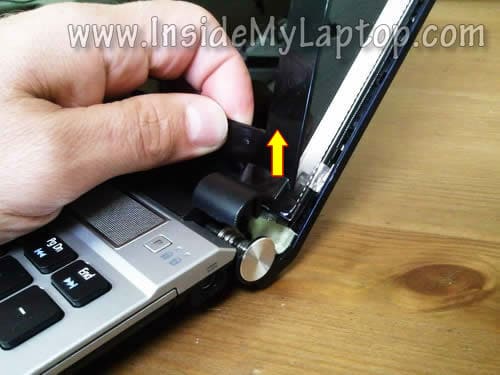
Lift up the right hinge cover which is part of the bezel.
Do the same with the left cover.
STEP 6.
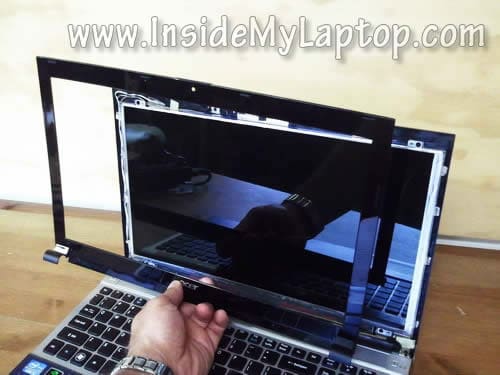
Separate and remove the bezel from the laptop display.
STEP 7.
Remove four screw securing the LCD to the display back cover.

STEP 8.
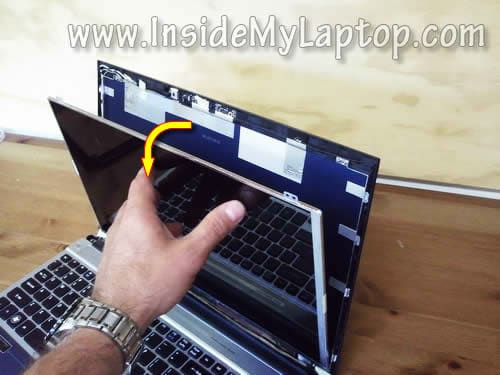
Carefully separate the LCD from the back cover and place it the front side down on the keyboard.
STEP 9.
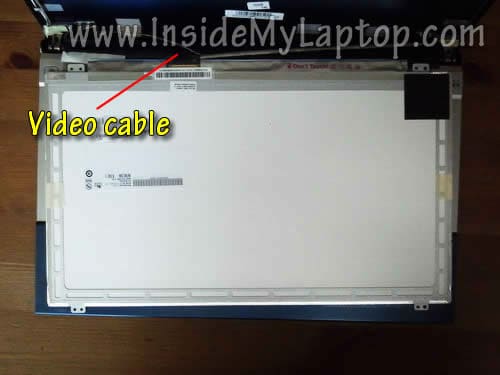
On the back side you can access the video cable connector.
STEP 10.
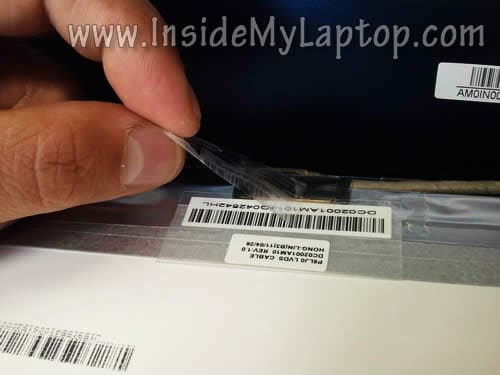
Remove sticky tape securing the connection.
STEP 11.
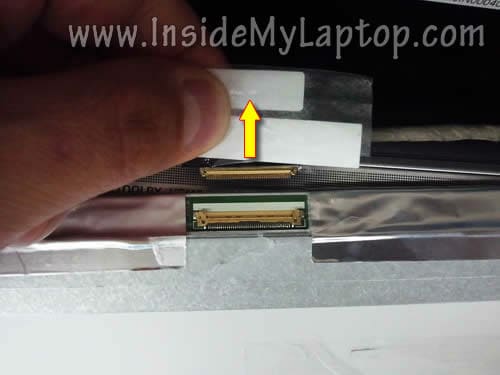
Disconnect the video cable.
STEP 12.
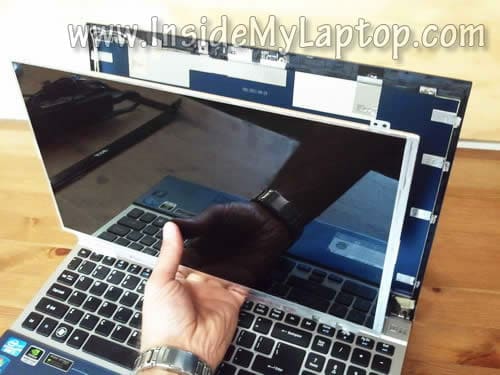
Remove the LCD screen. It’s ready for the replacement.
STEP 13.
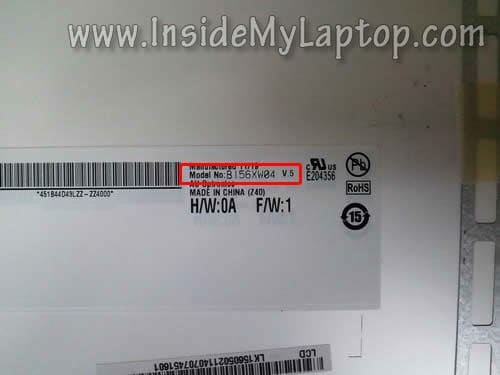
The best way to find a new compatible screen is searching by the model number.
In my Acer Aspire 5830TG-6782 I had the following LCD installed: B156XW04 v.5
It’s possible that earlier versions of the screen will work just fine but I’m not sure 100%. Just in case I would confirm that with the seller.
After the replacement assemble the laptop following all disassembly steps in the reverse direction.
Winsa Kulatz
how can i download this page ?
IML Tech
@ Winsa Kulatz,
Mac: File – Save as – Web Archive
PC: File – Safe Page As – Web Page
Jonas
Thanks man. Is there a non-glare-version of the screen that is compatible? Found one on Amazon but they don’t ship to switzerland 🙁
Sam
First of all, I would like to thank you for the valueable demonstration. It is very informative, professional. I really enjoy your website, and I believe I will continue to visit your website and notify my friends to watch it. Thank you and keep up good work.