

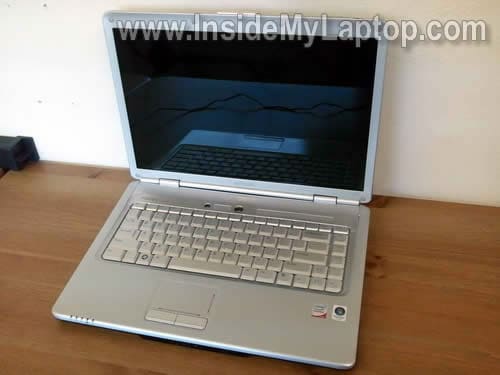
In this guide I explain how to remove and replace the LCD screen or inverter board in a Dell Inspiron 1525 laptop.
Most likely this guide will work for many other Dell models. If it works for you, please mention the model number in comments after this post.
In order to remove the LCD and inverter we’ll have to take apart the display assembly.
Before you start, make sure the computer is turned off and battery removed.
STEP 1.
There are six rubber screw covers on the display bezel.
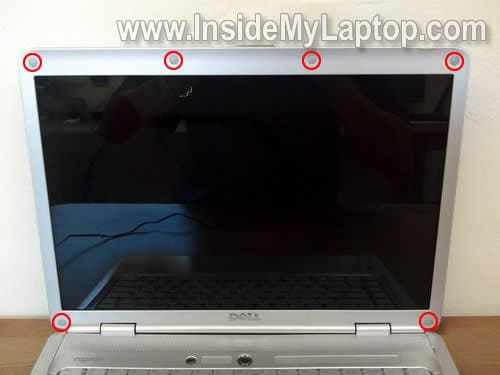
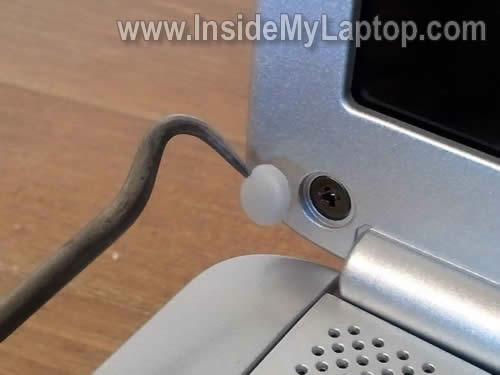
Remove all covers with a sharp object. You can glue covers somewhere so they don’t get lost.
Now remove all six screws found under those covers.
STEP 2.
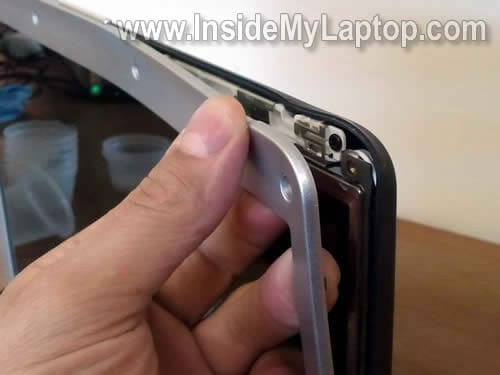
Start separating the bezel from the display cover. You may use a piece of plastic as case cracker.
Insert fingers under the bezel and carefully wiggle until it separates from the cover.
STEP 3.
Continue removing bezel on the top.
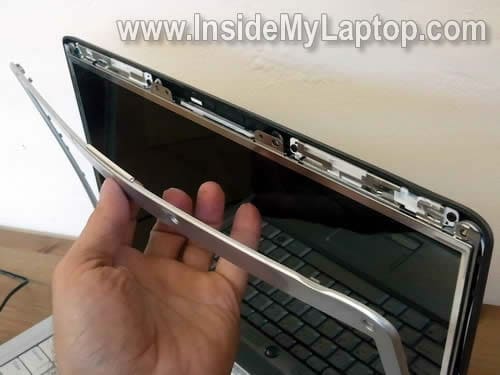
STEP 4.
On the bottom the bezel could be glued to the LCD with double sticky tape.
Carefully separate the bezel.
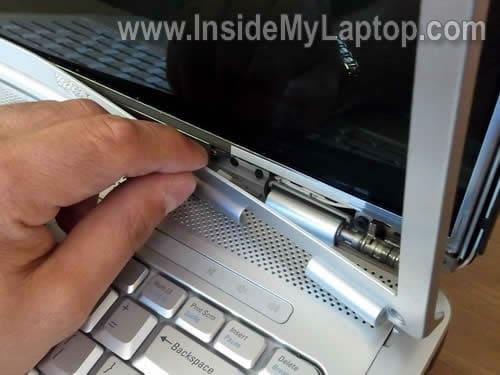
STEP 5.
It has been removed.
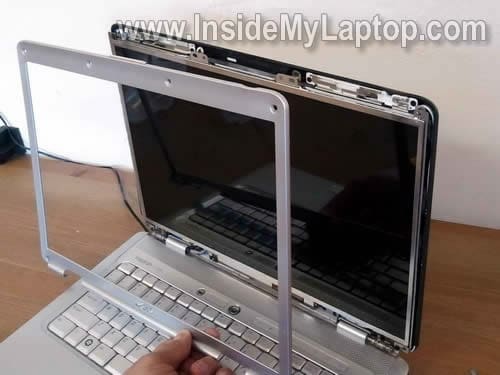
STEP 6.
Remove two screws securing hinges to the back cover.
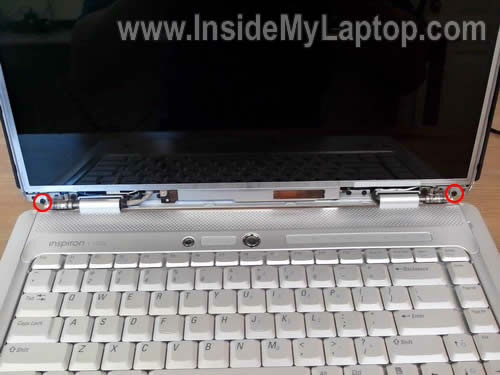
STEP 7.
Carefully separate the LCD assembly from the display cover and place it face down on the keyboard.
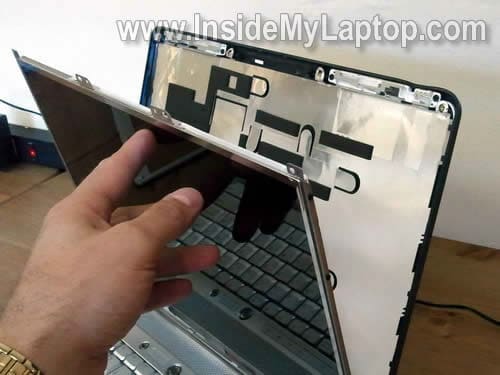
STEP 8.
Now you can access the back side.
The inverter board mounted into a metal bracket.
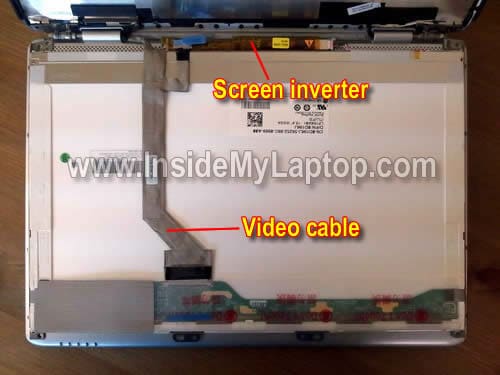
STEP 9.
Disconnect the video cable.
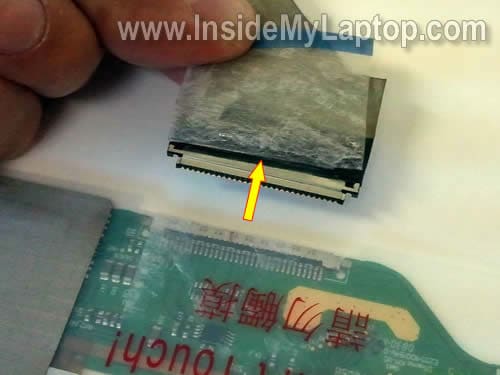
STEP 10.
Disconnect another end of the video cable from the inverter.
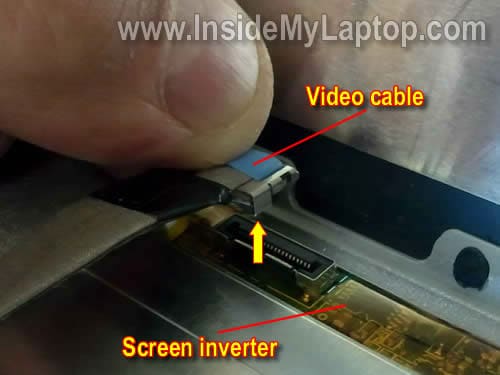
STEP 11.
The LCD assembly has been removed.
There are two mounting brackets on both side.
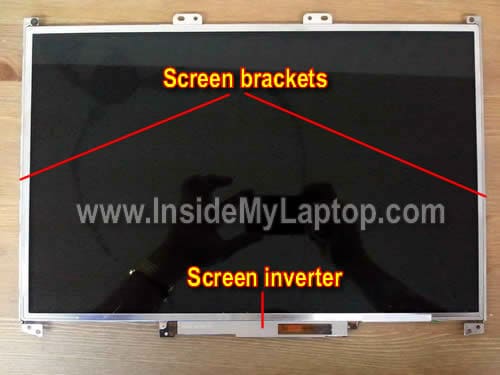
STEP 12.
Remove one screw securing the inverter board to the bracket.
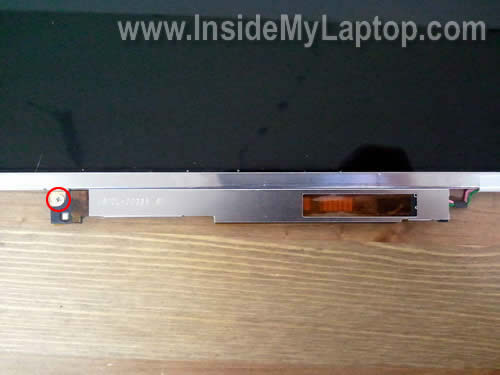
STEP 13.
Disconnect the backlight cable from the left side of the inverter.
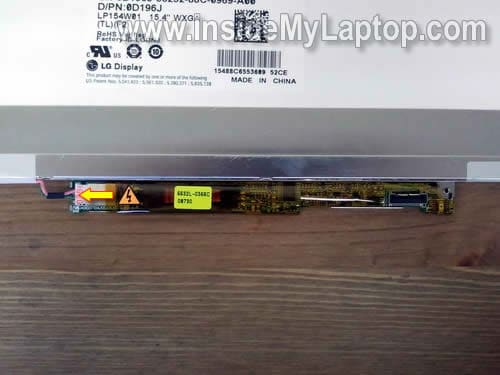
STEP 14.
Now you can remove the inverter and replace it with a new one if needed.
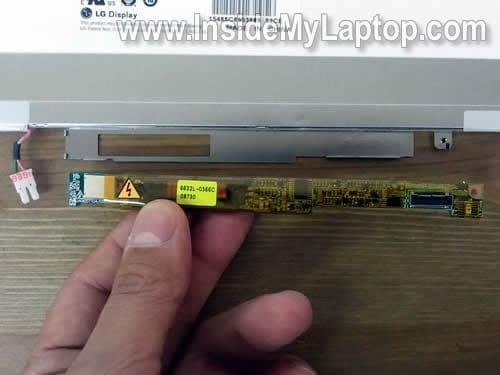
The best way to search for a replacement screen would be using Dell part number (0D196j in my case) or LCD model number (LP154W01 (TL)(F2) in my case).
If you are replacing just the screen, I would recommend buying exactly the same model, preferably with the inverter attached.
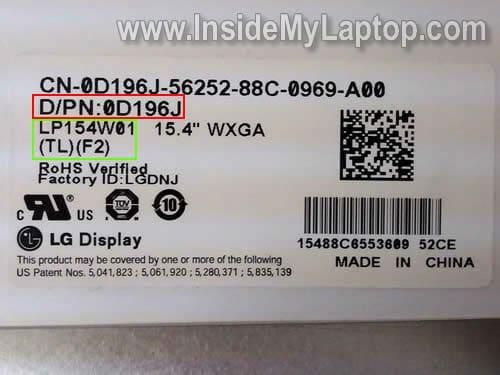
STEP 15.
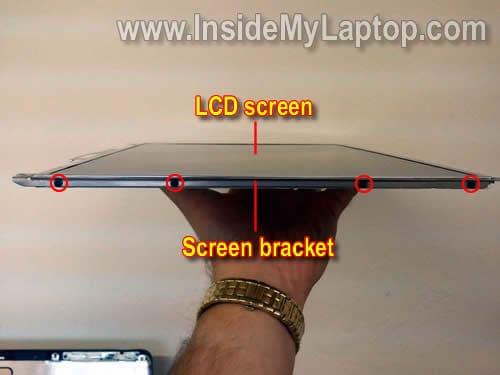
Transfer the left and right mounting brackets to the new screen.
In order to remove the bracket, simply remove four screws on securing it.
In one of my previous posts I explained how to replace keyboard on Dell Inspiron 1525 laptop.
David
Perfect instructions for the 1545!! I just replaced the screen in less than an hour. $80 for the new screen instead of $500 for a new system.
Cameron
Check, good for a 1545. I ended up pulling the inverter even though I didn’t need to replace it, as it is very difficult to get the inverter connector back in with the inverter still connected to the computer. So go ahead pull the inverter just like the instruction advisew, even if you don’t need to replace this part.
Arnau
Hi,
I’ve just found this site because yesterday I had a problem with my laptop and now I have to change the LCD screen. My laptop falled down and LCD is partially all (90%) broken but the bezel seems ok, so I just want to change de LCD screen. The computer works fine as I have it connected to the TV and all is ok.
My question is, I have a webcam on the screen cover (the bezel) , so I suppose there is a wire behind the screen where the wire comes up. Is there any difference when changing the screen? I want my webcam continue working after changing my LCD 🙂
Another question, is there any other way in order to know my part number or LCD model number without umounting the screen?
And the last one: I will try to buy the same LCD as I have. Do you recommend me buying the inverter board attached and change it too? The only part I can see of my partially broken screen I can see it well, like if the screen wasn’t broken.
Thanks a lot everyone and sorry for my english. I will follow this guide when changing the LCD 🙂
IML Tech
Arnau,
Yep, sounds like you need a new LCD screen. If the laptop works fine with an external monitor (TV in your case), there is no other damage besides the LCD screen.
That’s right. There is a harness running from the webcam board to the motherboard. The webcam is a separate module and replacing the LCD screen should affect its functionality. When you remove the bezel, you’ll see the webcam module mounter above the LCD screen. Simply disconnect the webcam cable, replace the screen and connect the cable back into the webcam.
I don’t think so. The LCD part number and model number are printed on the label. If you want to be 100% sure that your new screen is compatible, I would suggest searching by the screen model number. It means you’ll have to open up the display assemble before ordering the screen.
It sounds like in your case the inverter board is not damaged but… when you replace LCD screen in a Dell laptop I recommend buying a new screen WITH the inverter board. They often sold in pairs.
Sometimes, when you replace just the screen, the brightness might now work properly. So far I’ve seen it happening only with Dell laptops. It will work but the screen will not be as bright as before. I think it’s some kind of compatibility issue between the backlight lamp and inverter. In Dell laptops the inverter must match the backlight lamp perfectly. Again, if you decide to buy a new screen, find one with the inverter board attached. If you cannot find one like that, make sure the new LCD screen model number 100% matches the original screen.
Arnau
Hi IML Tech!
thank you very much for the very quick answer 😀
I pending to recieve Dell’s official Tecnichal Support offer for changing the LCD, but they said me It will be too expensive. Also I’m pending to phone them again in order to know if they have this part number.
By the way, I’m very convinced about buying a new LCD (ebay maybe) and try to do it for myself.
So, thanks again and I promise I’ll say something after solving my problem 🙂
Carolee
Those are great step-by-step instructions. I would never have known how to replace an inverter.
The only thing that was difficult was the screw in step 12 – I had to get vice grips to get that screw to turn.
My system was an Inspiron 1300, so just a little different, but I”m so glad I got it fixed. The part was only $8 on ebay! Thank you.
Ewald
Hi IML Tech,
Thank you for this great guide. It is really appreciated.
Although I am dealing with the same laptop my problem is a little different.
I replaced this cracked Inspiron 1545 screen with an exact copy of the original and as a result the screen doesnt work anymore at all and neighter does the original.
Is it this bad that i might short circuit something and i need to replace the mobo ?
IML Tech
Ewald,
I cannot tell without testing the laptop.
1. Test your laptop with an external monitor. Can you get image on the external monitor?
2. Make sure the video cable plugged correctly. Maybe you accidentally disconnected it from the motherboard?
vickie
Ok, my screen was going black, but you could see an image in the background very slightly. So we replaced the inverter in our Toshiba laptop and that didn’t work, was still having the same problem, so we order a display screen and replaced it, but I think I am missing a step, All I am getting is a white screen, Very bright though. I am thinking there is a trick to the video cable being plugged in, any ideas???
IML Tech
vickie,
Make sure the video cable plugged correctly on the back of the LCD screen.
When you get a white screen, it means there is no data signal going to the LCD screen. Probably bad connection.
Try installing the original LCD back. Do you still get same dim image on the original screen?
If the original screen show image (even if it’s dim) but your new screen is completely white, it’s possible the new screen is defective OR not compatible with your laptop.
Patrick
I just replaced the screen a Dell Inspiron 1525 laptop because 1/3 of the screen had gone black. Your instruction were great!! The new screen shows a picture but it is very dark, the LT works fine with an external monitor. Would this be a loose connection, or bad inverter?
Thanks
IML Tech
Patrick,
How dark the picture is?
Is it dark like there is no backlight at all or it’s just not bright enough like before?
I assume it’s just not as bright as before, right? Usually it happens if you install a “wrong” screen. Dell laptops are very picky to new LCD screens.
If it’s not exactly the same model and version, it will work but will be not very bright.
When I have to replace LCD screen on a Dell laptop, I either buy EXACTLY the same model or if it’s a “compatible” Dell screen, I buy one with the inverter board installed.
brad
hi, i have a problem with my dell inspiron 1545. i got this from a guy that said it got steped on.so since i work on them for a living i decided to fix it for my daughters x-mas present. so i ordered a motherboard a screen , back cover , front trim. so i got it all put everything together and got it loaded everything with the external monitor but the screen was still dim to were u could barley see it with the lights on it but if u looked at it in the dark u couldnt see nothing. so i ordered the inverter thinking that was it that come put it in that wasnt it. ive tried a smaller screen we had in back that was stained that worked and it worked on it. but i tried to find a screen in town that was the same size so i could get it to work for her for xmas and when i found one it wont work and i cant get anyone to work now besides being dim again.could this be a keyboard issue cause i cant seem to get the brightness buttons with the func key to work ? or is it the cable that runs the screen from board to inverter to screen ? ive tried moving the cable around to see if there was a short but nothing happens ? i need help with this one cause im kind of puzzeled.
IML Tech
brad,
If the laptop worked with the stained screen but not with the new one, apparently the new screen is defective.
I don’t think so. If the screen has no backlight at all, it’s not related to the keyboard.
carnaige
Hi thanks for the excellent guide…
I’ve hit a bit of a wall at point 12 though, non of my screwdrivers will remove the screw connecting the inverter to the screen, what should i be using!?
Thanks
David
No technical comment, just thanks for going to the trouble of supplying such detailed and competent advice. I hope you get some commercial benefit for your efforts, you certainly deserve to.
Dave
Thanks for the great info. I need to replace the bottom cover on my daughter’s 1525 before she leaves to study abroad next week. Do I need to remove the LCD bezel or can I get away with disconnecting wires on the motherboard while the hinges are disconnected? In other words, do I need to completely disconnect the LCD before replacing the bottom? I’m worried that once I take off the bezel – I may need to replace it and I only have a week. Thanks so much.
ashley
HELLO PLEASE HELP ME I’M USING MY CELL I DON’T KNOW HOW ILL EVER FIND THIS WEBSITE AGAIN, MY COMPUTER SCREEN WENT BLACK AND I COULD SEE IT SLIGHTLY WITH THE LIGHTS OFF, I REPLACED THE INVERTER AND LCD SCREEN, MY UNCLE IS A COMPUTER WIZ AND HE CAN’T EVEN FIGURE IT OUT I DON’T KNOW WHAT TO DO PLEASE HELP CAN YOU EMAIL ME AT ALL
IML Tech
ashley,
Did you install brand new LCD screen and inverter?
If these two parts good, then you have either bad LCD cable or motherboard failure. It’s hard to troubleshoot this problem without spare parts.
ashley
Thank you, yes I replaced both and they were good, supposedly someone said Dell said its a bad BIN, I have no idea what that is or means, this has been on going for 6 months..its really sad and frustrating, when I turn my laptop on its black, only inthe pitch black with a flash light right up to the computer you can barely see it, I use an exteral monitor and that works fine, I replaced the lcd monitor and inverter, not I’m just lost, and I don’t really see any light here, I researched for 5months and still nothing, thank you for taking your time out to talk to me
Noi Callado
Hi there! I’m having a problem with my LCD screen. Each time I logged in my LCD turns into black. Our company technician taught me how diagnose it. He said, try connect to desktop LCD if it nothing happens then the LCD was the problem. So tried and it works coz I don’t have any problem with my computer aside from that.
And now, I discovered your website showing the technic on how to replace LCD ourselves. This help us a lot in saving cost to labor and it serves as an additional knowledge us knowing our personal computer.
Yyou have mentioned here that it’s not advisable to use compatible LCD because, we might end up in a not satisfactory result. Lucky, I’ve found this website of yours coz I’m planning to buy already a compatible replacement. Now, since I know already what to do, I’ll follow your advise.
I might ask you in the future if I encountered some problem during the replacement of my LCD.
Again, thank you for your wonderful and educational website. Keep up the good work and GOD bless.
Jai
I dropped my Dell 1525 from about 2 feet on the tile floor. I thought Hard drive went bad, but connecting to desktop monitor confirmed that it was LCD that went bad. After finding the instructions on this site, I took it apart and ordered exact Dell part (new) for LCD that includes inverter. I was shocked to see there is no difference with the new LCD. I do not see any light in the LCD. I correctly inserted data cable and inverter cable. I checked to make sure these two cables are tight and secure. I read on this site and several others that replacing LCD should take care of it but what else is going on with my laptop? Any lose connections inside the laptop? Is it something I can take it apart? or any other tests I could do? I really appreciate your time and help with any advice you could give.
Tony
Alot of the above mentioned problems stem from the back light (yes there is a CCFL) back light in your screen at the bottom. The CCFL is nothing more then a very long and small florecent light. Yes you can change them but its not a job for the impatient or light hearted as it takes alot of time and patience to do one
Sue
Hi,
I have fixed computers in the past, But this one is different . LOL This is Dell Inspiron 1545 Laptop with an LED screen.
I checked the lid switch- OK
I check connection to motherboard- Ok
Plugged the laptop into monitor- Ok
Old screen doesn’t work and did when cracked before
This doesn’t have any kind of inverter that I can see. I assume it gets it’s power directly from the motherboard. Like I said this is not a CCFL.
I cannot find ANYTHING to help me describe if it is integrated (Inverter) into the board.
I have never seen so many complaints about this in my life. lol
Thanks for your help
Chuck Brown
Guys, I’m in a very similar spot and I actually suspect I know where the physical problems lies, I just dont know how to proceed. I’ve changed out LCD screens before and never had a problem, but this one is driving me nuts. My daughter dropped her Dell 1525 Laptop, smashing the front bezel and hinges and cover. The system still powers up and the screen is not cracked.
I’ve swapped in new hinges, cover. bezel, etc…however there is one small black wire that reaches into the screen cover along the left hinge, but isnt actually connected to anything. Its not one of the 4 wires that feeds along the monitor frame, and is only maybe 2″ long, and I have no clue as to what its supposed to tie into. Suggestions?
Thanks in advance!
IML Tech
Chuck Brown,
Looking at the Dell 1525 cover right now.
There is a black cable (about 2″ long) which is soldered to the green board located to the right from the left hinge. Looks like this is one of the antenna cables (Wi-Fi antenna?). Most likely it broke of off the antenna board when your daughter dropped the laptop.
Dave
Hey guys, I have a similar problem with my laptop screen. On start-up, it flickers and then goes dim. No black-light. External monitor works fine. I replaced the inverter and there was no change. The thing is the screen randomly turns on and works perfectly. Since its doing this, I dont think there is anything wrong with the screen but maybe some sort of power problem . Yet how can it just randomly start working by itself? Any ideas?
IML Tech
Dave,
Probably you have bad backlight lamp inside the screen.
Here’s something to try. When you use the laptop, turn the LCD screen brightness about 50% down and use it this way. Will it fail with reduced brightness? If not, most likely this is backlight lamp failure. Replace the screen.
Steve
I have a 1525, I have a dark screen, seems like no back light, the screen is very dim. I replaced inverter but to no avail, do you think that it is the lamp or maybe a cable issue? Where should i go from here?
IML Tech
Steve,
If you replaced the inverter board but the problem is still there, most likely this is failed backlight lamp. The next step would be replacing the LCD screen because it’s very hard to replace just the backlight.
Here’s an advise. When you buy a new LCD screen, buy one with inverter board attached. This will guaranty that your inverter matches the screen.
If you but just the screen, there is no guaranty your original inverter will match and in this case the brightness will not work properly. It will work but will not be as bright as before. Buy a combo.
There is chance that you have failed video cable or even bad motherboard, but this is not very common. Most likely it’s just a bad lamp.
pep
hi just wondered if a screen from any similar dell laptop will fit an inspiron 6400?
Bill
My daughter dropped her Dell Inspiron 1545. Screen was cracked, showed typical white with bleeding black spreading from corner of impact. Screen was a Chungwa CLAA156WA11.
Computer works fine connected to external monitor.
I ordered and installed a replacement screen (Samsung LTN156AT02). Screen is completely black. Still works fine with ext montior.
Old screen and new screen only have one connector (video) to screen. No inverter, or backlight connections. Is this correct?
Any suggestions? Thank you for any help or hints.
Bill
IML Tech
Bill,
Is the new screen compatible with your Dell Inspiron 1545 laptop?
Try installing the original cracked LCD screen back into the laptop. Does it light up?
If the old screen lights up but the new one doesn’t have any light, the new screen either not compatible OR defective.
I cannot tell without testing the laptop.
Probably your laptop has LED-backlit LCD screen which doesn’t have backlight lamp and has only one connector for the video cable. Yes, it sounds rights.
John
Thanks for all the great info you provided. I have a Inspiron 1525 with 1280X800 screen. I see there is a WUXGA screen available for this model. Can I just swap it out or there is more involved than just swapping screens?
Thanks.
IML Tech
John,
I believe in this laptop just swapping screens will work. If not, you’ll have to find a WUXGA compatible video cable.
Again, I think just swapping screen is fine.
John
Great! Thanks again for your efforts. It’s greatly appreciated.
Robert
Hi, I have a quite tricky issue, the nobok felt down, got a tiny crank on the plastik cover. Actually the notebook an display works, just the corner ( left botton ) gets quickly extrem hot, that even the color changes. Andy idea ?
IML Tech
@ Robert,
Hard to tell what’s going on.
Listen for the cooling fan. Does it work at all?
It’s possible the cooling fan got damaged and doesn’t work anymore. Just a guess.
kaku
There some sort of firmware hash on the panel. so far, every panel i have had with a compatible inverter works. but the exact panel that didn’t does not.
well dell loses my future business.
lenovoy510
My lcd screen is warm hmmmm kinda hot in the inverter area of my lenovo y510… Is there an issue with the inverter or will the inverter get heated like that always?
IML Tech
@ lenovoy510,
Usually inverters get warm while working but not very hot.
DB
Hello,
Thanks for the easy to follow instructions. When we put the new screen in our inspiron 1525, the backlight works fine but there is no image displayed. At first, the screen is a little white but then it turns black (still with backlight). We have confirmed that the computer works fine by plugging into an external monitor. I also confirmed that the signal cable is plugged in to the system board and at the top of the monitor. Any ideas? Thanks
PS: the old monitor needed to be replaced because it was cracked and the image was scrambled (dropped)
lenovo y510
My inverter area is also warm … is it normal…. can we really distinguish b/w warm and real hot….
IML Tech
@ lenovo y510,
If you touch the inverter area with your finger and it’s not uncomfortably hot, probably it’s OK.
John Richards
Hi I need some advice… i have a dell inspiron 1300 with 3 colour lines down the screen which is annoying… i also have a dell inspiron 1501 with a dead motherboard( screen was ok)… can i use the screen from the 1501 in the 1300? will the inverter and connections be the same? also will the main computer processor work in the 1300 also…im trying to salvage all the good bits into one computer..
thanks
IML Tech
@ John Richards,
Cannot tell without trying. It looks like both laptops have 15.4″ screens. If both screens have the same resolution it might work.
When you transfer the screen, make sure to transfer it with the inverter.
Connectors for the video cable should be the same on both screens.
Patti
Like others, the screen on my 1525 went almost completely black – the only way to see the screen is to shine a very bright light on it (and even doing that, it’s almost impossible to see the image, but it’s there and there are moments when I can see the laptop screen when connecting an external monitor. It’s a bit maddening because it looks as if the laptop screen is going to stay lit, but then it goes out.)
I’m waiting for the “new” inverter board (can only find a used one).
Decided to do a dry run dissembling the screen so that I have a better hands on idea of what this involves (and for deciding whether or not I’m completely up to the task).
To clarify a couple of things……
In addition to the connections being in place, both the video cable and the inverter board are FIRMLY taped down – I almost hesitate to pull the tape off especially on the video cable connection to the screen because I’m concerned about damaging other components. Less concern with the inverter board because the tape is across the bad inverter and the frame.
Is it possible to replace the inverter board without removing the video cable from the screen and if not do you have any suggests – besides being very careful! – for removing the tape from the video cable connection to the screen?
Also is it necessary to re-tape the video cable and the “new” inverter after replacing the inverter?
Thanks for your help.
IML Tech
@ Patti,
The inverter board secured in the metal bracket attached to the bottom of the screen. It will be hard to remove the inverter without disconnecting the video cable but possible. Depends on your tech skills.
Before you remove the old inverter, I would suggest testing the “new” inverter. Simply disconnected the old one, plug in the new one and see if the problem fixed. If not, most likely this is backlight failure. If that’s the case, you’ll have to replace the screen.
Yes, I would do it to make sure the cable is secure. You can use regular sticky tape.
Patti
Thank you for answering my questions in post #49.
I was able to buy an identical inverter board, unfortunately it did not repair the almost black screen (I can seen a faint image if I hold a bright light up to it, and sometimes when I connect the external monitor, the laptop display comes on but only for a few seconds). Also with the “new” inverter, when Windows loads, the screen – for a moment – looks almost green, which is a first.
I’ve been connected to an external monitor without problems but I really want to make the laptop whole again since the external monitor is only good at home.
Before I spend $100 on a “new” screen (the only ones I’m finding are used) is there anyone for me to be sure that the issue isn’t with motherboard – my concern is that the screen problem is the start of the motherboard going south- is that possible?
I have minor issues with the laptop (the battery no longer fully charges, so I stick to the AC adapter) and I want to replace the keyboard mostly for cosmetic reasons, but it works. Otherwise, the laptop works fine (except for the black screen).
Could the screen being almost black have something to do with another part other than the back light?
And this may be an idiotic (!?) question but does the video card have anything to do with this type of problem or is it that once the screen losses brightness, the problem can usually be narrowed down to either the inverter and/or the backlight.
Thanks again – I really appreciate it – Patti
IML Tech
@ Patti,
Unfortunately it’s hard to troubleshoot backlight issues without spare parts.
I cannot if you backlight issue is related to the motherboard failure. The only way to find out is testing the laptop with another screen.
If you decide to buy a new replacement screen, make sure it comes with the inverter. In Dell laptops it’s important to match the inverter with the screen. If they do not match, the brightness will work but not properly.
This could be:
1. Bad inverter (which you already replaced.
2. Bad backlight lamp inside the screen.
3. Bad video cable.
4. Bad connection between the video cable and motherboard.
5. Motherboard failure.
lenovo y510
Hi,
when screen brightness is lowered (30%) the inverter area is less warm than 100% brightness… is this normal….. i think i am unnecessarily paranoid…. i think its normal// what say?
IML Tech
@ lenovo y510,
How hot is it? If you touch the inverter area with the back of your fingers and it’s comfortably warm, probably it’s OK.
Marty
I ordered a replacement LCD Screen for my Dell 1525 Lap Top and when i got it there is no bracket on the new one at teh bottom that should hold the inverter and the old onew won’t fit on the new one also there is no top brackets where i need to screw into the lid to hold it in place. What do I do?? Thanks and great site…
IML Tech
@ Marty,
Install the new LCD screen and glue the inverter under the screen with double sticky tape. It should be enough to secure the inverter. I’ve done it myself before a few times.
Avery
Hi, I replaced a screen on a similar laptop about a week ago. My problem is with the piece of tape that holds the video cable to the screen. The cable itself doesn’t seem to have any sort of latch of any kind. And the tape doesn’t want to hold very well. After a while the cable works itself out. Is there a suitable substitute that I can use?
Thanks for any ideas!
IML Tech
@ Avery,
A regular clear Scotch tape should work just fine. Using it all the time.
Collins Alum
i bought a dell inspiron 1420 with a faulty LCD but after replacement the brightness is so poor even if adjusted fully.what could be the problem
IML Tech
@ Collins Alum,
Did you replace just the screen without replacing the inverter board? It’s possible your original inverter doesn’t match the screen. That’s why the brightness doesn’t work properly.
What happens if you adjust brightness using the keyboard keys? Does it go up and down without any pattern? If yes, probably you’ll have to find the correct inverter which matches your screen.
Nisha
Hey IML Tech,
I just dropped my laptop & a white wire just snapped between the screen next to the blue & black/gray wire on the left. Everything is still working fine. What is this white cable used for?
Dell Inspiron1525 owner
IML Tech
@ Nisha,
I think you are talking about wireless card antenna cable.
Probably the wireless card still works because it has another antenna cable connected.
Colin
Hi,
I am in the process of replacing the screen on a Dell Inspiron 1545 (CCFL) which had stopped working (dark). Before I commit to the expense of buying a new screen I purchased a CCFL tube with wires and plugged into the inverter to confirm, it came on as soon as I powered up……so confident a new screen is required.
Having removed (and scrapped) the old screen I tried a few days later to repeat the test with the screen removed but the CCFL test lamp now fails to illuminate when connected. The pc continues to work when connected to an external screen.
Is it smart enough to know there is no screen connected and therefore no need to fire up the inverter or do I have to look elsewhere as to why this is the case ?
IML Tech
@ Colin,
Did you connect the backlight lamp without old LCD screen connected to the laptop?
It’s possible your laptop requires the LCD screen to be installed in order to light up the backlight lamp. Probably there is some kind of signal going from the screen to the motherboard.
Ken
I got an inverter for $8.00, followed your instructions, and it’s like I have a brand new screen.
Thanks for this!
Ken
Tamas
Hi Ken,
I have the same problem, The screen went dark. The LCD is still working as i can see it but very dimly. I think the inverter is busted and it won’t power up the light. Could you please tell me where you found the inverter for $8.
Thanks,
Tamas
marium
Hi, could I replace samsung screen by LG one , which is better in your veiw?
My old display is LTN154x3-L0D.
Thanks
don
how do you replace the backlight, i found the inverter but want to replace the light also, i bought
an inverter and light combo pack because i’m not sure whats out, the bulb or the inverter
thanks
fiy your instructions are awesome
don
sorry its for a inspiron 1525 laptop
tony hansford
hi can you tell me i need to replace the wire lead that goes from the mother board to the back of the scrreen on a dell inspiron 1750 could you tell me what this wire is called so i can get one as i got this laptop with a damage wire so screen wont come on i know the screen is ok many thanks
IML Tech
@ tony hansford,
What kind of wire? Is it a thick harness (called video cable) or single thin cable (could be wireless card antenna cable, webcamera cable or microphone cable)?
VISHAL BOBADE
Hi,
I have a dell inspiron 1525 , but once its dropped down on the ground mistakenly and its hinge on one side is damaged so plz guide me that how can i replace /repair it?
Kevin Laidlaw
Hi there
I have an issue with my Dell Inspiration 1525 Laptop.
It was working fine last night until I plugged in my hdmi cable to watch a dvd on my house tv.
I couldn’t get a connection using my hdmi cable so I turned my laptop off, Connected the hdmi cable to my laptop and tv, Turned on the laptop and since then I am getting a dull screen with mostly black and grey image. Looks like I’m looking a paint that has been dropped on the ground. I can’t see anything on my desktop unless I plug in a vga cable from the laptop to my tv and press F8.
Does this mean my screen is broken?? could get away with changing the Inverter over or could it be a display setting that is maybe wrong???
Please can someone help me.
Kevin
Tristram
Hello, is it possible to replace a 1545 screen with a 1525? the 1525 screen works but the mother board is trashed so i dont need it, but i use the 1545 with a monitor as the screen does not work, im not sure what is exactly wrong with it my dog sat on the laptop. I think the two screens are different sizes but maybe i could try taking the nverter from the 1525 and putting it into the 1545?
bébéchoon
Excellent, thank you!
One of the most difficult things for any DiY-er when attempting repairs is to know how things are assembled and, more importantly, how to take them apart – and in what order – without breaking anything (plastic snap fastenings in particular).
This guide enabled me to replace the screen on my Dell Inspiron 1525 in around half an hour (taking things slowly and carefully), with a professional result.
For around £70 (the cost of the screen, including post), it has given fresh life to my portable, which was otherwise destined for the rubbish bin.
Tyana
Hi,
I have this problem that has me freaking out just a little..,So I turned on my Dell Inspiron 1525 today and the screen was black, I mean you could not see anything.After my panic I pressed down the power button to turn it off then rebooted the system and it beeped atleast 3 times and that was the only sound i heard.Do I need to make any replacements, I am willing to try out anything, could you assist me please!
Thanks a million
Tyana
IML Tech
@ Tyana,
According to Dell three beeps on startup indicate motherboard issue. If that’s the case, there is not much you can do besides replacing the motherboard. This laptop not worth it.
Just in case, try removing RAM modules one by one. Test the laptop with only one module installed.
Rondel Blyden
I have a inspiron 3521 with similar problems but it does not have the rubber screw covers on the display bezel.
Ty
A shout out to the author: thank you so much for putting this detailed, clear info out. You saved me big-time! I am not at all a techie and completed this start to finish without fail. Thanks!
Ankit
Hey IML Tech,
Need some help. The screen of my Inspiron 1525 has a 2mm thick white vertical line alomst near the middle of the screen from top to bottom. It starts appearing right when the laptop is switched on. At first it was a thin blue line but from last week its a white line. No physical damage was done. I am clueless how it happened.
IML Tech
@ Ankit,
This sounds like the LCD screen failure. You’ll have to replace the screen.
vincent
hey friend i was trying to replace my inverter, my battery was aside n my young brother tricked men plugged in the ac adapter while trying to disconnect the video cable a short circuit occured n the entire system went off which part has really damaged plz help
DEL RIO
Thank you so much for this excellent, clear, useful explanation:
My laptop is back from death !
pepper
I need to know what size screws for Inspiron 1525…some screws fell out and I need to replace them
Can you help?
shahanas
Thank you very much….
My laptops screen was not working. I showed to one of the laptop service centre , they said without checking anything its graphic card has some problem i sholud replace that and it will cost 3500.
That time i was not having that much money so i didnt give lap there and i decide to search on google and start searching, finally i got this link and i just remove my screen and unplug some cables and plug it again..
Thank god now its working properly..
I spent only Rs.30 to fix the pblm , tht was the screw driver price.
If i woldnt see this post i might have given my lap to that service centre and paid Rs.3500
Thank you very much…
Really i am happy..
Amar
Hey, can you please help me, just wondering if you know the answer to my question. I have a dell inspiron 1525 laptop, will it’s screen fit into a dell inspiron 1545 laptop, providing the screen size is the same. Just want to know are all the connectors the same, will it work?
Thank you