

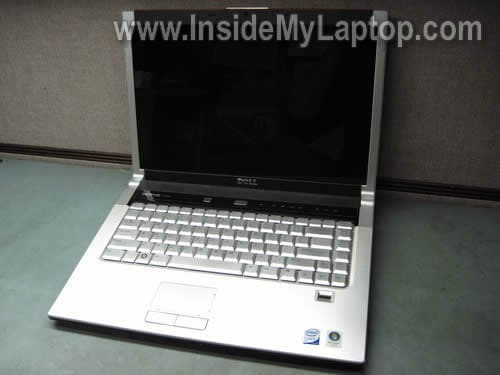
The following set of instructions explains how to remove the LCD screen and inverter board from a Dell XPS M1530.
You can disassemble the display panel without removing it from the laptop.
STEP 1.
Turn off the laptop and remove the battery.
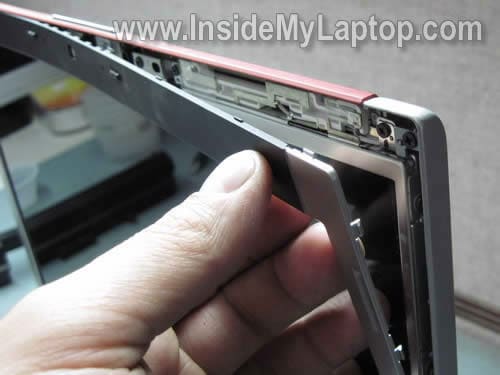
There are no screws securing the display bezel. Start separating the bezel from the display cover with your fingers.
STEP 2.
Continue removing the bezel on the top.
STEP 3.
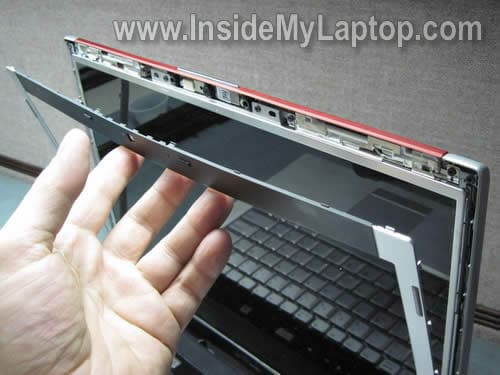
Lift up and separate the bezel from the hinges.

STEP 4.
The display bezel has been removed.

STEP 5.
Remove six screws securing the LCD assembly.

STEP 6.
Separate the LCD from the display cover.

STEP 7.
Place the LCD the front side down on the keyboard. Now you can access the back side and disconnect cables.

STEP 8.
Disconnect the video cable.
STEP 9.
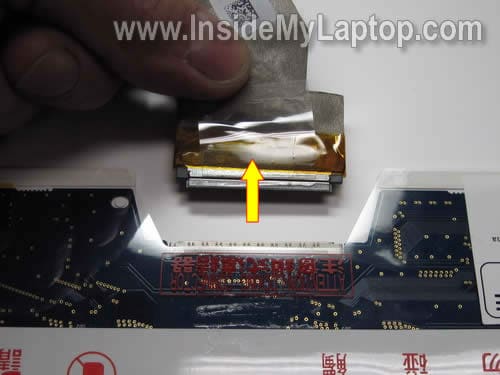
Separate the video cable from the screen. In my case it was glued to it.
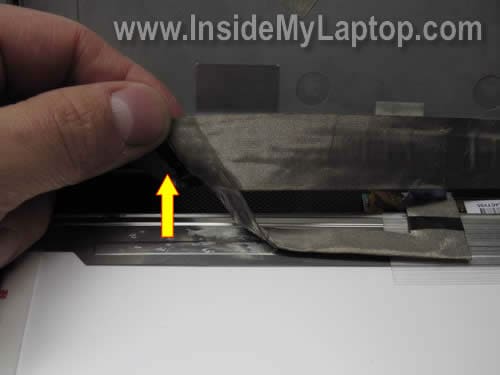
STEP 10.
Disconnect the cable from the inverter board.

STEP 11.
Remove the LCD assembly.
You’ll have to transfer mounting brackets from the old screen to a new one.

STEP 12.
It looks like the inverter board is a part of the screen but it’s not. The inverter board can be removed and replaced separately.
Remove one screw securing the inverter board to the mounting bracket.

STEP 13.
Disconnect the backlight cable from the left side of the inverter.
Slide the inverter to the right side about 3-4 millimeters, lift up the left side of the inverter and remove it from the bracket.
The inverter can be glued to the bracket, so work slowly.

In the previous guide I explain how to remove the cooling fan from a Dell XPS M1530.
kev
you have marked the screw incorrectly at the top of the screen
Coufu
I heard of some success stories upgrading their M1530 LCD’s with a higher resolution one. By any chance you have any experience with that? I’m trying to upgrade my WXGA+ with a WUXGA screen (both CCFL backlit). I bought one off eBay but couldn’t get it to work. Any tips?
IML Tech
Coufu,
Never tried it myself.
It’s possible that your new high resolution screen requires a different LCD cable.
Steven
I bought a new screen from laptops4less.com for my Dell Inspiron M1530.
The new screen doesn’t seem to have a bracket to connect the inverter board to it though.
that was built into the old screen. Any suggestions as to what do I do?
Steve
IML Tech
Steven,
Remove the old inverter from the bracket, connect to the new screen and glue inverter to the cover with double sticky tape. I’ve done it before.
Marc
After getting my replacement LCD screen, I followed this instructional to the “T”. I will say this was my first LCD replacement on laptop and it was the easiest thing to do. Thank you so so much for the instructions!! You rock!!!
Sharn
Hey i just droped my dell on the ground and now have a destroyed screen, i was considering just scraping it but this looks simple enough, ive already had the screen replaced under warrenty but that ran out about 8months ago, im from new zeland and now i need to source a screen and keyboard as some of my keys have stoped working soo frustrating! Any suggestions on where to buy??
Much appreciated..
IML Tech
Sharn,
Search on eBay. Some sellers ship worldwide.
Paul
Sir,
My XPS 1530 screen is flickering different levels of brightness, and on side of the screen (the right) is darker in brightness than the rest of the screen. It’s about two inches in diameter, and runs from top to bottom. Is this an inverter problem or does the screen need to be replaced.
Thanks!
Paul
IML Tech
Paul,
This part of your description sounds like a problem with the inverter OR backlight lamp. When laptop screen flickers like that, it’s necessary to test it with a known good inverter OR backlight lamp to figure out which one is causing the problem.
This part of your description sounds like a problem with the screen. Is it a vertical 2″ band running from top to bottom? If yes, most likely this is LCD screen failure.
When you replace a screen on a Dell laptop I would recommend to buy a new one with the inverter board. Dell screens often sold with inverters.
If you replace just the screen and it’s not 100% compatible with the inverter, the screen brightness will not work correctly.
Again, if you decide to buy a new screen, find one with the inverter attached.
Melissa
Is there a way to tell if I need a new inverter or LCD screen? My screen is black and does nothing. I’ve never had flickers or weird lines in the display. Appreciate a response. Thanks!
IML Tech
Melissa,
Can you see a very faint image on the screen when the laptop is turned on?
Test your laptop with an external monitor. Can you get image on the external monitor?
Cindy
Dell XPS M1530 types two letters when you press one key. I’ve seen replace keyboard, clean keyboard and run Spybot. What do you think? If I have to clean the keyboard, is there an easy way to get to it?
IML Tech
Cindy,
Most likely bad keyboard and you’ll have to replace it.
1. Just in case try reconnecting the keyboard cable on the motherboard. Maybe the cable makes bad connection with the motherboard.
2. If it doesn’t help, replace the keyboard. It shouldn’t be very expensive.
I don’t know who advised you to clean the keyboard.
Key contacts hidden deep inside. You’ll have to replace it.
AC
Steve,
MY XPS M1530’s screen just went black about a week ago. I can see the image faintly on the screen and quite clearly if I shine a light directly on it. I believe it is just the backlight. Is this an easy fix? Do I need to replace anything else at the same time?
Paresh
My XPS M1530 Screen shows four tiled images. Its working properly bt shows 4 instead of 1 single image . Is it inverter issue or LCD screen
Rogelio S.
Hello:
I bought a Screen for my M1520 XPS to replace a broken one. The installation went withot a problem but, the screen looked to not work but after a closer look, it looks like it is only displaying half of the screen with two bars on the top and bottom. Also, the image is really dim in black that is why I thought it was not working, the screen came with its own inverter. Is there anything I can do to I already spent 108$. Thank you
IML Tech
Rogelio S,
You said the original screen was broken. Did you get any image/light on the undamaged part of the broken screen?
If the image/light appeared on the broken screen but doesn’t appear on the new screen, most likely the new screen either not compatible OR defective.
Make sure the video cable connected properly. Try reconnecting the cable on the new screen.
Rogelio S.
Yes, the broken screen had some activity but no backlight. I thought maybe the video card might be damaged but, If I connect the Hdmi port to my TV i get the computer image fine.. It starting look like maybe the screen is defective. The screen came with its own inverter. The video cable seems to be in good codition as well
sony
hi
i have 1530 laptop with no display!!!
is there a way to make a display work?
IML Tech
Sony,
First of all, test your laptop with an external monitor. Can you get image on the external screen?
You might need to disconnect the LCD cable from the motherboard to make the external monitor detected when laptop turns on.
sony
does led display use inverter boards??
IML Tech
sony,
No, the LED screen connected directly to the motherboard. There is no inverter board.
sony
@ IML Tech
i thank you for your kind responds.
I connected the laptop to a external display “LCD in analog and hdmi format” even tried fn+F8 “LCD/CRT” but no display. also tired unplugging LCD display cable from the board.
If i press Fn+power it blink 9 on key board!!!
The funny thing is that the display worked for 5 minutes like 20 days ago!! after i turned off the PC it never worked turned display on again!!
It sounds like there is CD inside CD ROM , if i press eject it does not eject!!
Is there a way to get a post?? when there is not display?
An external video card can work when the a laptop has no display???
once again i thank you for your responds Sony
sony
Hair dryer idea works!!!
No Display on your F$%$ing Dell M1530 Laptop?????????
heat this area with hair dryer!! “real hot for two minutes then plug in!!!”
http://www.ahwee.com/gallery/cache/how-to-disassemble-laptop-xps-m1530/5104.jpg_w400.jpg”
if get black screen again after turning off it is your video card!! no real fix for it other than to replacing the mother board!!!
video card is build in to the mother board!!! “There was a lawsuit for this problem Bing it!!”
🙂
thank you “IML Tech”
sony
sony
if you get a faint image on screen it means inverter is out!!!
i had led not lcd!!
Stefan
Hi all,
I also have the faint image, but no backlight. I’m a bit confused after reading all posts – does the inverter include the backlight or is it a separate part?
Thanks for the detailled guide IML Tech – I hope I will get to use it as soon as I know what’s wrong.
Cheers from Berlin, Germany
Stefan
Stefan
Hi all, followed the guide and disassembled the screen. The flaw became obvious as soon as I saw the inverter board. The plastic power connector has almost completely melted away, meaning I need a new inverter plus the connector. I am not very skilled in using a soldering iron so I would be grateful for any advise on how to get the old connector off and the new one on. The inverter board cost me 55 Euros which seems a lot compared to the dollar prices in the US.
One question that really bothers me though: how can this meltdown happen at all? I mean, could the whole thing catch fire?
cheers again, Stefan
Stefan
Dear IML Tech,
now I’ve got the new inverter board, but I don’t know if I have to remove the whole bracket from the screen or only the board inside. I know you wrote that the bracket is staying but the new board arrived with a bracket as well. Also I am having troubles opening that tiny screw on the board…
Thanks for your help, Stefan
IML Tech
Stefan,
It’s up to you. If the new inverter has same bracket, you can remove the old inverter with the bracket and install a new one instead.
Alternatively, you can remove just the inverter and leave the bracket connected to the LCD screen. In this case you’ll have to separate your new inverter from the bracket and install it into the original bracket.
livingwiththepinks
I’m having an issue with my XPS M1530 display. It seems that white pixels are being replaced with pink and black pixels get replaced with green. If I plug into an external monitor everything looks normal.on that screen and I just updated the nvidia driver to the most recent version. Should I replace the LCD panel?
IML Tech
livingwiththepinks,
It’s hard to tell what is causing the problem. Could be one of the following:
1. Bad connection between video cable and LCD screen or motherboard. I would try reconnecting the cable on both ends.
2. Bad video cable. Try replacing the cable.
3. LCD screen failure. Try replacing the screen.
livingwiththepinks
so I replaced the video cable and the problem persists, so I assume the LCD panel is going bad, but before I purchase a new one Should I make sure to get one with an inverter included or is that not the source of the problem.
I performed a test of the LCD panel by holding the D button when booting up the computer it flashes some color screens supposedly from a chip on the panel and did not notice any issues with the screens although it did not display a white or black screen
Thanks for all your help and the great guides
IML Tech
livingwiththepinks,
Yes, buy a new LCD screen with inverter attached. Even if you know the inverter is not a problem, still search for a new screen with inverter. Why? Because you have a Dell laptop. In a Dell laptop the inverter board mush match the screen. If it doesn’t match, the screen brightness will not work correctly. It will be bright, but no 100% bright as before.
Tomas
Hi,
I have a problem with my DELL Webcam… It’s not working at all, but when I shake a display the control light flash couple of times and message about disconected USB device is on. I think it’s just a connector problem, can I fix it my self somehow?
IML Tech
Tomas,
You should try reconnecting the webcam cable on both ends.
1. Reconnect cable on the webcam module. It’s located under the screen bezel. After you remove the bezel you’ll see the webcam mounted above the screen.
2. Reconnect cable on the motherboard. Most likely this connection located somewhere under the keyboard.
livingwiththepinks
replaced the lcd panel today and the problem remains, any other ideas?
IML Tech
liningwiththepinks,
Are you sure the external video works properly?
It looks like you replaced the video cable and LCD screen but still get same problem.
This could be the video card failure, but most of the time when the video card fails you can see same problem on the external monitor.
I did some research and found that some Dell XPS M1530 laptops are known for the graphics card failure. There is a lawsuit going on.
stephen
I have a dell xps m1530 and the screen went dark one day and im looking for which part to fix it. when the computer is on the screen is dark but at a certain angle i can see some items and able to click on them, do you think this is just the backlight or invertor as well?
IML Tech
stephen,
Most likely it’s either bad inverter or failed backlight lamp inside the screen. You cannot tell without testing the laptop with another inverter or screen.
If you have no spare parts and have to guess, try replacing the inverter first. It’s cheaper than replacing the screen.
If new inverter doesn’t help, most likely this is bad backlight. Replace the screen.
stephen
thanks for the reply, which of these would you recommend? or if you would recommend a better place to purchase from
Backlight lamp + inverter combo OR only inverter.
IML Tech
stephen,
The backlight lamp + inverter is not much more expensive than only inverter.
You can buy the combo. Why? If replacing the inverter board will not fix the problem, you can use the backlight lamp for further troubleshooting.
Chris
I have a M1530 15.4 WSXGA+ (LG screen) I have an issue with the screen. When I am on native resolution (1680 x 1050) its impossible to read the texts…the screen is very blurry…too a point where I have to run it on 800×600 in order for it to be usable.
This issue will come and go. When its working the screen will flicker and then the screen becomes blurry. This will last about a day and then all of sudden it will flicker back and starts to work again.I believe its an LCD issue. The other night when it was blurry I am able to connect it to a secondary monitor via vga and the blurriness was not present on the secondary monitor. Do you think its the lcd or the inverter?
IML Tech
Chris,
Your screen is blurry but still has backlight (you said it’s readable), so this is NOT inverter related problem.
You said the laptop works fine with an external monitor, so I assume the video card works properly.
From your description it sounds like your problem could be related to one of the following:
1. Bad connection between the video cable and motherboard or LCD screen. Try reconnecting the video cable on both ends.
2. Failing LCD screen. Try replacing the screen.
3. Failing video cable. Try replacing the cable.
I cannot tell which one is bad without testing the laptop with spare parts.
Just in case, test your laptop with the external monitor again. Make sure the external image has no problems whatsoever.
If there is a problem with the external image, this might be video card failure.
Chelsea Anderson
I have a crack on my Dell XPS 1530. I can still use my computer properly but it is rather annoying. How do I know which screen/parts to buy to replace it?
Kimberly
Hi
I replaced the screen on my XPS m1530 and it worked! For a while… it worked perfectly. 🙂
I was so happy that things were running after being out of commission for a while, that I allowed updates to the computer (software updates) then it shut down. I thought it was just part of the update but now it won’t come back on.
I press the power button and I get nothing – zip – nada! However, occassionally, i get a blue glow from behind the power button but then nothing happens.
Help!
It DID work… what do I need to do???
Any thoughts?
Kimberly
IML Tech
Kimberly,
It’s possible that you have a failed AC adapter.
It’s possible the laptop was working for a while because the battery had some charge.
Now the laptop will not start because it’s not getting any power from the AC adapter and the battery is dead (or almost dead).
Can you find a voltmeter and test the adapter? Do you have a LED light on the adapter brick? Does it turn on when you plug your adapter into the wall outlet?
Mark
Another XPS M1530 screen failure:
Almost the entiry left half of the screen is darker than the right side. This is even during rebooting – not software related. Changing the brightness has no effect on the left side. I plugged in another VGA screen – works flawless. I guess it’s not the GPU.
Is it the LCD or the inverter? What do you think?
Thanks a lot!
IML Tech
Mark,
It’s not the GPU failure, that’s for sure.
Most likely it’s either bad backlight lamp inside the screen or faulty inverter. Which one is causing the problem? It’s hard to tell without testing the laptop with another good tested LCD screen.
If there is a visible vertical line dividing dark and bright sides, most likely this is LCD screen failure.
If the screen gets darker gradually, it’s either bad backlight lamp (probably getting old) or failed inverter (not providing correct voltage for the backlight lamp). Again, cannot tell without testing.
You can try replacing the inverter board first. They are pretty cheap. If it doesn’t work, replace the LCD screen. Make sure to find one with the inverter installed. In Dell laptops the inverter board must match the backlight lamp. Otherwise the screen brightness will not work properly.
Sebastian
As it seems this comment field is rather active I will put my question here:
Is it possible to replace my current display (1280×800) with a higher resolution one (say 1680×1050 or 1920×1200) or do the replacement display have to have the same resolution as to original?
Alec
I replace my screen and inverter with compatible units – excellent instructions, btw!… When I turn on the computer, I get a blank WHITE screen. The whole panel is lit, just not displaying anything. The computer boots, just no boot screens, and no desktop. I plugged in an external monitor (works fine) and after futzing with it on & off for a few days, I managed to disable the nVidea driver (don’t ask me how, I have NO IDEA), and I was able to get my desktop to display. The display was across 75% of the screen horizontally and 95% of the screen vertically, but it worked-ish. I reinstalled the nVidea drivers (because I’m daft), and now, nothing, blank white screen, and I can’t figure out what I did to get it to half work in the first place.
Any suggestions?
IML Tech
Alec,
Can you boot your laptop with an external monitor and uninstall the nVidia driver in the device manager?
John
XPS M1530
I connected external monitor and that works great. When I Fn + F8(CRT/LCD) it switches back but the Laptop flickers then goes black. Tested power OK, Laptop LCD needs to be troubleshooted. What can I do? Thanks for all your help.
vahid
i Hope to get an answer here,
yesterday night i turn off my laptop and go to bed and this morning when i turn on it the display doesnt come on. everything works very well. i attched the laptop to a desktop LCD and laptop works well.
I disassemble the LCD and find that “lid switch” doesnt work, -when i close the lid nothing happens when i set it to shut down –
the screen is still dark and i cant see nothing in it even when using light.
what should i do know? how to check if the lid switch is healthy?
or the problem is another thing?!
vahid
sorry i forget,
my laptop is XPS 1530
cris
hi,
I need help. my laptop is xps m1530 i wonder what happen it has no display, i tried to reset, disconnect battery again and again. but still problem exist. when i hit the power button still no display, back light are ok. and i hearing a sound like its restarting over and over again for ever 3-5 minutes. i have a doubt that the video/graphics have overheated. need help.
-cris
jose maria
Hello,
I have a XPS M1530 laptop and some times the screen don’t work (external VGA and hdmi works well) if i do somethink like reinstall the bios it works other time for 2 or 3 days. I think that is not a temperature problem and also is not a failure connection. i need help
mike ray
I have a xps m1530. The lcd is fine but the backlighting is starting to go bad. one side of the screen is dimmer than the other. Can you give directions on how to replace the inverter and backlight?
Gandolfo
Hello,
Firstly I would like to thank you for this fantastic manual. I have changed the LCD screen of my XPS M1530 (WXGA+, CCFL True Life) following it without any problem, but right now I can’t change brightness from screen properties or in NVIDA panel control.
I had to make some “manual modifications” in order to adapt the new screen to the old one assembly, because they were not extrictly equals. I had to remove the lcd assembly from the new one, and install that lcd in the assembly attached to the original, in order to save the support for the inverter.
Any ideas?
Thanks in advance!
IML Tech
@ Candolfo,
Most likely it happens because your new screen doesn’t match your original inverter. In Dell laptops they have to match.
That’s why when I buy a new replacement screen for Dell laptops I always look for a compatible part or one that comes with the inverter.
Barry Weiss
I want to thank you profusely for unimaginably clear, well explained, and detailed instructions. All I needed to do was change out the inverter board, and it all worked again.
A thousand times thank you.
Ian
Thank you so much for clear and concise instructions.
My laptop’s screen would sometimes flicker, hiss (at full brightness) and gradually get darker on the left side. I replaced the inverter using your guide and it appears to have fixed the issue.
Thanks again.
angela
I am trying to do this now. However, my screws are in there so tight that they are beginning to strip out. my hand hurts. Now what? help!!!!
angela
why on earth would there be a need to screw those screws in so stinkin’ tight? I got two out, but the others won’t budge. I have tried the rubber band thing and no go. This is hopeless.
Mike
How can I tell if its the inverter or the backlight bulb that needs replacing?