

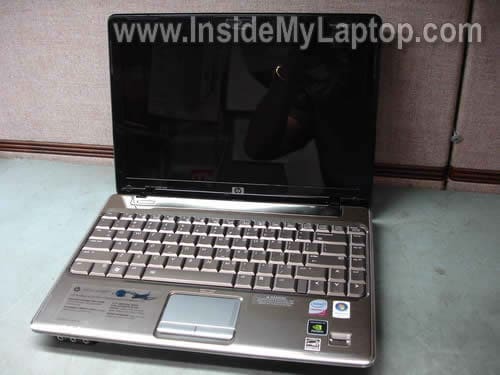
In this post I explain how to remove and replace damaged keyboard in an HP Pavilion dv3500 (dv3000 series) notebook.
It’s not difficult and if you are careful enough, the entire procedure will take about 10-15 minutes.
It’s possible that my guide fits some other HP Pavilion models in the dv3000 line.
Before you start, turn off the computer and remove the battery.
STEP 1.
Remove four screws securing the hard drive and memory covers. Remove both covers.

STEP 2.
Slide the hard drive to the left and when it’s disconnected from the motherboard, remove it.
It’s not necessary to remove memory modules.
Remove four screws (green circles) securing the keyboard.

STEP 3.
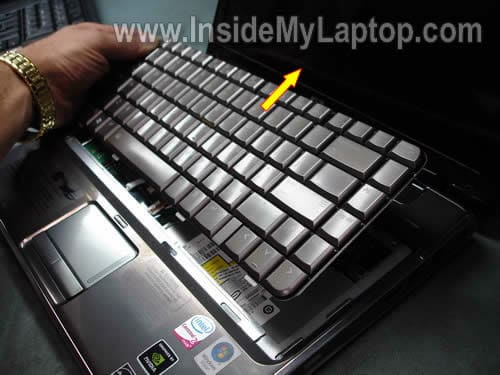
Carefully lift up the top side of the keyboard as it shown on the picture below.

STEP 4.
Move the keyboard in the direction shown by the yellow arrow.
Be careful, it is still connected to the motherboard.
STEP 5.
Turn the keyboard upside down and place it on the palm rest.
Now you can access both cables.
Let’s disconnect the small cable (Connector 1) first.

STEP 6.
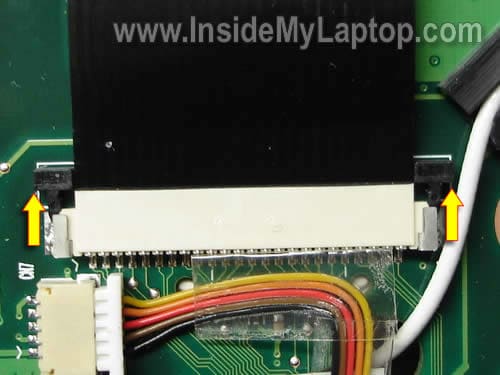
Before you pull the cable from the connector it has to be unlocked.
Move the black retainer about 2 millimeters in the direction show by two arrows.
Now you can pull the ribbon cable from the connector.
The retainer (locking clip) must stay attached to the connector base.

STEP 7.
Turn the keyboard over again and access the second connector.

STEP 8.
Unlock Connector 2 the same way you unlocked Connector 1.
Move the retainer about 2 millimeters in the direction shown by two arrows. Pull the cable from the connector.
On my picture the connector is shown in the unlocked position.
STEP 9.
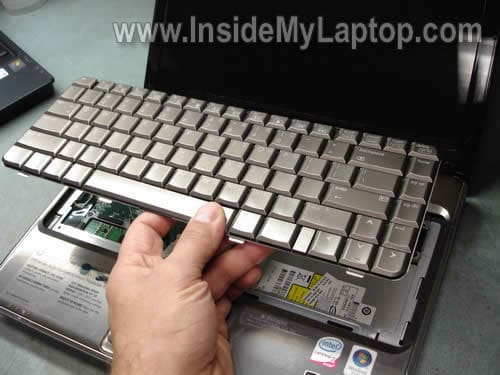
Remove the keyboard from the notebook and replace it with a new one.
STEP 10.
You can find a new replacement keyboard by the HP spare part number printed on the sticker.
In my case I had this one installed:Â 496120-001.
Some sellers reference by the keyboard model number and in my case it’s 492991-001.

Jeremy
Wow!!!!
30 minutes and $28 for a new keyboard from eBay (thanks for the link) and my laptop is fixed.
My local shop quoted me over$150 and at least 7 days.
Got it done myself and never fixed a laptop before.
Thank you!!! My donation is on the way.
DSL
Excellend guide, thanks. Just swapped the default bronze key / black lettering keyboard for a more readable black / white lettering keyboard.
Mine is a DV3505ea
Manuel
I have a HP Pavilion dv5-1235dx laptop, that I spilled a cup of coffee on; while the computer was on. Needless to say, after trying to dry it out, for a few days, it did not even boot-up. The Warantee was up in Feb, 2010. I set the computer aside, and did not use it. I used my desktop which is also an HP pavilion. About a month ago I opened up my Lap Top and it booted-up, but the left side of the keyboard did not work. I checked out a repair shop and they quoted a minimum of $200 to “look at it”. I can’t afford the money. I found your web site and decided to replace the key board (“how to replace keyboard in HP Pavilion dv3500, dv3000 notebooks. It took me about an hour to replace the key board ( i am slow) , but I had no problem, your instructions are excellent, and the viedos are great. This is the 1st Laptop I have ever had, In the I have worked on desk top computers, upgrading them. There is only one problem, there are still some keys on the keyboard that do not work, they are on the upper two left rows. What do I do now, is there some cleaning I can do on the Board to fix this, or take it to shop, or use an external keyboard. Thank You, expect my donation shortly.
IML Tech
Manuel,
If some keys do not work even after replacing the keyboard, most likely this is motherboard related problem. Apparently the coffee went down to the motherboard and damaged it. I doubt that you can fix the motherboard. You’ll have to replace the motherboard or try using the laptop with an external USB keyboard.
joni
i have a HP Pavilion dv7-1267cl and i have a problem with the soft volumen control the volumen goes down by it selft so i think that the (volumen -) its stock or sumthin…if u have any solution on how to fix it plz
Raffaella
thanks a lot you solve my problem to remove the keyboard…
great….
Per
Hi! you wouldnt happen to have a LCD disassemply guide for this laptop too?
It seems to differ a little from the other ones you disassembled with the screen feet/clamps directly connected. Do I need to detach the screen entirely before opening?
Thanks in advance
Per
IML Tech
Per,
You’ll have to separate the display panel from the laptop base first.
After that you’ll be able to remove the bezel and access LCD screen.
Take a look at this service manual for HP Pavilion dv3000/dv3500 notebook. The display removal instructions stars at the page 63.
radeon19
i have a hp dv3515ee laptop, since last week (end of june), blue and yellow artifacts begin appearing on my screen. i hooked it up with a lcd screen of my friend and everything seems fine. so it is not my video card which is causing the problem. do you think its a screen inverter failure or the lcd itself is causing this? thanks.
Han
I have a DV5t-1000 series, which unfortunately only comes in the bronze or silver keyboards. No black or backlit. Is it possible to hook a keyboard from a different series, like say the old 530 or 6000? Basically mix and match keyboards with laptop models so long as they physically fit in the case?
If not, at worst, are the keys from keyboards of similar eras interchangeable with each other?
IML Tech
Han,
I’ve done it before. It might work if you can find a very similar keyboard with similar cable.
LuciferFei
Hi, can you do a tutorial on how to disassemble dv3500 till the processor heat sink part? Because my dv3500 overheated so badly and i would like to apply thermal paste to it. Thanks.
IML Tech
LuciferFei,
First of all, try cleaning the cooling module without taking it apart. Find an air compressor and blow air into the fan grill until it’s clean.
You’ll find laptop disassembly instructions in the maintenance guide for HP Pavilion dv3000/dv3500 notebooks.
Take a look at the Removal and replacement procedures chapter.
zaid
hi
my problem with remot
it is not work i dont know why?
the batry is new and same remot works on anoter laptop but on my laptop not work
thanks
IML Tech
zaid,
Could be software related problem. Is there any remote software installed on the laptop. Check in the control panel.
Try reinstalling it.
Khal
Hi.I am most impressed with the simple and clear guidance you have been giving to my fellow novices!
My problem is readability of my dv5-1235dx bronze keys.HP Support have been giving me the runaround with unclear advice.Can you please help. I must change the keyboard as the lettering on the keys is difficult to read in most light conditions. Can you suggest a Part Number for a replacement keyboard which has either black on white, or even black on silver lettering for better visibility?
Thanks in advance.
IML Tech
Khal,
Take a look at this guide for HP Pavilion dv5 notebooks.
In this guide I explain how to disassemble a HP Pavilion dv5 notebook. Follow steps 8-16.
vicky
Hi – I have not tried this yet, but am encouraged by your instructions. Two of my keys have completely quit working and I think a couple others are aout to go – I have no idea what is the cause.. I have the dv5-1235 and hope to be able to replace the keyboard myself.
Thanks for the tutorial.
IML Tech
vicky,
Sounds like this is keyboard related problem. I think replacing the keyboard will fix it.
n8
Thanks for the clear instructions!
vicky
Update: turns out that the non-working key issue is heat related. The keys work fine until the computer gets hot and then they stop working. As soon as I put a cooling pad under it and it cools down the keys start working again. I need to figure out how to access the fan so that I can clean it out. I’ve tried blowing it out externally but it needs more than that. Not sure now if it’s worth installing the new keyboard even though I already have it?
IML Tech
vicky,
Weird! I’ve never seen it before.
You can follow steps 1-5 and remove the keyboard. Under the keyboard you’ll see the fan. Try blowing air into the fan from inside, this will remove most dust from the cooling module. Just don’t forget to block fan so it doesn’t spin like crazy when you blowing air.
Jim
Hi,
My keyboard works fine, but I would like to read the keys better. Can I replace my keyboard with a backlit keyboard by following this tutorial or do I need additional modifications?
IML Tech
Jim,
Not sure about that.
I believe a backlight keyboard has an extra cable (for the light).
If you have this connection available on the motherboard probably you can install a new keyboard with backligth.
reyn
i have a HP Pavilion dv3518tx and i have a problem with the CMOS Battr.
I want to replace it with a new one, but I can’t find where it is.
could you post a picture where is it in my laptop, please??
Note: HP Pavilion dv3518tx have exactly the same model with dv3500
IML Tech
reyn,
Yes, it’s possible to remove the replace the CMOS (RTC) battery but the entire laptop has to be disassembled and motherboard removed.
You’ll find disassembly instructions in the official service manual for HP Pavilion dv3500 notebooks.
The CMOS battery location shown on the page 78.
reyn
Update:
Before I disassemble my laptop, I need to confirm this:
my laptop clock often not keeping time. When I turn it off at night and then turn it on later the next morning the time is not showing the correct time. As long as its powered on everything is fine.
I seem to have to resynch the time quite frequently.
Is that problem because of CMOS (RTC) Battery running low??
I have another problem too with my GPU. I think it’s overheated because the temperature always around 58-80 degree.
My question is:
Is it possible to reduce the temperature by give it thermal paste on th GPU Chipset??
P.S. – Sorry my english is not quite well, since it’s not my primary language…
IML Tech
reyn,
Yes, sounds like you have to replace the CMOS battery.
Try cleaning the cooling module (heatsink and fan). It’s likely the laptop runs hot because the cooling module clogged with dust.
You can blow off the cooling module using canned air.
Robert
Excellent site. Just replaced a DV3-2230ea dc jack socket. All working well except no white led adjacent to socket. Charging led on front of laptop works and the software tells me adaptor is connected and charging.
I understand the socket has an led in it. Pretty sure all connections are good on re-assembly.
Any ideas why it doesn’t light up as per the original?
thanks Robert
Peter
I have a question about replacing the touchpad (mouse) and buttons on my laptop. Is this possible? difficult? It just moves by itself and one button is really loose. I have a hp dv5.
thanks. P.
ola
hi
my problem is different. my laptop is hp dv 3500. how do i turn on the keyboard backlit. the keys are really hard to see.
thanks
Monty
To turn on the backlighting on a DV3500 you use Fn + Space bar, I believe.
My question is can I fit a DV3500 keyboard to a DV3000, connect the second cable and get backlighting?
IML Tech
Monty,
Cannot tell. I guess you can remove the original keyboard and look if your motherboard has connector for the second keyboard cable. If not, probably you cannot use keyboard with backlight.
Monty
Hey, thanks for your kind reply.
Since writing my first comment, I stripped down the laptop following your instructions and saw there is indeed the connector for the smaller wire. My current keyboard is 496121 – B31 which is the standard non-lit international version. So I’ll have a look on ebay to see if I can pick up a backlit one.
Thanks for your great webpage IML Tech!
anahuacv
Thanks for the link to the “disassembly instructions”, but opening the lap to clean up all the dust seems to demand a lot of effort, but I don’t have any other option than give it a try. I’ll try to capture the all process for further reference.
IML Tech
@ anahuacv,
Just remove the keyboard and blow air into the fan. This should remove most of the dust from the cooling module and should be enough.
Monty
This is just to confirm that a backlit keyboard for a DV3500 will fit and work on a DV3000.
The job takes only about 5 mins as outlined by this article by IML Tech. The hard drive on my DV3000 is slightly smaller that the one shown above and so it does not need removing to get at the 4th keyboard screw.
The backlit DV3500 keyboard has white letters in place of the black ones of the DV3000 and completely transforms the DV3000 which was just impossible to use in low and medium ambient lighting.
Yay for IML Tech!
Mike
I just installed a back-lit replacement keyboard into what I think is a Pavillion dv 3000 (purchased in Australia). The HP product id tag underneath says dv 3500, however the label on top right the screen has Pavillion dv 3000. The tag number below has DV3540TX. I purchased a replacement backlit keyboard from the USA and installed as per the very helpful guide above.
The key bit was Monty’s very important tip to press FN+SPACE. I had almost given up until I noticed his comment this morning. Thanks Monty. Now I can finally use this otherwise great machine. The factory supplied non-lit bronze keyboard with black lettering was unusable.
rubel
i use hp laptop dv 3000. my problem is when i use only one hour after than my laptop is to hot.