

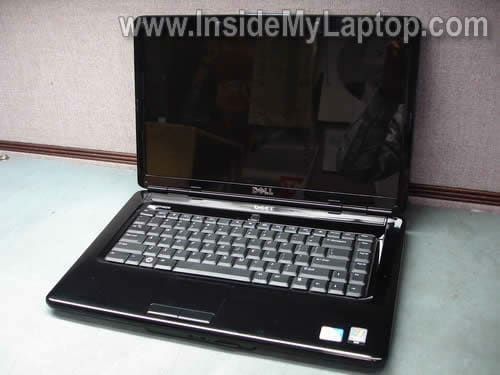
Today I show how to remove and replace the keyboard in a Dell Inspiron 1545 laptop.
In my case I had some water spilled and some keys stopped working.
Probably you can use this guide some other Dell models.
STEP 1.
Turn it off, unplug the AC adapter and remove the battery.
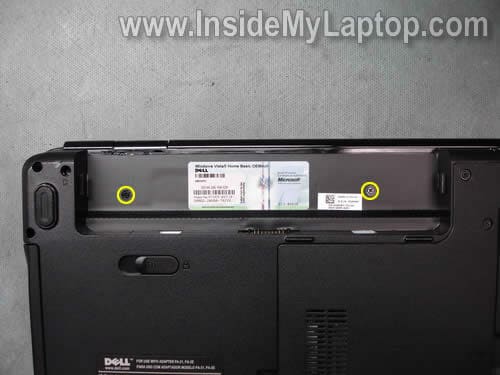
In the battery compartment you’ll find two screws securing the center control cover. Remove both screws.
STEP 2.
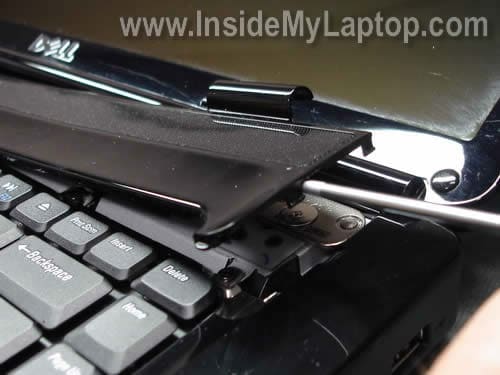
Insert a flat head screwdriver between the control cover and top cover assembly and carefully lift up the cover.
Continue removing the center control cover with your fingers.
STEP 3.
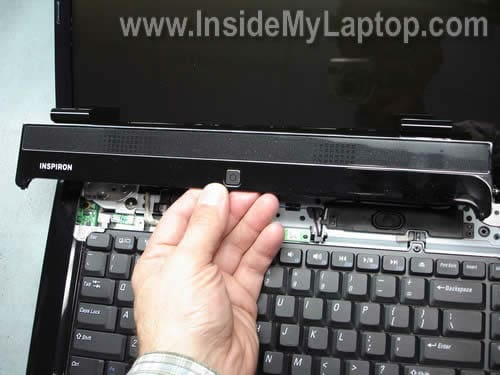
Remove the control cover.
STEP 4.
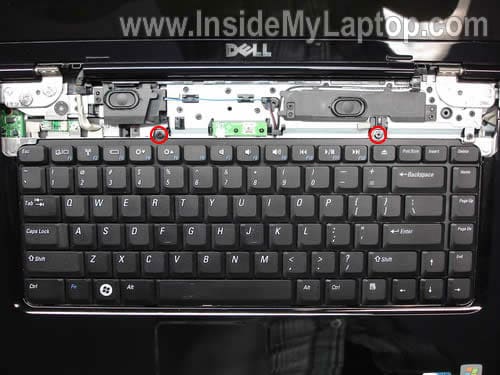
Remove two screws securing the keyboard.
STEP 5.
Lift up the top side of the keyboard as it shown on the picture below.
Be careful, it is attached to the motherboard with a flat ribbo cable.

STEP 6.
Remove the keyboard so you can access the ribbon cable.
Before you remove the keyboard, it’s necessary to unlock the connector and release the cable.
WARNING! If you damage the connector, you’ll have to replace the whole motherboard. Be careful.
STEP 7.
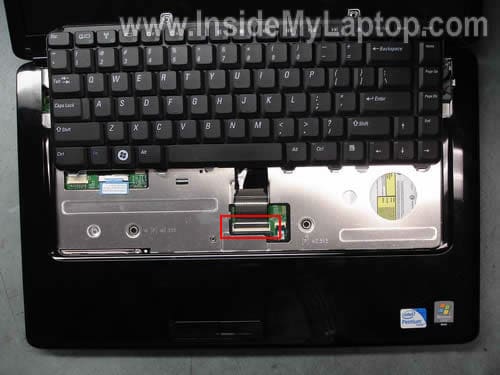
On the picture below the connector is shown in the locked position.
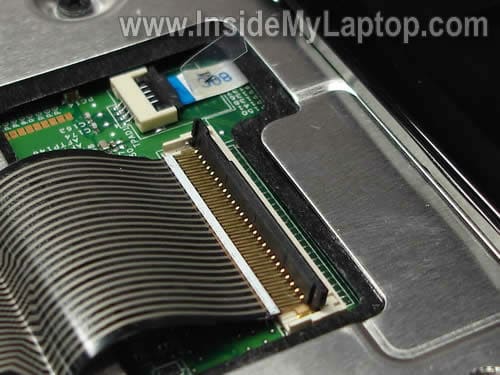
Carefully flip the brown part of the connector up, so it opens up at a 90 degree angle.

On the picture below the connector is shown in the unlocked position.
STEP 8.
Now you can pull the cable from the connector and remove the keyboard from the laptop.
Replace the failed/damaged keyboard with a new one.
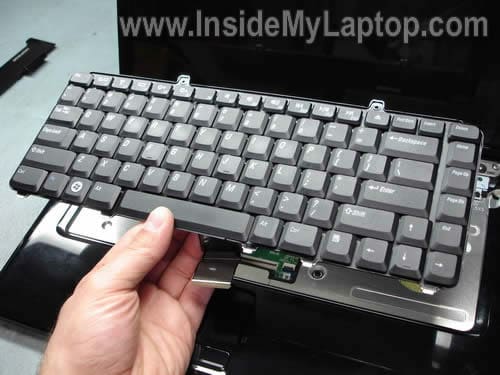
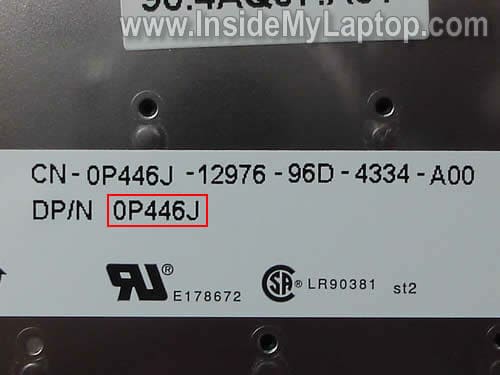
You can search for a new keyboard by the Dell part number printed on the sticker. In my case the part number is 0P446J.
On the following picture you can see how to access other main components of this Dell Inspiron 1545 laptop.
1. In order to remove the CD/DVD drive, you’ll have to remove one screw securing the drive (yellow circle) and pull the drive out.
2. In order to remove the hard drive, you’ll have to remove two screws securing the hard drive caddy (green screws) and pull the hard drive assembly out.
3. Both memory modules (RAM modules) and wireless card can be accessed and removed after you remove the base cover.
4. The CPU (processor) is mounted under the heatsink.

In one of the next guides I explain how to replace LCD screen
Also, here’s a complete disassembly guide for Dell Inspiron 1545.
Rikr
How can i change the touchpad?
Thanks for the review!!
IML Tech
Rikr,
Are you working on a Dell Inspiron 1545 laptop?
Take a looks at this service manual.
You can get to the touch pad after you remove the palm rest.
Bob
This is a fantastic resource. Gives me confidence when working on laptops. THANKS!
joe
hey great article, but how do i put the new one in?
IML Tech
joe,
Just follow steps 8-1.
Emma
Hi, I took my ‘enter’ key off, because it was sticky, and now I can’ figure out how to put it back on. Could you help me? 🙂
jess
Hi! I followed everything correctly and put everything back into place, but now the laptop doesn’t want to turn on. What can I do to fix that?
Emily
Can I remove the palm rest without removing anything else?
IML Tech
Emily,
Nope, you’ll have to go through all steps in my guide.
After that you remove all screws on the bottom of the laptop, screws under the keyboard, remove the display panel.
Only after that you can remove the palm rest (top cover assembly).
You’ll find palm rest removal instructions here: http://support.dell.com/support/edocs/systems/ins1545/en/SM/index.htm
Jenny
Hi, great information. One of my left touchpad button became loose and now has come off the touchpad. I have tried to follow the same rules as replacing a key from the keyboard but when it does not want to go back on, its still very loose and falls out of place. Any ideas of how can I can pop it back on? Cheers
IML Tech
Jenny,
I believe the touchpad button is a part of the top cover assembly.You cannot put it back in place same way as the keyboard key.
If the touchpad button is broken, you’ll have to replace the whole top cover assembly.
Correction: I was wrong. In this model the touchpad buttons can be replaced separately from the top cover assembly. Please take a look at the comment 17. Thank you to The Realizer.
AntiV3nom
The black latch on the keyboard connector broke at the small hinges. Can it be epoxied into place? The connector itself is ok.
Keith
Hi,
just bought a 1545 Inspiron at a swap meet. When I got it home and charged up was able to go through the setup menu. I found a anti theft feature that is set by original owner and is not resettable, at-least through the menus. None of the passwords were set just this feature. I am concerned, since the notebook can call home and report its location and look bad for me if it was originally acquired through seedy means. In the used market people sell lap tops all over the place. Is there any info available on this feature and how to reset it so I can set it myself.
ty Keith
The Realizer
Correction
It is not necessary to replace the whole palmrest assembly to fix the touchpad buttons.
http://www.blueskyave.com/servlet/the-1775/60.4AQ10.011-Dell-Inspiron-1545/Detail
IML Tech
The Realizer,
Thank you for your correction. I was wrong.
balikas88
just followed all the instructions but when i use the keyboard(compatible),some of the keys don’t function,the touch pad is now very lousy(freezes) and annoying.any help please?
IML Tech
balikas88,
Try reconnecting the keyboard cable. Maybe it’s not seated correctly.
Jordon
Instructions were perfect and precise. The photos really helped me to ensure I knew where to look (especially when disconnecting the keyboard from the motherboard). thanks for a great tutorial!
Revenwyn
Okay so some soda accidentally fizzed over when I opened my bottle today, even though I thought it wasn’t fizzy. As a result, my spacebar barely works, my e and r keys like to press at the same time, and my left mouse button barely presses. My left control +c combo likes to turn off my wireless.
I tried drying out my computer but things are just sticky now. Any suggestions on how to clean the keyboard once this is open?
Natalie
Just wanted to say thanks for this website and the very detailed instructions. I tried to get help from Dell Tech support but they seem like a bunch of idiots. I did as instructed from this website and all went well. Thank you so much and keep up the good work.
e.m.fields
hey. Nice tut.
I broke off the hinge on the power-board ZIF connector on this same model, Inspiron 1545. The hinge-part is gone, and now I’m stuck with a ribbon and no way to connect it.
Any ideas? thanks
IML Tech
e.m.fields,
Do you still have the broken clip?
You can try the following:
1. Insert the ribbon cable back into the connector.
2. Install the broken clip back in place.
3. Secure the clip with sticky tape (or duct tape).
sufi
heya..
i hv dell inspiron 1545.. my lil’ bro has doodled on the front cover of my laptop with pen. so can u pls tell me how can iremove it from frontcover ???? so as it look good before…
Ralph
Thanks a million. You saved me an hour trying to get through to tech support in India. Most of the Dell tech support guys don’t listen to the customer. I went through 3 weeks, 3 hours & countless times being fustrated trying to tell them my optical drive was shot. Finally I got someone who listened to me and now my problem is fixed. Keyboard was another issue. At least they covered it with no problem. Great site will recommend it to all my friends. Much appreciated, Ralph.
Richard
Thanks a lot!! really clear instructions – changed the keyboard in 5mins..
Elaine
Great article. Thanks a bunch for the useful info. I had a question that hope you can answer. The fan on my Inspiron 1545 makes a loud grinding-like sound when the laptop starts up and when I activate it again after hybernation. It seems that any pressure to the underside of the laptop where the fan is located, makes the sound louder. I am thinking that something might be rubbing up against the fan and causing it to make the noise. I have checked for any debris and have not found anything. Any suggestions? Thanks!
IML Tech
Elaine,
I guess you’ll have to disassemble the laptop completely and take a closer look at the fan.
The fan itself could be bad.
You’ll need this service manual for Dell Inspiron 1545. It explains how to remove the top cover and access the fan.
I would probably buy a new fan before taking it apart. Most likely you’ll have to replace the fan anyway.
A new fan is not expensive.
James
My wife’s 1545 has a hard rive error. i’ve run the diagnostic check and I’m getting a 2000-0142 error code which can’t be repaired. It’s out of warranty and I can’t buy a replacement drive through Dell. Is this a serious error and if so where can I buy a replacement drive?
Many thanks,
James
IML Tech
James,
I’m not familiar with Dell error codes, but if you run internal diagnostics and it says the hard drive has to be replaced, it means the failure is bad.
Your Dell Inspiron 1545 has a regular 2.5″ SATA hard drive installed. Any large 2.5″ SATA hard drive should work just fine.
Where to buy? All over the internet. Just google 2.5″ SATA hard drive and you’ll find it. You can use any brand: Seagate, WD, etc… it doesn’t matter.
Most likely your local computer shop has it.
Dell specification says you can install up to 640GB hard drive into this laptop.
Gumpygrampa West
Wow this is some really great stuff, info like this is in such high demand and low in availability.
Anyways, my deal is with a Dell mini 10. It won’t start-up and I’ve tried and checked everything (cords, plugs, power buttons bars etc) I get a white light indicating it’s on and if the adapter is pulled after charging it will in time discharge. There just is nothing on the screen and no indication of it re-starting, re-booting etc, no flickering lights, no start-up sort of noises. I’m prepared to open the unit up if need be because at this point I’ve nothing to lose. Repairs are just to costly and the unit is probably cheaper re-placed. It’s only 14 months old and out of warranty of course. My daughter claims she set it to shut down, closed the lid and walked away. Two hours later when she went to restart it’s as described above. Any thoughts or opinions would be greatly appreciated. Thanx again for all this great info & help
IML Tech
Gumpygrampa West,
First of all, try the following method.
Turn off the laptop, disconnect the AC adapter, remove the battery and wait for a few minutes. Now plug in the AC adapter and try turning it on again.
If this doesn’t work, the next step would be replacing the memory module. It could be failed memory.
Unfortunately, in order to access the memory module you’ll have to disassemble the entire notebook and remove motherboard.
I would suggest buying a new memory module before you disassemble the laptop. After the motherboard removed, you replace the memory and assemble everything back together.
If the laptop still doesn’t work, most likely this is motherboard failure. This laptop not worth replacing the motherboard. It’s too expensive.
Jason
How do I replace the mouse buttons? Do you know the part #?
Lynn
I can’t even begin to thank you enough for these detailed instructions. I was able to replace my tea-drenched keyboard in less than 5 minutes. Four of those minutes were spent cleaning dog hair from inside of the computer…. Thank you again!!!
Warren
Please find enclosed many karma points for this impeccably perfect webpage.
Davie
hi, I want to replace the inverter on my inspiron 1545 and it dose not seem to be in the usual place. Can you tell me where to find it and how to get to it?
Thanks
Davie Sinclair
Daryl
Hi. Thanks for the very detailed instructions. Somebody at work actually poured a whole glass of water on the keyboard and I did not know about it and left it on for more than 12 hours. Only then I realize. I’m currently looking for the keyboard replacement on the Dell site but they do not have it. Maybe I’m just not too great with the site but if anyone could post the link for me would be a great help. I sent it to the tech support guys in Malaysia and they are total morons. Currently using an external keyboard to type.
brad
hi, i left a deal on one of ur sites a day or two ago and cant seem to find it so making another one so maybe i can figure this problem out. i got a laptop from a guy for free that was stepped on. after i got it i checked to see if it would come on it didnt. i found out that the motherboard was bad and the screen and back cover and front trim and the hard drive. so i ordered all that and put it all in and the screen was still dim to were u could barley see it.. so i decided that it was the inverter cause i didnt do that yet so i ordered one of them put that in and still didnt work. so we had another screen that was stained in the back and smaller not from a dell i hooked it up and it came on. so well i was thinking that the new screen i had ordered and put in there that they sent me a bad one. so i called them they sent me another one and i just put that in there and started it up a half hour ago and its doing the same thing really really dim. so i dont now whether to order another imverter thinking that maybe that other screen i put in there took out the inverter cause i cant even get that one to come back up now or if its the ribbon cable behind the screen that is bad ? im so puzzled at this point i was wondering if u could help me out here. thanks.
ALxKenney
Hello & Thank You,
Your Posting Showed Me How To Remove The Keyboard The Easy Way And Saved Me From Damaging The Ribbon Cable And Or MoBo.
Do You Sell Replacement Parts Like This Keyboard Online?
DIY’ers Like Me Would Rather Patronize Someone Like Yourself Who Took The Time To Be Helpful And Directive.
Cheers, ALx
Tim
I am working on this kind of laptop. and the lock clip broke for the keyboard.. Do you happen to know where to get one?
Jeff
Thanks! Your instructions allowed me to confidently do this in about 5 minutes. 🙂
Baron30s
how easy is it to replace the cmos battery on this laptop & where is it located..
many thanks
Deby
I spilled a small amount of soda on my keyboard. I followed the instructions you gave and when I put it back together, nothing works on the keyboard. Could i have done something to damage it?
Thomas
Thank you – up and running in five minutes swapping a US KB for a UK one. I would never have found those two screws on the back and worked out that they were important and would probably have broken the control cover…
Justin Dzina
i just fixed a customers computer keyboard successfully and painlessly thanks to your walk-through… appreciate the help =)
Kim
Whoever wrote this is a god among men.
You have SAVED MY LIFE, especially because I was so sure that it wasn’t as simple as popping the hinge cover off first thing because it felt like it was about to break, and now I know that was because I hadn’t taken out the two screws in the battery compartment! I would probably have broken my hinge cover if I hadn’t known that! And the images helped SO MUCH, especially the ones of the locked/unlocked keyboard connector!
In short, you are a gentleman and a scholar. You have saved my life. And I vow never again to spill soda on my laptop keyboard…
adam
thank you so much for your step by step instructions with out this i would have broken my hinge cover as well as my keyboardconncetor i will deffo tell people about your site many thanks kind regards
John Jasiewicz
Hi
On the Dell 1545 if does changing a damaged keypad also fix the scratch pad as there is no cursor movement when moving finger over the pad. some coffee was spilt over the keyboard, Enter key does not work and only partial operation of other keys work
Thank you for your directions. They are excellent.
John Jasiewicz.
Just for a quick response.
Thanks so much for this information about my laptop. I happened to accidently rip off the S key with my finger nail while playing a game, so when trying to move back its quite hard to do. Now im actually used to this, and the point is that the nop that makes the key move back also got broken. So them you really need a new keyboard, and caps lock also is doing weird though.
Julie
Excellent instructions. I’m back up and typing this on my new keyboard.!!! Thank you so much.
Molly's Mom
Wow – glad you posted this; thanks. Very clear and accurate how to replace keyboard. Much thanks!
Pierre
Ok, So I’m so glad I ran into this site.. However I am too late as I removed the keyboard and accidentally broke the connector . I did that last week, I just read your article today, so are you positive that I have to replace the WHOLE motherboard ? and how much will that cost?
IML Tech
@ Pierre,
Do you still have the broken piece?
Here’s what you can try:
1. Insert the keyboard cable into the connector the way it should be.
2. Place the broken piece into the connector the way it should be.
3. Secure the broken piece and cable with sticky tape.
Zach
This is a really fantastic, guide. I just replaced the keyboard on my wife’s 1545. Easy ask pie with your tutorial. Thanks mucho!
Ron Rosenthal
Thank you, thank you, thank you!
The swap took literally ten minutes from the time I removed the first screw, until I tightened the last.
I’ve built / repaired a dozen or so personal desktops in my life, but this was my first time cracking open a laptop.
Dell’s failure to provide installation instructions with my replacement keyboard, led me to finding this site. Couldn’t have it done it without.
Lee
Hi,
My friends M key had been removed and would not work even when poked at with a screwdriver. I have replaced the whole keyboard with a brand new one and it still wont work (though all other keys are fine). Any suggestions?
Thanks
Lee
IML Tech
@ Lee,
If a new keyboard didn’t fix the problem, most likely this is motherboard related.
Take a look inside the keyboard connector on the motherboard. Is it clean? Maybe one of the pins got oxidized and doesn’t make good connection with the keyboard ribbon cable.
You can try cleaning the connector with tooth brash and 99% alcohol. Just make sure the laptop is turned off and battery removed before the cleaning.
If it doesn’t help. I guess there is no much you can do. Something wrong with the motherboard.
sohaib
very usefull thank you
grandpa
Tnx for this great manual however after replaced the kb there is now way i can connect the cable withe the “brown part of the connector” (step 7) again. the thiong won’t “click”….any tips please?
Henry
On my keyboard, the ASDF and the JKL; keys stopped being responsive. I’ve tried:
1. reinstalling the driver
2. taking out the keys and cleaning underneath
3. doing a “system restore” to a point before the problem occurred.
These haven’t helped. Should I get a new keyboard or is there something else to try first?
Thanks.
ministermom
thank you very much for posting this. I successfully replaced my keyboard in a matter of minutes because of your precise, clear instructions. I have never done anything like this before.
When my financial situation improves, I will definitely make a donation. Thanks again. I am grateful to have been able to fix this so easily.
David
Hello my CD/DVD is broke. And I’m trying to (re)install Windows Vista in this laptop.
So I take an external CD/DVD drive. The problem is : I try to boot from the external drive but the laptop don’t recognize it. Even if I put boot priority to “USB device”
Somebody have a clue ? Thanks !!!
David
Ok I found it :
You have to TAKE OUT the internal CD/DVD drive, and the external drive will take the lead !
I hope this could be helpfull !
siby
fantastic this worked for my inspiron 1545 laptop. very useful. thank a lot
Hussain
Whilst trying replace keyboard I managed to break the item number 5 listed on the link below:
http://support.dell.com/support/edocs/systems/ins1520/en/sm/csl_key5.jpg
Any idea if I can get this bit separately?
IML Tech
@ Hussain,
Here’s something to try.
1. Insert the keyboard cable into the connector.
2. Place the broken piece back into the connector the way it should be.
3. Secure connection with sticky tape.
Horia
very usefull
thank you
Noob
Thank you SO much for this article. I spilled mountain dew on my keyboard which left many keys sticky and slow. I also broke off the Ctrl key trying to clean it. Then my enter key stopped responding well from wear and tear. For $15 total I could order a replacement keyboard, and I was confident enough to do it myself thanks to your clear instructions and photos! THANK YOU!
Small note: When you are placing the new keyboard in, make sure the ribbon slides under the connector all the way. There are small tabs that should line up with holes on the edge. Once those have lined up you can flip down the brown connector and you’re good to go!
No more drinks around my laptop!
eastbullet
thank you !!! my brother throw this laptop away because the keyboard error… now i can use the laptop..!
dave
thanks very helpfull thought i would have to pay to put a new key pad in easy nice one.
honeybre
Awesome website took me 5 min to replace the broken keyboard. Sure beat the 250 Dell wanted to put it back under warranty
Laurie
Awesome instructions!! I ordered the new keyboard and literally in 10 mins I had it installed and back up and running .. Saved a ton of money doing it myself.. TY so much!!
Ronald
This is great info, but what I need to know is the EXACT placement of the WiFi Antenna(s) in a Dell Inspiron 1545 laptop. the only info I have been able to find is similar to what is above.
Christina
Great instructions – did it without a single hitch, thanks!
Debbe
Thank you for the detailed instructions! My daughter spilled “water” on her laptop. After taking apart “water” it wasn’t! Water isn’t sticky! Regardless, ordered a new keyboard for $12.00 and replaced with ease with your instructions and we have a working laptop again! Thank you, thank you, thank you!
Ellie Mork
Brilliant, accurate website, just saved myself a fortune fixing my daughter’s Dell laptop. Many thanks.
Rick
Just for the record, the keyboard connector part you lift at a 90 degree angle is BLACK. I just found out the hard way. Ugh.
Jaye Valentine
Best Buy was going to charge $30 for a keyboard from Dell (if available) plus shipping, plus $50 for labor to replace a Dell 1545 Inspiron keyboard. Found a replacement keyboard by Pwr+ on Amazon that cost under $20, and using your instructions here, had the old puppy swapped out and the new one installed and working inside of 4 minutes. Took me longer to find where I’d put the screwdrivers. 🙂
THANK YOU!
–Jaye
HoBat
Hi
Where can i find the tutoriel how to dissassemble completly Dell Inspiron 1545 ?
Thank you !
IML Tech
@ HoBat,
Here it is. Dell Inspiron 1545 service manual.
Flygirl
A great help, clear instructions, replaced keyboard withing 5 minutes. Many thanks 🙂
fiesty dude
A big thanks to IML on how to replace keyboard in Dell inspiron 1545. I now know how to disassemble my dell keyboard. I was actually looking for the cmos battery in my dell inspiron 1545 but i could’nt find the location; i will be greatful if IML or anyone could help me. Once again thanks to IML.
Todd
I love you so much right now. If not for your second picture in step seven, I probably would replace a perfectly good motherboard.
lyn
The instructions and pictures combined, made this an easy task. Useful warning given on step 6. Whole process took no longer than 10 mins. Feedback typed on my new keypad. Thank you.