

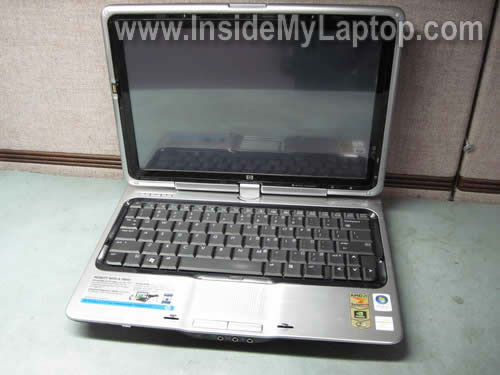
In this guide I show how to replace damaged keyboard on an HP Pavilion tx1000 notebook.
I believe these instructions will work for one of the following models: HP Pavilion tx1100, tx1200, tx1300, tx1400.
Before you start the disassembly process, do not forget to turn it off.
STEP 1.
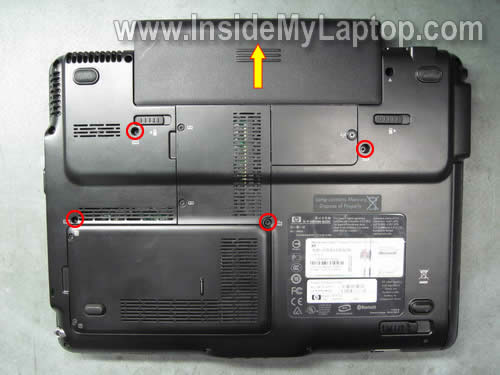
Remove the battery.
Remove four screws securing the keyboard on the bottom.
STEP 2.
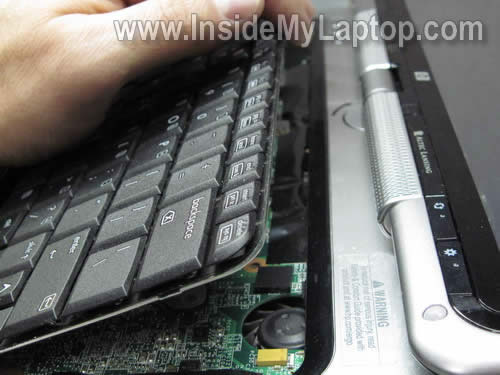
Carefully insert a very small screwdriver between the top side of the keyboard and top cover.
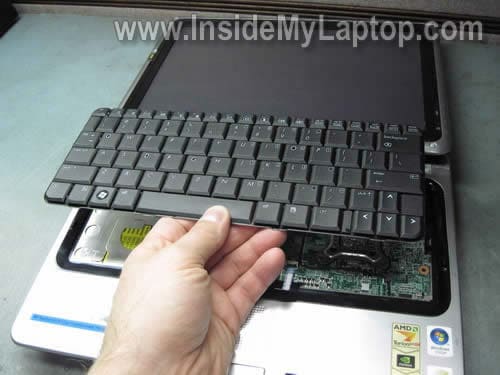
Lift up the keyboard. Be careful with the keys.

STEP 3.
Move the keyboard towards the display.
STEP 4.
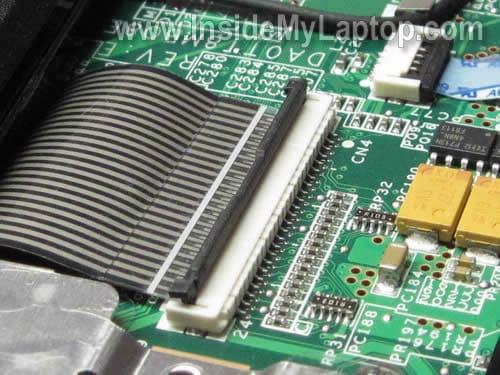
Now you can access the cable connector.
The keyboard cable is plugged into the the motherboard. You’ll have to unlock the connector before removing the cable.

On this picture the cable connector is shown in the locked position.
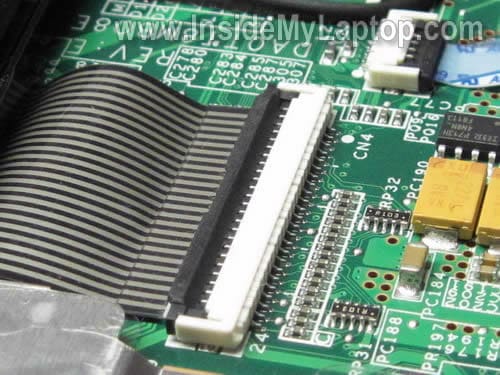
On the next picture, the same connector is shown in the unlocked position.
Now you can pull the cable from the connector.
STEP 5.
Remove the keyboard and replace it with a new one.
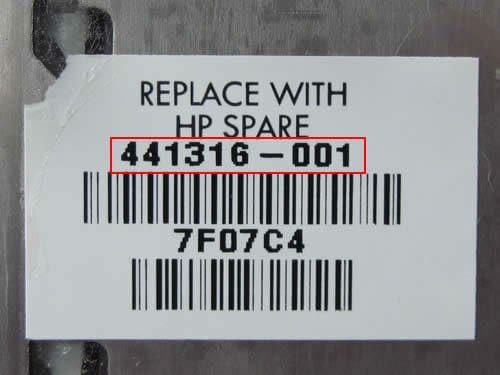
You can search for a new keyboard replacement by the part number printed on the sticker. In my case I had this part number is 441316-001.
Vincenzo
Do you have any more help regarding this computer.
I have it and am having a problem I believe with the hard drive.
Any additional help or even parts?
IML Tech
Vincenzo,
What help are you asking for? I believe you can access the hard drive through the door on the bottom.
pitcher
Im having a problem with this laptop, is there anyway you can help
IML Tech
pitcher,
I don’t know yet. What is your problem?
pitcher
When I go to turn my laptop on it will try to come on but shuts right back off, or if i get it to stay on the screen won’t come on. I have change the memory out with some out of another computer I have and i got it to come on and the screen come on but when I went to restart it would not come back on. I had sent it in to the warranty company before and they replaced the motherboard, but now im out of warranty.
IML Tech
Pitcher,
If the laptop still doing the same with new memory, most likely this is motherboard failure.
Hugo R. Luna
Mmm good info but i need a guide about how to replace a display from a tx1200… Do you know how??? Sorry for my english but isn’t my mother tongue…Gracias
IML Tech
Hugo R. Luna,
Here’s the official service manual for HP Pavilion tx1000 series, works for tx1200 too.
http://h10032.www1.hp.com/ctg/Manual/c00853874.pdf
Laptop disassembly instructions start on the page 35. You’ll find the display removal and replacement instructions in there.
Brandy
Hello by any chance can u help me replace my screen I want to make it a touchscreen!!!
IML Tech
Brandy,
How do you want to make it a touchscreen. I really doubt you can do that.
Megan
Recently my tx 1320 tablet pc has been making a rattling noise. I’m near %100 sure it’s the fan because the noise is coming from the right rear side and it occasionally spews dust out of the vent. If I open the computer up according to the specs at http://h10032.www1.hp.com/ctg/Manual/c00853874.pdf
How can I be sure the fan is broken? Maybe it’s just loose? And if it is broken, do I just order a replacement part from HP? Does it have the replacement # on the fan like it did with the keyboard?
IML Tech
Megan,
In this case the cooling fan assembly has to be replaced.
Nope, if the fan starts making noise, most likely the bearing is damaged and the whole fan has to be replaced.
The fan assembly part number is mentioned in the same service manual you linked in your comment. Take a look at the page 19.
Fan/heat sink assembly (includes thermal paste and thermal pads) 441143-001
kay
Hi – I have a tx1000 cto hp laptop. It has 2 cracks that originate where the left and rite click buttons are. I wanted to replace it but hp is telling me I need to replace the keyboard. By looking at the keyboard replacement instructions it’s apparent that they are 2 seperate parts. Hp keeps insisting that it’s all one part. Can anyone advise? If it is 2 parts does anyone have instructions on how to replace it? Thanx kay
IML Tech
Kay,
I think you have to replace the top cover assembly (palm rest assembly), not the keyboard.
You’ll find the top cover removal instructions in the service manual for HP Pavilion tx1000 notebook. It’s shown on the page 61 in the guide.
kay
Just looked at it, thanx that’s exactly what I needed.
Mit
My tx1000z laptop is not quite turning on, and I was hoping you could help. When I try to turn it on the lights come on under the screen but nothing comes up. I hear a slight humming noise but nothing else is happening. Can you please tell me what is wrong with it and how I can fix it? Could it be the fan? Thank you!
Timmy
My keyboard is fine, but I lost the zif, and have looked *everywhere* (eBay, official HP spare parts store, Google Product Search, Google/DuckDuckGo in general) trying to find a replacement…but can’t find one. Do you know where I can get one? (Heck, do you have a spare you’d be willing to sell?)
Antoine S. Finch
I have a hp tx1420us given to me. Would removing the battery both of them(the real-time clock (RTC) battery, erase the password and the finger print record.and if it doesn’t come on does that always mean the motherboard is bad. Can I replace the motherboard my self?Does the manual http://h10032.www1.hp.com/ctg/Manual/c00853874.pdf show removal and replacement for system board?How would I determine if I have WWAN?
FARID
Thanks, am successfuly chamged my keyboard!
Patrick
I see that you told the guy that his motherboard was the culprit with it not firing up. That is not the correct answer. He needs to unplug his hdd, then if it is still not booting, tell him to remove the cd/dvd drive, as one or the other has failed and is locking down the system bus. Two other things may cause the problem, if he is so technically inclined, he can try removing the modem card and the wii card, as the two will also lock down the system bus. Trust me when I say that I have just started replacing mother boards, when that wasn’t the problem. It took alot of trial and error to discover this. Been working on desktop for 20 years and laptops for 15 years. I hope that helps out anyone that are having these same issues. If any of you have any problem that you can’t find answers to, you may email me at spikeselectronics AT yahoo DOT com, please include the brand, type, and the model number of the desktop/laptop that you are working on, and I will do the best I can to help you.
IML Tech
Patrick,
You are correct. You can try minimizing the system and leave only main components: motherboard, CPU, memory. I always try that first but…. how many times you seen that HDD or DVD drive or Wi-Fi card or modem locking down the system bus??? Many???
If a laptop will not fire up, most likely this is power related problem: bad AC adapter, bad DC jack, bad motherboard etc… but not modem or wireless card.
John K
Thank for the clarity and excellent photos.
I was stuck installing the ribbon cable ZIF connector for several weeks.
After looking at the photo for a few minutes And verfifyig the otrientation I retained
the cable in a snap. One try. Without your instruction I would still have a laptop in pieces.
Very helpful
Gaurav soni
Hi,
I am unable to open the apnel of TX1000 laptop. I want to replace the motherboard, please send me the pics how to open the back panel.
I have tried opening all the screws but it did not help. Unable to lift the cover and afraid to if try hard it can be broken.
Regards,
Gaurav Soni
India
IML Tech
Gaurav soni,
You can find step-by-step disassembly instructions in the HP service manual. Here it is:
HP Pavilion tx1000 Entertainment PC Maintenance guide
Disassembly instructions published in the Removal and replacement procedures chapter starting on the page 30.
Good luck with the laptop repair!
Brad
I’m having a problem with one of the screws for the keyboard, it won’t come out and i’ve tried to use every kind of a screw driver but its just wearing the screw down… any help on what kind of screw driver to use?
Hoans
Thank you very much, you really helped me with this article!!
Barry
My tx1000 touchscreen glass is shattered. Do I have to replace the Display Bezel or the display panel? The laptop works perfectly fine. My view is through broken glass. And, if it is only the bezel, why not simply remove the rubber bumpers and screws, not the rest of the display?
Thanks!
IML Tech
Barry,
If the screen is not cracked, remove just the bezel.
You’ll find instructions for removing and replacement the bezel in the service manual for HP Pavilion tx1000 notebook. It’s shown on the page 56.
Here’s how to find the correct bezel. Quote from the HP service manual for Pavilion tx1000 Tablet PC:
Anna Faraday
I feel like an idiot because I can’t get the four keyboard screws out (they’re very tight). But this is a good demonstration.
Paul DiGennaro
Thanks a lot for the step by step with pictures. Found a keyboard for $12 including shipping online, installed it in about 2 minutes.
titus
TX1000 BLACK SCREEN, LED’S IN, HARD DRIVE RUNS BUT DOES NOTHING ELSE!
easy to repair!
no warranty, for me it has worked and the TX runs without problems since then
First
Remove battery and power cord
Second
remove keyboard screws
Third
remove keyboard
Now you can see the motherboard. you can clearly see the back of the holder of the processor cooler.
Replace battery
pressing the power button
screen remains black and the led’s are on hard drive is running
Now you take a hair dryer and heated gently to the mainboard.
Carefully! I heated the main board about 5 minutes. but everyone should try it for themselves.
between power off and on again. when the screen is dark after a few seconds continue to let power again and take the hair dryer to heat up the motherboard on. try this until the screen goes away.
probably not a solution to life, but since he is already a few months
in most cases it’s the NVIDIA graphics chip. oxidation of the solder joints and chip temperature variations through the chip has no contact to the motherboard. Heat of the board and the chip can solve the problem.
will not work with all motherboards. wherein TX1000 it is 100%. unless it overheats the graphics chip and the board. therefore sufficient for this netbook a hair dryer.
In another laptop (Fujitsu Siemens Amilo Xa2529) I had a similar problem. The solution to this was pretty easy.
Mainboard expand.
Memory, processor, wireless card, … remove
Preheat oven to 120 – 125 degrees and motherboard about 10 – 15 minutes on middle rack baking
let it cool down slowly
Since the Fujitsu Siemens is running without problems
at your own risk. everyone should know what he’s doing.
But it was already broken. For me it worked in any case
There are also some videos on this subject. Simply googling times
have fun with your revived laptop
Howard L
Titus, I have a similar problem with my tx-2500. I’ll give your solution a shot.