

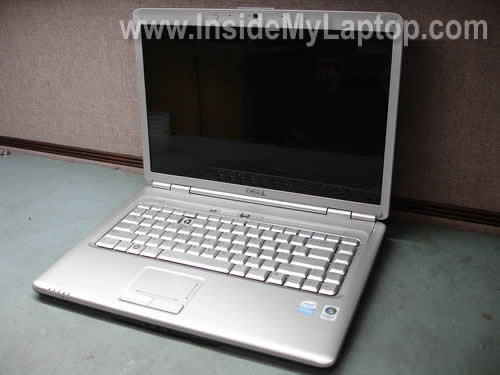
Today I will remove and replace damaged keyboard on a Dell Inspiron 1525 laptop.
I’m replacing it because my customer spilled soda and some keys stopped working.
First of all, turn off the computer, unplug the power adapter and remove the battery.
STEP 1.
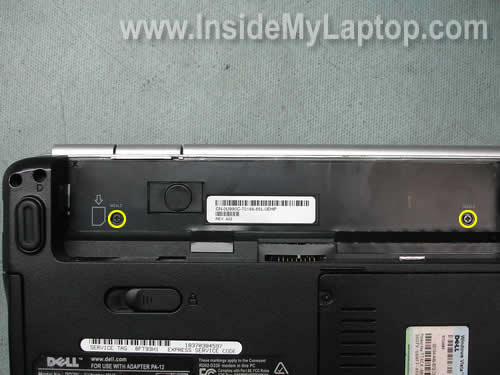
Remove two screws in the battery compartment. These screws securing the keyboard bezel.
STEP 2.
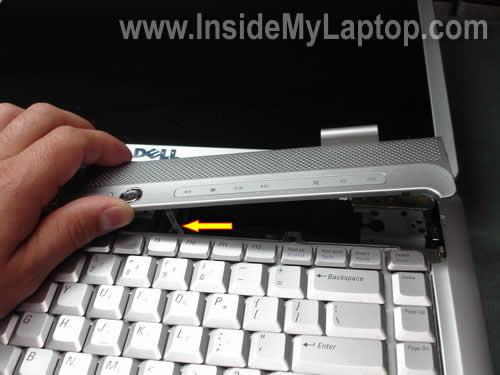
Carefully lift up one side of the bezel with a screwdriver.

STEP 3.
Continue removing the bezel with your fingers. Be careful, there is a thin ribbon cable connecting the button board to the motherboard.
The cable has to stay connected to the motherboard.
STEP 4.
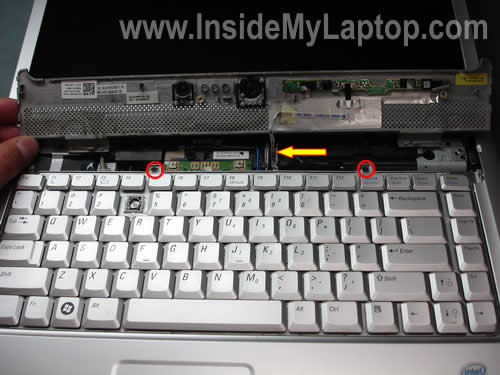
Turn the bezel over. Make sure the cable is still connected.
Remove two screws securing the keyboard.
STEP 5.
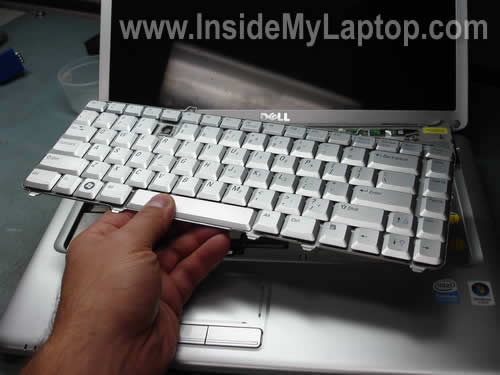
Lift up the keyboard and move it towards the display.
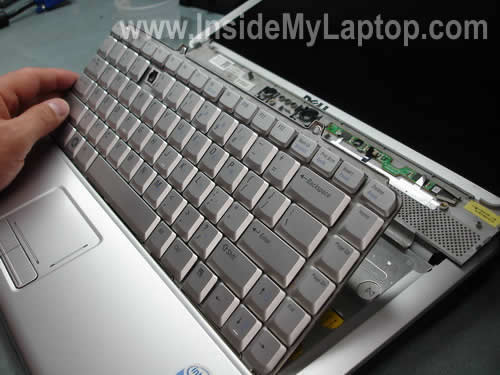
Now you can access the cable connector.
Let’s unlock the connector and release the cable.
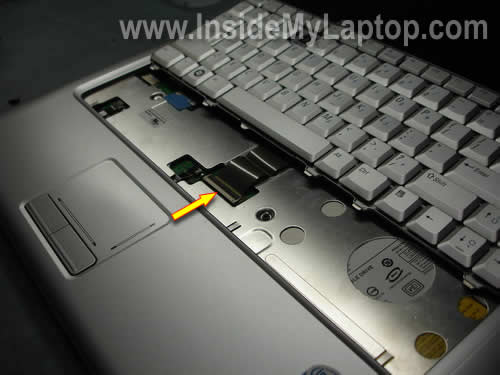
On the picture below you can see the connector in the locked position.
Lift up the left side of the cable retainer with your fingernail.
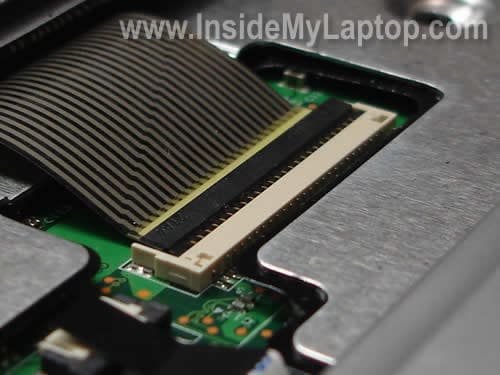
Now the connector is unlocked and the cable can be released.
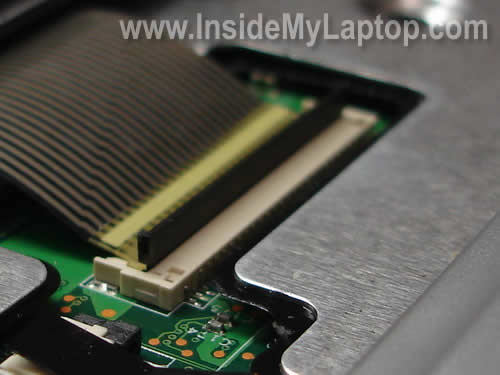
STEP 6.
Remove and replace the damaged keyboard with a new one.
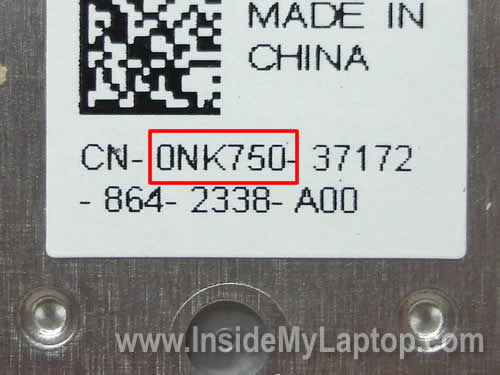
The keyboard part number is printed on the back sticker.
The Dell part number follows letters CN. In my laptop it was 0NK750.
Also, you can read Dell Inspiron 1525Â screen removal guide.
Babette Butler
A friend’s Dell Inspiron 1525 had soda spilled into it. I have opened and carefully cleaned off all sticky spots with alcohol and Q-tips. I get no power light BUT I get HD and WiFi LCD lights when plugged in and turned on. There is no movement of fan and a black screen. No sound…what in the world can I do?
IML Tech
Babette Butler,
There is not much you can do. Did you clean off sticky spots from the motherboard? Apparently, the motherboard was damaged by liquid and has to be replaced.
Babette Butler
Thank You for your prompt response!
Yes, I patiently cleaned off all the ‘exposed’ contacts after taking off the keyboard and the bottom plate; but, without removing every single component. Could it come back to life after an even more extensive cleaning?
IML Tech
Babette Butler,
I doubt that. Apparently, your friend spilled soda when the laptop was turned on. The liquid went down to the motherboard and damaged some components. Cleaning the motherboard will not fix damaged components.
Babette Butler
Thank You for your comments. I appreciate your expertise. These tutorials are very helpful, as well!
Christine
Thanks ,had it done in a few minutes, this was perfect!
rob
do u have a guide on how to replace the hinges on the inspiron 1525?
IML Tech
rob,
You’ll have to disassemble the display panel and remove the LCD screen. The display disassembly steps will be similar for many different Dell laptops. Take a look at the Dell category on the right side and read through a few guides. You’ll get the idea.
bob
Can the fan be changed from behind the keyboard..My fan is broken and i need to change it.
Thanks
Seth
I have an Inspiron 1525 and my 3,e,d,c row is only working half the time… somtimes they work, sometimes they don’t. I have to play with them way too much to get them to even respond. this message actually really sucked to write… please help! Is this a keyboard issue only?…or somthing deeper?
IML Tech
Seth,
Try reconnecting the keyboard cable on the motherboard. If it doesn’t help, try replacing the keyboard. Most likely it’s just a bad keyboard.
Tari ann
I need instructions on how to replace touch pad for a dell 1525.
Kyle
When I try to take off the keyboard it appears to be held in place by the touchpad/palmrest, how do I fix it?
JUSTINCAL
DO YOU KNOW HOW TO CLEAN THE KEYBOARD AFTER REMOVAL?PROBLEM BEING SOMEONE DROPPED ON IT AND NOW I HAVE STICKY KEYS.
Gregory
Thank you!! very helpful!!
Leo
my q, w, a, s, z, x, Caps, backslash, 1, 2 and the one left of the 1 key don’t work at all on my Inspiron 1525 keyboard, but do work on my onscreen keyboard – I’m guessing it is something to do with the keys not being connected to the motherboard.. please help me!
IML Tech
Leo,
If these keys just stopped working, probably it’s a bad keyboard. You’ll have to replace the keyboard.
Tim Nichols
I have installed a new keyboard as instructed, but nothing happens when I switch and press the keys, is there something particular locking the connector
IML Tech
Tim Nichols,
Make sure the keyboard cable is properly connected to the motherboard. The cable connector has to be locked.
Brandi
Question about step 4 photo. Where your thumb is hiding there is a connector underneath. during the removal of the keyboard it came unhooked and we can’t find where it connects to again. It sits right where your thumb is covering in step 4 photo. Thanks
IML Tech
Brandi,
On the photo 4 I’m holding the keyboard cover. On the picture 5 the same cover is upside down and I don’t see any connector. Not sure what you are asking about.
Take a look at the official service manual for Inspiron 1525 laptops. Maybe pictures in the manual will help you.
gulcin
thank you so much. i dropped tea on my key board, so the buttons were too sticky. i took the keyboard off by your help, washed and dried it. then i put it back. everything is very good now. no problem any more. thank you very very much 🙂
bob
Hi,
Someone earlier asked if you had a step by step for replacing the fan on the Inspiron 1525, but I didn’t see a response. I was just wondering if you have one. Thanks
IML Tech
bob,
I haven’t created the fan replacement guide yet but you can follow instruction in the service manual. The cooling fan is mounted under the motherboard, so you’ll have to take the whole thing apart and remove the motherboard.
DEE
My nephew has a Dell Inspiron 1525 that had a beverage spill…………….immediately turned off, removed battery and turned upside down………….have not taken off the keyboard/top yet to inspect for damage.
Laptop powers up, but black screen……………..
does this sound like a Mother Board replacement is needed?
I appreciate any help you may have………….also, any links on how to change the motherboard if you feel that is what is causing the problem.
Thanks!
Ashley
I dropped my dell inspiron 1525 and the screen is now filled with colourful vertical lines.
Does the whole screen need to be replaced?
Or can it be repaired somehow?
Thanks!
David
Hey! My wife has a Dell Inspiron 1521. The “A” key is only intermittently functional at this point (guessing due to over use by my 5 and 7 yr old). What is the best way to take off the “A” key and see if something has come loose or needs cleaning? Or am I looking at a complete keyboard replacement? As far as I know, it’s only the one key that is acting up.
Thanks for all the info!
David.
IML Tech
David,
You are looking at the complete keyboard replacement. I have exactly the same problem with the “Z” key (had to press 5 times to make it appear on the screen).
You can find a brand new keyboard for Inspiron 1521 for about $15.
Ian
Keyboard ribbon connector clip broke. The black tab that snaps down on the ribbon at the connector. Can I get another and if so where? Also does the ribbon need to be pushed into the connector , if so maybe I can do without the black clip and use tape? I am afraid to be forceful.
IML Tech
Ian,
I really doubt that you can purchase this parts separately. It’s a part of the connector.
Dee
Anyone able to assist with the problem I posted on 8/31??
My nephew has a Dell Inspiron 1525 that had a beverage spill…………….immediately turned off, removed battery and turned upside down………….have not taken off the keyboard/top yet to inspect for damage.
Laptop powers up, but black screen……………..
does this sound like a Mother Board replacement is needed?
I appreciate any help you may have………….also, any links on how to change the motherboard if you feel that is what is causing the problem.
Thanks!
IML Tech
Dee,
Most likely you’ll have to replace the motherboard.
Take a look at this service manual for step-by-step motherboard removal and replacement instructions.
Dee
Thank you for the link…………..wish me luck =)
J
Used these directions on the 1545 model after some of the keys stopping working (no spills for me) and as you can see it worked great! Thank you! I saved a lot of time and money finding someone to fix it and paying someone to put it in. Thanks again!
Nick
I replace the keyboard put it all back together and when i turned it on i get a black screen the power light turns on and i hear the dvd rom drive move but nothing on the screen. i took the bezel off and it works fine but when i put it back on it the laptop doesnt work. i replace the bezel and cable with a new on and its still a no go any suggestions?
IML Tech
Nick,
Maybe when the bezel is installed it’s shorting something. Take a closer look under the bezel, make sure cables are routed correctly.
I cannot tell what is causing the problem without looking at the laptop, it’s not a common failure. I think it must be something simple.
Melissa
Hello I have an inspiron 1525 it was sent to dell for repair to where the power cord plugs in. When returned it was repaired beautifully, unfortunately It returned with no sound from the speakers. The headphone jacks work fine and I currently have some PC speakers hooked into that for sound, but this is a pain if I want sound while away from home. Any ideas or suggestions? I do not want to send it back to Dell for re-repair as it took almost two months last time before I got it back! Thanks so much!
Karen
I have a inspiron 1525, i took the screws out of the bottom (hoping to get it apart to clean the fan, but due to 2 screws with stripped heads i cant), anyhow i knocked my screws from where i had them so they all got muddles up and now ive had to guess where the “red” and “blue” screws go (i think i remembered where the shorter screws were but for the longer blue and even longer red screws i cant rememebr (ive put it back to gether for now in the hope it wont fall apart).
I jues want to know if theres anywhere explaining the plan of which screws go where, the service manual didnt seem to mention the different size screws.
Rich
Thanks for the assistance. My new keyboard is installed perfectly
Dave
After taking my computer apart to figure out if I needed to replace the keyboard or just a loose cable, I noticed that the connector for the flat ribbon cable….the black piece that must be unlocked…is broken. One end of it is missing (i think it is floating around inside the computer) and 2 of the copper connector wires show. Does that connector piece come with a new keyboard? Or any suggestions on how to fix it if it does not come with a new keyboard?
Thanks…
IML Tech
Dave,
Unfortunately, the black locking clip is a part of the connector on the motherboard. It doesn’t come with the keyboard.
Maybe you can insert the keyboard cable into the connector, lock it with the remaining part of the clip and secure with sticky tape?
Prince Xavier
Hello. I would like to know if it is possible to change the fan of the dell inspiron 1525. Mine always goes at max speed and is quite noisy. Thx for your help…
IML Tech
Prince Xavier,
Yes, it’s possible and you can find instructions in the official service manual but try using the Fn+Z shortcut first.
Press down the Fn key and at the same time hit the Z key. You can use this shortcut to increase/decrease the fan speed. Does it work for your model?
Prince Xavier
I meant it goes at max speed no matter what. Either ON or OFF without any in between speeds. Thx for helping me…
Sumit
Thank you..
larlarflar
you saved a poor college student a bundle, thank you!
Mike
thanks for the guidance on replacing my keyboard….worked like a charm!!
bob
i am trying to find a keyboard cover for a inspiron 1525 laptop. I am also trying to find out how to vacuum my keyboard without worrying about te keys popping offf.. help?
IML Tech
bob,
Keyboard/hinge cover for Dell Inspiron 1525 available on ebay.
Carefully. 🙂
kheradinesh
I HAVE A DELL INSPRON 1525 WHICH IS WORKING VERY FINE BUT THE PROBLEM IS ATTIIMES IT DOES NOT BOOT WHAT IS THE REMEADY
IML Tech
kheradinesh,
It’s hard to tell what is causing the problem. Could be memory failure.
I would run memory test first, you can use Memtest86+. Make sure to let it run many passes.
Alexandra
Thank you, it works perfectly now 🙂
Johnny
I have a customer’s dell inspiron 1525 laptop and it appears that the section that powers the HDD (facing back of HDD left side) is missing. it’s the part that has 4 pins to power the HDD. Can anyone give me the part number to replace this part? I can send a picture if need be. Thanks Johnny
IML Tech
Johnny,
Not sure what part you are talking about. I believe in Dell Inspiron 1525 the hard drive is connected directly to the motherboard.
There is no cable between the hard drive and motherboard. Is is a part of the hard drive?
KB
my inspiron 1525 will not charge the battery. The laptop runs solely on the power cord right now and i can’t charge the battery. What may be my problem?
Bill
Hi KB, I have exactly the same issue, it gives power to run the notebook but not enough to charge, when I wiggle mine around and push it in very hard with a bit of force it seems to charge from time to time then, I think it’s an issue Dell is having with the charging port or something. I have contacted support and they will advise on what to do.
corey
I just replaced my keyboard and it keep’s beeping when I start up.
IML Tech
corey,
Did you buy a brand new keyboard? Maybe your new keyboard is defective and it has a stuck key?
Try pressing on different keys when the laptop beeps. Find out which one is causing the problem.
bala
Hi
I have DELL Laptop 1525 T8300, 220 GB hard disk, 4 GB RAM. After the warranty period got over I am finding some problems with this laptop.
1) Tab key stopped working.
2) “Left side Shift” key + A stopped working.
3) Every 5 start of the laptop one will be associated with an annoying beep sound.
4) The cursor automatically starts traversing. Example: all the links on a browser page, all desktop icons and quick launch etc.
Is the laptop totally screwed up? I formatted the laptop, no use. The problem still persist.
Will changing the Keyboard solve the problem?
Please help.
Thanks.
IML Tech
bala,
This sounds like a problem with the keyboard. Apparently, you have a stuck key. First of all, I would try replacing the keyboard.
Trevo
Haha simple, I was exspecting the cost to be high no cheap as chips then i thought the replacement would be effort. NOPE! phew i wll never leave my credit card up against the keys while closing the lid again thou it chopped them clean off.
Alana
Hello,
I am going to attempt to install a new keyboard on my Dell Inspiriion 1750, however, I am concerned that this may be in vain since the keyboard’s J key is broken and I hope all it needs is a new keyboard, the button J keeps pressing indefinately
Joe
Thanks so much for posting this material! I just fixed my wife’s inspiron 1525 using your detailed photographic instructions. It works perfectly again! I’ve never opened up a laptop until today so I really appreciate all of the information.
DungeonMaster
Very cool…..my wife broke off a key – griped and cried for a day – I found and bought a replacement keyboard for $35 – and installed it in about 15-20 minutes. She’s happy – I get to go back to watching soccer – thanks for the instructions…..
Csaba
Hi. I need to know if I can get to the CPU fan by removing the keyboard like that. Great picks and description but hard to see below the board on the photos. Thanks
Matt
Hello, I recently took out my keypad and broke the connector black piece on the mother board. What is the best solution to fix this problem, because now the keypad ribbon cable is not locked in. Is there a place I can purchased the little black piece or do I need to buy a mother board?
thanks
Ken
I also think I broke the brown piece off the keyboard mother board connector or it was already cracked. Can this part be replaced or does it require a new mobo? If that brown lock piece is not replaceable, is there any way to fasten or lock ribbon cable down again?
Ashley Harvey
I broke the retaining clip that seats the keyboard ribbon cable into the connector piece (that then leads down to the system board). Thought I’d post up on how I went about fixing that problem.. seems quite common to break or lose that piece.
jeremy
This guide helped tons.. I almost removed the whole casing 🙂 Thanks much
Richard
Thanks a lot, a breeze with your instructions.
Bruno Mendes
Hi,
I lost the black connector!! I do now? não estou consigo comprar o conector. HELP ME!
Peter
Awesome, followed this step by step and was done in 5 minutes.
JLZR
excelent! thanks!
jessica
Thank you. This fixed my laptop. I was putting it off for some time because I was afraid of the ribbon connected to motherboard would separate. But this was so easy and nothing to worry about. It also allowed me to sweep out a lot of dust beneath the keyboard.
Hitesh
While replacing the keyboard for my Inspiron 1525, the soldering of the keyboard connector came off the motherboard from one side. It is still firmly joined from the other side. Any advice and suggestion. Can the simple soldering of the connector will do?
alison
thanks so much your instruction they were perfect. i managed the to install the keyboard in 10 mins and its working perfectly as you can see.
i’ll recommend your site to others cos it’s brilliant and i’ll certainly use it again.
thanks again
carol
I have 2 inspiron 1525s and liquid was spilt on one keyboard.,,totally broke the keybord(none of the keys worked)SO………… the other inspiron was fine …..EXCEPT the black bottom base is cracked. I want to take the broken base off the working computer and replace it with the other one. Bassically…Im trying to take 2 computers that have something wrong with each of them,,and turn it in to one working computer. CAN YOU PLEASE HELP? PS no the keyboard isnt the same…i have NO clue why not.
//
Ahmed
thanx
but i just noticed num 4 key is missing looooooooool 😛
Jason S
This was very helpful. The hardest thing about the whole thing was getting the screws out being they were very small but other than that it took about 5 minutes or so and gave me my e, 1, and 2 back. Haha. Thank you very much.
jackp
It took only 10 minutes and was so simple!!!! Thanks for the instructions because otherwise I wouldn’t have even tried it.
Jmf
Thank you so much! I know you don’t have to go through this kind of trouble of making instructions for the layman but your knowledge has made a huge difference in our productivity! It was so easy with your instructions. Thanks again!
Elio
Thankssss its very helpfull me.
Edel
Many thanks – the new keyboard is working beautifully.
Lisa
WOW! Thank you so much for adding these instructions. I thought I would have to ge a new computer. It only took me 5 minutes to install and less than $15 for the keyboard. Thanks a lot. Your awesome.
STB
and how to remove and change one separate key?
Dawn
Would you be able to tell me how to replace a wifi car on a 1525? I know it is a different topic, but i thought maybe by seeing the insdie of the back i could figure out how to install it. I have upgrade desktops no problem but never did anything with my laptop except install memory.
IML Tech
Dawn,
Sure I can help.
In a Dell Inspiron 1525 the wireless card can be easily access thought the bottom cover.
Take a look at this guide for removing the wireless card.
Katrina
hi
i replaced dell keyboard. because asdfjkl; dont work.
ta 4 your tips!
but still not work with new one.
what do i do now?
regards
Lynn
This was a HUGE help! Your instructions were great and the photos made it so easy! Thank you!!!
Ta2dRose
SO HELPFUL!!! I was dreading paying hundreds on a new laptop and then came across this site. Got my new keyboard and got it up and running. Super sweetness!!! Thanks for the help.
Ben P
I was wondering if you could demonstrate how to replace the touchpad section (Meaning the large plastic piece around the bottom and sides of the keyboard). Mine is cracked and I would like to replace it without paying crazy amounts of money for someone else to do it. Is this an easy task?
Thanks!
IML Tech
Ben P,
You can follow these Dell Inspiron 1525 disassembly instructions.
guest
I wanted to know that Dell Inspiron 1525 Keyboad…
I have DY084 (defective) and its a Arabic key board … I need even an English keyboard …Please advice me that which model is suitable for me to replace DY084????
JF
Excellent tutorial. Unfortunately, I didn’t see your images before removing my daughter’s keyboard and managed to break off and lose the keyboard connector (black retaining strip in photos). Any idea if that’s replaceable or if it’s now a dead laptop ?
Itay
My dell inspiron 1525 keyboard is not connected with the 2 screws, it is solder the metal cover underneath it.
Any suggestion how to remove the keyboard, or the whole metal cover?
Tim
Thanks dude,
fixed it in 15 minutes with thi guide:D
Crystal
This tutorial was awesome. got me back up and running in minutes. Great BIG CLEAR photos really helped out a lot. You rock!
Stefanie Lucero
Really cool your help. I will try it.
Ankit
hay , thx, som of my keys were not working
(2,w,s,x) and i just remove my keybord and clear its cord and fix it again ,
guess wat it start working… thx you very much
Jean Wilcox
This made it one of those rare tasks on a computer … it was really easy to do, worked the first time, and only took about 8 minutes altogether! Wow! Thank you.
Azum
will you be willing to sell me ur old keyboard .. if not the entire just 2 retainer clips and hinges?
let me know! thankx! the insperon 1525 one !
Dan-o
Worked first time and took less than ten minutes to do!
loord74
Amazing : Would any one please show me how to unpack my laptop inspiron 1525 to check my USB or replace them??my laptop fall down and i started to loose usb connection!!!
Joe Szczerba
I broke the latch that that holds the keyboqrd cable in place (dell inspiron 1525) where can I get the latch. I dont want to buy the whole assembly.
Sul T.
THANK YOU ! I had just found a job after a year and a half unemployed and spilled water in the keyboard! the 4, 5, F J and CTRL keys had failed ! I had not yet caught up so I had no funds to send my laptop to Dell. Your instructions were so great I decided to try – what could I lose right? I ordered the recommended keyboard for less than $20.00 and when it arrived I took out my tools and your instructions and DID IT! Easy as you said….the fear of not being able to do it faded with each step. And here I am using the newly installed keyboard. I had never worked on the interior of any computers and I had no experience. YOU ROCK 🙂
Ray Rankin
I am another victim of a Dell 1525 L-hinge failure, which puts pressure on the R-hinge, which breaks its way out of the case. I feel this is directly due to Dell’s idea of screwing the 2 L-screws into rubber grommets, instead of metal as on the R-side hinges. So far I have my machine back online with a new lid and bezel, but the 2 so-called grommets had broken in half, causing this mess in the 1st place, and I can’t find any reference to these parts online. Dell acts as if they never existed, and I am crazy. I can’t find a schematic or part number, so I will have to prowl local repair people, if any exist. I also need the R-bracket for the display, and it is also not listed anywhere. This is an obvious design failure by Dell, and they will do nothing to answer any questions. I get worried each time I slowly open my laptop, with super-glued grommets. Anyone out there have any ideas?
Christine
You can find the hinges on ebay and they are pretty reasonable.
Death Metal Nightmare
thanks for this. took about 5 minutes to do.
usernamepassword
This tutorial is fantastic!!! Thank you for taking the time to put this togather, it took me no more than 15 minutes to replace the keyboard.
Casey S.
Thank you, this was very quick and simple!
My only hitch was failing to reattach the connector cable on my first try.
Steve H
Thank you,
Instructions were clear and concise.
I was able to replace my daughters keyboard in 10 minutes
Everything now works perfectly
You are a star
Steve
Bill
Your site provided the best info.
Could you take on some of the world’s problems ?
Absolutely spot on and empowering!~
I will donate when you get Paypal.
cheers Bill
Michellemaeb
PERFECT! thank you!
Richard
Excellent instructions. No extraneous bs, to the point and good job pointing out the lock on the keyboard ribbon.
Tudor
Great instructions clear and easy to understand, images great too! Saved the day when I poured a cup of tea over my wife’s laptop. Puled the battery removed the keyboard dried every thing with hair dryer now all is working again. Thanks ?8->
Daniel
How can i get a connector keyboard, i miss it and i can’t found it anywhere…