


In this post I explain how to replace a noisy or failed cooling fan in a Lenovo ThinkPad T61 laptop.
This guide might work for some other Lenovo ThinkPad models.
Turn off the computer, unplug the AC adapter and remove the battery.
STEP 1.
Remove four (red) screws securing the palm rest.
Remove one screw (yellow) securing the keyboard.

STEP 2.
Lift up the palm rest.
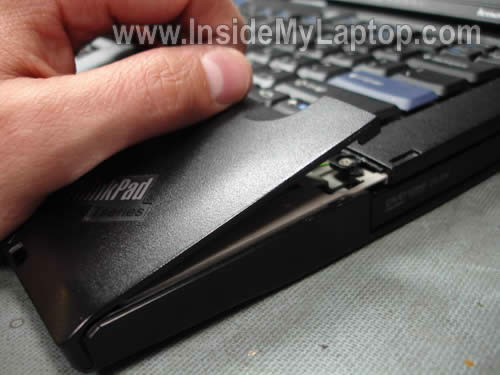
STEP 3.
Place the palm rest upside down so you can access the touch pad cable underneath.
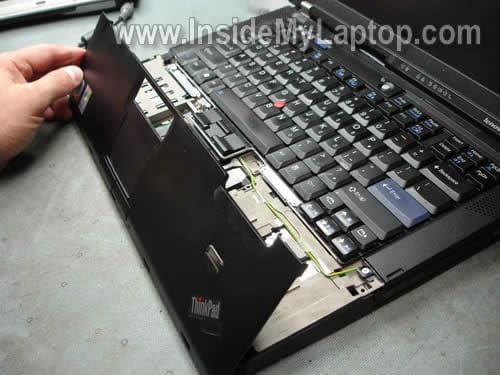
STEP 4.
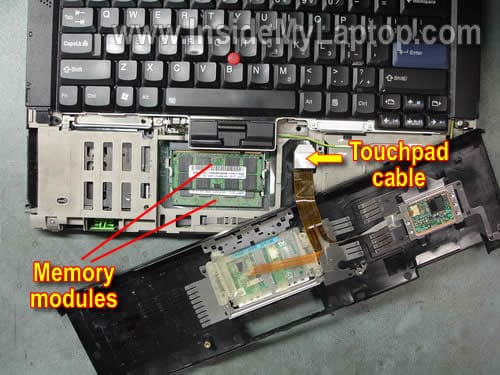
Disconnect the touch pad cable from the motherboard.
By the way, both memory modules are located under the palm rest. If you are replacing or upgrading RAM modules, you don’t have to follow the guide any further.
A Lenovo ThinkPad T61 can take up to 4GB RAM total. You can install up to 2GB memory module into each slot. You should use DDR2 PC2-5300 or PC2-6400 RAM.
STEP 5.
Lift up the keyboard and place it upside down.
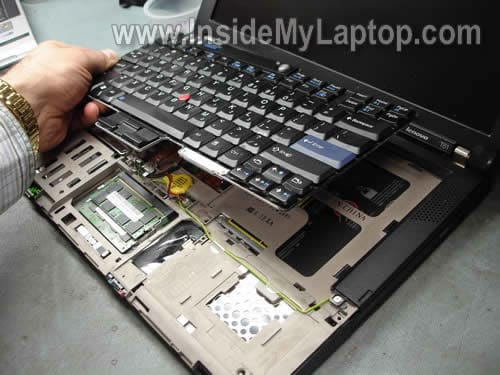
STEP 6.
Disconnect the keyboard cable from the motherboard.
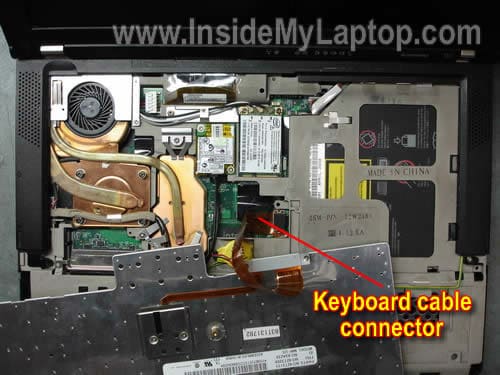
In order to disconnect the cable simply lift up the the connector, same way you disconnected the touch pad cable.
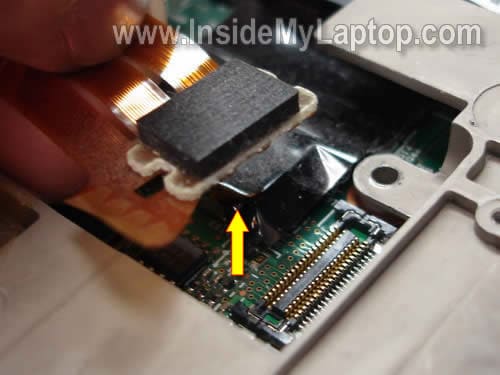
If you are replacing the keyboard, you don’t have to follow this guide any further.
You can find a new replacement keyboard by the Lenovo FRU part number printed on the label. In my case it is 42T3209.

STEP 7.
Remove three screws securing the speaker cover.
By the way, the CMOS battery is located under the keyboard.

STEP 8.
Remove two screws securing the speaker cover on the bottom.
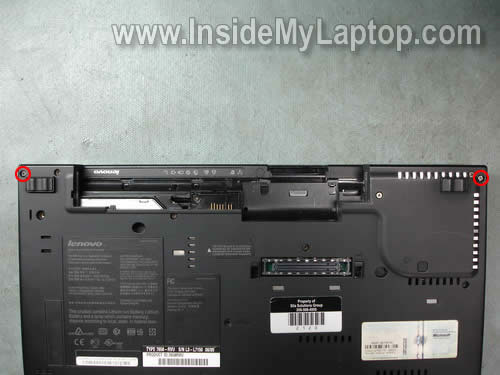
STEP 9.
Remove the speaker cover.
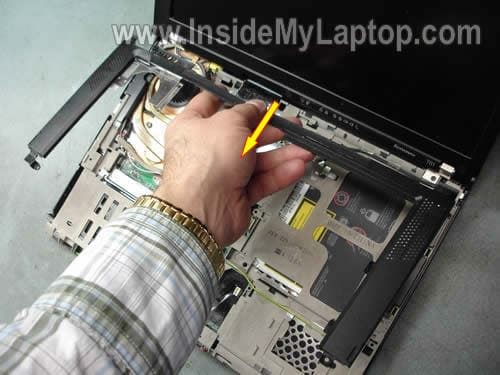
STEP 10.
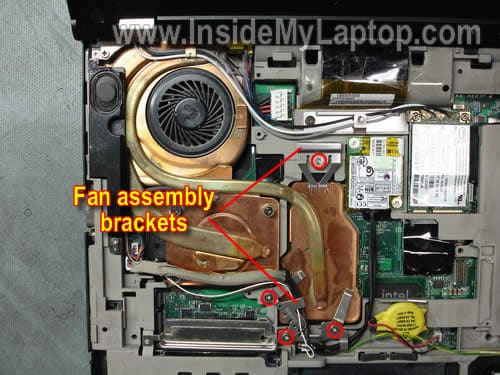
Remove four screws securing the cooling fan assembly brackets. Remove both brackets.
I would recommend taking a close up picture of the lower bracket, so you know how the wires are routed.
The picture will help you to rout wires correctly when you assemble it back together.
STEP 11.
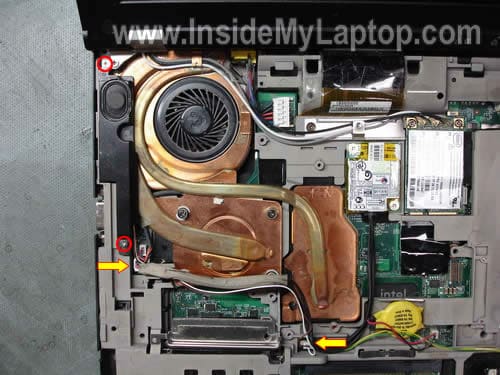
Remove two screws securing the left speaker.
Disconnect connectors shown by two arrows.
Move the left speaker with cables to the right side, so you can access get to the cooling assembly.
STEP 12.
Disconnect the fan cable from the motherboard.
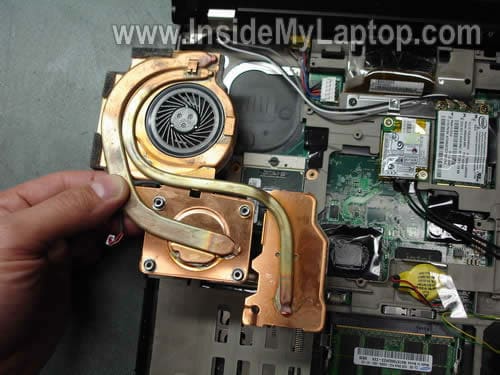
Remove four screws securing the heat sink.

STEP 13.
Lift up the heat sink as it shown on the picture below.

STEP 14.
Remove the cooling assembly from the motherboard.
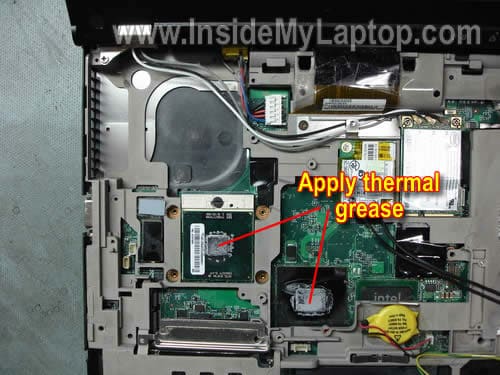
If you are installing a brand new cooling assembly most likely the heat sink already has thermal grease pre-applied.
If you are installing a used assembly, you’ll have to apply thermal grease on both chips shown below.
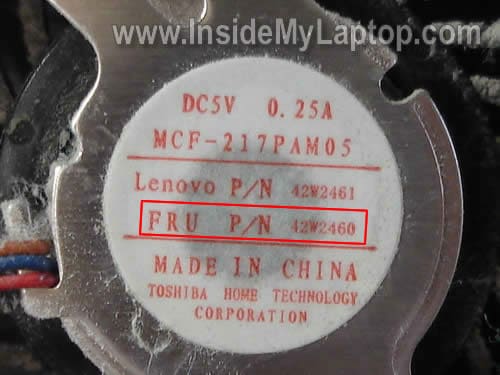
You can search for a replacement assembly using Lenovo FRU part number.
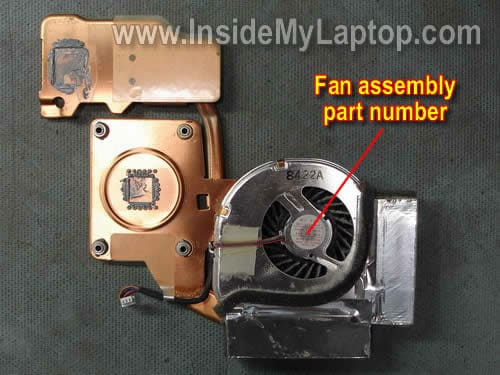
The FRU number is printed on the fan. In my case, the FRU part number is 42W2460.
 .
.
It’s possible to separate the fan from the heat and replace it separately as I did in this guide.
Ray
Thanks for the information you posted. It was very handy. I replaced cooling fan on a T500 model. It is almost similar to your directions . Some screw locations were slightly different, removing speaker cover required additional screws to remove from inside and moving some wires around. Using your directions as a guide I was able to put a new fan on this laptop. Thanks again.
This replacement was for my daughters laptop. I will also do the same thing for my son’s laptop which is a T60.
d1
my Lenovo ThinkPad T61 laptop is showing power Light but not coming up, what can i do to the board for it to come up
Thanks.
Kirill
Hi there!
Why is it necessary to replace the whole copper heat sink? What if I buy the fan on e-bay as twice cheaper as the whole heat sink assembly? It seems that installing the fan into old sink will require some soldering work around which is not a problem to me. Would appreciate if you confirm.
Kirill
david
Thank you! I had a Fan Error on bootup on a Monday. I found this guide, click and bought a fan assembly on the same day. The ebay seller shipped it same day and the part arrived next day. I used your guide to replace the unit and in 20 minutes, my computer is back up (and quieter!).
Jay
Does anyone know where the Clear CMOS/Recovery jumper is located on the T60/T61? I have had no success finding it. Thanks.
syakir
thanks bro for your kindness to share with others. may Allah bless u.
abdul hameed
Thanks for the information. I am facing another problem for my thinkpad T61. It’s wirelss connection is disconnecting frequently and reconnect automatically.
How ca solve this problem(I am sure it is from lapop itself not from access point).
Advance thanks.
abdul hameed
IML Tech
abdul hameed,
I would try reconnecting the wireless card. Remove it from the slot and install back it.
It’s possible that contacts between the wireless card and slot got oxidized and reconnecting the card will fix the problem.
If it doesn’t help, I think you’ll have to replace the wireless card.
I don’t think this is software related problem but just in case try reinstalling/upgrading the wireless card driver. Do it before going inside the laptop.
Claus
Thanks for this great information. I have managed to repair my fan on a R61. The R61 is not exactly the same to disassemble like the T61, but very similar.
What I figured out, you can open the full cooling unit as well on the R61. It has 3 very little screws on the metal cover and for screws to hold it in place with one of the heat sinkers. Be very careful cause the front part is very sticky to the foam and taken the plastic apart from the heat sinker can break the plastic case easily.
Once you opened the unit it is easy to take the fan off. The fan is only hold by magnets so you can pull it out. Just a very little drip of oil on the axis did the whole trick.
The fan is totally quiet again. Maybe this helps someone having a noisy fan like I had.
Kind regards,
Claus
BBC
Awesome step by step! I was able to get my new fan up and running in about 30 min. I have a T61. I must say I haven’t been to happy with IBM’s Lenovo product. Crap tech support, forced to use their OS, fan had to be replaced after 1 and half years. I’ll definitely be looking for something else when it finally goes.
Benjamin
Awesome tutorial. Thanks a bunch mate. I have just replaced the fan on my t61. Sucessfully I should add 😉
Omar
T61 fan buzzing after warranty replacement. I had 3 year warranty and replaced buzzing fan about 2 and a half years after purchase. One year later the fan starts buzzing again.
I will try to replace it. But like said above, not happy with lenovo quality on this T61 (7662-CTO).
KK
Hi,
I’m having a “fan errorr” messga on my T61 and the laptop won’t start anymore. Once that error message popped up, the computer crashes. My warrantee just exprired a few months ago…
Anybody any recommendation where to buy a new fan at a reasonable price?
And what’s the part number I need to get?
Thanks for all your help! =)
phil rhymah
KK: you have to pull the whole thing to see the part number on the bottom… i’ve been putting it off for about 6 months now, but there is a workaround. after you get “fan error” you can press the ESC key and your laptop will still boot. before you do this however, make sure you change everything in bios to ‘maximum battery’ to keep your processor running at a lower frequency and reduce heat. i’ve been running linux on mine for 6 months fanless at 800mhz (instead of scaling to 2.2ghz). I know it’s risky, but it hasn’t hurt me yet.
Nathan
Thank you so much for taking the time to post the pictures and the instructions! It really came in handy. Showing the FRU on the fan was a Godsend because my fan ended up not having anything written on it.
Hahn
Same question as #3 – Does the entire assembly have to be replaced or just the fan? If only the fan needs to be replaced, does it require any soldering? Thanks in advance and thanks for this guide.
IML Tech
Hahn,
You’ll have to replace the whole assembly.
Hahn
>> Same question as #3 – Does the entire assembly have to be replaced or just the fan?
>>>>You’ll have to replace the whole assembly.
What’s holding the fan to the heatsink? It seems rather wasteful and expensive to replace the entire assembly. There are lots of fan-only on eBay at 25% of the cost of the entire assembly. What’s the downside to the fan-only approach?
Hahn
That’s awesome! Thank you, thank you.
Charles
I, too, was plagued by a noisy fan on my ThinkPad T61. Using instructions posted here and elsewhere, I removed the heat sink and fan assembly. It is not difficult. No soldering is required.
I pulled off the plastic fan body exposing the tiny motor and placed one drop of light weight oil into the recess where the plastic fan shaft slips into the motor. All is silent again, as I expect it to be for years to come. The fan is spinning like a [very quiet] top.
Only in the very rare instance of a bonafide failure is it necessary to replace the fan. In the vast majority of cases, a drop of oil will do the trick. Replacing the heat sink is never necessary, and is a waste of money.
You’ll need to observe proper technique for cleaning up old thermal compound and reapplying new to complete the job. Be advised that some youtube videos on this subject are hilariously inaccurate and potentially harmful to your equipment. I couldn’t believe what I was hearing. If you need how-to information on this subject, be sure your source is credible.
After my repair, I thought it prudent to monitor operating temps with a utility program for a short period. Normal temps were observed. I didn’t think to do this, but it would be interesting to compare before and after temps when making this repair to see if there is any obvious increase in cooling capacity.
Good luck.
Jeff Payne
Just replaced my noisy fan assembly using your instructions. Except for having to remove some additional screws, they were perfectly accurate. The additional screws were fairly obvious, so no big deal.
I did, however, not think to clean the old thermal grease off before applying the new batch. Hopefully this won’t prove fatal…
Thanks again!
Jon
Instructions worked great on my T61, but I resolved the noise with a drop of 10W30 motor oil. Purrs like a kitten now. Thanks!!!
IML Tech
Jon,
Hopefully this repair last for a long time. If not, you’ll have to replace the fan.
Bertie
Jon,
Instructions were so helpful and I did sucessfully replace the inernal fan. Without a working fan the whole motherborad and GPU were almost alwyas heating after a few minutes when laptop was switch and the display then goes fuzzy. Every step was so detail and anyone who think they can do it should have an attempt. I thought I had not chance of getting this fix in the first place.
Thanks again for helping.
Plick
Thanks For The tutorial.the intruction helpful and easy to understand. its nice info. now i can replace the Fan my laptop.
Melissa Orr
I have a Lenovo ThinkPad R61. The fan makes a terrible racket at times and I have also been getting a fan error and overiding that by hitting the escape key. If I leave the laptop running all the time and put it in sleep mode at night without turning it off, it runs fine with fan noise from time to time. However, if I cut the computer off, sometimes when I cut it on I receive a black screen with a checking disk message. I am trying to figure out what to do. Do I try to oil the fan, replace it, replace only the fan or the fan and the heatsink……It is a great computer and I hate to lose it, ust not sure where to go from here. Any help would be greatly appreciated.
Melissa
IML Tech
Melissa Orr,
You’ll have to replace the fan assembly.
Be careful. It’s possible there is more than one fan assembly listed for this model. It’s hard to figure out which one to order.
Usually I remove the original fan, find the FRU part number and search for a few fan by this part number. This way you’ll get exactly same fan assembly.
By cutting off you mean hard power off??? When you push on the power button and keep it down for a few minutes?
Don’t do that. You can crash the operating system.
You can try oil the fan but I don’t think this will be a permanent solution. If the fan started making noise, most likely there is a problem with the bearing.
You can try replacing just the fan. I know it’s possible but you’ll have to figure out how to separate the failed fan from the heatsink. Try it if you feel comfortable taking it apart.
I usually replace the whole cooling assembly (fan and heatsink). It’s easier and take less time.
remy roberts
Good tutorial…worked on my T60…I think it was all pretty much same as T61 with a few extra screws. I used a very light (sewing machine) oil…the fan is happily purring away…thanks
Ali Han
Worked greate on my t61, thanks a lot.
Christo
Hello,
Is the part with thermal grease a must ? (Do I have to apply it?)
IML Tech
Christo,
If you buy a brand new cooling fan assembly, most likely it comes with thermal grease pre-applied.
If you buy a use assembly, most likely you’ll have to apply thermal grease yourself.
Answering your question. Yes, thermal grease a must.
Kevin
The key for not needing to purchase a new cooling fan/heatsink assembly is getting into the habit of keeping the exhaust vent(s) clean. That is to say… routine housekeeping/maintenance.
IMO (this is just an observation)… the t61 fan will outlast the rest of the laptop ***IF*** the vents are prevented from becoming clogged to the point where the fan rotor/blades can’t turn freely. If that happens… of course… the motor is likely already toast.
The fan/heatsink assembly needs to be removed/reinstalled per above instructions. However… if need be… the cooling unit can be dismantled quite easily. If you’re gonna go through the trouble of removing it, ya might as well do it right. Like Jon said… a drop of motor oil does wonders. Just a drop though… petroleum motor oil can be weaken some plastics (which are petroleum derived), so don’t be too generous with its application. Use a toothpick to neatly apply only where it’s needed (the center of the bearing where the shaft resides).
The aluminum cover (maybe it’s tin, dunno really, but it ain’t copper) on bottom of the assembly first needs to be removed. That’ll require pealing some tape (carefully) and bending a few copper tabs. Once that’s done, remove the cover, and the fan rotor will lift from it easily. Blow out the vents… apply oil… and while the rotor is out, wash the blades off with soap and water (clean blades draw air more efficiently than dirty ones).
Make sure the rotor is dry and reassemble the unit. After two or three repeated procedures, the copper tabs will weaken and break. No biggy… in lieu, just use a little more tape (steel/metallic duct tape works nicely). Before reinstalling the assembly, make sure the rotor turns freely and doesn’t rub against its housing.
It’s a bunch’o’crap… I know.
But… if you’re like me… you can’t afford a new fan every 6 months.. nor see the need in wasting an otherwise perfectly good cooling unit… it’s just dirty and perhaps the bearing is dry.
I’ve had my T61 (7662CTO) since 2007. It sits on a desk and runs 24×7. Done so for just over 5 years now… except when it’s gone down for the above procedure and the occasional road trip. It still has the original fan. On top of that… mine has one of the defective GPUs that tend to overheat and de-solder themselves from the mobo <<< Which did happen around 2 years ago and was remedied with a "mobo reflow" in the kitchen oven… that's a-whole-nother-story though!
Good luck. Hope someone finds this useful. If not… apologies for wasting everyone's time.
Regards,
Kevin
Roger Chittum
Echoing Kevin, consider that your cooling problem may be caused by lint blocking the exhaust screen. I followed these excellent instructions and decided that if I couldn’t fix the problem with just a new fan (~$15) instead of the whole assembly I would buy a new laptop. When I removed the fan assembly (as easy as Kevin says), I found all the exhaust vent screens completely clogged with a thick layer of lint. I blew out the lint, wiped out the interior, and installed a new fan. After reassembly, I find the T61 starts up faster, runs very quietly, and stays cool. It must have been that with the cooling system clogged, the heat sensor system was holding down the chip speed to limit heat generation.
I would definitely do it this way again because the fan assembly contains the only moving part. The solid copper heat sink and screens simply can’t wear out. Replacing the whole unit would be the equivalent of buying a new car because the ash trays are full.
Nicolas
Hello,
I tried these instructions a few weeks ago but realized after removing the keyboard that my T61 with the standard aspect ratio screen (4:3) is built differently enough from the widescreen that I didn’t know what to do after step 6. I didn’t find instructions for the standard aspect ratio elsewhere.
Tim
After putting up with ever increasing noise, I found this link. A big THANKS to the author and other contributors.
1) Everything came apart as described. Like others, I opened the fan cover, took out the plastic fan, put a drop of lightweight synthetic motor oil in the hole, and lightly coated the fan spindle.
2) Cleaned the blades and the exhaust vents with an old toothbrush, A LOT of dust came out.
When I turned it on it was so quiet I thought I messed up and the fan wasn’t working, As it heated up, I could feel (not hear) the hot air coming out.
CONCLUSION: A combination of a rubbing fan spindle, and the fact vents were so clogged the fan was going balls out to keep cool or there was “backwash” to the fan creating noise. New assy not necessary unless fan has stopped completely.
JM
I’m curious as I do not recall seeing it mentioned. How much does it cost to replace the entire assembly?
Gianni
THANK YOU
This worked exactly as described. I had a rattling fan and a machine that would simply seize up occasionally due to overheating.
This was a T60 with the shorter heating assembly, which differs in the position of screws, speakers etc. The Hardware Maintenance Manual from Lenovo will point the way. Stored the screws by piercing them into a sheet of paper with descriptions written alongside.
Went as far as disassembly of the fan housing – which in part was stuck together with an aluminium reflective (heatshield?) tape. This had to be cut along the seams with a pen knife. Oiled the fan as described in various comments, cleaned out lots of dust everywhere.
The machine has now been running for a month of daily intensive use: whisper quiet, no rattling, no overheating, no sudden seizures. Total success and a thousand thanks to you all.
Gianni
Well – it was the cooling assembly which I dismantled, of course .. there’s no “heating assembly” in any notebook I have ever heard of…. Something like a Freudian slip in my previous post, I guess.
Jake
I followed the steps to change the fan for my T61, however, it is not booting up now, I can here the noise, but nothing showing up, please help.
Jake
NN Bala
. My T61 was giving FAN ERROR .Did exactly as instructed. Blew out dust from exhaust screen.
Rotated the fan blade manually once. No problem since then. Saved money & time. Thanks for giving step by step help with photos
Jason
Thanks for this. Photos and instructions helped ensure what I had already started, continued along smoothly. I took it a step further removed the fan from the enclosure to add a drop of oil. It’s now super silent just as I first bought it 3 years ago (2008).
For anybody that wants to do this:
1. On the fan’s enclosure, you’ll find 4 copper prongs holding the fan down. Carefully bend the prongs upward with a flathead screwdriver and peal the foil of only the left vent (out of two vents -top and left).
2. From there, you should be able to easily open the enclosure like a hinge with only the top part of the foil that is connected to the top of the top vent.
3. Now, you should be able to separate the fan from the motor. Oil with one drop using something like DeaxIT x10s lubricant to the hole of the motor.
Done. Put it all back together and you’ve added new life to your heat sink without purchasing a new one. Sorry, I’d provide photos but I just put everything back together. P.S. While you have everything open, dust that bad boy down with a can of compressed air.
chirajit
great job…
thanks…………………..
marqs
Thanks a lot for the guide and thanks to jason for the advices to fix the fan itself. i just tryed it out and it’s working perfectly again and saved me a bunch of money.
Barry
Awesome … I have a T61p, and the layout is slightly different. With a little extra attention, these instructions worked very well.
As a result, my system dropped 25 degrees Celcius. No lie!
It’s happy as a clam.
Thanks!
Kent
My T61 fan started grinding!
This information is outstanding. I donated to your cause because without this info, I would be lost!
I replaced the fan only. It is a good idea to have a little metal tape to secure the fan to the heat transfer assembly.
Keep little marked containers for each step that requires screw removal. Give yourself plenty of light, and follow this guide on another computer ( or print it out! ).
Thanks again, my T61 is now purring quietly!
IML Tech
@ Kent,
Thank you for the donation. I’m glad you were able to fix the laptop yourself.
Pardeep Kapoor
Excellent !!!!!!!!!!!! Thanks !!!!!!!!!!!!
Jaya
Hi, Thanks for the excellent dis-assembly pictures. Question : Is it possible to separate the fan from the heat sink easily ? Can it be done without removing the heat sink ?
IML Tech
@ Jaya,
Yes, it’s possible to separate the fan from the heat sink.
But in order to separate the cooling fan from the heat sink it’s still necessary to remove the heat sink from the laptop.
Awesome man.
Is this fan the same as that on T500 ?
IML Tech
@ Awesome man,
I don’t know that. All Lenovo fans look kind of similar.
If you need a new replacement fan for Lenovo T500 notebook you can find it on ebay.
Here’s service manual for Lenovo ThinkPad T500 and W500. The manual has disassembly instructions.
ahm
hi my friend .i have a lenovo sl300 .before i replace the fan. where can i order the new one, and how can i know the part number?
IML Tech
@ ahm,
You can find all part numbers in the service manual for Lenovo SL 300 notebook.
The fan (thermal module) part number located on the pages 125-126. There are two different fans for this laptop. It depends on the laptop type.
Google the part number and you’ll find it.
Debbie
Hi–I’m just getting started with the T61 fan replacement. In printing out the directions, pages 14-18 print only responses directed to you. What happened to the last 5 pages? I’m reluctant to start the procedure without all the directions. Thanks in advance for your help.
IML Tech
@ Debbie,
I’m not sure what you are talking about.
The guide has only one page: STEPS 1-14
All instructions published on one page.
Debbie
Hi–that’s strange. I have 18 pictures in 14 steps on 14 of 18 pages. Can you please email me the 1 page of directions.
IML Tech
@ Debbie,
All instructions located on this page:
https://www.insidemylaptop.com/replace-cooling-fan-lenovo-thinkpad-t61-laptop/
If you are talking about pages listed after the guide, they are pages with comments, not the instructions.
Debbie
Hi–
The link you gave me took me to the same 18 pages. Fourteen steps. Each describilng the T61 cooling fan replacement. Can you please email me the one page. In fact, I’m not sure what you’re looking at. No offense. That directions on a fan replacement, when what seems like 50 screws are involved, is difficult to imagine.
Mike
Tremendous job done here. 1 additional question, what is the fastest CPU I can install in the T61P 15″ screen? Lenovo should have a list of CPU’s that are fully compatible, but where the heck is it?. Many Thanks on the fine Tech Article! Mike
IML Tech
@ Mike,
Probably all CPUs listed in the service manual.
Here’s the manual: ThinkPad T61 and T61P service manual.
The CPU list starts on the page 141.
Janette
Thank you for your great instructions. I am so fortunate to have found your website! Everything looked exactly like you had pictured, and the step-by-step directions were very easy to follow. Thank you again!
glyq
Just want to thank you with the detailed and pictured instructions. Although I had the X series instead of the T series of Lenovo, but I managed to dissect my laptop for the first time in my life! Thanks again!
Lu
Thank for your great instruction. I have a Lanovo T60. It has fan noise. Should the cooling fan assembly be replaced? Is the replacing procediure of T60 same as of T61 ?
Thanks
IML Tech
@ Lu,
The cooling fan replacement procedure will be very similar. Just in case, you can take a look at the Lenovo T60 service manual. It has step-by-step disassembly instructions. Fan removal shown on the page 81.
I guess it’s up to you. You can replace the entire cooling fan assembly (cooling fan and heat sink) or just the cooling fan itself. It’s possible to separate the fan from the heatsink.
The entire cooling fan assembly is more expensive but easier to replaced. Just the cooling fan is cheaper but takes more time to replace.
Both parts available on eBay.
James Cook
Thanks for the guide! Something to watch out for: my Lenovo T61 has an nVidia chip in addition to the two other chips mentioned in the guide. The replacement heatsink I bought apparently was designed for T61 laptops without the nVidia chip: it had thermal grease ready for the other two chips, but a translucent sticker where the nVidia chip should go (like the heatsink pictured in this guide). I removed the translucent sticker, cleaned off the adhesive*, and added my own thermal grease to the nVidia chip before proceeding.
* I used the cleaner that came with the thermal grease I bought. I also cleaned off the old thermal grease from all the chips.
John
Took apart my lenovo T61 and found that my heatsink didn’t have a part number sticker on it. I looked around and couldn’t find any that matched, any ideas on how to identify the part?
IML Tech
@ John,
Most likely you can find part number in the service manual which is available on Lenovo website.
Takedaily
So where do the screws go ? They are long and short and shorter..Yikks
Ninjawarmac
Excellent work mate, very good diagram and description 🙂
Ann
Worked like a charm. Thanks!
T61
I replaced the fan on my T61 with an aftermarket one from Ebay. However, the laptop now pulses the fan on and off (at what seems to be its full speed) continuously :-(. What could it be?
Muad Dib
Thank you very much for this site. I found it extremely useful and was able to replace the cooling unit in my T61 thinkpad. Unfortunately the replacement unit I bought was slightly at a different shape than the orignial and I had the bend it a little to fit and be in good thermal contact. My keyboard has a small bump in it now but the computer has been running for 24 hours without issue. I think everything is working so far. I would recommend that you use different colors in your pictures for circling/pointing out the different parts because with my red/green color blindness it was hard to find some of the red circled screws. Using the bright yellow color works really well against the darker computer. It might have been marginally useful to have a procedure to put everything back together afterwards but obviously you can work your way backwards from these instructions (as everyone here has done). I say these things only out of constructive criticism and not as complaints because the instructions were perfect. I would definitely recommend this site to anyone with the same issues.
Thank you so much once again.
Cheers!
Sam
Thank you for the guide. I followed the instructions and have clean the fins on the heatsink.
My T61 has reduced from a temp of 98C at load to around 60C 😀
Jan B. Larsen
It worked on T61 Type 7665-CTO, thanks;-) Best Regards.
edvardas
thank you for such a great manual 🙂
TRINKKETTE
STEP BY STEP CLEARLY DETAILED VERY NICE LAYOUT DIAGRAMS ARE REALLY GOOD
THANK-YOU I REALLY LIKE YOUR GUIDE I THINK ITS THE BEST INSTRUCTIONAL GUIDE I HAVE EVER USED.EVERYTHING I NEEDED TO KNOW WAS THERE.
Trisha
Just wanted to say thanks for this tutorial. My fan went out, I did a search and found this page. I printed it out for my husband to use to replace the fan and he had no problems whatsoever with following the instructions and getting my laptop running again.
You did a great job with all the detailed pictures showing every screw, etc. Thank you very much!
Sergii
Is it possible to put a grease to fan rotor (or somewhere there) to cure noise (I mean Lenovo T61 fan noise)?
Akos
Thank you!
The fan replacement without assembly is a nightmare. You have to bend the copper pins back and forth, and won’t match properly anymore. Blades of the fan can also easily give noise if fan not placed precisely into the copper surrounding. Even though I was careful, it still gives noise sometimes if tension changes on the chassis.
esrin
Thank you!
Max
Just replaced the fan on my T61 following these instructions. Once fan assembly is taken out, removing old fan was non-issue. I had to bend two sides of new fan holder (silver metal plate round fan) to raise the fan over the assembly bed a little, so that it doesn’t hit bottom. Worked out just fine, no more noise and laptop is quite cool.
Thanks so much for detailed picture of every step!
Jeff
Thank you for the great instructions.When I kept getting “fan error” on my screen yours was first website I happened upon,followed directions to having fan removed but because of my recent job loss do to lay off I ended up disassembling the fan cleaned it out really well used a touch of special lube that i use on my airbrush’s,reassembled everything in reverse of your disassembly instructions plugged it in and “VIOLA” booted right up no more noise and working great! My women is so happy,so thanks again for the great directions,pics and great tips ie.. Taking pics of inside before you start removing components prior to removing fan! Thanks again. Jeff
Karmen
Thank for this post. Went to computer shop and they said it was $100 to fix. Went back home, took
it apart following instructions and everything works perfectly. Thank you
Nate
I’m adding this as a bookmark right now. It was SO helpful! I love doing things like this on my own and the guide you have assembled has helped me with one more problem that I have.
chris
How can I find out which fan part number I need for me T61 model #765912U?
I have tried many IBM and Lenovo 800 numbers without getting anywhere (other than to another 800 number!)
Thanks for the instruction, I look forward to using it soon!!!
IML Tech
chris,
Try calling SparePartsWarehouse (google it). They sell genuine Lenovo parts and probably can help you to find the right one.
John Spence
My T61 was working fine in the morning but shut itself down over lunch. On re-boot the fan made mechanical noises and ground to a halt. The fan error signal came on screen and the laptop shut down. Using the exit button turned out the fan error signal enabled the boot to complete itself. One side of the laptop is propped up, a small external fan is blowing air under it and the air coming out of it is cooler than it ever was – so safe for the moment.
A fan consists of one moving part rotating in bushings or bearings – what can wear out? It’s more likely that dirt or lint got sucked into the fan and is jamming it, no?.
As an impecunious, long-retired old clutz, I shall follow your instructions very carefully and once able to get at the fan, apply JEFF’S inexpensive, clean and re-oil technique, and hope for his result. Thank you for excellent instructions. I’ll let you know the results.
Can the fan be tested before putting everything back together? If so, how? What is thermal grease and where do you get it?
FCF
Many, many thanks for your detailed step-by-step with photos!
I never did get the speaker cover off. There are more screws involved on my T61P than on yours and I chickened out. Because of my chicken-heart, I didn’t get to where I could remove the fan assembly.
While the keyboard was removed, I powered up. The fan did spin up at power-on and then stopped. Didn’t leave the power on very long.
Probably a good thing that I couldn’t go any further. I blew air on the fan and exhaust ports to remove accumulated dust, reassembled, and–so far–the heat problem has not come back. We’ll see after the machine has been running for a little while longer.
Thank you again.
John Spence
Followed your instructions to remove fan on Lenovo T61. Instructions worked very well. Surprised that fan turned freely and seemed quite clean. Poked a couple of drops of 3 in 1 oil on underside clearance between fan impeller and hub. Spun the fan impeller with a finger, blew into the grilles a couple of times, impeller spun freely. Old thermal compound removed, replaced with Arctic MX-2 electrically non-conducting paste, put laptop back together. First boot-up, I got the “Fan Error” signal. Oh darn. But next shutdown and restart went OK, fan started up and has been working ever since. Thank you for your accurate detailed instructions. Hope this experience saves T61 aficionados some money.
Joey
Also, worked for T400. I only needed to open it to blow out the fan and vents. Laptop is no longer overheating. Thanks.
Omar
Excellent Guide ! I will use this when the replacement fan arrives
Vincent
Thank you for the explanations, very accurate.
In my case I bought some thermal grease and a product to lubricate and clean the fan.
After lubricating it I made the fan spin with an air blower. Made it dry for a time and then reassembled.
Now the fan works perfectly, no more fan error message.
I think it is worth doing this before buying a new fan, you will save a lot of money.
Linda
First time I’ve ever fixed my own laptop – thanks for saving me $100. Gotta love the internet and peoples ability and willingness to share their knowledge.
Jason
hi
thanks for the great guide. i had a question: i installed everything but the computer wouldn’t turn on. i just get a series of short beeps and a black screen. the fan works, the hard drive spins, but nothing else. any idea what this might be?
jason
Gwynn
super guide, made the Job so much easier, thanks
Nik
Thank you very much for this guide. I needed to replace the cooling fan and these instructions were perfect. I have never taken apart a laptop so I had some reservations about doing this myselft but it was very easy. Thank you
Manny
Good, clear instructions. Thanks! Also, thanks to the folks that commented about repairing, in lieu of replacing, the fan!
Kees Torenvliet
Great article, and very informative pictures! I had previously replaced the fan on my R61, which is very similar to the T61. I obtained a used fan from a local computer store. The fan was very similar, but not totally identical. This was because the replacement fan came from a scrap T61.
I noticed that the T61 fan fit just fine, even though it was just a bit different. I should also note that you might want to use new thermal compound, as I find that the original stuff has usually hardened enough that it would most likely not make good and thorough contact with the chips that need to be cooled.
Also, I should note that the T61 fan uses much more copper in the heat pipes/conductors. The original R61 fan mechanism used aluminum.
I have also restored the operation of a fan on a T40 by judiciously blasting the fan holes on the laptop with compressed air. This was in an automotive shop, so the air was at 120 psi plus.
Thanks again for your writeup.
Kees
LM
Good presentation. The sticker is missing from my fan. Can anyone tell me (since it looks like the fan in the photos) if the FRU number is the same or if there were several similar but different models?
Roger Chick
This is wonderful i am so pleased, my God bless you for this Great guide
The Chief
Nice job! I use my laptop in the fire and ems field. Mine is an R series and this guide was very useful in repairing my laptop. Great pictures and instructions. I’m no genius and it only took me about 45 minutes to complete! Thanks for the help!
Harry
Thank you very much for sharing your knowledge!
Kind Regards from Germany
🙂
Nathan
To all who are attempting to try this:
Please be aware that by doing some of these repairs yourself, you might void your warranty. Lenovo may not be so happy that you are doing your own repair job.
Correct methodology for sure, but Lenovo can’t help you if you mess up.
Probably late for a lot of people, but for future reference:
if you hear beeps, write down the numbers (Ex: 4 beeps, pause, 2 beeps = 4-2) and Google them.
If you are getting “fan error” it’s either not turning due to no power or it’s a lemon (or it’s not installed correctly). Try reseating it again.
If you cannot find your number, Google your machine’s first four numbers of the PRODUCT ID (often, for T61, it’s 6480, 6465, 7662, or 7659) and find what fan it is based on that type. Simply saying T61 is not specific enough because there are different models, and what works in one might not work in another.
Hope you got the use out of the article I did! Thanks for the writeup!
William
This page has also helped me many, many, times and I keep coming back. The company I work for purchased a lot of these in 2008 and retired them in 2012. I have done this about 20+ times and it’s always good to have pictures. We sold them to the employees and every now and then someone will ask me to replace their fan and all I charge is a lunch. Never had any issues or problems. Cheers!
asanka
thanks….your data is very use full to me.
louis
Thank you very much for this great repair guide. It worked perfectly for me. Thanks again from Switzerland. louis