

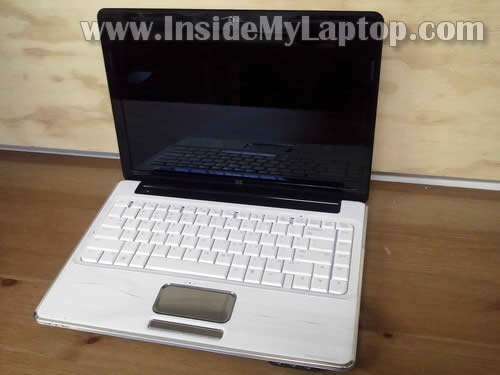
In this guide I show how to replace LCD screen on HP Pavilion dv4 laptop.
HP Pavilion dv4 comes with two different types of screens installed:
1. LCD with CCFL backlight (requires inverter).
2. LCD with LED backlight.
In this guide I’ll be replacing the one with CCFL backlihgt.
Also you can use this guide for replacing LED LCDs but they don’t have inverter boards so you’ll have to skip steps 8 and 9.
Before you start make sure the computer is turned off.
STEP 1.
Remove the battery.

STEP 2.
Remove the screw cover located in the lower left corner of the display.
Remove one screw securing the front bezel on the left side.

STEP 3.
Remove the screw cover located in the lower right corner of the display.
Remove one screw securing the bezel on the right side.

STEP 4.
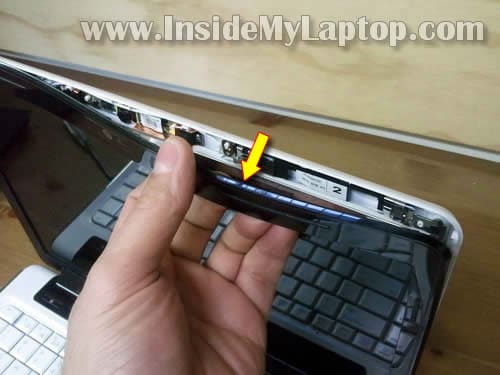
Separate the top side of the bezel from the display cover.
STEP 5.
Continue removing the bezel.

STEP 6.
When the top side of the bezel separated from the display cover, move to the lower part.
Lift up one side of the bezel with a small screwdriver.
Work slowly. There are hidden latches securing the bezel. Try not to break all of them. 🙂

STEP 7.
Remove the bezel.

STEP 8.
As I mentioned before, this HP Pavilion dv4 has a CCFL screen which requires an inverter board.
The inverter mounted on the lower part of the display assembly.

STEP 9.
There are a few plastic tabs securing the inverter board.
Lift up the inverter board and disconnect cables on both sides of the inverter.
Remove the inverter.

STEP 10.
Remove two screws securing the LCD assembly on the top.

STEP 11.
Loosen (do not removed) three screw securing the left hinge.

STEP 12.
Loosen (do not removed) three screw securing the right hinge.

STEP 13.
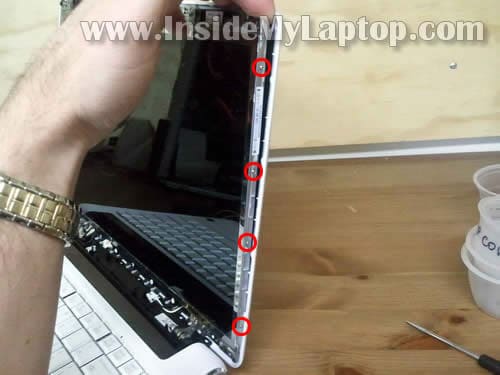
Now you should be able to separate the LCD assembly from the display cover just enough to access screws on both sides.
Remove four screws from the right mounting bracket.
STEP 14.
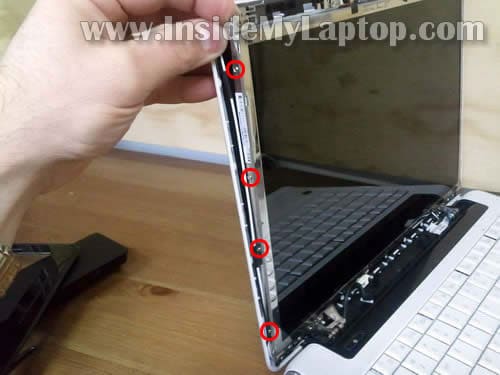
Remove four more screws from the left mounting bracket.
STEP 15.
Carefully separate the LCD assembly from the back cover.

STEP 16.
The web camera module still attached and has to be disconnected.
The web camera attached to the screen by two sticky aluminum strips.
Disconnect the web camera cable on the left side.

STEP 17.
Remove the web camera module.

STEP 18.
Place the screen face down on the keyboard.
The back side is covered with aluminum foil shielding.

STEP 19.
Lift up the shielding so you can access the video cable.

STEP 20.
Remove sticky tape securing the connection and unplug the video cable.

STEP 21.
Now you can remove the screen.
Don’t forget that this laptop comes with two different screen types: CCFL backlit LCD and LED backlit LCD.
Make sure the find the correct type of screen for your laptop.

For the base disassembly please read my previous HP Pavilion dv4 guide.
Stu
I have an HP with vertical lines on the screen.
I would like to use a monitor and have the broken screen lie flat.
How do I “break” the hinges?
IML Tech
@ Stu,
You don’t have to break hinges. You’ll have to remove the entire display panel and use just the laptop base.
Take a look at this HP Pavilion dv4 guide:
https://www.insidemylaptop.com/disassemble-hp-pavilion-dv4-laptop/
You can remove the display panel as it shown in the step 19. After that assemble the laptop back together and use it with an external monitor.
NOTE: the wireless card antenna cables running inside the display assembly. When you remove the display, you disconnect antenna cables from the wireless card. It means you will not be able to use internal wireless card. But it shouldn’t be a problem because you can buy an external USB wireless card.
naomi
looks so delicate..i think i might just leave to the expert..haha
Shulim
Sir, thank you thank you. My laptop screen has not worked since I dropped it in the summer. I assumed the screen was OK, because it fell on intersection of the display panel and the rest of the laptop. Been hooking it up to external monitors ever since, which totally defeats the purpose of a laptop.
I do not want to use IML Techs (sorry, IML Tech) because I am el Cheapo. Besides, the price for a tech would have probably made it worth buying a new laptop (mine was $400). So I first bought a display inverter on eBay for $6. Switching it out made no difference. So I bought a new display cable, and now I’m back in business.
Not sure about making a donation, I’ll think about that. But you def deserve to get paid for this.
Holli
I have an HP Pavilion dv7-2273cl laptop that is a couple of years old. Suddenly the screen has red pulsating lines where the black in the screen should be. I don’t know if this is a video card issue, a broken display issue, or a “just run screaming for the hills” issue. Please help me figure out what to do next…
Ted Gatlin
Any LCD screen replacement guides for the HP Envy 17 3D?
Thanks!
Ted
Lehla
Hi I recently purchased an HP pavilion dv4 from some fool for $20. Problem is the backlight is out I think….. Well it had been displaying complete blackness until my friend took the whole thing apart and put it back together again! Lol now i can see that the screen is displaying but its not lit up so its hardly visible. What do you suppose needs replaced on it?
Emily
Hi, I just replaced my broken screen(I have the version with the CCFL backlight) and as far as I can tell, I did everything correctly according to your instructions. When I go to start up my screen, all I get is a black screen. You can tell the backlight is on, the screen is just blank. Do you have any ideas what I may have done wrong before I attempt to disassemble it again? Thanks in advance.
IML Tech
Emily,
It’s possible the video cable not seated correctly on the back of the screen. Try reconnecting the cable.
Denis
Hello, i was going through your guide to disassemble the laptop, i have got a hp pavilion dv4, with a lcd display. I had disassembled my laptop to clean the cpu fan as i had heating issues. The last step was removing the motherboard which wasn’t mentioned in your guide which turned out that there are two screws securing a port (i don’t know what port it is? a flat port). The reason im here on this page is that after i assembled my laptop, when i tilt the screen at different angles the whites turn purple (when i open the screen the colors are ok and then if i pull it a little bit towards my self or if i shake the screen, the whites turn purple). I thought that maybe the video jack wasn’t in place or was loose, so I re-disassembled and assembled it, but with no luck. What could be the problem? The video cable itself of something else? If its the video cable then where could i order it and any serials or models of it?
Denis
Hi there i tried doing some research on the video cable for my laptop but still without luck. I have a pavilion dv4-1509tx with a lcd screen and not the one with the inverter.
Fritz
Hello. Does the HP dv8t Quad Core model have a screen inverter? I have replace my ram (both modules) and the motherboard and the screen is still blank. Power and hard drive lights come on. Sort’ta at a loss, don’t want to write the laptop off its still in good shape.
Fritz
IML Tech
@ Fritz,
Yes, I believe this laptop has a CCFL screen.
When inverter fails, the backlight will not work BUT you still should have a very dim image on the screen. Take a closer look. If there is NO image at all, not even dim image, most likely the problem is not related to the inverter board.
Also, test your laptop external video. Even if laptop screen, inverter fail, the laptop still should output video externally. Does external video work?
jeff simonsen
Thanks for the awesome tutorial. Im a general contractor / home inspector by trade with decent electronic skills. Your tutorial for screen replacement was so simple it only took me thirty minutes start to finish. send me a physical address and invoice for $25.00 I’ll send you a check for saving me the time to take it in for repair. I have geek squad, but you saved me a ton of time. Thanks sincerely, Jeff
Lanny
How do you replace the LCD cable in an HP Pavilion dv4-1220us. I presume I need to start with the above procedure of replacing the screen. What are additional steps to get at connection to base of computer
IML Tech
@ Lanny,
You’ll have to remove the top cover assembly as it explained in STEPS 1-15 in this HP Pavilion dv4 disassembly guide.
After the top cover removed, you can access and unplug the LCD cable from the motherboard.