

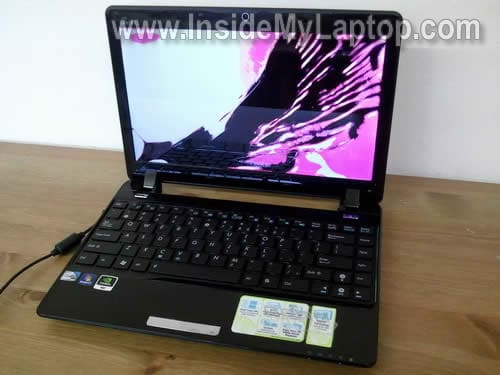
In this guide I explain how to remove and replaced damaged screen in an Asus Eee PC 1201n netbook.
There is a good chance this guide fits other Asus Eee models. If it works for you, please mention the model number in comments after the post.
Before you start make sure the laptop is turned off and battery removed.
STEP 1.
There are six screw seals on the front bezel. These seals hiding screws securing the bezel.
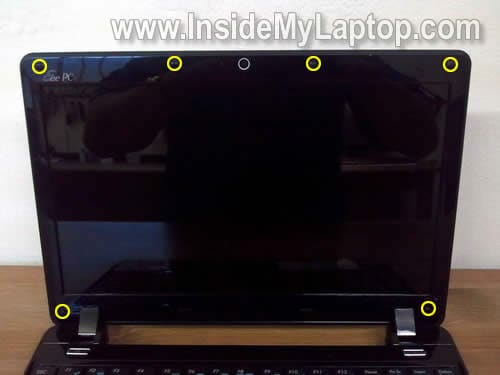
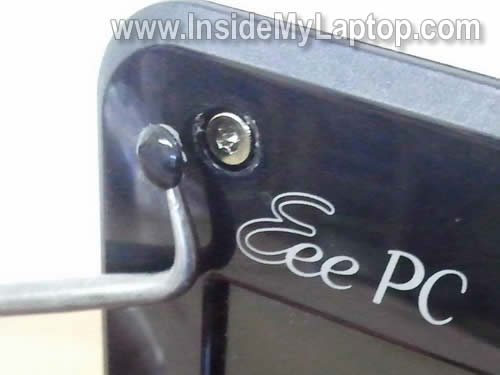
You can remove seals with a sharp object.
After all seals are removed, remove all six screws.
STEP 2.
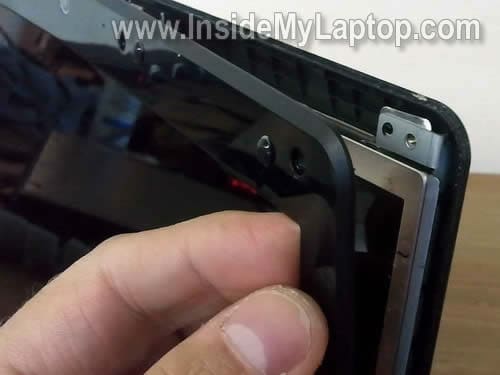
Start separating the bezel from the display cover with your fingers.
STEP 3.
Continue removing the bezel on the top of the display assembly.
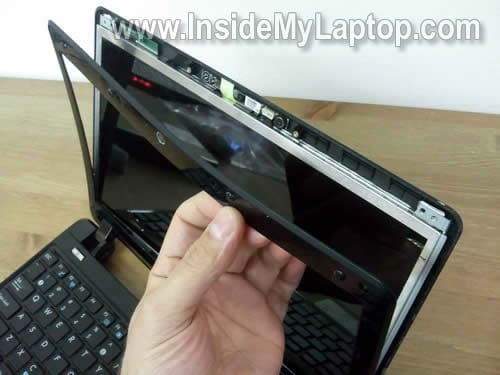
STEP 4.
I found that in this model hinge covers are not part of the bezel.
You’ll have to separate the hinge cover from the bezel, lift up the hinge cover and remove the bezel as it shown on the following picture.
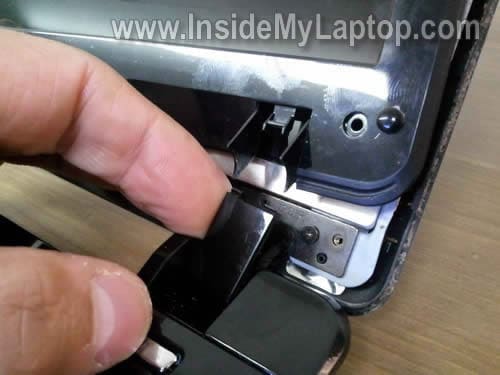
STEP 5.
Remove the bezel completely.
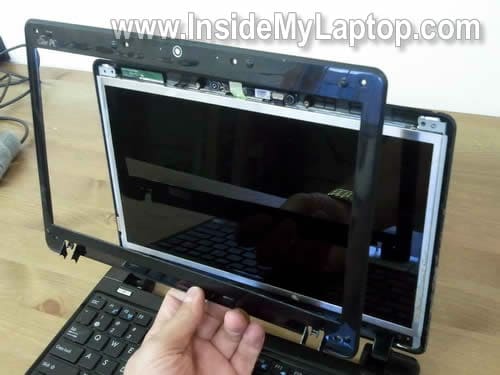
STEP 6.
After it’s been removed, you can remove the right hinge cover.
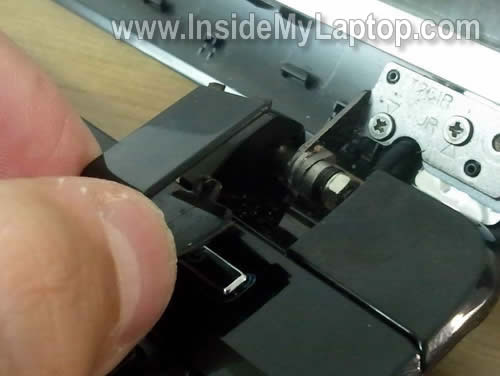
STEP 7.
Remove the left hinge cover.
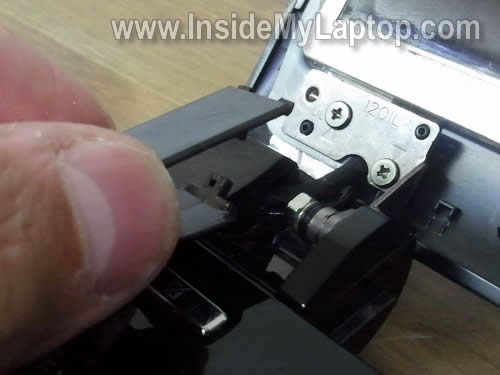
STEP 8.
Carefully separate the LCD from the display cover and remove two screws on the right side.
These screws securing the LCD to the mounting brackets.
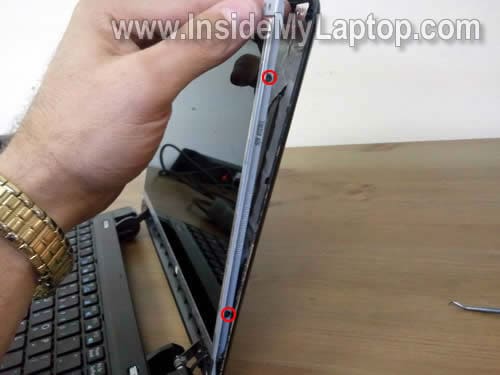
STEP 9.
Remove two more screws on the left side of the left bracket.
NOTE: the bottom screws located under a small magnet. Do not forget to put the magnet back in place when you assembled everything back together. This magnet activates the lid close switch when you close the display.
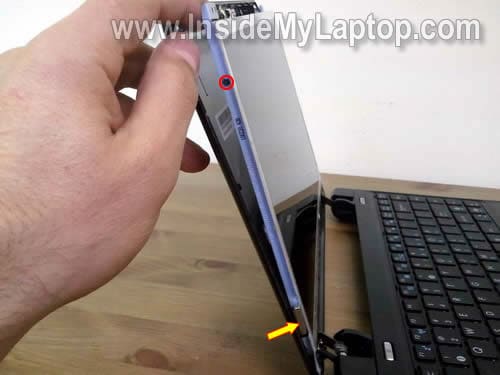
STEP 10.
Carefully separate the LCD from the display cover and place it face down on the keyboard.
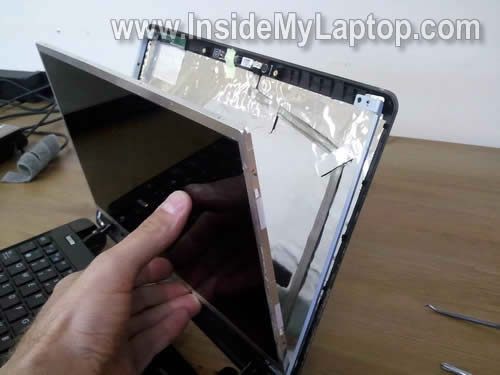
STEP 11.
Now you can access the video cable on the back.
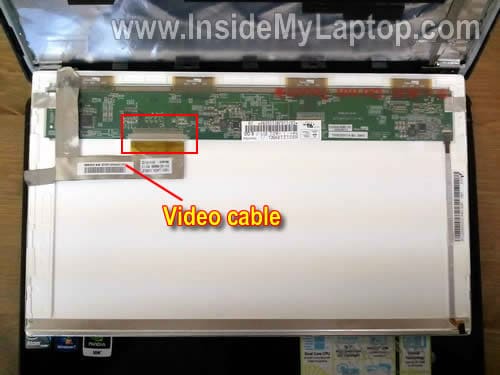
STEP 12.
Disconnect the video cable.
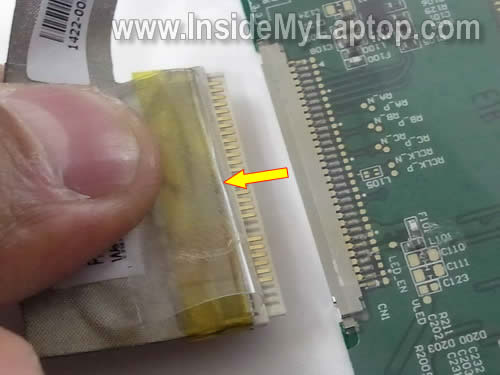
STEP 13.
The broken LCD has been removed and ready for replacement.
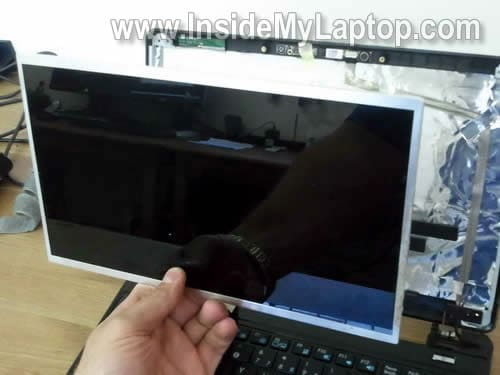
The best way to find a new replacement screen is searching by the model number.
Asus Eee PC 1201n has a LED-backlit LCD.
In my Asus Eee PC 1201n netbook I had the following one installed: HSD121PHW1 (made by HannStar).

In one of the previous posts I explained how to take apart this netbook and remove all major internal components.
NIALL C
Hi, I have just replaced my screen on ASUS EEE PC 1005HA (with the help of this post), but when i power it on the BIOS screen is off centre and when i go into windows it shows up the same. I have changed the resolution, but cant get it to display correctly.
any suggestions appreciated.
viktor
Thank you very much. I’ve just replaced the screen on my Asus eeePC 1005P following your advice. Really thank you.
Edg
hey do you know how to replace the screen laptop of Asus UX50V series? i can not see the screws
IML Tech
Edg,
Probably just unsnap the scree cover from back cover as it shown in steps 3,4,5 in this guide: https://www.insidemylaptop.com/replace-broken-lcd-screen-hp-pavilion-dv3-laptop/
This is just a guess.
amphibian
thanks for your guide. it worked for my 1001P (which is, i believe, technically similar to the 1005P) just as well, they seem to use the same lid with different outer casing (shiny or “tortoise”, as they call it).
i actually had to get *into* the screen (some liquid had gotten into it, being, due to the capillary force of the furrowed foils between lightsource and actual screen panel, sucked far in). by removing the metal frame around the screen unit i could get to the foils and the actual screen and clean them. saved me the 100+ $$ for a replacement.
although, as it often is when boys dis- and re-assemble stuff, i was left with two of the tiniest screws i’ve ever seen – but they don’t seem to be necessary anyway… 🙂
IML Tech
amphibian,
I’ve collected one pound of screes since I started fixing laptops. 🙂
Wayne
Thanks, I’ve ordered the screen and will replace it on my Asus this week
IML Tech
Wayne,
Hopefully the disassembly guide works well for you.
Hannah
How do I connect a regular computer monitor to my eee netbook? I disconnected the screen like you said, and then tried hooking up the computer monitor and I still do not get anything. I also tried hitting the fn+f8 keys and the computer monitor still does not come on. Do you have any other suggestions that I could possibly try? I can hear the netbook running and it lights up. I just can’t figure out how to get my computer monitor to work. Thanks.
IML Tech
Hannah,
I believe the netbook should start with an external monitor automatically when the internal screen disconnected.
What’s wrong with the netbook screen? Does it show any video/light at all? Maybe there is nothing wrong with the screen and you have a different problem?
anm
Hi,
I am in desperate need of advice on how to replace the screen of my ASUS UL30VT-
which has the specification 13.3″ HD (1366×768) Color-Shine (Glare-type).
I have found a seller on ebay selling a compatible (?) display but I have no clue how to replace it.
I know that it may cost more than few hundred bucks plus the screen elsewhere. Although it’s nearly new (less than 6 months old) do you think it will be cheaper to send it to ASUS warranty department ?
Looking forward to your responses.
very_Sad
IML Tech
anm,
Take a look at this guide for replacing LCD screen on a HP laptop.
I think that all disassembly steps will very similar.
It’s possible you don’t have to remove the display panel from the laptop. I think you can remove the screen bezel and replace the screen while the display still attached to the laptop. The above mentioned guide will give you an idea which steps to take.
Here’s another example, which could be very similar to your laptop.
Is the screen cracked? If yes, it will not be replaced under warranty unless you had some kind of accidental damage coverage.
I don’t know how much Asus charges for LCD screen replacement, probably a fortune. Call them and ask.
Paul P
Hi,
I’ve changed the screen OK but have one small problem with the left hand hinge cover. There’s a cable that gets in the way and I can’t find the right route for it. If I were to force the screen to shut it would rip out the cable! Any thoughts?
Thanks.
thequinox
I have an Asus Eee PC 1000HE and the backlight has gone on it. The LCD is still working but everything is impossibly dark without the backlight. Video out still works. I’m unsure how an LED backlight could just fail like that. Could it be the motherboard? LED panels don’t have inverters so I don’t know what else it could be. It was working one minute, came back and it was dead.
I also have another eMachine 10.1″ netbook with an LED backlit LCD. Could I take it’s panel out to test on the Eee PC? I assume the connectors are the same. Since LED displays don’t use inverters is the power usage standardized? Is there any risk to troubleshooting with another panel?
I hope you can get back to me, I’ve looked around on the internet but have yet to find an answer as to the interoperability of these screens.
IML Tech
theequinox,
This could be:
1. Failed LCD screen.
2. Failed video cable.
3. Failed motherboard.
It’s impossible to troubleshoot without spare parts.
I don’t know. Be careful, if the screen is wrong you can fry the screen or motherboard.
If the screen looks similar, it might work but proceed at your own risk.
john
I have an eee 1000 netbook and the screen is gone blue, i took off the cover and when i fiddle with the led cable the screen is ok, i think the cable may be broken somewhere along the line, I need to buy a new cable but cannot seem to find one, Can anyone give me an address or web site i can order an led/video cable
IML Tech
john,
I think you can find Asus Eee 1000 video cable on ebay.
Jerome
This guide and your previous one on disassembling the Asus 1201N have been very helpful. I am currently in the planning stages of converting one into a tablet PC and your guides take a lot of the guess work out. Hopefully I can still use most of the original housing to make a decent looking tablet.
Any input you may have would be most welcome.
nik
Works perfectly for the Asus Eee pc 1005PEB!
Frank
Hi I have an Gateway LT2032u and the screen is broken,I need information to fix,thanks.
Robert
This proved to be the perfect guide! One addition though: When disassembling, mark the front side of the magnet. In my case, after assembling, the notebook wouldn’t fall asleep when closing the lid. It’s the magnet’s polarity…
Asus told me they charge something like €250 to €300 for the lcd and €70 for the actual repair.Might as well buy a new one then. It now cost me €85 for the lcd and I did the repair myself. Thanks again!
IML Tech
Robert,
Thank you for this comment. I didn’t know that magnet’s polarity is important.
beamo
thanks guys. changed my screeen successfully.
only thing is pay attention to where part is coming from.
mine shipped from Singapore, but luckily arrived ok and works great.
Carie
I have an Asus EEE net-book only a year and a half now. The screen has gone a little dark but still visible, not sure what is the problem. Can you tell me what may be wrong?
penney wood
I cannot open my asus eee netbook more than 25% without the display going out. From what I am reading on here it is probably just a loose connection but how do I fix the loose connection to I use the guide to take the lcd screen apart or the guide to take the main Keyboard component apart. Screen works fine in an almost closed position but open it past a certain point and it goes white. I need help on checking display connections in hinge area.
Erika
..please..I need your help.
my laptops model is
Asus Eee 1001HA notebook
last night my sister left the notebook half open with something in the middle then maybe she lied on it while sleeping and i checked this morning cause i happen to see the laptop lying there and I opened it ,the screen looked like a broken mirror but it’s not the outer screen, It was inside. My Laptop’s still working..I want to fix it.I don’t really know much about laptops. . . I think it can be fixed but I don’t know what part is broken and I don’t know if it’s LCD or LED. sigh. I really wanna fix it cause I’ve got some important collections in there. . . and I want to keep using it.
I’m really desperate to fix it.
Danielle
Thank you so much for your post. I don’t know much about computers, especially netbooks, and your step-by step instructions with pictures worked perfectly for me. The connector in the back of the screen was partially pulled out, thus causing the blank screen. I was glad to see I wouldn’t need to replace the screen, as I would have probably just bought another laptop. You saved my work and valuable pictures of my son. Thank you!
Bron
thanks! it worked for my ASUS eee netbook (model unknown but not the same type). !
Jawan
I have a Asus K53E notebook. Would it be a different process to replace the led backlight for my model? Or do these instructions involve every Asus laptop?
IML Tech
@ Jawan,
Take a look at this screen replacement guide. It’s also for an Asus laptop.
https://www.insidemylaptop.com/replace-cracked-screen-asus-u52f-laptop/
I think it will be very similar for your laptop.
Hope it helps.
nihil
hey! i replaced the lcd in my eee pc but it’s blank. the seller told me to update BIOS – didn’t work. he says something about replacing firmware – is it possible to do it by myself?
IML Tech
@ nihil,
Can you just return the screen and get the right one. It looks like the screen he sent to you wasn’t compatible.
After you replace the screen, it should start working without any modification.
Laurie0413
My daughter is playing a game on my ASUS netbook when suddenly the screen went blank.. I tried to reboot, without removing the battery, the screen turn on but after a while the screen went blank.. I also tried removing the battery and turned it on but still a blank screen.. I know the computer is still working, since it still follow my commands.. is there anyway it can still be fixed? please help me, Im desperate..
IML Tech
@ Laurie4313,
Take a closer look at the screen. Is it really blank or you still can see a very faint image on the screen? Look under bright light.
John
Hi, i bought a new screen for my 1201n but there is a faint image on the screen. Is it a backlight malfunction?
IML Tech
@ John,
What was wrong with the original screen?
Make sure the video cable connected properly. Maybe it’s just poor connection between the cable and screen.
John
Hi,
The original one was broken. I checked the connection on both ends and I’m pretty sure its ok. Im not sure if the cable is ok.
IML Tech
@ John,
Did the original screen light up? I know it was broken, but did it light up.
If the original screen was turning on, try installing it back into the laptop again. It’s possible the new screen is defective or incompatible.
I cannot tell if you have a bad cable without testing the laptop.
Barbara
I appreciate so much your tutorials and in particular this one. I’ve changed the display for my Asus VX6 Lamborghini and both the cracked screen and the new screen that I ordered from the Internet are exactly the same model of Asus 1201n, HannStar HSD121PHW1. The problem is that when I turned the computer on the operating system (Windows 7 Home Edition) could complete the loading process only the first time, then I tried to test the computer with a video, the system crashed. At that point the computer seemed to be stuck into this “loop” of OS loading/blue screen appearing only for a few seconds. I tried with safe mode, which works perfectly, but as I try with the “usual” mode the problem persists. I’d really appreciate your help as I’m starting to freak out without my Asus!!! Thank You so much!!!
IML Tech
@ Barbara,
Test your hard drive. You can run Seatools (from Seagate site) and see if the hard drive has errors.
If there are no errors, you can try booting in Safe Mode and than use System Restore to revert the OS back to the time when it was operating properly.
aynesha
Please help me, i followed all ur directions but now i can not put my screen back on. What shud i do?
caleb carter
So I replaced the screen on my eee netbook only to find out that the problem was still there. It gets better and worse when I tamper around with the cable (not near the screen connection point). So I’m betting its the cable at this point. Is something that’s hard to replace? I didn’t see directions for it on either of your guides, but maybe I need to look harder. Cheers!
IML Tech
@ caleb carter,
You’ll have take apart the display panel as it shown in this guide and disconnect the cable from the screen.
Also, you’ll have to remove the top cover from the laptop as it shown in this guide in the step 14.
It looks like after that you’ll have to remove one more cover located close to the left hinge. I think the video cable routed in there.
George
Dear IML Tech,
I would like to have a question:
My girlfriends Asus Eee PC 1201N fell down of the bad to the floor. It was switched on and there was a mobil internet USB key plugged in. The USB key broke into 3 peaces.
Now everything works fine but the display shows funny colours. There are red spots everywhere but mainly around the silhouette of the objects shown on the pictures. The white is kind of light blue now.
Do you think the display is broken or any other circuit that controls the display? External monitor works fine. Would the replace of the display solve this problem?
Thanks
George
IML Tech
@ George,
You said the laptop works fine with the external monitor so we can assume the motherboard works properly.
I think it could be related to one of the following:
1. Bad connection between the video cable and LCD screen or motherboard.
2. Failed LCD screen.
Most likely this is failed LCD but before you buy a new one, you can try reseating the video cable connector on the back of the screen and maybe on the motherboard too. It’s unlikely that cable got disconnected but try reseating it just in case.
Most likely replacing the LCD screen will fix the issue.
George
It is solved – it was a contact problem. 🙂
Thanks for the photos and adices how to take apart the display.
George
IML Tech
@ George,
You are welcome. I didn’t see this comment and responded to your previous one. I’m glad it was just bad connection.
Danny
Dear IML Tech, I have a Asus EEE PC 1000HA with a broken LCD.
I ordered a new one from ebay and checked that the screens had
exact same Serial Numbers.
The seller checked and confirmed that their screen was compatible.
However, when I tried to replace it with a new one, it did not work.
I turned on the netbook and nothing came on the screen.
I thought I might have not connected it well enough, so I tried disconnecting
and reconnecting several times. It did not work.
Then I thought I might have broken the connection cable during my replacement.
I tried connecting my old, broken screen and it ran perfectly fine.
So I sent the screen back to the seller to get a different one.
I just got it today and tried to replace it, only to find out it not working.
Can you tell me what are possible problems the screens are having?
IML Tech
@ Danny,
If your original LCD screen works fine, there must be a problem with your new screen.
It’s either defective or not compatible. I don’t know what else it could be.
Raymond Kwadwo Adabor
Please I have ASUS laptop K53E i5 that i replaced the screen but it shows very dark.
Also when i place the screen in a different laptop it works. I also placed a different screen and it gives the same dark screen please any help.
Thank you
IML Tech
@ Raymond Kwadwo Adabor,
How dark is the screen? Is it like there is no backlight at all?
1. Make sure the screen is compatible.
2. If the screen is compatible and you have a few different screens, probably this is motherboard or maybe video cable related issue. I cannot tell without testing the laptop with spare parts.
You can try replacing the video cable. If it doesn’t help, I would say this is motherboard related issue.
Also, you can try reseating the video cable connector on the motherboard. Maybe this connection is loose.
GoneToPlaid
If the screen is completely dark, but when looking down at it from high above you are able to determine that the backlight is illuminated, then the issue likely is a loose display hinge screw on the left side which also has a ground cable for the display attached to it. The cable and display hinge screw in question are visible after following the separately documented procedures for disassembling the base of the laptop in order to, for example, changing the hard drive. Note that there are two clear plastic shields stuck onto the motherboard and daughterboard where the power and standby buttons are located. You will need to temporarily remove these clear plastic shields in order to tighten the display hinge screws underneath them. In total, there are four display hinge screws which you will want to check and tighten as necessary. Don’t over-tighten the screws or you might break the standoffs for the screws. To prevent a recurrence of this issue, you might want to dip the tips of the screws in contact cement and then reinstall the screws. Doing so will prevent vibration from causing the screws to become loose. Ideally one would want to use ThreeBond 1401B thread-locking adhesive, but contact cement works fine as well.
dianne
I have an asus lap top and I picked it up on day while it was open by the screen and it turned really black by my thumb print and then went totally out with colors and lines through it. Can this be fixed by replacing the screen or did I damage something other than the screen?
IML Tech
@ dianne,
Probably you damaged the screen but it’s hard to tell without looking at the laptop.
Can you take a picture, upload it somewhere and give me the link?
Does it look like broken glass? If yes, it’s damaged screen and you’ll have to replace it.
Emily
Thank you for these instructions. I was able to open my ASUS EEEPC and reconnect the video cable!!!
will
i just did this to myself but now my laptop is not working from time to time.
i fix computers well simple things etc..
but this version which is the same as your and i paid 70 bucks for the new screen i found the the other side of the cable (attached to the mother board)was loose and in opening the computer the rippin cable across the hard disc as soon as i touched it (must of bin loose the laptop would go on and of)and this is still happening.its all to weird as i thought it was a mother board issue but the mother board seems fine and now im thinking of glueing or taping these cables to the mother board!!!!any info
thanks in advance dude
IML Tech
@ will,
Maybe the video cable is defective? I think replacing the video cable might fix it.
Bertrand
Hi IML Tech,
Recently my 1201N’s monitor showed a thin red line through the left side of the screen. I did a few searches and most of them said it may be a display issue. Will disconnecting and reconnecting the video cable help or is it natural for old screens (had this laptop for around 2 years) have this problem? Thanks.
sevan
I have a asus A52f laptop, Is it possible for me to use LED screen instead of LCD? becoz i cant find LCD in my country.
Mike D
Can I remove screen from the keyboard and just use another monitor with this asus eee pc.
Screen on laptop is broken. But when I hook up another monitor to it I can use that. Just didn’t know if I could remove and leave off and it would still work.
IML Tech
@ Mike D,
Do you mean remove the whole display assembly and turn it into a desktop with external monitor?
Yes, you can do that. The laptop should work fine with external monitor when internal screen disconnected.
But you will not be able to use internal wireless card. Wireless antenna cables running inside the display panel. When you remove the display panel, you’ll have to disconnect antenna cables from the wireless card.
You can use an external wireless USB adapter instead.
Barbara
Hi guys! A few years later here I am with the same issue with the same shop (please scroll up). Last time I had my problem solved by installing a HannStar HSD121PHW1-A03, just as the native one which came wih the computer, instead of HSD121PHW1-A0? (I can’t remember). This time I ordered this model but I was sent -A01, I mounted it as suggested by the seller and it didn’t work, the screen remained black but the OS booted (I could hear the Lamborghini sound but I couldn’t see the symbol) although I could tell that the boot was delayed and slow. The black screen (with a whitish halo if you watched carefully from above the lowest part in the middle) would stay like thos forever. I installed again the half-cracked previous one and everything worked smoothly. I did this try several times always with the same results. Thank you for any help.
Darren
Need help to replace screen on asus vx7,
Moonlight
Hi, I have also had problems with my R101D screen. Suddenly backlight went totally off but I can see the desktop by using external light. So it must really be something reg. backlight. I also already replaced the whole panel with new one. Results are exactly same. No backlight, but screen is still visible with external light. I have also tried to move the display cable, but no difference. Any ideas ? Dont’t what to trash this nice minilaptop.
Vitor
Really helpfull, I replaced a bad lcd unit in 40 minutes with the info provided there. thank you.
Debasish Mallik
I tried to find those sealed screws but never found anything like that at my Asus eee pc 1015cx. If any one demonstrate how to replace LCD panel and replace webcam and microphone connector it’ll be a big help!
Actually yesterday morning I suddenly found that builtin camera on my netbook just suddenly disappeared, observing for a while I found it’s not driver related problem but may be hard ware related problem. And today my microphone stopped working (yesterday it was working just fine). So please help.