

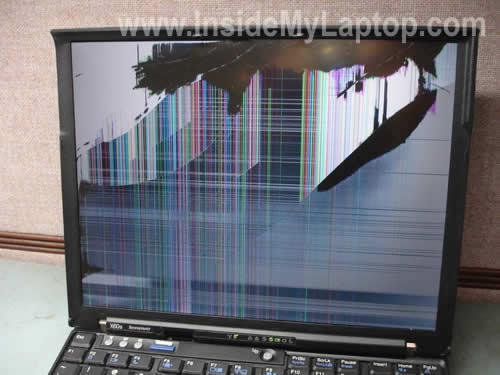
This guide explains how to replace broken screen on a Lenovo X60s.
The display disassembly procedure will work for some other IBM ThinkPad and Lenovo models. If this guide works for you, please mention the model in the comments.
Before you start, please turn off the computer, unplug the AC adapter and remove the battery.
STEP 1.
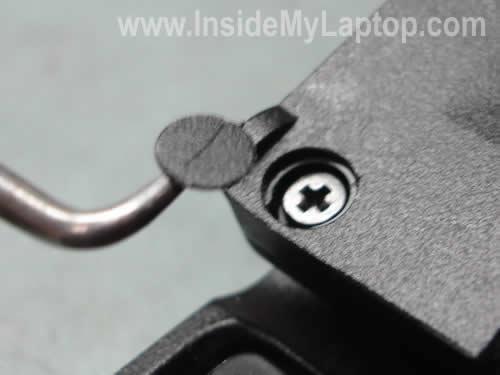
There are three screw seals on the bottom of the display bezel.
These seals hide three screws securing the display bezel to the display cover.

You’ll have to remove all three seals and screws.
STEP 2.
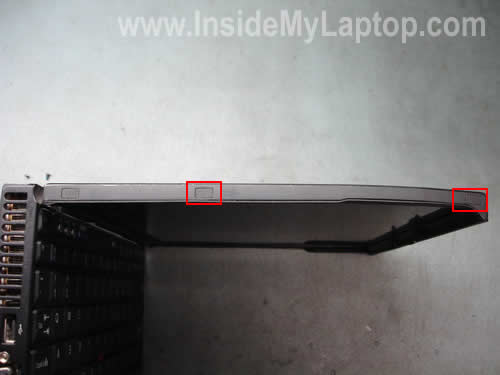
There are three screw seals on each side of the display assembly.
Remove seals and screws from both sides.
STEP 3.
Start separating the display bezel from the cover as it shown on the picture below.

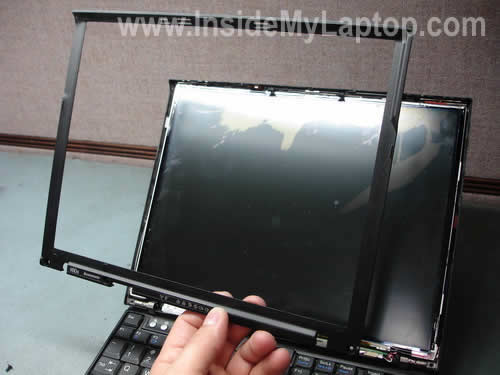
Continue separating the bezel.
The inverter board is mounted on the lower part of the display assembly.
In order to access and remove the inverter it’s not necessary to remove the bezel completely.

Finally, the display bezel has been removed.
STEP 4.
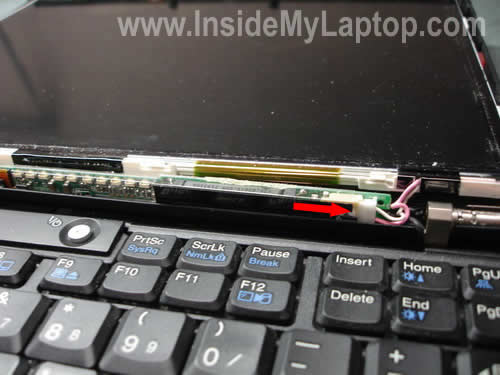
Disconnect the backlight cable from the inverter board.
STEP 5.
Now you can separate the LCD panel from the display cover and access the video cable connector on the back.

STEP 6.
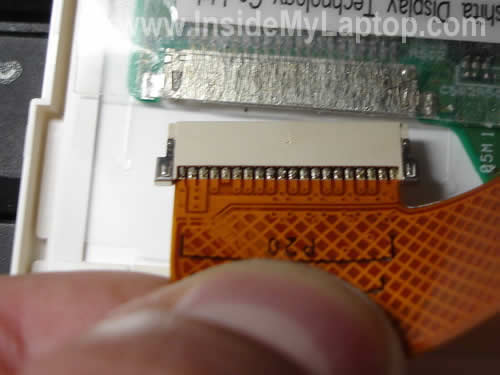
Remove clear tape securing the video cable inside the connector.

STEP 7.
Unplug the video cable.
STEP 8.
Now you can remove the broken LCD screen completely and replace it with a new one.
Search for a replacement screen using the FRU part number from the back of the original one.

Cam McConnochie
Thanks alot, this guide worked a treat for my Thinkpad T40. Thanks very much.
IML Tech
Cam McConnochie,
You are welcome. All ThinkPad laptops are kinda similar.
Angel
Hi I just installed a Display for a t60 and everything looked fine until I turned it on. the screen is dividen in two horizontally. did I miss something?
thanks for any help
IML Tech
Angel,
What was wrong with the old screen?
Not sure what’s going on. Make sure the video cable is properly connected to the LCD screen.
I hope your new screen is compatible with the old one. Maybe it requires a different video cable.
Oscar
Hi, I’ve replaced my X60s lenovo LCD screen however, when I try to start up the laptop it begins by lighting up all the tabs on the keyboard (as though it was starting up) but then after a few seconds the laptop switches off and goes dead, seems as though the starting up mechanism dies? I’ve tried several times but the same pattern keeps repeating.
Before changing the screen the laptop would start up normally and function correctly with the old screen (IBM confirmed that the screen needed to be changed as it could only be seen very faintly).
Could you help please?
IML Tech
Oscar,
Check connections between the video cable and LCD screen. Maybe the video cable is not seated correctly.
Did you purchase the correct replacement screen? If you purchased a different screen, it may require a different video cable.
Here’s something you can try.
Disconnect the video cable from the motherboard and try starting the laptop with an external monitor connected to the VGA port. Will it start this way?
David sikharulidze
Oscar,
I’ve replaced my X60s lenovo LCD screen however, when I try to start up the laptop it begins by lighting up all the tabs on the keyboard (as though it was starting up) but then after a few seconds the laptop switches off and goes dead, seems as though the starting up mechanism dies? I’ve tried several times but the same pattern keeps repeating.
Before changing the screen the laptop would start up normally and function correctly with the old screen (IBM confirmed that the screen needed to be changed as it could only be seen very faintly).
Check connections between the video cable and LCD screen. Maybe the video cable is not seated correctly.
Did you purchase the correct replacement screen? If you purchased a different screen, it may require a different video cable.
Here’s something you can try.
Disconnect the video cable from the motherboard and try starting the laptop with an external monitor connected to the VGA port. Will it start this way?
I have same proble, has someone resolve this problem?
Little Help?
Hi Can anyone help me with this? Replaced a T60 LCD and when I powered on the laptop, all I could see was a VERY faint image on the screen. Any suggestions for what I can check here? Not sure what went wrong, I have experience in electronic repair, but not laptops. Any help would be great!
Extrapurifier
Hi,
thank you for the How-To. I am interessted in disassembling the whole lid because I plan to varnish the lid outside. Its acutal completly scratched.
Do you have a close-up of this walkthrough in further disassembling the whole lid?
Thank you!
FoersterX
VERY BAD description…..
It was way more difficult to exchange the screen
trust me……..
IML Tech
FoersterX,
You are welcome to create and publish a better disassembly guide.
PaulG
Thanks for the help! The images were a bit different for my X60, the video connector was high up on the back of the screen and I had to be very careful not to rip it. I couldn’t get the screen out without also removing the lower two screws at the side. But you got me most of the way and all was well.
This also helped me repair an older X31 screen.
Thanks
hmeister
IML Tech, Thanks for the quick guide…
For those of you seeing that the cable connection is not low but higher than the pictures, the x60 comes with different LCD’s. The higher cable connection is usually the “Ultralight” lcd. These are very hard to find with a low price and require a special cable. So, if your planning on changing your LCD check out your damaged LCD back so that you can get the Lenovo FRU (field replacement unit) & serial numbers. Then you can easily search for a replacement.
Should you have the “Ultralight” LCD, like I said, these types are difficult to purchase for less than $300.00 and are typically more money. Also, if you cannot find your LCD remember that you may have to purchase a different LCD cable since depending upon the FRU number, your connection location can change. It is best to stay with the right part providing you find it as the inverter can sometimes give you heartburn as well.
Another way you can rework a broken x60 LCD is replace the entire LCD assembly. Of course you would have to be lucky enough to find this used part. I have done this and was lucky to find and X60 that was water damaged and the LCD was fine. I had to wait for this to show up on *Bay. Good luck…
Hmeister
FYI – Taking off the bezel is very difficult and sometimes it seems to not want to release from the LCD frame. Start from the bottom and work up both sides and one you have the bottom and both sides released you can lift up the bezel to release it from the top of the LCD frame.
Falcon
Can I swap a T40 LCD into my T60 or are they different? My T60 got broken on a flight but I have an old T40 that is fine.
IML Tech
Falcon,
If both screens have the same size and resolution, it might work but I’m not sure 100%.
CDJ
Used instructions for my T40, additional screws had to be taken out, but otherwise worked great, thanks for posting!
ilovemyX31
I have just replaced the screen on my X31 and for the most part this was very usefull.
You will need no.0 and no.1 precision screwdrivers and an awl is usefull for removal of the screw covers.
The only additions I would suggest for the X31 are:
1. ALL screws on the sides need to be removed.
2. The video cable is plugged into a socket in the middle top – be very carefull when pulling the screen away from the lid.
3. If you have wifi you will need to detach the brackets, which the aerial wires attach to, from the sides of your broken screen and attach them to the new one – the two top screws should be clear to be seen.
4. The inverter board is flat against the screen rather than perpendicular to the screen. I believe the inverter board on an X30 is also in a different position and the socket on the inverter board is upside down in comparison to the X31 (still flat against the screen).
5. There is a light on the X31 to illuminate the keyboard and it is easier to get at everything if you remove this by sliding it out from the plastic brackt in the lid.
That’s all folks!
Enjoy and good luck.
Kay
Hi thanx for the guide,
I just replaced my X60s screen(It cracked wen i dropped the laptop) with another x60 screen(This is my second laptop with just a simple battery problem) . Everything was well apart from the back-light screen on the x60s.The X60s is not powering up the back-light of its screen…Could this be a motherboard problem.Do you have an idea about what the problem could be?
I tried every part on the x60 including cables, screen inverter, screen….and they were all working fine.
I even tried to switch the x60 screen inverter with the x60s inverter plus all the cables and i got the same result i.e a very dim display.
In conclusion all these parts(Including the X60s parts) work fine the x60 perfectly but wen switched to the x60s i get the same dim display.
Also to be precise…by….parts i mean cable, screen inverter and both screens(the cracked and fine screen).
Thanx.
Jeffrey Rule
Hey, I just wanted to say that this was a really helpful document. I am glad you posted it.
frederik
do you know where to get cheap screens?
IML Tech
frederik,
Cheap screens? Try eBay.
saiknaram
Can a different LCD from another laptop like Samsung or Macbook Pro be installed on to a lenovo thinkpad? It might be a crazy question, but it might be worth considering.
Thanks
Sai
does the LCD selling from ebay requires any modification on the connector, cause it seems like they are for more than one brand and model of the laptop or it is a standard connector on the LCD?
thanks
IML Tech
Sai,
If you buy the right screen, there shouldn’t be any modifications needed.
The best way to search for a replacement screen is using IMB/Lenovo FRU part number.
The FRU number printed on the back of the screen. Find it and search on eBay. This way you’ll make sure to buy the exact replacement screen.
Josh Daniels
Was this very difficult to do? I’m not a computer whiz, but I’m not an idiot either. Should I attempt to do this myself? I have an X61s and the screen is a bit cracked internally at the top left.
Thanks!
Sid
Greetings,
I just wanted to know that where can I purchase the LCD and how much does it cost?
Michele
Most helpful. I am trying to get up the nerve to try it. My laptop is only a month old, it fell and the screen is no good. Way too expensive to send for repair. Do you know of a guide for lenovo ideapad Z560?
IML Tech
@ Michele,
Is it cracked, physically damaged screen? If not, probably you still can get it covered under warranty.
Check out this hardware maintenance guide for Lenovo Ideapad Z560 laptop. It has disassembly instructions.
Nadeem Omar
Hi, Does the screen replacement affect the webcam in any way?
IML Tech
@ Nadeem Omar,
No, it doesn’t. The webcam is a separate module.
Darthgator
Hey guys,
I am finding all of this information very useful and would really like to fix my lenovo lcd screen, yet would not like to spend money on a new screen if my computer is broken or screwy also. I have plugged my HDMI cable from the computer to a tv, finding that it will turn on, working normal(projection only on the tv, not the cracked screen which has no chance of being read, yet is lit), but will turn off randomly, instantly, after around 10-15 minutes sometimes more sometimes i never even get the chance to login. the computer was elbowed by people wrestling on my couch, does this sound like the computer and hardware are broken aswell, or is replacing the screen a good idea.
IML Tech
@ Darthgator,
If the laptop shuts down randomly, this could be heat related issue. Check the cooling fan. Make sure it’s clean. If the fan/heatsink is clogged with dust, clean it and test the laptop again.
itzel
does this also work for a lenovo ideapad, it doesnt have any srews on the sides of the screen. it is a U260.
Sasidharan
My Thinkpad X60S has a problem. The backlight is on only for a second at the time of booting. I can see the screen if I use a torch light. That is, the LCD is functioning properly. Now, if I try to close the lid half way or open it quickly, the backlight come up for a second. But there is no intermediate position where the backlight become stable. Do I have to change the entire LCD or just the CCFL alone? While changing the CCFL, do you recommend to change the inverter board also? I could not find a guide to replace the CCFL of X60s anywhere on the internet. Can you help me suggest a link?
IML Tech
@ Sasidharan,
Most likely it’s one of the following: failed inverter board (likely), failed CCFL (likely), failed display cable (less likely).
If you have no spare parts to test the laptop and have to guess, I would go in the following order.
1. Replace the inverter board. There is a 50/50 chance this will fix the backlight issue.
2. If the problem still there, replace the LCD screen. It’s possible to replace just the CCFL inside the screen but very difficult. If you’ve never done it before, most likely you will damage the screen while replacing the CCFL. When the CCFL fails, I recommend replacing the entire LCD screen.
3. If the problem still there, replace the display cable.
lia
Screen changing will affect the laptop function? Will anything changes after replace a new screen?