

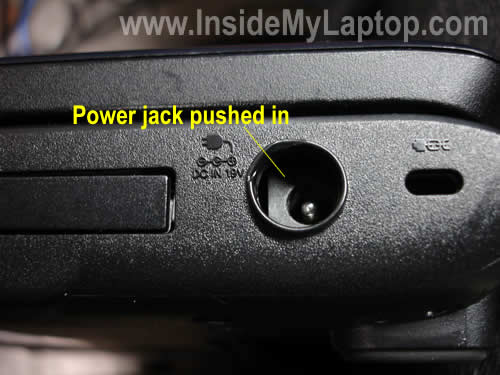
Today I explain how to repair damaged power connector also known as power jack in Toshiba Satellite L305 and L355 laptops. I started covering this problem in one of the previous posts.
Also this modification should work for the following models: Toshiba Satellite L300, L305D, L355D, P305, P305D, Pro L300, L350 and more.
I have a list of compatible models (reported by users) at the end of this post.
PROBLEM DESCRIPTION. The power jack gets pushed into the case and gets loose.
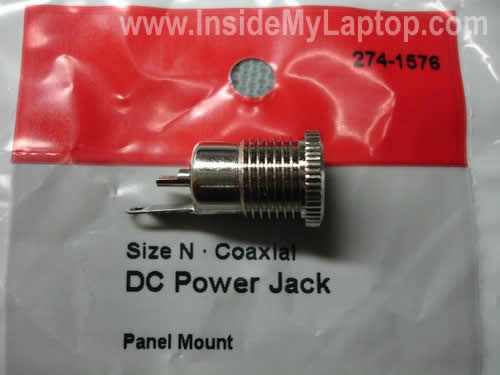
I will replace the original plastic jack with a generic metal jack purchased at RadioShack for about $3.
The RadioShack part number is 274-1576. This jack is designed for tip size 5.5mm O.D.x2.5mm I.D. You can order this jack online or pick it up in a local store.
Proceed on your own risk! If you do something wrong, you can damage the computer.
In order to access and repair the jack it’s necessary to disassemble the laptop and remove the top cover assembly. You can use IrisVista disassembly guides for Toshibas (search on google).
Disassembly steps for all above mentioned models will be very similar.
OK, let’s say the top cover is removed and we are inside. Â In this particular example I use Satellite L305D.
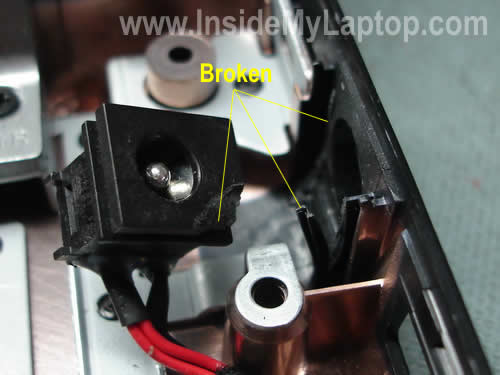
Why the power jack feels loose? You can see that the picture below.
In my case both, the DC jack and mounting brackets on the base assembly got broken. Even if you replace the broken jack with a new one, it will not stay attached to the base.
If you send your laptop with a damage like that to a repair shop, they will recommend replacing the jack harness and base assembly. This repair will easily cost over $200 but I have a better idea how to fix it for $3.
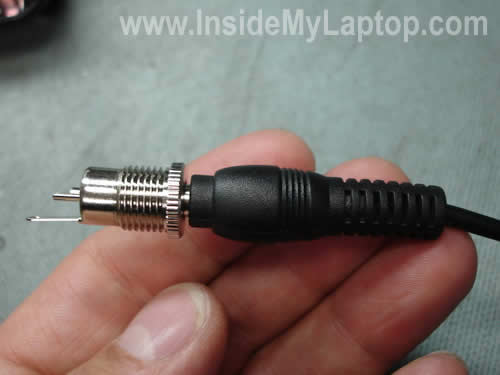
Here’s my new replacement panel-mount jack which should last for a long time unlike the original Toshiba jack.

All laptops mentioned above come with one of the following AC adapter: 19v-3.42A, 19V-3.95A, 19V-4.74A or 19V-6.3A.
All these power adapter will fit perfectly into the jack from RadioShack.
LET’S START THE REPAIR.
STEP 1.
Using a pocket knife remove plastic supports from the internal side of the base assembly, so the side where the new jack will be mounted is flat.
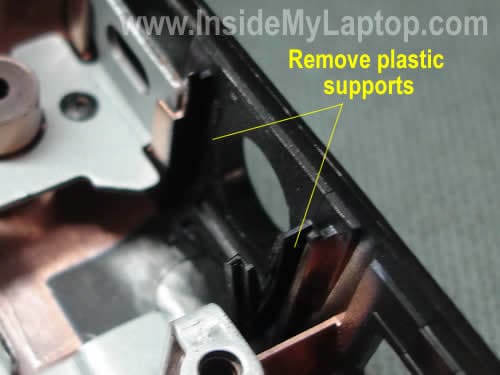
On the picture below you see plastic supports removed.
STEP 2.
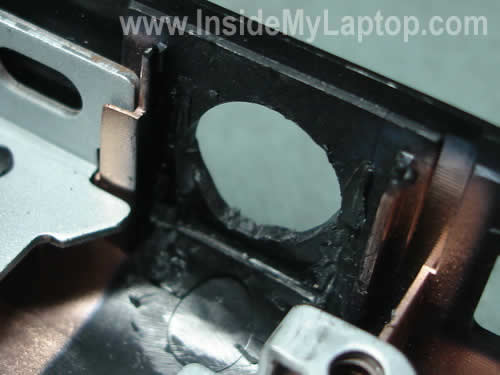
Again, using the pocket knife remove the plastic wall surrounding the mounting hole.
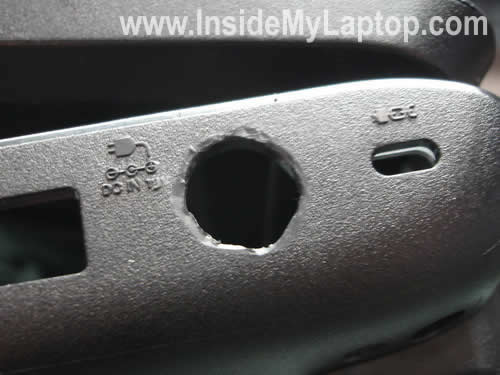
Make the hole larger, so then new jack fits in.
STEP 3.
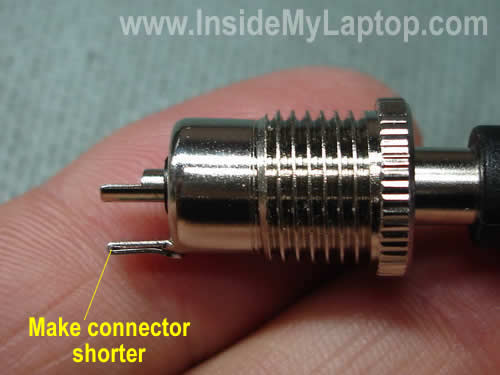
The new jack is too long and if you install it as is, the top cover will not sit properly on the base. It happens because one of the speakers (in Satellite L305D) is located very close to the DC jack.
It will work if you make the jack shorter. You can cut off part of the long “-” lead or simply bent it as I did. After it’s done coat both leads with generous amount of solder.
STEP 4.
Remove the damaged DC jack from the case and cut off wires somewhere close to the jack base.
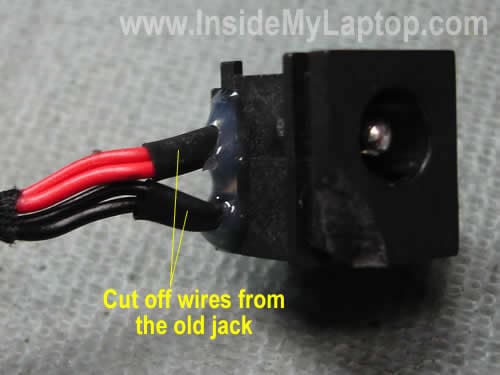
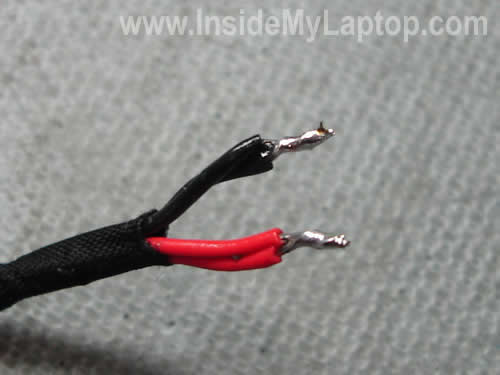
Remove insulation, twist wires and coat them with solder.
The red “+” wire will connect to the lead in the center of the new jack.
The black “-” wire will connect to the lead on the side – the one you made shorter.
In some Toshibas you’ll find green wires instead or red wires. They also should be soldered to the “+” lead in the center of your new jack.
WARNING! Check the polarity before you apply power.
STEP 5.
Now mount the new metal jack on the base.
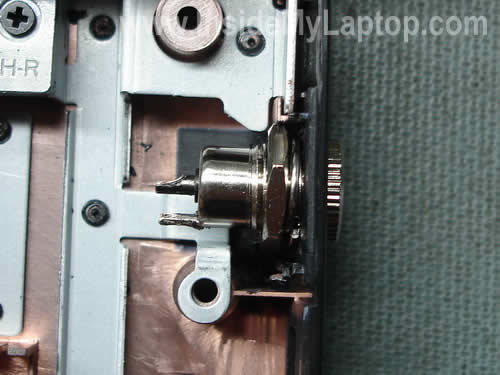
STEP 6.
Solder wires to the new jack. Again, the red wire is soldered to the lead in the center and the black on to the lead on the side.
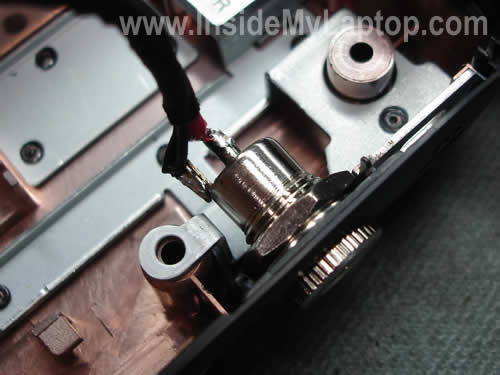
As you see, I soldered wires at a 90 degree angle to the jack so the top cover (and the right speaker) fits in.
I covered both leads with electrical tape.

The new (modified) power harness has been installed into the base.
Tighten the nut on the jack and secure it on the base.
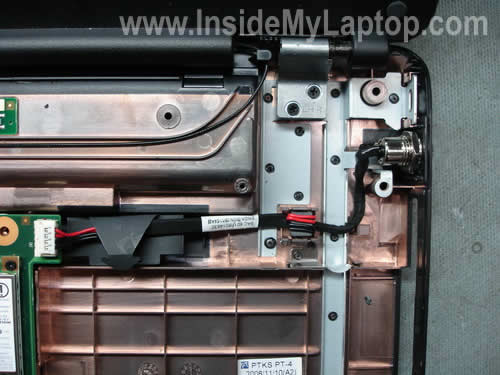
STEP 7.
You’ll have to modify the top cover assembly a little bit so it fits on the laptop.
Remove plastic reinforcement walls so they do not touch the power jack when the cover is installed.
If you leave these walls, there will be a gap between the cover and base.
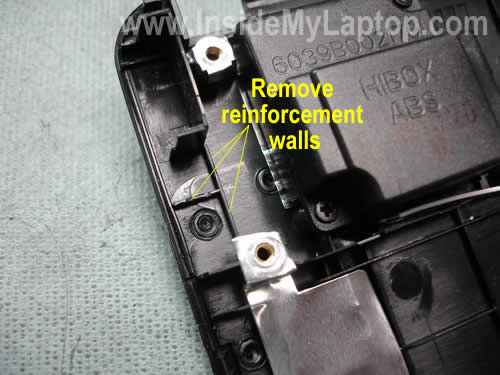
The plastic walls have been removed.

STEP 8.
Assemble the laptop. You are done!
I think the new power jack is way more robust then the original one and should last for a long time.
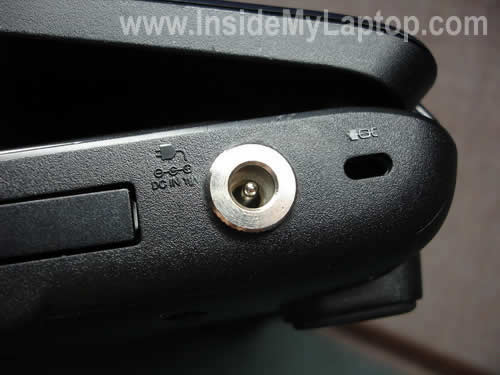
And it looks great too.
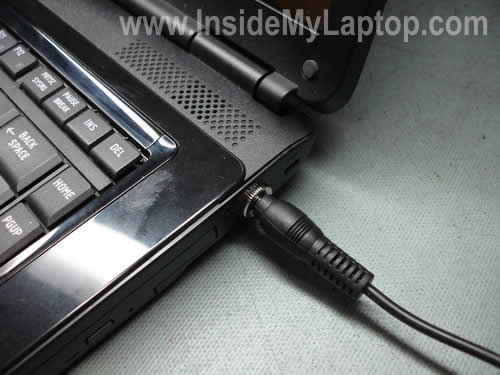
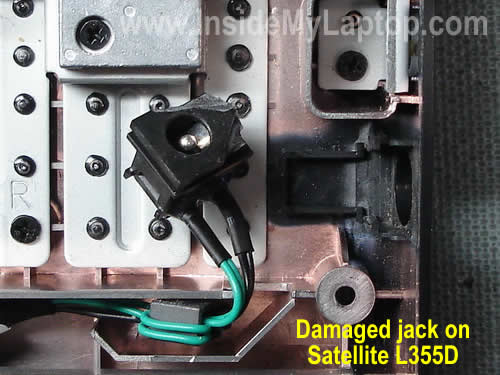
Here’s an example of damaged DC jack in a Satellite L355D.
This base is bigger than one in my previous example and you’ll have plenty of space for your modification.
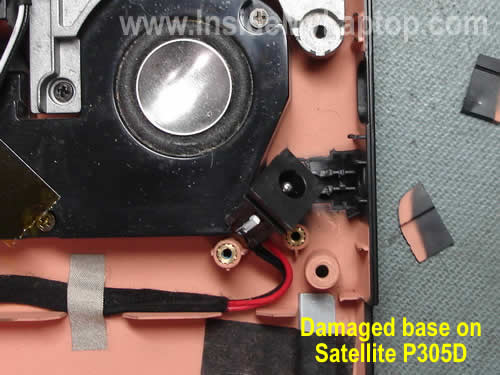
Here’s another example of damaged base assembly in a Satellite P305D.
Again, there is plenty of space for the jack modification.
If this modification works for you, please mention the laptop model in the comments.
You are welcome to post any suggestions and improvements.
For disassembly instructions search for IrisVista on google.
This repair also worked on the following models (mentioned in comments):
Satellite A300/A305
Satellite A130/A135
Satellite L300/L305
Satellite L500/L505/L505D
Satellite P300/P305/P305D
Satellite A200/A205
Satellite A210/A215
Satellite L30/L35
Satellite L510/L515/L515D
Satellite C650/C655/C655D
Satellite L450/L455/L455D
Satellite P300D
Satellite A500/A505/A505D
Toshiba Satellite L650/L655/L655D
Alisa
I had a problem like that but I didn’t repair laptop myself because it was under warranty. I mailed it to a local authorized Toshiba center (Northwest Computer Support) and they replaced the bottom and power socket at no charge. I got my laptop a week later like new.
Kenneth
I have to say this was a life saver for me. For $3.00 and an hour of time I repaired my wifes L355D-S7825 (5 months old). I saw no point in getting it repaired with the same type of power jack which may or may not break again in 5 months.
I used a 7/16″ bit to enlarge the hole and a sharp chisel to remove the plastic bits other than that you procedure was perfect for me.
In the L355D there was plenty of room for the new jack to fit.
THANK YOU THANK YOU THANK YOU!
IML Tech
Kenneth,
The Satellite L355D laptop has a larger case and fitting a new jack in should be a problem. Enjoy your new jack. I think it should last for a long time.
IML Tech
Kenneth,
I think this jack will last for a long time.
I used just a regular pocket knife because I didn’t have your tools. 🙂
david
piece of cake L355d has room but my soldering sucks. took 1 hr. used a 3/4 drill bit to open hole ( didnt have a 7/16. after putting laptop back together forgot the Electrical tape. THANK YOU
Alan
The step-by-step instructions, right down to the case modification, were crystal clear, and spot-on. After opening my nephew’s L355D, I noticed the jack and the base were both intact, and I was about to cement it back in. Then I figured, for $3 and about an hour of time (and a large Dunkin’ Donuts coffee) I would save myself the hassle of most likely having to do this again, and, ultimately having to replace the jack assembly anyway. I would, however, strongly recommend to anyone doing this procedure NOT to do this on the kitchen table with 2 curious cats running around. Otherwise, it’s really quite a simple procedure. Thanks for the clear, concise, accurate instructions! Z
Colin
Havnt finished the actual repair yet, have to get out of work and run to radio shack for the parts however, i did prep everything so all i have left is the soldiering and such of the new jack. Spot on my friends this is most excellent. Im not really a electroincs guru, my knowledge goes thru high school electonics class, but what i am is a supporter or do it youself. this is much better then the repair would have costed me and the instructions are clear concise and get the job done. Spot on again my friends and i will update when the repair is complete. Doing the repair on a Satelite A-205a so far so good everything is matching up so add another to the list that this will work for. Thanks!!!!!!!
Jared
Just did this today with a friend. We soldered wire to the jack then spliced with existing cable. Tested with a multimeter and found my power cable died, got a new one. Be careful when removing the keyboard ribbon, mine got damaged so I got a usb one to get me by. Also when reinstalling the memory, get it right or the display won’t work until you do.
IML Tech
Jared,
If you reassembled a laptop and the screen doesn’t come on, the first you have to check is the memory modules.
Cody
I did the process as you detailed, but for some reason my laptop still isn’t charging! There are no clear signs of the motherboard being cracked, or any of that but I feel I may have to disassemble it completely to look at the motherboard.
I have a toshiba satellite a205-s5000 by the way.. any ideas why it may not work?
IML Tech
Coby,
Did you test the AC adapter? Maybe the adapter is dead?
Cody
Yeah, the AC adapter is working.. i just bought it :/
I soldered everything solid.. so i’m almost sure thats not the problem..
im gonna do some more freelancing.. then buy a voltometer and maybe its one of the wires that has a short or something. I really should have gotten my A+ lol 😀
Rob
I have a Toshiba Satellite L20 & a Toshiba Equium L20, (same mode, different name)
both have new battery’s after the old ones died, I purchased new battery’s for both
but they fail to charge at all (orange LED flashes constantly)
I heard that it’s a chip failure or lock out on the motherboard so as to prevent
damage, has anyone else experienced this problem & found a solution ?
IML Tech
Rob,
Maybe you got a bad battery?
Also, try updating BIOS to the latest version.
Ron
It was my nephews L305D. My brother-in-law asked me to look at it. If I hadn’t found this, I would have never attempted to disassemble. But this info, and the specific part number to use, were perfect. Thx!!!! All works great now!!!
Jesse
Wow cool info I’m about to do the same thing to my laptop it’s a 5 year old gateway mx7118 laptop. The DC jack that I’m replacing has six points that I must solderto the motherboard, two I think are for the power while the other four might be just to secure the casing of the jack to the motherboard. If I am to get a replacement jack like the one that you used because it does look more durable overtime and if I do manage to make it fit all then all that I need is to get two cable wires of certain gauge solder them to the motherboard and then to the terminal end of the jack. Will that be able to work or should I go about it another way.
BliND
Wondering if you guys can help. Brother’s laptop had had the damaged power jack for a while and the AC jack was just lose in there for a while but it was still working. One morning the laptop stopped working so we figured it was just the AC jack that had gone too far and it wasn’t charging, tested the AC and that turned out to not be working, tested it with another laptops AC with same power and laptop still wasn’t charging. We tried to do this mod and was looking great but when we went to turn it on the laptop was just makes some tapping sound, any ideas?
If no other ideas we are going to check with Toshiba on how much it would cost to fix without warranty, any idea how much this repair would cost?
IML Tech
BlinND,
If you soldered the new jack correctly but the laptop still not working, most likely it’s related to the motherboard.
BliND
Well, we did have trouble soldering the middle pin, it was kind of hard getting it to stick to that smooth surface. I used a multimeter to test if power was going through and it was so I guess it is now a motherboard problem. Any idea how much a fix like this would cost without warranty through Toshiba?
IML Tech
BliND,
Toshiba will not fix the motherboard, they will replace it with a new one. A replacement motherboard for a Satellite L305 will start from around $200. Plus you’ll have to pay labor charge. If you send this laptop to Toshiba, I would say you are looking at about $300. But call them and ask.
Send it directly to Toshiba (not authorized service center) because it might be cheaper.
BliND
Ok, I figured it out. I guess it was just my soldering cause I redid it again this morning and it worked for a while, but again it stopped. Could I like cut some notches or drill a hole on the middle pin for the solder to stick better on it cause I’m pretty sure if I open the laptop again it probably came off. And really, thanks a lot for this guide! 😀
IML Tech
BliND,
I guess your soldering gun is not power enough. When I soldering the jack I didn’t have any problem. Make sure to use rosin-core solder.
Quote from Answers.com: “Solder made up in tubular or other hollow form, with the inner space filled with noncorrosive rosin flux.”
You can buy rosin -core solder in Radioshack ( Catalog #: 64-013 ). This solder will stick way better.
1. Unsolder wires from the jack.
2. Clean up contacts on the jack.
3. Apply a think layer of solder before soldering wires.
4. Solder wires.
Tee
Any chance this will work with A205 model?
Tee
Never mind
Stevesaddler
just applied to daughter’s Equium L350-10L (UK). She needs to use for school so unable to fit replacement power socket tonight., but Maplins JK10L at £1.59 is the UK equivalent and only needs an 8mm hole and is smaller overall @ 11mm dia and 21mm long.
As a temp repair, the locating lugs were not broken and I’ve rotated the existing socket thru 180 and refitted and put a brace section (modified an old desktop card blank cover) to provide support should she put too much pressure on the power lead when connecting. All rebuilt and working fine now; battery charging nicely.
Great info and descriptive pics; donation on the way. Will definitely use the site again (now a ‘favorite’. Thanks and keep up the good work.
Tim
I have an A305 satellite laptop. It will only charge if you push the adapter in real hard and hold. I disassembled and discovered the dc jack is broke off from the plastic guides. Since it will charge if pushed in hard enough, is this a power cord connector issue or the jack? I bought the parts to fix this with the co-axial solution, but am wondering if I might still have the same problem after doing this. Any suggestons?
andy
Great fix! I noticed that my power socket was loose and found this article. I was wondering how tight the socket is from new as i only have about 1mm of play up and down and about the same left to right with no movement in and out. Even with firm pressure the socket feels secure. I originally thought the socket was soldered directly to the board so any movement was bad news, but looking at the design i’m thinking that it might be normal. Any thoughts?
kevin
Do I have to take apart the motherboard? like step 14 says?
IML Tech
kevin,
Do you mean remove the motherboard from the base in order to replace the jack? No, you can leave the motherboard in the base, just be careful.
Tim
The issue was with the power cord. After I replaced the jack, it still did not charge so I cut open the power card close to the connector and discovered a loose solder on the ground wire in the power card. I got a new power cord since the laptop was under warranty and now I have a much stronger power jack installed as well. All works fine.
Tito
YOU SIR ARE MY HERO! Your guide just saved my laptop. The project took about an hour to complete. The only thing I did different was use a Dremel to shave down the unwanted plastic backets. Thank you!
Eddie
Thank you so very much for your excellent, detailed instructions. The power jack on my Wife’s ’17” Toshiba was broken when a grandchild kick the cord running through the house. I warned my wife several times that was going to eventually happen because she is not careful where she plugs in her laptop. She needs her laptop for her home business and was devastated when she realized it could take days or weeks not to mention the expense to have it fixed. Researching the Internet for a repair service I found your instructions to dis-assemble the laptop and subsequently how to repair a broken jack. I ran out to Radio Shack to pick up the jack and within 3 hours of reading your instruction I had repaired my wife’s laptop. So the day after it was broken, I fixed it for 3 bucks. It works great and the new jack is much more sturdy. I do not understand why Toshiba doesn’t make jacks like that. The only thing I did differently was use a 7/16″ drill bit to open the hole for the new jack and it was a perfect fit. Also as another did, I used a dremel tool to remove the support plastic around the jack. Again thank you very much.
~eddie
Wayne Miller
Great work in providing the steps. This saved my nephews computer. He was about ready to throw it away but thankfully he called me first and when I found these steps I knew this is all he needed. He was so happy that I fixed the problem and he still had a laptop. He was so grateful and I think i’m now his best uncle and he now thinks I know rocket science.
Thanks a ton for taking the time to share.
Amanda
I just want to thank you very much, for putting these instructions online, i see that they have already been a huge success for many others, and i just finished on my satellite L355. My laptop was under warranty still but toshiba still refused to fix it, and considering the shop wanted $330 to fix it, i decided to do it myself. I have to admit, I was somewhat nervous about doing it as I have never attempted, nor had I ever seen anyone else ever open up a computer, but thanks to your clear and concise directions I now have a working laptop again. Thank you so much for taking the time to write out these directions, I will send a donation as soon as I am able to (next payday).
Calvin
Thanks for the fix, turns out, my lappy, had three problems, bad jack, bad cord, and bad support for the jack, thankfully radio shack also stocked the end of the power cord, so all i had to do was solder that back together, and now my lappy works great,
Meena
Hi
thanks for sharing this, its really helpful. I have the same problem my power jack has been displaced, but my laptop goes on battery with this problem, its as if my charger doesnt supply the electricity enough. I have to push the cord in and put the computer in a weird position so it gets charged, which is very inconvient bc most of the time it goes back to battery. So not sure if my problem is the same?
But initially it was caused bc i accidently tripped over my charger and the power jack got displaced inside.
Is the battery problem being caused by the displaced power jack or is there something else?
thanks
IML Tech
Meena,
I cannot tell without looking at the laptop. It’s possible that you damaged the power cord when you tripped over the AC adapter but this is just a guess.
You’ll have to test the AC adapter with a voltmeter and find out if power cuts off when you move the cord.
Meena
Hey thanks for ur reply.
So i tried to use my charger on a different toshiba laptop and it was causing the same problems, if u slightly moved it, it would go on battery. So i am assuming the charger is damaged?
I also see the power jack inside the laptop displaced and pushed in, can that alone cause that problem too?
thanks
IML Tech
Meena,
Sounds like you have a faulty power adapter. Apparently the power cord is damaged and when you move it you shorting wires inside the cord.
I doubt it. Most like the jack is just dislocated because the jack housing is broken or the mounting bracket inside the case is broken. Try calling Toshiba, should be covered by the warranty.
George Nikolaou
I have the same problem too but with mine it was broken since day 1 after i pulled it out of the box.
Boy i wonder if QC was paying attention.
Troy
WOW, this worked like a charm for me. I had never soldered before so there was a learning curve and I screwed it up once but the 2nd time held. I could not believe it when I powered it back up! BTW, my power cord/charger appears to have gone bad simultaneously. I had to replace it. Thanks for submitting!!!!!!
D. Sly
I have had this same problem, bought an L305 in February (love the laptop, but probably wouldn’t have bought it if I had known about these issues) and had to have the port and keyboard replaced in late August. Barely two weeks later now, and the cord is wobbling again, but it will still charge, plug and unplug properly. Should I be concerned that the cord is wobbly in the base again so soon? I don’t want to replace the port with your steps just yet, as I am pretty sure that will negate the warranty, and it would be my luck that other issues arise, but to be safe I am printing the instructions for when that time comes. I would appreciate your feedback though on the fact that the port was just replaced and is already acting up again.
marie
How do u open the lap top to replace that part
IML Tech
marie,
I linked to the laptop disassembly guide in the post.
Techie-nerdo
Thanks for the guidance – I went for a slightly different approach which involved simply glueing a small wedge of rubber to the side of the power socket so that the mini speaker mounted to the top cover fitted right next to power socket when re-assembled. The shim was around 3mm x 8mm x 10mm but I used a slice of an eraser (that’s a “rubber” for us Brits) and was able to shave bits off as required.
There is still a little lateral movement but it doesn’t move in anymore and I avoided having to visit Radioshack or break out the soldering iron! A new metal power socket does look a bit better though 🙂
Fatuma
My power port is having the same problems a second time, though I’ve used the warranty to get it fixed the first time. However, now the warranty is over and I’ll like to try your method. But before I start, can you give me detailed tips on the soldering portion. Not sure what that is or how to go about doing it. Thanks alot.
Josh
I have a toshiba p205d-s7802 i have the same problem with the power jack did follow the step by step instructions, purchased the new power jack at radio shack however i notice that there is a significant size difference in the inner prong of the new power jack, it is slightly thinner…is that a cause for concern……input would be greatly appreciated as many others i’m being overcharged for such a simple procedure…thank you
IML Tech
Josh,
I guess you purchased a wrong jack. There are different jacks available at Radio Shack, find one that fits your adapter.
Justin
Thanks for the guide. Very helpful. This is the second time my power connector has broken on my L355D – it’s still under warranty, though, so I’ll be having it fixed by Toshiba. But, if it breaks again, I’ll try your solution here.
Thomas L.
Hello,
My wife’s L305D had the loose power socket. I opened it up with your instructions and found the adapter was just knocked out. No broken plastic or anything. I put it back into the guides and reassembled the unit. Checked the power cord and have power going into the unit. I also checked for power where the red and black wires connect to the laptop and had power. Still will not power up or charge.
Any thoughts???
Thanks in advance!
Thomas L.
IML Tech
Thomas L.,
First of all, test the AC adapter. Maybe the adapter doesn’t output any power.
If it’s not the adapter, I guess you’ll have to take it apart again.
Remove the top cover and check if the power goes to the motherboard through the DC harness. Plug in the AC adapter into the jack and test voltage at the terminals where the harness is connected to the motherboard.
If the motherboard is getting power but there is no power light, most likely the motherboard is bad.
Alexandre
My power connector has broken on my Toshiba L350 – bought in january 2009 and still under warranty.
Toshiba ordered me to send it by post 700km from home ! As I wanted to do faster, your solution seemed to me so interesting that I have followed it until page 2 step 11. I didn’t had to disconnect as shown on the step 9. An opening of 3 centimeters was enough to fix the problem.
Thank you very much for your advice.
ps : Have you somme feed back from Toshiba ? Of course Toshiba knows its kind of connector is too fragile. But sincerely with your help I know I will be able to do it again by my own.
Ammar
Hi, I followed your instructions in opening the laptop, and fixed the power port. Now I see the power button working and I could tell that there is power reaching the machine although the screen DOSE NOT DISPLAY ANYTHING. It is completly black as if the laptop is turned off although the laptop is turned on.
Any help please.
IML Tech
Ammar,
1. Make sure memory modules are seated correctly. The laptop will not start with improperly seated memory.
2. Make sure the video cable is properly plugged into the motherboard. Reconnect the cable just in case.
IML Tech
Thomas L,
That’s funny, but right now I’m troubleshooting a Satellite L305D laptop with pushed power jack. Just in case I tested the AC adapter and it’s not putting out any voltage. It’s dead.
Again, before you disassemble the laptop, test the adapter.
Kevin
I simply screwed the radio shack into the plastic with pliers. It is very solid and no cutting required. BETTER than new!!!
Abe
i was wondering since the laptop i’m trying to fix has the black and green cables. could there be a chance that the polarity on this laptop is different. the reason why ask is that after changing the dc jack it burn the ac adapter but i also don’t know if the ac adapter was good to begin. also would the the ac adapter get mes up if the dc jack was push in?
IML Tech
Abe,
It shouldn’t be different.
That’s way I always check the AC adapter before doing any repair. I cannot tell if your adapter was bad or you soldered something incorrectly without looking at the laptop.
Nope.
Chris
THANK YOU! I thought my laptop was done, and now it is better than new. Thank you for posting this information.
CP
This was so helpful, I was able to do the fix in less than an hour. Did not even take time to price the two toshiba parts. Thanks…
Mb
i did everything the instructions were great but when i pluged it in after i finished it the computer wasnt chrging or getting any power at all the ac adapter was working i tested it on a nother computer; i deas on what could be wrong
if u have and idea on what to replace please give me the name and where to buy it.
thnz so much
IML Tech
Mb,
I cannot tell what is wrong without looking at the laptop. Maybe the soldering is bad?
Bob
Okay i did this mod, step by step. and the laptop now works great, but the second i put electrical tape on the wires, its starts buring the tape up. any ideas?
IML Tech
Bob,
Maybe bad soldering job? Try resoldering the wires.
Willie
Great information, I found the RadioShack (274-1576) part on ebay U.K. for only £3.00 (including postage)
Only took about 45 minutes to do, but I made one silly error, I forgot about the nut ;-(
NOTE TO ALL: REMEMBER TO ADD NUT BEFORE SOLDERING
Laptop working/charging great and the conntector is solid, it will last for years.
Thank you
IML Tech
Willie,
LOL 🙂
I made exactly the same mistake while creating this guide.
I forgot to add the nut before soldering the wires. After that you cannot put it on because of the ferrite core on the harness.
1. Add the nut.
2. Solder the wires.
London_Boy
Hello IML Tech,
I must admit, you are a life saver (in money terms). lol!. I phoned up Toshiba to ask them how much it would be and withouth any second thoughts they said it’ll be £220.50 ($370.26), only to change the jack!!…Couldnt believe it mate. Anyways, i googled and found your website and followed the instruction one by one and made it happen. The jack is BETTER than new, (Yes, it is. If any Toshiba employee is reading this, your company is a scam). In total, it cost me £22.93. (tools, radioshack, electric tape, solder and soldering iron).
Glad you posted this. Thank you once again.
IML Tech
London_Boy,
I’m happy to help. That’s why I keep this site up and running. 🙂
LOL. You can buy a brand new laptop for $370. 🙂
Cory
Does this work on the L350D???
Cory
Is there an alternative place to get this part, Radio Shack says they no longer carry it?
IML Tech
Cory,
Yes, it should work, it’s similar to L355 or L355D.
Are you sure? It’s still available on their site.
Chris C.
Thank you for posting this! I just performed the fix on my wife’s laptop, and it worked like a charm. If (or maybe when) my own Toshiba’s power jack bites it, I have the parts on hand and waiting. Thanks again – saved us a bunch of money.
Chris C.
Whoops, forgot to mention – our computers are L355D’s.
Javier
will this work on a Toshiba L505D-S5965?
IML Tech
Javier,
I think it should work. Your Satellite L505D uses same type of AC adapter (19v-3.95A), so you can use same type of power jack from RadioShack.
Satellite L505/L505D has enough space to mount the power jack.
Javier
thank you for the info 🙂
mb
if i filp the wires and plug in the cord will that fry my computer or the adapter?
IML Tech
mb,
You can fry the motherboard.
Jon Cook
Wow what a great guide and I can report I now have a working P300. I am in the UK and so I got part JK10L from Maplin (£1.59) and bought a soldering iron and solder. Guide for taking the laptop was nice and detailed and despite it being a complex laptop a bit of patience and it was in bits!
The maplin connector has 3 connectors so a multi meter helps to determine which is positive and which is negative. I used a drill to enlarge the power adapter hole and the new power adapter screwed in without any issues at all.
Thanks for the great guide!
joey
Great walk-through, I loved the detailed pics. I followed the instructions on my L355, and got it back together with no parts left over. However, now it will not boot. I can plug it in, and I get the indicator light below the touchpad showing that it is charging, but the screen never comes on. I can hear the fan, the hard drive spin-up, and the DVD accessing, but absolutely nothing on the screen. After about 8 or 9 seconds, the computer shuts itself off for about 3 seconds, then tries to boot again with the same result. I get the same problem with the unit unplugged if I hit the soft power button above the keyboard. Closing the unit stops the cycle.
I took it back apart to look for anything obvious, but I can’t see what I did wrong. I imagine it is something that I left unclipped, but nothing sticks out at me. Any advice you could offer based on these symptoms? Is there more info I could provide?
Once again, thanks for a great walkthrough. I’m sure whatever I did wrong was something pretty simple, as it is hard to go wrong with instructions that are this detailed.
joey
Well, I feel sheepish. After reassembling it twice, I still didn’t have the RAM seated properly. When I started to go for the third time, I noticed it as soon as I removed the cover. So, other readers, if you get the same symptoms I did, try re-seating your RAM. Once again, thank you for creating this web site and taking the time to help out many people you will never even meet.
eicos
Thanks for the excellent tip! I’ve got this working on my girlfriend’s computer with no difficulties, and after installing Win7 as well, it’s got a completely new lease on life. The model is L305-S5902. On this model, you don’t need to widen the hole that you put the jack through. If you buy the part suggested by the author (which is hard to find in a RadioShack store), it’s threaded, and it’s enough to tighten it through the plastic with pliers.
Dennis
Like many others, I’ll add my thanks. Everything worked fine. I hope others note that they can make a PayPal donation – after all, you saved many of us a considerable sum and I’m sure it takes more time that most realize to lay out a set of clear instructions with photos and all.
My main fear was in separating the bottom from the top and also when I removed the keyboard cable and there was no end on it – it wasn’t clear to me that there is no “plug” on this ribbon cable (and a couple of others later on). Also, the directions called for following steps 1-14 but I don’t think #14 was necessary. I also missed the links to page 1,2,3 of the disassembly for quite a while – they look pretty obvious now.
Thanks again.
Brad
My girlfriend had a similar problem with her L305D the adapter was really loose so when she plugged in her adapter it wasn’t making a good connection. So I removed the top cover and carefully superglued the plastic adapter to the side of the laptop. The ac input is now nice and solid and the adapter plugs in nicely with no play, but unfortunately there is no longer any power at all getting to the laptop so it wont turn on. There appears to be no damage to the motherboard. I was just wondering if anybody else experienced this issue and if they did how they resolved it.
Thanks
d
thanks very much, keep up the great work. Very detailed and informative.
DougT
Worked great on my L305D. Thanks!
Tony Skrebys
I used the procedure on a Satellite Pro L300. All went well, however, removing the top cover is slghtly different. There are 5 additional screws to remove at this stage and only two of the cables need to be disconnected. I liked the use of the guitar pick! Brilliant!
Fixed the DC jack with no problem. Then I converted the notebook to bluetooth by soldering a small BT dongle to a USB port so that the dongle is now located inside the machine. Cheap and easy to do but you lose one USB port.
Thanks for a superb guide which gave me the confidence to tackle a job for which I was quoted £100! Cost me less than £10 including the dongle – and a couple hours sat in the kitchen instead of going down the pub!
Cheers and Merry Christmas!
Cindy
Thank you SO MUCH for this clear, detailed set of instructions….my laptop is better than new. I found your site and printed out the instructions, bought the metal jack at Radio Shack for 2.99, and a couple of guys at my husband’s work did the fix in under 30 minutes! I’m so happy!!!
Tony
Which solder should I use?
Chris
I was wondering if this repair would work for a U400. The problem being that the socket is at the back of the case and directly below the hinge for the screen? Also is it necessary to remove all the parts specified (Hard drive, memory and DVD ) in order to remove the top cover to gain access?
IML Tech
Chris,
I’m not sure if your Satellite U400 has enough space for the new generic jack. I guess if the DC jack is broken, you’ll have to buy another original Toshiba jack (Part number A000024450) and replace the damaged one.
You’ll find disassembly guide for Satellite U400/U405 laptops at Irisvista.com/tech/
Paul
Ok, after superfluing the old jack back too many times, I decided to finally replace it like described above. In the process of taking apart the Toshiba L355D-S7815 the last time, I seemed to have messed up the cable that goes from the touchpad into the motherboard. It no longer works. The copper spots on the thin cable strip end are all messed up (I guess there is a limit to how many times you can unplug and replug it in 🙂 ). Although I can use a USB mouse, I would still like to fix the issue. I can’t find any information on how to replace the touchpad anywhere. Can I just replace the cable somehow or do I need to replace the entire touchpad? In looking for a replacement touchpad, I noticed there are 2 part numbers listed. One is $26, the other over $50. Which one do I need if I can’t just fix the cable? Thanks for all your help!
IML Tech
Paul,
Yep, sounds like you’ve damaged the cable.
I believe in this laptop you can replace just the cable without replacing the whole touch pad. The problem is that these cables are not sold separately. The touch pad cables are sold with the touch pad board. Here’s the part number: V000140200
Buy the touch pad assembly, disconnect the cable and install it into your laptop instead of the damaged cable.
Jonathan Silver
I’ve just done the mod on my L300 and it was fairly straightforward and has made a massive difference! Thank you SO much!
A few things to note:
BUY AT LEAST TWO JACKS. I messed up the first time and broke one of the terminals off. (They’re quite brittle.) They’re so cheap and definitely worth having in the cupboard.
The knurling on the flange is quite soft. If you grip or screw the thing in with a pair of pliers, you will mangle the ridges straight away, and it won’t look very nice. Either protect the pliers VERY well with tape, or do all the gripping using the body of the jack further back.
On my L300, there is no cutting to be done. No bits of plastic get in the way whatsoever.
For the L300, here is a slightly modified how-to, that takes into account the slight model differences:
There are only two kinds of screws: F6 and F3. F6 are small; F3 are tiny.
1. Remove the bezel and the two F3 screws securing the keyboard. Remove the keyboard and unplug it.
2. Where the keyboard was, remove all the F6 screws that look like they’re holding the top cover.
3. TURN IT OVER! Undo the single cap-head screw holding the memory cover in the middle, open it and remove the single F6 screw that it reveals. This releases the optical drive.
4. With it still upside down, remove ALL F6 screws, and the three F3 screws in the battery compartment.
5. Turn it the right way up and remove the two conspicuous cables plugging into the top of the motherboard: one is a little ribbon to the touchpad, and one is a little white plug for the speakers.
6. It should now require little force to remove the top cover. There are clips to ease open along the sides.
7. Slide the optical drive out the side of the laptop. This gives better access.
8. The power wires run from the motherboard to the jack. Unplug it and remove it from its channel.
9. Instead of folding the outer terminal of the new jack over itself, simply bend the whole thing outwards to about 45 degrees, curving to a right angle if possible.
10. Cut, strip, twist and tin the end of the power wires.
11. Cut the little flange off the outside of the laptop, so the new jack will sit flat. DO NOT enlarge the hole – there is no need!
12. Screw the jack in. It is the right size to cut its own thread in the laptop casing. Remember to protect the knurling so you don’t chew it up. Stop screwing it in when it’s about flush and the negative terminal is at the point closest to the front of the laptop – this is essential for clearance.
13. *DIFFERENT FROM L305* Grab the top cover and put it roughly in place, and have a look under it from the front of the laptop. Observe the limited clearance between the end of the jack and the side of the box containing the speaker. This is why we bent the negative terminal outwards.
14. *DIFFERENT FROM L305* Solder the wires as above, but on the L300, you’ll need to solder the positive wire across, at right angles to the pin, so that the wire and solder does not intrude any further into the laptop than the end of the pin. The wire should come off the jack and travel towards the front of the laptop, then curve inwards. This way it will not foul the speaker box. I’m sorry I didn’t take a picture!
15. Re-route the wire – if you don’t feed it under the little hook that it was previously under, there should still be enough length to allow the little ferrite cube to sit in the little chair it was in before.
26. In true Haynes manual fashion, reassembly is the reverse of removal. The touchpad ribbon cable is not fully seated if you can still see the shiny surface of the connector pads on the ribbon. The keyboard cable is, however, seated with a little bit still visible.
27. Plug in and enjoy!
Jonathan
Mason
I would like to know why if the base is broken it doesn’t work? I was thinking it was a safty feature but idk
IML Tech
Mason,
It doesn’t work because when the base is broken the power jack gets pushed inside the case and you cannot plug in the AC adapter.
Kimichelle Aboutorabi
Hi did everything step by step to the letter T now getting an error message thats says can not connect all drives when I click on the ballon takes me to a device manager which says memory drive cannot connect and it assigned it the drive letter Z …
Wes
Just did this on a toshiba for a client of mine. Works like a chap and looks sick!
Kevin
Worked great! Got the part from Radio Shack. Followed the instructions to the T and my 9-year old is now a happy camper. Thanks! I have to say it looks better as well. Verty sturdy and stylish.
paul ireland
thanks a million worked fine ……..
Mason
Well how comes when I slip the charger into the charging port and have it connected and all chordes hucked up it still won’t charge
jim
Great work!! Thanks for the excellent repair guide. Definitely made the job easy.
Onelummer
Awesome guide!!! Took me 20minutes tops, the part was in-stock at our local radio shack and also bought the soldering gun and solder there total price like $15 Again THANK YOU!
Gina
Hello…..
Great site. But I am working on a Toshiba Satellite P305D-S8828. The power socket is broken and it needs to be replaced.
My husband is insistent that this guide will not work (the one for the L305D is the one listed here). Please help!!!!
Thanks!!!
IML Tech
Gina,
The last picture shows base assembly for a Satellite P305D. I think this base has plenty of space for a new generic jack.
It should work if you do everything correctly.
jeff
i did the repair but it will not charge and no lights come on now
Chris
Well I must say that this site was very helpful. I had never taken my Toshiba Satellite L355D apart before. The power jack was broke off inside the laptop. I had some quotes to have it fix is was going to be close to $200.00 dollars. I did price the factory plug i located one for $50.00 dollars. Then after reading your site i decided to take this on i had nothing to lose. I went to Radio Shack and got the generic connector which was $3.00 dollars like you said. And took my time taking it apart while just following your steps. It took me 2 hours to fix but i didnt hurry at all. Plugged it up works like a champ. So i want to say Thank You for this site it was very helpful.
BigBob
This rocks!!!! Thought I was screwed, until I found this great tutorial.
I did this procedure on a Toshiba A-305, opening just had to b shaved a tiny bit with an exacto knife. Connector fits like a glove and is way more sturdy. $5 for connector and shrink wrap.
Thank you!
Shirl
I used this website also and installed the power jack for a toshiba P305D and that part is working ….. atleast the plug light and battery light are working now, but the laptop will not power on?? Any suggestions….anyone??
Thanks
Shirl
caffeine head
Thanks very much for this guide to replacing the power jack on my otherwise-admirable Toshiba Satellite L305.
A question before I begin opening the computer:
I’m reading the (generic) Satellite L355D disassembly instructions, steps 1 through 14. Why is it necessary – or IS it necessary – to remove the modem, wireless card and DVD drive, if one’s goal is to remove the keyboard and top cover for access to the jack?
I may well be misreading your instructions; perhaps it will become apparent why these components should be removed, once I get into it. Thanks for any replies.
Daniel
This worked like a miracle for my Satellite A135 (S4427). The problem I had before I did the fix was that the jack itself was dead. I was having to wiggle the cord to get it to work, then it died completely. I opened the computer and realized I’d have to get a new jack. I was frustrated until I read this fix.
I didn’t have to shorten the long lead on the jack in the A135. It fit in there with no trouble. I widened the hole by using drill bits of increasing size, and twisting them by hand. The inside plastic support walls I removed with a pair of wire nippers and pliers.
Jon
Dude, you rock!
Awesome tutorial, worked fine on the L305. There was a slight bulge in the case from the speaker crowding problem, but it was not really a problem. Total work time about 1 hour.
Thank you!
david
hi. could you use conductive silver paint instead of soldering?
IML Tech
david,
You’ll have to solder.
Stacey
Is the jack in this tutorial that same size as the existing (bad) jack. Will the same ac adapter work with it. As luck would have it, the one that I am fixing is an L305D. If the same adapter will not work, do you know which ac adapter I would need to get. Thanks so much for the help.
IML Tech
Stacey,
Yes, that’s the trick! The generic jack has same size as the existing factory jack. The generic jack works fine with the original factory adapter.
Keith
I have sat. L305 with this problem, I repaired the power jack with no problem but the machine is dead. I have checked the output of the jack thinking a cold solder joint could be the problem but I have the required 19Vdc coming in and going out of the jack. I checked the battery charge parts for voltage and read the same 19Vdc. There doesn’t seem to be a problem with the jack but the original reason I repaired it remains. No power indication at all; whether or not the power supply is plugged in. Any tips?
Holly
Great website and I’m looking to do this repair myself but I called Radio Shack (The Source in Canada) and they don’t have the part that you suggested. They want me to call Toshiba directly and I am hoping that I won’t have to do that. Any suggestions where I could source the part somewhere else here in Canada?
IML Tech
Holly,
Is there any way you can order this jack online (maybe from the US site)?
Calling to Toshiba will not help you go find this jack. 🙂
CS
I have the same issue and its killing me!!!!!! I’m no good at soldering any chance I could buy a completed unit from you?
John
First off, your directions were spot on, thanks for posting them!
Unfortunately… I broke an end off the little white plastic clip that holds the keyboard ribbon to the Motherboard… any idea where i can get a new one or maybe a work around that would do the trick????
Thanks again!
amz
hi! an “electrical” question. The jack you show is metallic, the outer ring would connect to the ground cable. Isn’t that dangerous? I mean, if I accidentally touch the outer ring while in use?
Thanks!
IML Tech
amz,
You mean touch the ring with your fingers? Nope, it’s not dangerous. It’s same like touching metal casing on your microwave oven.
amz
Hi,
I asked because the jack’s body is connected to the ground terminal. For example a common 3.5mm audio jack is basically the same, BUT it has a plastic housing around it. On the image above step 1 it clearly shows the body of the jack is directly connected to ground solder point…
Lucky
Just did the repair, took 5 hours, 3 hours spent on soldering the power cable to the RadioShack part. I was about to give up because I had screwed the part in and soldered already.
All in all, easy fix overall since now I know. Thanks for the guide, now I wish I would of asked for more money from her, but she was too cute to ask for $100, so I just asked for $20 for the repair.
Kam
okay so i did this mod… after finishing i tried to boot up my laptop to see if the green light would come on but no light omg i was hopeful this would not happen i have no direction at this point… somebody please tell me what the problem could be! and i checked if there was a flow of electricity and it was but still no charge
IML Tech
Kam,
Did you solder wires correctly? Did you check polarity?
Raven
Hi,
I just finished the repair and when i put my charger in, it charges. But when i hit the power button, the power doesnt stay on and comes on but the screen never comes on. I feel like I didn’t hook something back up correctly. Is this correct? and is there something i can do that will fix this
IML Tech
Raven,
I cannot tell what is wrong without looking at the laptop.
Check all connections. Make sure memory is seated correctly if you removed it for some reason.
deanna
Hi! thank you so much for going to so much trouble posting this site. Hopefully by the end of the day I will have finished this repair on my p305d. I will be donating too and I hope that everyone else does. If they haven’t shame on them! because you’ve saved all of us alot of money!
This will be my first computer repair. I’ve rarely failed at things like this being a pretty successful do-it-yourselfer and I like to be very prepared and make sure I understand everything before i proceed. I have all supplies, even an antistatic wriststrap as well as an antistatic mat to be safe. so my 3 questions are very basic, but i want to know before i proceed:
where do I clip the antistatic mat/and or wristrap? It’s evident on a desktop but I’m not sure on a laptop.
How do I check polarity? (this is my main question….it seems very important…the other questions i can figure out as i go, so if you don’t have time please just answer this one)
Will I have to shorten the jack for the p305d (i noticed some comments where some models didn’t actually require it…if so how do i shorten it?
Thank you again! and it’s tax season so I will definitely be donating!
IML Tech
deanna,
You can attache it to one of the frame screw on the desktop. Somewhere on the back of the desktop.
If you don’t have antistatic mat or wrist strap, it’s not critical. Simply touch the metal desktop frame before touching internal parts in the laptop. It will remove any static from your body.
In my example the red wire is “+” and the black one is “-“.
The red wire should be connected to the connector in the middle of the generic jack. The black cable is connected to the connector on the side.
You can see it on the step 6.
I don’t think you have to shorten it for Satellite P305D. As you can see on the last picture in the guide, it has enough space for the generic jack.
Good luck and proceed at your own risk! 🙂
Aaron McAllister
Hey i did this fix on my l300 all charges ok now. The only problem i have is when i plug the ac adaptor the touchpad becomes very irratic. My cursor goes really jumpy it is extremely hard to use. As soon as i take the ac adaptor out the mouse works smoothly again.
I also noticed that if i put my fingers on the silver part of the dc jack thats visible when charging the mouse goes smooth again. so i end up holding that with one hand while trying to use the laptop with the other.
I havent a clue whats causing it. If anyone can help any advice would be greatly appreciated
IML Tech
Aaron McAllister,
I have no idea what’s wrong.
Bad soldering? Grounding issue? Maybe the jack is shoring something.
I cannot tell without looking inside the laptop.
aaron McAllister
ok so i have just taken the laptop upstairs and plugged it into a socket in my bedroom and it works almost perfectly,
if i move the mouse round quickly in circular motions it only freezes for a fraction of second about once every 10 seconds whereas downstairs i wouldnt even be able to move more than a few mm before it darting off in another direction.
aaron mcallister
and since ive been upstairs the taskbar has frozen and crashed 3 times. i dont see how that could be linked but my taskbar has never crashed.
apologies for the multiple posts
deanna
Hi!
well i survived this entire process. I didn’t know you had a tutorial for taking apart my p305d and i actually found it before i started. soldering is probably the most aggravating part. aside from dropping a screw in the tiny hole in the hard drive housing…argh! thought i was going to have to take it all apart again just to get the screw. anyways, i found that the power jack was not near as broke as yours only loose….slightly. it’s taped down and harnessed very well, so surely it didn’t come loose from the motherboard itself. i kind of wish i’d have super glued the darned thing back and been done with it. long story short, i got the new jack in, all parts back together and working great..tested that out first on battery to make sure i didn’t ruin something else in the process…..crossed my fingers and plugged her in…..and……..nothing 🙁 (the plastic doesn’t go all the way flush from the cord into the jack…but it didn’t when i just plugged it on before all the work just to see how it fits) I got the exact jack that you mention. could it somehow be wrong for the p305d or is this okay to have that little space of the post showing? or is it just enough to not make a circuit and power up? so there’s no usual indication that i’ve just plugged in and the battery is now charging. could i have used too much solder? wires were tightly connected to the jack. i worried that maybe i should cover some of the wire and solder with electrical tape, maybe i shouldn’t have? what do you make of this? i wonder if after all this hard work it was just a faulty power cord. i have no indicator lights on that to be sure. i’d love some advice if you have any and sorry for nearly writing a book here LOL hope you can help 🙂
IML Tech
Deanna,
I cannot answer all these questions without looking at the laptop.
If the laptop base is not damaged, maybe you should buy a new DC jack harness and install it instead of the broken one?
Marcus S.
Hi, I was looking to fix this on my laptop. I went ahead and followed instructions on removing everything and i got everything out according to plan. only problem i have is the dvd drive. on the site you referred the L305 model doesn’t have a little slot to push the drive out. and really don’t have anything (at least where i looked on where to remove it.) I did however put a lil something inside the laptop kind of like wedges to keep the power jack in place (while not interferring with anything else that’s electrical) because my power jack housing was broke, but its nice and firm and so far so good. if you can post a link or somewhere where you can remove the dvd drive in order to fully get to the power jack cord that’s underneath it I would really appreciate it. Thanks in advance.
Eric
Worked like a charm on my wife’s L355.. took about 3.5 hours this afternoon… much of that was dremel’ing down the plastic parts. THANK YOU!!
Nick
Hi,
Before I start pulling apart my L355D, how far do I have to disassemble it to get to the Input jack? Completely? I will be following your tutorial on how to disassemble an L355D, so what step (of the 20 posted) should I stop at?
Jake
im in the uk and the online jack i could get closest to the one in this guide has 3 pins – a centre one (for the positive?) a shell one and one that says normally closed switch contact , do i have to put the negative to the shell or the switch one? that’s ill happily donate if you reply 🙂
Lorda
Perf guide works like a charm. On L300 there are only 2 screws on the keyboard and to get to the power jack u dont need to remove RAM or HDD just unscrew all the screws on the bottom ( dont forget there are few under the battery that hold the top cover). On the top part just remove the keyboard bezel unscrew the 2 screws and unplug the keyboard cable and 2 more you will see them if you carefully lift up the top cover a bit. I have got an alternative fixing of the jack if you cant get the metal jack. all you need is a melting gun like this one for example:
http://letsmakerobots.com/files/imagecache/robot_fullpage_header/field_primary_image/24076.jpg
hold the jack close to the hole where it is supposed to fit and put some of the glue stick around wait 5 min then remove tha plastic reinforcement wall of top cover as shown in step 7 and you are rdy to go.
Jeff B
Aaron,
Thanks so much for mentioning your problem. I noticed that my mousepad started having the same problem and didn’t realize it might be related to this fix. I wonder if I just need to ground the metal washer on the inside of the case.
Unplugging the computer or touching the metal on the outside of the case seems to “fix” the problem. I started using a wireless keyboard and mouse to get around the problem and thought there was some kind of driver issue.
Thanks again!
Jeff
PS. InsideMyLaptop.com’s solution for this problem was awesome, paypal payment on it’s way soon.
Jeff B
Marcus,
I also have an L305D, and ended up disconnecting the power cord near the DVD player, pulling it up a little and this gave me the room to work with the wires for soldering. It also made me feel more comfortable about doing the soldering and not worrying about transferring heat thru the wires.
Nick
This was very helpful, thanks a lot. I was able to fix mine easily. Flipping down the jack did the trick.
star
Marcus, I am currently trying to fix a L305 as well. In order to remove the DVD drive from the laptop, remove the ram cover on the back, there is a single screw holding the DVD player in place remove it and the DVD drive slips out easily.
Tom
Thanks for the excellent guide. I was searching for a guide to take apart my L355D for this exact problem. I did not replace the jack (probably will eventually) but instead used a piece from an 1/8″ rubber tile spacer to put between the jack and housing to get it to stay in place. The housing was intact enough to allow this. When this fails me I now know what I need to do a permanent repair. Thanks for the guide, really helps.
Ike
I just used these instructions to fix an L505D. There are a few extra sneaky screws and the cover has 3 extra cables to unhook that the 300 series doesn’t. There’s also extra space for the new jack, so I didn’t have to clip the terminals or modify the cover to put it back on.
Thanks for the massive help!
IML Tech
Ike,
Thanks for the comment. I haven’t tried this fix on Satellite L505D. I guess it works for Satellite L500/L505 too. Did you use the same power jack from RadioShack?
Alan Parent
While using your instructions to install the Radio Shack power jack on a Toshiba Satellite L305-S5955 that everything went well with one exception. The speaker that sits next to the power jack required a slight modification by sawing off about a 1/4 inch on the side next to the power jack to permit the top cover to go back together.
I added a small piece of 3 x 5 card glue to the side of this after the speaker modification and colored it black afterwards. It doesnt affect the speaker performance and did afford me enough room to put the machine back together. This was after I had bent the negative pin back and all.
Just an FYI and thanks for the great instructions.
Alan T. Parent
askoleal
CeeCee
Oh thank you sooooo much! I knew immediately that my power jack had pushed too far into my laptop (after tripping over and BREAKING the plug!). I had removed ALL of the screws in the back of the laptop, and didn’t know what to do. I even started searching for new Satellites on Ebay, Amazon, and Toshiba Direct.
Such a blessing that I typed into Google how to take apart your Toshiba Satellite P305 laptop, and your website came up. I used hot glue (no where near the wiring) and electrical tape for a temporary fix, but I will follow your full instructions as soon as school gets out (teacher) and I have time to practice my soldering.
You will definitely be getting a donation from me when I get paid in May!
Thank you again!
Duane
I have traced the input voltage from the jack to the leads for charging the battery and see that there is 19 Volts DC on all pins except pin 3..probably a ground. Does anyone have knowledge if this voltage is accurate(supposed to be on all pins)? Or perhaps there is a short on the board making the voltage appear across all pins?
Otherwise, if anyone knows a means to have the battery checked and verified, that would be helpful to me. Seems this issue occurred suddenly, and I would have expected the battery to die slowly.
Danielle
Thank you so much! My power jack got loose before when i first purchased my laptop from fry’s. I had to argue with them for like 5 hours that that need to cover it under my 2 year extended warranty…always they finally fixed and 2 weeks later same problem and fry’s is such a headache i didn’t feel like dealing with them…and everyone wants 150 to fix it and thanks to you i can do it myself! although i never fully fixed it just put it back into place and used a little electrical tap….i know eventually i will have to i just don’t know how to solder right now….. THANK YOU!
Patrick
Hey great guide!
I think this must be a very common problem. The thing must be made very, very cheaply. I think they did not understand the need for strong reinforcement on a part of the product that would be pressed and pulled many times in everyday use.
I just soldered the replacement and closed the machine up, but it won’t turn on now. It has the orange light on for the battery and the green light on for the DC, so maybe it still needs time to charge…we’ll see. It’s been about 20 minutes. I’m afraid I may have accidentally done something to the motherboard or something, but as I can see from the green and orange lights, the replacement worked the way it was supposed to. Maybe people need to be more careful than I was, but this should do the trick. I think if the motherboard is functional, this modification will extend the laptop’s life greatly as I had no issues with it whatsoever until the jack fell into the unit.
Ray
I talked to a guy i met, says he refurbishes laptops and computers and such. for 60$ he would super glue it into place so that it wouldnt move anymore.. would this work? if so i feel like i could do it myself easily. just thought id ask. I’ve had this problem 6 or 7 times with my laptop… frustrating.. so i’m hoping to learn to fix it myself cheaply and quickly. I’ve never worked on a laptop before but i did build my desktop. That is as far as my computer background goes though. Should i just not open it up and pay the 60? or should i go for it?
IML Tech
Ray,
I doubt that superglue will work for plastic parts. Epoxy might work.
Justin
I just used these instructions to fix my L355D. Excellent guide! I’ve never soldered before so it took a bit longer than I expected but, really, this guide had every single step along the way. I didn’t run into any surprises! Thank you so much!
Rodriguez Beast
I did the step By step and everthing looked fine.
I was happy because I thot this was going to work. I plugged in the charger but nothing happened. no orange charging lights or anything came up.
Can you tell me what happened??
I just brought a whole new DC Jack harness online so I hope that will fix the problem. I’m going to have to gorilla glue it in place since I had to take off the supports when I put the metal connector in there. If it doesn’t them I’m screwed 🙁
JASON
Hi i have a P305D-S8828… i’ve read through all 6 pages of posts from people and only a few have the same model it seems but all were unsuccessful… does anyone with a same model as i gotten theirs to work?
Jason
Anyhow i went out and bought the parts from radio shack… about to start this fix… i noticed there is a washer on the radio shack part… is this part needed ?
Jason
Ok i finally finished it… was pretty easy considering the fact i never soldered before. total time took me about 1.5 hours.. im sure trained individuals can finish way faster. I have P305D-S8828 and i did the method of using an aftermarket radio shack jack. EVERYTHING WORKS PERFECT!!!! There is enough room inside the p305 to fit the jack in no problem no need to cut anything and it clears the speaker assembly. everything powered on charges.. Thanks IML Tech for takin time to post this here for all of us. u saved me 2-300 dollars easy.. defintiley worth a donation!!!
IML Tech
Jason,
Thank you for your donation!
Don
Fantastic, it works great, it took about two hours to open the lap top and perform de fix. I also added a small drop of super glue on the nut of the new connector so that it wont come lose. Thanks…
Rodriguez beat
New harness didn’t work either.. U know wut went wrong tech?
I think I’m going to just buy a new laptop and get a Sata Usb enclosure for my hard drive in my toshiba
IML Tech
Rodriguez Beast,
Did you replace the jack because it was broken?
If you installed a new harness but there are no lights when you plug the AC adapter, it could be one of the following:
1. Bad AC adapter.
2. Bad harness.
3. Bad motherboard.
I cannot tell which one is causing the problem without testing parts.
Rodriguez
“If you installed a new harness but there are no lights when you plug the AC adapter, it could be one of the following:
1. Bad AC adapter.
2. Bad harness.
3. Bad motherboard.”
I tested my ac and it gives power. Matter of fact the whole motherboard gets power but still no power lights.
My guess is that it’s the motherboard?
IML Tech
Rodriguez,
If the motherboard gets power but has no signs of life, probably it’s the motherboard failure.
Alan P
Fantastic fix. Took me about 2 hours but I watched TV and haven’t done much sautering. Well worth a small donation. fyi Satallite L305.
Thanks!
(p.s. my brother had the same problem a few years ago and got rid of his laptop… too bad he didn’t find your directions…)
IML Tech
Alan P,
I’m glad that my guide help people. Thank you for your donation.
Travis
Thanks for the guide. My computer’s power jack broke last week and I was worried I would have to pay a lot of money for the fix. Now it looks like I will be able to do it for around $10, simply because I don’t know where my wire pliers are and I am going to have to buy new ones. Otherwise I have everything that your guide shows me needing. Thanks a lot. I would donate but I don’t have a credit card.
Travis
Thanks for the fix. It worked perfectly. Only somehow I managed to mess my trackpad up in the process. Any ideas on how to fix that? I think i know what it is. My computer isn’t detecting my trackpad and I downloaded Toshiba’s driver software for it and its still not working. I would love to have my trackpad back because I play my laptop when I am laying in bed and it is very annoying to try to use my wireless mouse for it.
IML Tech
Travis,
1. Make sure the touchpad (trackpad) cable is properly connected to the motherboard.
2. Try enabling the touchpad with Fn+F9 kesy. Hold down the Fn key and at the same time press once on the F9 key.
Travis
The wire is connected properly because the power lights are connect with the same wire, and it is enabled because that was the first thing that I tried.
victor k
My bracket broke a bit differently. I disassembled my laptop as described and just used some “J-B KWIK” epoxy from J-B Weld and glued the socket back onto the casing where it was supposed to be. Held just dandy… This web page is excellent help! Except, when I viewed the diassembly webpage, the “red arrows” were not shown on the pictures. And then a description of how to remove the flex connectors would also have been helpful…
delta
Does this sound like a damaged power jack issue before I attempt to do this. When I plug the ac adaptor into the wall and my laptop the charging and ac connected light do not come on and when I go into windows it does not show that it is connected or charging either.
I have tested the ac adaptor with a volt meter and it still works. The ac adaptor is a third party adaptor.
Patrick
OK, so I get lights when I plug it in. It charges the battery. When I press the power button, it powers on. I can hear the fan running. There’s no light for acessing the hard drive and it doesn’t appear to be trying.
Is the motherboard just fried or what…? A new motherboard would be somewhere between $200 and $400, right? Service techs at the local electronics stores were pretty much telling me to buy a new computer from the second the jack fell off the mounts (yeah, guys, I love buying an entirely new laptop every year as soon as the warranty dies) so I don’t think I can find much “real” professional help….
IML Tech
Patrick,
Could be memory failure. Try removing memory modules one by one. Test the laptop with only one modules installed, try different slots. It’s very unlikely that both modules failed at the same time. If one of the memory modules is bad, the laptop should start properly when it’s removed.
Also, try minimizing the system. Remove the hard drive, DVD drive and turn it on again. Can you get video this way?
If testing with different memory modules and removing parts doesn’t help, most likely this is motherboard failure.
Just in case, test the laptop with an external monitor attached to the VGA port. Can you get video on the external screen?
ann marie
I really like to do this but I am afraid to make it worse. My jack broke yesterday and Geek Squad told me that I need a whole new mother board. Do you live in Michigan? lol
IML Tech
ann marie,
What Toshiba model you have? If it’s Satellite L305/L355, you don’t need a new motherboard. The jack is located on a harness which can be replaced separately.
Luke
Hey,
just bought all the stuff and about to start work on P300, and also A200 toshiba laptops,
I will update after I’ve finished 🙂 ty for tips!
Luke
Ok,
so I just put in the new jack into my P300-16T,
sadly my adapter was slightly too long, but with my recently acquired soldering iron I was able to mend my old one and now all is working fine 🙂
hopefully this should be good enough to persuade my mum to let me fix her A200
Thanks for all the help!
Luke
mike c
Works GREAT!!! Followed these steps for a Toshiba Satellite L305D. thank you!!
Luke
Hi again,
now my adapter has almost gone and will cost me £25 to replace!
my other adapter does not work even though it fits and both worked with old fitting
anyone got any thoughts on this:
working part no. PA3486E-1AC3
non-working part no. PA3467U-1ACA,
also my mum has a different adapter which also doesn’t work, although again being the same size.
I know the adapter I am using now is on its last legs and I want to sort this fast 🙂
thanks for help!
IML Tech
Luke,
Not sure what is your question?
Derik A
Heya, I must say, first off, that this is a great guide! It helped me out so much when I needed to rplace my power unit in my Toshiba Sattelite L305D-5895
I was easily able to fix that no problem, getting a new adapter and soldering the wires properly to it, but ever since then, every time I go to power up the laptop, it shows power, runs the fan on the CPU, and it reads the DVD drive a moment, but the screen stays completely blank and the laptop shuts itself down after about three to five seconds, so it doesn’t even seem like it’s getting past the POST.
I have looked at the Inverter in the back and the cable connecting the motherboard to the LCD screen, all connections are secure and seated properly.
I’m wondering what could be stopping the laptop from doing its POST. I’ve tried booting it with practically everything out of it (battery, hard drive, RAM, DVD drive) and everything inside, but no matter what I try, it does the same thing.
Would love any and all help on this! Thanks a ton! ^_^
Luke
Ok,
old matter resolved.
just finished work on A200,
again works fine
thanks very much 🙂
Garth Holman
Very interesting web page. Do you know the exact name of the replacement part (jack) that you used? We have no Radio Shack close by so I’ll need to find a part online or somewhere else.
IML Tech
Garth Holman,
I guess you can buy it from Radio Shack online. The jack model number is 274-1576. Search their site for this number.
Eric
On step 9 on how to remove top cover assembly, the wire with the black plastic hook to them. How do you plug them back in? I try but I dont want to force it and break it. here the link to the page
Vicki Roges
I have a Satellite L505D S5965 – one month away from one year warranty. Mine is broken just as yours. Toshiba advised that this is not on their defective list, and it will not be covered under the one year warranty period. I cannot pay hundreds of dollars to fix this laptop. I am deeply upset that they will not stand behind their product!
My question is, will this model work the same as the instructions listed above?
Thank you, very much!
Vicki
IML Tech
Vicky Roges,
I believe you can use this guide to fix your Satellite L505D.
This model uses same 19V adapter, so the jack should fit.
There is enough space inside the laptop case to install a new jack.
Phil
Worked Great for me on L350D. Thank You
Chris
Great info! Model L355D. I had this happen once under the 1 year warranty and they repaired it no questions asked by requesting the shipping box and sending it in. It was loose again recently and I wanted to be pro-active this time and fix it once and for all and the guide worked flawlessly. I haven’t soldered anything in about 20 years and even then it was 1 time to make a circuit board for shop class and was able to do this no problem. Only mistake I almost made was to use a drill bit slightly bigger than I should have chosen to drill the hole larger to fit the metal replacement jack. It was almost too big and the metal piece almost could have slid through there, but turned out fine and it’s nice and snug with no issues. Donation sent, thanks!
IML Tech
Chris,
Thank you for the donation!
Todd
Worked perfectly. As mentioned, the AC adapter fits pretty snugly in the jack. There’s not a whole lot of plastic to hold the jack into place, so be careful not to apply too much pressure when inserting the adapter. I recommend a twisting motion when inserting the adapter, which will help it slide in without too much inward pressure.
Todd
Eric wrote:
On step 9 on how to remove top cover assembly, the wire with the black plastic hook to them. How do you plug them back in? I try but I dont want to force it and break it. here the link to the page.
Eric, I believe you mean the ribbon cables. That cable and the keyboard ribbon cable jacks have a little plastic piece on the front of them that slides out. Use a small, thin flat-head screwdriver to pull the piece out from each side of the jack, a little on each side until it’s out as far as it will go. Once it’s out all the way, the ribbon will slide back in place easily. Once the ribbon is in, use the screwdriver to push the plastic piece back in to lock the ribbon in place. Good luck!
Phillip
Hi,
i have the L305D-S5897 toshiba laptop and my dc jack got broken and my ac adaptor went out also.I repair it carefully as you said but my system don’t want to power up.
Is it possible my harness section is bad also? Thanks for your help.
IML Tech
Phillin,
I cannot tell without looking at the laptop but you can plug the AC adapter and using a multimeter test voltage on the terminals where the DC jack harness connected to the motherboard.
If the motherboard gets power but will not turn on, it’s possible the motherboard is bad.
Paul
I see how you did all the work. I have a L305 as well. Only question I have is how do you remove the DVD drive so you can perform the activities mentioned by this post? I can’t find anything regarding the disassembly of this model relating to the DVD drive.
IML Tech
Paul,
I linked to the disassembly site at the beginning of the guide. 🙂
It’s not enough to remove the DVD drive, you’ll have to remove the top cover assembly.
Mortfan
I did this repair and all was well until I plugged it in. No power. My model is the L305. I will test the connection as you reccomended before and try to find the problem. My question is this: What is that little metal/plastic piece that the power wires are wrapped around and through? Is it important? Mine is broken. Thanks for the assistance and the instrucitons.
Jon
Hi well i have the dc jack problem but im using this guid to take the top cover off. Problem is i cant even get the top cover off ive tried guitar pics to knives please hel pim going on a trip tomarrow and I really need my laptop fixed by tonight
Paul
IML Tech:
I did take apart the top cover assembly. However, that disassembly guide only shows up to the top cover removal. It then proceeds to disassemble the LCD screen. In the L305, the cable for the power jack runs underneath the DVD drive. I can’t see any visible way to remove it. Can you please enlighten me?
Thanks.
Todd
regarding post 184:
Patrick,
I get lights when I plug it in. It charges the battery. When I press the power button, it powers on. I can hear the fan running. There’s no light for acessing the hard drive and it doesn’t appear to be trying.
Could be memory failure…
I’m not qualified to give pc repair advice but I have had two different toshi’s not detect ram until I wiggled it a few times. I’ve taken out and put ram in dozens of desktop and laptops without a problem but both toshi’s I’ve had have had fussy ram jacks. First time I actually took it back after pulling it and putting it back in a few times. Once it finally got in it never gave me any more trouble. They were both satellites. I think they acted the same as yours when they new ram was in but not detected though. It threw me cause I thought when you have no ram it will tell you “memory failure” or something. But the screen was blank with the fan on and little or no hdd activity like you say.
Mortfan
Paul,
The screw for removing the DVD drive on my L305 was under the RAM cover. I didn’t see it at first, my daughter did. It is just to left of the opening.
IML Tech,
Good job with the instructions. All of issues are resolved or answered. The piece I mentioned below is called a ferrite choke apparently, anyway thanks for the page.
Pablo Bazerque
Great job. I had the same problem on an L505D Satellite. I did not replace the jack but instead glued it to the wall with superglue (cyanoacrylate). I hope it will hold in place, at this moment it has endured for 2 months. I suggest to take into account that the soldering of a new jack should be isolated thoroughly. I heard of a guy who had a little ball of tin wandering inside the notebook due to a non isolated wire welding that ended in a costly motherboard replacement. I reminded of that looking at the original jack wires (isolated with some type of silicone).
Thank you very much
Angela Monroe
OK – I bought all the parts, but am still deciding how I want to proceed. The jack itself is perfectly fine. However, the bracket that is attached to the base (dumb idea of Toshiba’s!) is broken at the bottom and on one side, but the entire bracket itself is still in tact. I am also picking up the smallest L-bracket I can find and see if that would work rather than do a modification. I had one heck of a time getting the laptop apart in order to get to this part. I purchased the entire guide for repairing a Toshiba laptop. If you would like to put it on your site, I can upload it to you – just let me know and I will do so. There are almost 50 screws that are required to take the thing apart just to get the top off! Also, the guide describes how to remove connectors properly so that nothing gets broken. Your instructions are vague at best – so I figured this guide may help with your following. 🙂
I will update after I finished either super-glueing the L-bracket and existing bracket together or whether I do your modification.
IML Tech
Angela Monroe,
I would suggest using epoxy instead of superglue.
Caleb
Thank you soo much this worked perfectly. I was a little scared at first because like Patrick my screen would not show so plugged in my memory modules and it worked!!! Thank you for saving my laptop and making it look good too.
Paul
Mortfan,
Thanks for the heads up on the screw under the ram cover. Worked like a charm! Thanks again for this great site!
Nobaddog
Thanks, You saved my laptop. L355d-s7901. i epoxyed the old one back in place. If not for your guide i would never have tried All the computers your saving is costing the Toshiba people a bunch of money. Keep up the good work! Eddie.
Angela Monroe
Well, after I purchased the Toshiba guide for tearing down the computer, I ended up doing the repair with your modification. It took me forever to get everything soldered, as I have not had to solder for a very long time. After all was said and done – the repair as you wrote it works great! Besides being a modification, I feel that this repair is actually an upgrade over what was actually there as made by the manufacturer. I do not understand why Toshiba makes such a great laptop, yet has a flimsy piece that holds the jack in place. Thank you so much. Now my nephew won’t have to buy the bottom part of the case. The only thing left to do is to replace one of the bad hard drives and he’s totally back in business. I’ve chosen a different drive than he has now. I think he’ll be very happy to have it back once all is finished – with the upgraded drive that I’m going to be dropping in.
IML Tech
Angela Monroe,
🙂
Megan
This worked well for the inside the laptop part — downside? The jerry-rigged fix I was using until I could get the permanent fix done bent and damaged the female coaxial connector on the AC-Adapter. Sooooo now I get to find the correct piece and have my ‘big brother’ solder THAT to the power adapter. *bangs head on desk*
William B
Hello!
Im an 15 year old owner of a Toshiba L300 labtop, which also got this problem after nearly 2 perfect-working years.
I still got a month or something of my waranty, do you think it will cover it? It´s just getting worse at the moment.
If not im ready, to try to fix it myself! But im a little unsecure how you open it, so i will be able to make the repair.
Could you help me, mate?
Paul
Excellent!
I just did this with a friend’s Toshiba Satellite L350-170, and it looks like a complete success!
The part I used was a RadioShack Panel-mount Coaxial Power Jack Size N, looks a little different to the one you used (this one http://pan5.fotovista.com/dev/5/6/00563565/l_00563565.jpg ) but works possibly even better- I didn’t have to cut the hole any larger and there was sufficient space to thread the nut on nice n tight with a washer.
Thank you for your guide
Christian Mendelsohn
Thank you. Absolutely perfect jack. It’s rock sold. Best to you.
latoya
how would i do this for a toshiba satellite p205d-s7454 thanks
Teresa
Hi, my laptop has been out of warranty for a year and I have the same problem. I’m not very good at computers and so I contacted a repair center and they wanted to charge me $100 for the fix. I can’t afford to spend $100, but I’m too afraid to try fixing this myself.
Will leaving the dc jack as is (pushed in) affect my laptop? I have not had any problems other than the jack being off center and pushed in.
Brian
I have a Toshiba Satellite L355D. Mine is almost a year old. I bought it at Best Buy;it was one of the closeout models they were not carrying anymore. Today a friend who knows how to fix this type of problem, opened it up and sure enough the plastic square jack piece had broken/melted in two places just like in this guide. He had never replaced a jack with a different part but we got the piece installed and everything works great. Great job on the guide; it has saved from the overpriced work that many places charge.
Delip
I am having trouble removing the top cover assembly any tips, by the way which disassembly guide should i use there r so many people say you can use i have a Satellite L305
Michelle
This worked for my Toshiba A-505D.
fellow mate in trouble
Dude, thank you so much for this idea! I can’t believe so many people are having this problem. Cheap plastic parts!
James
Great mod 🙂 the only thing is that i can’t find the in the UK…..i have the same power jack in size M….Do you know where i can get a size N in UK or will the size M fit ? can someone please help me on this 🙁
Thnx for a great mod
dominic
i just have one question my soldering experience is very limited any advice you can give me ? and also the advice you gave no.226 to delip about the 305 model what step do you stop on ?
juan martinez
OK i need your help please, when i got done soldering the two wires i plugged the power plug to the power jack and there was a spark in the area were the the i solder the middle wire, i thought it was common so i went and put my lap top back together but now when i press the power button the screen doesn’t come on, i can see the light indicator for the power and the disk drive open but the screen stays black. did i do something wrong? is my computer completely f*ed? please help!
IML Tech
juan martinez,
Any sparking is not normal.
The laptop still gets power, that’s good.
1. Did you remove memory modules? Make sure both memory modules seated correctly. Try reconnecting them.
2. Test your laptop with an external monitor. Can you get video on the external monitor? If yes, check connection between the video cable and motherboard. It’s possible the video cable is not seated correctly.
nasim
Wanted to say a big thank you to the author, you saved me so much money. This was a great modification, and works beautifully with my l305. Everything I did was my first time and was very easy. The only thing which I highly recommend is that I watched a couple YouTube videos on how to solder. But Just have patience, don’t rush, and think twice before each step to get it right. thanks again
IML Tech
nasim,
You are welcome! Satellite L305 is a very easy model to take apart. If you are careful, there shouldn’t be any surprises.
Kevin
THANK YOU SO MUCH!!!!! I had a friend do all the soldering for me and it works perfectly!
Kenn
Thanks for the information.. Very well done.. One thing that I might add is how to release the ribbon cables for the Keyboard, the Touch pad so that people aren’t just yanking them out. This worked great for me although frustrating because I also had a bad power adapter, so when I went to test my work nothing powered up.. I voltage metered it and found the culprit. Thanks again for the great tutorial.
Kenn
Fuquay Varina, NC
luke
Thanks for this great how to website. I did the repair in a few hours. My screen would not come on, so I read the other postings and re-inserted the memory modules and it worked! Thanks.
IML Tech
luke,
This is a very common mistake during laptop re-assembly.
If your laptop has no video after re-assembly, always check RAM modules first.
Tej
Does anyone know how easy it is to do on the Satelite L300 – 18E model?
I’m going to attempt this tomight hopefully.
Cheers.
IML Tech
Tej,
Satellite L300 should be similar to Satellite L305.
How difficult it is? Read the guide. 🙂
RD
Really neat !!!
I had the same problem with my power connector. I took it apart today and I fixed it by simply putting a piece of styrofoam between the top cover and the loose original power connector. I ensured that power connector has no room to move and stays in place snuggly and tightly…seems to be working great for me.
IML Tech
RD,
If you fixing it for yourself, this method is fine.
It’s a different story if you doing this repair for a customer. 😉
toshiba
where can i buy the power jack?please tell me:S:S:S:S:S
BIIBLY
THIS IS AN ISSUE ALERT. BASICALLY A RECALL. Toshiba will fix free of charge contact them.
Megan
I really want to fix this myself, but I have no idea about sauder and wiring and what not…can’t i just kinda tape it back to the side of the laptop with electrical tape? Woulnd’t that work?
IML Tech
Megan,
Most likely taping it back to the laptop case will not work. 🙂
But… what exactly is broken? Base or jack?
If the jack still soldered properly, you can remove the top cover and place something behind the jack to make is stay in place. I hope you understand what I’m talking about.
Christine
I have a Toshiba Satellite Model: A215-S4767
I was able to use the same Radio Shack Coaxial Power Jack shown on this webpage: Panel-Mount: Size N
I was able to mostly leave the laptop case’s plastic supports and reinforcement walls in place, but I did have to drill a slightly larger hole for the jack. Leaving a lot of the plastic in place helped stabilize the jack and keep it from moving around. This fix has worked great. Thanks!
IML Tech
Christine,
I’m glad that my guide worked for you.
I really enjoy when I can help people!
MIke Mazz
Thanks very much for your time in publishing this great article.
I purchased the jack from Radio Shack for $2.99 plus tax and the repair took me about 2 hours from start to fininsh.
I have never taken a laptop apart before and the photos and instuctions were spot on perfect.
I have worked on a ton of desktops and soldered before as well.
Anyway, I am very pleased with this kind of support.
Thanks Again
Guy from France
Good job really this repair guide. I just at this time repaired my daughter ‘s L350. All your advices were fine and i hope it’s the last time i disassembly this damned laptop (it was the 4th time with 3 time for making a pseudo repair with glue and tape !!).
For french people, i bought the power jack on www.conrad.fr (less 3 euros), but i took the 2.1 mm I.D instead of the 2.5 mm. The power connector is held more firmly in the power jack.
Still a lot of thanks. I’m reallly grateful for this help.
Kirk
Thanks for the awesome article! Man am I ever my wife’s hero! I owe it to your perect step by step directions and photos. Truly, thanks for putting this out here for others to use! Good on ya, mate!
SwagOnGeek
First off, thank you for the guide. I have bought the same dc jack from radio shack 3 times. I’ve never soldered before now & felt as if I damaged the jacks by burning them with the soldering iron while soldering the wires to the leads. However, I have seen the same results with all of the dc jacks. I would get power to the laptop but when the laptop was shifted, It would lose power until on a flat surface. I would check the connection and it would be solid with neither of the leads touching. Is it my soldering that’s the problem? I have both of the leads soldered & the black wires soldered together together & to the outside lead & red wires soldered together & to the center lead. At the moment I’m not getting any indicator lights on with all wires connected. Please help. It’s been 3 long days. Thank You. Laptop is Toshiba A505-S6973
IML Tech
SwagOnGeek,
If you have the same results with three different jack, most likely this is motherboard failure, not the jack problem.
Apparenly, the motherboard has bad solder joints somewhere and when you move the laptop, you basically flexing the motherboard causing the failure.
SwagOnGeek
Do you think it could be the power cord? The power light comes on & off as I rotate the cord inside the jack… I’ve ordered a replacement cord and will test it tomorrow
SwagOnGeek
I bought a $10 replacement cord on Amazon plugged it in today and I’m holding a good steady connection on my laptop. However, throughout this process, I messed up the touch pad ribbon. Using a usb mouse but would like to know where I can find the ribbon for that & also the ribbon for the touch controls(volume, mute, etc) atop my computer . Please help
IML Tech
SwagOnGeek,
Is your laptop a US model?
If you give me the laptop model number, I can try to find part numbers for your cables.
Tony
Used these instructions to fix a L505D. It worked great.
SwagOnGeek
A505-S6973
IML Tech
SwagOnGeek,
Here are part numbers:
V000939430 – this cable connects the touchpad board with motherboard.
V000939440 – this cable connectes the touchpad board with touchpad.
The touchpad board is a board where left and right click buttons located.
Not sure which one you damaged.
Not sure about this one.
Google the part number and you’ll find it.
SwagOnGeek
Thank you for all of your help. Unfortunately, all of the websites with that part # don’t have it in stock. Including, Toshiba. I have ordered a similar cable for a different model Toshiba. Part # P000459710. Hopefully, this cable will work. I was able to get my hands on similar ffc cables from a local computer repair store but when I attached them & turned the power on. The touch pad lights dint come on & when I looked @ the cables, they had split along the edge. These were 12 pin, I believe. Most luck I’ve had was a 6 pin. The lights would come on momentarily but then go off & the touch pad never functioned. Again, thank you for your help & I’ll keep you posted. Hopefully, this will help others.
Russ
Thanks so much for help. The pics and instructions were dead on. Awesome job. My wife thanks that I’m the bomb of computer repair now. Truth be told, this is the first computer repair that I have ever done. I couldn’t have done it without this article. THANKS MUCH!!
nike
hello i have toshiba L305D-S5900.i have same problem its not chrging /i bought a new dc ajck and countec with laptop not like u show ing up.i buy the whole dc jack wire.but its only give me few sec green light and than nothing.any advise thnkas
CplPeoples
A quick question and hopefully an easy on the budget answer. I have a Toshiba A305-S6905 Unit, and have the following problem. It does not hold charge anymore. I’ve googled and found your site very knowledgeable but i dont think i can find my answer. I’ve dismantled the top of the laptop, and checked the jack to make sure everything is fine…it is..so what else could it be? The Battery pack itself or the power brick? Also the laptop doesn’t turn on anymore so no post codes that i can tell you that would be of more use. Thank you greatly! CplPeoples
ET
Just fixed the jack in my p305-s8814, worked great…. except the jack wasn’t my problem, it was the power cord. *shrug* After replacing that, the power jack worked wonderfully! i guess i killed two birds with one stone.
Fishguy
Did this on my wife’s comp tonight. L355D. Worked great.
A few tips:
1) To enlarge the hole I wrapped a pencil with 100 grit sand paper and rasped it out. This gives you a very smooth finished hole, not that anyone will see it of course. Be sure to blow the dust out of the computer.
2) I also used liquid tape to cover the solder joints and terminals on the new fitting. It’s much easier that trying to wrap tape in such a small confined space. It’s available int he electrical section of almost any hardware store.
3) I used some sand paper to rough up the terminals prior to soldering. It helps with adhesion of the solder.
4) It’s easier to unplug the wire harness and push the wires to be soldered through the hole in the computer and solder outside the computer. It gives you a little more room to maneuver. Just make sure that the lock washer and nut are slipped over the wires on the inside of the chassis first otherwise you’ll have to de-solder and start again.
5) If you notice the new fitting loosening at all unplug the comp, open it back up and tighten the nut INSIDE immediately. DO NOT tighten it by spinning the fitting on the outside. The wires will break and may short out causing damage (such as a cooked mother board).
This is a great fix that can be done with next to no tech skills. If you’ve never soldered before yo may want to practice on some spare pieces of wire prior to working on the actual computer.
nike
i change the new dc jack i buy it from R shake.and i soldring it after soldrign my computer did not work .its not charging and also no power up
Fishguy
Nike,
Try the following…
if you have access to a multimeter I would recommend checking your power supply to make sure it’s functional. If the power supply works take the computer apart again. Disconnect the power harness from the mother board. plug the power supply in and use the multimeter to test at the terminal that plugs into the mother board. It may be that you have a short at the new connector. Also double check to make sure that you have soldered the red (or green depending on the model) wire to the center post of the new connector. The black wire goes to the outside post. This is super important as reversing the polarity can have the painful effect of cooking your motherboard.
If the power harness checks out okay, I am sorry to say that there is a decent possibility that you have a bad mother board.
As a quick side note. Many people like to use those cold heat soldering irons. They are great for soldering simple wire connections etc., but should never be used on items with sensitive components as they work by created an electrical arc from one half of the tip to the other and can easily fry sensitive components. If you use one for this project make sure that the wire harness is not plugged into the motherboard.
Ed
Just called Toshiba, and yes they are covering this repair for free. HOWEVER, you must ship it off to them for 7-10 days for the repair to be done. Since my laptop is outside of the warranty anyway, I will opt for a $3 – 2 hour fix!
Wish me luck.
IML Tech
Ed,
Good to know that Toshiba still fixing this problem at no charge even on out-of-warranty units.
Most likely some people can afford to wait for 7-10 days to get it fixed at no charge.
Good luck Ed! Hopefully this fix works well for you.
KM
Hello, IML Tech, and thank you for the fantastic guide,
I performed the replacement on a Toshiba L355D just as you specified, but when I plug the charger into the charging port, it crackles and smokes. I’ve made sure to connect the green wire (aka, the red wire) to the center and the black wire to the outer tab. Thing is, I was a noob at soldering when I first did this until I looked up how to actually solder correctly. I also wrapped each lead in electrical tape to isolate them. Is it possible that I’ve damaged/burned out the replacement charging port, and can I simply buy a new one and do it right?
Really stressed! Thanks for your help!
-KM
KM
Hello again, IML Tech!
I had made a pretty serious blunder! I accidentally picked a Size M jack out of the Size N jack box! They look virtually identical, so it’s hard to tell! Installed the Size N, and it fits like a glove! Amazing how much of a difference 0.4 mm can make! Thanks for the great guide!
-KM
IML Tech
KM,
If someone not sure which jack to choose, take your adapter to the store and try it in there. Make sure the adapter plug fits tightly into the jack.
Mabel
I followed your tutorial and I was able to disassemble my laptop successfully.
Unfortunate I was not able to get the Power Jack, so I used JB Weld to permanently glue the old connector together to the holder there.
Thanks alot.
IML Tech
Mabel,
If it works, it works!
HRD
Hi, thanks for your instructions above, I repaired my girlfriends sons laptop and used a hand held countersink to make the hole in the side slightly larger as required. This allowed me to screw the DC jack into the case itself and also secure it from the inside with the supplied nut. All is now going well, thanks again.
HD
Sarrkazztic
I wanted to say, I have read this through a couple of times and after having superglued or goop adhesive repairing two L350-S1001V (Toshiba Satellite’s) a couple of different times, I decided to give this a try. Backstory is this happened for the first time to my wife’s laptop about a year or so ago….it was still under warranty so I took it in to the local Toshiba certified shop and they replaced the jack and the bottom shell. This held for a couple of months then it broke again so I did the superglue fix…..somehow she pushed it in again so I used the goop. After this the jack finally broke on mine (we have identical models) so I did the superglue fix on mine…it lasted for a couple of months and then I came home from work one night and found I could not plug in my charger. So i decided to bite the bullet and put the metal jack in. Instead of using a pocket knife to clean up the jack location, I used my handy dandy dremel tool checking frequently to make sure I did not take too much material out and that the new jack would fit securely. In the L350’s I did not have to later the length of the longer connection on the jack. I soldered it all up and used heat shrink tubing over the solder joints instead of electricians tape. I figured it would be better in the long run and if I ever had to do this again I would not have to deal with sticky wires.
Once I finished putting mine back together and making sure it worked correctly the wife promptly asked me to do hers….luckily I bought 2 of the jacks at our local Radio Shack. 2 do both laptops probably took me 45 minutes in all, and I know both of them are fixed permanently now…..of course we have brand new P505-S8025’s on the way to us….one of the L350’s will be handed down to our daughter and the other will be sold to recoup some of the money on the new laptops.
Thanks again for a great tutorial. It was a HUGE help to me today.
Felix
Firts of all thank you very much for this great solution because this jack will never cave in. I like to repair things one time. Last night I relocated the voltage regulator away from the exhaust pipe on my motorcycle so that it will never overheat again. This morning I got on the web (google) and found your site, went to RShack & got the part and installed it in no time. The instructions were great. My laptop is a Toshiba Satellite L355D-S7825.
John B
Cheers and salud to you! This works awesome!! I installed it on my L355D. Plenty of room to fit it. I just had to snip out the broken bracket from the inside and I used my dremmel to widen the hole. I didn’t have to alter the top case. Looks nice and it is really sturdy. Only if they would use a proper part to start with.
Thanks again!!
pete
did all the steps, step by step to a t. i couldnt get it to charge. not sure what i did wrong. i did it exactly as listed here. i have the red in the center black on the outside. soldereed them together…didnt break anything. this sucks!!!
IML Tech
pete,
Maybe you had a different problem with your laptop.
Maybe it wasn’t just a bad/damaged jack. Did it charge before?
l300 toshiba
Hi,
I actually tried to glue the powerjack back onto the side but it would not work unless a play around with the adapter for a very long time, i was wondering if the problem could be with adapter or could it be with my laptop itself.
also if i get the metal adapter would i need to solder it together oris there another easier way to do this.
Thank-you.
IML Tech
l300 toshiba,
I cannot tell without testing your laptop.
Could be bad power cable on the AC adapter or bad DC jack.
Find a multimeter and test the AC adapter. If power cuts off when you move the cable, it’s bad cable. Replace the AC adapter in this case.
StlouisRepair
Thanks for the excellent instructions. The dis assembly and power jack and re assembly went great. Computer still would not turn on but that turned out to be the power pack. Once we picked up a new pack the computer was better than new. We had sent this computer in 3x to have this exact problem fixed and it took about two weeks every time. Now it is repaired permanently.
Thanks again!
Mark in CT
We own an L355 and it has been repaired three times (for free) in 2-1/2 years for this issue. The last time was Feb 2010 and it was not under warranty (ended November 2009) but I raised hell and Toshiba agreed to fix it for free, claiming they’d installed a metal clip and this one would work. Well, yesterday it broke, again. I called and they are refusing to do anything, claiming the machine is no longer under warranty. Case Manager Heather can only apologize, and give me a case number and some other numbers. When queried, she admitted that nobody at Toshiba actually reads these complaints, they just sit in a computer graveyard somewhere.
So, it appears that instead of devising a way to fix this problem correctly (as described here), Toshiba is cutting their losses.
Any lawyers out there considering a class action suit? I’d certainly volunteer to participate. Why anyone would ever buy a Toshiba laptop is a mystery to me. This is disgusting.
So it appears that I must try to fix this myself (I know nothing about computers but am reasonably handy), or find someone to do this repair. Wish me luck, and thanks to the author for the information as it is very useful in figuring out how to resolve this problem. When I get it fixed I will certainly come back to donate.
Lori
I have the same problem on a L505 laptop that is less than a year old. We sent it in for warranty service, but Toshiba is refusing to repair it unless we pay them $180.
The Case Manager I spoke with admitted they had covered this under warranty in the past, but that they aren’t doing it anymore because “the problem has been fixed.”
Um, no.
IML Tech
Lori,
Try calling Toshiba again and talk to a different representative.
bahartl
Possible better solution:
IMHO a much better solution is to use the speaker housing to your advantage. I simply put a spacer between the back of the Toshiba jack and the speaker housing; which basically forces the jack into its mounts and removes any possible movement. This way you don’t have to do any soldering or reshaping of the plastic. I just sliced up a large pencil eraser to 3 mm thickness (for a L305). Works like a charm and I didn’t have to damage/modify any of the original equipment.
Bryant
Bless you.
jordan
how about the power jack for a compaq presario cq60? mine got knocked loose and an instructional would be awesome
Justin
Question. In Canada, Radio Shack faded off to become The Source. They have the same input but it says it’s a 2.1mm i.d rather than a 2.5mm. What does that mean for me and my adaptor? Can I still use this?
Andii
Hi, I am from England so would I have to find the part in a similar shop as they are just American?
Also, my laptop now will not charge at all, it has been very loose for a while but never caused problem before, would this be why it’s no longer charging unless I hold it at a very awkward angle which takes ages to find =/
the jack has been getting very hot when I have had to hold it too, would that be from the same problem or is it something completely different? Any help would be very much appreciated ’cause I have no idea what I’m doing with it =/
thanks, Andii x
IML Tech
Andii,
I found the same jack available from eBay UK.
Could be AC adapter failure. Test your AC adapter with a voltmeter. If voltage cuts off when you move the cable, you’ll have to replace the adapter.
It’s hard to tell without testing the laptop. Could be bad jack or adapter failure.
Jdude
Dude Thank your having this.. You saved my wifes computer…. I did it myself didn’t even take that long. coasted $10.00 with soldiering kit. Just showing my appreciation. They should fix this problem on these computers. You think they would change the case to stop this. But enough venting THANKS AGAIN!
dont touch me there
Thanks pal. Great website you got going on here. Got some extra links to point to with more information?
Pete
Thanks for the great advice. Followed the directions and it works perfectly. This repair does work. You saved me a lot of cash and I really appreciate it!
Jeremy
Don’t happen to have instructions for the A505 laptop by chance do you?
Tim Hurt
An excellent tutorial for the novice computer repair person. A few suggestions pls. I believe it should say ‘remove insulation’ vs. isolation in Step 4. Rather than using electrical tape (which comes undone & is sticky) try heat shrink & use your solder pencil to shrink it. The shrink is available at all Radio Shacks in various sizes 1/16″, 1/8″, 1/4″ should work. Thanks for giving the size on the Jack 5.5 mm OD with 2.5 mm ID is critical & applies to my Toshiba L 35 – S2316 type also. Only on it, the plug was accidently crushed while pulled out & laying on the floor. Got a new plug from Radio Shack based on your size description for the jack, soldered that puppy back on observing a center polarity of +, tossed on some shrink & she runs like a champ! Total outlay of time 30 mins. — cash, $3 for the plug (the shrink I had).
Satisfaction level—PRICELESS!
Oh, & the static wrist straps are only $1 on ebay.
IML Tech
Tim Hurt,
LOL. Probably you are correct. English is not my native language and sometimes I use wrong words (not that I care too much about it) 🙂
The funny thing is that thousands people have been reading this post and you are the first one who mentioned this typo in comments. Thanks, I fixed it.
That’s a good idea.
That’s exactly what I’m expecting from this post! 🙂
Joseph A Nagy Jr
This works great on the 305 and 335. (: A+ instructions dude (:
L355Dplug
I was glad to find this site. Evidently this is a common problem. I was a bit intimidated but did get the $3 part and it now works great, and I won’t need to worry about it. Make sure you read about removing the ribbon connectors. and make sure everything is reconnected correctly. I actually put it together and I couldn’t get the screen to light up. I was freaked out and I fiddled with the connectors and memory boards for quite awhile and finally it sprung to life. Weww!
Roger
Well I was just curious.. I am getting ready to do this repair to a L305 and it appears as if I can connect the charging cord to the port and feels as if it goes in all the way but I know the port is loose.. My question is if the Cord is connecting to the port all the way and the charging cord is ok then i would think the laptop should come on? as long as there is nothing else wrong with it? I mean from what I see and read the connector is not sodered to the board so the wires should be in tact?
I wonder if I should try taking the battery off then plug it in and see what happens? it really does feel as if the cord is connecting to the power jack firmly but like I said it does move? so i wonder if it is just one post that is broken perhaps???
Ok going to read more comments …
Thanks
Mike
I need to do the repair on my daughter’s Toshiba. I’ve worked with PCs, but never had to crack the case on a laptop. Does the HD, RAM and CD really need to be removed or can I just remove the screws on the bottom, the keyboard and the top cover?
Shoebox Dude
I went to replace my broken power plug & cord in my L305D Satellite tonight using the instructions found here (thanks in advance) , but found out that it appears that I must remove my DVD drive to do the job . I cannot find any instructions anywhere for how to R&R the drive . Can anyone tell me how to get the drive out of the computer (once the top cover & such are out of the way) – or point me towards a how-to that’ll help me out ??
I bought a plug & play unit , figuring it’d be the easiest job , little did I know … lol !! It’s definately my plug that’s broken , not my base , BTW .
Roger
Well just wanted to report back that I did take out the battery and tried the power cord again.. Still no joy.. Still feels as if it is connecting but will not know for sure untill I take it apart.. The owner of the laptop really is not giving me any help at all as she does not know what the symtoms where only that her children had been carrying it around by the cord!! LOL … go figure.. so I will do the replacement Jack and report back…
thanks
Roger
Jb
does this fix work for a l505d
Peteinnj
L505 is essentially the same, but you can’t use the
pencil eraser trick. Thanks!
Roger
Well I did purchase another powercord and block for the laptop.. plugged it in and WOW it turned on.. so I know the connection is good.. Now all I have to do is the repair to the plug.. I will do that this weekend.. 🙂
Thanks
Avi
Worked great! did it just as you did, the Soldering was a pain due to the angel, but it worked out good.
Powered on just fine, chargers properly.
TsaraTsbasa
THANK YOU! THANK YOU! THANK YOU! THANK YOU!
Had more trouble dealing with my local Radio Shack then following this guide. This specific DC Jack design might have been discontinued. It shows up on Radio Shack’s website and even tells you which stores carries it.
So, I drove there in person to buy it, but when I asked personnel to look it up through Radio Shack’s internal computer inventory system, it doesn’t show up at all, so there may be some kind of status disconnect with the Internal inventory program and the website or just human error. Who knows?
Ended up using a similar DC Jack that was in stock, part number “274-1583”. http://www.radioshack.com/product/index.jsp?productId=2102599. The only difference is how the locking nut screws on to the jack. So, instead of having the nut hidden on the inside, it sits on the outside, but it still works beautifully nice and sturdy!
For those not familiar, Radio Shack has these electronic pieces stored in these pull out draws. Their system doesn’t work so hot if the pieces get too unorganized by customers and no service person takes the time to reorganize the inventory.
And finally, When soldering make sure you use enough solder to produce a nice shinny raindrop-like bead, not a flat dull waffle. Bead it up and shine on!
Platnum
I just followed the instructions, but just super glued the existing power jack back into place. The plastic brackets were not completely broken, allowing me to put it in place and super glue it back in. I made sure to glue as generously as i could (to make it rock solid) without touching any other components inside.
I hope this is OK, any thoughts? It’s not a fire hazard or anything, is it?
Thanks for any comments
Andrew
I have a Toshiba Satellite A305. I can now say the charge port reads everything perfectly. As for the solution here, the only real difficult parts for my particular model is the sodering of the red wire, fitting the attached wires back into the small space, and cutting off the plastic placeholders. Just want to say, it may get frustrating on some of these steps…and it may be like its bordering on impossible, but hang in there. The solution posted above works. It worked perfectly for me. It just takes patience. So patience vs. 300 dollars. Easy one.
Thank you so much for the guide, and the responses in the comments they really helped me figure out any surprise or problem I ran into during these steps. Read and follow this guide, and it there are problems or surprises you run into, read the comments. IML Tech was incredibly helpful. Thanks again.
Shankar
Thanks for this blog. My daughter’s 1 year old L505 laptop had this same issue. it was frustrating both of us. Finally I read this blag, ordered the part from ebay and did the surgery. Now the laptop charges and all is well. Thanks!
Martin
Right this is a quick and cheap solution for those worried about laptop dismantling but you mustn’t do it if you suspect short circuiting (smoke/noise) or a dead socket but I found where ‘wiggling’ made connection it works:
Requires superglue (use surgical gloves / eye protection if you’re extra cautious), round tip surgical forceps (or a 2mm clutch pencil).
REMOVE BATTERY FROM LAPTOP. Place laptop on flat surface. Push floating power socket in slightly to expose gap. Inject superglue round bottom half of hole. Make sure you get none in the actual socket. CHECK YOU REMOVED BATTERY! Grasp central pin with forceps or open jaws of clutch pencil and pull gently towards you. Hold – hold – hold. When glue is set invert laptop and try to get superglue in top half of hole (there may be a hairline gap). Leave about 8 hours to set hard. Replace battery, plug in power and hopefully it holds. It worked for me and with careful treatment should last some time though if it comes adrift you can repeat the process.
Laura
Just wanted to say thanks for saving my Toshiba Satellite L515-S4960. I used this method with little modification to replace the dislodged/broken power jack, and it worked great. None of the Radio Shacks in my area had the correct jack in stock, and another generic jack I tried would not fit, but once I mail-ordered the exact one used here, all went well.
Jordan
Thank you so much for this post on the website!! I used the exact pieces and modifications for my Satellite L355 and all went well. I took everything apart and put it back together just like the explanation says and my computer turned on and charged again! It fired up and charged perfectly. You saved me tons of time wasted trying to wiggle around the connector on the inside. Now I have a more reliable connection and it will last me a long time. Thanks!
Steve
This is an excellent solution to remedy Toshiba’s flawed design. BTW, I use your site quite a bit when disassembling notebooks.
Stan
Excellent presentation. You clearly identify the problem, discuss the solution, and then proceed to describe each step well with very good images.
For those who have trouble finding a part such as the replacement power jack – look in your yellow pages under electronics. There may be other stores than Radio Shack and there may be some surplus electronic stores in your area. Don’t expect a lot of glitz at surplus stores – just lots of parts and you may have to hunt till you find what you need.
Take your power supply with you so that you can be sure the jack fits the plug on the power supply.
Felix
I used this DC jack on my Satellite L505d but twisted in the housing essentially threading the recessed hole. It was very tight despite no washer and nut. The knurled part of the jack got marks from my pliers. This allows me to revert to the stock jack although with a now threaded hole. There was plenty of room behind the jack and extra wire length. Keep track of the screws, I had one of the 30 or so without a hole…
Zac
Worked amazingly on my Toshiba Satellite A305. Used the same jack shown in the tutorial, but instead of enlarging the hole for the old jack I was able to simply screw the new one in using a pair of pliers. It was a bit tricky to solder in the space constraints, so either remove all the components or just make sure you pop the speaker out. Thank you so much for the tutorial.
$3 for the jack, $4 for solder, and $5 for a soldering iron = WAY cheaper than commercial repairs.
Matt
L305 repaired. Jack was pushed in/”broken” just like the picture up top shows. Works and looks great so far! (used a rotary tool to grind down the plastic) – now my video cable apparently is going as I have wack snow & colors all over (I hope it’s that and not the connector!)
Next up is a L355…the power jack on that one is fine, but going to mod it anyway so I don’t run into future issues.
I can see why the repairs are what they are…most of it is an hour or 2 of labor at what, 40-60/hour? However, to likely charge high for a $3-$5 part is pretty asinine…or even in this case having to replace the whole bottom base (talk about a design flaw).
Even still, I like doing these things myself….fun, can be done in house, and I don’t have to “lose” the laptop for who knows how long…
Thanks!
flanum
you don’t have to replace the jack…it’s not broken, just not attached. all you have to do is take apart the laptop and super glue the jack back on the mount where it belongs. if you aren’t getting power, check the cord. we fixed the jack and found out i had a bad cord.
IML Tech
flanum,
I’m not sure if superglue can keep the jack in place forever. Probably not.
If you want to glue it back, use epoxy instead.
Shoebox Dude
Not sure how else to quote myself , but I’m still curious how to get my DVD drive out of my L305D Satellite :
**** POST #304 on Nov 8th****
“I went to replace my broken power plug & cord in my L305D Satellite tonight using the instructions found here (thanks in advance) , but found out that it appears that I must remove my DVD drive to do the job . I cannot find any instructions anywhere for how to R&R the drive . Can anyone tell me how to get the drive out of the computer (once the top cover & such are out of the way) – or point me towards a how-to that’ll help me out ??
I bought a plug & play unit , figuring it’d be the easiest job , little did I know … lol !! It’s definately my plug that’s broken , not my base , BTW .”
donJon
Power Jack replacement works great, and Yes, actually looks better to boot !!!
Just a suggestion as I don’t know if all Toshibas are the same, but the cable harness on mine is long enough that after clippping off the old broken jack from the harness, you got enough cable to pull the wires thru the mounting hole on the laptop base, so slide the retaining nut from the new jack over the wires, push the wires thru the mounting hole on the side of the base, and now ya got room to do the soldering outside the laptop base instead of the confinds of the soldering gun inside the base where it’s hard to see and work, then simply slide the new jack into place, slide locknut up wire to jack and tighten down. Works alot better on old eyes like mine and alot easier !!
Colby
This worked perfectly with my Satellite L305D.
Thank you so much!
Colby
Sorry for double post, for the below with the L305D as well:
On the bottom of the laptop you need to remove the panel on the very center, where the memory slots are, and there is a screw that just is connected to a single tab. After removing that, the DVD drive will slide directly out of the side with ease!
Ronnie
Another DVD removal question. I have a L300 model. I am having trouble getting the DVD drive out. At first, I thought it was necessary to remove the mother board. This proved to be difficult. I consulted the comments and read about the screw under the RAM panel on the bottom of the laptop. When I opened it up I saw that there are actually 2 screws on the L300 model and that they’re essentially halfway blocked by the bronze like metal that’s at the base of the laptop under the motherboard. Basically I can’t get to these screws. Anyone know what to do? Thanks.
Ronnie
WOW!! I’m a buffoon. Just got the DVD out literally 2 minutes after I posted. The tab that it’s screwed into has to be finagled a little to get the DVD out. Guess I was just being overly cautious. There is only that screw the other 2 don’t matter I guess.
Susan
I have followed the instructions for replacing the power input and put the computer together. All I get when I try to power on is a blinking battery light but does not start. Also the recharge light does not come on when plugged in. Can anyone help with this. Is there a reset inside that needed to be pushed. Your thoughts appreciated!
I thought the directions were spot on but could I have missed something?
IML Tech
Susan,
There is no way I can tell what is wrong without looking at the laptop. If you did everything correctly, the laptop should start and charge properly.
Check memory modules, make sure they are seated correctly.
You can disassemble the laptop to barebone system and troubleshoot from there.
All you need is motherboard, CPU, and memory. Nothing else.
Make sure all internal connectors plugged correctly.
Susan
It was a bad adapter and a very weak batteryl Luckily for me we have three of these computers gifted form Santa a few years ago. Spare parts!
Thanks for the directions on replacing the input. You saved me big money.
Wando
Thanks tons, you made a terrific cost into an easy job, cheers
Todd
Or you could do what I did…. just remove the original supports and super glue the face of the connector to the inside of the case. Works great!
I
now my laptop is working but 1 thing the charge and battery light keeps flashing and i dont know y
J
man there charging me 175.99 to fix this problem them jerks! ):
Wm Harlow
Thank you for this well-detailed and documented solution for Toshiba’s (admitted) design flaw. I actually had this thought before… “Why don’t they install an all-metal or re-inforced jack on these machines?” Your solution answers this question. I just wish Toshiba had done something similar in the first place!
My L355 has been in for warranty repair for this problem twice, and it broke loose again this evening (3-months out of warranty). Both of my two L305’s have been in for warranty repair of this defect as well, but they are still holding up, so far…. (But I’m going to mod all three to make sure)
Each time the laptops have been returned, the repair summary specifically indicate “Installed revised DC-in”. From what I can tell after opening up the L355 this evening, the “revision” is nothing more than a replacement base with thicker plastic supports and a “tab” that sits behind the jack-block to help steady it in place as the plug is inserted. The “tab” is very thin and apparently prone to the same (or less) breaking pressure as the side supports.
“J” said someone was charging him $179 for this repair (probably Toshiba OOW repair), so using that factor, plus shipping (both ways), spending a couple of hours at my desk with a $3 part for each of my laptops will save me well over $600!…
Unfortunately, I don’t have these jacks in my arsenal of parts, but I’ll be off to the parts shop or Radio Shack tomorrow morning to pick up three of them!
Kurt
Followed your guide and everything worked perfect. I had the P305, taking apart was pretty tough but the soldering and creating the bigger hole was easy enough.
Thanks for this guide!
Shoebox Dude
Just wanted to say thanks to IML Tech for posting this How-To and giving me the confidence to tackle this job myself .
Thanks also to Colby for telling me how to get my DVD drive out of my L305D . Removing that hidden screw under the memory slot lid did the trick – it popped right out ! I can’t believe I missed it the first time ’round . I replaced my broken socket with a plug-n-play replacement & now it works as new !
Rocklobster
Thank you so much!!! $3 part from Radio shack and a $7 sodering iron did the trick! Taking the computer apart was the hardest part! Great instructions and pictures!
Jesse
I can confirm this works on a Satellite L355D that I repaired last night. It did not require the top cover to be modified, it snaps in with no gap without any modification.
Jeff
Worked great. I am now a hero to my daughter… LOL.
paul
great guide, just replaced the power jack on a friends toshiba l300.
you can get the radio shack part in the uk from http://radioshackuk.co.uk/
anyone having problems with there touch pad after completeing this repair should reseat the cable fromthe touch pad to the motherboard, worked for me 🙂
paul
IML Tech
paul,
Cool! Looks like it’s even same part number for the jack in UK.
Aaron
Thank you, thank you. Worked great on my 355D. I just flipped the internal harness and put back in the groove. There was enough groove left in place to hold it in. Unfortunately I had to by a new powercord which had also broke which set me back $80. Probably could have bought for $30 but didn’t want to wait. Removal of 2 of the 4 plug ins from the motherboard is not easy .. might want to suggest the best way of approaching this. Of course the big box store where I bought it as well as the repair shop suggested it would probably make sense just to buy a new laptop. Jerks.
IML Tech
Aaron,
Most likely the plastic groove which holds the DC jack in place is weak and will fail again. Be careful when you push the adapter plug into the jack and… be ready to take it apart again.
By they way, you can put something (like a piece of pencil eraser) behind the jack to support it.
john ohio
THANKS SO MUCH for the GREAT procedure on replacing the power jack on a Toshiba L305. My daughter is in college and needs her laptop on a daily basis. Using your excellent instructions I was easily able to replace the dislodged jack with the Radio Shack replacement.
I made a donation to the site, thanks again
John
IML Tech
john ohio,
It feels good to help people. 🙂
Hope this repair last for a long time.
Thank you for the donation.
Kimberly
Hi…What an amazing find!!!! So awesome that you posted these instructions…obviously a huge problem with the Toshiba Laptops.. I have a new problem now. When I unplugged my keyboard the little white/off white latch I believe locks the connection…broke off…I connected the keyboard back up and pushed the latch back in and it stayed however now some of the keys will no longer work..ugh. I ordered a new keyboard thinking that I must have hurt the lines in the connection ribbon but the problem continued….any suggestions??
Thanks
Kimberly
IML Tech
Kimberly,
Do not lose the broken piece.
Try reseating keyboard connection again.
1. Make sure the keyboard cable inserted all the way into the connector.
2. Push the broken piece back into the connector.
3. Secure connection with sticky tape.
Tyler
thanks for the info, easy to follow instructions it differs a little from my l305 model but easy to understand, worked great for l305
elliott
I just found your power jack repair instructions after visiting ‘The Geek Squad’ who told me (without opening the L305) that I would need to replace the motherboard at a cost of $200-$300 cause the broken jack was connected directly to it, and coudn’t be soldered.
I suspected the “…geek” was lying…still studying your proceedure.
Tim
Just finished the repair on my l305d and it went perfectly. Thanks for the fantastic tutorial!
Sabir Mahmood
Hello Dear,
I want to buy this item, ( original Tosshiba jack ) for my toshiba laptop L300 149 . Please how can buy this item and can I use for this Laptop . Pleas if you can tell me.
thank you very much .
IML Tech
Sabir Mahmood,
Are you looking for the ORIGINAL jack? You can find it on eBay.
Patrick
I followed all these instructions and the charger port is now working. But it still seems to be sensitive and I still have the problem of finding the right angle for the plug for it to want to charge. Also, I may have done something wrong during the process because my trackpad is no longer working. I have a feeling a may have bent one of the connecting pins. Can anyone tell me what I could have done wrong?
Mark
This problem with the power jack is fairly common with Toshiba laptops. I have had several other Toshiba Satellite laptops with the same problem with the plastic tabs breaking. Some of them were still under warranty, however Toshiba would not cover the cost of the part. Their warranty department claimed they do not cover any plastic parts with their warranty. That is somewhat unbelieveable , considering most of the weight of a laptop is from plastic.
Matt
I recently performed this repair on my cousin’s toshiba laptop. Instead of using a pocket knife for step 2, I used a 1/2 inch wide flat file and rotated the file around (screw type motion) to widen the hole. It makes for a cleaner hole and it shaves the plastic away in whole pieces rather than shards. To the owner(s) of this post, please reply to this if you are interested in posting them on the site to help aide others.
Anonymous
I had performed this on a Satellite A135 laptop, and it worked to some extent. Whenever I plug in the connector, it charges the battery and a blue LED shows up, yet it refuses to power on. I simply figure that I trashed the power button, because I had reseated multiple connectors and the memory, and it still does not power on.
I suppose that’s another $3 answer to a $200 question.
jahedur
Just tried this on Toshiba L350 and it worked!
Few issues:
1) I burnt my left fingers as I never used a soldering iron before so be EXTRA CAREFUL when soldering for the VERY FIRST TIME. I suggest watching some videos on Youtube to get an idea of soldering and examples of how to use it. Then get old speaker or electrical wires and practise soldering over some newspaper.
2) Get someone to help you, I got my dad who held the soldering iron for me whilst I was being extra careful this time.
3) Always ‘tin’ the tip of the iron with some lead just before using otherwise heat will not spread and you will sit there wondering whats taking so long.
4) I used a drill to make the hole a bit bigger although you can screw in the new DC jack. Dont use pliers to twist it into the metal as you wear the new jack out, use finger first then use a spanner to secure it.
5) Take the power cord (red+black) or (green+black) out by unplugging and twist and solder the wires elsewhere, away from the laptop. It’s quite tricky at first by practise first.
6) Dont burn the outer casing of laptop, I did that. Get someone to hold the iron for you.
7) Use black electrical tape as stated above
8) Count all the screws as some may go missing and retrace your dissasembling steps from any only guide. I used Irisvista.com/tech/
9) Say thanks to the creator of this guide. THANK YOU!!!
10) Good luck in your reparing.
Again, this worked for the Toshiba L350 laptop.
Jahedur, London, UK
fencerbender
Thanks for the instructions. You saved me $200 for the repair. Though the disassembly was a chore with the endless screws, it was a breeze after. Also, I never realized how easy it is to solder and it definitely gave me confidence to tackle more advanced projects in the future.
More power to you and I hope you help more people.
PS I’m donating a lil something for you 😛
Ryan Covay
I had this same problem with my Satellite 305. I did everything the instructions said and now everything works great! I can’t thank you enough for taking the time to post this. You saved me time and most importantly, $$$$$. The part was $3.50 at Radio Shack and it took me an hour total to fix it. (once i found all the damn screws!). I got estimates on it earlier today for $150, $130 and $160+ which is what led me to search for an alternative. Thanks and God Bless you for posting this tutorial!
Ryan
Ryan Covay
Oh btw, now my mouspad isn’t working. How is the mousepad connected in the back and is that easy to damage?
Thanks
Ryan
Joe
Is this compatible with a A205-s5804?
I don’t want to buy it and do all that if it’s not. I’ve heard that some parts that are compatible with A200 are compatible with A205, but not all, so I was checking.
Moni
I replaced the component and everything went smoothly, laptop still works! 😀
However, my battery still wont charge from the power source internally, I have to disengage it and plug it up to my external charger to have power. What else could be wrong?
IML Tech
Moni,
If the DC jack works properly and the battery is good, this is motherboard related failure.
Apparently, the battery charging circuit on the motherboard is fried.
Sven
This was a huge amount of help. Thanks.
scott
Thanks for the great article !!! My kids 305 is working great now.
My kids always stretch the A/C cords too far and this toshiba design is so very poor the plastic tabs break off. I do see bottom covers on ebay for ~$10 but it’s likely this will happen over and over again. I’m also not sure the “super-glue” method will work the way my kids are. The metal jack is VERY solid now. It doesn’t look as pretty but I’d rather have strength for the kids.
The jack was $3 at radio shack. They have a soldering kit for $7.99 which worked fine.
It took me ~2 hrs to do all the work start to tinish.
I used a file to make the hole smooth – It didn’t take much work to make it bigger.
Maybe sure to have a VERY small philips for the 2 keybrd screws.
Make sure to take out the 1 @ DVD screw (inside the memory door cover) and the DVD out.
Some people say the touchpad didn’t work afterwards.
be VERY careful to remove (and then replace) the touch-pad ribbon cable properly/gently.
lift the kebrd up SLOWLY and slide out the 2 “tabs” with a screwdriver and pull the cable out gently!
if you PULL the keybrd up without remving this ribbon cable – it will break at the other end
(under the black tape). if you do happen to bend/break this ribbon cable – don’t sweat it – they sell them on e-bay for around $7 shipped.
Hope my extra comments help someone.
~Scott~
Rube
Thank you for this site. I am so grateful for this fix. Everything worked – nearly – as planned.
is a very good choice but they don’t concern themselves with explaining the finer details of disassembling of the ribbon cables or more importantly – – how to put reverse that process. In my case, the directions worked just fine. I had to figure out some things for myself. Just be careful with those ribbon cables. What I learned was that those tiny little black things are clips. Yes, it may seem obvious to you, but it wasn’t to me; and believe me, if you pull the ribbon even slightly, it will come out without any argument. Usually and hopefully, with no damage. Nevertheless, when you find the ribbon cable that you want to release, look for the little black plastic clips and pull them away from the ribbon mount. You don’t have to pull them all the way “out”. Just far enough to see that they have moved.
Once you have done that, you can continue with the directions as smooth as silk. Once you get back to RE-assembling, you won’t have the troubles I had with re-connecting the ribbon cables because you will have already understood how the mechanisms worked. i.e. leave the ribbon cable mount clips in the “open” position, slide the ribbon cable in, and move the ribbon cable mount clip to the “closed” position.
If you have never soldered before. Be careful with that particular, radio shack part #274-1576, part when soldering. I didn’t know what I was doing and I melted it. I know I messed up, but I was doing my best to pay attention. By the way, most of the Radio Shack stores had that part in stock.
Once again, thank you for the site. I didn’t ruin anything (too valuable) and I only had to go through two power jacks because I heated up the center lead for too long and melted the plastic lead mold. $20 for a solder kit that I wanted anyway and only $6 for parts. That is a steal to have a pc that is fixed in better condition than you started!
Rube
The modification I performed was on the L355D-S7825. The only minor problem I ran into was the length of the power wires from the Mobo to the jack. I unwound some from the mobo side to give some slack to the power jack side and it was no problem. There is plenty of space, as you mentioned, and plenty of power cord. It is simply a re-arrangement situation because the wire is wrapped around that plastic piece that can be seen in many of the illustrations.
Elby
Have an L305-SXXXX. Worked great. $4 and 2 hours.
Howiegeo
Thanks so much ! Worked a treat , even though I’d never dared to do it without finding your site.
Quoted $200 but thanks to you it cost me $3 , plus my wife thinks I’m a hero for fixing her precious laptop.
First I tried just gluing the broken jack & no power ,so I was extra pleased it worked after soldering
Eric
OK. Replaced power jack on Toshiba Satellite L305. I followed the instructions to the letter. Laptop will still not charge. Any suggestions?
IML Tech
Eric,
It’s hard to tell what’s going on without testing the laptop. If you installed new jack correctly and the battery will not charge, it’s either bad battery or motherboard problem. You’ll have to find another working battery for test.
If you have the same problem with a new battery, this is motherboard failure.
Tracy S
I repaired my loose power jack (L305D model) with high heat hot glue – plenty of room around socket for a bit of this stuff and there is some support to help hold the dried glue firmly in place. Also thanks for documenting how to remove the casing – The photos weren’t of my exact model but I got the general idea. (Happily made a donation :-))
IML Tech
Tracy S,
Thank you very much for your donation!
Eric
That is what I was thinking too, just needed another opinion to confirm. Thanks, IML Tech.
Dubbs
Another successful A305 jack repaired. Very informative. Great job! and thanks for everything
ROGER
I have DOUBLE TROUBLE with two L305-5899 laptops that only charge if the DC charger wire is pushed and held to the laptop. I have used three different power supplies on both laptops and both laptops return the same result. I have disassembled one of the laptops (thanks to your instructions) and the jack inside seems to have a little play but otherwise looks fine. Any clue as to why I have identical problems with two laptops when the inside of one seems to be fine?
Also where is a good place to pick up a DC charger for this model number?
Dr.toshiba
Thanks so much you saved my laptop!!!! L355D
Pete
Thanks for the great guide on fixing this very common problem with Toshiba laptops. THe disassembly guide is a godsend. I used a small flat file to enlargen the hole for the new DC jack and it worked just fine.
Many thanks once again.
Tim
Preformed the repair and everything seemed to go smoothly. Plugged it back in…the green power light came on for a brief second and then went out. I tried to jiggle the jack to see if something was loose, but nothing happens. Any suggestions?
IML Tech
Tim,
Did you test the AC adapter? Does it output correct voltage. It’s possible your AC adapter is dead.
John Puckrin
Many thanks for a brilliant website. Have just completed repairing my grandaughters Toshiba DC socket. I found all of the process clear except for the ribbon connectors e.g for the keyboard. I agonised for a long time before making a few careful but futile attempts to free the ribbon. Once I could recognise the locking strip and move it away the ribbon came free. The rest easy sailing. Many thanks from a happy grandaughter! and grandpa
Cynthia
I folllowed the instructions and it still does not charge. I do know that the low battery light blinks when I press the power button. Does that mean that the battery still works? Not sure what to do…please help.
IML Tech
Cynthia,
Did you test voltage on the AC adapter.
It’s possible your laptop will not charge because the AC adapter is dead.
It’s possible the battery light blinks because the battery has no charge.
I would suggest testing the AC adapter with a voltmeter OR test your laptop with another known good AC adapter.
Kacie
Thank you very much for your intructions. It took my boyfriend and I 5 hours with breaks to replace the part. We had to do this twice since we got it all in and the right speaker wouldn’t fit, so we had to redo without being able to use the nut to hold in it unfortunately. Make sure all who has the L305 bend the long conductor like it says on the instructions, you will need every bit of space!
THanks, great demo
john donaghy
hey dude your doing a great job i done every thing you said but i have to turn my charger in the jack too charge any idea s i am going too buy an other charger tomorrow if you had paypal set up i would send you money no problem for all those brain dead people the part number for the jack is in the picture up there
IML Tech
john donaghy,
It’s possible you have a problem with the charger cable, not the DC jack.
Test your charger with a voltmeter. If power cuts off when you move the cable, you’ll have to replace the charger.
Doug
I did this repair on an a305. I bought a small ‘detail’ soldering iron to make the soldering a little easier. Because access is so tight, I don’t think I did a great job re-taping the leads on the connector when I was done, but I think it is good enough. I suspect that not doing a good enough job re-insulating those leads is a bit of a fire hazard, so everyone please do a good job on this part. It took me 4-5 hours in total. This makes me wonder….why couldn’t the Toshiba have spent an extra buck, and built a robust connection like this in the first place, given the wear and tear on that connection. Thanks very much for the instructions and pictures!
IML Tech
Doug,
This would make a laptop about $2-3 more expensive. I guess Toshiba thinks it’s too much for an average US consumer. 🙂
mark
thank u so much. i just moved in to a new house. my neighbor showed me his broken power jack and i offered to try to fix it. 1 1/2 hours later, it was fixed!! i just got some cool points!! Thanks again
Peter K
Hello there, …
Thank you for all the job – it was easy to dissassemble the Toshiba L300D… I have bought the new DC connector and it looks almost the same as yours, but there are 3 leads, not 2 as on yours. One of them should be “shunt”, but I do no know know, how to connect it… Please, help, …
Fernando Martinez
“THANKS” for a brilliant website. Have just completed repairing my daugthers Toshiba DC socket. I found all of the process clear . THANKS again, many thanks from my daughter too
Angela
Hi, does anyone know if this would work on a P300-1c9? I am also in the UK, anyone have any idea were it could get the part from?
Angela
Mel
Absoutely Fantastic!!!! So glad I came across your page! Took me 1 hour to do this! I have the Satellite L300D-13R and its all fixed!!!! This is the second laptop I’ve had with this problem the first one went to a work collegue of my mums to get fixed and it never came back! So this time trusted no1 but myself and it’s done!
Thank you soo much!!!
Shay
I have a A205 model. Do you think this will work for it? I really hope so.
IML Tech
Shay,
I think so. Luke (comment 189) reported that this fix worked for his Satellite A200 laptop which is identical to Satellite A205.
Shay
I just replaced the connector on my Toshiba Satellite A205- S5800 model and it now chars with no problem and it only cost me $13. That is a steal!!!!! Thanks so much.
Luke
Thanks for the write up. Successfully replaced DJ jack on a L305 with little difficulty. Cost was $14 including the jack and Soldering iron from Radio Shack. The guy there was really impressed that I had a part number.
As a note, you need to push the wires down where they curve as mine got in the way when putting the DVD drive back in the slot.
Kim
I just used these instructions for an A305 – we’re back up and running! Thanks!!
kyle yoshida
great!
i had a customer with this laptop (toshiba satellite L305D), and saved quite a bit of money and time as well (didnt have to order parts online), the fix works perfectly, and the new jack looks as sturdy as it feels!
my input with regards to the repair:
===========================
1)
i like to use hot glue to insulate the bare wires and contacts in places where it is hard to get electrical tape in place neatly.
2)
i concur: check your polarity at every step! even those of us who do this all the time can make mistakes, and in fact it is probably those of us with too much experience who can be careless or unthinking!
thanks for your idea / suggestion / repair information.
cheers,
~ kyle allen yoshida
kylecanfixit01 AT gmail DOT com
IML Tech
kyle yoshida,
This is a very good advise.
Pam
Thanks for posting these instructions! I was able to repair mine myself with no problems. I have a L355.
Jack
This fix worked very well for me. One improvement I want to suggest is using blue threadlocking compound on the threads of the new jack. Its not like you can really get a wrench in there to really tighten the nut fully, so the hand-tightened nut is likely to work its self loose over time and will be a big pain in the butt to get back in there and adjust. The thread locking compound that I used will probably prevent this from happening.
chris
the jack i got from radio shack has three prongs.
Which two do I use?
IML Tech
chris,
Did you get the right jack at all? My jack had only two prongs.
indyemmett
Works on for the Toshiba L350-S1701! Thanks!!
flashotter
I accomplished this repair/mod on my Toshiba L305 and I am very pleased with the results. Definitely the best permanent fix for this problem. There’s a few tips I would like to share with other L305 owners who are going to tackle this mod. First, the link to disassembly instructions provided does not apply to the L305 so you need to go and find that because it’s a totally different procedure for the L305. I decided to leave the outer rim of the mounting hole intact because I thought it would look better and I only needed to open up the inner diameter a little with a Dremil tool for the jack to fit in there. I think it also helps to provide better clearance for the wires. The use of a Dremil makes short,clean and accurate work enlarging the hole and removing the plastic material needed for the jack to fit properly. Also I think the use of heat shrink is a lot easier and cleaner looking. Good Luck.
Andy E.
Thanks so much for this DYI fix for the 355. I was able to fix my daughter’s laptop by myself for $3.00. I had been quoted ~$250.00 to fix it…replacing the old plug, w/ another like it, and sometimes a new bottom portion of the case. I used heat shrink on the wires instead of electrical tape. One computer guy tried to discourage me by saying he guaranteed I’d have at least one screw left over when I reassembled the computer. He was wrong! Aha! For someone who had no experience working on laptops, I had to study how to remove a couple of the cables, and how to remove the RAM sets. I made notes in numerical order, a few pictures, and put things in baggies w/ labels on them. It took this newbie a whole 3 hours to do this job. Thanks for the help.
Heidi
Just wondered what is the best way to check the polarity?
IML Tech
@ Heidi,
Use a voltmeter.
Carlos
Worked great on my toshiba C655
Cost was $3.15. computer shop wanted to charge me $200.00
Haim
Just got off the phone with Toshiba, they said the jack is nto covered by their warrenty…
I saw Carlos’s post that it worked on the C655, that’s what I have, ill be trying it tonight!!
Carlos, is this the same part number for the jack as mentioned above? part number 274-1576?
Thanks!!
Amy
Hi, I did your fix for my Toshiba laptop. I was able to do it but then it wouldn’t work. Once I plugged in the adaptor the lights on the front of the computer came on but the display never did. A friend told me that I probably messed up the graphics card/board somehow when I did this or it got fried when it originally shut down when the power went off and the jack was broken. Any ideas on how to get the display up and running? The fan works, power lights are one, just no image on screen. If I can’t get this to work, do you know how I can get my data off my hard drive so at least I can use that?
Thank you. Great website! Amy
Slawek
Where can I buy this DC power jack in Canada?
I tried Tigerdirect, Canada computers, Best buy, Source… no luck
Thanks.
MoCoLoCo
Thanks for your help. What a great site. Everything worked perfect 🙂
Joe
Thanks! Fixed it for my customer. Found out the jack and power adapter were both bad!
hara
Hey
Interessting user guide, especially the new dc jack used that seems firmer than the original.
After reading this guide, it seems this new DC jack consist of two pieces: one piece goes inside and the other piece outside works like a screw nut, this have to be made firm with a schrewdriver of the same size of the nut, will it never get loose?
Can I do this for a packard bell easynote mb65-P-026, it has a nr on the jack: 070417-90W
Is it possible to change the orginal jack with a same version you used and using the same power supply cable?
Ethan Siegel
IML Tech,
First off, thank you so much for this guide! I have a Toshiba Satellite A505 and unlike commenters SwagOnGeek and Jeremy, your fix totally worked for me. The new jack sits in there perfectly, and after a good soldiering job, the power works 100% of the time!
I do have two small problems that I noticed after the repairs, and I did not know if you had any information about them:
-The touchpad no longer works. While doing step 11 of the disassembly guide linked above, the small black piece that held the cable in place came completely off (not sure if it was supposed to or not), but I can no longer get it on securely to hold the cable where it needs to be. Is there an adhesive or other fix for this that you know about?
-The top cover would not snap back on snugly all the way around. The right side (with all the jacks on it), below (but not at) the power jack is the worst culprit, but the area around the touchpad also will not snap back on.
Any advice?
Jerry
Oh man we run into this issue all the time. You would think the manufactures would fix this issue.
Will this work on a Toshiba p205-s6237. I am replacing the CCFL bulb at the same time i am doing this mod as well……hope it all goes smooth!
Dave
Can you show how to remove the optical drive on the L305? I’ve looked all over. It’s not like the others.
IML Tech
@ Dave,
I don’t remember off the top of my head but if there are no screws securing the DVD drive on the bottom of the laptop, most likely they are under the keyboard.
Dark Scyth
Can this (cord wiggling) cause Toshiba laptops not to charge? My cord is broken like the example pic, has been for awhile and it was fine, not too bothersome as it worked but one day my laptop quit charging, I have absolutely no idea as to why, I didn’t touch the laptop all day when it was charging and all of a sudden it quit. I took it off the charger and left it alone for a few days, put it on the charger, it charged for an hour or so and then completely quit on me. My first thoughts was that it could be the battery or the charger, I’ve bought replacements of both and still my laptop will not charge, the replacement battery did turn it on so the internals seem to be fine, it just will not recharge. Could this possibly fix my issue?
Jennifer
Thank you so much ! It was going to cost me $175 to fix my daughter’s laptop. I followed your instructions and it cost $7 for the jack and some solder.
Steve
I have a Toshiba Laptop L305 S5877. The power connector had come lose and my battery was dis-charging and would no longer charge. I read I read your instruction and bought a DC power connector (274-1576) at Radio Shack and replace my old broken one by soldering the wires to this connector, but when I push the power button the power LED at the bottom of the laptop blinks 6 times and then stops. I would be grateful for any ideas.
Jennifer
I know I did this right, and it worked for a few minutes. The charging light was on, but then it just stopped. I rechecked the connection to the leads. Everything was perfect. My adapter is good . I checked it with my voltometer. What do you think might be the problem ?
Art
Thank you so much for posting this — it worked beautiful on this L305D.
Art
Oh, one other thing — the L305D I just did this on (an L305D-S5934) had a couple changes from your guide. There are only two screws at the top holding the keyboard in, only two cables aside from the keyboard’s that need to be removed, and the screw holding the optical drive in is under the door for the RAM.
racso
hi i have a toshiba
but the end of the cable is hottest too much
how can i fix that
i connect my power dc into the jack but at 10 seconds its feel too hot ….
ac——dceleiminator——-filter dc—hhhoootttt–jack male………….jackfemalelaptop
the fail is between filterdvcable and the jack male
can some one help me
Will
Tried this on my Toshiba Satellite L505 (not L505D) and it worked fine. Opened it up, cut out the old one (which was covered with hot glue or something), used a pocket knife to carve a larger hole, slid the new one in and then just soldered it. Didn’t have to do much in terms of the walls or anything if I remember correctly, just the ones directly preventing me from putting in the new one (behind the original jack). Enough space that I decided not to cut off the lead (- end) of the new jack and it’s been working great since then. Been using it for about a week without even a hiccup.
Word of caution to others though: there are other parts directly adjacent to where you want to do the work and if you are not experienced soldering you can damage them. I had someone assist me during the whole thing to make it easier, you know, hold stuff in place for me and what-not.
N and J Griffin
Success! We bought the part at our local radio shack (walk with the part number, the sales rep was clueless as to what we needed even after we pointed it out what we were looking for on a laptop in the store). We bought the sodering iron,,(pat on the back for our first attempt at doing something like this) and voila we had the part in after cutting a bigger hole for the fit, we then attached the wires, plugged everything back in and it worked!..All under an hour!.. We did try calling Toshiba first, (Toshiba Satellite L655) but the customer service rep didnt take responsibility to what is an inherent flaw in their machines. They said the warranty doesnt cover rough use or whatever it was we did to break the jack. We only had the laptop for 3 months before the adapter jack broke! I’m very disgusted with Toshiba and shame on them. I’ve saw more complaints on other blogs for the same issue. …Thanks for giving my husband and I (complete non-techies) a chance to feel like pros at a do-it-yourself task…..your instructions were perfect! Now on to give Toshiba a bad rating somewhere where it counts… (Be warned,, the painful part to this was putting back in a million screws),,,
dave
This fix also worked on my Toshiba Satellite A355D-6889. Thanks for the great instructions!
Brandon
Thanks A LOT for this write up! The jack on my L305D broke today. Went to radio shack, bought the stuff I needed, and now everything is back up and going! Toshiba should have done this in the beginning instead of the cheap plastic that they use.
David
did this fix this morning.. worked great, thanks for the help..you are awsome
Mike
Followed all directions & works like new. Great instruction and photos.
Sam
I have a satelittle A505-S6980 will this work for it?
Navman
Thanks for the VERY useful guide, followed it and repaired a Tosh L350D laptop. one happy me & one happy customer. :0)
Brit Johnson
I followed the directions, didn’t work. Any other suggestions?
Jose
i followed everything you said worked great on a L505 used same powerjack and all thanks for the help
Mark
Worked great on a Toshiba Satellite L305-5591. This one had been loose for a long time and finally one of the wires broke. New jack is definitely better than original.
Mike D
Worked great on Satellite A505-S6960….Awesome directions…
Brooke
Could the broken/loose jack also be why i have a clicking noise all of a sudden? a very soft click click. pause. click click. pause….etc…
Nathan
Used this guide to repair an L305-S5865 and an L505-S5990. The disassembly guides were a little off as there were a few more screws hidden and different plugs to watch for, but the installation was the same. Thank You for posting.
Brit Johnson
the first time I did that it did not work but it was right my cord was dead. after I replace the cord it worked great thank you!!!
Rick
Worked like a charm … after a local computer repairman told my girlfriend it wasn’t even worth repairing, that it would cost so much she should just buy a new laptop. I owe you, man. Your instructions and photo were so easy to follow, even someone who knows nothing about repairs was able to get it right the first time.
Rick
Sorry, just posted but forgot the mention the model number. L355D. Thanks again, my friend.
Ryan
I did and it worked for a second but my charger keeps beeping! Why is this? Did i do something wrong?
Emanuel
I’m confused do the red + wires have to go into the small lead hole cuz its hard for me to fit the wires in… and idk if i used too much solder but i did everything right and my Toshiba L505 laptop still wont charge and some of the wires are a little brown could that be the reason why its not working… because i burned the wires while soldering… I just dont know what to do hahaha =/ any help plz…
sahaj
Just wanted to leave this command to thank you for putting this together. I was hoping for a Google+ button I could click. 🙂
Kevin
I followed the directions completely and it worked great. But I seem to not have my touchpad working. I get an error code 24. I uninstalled it and reinstalled it but the touchpad won’t work. What should I do? Thanks!
Jasco2k
Outstanding step by step detailed instructions..worked on Satellite L355-S7817. I will be fixing a friends Toshiba now that I know it works after doing mine. Toshiba can suck it with that cheap piece of **** part they got in there. This new plug is ROCK SOLID. Lots of room in the case for the plug..little modding done. Only removed the plastic where the plug sat. Thank you donation to follow!! World to the wise..invest in a good soldering gun..I thought the battery type (cordless) would be nice and easy but they are junk made in China now. Get the old school type and get it done right.
Paul
I found these instructions very helpful. I was able to source the panel mounted DC jack here in the UK from radioshackonline.co.uk. The UK equivalent part from Maplin was too small to fit the rather wide circular socket on an L300 model. The opening instructions were excellent and my neighbour’s Toshiba is now working again. I repaired the socket and by shear coincidence her charger was faulty which she has now replaced. Thanks so much.
Mark
Grrrrrrreat instructions…!!
Bought jack online for £2.95 via paypal, arrived nextday,
Laptop Tosh L350D, back up and running that night, had a quote of £75 from local LRS, saved £72.05 and the wait for it to get done.
clayton
Great article but you didnt mention the damage would not have occurred if companies like best buy carried the proper power chord sold by toshiba. I found one at a new store on the east coast for less than the pos I bought from best buy. There is also another alternative. I used a plastic welder and rewelded my power jack in place then purchased a toshiba chord. still in place and works great.
IML Tech
@ clayton,
It happens even with original Toshiba adapters.
Peter
Am about to do this with a Toshiba L355. Am a computer novice (though I did replace a screen on a nintendo DS by following an online thread like this) and haven’t soldered since boy scouts.
You say “check the polarity” before applying power –
What do you mean by that? Just make sure red is central and the other is on the outside lead?
Thanks
efturtle
Excellent! I did this for my Toshiba Satellite L305D-S5897 model number PSLC0U-01U01H and it worked perfect. I didn’t trim the negative connection on the ac plug however I then had to bend the wires more. Great job on the pictures and directions.
Dennis Beauchesne
I used these instructions to fix an L505D. I used the same power jack from Radio Shack. My laptop’s original power jack did not seem loose/broken but I used a multimeter to test the voltage and it was fluctuating from 13-19.5, so I figured it was the problem. When I replaced it with the Radio Shack power jack, the multimeter tested a steady 19.5. I did have to drill the hole of the case a bit larger but then just threaded the power jack into the case and didn’t have to remove the side plastic that held the original power jack. I consider it a huge success because my A/C adapter now charges/powers the laptop and I only had 2 screws left! Thanks so much!
abz2000
thanks for that! YOUR EFFORT HAS HELPED A LOT OF PEOPLE
Daniel
Excellent tutorial , worked great. Thank you very much
Alex
What do you do if you do all of this. But no charge is getting to the battery or pc still?
Darlene
i replaced my power jack on my Toshiba L355D now the laptop will not turn on. Can you help please thanks
geremy glorioso
can i still use the adaptor? because my adaptor is still fix, when i put the cord of the charger then it loose . but before that my adaptor is still working
V
Tutorial is great! Changed my DC jack using the said jack from Radio Shack. Took me about 30 min for this project! I’ll say again great tutorial!
John
Thank you this fixed my Toshiba l305d-s5897 adapter socket problem. I am not good at soldering so it took me about an hour in total to change the old jack with this one. Sometimes When i plug in the adapter I have to turn it in the socket to get power to the laptop (maybe i didn’t solder the jack properly)
Harry
Thank you very much. I just fixed my C655D-S5136. Awesome Instructions.
Matthew
can you tell me how to replace or resolver a probem with my X205-S9800 DC jack? thanks
IML Tech
@ Matthew,
In a Toshiba Satellite X205 the DC jack is not soldered to the motherboard. It’s attached to the power harness.
It means you don’t have to solder anything. If the DC jack failed, you disconnect it from the motherboard and plug in a new one.
Kansas Allen
Just finished up with my daughter’s Toshiba A300. I had to get the part from Mouser Electronics because The Source (Canada’s old Radio Shack) no longer stocks the one you suggested. The part number is 163-4024 and cost $2.90 (shipping was 8 bucks but I ordered two). The only problem is her A300 hole was a bit large so I used the washer/ring on the outside instead of the inside and all went perfect. Thanks for the great tutorial. 🙂
IML Tech
@ Kansas Allen,
I’m glad this guide worked for you.
Jen
someone come do it for my L500 😛
j/k I make due.
Christopher
Thank you…. Easy steps with show pictures.
Pagan0ne
I have had to do a similar fix on my Acer Aspire One AOD250, i dont recall if the jack size is the same, but its the exact same concept. The internal plastic walls break causing the jack to not sit solid in the frame, replacing with an after market connector (exactly as you did) fixes the issue. Space in the netbook was not an issue (i may post pictures and more information when/if i tear the unit down again! Thanks for this great help!
Dejobo
Fantastic tutorial. Works like a charm. Bought everything i need from radioshack. Thanks
James
Hey IML Tech…Nice Job…repair looks sweet. Found yer site whilst browsing for the broken ac connector cable in a L355. Find them cheap enough, however, I agree that your method is easy, cost effective and would most likely eliminate future issues with the connector. It’ brilliant that you invest so much time and energy to help others. My hat is off to you. Take care, Jim
Jims PC Sales and Service, Pasco Fl.
DooM
Thank you. Your tutorial was very helpful!
Ian B
Tried this successfully on my L305.
Didn’t need to use the nut/washer on the back of the jack, as I threaded them into the chassis plastic after reaming out the hole just enough so that it would be snug (I actually used the reamer off a 2″ pipe cutter, it worked surprisingly well, and was perfectly round). By doing it this way, I was also able to assemble and solder the harness outside the laptop, as the properly sized hole will just barely allow the choke through. This allowed me to make sure I had good solder joints under proper lighting (I had to get the iron to about 600 degrees F to tin the outside negative connector – the entire shell of the jack sinks the heat if your iron isn’t hot enough and you end up with an untinned lead or a cold solder joint)
By not using the nut, I also didn’t need to modify the top cover in any way. Glad to have this major design flaw corrected, although I’ll at least give Toshiba a little credit for not making the power jack surface-mounted on the motherboard like some laptops.
tresho
Excellent writeup and description.
There have so far been 5 references to epoxy as a method of repair.
I want to point out there are TWO forms of epoxy which might be used: (1) epoxy glue, a 2 part sticky liquid that hardens into a clear plastic and (2) epoxy putty, a 2-color putty-like roll of plastic that is cut off the roll with a knife (in order to choose the amount you want to mix) then mixed by kneading the material until it is of a uniform color.
Epoxy glue is of use to tack items together, the greater the contact area between the items, the stronger the joint.
After epoxy putty is mixed this way, you have about 5 minutes to apply it before it hardens to a while hard plastic. Maximum hardening takes place in 24 hours, but it gets pretty hard pretty fast. It is not as sticky as epoxy glue, but does tend to adhere to many plastics. A solid block of cured epoxy putty would be as strong as a solid block of plastic forming the OEM power jack or the material of the laptop case itself.
I examined the photos of the defective power jack on this site. It looks like the plastic ridges that were designed to hold the jack in place tend to break off after the plug is inserted enough times. The OEM ridges don’t look very sturdy at all.
Even using epoxy glue, there is very little contact area available for the glue to link the OEM power jack and the case material. The less contact area, the weaker the joint.
However, the space around the OEM jack is mostly empty, there appear to be no critical computer components near the jack, just ridges & protrusions of the OEM case material.
My suggestion: Use a sufficient wad of mixed epoxy putty to wedge the OEM jack into its original location. Don’t put the putty over any electrical component besides the side & rear of the OEM jack, and don’t use so much that you wedge other parts of the laptop in place that you might want to remove later. Just pack the putty around the OEM jack so that when the putty hardens, it will have wedged the OEM jack in place so that it can’t be dislodged by anything short of a hammer blow or a drill.
My suggestion pre-supposes that the OEM power jack, its soldered connections and the adjacent inch or so or pigtail electrical cable are all in 100% good condition, and the problem is limited to the jack breaking free from its OEM ridges & tabs that used to hold it in place.
Epoxy putty used this way could eliminate the need to replace the OEM power jack with another and the need to solder a connection.
If the OEM jack fails later (which any jack can do at any time), the hardened epoxy putty can be drilled or abraded away with a rotating burr,or cut away with a knife, and another jack installed as per the instructions on this blog.
Vanessa
I want to repair my Toshiba Satellite L505. I was looking at the guide on how to take it apart, my question is do I have to remove everything from the back to open up the front part to fix the jack. I mean the Hard drive, the memory modules and the optic drive. Thanks
IML Tech
@ Vanessa,
Yes, you’ll have to remove them because some screws located under the hard drive, DVD drive, in memory compartment.
happy poster
Just completed this repair, worked great. Had to take apart computer twice. definitely unplug harness and solder out of the computer. Tight fit, so make sure you follow the suggestions.
Angel
It can run on a Lenovo Y430 laptop?
IML Tech
@ Angel,
Probably yes but I’m not sure 100%.
It looks like Lenovo Y430 using a 19V AC adapter, so the generic plug might work. But I would recommend buying it first and trying to fit you your AC adapter. Also, I don’t know if Lenovo Y430 has enough space inside for this modification. It’s necessary to open it up and look inside.
If nothing is broken, I would recommend just installing the original DC jack harness, without any modification.
Angel
The plastic that held the power connector is broken, but not others to try it …
Dominic
This repair was cheap and easily accomplished. I think this took no more then 30 min to complete. Directions are easy to follow and seems to be a very durable repair. Thanks a bunch!
rafifou
Hello,
I have a toshiba L300 I is do not manage to open him(it)… I have nevertheless to remove(kidnap) quite saw them but something blocks(surrounds) and I do not know what… Can use me. Thank you
birdbirdbird
This guide is f***ing brilliant. Used this guide to fix an L355 that was given to me for free by a coworker who was quoted $325 (!!!) from a local shop to fix it. Lord only knows what Toshiba would have asked for to do the same repair. You helped me score a (nearly) free laptop! Cheers!
daniel
Thanks…worked perfectly on my P305D. Saved me big $$$.
morgan
Do you have any idea how well, or what changes would have to be made for a Toshiba Satallite L645D?
And for those who are curious, Toshiba charges $229 for what they consider a minor repair, and over $300 for a major one. I’m not sure how they would try to classify this one.
Matt
What an eloquent description, I was able to complete the process in an hour. saved bundle of money and I was surprised that the little radio shack near my house had the part I needed. No need for me to order it. it is a tight fit and I recommend filing the terminals back about 1/32″ in order to achieve a seamless fit. One additional hint that I think might reduce the chance that you have to go back in to tighten the nut on the new jack is to lock the nut and jack with a bit of hot glue. acts like a lock washer. should assure that your jack does not become loose.
ibmercurial
Thank you. Well done. very comprehensive tutorial. I replaced the jack and harness.
Tony B
Fabulous instructions-clear and very precise. Thanks a lot!
Used epoxy putty so didnt need to get the soldering iron out!
Thanks for sharing.
Tedi poskitt
What size solder did you use?
IML Tech
@ Tedi poskitt,
I use high-tech rosin core silver-bearing solder from Radioshack with diameter 0.022″ ( Catalog #: 64-013 )
twest
Just did this repair on my toshiba satellite A305-S6905. I was trying to locate the part number for the base and the power jack when I came across this article. Thank you so much!
Cesar
Thanks, I got a Toshiba 305 and works perfectly and saved money THANKS again
john
Thanks for the great walkthrough. Between this one and the one on dismantling the laptop, I was able to fix the laptop to better than new. 🙂
daryl
Hi
Trying to follow your guide for my Toshiba SATELLITE A200 A1I but the part I ordered is item number 274-1583 panel mount size N coaxial power jack from radio shack its very similar to the one in your guide but on the rear of the connector it has three connectors instead of the two so I’m not to sure if I can use this one or how to connect it?
Any advice would be great thanks in advance.
IML Tech
daryl,
I cannot tell without testing the jack with a multimeter. Why don’t you order the correct jack?
levan
You are awsome. it works perfectly. Thank you ver much
Marissa J
Hi,
I followed your guide and it powers on but the battery does not charge. Could it be a soldering problem or a battery problem? Should I just re solder it and try it out anyways. Unfortunately, I don’t have a spare battery to try out.
IML Tech
@ Marissa J,
I cannot tell without looking at the laptop.
Tracy
I did it! I successfully repaired the broken power jack on my A305. I have no prior computer repair experience, but being unemploed at the moment, i felt it was worth a shot. I had faith in your easy to follow directions.
I went straight to Radio Shack for the $3,50 part and picked up a soldering iron (conveniently sold on the same wall in their store). A couple of hours later I was finished and my computer booted up perfectly with that beautiful power charging icon once again showing in my icon status tray. A $20 repair instead of $200! Thank You!!
acetylene
Thank you so much for this repair tip. It worked on my Toshiba Satellite L455 perfectly. I spent $3.50 at Radio Shack instead of $200 at the repair shop. I’ve never done anything like this before so I was kind of surprised it actually works. That power jack will also accept other brand chargers, not just Toshiba. I used a charger from an ASUS laptop to charge it initially. Thanks again!
Dennis
This worked like a champ for me. Thanks much! (P305D laptop – Step 7 did not apply to this unit. And I don’t think I needed to bend back the negative DC tab, but I did just in case.)
Steve
Worked well on an L305. Slight interference with the speakers mounted on the cover, but I was able to bend the contacts on the jack enough to work. Very helpful, thank you!
SteveO
Thanks so much for putting up these pictures and instructions. Another L305 repaired!
Jay
Worked great! Thanks for the awesome walk through! Did this on a L455 and have no issues at all!
Jenn
Thank you very much for this awesome info!
We hadn’t thought of replacing the actual jack until seeing this posting. We found this merely by accident while we were trying to find out how to get to the inside of our Toshiba L350.
As a temporary measure until we go out and pick up one of these coaxial jacks, we have taped the jack to the sidewall of our laptop, and cut a pencil about 3″ long putting it horizontally against the jack. Currently, this is working fabulously as a support as the pencil width fits snuggly between the jack and the speaker.
We do plan on making a permanent fix as you have done above very soon.
Thank you so much for taking the time to put this together!!!
Paul
I used the steps here to repair a p300d and the repair is fine but when i boot up the laptop the screen stays blank (using an external screen didnt work either). If you can give me any advice i would be grateful. cheers
IML Tech
@ Paul,
Did you remove RAM modules during the disassembly process? Check them, make sure both memory modules seated correctly.
joshua h
about to do this for my toshiba l505d so i hope it works!!
IML Tech
@ joshua h,
It should work if you do everything correctly.
Johj810
Great information Great Step by Step Pictures!!
My wife’s Toshiba Satellite A505 had this problem. With your guide it was a very smooth repair and a huge time and money saver. We bought the machine at BestBuy 2 yrs ago so no worries with warranty. Best buy told me to bring it in and they would send it out for repair $225 for minor,$450 for a major repair. My wife does tax work and could not be with out her machine in March for the time period specified. BestBuy said 4-6 weeks. Overall a great info, but a few comments
1. A pocket knife bad idea; razor knife and Exacto knife work much better. A Dremmel tool would a great asset if you have access to one.
2. In my opinion a step by step guide for the dis-assembly of the machine would help, I had to find it at another site. Of course opinions are like armpits Everyone has them and they stink. LOL!
3. You suggest using electric tape and I find Liquid Electric insulation is easier and more permanent. Again just an opinion.
Don’t take these as negatives just some feed back, the info in your article allowed me to tackle this project. I estimate it took me about 12 hrs total including running to radio shack for parts.
Thanks so much, My wife thanks you also!
IML Tech
@ Johj810,
I was using tools I had available. 🙂 Thanks for the suggestion.
This guide works for many different Toshiba laptops. It’s impossible to publish all disassebmly guides in one post.
Again, I was trying to use materials available for most users. Of course, liquid electric insulation or shrink tubes would work better and look more professional but most people don’t have it available.
Any feed back is great. I’m learning from it.
joshua
I am using a jack off another computer, and it only has 1 red and 1 black wire. Should i just connect all the red ones amd the black together?? Please let me know it will be greatly appreciated
Rickman
just tried this tutorial for my l355d and worked out nicely and very sturdy good idea for the sugg in using an aftermarket jack bet tutorial i found A+++
deb
Toshiba Satellite L 510
Hi there
I’ve got the L 510. My machine is experiencing the loose jack issue.
Have looked on your site. Can you please advise which model I need to follow re disassemebly? thanks
Mark McNally
Hi there,
I was replacing the jack on my laptop, when I realised that I ordered the wrong one. I ordered the Size N Coaxial DC Power Jack w/Switch.
Do you know if this will work?
I can’t order the one without a switch because I don’t live in the United States and RadioShack won’t ship goods to my country and I can’t find the one you recommend on any other websites.
Pixel
Hello,
Great guide here, but I managed to screw it up. I think I didn’t have a solid connection with the DC connection, because the power brick on the cord started to emit a noise when I tried to power up the laptop. I tried to resolder it, but I think I chopped off too much wire in doing so. I figure I need to splice some in. What kind of wire should I use?
Raj
Gr8, it worked with my old Satellite M100. Thanks for posting such a nice detailed instruction. Hats off….
Constantin
Thanks,
I will donate some money!
Carl Johnson
This guide was very useful in explaining the process of opening the laptop, this worked for my Toshiba Satellite P305D, thanks
As a side note, i did not buy/install a new power jack, rather i simply super glued the loose power jack back in place, and it has been going strong for over a month now.
So my advice to anyone reading this is, after you take apart the laptop, first check to see if the loose power jack is still functional. If it is, all you need to do is reposition it back in place; in my case i just used super glue to make it stay put and it has turned out nicely.
Robert
Worked very nicely for my Satellite L355-S7905. Can’t say I’m a pro with a soldering iron, but it works!
Stanley
Worked great on my C655D, and i actually prefer the look of the new charger! Thanks!
Jewel
I attempted to repair a Toshiba Satellite L355. I assumed all went well until I reassembled the laptop. I turned on the laptop and the power jack is not powering the laptop. I used my electricity detector and the AC adapter is receiving power, the jack is receiving power and the mother board says it is receiving power when the jack is plugged in. I am completely baffled about what could have happened on this one.
Any assistance on this would be greatly appreciated.
Thank you
Jewel
Kevin
I bought radio shack part 274-1576 for my HP G60 notebook to repair a wobbly jack inside the case, however it is too small for the plug to fit inside the size N DC power jack the specs on the laptops ac adapter pin/plug are •Connector: 7.4 mm Barrel Connector/7.4mm 5.0 mm. Is there some way I can use these sizes to get the correct DC power jack as I think Radio Shack employees might frown on me opening every package till I find the right one.
Very Informative instrructions too!
Thanks For Any Help.
Kevin
David
Did not work for me but was probably user error. Had trouble with the sodering. Was hopeful but no power whatsoever. Decided it was time to give up on it. Thanks for your effort. Worked for many. Thanks.
Adam Korver
Worked perfectly for my Toshiba Satellite Pro L300-EZ1501. Powered right on after the fix. The detailed instructions and accompanying photos were spot on. I’m no soldering expert, in fact I purchased a $10 soldering kit from Radioshack with the Power Jack, but everything went smoothly. However, you may want to disclaim that this does take about 1-2 hours. Other than that, I now have a good as new jack that’s even better than OEM! Thank you for your work.
Sandy
Bingo! Slightly different disassembley on my L300 – but this tells you the basics -then use your eyes. Also – a magnetic screw driver is a huge help – thanks for the basic instuctions – much appreciated!
Hara Mo
Hi
I want to fix the DC jack from a packard bell easynote mb65-P-025 (MB65 series). According to a webshop which sells AC adapters, I have a AC ADAPTER – PACKARD BELL COMPATIBLE 90W 19V 4.74A (5.5*2.5 MM PLUG).
The measurement are the same as the DC power jack used in this website. But My old DC power jack had some numbers: one of these numbers is 90W. How do I know if the Power Jack from Radio shack can handle the 90W? Would it work for the packard bell?
Hara Mo
For Jewel
Maybe the powerbutton is not connected? Open your laptop again and check if your powerbutton is connected correctly.
Sherrie
What about an emachine e525 model?
Patrick
Anyone no where i can get this dc jack in Australia Victoria? i have a Toshiba Satellite A200. Cheers.
Tom
Worked great on my L355, didn’t need to shorten the negative lead on the new jack as there was enough room. Thanks for putting this together, it made the repair easy.
Lana
Worked (with extensive modification of the support structures around the new jack) for the Satellite L645. Thanks for the guide!
mahlon
couldnt get this to work. so far. I mean do I have to put everything back together because I just tested the power once I finished soldering the wires to the power jack and nothing. what could be the problem?
Markus
Worked great with my Toshiba Satellite L350D! Thank you very much! Greetings from Germany.
Farrukh
Hi, My L350D will only work of mains power. I have replaced the charger and the battery with new ones, but the battery doesn’t charge. Do you think this problem may lie with the power jack?
Sean
Thank you for the information poster and everyone else saved me a lot of money!
j rett
where can metal replcement input/jack be obtained? I’m tired of paying (twice in last n8 monjths & none in the previous 4 years) to fix with the easily-damaged part.
Ali
Excellent tutorial, the loose jack is now fixed and working on my Toshiba L300D
The parts were found on eBay for around £2-3, although I had to adjust the right speaker a bit as my wire placement was a bit off.
Thank you very much.
James
Great tutorial, worked like a charm on a Satellite L305. $3.19 for the power jack, a few bucks for solder and electrical tape, and about an hour of my time. Thanks a bunch!
ken
this guide worked great for me however the broken power jack caused my supply to go out from excessive turning and pushing so i still have to buy a universal power supply for it but it is what it is i guess at least it charges more regularly the before.
Niall
I did a simple repair. The power socket was good. The laptop base was damaged and would not hold the socket in place.
I removed the keyboard and top of the laptop. I then glued a piece of wood to the right side of the right hand laptop speaker. The piece was about a thumb nail size and about 3mm thick and fills the gap between the power socket and the right speaker. The wood prevents the power socket from moving when the power lead is inserted.
For re-assembly, (with the charged un-plugged) I inserted the power jack in the socket to allign it and replaced the top half of the laptop, screws and cables etc.
Now it works perfectly and the socket does not move when the power jack is plugged in or out. Cost, a little glue.
Doug
Great tutorial. Worked on my Toshiba Satellite M305. Only difference is that I had only 1 red wire and 2 black wires. Needed to solder a little exension of wire to get it in. Used a Dremel to grind out the old jack supports. New power jack was $3.61 at Radio Shack. Only issue is that everything on my screen is now red. Is it possible that the video cable is not fully connected, or maybe damaged? I was a little rough on it.
IML Tech
@ Daug,
Yes, this can be connection related issue. Check connection between the video cable and motherboard. Make sure the cable plugged in correctly, all the way in.
Also, when the video cable is disconnected, take a look inside the connector on the motherboard. I hope you didn’t damage any pin inside.
By the way, when I worked on Toshibas a lot, I saw many issues with video cables on Satellite M305 laptops. This also can be the video cable issue. Here’s my post about that: https://www.insidemylaptop.com/image-flickers-disappears-when-move-display-satellite-m305-m305d-laptop/
susan
Great tutorial but to replace the whole unit is only $4.62 free shipping (from eBay) and you don’t have to rig anything. Although yours looks sturdier!
IML Tech
@ susan,
It’s not always possible to install the original Toshiba DC jack. It looks like in your case only the jack got broken but in most cases the laptop bas also gets damage. In cases like that the metal jack works great but the original Toshiba jack will not stay in place.
N Cook
It would be easier, soldering & fitting wise (& slightly cheaper) to fit using panel mount DC jack of type with hex nut on the outside – for instance:-
http://uk.rs-online.com/mobile/p/dc-power-plugs-sockets-leads/0487842/
& then search on ebay for cheapest (2 for 0.99 ukpounds)
although it doesn’t look quite so pretty on the outside & you’d need to use the correct connectors (experiment with multimeter in ohm-meter mode, the + pin’s obvious) as it would allow it to be soldered & then fitted in, instead of fitted in & then soldered (awkward). You may wish to replace the split washer often accompanying these , with a conventional washer.
If it’s for a home DIY job it’s probably the easier option.
Andrew
Any idea where I can purchase the power jack (274-1576) or an alternative jack in Australia? Radioshack do not ship outside of the US unfortunately.
W NGO
I have a Toshiba A305.I had the charger port fixed at a local store for a little over $100. They fixed it but they didnt do a good job. Now my ENTIRE port and base is gone. Even the hole is no longer a hole. The top half of the hole is cut off and the only thing left is a brken laptop and some wires. Please respond to my message as soon as possible. i can send a picture of what it looks like. i need some help!
John
This repair worked great on my daughters toshiba laptop. Hers is a Satellite l4555000
Jim
Thanks so much for this very clear guide — great photos!
Question: Is it really necessary to remove *all* the screws on the bottom of the laptop, if all we want to do is pop off the keyboard and top cover? (referring here to steps 1-14 on the other web site)
Question 2: Have you had any success with just gluing the original jack back into place?
IML Tech
@ Jim,
Yes, it’s necessary to remove all screws. They are securing the top cover.
It depends on the type of damage. If the bottom cover mounting brackets are broken and the DC jack doesn’t stay in place, gluing it will not help much.
On the other hand, if the DC jack is loose but still stay in place I think you can try using epoxy to secure the jack. If epoxy doesn’t work, you can remove it and ust the metal jack as I explained in the guide.
Kelland
I am so grateful for your tutorial for replacing my Toshiba Satellite L350. It went just as you said and didn’t long to do. You even gave a link to get the case open. Toshiba want $299 for the fix. I spent $3.50. Insidemylap.com will be on favorites from now on. Thank you.
Kelland
I meant to say that the part replaced was the DC power jack. I should also mention that the Radio replacement jack is way more sturdy that the one Toshiba used. In fact, while on warranty they had to replace it and it broke again. It is not just a repair. It is an improvement on the machine’s design!
John Scanlon
Is it completely necessary to solder the wires? Would it be possible to instead twist the wires and then use electrical tape. I only ask because I lack the tools needed to solder and it would not be worth it to me to buy a soldering iron because I don’t solder often.
IML Tech
@ John Scanlon,
Yes, it’s necessary to solder.
PGN
Excellent post…total of $20 spent…which includes my “generous” donation to you.
I had a little trouble with three small screws above the DVD bay that I ended up scrapping (P3505) and some mnor soldering issues (it’s been a while). But overall a relatively easy fix.
I also ended up just screwing the new adapter into the plastic case and it seems pretty secure.
IML Tech
@ PGN,
Congratulations! And thank you for the donation!
hobo joe
this mod/ fix is fuckin clean !
Steve
Just finished fixing my wife’s Satellite L355 – 90 minutes start to finish, and it’s running great.
Those tiny connectors inside are a pain though, but managed to get them in and out with no damage and just a little trepidation.
What a terrific website, and a great tutorial – thanks so much!
Joe
@ John Scanlon
I bought a soldering iron, electical solder, and heat shrink tubing for this project for about $12 at Walmart.
julie
My Toshiba satellite pro …. It starts up for 3 seconds then goes straight off …. it says its fully charged, but yet the charger wont get warm, but the charger works on my Daughters laptop. It has been playing up for a couple of weeks wouldnt start up for ages, then suddenly come on. But only if I left the charger in it. Could it be the power Jack?
michael
sir very nice tutorial and thank you very much.. can i ask some question ? im not sure if the power jack is broken what should be the sign or symtom.? i have toshiba satellite l305 the problem is when power on. the windows loading but didint go to start windows i observ its always restart.sir please can you help me.
IML Tech
@ michael,
Here are some of the symptoms:
– The power jack is pushed into the case and loose.
– The battery charge LED flickers when you wiggle the power adapter plug inside the DC jack.
– The battery doesn’t charge at all.
I don’t think this is DC jack related failure. This could be failing hard drive, corrupted OS or failing memory module.
1. I would test the hard drive.
2. I would try reinstalling the OS.
3. Try removing memory modules one by one and test the laptop with each module separately. If one of the modules is bad, the laptop should start properly with the second module.
Helen Black
my mum has a Toshiba satellite the power. Input cable broke. she took it to the local computer repair shop who “fixed” it for £120. it worked for 22 days the. Started to smell one day while she had it on her lap. She took it back and they said athe circuit board had failed and needed to be replaced at a further cost of at least £90 or trade in for £50. She took it ito another repair centre who opened it to find they had used super glue and paper to fix the input socket and it had melted.and caused moisture to escape causing the circuit to break. can you please let me know if it is acceptable to do this as the is trying to sue for loss. and it would be helpful to know before we take further action. Kind regards Helen
john
my charging port was not completely busted up as yours was. It was just cracked on one side. I covered it with JB WELD and reinstalled it. It should hold better than when the computer was new.
The problem was that it was dropped or was sitting so that stress was put on the cord and the port. The laptops charging port housing is flimsy but should last as long as one is careful but who knows.
I was going to put the coaxial port in that you have but i did not like how loose it was compared to the stock port that came with the computer. It can be tightened up by bending up the metal spring tab inside the fitting. It was more loose than the stock port but was tight enough fit to do the job. I do recommend this repair highly. The reason its not as tight is because this is a 21mm metal housing and the plastic one is 20mm. the plastic is designed to give and be more of a tight fit. Metal does not give so the only thing keeping it tight in there is the spring inside the housing…..
john
I would not use super glue on this repair. I would just put in the metal fitting if it came to that. Super glue really doesnt have a lot of strength. It could be used for putting something decorative back together that you never touch or doesnt move
the reason i used JB Weld is because it is rated up to 500 degrees and is super strong stuff. Stronger than the plastic your computer is made of
Gregory
May I ask a question? I have a Satellite L300 Toshiba laptop, the power jack looks just like the one in the first picture. Every time I try to start my laptop with the charger plugged in, the laptop goes to the loading screen and gets stuck there. The laptop charges fine when it’s turned off. When I turn on my laptop with out the charger plugged in the problem is not shown. Is it the power jack which is failing?
Jess
It worked!! I followed your instructions for my Toshiba Satellite L505D-S5965. The guys at RadioShack tried to tell me it wouldn’t work and wanted to steer me in the direction of a local computer repair shop. The shop owner also said it was not possible and would never work. Just 2 hours later, I got home with my supplies and went straight to work. I had never disassembled a computer before or soldered anything in my life until today. It was simple. I used shrink tubing in place of the electrical tape. Thank you so much for the step-by-step tutorial and parts info. I have to give you your props. This was very thorough and informative. Donation made. If only I’d found this page a long time ago… My frustrations are finally over. An amateur can do it quickly; it works!!
not needed
Awesome idea! I have tried 2 times to get this thing to hold, even went as far as custom making a metal bracket that screwed onto the case. This is a much better solution that I didn’t even think about. Thanks again !!
Declan Rowell
Hi
I followed your instructions for my Toshiba Satellite L505D-S5965 to replace the DC Jack. All went very well until I booted up the Laptop. It failed to boot up all that happened was the Hard Disk light flashed 6 times and nothing else happened. I followed every step of your guide above. Any idea what this means and how can I fix it?
c4passion
hi all, I have a l300D and it dont charge the battery and dont power on, the LEDs are lightened but when i push the power button they turn Off and laptop dont do anything.
I checked the power adaptor and tryed a new one, checked voltage in the conector on the mobo and it Get the nominal voltage… some sugestion?
Dave
Thank you for sharing on the L355 power supply repair. It was either this or the junk pile. It breathed new life into my junker. I am pleased and wanted you to know.
Michael
nice idea for the replacement connector. i just repaired my wife’s L505 and the suggested fix works great.
Dillon Powell
Thank-you so much for this. Gonna do this tomorrow when i get off work
Vicki
Had this happen to my daughter’s computer (L305). Simple solution found by repair shop: GLUE the sucker in so it can’t move! No need to go through all this. Cost me $40 and has been working for a couple years now.
Travis
I’m a newbie but gonna attempt this repair. Could you explain the “check the polarity” part of this great guide. Thanks for your time. 🙂
IML Tech
@ Travis,
You have to make sure the DC jack wires soldered correctly to the new jack. The “+” (in my case RED in some other Toshiba laptops GREEN) has to be soldered to the center pin, the “-” (in most laptops BLACK) has to be soldered to the jack housing (ground).
Tony
Beautiful! Worked on my Toshiba L505. The computer repair guy quoted me $200, no way. This solution only cost $3.50 and an hour of my time. Thank you!
Slava
Thanks it works
Imm0rtal89
This is such an easy fix. Thanks for the step-by-step. This is honestly a job that anyone can do. The linked instructions for the laptop disassembly were very detailed and left nothing to the imagination. The jack replacement is a much better idea than simply glueing the original jack back in place -> the replacement jack used in these instructions is secured on both the inner and outer sides of the lower case, and will not break away like glue would…I don’t care what type of glue you use, it won’t hold as long as the replacement jack will.
Thanks for the demo!
charles perez
Hey,
Does anyone know if this will work for the A660 Series too? All the places told me I have to buy a new motherboard, but it would be so helpful if that wasn’t the case. Only got to use it for a year, so frustrating! Thanks.
The Coyote
Used this on an A305 about a year ago. It worked perfectly and is still holding up fine now. About to try it on a L645D shortly. Looks like it should work, the wiring is the same but won’t be sure about space in the case till I get in there. Thanks for posting this, it’s saved me a lot of money!
The Coyote
(See my comment below this one) I just finished the repair on the L645D. It was definitely different but it worked. On this one there is a cast aluminum plate that the screen hinge mounts to right where the barrel of the new jack needs to be. Fortunately there are inconsequential pieces that I was able to snap off with pliers and that allowed enough room for the jack inside. Be careful widening the hole for the jack too. If you go too low the nut won’t fit correctly on the back side, too high and the nut will hit the top cover. I sort of moved the jack toward the front of the case by taking the majority of the material off the frontal side of the hole. This also moves it away from that aluminum plate giving you more room for the jack. Oh and I didn’t need to bend the negative terminal in half on this one either. Just be careful with how far back you wrap the wires with electrical tape, go too far back and the screen hinge won’t sit properly. (yes, I found that out the hard way).
Darrin Webb
I have to tell you that by reading your instructions I replaced the damaged connector on my Toshiba satelite l505, and it was very easy. Thank you for your knowledge in this arena, whithout which I would have been reluctant to try it. Works perfect now and looks nice too.
josh
very easy thanks!
Dj
Thanks for the guide; Worked great for my Satellite A505. This problem haunted me for nearly a year until I finally got my hands on a solder iron.
The only issue i ran into was that I broke the clip for the ribbon of the touch pad. Anyone have any idea if i can order one of these online. Checked the local PC repair place and they had just sent out all their old motherboards for recycling 2 days before I called.
Teeron
Hello everybody, i have little problem and hope find some help here. My laptop is Toshiba L755, its newer model but dc jack issue was never any better. L755 is bit smaller on side but i found smth that should fit , its similiar model that is used in this tutorial, model: 274-1583.
All looks good exept it has 3 pins instead of 2. Could anybody tell me which pins should i solder??
Thanks for any help
Jim W
I really apprreciate your efforts here. This was an easy permanent repair thanks to you!!
Mike
Teeron: I have the same part 274-1583 which I got from an eBay seller (1576 is hard to get hold of, and RadioShack doesn’t ship outside USA 🙁 )
I think the 1583 differs only in that it’s designed to take a switch between the shell pins. Probably we can just short between them, but I’m unsure. A diode or resistor would probably be wise but again not sure what direction or amps rating.
My old Toshie is due for scrap if I can’t save it anyway. I’ll experiment and see what happens: either it’ll work (and I’ll advise what worked) or I’ll cook it.
Jed
Thank you VERY much for taking the time to share these instructions! You saved my laptop AND my money!!!!! THANK YOU!!!!!!!
teeron
Mike goodluck and let me know what happend 😉
Anyway this laptop isnt mine and quite expensive so im not going to test it before i hear from u. Instead i have put a bit of plastic inside to block it from moving in. It work so far, but it require gentle treating.
Cheers.
roland
i have the same problem with the jack i recently.replaced the orgin jack with the genric one that did not work wondering why
IML Tech
@ roland,
1. It’s possible you didn’t solder it properly.
2. It’s possible there is nothing wrong with the jack but the AC adapter failed.
3. It’s possible you have a problem with the motherboard, not the jack.
Sorry cannot give you a better guess without looking at the laptop.
Margie
Thank you so much for this information. I have a L655D-S5055 and I was having the worst time getting it repaired. It was out of warranty and a repair shop wanted to replace the entire power supply for $426. Which was crazy. I am back up and running for just $13.72.($10 solder gun, $3 power jack and a scrap piece of solder from our plumbing box)
Hayley M
Worked perfectly on my Satellite L350-ST3701! Thanks!
Marc
Thanks! I just replaced the jack on a Satellite L305. The guide was awesome – especially since it included the part number for the jack! Looks great, works great, cost me $3.49 and half an hour. Thank you so much!
Neil
How much would you charge to do this for me, I don’t have he skills….
thanks.
IML Tech
@ Neil,
Sorry, but on this site I’m just providing the information and not taking any repair orders. Probably any local computer repair shop can do it for you.
Jasher Ronco
hi I have a problem with my toshiba laptop. when I turn on my laptop it boots up okay. but when i get to my desktop and about to do some work, the screen turns blank sometimes it turns into a plain pink, blue, green, white, or yellow color. I wonder what could be the problem with it. I hope you could help me and give me some tips. Thank you.
IML Tech
@ Jasher Ronco,
1. It’s possible there is a problem with the display driver. Try this. Turn on the laptop and as soon as Toshiba logo appears on the screen press the F8 key. It should give you a list with different boot options. Select VGN (or low video resolution mode) and press enter. The laptop will boot with all drivers loaded except the video driver. Will it work correctly in this mode? Try uninstalling the video driver, rebooting the laptop and installing it again.
2. Plug in an external monitor via the VGA port on the laptop and turn the laptop on. Let it boot properly. Check out video on the external monitor. Does it changes colors too? If video on the external monitor works properly and the problem appears only on the laptop screen, most likely you have failing LCD screen.
Mirek
I have A105-S4334 Toshiba laptop – is it OK for your instruction?
IML Tech
@ Mirek,
I’ve never tired it on a Toshiba Satellite A105 laptop. I’m not sure if this model has enough space to fit in a new DC jack. The metal replacement jack should match the AC adapter.
Let me know if you attempt this repair on A105.
Anonymous
Will it work for L500?
IML Tech
@ Anonymous,
Yes, this repair should work for Toshiba Satellite L500/L505/L505D models.
Thomas
Thank you for a graet description.
My problem was at different from just a broken DC jack. Some weeks ago there was a smoke from the DC jack when closed my Toshiba and it was jsut dead, no lights, no sound. Nothing.
But after installing a new jack following your description, it seems to work again. Now I just have to put the HDDs back in and I’m up and flying again.
lori pietruszewski
on o toshiba l355 theres 2 green and 2 black wires that go to the jack but three post on the original jack what goes where
jim
Thank you this simple fixed saved me big bucks and no down time..did exactly as u said your instructions were spot on….radio shack had the part and for 4 bucks as indicated…cant thank you enough….
Jeshua
Awesome! Very well explained and good pictures showing both what to remove and then what it should look like once those parts are removed! Keep up the great tutorials!
shaun
I have a L505 and I am wondering if I buy this part from radio shack, am I able to use it without soldering the wires? Is there another method that can be used to attach them? Please advise. I need to do this ASAP
IML Tech
@ shaun,
Unfortunately, you’ll have to solder. There is no other way around.
John Mounce
That’s a good DIY job – where there’s a will there’s a way! Power connectors are a nuisance, they’re one of the main things that go wrong with laptops. I’m about to fit a new jack-plug onto the end of my Toshiba’s power adaptor lead. I’ll cut the wire back to remove the plastic bauble, whose only purpose is to snag on furniture and weaken the integrity of the plug-socket connection, anyway.
Well-described and nicely photographed.
Joe
My Battery Charger plug has a Flange on the tip of the plug and would not fit into this
Radio Shack jack. Has anyone else had this problem ? I will try to find another jack. Thanks.
Fred
Satellite L505D user here. This method worked for a few months, but the center lead has become loose and is now pushed back into the laptop more than normal. It still charges (sometimes), but has pretty much returned to the state it was in prior to me working on it. I know I can change the entire DC power jack again, but I was wondering if there was a safe way I could maybe solder the center lead back into place without blowing up my laptop. I’m not sure if that would create a grounding out issue or whatnot.
paul s
Just performed this replacement on my Toshibaa Satellite A205. Got the part and the soldering kit at Radio Shack and works like a charm. Thanks for the instructions.
Alex
Thank you Sir! Just did it on my L355. 2 green to the center and 2 black to the outer of the new power jack. The hardest part was getting the solder to stick to the contacts but it worked out (messy). Worth note on this model no further cutting needed to be done to the top cover. It fit right on.
Thanks for taking the time to make this guide!
David
Thanks so much for this mate, you saved my bacon.
And for anyone in the UK wanting to buy the connector, Maplin sells them for £2.09. Look for ‘Single-Hole-Fixing 2.5mm DC Socket’.
Victor
Thank you for this article, I just successfully repaired a Satellite L300.
One thing though, to enlarge the hole for the new connector I just used sandpaper until having a perfect fit, so I didn’t have to remove the outside plastic wall.
For the french guys like me, you can the connector on conrad.fr under the reference “738204 – 62”.
Seth Hicks
I made this fix work with a Toshiba L655, but it took an additional step. There is a metal bracket inside the case that the DC port is housed in. I had to remove that bracket and take a hacksaw and a Dremmel tool to that bracket to make room for the new DC port. It was intimidating at first, but it works like a charm now.
josh3739
This repair also works for the P755 series!
Leo810
I worked on a Toshiba L455-S5975 . The power button light does not turn on and I have a black screen. I can hear the laptop turned on. The power jack is working because it turns on the laptop. Do you have any suggestions? Thanks!
muhammad arif
when i try to open my laptop with battery its on for one sec both leds green and orange led and off immediately and with out battery same only on green led for 4 sec and turn off but when i press again power boten its didn’t until i insult again power cable . i hear the sound like little bit speaking , Please suggest me for this issue .
arif
i has loptop toshiba c660-a042
power problem when i press power boton but its green led on for 3 sec without lcd display and turn off green led . i hear the little bit spearing . please guide me
Brent
Thank you so much! Better than new now on my L305.
steve
wow…your fix worked great…on mine I didn’t have to alter the housing or the back of the new jack. everything fit together nicely….just had to make the hole bigger in the case. I used a dremmel tool very gently . and voila…
thank you…I am on limited income. you saved me $$$ from going to a repair shop..thanks again..
Kara
My new power jack has 3 prongs coming out of it which ones do I attach the wires too
Smidsy
Hey, thanks for the fix idea.
I had super glued and soldered my laptop about 10 times as the repairs kept breaking, or would over heat as the connection wasnt strong enough. By the end, there was barely anything left, as it had fallen apart so much.
Iv had the ongoing problem for 8 months, and pretty much gave up, and just put the laptop aside for the few weeks until I had the $200 needed that the local repair shop wanted to fix it.
That was until I seen your website!
Anyway, I got a piece, not exactly the same, but similar to yours, and fitted it to my Toshiba Satellite L730 yesterday. Its still going strong today, and seems to have permanently fixed my problem !
Thanks !
Smidsy
Perth, Australia
Geoff
brilliant fix and well explained.
Kevin Malley
Thanks, worked like a charm! I,m glad I searched around a bit before buying the new one. Radio Shack right around the corner. Fixed it for a teacher at my school, I,m the school systems analyst and fix and repair at home on the weekends.
Christy Ganger
i love you you are brilliant! ty:)
LenWino
I had a similar problem on a Sony Vaio laptop. Those ribbon cable connectors are rather iffy.. In my case the power light would not light. the system did not boot. So, thinking I had pulled a power wire while working, I began to dis-assemble the laptop. Shortly I noticed the cable from the keypad wasn’t inserted all the way or had pulled loose as I worked parts around. So, I carefully re-inserted the ribbon cable in the mb connector and carefully locked it down, and carefully just set the keyboard on top of the still-apart Sony, not expecting it to work. Lo and behold it came right up! I have no idea why a loose keyboard cable stopped the power light from turning on, but that fixed it. Good Luck with your repair. Hope this helps
Sharon
The power jack pin on my Toshiba Satellite P870 was loose to the point it quit charging.
Thankfully it’s still under warrant, and being fixed right now.
Is this a frequent problem with the Satellites? I don’t know how to repair it myself, and I don’t want to have to go through this again.
panos
Hey, I have the same issue with Kara; my power jack has 3 prongs. How do I connect the wires?
Brett
Great post with great instruction!!! Thank you! Worked like a charm!!!!!
Bill
Satellite M55S 1001—–will it work on this old dinosauer ?
You’ve sure helped a lot of folks—one more ?
IML Tech
@ Bill,
Technically, I think it’s doable. I think Toshiba Satellite M55 has enough space to fit in a generic jack.
But your laptop has a 15V 5A power adapter which will not fit into the jack I mentioned in the post.
If you can find a jack that work for your laptop I think you can do this modification.
graeme
Hi
I am disassembling laptop following guide you linked at irisvista.com
but im stuck at touchpad and media cables is there a locking tab or
do they just pull out
graeme
IML Tech
@ graeme,
There are locking tabs securing these cables.
You have to slide the locking tab about 1-2 millimeters to unlock the connector. Here’s an example.
graeme
Thanks IML Tech i have disassembled and reassembled the laptop
everything works ok except picture is dim even at max brightness
setting any clues whats causing this bad backlight or have i forgot
a cable if so what cable?
Graeme
IML Tech
@ graeme,
Check the display cable connection under the keyboard. Make sure it’s seated properly. Try reconnecting the cable.
This can be a simple connection related problem.
graeme
Sorry took so long I’m at a bit of a loss here checked all the cables all thats left to check is the inverter cable and the backlight but im not that confident on replacing backlight as it looks
a bit intimidating and i dont want to buy a new screen and then find the same problem im going to take it apart again check for bent pins on the cable connections maybe its a failing video card this laptop did have an overheating problem which i fixed any ideas?
graeme
S.
My mother bought the part. I’m not sure where. It turned out the inner pin of the plug was too small to contact the power plug so be sure you get the right one. Now I have a laptop opened up and no plug since I didn’t check the parts fitment before opening the laptop. Always check your parts, even new parts first. oops….
Mike
Toshiba L305D works with this fix. Tightened jack nut after soldering, so I could position it while soldering.
Made a 90 degree bend on the long outside lug (prong), and pointed it toward front of laptop (touch pad side). Made 90 degree bend on wire soldered to middle lug.
Matt B
Just did this last night for my wife’s Satellite C655-5142. She’s alway balancing the thing on the arm of the couch when when she leaves the room, it only needed one good fall to blow the jack out and destroy the cord plug.
I’ve taken apart a dozen or so laptops in my day and this was by far the easiest dismantle and reassembly I’ve ever had. The most difficult part of this was trying to gingerly bore out a larger hole for the new jack, but the final product is so sweet that it’s worth it.
I don’t have much soldering experience but this is a1 on the solder difficulty scale, so no problems there.
Now she just needs a new cord and she’s good to go.
Thanks so much for the well writen instructions! My wife thought that she was going to get a new laptop out of this deal, but we foiled those plans.
Stephanie
Hi! Thanks for the instructions. I have never taken apart a laptop but I was somehow able to do it. It did take me 4 hours between disassembly and reassembly but it was worth it. I did it on my Satellite L655D though I had to make some modifications to make it work. There was a piece of very tough plastic underneath and on the sides of where the connector port goes so I had some fun breaking it off without harming the computer. The outside casing was already broken and the little bit of plastic where the disk drive and connector meet was broken so I tore it off to make it easier to slide the new connector. Was unable to use the nut that came with it because it would not fit but it’s not going anyway because I was able to squeeze it in there so it won’t go in or out. I had never soldered anything before so that was fun too figure out lol. I taped the cables to the connector as well as I could to avoid separation, in case my soldering was bad. When I put it all back together there was a very small gap from where I removed the plastic but it’s barely noticeable. Between the soldering lot and the connector I spent $15 at RadioShack. I could’ve bought online for cheaper but I didn’t want to wait any longer. Thanks again!!
mashilo
How do I tell if the power jack has burnt? Laptop dead. No indication of any burnnning. Could it be the chip that the jack connects to on the board?
IML Tech
@ mashilo,
1. Plug in the AC adapter into the DC jack.
2. Test voltage on the connector where the jack cable plugged into the motherboard. You can see this connector on the last picture in the STEP 6.
If you are reading 19V, most likely there is nothing wrong with the jack and you have motherboard failure.
If you are reading 0V, it’s either bad jack or failed AC adapter.
GeoffS
Has anyone tried this on a c875? I’ve never taken apart a laptop but if I can get confirmation this fix will work I’m going to do it today, thanks!
Geoff
GeoffS
This works on c875, thanks!
Desura
On internet, those dc jacks always have a voltage of 12 (I can’t buy one on Radioshack as I don’t live USA so I searched for similar products). Won’t it be a problem with the AC adapter of a Toshiba which has a voltage of 19 ?
E.
Will this fix work for the Satellite S855D-S5120?
M. Lilley
If you don’t want solder dripping into your case, it is better to complete the alterations, then test fit the adapter in the case while putting the palm rest on as well. Once you have it set up correctly, mark the top of the adapter with some permanent marker. Remove the wire harness and complete the solder job out of the case MAKING SURE TO PUT THE NUT AND WASHER ON THE WIRE FIRST. This worked very well for my job on an L305-S5921. I forgot to put the nut and washer on first, requiring me to desolder, put them on and resolder. All in all, it was a very easy fix that will last much longer than replacing the bottom part of the case for $80.00. I bought a battery operated soldering iron and the whole job still only cost me $40.00.
M. Lilley
One more thing…if you think you’ve put everything back together correctly but the laptop will not boot, make sure your memory modules are property seated. It doesn’t take being off-angle much to keep the laptop from booting up. Also, you may as well re-seat the hard drive since it’s so easy to get to (at least with the L305). Plugging the power adapter in and looking to see if the charging light is lit before you actually press the power button is a simple pre-boot check as well.
The DC adapter (274-1576) said it was for an “N” size, while my power cord is identified as an “H”. Everything is working correctly, so I’m not sure what the differences are. Since this is a coaxial adapter I would guess the letters don’t match due to the way the adapter is being used.
Mark
Dear staff
Hello.How are you? My question relates to a Toshiba Portege M900 Model (PSU5JQ – 2009 year) Centrino Duo Core notebook computer that I own. I have taken apart my notebook PC before. So I know know to do it.
I need to reapply thermal paste onto the heat sink, CPU and GPU to get my notebook booting up again. I don’t know which thermal paste brand I can use. Can you be nice enough to tell me which thermal brands can I use or which brands must I ‘never’ use to avoid damage to my computer?
Are any of the following Arctic Silver thermal compounds ‘varieties’ listed on: http://arcticsilver.com/tc.htm aceptable? That is Arctic Matrix, Arctic Ceramique, Arctic Lumina, Arctic Alumina, Arctic Silver 5 which I’ll pick from. Will any of these thermal paste I use even if they won’t work still not cause damage to my notebook computer?
What about other thermal paste brands like Deep Cool,Cooler Master, Arctic Cooling MX-2-MX-4 etc? Will they work too and if not still not cause damage to my computer?
Thanks
Kind regards
Mark
Eric
great guide. this part number was in stock in one of the numerous radioshack/sprint stores near me here in northern delaware. pretty painless to solder the wires on, I did not cut the old wire but rather de-soldered from the broken connector housing. used a drill bit to wallow out the hole just big enough to fit in the new jack. dremel tool to smooth out the ridges that would otherwise prevent the cover from sitting back onto the housing and the jack’s washer and backing nut from going on. be careful with the solder, if too much heat is applied to the center pin it will shift inside the jack causing your cable to not sit nice & flush anymore.
Eric
almost forgot, get radioshack to price match their website. the part WAS on sale for 49 cents but then it was raised to 1 dollar when I was actually able to pick it up from the store!
YohanB
Thank you very much, It was really helpful !
It is as if I have a new laptop now (Satellite Pro L300).
Yohan (13 years old)
Richard
Thank you very much for having this site up running. I read all the comments from 2009 till date. I have therefore picked up several experiences and ideas from the stream of comments and responses.
Here is my problem, I volunteered to repair a Toshiba satellite C660-S2PJ( DC 19V—3.42A), belonging to my younger sister. The problems as I found out are broken screen(model number-B156XW02 v.2), and a damaged power AC adapter.
For the screen I was able to remove the screen and I now hope to place an order for a replacement and re-fix.
But I have a serious problem with the power adapter, first I tried with a friends power adapter of similar power rating, and the laptop charged, which means the power jack is in good condition. Which is why I opened up the power box, and removed all the insulation. Everything looked fine inside. But as soon as I stupidly placed the bare box on my lap, it shocked me with much venom my limb hurt so bad, I threw it away instantly. I remain scared to continue the repair, however I still want to get the problem fixed before I lose my rocket science credibility with my younger sister looking up to her brother. Kindly help me out with ideas sir.
John
Worked for me on a Toshiba Satellite S855D-S5120