

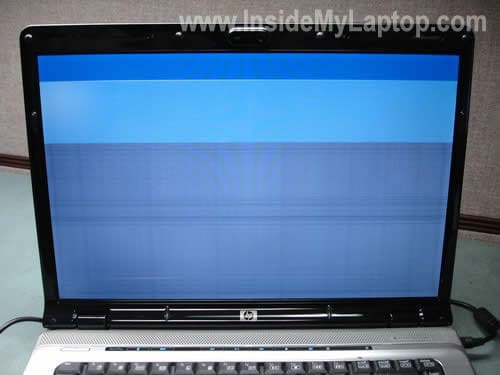
In this guide I’ll be replacing failed LCD screen on a HP Pavilion dv6000 laptop.
In my case the lower 2/3 of the screen has become garbled . An external monitor displays image properly.
STEP 1.
There are six rubber screw covers on the display bezel.
You’ll have to remove all covers.
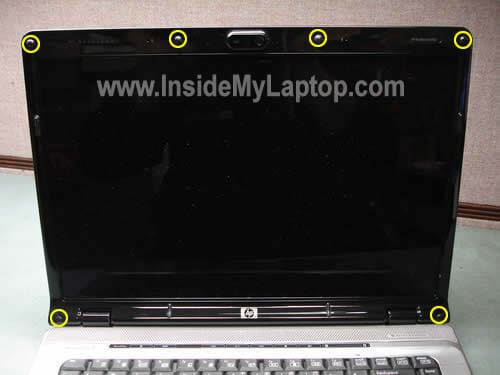
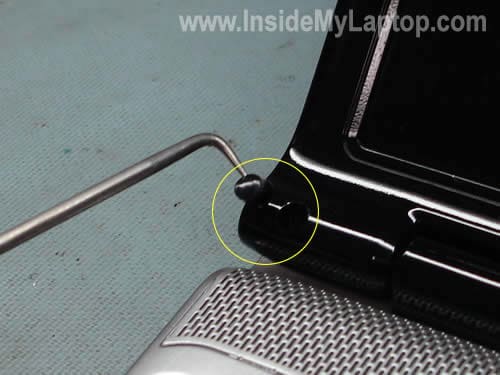
You can remove them a sharp object.
STEP 2.
Remove six screws found under the rubber covers.

STEP 3.
Insert fingers under the bezel and start separating it from the back cover.
There are small hidden latches securing the bezel and you’ll have to wiggle it in order to release the bezel.
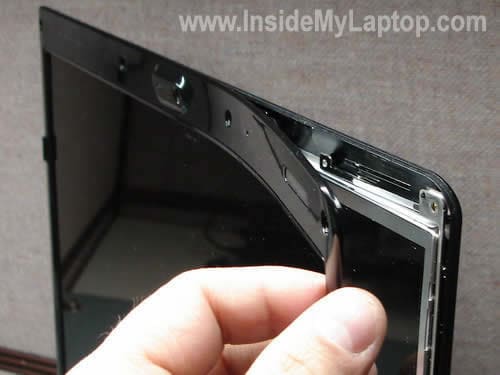
Continue removing it. Be careful, the bezel made of fragile plastic.

The bezel has been removed.
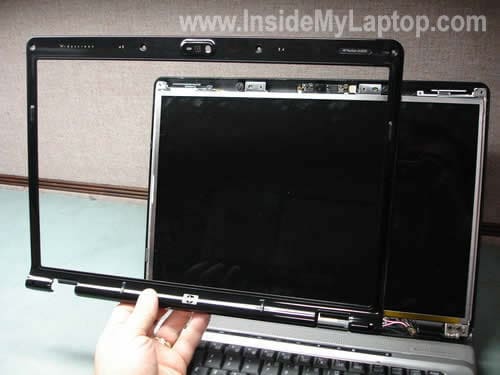
STEP 4.
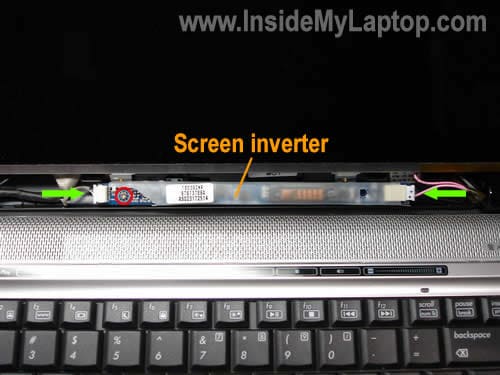
Now you can get an access to the inverter board which is mounted on the lower part of the display assembly.
Remove one screw securing the board. Disconnect cables on both sides of the inverter.
The left cable supplies power from the motherboard and the right cable connected to the backlight lamp inside the LCD panel.
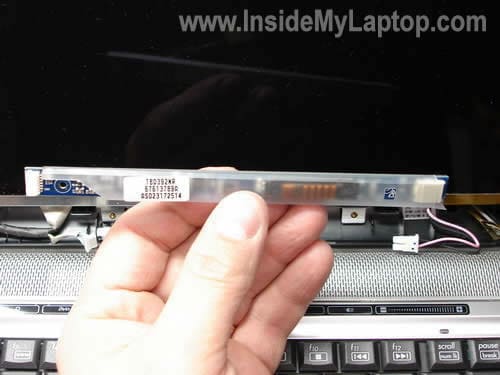
The inverter board has been removed.
STEP 5.
Remove two screws securing each display hinge/bracket.

STEP 6.
Now you can get an access to the back side and access the LCD cable.
Remove clear tape covering the connector and disconnect the LCD cable. Simply unplug the cable from the connector.
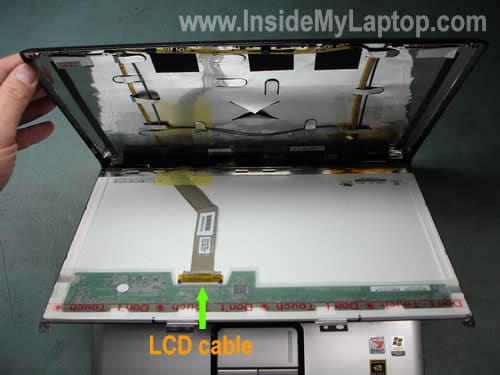
STEP 7.
Remove two screws from the right mounting bracket.
Remove two more from the left bracket.
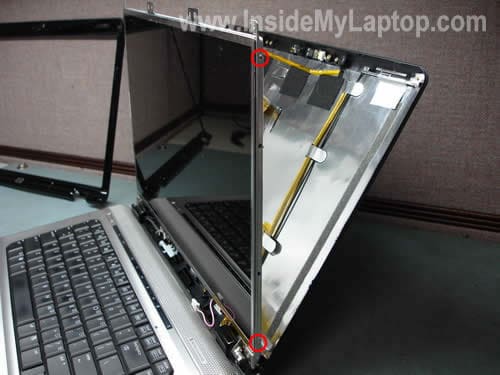
STEP 8.
Now you can remove the defective LCD screen and replace it with a new one.
Assemble the display back together.
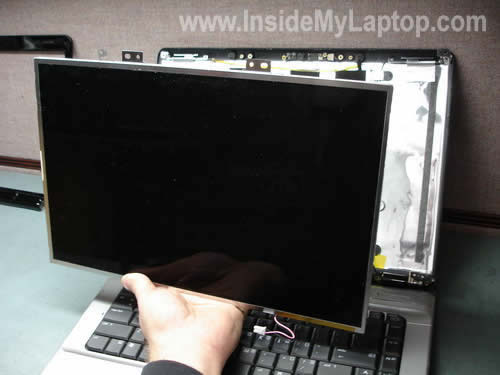
The LCD has been removed.
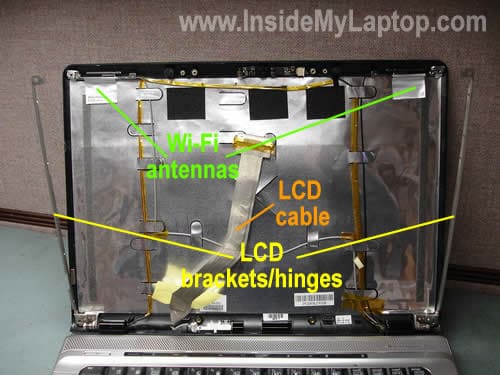
The following part numbers for HP Pavilion dv6000 could be helpful to you. I found them in the official maintenance and service guide.
15.4-inch, WXGA, SVA display panel with BrightView (Glossy) 431386-001
15.4-inch, WXGA, SVA display panel AntiGlare (Matte) 431387-001
LCD inverter 431391-001
UPDATE: In one of the next guides I explain how to completely disassemble the laptop. This guide should fit HP Pavilion dv6000.
John Dunne
Hi,
just wondering if the backlight can be easily removed from the LCD screen.
I have a HP Pavilion dv6000 and the screen is dark (I can just barely make out the Desktop icons). It works fine on an external monitor.
Sometime the LCD screen flashes on for a few seconds but goes dark again.
I disassembled the Screen (as per your brilliantly laid out instructions).
I can see inverter, LCD cable and the 2 wires going to the backlight. But the backlight seems to be inside the LCD screen itself and am wondering if it can be easily removed.
I will probably buy an inverter (as it’s cheaper) to see if that’s fixes the problem but in the event that it is a backlight problem does the complete LCD screen have to be replaced or can the Backlight be removed from the screen.
Thanks
IML Tech
John Dunne,
It’s possible but not easy at all. The backlight lamp is mounted inside the LCD screen and you’ll have to take the whole thing apart. It’s very easy to damage the LCD screen while taking it apart.
It’s very likely that you have a problem with the inverter board and there is nothing wrong with the backlight lamp.
Yep, I would try a new inverter first.
If you have nothing to lose (without backlight your LCD is not usable anyway), you can try replacing the backlight. You can find a new backlight for about $10.
In case of failure, you can through it away and purchase a new screen. I guess $80 is not expensive for a new screen.
If you wish, you can take pictures during the disassembly process. I can publish your guide on this site so other people can benefit from your experience. Good luck!
Saj
i have a HP DVseries laptop, suddenly a line is starting to show vertical towards the left side on the screen, it goes away when the screen is open in some postions,any ideas what is causing this, i am just about the take the screen apart to see if any wires are loose, or do i need to replace somthing, any ideas welcome,
Thanks
saj
IML Tech
Saj,
Is it a one pixel vertical line running from the top to the bottom of the screen?
I don’t think this is a connection related problem and reseating the cable connectors will fix it.
To me your description sounds like a problem with the LCD screen.
Tom Ware
Thank you for this post. You gave me confidence to do this task. I was very frustrated when I broke my screen while closing the top. When I called about my insurance???? Pissed when I found out the salesman lied to me. Thank you for a burst of light. I wish I would have found this site before I purchased my replacement screen. Thank you Thank you
Shock
I have a same problem as John Dunne. Works fine with external but the laptop screen is extremely dim. Contacted HP customer service. They said it is a problem with the display inverter but as it is out of warranty, it’ll cost me.
I’ll try replacing the inverter with your help, but could you tell me where I could buy a good cheap one and any specific model no. I have to buy.
Thanks a lot.
IML Tech
Shock,
The best way to search for a new spare part for your laptop is using the manufacturer’s part number. In your case (HP laptop) you should have a SPS number on the inverter. Find this part number on the inverter and Google it.
RedLion
I have a dv6000 – purchased 9/29/06 & out of warranty – which has a problem similar to the very first photo on this page, however the top 1/3 (sometimes the top 2/3rds) always works just fine. When I press on the LCD bezel where the inverter is mounted the display usually comes back to life. I’ve removed the inverter and LCD to determine if there’s a short in either the wiring or on the circuit board, but I didn’t see anything obvious.
I also have an HP zd7260 that usually shuts down immediately after power up and it won’t recharge the battery, powered on or not. I purchased an all-in-one cable (XC1000) which attaches to the the display port and supposedly bypasses the often mentioned power port problem, but this didn’t help.
Man, oh, man. No more HP anything for me!
Any suggestions?
Thanks!
IML Tech
RedLion,
Sounds like you have a problem with the LCD screen and it has to be replaced.
In most cases you cannot tell if laptop parts work properly simply looking at them.
This could be related to the DC-IN power jack. I believe in this laptop the jack is soldered on the motherboard. It’s necessary to disassemble the laptop and take a closer look at the jack. If it’s loose or broken, it has to be resoldered or replaced with a new one.
To be honest, I have no idea what you are talking about.
RedLion
There’s a docking connector on the left-center of the zd7260 to which an all-in-one cable can be connected, the XC1000. It was reported that if one had a DC-IN jack problem, this cable – because it supplied power – could be a work around. Alas, it wasn’t a cure for my problem.
Andre
Hi I have a Hp DV6700z. the backlight on mine goes on and off sometimes, example if i open the lid all the way back it goes out, or if it gets a sudden shake. I followed your guide and open it up. On investigating one of the connecting wires going to the inverter (THE ONE ON THE LEFT) seems to have a sort. Each time I touch or move it around the light flickers. I was wondering if there is a way to fix or replace the wire? Any help would be great
IML Tech
Andre,
Isn’t this wire a part of the LCD cable/harness? I guess you can replace the whole LCD cable.
Vinod
Hello,
I hv a 2 yr old HP Pavilion dv6226 TX with Windows Vista home premium. Since past couple of months I have noticed on the LCD screen a single end-to-end horizontal line, cutting across the Start button and Task bar. I reinstalled the display drivers, but no luck, line still remains. Havent contacted HP support yet. Though rest of display seems to be working fine, Im worried that more such lines may start showing up after some time and totally mess up the display screen. Would really appreciate your input/advice.
Thanks in advance!
IML Tech
Vinod,
I’ve been fixing laptops for over 4 years but I don’t remember a problem like that. If it would be a single vertical line, I would say it’s 99% LCD problem. But I’m not sure about the horizontal line. Have you tested the laptop with an external monitor yet? Can you see the same single horizontal line running accross the taskbar?
That would be the first thing to try.
If you see the same line on both screens, it’s not LCD. Most likely it’s a software related problem.
Andre
# IML Tech Says:
January 28th, 2009 at 1:24 pm
Andre,
On investigating one of the connecting wires going to the inverter (THE ONE ON THE LEFT) seems to have a sort. Each time I touch or move it around the light flickers. I was wondering if there is a way to fix or replace the wire?
Isn’t this wire a part of the LCD cable/harness? I guess you can replace the whole LCD cable.
yes it is the LCD cable. Do you know the Model number for it, and do you know how I would get to the the other end. I already know how to get the the LCD screen thanks to your guide
mitchell
I have a DV6000. The screen was working great and then I walked away and came back 5 min later and the colors are now all distorted. With some pages I can’t read the words. I have ordered a new LCD from ebay and want to know if I need to order a new screen inverter also? How can I check to see if mine is ok? Could it be just the screen inverter is messed up? I have also tried touching the screen and it makes no changes. I adjusted all the setting with my video card and nothing. Like everyone else I also have been screwed out of my warranty by HP and I have to do this myself.
IML Tech
Andre,
The other end of the cable is attached to the motherboard under the keyboard bezel. I explained how to remove the bezel in one of the previous post and linked to it at the beginning of the post.
You can search for the cable part number in the official maintenance and service manual for Pavilion dv6000 laptops and then google the part number.
IML Tech
mitchell,
Before buying a new screen you should have tested your laptop with an external monitor and find out if the same problem appears on the external video.
1. If the problem appears only on the laptop screen, but external works fine, you might have a problem with the LCD screen or video cable.
2. If the same problem appears on the laptop LCD screen AND external monitor, there is something wrong with the video card and replacing the screen will not fix it. You’ll have to replace the video card which most likely is a part of the motherboard, so you’ll have to replace the motherboard.
You can see the distortion on the screen and it’s bright, right? It means the backlight works fine and there is nothing wrong with the inverter. When inverter fails, the screen goes completely dark and the image becomes very faint, but from your description your screen lights up, so the inverter is good.
mitchell
Thanks for your help. I did try it on another monitor before buying a LCD and yes it works fine. That is why I decided it was the screen. I was able to have my video card replaced 1 year ago for a totally different problem so I hope that HP did something right. I do have brightness to my screen so it is good to know that my inverter is working. How can I test to see if it is the video cable? This is an awesome site thanks again.
IML Tech
mitchell,
I guess it’s not a problem with the motherboard/video card.
Unfortunately, you don’t have a lot of options. From your description I can assume that it can be either a bad LCD or video cable and at this point you’ll have to guess.
Can you torque the screen a little bit and get the video back to normal?
mitchell
I tried torqueing the screen it made no changes. It did not get better or worse.
ryan
I just broke my screen on a dv2000. The screen cracked and all else was fine. I purchased a new lcd screen, proper model, etc. however, after replacing it, I find that it only works after adjusting the position. If I hold the screen (wuthout the bezel) then the screen works fine in various degrees of being open (as I set the screen to do nothing if closed). So, I’m sure there is just an adjustment, but I’ve removed/replaced now 3 times and it’s the same.
IML Tech
ryan,
I understand that the old screen is cracked but most likely you still can see the image on a part of the screen. Try installing the old cracked screen back in place. Will it fail the same way as your new screen? If the cracked screen works properly, apparently you received a defective LCD screen and have to replace.
ryan
Just got it. I think that the lid switch might be magnetic and the antenna (?) was in the wrong place. I’m really not sure, but it now works.
katelynd
THANK YOU THANK YOU!! I was so apprehensive about replacing my broken screen on my dv6426us.. all the other instructions I found were not for my model and too vague!! But this page along with the pictures helped me to do it!!! I can not thank you enough for this page!! God Bless you!
Tina
Hi,
I also have a hp dv6000 and 2 days ago, I returned to my laptop to find the screen very dim, barely able to make out what is on the screen. The screen displays its normal brightness briefly on reboot, and then dims again. I hooked it up to an external monitor and it does the same thing; just shortly after the Windows logo, the external monitor goes into powersave mode.
I purchased an inverter board to see if that was the culprit; however that did not work either. I wonder if this problem is really the screen or the video card. How would I test further to figure out what the source problem is?
BTW, I followed your instructions on how to disassemble the screen and they were great-thanks!
IML Tech
Tina,
Test it again with an external monitor. When it goes into powersave mode, try using Fn+F4 keys to switch video from the internal to external mode. Press and hold down the Fn key and at the same time press on F4. Can you get it work with the external monitor this way?
Yongky
Has anyone upgraded their dv6000 screen to a higher resolution one, eg to 1440X900? If you have, what screen did you use. thanks
Michael
The directions I found on your website were invaluable. I am not an egg head and had reservations of attempting this. I read your directions first (I never do that) and felt confident. The process of changing out the LCD screen on my wifes lap top went with out a hitch. Thank you.
Frederick
Hello! I was wondering if you had any information as to whether I could replace my current LCD and bezel/housing case on my HP Pavilion DV6000 with the upgraded bezel/housing case with webcam & microphone…would there be any extra steps or cable connections i would have to make? is this even possible? i have the dv6000 defeatured (i.e. without webcam/microphone on bezel/case) and would like to know if i could buy a replacement LCD/inverter/webcam&mic/bezel SET/KIT off of eBay and use that?
IML Tech
Frederick,
If I understand correctly, do you want to buy a new display assembly for full-featured dv6000 notebooks? I guess you can try that, but I’m not sure if the motherboard in defeautered models has connectors for the webcam and microphone.
Jeremy Welker
Hello, I appreciate all of this info you give.
My problem is with the webcam. Same system – HP Pavilion dv6426us. All of the sudden, the web cam is not detected by the system. No programs, nothing. I’ve flashed the bios. Nothing. Haven’t dropped the system. Not sure what it could be other than a loose wire. Wondering if anyone else has had this problem
Thx
~J
Manoj
Hi, I have the same problem that John Dunne has. In addition to his problem, I have changed the inverter but it didnt helped. so my next target is LCD Lamp. I need help on that part. have any one tried this before?? guide me for the same. any help will be appriciated. Thanks.
just wondering if the backlight can be easily removed from the LCD screen.
(I have a HP Pavilion dv6000 and the screen is dark (I can just barely make out the Desktop icons). It works fine on an external monitor.
Sometime the LCD screen flashes on for a few seconds but goes dark again.
I disassembled the Screen (as per your brilliantly laid out instructions).
I can see inverter, LCD cable and the 2 wires going to the backlight. But the backlight seems to be inside the LCD screen itself and am wondering if it can be easily removed.
I will probably buy an inverter (as it’s cheaper) to see if that’s fixes the problem but in the event that it is a backlight problem does the complete LCD screen have to be replaced or can the Backlight be removed from the screen. )
IML Tech
Jeremy Welker,
The webcam is located on a separate board and it’s mounted above the LCD screen under the display bezel. It’s possible that the webcam itself went bad and has to be replaced.
Also, could be a software related issue. Did you make any changes to the laptop before the webcam disappeared? Try running the system restore and take it back to the time when the webcam was working properly.
IML Tech
Manoj,
The backlight lamp is mounted deep INSIDE the LCD screen. Is it possible to replace the backlight lamp? Yes, it’s possible but very hard.
If you have nothing to lose, you can try it but if you’ve never done it before, most likely you’ll mess up the screen. It’s very time consuming.
These days new laptop LCD screens are relatively cheap. You can find a new LCD for your model for less than $70. I posted a link in the step 8.
Rick
I am replacing a screen on an HP dv6000.With the new screen attached to the hinges but the plastic cover unattached it works find. The second the foil on the lower right of the plastic cover touches the metal hinge of the laptop the screen makes a staic type sound and the display goes out. What can I do?
Fahad
Hello,
i have a hp dv2000 and one of the two things that connect the laptop screen to the main keyboard has been broken.. I’m talking about the thing rite next to the two screws securing the hinge/bracket. ok so from one side the laptop is coming off and its been like this from last one week, i was goin to take it for repair but just yestarday i noticed that the screen has stopped working properly. The laptop works fine but i have to hold the screen and press it at a certain position for it to work.. if i just leave the screen as it is the screen hangs..
So now, i dont have any clue what might be the problem and what really has to be done to it to be fixed but i think its something minor? What do u think? I dont want to be ripped off by those repair shops.. i dont mind taking it for repair but i would like to know what might be the problem so that they dont charge me extra money.. Please let me know what i should do.. Thank you for all your help in advance 🙂
susan
I have a pavilion dv5020us notebook that just started flashing lines across the screen. It’s almost like the connection is loose or someting…It’s horizontal – they lines vary and they flash like a strobe kind of. Do I need to replace something, or do i have to get a new laptop? I’ve had it three years. Thanks so much.
IML Tech
Fahad,
First of all, you’ll have to test the laptop with an external monitor attached to the VGA port on your laptop. Have you done that? Do you know if the external video works fine even though the internal screen is not working properly?
IML Tech
Susan,
In order to narrow down the problem you’ll have to test the laptop with an external monitor.
If you have the same problem with images on both screens, the internal LCD and external monitor, your problem could be related to the motherboard/video card.
If flashing lines appear only on the laptop LCD screen but the external video works properly, the problem could be related to:
1. Loose video cable and reconnecting the cable might help.
2. Bad video cable.
3. Bad LCD screen.
KJ
I have an HP dv9500t and I’m regretting the purchase. The screen has gone south on me twice now and the first time was right out of the box. This time HP is telling me to eat it because it will be $500+ etc… I’m taking the thing apart using this link as my guide. If it breaks I’m buying a Mac… #^@@$-off HP! 🙂
IML Tech
KJ,
You can find a new screen for that laptop around $120. Replace it yourself and save $380. 🙂
Hopefully it works for you.
sagar
I have problem with my Dell inspiron 510 .Applications like internet explorer and others are not woking giving application error the memory can not be read ok to debug the program and cancel .
After this problem ,Cd drive ,USB drive are also not working .I have another laptop but not able to transfer the data from this laptop to the new one .
Could you please help to resolve this issue or tell me the I transfer the data to the new laptop .
one of my friend told me it could be memory slot problem but there is no problem in booting the system and it is showing the correct memory configured in the system .
Thanks in Advanse
Regards
tonyp
I want to personally thank you for this tutorial. I had some problems with my old screen with these weird horizontal lines. I was going to take my laptop to Geek Squad, but they quoted me $600. I found a screen for a HP Pavillion dv8000 on eBay for around $80. Although it is not the exact same model, your directions were so simple I was able to figure it out on the dv8000. Now everything is working perfectly again. Thank you again for this tutorial.
Irene
I have the dv6000 and the screen went very dark, but icons and background are visible, just dark and sort of like a negative but colors are off. I replaced the inverter – no luck. Backlight works and external monitor works. Is screen replacement the next option? lcd cable appears to be fine, but should I purchase a new one just in case?
Gaurav Yadav
I have a HP Compaq laptop having vertical straight color lines at different places on screen. The lines start appearing after my laptop got mishandled and slip on floor and keep on increasing day by day. Now it has 10 lines all over the screen. Can it be repairable or screen need to be replaced.
IML Tech
sagar,
Sounds like a software related problem. Try reinstalling factory defaults from the recovery disk. Warning! This procedure will erase everything from the hard drive.
Also could be software related problem.
Here’s how you can back up your data. Purchase an external USB enclosure, remove the hard drive and install it into the enclosure. Now connect that enclosure to another working computer and your hard drive will pop up in My Computer. Access it and back up data.
IML Tech
Irene,
You say the screen went very dark and at the same time the backlight works. What do you mean the backlight works? Can you increase or decrease the screen brightness using the keyboard shortcut: Fn+F7 or Fn+F8 keys?
IML Tech
Gaurav Yadav,
Sounds like a problem with the screen and unfortunately you cannot fix it. You’ll have to replace the screen with a new one.
Jeno
I have a dv9000, everything was fine before replacing the back and front vessel covers and the hinges. As you guys alreay know they suck. Ok after replacinf all this my pc looks new, but my screen has now a bunch of horizontal lines and flashes back and forth. when i move the mouse i can see the changes on the screen but its all wide and small white lines across the screen. an that be the inverter, or any other thing i touch or messed up while fixing i???? please help. thanks very much.. BE SAFE!!
IML Tech
Jeno,
Could be bad connection between the LCD cable and motherboard. Make sure the video cable is connected properly.
Did you have a chance to test your laptop with an external monitor? Do you know if external video work properly?
This problem is not related to the inverter. You still can see a bright image, so the inverter board works properly.
Jeno
Thanks i am gonna try that today
Jaanus
Hey i have a hp pavilion dv6000 with a cracked screen and it displays nothing. I can’t get an external display working either. I’ve tried the fn + f4 but no use. Any ideas or suggestions? Thanks.
IML Tech
Jaanus,
Apparently, the cracked screen is not the only problem in the laptop.
Is it completely dead or the laptop gets power but will not turn on? Did you try reseating memory modules, removing modules one by one?
Kevin
I have a HP Pavilion DV2419 with some problem with display. For the last month, it occurred 3 times that the screen reacted very slowly. It gradually light from the brink to the center(this process takes about 1-2min).After that, the screen is still dim and messy. For those last 3 times, it went back to normal after turning on for about 10minutes, but would appear again if I turn off the monitor and turn it on again(like the power setting in Windows, sleeping mode or restart laptop).
These days, the problem just can go away. From the moment I turned it on(even in BIOS it is the same), it would not go back to normal even after 15minutes. But it works fine with external monitor.
I am wondering whether this is a problem with the inverter or LCD. Would changing the LCD fix this problem? I am in tight budget so I want to pinpoint the problem and fix it as cheap as possible.
Thank you very much in advance for your help.
mouline
Hello!
I have dv6000 model(dv6216ea) and it shows some strange symptoms found nowhere else.
LCD screen on left side sometimes gets reddish spots (not pixels but areas of pixels where colors are blended with red) while the other part of the screen is normal. Now when I turn the LCD brightness to full power, laptop begins to produce strange noises and after a while backlight turns off. I can see what’s happening on the screen but it’s indeed very dark. If I reboot everything is normal.
If I repeat the same test with brightness as above but powered by batteries everything works even better (intensity of white color is much better than when not on batteries) no noises, no backlight shutoffs.
What could be the problem here?
Should I replace inverter and/or LCD screen?
jaanus
Reseating memory doesent seem to solve the problem, any other ideas? One other thing i noticed is that the hdd and the light next to it do not blink at all when i switch it on.
Brian
Great to see a series of photos and info.
However I found some different part numbers.
screen: LTN154at07 Inverter: AS0231721C1
these may be more generic and easier to find in the web (assuming there’re correct
Bruno
Hello, and first of all very good guide 😉
I have an HP laptop with cracked LCD, my question is, i only need buy new lcd screen or i also need buy and screen inverter board? thanks
IML Tech
Bruno,
You need to buy only a new LCD screen. I assume the old cracked screen still lights up when you turn on the laptop? It means the inverter works properly.
Bruno
yes, when i power on still lights up.. thanks a lot for your help 🙂
Tim
I have a problem with my built in web cam on my dv6426. It stopped working. Looked in device mgr and it doesn’t show under imaging devices. Any ideas? It is a Sonix ST50220 usb. It does show under universal serial bus controllers in device mgr.
IML Tech
Tim,
Looks like that’s your camera.
You can try this method:
Right click on the camera in the device manager and select Uninstall. After that restart the laptop and let it detect the camera again. It should install the camera driver automatically.
IML Tech
Kevin,
Your description sounds like a problem with the LCD screen.
Inverter doesn’t fail like that. It either work or not. I think you have to replace the LCD.
Tim
Well after some digging I happened upon the solution..
Go to device mgr. Under usb serial controllers find ST50220 usb camera.
Right clock on webcam and update driver.
Click Browse my computer….
Click Let me pick from a list….
Select “USB Composite Device”
Voila. Works in Quickplay, Skype, etc.
Hope this helps someone else.
IML Tech
mouline,
This part of your description sounds like a possible problem with the LCD cable.
This part sounds like a problem with the screen (probably faulty backlight) or inverter board.
This part is confusing. I’m not sure why the laptop doesn’t fail when running on battery power but it tells me that most likely the inverter works properly.
Here’s what you can try if you decide to fix it yourself.
Remove the display bezel, so you can access the LCD cable. Turn on the laptop on AC power and wait until it starts failing. Now very carefully touch/move the LCD cable. Does it make any difference? Can you make the video work properly by moving the cable? If you can, most likely you have a faulty LCD cable. Try replacing the cable.
If moving the LCD cable makes no different and the laptop still fails, probably it’s related to the LCD screen. I don’t think it’s related to the inverter as you said it works properly with full brightness while the laptop running from the battery.
IML Tech
Tim,
Thanks for the update. Looks like it’s the same solution I mentioned in the comment 64.
Updating or uninstalling the driver does the same job – reinstalls the device driver.
Kevin
Thank you for answering my question of Mar 25th.
I bought a compatible screen from eBay. When I plug in the cable and another plug with two wires into inverter and turn it on, I can see the image now(without the slow reaction problem), but the baklight can not turn on, literally no back light at all.
I tried replacing with the old screen, the back light turns on immediately except for the broken image. Does this mean the new screen is a defect one? Or is there additional tweak I need to do to make the new one functional? Does HP use some technique to prevent user from replacing compatible screen?
Thanks
IML Tech
Kevin,
I assume you purchased a compatible screen, right?
Yes, it does sound like you got a defective screen, apparently it has a bad backlight inside. The old screen is working, so there is nothing wrong with the laptop.
Nope, it should be plug-n-play. When you replace a broken screen with a new one, it should start working without any extra settings.
Petro
Hi,
Can you get a replacement plastic bezel? I’ve got a crack in mine and was looking to get a replacement part but could not find anything after an hour of a google session…
IML Tech
Petro,
Are you looking for a dv6000 screen bezel? Search on eBay.
Ryo
My LCD screen turned white after replacing it. I’m sure that the LCD cable isn’t connected very well. Can you tell me how it should be connected?
Susan
Hi, I have an issue with my webcam. It does work, but only if I tilt my screen at a certain angle and that means when it’s almost shut. It seems that something is loose or I don’t know, but it’s frustrating, because I don’t know what I need to fix it. I hope you can help. I don’t think it has much to do with my actually screen though.
Thanks,
Susan
IML Tech
Susan,
I don’t think that your problem is related to the LCD screen either. The web camera is located on a separate circuit board and is not connected to the LCD at all.
Sounds like you have some kind of connection related issue. In order to find out what is wrong, it’s necessary to remove the display bezel and at least try reseating the cable on the web camera board, maybe the between the cable and camera is loose. If it doesn’t help, it’s possible the camera cable is bad and has to be replaced.
Paul
This is an awesome website! Thanks IML Tech!
My questions is about the LCD on my HP DV6000 laptop. There was a question on here about the Graphics being distorted on the LCD, that question is very similar to mine. I checked the system and everything seems ok. No video setting can change the distortion. The screen is bright and all the colors are there.
Here is what I did to troubleshoot the distorted image on the LCD.
1. Updated the driver
2. Used External monitor (graphics is perfect on external monitor)
Is there anymore troubleshooting I could do to make sure that it’s not the LCD? I’m hoping it’s the Video cable but I dont know how to make that it is.
Please if you have some information regarding my question, it would be greatly appreciated.
Thanks!
IML Tech
Paul,
Hard to tell if it’s bad cable or screen. Here’s what you can try. Remove the screen bezel and separate the display cover from the screen so you can access the video cable.
Turn on the laptop and carefully move the video cable while the laptop is on.
Can you change the pattern on the screen by moving the cable? Does it feel like moving the cable affects image on the screen? If it does, your problem could be related to the video cable.
Also, try reconnecting the cable on the back of the screen. Cold be just poor connection between the cable and screen.
Rob
Excellent and professional demonstration!
Thank you!
Eric
I have a DV6000 Laptop with a cracked screen. I was able to purcase a complete LCD screen and Laptop lid as one part. Do you have instructions on how to replace the entire lid???
IML Tech
Eric,
1. You’ll have to remove the keyboard bezel as I explained in this guide.
2. Disconnect the video cable and release the wireless antenna cables.
3. Remove screws from the display hinges.
4. Remove the display and replace it with a new one.
Also, you can find instructions in the official maintenance and service guide here.
mouline
Hello!
I’ve completely replaced LCD screen along with inverter (old one caused noises with the new screen). BTW those noises, described in my original post, were caused by the backlight bulb, which got burned out. I think both were just worn and finally inverter finished it by burning the lamp.
Thank you very much for your help!
matt
Hey, i broke my screen and have to replace it and this tutorial makes it look easy. I have heard from my friends that I shouldn’t try to do it myself because I can end up breaking way more than my initial problem of a broken screen. Is this as easy as it looks, and how much damage could i end up causing if i screw up?
thanks a lot for the help
Mick
I have a dv6000t and the screen turns pinkish… It happened once about a year ago. I took it apart, inspected all the connections put it back together and it worked for about a year. I’ve done the same thing again but it seems every day its touch and go. I’m led to believe that the issue is with the hardware and not simply a connection. How can I locate the problem. I’m fairly sure it is either the LCD inverter, video cable or screen itself (leaning toward video cable or inverter.) Thanks for any advice you may have.
~Mick
Bob
My dv6000 laptop’s backlight keeps going off when the Monitor is tilted at around 90 degree angles, I can make out the dark shapes of windows and stuff on the screen though it’s really hard to make out.
Anyone know how to fix this?
Tom Carter
Hi,
I have zv6000 with no image on the laptop screen (completely black) but external monitor works fine. On power up I do see a very, very dim flash of light behind the screen.
For info : At first I only experienced this problem occasionally, over a period of months it became more and more frequent and now I have it permanently.
Any help greatly appreciated, Thanks Tom
Gene
I am not sure but does the HP DV6000 series of laptop have a magnetic sleep/hibernate mode switch? And if so, where is it located? I recently replaced the display bezel and back cover on my laptop with new pieces. The display remains black during any type of power on mode. The power on button is not responsive although the dvd controls on he power panel work fine. I have removed the power cover and keyboard and verified that the 2 flex cables are connected and working properly. As they are both the same, I switched them and the power button still did not work and the dvd controls if touched lite up as before..
It resembles as if it is stuck in a suspended mode situation. I noticed a little magnet next to the left side of vertical LCD frame. But, when checking under the power switch cover I can not find any feature that looks like a switch.
What can I do to check that may put the laptop into a mode that will allow the power buttion to function again. The power buttion does light up after i touch the dvd controls but does not respond.
Thanks for any advise that you can provide.
asteris
hi there i have the same problem with Mick my lcd last 2 days has pink colour backround , like emboss effect .
asteris78
…….i think the problem is the backlight CCFL lamp , correct?
GC
I have a DV6000 which is having screen flickering problem however external display works fine. i thought that LCD screen has gone bad and replaced the screen with the help of instructions. But the issue still is there which starts to flicker after 5 mins of turning laptop on. Then it becomes worse and flickers horizontally. There is full backlight on the screen. How do it identify if this could be the cable or inverter issue.
Thanks heaps
Gary
Hello,
I have the same issue as Bob. When tilted at a 90 degree angle or less, the screen goes very, very dark. Any ideas? I tried replacing the inverter but that doesn’t seem to work.
Mary
Hi, I have a question about my HP Pavillion DV 600 series laptop. I recently ordered a new screen, but when I installed it the little magnet that was on the left hand side of the screen bracket disappeared. Is that a needed part and if so where can I get another one? Another thing after I plugged in the new screen I couldn’t see it well, it was all dark. Does that mean I need to replce the inverter board or is that missing magnet the culprit? Please help me.
Mary
IML Tech
Mary,
This magnet activates the lid close switch. You can set you laptop to go into hibernation or sleep mode when you close the display. If you use these futures, you’ll need the magnet installed.
If you turn off the laptop each time you stop using it, you can live without the magnet. Also, you can activate hibernation or sleep mode through the start button.
Are you sure the magnet is missing? Maybe it’s somewhere inside the display panel behind the screen?
Why did you replace the screen? Was it broken or what?
otto
i spilled water on my dv6700…
what do i do? should i replace the screen any idea of how i should dry it?
Ramesh
Hi,
I have the same problem as GC (post number 90) except that I have a zv6000 laptop. Had it for over 4 years no issues but for the past few weeks, the screen starts to flicker after boot and multiple colored lines just start shaking in a horizontal thin line formation. Connecting the laptop to an external monitor works perfectly.
Do I need to replace the screen (costs more than $120 labor+part) or is it some loose connection or some other easy / cheaper fix. Also I see there is a link that HP will fix things for free – does it apply to zv6000?
Appreciate your help!
Thanks
Ramesh
L1am22
Hi – thanks for the great post. I’m hoping someone can help me?
I’m not sure how I damaged my screen but either way, their is no back light but I can see the image very faintly.
I’ve tried plugging my laptop into an external monitor and the picture is fine.
Is it going to be the screen/inverter or lid magnet that’s at fault?
Are there any tests I can run?
Thanks in advance for advice!
Ryan
I just changed my laptop screen and this page helped SO much. It took maybe an hour and I’m so relieved. Thank you!!
Gabriel
Excellent tutorial. I have a dv6734nr with a pink, one-pixel wide vertical line about one inch from the left side. The line does not show up on an external monitor. Is this the inverter? Or is it a bad LCD?
Thanks in advance.
IML Tech
Gabriel,
Sounds like a bad LCD screen.
Cecilia
hi
i really hope you guys can help – apparently a little fan fell off my desk and onto my laptop which was on the floor in my room. theres a slight dent on the top, and when i turned on the computer it lights up but it lights up SHATTERED….i called the geek squad (i bought the laptop at bestbuy). they said i can transfer the data…..but can i save the computer itself by switching the lcd screen??????
please someone help – all my pix of my baby nephew who passed away are on it and i want those :*(
cecilia
IML Tech
Secilia,
Sounds like you broke the LCD screen. If there is nothing else wrong with the laptop you should be able to fix it by replacing the screen as it mentioned in the guide.
By the way, you still should be able to use the laptop with an external monitor. You can access and save all personal data with video on the external monitor.
1. Connect an external monitor to the VGA port on the laptop.
2. Turn on the laptop.
3. If nothing appears on the external monitor use Fn + F4 key combination to switch video from internal to external mode. Press and hold down the Fn key and at the same time press F4.
4. Use external monitor the same way you use the laptop screen. Access your pics and safe them somewhere.
Cecilia
Also – if i can fix it – would you be able to give me any recommendation websites for the right part and all parts id need to fix it….or even someone or a place that can do it for me in southern california.
thanks
i hope switching the lcd screen can be fixed thanks
cecilia
John E
Thanks for the tutorial. It’s trivial to remove the bezel, once one knows where the 6 screws are hidden and has the confidence to finesse it apart without breaking anything. I just replaced my LCD inverter, and I now have a bright, good-as-new display. Thanks again!
Niceroad
I just broke the screen on my laptop by pulling the back seat of my truck down on it; silly idea… HP told me they use to replace it for 700CAN$ and that it is now “only” 400$! Might as well get a new laptop for that price! Pretty glad I found this website! 🙂 Thanks!
Josh
Hi,
I’m having a somewhat similar situation as the others before. My dv6000 Hp laptop started up one day and all the pixels that were supposed to be white were showing pink. So whenever i go on the open a dialog box, the box is pink. I’ve plugged in an external monitor and it worked fine without the pink pixels. Would the LCD screen be responsible in this case also? Or is it the inverter?
Hedgehunter
Hi,
Great tutorial great site… I have a DV6000 and took the motherboard out but can’t find the replacement number on it? Every other component has it but the mobo has not got it on… Mine is a webcam type of pavilion… SN:DV6154eu
Kelz
Hello, it’s good to see people posting information instead of keeping it to themselves. I’m currently in the process of fixing my hp dv6000 I’ve had for quite some time. It’s been sent in once for a defective mother board and even after that, the screen went blank. I found this site and found out it’s either the inverter or the screen, which is in perfect condition but its dark as listed in the inverter guide section. I bought an inverter and it hasn’t helped so I’m going to order a brand new screen. My question is, if the new screen doesn’t brighten up even after the inverter I bought and the new screen put in, what else might I need to consider?
tara miller
Wonderful site! Was able to buy a new screen from ebay and install it myself. Best Buy told me it would cost $400-$500 to fix it, but I found one for $80. I didn’t know it could be so easy.
Thanks,
Tara Miller
Fort Worth, TX
Abhisek chatterjee
Hi, I am using a HP DV6000 laptop. some days ago, i found that there are two thin lines (i.e. screen rows) are white at the bottom of the screen. i neglected it, after some day, while i was working, suddenly those two rows jumped and covered half of my task bar and nothing was visible. only some bright lines were through them and there were some rows between the bad rows those were showing the original image. after some day, the same thing happened and now my full task bar is gone. i can only see a little bit of the upper portion of the task bar. the in the lower portion of the task bar i can see the mirror image of the things that are in my desktop. this is not a software problem because i tried external monitor and found it was good. the problem is completely of LCD.
PLEASE SOME ONE HELP ME
IML Tech
Abhisek chatterjee,
You can try reconnecting the video cable to the motherboard. Maybe it’s related to poor connection.
If it doesn’t help, most likely it’s bad LCD. There is not much you can do besides replacing the screen.
Sheik
Hi,
I have the same model, sometimes the screen flickers and get very dim, that if you look closely (very closely), you will see the windows otherwise you will think the screen is off. This gets fixed if i just fold and open the screen instantly. This happens frequently.
While working normally if i try to adjust the screen, then it starts flicker and get dim again.
I don’t assume any major or permanent problem with any component as i am able to get it normal when i fold and open back. I just doubt some part a loosley connected or something like that, i just found this article which closely describes my problem, but their solution doesn’t work allways.
It will be great if you help me get rid of this problem
IML Tech
Sheik,
There could be a problem with the screen inverter. Maybe the inverter is going bad. Try replacing the inverter first, it shouldn’t be very expensive.
Charles
I too, as Irene and Mr. Carter have stated, a dv6000 screen problem. The screen blacks out, I cannot see anything; but the backlight is still working. The fn F7 and F8 will make the screen brighter and darker, so I guess the inverter is okay. If I hook up to my Dell external monitor, everything looks fine. Sometimes when I turn on the laptop, the screen works (very rarely). I bought a screen cable and installed it about a year ago, and it worked once or twice before it quit too. After six months of constantly not working, the laptop screen worked the other day for an hour or so just like it was supposed too, but the last dozen startups have continued to be black. Do you think maybe I just got a bad screen cable?
IML Tech
Charles,
HP fixes some out of warranty dv6000 laptops at no charge. Your laptop might qualify for this repair. Take a look at the comment 108, it links to the article with more details regarding this HP warranty program. It’s possible you have a faulty video card.
Rami
One solution
my problem was that when i moved the screen it would flicker and go dark although u can still see the screen. I took the screen apart and found that the power cable connecting the output of the inverter to the screen was damaged because of the bending motion, all it needed was some resoldering and voila it works fine. i needed a magnifying glass to confirm the connection was very bad and almost broken!.
Always check the cables first and then replace the inverter!!
Enjoy:)
Abhisek chatterjee
Hi, Can any one tell me how much a HP dv6000 laptop LCD can cost? its a 15.4″ screen
Muhammad Irfan
Dear Sir/Mam,
I have notebook HP Compaq NX7000. which have a problem battery not a charge and not on a battery but direct AC power supply on. when our notebook on a power AC show error unknown Battery.
please solve it my problem
Jaren
I have an hp dv6408nr and the fan is dead. How can I get it out. the keyboard is off. The fan is just below some kind of screen connector.
Dave Francis
Hi
Very interesting site. Hope you can help.
HP zd7143ea Pavilion zd7000 Notebook 17inch screen.
Screen dies completely when power cable is disconnected. Any suggestions?
Thanks
DaveF
r mohamed
i tried to install windows 7 on my hp dv6000 laptop computer which had vista ultimate.after 3 quarters of the instillation was completed the computer starts and restarts several times.the installation of windows 7 was not completed. now i have a black screen, no video.i attach an external monitor still no video.the computer keeps starting and restarting every few seconds.i took the battery out and press down on the power button for a minute.this does not solve the problem.do you have any solution?i downloaded windows 7 from the internet.
Ricardo
Will it affect my lap top if the new screen i get is glossy and the old one was not? my problem is, that i put the new screen in but can hardly see anything, its like 20% visiable got any clues?
Craig
I have a problem with my dv6000. The screen flickers on and off or just dim/bright whenever I move it. I have to spend a good couple of minutes finding a position where it will actually work properly. I don’t have this problem with an external monitor. Is it the inverter, the display cable or the actual display?
IML Tech
Craig,
I think it could be bad connection between the video cable and inverter board. Open up the display cable and reconnect cables on both sides.
If reseating connectors doesn’t help, try replacing the video cable. Apparently the video cable is damaged.
Sounds like a cable problem.
Will Thomas
Hi there,
I have HP Pavilion DV9623cl and I am experiencing problems with my display. Every time I move the display, I get the funny shades of the display and/or fuzzy contrast. Well, after about 6 months of this, my screen now is either pinkish or blueish all the time depending on the position of the display. Can’t get it to the normal color. To make sure that my video card is OK, I hooked it up to my external LCD and it works fine on there. What can cause it , video cable, a weak connection ? Thank you
IML Tech
Will Thomas,
1. Try reconnecting the cable. Could be poor connection between the video cable and LCD/motherboard.
2. Try replacing the cable.
3. Could be faulty LCD.
Kurt S.
My HP Pavilion ZV6000 has a display hinge problem. The display won”t stay supported. I removed the display assembly and some small pieces fell out of the display lower housing, where the bracketed hinge would fit into. After reading a few hundred posts, I see nothing about hinge related problems. Can anyone advise if I can purchase hinge assemblies separate from the entire display? Getting tired of duct tape ! Thanks in advance.
IML Tech
Kurt S,
You can purchase new hinges for a HP Pavilion zv6000 on ebay. The hinges can be replaced separately. You’ll have to disassemble the display panel, remove the LCD screen and replace both hinges.
Lenny
Help! I replaced the screen on my dv6000 series notebook, and now the blue touch sensitive buttons quit working. Screen works great. Any opinions?
IML Tech
Lenny,
Do you mean buttons on the cover above the keyboard?
Did you remove the keyboard cover while replacing the screen? It’s possible that you forgot to plug in the button board cable into the motherboard.
Lenny
Yes the quick play keys above keyboard. No i did not pull lower bezel off. Followed your photos and had no issues. They worked before hand. There is a connector in and out of the inverter both are pluged in and ribbon on back of screen is in tight.
Does the inverter have something to do with these keys? I did not replace inverter, just screen. Screen works perfect. Now I have laptop with no sound.
IML Tech
Lenny,
I don’t think so. The inverter is just a power supply for the backlight lamp, that’s it.
Your description sounds like you accidentally pulled one of the cables under the bezel.
Take a look at the last picture here, there are a few cables under the bezel.
But you didn’t remove the bezel… and I’m not sure what’s going on.
Fahad
Hey,
I have a problem with my DV6000.
A month back, one of the wires from under the bezel came off (that connects to the screen), and my blank laptop screen was left hinging onto the laptop by one end (the other end came off) in a weird accident. Anyway, so I opened up my laptop and re-attatched the wire, and while my laptop still looked broken, I managed to get the screen to work again so it worked fine. for a month. Oh, and I could see if I hooked up a monitor to the laptop.
Today, however, I’m faced with a similar situation, except the laptop screen is very dim (but not black). The wire from under the bezel is still attatched. i may have pulled on the wire, but I am not sure this caused the problem. Again, if I hook it up to a monitor I can see.
Any suggestions on what to do to fix this?
Mary
Hi I need to find where to get the magnet that shuts the screen off when you close the lid. Mine is gone. I changed my screen and it disappeared. I looked everywhere for it and I can’t locate it. How can I get another one? Does it have aspecial part name? Thanks.
IML Tech
Mary,
I believe in this model the magnet is attached to the internal side of the display cover. You’ll find it on the left side about 2 inches above the hinge.
It’s possible that your magnet is still inside the laptop, maybe it magnetized to the hinge? Did you check the old screen, maybe it magnetized to the metal frame?
I doubt that you can buy this magnet separately. I think it comes as a part of the display cover.
Maurice Maio
I plugged the power supply and a few seconds later the screen went dark – you can see icons and use the computer in daylight and by hooking up an external monitor. I think it’s the “back light”???? Or ???? Can someone tell me what they think the problem is … the computer runs fine – just can’t see the screen very well … Thanks
IML Tech
Maurice Maio,
It’s hard to tell because the same problem can be caused by a few different parts.
Most likely it’s either bad inverter board or backligght inside the LCD screen. Both parts have very similar failure symptoms. If you have to guess, try replacing the inverter first.
Less likely but possible it’s bad video cable or motherboard problem.
LR
Hi there…
I have replaced my broken display using your tutorial and now i have a vertical green line on the new one.
Is anything i can do to fix this ? Thank you !
IML Tech
LR,
It looks like you got a defective LCD screen. There is not much you can do. Replace the screen or use it as is.
Gabriel Sanchez
Great website, invaluable info. Here’s my problem: my lcd has fuzzy horizontal lines that flicker in and out on the right side of the screen. Is this a cable problem? inverter or lcd?
Thanks for the help!
tsa
very nice guides! i have an HP dv6187ea laptop and a hp530 laptop. i have noticed that the panel of cheaper hp 530 is much better than the dv6187s. i would like to ask if i can put the panel of hp530 int the dv 6187. i read the guides but im not sure what happens with the video cord plagged at the system on hp530. i noticed that there is no such thing in dv 6187. Am i wrong?
and if i cant do anything by changing panels how can i be sure that if i buy one new will be better?
thanks!
IML Tech
tsa,
Are you talking about the entire display panel?
You cannot do that. dv6000 and hp530 are two different models.
tsa
no, i just mean the inside screen. not the cover with bezel etc.
IML Tech
tsa,
You’ll have to take apart both display panels and take a closer look on the back of LCD screens. If both screens have the same type of the connector, most likely you can swap them.
I cannot tell for sure but you can try.
HPLCD
My HP DV6383 LCD is also flickering, but i can see from the background that windows is loading, i can also access the internet, however, slowly flickering is turning to black . i didnt try yet to connect to external monitor. PLEASE HELP.
IML Tech
HPLCD,
Can you still see a very faint image when the screen turns black? If yes, try replacing the inverter board first. You have a good chance to fix the problem.
Ali
product hp dv6000
issue lcd shows white solid color lights upon boot .
No issue with VGA signal on external monitor. Reseating video cable on both ends (lcd and systemBoard) to no avail. Then I plugged both lcd , inverter , and video cable to another working dv6000 and worked like a charm. If it’s video chip issue then I would have no signal on external monitor….right .Any idea? Thanks for your help
IML Tech
Ali,
Sounds like a problem with the motherboard but I don’t think it’s related to the video chip because external monitor works fine.
Anyways, you’ll have to replace the motherboard.
Monica
Thankyou so much!!! WE almost threw away our dv6000 because BESTBUY guy said it would cost more then a new laptop to repair the LCD screen!! OMG!
Im ordering the screen and with your awesome instructions I can replace it! THANKYOU THANKYOU
Monica
John
I have a HP DV6205us it has intel 945g on-board graphics. It looks fine on an external monitor. Has a pink hue to it on lcd with loss of contrast. Doesn’t seem to display green. Took keyboard and front speaker panel off to remove video cable and reassemble. I took it apart reassembled it hoping it was a loose cable, nothing still screwy. Disassembled. Waited a day moved it downstairs. Reassembled the display shows 4 different B&W identical in quarters of the screen. External display fine. Have I badly screwed something else up, the main cable that goes from the screen to the motherboard (under speaker panels)? Main display cable seems pretty well taped and shielded. Or is the screen deteriorating further started getting bad 3 days ago. Screen still is bright just loosing all the colors, and this quadrant thing now. Does anyone know the part number for the large cable that attaches to the mainboard, inverter, and screen. Just in case I have done something to it, new lcd is coming.
IML Tech
John,
It’s hard to tell but sounds like a problem with the LCD screen. Could be related to the video cable but you cannot tell until you test the laptop with another screen or cable.
This description sounds more like the screen failure.
Most likely the screen is just failing.
The LCD cable part number is listed in the service manual for Pavilion dv6000 notebook on the page 3-23. The part number is: 431394-001 (includes camera cable).
Let me know if a new screen works for you. Good luck!
R. Miller
I have an HP DV6324US (not under warranty) and the left side of the LCD screen is much dimmer than the right side. It used to do this occasionally and now is the norm. Is this an LCD screen problem, inverter problem, or what?? Any help would be appreciated.
IML Tech
R.Miller,
I think this problem is related to the backligth lamp inside the LCD screen. Apparently the lamp is getting old.
You’ll have to replace the screen.
john
I posted last week sept 14th. My screen had a pink hue, with off colors, and loss of contrast. Right after I posted I remebered it looked like an old passive lcd display. I tried to find a loose wire hoping it was that as I had just last month changed the keyboard. My fooling around then made the display show up in 4 quadrants on the screen.
A replacement screen finally arrived. I bought from a decent site and the display looks really nice. But the diplay they sold me wasnt identical. The metal frame with screws toward the middle of the screen was missing so 4 less screws to hold the display in place. Basically just the side joints are holding it together. It seems fine and I didn’t want bother with sending it back. Plus I don’t believe they would have refunded my money. HP service manual and all these comment really helped me go through all the probable issues with my display. Thanks. I really like how HP puts all its service manuals up for people to dl. I really think that is amazing. Some even list newer CPU’s that you can put in your PC. Nice. If you don’t have to speak to their bad service associates.
Ali
Thanks for your feedback. The fact that I can run the laptop from external monitor shows that MOBO is not totally defective. It’s more less the LCD Video interface on the MOBO that I need to troubleshoot. Thanks again for your feedback.
Sarah
Thanks for this site! it easily helped me to save a lot of money i did not have by replacing my inverter myself. Thanks again!
Ryan
Hi I have a problem with my dv6000. I get the black screen but everything is still working. I could see a very faint image of my windows. Is this a problem with my lcd? please help me as I dont konw what to do anymore.
Dino
Hi, has been me given as a present a Hp Dv 6000 it has the destroyed screen . I would want to use him/it connecting an external monitor however. When I turn on him/it all hard disk audio it works etc. but the screen is completely black. If I connect him with a cable VGA to an external (I feel Fn + 4) monitor it doesn’t give sign of life. From thing you can depend? I thank you for the answer.
Tran
So I just installed me inverter into my laptop but when it turns on, it has a red glow to it. Is there any way to fix this? Because this is what my screen looked like before the inverter got messed up…
IML Tech
Tran,
Are you sure that your problem is related to the inverter board. A redding screen might indicate a problem with the backlight lamp inside the screen.
If you replace the inverter board but the screen still has a red glow, most likely the backlight lamp is failing.
David Dixon
I have a DV6000 whose screen looks like it is displaying a 4 bit color resolution. If I plug in the VGA on the side, the secondary monitor shows up perfectly fine.
I have uninstalled and then reinstalled the latest nVidia drivers, etc… so I am certain it is not that. I opened it up per your instructions (great explanations!) and reconnected all the wires to be sure nothing was loose. No luck.
Would this be due to an inverter or screen or both… or something entirely different?
Thanks!
Ricardo
Hi I have a problem with my dv6000. I get the black screen after installing a new lcd but everything is still working on the external monitor. I could see a very faint image of my windows. Is this a problem with my lcd? what is causing this???????
billy
i have a dv6000 laptop and a green vertical line appears on the monitor. if the screen is slightly tapped/moved the line sometimes disappears. what could be the problem?
IML Tech
billy,
A very thin vertical line running from top to bottom though the entire screen?
Sounds like the screen problem. There is not much you can do to fix it. You’ll have to replace the screen or use the laptop as is.
Charles Wells
I have a HP Pavilion dv6000 that I am working on for a friend. I checked the Laptop out and found a cracked screen and it was still lighting up and working but had several large cracks in the screen. So I ordered a new screen and I installed the new screen and the screen does not light up now and you can just barley make out what is on the screen, so does this mean that I need to also replace the inverter board too, also the old screen does not light up when I plug it back in. Thanks.
Kevin
Hello,
My laptop just began showing a pink-ish hue where almost everywhere a dark color would normally show. (ie when the computer turns on, normally a black screen with Windows symbol appears, now has a pink background) Font and most screen headings I can read perfectly, but videos and pictures are scrambled. Can I replace the LCD screen using the above instructions or is their a simpler way of fixing this? I’m quite certain the computer fell and simply busted something affecting the color on the LCD screen, because when connected to an external video display, everything appears perfectly. Is there any way to fix this problem without buying a new laptop or spending even more on a professional repair? Thank you very much for your help.
Kevin
D. Gallant
I have a Pavilion dv6000 with Display Issues. The other day i turned on the laptop and the
lower part of the screen displays garbled colors and the upper part works just fine. hooked up a external monitor and it works just fine. Now today i turned it back on all seemed fine for about 5 mins it went back to lower part of the screen displaying garbled colors again.
So i would think the LCD display is going or can it just be the inverter board.?
Some help here would be great.
So if it’s the LCD Display, I took a look on ebay and found a bunch of guys selling replacements. But my problem is all these sellers are in the USA, i’m in Canada and shipping to me in Canada is a lot of money. Can some one give a site in Canada that sells replacements at a cheap price. It can be refurbished does not have to be new.
Thanks
D.Gallant
IML Tech
D. Gallant,
This problem is not related to the inverter board, that’s for sure. You can see the top part of the screen and it’s bright, that means the inverter and backlight work properly.
Your description sounds like a problem with the LCD screen.
Search for the seller screencountry_com on eBay. They are located in North Vancouver, British Columbia, Canada.
Tapping on the screen is only a temporary fix. Most likely it will fail soon again.
D. Gallant
Update to my problem after reading a few sites some one who had a problem like mine said after tapping on the back of LCD seem to make the screen work. Well i tried it and tap on the back of the screen and the screen is back to normal. The person did say it was only a temp fix lasted about
3 months before replaced the LCD Display.
So far it’s working i have been using this laptop for about couple of hours and after tapping on the back of lcd screen it also seems brighter. I will let you know how long it last.
Shivchal
I have HP dv2000 Laptop. I have 2 problems.
1. When I boot the laptop with fully opened monitor, the monitor would not turn on, but I could see the power supply coming to it. If I close the monitor with 1 inch gap and start, the display works fine. the monitor has to be kept half closed during boot, for it to function properly. How to resolve this?
2. When I was about to flip open the laptop, it got stuck in the middle. I applied little force to open it, and it opened with a crack. The left joint connecting the LCD and the system loosened. So I get cracking sound whenever I open or close. and the monitor will not stay stiff, except in few positions.
Thanks a lot for any help.
IML Tech
Shivchal,
Try reseating the video cable connectors on both the LCD screen and motherboard. Maybe one of the connectors is loose and not making good contact.
Also, it’s possible that the video cable itself is defective.
Sounds like the left hinge is broken.
You’ll have to disassemble the laptop and take a closer look at the hinge. If it’s cracked, you’ll have to replace the hinge.
Gem Lanabas
Mine is HP dv2000 Laptop. And my problem is on the monitor/screen which I can still see the power supply coming to it, yet dark or dim to look at the screen. I can still see the program running using flashlight (‘though very hard to manipulate), and sometimes the display open up clearly but black/dark screen backed after restarting. If I close the monitor with 2-3 inches gap and start, the display works fine and sometimes fluctuate. How to resolve this pls?
Preeti J
Hi,
Thanks for this wonderful website! I just made a donation 🙂
My dv6000 laptop screen cracked from the top left corner and has black ink like spread over the top left corner. I can see cracks running down and diagonally.
Can I replace the screen following what you showed? Will it work for sure? Please let me know, thanks so much!
IML Tech
Preeti J,
Definitely! That’s why I created the guide.
I don’t know. 🙂 It depends on your technical skills.
If you purchase the right replacement screen and replace it properly, everything should be fine.
Jim Brown
In Feb ’08 I spilled coke on keyboard of HP DV6000. Removed as much as possible very quickly. Laptop will not start with ON button. Starts OK with remote. Reports battery in but not charging. All functions OK. Time has not healed my laptop.
IML Tech
Jim Brown,
It’s hard to tell what is causing the problem. Liquid spills are tricky to troubleshoot. It’s necessary to disassemble the laptop and take a look inside. I cannot tell what is wrong without doing that.
wayne
I have an hp zv 6000. can i use the instructions for the dv6000 for screen inverter replacement ?
IML Tech
wayne,
I think you can. Even though zv6000 and dv6000 are two different models, all steps for taking apart the display panel will be similar.
Bob
Hmmm… I have a HP9500. Today when I turned it on, all the blue lights came on, the hard disk was accessed, and I got a surprise – a totally black screen!
I checked with an external monitor and the laptop was working fine – just the on-board display was black.
I scanned a bunch of sites and found out that if you remove the battery, presse the “on” button for 30 to 40 seconds, this removes any static charge. One site said to leave the external power supply plugged in, but I didn’t do that. I then reattached my battery and the dang thing powered up like there never was a problem.
IML Tech
Bob,
Are you sure that the LCD screen was COMPLETELY black? Maybe the image was on the screen but the backlight was off?
It’s good that you fixed the laptop for now, but the problem might reoccur later. If the screen goes black, take a very close look on the screen. If you still can see a very fain image, most likely this is the inverter or backlight lamp failure.
Vince DiGiulio
“Thank You” for your very helpful info. My screen had been going black several times a session. I even had the dreaded go past 90 degree Black screen. HP was absolutely NO HELP WHATSOEVER… So, with a busted Laptop and nothing to really lose, I followed your instructions for disassembly and figured a new inverter was due. To my surprise, when I removed the bezel from the screen, the screen came back to life. I prsume the inverter or wires were crushed or pinched, since it doesn’t seem to fit securely within a bracket. No flicker, no blackout no matter how far I tilted the screen. Even rapid screen movement didn’t cause a flicker. So, I put it back together and will have to wait and see if the problem reappears. I had always suspected some type of loose connection, but was very leary of taking this thing apart. Piece of cake. Thank You once agaqin for your very informative post. Vince D.
Vince DiGiulio
One more thing. Upon rereading your instructions, I see that the one screw in the screen inverted was supposed to secure the inverter to the screen. On mine, the screen inverter was just lying underneath the bezel. I suppose I could take it all apart again and secure the one screw, but I think I will wait until it becomes problematic which might not happen again. If the screen starts going black again, I will take it apart again and secure the screen inverted to the body of the screen. I also saw several other threaded screw holes and if I am in there again, I probably will look to replace a couple of them with ones of my own. I am now thinking pretty shoddy workmanship in there… Vince D.
T. Marshall
HP Pavilion dv600 screen issue.
For a while now I’ve been having peculiar problems.The screen has a tendency to “freeze” with white lines crossing it and a slow “frosting effect slowly taking hold until the whole screen is gone. On bootup the light behind the screen illuminates it white but not with a consistent flat color. I found that altering the angle of the screen worked to some extent but peculiarly enough putting pressure on the top left corner from two points (with my hand, nothing else can hold it in place with reliable picture) gives me picture and sometimes I could have the monitor “sit” in an angle “sweet spot” that would grant me a working screen – this itself was not 100% foolproof as a little nock or nudge would cause it to fail again or sometimes it would just go. At times the screen doesn’t scramble to white and will resort to going black (not pure black) or garbled colors. The problem is erratic in its issue but always resorts to a screen not working.
This persisted for a month maybe more until I took it upon myself to open it up, thinking it might be the connectors or something else. Testing the connectors didn’t work, instead, it seems the only sure-fire way to get it to work is the pressure I apply on the top left, applied from behind usually with a forward push to ensure it works. Putting the bevel back in place, it now won’t fall into working condition at all – I assume this was because part of the screen casing was holding the problem at bay yet now it doesn’t, at all.
Does this require me putting my hand into my pocket for a brand new screen or can another solution be met? I don’t have a peripheral monitor to test out but I am pretty sure it isn’t a graphical issue as an outward source applied to the screen lid itself wouldn’t impact on the hardware inside the computer.
Also, just to sate my curiosity, what could be causing this?
Any help is appreciated.
IML Tech
T.Marshall,
I think this is the LCD screen failure. You’ll have to replace the screen.
john
Hi, first of all i wanna say great guide, made it very simple.
Anyway about my problem. I had a cracked screen so i got a new one (right model and everything) And i installed it via your guide. I started the computer and i just get a black screen. I then plugged it into an external monitor and it worked fine.
Is this an issue with the inverter or did i just get a bad LCD screen?
Thanks
john
IML Tech
john,
After you cracked the screen, did it work after that somehow? Did you get the backlight or image on the undamaged part?
You can try installing the cracked screen back in place and if it works, it’s possible that your new screen is not good.
Before you do anything, check connections between the video cable and LCD screen.
Also, check connection between the video cable and motherboard, it’s under the keyboard bezel. It’s possible that you accidentally pulled the video cable connector from the motherboard.
I would check this connection first, before even getting inside the display.
IML Tech
john,
This guide https://www.insidemylaptop.com/take-apart-hp-pavilion-dv6000-laptop/ explains how to remove the keyboard bezel and access the video cable connector. It’s on the left side, close to the left hinge.
john
By black screen i mean nothing comes up. It doesn’t turn on or anything. just wanted to clear that up.
Duhbugga
I have a HP dv6000 laptop. I started seeing white vertical lines right down the middle of the screen. I don’t see these lines if I use an external monitor. So based on your #5 post above, I assume I need to replace the LCD screen. Should I try to replace the inverter along with the screen or just the screen will do?
IML Tech
Duhbugga,
It’s not necessary to replace the inverter board because it works properly. Replace just the screen.
john
Hello again, Love the response time. you guys are very helpful.
As for my problem, I seemed to have been mistaken about the black screen. It actually was displaying, it was just really really hard to see it. I don’t know if this means the back light is broken or the inverter. I tried adjusting the contrast and brightness just to make sure but its still really difficult to see. I then plugged the old screen back in and it worked fine except for the cracked part. the back light and everything.
Does this mean the screen i got has a bad backlight or something?
While i wait i gotta look for that receipt
IML Tech
john,
1. It’s possible that your new LCD screen is not compatible with the old one, maybe it requires a different video cable. Did you buy an exact copy of the broken screen?
2. It’s possible that your new screen is defective.
Ant Rho
Following your post here and appreciate the excellent information. I have a Hp laptop dv6000 and the screen went black. Check with a flashlight and could see a dim screen. Replace the screen. Still dark. Replace inverter. Worked fine for about 2 hours now the screen is dark again. Any ideas please
IML Tech
Ant Rho,
I think it’s possible that your new inverter was defective. Try replacing the inverter board again.
Tommy
Hi. Great tutorial!
My dv6000 got in kind of a tug-o-war before the screen cracked. Well, with nothing to lose, I accomplished removing and replacing the LCD…
What I’m having an issue with is the closing of the lid. I can’t seem to get the display to turn off when it’s closed-as it did in the past…
Any ideas/advice is greatly appreciated!
CC
I replaced the screen and now it has 4 small desktops on the screen at the same time,all at once.HELP PLEASE!!
Troy
Thanks bunches for the breakdown on replacing the screen. Before I get into taking this thing apart, I want to make sure it’s only the screen I need to replace and not more than that. I stepped on the laptop and yes it cracked. What I have is a large inky-black blotch where the crack started and following each of the crack lines down the screen. Is this more than just the screen? Thanks, and I’ll be using your link for buying a new screen.
Christina
I have a HP Pavilion dv6275US. The screen has develpoed a redish glow on the right side. When I hook the laptop to an external monitor the display is fine. Do I need to replace the LCD screen, or the inverter or both?
Thanks,
Mike
I have a dv6000 and the screen is not lit. I can still see things on it. Plugged it with an hp cord but not the right one. Is it the inverter or the back-light? I have an all-in-one printer and I got the cords mixed up. Stupid mistake but they are now labeled to prevent that from happening again. The screen still works but it is not lit up. I suspect the light is burnt.
Is it worth replacing both the inverter and backlight to make the problem go away?
Brandon Cooke
Yes, I have a question. I am getting a completely black screen when I turn on the computer after following this entire manual. I wanted to know if I am connecting the LCD cable wrong and if so, how to properly connect it because I’ve failed numerous times apparently. Also, my computer is a Pavillion dv6000, yet it is an older model. I removed the old screen just as in the manual, and when compaired side by side, the area to connect the LCD cable is a bit different. I was wondering if that was a factor at all.
john
Hey its me again. My problem earlier ended up being the screen. so i sent it back and they gave me a new one. but now i have a problem with the new one. Everything works on it except the screen splits the image into 4 different little screens. there is also a mouse pointer on each of the little screens. I have no idea what the deal is unless there are some settings i need to adjust that im not aware of.
Please help
thank you
david seipel
Can you tell me how to remove the lcd screen from a HP DV7-1232. The only screw on the bezel is on the left hinge.
Chris Kukowski
I am working on a friends DV6000 and they have the vertical white/rainbow lines along with a few horizontal at the very top. I noticed on Step 6 that there is a piece of tape running along the top-back of the LCD screen that says DO NOT TOUCH. Well this one that I am working on does not say that on that strip of tape and I noticed that when I touched it the lines would shift, change color, and some would even disappear. Is it possible for me to clean these connections or am I better off just ordering a new LCD?
IML Tech
Chris Kukowski,
You cannot clean or fix these connections. You’ll have to replace the whole LCD screen.
Najat
Hi, I have a HP pavilion dv6885ez, so as I have the same problem (inverter doesn’t work anymore) I was planning to replace it by myself. BUT I have never done this and I’m afraid I’m gonna break my laptop 🙂 Regarding the replacement of the inverter, I can do it at step 4, right? no need to disassembly the whole screen and go through steps 5 to 8? Thank you very much for your answer!
IML Tech
Najat,
You are correct. It’s not necessary to remove the LCD screen. Going though steps 1-4 should be enough for replacing the inverter board.
Laura
I removed and replaced the LCD screen per your instructions (they were extremely helpful! thanks!) due to a crack in the screen. But now that everything is back together I turn on my laptop and the screen is just black. There is no backlight off, just a completely black screen. What do I do at this point? I did, while removing screws, press on the screen inverter and the screen then went grey. I read that if I mess with the inverter too much I could screw up my motherboard, so I did not do anything else since then. I would really like to get my computer back up and running because I use it so much. Please help!
IML Tech
Laura,
Does it sound like the laptop starts properly even though the screen is black? Can you hear normal hard drive noise and maybe Windows welcome sound?
Look at the laptop screen very closely. Can you see a very faint image on the scree? It may be very dim so look in a dark room.
Laura
IML Tech,
I plugged the laptop into another monitor and everything works fine. I even ran scans to see if it was picking up the monitor and it was only picking up via the video cable, but not when I wanted to go to dual screens. It is not faint, it’s just black. Thanks! Laura
IML Tech
Laura,
I think you’ll have to check connection between the video cable and LCD screen. Maybe the video cable is not plugged correctly.
Did you get video on the broken screen (on undamaged part of the screen)? Did you get backlight on the broken screen?
Try installing the broken screen back and find out if the image and backlight are still there.
If everything works fine with the old damaged screen but there is no image and backlight on the new one, it’s possible that your new screen is bad or not compatible.
babbu
Hey , I replaced new LCD with new inverter , I see the computer starting and LCD glowing but I do not see any characters or words on the screen, is something I am missing .
IML Tech
babbu,
Why did you replace the screen and inverter? Was it working before?
Make sure the video cable is plugged correctly into the LCD screen. Try reconnecting the cable. It’s possible that connection is loose and the screen is not getting data signal from the motherboard.
Najat
Hello, thank you so much for sharing the steps of this “surgical operation” 🙂
I didn’t know anything about what’s inside a computer so I was a little bit afraid of opening it by myself! But it went very well, and barely cost me 30$, now my screen is clear again and I won’t have to buy another laptop!
Thank you!
Harry
Just to thank you for such a great piece of advice! You have saved me hundreds of dollars by being able to NOT give my DV6000 to HP for screen replacement. And it was so easy. Great stuff, only one thing I was worried about, was the little grey piece of stamped metal that looked like it was holding the Inverter, but I couldn’t fit the Inverter back into the lid, if I kept it. No matter, the laptop is as good as new, except for the ding in the lid.
Again, thank you.
Rob
Thanks for the great website!
My screen would turn on momentarily, then black out. A day before this started (2 weeks ago) my screen started to flicker. I ordered a new inverter, followed your excellent instructions, and had that replaced in no time. Thanks for the help on that! But…. it didn’t solve the problem. Same deal. I now think its the LCD cable itself with some kind of short. (I can hear a brief sizzle before the screen goes black).
I can see how to access the LCD side of that cable, but how would I get to the other end connected to the motherboard? Just as easy I hope? I haven’t ordered the part yet, but its only another $19, so worth my time to try that solution.
Thanks!
IML Tech
Rob,
Take a closer look at the screen when it goes black. Is it completely blank and black, or the image is still there but it’s just very dark?
If the image is still there, it’s possible that you have a faulty backlight lamp inside the LCD screen.
The other end of the video cable can be found under the power button cover. I posted a new guide or HP Pavilion dv6000 series notebooks here:
https://www.insidemylaptop.com/disassemble-hp-pavilion-dv6500-dv6600-dv6700-dv6800-notebooks/
Take a look at the step 12, that’s where the video connector located.
Rob
Thanks for the help!!!!!!
It’s completely black. Tried it in the dark, with a flashlight, in bright light, etc. Dark as can be.
I’ll give the cable a try. Thanks for the other link! I’ll keep you (and others) posted.
robin green
hi pal good step by step help guide im needing help looking for a good used or new lcd for my hp of the same model im in cape town South Africa and need one urgently can you please respond asap and if you are able to ship please let me know
Rob
No luck….
Replaced both the LCD cable and the inverter. (very easy thanks to this site btw!) But I still have the same problem. Screen comes on for anywhere from 0.5 – 3 seconds, then I hear a sizzle sound and it blacks out.
I’m not going to drop any more money/time into it. I have it working nicely upstairs hooked up to an old monitor and I’ll venture out for a netbook for the family to use downstairs in true mobile fashion.
Thanks for the help!!!!
Alad Manoj Peter
Thanks Buddy
I repaired my LCD Screen by your demostrations
And my laptop screen is now working properly
Thanks For your post
LLEWELYN D. ESPINAR JR.
HI,I HAVE A PROBLEM WITH MY LCD.THERES A RED LINE SAME AS THE MARKING OF THE BALLPEN NEAR THE SIDE BAR AT THE RIGHT SIDE.HOW CAN I FIXED IT.THANKS
LLEWELYN D. ESPINAR JR.
hello,waiting for your reply regarding on my lcd problem which posted on the comment.thanks again
Sanjay
Nice and easy instructions with excellent pictures.. even my grandma can replace the LCD screen. 🙂 Great work!
Derek
I have replaced inverter. Something still bad. I narrowed it down to the backlight. Can you provide any help at all for fixing this? I bought one off the internet a little bit ago. I got the one complete with the harness already soldered on it. Do you know where there could be any guides or anything? I am a college student surviving on a tiny budget and the guy at the repair shop wants to stick me for every penny. I looked on both youtube and google for some time trying to find a tutorial of some sort.
IML Tech
Derek,
The backlight lamp is mounted inside the LCD screen and very hard to replace. But if you have nothing to lose:
1. Make sure your problem is related to the backligth lamp failure.
2. Try replacing just the backlight.
It’s way easier to replace the entire LCD than replacing just the backlight lamp inside the screen, but it’s up to you…
Ann
i actually figured all this out before i checked this site, however, i need to get inside the screen to clean the ink, it got cracked, and i am certain it is still salvageable. do you know how to that? or do i absolutely have to replace the lcd screen?
Andrew
Thanks for the excellent guide. I found it well-written with a discriminating use of pictures and markups.
Saved me from a $500.+ repair bill with %&*#! HP “Service”. The figure they quoted has to be about their original cost to build the unit in the first place.
And considering this is basically a KNOWN design flaw*, the warranty should have been extended as it was with similar models.
(* The top cover (back of the LCD) of the unit flexes too much, especially when the lid is grasped from a corner instead of the center when opening/closing/adjusting. I suspect that repetition eventually leads to a cracked PCB and/or a cracked LCD matrix. A thicker plastic lid would likely fix the problem. HP should look at how IBM designed the hinge and lid for the ThinkPad line.)
Never buying anything from them again. Ever.
Randy
IML Tech
Thanks for the great instructions worked easy taking apart dv6000 lcd.. I have a problem my laptop has a webcam in it and wife slammed the laptop shut and spider webbed the lcd i believe the webcam is ok but i need to know you did give referance to lcd’s on ebay but should i be looking for the specific lcd part # ??
IML Tech
Randy,
I think the best way to search for a new replacement LCD screen is using the HP part number.
Look at the back side of the original LCD and search for the SPS:######-### part number.
Sometimes HP places LCD part number on a sticker attached to the video cable (close to the connector on the motherboard).
After you find the HP part number, google it or search on eBay.
Tikam
I asked this somewhere else and didnt get any response. Found this tutorial and this is exactly
what I did.
I replcaed my broken LCD, but since the new screen didn’t have any inverter in it, I removed I kept my old inverter.
The problem starts here,
When I try to increase the screen brightnes using ‘fn + UpArrow’ , it increases the the brightness till 5 key strokes, but the subsequent ‘fn + UpArrow’ diminishes it again … because of this, i cant get to max brightness ever.
Is it really a inverter issue, if yes , how would I get a matching inverter now.
Thanks for ur help. I appreciate the way u are helping ppl here. keep up
IML Tech
Tikam,
I’ve never seen a problem like that before.
Do you know if the new LCD screen is the correct replacement for your broken screen?
You can try updating the laptop BIOS. Maybe the latest BIOS has some fixed for the new LCD screen.
Brad
my screen was broken was well, but I had an extra flatscreen monitor lying around. so i removed the screen and top of the laptop, along with all of the cables, but now my laptop won’t connect to the internet using the internal wireless, a usb wireless or through the wired connections. Any help please?
IML Tech
Brad,
There are two wireless antenna cables running inside the display panel. Apparently, when you removed display panel, you disconnected those antenna cables.
The internal Wi-Fi card will not work without antenna cables. I guess you’ll have to use USB wireless card.
Paul
Hey!!! Thanks for the tutorial.
I had this problem where my screen would shut off a….i could see the picture on it, but no light.
Used your tutorial and changed the inverter. Screen started to work, BUT, there’s something new – the screen picture(light) is shuttering(sort of like blinking), you can especially see it when you turn the brightness down.
One other problem is that when you connect an external screen(just bought a dell 23′) the screen shutters too. I dont know what to think about this.(this couldn’t be the lamp since the shuttering continues there too.)
Do you have any ideas?
Thanks in advance,
Paul
IML Tech
Paul,
I doubt that your problem is related to the inverter board. The image shutters on both internal and external monitors and this indicates a problem with the video card or motherboard. I assume it’s not software related.
Is it a Pavilion dv6000 laptop? This model has a known issue with the video chip. Maybe your laptop one of those.
Paul
Thanks so much for a prompt reply.
Yes, its a DV6000, but a Canadian version – dv6746ca (I’m from Canada). The problem with that is that it’s not under that recall(meaning the serial number is not under recall:( ). Should I be calling HP instead maybe?
The screen shuttering is not SUPER bad, but it’s noticeable.
Anyways, thanks again for this tutorial!!!!
Diana
Thank you so much for the directions on replacing a LCD screen. I was really nervous taking the screen out but everything went well and my new screen looks great.
Steven
I followed your instructions to replace the screen, which was cracked. When everything was plugged in, I could see a picture on the new screen, but it was VERY dark. I then bought a new inverter, replaced that, and still have the same problem. There is a picture there, but VERY dark. The function keys don’t help any
IML Tech
Steven,
Did you see backlight on the old cracked LCD screen?
Steven
Before the old screen cracked, everything worked just fine. My son (4 at the time) dropped it or knocked the laptop off the bed. That’s what caused the screen to crack.
IML Tech
Steven,
Maybe you should install the old cracked LCD screen back into the laptop and find out if the backlight still works?
If the backlight works on the old screen but not on the new one, apparently the new screen is defective.
fred
the procedure is the same for a hp Pavilion dv2000?.. my lab top does not want to start.. every time that I tried to turn it on, it stays there with the screen all black but the lights of the keyboard on. It seams like starting but it does not do anything. I tried to take the battery off pressing the power bottom for 15 sec. and it worked for a few time.. one time it just spot working. do you have any idea of what it can be?… thank you
IML Tech
fred,
Here are instructions for replacing the LCD screen in an HP Pavilion dv2000 notebook but I don’t think you have a problem with the screen.
First of all, try removing memory modules and installing them back in place. Try starting the laptop with only one memory module installed, maybe one of the modules is bad.
Steven
“Steven,
Maybe you should install the old cracked LCD screen back into the laptop and find out if the backlight still works?
If the backlight works on the old screen but not on the new one, apparently the new screen is defective.”
I sent a message to the seller of the inverter asking if it had been tested before shipping, and got the response ”
Thank you for time.
It is our honor to serve you.
So sorry for the inconvenience.
For this problem, we can offer exchange or refund as for compensation.
But first, would you pls help me to check it ?
Would you tell me the PN number for your before inverter or the original inverter?
I will do my best to solve the issue for you asap.
Thank you for your cooperation.
Looking forward to your reply.” so I think I may end up doing an exchange and seeing if the inverter is bad. The cracked screen is at my parents’ house, and won’t be able to get it back from them at least until this next weekend, unless I somehow see them by then
Jeff A
I broke my screen and need to replace it. How do I determine if I need to replace it with a glossy or matte screen? I’ve found both styles but cannot find a way to determine which I have. Or, does it matter? Are they interchangeable? I read somewhere that it had to be the specific type, but I’m not sure. Thanks.
Greg Rodriguez
I’m happy to have found your site. My daughter’s HP DV6500 laptop has a light blue line top to bottom in the middle of the screen. I had planned to send to back to HP for repair, but found your site and am considering doing it myself. But I wanted to confirm that this blue line requires the LCD screen replacement. It stated a year ago with one very thin line in the middle of the screen running vertically. It now has progressed to one thin line and a broader (1/16″) line next to it. Other than that the screen works and computer functions fine.
One other issue this laptop has: the DC connector in it has a bad connection. When I connect the AC adaptor to it I need to wiggle the plug and move it around to get the LED in front to light which indicates its charging. I’ll be looking through your site to see if you address this issue.
Any feedback you can offer for my two questions will be appreciated! Thanks
Laura
Hi,
I have a broken LCD on a hp Pavilion DV6-2157. I thank you for your directions however I don’t see any screws on the bezel. How do I replace the LCD on this model? Any info would be helpful
Thanks! 🙂
Laura
IML Tech
Laura,
Took me a while to find this service manual for HP Pavilion dv6 series notebooks.
The display disassembly shown on the page 70.
Jennifer
Hello,
Thank you for your very helpful and definitive instructions. I have an HP dv6258se, and the screen has been goin dim on the left side only for over a year. (Just when I was ready to give up, it has worked for the last 9-10 months without issue. Now it has started again.)
Do you have any tips on how to diagnose the problem, so I can apply the appropriate fix? The symptoms are flickering and then dimming of the left hand side of screen only. Sometimes plugging in USB items triggers it, other times it just happens, regardless of movement. the screen will occasionally flicker & return with wiggling, but not for long. Also, I can hear that the fan is working, but it still seems to overheat.
At this point, I am not certain if I should replace the inverter, back light, cable, or entire screen. (The unit was sent to HP for warranty coverage, twice, but over a year ago.)
Thanking you in advance for your time and consideration,
-Jennifer
IML Tech
Jennifer,
Does it mean that the right side of the screen still usable? Is the left side of the screen completely dim or it’s just not as bright as the right side but still usable?
It’s hard to tell what’s going on without looking at the laptop. I think it’s either bad inverter board and backlight lamp failure. I really doubt this is related to the LCD cable failure.
Jennifer
” the screen has been going dim on the left side only
Does it mean that the right side of the screen still usable? Is the left side of the screen completely dim or it’s just not as bright as the right side but still usable?”
Yes, exactly. it behaves like a bad connection or loose light bulb. Sometimes a restart of windows will bring back the screen, sometimes not. When the {backlight?} is working, the screen is just fine. When it is not, it is dimmer than on battery only yet possible to see. I would like to perform this fix myself, but I don’t want to spend money on the wrong part.
Mari
This site is fabulous. Thank you so much for your generosity!
HP Pavilion dv6000
I replaced the inverter using your instructions and reassembled the laptop. I was tickled to see a nice bright screen and then… black… Powered off… powered on… nice bright screen… after a few minutes… black. It seems to be heat-related.
The replacement inverter has the same SPS number as the original, but they don’t quite look the same.
original numbers from stickers:
174402146BA, AS0231720D2, CT: PC9B6003WUGEZZ
new inverter:
177V24471BA, AS0231720D2, CT: PC9B6003RUXPWB
Thoughts?
IML Tech
Mari,
Can you see a very faint image on the screen after the screen light goes off?
Mari P
Your reply: “Can you see a very faint image on the screen after the screen light goes off?”
I ended up putting the original inverter back in my laptop and it was working fine until just moments ago. I don’t believe there was any faint image. I think the screen was just black.
Advice?
Mari P
I was wrong. The screen is faint… very faint.
(I put the new inverter back in to be sure.)
IML Tech
Mari P,
It looks like the screen goes dark even after you replaced the inverter board.
If a new inverter doesn’t fix the light problem, most likely this is the backlight lamp failure. You’ll have to replace the LCD screen next.
Mari P
Once again I reverted to the original inverter and the screen is bright… brighter than with new inverter.
I found an inverter online that matches the original and has he same coding on it. I’m going to order it and try that first. I’ll let you know how it goes. I’m not sure this will fix the problem.
Again, thank you so much for your generosity.
Rick
HP dv6000: Resolution on screen is very poor with some horizontal lines. Sometimes the screen clears up on it’s own for a few hours (screen position has no effect on this). External monitor runs fine. All drivers are up to date. Is it worth opening everything up to check connections or is there a good chance a certain part has gone bad? Cheers.
IML Tech
Rick,
The external monitor runs fine even when the laptop screen has poor resolution?
Could be laptop screen failure.
Rick
IML Tech,
Thank you very much for the lightning fast reply.
Yes, everything is normal with the external monitor while the main display is fuzzy all over with a few horizontal lines flickering here and there. The problem used to come and go but has been constant for over a week (although it doesn’t seem to be getting worse, just the same level of fuzziness)
I’m fine with taking it apart and checking connections if you think it’s worth a try. I was just wondering if it was an obvious screen failure in your opinion and if I should just order the part and be done with it.
IML Tech
Rick,
It’s possible there is a failing component on the LCD controller board and it’s getting worse. That’s why your problem is getting worse too.
I would try reconnecting the cable just in case. Who knows, maybe it’s just bad connection between the cable and LCD screen or motherboard. If it doesn’t help, I would probably try replacing the LCD screen next.
Rick
Thank you again.
Probably a dumb question, but is the LCD controller board integral to the LCD assembly?
IML Tech
Rick,
Yes, it is. It cannot be replaced separately. If the controller fails, the whole LCD screen has to be replaced.
K shah
Hi,
I have Hp dv6000 laptop. my laptop screen is flickering on left side sometime going to be dark from last few months. after sometimes its automatically get normal. so can you please tell me what is the problem ? is inverter problem ,cable fault or lcd screen problem ? so i can change proper part? thanks.
IML Tech
K shah,
It’s hard to tell which part is causing the problem.
It’s either bad inverter board or backlight lamp inside the screen. I don’t think it’s related to the cable.
Try replacing the inverter first. If it doesn’t help, try replacing the screen.
Malik
Hi,
I have a question about my laptop, which i dropped, and the screen scrambles just like in the picture above, however, it can be fixed, in my case, by giving the screen a vigorous shake, or recently i have noticed, by pressing hard, around the bezel (middle of left and right bezel and it fixes the problem. HOwever, it comes back, if the screen moves a bit again, so it needs to be left relatively untouched, and it works. This has been going on for months now. Any ideas on what the problem might be. I could possibly make a video of how screen scrambles and what I do to fix it if its of any help
Kind Regards
Alvin Thomas
my HP dv6000 screen has gone dim. I can see the content on the screen but it is really dim.
Who ever gets this can you please email me the answer.
IML Tech
Alvin Thomas,
Most likely, it’s either bad inverter board or failed backlight lamp (inside the LCD screen).
1. Try replacing the inverter board.
2. Try replacing the LCD screen.
Also, could be bad video cable or motherboard failure, but it’s not common.
Desmond peckins
My hp dv6000 suddenly went blank..and sometime it comes back to normal.what can be the cause of the problem..
Felipe
Hi there, I got an HP Pavillion 6823tx. broke my screen. do you know any part code to identify what screen will fit my computer and I read something about standard 30 PIN? Anyway how can I know if a screen will fit my laptop? thanks a lot!
IML Tech
Felipe,
The best way to find a compatible screen is searching by the HP part number.
In most HP laptops the display/screen part number is printed on a sticker glued to the video cable.
The sticker should be located close to the end plugged into the motherboard, usually somewhere under the keyboard cover near the left hinge.
Remove the keyboard cover and search for the sticker on the video cable.
Here’s an example: https://www.insidemylaptop.com/images/HP-Pavilion-dv6500-dv6600-dv6700-dv6800/laptop-disassembly-15.jpg
The sticker is located right under the left (red circle) hinge screw.
Find the display/screen part number and google it.
Mario Toussaint
This helped more than you know and not in the way you might think actually. i was worried that i might have to buy an inverter because my laptop fell a while back but i did all the steps you showed and say on of the connections on the inverter was out from the fall. because of this awesome help i saved money and that helped with me being a broke 16 yr old and every other site telling me to just send it in and pay for anywork or replace the battery so thank you a thousand times over
max4ever
thank you, you made me save money and time
but most of all, the sadisfaction i repaired my notebook by myself 😀
Zach
So like, apparently when the screen is cracked on one of these laptops, a safety feature prevents it from turning on. I’m having that problem, and I have removed the screen, but it still won’t turn on. Any ideas on how to run one of these without a screen?
IML Tech
Zach,
Are you trying to use the laptop with an external monitor?
Connect the external monitor, turn on the laptop and try using Fn+F4 keyboard shortcut to switch video from the internal to external mode.
jed
Hello, my dv6775 would start up normal, then after a few seconds would go haywire with lights and horizontal colorful lines. Not sure if it was the video card or screen, i tried to hook it up to an external monitor, but it would not work. The other laptop I have worked fine on the external. I am not sure why I couldnt get my broken laptop to work on it. Anyways, I took the screen apart, and unhooked the LCD cable. Since it was a flimsy connection, I plugged it back in to try and see how the connection worked. Turned on my computer, and got nothing. I put the whole computer back together and still have nothing, not even the horizontal lines I had before. I was so careful taking it apart like you said, what could I have done?
IML Tech
jed,
It’s possible you have a failed video cable. When you disassembled the laptop, you touched/moved the cable and it failed completely.
There is a chance that replacing the cable will fix the issue but I’m not sure 100%. It’s hard to troubleshoot problems like that without looking at the laptop.
The other laptop is exactly the same like the failed one or it’s a different brand?
Neil
Hi there!
This site seems to be very helpful!;-)
My Pavilion dv6000 has a bad screen, I think. I haven’t opened it yet, but I’m thinking about changing the screen myelf, as the warranty is expired.
There’s a vertical line on the bottom and one on the top. In between those lines, the picture is flickering, overlapping and moving. There are also horizontal coloured lines in between those vertical ones. It’s quite similar to your photo. Just a few inches on the top of the screen still work fine. The screen is bright, so I guess the backlight works fine as well. The laptop itself works normal and the picture is alright on an external screen.
I’d like to ask you some questions:
Do you think I have to change the screen AND the inverter? Or is it sufficient to just change the screen, if the backlight still works? Is it possible that some screens might not work with the old inverter? (btw: The backlight bulbs are integrated into the lcd-screen-unit, right?)
Do you think it could also be a connection problem, so that it would be sufficient to just check the LCD cable connection or something?
I’d be very glad if you can help me! Thank you!
IML Tech
Neil,
This problem is not related to the backlight lamp or inverter. Both are fine.
It’s either:
1. Poor connection between the video cable and motherboard or LCD screen (not likely but possible).
2. Bad video cable (likely).
3. Faulty LCD screen (also likely).
You can remove the screen bezel and try moving the cable while the laptop is still on. If moving the cable affects video on the screen, most likely you’ll have to replace the video cable (apparently there is a short inside the cable).
If moving the cable will not affect video on the screen at all, most likely you have a faulty LCD screen. Replace the screen.
Neil
Hi!
Thanks for your help! I’ll try these steps. I hope, it’s just the cable, so that I don’t have to buy a new screen (which is more expensive).
Cheers
Don
I think I can figure this out from reading some of the other posts.
My HP6000 has a horizontal line about 3/4 of an inch from the bottom
but guess what? If I move the screen back and forth it disappears
temporarily. Sounds like a cable to me. What do you think?
Thanks
Don
Susan Trudo
I have an HP Pavilion dv6426. The display is extremely dim, but if you shine a flashlight on the screen, you can see the desktop. It works fine connected to an external monitor.
HP support says the motherboard needs to be replaced (guesstimate with shipping both ways is about $500). After some searching, I found reference to the back light and the inverter. Called a local repair shop, who will install a replacement LCD screen for $50, but I have to buy it. Found one for about $100, but am wondering if the problem is the inverter and not the entire LCD screen? Am also guessing that the inverter is not included as part of a new LCD screen.
Thanks!!
Ceyhun
Hello,
I have two “half dead” Pavillions, one is DV6000 other is DV6500. I’d like to replace DV6500’s broken LCD with DV6000’s one, is it possible, are those LCDs compatible with each other?
Regards,
Ceyhun.
aindie.tech
Hi my laptop is showing same as this one http://www.youtube.com/watch?v=Y4Kbvch7DX0
how do fix it? or what should I replace?
by the way, it is HP DV4-1220us model
Thanks
Karl
Thank you – I used your instructions to replace the screen on a HP dv 2613 (14.1″ Screen). All went well.
Leo
Hi i got a HP Pavilion DV6000 laptop with no back light.. I try connecting it to a external monitor and it works but i have to keep the display duplicate.or it will have static display if i only use the external one. I changed the inverter and the LCD thinking it may fixed the backlight problem so i dont have to use the external monitor but didnt quite work. all i have left now is the cable. Do you have any suggestion that i may do to get this fix??
Tnx
IML Tech
Leo,
If new LCD and inverter didn’t fix the backlight problem, most likely it’s either bad cable or motherboard failure. I guess you’ll have to try replacing the cable next.
william kvien
I have hp pavilion 9500 laptop and the screen will only give a clear image when angled back toward the keyboard at about a 45 acute angle otherwise the image is degraded/pinkish and with lines etc. Is this likely to be a loose connection with the inverter or some other problem that I might be able to fix myself? This also needs new keyboard any rec for getting/installing this. Thanks
IML Tech
william kvien,
I think this is bad video cable.
This problem not related to the inverter.
Sunil
hi,
Actually my lcd screen didnt broken ,but some white line are found at the bottom of lcd screen in my hp pavillion dv6500 laptop, so please send solution how to remove or clear those line…..
Regards,
Sunilkumar.
navid
hi
my laptop sony vaio cs23g lcd flickering at bottom m Reilly tired to see that plez help me
kregulap
Hi,
Your posts are very helpful to fix issues on our own. I have a dv 6000 series laptop. Recently the display hinge,(which connects the LCD display mount to the keyboard unit) broke. Now I am not able to open and close the LCD screen. Is there a way I can find and replace this unit. If not can I replace the entire LCD unit.
Please suggest me on how to proceed.
Thanks,
Kaushik.
Adil
Hi… I have a HP Pavillion DV6000.. the native resolution for this laptop is 1280 x 800..
Is it possible to replace the lcd with a higher resolution LCD? a 1920 x 1200…?
Sachin Naik
Hey thanks for valuable information. I was really helpful. God bless u!
Sachin
Hi,
I hv gone thru 251 posts on thsi web and found that mine is a unique problem. I have dv6000 laptop. Suddenly the screen display gone half of its original size. exactly half…the screen has shrinked. I can see complete desktop with all taskbar but in condesed view. Difficult to read any thing. On external monitor it is working fine with full screen. The BIOS screen is also looking same.
Will u suggest me the issue? is it with LCD screen? mine notebook is out of warranty
IML Tech
Sachin,
Looking same how? Is it shrinked or normal?
How it works in Safe Mode or VGA Mode?
Turn on the laptop, press F8 when HP logo appears on the screen and from the menu select Safe Mode or VGA Mode.
Is it working fine in these modes?
If yes, try changing screen resolution. Also, you can try reinstalling the display driver.
Evan
Hi, I see you’re quite a good tech, so from one techie to another, please help! I’m working on a HP dm4 (wires to the lcd were caught in the hinge and monitor stopped working) and when I replaced the monitor cable the laptop won’t start up. Unplug the monitor and the unit boots up. I’m at a loss =/
IML Tech
Evan,
1. Maybe the new cable is not making good contact with the LCD screen or motherboard. Try reconnecting the cable on both ends first.
2. If you purchased a used cable, the cable could be bad.
3. Maybe the cable is not compatible with the LCD screen or motherboard. Did you purchase the right cable?
Dawn
I am trying to fix my HPdv 8125 Laptop. The screen is totally filled with vertical lines. I have found that if I press on the far left corner of the screen, the picture is perfect. Can you tell me what is wrong? And if I have to replace the LCD, what brands will be compatible? Which do you recommend? I am a single mom, so I’ll be looking on ebay and trying to do it myself. Any words of wisdom will be greatly appreciated, and I promise I will donate if you can save me some money 🙂
Andrew
I have been having a problem with my backlight constantly cutting out on me. Now the backlight won’t come on at all upon start up. I’m wondering if this is the inverter causing me all this headache. How would I know if it were indeed the inverter and not some other mystery problem?
IML Tech
Andrew,
Does the laptop still turn on?
Can you see a very faint image on the screen when the laptop is on?
If the laptop turns on and the image is still there, most likely this is either bad inverter board or backlight lamp failure. You cannot tell which one is failing without testing the laptop with a known good inverter or backlight lamp. Both have identical failure symptoms (no backlight, very faint image on the screen).
You can try reconnecting cables on the inverter board, maybe it’s just loose connection.
If you have to guess, try replacing the inverter board first. If not help, try replacing the LCD screen.
Also, this problem could be related to the video harness failure.
Brady
gotta say, my cousin recently broke his laptop. I founf this tutorial, and got his broken screen fixed, very nice and simple instructions. thank you 🙂
CCGTrey
Just used this excellent tutorial to replace a cracked LCD on a dv6000. Many Thanks.
TBush
My HP Pavillion dv6-3025dx has a screen bezel that snaps on, no screws what-so-ever. The trick is at the hinges where the bezel is made with two ‘flaps’ at each hinge. These ‘flaps’ insert behind the hinge and must be carefully pulled out and then bent (they are moderately flexible) up out of the way. Right or wrong, that’s what I did.
IML Tech
TBush,
Thanks for the tip.
Your bezel is different because HP Pavilion dv6 and Pavilion dv6000 are two different models.
ace-rocka
i have a similar problem as regards the top image on this page but there is a position that i can place my dv6183ea and it would show clearly but il hv 2 hold it wit one hand, i fill it could be that sometime was not connected rightly cos i have given my laptop out for repairs and after a while it started doing this.As regards the problem that you tried to solved, what would have caused the lcd to develop such fault. My dvd-rom play plays only dvds but refuses to play cds
IML Tech
ace-rocka,
This could be one of the following:
1. Bad connection between the video cable and LCD screen.
2. Bad video cable.
3. Bad screen.
In order to narrow down the problem it’s necessary to disassemble the display panel.
1. Try reseating the video cable connector on the back of the screen. Test the laptop.
2. If the problem is still there after reseating the cable, try moving the cable while the laptop is turned on. If moving the video cable affects image on the screen and it gets better or worse, probably you have a failed cable. Try replacing the cable.
3. If moving the cable doesn’t affect image on the screen at all, but you can temporarily fix the problem by moving/torquing the LCD screen itself, probably this is a bad screen. You’ll have to replace the LCD screen in this case.
Francesca Garcia
Hi,
Thanks for the excellent tutorial. I’m having some issues though and hope someone can help.
I replaced the inverter and the LCD screen on my HPdv6000 per the instructions and suggested vendors for replacement parts on this website. The computer boots up just fine, but after about 20 seconds there is a quiet high pitched noise and the LCD screen goes black. There isn’t a faint hint of the desktop that used to be there prior to replacing the screen rather the screen just goes black as if I shut down the computer. If I hit FN+F5 and put the copmuter to sleep then hit any key the screen comes back on, but will black out shortly after. What does this mean? Does anyone have any suggestions as to why this is happening? Any advice/suggestions are greatly appreciated!
IML Tech
Francesca Garcia,
You description sounds like inverter or backlight lamp failure. I think the image is still there but it’s so dim that you cannot see it.
It’s possible one of the new parts (inverter or LCD screen) is defective. It happens.
Do you still have your old inverter and LCD screen?
You can disassemble the laptop again and try different part combination: old inverter- new screen, new inverter- old screen. One of these combination might work.
Sorry, I cannot give you a better advice without looking at the laptop.
F Garcia
Thanks, but I don’t have the original inverter. The old inverter – old screen didnt’ work. I had a very dim screen, but no strange noises. New inverter – old screen didn’t change things, which led me to think it was the LCD screen. New inverter – new screen works briefly, but as I said I get a quiet high-pitched noise and then it shuts off. It’s the kind of noise you hear when you turn on/off an old desktop monitor. Also, the new LCD screen flickers which didn’t happen with the old screen. Does this sound like the backlight bulb? Thank you!
IML Tech
F Garcia,
You see, the new inverter-screen pair changed the way your backlight fails a little bit. Most likely one of the new parts is defective.
According to your description it looks like the new screen (backlight lamp) is bad.
Usually a high-pitched noise comes from the inverter board. I guess the inverter makes this noise because it’s not loaded properly by the backlight lamp.
It’s really hard to troubleshoot backligth failures when you have no test equipment (known good inverter or backlight lamp).
manastar
Hi guys! My congrats on the entire website – one could argue whether the tons of gigs of worthless “support” in the laptop makers’ websites is anywhere even close to what You reveal to the end users. Cheers!
And my problem. Ever since I switched from Win Vista to Win 7 on my HP DV6626US, I lost my webcam. Tried almost everything in the recent 6 months on every forum – numerous driver reinstalls, utilities, bla, bla…It never worked. So I decide to reinstall Win 7 and now under the fresh installed copy I notice the following. The webcam device appears and disappears from Device manager as I move the screen lid. Windows also pops up with found new usb device, but then fails to install it. Occasionally the webcam works after several moves back and forth of the screen lid and then out of nowhere stops agin.
The whole story brings me to a possible hardware problem. Thanks to Your tutorial I know how to disassemble the webcam. And once I’m there, how could I troubleshoot it? Is there a way I can test the webcam once I have it disassembled in my hand?
Thanks and cheers once again!
IML Tech
manastar,
Sounds like hardware related problem. I don’t think it’s related to OS reinstall at all, probably just a coincidence.
Most likely it’s one of the following:
1. Bad connection between the webcam cable and webcam board or motherboard. You can try reconnecting the cable on both ends. Maybe the cable just loose.
2. Bad webcam cable. Could be pinched wire inside the cable.
3. Defective webcam board (not likely but possible).
Again, try reseating the cable first and if it doesn’t help, try replacing the cable.
M Matt
Great guide, and thanks in advance for your wonderful help. I was wondering if you could tell by looking at my screen pictures in this site: http://www.cuatrimotos.20m.com/photo2.html if I have to replace the LCD screen inverter or display panel, or both?
IML Tech
M Matt,
On that picture I see a damaged (cracked) LCD screen. You’ll have to replace the screen.
The image is still there, it means the inverter board works properly. There is no need to replace the inverter board.
raaaabert
Great Guide!
My HP Dv6129 screen is broken (too many years of treating it bad whilst travelling – that’ll learn me good) but it works when I flex the screen inwards with my hands. Basically I assume the inverter is not faulty just the LCD itself. I’m just trying to avoid replacing the inverter unnecessarily.
Cheers for your awesome work.
Rob.
Will
Thanks so much. I was having problems with my screen rolling like an old tv, so I figured a wire was loose. Thanks for showing how to open up the screen, I was able to get it fixed! 😀
Rob
I replaced the screen with a new one but still black, any suggestions? Please help.
Thanks
IML Tech
Rob,
What was the original problem?
Can you see a faint image on the new screen?
Drew
Hi
I thought my screen on my pavilion dv2000 was out because the display looked black, but I could still hear windows starting up. After playing around with it, I found out the monitor was still displaying everything, but it was so dim, it looked as if it was turned off. It used to go in and out(dim) but now it’s just completely dim. Do you think that’s the LCD?
IML Tech
Drew,
Most likely it’s either failed inverter board or failed backlight lamp inside the LCD screen.
You cannot tell which one is causing the problem without testing the laptop with another working inverter or backlight lamp.
If you have to guess, try replacing the inverter board first.
Rob
Replaced both, screen and inverter but still no image, nothing at all. I plugged a monitor and works. Any suggestions? Thanks
Joseph Sexton
I have a problem with my hpdv5000 laptop. the screen went black and i connected a monitor and everything is fine except the display on the laptop. I have put a new inverter board in it and no luck so i bought a brand new display panel and installed it and when i booted it up everything looked fine but when it went into windows it suddenly shut down and restarted and when it is restarting it gets past the windows screen and then it shuts down and restarts and that is all it does. i can access the setup menu but i cant stay in it but about 15 seconds and the laptop instantly shuts off. i took it back appart to make sure there were no shorts or cables touching metal but nothing is and i cant figure what the problem is , i think that i haave the wrong panrl but the place i got it from say this is 100percent compatible with my laptop but it does look different on the back of it. and suggestion? thanks
Jason
Hi, I can’t find an answer to my question on the net yet, so I’m hoping you can answer for me. I have a laptop that is originally from the UK, and the screen is broken inside, I can see red jagged lines running through when tilted at an angle.
My problem is that I live in Canada now, and can’t find the exact part here, and shipping from UK is more than part is worth!
Would you happen to know what kind of screen model # is compatible with my DV6-1210sf laptop? I don’t want to order one and have it not fit. I don’t even know if it’s LED backlit or CCFL, or left side or right side plug in, I’ve seen conflicting specs!!
Please help!!!
IML Tech
Jason,
I searched HP website for DV6-1210sf and it took me to this service manual.
On the page 27 you’ll find display panel parts breakdown and it has HP part numbers for comatble screens. Here it is:
I think you have to figure out if you have 15.6″ or 16″ screen installed and then search on google the part number.
There are two 15.6″ and two 16″ screens listed in the manual. I guess you can use either one.
Greg
Hello.
I recently had an “accident” with my screen of my DV6000. I accidentally punched the screen. Anyways, the screen did not crack however the pixels did die. I tried to plug the laptop to an external monitor with an RGB cable however after a few seconds I get a “No Power Signal, Go to Power Save” message and the monitor (external) shuts off. Will a replacement LCD screen fix the problem? Thanks in advance.
IML Tech
Greg,
First, take a look at the memory modules and try reconnecting them just in case. Maybe just loose memory.
If it doesn’t help, remove the keyboard cover and disconnect the video cable connector from the motherboard. After that test your laptop (while video cable disconnected) with the external monitor. Can you get image on the external monitor this way?
If there is no image on the external monitor, I don’t think that replacing the LCD screen will fix the problem.
Greg
After disconnecting the video cable connector and connecting the laptop to an external monitor, it did work. Thanks for all the help. I’ll be ordering my LCD screen replacement.
IML Tech
Greg,
Do not hurry.
Take a closer look at the laptop screen. Look very closely.
Can you see a very faint image?
If the laptop screen is completely blank (no image at all) AND black (no backlight at all), there is a chance of bad video cable. In this case replacing the screen will not fix it.
Also, maybe you should try reconnecting the cable on the back of the LCD screen too?
Cullen
My screen is black with backlighting when the charger is plugged in. When it is running on battery power I get sporadic static lines horizontally across the screen with occasional vertical colored lines. External monitor works just fine.
Ideas?
Dee
I broken my laptop screen, so i need to change it. but i don’t know what type of screen i need. i have a hp pavilion dv6 1245 dx laptop.i’m not sure what type of back light it has, ccfl or led.
thank you
Jon
I have dv6000 and a dv6700. The HD on the 6000 is toast, and the screen on the 6700 is white with faint groups of vertical color. I hooked the 6700 to an external monitor, and all works well.
I tried swapping the screens, but the screen from the 6000, when on the 6700, has 3 horizontal stripes – black at the top, medium grey, and light grey.
Are the monitors compatible? If so, is there something else I can check on the 6700?
Thanks!
Jon
Greg
The LCD arrived today and fixed the problem. Thank you!
Jsmelko
Thank you very much for the thorough explanation of taking apart the screen – I looked and I didnt see the answer that I was looking for, here is the problem that I am having with my HP Pavillion dv6424 ca. I am having issues with the screen, I can still see the images on the screen but the lower left side of the screen flickers and is darker than the right side, specifically the upper right hand side – it is somehow related to the top and it gets worse / better with movement of the top. I had been able to “fix” it by tightening the screws on the bottom by the hinge but that doesnt seem to be fixing the problem any more, any thoughts?
IML Tech
Jsmelko,
Not sure how tightening screws was fixing the problem.
Maybe the video cable is loose? First, I would try reconnecting the video cable on the motherboard. The connection located under the power switch cover close to the left hinge.
If reseating the cable doesn’t help, most likely it’s either failing inverter board or failing backlight lamp.
There is a chance that inverter board is not providing needed voltage for the backligght lamp and because of that the lamp is flickering on one side. Try replacing the inverter board. It sholdn’t be very expensive.
If new inverter doesn’t fix the problem, most likely this is failing backlight lamp inside the screen. In this case you’ll have to replace the screen.
John
The backlight failed on my HP dv6910us (dv6700 family) and so I replaced the inverter board and powered it back up on the battery and the screen bcame back just fine. After about 20 minutes I plugged in the power adapter as the battery was running down and the inverter board failed instantly. I replaced the board a second time and again powered up the laptop on the battery and the screen was fine again. I powered it down and plugged in the power adapter and tried turning it on and the inverter immediately failed again. I can see that the computer is working fine by brightly illuminating the screen externally and can shut it down normally. Do you think the power adapter may be generating a spike which is causing the inverter to fail or might the backlight lamp be failing and need to be replaced? The backlight brightness looked normal when powered up on the battery and the brightness controls worked.
IML Tech
John,
Try reducing LCD screen brightness for AC mode. Does the backlight stay on when AC adapter plugged with the reduced brightness?
Coach83
I have an HP Pavilion dv1000. Yesterday the screen was black when I turned it on – actually, the images are still there, but it is very, very dim. Where should I start?
IML Tech
Coach83,
There should be a lid close switch located near the left hinge. Turn on the laptop and try tapping on the switch. Does the backlight flash for a moment?
It’s possible the lid close switch got stuck (maybe it’s dirty) and tapping on the switch will fix the problem.
If it doesn’t help, probably it’s either bad inverter board or failed backlight lamp inside the screen. Try replacing the inverter board first.
Anna
Hi, my HP lately has been flickering whenever I touch anything to do with the screen or bump it. Horizontal lines will go across and the screen will be frozen unless I squeeze the monitor bezel, or push the top of the monitor down into the hinges or something? Or if i tap the back, but it’ll take a few tries to make it work right again. Do you think it’s just the LCD cable becoming loose or something?
IML Tech
Anna,
Sounds more like LCD screen failure but just in case I would try reseating the video cable connections first.
If it doesn’t help, probably you’ll have to replace the screen.
By the way, when the display disasembled, try moving the video cable while the laptop is turned on. If moving the video cable affects image on the screen, it’s possible the video cable is defective and has to be replaced. If moving cable doesn’t affect image on the screen at all, most likely this is LCD screen failure.
Ralph
Thanks for this great page. It is simple, concise and oh so easy to follow.
I have an HP dv6500 that took an unfortunate fall and broke the screen. I found this page, ordered a new screen from a company called Agparts (that I found on Amazon) and within an hour of its arrival I had the new one installed and it looks like a new computer.
Again thank you and keep up the good work.
Adam Wilkie
I had a very faint image on my laptop screen so I ordered a replacement LCD screen thinking it was a blown backlight. I installed the new screen, and it is completely blank vs. faint as before. I switched back to the old screen and had the faint images again. Did I just get a bad replacement, or is there something else going on?
Jelato
Hello,
Very informative and helpful guide on how to replace the laptop screen for the HP Pavilion dv6000.
Like everyone else on this forum, I have an individual question related to this procedure. Recently, the colors on my laptop’s screen have been “washed out,” looking as though I set the gamma too high; this occurs mainly in areas with a lot of colors (i.e. pictures). I tried updating my video card (Geforce Go 7400)’s drivers, as well as adjusting the screen via the built in screen calibrator, but neither have worked. I tried resetting the BIOS, but when accessing the boot-up screen; the screen flickers on periodically, but is generally unable to display it.
Is this something I should consider swapping my monitor for?
IML Tech
Jelato,
Test your laptop with an external monitor. Does it show normal image?
If laptop works fine with the external monitor but not internal, probably this is LCD screen or video cable failure.
Silke
Hello,
Thanks for all your great advices!
I have a problem with my HP Pavillion dv 6500. The Laptop was working fine in the morning but when I started it up in the afternoon the HP message appeared and then the screen went blank. You can still see a very faint image in the back when the Laptop is on, but the full picture wont come on.
My Dad already put attached the the Laptop to an external monitor and it works fine, but still showing the faint images on the laptop screen.
After reading on the Internet we took the laptop apart and cleaned it completly out (couldnt believe how dirty it was) in the hope that it would solve the problem but nothing happened. Then we came across this side and are now hoping that it is a problem with the Inverter. But we cant open the bezel, as the little screw in the bottom right is not coming as its overturned and I dont want to use brut force to open it up.
Have you maybe got an idea how to solve the problem and also if I get a new inverter and its still not working where the problem might be?
Any help is appreciated.!
Kind regards, Silke
yomi
Hi,
whenever i turn on my hp dv6000 the computer powers on but screen in completely blank. all lights come on and dvd drive works. also, everything seems to be working in the background except no visual and i notice a permanent blue light that just stays on by the memory card slot. please assist on how to get my visuals back. thanks
IML Tech
yomi,
Try reseating memory modules. Try removing memory modules one by one and test your laptop with each memory module separately. One of the memory modules could be bad.
If it doesn’t help, there is a good chance this is graphics card related failure -a known issue with some HP Paivilion dv6000 series notebooks. If that’s the case, the whole motherboard has to be replaced.
Besko
Can someone tell me if Pavilion DV6500 LCD can be replaced on DV6000?
My DV6000 LCD is broken and I have a possibility to buy a chiper one(but that is DV6500).
Cody
I am curious about something. For the last few days my Laptop was having a problem that had something to do with a screen that suddenly starts to flicker with weird fuzzy noise emiting from the audio devices. Today my screen became very dark, and I can still barely see my own mouse and what I am typing at this moment. could it be my lights or the inverter?
IML Tech
Cody,
It’s hard to tell if you have bad inverter or failed backlight lamp. Both have very similar failure sympotms – no backlight on the screen.
If you have to guess, try replacing the inverter board first. If it doesn’t help, move to the LCD.
Joenah
My laptop screen is very dark and sometimes when i move the screen it will get bright again for about a sec then get dark again. it is very hard to see and can only use my computer in the dark now since the screen is so dim. I know that it could be from a bad inverter or the back light bulb.
however would i have to replace the whole LCD screen to replace the Backlight bulb if changing the inverter doesn’t work
Ridaley
Hi Lab Tech, Great pictures and explanation on how to take apart the HP DV6000 screen to replace a bad kinverter or the LCD screen. Problem for me is there are no screws on the bezel of my laptop similar to what you show. My bezel is completely smooth. I can see no screw holes anywhere on the screen or the top cover. Plaus mine has a wevcam at the top of the bezel. My label on the bottom shows: Product dv6 with a Product Number of NB145UA.. My problem is the dark screen. Thanks for the help. Ridaley
lukas
Hi, I have problem with HP dv6640ew.
I hear, that computer starting, but screen is black (not dim, or something). When i connect external display, everything is OK, i see, that windows starting, i can do everything, but internal LCD is OFF. When i try change something in multiple display options, i saw, that is only external display options. What i can do? I think, this is video cable and i change it, but this not help, screen is OFF.
Can you help me? (and where is switch to turn OFF display, when i close it?)
Thanks a lot,
lukas
IML Tech
lukas,
If you replaced the video cable and still getting no image/light on the internal screen, the next step would be replacing the LCD screen.
Probably you have failed LCD screen.
I believe this laptop has a magnetic lid close switch – a small magnet (located inside the display) activates a switch (located inside the case) when the display is closed.
Christos Papaioannou
Hi!
I have a DV6000 with the backlight failure. In the process of troubleshooting I may have mixed up the little leads that go into the inverter. Yeah ok, fair enough, that was an unconventional, to say the least, testing method…. Anyway, I actually pulled the little leads out of the socket that plugs into the input of the inverter. I wrote the order down, did my checks, got to nowhere, put everything back together, got a new inverter, tested, and things got a bit worse. Before the repair attempt the backlight would come on for 2 seconds at bootup and then go off and stay off ( the image on the screen though displays correctly). After the repair, the backlight just briefly flashes at bootup and then stays off (the computer works ok though. It boots up and the screen diisplays ok but no backlight). That got me thinking that maybe I made a mistake and mixed up the wires.
So, what I am asking for is this: does anyone have a picture of the plug so I can see the order of the leads or knows the order and can tell me which order the colours go?
Thanks anyway!
IML Tech
Christos Papaioannou,
It’s possible the backlight lamp is failing. If you installed a new inverter and it didn’t fix the problem, most likely you have a bad backlight inside the screen. The next step would be replacing the screen.
I just looked inside a dv6000 laptop. There are two wires connected to the inverter on the right side: white and pink.
White – closer to the LCD screen.
Pink – closer to the bottom.
Christos Papaioannou
!forgot to say:
great tutorials, thank you !
lukas
I wrote before about problem with display in HP dv6640ew.
I forgot about important thing. Sometimes when Vista is ready and i close LCD, Vista is suspended. When i open LCD, picture is on display, but is moved ca. 6 cm left and up. This working only after suspend and not always. I have no ideas, where is problem ? Thanks for your answer.
lukas
Christos Papaioanou
Hi again!
Thanks for your reply !
I found the backlight tubes for about 20 on ebay so I will attempt to replace them before I get a new LCD. I read it’s a bit of a task, but I’ve got nothing to loose….
I just need to make sure that I got the leads right….. it’s actually the ones on the left side of the inverter….. if you can tell me in which order these are it’ll be gr8 !
Christos Papaioanou
sorry, not backlight tube(s) ….. there is only one tube in this LCD
elmitchele007
Hello everybody, it’s a pleasure for me to participate in this forum.My problem is I have a HP DV6-1330US, and he fell by down. The screen is cras, we can see nothing So I have to change the screen. My problem is that I can not find a place where I can ‘buy it. Please help me
IML Tech
elmitchele007,
Are you sure DV6-1330US is the right model? Isn’t it DV6-3130US?
You can search for a new screen on ebay or amazon.
Here’s what I would suggest:
1. Remove the cracked screen.
2. Find the screen model number on the sticker.
3. Search for a new screen by the model number.
This way you’ll find a compatible screen.
anonymous
I had a blown inverter (there is obvious burnt mark on a capacitor near the inverter’s output). My question is can I replace with other inverter instead of the one specific to my laptop. My point is can I replace the broken inverter with inverter from Acer laptop for example..
Here is my theory. An inverter’s job is simply to drive the bulb right? There is no laptop-specific logic function involves. So, in my opinion any inverter would do as long the inverter’s input and output socket match the cables.
Can u please shed some light on this…thanks in advance
Mus
i have broken the screen of my hp dv6 2020ev and dont know how or where to go tho get it fixed
IML Tech
Mus,
If the screen is broken, it cannot be fixed. The whole LCD screen has to be replaced.
Any local laptop repair shop can do this.
Don
I probably shouldn’t even worry about this. I have a single thin line about 2 hairs in width located about 3/4 inch from the bottom of the screen. By grabbing the screen at the top and swinging it back and forth the line will disappear for about 30 seconds so that says to me some kind of connection problem rather than an actual screen defect. What do you think?
Thanks
Don
IML Tech
Don,
I think this could be LCD screen problem.
If this is just a single line, you can use the laptop as is. There is a chance you’ll get more lines later.
Jay
I had to replace my desplay when my 8 yr. old got mad at the computer and bit it..I had it hooked up to my flat screen tv for a while then I found a replacement. It was eaey following the directions I found here. Make sure you take out the battery and wear an anti static band to keep from damaging the internal parts of your computer.Now I have a bright desplay and did not have to pay for the install….Thanks for this tutorial..It helped me for sure…..
William
I had my dv6000 fixed 6 months ago,,, video card, motherboard, heat sink,, the works. It has been working perfectly since. But,,,,, suddenly,,,, in the middle of a video,,,, the entire screen was covered by a pink opacity. The font is perfect,,,, the picture is perfect. Nothing has changed except,,,,, it just looks like someone covered the screen with pink plastic wrap. I messed with ALL the settings and nothing changes.
Do you think it is the inverter or the backlight,,,,,,,,,, or,,,,,,,,,,,,,,,,,,,????
If I understand what I’ve been reading,,,, if the inverter was bad,,,, I would be experiencing much bigger problems.
Sorry if this has been covered before but I looked at as many posts as I my eyes can take. This pink is killing me….
IML Tech
William,
This is not inverter related problem, that’s for sure. The screen is still bright, it means the inverter board works properly.
First of all, test your laptop with an external monitor. Check video on the external screen. If external image looks normal, the problem is somewhere inside the display panel.
It’s hard to tell what is causing the problem without seeing the screen but it could be one of the following:
1. Failing backlight lamp. If that’s the case, you’ll have to replace the LCD screen.
2. LCD screen failure.
3. Failed video cable.
Before replacing any part, I would try reseating the video cable connectors on both ends. Just to make sure it’s not connection related issue. If reseating connection doesn’t help, try moving the cable while the laptop is turned on.
Does it affect the image when you move the cable? If yes, probably it’s bad cable. If not, probably this is LCD screen related failure.
Darrelle
Hi, I’ve got a customer with an hp dv6000 series (can’t remember exactly what model) whose screen is going bad (lines across screen, etc.) I’ve got a co-worker whose hp laptop of the same series died (mainboard went bad) and is selling off her parts. I wanted to buy her screen and change out my customer’s own, but i noticed that she has no webcam and my customer’s unit does. Would this be a problem? What is the best course of action?
IML Tech
Darrelle,
It shouldn’t be a problem. The webcam is a separate module. You’ll have to disassemble the co-worker’s display panel, remove the LCD screen and install it into the customer’s laptop.
Just make sure the co-worker’s LCD screen is similar to your customer’s LCD screen. Hopefully both screens have same resolution.
Donna
My hp dv6000 screen is black. First it had lines and flickered, then it went black. Displays on external monitor. Replaced the inverter board and video cable. My screen doesn.t come on not just dark. Do I need to replace the screen?
IML Tech
Donna,
It’s hard to tell.
If the laptop works fine with an external monitor, most likely the graphics card works properly.
Take a very close look at the laptop screen. Does it show any dim image? Look very closely under bright light, the image could be very dark.
If the image is there, most likely you have a failed backlight lamp. It means you’ll have to replace the screen.
This is my best guess without seeing the laptop.
Ruwana
My HP screen flicked with white lines but when i change the angle of the screen it went away. It has been over 8 months now and the problem is getting worse. Now I have to push the scree all the way to the back so it won’t flicker. Now at a comfortable 90 degree angle my whole scree flickers white. Will the replacement of LCD scree work in this case?
IML Tech
Ruwana,
I think you have one of the following:
1. Bad connection between the video cable and LCD screen. Try reconnecting the video cable on the back of the screen and test the laptop again.
2. It’s possible the video cable itself is defective. Try replacing the cable.
Comradechu
IML Tech, a million thanks. I have a HP Pavillion DV6500t and had a similar problem to what some of the other commenters are seeing. My screen flickered and the left portion of the screen was darker than the right, which sometimes was fixed by shifting the angle of the screen. I bought myself a $6 inverter off of Ebay, installed it and my screen is back to normal. It’s fantastic being able to see my screen again. Thanks again for posting!
Puig
There seems to be a problem with the video card in many of these laptops. There is a class action lawsuit and everything. It has to do with the nVidia chip. See if your model is affected and maybe your problem will then be explained.
Chris
I had vertical R,G,B bars start to appear on my screen, adjusting the screen angle initially made the lines go away/decrease in number.
A few months later my screen lovingly surprised me with horizontal white flickering lines. The entire picture seems to move up and down violently. This happens off 2s on 2s at a regular intervals. VGA output to another screen is flawless.
Any ideas on what to replace, panel, inverter, wires? Thanks in advance for any advice!
IML Tech
Chris,
This is not inverter related problem. That’s for sure.
Most likely this could be one of the following:
1. Bad connection between the video cable and motherboard or LCD screen. Try reconnecting the cable on both ends and test the laptop.
2. Could be bad/damaged video cable. That would explain why adjusting the position of the display fixed the problem temporarily. Try replacing the video cable and test the laptop.
3. Possible LCD screen failure. Replace the screen.
If the laptop works fine with the external monitor, most likely the video card/motherboard work properly.
bls
Hi.
My hpdv6000 lcd has strange colors. When the color should be white it turns pink, and when should be black it turns green, but its not full color, it displays the image correctly. This problem is even shows in the POST message, when booting up. Already connected the computer to an external monitor, and the colors works just fine. What you think it is? LCD, inverter or any cable.
Thank you.
IML Tech
bls,
Not the inverter problem, that’s for sure.
Most likely it’s one of the following:
1. Bad connection between the video cable and motherboard or LCD screen. I would try reconnecting the cable on both ends first.
2. Could be defective video cable. Try replacing the cable.
3. Finally, try replacing the LCD screen. This could be bad screen.
bls
I believe my problem was already experiencied by user William too, so you already asked my question! Sorry for not read all the comments, but this pink really kills me too!
Thanks for the diy of removing the lcd screen.
Calvin
Hello
I’m wondering where can I buy the monitor spare part?
i dropped my computer and 1/10 of the monitor turns black and I found your article extremly helpful.
However, I don’t know where can I buy the spare part.
Thank you for your help.
Leo
Hi,
I have a problem with my laptop. When I first turn on my laptop, the screen is normal but then It turns black (like in off mode but I still can see something on it, like loading indicator etc.). It looks like shadow. When I turn it off and on again, the same thing happens.
I don’t know what’s wrong with it? Is it the connection, the LCD, or what?
I need your help. Thank you.
Mark
My laptop monitor is dim but not completely dark (cannot adjust brightness settings) most of the time (it does get completely dark, image still there, occasionally). In addition, some sections are dimmer than others (bottom left corner is dimmer than upper right). Occasionally, I will get normal display brightness that can be adjusted via Fn+F8; the monitor will either flicker and dim down or just abruptly dim down.
Would you say this is an inverter problem or backlight?
IML Tech
Mark,
It’s hard to tell without testing. Either one can cause this problem. Either inverter board not providing correct voltage or backlight going bad.
The only way to find out what is causing this, is testing the laptop with another inverter or backlight.
Ken
Could you help me with what appears to be a unique problem with my Pavilion dv6100 CTO notebook? Just recently my lcd has a very low resolution look to it. Pictures seem to look very pixelated with red, blue and green fine lines running through them (similar to fine ballpoint pen lines). In addition, there are very fine vertical lines that run across the entire screen.
The other problem involves the commonly reported flickering, and dimming screen which always gets temporarily better when I open the screen lid wide a few times. This has been a problem for me well over a year which I have put off attempting to repair.
I just recently tried my laptop on an external monitor to see if the poor resolution continues but for whatever reason, the external display adapter no longer works. I tried it on two different monitors. The PnP feature of Windows recognizes the display, model, and drivers but the monitor says there is no signal.
I was going to order a new lcd screen, inverter, and cable but do you think the poor resolution could be from a bad video component on the motherboard?
Thank you in advance for your time, expertise, and wonderful advice you put into your website.
George Douglas
I may have already asked you this on another page. I have an HP dv6000 with a screen that was broken by a pet leaving a big black spot in the center of the screen. I bought s used complete top for the laptop including cover and screen. It was just disconnected from another HP dv6000 base. The one I purchased has a video camera and the broken one does not. I would like to know the easiest way to change the entire assembly with the lowest risk of me damaging my laptop. Also is it possible to add the video camera to my present laptop or better to just ignore it and change the top? Thanks.
DJC
My daughter stepped on my laptop cracking the display. I bought a new display and followed your guide and in 40 minutes it was up and working again. Fantastic guide. Thanks for taking the time to post it.
Ken
Hello IML Tech. I was just checking with you because I posted a few weeks ago on August 1st (#391). I am completely cool with patiently waiting and checking for updates daily because I’m sure you are really busy and this isn’t your full time job. I just noticed you haven’t posted anything in a while and was hoping you were still updating. Again, I don’t mind and will continue to check for any of your replies on a daily basis. I completely respect the time that you have already put into this great resource. We are all lucky you are out there helping others to help themselves. Regards.
Martin
Hi,
are all dv6000 lcd screens compatible? I own a dv6397ea and my display suddenly changed its color depth. It looks like 4 bit graphics and I can’t change it in the settings. External monitor works ok and the print screen also show the proper color depth. So I guess it’s the display and I am looking for a one to replace.
Thanks a lot
raufuddin
Hi,any body help me.i have hp pavillion DV6500 notebook with XP.Bluetooth audio device is connected but not am hearing soung.i try so many times even change drivers.is’t posible bluetooth audio?
IML Tech
@ raufuddin,
I’m not sure what Bluetooth audio device you are talking about but make sure it’s paired with the laptop.
Any Advice
Any advice you could offer would be appreciated. My Pavilion dv6100 CTO notebook started getting a very low resolution look to it. Graphics look pixelated with red, blue and green fine lines running through them (looks almost like colored pen lines). There’re also very fine vertical lines that run across the entire screen.
I also get flickering, and dimming screen but it gets temporarily better when I open the screen lid a few times. I’ve had that for some time now.
The biggest problem is that I can’t get it to show on an external monitor to see if the poor resolution continues. I tried on two different monitors. My Windows “properties” shows the display brand and model when I hook it up but the monitor reads “no signal”.
Any ideas on where I should start? I know, I should probably just try to get a new laptop.
Thank you in advance…
IML Tech
@ Any Advice,
This sounds like GPU (graphics chip) failure. HP Pavilion dv6000 series notebooks are known for this problem.
Phoenix
I replace my screen on my Dv6000. Now when I turn the laptop on the screen flickers till I move the screen and I can irritate it by flexing the screen or tilting it it shows. I can see the display fine if I put something on the top left corner on the screen once I remove it the screen flickers and freezes up.
IML Tech
@ Phoenix,
Most likely it’s one of the following:
1. Bad connection between the video cable and LCD screen. Try reseating the cable.
2. Defective LCD screen.
GARY
I used this tutorial to replace the ribbon and harness that is all one piece. It did the job. If the notebook still works in a week or so i will donate thru paypal, well worth a donation!!!
thanks
Any Advice
@ IML Tech,
Thank you for your help and direction. I think I’ll give one of the two methods you mentioned a try. (probably over the weekend). I will get back to you with hopefully my success story. Thanks again. Your advice is very much appreciated.
Manuel Miranda
Hello. I need a LCD inverter for my HP dv6660ep, but i don’t know if it is considered a dv6000 series.
IML Tech
@ Manuel Miranda,
When I’m trying to get a service manual for HP Pavilion dv6660ep notebook it points me to HP Pavilion dv6500, dv6600, and dv6700 Entertainment PCs Maintenance and Service Guide.
The inverter part number is mentioned on the page 49 and it is: 431391-001
The best way to find a new inverter is searching by the part number. This way you’ll get a compatible one.
Moalin
Hi Tech,
My laptop gone bad, of course dv600 but I think the LCD is good, I dissembled, and now I have beautiful LCD 15.6″ inch. could I use a normal separated screen like the one with the desktop computers…. I mean there are two cables from the screen one was for power and the other was data…so, is there any meaning I could do that. thanks in advance
IML Tech
@ Moalin,
You cannot do that.
ZUGGALO
I was wondering if I could take of the screen and just use a desktop monitor and just tape the wi-fi to the laptop it self or something and still use it that way???
IML Tech
@ ZUGGALO,
You can remove the whole display assembly and use the laptop with an external monitor. When you remove the display, you’ll have to remove wireless card antenna cables. The internal wireless will not work after that but you can use an external USB wireless card.
I’m using one of my laptops like that connected to the TV for watching movies, youtube videos, etc… Works great.
Gonzalo Rivera
I got a hp pavilion DV6700 Will The lcd screen from a hp pavilion DV6000 Work with my DV6700
dood
Why do you have to disconnect the wireless adapter if you use an external monitor?
Gallant
Thanks for this. Worked like a charm. 🙂
AshleeRene'
Hi 🙂 I have never worked on laptops so this question might sound silly…if i change out the screen because my daughter dropped it and it cracked do i have to buy a new inverter also?
IML Tech
@ AshleeRene,
Does your cracked screen still light up when you turn on the laptop?
If yes, you definitely don’t need a new inverter.
Even if the screen doesn’t light up anymore most likely you don’t need a new inverter but it’s hard to tell without testing the laptop with a new screen.
AshleeRene'
Hey!! I just wanted to let you know I am messaging you from the couch!! lol which is something I havent been able to do since my daughter cracked the screen!! I just wanted to say thank you for your very simple step by step instructions!! I did it by myself with no previous experience in less than 30 mins!! Again thank you so much!!
Rod
I have a dv6700, and the other day I left the computer on while i was doing some things around the house. when I came back the screen had gone to sleep. usually it unsleeps and the screen comes on. Back light comes on and nothing happens. I restart computer and it does not work still backlight is on and nothing. I plug external monitor in and it works fine. every now and again I get single line of color flash across screen for a second. after taking screen bezel off and messing with screen I leave it sitting for a minute and without moving it and screen came on for about 30sec and then went back out. I am thinking that it might just be the LCD cable? or could it be the screen going dead. it is 5 years old…..
Thanks for the help.
Ludvig Leth Møller
Hi IML Tech
I have a HP dv6000 which is by now about 3-4 years old, and the last year or so the fan has been making a loud spinning noise even though I’ve cleaned it and the screen has started to “jump” and flicker with yellow, black and green lines. If open the screen all the way up it stops its flickering but if the screen is moved just a little the flicker will start again.
I think it is a faulty LCD cabel, since the back light is on at all times. But could the inverter need replacing as well.
I’ve also discovered that a white screen like word tends to provoke less flicker. Yesterday I had a 2 tabs open in google chrome and on one of them I had google open and on the other I had a tap open with a blue background. The screen would flicker and jump a lot more on the tab with the blue background than on google with the white background. I don’t know if it could be because of the colour?
Anyway I am planning on buying a new fan assembly regardless, but should I buy a new lcd cabel or a new inverter or both? Or something completely different?
Suzanne
I have an HP Pavilion DV7-6b56nr with a 17.3″diagonal HD+ BrightView LED-backlit display. It slipped about a foot to the carpeted floor, landing on its edge. Now the computer comes on, but the display is VERY dark. From the side you can see a very light display. Works perfect when hooked to external monitor. From my research, it sounds like the backlight is bad but HP only has a replacement screen and one parts store said I had to replace the entire screen since it is an LED. Any thoughts or ideas on how to remedy my situation.? Are you familiar with this model? Thanks in advance. Your tutorials are GREAT. I have already switched out the screen on an Acer laptop with the help of your tutorials. Thanks for posting them!!!!
Shahul
Hi,
I have HP DV6700. When i power on the laptop nothing works. there is no fan running or the hard disk. The only things that light up are the small light on the power button and the mute/unmute button…nothing else works…can you please tell what could be the problem?
Cem ceminay
hey,
Can we check LCD cable with a multimeter too see it is intact? Also there are 4-5 US$ cables on ebay, You think they work?
Thanks.
IML Tech
@ Cem Ceminay,
I don’t think you can. It has too many cables and connectors are too small.
Why wouldn’t they? If it’s sold by a reputable seller it should be OK. Some video cables are very cheap.
Cem ceminay
hello again, thx for answer about lcd cable. I have DV6000 and I have back light, I removed and put inverter back it is giving backlight properly. I can get normal view without problems from external tv/monitor. But my lcd is all black with backlight on. I am thinkinging lcd or lcd cable but which one. How can I figure it out?
David
Maybe I got an answer for my question: DV6 1222sl uses a LED display, so no inverter is needed. What is funny is that HP service manual for my model shows how to unplug and change an inverter and it even gives its part number: 488317-001, but there is no inverter inside that laptop.
Anyway, the blank screen (very lightly lit, the graphic can barely be seen) is still there. Any suggestions about how to find what is the problem and how to fix it?
Thank again
Torben
Hi
i have a dv6500 and I cracked my screen and have been looking for a new one.
Only thing i can find 2nd hand atm is a lcd screen from a dv6000. would this work with my computer?
cheers
Torben
Torben
@ IML Tech
(I think so. There are many LCD screens for HP Pavilion dv6500 laptop here. Some of them listed as screens for HP dv6000/dv6500 laptop.
I assume your screen will work fine.)
Thanks for ur fast answer and thanks for a great guide. I can confirm that the dv6000 screen worked in my dv6500 laptop.
🙂
Nikki
Hi,
A couple of the screws from the hinges popped out when my laptop was dropped, and after putting it all together, and readjusting some pieces, it turns on again. But the display is very dim, and you can only see it if you hold it at certain angles, but it works fine when attached to an external monitor. I’m not sure what to do next.
Thanks,
Jesse
Hello I am having trouble with my monitor. It works occasionally then will shut off for weeks. I then have to plug my laptop to an external monitor. Any advice….I did not drop it. It just stopped working
IML Tech
@ Jesse,
There is no simple answer to your question. This could be a problem with the inverter board, video cable or screen itself.
When I have a problem like that I install my test parts until the problem fixed.
doVer
Hi,
Really need your help. . .
Was on PES 2011 on my Hp Pavilion g6 some months back, suddenly the laptop monitor went out, lights on and all. Restarted and did a System Restore, everything was working well but would occasionally got out again with the Lcd light and fan on. Sometimes you close the lid for some and it comes back up on its own …out again. On Safe mode its a bit dim but with the aid of a torchlight, works fine. Try restarting, only to get to the windows logo and then out. Everything looks ‘ok’ inside, never dropped it and its barely a year old. Works fine on an external monitor, during which i performed a system recovery, yet nothing. Turned it on some weeks back, booted well but went out on reaching the windows welcome logo. So confused and desperate. Pls what are your thoughts?
IML Tech
@ doVer,
If I understand correctly your laptop always works fine with an external monitor attached but internal screen fails intermittently. Do I understand your problem correctly?
If that’s the case, it could be related to one of the following:
– Bad connection between the video cable and motherboard or LCD screen. Try reseating connections on both ends.
– Failing LCD screen. Try replacing the screen.
– Failed video cable. Try replacing the cable.
Unfortunately, there is no way to troubleshoot this problem without known good spare parts. If you don’t have them, you’ll have to guess.
Here’s HP Pavilion g6 disassembly guide.
MB
Would this work to replace the cord connecting the webcam to the motherboard? Mine has a loose connection; sometimes it works, and sometimes it does not. Often I will hear the sound effect of a peripheral being plugged in or removed, especially when adjusting the monitor angle.
banty
Pls, I request to know if HP dv6000 and HP dv6. Screens are compactible with/to each other. Tankx…..
james
replacement of HP DV6000 worked perfectly as per you instructions
just a few hints.: remember to remove all power source, AC and battery
step 2: the lower 2 screws are of different size than the top 4 screws
on install step 4: watch out for the cables, don’t get them behind the screen (lol)
and lastly: if any more than 1 screw, put all screws in before tightening, if gives a bit of wiggle room
again: thanks for the great how-to-do lesson
62 y/o and part of my bucket list was to learn, on my own, how to build and repair computers, my first laptop repair
Bill
My hinge started acting up – eventually broke, but was able to use the laptop screen for a while – then the white portions started to yellow – and finally the screen went all white with some pin stripes down one side- but external monitor port works just fine. Hope this doesn’t sound too tacky, but don’t want to go through the expense of replacing this four year old laptop monitor right now – – I’m fine with using the external flat monitor I have – can I just remove the laptop monitor all together and use the base as a “keyboard” until I replace the whole thing in the new year? Glare of the white laptop screen is a bit annoying – so is working at an angle! if I remove as instructed here – will the computer not work without the attached monitor connected?
IML Tech
@ Bill,
Yes, you can do that. The only thing that will not work after that – internal wireless card. The wireless card antenna cables running inside the display assembly and when you remove it completely, you’ll have to disconnect antenna cables from the wireless card. You can use Ethernet cable or buy a USB wireless card.
Everything else should work just fine.