

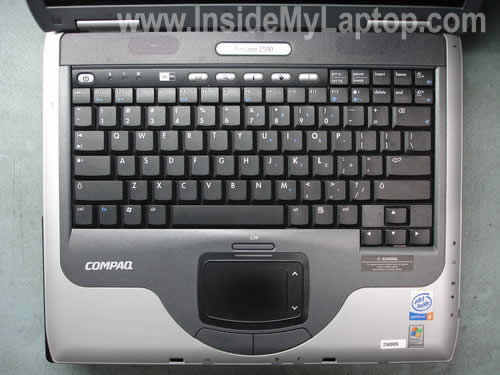
In the following guide I explain how to remove and replace the keyboard on a Compaq Presario 2580US laptop.
Also, you can use this guide for replacing the memory modules and hard drive.
The replacement procedure is relatively simple and you can easily do it yourself at home. Proceed on your own risk!
Compaq Presario 2580US is similar to many other HP/Compaq models. The disassembly procedure should be the same (or almost the same) for the following models:
1. Compaq Presario 1100, 2100, 2500
2. Compaq Evo Notebook N1010v, N1050v
3. HP Compaq nx9000, nx9005, nx9008, nx9010
4. HP Pavilion ze4100, ze4200, ze4300, ze4400, ze4500, ze4600, ze4700, ze5200, ze5300, ze5400, ze5500, ze5600
First of all, turn off the computer, unplug the power adapter and remove the battery.
STEP 1.
Remove two screws securing the hinge cover.

STEP 2.
Start removing the hinge cover with a flathead screwdriver as it shown on the picture below.
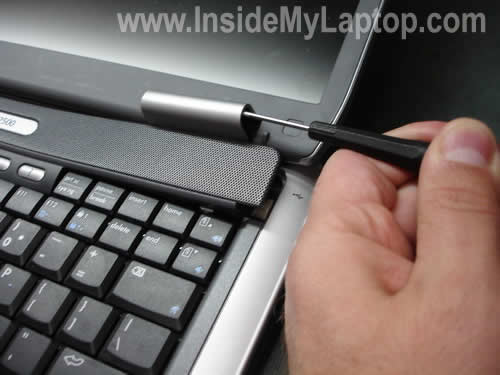
STEP 3.
Continue removing the cover with your fingers.
Be careful, there is a power button board attached to the cover which is connected to the system board.

STEP 4.
Place the hinge cover as it shown on the picture below. As you see, there are a couple of wires running from the cover to the system board.
Remove four screws securing the keyboard.
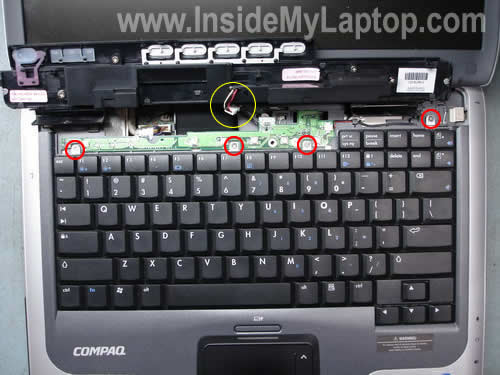
STEP 5.
Carefully lift up the keyboard.
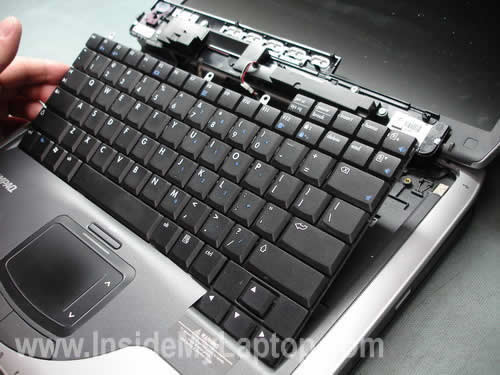
STEP 6.
Place the keyboard so you can access the flat ribbon cable connecting it to the system board.
Before you can unplug the cable, you’ll have to unlock the connector.

STEP 7.
Unlock the connector by lifting up the white tab using your fingernails.
The white tab has to stay attached to the connector. Lift it up about 1-2 millimeters.
Now you can release the cable.
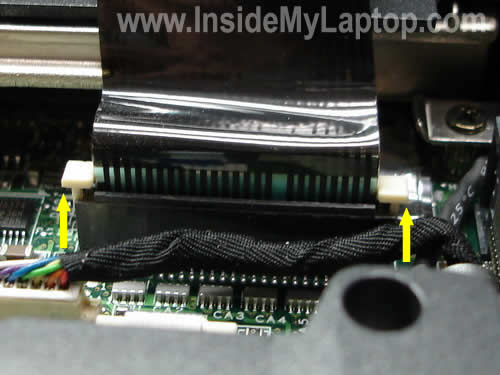
STEP 8.
Remove and replace the keyboard with a new one.
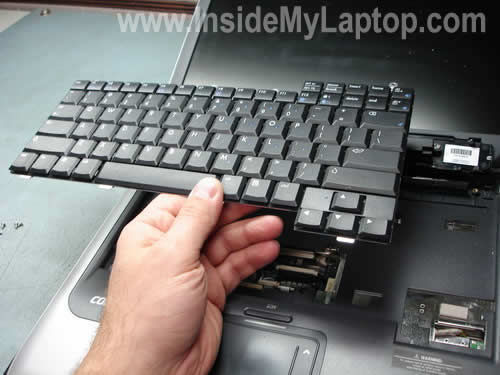
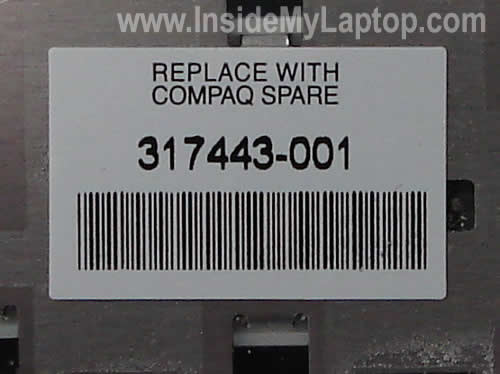
You can find a new replacement keyboard by the Compaq spare part number located on the back side sticker.
In my case the part number is 317443-001.
For your laptop the part number could be different.
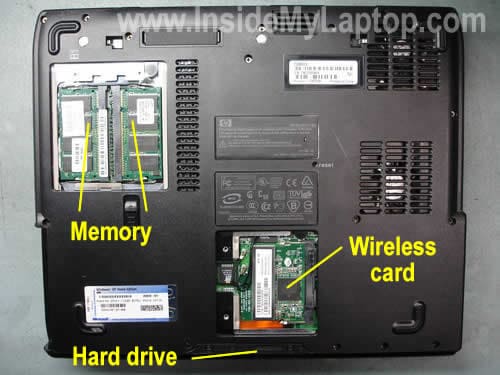
Here are some other components you can replace in your Presario 2580US yourself.
1. Both memory slots/modules could be accessed from the bottom of the laptop.
2. The wireless card could be accessed from the bottom.
3. The hard drive could be accessed from the bottom.
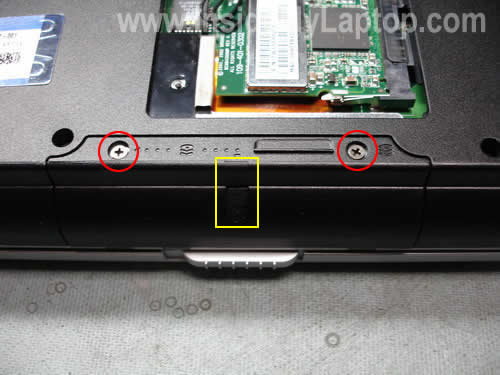
In order to remove the hard drive you’ll have to remove three screws.
One of the screws is hidden under the rubber seal (yellow square).
Remove the rubber seal with a sharp object and remove the screw.
Pull the hard drive assembly from the laptop.

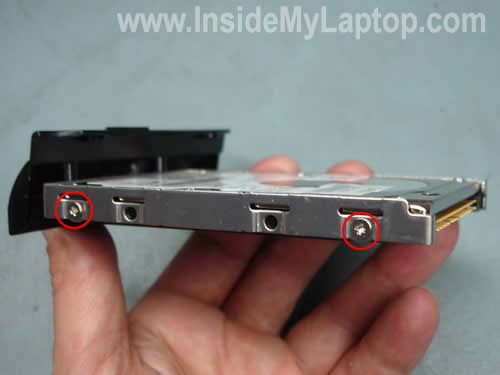
Now remove two screws on each side of the caddy and replace the hard drive with a new IDE drive.
NOTE: your hard drive has a small jumper connecting two pins. I believe this jumper sets the hard drive to “Cable Select” mode. It’s likely that you have to transfer the jumper to a new hard drive in order to get it recognized by the laptop.
John M.
Thanks for the tutorial. I replaced the keyboard because it was missing 5 keys and saved some $$$.
It took me less than 20 minutes!
Thanks again and good luck!
IML Tech
Hey John,
You are welcome!
If your keyboard is missing one or two keys, I think it makes sense to replace those keys instead of replacing the whole keyboard.
Janet
Please help. I removed the battery from my Compaq Presario notebook. When I replaced it back, the unlock latch did not move so now the battery is in place and I cannot remove it anymore. The latch seems to be stuck to unlock and I can’t move it. Thanks.
Kevin A
Thanks for the great directions (and very helpful pictures). Computer service guy said it would take about and hour and be complicated.
Took me about 10 min with your directions and was very easy.
Thanks again!
Tom Crowley
Wow! Great directions and pictures of the Compaq Presario 2500 laptop. My keyboard was stuck in several places. Probably because I have been eating at my desk, while working on the laptop for about 4 years!! I promise not to do it anymore..Thanks
Herry
How to remove and replace keyboard in Compaq Presario c505tu laptop
Curtis Otiende
This is of great help. It discarded the thought I acquired when my friends laughed at me when I asked whether A lap top can be upgraded. Thanks alot.
Dan
These are very good instructions with excellent pictures to assist. Basically this was easy, but I wasn’t careful with the white tabs so they broke away from the connector. Any help suggestions?
IML Tech
Dan,
Try this. Insert the cable back into the connector and then push the white tab back in place. It might stay in there.
Yan
Hey, great directions. But it’s difficult to pull out the hard drive. I’m affraid it will broken. Do i have to pull it out very hard or just a small power to pull out?
Thanks.
Sherrie
Will these instructions work the same with the
HP ze4520? Thanks for your help.
kacey
janet if you still havent solved your problem …. if your latch is stuck in closed position for my dv5000 i just put a thin flathead screwdriver under the latch and poped it off there should be a hole under it and then you just put the screwdriver in a little and pull to the side and it will pop your battery out if its stuck in open position my friend just took a flathead and stuck around edges of battery and then just pulled back a little where it opens at and it poped out
Kirby Brenner
I have a COMPAQ Presario model 2596US that needs a new power on/off switch. Is that switch assembly an integral part of the keyboard? If not, are there any instructions to remove and replace it? Thanks. Kirby
IML Tech
Kirby Brenner,
I believe the power button is located on the switch board, not on the keyboard.
You’ll find instructions for taking apart a HP Pavilion 2596US notebook in the official service manual. The switch board is shown on the page 48.
Carole Alexander
Wow you made this real easy for a novice first timer like myself. Replaced keyboard, works great! Thanks again and again.
Carole
John
I really have to say thank you SO much!!
Your steps makes it so easy to do it!!
I have Presario 2100, I couldn’t open it until I saw your website!!!
Also, I have a question,
The reason I open it is because my power plug in is broken
can you teach me how to repair it?! or any suggestions?
Agian, thank you so much!!!
John
IML Tech
John,
I believe in a Compaq Presario 2100 the power jack is soldered to the motherboard. You’ll have to disassemble the laptop, remove the motherboard and resolder/replace the power jack.
RickyD
Hello , I have a compaq 2410us presario , I have tried everything , The hard drive test passes, I have tried to reboot from the CD .But stil the same thing happens , It tries to start-up but does not and then shuts off and restarts, I have tried starting in safe mode and it will not start, I reseated the RAM as mentioned on the Compaq trouble shooting guide. Would you have any suggestions?
Thank you so much for any help.
IML Tech
RickyD,
So, the laptop works fine while you are running the hard drive test but it fails to start when you attempt to boot from a CD?
BobS
Hi, these were great instructions, well illustrated for removing the keyboard..BUT..it appears I have to replace the (and excuse my lack of proper terms) PCI adapter ~ where the wireless card is inserted.
Any help would be appreciated. I bumped into your website so I don’t know what your protocol is for questions. Thanks
BobS
Hmm, me again; I guess that is a PCMCIA slot not a PCI.
IML Tech
BobS,
The internal wireless card (Mini PCI card) is inserted into a slot (Mini PCI) which is soldered to the motherboard. There is no PCI adapter, the internal wireless card connects directly to the motherboard.
If you have a problem with this slot, you’ll have to replace the motherboard OR use an external PCMCIA wireless card which you can insert into the PCMCIA slot your your laptop.
Craig
do you have any advice on how to replace hinges on a compaq presario c500
i have the new hinges
tom
This is really helpful. thank you very much for the efforts.
I have a presario 2580US, I’m trying to buy a IDE hard drive for it. Do you know whether a Western Digital 320GB ATA/IDE 2.5″ Laptop Hard Drive(Scorpio Model WD3200BEVE) will work for it? or where to find info. regarding compatibility? I couldn’t find it any where form compaq’s web site.
thanks,
Tom
Jfergus
Thanks for the visuals. I am “operating” on a Compaq Presario v2710us to repace the inverter…will these instructions work? I only ask because the informaiton I got from another tech suggest removing the bezel on the computer rather than the LED screen.
Thanks.
Heather
Hi, your instructions look great am attempting keyboard change tomorrow. Can you tell me if it is possible to replace the CD writer with a DVD writer in the Compaq NX9010. If ‘yes’ where would I acquire the hardware? Thanks
tony
this rocks!!!!
Ed Webb Jr
Thank you SO much for the instructions!!
HattaG
The instruction is great. Thanks. I am having problem with my keyboard. I disable the keyboard by disconnecting the ribbon cable. While looking for replacement, I am using mini usb keyboard. At least I can now use my notebook.
avy !!
Hey, i have a compaq presario cq50 108-EL and my enter key its broke , actualy its just a bit , he dont stay fixed! and everytime when i press the enter he move in others loctations! any sugestions? Sry my language , i’m not enlglish!! Thanx and i wait a response!!
Mike
..I have a Compaq Presario CQ60Z-200, and at start up it acts as if the 8 key is pressed and there is also an audible tone. Per HP tech, I have uninstalled the keyboard, updated the bios, and done a system restore. None of these helped. Any suggestions?..Thanks..
IML Tech
Mike,
It sounds like you have a stuck key. It’s a hardware related problem and you’ll have to replace the keyboard.
Saara
Hi, I ended up on this page while searching an explanation why some keys of keyboard in my Compaq Presario 2516EA stopped reacting just like that. Suddenly I just couldn’t type certain characters or use certain keys. They were and still are completely dead.
The unreacting keys are at least f2, f8, §, 5, 6, +del, both ctrls, both alts, -, n, b, space and some of the arrow keys. As you can notice, the problem is symmetrical. I’m, by the way, typing this with Windows OnScreen keyboard.
I removed the problem keys, cleaned them including their base with spray normally used for wiping television and computer screens. My cleaning operation had no effect. The keys don’t react any keystroke.
I’m no expert. But I suppose even though replacing the old keyboard with a new one it would bring no help. The problem is somewhere deeper. I suspect that some connectors between the keys and the circuit are broken. I don’t know the exact terms in English (or in Finnish either).
Unfortunately it is impossible to use a usb keyboard before I have hacked my own admin account because it is protected with a password and a vitally important key doesn’t work. Also, I have no access to safe mode because f8 doesn’t work either.
IML Tech
Saara,
It’s either bad keyboard or there is a problem with the keyboard controller on the motherboard.
1. Try replacing the keyboard.
2. Replace the motherboard.
Have you tried using an external USB keyboard? I think it should work.
Saara
Thanks for your reply, Mr. IML Tech.
Replacing the motherbord sounds pretty conclusive. Maybe it is time to purchase a new computer. My dearly beloved Compaq has been a faithful and reliable – and extremely loud & noisy like a vacuum cleaner – servant almost seven years now.
Yes, I did try an external keyboard. The problem is that I need to install it first in my admin account. “A new device found. You have to be a member of admin group. Please give your password.” I can’t install the keyboard in my normal user account, even though I have given my admin password. Lucky girl, I don’t have a password in this normal user account too!
I have no idea how to access my admin account because the key 6 is dead. I have tried a Linux live cd, shift+f10 and ctrl+alt+del tricks but both ctrls are those dead keys as well as f8. In safe mode it is possible to remove passwords. I know there are many other tricks too. Need to find the right one.
By the way, the keys n, b and space are occassionally working right now. But upper row 5 and 6 are still completely “out of the game”, as we put it in Finnish.
IML Tech
Saara,
Seven years? I guess it’s time to buy a new one. These days you can buy a good laptop for $450-500.
Saara
Oh yes, seven years! You are right. It’s time to get a new one. I know. Anyway, thank you very much for replying. I wasn’t trolling. Honestly.
🙂
Bonnie
I have a Compaq Presario V5207NR last year I had my light replace and it has gone up again is there some else wrong. I spent over a 120.00 to have it replace and it only work for a year. Should I take it some where else or try some myself. Any suggestions?
John Oliver
My sister gave me her old Compaq Presario 2500. I think I know why. the 7, H,K &Y keys do not work, so I use an external keyboard, all is fine and working with the external. And, the battery will not take a charge. So, I figure my options are, get a battery and forget fixing the keyboard as it seems these compaq’s have keyboard problems if they are of a certain age. Yes, I know I can pick up a Dell for under 500 bucks, but why. I am a senior and on a fixed income. Here is another question. She had it upgraded from XP to Vista and I was told it was a nono. I have only 448 ram and the teckie said I need one gig to run vista. Should I go back to XP as it was working fine before. I do not know if I can change the ram cards and upgrade to one gig. There comes a time when the cost is not worth it. Battery, or Ram upgrade, or bite the bullet and get that new Dell. All I use the lap for is email and word, no games, no video, just email pictures of the grand kids to relatives.
Jebreal
Am trying to repair a Compaq nx6 110 laptop, but it hangs immediately the hp logo appears at start up.
IML Tech
Jebreal,
Could be memory problem? Do you have two memory modules installed? Try removing them one by one. It’s unlikely that both memory modules failed at the same time. When the bad module is removed the laptop should start.
If it’s not memory, try starting the laptop without hard drive installed. Is is freezing when the HDD is removed?
Katie
Can anyone advise why I could use my Presario 2500 DM758A, last night with no problem, but yet this morning I now have a password on the user account. I never before needed a password to acess my user account. What happened? I went into the F2 setup, and it says the user account and the administrator account both need passwords. Even though I reset the password in the Bios, it still doesn’t allow me to get into the user account.
Could anyone advise what to do? It is driving me crazy.
IML Tech
Katie,
Someone set it up for you as a joke?
Here’s what you can do:
1. Remove hard drive and install it into the external USB enclosure.
2. Connect to another working PC or laptop and backup data.
3. Install the hard drive back into the laptop and reinstall OS.
Take a look at this guide: https://www.insidemylaptop.com/recover-files-from-broken-laptop/
SUKANTA MANDAL
Will you help me how to disassemble COMPAQ PRESARIO CQ42 that I own? I’m finding some problems with its battery. I bought it almost one year back.But recently what I notice regularly is that
I can’t run it without charge for not more than 15 minutes.So gradually I have to connect my laptop with the charger as long as I wish to continue running it.This is same with my friend who also has a Compaq laptop.Is this a battery problem or something else?Please do help me as well as to my friend . Thanks!
IML Tech
@ SUKANTA MANDAL,
You’ll find laptop disassembly instructions in the official maintenance guide for Compaq Presario CQ42 laptops.
Most likely this is battery problem. Try replacing it.
Andrew Jones
Thanks for the site! Helped me out in a pinch.
gelasoft
Thanks for the usefull guide!
Barb Beaghan
PLEASE HELP!!! I am replacing the plastic keyboard frame only on my Compaq Presario CQ50-215NR computer. It is the plastic frame that covers the power and WIFI buttons and surrounds the keyboard. I have the replacement part but need instructions. I am not doing anything else except replacing this part. Can anyone provide me with instructions? MANY! MANY! THANKS!!!
IML Tech
@ Bar Beaghan,
Take a look at this Presario CQ50 disassembly guide.
The cover removed in the step 9.
Barb Beaghan
Per comment # 48 & 49… Can this part be replaced without disassembling?
IML Tech
@ Barb Beaghan,
In order to remove the bezel you will have to remove some screws securing it on the bottom.
Also, it’s necessary to remove the keyboard.