

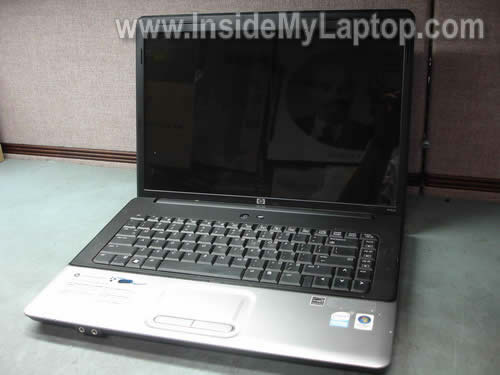
In the following guide I explain how to remove and replace damaged LCD screen on HP G50/G60/G70 notebooks. I’m replacing it on a HP G50 but all disassembly steps should be almost the same or at least very similar for HP G60 and G70.
By the way, HP G50/G60/G70 models also known as Compaq Presario CQ50, Presario CQ60 and Presario CQ70.
In most notebooks you can replace the screen without separating the display panel from the base but not in HP G50/G60/G70. In these models we’ll have to remove display panel first.
By the way, in the next post I show how to remove the motherboard.
You can find the HP spare part number in the service manual. I linked to service manuals at the end of this guide.
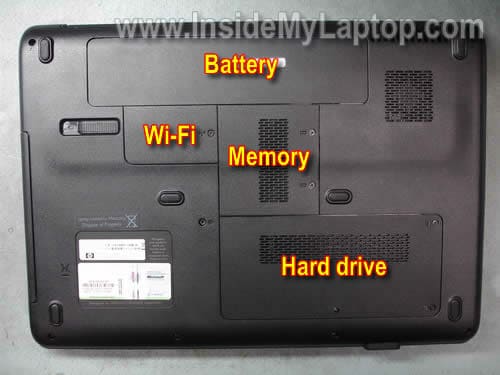
STEP 1.
Turn off the laptop and remove the battery.
Remove one screw securing the Wi-Fi cover and remove the cover.
It is not necessary to remove the memory and hard drive covers. I marked them just for your convenience.
STEP 2.
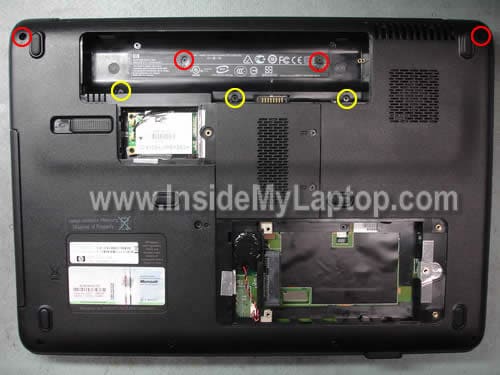
Remove three (yellow) screws securing the keyboard.
Remove four (red) screws securing the keyboard cover.
If you are using this guide for replacing the keyboard, you have to remove only three (yellow) screws.
In G50 and G60 the keyboard screws are located in the battery compartment.
In G70 notebooks there are only two screws securing the keyboard and they are located on the bottom (there is a small keyboard stamped close to each screw).
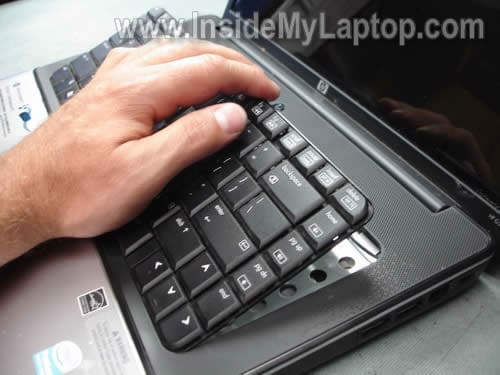
STEP 3.
Carefully lift up the keyboard from the base.
STEP 4.
Place the keyboard so you can access the cable connector underneath.
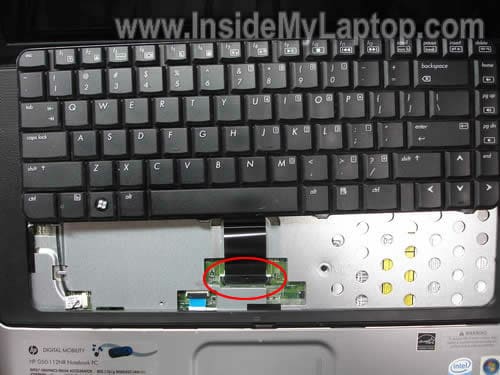
You have to unlock the connector and release the cable before removing the keyboard.
Move the white clip about 2-3 millimeters towards the display panel and release the cable. Now you can remove the keyboard.
WARNING! The white clip must stay attached to the connector base. If you accidentally break the connector, you’ll have to replace the motherboard. If you work slowly, everything should be fine.
On the picture below the connector is shown in the unlocked state.

STEP 5.
Disconnect the switch board cable from the motherboard.
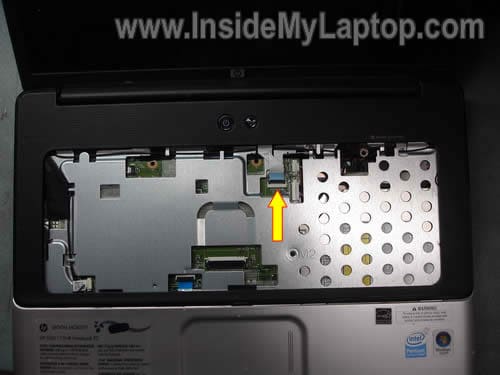
STEP 6.
Remove the keyboard cover.
Move the cover towards the display to separate from the top cover.
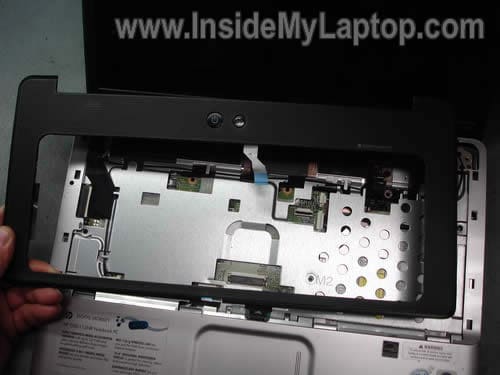
STEP 7.
Turn the laptop upside down and disconnect two antenna cables from the wireless card.
Each antenna cable has a golden head. Grab the head with your fingers and lift it up.
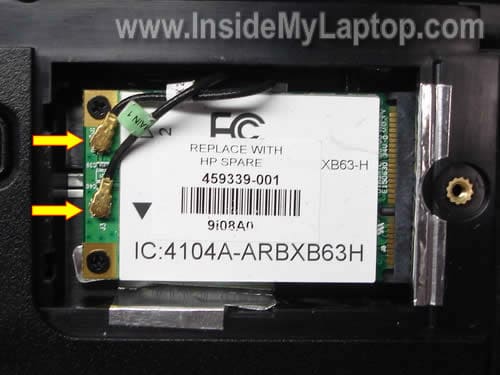
STEP 8.
Disconnect the video cable connector from the motherboard.
Disconnect the webcam cable from the motherboard.
Pull two Wi-Fi antenna cables through the opening.
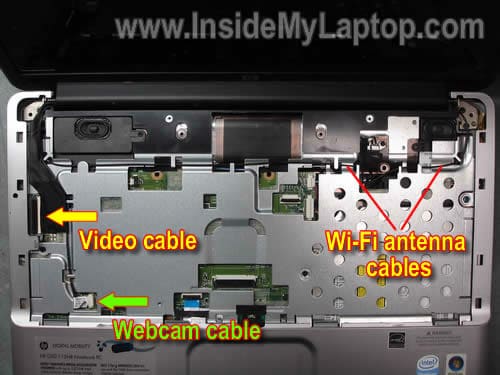
STEP 9.
Remove four screws securing the display panel hinges.
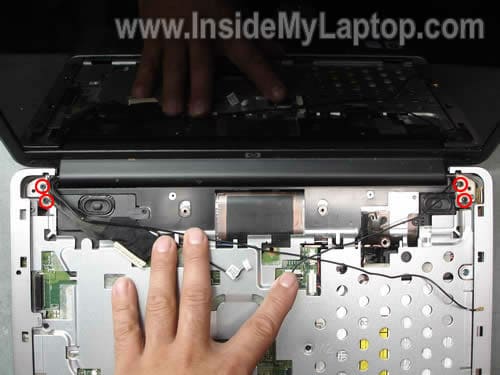
STEP 10.
Lift up and separate the display panel from the base.
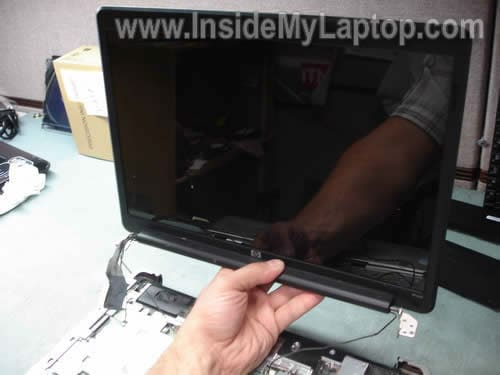
In the following steps we will disassemble the display panel and remove the LCD screen.
STEP 11.
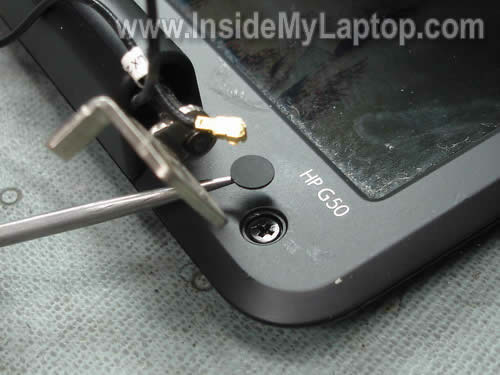
There are two screw seals located in the lower left and right corners.
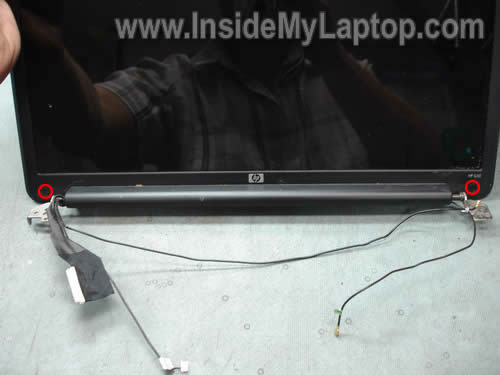
Remove these seals with a sharp object and remove screws found under the seals.
STEP 12.
Start separating the bezel from the display cover.
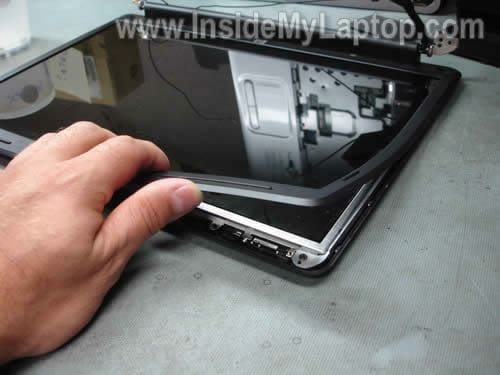
Continue separating the bezel.
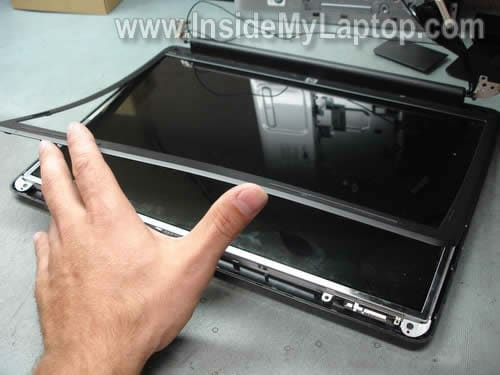
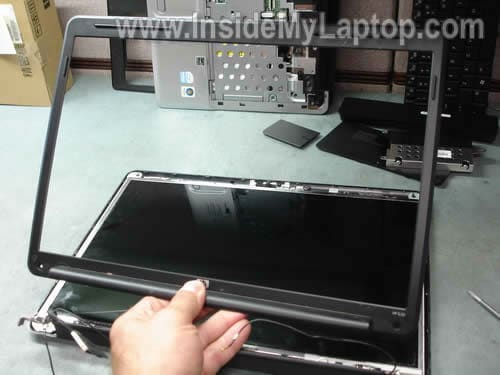
The bezel has been removed.
STEP 13.
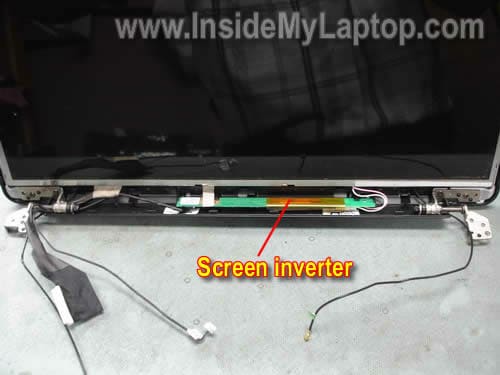
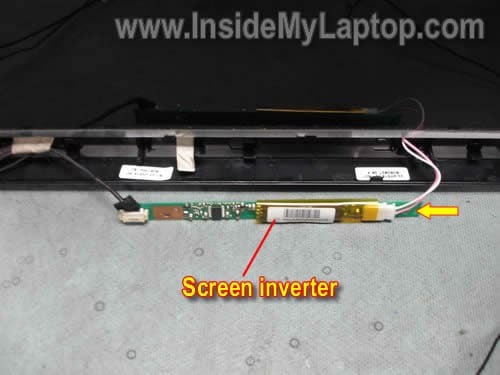
The inverter board is mounted on the bottom side of the display cover. The inverter is locked between plastic brackets.
You can remove and replace the inverter board without removing the screen. Simply pull the inverter board from the cover and disconnect connectors on both ends.
STEP 14.
Remove two screws securing the right display hinge.
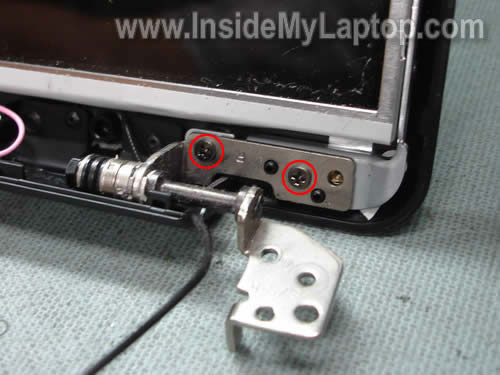
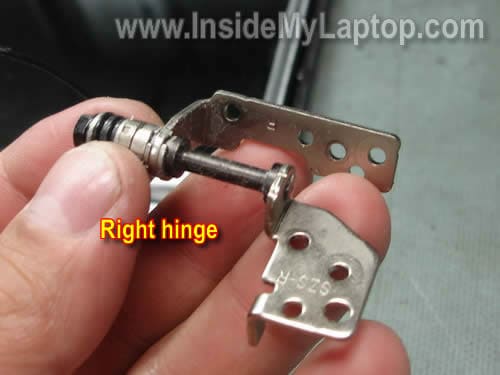
Remove the right hinge.
STEP 15.
Remove two screws securing the left display hinge.
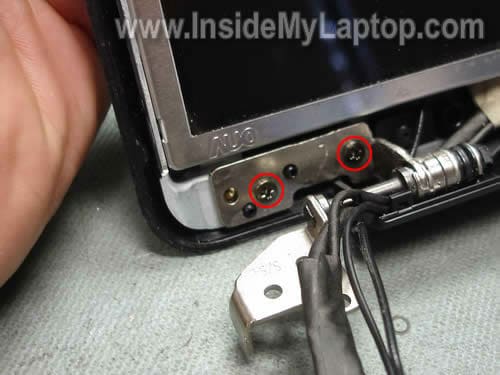
Remove the left hinge.
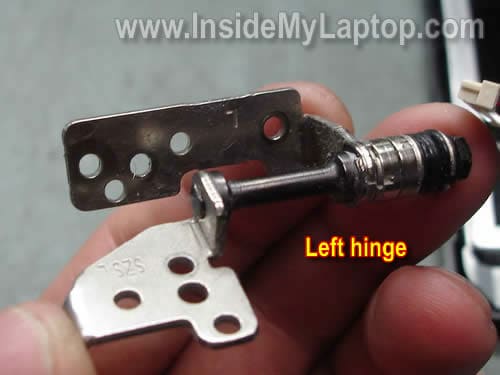
STEP 16.
Remove the inverter board from the cover and disconnect one connector from the right side. By the way, this is the backlight connector.
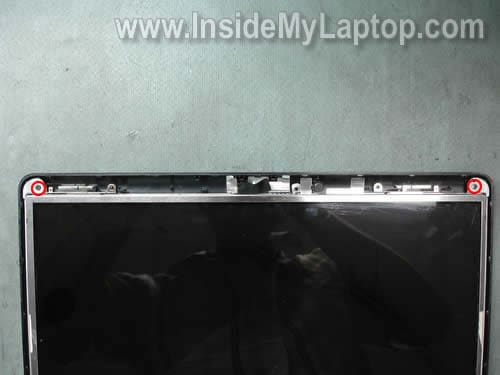
STEP 17.
Remove two screws securing the mounting brackets on the top.
STEP 18.
Now you can separate the LCD screen from the display cover and access the video cable.
My HP G50 notebook didn’t have the webcam installed and the webcam cable was taped to the display cover.
If you have a HP G60/G70 notebook, most likely it came with the webcam. You’ll have to disconnect the cable from the webcam before disconnecting the video cable.
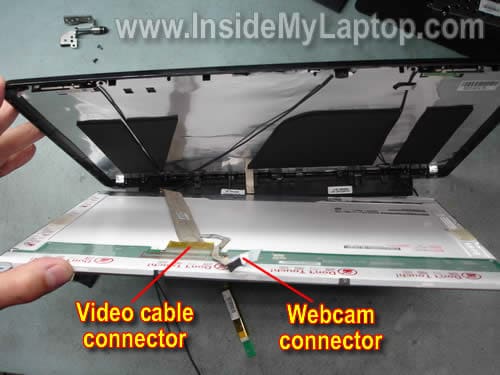
STEP 19.
Remove sticky tape securing the video cable connector and unplug the video cable.
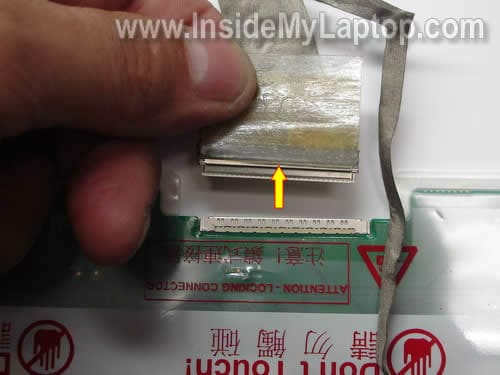
STEP 20.
Now you can remove the LCD screen from the cover.
If you are replacing it, you’ll have to transfer the left and right mounting brackets to the new screen.
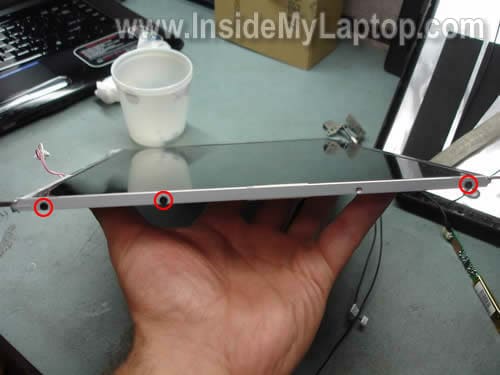
Remove three screws securing the bracket and remove the bracket. Do the same with the other side.
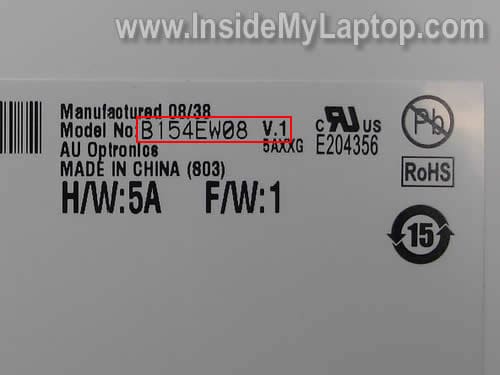
The LCD screen model number is located on the sticker. In my laptop I had this model installed: B154EW08 v.1
Rishabh Lakhotia
hi,
I m very impressed with your site…but i will appreciate more if you guys could provide the full disassembly of laptops..
gr8 job guys..
IML Tech
Rishabh Lakhotia,
At the end of my guide I linked to service manuals for HP G50, HP G60 and HP G70 notebooks.
You’ll find step-by-step disassembly instructions in those manuals. Download one you need and read through.
Gavin
You guys are freakin awesome you just saved me over $200 in labor costs. Thank you so much keep up the good work.
chipper
i am a self taught repair type person (novice actually). your site is a godsend – if you stop supplying persons like me with this valuable information – imma hafta chase ya down and call dirty names. For real thanks for this site, and please keep up the great work .
Thanks chipper
p.s. it only took me 3 hours to find this site. I will recommend it to all the newbies like me that are attempting to learn this business. PEACE OUT HOMMIES !!!!!!!!!!!!!!!
iAN R
I couldn’t have done it without your walkthru. VERY well written.
Thanks again,
Ian R.
ondasquare
Man, you are one bad Son-of-a-B**ch! I reinstalled a screen on an HP G60 in less than an hour and a half. Thanks for the great instructions
Sham
My computer is a Compaq Presario CQ50 -102LA and it is showing me vertical lines on the screen, if i play with the screen and push it was backwards it stops,
So i was wander do you know where i can buy a video cable connector
cause the screen is fine it the video cable connector i need.
Please respond if u can help me
IML Tech
Sham,
First of all, test your laptop with an external monitor. If you get same lines on the external video, most likely you have a failing video card.
If lines appear only on the laptop scree, it could be:
1. Loose connection between the video cable and LCD screen. Try reconnecting the cable.
2. Bad video cable.
3. LCD screen failure.
Brian
awesome! Thanks a lot this really helped!
Francisco
I have a HP G60-120US it fell and now the screen is black, if you put it almost horizontally you can see all the start menu but very dim. Could it be the connector, the LCD or back light? It works fine with an external monitor
Thanks
Francisco
IML Tech
Francisco,
1. It’s possible that the video cable got disconnected from the inverter board. Try reconnecting the cable.
2. Could be damaged backlight lamp inside the LCD screen. You’ll have to replace the backlight which is not easy or replace the whole LCD screen.
Also, the problem description sounds like a failed inverter board but I don’t think this is the problem. I don’t think that inverter can get damaged if you drop the laptop. Most likely it’s related to the backlight lamp.
asa
I had a HP Presario CQ50 need to replace a screen. The screws are so hard to reach. Thank you for this tutorial. I quickly found the three keyboard screws and 4 keyboard cover screws. After I removed them, I then took out the screen mount and had access to the LCD screen screws. This is a great illustration. Specially thank you for posting the photos. They are huge help. Thank you! Thank you! Thank you!
Francisco
Thank you for your prompt reply. I will check the cable and the next steps. Your tutorial is great, the best.
Thanks again
reneviht
Thank you for this tutorial.
I got stuck in step 5; I can’t tell which part I’m supposed to move to disconnect the switch board cable. I’m guessing it’s the off-white part, since the off-white part in step 4 was the one that was supposed to move, but nothing’s budging. Is there any chance someone could elaborate? I couldn’t find how to release the Zero-Insertion Force connector in the manual you linked.
IML Tech
reneviht,
I made this tutorial a while ago and do not remember exactly the connector type used in this model.
I believe this connector has two parts. The white base and black locking clip. The clip opens up like a door and it has small hinges on one side.
You lift up one side of the clip (closer to the LCD screen) at a 90 degree angle. When the clip is open, it releases the cable. You should be able to pull the cable.
Muhammad Zaki
This help me a lot. I was lucky not quickly go to the computer shop and burn my money. My monitor keep buzzing.
Then i tear down my laptop by referring to your post. Disconnect and reconnect the video cable, the problems vanished. My screen became normal like before. Thanks bro!
Jim Darrough
I also have a CQ50. If the LCD is moved, it will sometimes exhibit random lines and what I would call hash. If I move the cover back and forth, but not too close to closed of course, it usually remedies the problem. Is this likely to be just a loose connection on the mainboard or do you think the video cable could be broken?
Thanks very much for your kind reply.
IML Tech
Jim Darrowugh,
Did you have a chance to test video on the external monitor? I assume that external video is fine, which means it’s not the video card or motherboard problem.
It’s hard to tell without looking at the laptop. Could be one of the following:
1. Bad connection between the video cable and LCD screen or motherboard. Reconnecting the cable on both end might fix the problem.
2. Defective video cable.
3. LCD screen failure.
Lisa
I want to replace a damaged monitor from being dropped with another monitor from a different laptop I found for sale but how do I tell if they are compatible or not? My computer is a dv9815nr and the other computer is a dv9715 will it work?
IML Tech
Lisa,
I cannot tell. Sometimes manufacturers install different screen even into the same model. You’ll have to compare screen specifications. If both screens have the same resolution, there is a good chance that this replacement will works.
By the way, here’s my guide for replacing the LCD screen in a HP Pavilion dv9000 series notebook.
annielee
i’m having a HP mini, and wanted to replace the cracked lcd, do you have the steps?
IML Tech
annielee,
Not yet. I haven’t had a chance to replace the LCD screen in this model.
Most likely you’ll have to remove the display panel from the laptop before you can remove the screen bezel and access the LCD screen.
Tori
Hey! POST THE PART ABOUT REPLACING THE KEYBOARD ONLY…I STUMBLED UPON IT WHEN I CLICKED HERE! THERE AREN”T ANY INSTRUCTIONS OUT THERE FOR REPLACING THE KEYBOARD
IML Tech
Tori,
Really? Try reading the post again. And read very slowly through steps 1-5.
Let me know if you still cannot find instructions for replacing the keyboard. We’ll figure something out. 🙂
Beverly
I just relpaced a laptop LCD compaq perasiro CQ60 an now the screen is all white and ideas? dont tell me I have to take it all apart again..
Thanks
IML Tech
Beverly,
Could be bad connection between the video cable and LCD screen. Try reconnecting the video cable on the back of the screen. Make sure the connector plugged correctly. If there are pins inside the connector on the LCD, make sure there are no bent pins.
Try reconnecting the cable without taking it apart… and… if it doesn’t work… take it apart and try reconnecting again. 🙂
damien
this is a fantastic source. to replace the screen in my laptop a company qouted me $410. I ordered the part online and got it delivered for 145 and installed it myself, could not have done it without the website. Thankyou
DAmin
This is great. I just finished replacing G60 LCD successfully. I am very much impressed by your step-by-step instruction. This is fanstastic source. thank you very much.
ken
I just replaced cracked LCD with new one. screen boots up solid white. Where did I mess up? would it have anything to do with inverter, could it be wired wrong? need help, any suggestions.
ken
The screen I replaced was in a HP G60
Erik
I have a hp G60-123CL laptop and one of my kids stepped on it and the screen cracked. I’m not sure if its the 16″ or the 15.6″, how do i measure this? Where would be a good site to buy the lcd screen from thats not too expencessive?? Does these instructions work for this model?
J. G.
Thank you SO MUCH for this posting. My husband broke the LCD on his CQ-50 laptop last week. We ordered the replacement on eBay and was this close to having some big name do the replacement installation for us. I work with computers, but never had to do this type of work. So I figured I’d look up anything I could about it and I am forever grateful for your info. The steps were very clear and to the point. No mess, no fuss. Thanks again!
Ken
I started over and pressed tie video ribbon in tighter, works great.
thanks
Kim
Thanks for this posting, the instructions, very detailed and easy to follow. My brother changed the lcd on my compaq cq60 pretty easily. I sent my laptop out to HP service support, thinking they would cover it under their warranty. Boy was I disappointed when they said they wouldn’t fix it under the warranty and wanted more than I had spent on the computer to replace the screen. I need help though. When I first sent them the laptop, there was a big black spot (the crack) and a white background with colorful lines going across the screen, but if hooked up to an external monitor, that monitor would show a perfectly clear picture. When I got the computer back, there was just the crack and a plain white background, no lines in it. After my brother put the new one in, there was still just a plain white screen, and when hooked up to an external monitor, the picture doesn’t come up, there’s just a message about that monitor going into sleep mode. Could HP have damaged something when they were looking at the computer before they shipped it back?
tom
article was a great help,only problem I had was the lcd connector wasn’t all the way in.
MoJo
I used these instructions to replace a broken screen.
My first attempt at any PC repair.
Instructions first class.
Thank You.
Bruce
My son has a Compaq CQ-70 116. Both the hinges have sized up completely making the laptop unusable… the right one sized up first a few months ago and the left one has just sized this week…
He has been getting by with carefully opening and closing the lid, but he has cracked the plastic and popped some of the screws and casing… any ideas on how to fix this one? I can get new hinges, but the other parts??
Any ideas?
Bob
I followed the step by step instruction given and was able to replace my laptop screen. t took me about 21/2 hours to do it, but it works great now.
The one thing I made sure to do was to create an envelpoe for each step. I placed the screws that I removed during each step into the appriate labeled envelope.
If you do replace your screen make sure to buy a good screen. I went with a less expensive screen because I wasn’r sure if replacing the screen would really work or not.
Lynn
Used these instructions to change out the LCD inverter for my HP G60 laptop. Step-by-step instructions were easy to follow and got the job done.
Thanks a bunch!
Steve
Great site, thanks! I just replaced a broken LCD screen in my son’s G60. The old one was cracked, but the backlight worked. Now, the display works but the backlight will not come on. (I reconnected the old screen, still no backlight). All connections appear tight. I am assuming it must be either a) bad ribbon cable to the inverter (although data to the screen seems to pass ok), b)the inverter went bad while changing the screen, c) backlight bulb is burnt out (unlikely since both screens do not have backlight), or D) the cover closed switch is stuck in “closed” condition. Which brings me to my question….WHERE the heck is this internal display switch? I cannot locate it on this laptop at all…In the online manual (another big THANKS!) it shows it vaguely in section 2-1, but never mentions it again, not even as a part number. Can you provide any clue as to where it is located? Also, if the inverter is good, what voltage should I be looking for on the output side?
Thanks again!
IML Tech
Steve,
I believe this laptop might have a magnetic switch. There is a small magnet mounted somewhere under the screen bezel and when the display is closed, it activates the switch under the cover.
Find a small magnetized screwdriver and move it slowly alone the perimeter of the screen bezel. You’ll feel where the magnet is located and this will help you to find the switch.
Here’s what you can try. Connect the new screen to the laptop but instead of plugging the backlight lamp from the new screen, plug in the old screen. Can you get the backlight this way? I’m just trying to generate some troubleshooting ideas.
Check connection between the video cable and motherboard/LCD and inverter again.
Steve
Wow, thanks for the very quick reply!
I had already tried the old screen, but re-verified it, still no backlight. I checked the inverter output with a VOM meter, no dc voltage at all. Triple-checked the cable connections, all seems ok unless internally broken..I can always ring them out but doubt this is the issue. Thanks for the info re: the cover switch, I found the magnet on the bezel, which helped me locate the (impossibly tiny) switch inside the frame over the battery compartment. It looks (judging from a flashlight through a crack wedged by a screwdriver) as though the leads to the tiny reed switch are broken away from the switch. I dont *think* I did this removing the bezel, but anything is possible. I tried shorting out the leads with two screwdrivers (if it doesnt work with the circuit open, it must be looking for a closed circuit, right…?) but no luck. At this point I am thinking I need to crack the case to get to the switch and make sure I am shorting across it to close. Either that or try to find an inverter (this one is an oddball part number and not much luck finding compatibility lists online) and throw parts/$$$ at it.
Hope I can get this going, son is deployed US Army and this laptop is his commo link to home; if not I will have to buy a replacement for him. A sincere THANK YOU for your help and advice!
Tom
Just finished. everything seeminlg went smooth. Plugged it in pressed power….nothing. no power light no fan or hard drive. Have light by power cord and on front panel.
Tom
I disassembled and focused on the switch board connector. Not sure how it is supposed to go back together but ended up using the black piece to leverage the cable against the pins. so far so good. If you read this first pay attention to this before taking it apart. The only connector that is not plug and play.
Chris
Thanks a bunch. I would have liked a better close up for the power button connector, but couldn’t have done it without this site. Thanks, Thanks, Thanks again.
Joshua
Having the same difficulty as Tom… Everything went back together fine… Press Power and nothing happened. Anyone have any close ups of the switch board cable connector in its proper position?
Adam
I’m experiencing a difficulty. After replacing the screen and putting the laptop back together, when I switch it on, I get no display and it doesn’t sound like the computer actually boots up – the power light and wireless light come on (Amber) but nothing seems to move past there.
Any ideas?
Ken
I lost the clip that hold the swtichboard cable in place…I’m running into a brick wall trying to find one…can anyone assist?
Jacky
You are are lifesaver (computer-wise) INSIDE MY LAPTOP! and a special thanks to TOM and Jazzy (daughter) —
I had exactly the same problem Tom did, but was trying to test it without putting all the screws back in (duh!) Jazzy told me to put it together first before I remove the new screen. It works perfectly!
While I’m unemployed I will be sending a donation after I pay my current bills. This makes me want to try and fix my very slow desktop (much later on). Thanks again.
Dan
Your instructions and photos were great! Performed the screen change in about 2 hours with no issues (other than dropping my new screen on the floor – it still worked). Total cost – $109.00
Thank you!
Justin
My first attempt at any PC repair.
Instructions first class.
Thank You.
Michele
Thank you very much for all of your help. I broke the LCD on my laptop and purchased a new one. Well, it didn’t seem like rocket science since i am pretty technologically savy, just to remove the screen bezel and unscrew the brackets and such. However, to my dismay, when I unscrewed the screen brackets, something was just not right and the left one broke, so I had to purchase a new one. Come to find out, I needed to remove a lot more than what was expected, due to my research on online and I came across this website. I have a compaq presario cq50-130us and this website helped me to a “T”! My laptop is now prestine thanks to you!!!
Stiofain
I am having the same problem as experienced by Joshua and Adam in post 47 and 48. I have double and triple checked the connections and have also tried reattaching the cracked lcd which now also experiences the same problem so I am convinced it has something to do with the internal display/cover closed switch. I have found the magnet on the underneath of the bezel but I am at a loss what to do know. Is there a physical switch somewhere? Post 43 refers to an “impossibly tiny switch” but cannot see one. Been at this for about 5 hours now (currently 2:15am) so head is fried. Any help would be greatly appreciated.
Claire
Thanks so much for this site – I would almost certainly have spent a fortune getting my laptop fixed, but following your instructions meant that I only had to pay for the replacement screen!
I followed your instructions… and it worked! But as I put it back together I broke the switchboard connector (only the black bit that sits on top to hold the ribbon/cable in place…) I made sure I put the cable in place properly and it actually worked! Power, hard drive, screen everything! The problem is that it has since stopped working completely – like Tom (post 44) and Joshua (post 47). I had a feeling that the cable could have just slipped out of place, so I opened the laptop back up and re-fitted the cable again; and again it worked! Everything was perfect!
However, it has since stopped working again, and despite two attempts to fix it this evening (using electrical tape to hold it in place!) it still won’t power-up at all.
I’m totally at a loss, so any advice on what to do now would be much appreciated! Thanks.
dan delts
hey mate, i had the same drama as u, unfortunately it was embarrasing that it took me 6 hours back and forth in frustration. BUT make sure the actual video plug on the back of new lcd is pushed ALL THE WAY in. i was checking everythin,looking for this mysterious switchetc..and after the 4th time of pulling it apart, i thought, maybe the connection to the lcd wasnt all the way in cause all the others were definately secure…..low and behold, it went in alot further than i originallly had it , put it all together and then it works. make sure that the power to the motherboard is secure as it tended to come out fairly easily unless you secure it properly. all the best with it. dan
Glen
I have a compaq cq60. i had a painting fall off a shelf and shatter the screen, it actually hit the closed lid and smashed its way through, i couldn’t believe something so light could cause so much trouble. I ordered a new screen and found this page…my only advice is to be a bit more specific on how to open some of the clips that secure the various cables. Specifically the switch board cable, for the power button, it opens by lifting the black clip toward the touch pad, and the fact that you have to pull with more force than you would think to pull out the webcam cable and that the video cable needs to go in until you don’t see any part of the metal, (all the way in with gentle but steady pressure). Otherwise, the instructions were dead nutz accurate, it was my first time working on a laptop and it was a success. so…thank you.
Stiofain
Yee Haw
Tried taking it apart again (actually I took apart everything as per the pdf manual) and it worked. Made sure that I pushed the cable in far enough as per Dan’s post 56. Delighted – thanks for the guide. Only problem is now that I have lost the switch board connector. I have borrowed the one from the touchpad in order to ensure I am getting power and am using a usb mouse instead, however this is a pain in the ass. I have searched everywhere for this part number but I cannot find it. Just wondering if anyone knows what it is. Claire (post 55) sounds like you might be in the same place as me having broken it. Again just to clarify its the black comb connector that sits on top to hold the ribbon/cable in place). Any help would be greatly appeciated
Regards
Stiofain
Milton
My problem was yesterday…i was surfing and my screen turn black. Ilaptop run fine with a pc screen. Its the lamp ccfl.
Any technique which could fix the problem, or i have replace the lamp?
You help would be welcome and helpful.
Thank you
IML Tech
Milton,
Is the laptop screen completely black or you still can see a very faint image.
If there is no backlight but the image is still there, could be bad inverter or backlight.
Try replacing the inverter board first.
David
Thanks for the great instructions! I much appreciate it. I dropped my brandnew laptop within just a few weeks of purchase and could not believe how expensive it was to have repaired. In case any of you are looking for a screen, a company called “Bliss” computers has compaitibility screens for our G50 laptops for $89.00. Check them out.
I never would have tried to take on the challenge of replacing my laptop screen until I found this site.
The only problem I ran into (the whole process took me about one hour and 45 minutes,) was STEP 5. Disconnect the switch board cable from the motherboard. There is a little piece of strong plastic, (a little tab) right at the point of connection that you are supposed to use to pull the wire harness out, and use the same tab as leverage to slide it back in.(pull it towards you back into the clip or whatever its called.) if the black piece of plastic comes off, there is a small arrow that should be up and facing you to put it back in place, and then slide the harness back into it. So, the harness slides in with the clip already fully secured. I hope this may help anyone who may run into this problem. Don’t be afraid to use a liitle, and I mean a little bit of force pulling it out and back in! (yeah yeah I know, that’s what she said.)
ryan
how do you put the screen bezel back together? do you have to glue it?
thanks
IML Tech
ryan,
You don’t have to glue it. There should be small plastic latches on the internal part of the bezel. When you install the bezel back in place, you apply some pressure on it and the latches should lock.
Johnboy
Thanks alot for your advice on replacing screen (PresaRIO CQ60).I was doing alright until i found my keyboard wouldnt easily come out and i didnt want to force it but after reading your instructions i knew i had done everything it just needed a bit more force.People like you save people like me so much time and money i think your doing a great service sharing you knowledge.
Many many thanks
John
You are a big help !!! You have my thanks! ^^
Cooper
Hi IML Tech, Will it be the same steps to change LCD panel for CQ40-115AU?
IML Tech
Cooper,
Compaq Presario CQ40?
Yes, the LCD screen replacement procedure will be very similar.
Just in case, take a look at this official service manual for Compaq Presario CQ40 notebooks.
The LCD panel disassembly steps are shown on the page 60. Also, in the same manual you’ll find replacement part numbers.
Cooper
Thank you so much. It works!
al
my sister dropped her laptop. hooked it up to a monitor to confirm it still worked and just the lcd broke. ordered the correct model. use your instructions to remove the old one and installed the new one flawlessly. began to reassemble the laptop. before completly putting it back together, i tested the laptop to make sure the screen was installed correctly. compaq bios screen appeared so i turned it off. finished putting the keyboard on and all screws. then went to turn it on and nothing. the battery icon flashes three times which is a memory error. tested to ensure all memory was seated correctly. still nothing. i then tested each module and memory slot. still nothing.
any ideas????
thanks in advance.
al
my sister dropped her laptop. hooked it up to a monitor to confirm it still worked and just the lcd broke. ordered the correct model. use your instructions to remove the old one and installed the new one flawlessly. began to reassemble the laptop. before completely putting it back together, i tested the laptop to make sure the screen was installed correctly. Compaq bios screen appeared so i turned it off. finished putting the keyboard on and all screws. then went to turn it on and nothing. the battery icon flashes three times which is a memory error. tested to ensure all memory was seated correctly. still nothing. i then tested each module and memory slot. still nothing.
any ideas????
thanks in advance.
Lambchop
My laptop fell off the bar stool the other day and cracked right on the inverter. I did not notice this until I turned it on and half the screen was dim. Then after a couple hours of use, the rest of the screen went out. The inverter was bent and cracked around the grey stone looking thing (technical guru here I know ;p) I figured that was the only problem but it still won’t light up after replacing it. I can see windows and everything barely. So next thought would be the lamp? Being that the screen went out half way first I figured I had a dual lamp set up. However the inverter only has one set of outputs. Before I tear into this thing I was wondering is it possible for a lamp to halfway go out like that? Or does it sound like some other issue…? Great site by the way thanks for the great info and easy to read instructions.
Zion
This was sooooooo helpful. Not only for the LCD screen fix… but also for the fact that after hours of searching, this seems to be the only inside-view of a G60 on the web. Many thanks! 😀
sammie
I’m having a lot of trouble disconnecting the webcam cable from the mb in step 8. It looks like the white connector the wires go into should unplug from the white connector on the mb but it is not budging. I’m scared to force it, I’m pulling it to the left & parallel to the mb. Any more info?
Vadim
Hi guys. Just replaced screen for my laptop HP G70-120EM using this tutorial. But the problem is when turn on laptop screen goes pink and blue (with very bad brightness, like foggy) without white and black colours…Any suggestions what i did wrong? Many thanks in advance
IML Tech
Vadim,
Why didn’t you replace the screen in the first place?
It’s possible the video cable is not seated correctly. Try reconnecting the cable on the back of the screen.
leigh
please could you let me know the order the webcam cables go as i had trouble getting the clip off and the cables came of in my hand 🙁
Tom
replaced screen now screen has all vertical lines. Did I do something wrong?
Thanks Tom
IML Tech
Tom,
Why did you replace the screen in the first place?
Can you test your laptop with an external monitor and find out if external video has vertical lines or not?
If vertical lines appear only on the laptop screen but not on the external monitor, it’s possible that the LCD cable is not plugged correctly. Try reconnecting the cable. Also, there is a chance that your new LCD screen is defective.
Matthew
This was awsome instructions…. Thanks
Gabriel
After replacing LCD, I get no image, not even with an external monitor, what could be wrong?
IML Tech
Gabriel,
Why did you replace the LCD screen? Was it working before?
Liberty
Hi,
I have Compaq Presario CQ50 and LCD is cracked. I want to use an external monitor until I get replacement LCD screen installed… how do I connect to an external monitor?
Thanks
Stacey
I replaced my LCD screen with these instructions. Thank you for your information. I was nervous but it turned out good. Never have done anything like this and it was a success. Thanks!
Carla
Hi, I have an HP G60-243DX, and it came with the webcam. My LCD is busted and my husband would like to use your tutorial to fix it, instead of sending out for repair ($$!!OMG!!$$) My one question beforehand is: Is the webcam separate from the lcd display? Is there anything special we should know before, so that I don’t lose that?
I’m actually using this G60 right now, hooked up to a Dell external monitor and despite the harsh damage to the LCD (it was hit with blunt force), the webcam still works. Well… everything still works on it except for the screen 😉
Thanks in advance. After reading all of the comments to this thread, I’m feeling a bit more confident about us doing this repair ourselves.
karen C
Thank you so much for this advice, my daughter dropped her laptop and when we took it to PC World they wanted £250+ to fix it. I have just done it following your instructions and the screen cost me £70 and it is mended and working! If I can do it, anyone can!! Excellent instructions and great pictures. thank you again.
Kathleen S
This worked for me! I had to re-do a couple of parts as there is a learning curve but it took me 3 hours including e-mail and facebook breaks here and there.
I’d say this is a 3-4 hour job for the average person. Not fun but saves you $!
** Step 5 was difficult for me and I ended up breaking the sides of the white connectors to get the black cable connector out but it still worked.
***When you re-assemble the LCD screen, make sure you can connect the video and webcam cables in step 8 as they got bunched up and I had to take everything out to get the wires out again.
tom
Hi, I replaced LCD screen because it was smashed. When I got it all back together it has white screen with multicolor vertical lines Tried remote monitor still no picture. Hve taken sceen out multiple times to check connections
Thanks for your help
IML Tech
tom,
Did you see any image on the cracked screen? Can you try connecting the cracked screen back to find out if the image is still there?
Tom
Hi, Iam told there was an image on the cracked screen. I threw the cracked one away. When connecting remote screen do you have to configure comp to remote screen?
IML Tech
Tom,
On some laptops you have to configure the laptop to output to the external monitor. Usually you can do it with the Fn key + F* key. You hold down the Fn key and pres one or more times on the F* key which is different for different models.
Nichole
Would these same steps work for my hp dv4? I started out with the green/red line at the bottom of my screen, then a couple of days ago, the screen started flickering during the startup for about the first 5 minutes. HELP!
Tony
For all those worrying about the power switch board cable – see the next article on this web site: “How to get access to the motherboard and substitute it.” which has a very clear photograph showing how it is unlocked. Perhaps IML Tech will edit this to include these photographs? Superb instructions very useful.
IML Tech
Tony,
I already linked to the motherboard removal guide at the beginning of this guide. Here it is again:
https://www.insidemylaptop.com/remove-motherboard-from-compaq-presario-cq50-cq60-cq70-laptop/
kezy
i followed your instructions and it was very helpfull in replacing my broken screen for my compaq presario cq60. but after replacing it all i get is a solid white screen, ive tried removing the video conector cable a couple of times and putting it back but it still doesnt change. i hooked up the laptop to an externa monitor nand it works perfectly fine. please how do i get it to show picture, its really geetting me fustrated
IML Tech
kezy,
Why did you replace the screen?
Did you replace just the LCD screen or you replaced the whole display assembly (LCD screen, inverter, cable, plastic covers, etc…)?
Check connection between the video cable and LCD screen. Maybe the cable is not seated correctly.
ranga
this is a great post, i was struggling fixing my cq50 series laptop, now i can do it on my own. thnx dude
kezy
i replaced just the lcd screen, i also belive thats the problem but i checked it a couple of times and it still does not change, i was starting to think it was the inverter but am not sure, its there a specific way to place the video cable behind the lcd screen so that it can work,cos i think ive tried all i can.
IML Tech
kezy,
If the screen is white, it’s not the inverter failure. That’s for sure.
Again, why did you replace the screen? What was wrong to start with?
Can you get video on the external monitor?
kezy
the laptop fell from a table and the lcd cracked, so i had to get a new one lcd screen. but before doing that i hooked up the laptop via external cable tp know if it was working fine and it was, even used it for a couple of days before the new screen arrived, so yes i can get video when hooked up externaly to another monitor.
IML Tech
kezy,
The laptop works with an external monitor, it means the motherboard/CPU/memory are OK.
Did you get any image on the undamaged part of the cracked LCD screen? Did you get the backlight?
For troubleshooting the problem you can try connecting the original cracked LCD screen back to the laptop to find out if the image is still there.
If you get image on the cracked screen but not the new screen, the new screen either defective or not compatible with your laptop.
kezy
i put back the cracked lcd screen it intially gave me a white background afte adjusting it it wasnt all white again, it had some black patchs,does it still sugest that the new one is defective
IML Tech
kezy,
It’s hard to tell because you don’t have any image on the cracked screen. Is it possible that your new screen is defective? Yes, but I’m not sure 100%.
By the way, you can try reconnecting the video cable on the motherboard. Most likely this connector is located under the keyboard cover, somewhere close to the left hinge.
It’s possible that the video cable got disconnected from the motherboard when the laptop hit the floor. Just a guess.
kezy
thanks you were rite its working now, thank you very much
Steve
Hi there!
What an amazing site. Thank you for all the information.
I have made a small donation in appreciation for the information.
Cheers!
IML Tech
Steve,
Thank you very much for your donation!
Jorge
Just wanted to know the list of materials I will need to fix my laptop screen.
Mr. Fusion
OK, I did it and it works !!!!! I spent about four hours including a half hour break. I had trouble getting the hinges back on until I realized I had the side braces reversed.
Suggestion, use some small cups to hold the screws. They are small. I keep yogurt cups around for things like this (and kids painting). Use sticky notes or even just small pieces of paper to note where they belong.
A magnetic #0 or #1 Phillips screwdriver really helped.
mike
step 6 – Remove the keyboard cover
I pulled up the front and see a few tab’s, how do you move the sides or display side? I’m stuck here.
George
I was glad to find this guide…it was extremely helpful and made the process of trying to switch out my LCD screen very easy….I turned on my laptop and when my compuer was booting up is displayed 6 seperate mini screens with 2 white bars on the screen….when i get into windows I get my desktop to continuely scroll and now i have a 2 inch black bar on the right side. It seems like the whole desktop is being pulled to the left side of the screen and scrolling at an extremely fast rate…any suggestions from anyone?
Thanks in advance for your answers.
Colan
I saved myself $145 by following these instructions. The new screen works perfectly. Definitely worth a little donation!
IML Tech
Colan,
Thank you for your generous donation.
Maria
I have an HP G60. My screen is a bit messed up after my nephew sprayed air freshener all over my laptop. I believe moisture got into my screen. I can see everything on my screen just fine but there are a few spots that are extremely bright and blotches and streaks. This all looks like just a lil bit of moisture and I wanna know if I can fix it myself using these instructions.
IML Tech
Maria,
Wait for a few day. Maybe the moisture will evaporate. It not, you’ll have to replace the screen or use it as is.
kevin
I’m a real novice an having problems disconnecting the webcam cable from the motherboard ,dont want to be to forceful or does it clip out?
would appreciate any advice
Stinky Pete
Wow! Cleaning lady at my hotel broke my laptop screen. Ordered a new LCD screen on ebay and followed these directions. Took about 2 hours. This jazz bone has his stuff together. Thanks.
Martin
I need to replace a screen on a presario CQ60-404ca laptop. Will any CQ60 screen work or do I have to get specifically a CQ60-404ca screen. Thanks
Zzzz
I replaced my g60 screen and i got a white screen. I double checked all my connection. Do you know how to fix this. I installed the screen without a grounding strap =/ i dunno if that is why i have this problem
IML Tech
Zzzz,
Why did you replace the screen? What was wrong with the original screen?
jim
this jazzbone does indeed know his stuff- took me about an hour and a quarter, went through no problems. thank you very much- just donated.
Az Ranger
One thing you need to STRESS is, when removing the keyboard ribbon connector, lift up on the black lock before pulling ribbon out. I did not, didn’t know to lift the black locking piece, broke the lock off, now looking for a new motherboard, due to the keyboard ribbon will not stay connected.
Ivan De La Rocha
i’ve changed a couple displays before from different computers that had broken lcd displays….but now a friend brought me his computer that has no backlight….his computer runs fine and you can still see the screen just super black…now another friend told him that he just went on ebay and was able to find the backlight for like 8 bucks….
now ive researched and used the service manual for an hp g60 and in the last pages it shows how to uninstall the backlight…but there is no part number for the backlight….how do i figure out what i need…and can you show the steps….it be nice if they were on here.
IML Tech
Ivan De La Rocha,
It’s not easy to replace the backlight lamp in a laptop screen. I would suggest replacing the entire screen.
andrew
where can i buy a screen for my hp g60 at? please respond to email or ill bookmark this page thanks
IML Tech
andrew,
Have you tried searching on Google or ebay? When I search for “Pavilion G60 screen” I get many results.
Ticklinivorys
I am having flickering horizontal/vertical lines across my LCD screen, and I was told that I needed to replace the LCD screen. Does that sound right to you?
How similar is replacing the LCD screen in this model to replacing an LCD screen in a Toshiba Satellite? I have a Satellite A205-S5000 and I was hoping I could either use this guide to replace mine, or you could publish a guide for the Satellites. Thanks!
IML Tech
Ticklinivorys,
It depends.
First of all, test your laptop with video output on the external monitor. Do you have the same problem on the external monitor? If yes, most likely this is video card failure.
On the other hand, if external monitor works fine and the problem appear only on the laptop screen, it could be one of the following:
1. Loose connection between the video cable and LCD screen.
2. Bad LCD screen.
3. Bad video cable.
Which one is causing the problem? I don’t know. Try reseating the cable first. After that you’ll have to guess.
Try touching/moving the video cable while the laptop is turned on. Will it affect image on the screen? Will if fix flickering lines for a while? If yes, probably it’s bad cable.
If playing with the video cable doesn’t affect image on the screen at all, probably it’s bad LCD screen.
Shelly
I’ve followed your direction and am back to step 6 but I can’t get the locking clip in in front of the blue cable. Could you give me a few directions on which way it goes in and perhaps a picture? Thank you.
IML Tech
Shelly,
Carefully lift up the further side of the locking clip (which is closer to the LCD) with your fingernail. The locking clip will open up at a 90 degree angle. After that you can release the cable and remove it from the connector.
shelly
Thank you but I’m going the other way. How do I get the clip back in? I’ve been working on it for an hour.
elizabeth
hello, can you please repair my LCD screen?? because it got worse.. many line appearing and always flickering… please can you repair my laptop compaq presario cq40.. i will pay you
eric
Thank you very much for your instructions. They are awesome!!!!!!!!!!!!!! Did it my first try and it took fore ever. lol. I did end up braking that piece in step 4 though lol. It’s ok I only broke the corner piece so it still holds the keyboard thingy in place. could you send me a po box number so I could send a donation via male. Thank you thank you.
Sincerely
Eric
gold
hi i got a compaq cq61…i got a question …where do i get the screen inverter…how do i know which one to buy and there is no wriyngs on it but there are numbers on a white sticker ………i’ve searched for inverters but don’t know which one, would it matter if i bought any kind? i need help finding one.
IML Tech
gold,
Take a look at the sticker on the inverter board. Try googling any number strings you find on the sticker.
Search HP website for the maintenance and service guide for your laptop. Usually you can find part numbers in the manual.
You have to search for a compatible inverter.
Joey Garza
Thanks for the tutorial saved me alot of time!
Donnie
Hello, I’ve replaced a couple of these in the past. I’ve just replaced an LCD for a G60, but, when I powered it up, the screen didn’t power up. The power light comes on, the HD light only flashes occasionally. The only issue I had with the installation was that a couple teeth broke on the power ribbon clip. It still fits in the ribbon holder, and holds the power ribbon down. Everything else seems fine. I re-installed the old LCD just to see if maybe the screen is bad, but that did the same thing (didn’t power up). Would having some teeth missing on the power ribbon clip have that effect? Anything ideas what else could be going on? I would appreciate any help.
Donnie
to follow up….the LCD was replaced because the screen was cracked. Prior to being replaced, the old, cracked screen would light up and would display the start up screen appropriately (if now all cracked and broken looking).
Nathan
I was wondering how and where i could order some mounting brackets for a CQ 50-215NR?
IML Tech
Nathan,
Are you talking about LCD screen mounting brackets? Here’s the part number I found in the service manual:
486559-001 Display panel brackets (includes left and right brackets)
I guess if you google the part number, you’ll find it.
Here’s laptop service manual.
xXxOlivierxXx
HI¡
Thank u so much for the explanation, but i have a question.
I have a Compaq Presario CQ50-102LA, and it looks exactly the same as the one u have here.
I was replacing the keyboard, and i found that the cable tha is supposed to be “the webcam” u signal here https://www.insidemylaptop.com/images/HP-G50-G60-G70/remove-replace-lcd-screen-10.jpg was unplugged.
The question is.. If that is the webcam cable, why my webcam is working perfectly if this cable is unlplugged?
Could it be the microphone cable instead?
mike
i have vertical green stripes on the display of my cq60. how do i know if the problem is the inverter or the display?
Israel Tejeda
Dude, thank you sooooooo much for this post! I was really close to having it fixed somewhere else for waaaay too much money, but this post saved me time and money. Thank you. This is GOLD right here lol. Keep up the good work!
lincszx
Hi my compaq cg60 sreen has gone dim, is this a screen or inveter problem? I can just make out the screen very faintley and if i plug it into an external moniter it works fine. can you give me any advice, i will do the repaire myself using you exerlant tutorial. Thanks
IML Tech
lincszx,
I cannot tell which one is causing the problem without testing your laptop.
Most likely it’s either bad inverter or bad backlight lamp.
I would try replacing the inverter board first. If it doesn’t help, replace the LCD screen.
Also, there is a chance of bad motherboard or video cable but it’s not very common.
chas
hey i just replaced the lcd cable on my compaq preasrio c700 but now it wont turn on.
when i plug the adapter in on the side the ring around it turns blue which means there is power but it stil wont turn on
IML Tech
chas,
Can you see any other activities besides the ring around the jack? Something like flashing hard drive light, etc…
Can you start the laptop with an external monitor if you unplug the LCD cable from the motherboard?
Make sure the cable is plugged correctly. If there are many pins inside the video cable connector on the motherboard, make sure they are not damaged.
chas
hey when i do plug in the charger there is only the light around the ring. the light that flashes to indicates thats it charging doesn’t go on as well. even we i just leave the battery on by itself it still doesn’t turn on. i think its the power button the physically wont work. i also think the the power lock mite be on bc i did put a screwdriver in it wen i was taking it apart idk y though lol
IML Tech
chas,
I believe the light around the ring shouldn’t flash when the AC adapter plugged in. I think it’s more than just a broken power button.
Maybe the adapter is bad? Maybe the laptop will not start form the battery because it has no charge?
John
I have the Presario CQ60 when i try to boot the laptop it bootup all the way, but when its time to load to the desktop i didnt see anything. The back lit is working cause i can see my mouse is moving. Is it my vedio card?
IML Tech
John,
I don’t think so. Most likely corrupted Windows.
Can you boot in Safe Mode? Press F8 on startup and select Safe Mode.
Also, you can try Last Known Good Configuration to revert Windows back to the last successful login.
Jeff
Hi, great tutorial, I have a G-60 and when it turns on the screen is black, I’ve tried connecting to an external monitor but it will not display either, I’ve disassembled as far as the keyboard to make sure the video cable is securely connected which it is, what do you think I should try next?
IML Tech
Jeff,
Is the screen completely black and blank?
Could be memory failure. Try reconnecting memory modules. Remove memory modules one by one and test the laptop with each one separately.
Jason D. Kozdra
Awesome disassembly. I have referred to this guide twice in the repair of this model, and it is accurate.
Colm
I did the run-in test and it locked/froze up and now when I start up its just a black screen, no prompts and cant seem to find a way to the bios.
The command line.prompt appears up in the top left corner for a second then nothing happens.
The fan is going and it seem that its doing something, I tried a hard reset and still nothing.
It was working fine before I did this run-in test?
Please help!
Jeff
Thanks for the reply. Yes the sceen is compIetely black, I already tested the memory by reseating them, changing the order and then trying one at a time in both slots.
stree
thanks very much. its expensive for laptoop maintenance here. students who have a little idea about the inside and cant really spend much for maintenance cos the cant get to the inside, you gys really help alot. thanks alot guys
IML Tech
Jeff,
If the laptop doesn’t work with the external monitor and memory is good, most likely this is motherboard failure.
As a last resort, you can try minimizing the system as much as you can. Removed battery, keyboard, DVD drive, hard drive, disconnect LCD cable from motherboard, etc… leave only motherboard, CPU, memory. Try turning on with the external monitor. If nothing, probably bad motherboard.
Daniel Raphael
Hi I am having some difficulty with my neices compaq cq60. The screen is hard to see at login and when windows starts as long as you have a bit of light you can see it. I have changed the inverter but to no avail. I see in step 16 it mentions a backlight connector but when i pulled it apart i see cables going into the top of the lcd back screen but cant see a bulb. Please help before i pull all my hair out. Thanks in advance 🙂
Jeff
Yeah it looks like it is the motherboard or at least the video component of it. Thanks for all the help, you’re invaluable!
tk
I used these directions to swap out the cracked screen in my husband’s laptop. Your instructions were perfect and very easy to follow. The only problem is…I got it all put back together and now only have a plain gray screen when I turn it on. Can you tell me what I forgot to connect? I’ve taken it back apart 3 different times and followed your steps to try to find which step I forgot to connect something and can’t seem to find it.
FaviusMaximus
A wonderful example of sharing. I have replaced my daughter’s screen successfully saving at least 200$. Thanks. I would make three additional comments, and ask one questions:
1) you should consider updating the document with the sizes of the screws taken out. I found because I was not organized that I had to try several times before I got the right set of screws in all the right places (well almost, I have two left over that I don’t know where they go) but it works great just the same
2) the screen brackets that you take off fit several ways but only one it correct. Pay attention to the screen shots. Note specifically that the joints angle in not out. Also very important, take not of how the brackets and the screen edge is flush with each other. When you put them back on they should be the same, otherwise you won’t be able to snap the bezel back in place.
3) much time can be saved if when taking apart your laptop, you are organized. keep all pieces removed in each step kept together and apart from the parts on each other step. That way you can easily reverse the process. I was stupid and did not do this and so I spend five hours putting it back together and unpacking it and putting it back together (rinse and repeat). Eventually I got.
So now my question. My original screen was a TL A1. BUT THE VENDOR SENT ME A TLA3. The screen fits fine and works great, but it appears to me that video playback is much slower. Is it possible that in changing the screen I have confused my system? It current says “generci PNP display”. Is there a driver for the screen or is generic correct? Have you heard of slow downs because of screen replacments? What else do you suggest?
Thanks, Kevin
Greg
Hi!
Beautiful explanation and instruction for replacing an LCD. But I’ve got a problem. In the process, I have lost the small plastic that holds the keyboard cover’s switch board cable to the motherboard. And now my laptop wont turn on. Any idea where I can buy it and how it’s called?
Riaz
I have a Compaq Presario CQ60 which has a seriously dodgy screen, whenever I move it back for adjustments, I get all these line on the screen which fades completely blank (white)… what shall I do, the screen has just been replaced and i’m still having this problem.
Camille
Thank you Thank you Thank you! Thanks to your precise instructions, I was able to change out my laptop screen after my dog bit it. It works perfectly again. You saved me about 2
$200 bucks.
Thanks!
tony
Hi,
Thanks for posting this very helpful guide. However, my hp g50 lcd starts to flicker with horizontal lines months ago and it’s getting worst, any thoughts for the specific cause of the problem? Please help.
Rene
Great site.
I have a cq70-200 with a cracked lcd. I will wordk on an external monitor but it’s being only activated when vista is already started. When i want to see also post messages and/or go into BIOS do i have to loosen the video connector from the motherboard to direct activate the external monitor?
Richard
i have a g60 and its JUST out of warrenty and hp want to charge my 450.00 to fix my problem which is my screen it works but it flickers and has wavey line going from side to side but it has gotten worse now the screen changes colour oh all of this happens when i move the screen or have it on my lap is it posible that its just the wires that need to be replaced pease help as i dont have 450.00 to fix a 1 year and 3 month old computer that cost me 700.00
kevin
just replaced the lcd on my laptop. cost $70 for a used one on ebay and it works perfectly. thanks for all the help. for anybody doing this, take your time. if you break any of the connections you’re done.
Costa
After first disassembly (was looking for screen model number) had to force hdd cover to close (stupid of me, I know) . Tried to start my notebook. It powered up (i could hear the fan going, and the power button was lit up) but the screen remained black, the caps lock light and the num lock light started flashing and the wifi button light stayed red, instead of turning blue!
Substituted the screen for a new one just today, the problem remains the same!
Before I attempted to disassemble my notebook, but after cracking my screen,(which was the reason I had to substitute it) the nb started up properly, I could still conect it to my tv set through hdmi port, and see everything…
Could I have broken something while forcing the cover to close! (Or I just forgot to plug some cables back in?) If so, what could it be? What could be the solution? As I assume, the notebook is not dead!
My notebook is Compaq Presario CQ61, which is a bit different the model discribed here,(that’s why I had to take hdd cover off) but the cables are all the same and I got to the screen removing part without any problem! Could you please give me some advice? Your help would be very much appriciated, as i couldn’t find anything, while surfing the net!
IML Tech
Costa,
I don’t know how far you disassembled the notebook. Did you remove memory modules? If you did, make sure both memory modules seated correctly.
Costa
No, I did not remove them. Checked them today and they are seated correctly. Also checked if all the cables are pluged in. They are. I,m afraid I am gotta send it ro hp repair centre!
lauri
Hi,
Thanks for a great guide. I’ve been trying to fix my dad’s laptop with not much success.
G60 – 441 US
After a normal boot, the thing will run for about 2 minutes at which time the backlight goes off.
It will erratically come on by opening and closing the lid. Color is good when the lamp is on.
A no brainer I thought. Replace the inverter – which I did, using your great guide. NO change at all. On further investigation, I find that the screen will stay on forever if I boot to safe mode.
So, is it some sort of bad bios driver? Perhaps some thermal problem and the graphics chip draws less power in safe mode due to lower resolution? I’m not sure if it’s worth the trouble to try to flash drivers if this is truly a hardware problem. Opening and closing the lid will switch the backlight on and off as reliably as can be (in safe mode). Other than the lid switch, what else will turn off the inverter?
Thanks.
Jonathan Bush
Hello,
About 4 days ago I spilled milk on my G60. I quickly turn it off, then tried to wipe off as much as possible. I then waited about 8 hours for it to dry but it didn’t turn on. Two days later it started to work again, but about 3 hours into it on the screen started to get dark. Over the next 10 minutes it gradually got darker and dark until it went totally black.
I am not sure what to replace here. I was thinking I should replace the screen or is there some other device that was ruined too that may have led to the screen to burn out.
Any help would be appreciated.
Thank you,
Jonathan Bush
sthein5
Thanks for this site. It really helped and saved me a ton of money. Cheers.
Jonathan
Jonathan Bush:
I can’t be sure, but I think you need to replace the screen inverter. Were there any dead pixels on the screen? If not it sounds like it isn’t lighting properly, which is not a problem with the screen, but the inverter.
It could be both that have gone, but normally water damage will damage the inverter, not the screen. Think of it this way: You’re using your laptop in the rain, what’s going to break? Some contacts or the screen?
The contacts in the case with the screen are the screen inverter, hence you need a new one. The screen is only a surface to should not be subjectable to water damage, only physical damage.
Regards,
Jonathan.
Jonathan
How do I remove the screen inverter cable? Do I pull on the wire or the white plastic thing? Thanks.
IML Tech
Jonathan,
Do not pull the wires. Pull on the white plastic connector.
Paul
Hello IML Tech
I have replaced the LCD screen on my friends HP G61 with a working LCD screen but now the laptop wont turn on. The green power light turns on as if the battery is charging but when i touch the power button nothing happends?
I can only think that I snagged the VGA cable when I look it off so have ordered one of ebay would that stop it from booting though? If I cant fix it im going to have to pay for a new laptop for them :O(
Thanks
Paul
IML Tech
Paul,
Turn off the laptop, remove the battery and wait for a few minutes. Now plug the AC adapter into the laptop and try turning it on.
Try this first.
Alastair Mills-McEwan
Thank you very much for taking the time to share this guide. It was invaluable in helping me to fix my daughter’s laptop screen.
David
Hi,
I have replaced the screen on my G60 which is great, however, when reconnecting the on/off board, the black clip on the connector was knocked and came away. Now, the laptop will only power on when the cable is physically held down as the clip will not hold it down correctly.
Is there a way to fix this that doesn’t involve buying a whole new MOBO?
Thanks
IML Tech
David,
Do you still have the clip?
Maybe you can connect the cable, install the clip and secure it with duct tape?
Nick
Hello,
I just replaced my screen and everything works but the webcam. Any ideas?
IML Tech
Nick,
Check the webcam cable connection. It’s possible you accidentally disconnected the webcam cable while replacing the screen.
John
Thanks for the instructions! They worked out perfectly. If you are just replacing the LCD panel you do not have to remove the screen inverter, but remember to disconnect the right side cable running from the LCD panel to inverter.
Bobby
Hey excellent directions however in the process of doing one of these screen changes for someone. I lost the clip that secures the power button board to the mother board (the tiny little brown one.) Any Ideas where I can get this part? Or an alternative way to secure the power button cord?
IML Tech
Boddy,
I doubt that you can buy this clip separately.
Maybe you can find a bad motherboard (sold for parts) on ebay.
Nima
I know it’s ridiculous to ask, but I just did this and my screen doesn’t really turn on? It kind of just goes from black to another shade of black. The previous LCD screen was cracked and I followed directions exactly, what could I have done wrong?
IML Tech
Nima,
Did you get any image on the cracked screen?
It’s possible the video cable is not plugged correctly. Check the cable.
Nima
Forgot to mention, connecting to a monitor or hdmi won’t work either! eek!
Nima
I got an image on the cracked screen, but with the new screen I get no image at all. I will double check the cables! Thanks!
Andrew
First off, this guide is great, so thank you!
I used it to replace the screen inverter in my girlfriends G60, and that went fine and everything for a while. But then after a couple weeks, the screen starting flickering a lot, the image would even shift occasionally (like jump around like an old CRT with a bad signal), and it would emit a high-pitched noise while doing this. Moving the screen around could get it to stop acting up, so I thought it was just a loose wire.
Took it apart again, checked all wires, everything seemed fine, but problem persisted, and got worse and worse until now it’s no longer usable at all. Basically no light at all, plus the noise (which it didn’t make with the old, bad inverter). So is this likely another bad inverter, or could it be the backlight itself? I attempted to get access to the light so we could test it, but this guide doesn’t go that far and it seems very invasive, so not sure I want to try when I’m not sure that’s the problem. A new inverter is $15-20, a new screen is >$100, so don’t want to break what ain’t broke~
Sorry for the wall of text, but don’t know where else to ask!
IML Tech
Andrew,
It’s hard to tell what’s wrong.
A failing inverter board or backlight lamp wouldn’t cause the image flickering.
When inverter or backlight fails, you just lose the screen light BUT the image shouldn’t jump, flicker, etc…
It’s possible the LCD screen itself is bad but it’s hard to tell without testing the laptop with another working screen.
Raeshaun
The article was very helpful however,I need to replace the fan and heatsink is there a way for me to get to it through the back panel?Or do I have to disassemble the whole laptop to get to it?Please help….I don’t want to have to buy another laptop.Thank in advance.
IML Tech
Raeshaun,
There is no way to access the cooling module without removing the top cover and motherboard.
You’ll have to disassemble the whole laptop.
I’m explaining how to disassemble the laptop in this article: https://www.insidemylaptop.com/remove-motherboard-from-compaq-presario-cq50-cq60-cq70-laptop/
Good luck!
sallie
i am trying to replace the lcd in my hp g61-322 laptop. i am stuck on the step where the keyboard is removed. can you give me more specific instructions on removing the keyboard connector?
IML Tech
sallie,
It’s already more specific than in the official service manual? Where exactly you are stuck?
sallie
i am stuck on step 4. my keyboard connector looks slightly different than the one pictured. i’m confused on whether the white clip stays put, or must stay connected to the keyboard cable.
IML Tech
sallie,
The locking clip ALWAYS connected to the connector base.
The keyboard cable jammed between the connector base and locking clip. When you open the connector, the clip must stay attached to the base.
I’m not sure why you have a different connector. I thought it would be the same for this laptop series.
Be very careful with the connector. If you break it, the keyboard will not work.
It shouldn’t be very difficult to unlock it, just work slowly.
sallie
thanks for your help. i will try it again when i have a chance.
franky
Great article. dumb question: On step 18 above, between back of the screen and the panel where the mic is mounted, you can see there’s 3 coaxial cables, one of them for the microphone which runs on the center, but the other 2, one on the left and one on the right. what are the left and right for? i noticed on both, the center conductor as well as the shield are both soldered to the same piecee of metal. thanks for your help. franky
Elizabeth
I’m stuck on step 5. I don’t know how to disconnect the switch board cable from the motherboard. Do I disconnect the black piece. It doesn’t want to move. Or do I pull on the blue plastic piece? It also doesn’t want to do anything.
Thank you.
Elizabeth
Nevermind. 🙂
SHMD
We replaced our laptop’s LCD screen following your guide and it’s working perfectly. Webcam, keyboard, power switch, are all working. Thanks a lot for this excellent guide.
Rick Pearce
Hi, great guides on here. My wife has an 18 month old Compaq CQ60 (HP G60) which has just thrown up a problem. If the lid is opened further than about 1/3 the display cuts out although it still appears to be backlit. It is occasionally possible to get the display working again by “flexing” the laptop in the area of the left hinge but the picture never stays on. I suspect that the display cable is damaged at the hinge point, what do you think?
Sadly, at 18 months old, the laptop is out of warranty by 6 months (aint it always the way!) – what’s a real shame is that she has really looked after it, if she’d been a little rougher with it there’s a good chance the cable may have “failed” within the warranty period.
Chris
Hey there, thanks for the guide. I spilt some ginger beer on my laptop last night by accident. At first. The laptop refused to power up, but after dismantling everything its getting power again. The only problem is the display isn’t working, and if I plug the charger in with no battery, the laptop turns itself on. I presume this means I need a new motherboard? I have a HP G70. Is there a button I can press to use an external monitor to check? Thanks 🙂
sharon
hi there i have used your guide to replace the screen which has gone fine i have fitted the new screen but i have no display i have checked all cables and they seem fine please help
IML Tech
sharon,
It’s hard to tell what went wrong but here are a few tips for troubleshooting the problem.
1. Did you remove RAM modules while removing the display? If you did, make sure they are seated correctly.
2. Make sure the video cable connected properly on both ends, on the motherboard and back of the LCD screen.
3. Disconnect the video cable from the motherboard and test your laptop with an external monitor.
If external video works fine, your problem is somewhere inside the display panel. If there is no video on the external monitor, your problem is somewhere inside the laptop itself.
Melvin
I have a question about the LCD screen part number. I have a LP156WH2(TL)(QB) and I have been searching online for an new screen for my G62-222US laptop. I understand what the 156WH2 means but what is the importance of the letters and numbers in parentheses? I found 2 different screens that may be a match, one is by pc model, and the other I was told LP156WH2 (TL)(QB) would be compatible. Any advice?
jamie
Hi,
Thank you so much for this guide, I used to take hp4010s apart for a living and hadn’t realised the wifes cq70 was so similar. 20 mins and some wire reseating later and fingers crossed I don’t need to start buying bits as to why the screen keeps flickering!
Keep up the good work 🙂
tyson
Thank you very much!Worked like a charm!Very helpful.:)
Thomas Elame
I need a video cable for the Hp G60 notebook, please can somebody tell me were to get it.
IML Tech
Thomas Elame,
You can find any cable for HP G60 on eBay.
dave
Hi
Compaq CQ60 (HP G60) which has just thrown up a problem. Webcam working fine however the mic doesnt work , is the connection for webcam / mic separate cable ?
rg
dave
IML Tech
dave,
I believe the microphone attached to a separate cable. Check out this part number 496840-001 to find a new replacement microphone with cable.
jacqueline
i just changeed my screen in my cq 50 and my screen is white please help
IML Tech
jacqueline,
Check the video cable connection. Make sure the video cable plugged correctly. Try reconnecting the cable.
Karen
Have HP G60 and just replaced the cracked LCD screen w/ new one, then screen goes dim. I replaced the inverter which also did not help (new screen still dim and can see with flashlight). Went to put old screen back in to see if a bad inverter i received and now the laptop will not turn on at all, even with AC power connected to wall. What could be going on?
IML Tech
Karen,
Did the cracked LCD have light?
If the cracked LCD screen had light but the new one goes dim, it’s possible the new LCD screen is defective.
Make sure the video cable connected correctly.
Unplug the laptop from AC adapter, remove the battery, wait for a few minutes. Now plug the battery and try turning it on again.
Kris Hood
Thanks for the guide. Wonder if you can help. My laptop screen has gradually got worse and now it is red with one bright red line running down the side. Also, blues go white and whites are blues. Used to be at certain angles but it is all the time now. I followed your instructions just incase it was a loose connection but didnt improve. Any ideas?
IML Tech
Kris Hood,
First of all, test your laptop with an external monitor.
If external image works fine and the problem appears only on the laptop screen, it’s either bad video cable or faulty LCD screen.
You can disassemble the display and try moving the video cable while the laptop is turned on. If moving the cable affects image on the laptop screen and it changes somehow, probably the video cable is bad. Try replacing the cable.
If moving the video cable doesn’t affect image on the screen at all, probably it’s bad LCD screen. Try replacing the screen.
Kris Hood
Thanks for the advice. How would I take the display apart while the laptop is switched on? I thought about this as I believe it is a loose connection so not sure where to look. As it is ok at some angles thats what made me think it is loose. It is fine on external monitor.
IML Tech
Kris Hood,
I have another idea. In this model there is a good part of the video cable running under the keyboard.
You can try removing the keyboard bezel with keyboard as it shown in steps 1-6. You can skip removing memory, hard drive, wireless card.
After the keyboard and bezel removed, you can try reconnecting the video cable shown in the step 8.
Try moving the video harness while the laptop is on. Does it affect image on the screen at all? Sometimes the video harness gets damaged in the hinge area.
Marco
Hi guys, i fnd the video really interesting, but I was wondering: i’m no so good in handling laptops, is there a model of LCD i can buy which will surely fit to my laptop without having to do all this stuff?
I have a Compaq CQ61-112 SL, and i was looking on some sites, like screentekinc.com, and they seem listing every possible model, without opening it.
Is it a stupid idea?
IML Tech
Marco,
What are you talking about???
Without having to do what stuff???
Kris Hood
OK, I tried what you advised and it it seems its been pinched by the hinge by the looks of it. I say this only because nothing happens if I move or disturn the connector at the connection into the motherboard, but it goes on and off if I adjust or move it at the hinge part. Made it slightly worse in that all blacks are red now and sometimes a blank screen will appear and i have to dismantle it to adjust it again. Any idea how much a new cable may cost and where to get it from? Thanks for the advice, very good website.
IML Tech
Kris Hood,
You can find HP part number for the video cable in the service manual (there are links at the end of this post).
Find the part number and google it. You’ll see where to buy the cable and how much it is.
Marco
I was asking if it’s strictly necessary to find out which is the LCD model number, as I saw, on some sites, that they didnt ask for it in the form to order a new LCD, but only the laptop model. The stuff I was talking about = the whole process of removing keyboard etc.
It’s not important any more tho, I got as answer from the seller I asked to.
Thanks the same
Marco,
is there a model of LCD i can buy which will surely fit to my laptop without having to do all this stuff?
I have a Compaq CQ61-112 SL, and i was looking on some sites, like screentekinc.com, and they seem listing every possible model, without opening it.
What are you talking about???
Without having to do what stuff???
IML Tech
Marco,
The best way to find a new compatible LCD screen is searching by the original screen model number. The model number printed on the original screen.
Or you should be able find part number (screen model number) in the official service manual.
You cannot remove the screen bezel and replace the screen until you separate the display panel from the laptop base.
Yes, you have to go though all disassembly steps.
I guess it’s possible to remove the bezel and replace the screen without removing the display panel, but there is a good chance to damage the cover doing that.
Allen
First off nice instructions for removing the lcd very easy to follow looks like. I have a Compaq CQ-50 with a monitor issue. My screen would go white at times and I would sometimes have to tap it to make it stop going white and working properly. Well now my screen has gone super dark. You can see that it is on and with the right light able to see what is on it very faintly. I have been searching online to figure out if I need to replace the lcd or if there is another repair I can do. Has my backlight gone out and if so is it something I can repair or will I have to replace the whole screen? One site was mentioning something about a switch possibly being stuck.
IML Tech
Allen,
It’s hard to tell what is failing. One part of your description (when it goes completely white) sounds like the LCD screen failure. Another part (when it turns very dark) sounds more like the inverter board failure.
First, I would check connections between the video cable and motherboard, LCD screen, inverter board. Try reconnecting the cable and test the laptop again.
If it doesn’t help, I guess you’ll have to replace the LCD screen and maybe inverter board.
Christy
Hi
Ok I followed it all and put my screen in and did it in reverse and I turn the laptop on and it comes up with a black screen like it is off but if I press in certain areas of the laptop it works
I really need help on this?!!!!!
Thanks
IML Tech
Christy,
Did you remove memory modules? Try reconnecting them, maybe one of the modules not seated correctly.
Check connection between the video cable and motherboard. Maybe the cable not plugged correctly.
Christy
Hi thanks for that it’s fixed but I turn it on and the laptop screen is flickering very quickly?
Christy
IML Tech
Christy,
What is flickering, the backlight or image itself?
Test your laptop with an external monitor. Does the external image flicker too?
Allen
IML Tech Says:
It’s hard to tell what is failing. One part of your description (when it goes completely white) sounds like the LCD screen failure. Another part (when it turns very dark) sounds more like the inverter board failure.
First, I would check connections between the video cable and motherboard, LCD screen, inverter board. Try reconnecting the cable and test the laptop again.
If it doesn’t help, I guess you’ll have to replace the LCD screen and maybe inverter board.
Okay I will check all the connections and see if that changes any thing. So currently it is just dark almost totally black but I can see the log in screen etc. That was what made me feel that the back light might be the issue. So if checking all the connections doesn’t fix the issue you are saying that the inverter may have gone bad causing the back light to not come on?
Also as to the screen going white. It would usually do that at boot up. Flicker in and out of white which usually would either stop or if I tapped the screen backing it would correct the issue. Thank you for your advice and help.
IML Tech
Allen,
Yes, it does sound like backlight problem, but I cannot tell if this is just failed inverter.
It’s either bad inverter causing the back light to not come on OR the backlight lamp inside the LCD screen is bad.
This sounds more like LCD screen failure.
It’s possible that you have TWO issues: bad inverter AND failing LCD screen. It’s not very common when two components fail at the same time, but possible. I’ve seen it happening before. It’s hard to troubleshoot laptops like that without working spare parts.
Jllunsfo
I have a CQ50 and the screen occasionally will flicker and scramble, with green lines that seem to follow color gradients. For instance if watching a video on the laptop, the green lines will follow the contours and shadows of an actors face. This seems to happen with wavering intensity, almost like a flame, where it flickers strongly and weakly. If I scroll to the bottom of this page, where the gray gradient is and the “popular posts” bar is, I see the flickering, especially around that diagonal line in the design. If I scroll to the comments where it is mostly just white with black on the sides, I see no flickering. I know this sounds crazy, but it’s what I’m noticing. Do you have any suggestions? I’m not sure if it’s the screen or the inverter.
Allen
Okay thank you for the advice. I will try the inverter first, then the backlight since those seem to be the cheapest paths first. Then if that doesn’t fix the issue I guess I will take the plunge for a new LCD screen.
Question about the inverter and backlight are the pretty universal or do I need a specific one for the CQ-50? Beside the big or little plug on the inverter question obviously. Again many thanks for all your time and advice.
IML Tech
Allen,
I would go with parts designed for CQ-50.
Most likely you can find a compatible inverter and LCD screen but I cannot tell which one to use.
Lance Omer
I just replaced the LCD screen with a new one that is supposed to work on my cd60-0419wm. When I turn it on its all white and I get no picture. There is a red and white wire on the inverter connection but I believe that you can connect it either way. Any suggestions,
IML Tech
Lance Omer,
Make sure the video cable plugged correctly on the back of the screen.
No, the connector is keyed, so there is only one way to plug these cables.
gil h. lariosa
can you help me w/ my problem on my loptop . the problem is vertical distorted.
IML Tech
gil h. lariosa,
How about external video? Do get same image distortion on the external monitor?
Stu
Thanks for the great guide! Apparently there is either a design or assembly flaw which causes the video cable to be “pinched” by the left hinge assembly causing the display to flicker and distort on two identical laptops I own. It would clear up by moving the screen back and forth and finding the “correct” angle. Very annoying, but obviously a “mechanical” gripe. I disassembled the laptop per your guide and found the problem. Judicious and minimal use of a Dremel tool to enlarge the opening on the left side of the display cover for the video cable access fixed the problem. I was able to figure out to lift the tiny black hold-down on the switch board cable for removal (only thing the guide did not spell out). My PC Repair Shop Owner friend did not want to attempt the fix , I believe for fear of disappointing me either in the cost of repair or the potential inability to repair the problem. Of course, my 8 years of avionics tech. experience from ’84 to ’92 helped with the process. Thanks again!
brandon radford
i have a hp g50 lcd broke disconected it is there anyway to get the external on instead of having to buy a new lcd thanks
Kaydawg
my CQ60 laptop screen broke. When putting back together, the hinges are locked and dont move. And they are stuck in the shut screen position. How do I move or open these hindges?
Deborah Marriott
I used these instructions and found them very easy to follow.
I have the HP G70 120EA and the left hand bracket broke away from the lid. I purchased another lid and everything works well now… I do not have a floppy screen any more and was very capable of changing it on my own… There is a risk of getting the leads caught on the left hand side by the hinge when putting it back together, but I found if you are patient and do not try to rush it then it does go back together quite easy..
Every screw went back where it came out also as I marked everyone on an A4 sheet of paper with a diagram…
If I can change it and ‘I’m a girl’ I am sure anyone can 🙂
Mark J. Redmond
THANK YOU VERY MUCH for doing this site. My wife’s laptop broke the left screen bracket off the hinge and back cover. You guide was KEY to me fixing it.
My only suggestion would be on the power/wireless cable having a close up view of how to remove the clip. I knocked mine completely off and broke one side but was able to get it back in.
Again this is a great site and thank you
maarten
Thanks for the perfect description.
A friend of mine has trouble with this laptop, shop conclusion screen is broken.
I’ve been fidling around with it and finaly I got it started for one time so screen is not broken, I made a quick backup of all foto’s. So small succes.
I was not able to get it started again later on, also not with external screen… 🙁
Now there are some items I want to check to get it running. So I’m searching for the switch that indicates if the monitor is open or close, I think maybe the motherboard thinks that the screen is closed.
Thanks in advance.
IML Tech
maarten,
This could be memory failure. Try removing memory modules one by one and test the laptop with each module individually.
I believe this laptop has a magnetic switch. A small magnet inside the display panel activates the switch located inside the laptop case. I doubt that your problem is related to the switch, it’s not a common failure.
Betsy
I have a G60 and there is a crack in the monitor/screen. I spoke with HP and they want to replace the entire monitor, which is almost the cost of a new computer. How can I tell if it just needs a new LCD screen rather than a whole new monitor. The cracked screen has caused the ink to spread over half the screen…none is leaking at this time.
Also, I believe that there is also a backlight lamp that may be out…a while ago the screen got a little darker in one area…are there lamps that can be replaced while screen is apart?
IML Tech
Betsy,
That’s just how HP works. They don’t replace LCD screens, they replace the entire display assembly.
Sounds like you have to replace just the LCD screen as I replaced in this guide. Don’t worry about the backlight, it’s a part of the new screen.
moe
my hp g50 screen light is not workin. i can see my screen display but it like my screenbacklight is not workin. do you know wat caused dis ?
IML Tech
moe,
If I understand correctly, the laptop still works but the image on the screen is very dim. Am I right?
Most likely it’s either bad inverter board or failed backlight lamp inside the screen.
If you have to guess, try replacing the inverter board first. If it doesn’t help, replace the LCD screen.
There is a chance of bad motherboard, video cable, but it’s not likely with a problem description like yours.
Maarten
Thank you for your reply!
I found the magnet inside the screen casing. I think the sensor is between power and wireless lan button?
I already tried other ram memory, and today I put in the memory of my own laptop.
Again no succes.
Withouth the memory the pc gives 4 beeps. With the memory no beeps.
I’m running out of options.
Thanks again!
IML Tech
Maarten,
Close the display panel and see where the magnet “touches” the laptop base. The switch is somewhere around that area under the cover.
Again, I don’t think that magnetic close switch causing the problem.
As a last resort, you can try minimizing the laptop to barebone system.
Remove all parts and leave just the motherboard, CPU with heatsink and memory. Test barebone system with an external monitor. If still no image, probably the motherboard is bad.
robert downey
hp g70. when i close lid the casing at back is sort of forced apart only a few mm but still obviously not right. if any one knows or has had this issue please reply, im willing to follow these instructions but im not sure if i need to follow the whole process as lcd screen is working perfectly ans is just the case? hinges that i think are at fault. any info and help is great appreciated thank you
IML Tech
robert downey,
Sounds like broken hinge.
You’ll have to disassemble the laptop and take a closer look but I’m pretty sure it’s hinge related problem.
emy quito
My HPG60 laptop won’t continue to start. I can turn it on but its just making sounds like it’s starting over and over. I used it the night before it got broken and it was ok. Now screen is black, Wi Fi button is orange. I tried removing the RAM and reinstalling it but nothing happened. What seems to be the problem of my computer?
Dan
I am working on an HP G60 where the right bottom corner of screen had come apart/separated. The laptop was working fine before i worked on it, except for the separated screen. I went through all your steps above and now the computer will not turn on/respond at all. I agree with the comment above that these instructions were helpful, but you need to show a close up view of the switch board cable connector and how it goes together. I was not exactly sure how this connector went back together and I believe it could be the reason why it will not turn on.
Thanks
Michael
Hey thanks for the tutorial. I have the G50-104nr. The screen has gone dim I can see the video but it appears as though the backlight is shot. I have replaced both the inverter and lcd but still the same issue a dim screen. The VGA output works fine however to my TV. I was reading about a lid switch that could be the cause?? where is this located on the G50? Thank you for your time and help!
john
do you have to remove the upper screen assambly from the lower part of the cpu to just replace the lcd screen. or can you remove the screen LCD and put in a replacement with out removing it at the hinge? thank
CJT
UGH…
great description of everything i just did three hours ago, i so could have used this.
the problem i was having is the wires for the LCD screen were pinching at the hinge bracket.
janolov
maartan I have the exact problem as u with my compaq presario cq 60. I also think the problem with my black screen has to do with the magnet switch. I can’t locate it… Did you succeed fixing the magnet?
many thanks!
Tonya
Thank you so much for these instructions! I replaced my screen by myself and saved a ton of money! The pictures and step by step instructions were perfect! Thank you again!
Darren
First time I’ve had to replace a laptop screen. I’m working with a CQ62-215DX. The laptop had been dropped and screed cracked. I’ve went through all the steps which were very close to your instructions. Just additional screws in a couple of places. When the battery is installed, the screen lights up with a dim white back light. When powered on, it boots normally and works properly with areas that should be black completely black and no bleed over from the back-light. Screen has no issues until you shut it down. The back-light seems to never completely power off. It goes back to a dim white light.
Darren
Never mind. I’ve got it working. The replacement screen had a 5″ ribbon connected to the video port on it. I guess it was there in case the video cable comes from the opposite hinge. I removed this ribbon and connected the video cable directly to the screen. Now the screen is working 100%.
First time I’ve had to replace a laptop screen. I’m working with a CQ62-215DX. The laptop had been dropped and screed cracked. I’ve went through all the steps which were very close to your instructions. Just additional screws in a couple of places. When the battery is installed, the screen lights up with a dim white back light. When powered on, it boots normally and works properly with areas that should be black completely black and no bleed over from the back-light. Screen has no issues until you shut it down. The back-light seems to never completely power off. It goes back to a dim white light.
NM
I have the CQ50. My screen is permanently very dim. It must be attached to another monitor just to see the display. Is there an easy fix or will the backlight or entire screen have to go?
IML Tech
NM,
Most likely it’s either bad inverter board or failed backlight lamp inside the LCD screen.
You can try replacing the inverter board as it shown in this tutorial. Inverter shown in the step 13.
If replacing inverter doesn’t help, most likely you’ll have to replace the screen.
Also, there is a chance of bad video cable or even motherboard problem but it’s not very common.
sky.net
Thanks for your effort, much appreciated.
Alan
On step 5, where you remove the switch board cable from the motherboard, as I was trying to remove it, this tiny little black piece that looks to be a lock, popped out. Did I damage anything or will it pop back in? I don’t want to try until I get clarification. Thanks.
IML Tech
Alan,
It it’s not broken, probably you still can install it back in place. Work slowly and carefully. Do not break the lock.
Alan
Thanks. It does pop in from the top, right? I couldn’t tell if it’s suppose to be inserted on the side or slid down and popped in at the top. I belive it should be popped in from the top after the cable is inserted? Is that correct. Thank you.
IML Tech
Alan,
I think so.
I don’t have this laptop in front of me, but I believe it’s same type of connector as shown in step 20 in this guide: https://www.insidemylaptop.com/take-apart-dell-studio-1537-laptop/
Same or similar.
princejoygerona
I had a hp G60 suddenly LCD problem which is the screen display divided into two parts: on the top it was ok but lower part is black and white rainbow tiny strips.
Please help me identifying what causes this problem exactly and what to do to fix it?
tnx u so much for a very reliable sorce
IML Tech
princejoygerona,
Test laptop with an external monitor. If external image works fine (I think it is), the problem is somewhere inside the display panel.
Most likely it’s either bad cable connection or failed LCD screen.
1. Try reconnecting the video cable on both ends.
2. If reconnecting the cable doesn’t help, try replacing the LCD screen.
I think this is LCD screen failure.
craig
Thank you so much for this step by step,it worked great,the main thing is to keep screw’s seperated so they go back were there supose too.i’m sure know one will probable read this post seeing it’s #298 or something like that but thanks again for the help
Chris
Hi I am about to fit the very screen for this laptop, do I need an anti static wrist band?
Scott
Very Informative and my laptop is now running doing it myself and all for $65!
Thank you so much!
Ron Simmons
When I disconnected the switch board cable from the motherboard, I also pulled off the small black piece that I assume was used to keep pressure on the switch. The black piece seems doesn’t stay put any longer, however, if I keep pressure on that piece, the HP CQ50 laptop turns on and runs fine. Guess I can’t hold my finger on forever so I would like to ask if you have any suggestions. I have already tried placing a small amount of glue from a hot glue gun on it and that didn’t work. Just so you know I also attempted putting wood to apply pressure and that didn’t work either. I ended up taking the glue and wood off and again if I apply direct pressure, it turns on and operates just fine. Any suggestions would be appreciated. It’s not the end of the world, but if anyone has a suggestion, I’d greatly appreciate it.
Ron Simmons
Curly
Ron,
I just replaced my screen and I ran into the same issue that you described. In step 5, the small black clip that applies the pressure to the blue ribbon cable wasn’t clipping in. The problem was that I was installing the clip upside down – VERY hard to tell since it sits in the slot perfectly (it just doesn’t clip in).
There is a similar clip with a blue ribbon cable toward the bottom of the keyboard opening that I had to study to understand how the black clip is supposed to snap into the white enclosure. This clip/cable is visible in the photo for step 5. Good luck.
By the way, FANTASTIC TUTORIAL!!! Thanks!
Peter
Hello guys,
is there is anyway to reset the board or remove the CMOS?
my laptop won.t boot at all and someone told me to reset the BIOS,
but don;t know how to reach it
IML Tech
Peter,
The CMOS battery shown in the step 2, it’s located in the hard drive compartment.
Not sure how to reset the BIOS, but here’s what you can try.
Unplug the AC adapter, remove main battery and disconnect CMOS battery. Leave the laptop like that overnight. Try turning it on next morning.
Dean
I had to take apart my hp G70 111EM laptop because the hinges eventually sliced through the video cable and I also needed to replace the fan, but when I was putting the laptop back together a black hinge connector fell off
On the keyboard cover, you have the power n wireless button. the black clip that holds the cable in on the motherboard has fell off n now my laptop wont switch back on, would this be the problem .
would i need to replace the motherboard or can i just get a new clip attached so it will hold the cable in?
Dean
I had to take apart my hp G70 111EM laptop because the hinges eventually sliced through the video cable and I also needed to replace the fan because that stopped working, but when I was putting the laptop back together a black hinge connector fell off
On the keyboard cover, you have the power n wireless button. the black clip that holds the cable in on the motherboard has fell off n now my laptop wont switch back on, would this be the problem .
would i need to replace the motherboard or can i just get a new clip attached so it will hold the cable in?
Jeff
Very useful article, thanks!
One improvement I would like to mention is on step 8. There are 2 ways to remove small connectors: Pull backwards on the wires or lever/pry the connector off of the receptacle. I found out that prying the 4 pin webcam connector results in a busted connector. Would you add “by pulling backwards on the wires” to that step? The rule of thumbe I’ve always used is that if the connector has multiple input wires that consist of very thin cable guages, you should pry. Didn’t work here.
I’ve send in a donation. Thanks again!
IML Tech
Jeff,
Thank you for your donation!
Karl Wester
Nice documentation. Questions: Step 12 says “Start separating the screen bezel from the display cover.” How do you start the seperation ? Appears the bezel can be a little fussy prying it apart ? Any ideas ?
yours,
Karl Wester
Brooks
I dropped my laptop and the screen cracked. I ordered a new replacement screen and followed your directions (Thanks a lot!). Once I turned it on, the color is off and it has mutli colored lines all in it. What could this be and how to fix it? Thanks
alex
oh my god! after 2 hours of messing around trying to get the clip back on shown in step 5 i finally found a way to get it back on https://www.insidemylaptop.com/take-apart-dell-studio-1537-laptop/ in step 20 i believe it shows it! i’m not sure i’m ready to replace a screen though yet lol 🙂
Kim
Thanks for your guide tour
i’d in 1 hour on my CQ71 ( step 2 is different, )
anyway an succes
harlan dyer
Wow, great instructions. If you are having problems with the white screen, it is probably the connector on the back of the display. Well, it was for me. Make sure it is connected well before putting it back together to avoid doing it a second time.
Peter Huss
Hi,
Thanks for a wonderful guide.
Helped me to get the thing apart.. 🙂
My problem is that the screen is black (after beeing dropped to the floor) and if I press hard on top of the screen connector , the screen flickers (sometimes) and I see what is on it. I suspect a loose connector somewhere..
Any ideas to help? Is there another connector of sorts under the motherboard?
/Peter
IML Tech
Peter Huss,
There is no other connection under the motherboard. The video cable connector located on the top side of the motherboard.
Have you tried reseating LCD cable connector on the motherboard?
It’s possible you have loose connection INSIDE the display panel. Maybe connection on the inverter board or LCD screen.
Larry
Step 5 Disconnect the switch board cable from the motherboard
When I was doing this step, I broke the little black clip holding the cable to the board. It appears one of the tabs/hinges snapped and now the clip will not re-secure. It no longer holds the ribbon well enough to not create a short.
Any chance/idea of how I can obtain a new clip?
Great work, btw.
IT Consultant
here’s my guide to have a complete bios reset:
Question
How can I reset CMOS / BIOS settings?
Answer
If your computer is having issues booting, has errors during boot, after adding hardware is running into issues, or you’re having other abnormal system behaviors that cannot be resolved though any other method it may be necessary to reset the CMOS settings or load the default or fail-safe defaults as explained below.
Load / Reset defaults
Enter CMOS setup.
In CMOS setup look for an option to reset the CMOS values to the default setting or an option to load the fail-safe defaults. With many CMOS setup screens there will be a function key to do this; for example, the F5, F6, F9, F11, or F12 key like shown in the picture to the right. Other setups may actually list an option that you can arrow over to using the arrow keys and press Enter.
When found and selected you’ll likely be asked if you’re sure you wish to load the defaults press Y for yes or arrow to the yes option.
Once the default values have been set make sure to Save and Exit and not just exit.
Reset Configuration Data
In addition to restoring the system defaults if you’ve recently added new hardware or resetting the default values did not help resolve your boot issues you may also want to reset the configuration data. Note: Not all CMOS setup screens will have this feature.
Under advanced
If you’re working on a computer with a Phoenix BIOS that has Main – Advanced – Security – …. across the top of the screen you can get to this setting by using the right arrow to move over to Advanced and under Advanced arrow down to Reset Configuration Data and changing the value from Disabled or No to Enabled or Yes.
Once the above has been done press the F10 key and save and exit CMOS setup.
In PnP/PCI Configurations
If you’re working with a Phoenix BIOS that has several different options and one of them is PnP/PCI Configuration move the cursor down to this option and press Enter. Within the PnP/PCI Configurations change the Reset Configuration Data from Disabled to Enabled.
Once the above has been done press the F10 key and save and exit CMOS setup.
Hard reset the CMOS
When inside your computer make sure you’re aware of ESD and all it’s potential dangers.
If the above steps do not reset the CMOS settings we suggest removing the CMOS battery for 5 minutes causing the computer to forget all settings. Removing the CMOS battery like the one shown in the picture to the right will cause the system to loose all CMOS settings including the password. To do this locate and remove the CMOS battery on the motherboard for at least five-minutes. After this has been done put the battery back into the computer and turn it back on.
If your computer does not have a CMOS battery or you’re unable to find it you’ll need to do a hard reset on the CMOS using a jumper or dipswitch on the motherboard. Information on finding these can be found through your computer or motherboard documentation.
Jason R.
hi everyone
first off great job on the steps great help.
I have a G60-519wm laptop. i had put in the new screen and turned it on and the screen was white and i dont have any idea why can anyone help me i realy need help quickly.
thanks
Jason
IML Tech
Jason R.
What was wrong with the original screen?
White screen means the LCD not getting any data signal from the motherboard. Make sure the LCD cable plugged correctly.
willy
hello, im trying 2 fix a presario cq60-300 …
the screen is black (not even dim) ..
display works through external vga
i have replaced the inverter
i have replaced the screen (w / backlight)
still getting no kind of display on the lcd.. i thought it mite b a lid switch type problem but
i cant seem to find 1 anywhere.. im curious as to what the magnet does that is taped inside the
screens front plastic bezel.. when put back together it appears to line up with the inverter..is this something like a lid switch ?!!
i think it could also possibly be a cable issue..iv tried reinserting them all about 400times tho so maybe it has broke inside..i would hate to order a cable aswell only to find out that didnt work as i have already spent £70 on an inverter and new screen (which i dont think i can return now its been unoppened 🙁 )
thanks for any reply
🙂
thanks in advance as
chuck825
I used this guide to replace the webcam in my daughter’s G60. Only needed to go through Step 13 to do so. One difference, though, is that there were 2 webcam wires running to the motherboard connector shown in Step 8, one of which went under the M/B, so I left that connector connected, and laid the upper half of the laptop on top of the lower half while I removed the screen bezel. The webcam is held in the upper frame with double-stick tape which is VERY sticky and hard to unpeel. It took a lot of coaxing but I got it out and put in the replacement ($11 used from eBay vendor). I reversed the dis-assembly steps and the laptop went back together OK with no extra parts! Before I started, I used Device Manager to uninstall the webcam. After re-assembly I re-started the laptop, it detected new hardware (the webcam), installed the webcam with resident drivers, and “voila” the webcam worked!
I never would have attempted this replacement without this excellent guide. Thanks for this post.
Nick
I need some help. For a while, one of the seals on the screen bezel fell off. The one on the right side. Then the screw fell out, and I can’t even close my laptop. I have the screw, and I really don’t want to have to take apart my whole laptop just to put back in one screw. Again, the screw that fell out is on the right side of the bezel, and I have the screw, but not the seal that’s supposed to cover it.
Konaaz
Great walk through. I was able to replace my screen in about a hour and a half. Follow the steps and take your time.
Denis
I, (unfortunately 🙁 ), want to ask for help as well. My Presario CQ50 fell onto the ground today and the backlight has broken. That is, the display itself seems alright (I can see the image under the direct strong light) and I’m currently writing from this laptop via the external monitor, but I don’t know how to fix the backlight and how much would it cost. I’ve found something about the screen inverter here though as I’m really not a technician I have no idea how it works. I tried to dismantle the laptop and reconnect all the screen cables as shown on this page but to no avail. It still works (at least I didn’t screw up) but the backlight is still off as well.
Could you, please, help me? As I’m a student with not much money to spend, I really hate the idea of importing a new screen (and would it really help?) or visiting the service center which is VERY expensive in my country.
Thank you very much!
Denis
One more thing: If only the backlight tube is broken (I can’t verify it yet since I don’t have any tool enough to open the display screws), would it be enough to buy a new CCFL backlight tube and replace it?
IML Tech
Denis,
Most likely the backlight lamp is damaged.
Yes, it would be enough but… the backlight lamp mounted INSIDE the LCD screen and very difficult to replace.
Denis
Thank you very much. I’ve actually already disassembled the LCD screen 10 minutes ago (just before reading your post) and it pretty much matched the tutorial. The lamp is indeed broken on the side near the white cap. I’ll try to buy a new lamp before replacing the whole screen since the price and shipping cost of a new screen to my country (Czech Republic) is just too expensive.
Thank you for your answer and the link.
seeker
I too have the same problem as nick. The screw holding the screen bezel fell off. Do I have to disassemble the whole laptop just to screw it back in?
IML Tech
seeker,
Not sure which screw you are asking about? Did it fall inside the laptop?
scott barber
Need to know if I can get another video connector cable?I guess from opening my computer so much it wore the black tape off and the coating off the wires and a couple of them has come into.Am going to try and rewire but not sure it will work.Under the left side of the hinge facing the computer is where the video wires run and thats wear they wore into.I talked to a Compaq Tech and they said that I would have to send it in for repairs for about 3 hundred dollars.The computer only cost 425.Its a Compaq Presario CQ 60 211DX.I`ve had it for about 3 years now and it has worked fine for me.First time I`ve ever known one to rub the wires into like this.Any advise as where to get another video cable for it?scottbarber32@yahoo.com.Thanks.
lacey
I used these directions to install a replacement screen 6 weeks ago and it worked great so thank you. The screen stopped working suddenly and is mostly black with colored vertical lines except for one inch that works normally. The old cracked screen still works but the new replacement turns out to be a slightly different model (it was a gift). Would this have fried the new screen or was it just faulty?
IML Tech
lacey,
Sounds like a faulty screen. You’ll have to replace the screen again.
Michelle
Hello,
I happened upon this website by accident. I have a question. a few months back I dropped my laptop (G50-123NR) and it works. The problem is that the screen display cover is broken. The a couple of the screws have fallen down into the computer and it is starting to detach from the base of the computer. I know I will not be able to fix this, so I wanted to know what is a reasonable price to have this repaired?
sklim
Hi, can this be done for the smaller G42 (14 inch)?? Thanks very much
IML Tech
sklim,
Why not? You can find disassembly instructions in the official service manual.
Link in the previous comment.
Zoi
I did this process twice and both times the lap boots up fine but only a black screen…
IML Tech
Zoi,
How about external monitor? Can you get any image on the external monitor?
raymond
hi i’m looking for the from bezel and the the thing that hold the screen.
IML Tech
raymond,
You can find laptop break down on the maintenance guide.
Locate the part and find HP part number. Google the part number.
john
so i followed these steps and i can make out the picture on the screen but the back light wont turn on, i checked all the cables replaced the inverter and even tested the back light on another laptop but it still wont turn on with my hp g60 235dx, it might be the lid switch but i dont know where it is located specifically. whats your take on the situation ? thanks.
IML Tech
john,
If we assume that your new inverter is good and backlight lamp works properly (as you tested it with another laptop), your problem could be related to one of the following:
1. Bad connection between the video cable and motherboard. Bad connection between the video cable and LCD screen or inverter board. I said you checked all cables but make sure to check all connections. Try reseating them.
2. Bad video cable.
3. Motherboard failure.
I don’t remember off the top of my head, but I believe this laptop has a magnetic lid close switch – a small piece of magnet located somewhere under the screen bezel activates a switch located somewhere under the palm rest.
I cannot tell you the location of this switch. Search for a small magnet under the screen bezel. It will give you the idea where the switch is located.
Roy Musall
I have a reburb Compaq CQ50, which worked fine for awhile, but now the screen does funny things. It will get lines that wiggle, but still will be viewable, but also anything that is white will turn pink.
I believe its a bad screen. Any ideas
IML Tech
Roy Musall,
How about video on the external monitor? Is it working fine?
If external video is fine and the problem appears only on the laptop screen, it could be one of the following:
1. Poor connection between one of the video cable connector and motherboard/LCD screen. Try reconnecting the video cable on both ends.
2. Bad video cable. Try replacing the cable.
3. LCD screen failure.
john
i checked under the palm rest but i still was not able to find it
ben
hi…i have a hp g60…the screen has a lot of tiny light blue horizontal lines..there are also some vertical lines as well…sometimes they worse than other times…does this sound like the screen is going bad or do you think it could be something else?
IML Tech
ben,
How about external image? Did you have a chance to test your laptop with an external monitor? Does is show lines too?
Kerry
I changed out my lcd and now the computer turns on but to a gray/white screen. The screen is backlit fine and obviously turns on but I can’t do anything, not even shut it off. Any idea what it could be?
IML Tech
Kerry,
Check connection between the video cable and LCD screen. Make sure the cable plugged correctly.
Did you get any video with cracked screen? Can you get image on the external monitor?
Chris
@Kerry – Make sure you plugged in the video cable correctly. When I rebooted a customer’s computer I accidentally jiggled the video cable loose during reassembly which caused the screen to light up but no video.
Jose
I have a HP G60-243DX Notebook PC and the backlight turns off minutes after it log on. I close the screen and open it and the the backlight turns on for a couple of minute the off again. What can be the issue?
Jon K
Hi,
I cracked my screen 6 months ago, but using the VGA or HDMI output onto either my TV or another PC doesn’t work, and did before I broke it. Will changing the display as per this guide fix the problem?
Cheers
Jon
IML Tech
Jon K,
Can you get any image on the cracked screen?
What if you disconnect video cable from the motherboard and try using the laptop with external TV or monitor after that. Will it work when LCD screen cable disconnected from the motherboard? If not, most likely there is another problem with the laptop.
Try reseating memory modules. It’s possible one of the modules popped out of the slot when you dropped the laptop. If the laptop will start working with external TV or PC monitor after you reseated memory modules, probably it’s save to replace the cracked screen too.
Jason
Hi,
Great guide don’t think i could have done it without it, took me around a hour and a half to replace the screen on a hp g61. As mentioned before best to take your time and double check everything at every stage.
Many thanks again.
Jason
Jeff
i am having a problem with my laptop. when I lift the top open, it flickers and goes white, then if i slowly lower it back, it will work again. it seems to be a connection problem in the hinge. the picture goes in and out as i lift open and close the lid. when its on, the screen is good. can the wiring in the hinge area get loose or just make a poor connection? any suggestions?
firas.z
i have compac presario cq60-300ee ,,,,,, when i turned it on i see nothing on the screen just black screen,,,the leds is on and i can hear the fan,,,,,,,,,, i have tried to connect external monitor but it does not work either,,, did i have any problem with vga card or what ,,, could you please help
IML Tech
firas.z,
Could be memory failure. Have you tried removing memory modules one by one and testing the laptop with each module separately yet?
Chris DelFavero
Hi, i have a CQ60 and i have a problem with the hinges. I have the right hinge out but it is locked up. I cannot bend it either way. Trying to replace the Screen and Bezel as one piece but cannot screw the hinges back in due to them not bending back and forth. Is there any way to fix this without buying new parts? It is locked in the down position as if the laptop was closed. Thank you.
IML Tech
Chris DelFavero,
Sorry, I cannot give you a good advise without seeing the laptop.
If the hinge locked up and will not move, probably you’ll have to replace the hinge. This is just a guess.
Emery
I replaced my screen but now i have no power. I do have a light on at the jack. its an hp g60
IML Tech
Emery,
Why did you replace the screen? What is wrong with the laptop before replacing the screen?
Didn’t you forget to plug in the power button cable shown in the step 5?
Cristy
Could a damaged inverter board cause the screen to be gray? I replaced the laptop screen. I have double checked all the connections and they appear to be tight. The only thing I see is blue grey streaky screen
IML Tech
Christy,
If you see a solid gray screen, most likely the inverter board works properly. It means you can see the backlight but there is no data signal coming to the screen.
Why did you replace the screen? What was wrong?
Also, can you test your laptop with an external monitor. Can you get any external image at all?
Andy
Thank you very much for the guide.
What are the cables coming out from the left hinge? My screen isnt showing any picture at all but the laptop is still turning on normally. So i assume the problem is in the cable especially the one on the left that goes long to the bottom or the thick black one. Would you help me identify them and advice which parts i have to buy if i want to replacr all of this cables.
IML Tech
Andy,
The left cable that goes long to the bottom is (I believe) the microphone cable. This one is not related to your problem, that’s for sure.
Two other black thin cables running though left and right hinges are wireless card antenna cables. Also not related to your problem.
The think black one is the VIDEO cable. This one transfers data signal to the LCD screen and voltage to the inverter board.
Is your screen completely black and blank? Take a closer look at the screen. Does it have a very faint image?
Does your screen change color from completely black to light black/gray when you turn on the laptop.
I’m just trying to figure out if your problem is related to the LCD screen or video cable.
By the way, try reconnecting the thick black cable. Maybe it’s just not making good connection with the motherboard.
mark
hi, my son dropped my hp g61 laptop, and the screen went black, however you could see a very faint image in the back ground! the screws on the screen hing somehow worked them self loose, and my wife kept using it but with a external screen, however it was getting harder to close, when both hinges had come off i took of the cover tried the laptop without the external screen and i can get a picture at all, do you think it has damaged the inverter, and screen?
still works perfect on an external screen
cheers mark
IML Tech
mark,
If the screen backlight stopped working after the laptop was dropped, most likely it happened because the backlight lamp (located inside the screen) was damaged.
If that’s the case, you’ll have to replace the screen.
Just in case, you can try reconnecting the inverter and screen cables before replacing the screen but I think chances to fix the laptop by reseating connectors are very low.
Andy
There is no changes in the screen from when it was off and on. it is black and blank. So the problem is not with the lcd right?
IML Tech
@ Andy,
Probably it’s not the LCD problem.
If the laptop shows no video, you have to test it with an external monitor. Can you get image on the external screen at all?
If not it could be failed memory, motherboard, CPU.
It’s hard to tell more accurately what is wrong without testing the laptop.
jason
the images on my screen get fuzzy and more green when i tilt the screen back farther than 90 degrees what could the problem be? thanks any help apprecated
IML Tech
@ jason,
Could be:
1. Bad connection between the video cable and motherboard. Try reconnecting the cable and test the laptop.
2. Could be damaged cable. Probably there is a short inside the video harness. Try replacing the video cable.
Dennis
Replaced damaged CQ60 (dropped PC) LCD screen with new one. Old one still lit but cracked, impossible to see image. New one totally black. Any suggestions?
IML Tech
@ Dennis,
Try installing the original cracked LCD screen back into the laptop.
If the old LCD screen lights up but the new one doesn’t, the new screen either bad or not compatible with your laptop.
cjklem
I’m following your instructions for replacing the screen. Everything is going as planned but I ran into some problems taking the webcam cable from the motherboard. How do I remove it.
Appreciate the help!
IML Tech
@ cjklem,
Just unplug the white male connector from the female base.
Suresh
Hi,
this is awesome, very helpful instructions.
I had a damaged lcd screen for presario cq-60 laptop.
Everything went fine and I can see the monitor working fine now.
I have only one issue to resolve.
The switch board cable to the motherboard is not connected permanently, I just tried by holding with my hands everything works.
But it is loose and the moment I remove my hands it doesn’t work.
I have removed a black strip which was still there in the mother board pin and I am not able to put it back and i think thats what holds the connector tight.
Appreciate any help in this regard.
IML Tech
@ Suresh,
Sounds like you damaged the connector because the locking clip should stay attached to the connector base.
Here’s what you can try to fix the problem. I assume you still have the broken piece.
1. Insert the cable into the connector the way it should be.
2. Place the broken pieces back into the connector the way it should be.
3. Secure this connection with sticky tape.
Here’s another trick you can try. I don’t have pictures but I’ll try to explain. I used this method on one of my laptops and it works great.
1. Insert the cable into the connector.
2. Now you have to find a very thin piece of plastic (probably 0.25-0.5 millimeter) and insert it into the connector above the cable, there should be a gap between the cable and connector. This piece of plastic will apply pressure on the cable and it should work after that.
Suresh
Thank you so much. Aprreciate your quick response.
I was able to tape the broken piece and put some additional tape for more pressure and closed it.
It is working fine now.
Joe
I get the gray white screen too, and no video signal to ext monitor
Joe
Me again with the white screen and no signal to external. Could it think the lid is closed for some reason? This is a g60 HP. I have the video cable to lcd disconnected. And connected to
the external
IML Tech
@ Joe,
I don’t think your problem is related to the lid close switch. In the previous comment you mentioned that your laptop screen is gray white. It means the backlight still works properly. When the lid switch activated (display closed), it turns off the backlight. In your case the backlight is still on, so the lid close switch is fine.
If you disconnected the video cable from the motherboard but still cannot get any image on the external monitor, i think this is motherboard related failure.
Dj
The external worked fine before the replacement and now it doesnt work. I havent made any damage to the laptop
Just shows me a white screen.
Why? I have the same problem as Joe.
I havent fully assembled it. Could it be a missing screw that has to be the in order to display image.
IML Tech
@ Dj,
If the laptop screens show solid white color, there is a chance this is bad connection between the video cable and LCD screen.
Mick
Thank you very much for these instructions, Very helpful indeed. I. Just changed the screen on a Compaq presario CQ60-218EM couldn’t have done it without your help. Again Thanks. Mick, England.
Alistair
Hello,
I have a Compaq Presario CQ50 with a second monitor. I recently found the bottom half of the screen on my laptop has developed horizontal lines which obscure/distort the image. I’ve tried restarting the machine, but that doesn’t cure it. Interestingly, the picture on the second screen is fine. Do you have any ideas what the problem is before I set about replacing the screen?
Many thanks for any help you can provide,
Alistair
IML Tech
@ Alistair,
Most likely this is failed LCD screen.
Just in case, before you replaced the screen, check connection between the video cable and motherboard. Make sure the video cable connected properly.
If reconnecting the video cable doesn’t help and the bottom part of the screen still distorted, I guess you’ll have to replace the laptop screen.
123
THANK YOU
Kevin
Thanks a lot very helpful
Emmet Hullman
I followed you most informative and visual directions to take apart and replace my broken CQ60 screen. It works perfectly again! Thank you for your most helpful step by step and picture instructions!
Tom
Thanks so much for the great instructions! My G60 had a 50.4ah15.002 video cable in it, and everywhere I look, they’re all on back-order. Do you know if the 50.4ah15.001 can be used in its place? Looking at photos of the 50.4ah15.001 online, they look identical to the 50.4ah15.002, but I want to be sure before I order one.
Thanks!
David
I just have to say one thing: Thank You!
The backlight inverter went out on my CQ60 and I was able to use this page to know what to take apart to replace it. I am writing this comment without the use of an external device because of you.
kate George
please could you tell me how to disconnect the switchboard cable? thanks so much for this it is very helpful!
Joyce
Is there any way you can publish how to disassemble at hpG60 230US Laptop to get to the FAN? Our laptop is running hot and has crashed many times because of a hot and possible non functioning fan.
Thank you.
ps we don’t want to remove more than we have to but this is one complicated laptop. Hubby is skilled and could do it with instructions.
IML Tech
@ Joyce,
https://www.insidemylaptop.com/remove-motherboard-from-compaq-presario-cq50-cq60-cq70-laptop/
Jeff Shao
I’ve taken the HP G60 apart, and cleaned it. However, i can’t put the ZIF connector back for the power button cable and the touch pad cable. I kind pushed it back, but the cable is still loose. What did I do wrong? Both seems to be the same tiny size, and I took them out of the connector.
By the way, the instructions are great. Thanks.
Kevin
Thanks for the tutorial. One question though, I did all the steps and not the laptop will not power on. What did I do wrong? I installed the new display and nothing, no power. I even reinstalled the old cracked display and nothing. It powered up fine before I did the swap. The charging light glows at the A/C charger but no computer power. Any help would be appreciated! Thanks
IML Tech
@ Kevin,
Did you remove the top cover assembly in order to swap the LCD screen?
Take a look at the power button cable shown in the step 5. It’s possible you forgot to connect the cable and the laptop will not turn on because of that.
Lily
hi! i have an hp g70 and,
i was wondering how you remove the cables from step 8. i’ve been trying to figure it out for awhile now, but i couldnt. soi looked into the past questions but not many have this type of laptop.
i just need some help on how to remove the webcam and video cables.
if you could help, that would be swell.
Stan
@Lily, which of the three? The one from the video is the easiest even thought it has to be done with caution too the one of the MIC and the Wifi requires a lot of caution. Broke the MIC cable myself (Only had to replace the cooler and now I’m even dismantling the screen)
Bob in Red Deer
Wow, what an incredibly useful resource ! You have undoubdtedly saved many more folks a lot of grief, me included. Thanks for taking the time to set up this web site and this particular page.
Awesome !
Phil
Will the bracket from the G60 fit in the G50
Adam
Hey IML Tech
I’m currently working on my mother’s CQ60 as she has an issue with the display. The screen flickers on and off depending on how the screen is tilted. I”m attempting to check inside to make sure there isn’t a short anywhere, however i’m having trouble separating the screen bezel to access the inverter. I dont want to crack it as its rather flimsy plastic. Is there a trick to it that isn’t described in your guide? Thanks!
Mike
Hi,
I’ve changed the LCD cable in my HP G70 but now when I turn it on the screen doesn’t come on atall, any ideas?
Thanks
John
Hello,
I had an issue with screen flickering on my Q50, and your guide helped me sort the issue.
I am not able to donate to your website, but hopefully a gracious thank you will be accepted.
the internet is full of misinformation, and this is one occasion where that is not the case.
again, thank you for taking the time on making this guide, and the effort that went into it.
Raj
Hi , My laptop is Presario CQ60. The LCD screen got damaged so i orderd in ebay i got the new LCD screen. I did everything correct as you mentioned in the screenclip but after I changed my LCD screen now i don’t see anything on the screen. Only white screen appears i don’t see Windows 7. Did I make anything wrong?
Your guidance would make me glad.
Thanks,
raj
Reyes Duran
Thanks for creating this tutorial. I successfully changed out my LCD on my HP-G60 laptop with no problems.
Jeff
very good instruction. Thank you. My screen wasn’t the problem, but my cable was worn and shorted through, which seems to be a widespread problem (white lined screen). With use, especially by my kids, one of the hinges loosened over time, and that caused wear on the screen wiring harness that runs through the hinge. Your instructions were great for replacing the wiring harness.
For anyone doing this, or otherwise opening up a laptop, you need to work very slowly and carefully with the connectors and snap-in tabs. If you break a connector, you’re in worse shape than when you started.
Mario
Hi,
I have a question for you. I replaced the damage LCD panel for a COMPAQ CQ50. Befor to remove old monitor I could see with a external monitor connection. Now, with the new LCD panel, I don’t see with LCD and I don’t see with external connection monitor.
Could you help me? The panel have an inverter connection, but i think it’s ok, because I don’t touched it.
Brian
Hello! I have the same problem as 388. The screen is blue with lines. I opened it all up with the help of your instructions. I found that the hinge had worn through the wiring harness. Can you help?
Tyler
Amazing. I had trouble with flickering and followed these instructions. You should add a little footnote about the trickiness of getting the power button/wireless connector back on. You really have to slide the black clip under the metal connections after putting the conducting tape in
Besides that, I owe you a huge thanks. This was incredibly helpful and, although I didn’t go through with the replacement since I was just checking connections, with moving the wires around it appears to have solved the problem.
Couldn’t have done it without your help.
IML Tech
@ Tyler,
Apparently, you have bad connection and reseating it fixed the problem.
Whitley
How do u disconnect the switchboard cable from the motherboard
Kim
Thank you so much! You have given me my computer back. I could not have changed my screen without this.
Jake
Thanks so much for the tutorial! I had the same problem as many people here. My screen had blue and pink horizontal lines, and sometimes I would get a pink all over the screen, or just a complete grey, depending on how far the lid was open. I ordered a replacement video cable from HP and, using all but step 20, I (think) I successfully fixed the problem. It also seems to have cured an issue I was having with my webcam only working when the lid was all the way open. The only additions I have to your directions is that step 5 involves gently popping up the black part so it sweeps toward the screen in order to remove the cable. I also basically broke the connector from the video cable to the left side of the inverter trying to remove it. I have no good suggestions for how to do this other than tons of patience and tweezers. Also, take copious pictures with a digital camera as you go, particularly in the area around the hinges, so you can retrace the path of the wiring.
Thanks again!
Danny D
Thanks Buddy…..followed the very well prescribed steps in your tutorial and replaced my cracked display without error. It took about 2 hours and came up without a hitch!!!! I sincerely appreciate the time you took to provide the extremely helpful information!!!!!
K. Patel
I was successfully able to replace my HP G60 LCD screen with above instrustion….
Thank you for detail instruction.. It was truly great help and saved me $200!!! In labor cost..
Hunter
You are the man. My daughters cq50 had the flickering screen issue. I followed your excellent instructions and found the issue. Where the screen wires make the next to the last turn before heading into the hinge area they pass under metal tabs. On both sides at that tab area they had worn slightly and were touching the tabs and shorting. I used some electrical tape and voila!!! Good as new. Thanks so much for taking the time to provide such a thorough, well documented tutorial. Great job!!!
Hunter
ron
Hello thanks for the tutorial. I replaced my screen and im having a problem im not even sure if its the screen anymore. I made a video so you could see what happens when i start up my comp, its kinda hard to explain and i figured its better to see it. Please Help!!
http://www.youtube.com/watch?v=CFUuTmY3AZ8
IML Tech
@ ron,
Possible bad connection between the video cable and LCD screen. You can try reconnecting the cable.
Can you test laptop with external monitor? How about video on the external screen, works fine?
Tony
Thanks for your help! My backlight was burnt out and I was able to easily replace this on my HP g60 235dx.
Ron
Yes it works fine on an external monitor. Guess ill try again thanks.
rhonda
I just replaced my sons screen turned it on and all I get is blue lines..nothing else
ken
hi i have a hp g70 laptop when i try switching it on it goes for a few seconds and then off i have tested the ram, hard drive and checked all connections for the lcd to the laptop alls good. even when i connect to an external screen still nothing. please could someone advise me on what next
thanks ken
Nathan
Thanks! I had the flickering problem for a long time and today I sat down and spent 2 hours meddling around. I just rearranged the wires and the problem was fixed!
One thing though, I destroyed the webcam cable white thing, because it wouldn’t come out. I ended up using a screwdriver and pry it. When I put it back though, it still works. I had to use electrical tape to fix it.
Thanks to those comments below about the little details he forgot to add!
Compaq Presario CQ50
Windows 7 Ultimate x32
Muhammad
I just see a whitee in my hpg70 screen i changes lcd bt the problem consists…..when i dissasembly like in the steps above,….but i cant see whats the problem and i am having problems putting back together the laptop i need help
thank youu
Sean
I found a replacement LCD Cable on ebay for $15. Repair went smoothly, and laptop is working fine. Be *very* careful with the small cable that connects the power button to the main board (step 5). I broke the latch, and had to use glue and tape to hold it in place. It would also be a good idea to mark the edge of the lcd cable and webcam cable to make sure you position them correctly when replacing. The design of the left hing where the lcd cable passes through is flawed. I added some foam padding on mine to try to prevent the problem from recurring. Good Luck!
mohamed gharbaoui
hello friend, thank you very muhc for your perfect explaining,
please i may to ask you,
My laptop is HP G50, and i want to replace The screen bezel and webcam of HP G60,
is the same size Screen Bezel of HP G50?
thank you for help
IML Tech
@ mohamed,
The screen bezel is different.
HP G50 laptop uses a 15.4″ screen.
HP G60 laptop uses a 15.6″ screen.
Kelly
Thank you for your directions. They were easy to follow and very helpful. I have a problem though I replaced my screen for an Hp G70. When I turn it on I can barely see the image. Any idea what I did wrong? It is really dark and I can’t get it to brighten up so I can see it. Any help would be appreciated! Thanks again for posting this.
IML Tech
Kelly,
I would check video cable connectors. Make sure everything plugged in correctly. Could be loose connection.
chris
i broke a hinge, so i took my screen apart, put it back together and it wont light up anymore, so i bought a replacement inverter, still no backlight, then i hooked up a brand new baclight to my brand new inverter,with a brand new harness, still no baclight, u can see a the screen works, when i use a flashlight, and the external monitor works also, i just cant get it to light up, any guesses?is there something i need to reset, or a ground im not seeing?
IML Tech
@ chris,
Maybe you accidentally pulled the video cable connector from the motherboard? Try reseating it.
chris
ill try that, but wouldnt the images on the screen not show up at all if the video cable connector unplugged?cuz mine show up, just not lit up
IML Tech
chris,
Maybe you pulled it a little bit. It’s still plugged in but not making good connection with some pins. It shouldn’t be too hard to check this connector. Just in case.
Dave
Thank you for the excellent guide. I was able to replace the LCD display without issue.
Phil
Hi,
I seem to have the same problem as Kelly.
For about a month, my screen was having trouble, like a fluorescent light (flashing). Yesterday, I powered on, and just after logging in to windows, screen went black. After cleanning it, I could see my desktop, but extremely black. There is no light.
Do you think it’s a loose connection like you said to Kelly, or maybe it is a broken LCD screen light, or simply the LCD screen ?
Thanks
IML Tech
@ Phil,
This could be one of the following:
1. Bad connection between the video cable and screen inverter. You can try reseating connections.
2. Failed inverter board. Try replacing the inverter.
3. Failed backlight lamp inside the screen. Try replacing the screen.
4. Possible but not likely failed video cable.
Phil
@IML Tech:
3. Failed backlight lamp inside the screen. Try replacing the screen.
Thank you very much for answering. Got a last question about your #3 answer. It is not possible to replace only the backlight lamp? I got to replace the whole screen?
IML Tech
@ Phil,
It’s possible but not easy. You can try.
Phil
Great this thread has been very useful thank you.
After doing all this, my screen is working back, but in a strange way.. Here’s a print screen of it. The colors are all f**d up.
I just ordered a new inverter board, is it my problem or maybe still a connection concern?
I would be happy to have your opinion again on this, thanks.
IML Tech
@ Phil,
I don’t see any link to the image.
If new screen shows wrong colors, I would check the video cable connections first.
Make sure the video cable plugged in correctly.
Wrong screen colors not related to the inverter board at all.
kris
Thanks a ton, this posting was really helpful.
I was able to open the LCD and tried to reset video cable connections. But when I put it back, I am still getting a blank white screen display for few seconds and it turns black again. Could you please tell me if this is due to bad video cable or invertor? External monitor display works fine.
Specifically how to identify an issue with Cable Vs invertor?
IML Tech
@ kris,
This problem is not related to the inverter board.
You can see the white screen, it means the screen lights up, it means inverter/backlight work properly. Replacing inverter will not change anything.
Most likely it’s either failed LCD screen or bad video cable. If you have to guess, try replacing the LCD screen first.
Also, this could be motherboard related issue, maybe defective video connector on the motherboard but it’s not very common type of failure.
Kris
You are the best. I would try your recommendation. I really appreciate your help.
Henry
In step 19, is the connector a locking connector?
If so, how do you unlock it?
Thanks.
IML Tech
@ Henry,
There is no lock on this connector.
First, you remove sticky tape securing the connection.
Second, you pull the cable connector from the LCD screen.
MK Hammer
Wow! That display change-out was some kind of wonderful with your presentation. The proprietary service manual download was difficult to interpret but this short class was the cat’s meow.
Thank you.
Dave
Thanks for producing this excellent guide.
I have a G70 and over the last few months the screen has gradually become dimmer, such that I now have to have the brightness turned up to max.
It’s still perfectly useable but if it starts getting any dimmer, I’ll have to take some action.
Would you suggest that I should first try replacing the inverter?
Thanks.
IML Tech
Dave,
I don’t think this is inverter related problem.
Inverter is just a power supply for the backlight lamp. When inverter fails, the screen loses the backlight.
Maybe the backlight lamp is failing? This is just a guess.
Nader
This is a fantistic guide! Great job!!
Phil
I still have troubleshooting with my laptop HP G60 screen. After changing the inverter, the problem is still there.
Screen boots normally. After few seconds, I can hear noise and screen light turns off within 2 minutes.
Is it an inverter, lcd screen, backlight or video cable problem…?
Heres a video that might help : http://www.youtube.com/watch?v=Hge32-PRLkg&feature=youtu.be
IML Tech
@ Phil,
First of all, I don’t think this is inverter problem.
Second, before you jump to any conclusion, test your laptop with an external monitor. If external video works fine and the problem appears only on the laptop screen, this could be one of the following:
1. Bad connection between the video cable and motherboard or LCD screen. Try reseating the video cable on both ends.
2. Failing video cable. Try replacing the cable.
3. Failing LCD screen. Replace the screen.
It’s hard to troubleshoot this problem without spare parts. If you don’t have them, you’ll have to guess.
By the way, it the same problem appears on the external monitor too, this could be motherboard failure, probably bad video card.
Phil
@IML Tech
Thank you for answering. The laptop works fine on an extrernal monitor and I already tried to clean (alcohol) and reconnect the video cable at both ends. Nothing changed.
So It would be either a failed video cable or a failed lcd screen. Dont you think theres a chance the problem could be a failed backlight?
2. Failing video cable. Try replacing the cable.
3. Failing LCD screen. Replace the screen.
IML Tech
@ Phil,
I don’t think this is backlight or inverter related failure.
When backlight/inverter fails, the screen goes dark BUT the image on the screen doesn’t jump up and down like in your case.
I’m pretty sure it’s not the backlight related problem.
Here’s something to try.
Take apart the display panel but do not disconnect video cable from the screen. Turn on the laptop and try moving the cable while the laptop is running. If moving the cable affects image, probably you have bad video cable. Maybe there is short somewhere inside the cable. If that’s the case, replace the cable.
If moving the video cable doesn’t affect image on the screen at all and it fails randomly. Probably there is something wrong with the screen.
John Wright
Hi IML Tech,
Your instructions for accessing the LCD Display were very clear and useful although the model I have is a HP G70 120EA. The display would go of or wonky depending on the angle of the lid. This seemed to indicate a faulty Video cable or bad connection. After stripping the laptop down I checked the video cable connections and all looked OK. I decided to replace the cable anyway. This I did and rebuilt the laptop. I did notice that the original cable had a kink in it just where it crosses over from main chassis to display. I also noticed that after installing the new cable this was also getting twisted and kinked with movement of the lid.Seems like a poor design. After rebuilding it I get the power light on and nothing else. The wireless light no longer changes from red to blue. I can hear the drive and fan running and that’s it. Any ideas?
IML Tech
@ John Wright,
This is correct. Most likely bad cable.
Maybe not properly seated memory module? Check internal connections. It’s possible some cables connected incorrectly. Really cannot tell what’s going on without looking at the laptop.
I believe this light turns on only when Windows OS loaded.
Phil
I just did the check. After moving the video cable while the laptop is running, the screen image was changing, but not the backlight. So the lcd screen was dark and changing. The backlight was only working on and off when i was pluging in and out the inverter. After a couple minutes, the video cable started to burn!
I am currently ordering a new video cable but I’m affraid that i will also need a lcd screen.
IML Tech
@ Phil,
Do it step-by-step. Try replacing the cable first. Maybe it will fix the problem.
Frank
I have done exactly what you have on your website,except that while the laptop in uncovered the power comes on, but when I reassemble it does not power on. I have tried this several times with the same result.
Any idea?
IML Tech
Frank,
So, the laptop power up when disassembled but fails to power up when assembled?
Sounds like some kind of grounding issue. Maybe the top cover is touches the motherboard somehow?
Make sure all screws installed correctly. If you use a long screw in a short whole, it might touch the motherboard. This is just a guess.
Cannot tell what’s going on without testing the laptop.
jeff
how do you reinstall the key board cove ribbon with the clip?
IML Tech
@ jeff,
I don’t understand your questions. Please clarify.
Dennis
Thank you for this guide
Mike B
I have the G50 and the same problem as comment 436 John Wright. Screen goes crazy depending on angle of lid. I’m sure it is a cable problem. Is there just one possible cable and how/where can I find a correct replacement? I would like to keep using the laptop while I wait for the part. Thanks.
IML Tech
@ Mike B,
You can find a new replacement video cable for HP G50 laptop on eBay.
It looks like there are video cable with different part numbers. Are they interchangeable? I don’t know. Probably yes.
The best way would be searching for the same part numbers as on your original cable but it requires laptop disassembly.
John E.
Thank you so very much for this site. My monitor exchange went off without a hitch. The only thing you might want to add is the delicate nature of the plugs. Removing them when not familiar with the handeling of such items takes alot of extra care.
I couldn’t, wouldn’t, attemt to do this without this site.
Thanks again, great help!
John
murdyman
Great tutorial. I didn’t have any bad electronics, but the 4 plastic screw sockets for the hinges – on the laptop cover – were all broken off. It’s always nice to have basic disassembly info, instead of just going at it blind. I like your clear photos and poigniant warnings, like if you break the locking connector – you’ll need a new motherboard. That one I know from experience.
Thanks, keep up the good work. JM Now all I need is a new laptop cover.
mary
This tutorial was great, but I stopped at Step 5 because I had no idea how to remove the switch board cable from the motherboard.. There was no close up photo with instructions on how the cable comes out. Not being familiar with these parts, I was afraid to proceed.
Step 4 clearly shows how you move the plastic piece towards the monitor to remove the- cable but Step 5 is not very clear. Tried to find a website which explained those types of cables with no luck. Don’t even know what that plastic piece is called.
IML Tech
@ mary,
Take a look at this guide:
https://www.insidemylaptop.com/disassemble-acer-aspire-5560-series-laptop/
I think you might have same type of connector as shown in the step 13.
Hope it helps.
PruittPCRepair
@Mary
There are mainly two types of ZIF connectors for laptops, the keyboard ribbon cables are generally locked with the sliding style connector. The smaller ones generally tend to be a flip style of ribbon connector lock. You can usually tell if there are small tabs on the side then it’s a slide style lock. otherwise it’s a flip style. You can test this out by using a small amount of force lifting up on the side where the ribbon cable is inserted. If it’s the flip style it will pop up easily releasing the ribbon cable. I’ve noticed that with HP’s and Compaq laptops 2008 or earlier the only sliding style lock is the keyboard connector, all others tend to be the flip style locks. Hope this helps.
Mark Turrill
IML Tech,
My compaq cg60 suffered black screen with faint images. Ordered an inverter board and replaced it with your excellent instructions. If I boot with battery power only screen lights and everything looks fine, but when I plug in ac adapter, screen gets brighter as usual but after a couple seconds turns black. Rebooting produces same results. Could my new inverter be defective? Works fine with external monitor. Your reply would be greatly appreciated. Thanks….Mark
IML Tech
@ Mark Turrill,
It’s hard to tell without testing the laptop with a known good inverter.
I think your problem could be related to one of the following:
– your new inverter is defective. I would try replacing it first.
– the backlight inside the screen is failing.
Rob
I have a HP G60 which I changed the screen. I seem to completely put it back togeather, but when I try turning it on it does not come on. What have I forgotten to do or connect.
IML Tech
@ Rob,
What is not turning on the screen or the laptop? Have you checked the connection between the cable and screen? Try reseating it just in case.
john r
i too enjoyed this site .My problem was the screwy and lined screen, my daughter said it was the screen , so i ordered one , installed screen never came on , sent it back got another , screen still plain black. if i install the old screen , the lines and stuff comes back. whats nthe trick?
IML Tech
@ john r,
Have you tested the laptop with an external monitor? Does it shown normal image?
Leah
Great information, but I have a question for you… My laptop screen was a little loose at the hinges and the screen would kinda flicker when I opened it. Yesterday, smoke came out of the left side where the screens folds up/down.. Needless to say, the screen is just white now. I would like try and fix it. Would I need to replace the inverter and screen? I was wondering if the wires (like those in step 11) that hook to the inverter, will come with a new screen if I buy one? I hope I didn’t confuse you… not really sure about all of the parts involved. Thank you!!
IML Tech
@ Leah,
I think this could be video cable failure. It’s running though the left hinge.
Take apart the display panel and take closer look at the video harness. Can you see burning marks? Try replacing the cable first.
The screen remains just white because it’s not getting any data signal from the motherboard. Most likely it happens because the video cable failed.
mary
Can anyone tell me what the part number is for the video cable for the HP G60?
I’m looking to purchase this part on ebay so I can replace the video cable using this tutorial.
Called HP and would you believe they would not give me the part number? Thanks for any help.
Also does anyone have any tips for Step 6 – Removing the keyboard cover? Any tricks to get it to come off easily? I got one section disconnected but it seemed so fragile, I wasn’t sure where or how to aply the pressure to remove it.
IML Tech
mary,
According to the laptop service manual (I published links at the end of the guide), the LCD cable part number is 496841-001.
After all screw are removed slide it towards the LCD screen. Then lift up and remove.
shane
darn connectors are stubborn, any suggestions?
Robert
Hey, did what You suggested and unplugged the screen from the motherBoard and plugged it back in and for right now eveything seems to be working fine. Thanks for your post your pics. with explanations helped.greatly…
Ashish
Thanks for such a great information.
Can you please help me figure out what is the issue with my HP G70 laptop? and what need to be changes /replaced to fix it? Here is the situation.
1) The screen flickers violently. and shows Red Pink and white lines on the screen. I have to adjust manually.
2) The Lid (Top Screen assembly) is got loose. and it wobbles badly.
3) The display bezel is torn up
A) if we look from the back of the laptop, the entire bezel is separated in two parts.
b) if we look from the sides, the bezel is separated of the screen from the bottom of the screen on both the sides.
I kindly request you that please help me figure out that what should be done to fix these all?
Do i have to replace The screen bezel or The screen inverter board or Left & Right hinges or Video Cable connector or the entire screen.???
I will highly appreciate your help. Thanks in advance.
IML Tech
@ Ashish,
Can you adjust the screen (find the right position) and get the image back to normal? If yes, this could be either faulty video cable or bad LCD screen.
Cannot tell you what to replace without looking at the laptop. You’ll have to identify which parts are broken.
steve
extremely helpful. thank you so much for the info. took about an hour using your step by step guide, you rock
Ashish
@ IML Tech
(@ Ashish,
The screen flickers violently. and shows Red Pink and white lines on the screen. I have to adjust manually.
Can you adjust the screen (find the right position) and get the image back to normal? If yes, this could be either faulty video cable or bad LCD screen.)
First of all thank you so much for the quick reply.
Yes, if i adjust the screen and find the right position then the image comes back to normal.
and for that Bezel i have found out that it has almost separated it 2 parts from the two bottom hinge point. so should changing of it should be okay? or do i need to change the video cable? i am not able to figure that out so please help me determine it.
IML Tech
@ Ashish,
How changing the bezel can fix possible video cable failure???
Try replacing the video cable first. Make sure it fixes the problem. If not, most likely it’s bad LCD screen.
After the video problem fixed, determine which parts are broken and replace them. I cannot help you without looking at the laptop.
Leah
Hi, I cut and pasted our original conversation below so you would know what I was referring to. I ordered a video cable and installed it and when I turned it on it worked (I have a picture now), but it is split into 4 screens… could it maybe be the wrong video cable?? Thank you for your time. You have been a lot of help.
@ Leah,
My laptop screen was a little loose at the hinges and the screen would kinda flicker when I opened it. Yesterday, smoke came out of the left side where the screens folds up/down.. Needless to say, the screen is just white now. I would like try and fix it. Would I need to replace the inverter and screen?
I think this could be video cable failure. It’s running though the left hinge.
Take apart the display panel and take closer look at the video harness. Can you see burning marks? Try replacing the cable first.
The screen remains just white because it’s not getting any data signal from the motherboard. Most likely it happens because the video cable failed.
virginia
i am trying to replace the screen on a cq60. i am having problems getting the keyboard cover off. it is sticking at the 2 corners closest to the monitor.
Willem
Hello,
From my CQ70 the backlight of the screen is broken. I can see the letters when I use a flashlight.
Do I need to replace the whole screen or can I just replace the inverter?
Thanks in advance!
IML Tech
@ Willem,
I cannot tell which part is failing without testing the laptop. Most likely it’s either bad inverter or failed backlight lamp inside the screen.
If you don’t have spare equipment, you’ll have to guess. Try replacing the inverter board first.
Austen Nyawade
Thanks for this wonderful job. You have truly saved many from the exploitation of technicians who are always taking advantage of their clients illitracy. You’ve truly saved me!
Tammy
Why not just buy a computer for parts and just swap out the lid with screen intact?
Big Chris
Hi,
I have a cq61-415sa. I tried removing the old LCD after it was damaged but the small 4 pin cable Attached to the inverter board is damaged.
Can u recommend where to purchase a replacement cable from. I tried eBay but drew a blank?
Thanks
John
Just used this to replace my video cable. Laptop seems to work fine now. THANKS!
Karen
I am having a similar problem as Willem. In my case, the light on my Compaq CQ50-142US keeps going out intermittently. I can see the display, but there is no light behind it. After a second or two, the light comes back on.
Am I correct in assuming that it is the backlight, or might it also be the inverter?
I have taken the laptop apart before to get to the screws in the hinge, so I am comfortable enough doing that, thanks to this tutorial. The backlight bulb itself is only about $5-10, but the repair manual only mentions replacing the whole LCD setup and I don’t see the bulb on this page. Is this something that I can do myself? If so, how? Thanks!
francisco
i connected the screen and i had a image but it was all distorted i took it apart again and adjusted the video cable but all i get is now a white screen do you think i have a bad video cable
Moo
I drop my laptop, and after a try to turn it on does not respond .
And I finde out my hard drive is broke. And my screen does not turn on after a replace my hard drive. The LCD looke fine.
Why the screen does not work?
Bryan
I don’t get how to remove video cable
Kelly
I was just wondering, does the display have to be separated from the base in order to replace the screen or can i just go in from the bottom of the display and remove those screws?
Muhammad
I screwed up a the step 5 i screwed up the switch button is there another way to on the Laptop pleassseee HELLPP if anyone nowss ????
wanda
the switchboard cable keeps slipping off even after I slip the black plastic piece that should keep it in place. is there a trick to this?
JT
Thank You. I have never seen a website that explains so clearly on how to remove the screen. I really appreciate the step by step instructions and the screen shots. Also the link to the service manual was very helpful in ordering the right parts for my screen. You have basically shown us the proper and safer way of removing the screen and fixing any issues from a screw problem to replacing the screen itself. Thank you thank you…..:)
Dave Jackson
Thank you sooooo much for the clear and concise tutorial and photos!!
A bit of advice and waring to ALL….
Be VERY careful with all connectors on PC boards! Look carefully to see if and how the cable is locked in place. Don’t assume that the cable just plugs in!
AS was mentioned with the keyboard cable @ the motherboard, CAREFULLY slide the white retainer clip forward a small amount. Best to slide BOTH ends simultaneously so as not to bend/distort the clip.
Make sure that you unplug the power button cable, but I’ve found that the best advice is: DON’T REMOVE CABLES UNECCESARILY! If you can get to something without removing a cable, DO SO, just BE CAREFUL! Thank you again and best of luck to all!
shrikant
very very nice tutorial.
dear , my comapq presario screen got damaged and i have very importent data in that.. can u plz tell me how to get data backup in this condition
IML Tech
@ shrikant,
Here’s how to access files:
https://www.insidemylaptop.com/recover-files-from-broken-laptop/
Harry Ehner
Thank you again for the great instructions. What a help they were! Best
craig
simple yet thorough. very nice guide
Kym
Ok I did all this and installed my new screen but now everything runs upside down. I went in and switched the orientation in my control panel by 180 degrees which is all fine and dandy except that none of my games run right side up and I can’t seem to get them to switch with ctrl alt and the arrow keys. Any ideas anyone?
IML Tech
@ Kym,
I have no idea what’s going on. Never seen something like that.
Does the image appear upside down as soon as you turn on the laptop? The manufacture logo appears upside down too?
Tim
I replaced the monitor cable on a hp g50 and before I put everything back together I turned it on and it works but now that I have everything screws and such back in there place I have no power what did I dooooo?
Tom
I am thinking of purchasing a LED LCD screen with a converter cable to replace the bad CCFL. Do the three screws securing each end of the mounting bracket shown in step 20 screw directly into the screen?
Tom
I found my answer. The lcd screen comes with a metal frame surrounding it which the metal brackets are screwed into. There are a couple of excellent videos on youtube. The screen can actually be replaced without removing the keyboard or its cover but it’s a little more difficult doing it.
Jessica
I’m stuck on step 5, is it supposed to come out easily? what an I supposed to pull on?
IML Tech
@ Jessica,
Are you stuck on removing the keyboard cover?
Make sure all cables are disconnected.
Try moving/sliding the keyboard cover towards the display assembly. You should be able to remove it after that.
Deb
Lost the back light on g70 HP. Plugged into old monitor, everything else is just fine. Does this problem require changing out the whole screen as described here?
IML Tech
@ Deb,
Most likely it’s either bad inverter board (shown in the step 16) or failed backlight lamp inside the LCD screen.
First, I would try replacing the inverter. It’s cheap and relatively easy to replace.
If this doesn’t help, replace the screen.
Also, this could be failed video cable or even motherboard issue but it’s not likely. Hopefully a new inverter will fix your problem.
Pee Kay
I have a HP G70-460US. My laptop screen is working but i have to open close the screen multiple times to get it to be able to see a picture. I was thinking of just getting rid of the screen and connecting a monitor – use the laptop as a keyboard, touchpad and desktop in one. I connected a monitor to it. The ext. monitor shows a picture only when the laptop boots into windows. I tried the F4, Fn F4 but the ext monitor won’t display bios booting. Is my video card faulty? Is there any other way?
thanks.
IML Tech
@ Pee Kay,
Yeah, I’ve seen it happening before. Some laptops can display image on the external ONLY after Windows OS booted completely.
Most likely you can switch to external right on startup if you disconnect the laptop screen cable from the motherboard. In this case the laptop will not see the internal screen on startup and will switch to external right away.
You should be able to pull the video cable from the connector after you remove the keyboard.
Xav
I had to deal with a HP G60 laptop that started with a fault of a flickering screen when the lid was moved. Eventually sparks started coming out of the screen hinge part that connects to the rest of the laptop. I found that the graphics ribbon cable that goes from an edge connector on the left side of the laptop – through the hing and to the LCD screen assembly itself had its individual wires short circuit against each other through melted wire insulation.
I replaced the graphics ribbon cable with a 2nd hand one from ebay and the display, so far, is working again.
Lynn
Have followed your steps to replace the lcd screen, but my problem is in step 5. The power strap and it’s attachment. It’s not a normal clip affair. I have a bare strap and a small clip that popped out with the strap. Doesn’t appear to have been attached to the strap. But, rather looks like a pinch clip or did I break something? I could use a close up of this clip and how I’m supposed to reassemble it.
Paulo Corceiro
Thank you for the guide! I bought a new inverter on Ebay for $3/€2/£1.5 because the damn lcd was flickering all the time. But while i was waiting for the long trip from China to Portugal I tried a stupid solution which is working for two days, duct tape fixation! So far it didn’t fail!! In matter of fact I just used regular office tape… 🙂
Paulo Corceiro
I forgot to say that I used the tape on the inverter by itself (fixing it to the plastic lid of the Presario CQ60 152EM) and on the little electric connectors (some tape round and around the plugs and the inverter). Homer Simpson wouldn’t do it better.
In reply to Lynn, on step 5 my clip also got loosed but with the help of a pair of small clamps and looking at one similar strap that you can find down on the board it was easy to put it on place.
dan0057
I had the back screen flickering of death. I got a new video cable and inverter and replaced them per the instructions. However, now the screen goes from being constantly lit to still turniong off after a few seconds of the lid being opened. However, now I have all sorts of blue and white (currently, they were grey/black earlier) running mostly vertical on the screen. I can see the normal desktop when I attach an external monitor but the laptop screen remains this vertrical blue/white stripe of death.
Any ideas? My guess is the cable isnt fully connected? Or dust got into the screen?
Another issue is that there’s a black burnot spot that is growing in the right lower corner behind where the inverter cables go behind the screen. This will go away if I close the lid for a while. But I do hear a humming and smell a slight burning smell behind this spot on the screen.
Please help! Thanks!
Tom
Just an update, I have a CQ60-420US that had a bad CCFL bulb. I decided I did not want to go down the CCFL path again because a replacement screen was so expensive and I did not like it that the CCFL burned out so quickly so I purchased an LED back-lit LCD screen on ebay for the CQ60-421NR and a converter cable that eliminates the inverter altogether. I was able to replace the screen by removing only the bezel and screws attaching the screen, It works great but the only drawback is the inability to adjust screen brightness.
Ron
My daughter has a G50 laptop. The hinges were loose so I followed the instructions through step 15 without touching the inverter. I put everything back together. When I plug the power cord into the laptop, the small light by the power cord port lights up. I press the “On Button, but the screen remains black. When I hold down the “On” button, the light comes on in the front left of the computer by the “On” sign. When I stop depressing the “On” buttopn, this light goes off.
I had the laptop disassembled for about 4 hours. Do I simple have to wait for the battery to recharge?
HELP!
What happened? Is there a simple fix? Did I ruin the laptop?
Ron
IML Tech
@ Ron,
Maybe you forgot to connect the video cable shown in the step 8?
Ron
Hi IML Tech,
Thank you for your prompt reply.
I checked all my connections, including the video cable from step 8. They all appear to be in place.
Ron
Ron
I repositioned all the connections and that did the trick! The laptop works fine now.
Thanks for all your help.
Ron
Kat
On the cq70 there is a caps lock led that the manual says to remove from its mounting clips on the top cover before removing the display… it is right above the ethernet port… could someone who has taken apart a stock one tell me if it has a wire going to it, and if it does, where does the other end of the wire connect to? The laptop I just fixed someone had lost the plug on the microphone wire and just glued it disconnected to the motherboard… problem is, there’s another wire under the glue going to the led and I can’t tell if it’s supposed to be there (even though there isn’t a connector there other than the microphone) or if it’s part of the microphone wire and the person was nuts. Hard to take the display off and apart when you can’t remove the microphone cable lol! They also obviously broke the power button cable connector as it had glue on it (luckily it was still possible to slide the cable in and out of the connection)… Oh, and for some weird reason they had glued the dang inverter board laying flat into the screen casing too, luckily I didn’t end up having to inspect it.
Anyways… does the caps lock led have a wire? Where does it go?
By the way, LOVE your site… it’s been useful to me many times and I always check here first when I have a new laptop to take apart!
Patrick
I am working on my Compaq CQ60-615DX. Where your pictures say to disconnect a connector for a webcam, I don’t have a webcam. I do have a red wire and a black wire leading from that connector to what looks like a fusible link that is installed under the cover. I broke the wires there trying to remove that connector. I am wondering if you know if a broken red wire and black wire leading to that link will disable my computer and if so, where do I get a replacement and what do the other two black wires hook up to in the display .
IML Tech
@ Patrick,
Not sure 100% what wires you are talking about. Are they coming from the webcam connector. If so, it should affect the functionality of the laptop. Just make sure wires not touching each other.
Orion
Removing and re-attaching the video connector under the keyboard worked for me.
chris
Hi I came across this guide after replacing my invertor on a g60, i have the same problem as another poster a few pages back my backlight flicks on for a second when the lid is opened then goes back off again I can still see the text with a torch so the screen cables and inverter are fine afaik ,
this makes me think its just the backlight thats the problem would you recommend buying a screen or just the backlight? and does a new screen come with its own backlight( I ask this because im worried that the ccfl is a seperate component and that after replacing the screen i would then have to replace the ccfl anyway)?
IML Tech
@ chris,
If you replace the inverter board and the screen still flickers, most likely this is backlight relate problem. In this case I would try replacing the screen. It comes with the backlight lamp inside.
It’s possible to replace just the backlight lamp but it’s not easy. If you’ve never done it before probably you shouldn’t try it.
Again, CCFL is not a separate component. It’s a part of the screen.
Roger
HI LT-Tech.
I am having a flickering issue with my daughters HP G50, I ordered a new cable from amazon and started taking apart at step 17, I am now wondering if just readjusting cables could fix???(read all the to bottom of your posting, after getting to this point) I am pretty far in process, actually ready to remove cable from screen.
Question is, would it be worth putting back together and testing, or just wait on cable and complete process??? Is there a quick and dirty way to test cables, without putting all back together???
Also, it does not have webcam do I need to put that cable back in?
Final question, I noticed that the antennae wires were shorted in several locations as it went under alignment tabs, could that be causing flickering, bare wires in several locations???
IML Tech
@ Roger,
It depends on what was causing the original failure (clicking). If it was just loose connection than readjusting the cable will fix it. But it’s not very common.
If the screen was flickering it’s either failing inverter board, failing LCD cable or failing CCFL (backlight lamp) inside the screen. It’s hard to tell which one is causing the problem without spare parts.
No, you cannot test cables.
You should be able to test it without putting back together. Just attach the screen back to the motherboard and turn it on. You’ll need plenty of space to do that.
No, it’s not necessary to connect the webcam. Just make sure the LCD screen is connected to the cable and the cable itself plugged into the motherboard.
Technically, the wireless card antenna cables would not affect image on the screen. I don’t think that’s related to your problem.
By the way, how your screen flickering?
If it’s losing the backlight but the image remain on the screen, probably it’s either bad inverter or CCFL.
If it’s losing both the backlight and image, probably it’s bad cable.
Roger
LT
It seems like the whole screen was flickering black and white diagonal lines. The computer was not used often, it sat on her desk 98+% of the time and only used occasionally. I did look for a short in video cable where wraps around hinge, did not see any real wear on cable. I may try tomorrow to test
I wont need to put keyboard cable back on???
Should I try to tape the bare spots on antennae wire or is it just making a larger antennea by shorting against lower frame???
I must say this computer is a disappointment, I used my dell lap top daily, open and closing for 3 years and never had screen issues. If I had to guess this unit was not opened and closed 100 times.
This is some real good work you have done here and is very much appreciated.
IML Tech
@ Roger,
That’s definitely not the inverter related problem.
Could be bad cable or failing screen. Cannot tell without testing with another cable or screen.
If it’s flickering even in the BIOS you don’t have to connect the keyboard. You should be able to turn it on without keyboard connected.
If you have to login to Windows, you can use an external USB (desktop) keyboard for test.
If the cable is damaged badly, I would probably tape it.
Now sure about larger antenna. 🙂
Since I moved to Mac all PC laptops look very disappointing to me. 🙂
Yeah, that’s a cheap model. Made from cheap parts with cheap labor.
Roger
LT
Thanks, I think it was a black friday special, cheap, I got what I paid for!
I have switched to a MAC desktop also! it’s great. I have an unopened copy of windows 7 that I bought over a year ago to install on it, but my 03 Sony Viao with XP keeps running so I let girls use office on it for homework and projects. I think the graphics card is started to go though, once in a while I get a blue screen error, and something about the graphics accelerater??? Anyhow, I have not bothered to put windows/office on the mac, my older daughter will use text edit, then send it to her account open in office correct any issues print and turn in.
My understanding is that google has some good free productivity software that is completely compatable with office, at least newer versions, mine is 07. And the battle rages on!
Again, thanks for the help, as soon as I wake up, I will try screen with cable, the flickering was only occurring when the screen was being moved so I am hoping something with cable! May just be time to upgrade! I’m thinking tablet with productivity software??? Can’t afford to outfit with MACs.
Roger
LT,
Again thanks for your website, I was able to fix by repositioning the video cable on the motherboard. Like I said in previous post I did get to step 19, then backtracked and tried repositioning cable, and moved it in all directions and it was flicker free. I put back together. The only real iisue I had was screw sizes, I did not keep tract of where the 21 screws came from, 3mm, 5mm, 7mm, 8mm, 10mm. I used the HP site to sort of figure out, although the screw sizes did not match what I had, i.e. I had no 10mm screws. I think that these were black friday specials, they used whatever parts were available to build. Anyhow, great site and a I sent a donation to you through your paypal. Much appreciated.
IML Tech
@ Roger,
I’m glad it worked for you. Thank you for the donation!
WILLIAM TONEY
This the best , procedure I’ve seen, very helpful. My problem is the BLACK SCREEN that has occurred with mind. When ever I boot up it comes up for few minutes then goes black. I’ve seen where a lot of owners of this model has experienced the same problem. I had it checked and was told its not my inverter, not the screen. Could it be the backlight that’s bad. I downloaded you screen removal to help me get to it. I’m retired and have a set income, that’s why I’m doing it myself. Would appreciate all help. Thanks Toney
IML Tech
@ William Toney,
Take a closer look at the screen after it goes black. Can you see any image at all?
If you see a very fain image, most likely it’s either bad inverter board or failed backlight lamp.
The backlight lamp mounted INSIDE the screen.
When backlight (CCFL) fails, it’s necessary to replace the screen.
nick
The little silver strip of tape like stuff that is on the inverter ripped… is it important?
Tai
I have a HP G70-463CL. It is dated and I use it for A-V entertainment these days. My screen has stopped working completely. It is just white. It used to work when I put some alligator clamps on the sides of the base near the left hinge (on top of where the video cable is located). I’m sure it is a faulty video cable. Your procedure reveals the video cable. Is the video cable plugged into the screen inverter and is it easy to find a replacement cable? Great tutorial BTW! Are you still taking donations for your site? Thanks.
Sara S
I used your tutorial to replace a bad video inverter in an HP G60-235DX.
No surprises. Just what I needed. Thanks SO MUCH.
Shawn Graves
Thank you for this great tutorial. My screen is blacked out and I can barely see stuff on the screen. Should I replace the entire LCD unit or just the inverter?
IML Tech
@ Shawn Graves,
It’s hard to tell without testing the laptop with another screen or inverter.
A failed CCFL (backlight lamp) or inverter have very similar symptoms – no backlight.
If you have no spare parts and have to guess, try replacing the inverter board first.
Norman
Thanks for this tutorial, how ever i am having a problem with my laptop,
the screen flick to green, what should i do with this,
most appreciated any help.
Regards Norman.
IML Tech
@ Norman,
Test your laptop with an external monitor.
If external video works properly and the problem appears only on the internal screen, this could be:
1. Bad connection between the video cable and logic board or LCD screen.
2. Failed video cable.
3. Fails LCD screen.
melvin
While I’m using my HP Pavilion G60, the screen turned pink until it blacked.
When I tried to turn it on again, my laptop powers on but the HDD won’t boot (even the HDD light won’t flicker,only the power light flickers).
stephen ches
hey,first of all i would like to say thank you for the very informative content,however…am having problems reconnecting the switch board back to the mother board..please assist.
Richard
Hello Sir,
I have a problem with my compaq presario cq50-103NR. My LCD is a bit blurry or pixelated. It has this horizontal lines on the screen. The display is still visible. The color is a little messed up. There are a mix of green and pink/purple shades on certain parts of the screen. Images are displayed blurry like it has a very high contrast and sharpness. Does it have something to do with the cable ? capacitors? Thanks in advance
Richard
Also, my cursor and some icons have this shadow that looks like a spilled mini horizontal lines of green
Bill Jacobs
Karl Wester and Adam were skittish about bezel removal, as was I.
When I speak below of prying the bezel away, my best results seemed to come when I’d lift the inner edge of the bezel and push in a little on the outer edge
I was able to easily pry the bezel away from the screen frame at the corner where I removed the left screw.
After that, I lifted the inner edge of the bezel close to that corner, away from the screen and the first clip closest to the corner popped out pretty easily.
The fourth or fifth clip up the edge, getting close to the upper corner, I required some firm upward pressure to pop that clip.
I switched to the bottom, pulling the inner edge of the bezel away from the screen and had some luck with the bezel coming away from the lower edge (the bezel includes the bottom of the screen assembly that comes out and curls down around the wire channel at the bottom).
I then rocked the bottom of the bezel as I lifted up on the inner edge of the bezel and clips came away reasonably cooperatively, but got stuck at the right lower corner.
SO left and bottom edges were clear, but three corners and two sides remained.
Aha! There was a small amount of adhesive holding the center of the bottom edge of the bezel to the screen. I heard it peel apart as I worked my fingers along the inner edge of the bottom of the bezel.
Close to the right corner, lifting the inner edge and bottom of the bezel at the same time and rocking back and forth, the right lower corner came loose..
Lifting the right bottom corner and the inner edge o the right side at the same time, rocking back and forth, the first clip from the bottom came free. 2nd and third came pretty quick. Gentle upward pressure popper the fourth (fifth?)
The bezel was flexible enough that with the left and right edges free, I could bend the bezel enough to life the bottom of the bezel off of the wire channels and hinges of the bottom of the assembly..
Patient rocking back and forth at the top of the left edge, working both the inner and outer edges, I felt the outer edge give way and the left top corner was free.
Working the fingers under both outer and inner edges, I rocked back and forth to free up the top edge from the newly freed corner to the last stubborn corner.
Garrett
Thank you so much for this very detailed how-to! I have one problem since I replaced my screen, and I think it might’ve occured during this work. My microphone does not work, and I am not sure if this is the same cable for the webcam?? I’m pretty sure it was working before I did this repair (I’ve done a couple, but I believe I’ve skyped successfully in between the repair before this one and this latest work). Any advice would be greatly appreciated!!
Paschal
Awesome!!! thanks bro. pls mine is hp compaq 6530b. am getting this persistent shaking and display of horizontal lines on my screen. pls i would appreciate if u could help me out. Thanks once more.
bahram
3 pin power supply input voltage of 19 V on my laptop hp model g70-120ea which I connect PIN to external power supply