


In this guide I will disassemble an Acer TravelMate 3260 laptop.
I will show how to remove and replace the power board which has DC jack on it.
Most likely my guide will work for some other Acer TravelMate models. If it works for you, please mention the model number in comments after the post.
In Acer TravelMate 3260 power from AC adapter goes to the motherboard through the power board. If your laptop stopped charging the battery or will not run from AC adapter, you should check the power board.
STEP 1.
First of all, turn off the computer and remove the battery.
Remove two screws securing the switch cover on the back.

STEP 2.
Start removing the switch cover and lift it up by the hinge cover.
Continue removing the cover with your hinges.

STEP 3.
Remove the cover.

STEP 4.
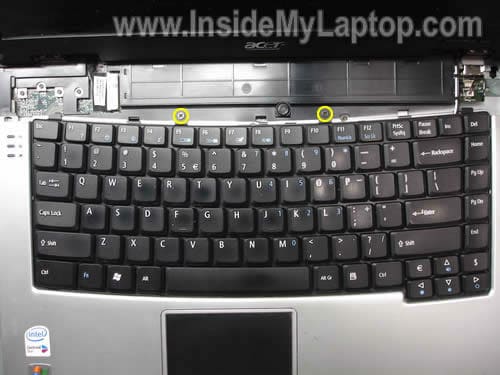
Remove two screws securing the keyboard.
STEP 5.
Carefully separate the keyboard from the top cover and place it upside down on the palm rest so you can access the cable connector.

STEP 6.
You have to unlock the connector before you can pull the cable.

On the picture below you see the connector in the unlocked position.
Now you can release the cable.

The keyboard has been removed.

STEP 7.
Remove the hard drive and memory covers.

STEP 8.
Remove one screw securing the hard drive assembly.

STEP 9.
Pull the hard drive to the left and disconnect it from the motherboard.
Remove the hard drive.

STEP 10.
Remove one screw securing the optical CD/DVD drive to the base.
Push the drive from the laptop with your finger.
Remove the optical drive.

It is not necessary to disconnect memory modules, wireless card, modem card and CMOS (RTC) battery for the purpose of my guide . You can leave them connected to the motherboard.

STEP 11.
Remove all marked screws from the bottom case.
Disconnect cables I pointed with yellow arrows.
Disconnect two antenna cables from the wireless card (green arrows).

STEP 12.
Remove one screw from the back side.

STEP 13.
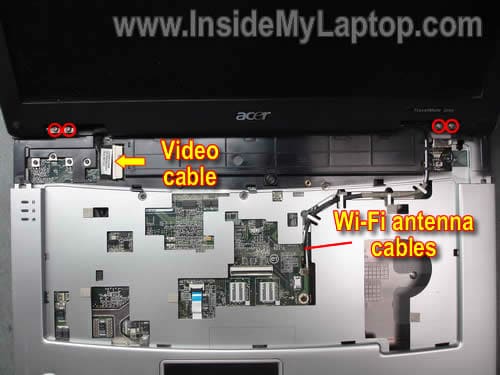
Disconnect the video cable connector.
Unroute both Wi-Fi antenna cables and pull them through the opening in the motherboard.
Remove four screws securing LCD panel hinges.
STEP 14.
Remove the LCD panel.

STEP 15.
Remove five screws securing the top cover assembly.
Disconnect the touchpad cable.

STEP 16.
Start separating the top cover assembly from the bottom case.

STEP 17.
Remove the top cover assembly.

STEP 18.
Remove two screws securing the motherboard.

STEP 19.
Start removing the motherboard from the top left corner.

Release and lift up the top right corner of the board.

Carefully pull the motherboard from the bottom case.

STEP 20.
On the picture below you see the power board attached to the motherboard.
The DC power jack and power switch are located on the power board.

Remove two screws securing the power board.

Disconnect the power board from the motherboard.
The power board part number is printed right in the middle. It’s DA0ZR1PB6D1 (REV:D).

STEP 21.
While the motherboard is removed from the base, you can clean the cooling module.
Loosen six screws securing the heat sink assembly.
Disconnect the fan cable from the motherboard.

Remove the heat sink assembly and blow off dust using compressed air.

andy
slightly offtopic.. but you were always so generous providing answers to people’s questions in the comments that i figured i’d try.
got an acer aspire one, 10″
the webcam only works when the netbook’s screen/lid is more than half-closed. when opened past, say, 40 degrees, the windows usb-device-being-removed-sound is heard, and the webcam disappears from device manager. basically i’m able to make videos of the netbook’s keyboard, and that’s it. when closing the lid, the new-usb-device-detected sound can be heard once it’s closed past 40 degrees or so.
think it’s just a loose connection that is relavitely easy to fix?
IML Tech
andy,
It does sound like connection or cable related issue. You’ll have to remove the display bezel and take a closer look at the webcam connection. Try reconnecting the cable, make sure it’s plugged all the way in.
The webcam is located above the LCD screen. I’ve never worked on Acer Aspire one, but removing the display bezel should be similar for most laptops. Take a look at the guides I posted in Acer or LCD categories. Find some explaining how to remove the LCD screen and you’ll get the idea how to remove the bezel.
Imran Khan
Dear IML Tech,
Thank you very much for your time and explaining the issue in detail, you guys are really helping people, and even a guy like me who has no technical background, can THINK to open my machine :). ALLAH bless you my friend, bye
lynda
ii’m having problem with my wirless card im my laptop i have an acer aspire 3680 the light isnt lighting up can u help me
IML Tech
lynda,
I don’t remember this model off the top of my head. Is there any physical switch for the wireless card, maybe it’s turned off?
Richard Stutely
A very helpful guide thanks. Anyone with an iota of common sense can use it to disassemble an Acer TravelMate 2300. Main differences are:
1. The screw to remove the CD/DVD drive is under the keyboard (not on the underside of case as shown above).
2. The two screws holding the mother board are by the battery connector and on the PC card casing
3. To remove the mother board, you also need to undo the two small nuts on either side of the VGA socket on the back of the case
4. A possible killer …. the power board is part of the the mother board, not a separate board. However, if you are on the lucky end of unlucky resoldering the power jack will fix the common power supply problem.
I have photos if you want them…
Regards, Richard
dahr
I have an Acer Travelmate 2300 and it doesn’t recognize the battery. It works fine on the AC adapter, but doesn’t recognize the battery. I bought a new battery too. I went to Batteries Plus and we tried a new AC adapter to see if the batt would charge; it didn’t. We tried a new battery, and the software didn’t recongize that battery or try to charge it. I reinstalled the factory software and slicked old programs, that didn’t work either.
Any idea? Should I replace the mother board? The power board? thanks for your thoughts.
IML Tech
dahr,
In an Acer Travelmate 2300 laptop the battery is connected directly to the motherboard. I believe there is no power board in this model.
If you tried replacing the battery and AC adapter but it didn’t help, there is a problem with the battery charging circuit on the motherboard. The motherboard has to be either repaired or replaced. I cannot help you with the motherboard repair because I don’t fix them on the component level.
I guess you’ll have to replace the motherboard.
Wesley
I have an Acer Aspire 3680 and I believe the power jack has been fried. If you plug in the charger the light on the front display does not come on and it does not charge. However, if you wiggle the cord for a few minutes you may find a spot where it does “connect”. Then it may charge for a minute or so before it stops. I have used a tool that is meant to clean off any oxidation that may result from arching inside and it was ineffective in correcting the problem. When the power cord is inserted into the jack, you can tell it is loose inside because the cord has a lot of “play”. A new cord did not fix the problem. My conclusion is, as I stated earlier that it must be a bad power jack. I have found new one’s on the internet for 25 dollars, they just pop in and do not require and soldering.
However, I can not find a manual or tutorial anywhere on the web that shows how to replace it. I called acer and they told me their repair manuals are not available for the public! (why?)
I have no experience working on laptops except for changing RAM and Hard Disk’s. I am an I.T. Student. Any help will be helpful!
IML Tech
Wesley,
Sounds like the power jack is damaged and has to be replaced.
Here’s service manual for Acer Aspire 3680 / 5570 / 5580. It’s a pdf file and might take some time to download.
Syed
My daughter’s Acer Aspire 5570’s cooling fan has ceased to work, which causes the system to shut down when it gets hot (though can make it work temporarily by putting a table fan and blowing at the fan intake vent, obviously a solution of last resort) . I am assuming the only way to get to the fan is to perform all dis-assembly steps, shown by you, till you get to the last step(thermal module removal), and there is no other short cut. The expected answer being yes. My next question is, can one just replace just the fan, and is the fan anchored to the heat sink with two tiny screws, or are those rivets?
Finally, in order to avoid the reapplication of thermal paste, can one replace the fan only while the heatsink is still screwed to the main board by sliding the fan sideways, or are there obstructing parts which make it necessary to lift the whole fan heatsink assembly off of the mother board in order to perform the fan replacement procedure
Thank you in advance for your kind help.
IML Tech
Syed,
I believe you can replace just the fan. If you search on ebay for Aspire 5570 fan, you’ll find both, the entire heat sink assembly and just the fan. But you still has to disassemble the whole laptop.
I think you have to remove the heat assembly first. Otherwise, you will not be able to remove the fan.
alx
Hi there
I have an acer travelmate 5730 and i have a problem with the touchpad buttons. The left click is always on down mode. The button is pressing too much/always. I think something is between the button and the contact. How can I see what is under the button? How can I remove the left button in order to clean it?
IML Tech
alx,
You cannot remove just the button. The button is a part of the top cover assembly and in order to take a look under the button, you’ll have to remove the whole top cover. Most likely the plastic button is broken and the top cover assembly has to be replaced.
The following service manual for Acer TravelMate 5730 and Extensa 5630 series will help you with the disassembly process. By the way, the manual is over 20MB file and takes some time to download.
Les McGowan
For what its worth, the Acer TravelMate series and the Aspire 3xxxx series are VERY similar in their construction and disassembly. I have taken both down to the mo-bo’s and there are only minor differences due to the palm rest being molded differently on each of them. I have found that many of the parts are interchangeable as well. Don’t take my opinion as the gospel however. As newer models emerge, differences will emerge as well.
@Linda… I had the same problem once on my 3680. It happened when I installed a new wireless 802.11n card under Win Vista (RIP Vista). I upgraded to Windows 7 and the light came back to working order. Specifically, my problem was that the light was reversed… off was on – on was off. The wireless worked just fine, so it didn’t really concern me.
toan nguyen
thanks you very very much, i have loss more day to try remove acer 3262 but not remove, and now i had remove it when i view topic or you . thanks again. bye
Haz
You are awesome dude. Very well explained. You sure a good Laptop Repair Guy.
10q so much.
Fa Trem
Hi
Thanks for the very detailed and excellent guide. Do you have any experience with the
Acer TravelMate Notebook 2702WLMi? I think the power jack has gone (again) and I would like to replace it. However, I cant seem to get past opening one of the back panels to expose the two fan units. I can see the power jack but it is protected by a black piece of plastic that seems to run across.
Many thanks and regards
T. Fa
Andrea
Hello , i have an Acer Travelmate 2702WLMI too, i can use it only on ac adapter ( the battery charging process works only when the laptop it’s off .When I insert the power plug, if it was attached to the mains after several hours of inactivity, the computer turns on initially for at least 3 times for 1 second and turns off once, but usually comes on the fourth attempt.
I just want to know if there is something in the internal connector (as we all know about these defective models acer) which decreases initially in the output voltage external AC adapter, because I am sure and I hope that instead it is the adapter to have need some time to reach the correct voltage …
But the jack connector can really prevent fast switching if not yet broken? (The problem laptop resides on the motherboard). Any help is appreciated.
Admlcamus
Problem with travel mate 3690
Hi all. I got the problem the laptop doesn’t start. I appeared dead. Question: Before i opened the system, there are any way I can check if the Power board is the faulty culprit??
And if it, there are any “home†remedy for it??? i live in a Latin American zone where repair parts are difficult to obtain, even by buying outside.
Thanks in advance for your time.
jhun
hey, im john. iam a comptech in ksa. i had a problem of acer laptop, ive olredy change the ac female power slot, but wen i turn on the laptop der is no current flow to the motherboard, is ther a fuse that attach to the powerboard to the motherboard?
Matt
G’day Champ,
Have a travelmate 2480, that dosn’t power up at all.
When pluging in the adaptor the power adaptor transformer light flashes on off on off, like its cutting in out.
when unpluged transfoformer light from yhe laptop jack it stays a solid green.
I’ve tested the power adaptor on another acer & is working fine.
So sounds like the power board in the laptop is shagged.
Question is how can you test it to see if it the power jack or powerboard itself or even the whole motherboard is the faulty part?
Cheers Matt
IML Tech
Matt,
I agree, sounds like bad power board or motherboard failure, but… you cannot test it. You’ll have to guess. I would try replacing the power board first, it’s not expensive.
If replacing the power board doesn’t help, most likely this is motherboard failure. In this case the laptop not worth repair.
Darryl
Hi IML Tech Guru,
Hope you can help me with my Acer problem.
I have an Extensa4430 that gives me no display (black screen) when powering on. The green led turns on (however it doesn’t blink or flicker like it normally should when booting), but nothing shows on the monitor. I also notice the fan turns on but off after a couple seconds it stops spinning.
I’ve tried draining the power by removing the battery and unplugging the adaptor then press and hold the power button for a mintue. Still doesn’t turn on when plugged back in (without battery).
I’ve tried messing with the RAM by using one stick at a time on different slots with no luck.
I’ve also removed the HD, with no luck on that method either.
Any ideas why? I do hope it’s not the motherboard.
matt
Well got a new power jack board for the travelmate 2480, stripped apart laptop today using your excelent guide. muchly appreciated.
End result, lossed on this one, same issue as before. blinking power adaptor when plugged in and still no power to the laptop. So yeh bugga.
Question though, is there are way of testing the power jack board itself? via multi meter etc.
Just want to make sure if there good or bad.
Thanks again
Matty
Shahid
Hi… i have Acer Aspire 4520 Laptop 2 years old last till last night it was working fine i shutdown properly next morning when i tried to switch it on it didn’t only all indicators light goes on for fraction of second and goes off i can hear cpu fan runed and HDD activity for faction of second then goes off all. What do you think what would be the problem or might be due to bad power adapter board. please help me out i will be very great full to u.
Regards.
IML Tech
Shahid,
1. Unplug AC adapter and remove the battery. Wait for a few minutes, plug in the AC adapter and try turning it on again.
2. If it doesn’t help, test your AC adapter with a voltmeter. It’s possible the adapter is dead and the battery has not charge left.
3. If the adapter outputs correct voltage, there is a chance of bad DC jack (power).
4. If you replaced the power board but the problem still there, most likely this is motherboard failure. Not worth fixing.
Lawrence
Thanks for this website, extremely helpful….
I have an Acer TravelMate 2300 that now wont startup.
On pressing the start button the green lights on the top and front, light up for a second (sometime 2-3 secs) and the screen changes subtlety from black to dark grey, (there are no other signs of activity – i.e noises ) and then it all goes dead, and the green lights go out.
When on AC power the battery light goes orange and then green once the battery is charged. This leads me to think that the DC jack may be OK ? But I am not sure where to go next.
Any help would be appreciated.
Thanks
Lawrence
IML Tech
Lawrence,
Yep, it sounds like the DC jack is OK.
It’s hard to tell what is wrong. Sounds like a motherboard related failure.
Try removing all not needed parts: battery, hard drive, DVD drive, wireless card, etc… Leave only major components: motherboard, memory, CPU.
Try again. If the laptop still doesn’t turn on, try removing memory modules one by one. If the problem still there, it’s probably bad motherboard.
Jaya
Hi,
I have Acer TraveMate 4100, and it’s kind a likely with the model in this review. The LCD suffers dead pixels (in line). I plan to remove the whole LCD part from the laptop, and so the board will still remain. Then, I will use monitor to replace it as a screen. My question is, is it possible to do?
Thanks. Looking forward your advise.
IML Tech
Jaya,
Yes, it’s possible. I have a laptop like that at home and using it with my TV. I’m using this laptop for watching videos, online movies, netflix, etc…
Here’s the catch.
The internal wireless card antenna cables running inside the display assembly. It means, when you remove the display you have to disconnect Wi-Fi antenna cables from the internal card. The internal card will not work without antenna cables. In this case you’ll have to use an external USB or PCMCIA wireless card.
mohan
Hello IML Tech,
I have an Acer Travelmate 2423 laptop and I have been having issues with the it since last year after I discharged my battery completely. It does not recongnize that the power adaptor is plugged-in and starts on the battery mode. It starts beeping continuously (power led stays green and battery led stays orange but keeps on and off) until the battery is fully charged. The beep is so disturbing that you can’t even hear any other audio sounds that are playing. During the initial few mins (30-60mins), the power scheme keeps switching between power to battery mode all the time causing the system to slow down. At least after 30 mins, the system stabilizes with the power mode recognizing the adapter connection.
Recently, all of a sudden, battery started showing completely empty and the computer won’t start at all. Whenever I press power on, a message comes up “your battery is critical low” and shuts off. I left the adapter plugged in for about 5-6 days and noticed that the battery’s led turned green. I tried starting it up again and it did. But, it won’t recognize that adapter is plugged in and it stayed in the battery mode for about 20-30 mins and then went off due to low battery.
I have no idea why this happens. Is it because of bad adapter or bad battery or bad power board or bad hardware driver?
Please help me out with this.
I look forward to your answer.
Thanks in advance.
IML Tech
mohan,
It’s hard to tell what is wrong without troubleshooting the laptop. I’m thinking maybe it’s related to the DC jack. It’s possible the DC jack has to be replaced or resoldered, maybe it’s not making good contact with the motherboard.
Elmer Perez
Hi there,
I have an ACER travelmate 3260 .And my problem begun while my laptop was on in battery mode then after quite sometime when I connect it to my laptop adapter to charge it It shutdowthing prematurely and there it is no power at all .Total blackout and cannot power on the sytem. Even in battery mode. It tried to test my adaptor to my other acer laptop and its working. BTW my laptop battery is brand new. And one thing I’ve noticed is that my adaptor led is blinking while connected to my dead laptop. IS it possible that the power board is the culprit?. Or is it something else?
Floyd Robbins
I have a Travelmate 3260/4542 Acer. The on of button is failng. Can that be replaced?
IML Tech
@ Floyd Robbins,
I believe this button is built into the power board shown in the step 20.
If the power button is failing, the easies way to fix it would be replacing the power board.
sainol
no power in, cpu ver¥ ho+, no signs else?
Nick Poma
Thanks for this. It works well for Travelmate 6292
Jon Villablanca
my problem was with the earphone jack, it is not working, tried to clean the connectors inside but sometimes it work and most of the time doesn’t work, any suggestions? thanks in advance.
IML Tech
@ Jon Villablanca,
Probably bad connection inside the earphone jack. Unfortunately you cannot get inside the jack.
Here’s what you can try.
Try to insert and remove the earphone plug into the jack a few times very quickly. Sometimes it helps to clean up connectors inside the jack.
Lavon Tuberville
I have Acer 3260-4542 Travelmate and the “power ON” button just stopped working. In thinking it might be the Power Board, I have just disassembled the laptop, as per your instructions. I found the power button to be just sitting in its place but not connected to anything. If I order the power board, will it come with a replacement “ON” button, and how does it attach to the power board. The existing power brd. is DAOZRiPB6EO Rev: E, If I order that # from you, will I get the same part #? If button is a separate part, how do I order it?
I’m not a comp. Tech and I just hope I can get this thing back together.
Thanks.
IML Tech
@ Lavon Tuberville,
What do you mean the power button is not connected to anything? Is it broken?
In this model the power button is soldered to the power board (as you can see in step 20). If you replace the power board, it will have new power button.
Repent
Hehe,, I accually paid a professional to replace what i thought was just a loose dc jack. He replace the jack and the powerboard( he called it the “circut board”) and still no power. He then mailed it back to me and told me he thinks its a bad motherboard and he doens’t repeair that issue. My question to you, Is it even worth buying a motherboard, because I have spent atleast 200$ on this acer aspire 3280 and I would love to have it alive again, but is my money better off purchasing a brand new laptop with no issues at all??? I would like to fix it myself if at all possible
Joseph
hello sir! i have an acer 5570z it turns on sometimes., im still using it until now.., but often when i turn it off., ihave to wait for few days for it to be able to turn on.., really when i turn on and turn it off,.. i will not be able to turn it on agin., i have to wait for maybe a couple of days or three then it works agin.., i think its a power board but i dont want to buy but to repair it rather. thanx sir!
rodwell
I have an acer 5720 that is refusing to power on.with the ac adapter plugged in the led indicator light for charging goes on but when I try to power it on nothing happens.I’m gettibg fustrated what could be the problem?
IML Tech
@ rodwell,
Here’s something to try:
1. Remove the battery and unplug the power adapter. Wait for a few minutes and after that plug in the power adapter and try turning it on.
2. Try removing RAM modules one by one. Maybe one of the modules is bad.
3. Remove the power button cover (as shown in steps 8 and 9 in this guide). Try pushing on the power button directly. It’s possible the plastic button on the cover is broken.
Bernie
I have an Acer Travel Mate 2480 with the DC Jack center pin broke……can I replace just the jack without replacing the power board?
IML Tech
@ Bernie,
Yes, you can replace the DC jack without replacing the power board but you have to know how to solder. The DC jack soldered to the board.
On the other hand, the DC jack itself cost about $5 and the whole power board about $12 (on eBay). If I was you, I would replace the whole board.