


In this guide I will disassemble a Dell Inspiron B130 laptop. I’m taking it apart in order to repair failed DC power jack.
You can use same instructions for Dell Inspiron 1300 and Inspiron B120 models.
In my case the power jack started failing intermittently. The laptop started switching from AC to battery power on its own. In order to switch it back to the AC power I had to fiddle with the adapter plug and find the right position. I tested power with another adapter and it didn’t work properly either. The DC jack failed and had to be replaced.
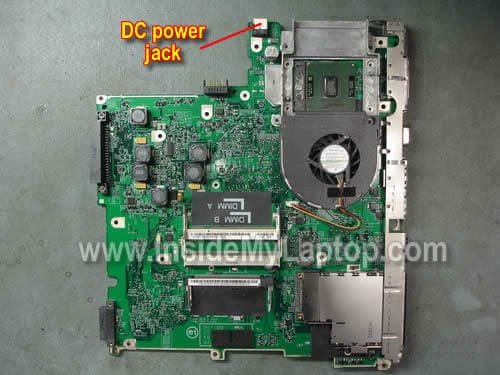
In Dell Inspiron 1300/B120/B130 the DC power jack is soldered to the motherboard.
STEP 1.
Do not forget to turn off the power and remove the battery.
Lift up the right side of the keyboard cover with a small screwdriver and continue removing the cover with your fingers.

STEP 2.
After the cover is removed you can access two screws securing the keyboard. Remove both screws.
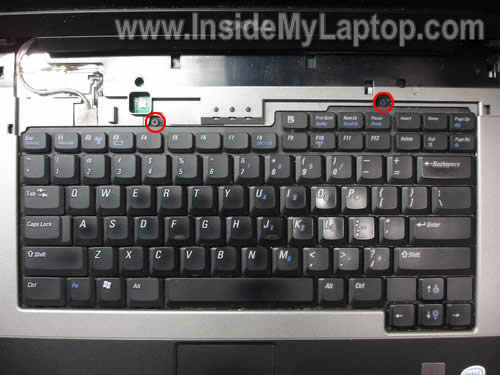
STEP 3.
Lift up the keyboard and place it upside down on the palm rest.
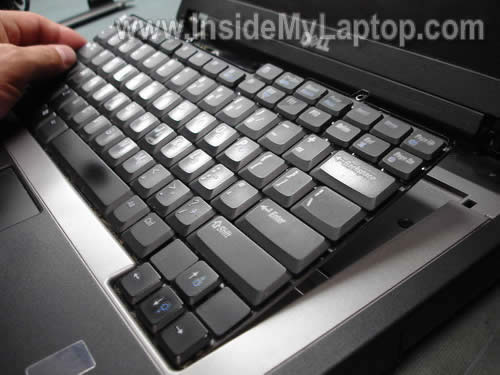
STEP 4.
Now you can access the cable connector and release the cable.
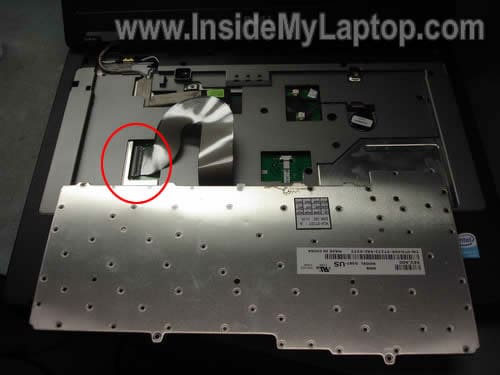
STEP 5.
Unlock the connector, pull the cable and remove the keyboard.
On the following picture the connector is displayed in the unlocked position.
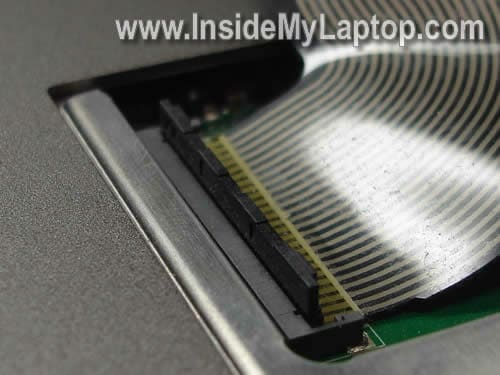
STEP 6.
Remove two screws securing display hinges on the bottom.
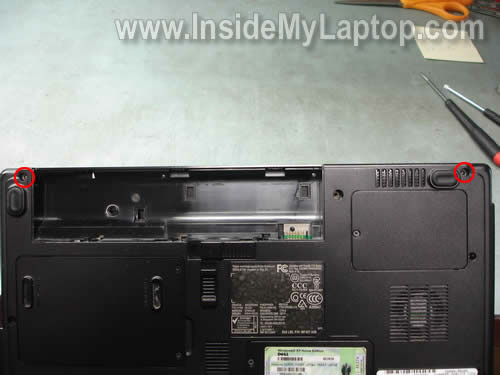
STEP 7.
Remove two screws securing display hinges on the back side.
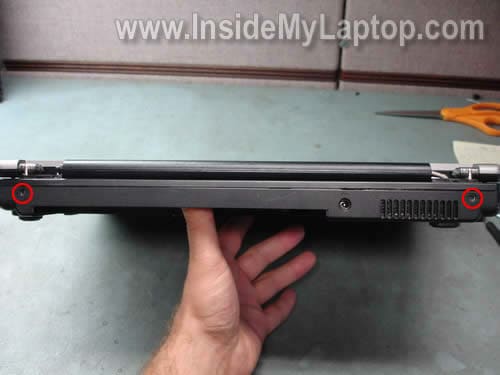
STEP 8.
Disconnect the video cable connector from the motherboard.
Disconnect the wireless card antenna cable.
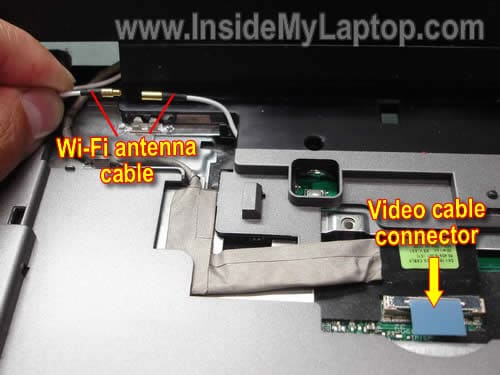
STEP 9.
Remove the display panel assembly.
Here’s an example of removing the screen.
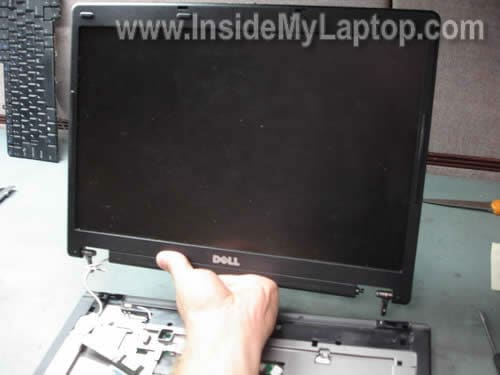
STEP 10.
You can access the hard drive, memory modules, wireless card, optical CD/DVD drive and heat sink on the bottom.
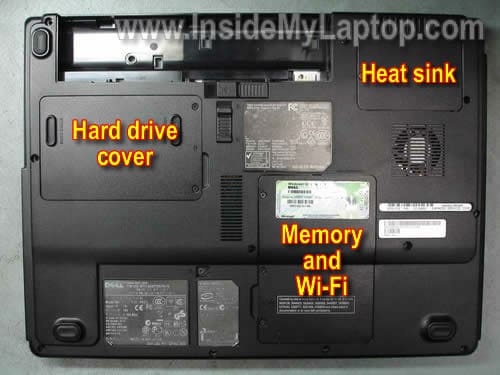
STEP 11.
Remove the hard drive cover.
Pull the hard drive assembly to the left and remove it.
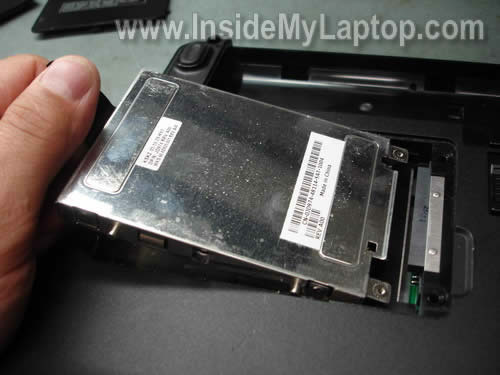
STEP 12.
Remove one screw securing the optical CD/DVD drive.
Pull the drive to the left and remove it.
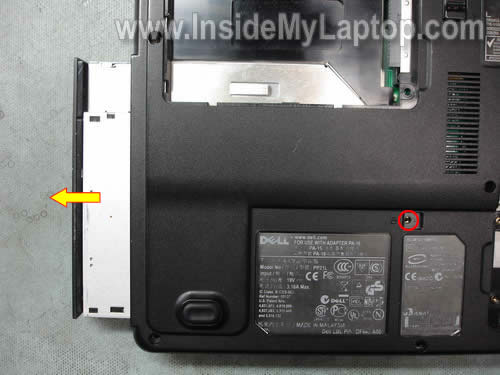
STEP 13.
It’s not necessary to remove both memory modules and wireless card for the purpose of this guide but you have to disconnect the Wi-Fi antenna cable.
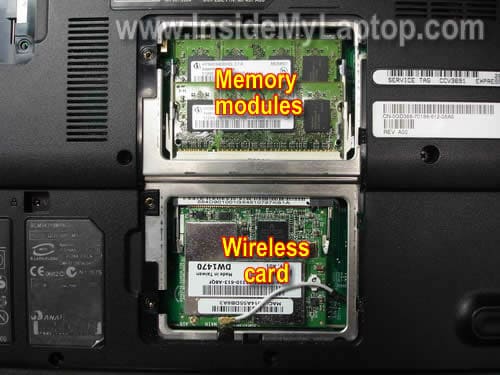
STEP 14.
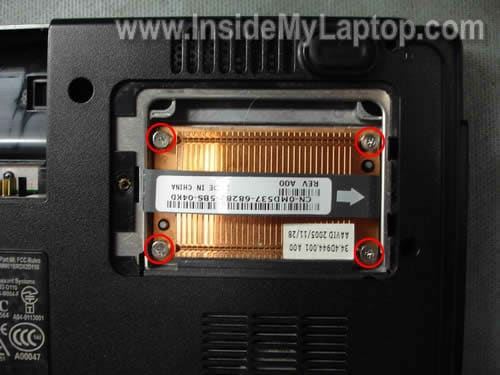
Loosen four silver screws securing the heat sink.
STEP 15.
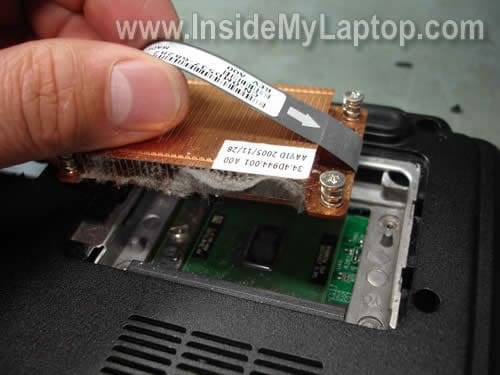
Pull the heat sink up and disconnect it from the processor.
As you see, the heat sink is clogged with dust and needs a good cleaning.
STEP 16.
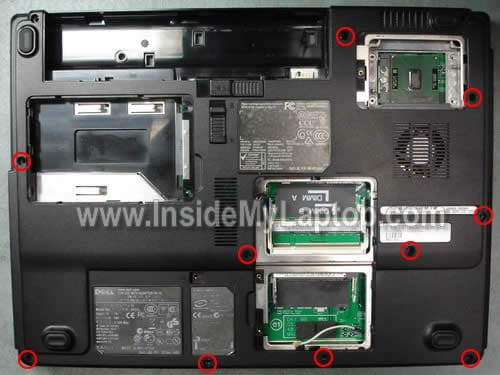
Remove all marked screws from the bottom.
STEP 17.
Remove eight screws securing the top cover.
Disconnect the touch pad cable.
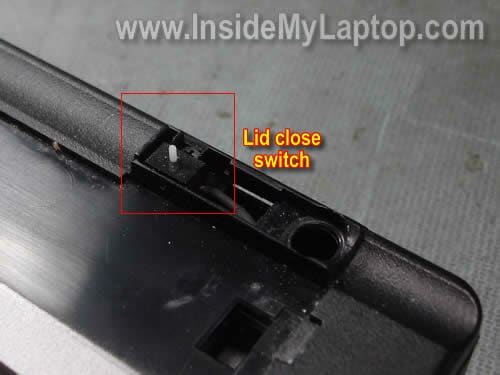
Disconnect the lid close switch cable.
Disconnect the CMOS (RTC) battery.

In this model the lid close switch is discrete module and mounted under the right hinge.
If the lid close switch failed, you can remove it and replace with a new one or simply unplug the faulty switch from the motherboard and use the laptop without it.
STEP 18.
Separate the top cover assembly from the bottom cover and remove it.
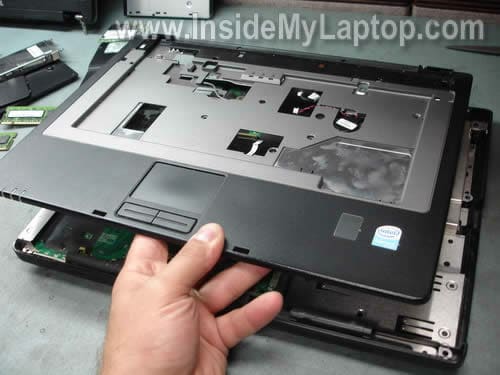
STEP 19.
Remove five screws securing the motherboard.
Disconnect the speaker cable from the motherboard.
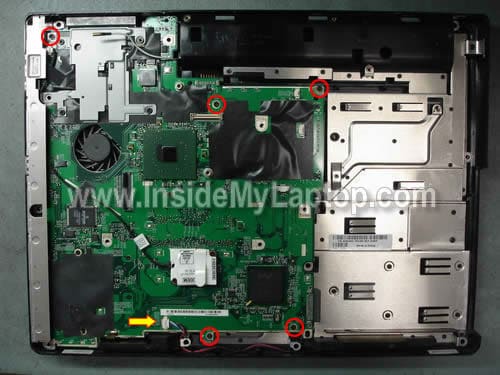
STEP 20.
Start removing the motherboard from the right side as it shown on the picture below.
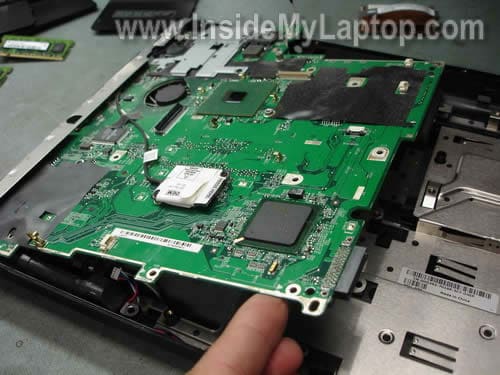
STEP 21.
Remove motherboard from the bottom case.
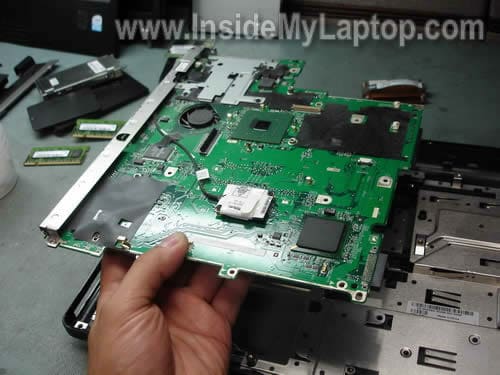
The DC power jack is soldered directly to the motherboard.
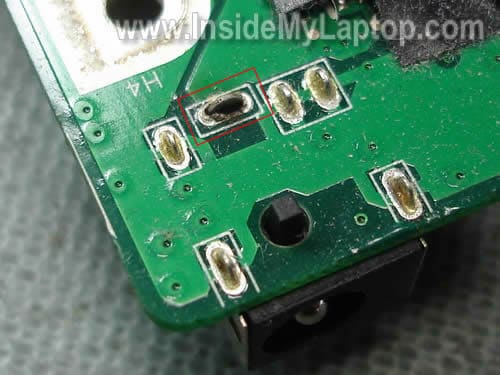
Very quickly I found why the power was cutting off intermittently.
As you see, there is a crack in the solder joint around the “+” pin.
The “+” pin got oxidized and not making good connection with the motherboard.
If you resolder the jack without cleaning the “+” pin, your repair will not last.
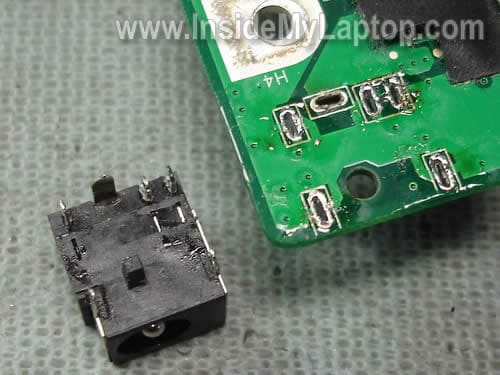
It is necessary to unsloder the power jack, clean all contacts and solder it back to the motherboard.
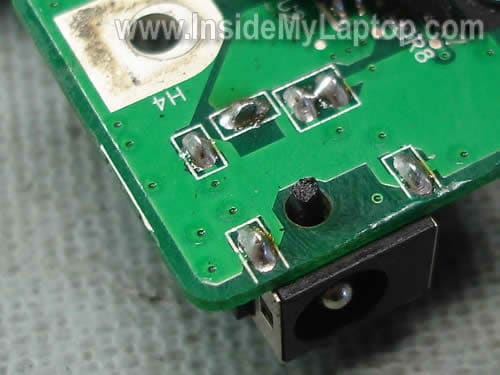
On the following picture you see the same jack soldered back to the motherboard.
Tony
Thank you so much this was EXTREMELY helpful!
simari
Yeah, but it’s the reassembling thing that’s getting to me . . .
jennifer daniel
look at it beening assembling was so much easyer then i thought.geting the old solider off was way aaaaaaaaaaa to hard.but i do thx the person who show good detils
IML Tech
jennifer daniel,
It’s always easier on the picture. 🙂
Jim
Very nice. Clear, detailed pictures. I need to replace MB on a B120, and this will be most helpful!
VivtorV
Nice guide.
Aran
touchpad connector – i found this part a bit quick – do you have some photos on how i can remove the touchpad connector? very useful otherwise – provided i manage not to break the touchpad connector whilst attempting to remove it.
IML Tech
Aran,
You move the locking clip about 1 millimeter towards the LCD screen and release the cable.
QikGT
That is info on the locking clip for the keyboard. Aran is talking about the little cable for the touchpad. I found it easy to take out the cable by slowly and carefully sliding it out, putting it back in was harder though. Also, connecting the wifi cable was hard as it was not long enough to do with the screen off.
Great fix on this problem, which I have read is common with Dell Inspiron 1300 DC Power Jack. I took it in once to a professional to have it fixed….$100 later, and about 4 months passing by, my screen still flickers, and the computer goes from battery to charger on and off. I opened it up last week to check it out. Wasn’t sure I knew what to do. After this guide, I know exaclty what needs to be solderd. THANK YOU. Hopefully I can successfully do this.
James
I found this site to offer all the help i needed to replace the power connector on a family members’ Dell B130. Removing the old connector was the toughest part but the link offered helped a lot. I also found that taking a sheet of paper and drawing a rough diagram of the laptop and taping each screw to the corresponding position made it a snap to put back together.
LT
When taking apart a Toshiba Satellite, I thought I broke the touch pad connector so I bought a new one and perhaps I’m installing the new one incorrectly, because I can’t get it to work. Got any pics or tips?
Jeff
One of my daughters broke the power jack off completely. There isn’t anything but the metal “nubs” barely sticking up. Issue I am having is getting the pieces out. I can do some minor soldering but am hesitant about putting more heat around this area and pushing what remains out. What is the recommended way to remove those pieces? I have a replacement jack but I may be wasting my time if I end up damaging the board. Any suggestions would be appreciated.
Larry
First off, thanks for this pictorial site! It worked PERFECTLY for helping me replace the heatsink fan on my Inspiron 1300.
Second, for Jeff: To pull the pieces out from what your daughter broke off, you will need a soldering iron and a sturdy set of tweezers. The key is to work quickly. If possible, use a temperature controlled soldering iron. If this is not in the bank account, then I would recommend a 25 watt soldering iron. I think a 40 watt is way too hot for a circuit board.
Put some flux on the connection and with a hot soldering iron, touch the joint while pulling on the post with the tweezer. If all goes perfectly, it should pull out rather quickly. Leave the iron on the joint for only a few seconds. Overheating that joint can cause the pad to raise and killing the connection in the main board.
If pulling is not an option, do the same thing as above, but rather than pull, try pushing the post through the hole with the tweezers. This won’t remove it, but will make it easier to grab from the other side by doing the first step I mentioned.
After the posts are removed, wick the solder out of the hole using solder wick.
I will add one more time. Be careful how long you leave the iron on the hole. Work as quickly as you can. I don’t want to scare you, but I don’t want you to ruin your main board either. Also, if you are unsure of the wattage of your soldering iron, go buy a new one. Plain jane models are not that expensive. Typically they come in 15, 25 and 40 watt models. Personally I think 40 watts is too hot for circuitry.
Good luck!
cabinfever1977
Someone gave me a dell inspiron 1300 laptop with a broken dc power jack,but the laptop turned on with the battery,just for a few seconds then it went off.
I got the old jack off except for the pins,plus i had a dc jack laying around,but it wasnt the same one so i would have to mount it outside the laptop for now,i know you can order a new jack for around $10,but i wanted to see if the laptop worked first.
I soldered a wire to the + pin(the pin in the middle back that faces sideways) and i soldered a 2nd wire to the – pins(the 2 pins that are side by side next to the power pin).
i ran the 2 wires out the hole where the dc jack used to be,and i soldered the 2 wires to a dc jack i had laying around(+ wire solders to pin on back of dc jack and – wire solders to pin closes to the spring tab that you can see inside the jack).
The laptop works perfect when its pluged in,but i have not tested it with the battery in it yet to see if it will charge it.
cabinfever1977
Update: laptop is working great and battery is charging 100% and it still can be used while charging. It works either plugged in or if i just want to just use the battery. On this model the battery does not need to be in laptop if you have it plugged in.
todd yarling
Hey thanks for the tut. Somebody gave me a B130 and the only thing other than reinstalling the OS and adding ram was the power plugin was shorting or whatever.
I never soldered anything in my life, but I followed your tut and just added a ball of solder to the positive terminal, and so far, its working.
I can’t see well enough to do it 100% the right way, but, hopefully this will last for a bit.
If it messes up again, I will do the workaround with soldering a couple wires to the term, wrapping them around the plastic grill, and attaching them to another DC connector.
I honestly can’t believe the thing booted up after I took it apart, let alone the green charging LED was glowing when I finally got it back together…..
Jerry Stallman
I followed your instructions and with a jewelers loop I could see the soldered power jack terminal just as you showed (cracked and corroded). I would have never figured that out without your help. I added some solder, put it all back together and now It works great. I had been blaming the AC adapters all this time. You’re a genius! Also a nice guy for sharing your knowledge.
bubullea
Superrrrrrrrr thnx
Peter
Thank you for the help. I can get the thing apart without pictures, but it REALLY helped me ensure I wasn’t left with any “extra” screws! 🙂
pinoy dell user
please post about the voltage needed by the motherboard.. is it like 5 volts and 12 volts from the 19 volts?
i think one of the regulators is dead.. i can measure 5 volts but cannot find other voltages like 12 volts.
tnx…
ive looked closely at the voltage power jack..it looks ok no cracks .
Luke Penketh
Hi! Amazing,
But I broke the Audio connector in step 19. All the white plastic snapped off and i;m just left with 4 cables and the female end of the connector on the motherboard. help?!?
IML Tech
Luke Penketh,
The female end still has 4 pins inside, right? I guess you can connect all four audio cables one by one.
Jack
Thx. What about fixing or replacing the usb on an Inspiron 8600 ? any help ?
Drew
IML Tech: I thought that this was very professional and informative, but coming from the technician side of the house as well, please add a note near the top prior to dissassembling anything like the following… “Check the voltage on the power adapter plug that connects to your laptop. Using a common multimeter, connect the Black lead on the outside and the RED on the inside of the connecter. You should have at least 19 volts DC.”
I went ahead and ordered the DC jack cause of all of the issues that I read about it as well. It took me all of about 20 minutes to carefully slice the connector apart and put it back together. If you put this in your post, mae sure you state that you double checkafter you put it back together to ensure everything is kosher and you have the 19+ v DC. Mine was easy compared to my wife’s Inspiron 1501 that is set up more like a coax connection…i just bought her a new one.
sean
how do i disconnect the touch pad connecter i cant seem to do it and dont want to pull it too hard and break it
IML Tech
sean,
You’ll have to unlock the connector first.
Move the brown clip about 1 millimeter away from the white base. After that pull the cable. Be very careful. Do not separate the brown clip from the connector base.
Dave
Great guide, i am a experienced in pc repair but put off working on laptops because they can be a pain to take apart (fear of breaking bezel pieces). Kudos to the author for all the great pictures and clear instructions.
samuel
it waz rilli helpful
kaiman
how can i clean the + pin before soldier the new one?
IML Tech
kaiman,
With the soldering iron.
murugesan
thankyou /////////
Zach Margraves
Hello your tutorial is awesome! I just finished replacing this exact same one. The only problem I am having is that the computer wont turn on. So basically its either on wrong or I don’t know whats wrong. I do have one thing that might be the cause. That is the contact in the middle straight back from the plastic piece. I believe some of the contact came off while I was de-soldering. It wasn’t all connected like in a circle. Would this have anything to do with it???? Also I only put solder on the contacts I didn’t put any on the other side. Could this affect it also?? Let me know ASAP. Thank you. Zach
Zephan
Thanks! Repairing the schools laptop!
Sappy
This advice is invaluable and helped me repair my ageing Inspiron 1300 within an hour using a cheap soldering iron from Ebay.
My tip is to make sure the WiFi antenna cable is fed through the top cover before screwing it all back together, that way you don’t have to repeat the disassembly to pull it through.
Steve J
An excellent step-by-step guide. Better than any manual. 5 stars.
david
Hi, I have a dell insprion 9400. Is there anything different with the dell 9400 comparing to your instructions that I need to pay attention to before attempting this power jack problem? also, for a normal person who does not have any soldering tool at home, what tool do you suggest I can buy?
Thanks.
Kimberly
Thank you for your help. I have had this laptop for 5 years and been fighting the good fight with the power cable for about 2. My laptop became a desktop, until I found your guide. Instead of just fixing the power connector I spent the $50 and bought a whole new motherboard. After installing the new motherboard everything works, except that the computer is running so much slower than before. Any suggestions?
IML Tech
Komberly,
Make sure both memory modules plugged correctly. Maybe one of them is loose and the laptop runs with one module.
Did you reinstall OS after replacing the motherboard? If the motherboard not 100% the same, it’s possible to reinstall OS and all drivers to make it work properly.
Alex
Thanks for this, my Dell Inspiron 1300’s DC power jack was wobbily. I reconnected it with superglue though seeing as there was no or very little solder around my machine, must have been bulit by a automated system. Anyway i can’t seem to reconnect the touchpad cable, it just won’t go in. And because i was a bit vigorous taking that part out, i took the cable out of both the motherboard and the touchpad, i’m left with the cable out on it’s own. Any help in reconnecting it wold be greatly appreciated,
Elle
THANK YOU SO MUCH for this informative tutorial!!!!!!!!! This is the only website I could find with pictures. It helped me get to the fan of my five-year-old Dell 1300 where I gave it a good cleaning out and oiling which has fixed my noise problem (diagnostics all passed!). You saved me money on repairs that I don’t have as I’m currently unemployed.
When I have funds again, I’m sending them to you. And that’s a promise 😉
Cord
Thank you, very very much,
This was the first laptop hardware repair I have attempted, and now, thanks to your guide it was also a successful one. I was very apprehensive about taking laptops apart due to a complete lack of experience, but your thorough documentation along with the clear pictures made it very straight forward and quite enjoyable.
Again Thank You
Robotics1
Thank you for this very detailed process. I was able to successfully repair my DC power jack using your process. I discovered that my Dell 1300 Inspiron was intermittently switching from AC to battery power when I move the laptop around on my lap. I took it apart and sure enough, I discovered the same issue that you had….a poor looking soldering job. I think it was cracked; but my 61 year old eyes couldn’t be sure, even with a magnifying glass! I didn’t have to remove the MB from the case, as you did. I went through all the steps up to where you unscrew the MB and remove it. I left it there, because I really have great difficulty un-soldering multiple pins and the removing the unit. It is too easy for me to break the module or crack the MB while trying to remove it. Instead, I cleaned the pin that appeared to be cracked, by using the soldering gun to re-flow the solder and apply a minute dab of new solder. It worked. My only problem during the disassembly was that I dislodged the F1 key and have had trouble snapping it back in place.
I re-assembled the whole unit successfully. I plugged in the unit and it seems to be charging and staying AC connected; even while I move the unit around. Thank you again for this repair process. It’s a keeper.
cul heath
Brilliant. An absolutely perfect example of how to document and detail repairs. Kudos and many thanks.
Hedy
Wow, thank you so much for this! I just fixed the jack on my Dell laptop and I am going to try it again with my son’s Dell laptop which is having the same issue. These instructions were really great! The only trouble I had was unlocking and disconnecting the cables from the various connectors. I figured it out eventually – probably took me a little longer than most people – duh! Step 5 Keyboard cable connector unlocks as pictured – opens like a door. Step 8 Video Cable connector: just pull blue tab straight up. Step 12 Wifi cable on wireless card: Pull straight up on gold metal piece at the end of the white wire. Step 17: Touchpad connector is LOCKED so first gently pull back brown locks(on both sides of cable) in the direction of the touchpad. They will move slightly to unlock the cable and then it will just slide out. The lid close switch and battery connectors are not locked: just pull gently to detach the connectors. Same with the speaker cable in Step 19.
Iban
I use the manual for a Dell Inspiron 1300 and its Ok.
Thanks
Chuck
I took my old inspiron b130 apart to make this repair a month ago and got sidetracked. My wife’s cat knocked over the pill box I had been using to keep the screws separate, and now I can’t remember what screws go in which holes. Can you help with that?
gorkypah
Hi Chuck,
Maybe I can help. I recently took apart my Dell Inspiron 1300 to repair its DC jack and had a hard time replacing the screws as well. After some trial and error I seem to have got it right. There are three types of screws, a 3mm (short), a 5mm (medium) and 8mm (long) screw. The four screws that hold the LCD screen in place (also marked by the letter D) are 8mm (long) screws. The two screws underneath the LCD screen are 3mm (short) screws. The 5 or 6 screws underneath the keyboard that holds the top on are 5mm (medium) screws. The eight screws on the bottom of the laptop should all be 8mm long screws. The five screws securing the motherboard should all be 5mm (medium) screws. I hope this helps you or anybody else. This is a great guide with pictures on how to fix a laptop DC jack, but could have used this information as well.
mikhail francis
what if you did that and it did not work
IML Tech
@ mikhail francis,
Either you have defective parts or assembled the laptop incorrectly.
gtv
Hi, I have dell inspiron b120. It would boot to blue screen error. I was going to install new os and save system. It had minimum 256 ram so I tried to upgrade ram. I have upgraded ram before. After attempted upgrade, the system only shows green charging light when ac power plugged in. When you hit pwr button all lights flash once and immediately turn off. I do not believe I shorted mother board when I installed ram but this is possible due to static. Does it sound like a bad MB? I have a new MB coming but would like to be able to salvage this one.
The battery was completely juiced and I had done a hard reset to discharge power before installing the ram. I got a neww battery it charged for a while (30 min+) with a slowly flashing green light then changed to an orange flashing light. So will not start with battery or ac power alone. This seems to mean the dc jack is okay, or could it still be faulty? Please any advice is helpful, I have read all 50 comments on the page. Great info here, thanks to all posters and original creator.
IML Tech
@ gtv,
Have you tried reseating memory modules? Maybe it’s just bad connection?
Have you tried removing memory modules one by one and testing in different laptop slots?
gtv
Thankyou IML Tech for your help. I reseated the ram and it worked but I discovered it was the DC Jack all along. The computer posted b/c of the charged battery, previously had a dead one. In the BIOS setup screen I saw the screen flicker dim on and off. I adjusted the jack and it stayed bright. I must have a bad dc jack connection and need to do the repairs detailed on this page.
Again thanks for solving this mystery.
Vicky
Many thanks. My laptop is working now.. WOW
Though i didn’t had powerjack problem, after reassembling it again it is working now.. huray.
thank u very much 🙂
manpreet
i have same problem of battery not charging. my laptop is dell inspiron 1318. can you please show how to do samef or my model. thanks in advance
acharya binod
which power(AC OR DC) is used computer motherboard and other components ?
IML Tech
@ acharya binod,
DC. The power adapter gets AC from the wall and converts it into DC for the laptop.
Dwight Barker
Thank you so much! I have an ancient Dell that I just now got working. Replaced the power connection and stuck in a new battery. It had the problem that the battery would discharge in 60 seconds, and I’d have to tweak the power cord in just the right way to get a connection. I don’t have a big need to get a new laptop; this one does the job as I mostly use remote desktop.
I think the thrill and surprise of victory might be better than actually fixing the laptop!
Micheal H
Thanks for the instructions. I am having difficulty getting the dc jack off of my Dell Inspiron 1300 motherboard. I’m a novice when it comes to soldering and first made the mistake of using hobby soldering irons which were clearly not getting hot enough/staying hot enough. Now on my 3rd soldering iron (Elenco Electronic Soldering Station, 120vac, 60 Hz, adjustable 5 watts to 40 watts with a 40 watt iron) and I still can’t get the old soldering off! I will say that to tin my iron with the soldering that I purchased (RA Core Solder Sn60/Pb40 Flux RA300 .032″ Diameter) I have to turn the station to the maximum temp of 750 degrees to get it to melt. Is the iron just not hot enough to melt the existing solder? I should mention I’ve tried adding new solder to the joints several, several times without much result as well as used copper braiding and a solder pump. Nothing is helping. The existing solder won’t melt or budge. What should I do now? I would rather not buy a 4th iron but even if I did I don’t know what to buy because everything I’ve read so far suggests I have what I would need. Thanks for any suggestions!
IML Tech
@ Micheal H,
Probably it’s not hot enough. My station has max temp of 850 degrees and I turn it on all the way up when replacing DC jacks.
jerryu
where ii it the flashrom in the noter boeard FD766 I NEED RESET THE PASWORD PLEASE HEELP
Ray
Very Helpful and painstakingly description of the process. The only problem I had was where to plug the push on wireless contact back in ? I eventually found it….
dmitar
Thank you for your outstanding tutorial for B130.
Thanks instruction unfolded my laptop and made reparation bad zalemljenog DC connectors. Now my computer runs smoothly and without overheating connector.