


In this guide I disassemble a Compaq Presario CQ50 laptop.
Also this guide should work for Compaq Presario CQ 60/CQ70 and HP G50/G60/G70 models.
Start the disassembly process with removing the battery.
STEP 1.
Remove memory, hard drive and wireless card covers.
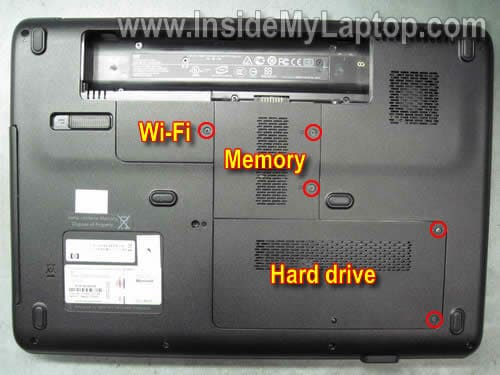
STEP 2.
Remove three screws securing the hard drive assembly.
Slide the hard drive assembly to the right to disconnect it from the motherboard.
Remove the hard drive.
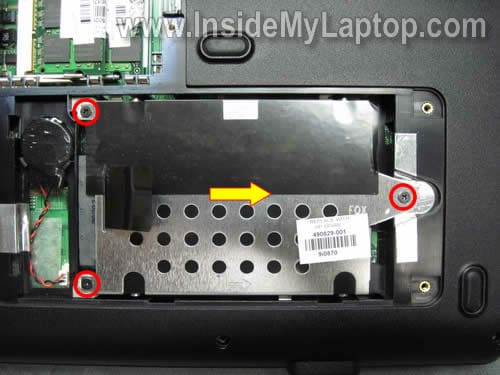
STEP 3.
Remove both memory modules.
Disconnect two antenna cables from the wireless card. Remove two screws and remove the wireless card.
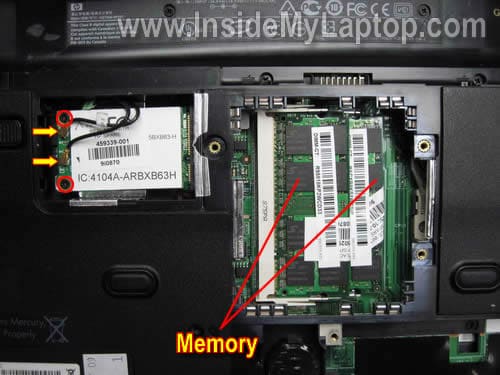
STEP 4.
Remove one screw securing the DVD drive.
Pull the DVD drive to the left and remove it.
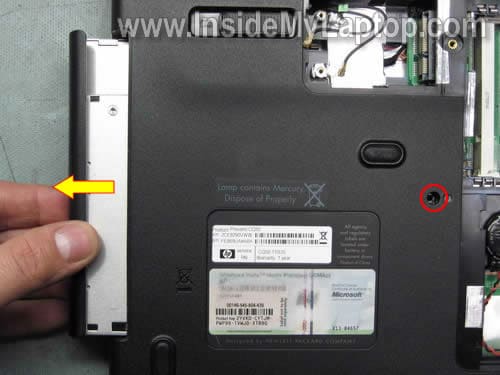
STEP 5.
Remove all screws from the bottom cover.
Disconnect the CMOS battery cable from the motherboard.
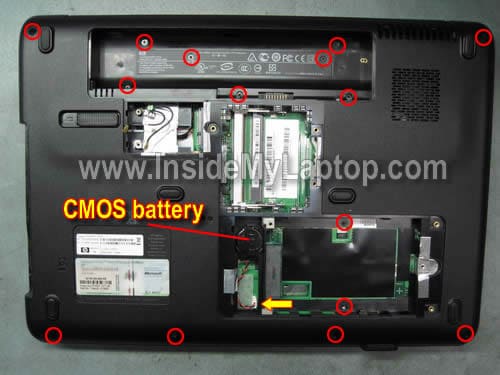
STEP 6.
Carefully lift up the keyboard as it shown on the picture below.

STEP 7.
Access the cable connector underneath the keyboard.
Unlock the connector before removing the keyboard.
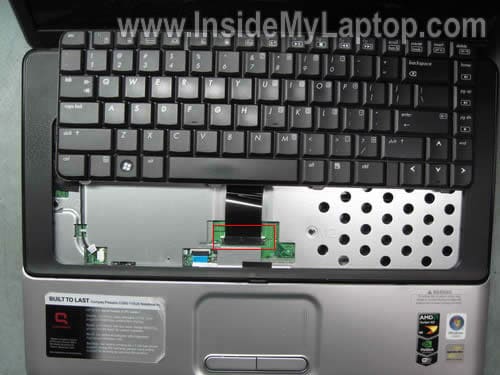
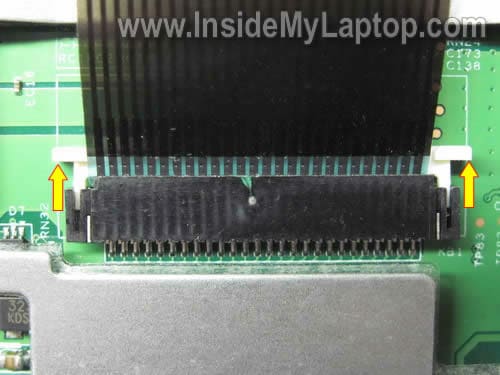
In order to unlock the connector you’ll have to move the locking clip (white) about 2-3 millimeters towards the LCD screen.
The locking clip must stat attached to the connector base (dark brown) as it shown on the picture below.
Now you can release the cable and remove the keyboard.
STEP 8.
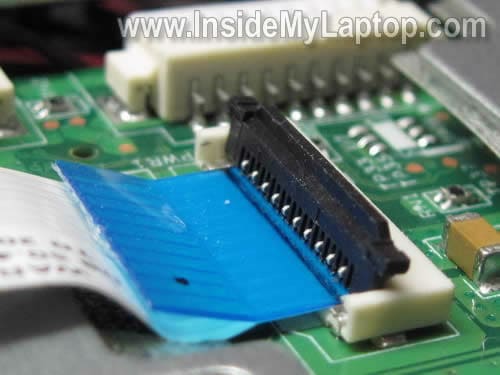
Unlock the power button cable connector.
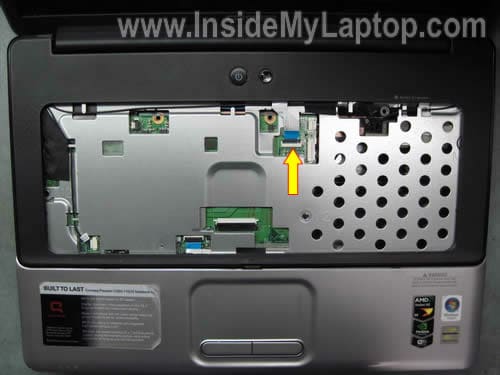
On the following picture you can see the connector in the unlocked state.
Now you can remove the power button board cable from the connector.
STEP 9.
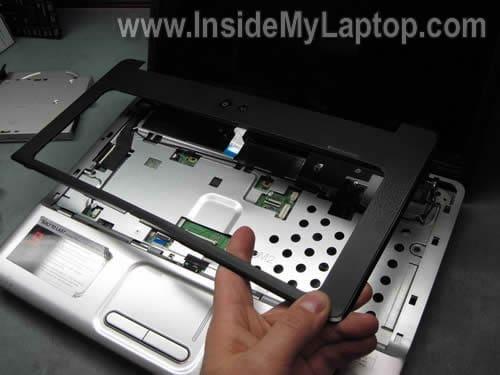
Remove the plastic cover.
STEP 10.
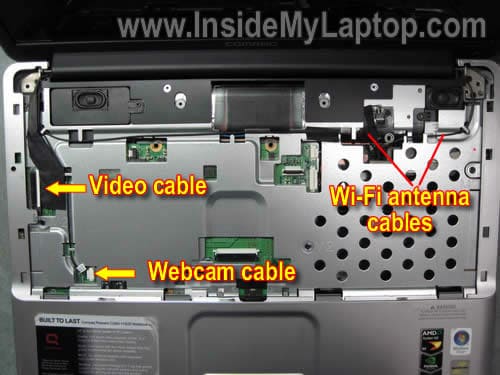
Disconnect the video cable connector from the motherboard.
Disconnect the webcam cable.
Pull the wireless card antenna cable through the opening in the top cover.
STEP 11.
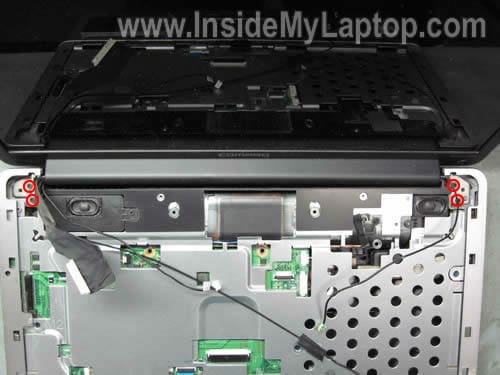
Remove screws securing the display hinges.
STEP 12.
Remove the display assembly from the laptop.
In the next post I explain how to remove the screen from the display assembly.
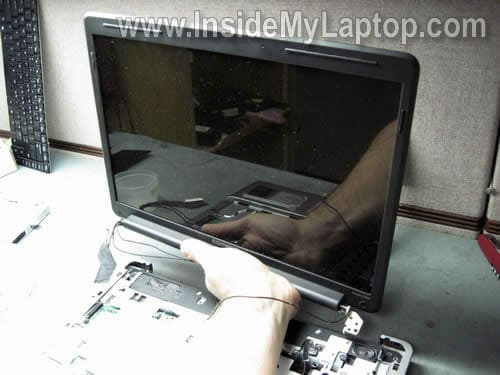
STEP 13.
Disconnect the touch pad cable from the motherboard.
Remove screws securing the top cover assembly.
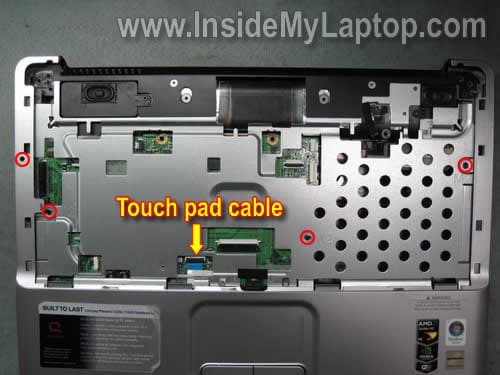
STEP 14.
Start separating the top cover assembly from the bottom case.
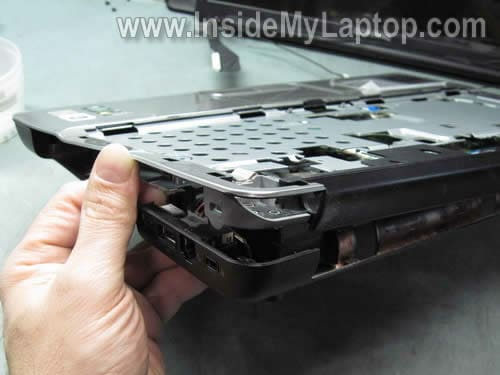
You can use a guitar pick to split the case.
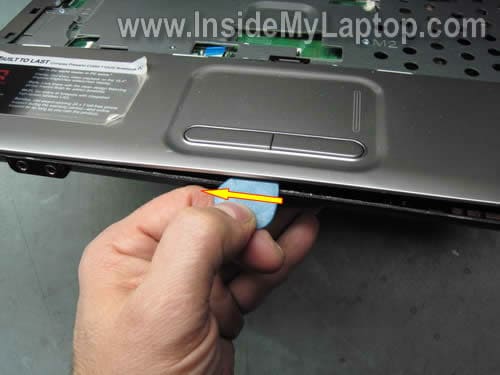
STEP 15.
The top cover assembly has been removed.
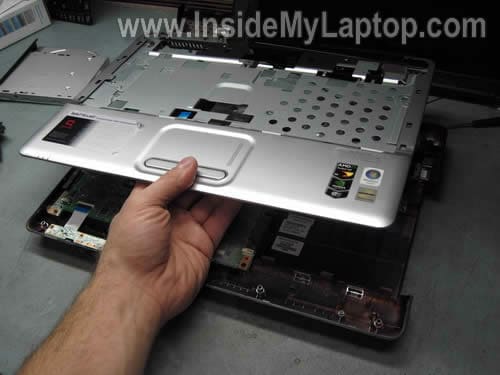
STEP 16.
Remove one screw securing the left speaker.
Remove the left speaker from the base.
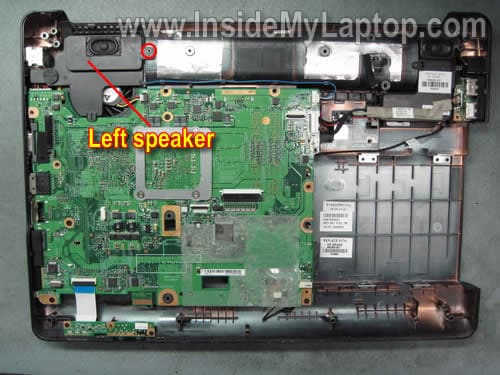
STEP 17.
Remove four screws securing the motherboard.
Disconnect four cables from the motherboard.
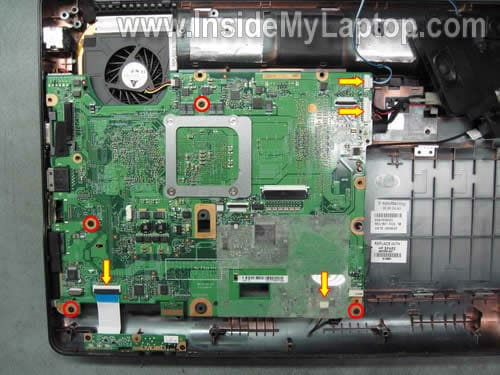
STEP 18.
Remove the motherboard from the bottom case.
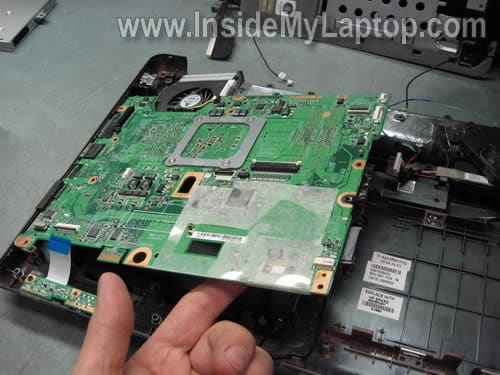
STEP 19.
Disconnect the cooling fan cable.
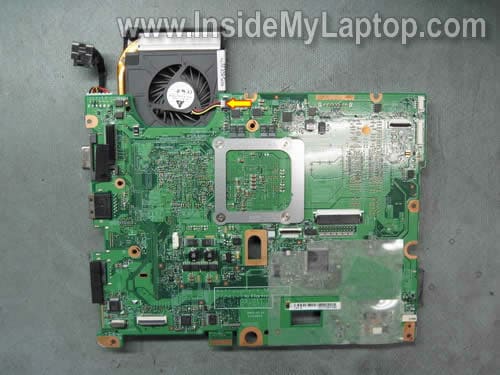
STEP 20.
Loosen four screws securing the cooling fan assembly.
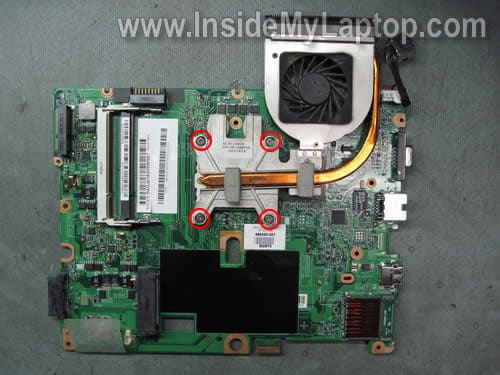
STEP 21.
Remove the cooling fan assembly from the motherboard.
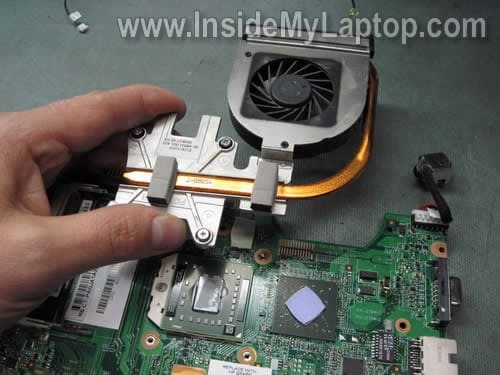
STEP 22.
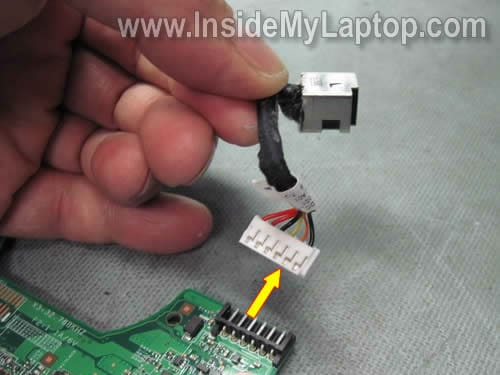
In this model the power jack is not soldered to the motherboard.
You can unplug the DC jack cable and replace it with a new DC jack if it’s bad.
Steve Whisman
I successfully replaced the keyboard on my Compaq C60 using these instructions. I found a step missing between steps 5 and 6. The keyboard surround that houses the power switch needs to be gently pried up to release the keyboard.
Thanks for the very useful info.
IML Tech
Steve Whisman,
I’m glad that this guide worked for you. I didn’t miss the step, I just thought that most people can figure it out as you did.
Tony
Thanks for this website.I was able to change the keyboard on my Compaq CQ 60. When you remove the battery there are 3 screws that have a picture of a keyboard next to them. I believe those are the only screws you have to remove to get the keyboard off. For other readers try that before removing things like your memory and WIFI card if all you are doing is replacing your keyboard.
Chris
Thanks for this! It is always nice to know what to expect when taking apart your laptop. I’ve been planing to dismantle my HP to try and figure out why my usb connections disconnect/revert to usb1.1 whenever I slightly move my screen. It has been aggravating the hell out of me for weeks, but thanks to these instructions I don’t have to hesitate anymore.
Mike Sorrenti
I bought a AMD mother board and CPU for my compaq cQ50. The board that was in there was an Intel. My computer will turn on now but will not boot up. Do you have any ideas?
Thanks;
Mike Sorrenti
IML Tech
Mike Sorrenti,
1. CPU is not seated properly or not locked in the socket.
2. Memory modules are not seated properly.
Mike Sorrenti
Thanks, I will try that.
Jonathan Murphy
I have a G50-104NR that came with an Atheros B/G card. Tried replacing with an Intel 5300 B,G,N car. Installed the drivers that were downloaded from the HP site for for Vista 32 bit. Device Manager sees Intel PRO/Wireless and says it is working properly but the device can not find a network connection. Windows troubling shooting says the device is not enabled or drivers are not loaded properly. Do I need to uninstall the Atheros drivers and the HP Wireless software to get this to work?
Kelly Mosley
thanks for the help, i have replaced my motherboard with exactly the same thing, when i turn it on however, the fan goes, the leds light up, but my screen will not turn on. how do i fix this?
thanks
Paul
Good guide, thanks 🙂
My webcam cable was so firmly wedged in that despite my extremely careful attempts to remove it without it breaking, the cables ended up ripping out of the socket.
I’m now attempting to solder them back on, but they’re so tiny it’s proving a nightmare! Any tips?
Paul
Sisbrains
Steve Whisman made a good point – it often isn’t very obvious how to remove keyboard surrounds.
In this case, you need to push the keyboard up, towards the screen, by about 4-5mm, and this releases many plastic catches, that go underneath the metal case underneath, then the surround easily lifts off. If you don’t know that you have to push it up towards the screen first, you could have problems lifting it off. I think it would help to add this information to the tutorial – but it’s a GREAT tutorial, by the way, you saved me a lot of hassle getting inside my CQ50.
The only problem I have now is that I haven’t been able to fix the original problem I had – my CQ50 turns on, but the screen is blank most of the time. Sometimes it brings up the POST screen, and I can get into the BIOS, etc. and sometimes it will boot from a CD, (Acronise True Image), but won’t boot from Ubuntu on a CD.
When I had the motherboard out of the case, I connected it to the screen, had redone the CPU paste on the CPU, and had that all connected, put some RAM in, the on/off button connected, and the keyboard, and it turned on perfectly every time, straight into the POST screen with no problems. I tried this about twenty times and it worked perfectly every time. But I didn’t have the hard drive attached, nor the DVD drive, so couldn’t check if it would boot into something.
Now that I’ve put it all back together (real easy thanks to this great tutorial), I still have the old problem – it powers up, but rarely even displays the BIOS. When it does, if I try to get it to boot a CD, it sounds like it’s reading the disc, but it won’t load it. (The hard drive isn’t set up with Windows yet so I can’t test it properly.)
Is it likely to be the BGA on the NVidia chip?
Kevin
Thanks =D great guide! Just missing one thing though… is it possible you could show what type of screw goes where? I have 1 screw left over that doesn’t fit in the last hole, so obviously I have put 1 screw into the wrong hole. Would be very helpful and much appreciated if this information could be added =D
IML Tech
Kevin,
I assume that you make notes while taking apart your laptop. 🙂
If I start making notes for every single screw, it will take me forever to complete one guide.
Michael
Hello
Great guides. I love the precise steps. I want to clean and oil the fan on the cq50 because it is loud is there an easier way to get to it without going though steps 1-21?
thanks
IML Tech
Michael,
Nope, the fan is mounted inside the laptop case, under the motherboard. In order to access the fan you’ll have to go though all these steps.
Michael
Thank you for your prompt response.
Lena Lindsey
Have problem with replacing the DC jack. The old had broken connections and after recieving a new one, could not determine which leads were to be soldered to which pins and such. Is it possible to get a color photo showing which leads in the harness are to be soldered to which pins/ connectors on the jack?
Slathan00
Great post!
Thanks a lot for your work, from Spain =)
lloyd
Thanks so much for a wicked guide to the inside of this laptop. A tiny peice of plastic holding the power jack had broken meaning the power cable could not be plugged in enough to connect! Was really stressed till i found this guide as I got as far as removing the power switch plastic board and thought i had plulled out the ribbon cable breaking off its connector (which was actually the cable lock!) although i did break this of the motherboard i figured how to get it back on and plug the power switch back in! Managed to follow the rest of the guide and superglue the power jack back to were it should be! Thanks a lot for saving me the embarrasment and expense of having to get this all looked at, thought i was going to have to resort to PC World! x
jas
thank for the step by step guide. I have one question before i start taking apart the laptop, accidentaly dropped the laptop while the head phone pin was plugged into the headphone jack in the front of the laptop. The pin cracked and half of the pin is still situated inside the headphone jack. After taking apart the laptop, can i push the pin out of the jack or is there any other way we can overcome is unusal situation? your comments will be much appreciated.
IML Tech
jas,
I don’t think that removing the top cover will help much. You will not be able to push the pin out of the jack even if the top cover.
You’ll have to try something different. Not sure if I can give you a good advice in this case.
Tommy
where would I buy the CPU fan for the CQ50? and thank you for this walk through.
brian
I have just dismantled my compaq-presario cq50 laptop following your step by step guide and repaired the fault after rebuilding my laptop everything works fine apart from my wirless card. At start up the light is blue for a second then changes to orange when I press the wirless button it stays at orange but says that wlan is off or wlan is disabled. I think that the wirless card may be at fault as it worked ok before I dismantled the laptop. Is there any way I can test the card.
Thanks Brian.
IML Tech
Brian,
Maybe the Wi-Fi card simply turned off?
Is there any way to turn on the Wi-Fi card using a shortcut on the keyboard or standalone Wi-Fi button, I don’t remember that off the top of my head.
Check the device manager, make sure the wireless card is enabled.
I think it could be something simple.
jack h
you are missing the button driver. connect ethernet cable and update patiently. it will stay on blue once you have received the pci driver. suggust you get avg driver updater.
Tony Abboud
I used these instructions to remove and replace the CPU on my CQ60 Presario,
it was so easy to do so following the steps and very pleasurable to know that you did accomplish such a task without having to mess up anything.
Great step by step instructions, congrats and appreciate the walk through
Jeff
I’m working on a CQ50 for my cousin, but i’ve gotten stumped by removing the video cable. is there a trick to it, like with the keyboard or power board ribbons? or do you just have to gently pull on it till it lets go? and if that’s the method, how to you put it back in? The cable seems to be very snuggly attached, and doesn’t seem like it would slide back in easily.
Kenneth Henning
Thank you so much. My friend was complaining about her computer over heating all the time. This article helped me speed up her system, along with fixing her overheat problem (the “air-in-a -can” did nothing). Thanks again.
Kenneth
adammaddock
Hey, thanks for the guide, after replacing my fan and putting the laptop back together and booting back up without any issue my battery, after running out, would no longer charge and the laptop won’t be powered by the mains lead…any clues?
IML Tech
adammaddock,
1. The AC adapter is not connected to the wall outlet.
2. The DC hardness shown on the last picture is disconnected from the motherboard.
Unhappy user
I will never again buy cq 50 10
Vaughn
How can I test my A/C adaptor?
mike
I’m stuck on STEP 9. Remove the plastic cover
I see the tab’s on the front face, but can not seem to budge the sides or display side – help
Steven
Help! Do you have instruction, in detailed, and video on how to disassemble, for Compaq Presario 732US, to get to the CPU and heat sink inorder to clean it. It seemed that once the heat reaches a certain level, the notebook hang. Thank you so much for your effort.
IML Tech
Steven,
Check out this guide:
https://www.insidemylaptop.com/disassemble-compaq-presario-f700-notebook/
Should be similar I think.
Before you disassemble the laptop try cleaning the cooling module with compressed air.
Steve L
Thanks for the site. It made taking out the motherboard a piece of cake.
Now where would I find a schematic of the mb to test the power regulation
circuit? And what all needs to be plugged in to power up the board out of the
case?
Andrew
How does one disconnect the webcam cable? Just pulling it does not work.
Jan
A few people have reported the same problem that I seem to be having. I don’t know how to remove the webcam cable.
IML Tech
Jan,
I don’t know why you having a problem with that cable. Just grab the male part of the connector with your fingernails and pull it from the female base.
Jan
Well, it all seems to be a VERY tight fit. No pun intended…
Amel
I am wanting to upgrade the Wistron 303C motherboard on my CQ60 418DX to upgrade my video card which is a GeForce 8200M G. What is the best notebook graphics card below $100 and what motherboard will I need to utilize it? Also my CPU is at 115F, so are there any fan or thermal gel upgrades I could do as well?
IML Tech
Amel,
I don’t think you can upgrade the video card in this laptop. The video card integrated into the motherboard and cannot be removed.
eric
I just used your instructions to replace the motherboard on my hp G60. After reassembling, it will not power on. I have confirmed that the DC plug is connected to the motherboard. I thought I may have faulty motherboard because the old motherboard would cause the 3 led’s on the front to blink 3 times. Now neither motherboard will cause the led lights to blink. Any ideas?
IML Tech
eric,
It’s hard to tell what is wrong without looking at the laptop. Maybe it’s just loose connection somewhere. Check all connections.
John
I have a compaq CQ61 314TU Will this guid work for this model?
Can the CPU be upgraded
E Nigma
I have a Persario CQ50 and I made a small boo-boo. The connector to lock down the power button cable connector snapped. Is there anything that can be done to get a new one, or di I have to scrap the motherboad?
bewiderabeast
I’m having the same kind of problem Sisbrain is having. I have a CQ60 with AMD 2x 64 nvidia graphics. Everytime I turn it on it powers up but doesn’t get past the options screen (e.g. Press to Enable Startup Messages, <F1 to System Information, etc, etc. and there it freezes. Once it allowed me to go in and change the boot order (was going to try Linux as a backdoor or other live diagnostic utilities), but that was it now it just stop there, no matter if I give a little kiss or throw it across the room with all my might (just kidding). Any suggestions? I saw the one about reseating the CPU but I haven’t done a mobo swap. It was lightly dropped (or so the previous owner said and I believe him. He said it slid off his lap and he caught it w/his foot and then it tilted and one corner hit the floor. Is that enough to unseat the CPU? Any help would be appreciated.
Thanks in advance.
Great site!
IML Tech
bewiderabeast,
You can try minimizing the system by removing parts one by one and test the laptop after each part removed.
Remove the hard drive and test the laptop, remove the dvd drive and test the laptop, etc…
Yes, it’s possible but not very likely. The CPU secured pretty good.
Try reconnecting memory modules, maybe one of the modules is not making good contact with the slot.
bewilderabeast
Oh yeah…the dvd seems as if it’s reading cd’s but eventually stops and nothing changes anyway. It’s an act of pure optimism to pose the question in the first place…but ya never know.
bewilderabeast
another act of optimism…I tried to use the UBCD but again…nothing
bewilderabeast
As far as webcam cable goes if you take a small flat head screwdriver and gently pry one side then the other alternately it will come off without incident. I have a CQ60 and there seem to be small variations in design. One end of the webcam connector (it splits 2 ways from the main connector. One goes to the LCD, the other to a twin female/male connection at the side of the board. I don’t know yet (at least for my purpose if it needs to be disconnected, time will tell).
On the keyboard it doesn’t reflect in the pics that the plastic cover that surrounds it needs to be pried up gently first, the separate the keyboard(this would be helpful info for a first timer like myself). The problem I seem to be having the most problem with is the touchpad cable. I don’t see any type of release and am not one to force things. Hopefully I’ll figure these things out. I’ll post any tidbits that might help future first timers. If anyone has a trick for the touchpad cable I would appreciate a post. I will try to take some blow up pics off the assembly and find a place to post them. I would definitely recommend a good magnifying glass.
bewilderabeast
On the webcam connection the the two wires that terminated at the left side of the CQ60 (both black) were not two separate connections, they were a plug with plastics retainers on each side that have to be pried out to each side to release the connector. Pry gently.
bewilderabeast
Step 9 is the same as removing the touchpad cable. You see the black platic strip across the end of the cable? It just pivots in an upward direction and the cable slides out. Reinstall is the opposite.
the_beanz
Appreciate the clear guide but need more detail on releasing the keyboard. All the screws removed keyboard still feels securely fixed. Location of clips and means or releasing needed.
IML Tech
the_beanz,
Make sure all screws securing the keyboard on the bottom of the laptop are removed.
After that insert a thin object between the top side of the keyboard and cover and lift up the keyboard.
Here’s an example: https://www.insidemylaptop.com/images/Dell-Inspiron-Mini-10/removing-hard-drive-03.jpg
Remove the keyboard.
Katie
The keyboard is underneath the cover, you need to slide the cover towards the screen first. Also, did you remove the screws under the battery? those hold the keyboard.
My question is- I need to replace the power jack. Is that something that I can buy at a store like Radio Shack or do I need to special order online? Is there a name for the specific “model” or whatever that I need?
IML Tech
Katie,
You cannot buy the power jack harness in a retail store, but you can buy it online. There are tons of them on eBay.
obi
i try to remove the webcam cable and it got broke separating the two thin cable from the male connector.my cq50 did,nt have a webcam. my question is without connecting this cable will it cause any harm to my laptop
IML Tech
obi,
Nope, it shouldn’t damage the laptop.
Roelworks
if i just want to clean the fan do i have to dissamble the whole thing…i failed with my other laptop..(the dissambling thingy) and it kinda traumatize me…
IML Tech
Roelworks,
Try cleaning the fan with compressed air. Blow air into the fan grill on the bottom of the laptop and after that into the grill on the side.
This will help you to clean the fan without taking apart the whole laptop.
Per Nissen
Thank you extremely much for this guide. Walked me through to a complete fan cleaning of my wife’s cq60-110eo and just put it back together. It booted up like clock work and is now wonderfully silent. One smiling wife 🙂
Dinahcj
I have a compaq presario cq60 and I’m having trouble with the power jack. At first I could wiggle my cord to make it come on but now it won’t work at all. Is the jack soldered in my model? I’m not sure how to tell if it is completely broken or if it’s just loose and if it’s loose how would I fix that? If it’s not soldered can I just purchase another power jack and replace it like you described in this post? Any help would be greatly appreciated!
IML Tech
Dinahcj,
First, test the AC adapter. Maybe the adapter is bad.
Connect a voltmeter and while testing the voltage, move the power cable. If power cuts off when you move the cable, the adapter is bad and has to be replaced.
The power jack shouldn’t be soldered. It should be the same as I show at the end of the guide, located on a power harness. Simply buy a new DC jack harness, unplug the old one and connect a new one.
CARDENAS
Hello,
My sam open his Compaq Presario CQ50 and he breack the Power board button, if you know were i can buy this part, please help me because is very difficult to find.
Thanks a lot
IML Tech
CARDENAS,
I found the part number for the power button board in the service manual: 486627-001
Google the part number and you’ll find it.
Kel
My Compaq CQ60 gets really hot on the bottom. I’m afraid the fan isn’t working but I am not sure how to tell. I don’t feel a lot of air coming from there. I did use compressed air and I could see it spinning when I blew the air in (while it was turned off).
Should the fan run constantly? Or just sometimes?
The wireless keeps losing the connection suddenly and it’s slow -I’m afraid its frying! I don’t know if I should replace the fan or if it’s just going to die on me after less than a year.
Wyatt
I have a presario cq50. When i turn on the computer the computer itself turns on but the screen remains off or doesnt turn on. I have tried hooking it up to an external monitor and that didnt work. I have tried a hard reboot, that didnt work either. IDK what the problem is, so any suggestions would be helpful. Thanks.
Jetsam
Thanks for this guide. I suspect an overheating problem with the CQ50 and just want to access the heatsink/fan to remount and clean. Do I have to disassemble the keyboard as well or just the bottom cover? Thanks
E Nigma
I posted this same question earlier but it seems I received no response, so I thought I would try again:
I have a Persario CQ50 and I made a small boo-boo. The connector to lock down the power button cable connector snapped. Is there anything that can be done to get a new one, or do I have to scrap the motherboard?
Ken
What is the cpu socket type I want to add an intel core dual 2.3 proc
orcun
hi
in the open cable connector picture ( the 10 Th one from the top )you can see the black plastic bit that pinches the cable which is coming from POWER BUTTON BOARD.
so if you break this black bit of plastic which means you wont be able to connect this cable to mother board.
please tell me what i am gonna do now as i have broken this and can not power up anymore
thanks alot
Jon B
Thanks for posting this, I’m putting it back together with a new MB and I cant figure out where the wifi cables reconnect?
valachus
Great walkthrough, used it to great effect to take a CQ60 apart for cleaning the fan, however I think I must have connected incorrectly a cable since the front side LEDs no longer light up (at all) and I’m getting a “battery present, not charging” permanent message. I think it’s a internal connection problem since on AC power it runs smooth but the LEDs (AC / BATT / HDD) are out completely. Any ideas?
IML Tech
valachus,
It’s possible some kind of connection related problem. Check all internal connections. I cannot help you without looking at the laptop.
Chris
Hello, a friend warned me about the power port cable thats connected to the motherboard, he says its loose, but we don’t understand why its moving up and down
I have Compaq Presario CQ60 and I’m really worried about accidentally blowing my motherboard
Please help
Sake
Hi, Thanks for these helpful instructions. They helped me a lot.
But I stuck with step 17. Can you give me a tip how I can remove the cable connetions from the motherboard? Can I just pull them ayaw from the motherboard or do I have to something first before I pull them away?
Thanks a lot!
IML Tech
Sake,
You can pull two cables in the top right corner.
Do not pull the cable in the lower left corner. First unlock the connector, only after that remove the cable.
Do not hurry. Take a closer look at the cables, it shouldn’t be difficult how to disconnect them safely.
Jay
This is a great guide. Before I start tearing my machine down however, I have a few questions about some of the steps you have included in your photo tutorial regarding the removal of ONLY the charging port and disconnection of the charging port cable.
1. For removal of the charging port and disconnection of its cable at the plug on the motherboard, is it necessary to remove the cooling fan assembly (step 20-21)?
2. If not, is it possible to unplug the charging port cable from the motherboard and remove/replace the charging port without removing the motherboard from the case (step 17-18)?
These questions are in regards to my Compaq CQ50 laptop.
Thank you,
Jay
IML Tech
Jay,
Nope, it’s not necessary. 🙂
Moreover, you don’t have to remove the motherboard. Just disconnect the left speaker as it shown in the step 16 and after that you should be able to disconnect the DC jack harness.
Ian
I Just had to replace the mother board in my HP G60 (same as the Compaq) for some reason I now can not get the new board to recognize the dvd drive. Is there any chance that I forgot to reconnect a cable or with it being an ata drive should i just have to slide it in and be good to go? Do i Need to reset any bios setting or anything? If anyone could email me with an idea it would be great Ian1982@ymail.com
Sarah
My roommate just got her screen replaced and now the left click button won’t respond. I took the laptop apart and it appears that the white plastic clip that keeps the ribbon in place is broken. Is there a way to replace this?
Gregoir le Gros
Hi
Many thanks for excellent strip down guide. My sons CQ60 became very very hot. Stripped down to motherboard and extracted fan assembly which comes down to very easily de-dusted parts. Took whole fan assembly off, removed tin-can cover on fan, pulled heatsink off processor and was able to completely clean the radiator assembly. No dust anywhere now. Just needs replacement heat transfer compound and off we go. I’m 90% sure it will work fine now. There was a significant amount of dust clogging the radiator vanes inside the fan assembly. Please accept my £5 with gratitude.
Tato
I just took apart a CQ60. The DC jack LED does not turns on. I checked at the harness connector that I am getting voltage on the red cable, but not on the orange one. I’m not sure but I think that the LED must be on as long it is connected to the AC adapter, even if the harness is no plugged in the motherboard. I am not sure if I should replace the DC harness or if this is a motherboard problem because I known I am getting voltage at the motherboard.
What you guys suggest?
Nilza
I think that I may have damaged my Video Card as you have labeled in number 10. I obviously can’t see if the wires are all in there because of the black sheath. Would this possibly be the reason that my laptop has power, lights come on, fan blows, bet screen remains completely black?
IML Tech
Nilza,
Did you mean the video cable?
Did you remove memory for any reason? It’s possible the memory module is not seated correctly. Try reseating it.
Also, test your laptop with an external monitor connected to the VGA port. Can you get image on the external monitor?
babycnel
thank you for the great tutorial and i was wondering were i can buy the new dc adapter apparently all compaq CQ60 have problems with the power cable getting out
Mitch
I have a CQ60 that will not boot. The screen remains black and I get a series of beeps and CD drive noise in a pattern while the CD light on the slide out CD tray flashes. It goes CD-Beep-Beep-CD-Beep-Beep-CD. Ever hear of this?
Connor
Hi, great tutorial. I was wondering if you can get zif replacements? Also, what would the best thermal compound would be for this system? The fan on this just doesn’t ever stop and I replaced the old one that was burning…..and the new one continues to run. Thanks
IML Tech
Connor,
From another motherboard.
The CPU compound? I’m using X-23-7762-30 gray grease (google it) for all CPU applications. Works fine for me.
Mrs J
The directions were brilliant and I got it apart OK but am having trouble getting the keyboard and plastic cover to go back on properly – please help!
Dwayne
HI,
I put in a replacement motherboard because the old would not post. but the problem comes in when i put the screws in to hold down the keyboard and top black cover. the machine will run fine as long as i dont screw it down, but once i do it will not turn on. I cant figure where the short could be because I dont see anything touching. i will try and put some tape around where the keyboard touches the top metal casing.
Can you think of anything that would short the laptop as soon as you screw down the black cover or the keyboard. something must be getting compressed during this process.
Hope you can help me.
Dustin
Hi there i own a comoaq cq70 laptop and was looking to upgrade the graphic and was wonder how to do such a thing. Any help would be great thanks.
Pat
Awesome guide, thanks mate!
greco
where is the cmos battery????
Lovneet
Hello,
I was successful in taking apart my laptop with the given instruction. Thanks for the details. But now no matter how carefully i assemble it back the touchpad and wifi antenna are not working. Any insight would be helpful..
IML Tech
Lovneet,
1. Make sure the touch pad cable connected correctly.
2. Is there touch pad enable/disable button above the touch pad? Make sure the touch pad turned on.
3. What do you mean the wifi antenna not working? You cannot see any wireless routers? Make sure the Wi-Fi card enabled in the device manager. Also there should be keyboard shorcut to enable/disable wireless card.
IML Tech
greco,
Take a look at the image shown in step 5.
Dave B
I bought a bad charger and it went out and damaged sommething in my computer. I beleve that it might be the power jack like the one you removed. If the power light on the power jack still pops on when I plug in the power jack is there any chance that the jack could still be burt out or damages so that it would not charge my laptop?
IML Tech
Dave B,
What exactly was bad with the charger? Wrong voltage, wrong barrel size, etc…?
If the light turns on, probably it’s not a jack related problem.
Dave B
Well The charger light blinks and does not supply a steady charge, the charge comes in waves every second and i think this is because the charger blew out also i think it has damaged something because my computer no will not turn on and Im trying to figure out what could have been damaged. Could my motherboard have gotten damaged but my jack remain undamaged?
IML Tech
Dave B,
It’s possible the AC adapter is bad. Even though it outputs correct voltage, it doesn’t mean that adapter works properly when loaded.
I cannot tell what is going on without testing the laptop with a KNOWN good AC adapter.
It’s likely.
Dave B
The charger that I bought has the right voltage and ampage it just burnt out. smells bad also.
Dave B
I did test it with a good charger and it still did not turn on when it was plugged in. i think i need to repair or replace my motherboard whats cheaper?
IML Tech
Dave B,
It depends. If you can replace it yourself, probably I would replace it with a good one.
Find the motherboard part number, it should be printed on a sticker in memory compartment. Google the part number and find out how much is a new motherboard.
If it’s too expensive, it might sense to buy a new laptop (new hardware, new OS, warranty, etc…)
Martin
Hi, I have a problem with my computer’s battery does not charge. The computer does not recognize the battery and do not embrace it, if I want to be a computer all the time must be after the charger and the charger to the back pocket .. I’ll throw a picture
Maybe we could help, what should I do?
Paul Norton
Thank you for your clear concise intructions. They were the best I have seen in many years as a computer engineer. (sorry I cannot donate because I am on income support – long story). it has given my daughter’s computer a new lease of life because the fan went and my daughter and I replaced it. This saving me – well everything. It has saved my daughter’s homework, my sanity, taught her the inside of the laptop. And most of all, brought teamwork to the family. Thank you again.
ralpal
Hi, i’m fed up with compac. CQ60 burnt 2nd HDD, always overheating to boiling point. Anyone who fixed this problem? Fan is turning, but barely audible. I am using now strong outside fan, but this can not be a permanent solution. Thanks for any help
IML Tech
ralpal,
Maybe the heatsink clogged with dust? Try cleaning the heatsink.
Buy a can of compressed air and blow into the fan grill on the bottom.
cristian
ciao io ho il problema con il mio cq60,si e bruciata la piastra madre, ora l’ho sostituita, ma purtroppo ora il pc si accende ma non esegue nessun boot, ho smontato monitors e ho collegato tutto alla seconda vga, ma nulla gli ho anche sostituito la batteria , ma nulla il pc si accende ma non si sente nulla nessun bip d’avvio, solo monitors nero,avete qualche consiglio
attendo
ciao cristian
IML Tech
cristian,
When you replaced the motherboard, you have to transfer the CPU and memory. There is a chance that one of them not seated correctly and because of the laptop will not turn on.
Take is apart again and check if the CPU and both memory modules seated correctly.
bglasser
Opps, need some help. I just changed out a defective fan on my CQ50-139WM, and broke one of the last connections.
The black part (ZIF) on the power button cable connector on the motherboard came off and broke – the white part is intact, but now I can’t lock the ribbon cable down. Can you help me locate the connector, and I’ll just reuse the black part?
MUCH thanks!
Sunshine72
Hi- Bless you for this. I am trying ot get in and am stuck at webcam connector. Does it lock too like the ones to keyboard? I don’t want to force it.
IML Tech
Sunshine72,
No, it’s just a regular male/female type of connector. You just grab the male part with your fingernails and pull it from the female part.
bglasser
Thanks for your help. I don’t think so as the ZIF I’m speaking of is a hinged design, and I don’t see how to secure it. Any other ideas?
Much thanks!
bglasser Says:
The black part (ZIF) on the power button cable connector on the motherboard came off and broke – the white part is intact, but now I can’t lock the ribbon cable down. Can you help me locate the connector, and I’ll just reuse the black part?
Joseph Del Valle
Hello, and mucho kudos on tutorial. Q is, the power adapter that is attached to the mb is bad and only charges when it is in a certain angle. What is a good site to buy just the power adapter attached to the mb? A favor for my aunt-in-law turned into a caper. Thanks again!
IML Tech
Joseph Del Valle,
First of all, make sure it’s not the AC adapter plug is causing the problem. You can test it with a voltmeter. While testing the voltage, move the power cord attached to the plug. If power cuts off, you need a new AC adapter. If power is stable, then replace the DC jack inside the case.
Benny
I have 2 partition at my HP G60, but yesterday I guessing hard drive crash or is full , could anybody tell me what to do , please ,I’m been try to recovery with my vistas recovery cd, but nothing happen , told me no hard drive, do I has to replace hard drive……I go to appreciate any help,thank You ….!!!
Wayne
I have a CG60 which I have disassy all ready and was wondering what the voltages are on the 6 TP’s on the board. Also where the power jack goes down into the case, there are, what looks like 2 copper points that should come into contact with the metal case around the assy but cant see where this can make connect. Should there also be something between these 2 pieces?
Mateus Machado
I’d just like thank you.
Steve
Great instructions,
I have assembled twice very carefully
Powers up but just get a black screen, no post beeps or anything
reseated memory although seemed ok
touch pad connector broke but i can put pressure on with finger to work (will address that last)
also tried an external monitor ( black screen also)
doesnt seem to be getting past initial power up , hard drive light not on at front of unit
not sure if keyboard is on or activated
any ideas please
Leon
the cmos battery is under the same cover as the hard drive, see step 2. it is to the left of the hard drive, it is the black round object (about the size of a nickle) with a black and red wire from it to the mother board. cool
Mike Albright
One of the best tutorials I’ve seen for any laptop disassembly, thanks for posting. I took my friends apart to replace the fan before searching for a guide online. I managed to get it apart without damaging anything, but it took me a loooong time. Next time I work on a laptop I’ll search for the guide first and save some time and trouble. I could not believe how difficult it is to reach this particular models fan. My Lenovo has an access cover and it only takes one minute to open and replace the fan. Plus the fan is only $5 plus shipping compared to $35 and change for this Compaq cheap walmart model.
Mike Albright
In reading through the comments I see several folks having trouble powering up after reassembly. Perhaps Step One should always be to discharge oneself of static (especially true in the dry winter months) before working on the insides of any computer AND remembering to do so again after getting to use the restroom and grabbing another cold one. Many years ago I killed the very first PC I worked on with big static discharge to the main board. This was back when boards were selling for over $500.
Eli
Thank You very much for this good tutorial, i replaced the screen to the same laptop, my dad had squeezed the screen out of rage, i had to buy the new screen which costed 100.00 on amazon, took me around 2 hours to change it, thank you very much i am still using the same laptop, i changed it around a year ago now. i need to open my computer again to clean out the fan but this time i am afraid it might not turn on, is there i can clean it without having to open it all up? i have the Compaq Presario CQ50 the same one you used as a demonstration.
IML Tech
Eli,
Yes you can and here’s how:
Buy a can of compressed air and blow air into the fan grill on the bottom. After that blow air into the grill on the side of the laptop.
zj
Dear Sir
hi i have a problem in my hp pavillion g60.. no sounds…. only HDMI is there in device manager and the OS cant detect my sound device… it is possible for repair ???? thanks… i need help pls reply…
spliff721
i have the CQ60-215DX. it started having problems charging and then stopped charging completely. wouldnt light up the light mext to the plug anymore so you know that it is getting power. it seemed loose where the charging cord pluged into the DC power harness, so i replaced the harness. the thing is, it sat for 4 or 5 months before i replace the DC harness. now that the harness is replaced i am still not getting power. no light on next to the DC jack. i am going to see if i can test the actual charging cord, but is there something else that could cause it to simply not power on at all anymore, as i dont think its the cord but i may buy a replacement anyway just to be safe.
IT Consultant
IML Tech can you help me find a guide for HP CQ40… how to disassemble it…. thanks
Adebisi
Anytime I plug my system the power led blinks and the system doesn’t come on at all, it started a night after using it and the following morning it couldn’t come on again. I’ve tried to trace the problem on the board but I don’t know what to change or fix. Have you experienced this before? What is the solution? Please mail back. Thanks.
IML Tech
Adebisi,
How the power LED blinks. Does it turns on for a moment and after that goes off? Does it blink repeatedly?
Does your laptop start from battery?
Paul
Hi, I have a problem with my Compaq CQ60-118EL
The notebook With AC Adapter is operating normally, with battery operating normally.
When I try to charge the battery occurs the problem … namely, that the charging is intermittent and the screen loses brightness intermittently.
The Dc jack seems to be good.
Could be causing the charging circuit such as the faulty maxim chip?
I hope in your help.
Thanks very much.
karim
Hi IML Tech,
first of all thanks for all effort to make this toturial.
I have a compaq presario cq70.The left speaker makes lately a noise so i think it needs to be replaced.
So i was wondering how far i should dissamble the laptop so i can remove and replace the left speaker ?
Cause u see the speaker on your pictures already after you lifted the keybord,but maybe the motherboard needs to be off as well.
hope hearing from u
greetz.
Karim
Manu
hi, wanted to know if you have motherboard compaq presario cq60 to sell? please respond to hotmail. Thanks
marc-andre
i need a motherboard for compaq presario cq50 are you have one plz ans my email
IML Tech
marc-andre,
No, I don’t have this motherboard. 🙂
But you can search for a replacement on eBay or just google the motherboard part number.
The part number should be printed on a sticker in the memory compartment.
smartpeople60
I love your instructions. Very well documented and very well done. I only have one quick question. I am trying to determine the pinout of the power adapter. Would you know by any chance the voltage of the 3 black 2 red and 1 yellow wire. I am trying to customize and mod the laptop and would need the info for a custom enclosure. Thank you and congratulations on a great site
IML Tech
smartpeople60,
Cannot tell. I don’t have this jack.
You are going to disassemble the laptop, right?
Just disconnect the jack from the motherboard, plug the AC adapter and measure voltage with a voltmeter.
baxzy
Thank you for this great walk-through! Very helpful!
jhymy
Estupendo, me sirvioo un montonnn, espero que sigas haciendo cosas como estas, me ayudo muchisisimo, Gracias
Marlon
Very Good, Muito bom mesmo esse tutorial, Parabens (Brazil)
Tim
Absolutley amazing guide, I however have run into the same issue with the webcam connector. could you post a blown up picture of the connection so i can see where the wires go as i will have to solder them in place. the white male connection broke even though i was extremley careful. Compaq presario CQ50
Thank you
Natalie
Hello. I successfully installed my motherboard, but have a problem. When I turn on the computer, it stays on for a few seconds ( no screen turns on ) and then shuts itself off. The fan runs fine upon start up. I swapped the memory modules to see if they were in the wrong place a few times. That wasn’t the issue. Little confused, as it’s a totally new motherboard. Any help is appreciated, and thank you for this great tutorial. =)
-Natalie
IML Tech
Natalie,
It’s hard to tell what could be wrong without seeing the laptop. Maybe incorrectly plugged connector, grounding issue, etc…
Try disconnecting everything from the motherboard and start assembling it back together testing after each step.
If your motherboard, CPU and memory are good, it should start with an external monitor.
DGrex
ref posts 132 & 133
My power button blinks continually and laptop fan is running …just no picture
laptop continues to have power ‘on’ button flashing until I crash the laptop off by holding down the start button
Battery and power supply are all good
IML Tech
DGrex,
Bad memory maybe?
Try removing memory modules one by one and test the laptop with each memory module separately. One of the modules could be bad.
When you remove the bad module, the laptop might start properly.
Luke
Hello 🙂
Thanks first, for a very uesful guide – my laptop fan burn out and the laptop kept shutting down. I have since replaced it with the help of this guide but a new problem has arisen. The screen seems to have failed – no backlight, no dark text. I’m unsure what’s wrong since i checked the connections and made sure the screen wasn’t badly connected.
Any advice?
Luke.
IML Tech
Luke,
Does your laptop turn on at all? Can you hear normal hard drive sound? Can you see the hard drive light flashing?
You said the screen failed but maybe the whole system will not start, not just the screen?
Can you get any image on the external monitor?
Here’s my guess. If you removed the CPU, it’s possible you didn’t install it back into the socket correctly. Or you forgot to lock the socket.
rich conrad
HANK YOU!!!!!! i had my android tablet with ur webpage on while i tore apart my cq50.. with ur guide this so was SSSSOOOOOOOOOOOOO easy….. i got the new trackpad faceplate thing from ebay for 12$!!! i thanks you a million times for this page…… you rock…(took me anout hour to do it .. i had to reset mouse /pad after though )
richook
damngay
thx alot dude for the guide…. keep rocking 😀
james
worked great thanks, only problem is that its giving me a invalid serial number on startup, how can I fix this, please email me back.
IML Tech
james,
Go the BIOS menu. Maybe you can change the motherboard serial number in there.
On some motherboards you have to run special utility to set up the serial number (available only for HP certified technicians).
Daniel
I was just working on a CQ50-130US and upgraded the memory to 4GB 800MHZ (which it doesn’t run at only 667) Replaced the hard drive to a 7200rpm black drive and I was trying to install a P8400 (I had a spare) into it but it won’t start. I installed everything correctly because I put the old T3200 back in and everything works like a champ. HP’s guide says it can be done but it’s not working…. Any Ideas???
I Updated the bios to the latest, F65 I believe from Compaq’s site.
I tried putting one stick of memory to see if there was a problem.
I pulled the CMOS battery and reset the settings (Time and Date only things compaq allows).
The CPU is a good CPU because I just put it back into my HTPC and it works fine….
I know there were differences between different P series chips but I can’t seem to understand it.
Any help would be greatly appreciated.
Daniel
IML Tech
Daniel,
I’m not sure if you can upgrade from T3200 to P8400 processor.
T3200 has 667 MHz FSB speed and P8400 has 1066 MHz FSB speed.
I guess your motherboard chipset doesn’t support 1066 MHz FSB. Check your chipset specifications.
James
Thanks for the guide, made disasembling the system much easier.
benny
THANK YOU GUYS , I LEARN A LOT ….THANK YOU AGAIN
BENNY
EXCUSME SOMEONE HELP ME i DISSEMBLED MY HP G60 TO INSTALL A NEW TOUCH PAD, BUT NOW A HAVE A SIGN SAY SECURITY CERTIFICATE EXPIRE, COULD SOMEONE HELP ME IN THIS MATTER, DO i NEED TO UPGRADE HARD DRIVE , I went to h.p. driver I downloading all then again to see , If that sign disappear, but nothing, any help is welcome , thank you guys.Benny , from Miami.
Michal
Is anyone tell me where to buy a small plastic black “thing”from step 8 picture 2nd.
I have lost it somehow and know i can use power frame anymore.
I searched web but couldn’t find any spares like this.
Thanks in advance
matt
After reassembling, wifi is no longer working. I double checked the connections to the card and ensured it was seated in the slot properly. I looked at the wires and nothing is exposed either. The driver is also enabled in the device manager. Any suggestions?
Also, thanks for the instructions, very easy to follow.
matt
I have also tried using the shortcut above the keyboard, it only switches from “off” and “disabled”.
IML Tech
matt,
Try reinstalling the driver.
Make sure the wireless card enabled. Go to the device manager and uninstall the wireless card from there.
Restart the laptop and let it redetect the wireless card and reinstall the driver.
I believe had a similar issue with HP/Compaq in the past.
Brian
Hi There,
Recently purchased a new power cord for my CQ60 laptop from Ebayt was working/charging fine however a few days ago went down when I tried to reboot power light come on and the laptop will run but there is no screen and if left in this state I fear it will overheat
Do you have any suggestions I fear that the cheap power cord may have blown my motherboard could this be the case?
IML Tech
Brian,
It’s hard to tell what’s going on.
Try this trick. Unplug AC adapter, remove battery and push on the power button for a few seconds. Now plug in the AC adapter and test the laptop.
Shawn
Disassembled My CQ60-419wm. Thanks for the instructions!! My question is : It looks like there is a fuse built into the dc power jack itself? Is that what I’m seeing in the clear view window on the dc jack after being removed ? Because if it is mine seems to have a gap on the silver part in that window. And if is a fuse, could a bad battery caused this to blow or would it have been more likely that a short on the board somewhere? Because my pc would still run on ac power but wouldn’t run on battery power at all. Thanks in advance
IML Tech
Shawn,
I don’t know that. There is a built in light but I’m not sure about the fuse.
I think the fuse located somewhere on the motherboard.
Most likely it’s either bad battery OR there is a problem with the motherboard. I would definitely test the laptop with another working battery first.
Ryan
Hello,
Thanks for the photo how-to on the G60. I used Compaq’s shop manual and had issues, as in lost ZIF locks and mis-positioned screws 🙂
To repeat what Michal asked:
“Is anyone tell me where to buy a small plastic black “thingâ€from step 8 picture 2nd.
I have lost it somehow and know i can use power frame anymore.
I searched web but couldn’t find any spares like this.”
I second this request — I accidently flicked off this ZIF Ribbon Lock when I was removing the power panel, I can’t find the tiny thing despite searching for hours. I used the touchpad lock for the power button cable, so now I have no touchpad.
does anyone know where to buy this little 10-pin lock? Does anyone have a dead mainboard with the lock(s) still on it they would like to sell me?
double thanks in advance!
Ryan
rynosaur74 AT gmail DOT com
IML Tech
@ Ryan,
This piece is a part of the connector and I doubt you can buy it separately.
Here’s what you can try to fix the broken connector.
1. Cut off a piece of thin plastic (I think about 0.25-0.5mm thick) so it fits into the connector.
2. Insert the power cable into the connector the way it was before.
3. Push the thin piece of plastic into the connector above the cable. If the plastic piece it thin enough it will fit into the connector and apply pressure on the cable.
I’ve done it with one of my laptops before and it worked fine.
Martin
if I understand correctly, to clean the fan and cooling ribs, I need to follow same procedure as described to replace the motherboard in Compaq CQ60? This seems like a lot of work and not free of risks… Is there an easier way just to remove dust to improve cooling performance? Thanks for your help! Regards, Martin
Napo
Your question is well posed, Martin.
Can anyone answer to the cooling question about cleaning up the fan?
Thank you.
IML Tech
@ Napo and Martin,
In order to REMOVE or REPLACE the cooling fan you’ll have to go though all disassembly steps and remove the motherboard.
In order to CLEAN the cooling fan you can try two different options:
1. Blow off dust through the fan grill on the bottom of the laptop. You can do it with an air compressor. Some people reported that they successfully sucked out the dust with a home vacuum.
2. Follow steps 1-18 and remove the top cover assembly. After that the cooling fan will be exposed and you can clean it with compressed air. Again, you’ll need an air compressor OR canned air should be enough.
paul
Martin, I took apart my CQ60 a few days ago and cleaned the fan. I’m afraid, yes, in order to get to the fan you’ll have to release the motherboard. But you shouldn’t have to remove the entire fan assembly as then you’ll need new thermal compound and new thermal pads. I managed to remove just the fan by removing the 3 screws securing it to the heatsink, gave it and where it was located a clean to remove the minimal fluff that had built up. The laptop had been overheating (100C +) a few times and when I turned the laptop over and looked through the vents, the fan was trying to go but seemed as though it was jamming. Even after cleaning, the fan wasn’t as free as I though it should be. Luckily, the fan blade section is easy to pull from it’s spindle, I then applied a minute amount of silicone lubricant and pushed it back, it was a lot easier to rotate then. After assembly, the fan works perfectly and the laptop temps are back down to around 40C normal and max of 65 under heavy load.
RedneckTech
Hello all,
Maybe someone can help. I have a customers cq50 215nr and can’t remove the battery. The button to release will not move at all. Any ideas or tricks to get it to release without breaking it?
IML Tech
@ RedneckTech,
Insert something between the battery and laptop case (like a piece of plastic).
Pry up the battery while pushing the release into the open position.
Anthony
Fixed charging port on my CQ60, put it back together, now it does’nt power up………….shows charging light on the side….thats all! Help……..
Lily
So I cleaned my cooling fan with compressed air and now the fan no longer works. Did I do something wrong? Also can anyone recommend a good place to buy parts such as a cooling fan and DC jack harness? I have a compaq CQ50. thanks so much.
NIcky
I have a g50 I changed the motherboard but the screen remains black and all I I hear is the fan. I put an external monitor but it remains black as well. I need help. I see similar post with no responses. I need help please.
Angel
can you please put up pictures of how to put back all the parts of the compaq presario CQ50. I would really appreciate that very much.
damian
hello quick question i took mine apart and replaced power switch , it worked until i rebooted now all i get is a loud screech when i press the on button a few ticking noises and then nothing
please help
thanks
damian
Ibrahim
i can see 4 wires from screen to laptop body:
2 for wifi
1 for cam
1 for video
where is the one for microphone?
how is the microphone is connected?
valachus
Re: the replies @74-75 – problem: front edge LEDs not lighting up, battery not charging – I found the fix eventually: the blue flat cable in photo #17 was a bit loose, I applied a bit of band-aid over it and secured it into position and voila – problem fixed.
Mashran
I hve 1 question, If I want to clean my fan inside laptop, I need to remove motherboard for Compaq Presario CQ40. But, I afraid if I remove motherboard, my notebook will not on back. Just to ask u, if I remove motherboard and plug it back will my notebook start as usually? Tq
Tim 2o9
Many thanks my friend, I appreciate this alot. I followed your instructions, the pictures helped alot, took it apart and cleaned the fan, then did your instructions in reverse for the assembly. And the laptop works fine. Many-a-kudos to you.
Alex
Hi does anybody knows the exactly measures of the fan internal laptop for the Compaq Presario CQ50???
William Hull
My wife’s CQ60-419WM was over heating. She wanted me to take it apart adn clean the dust out from around the fan. About halfway thru I felt it was too complicate and put it back together. It powered on but only half the keypad worked she said. When I took it apart again the power button cable came loose and the keyboard cable came out also. When I looked at the connecter under a magnifying glass the clips were up. I must have pulled on them too hard trying to reposition when putting it back together and pulled them out.
Now this is my problem. I put it all back together and it won’t power on at all. I get a light at the point where I plug the power cord into the DC jack but no lights on the front of the computer and nother when I touch the power button. I’ve checked several times and do not see an other loose wires. Any suggestions would be helpful.
Jachin
My CQ60 keeps rebooting on it’s own, someone help i would appreciate. I have changed the Hard Drive and the memory to be sure, but it keeps rebooting, could it be a problem with the motherboard?
Jason
William Hull – Unplug the system, pull the battery, hold the power button for 15 to 20 seconds, plug it back in, press the power button, if it turns on then go ahead and replace the battery and enjoy. My laptop does this all the time but when I contacted HP about it early on they had no interest in fixing it even though it was still under warranty. It seems to do it a little less and less as it ages, not sure why this is but oh well.
I also have a overheating issue and my wireless seems to shut down whenever it feels like it and i have to use the trouble shooter to get it to work again. I am not comfortable taking it apart to clean things inside as I have done this on my old laptops and always seem to break some of the plastic clips and it never goes back together properly after that.
shaylie
First of all thanks so much for the pictures. I was looking all over for images of the inside of this laptop and this is the only site I came up with. I’m wondering if you could help me. I dropped my laptop (CQ60-615DX) and the impact pushed my headphones inside of it about a quarter of an inch. I still have sound coming through the headphones, but they’re really stuck. I didn’t want to pull them out because I wasn’t sure if that would cause more damage. It’s going to cost over $100 to fix and I’m not sure if it’s worth it. My uncle said that if the headphone jack isn’t soldered to anything I should be able to fix it myself. Do you know if the headphone jack is connected to anything on the inside? I know sometimes the headphone port is soldered to the sound card and if that’s the case I could make things worse by pulling the headphones out. If you could answer my question I’d really appreciate it.
IML Tech
@ shaylie,
Both audio jacks located on a separate board. You can see this board on the lower left corner in the step 16.
This board called: Audio jacks circuit board – Contains headphone ad microphone connections.
Here’s HP part number: 486634-001
You can find this part very cheap on ebay.
This board can be separated from the motherboard and removed separately.
shaylie
Thanks for the quick response. I’m not sure if I need a new Audio jacks circuit board since the sound still works, but if I do at least it won’t be very expensive. From what your saying it seems like it should be a pretty easy fix. I just have to work up the courage to open up my laptop. I’m not going to forcibly pull out the headphones because I want to make sure I don’t make anything worse.
IML Tech
@ shaylie,
Cannot tell. It’s necessary to open up the laptop and take a look inside.
shaylie
Would you advise that I keep the headphones in? I’ve heard someone suggest that I pull them out, but I don’t really feel comfortable doing that. I don’t want to make things worse and I’m not sure if forcefully pulling out the headphones could damage something else inside the laptop. I have a few friends that are pretty good with computers and I can probably get one of them to look at it for me at some point. In the meantime I think I’m going to buy an external sound card. Thank you for giving me the link to the audio jacks board. Now I know that I can get it fixed much cheaper than if I had Best Buy do it for me. You’ve been incredibly helpful and I really appreciate it.
Jorge Fernandes
I have one CQ60 laptop and it wont fire up, but make some tiny noise like tic tic tic.
After disassembling the laptop I figured that one of the IC near the power jack cable plug is damaged (burned). The IC is the one near the screw hole and I’m only capable to read 4407 on it.
It is possible to know what IC is and if I swap them with a new the laptop will be “repaired”?
Thanks.
Kumaaran
Hi,
I followed your instructions based on the pictures, to clean the cooling fan of my CQ50-210US. After I had put everything back the laptop works fine. But, it either does not hibernate nor shuts down when the lid is closed. Can you please tell me where is the lid switch/sensor located?
Thanks
sam
i have the same problem as Jorge Fernandes i also have a ic burned out behind the dc jack it between the back of the dcjack connector and the first screw hole its about 7mm in lenght its completely burnt black and cant make out what it says on the chip is there an way i can find out what the chip is?
ps realy good stripping guide easy to follow thank you
sam
update ive contacted a guy on ebay who was selling this mainboard and he was kind enough to send me a detailed pick of the chip its a ch8i-a15a was wondering if you knew of any where i could source replacement chip i think its just a 15 amp fuse because once i removed it from the board the laptop boots up ok but i would rather replace it than leave it with out the protection this chip provides, ive tried google but cant seem to find anything ;(
Tariq
Thank you very much for these information. it is stunning explation. my Laptop Compaq CQ50 suddenly won’t turn on. I removed the battery and kept on charger.. but same problem.. please any help?
IML Tech
@ Tariq,
Could be memory problem.
Most likely you have two memory modules installed. Try removing them one by one and test the laptop with each memory module separately. If one of them bad, the laptop will start with another one.
Tariq
I did what you said.. I removed both memories one by one and tested the laptop with each memory module separately but still same problem.. what do you think Sir. ?
IML Tech
@ Tariq,
It’s very unlikely that both memory modules failed at the same time, so I assume it’s not memory related problem.
I think this could be motherboard failure.
Just in case, test your laptop with another AC adapter if you can. It’s possible the AC adapter failing and doesn’t provide enough power for the laptop. Not likely but possible.
Thomas Fort
My fiances has one of these I took it apart using this guide (to clean a half inch of dust from it) but made a mistake. I somehow broke the harness for the speaker wires so now I have to put them back not knowing which goes where. Can anyone tell me the order? Also great guide! Very helpful in the whole process. Also also the monitor will randomly artifact purple, green, random lines seems moving the screen back and forth fixes it but is this the graphics card going bad?
IML Tech
@ Thomas Fort,
You’ll find new replacement speakers on ebay.
Also, you can go though the pictures and some of them are large enough to see the wire order: blue-white-red-black.
If moving the screen temporarily fixes the issue, probably this is cable related failure.
1. Could be bad connection between the video cable and LCD screen or motherboard. You can try reseating connections.
2. Could be failing video cable. You can try replacing the cable.
I don’t think this is graphics card related failure.
Tariq
Hi Sir,
If you think that the problem is related to motherboard so which part of motherboard you think is most likely is damaged and can be repaired or replaced with new one?
Thank you..
IML Tech
@ Tariq,
I’m not fixing motherboards on component level. If it fails, I replace the whole motherboard or advice my customers just buy a new laptop. Replacing the motherboard on some laptops is not cost effective.
Tariq
Hi Sir,
The DC jack in Laptop Compaq CQ50 Presario, has six poles in colors (Black, Orange, Yellow, Black, Red, Red). So please what is the voltage power of each pole when the input power is 220V AC..
Thank you..
IML Tech
Tariq,
I have no idea. I don’t fix motherboards on component level.
Mark
Thank you so much sir!
This helped me enormously to clean the cpu fan.
Harv
Hi,
Can the Laptop turn on If the CMOS Battery is dead? and can be turned on if the CMOS Battery has low voltage like 0.44V ?
Thank you..
IML Tech
@ Harv,
I believe a laptop should turn on even if the CMOS battery is dead or missing.
It will not save time and date settings but should turn on just fine.
AChref
helle plz can u answer me i have my pc hp wont boot … mean like is dead i want know if its the motherboard is bokin or no thanks to answer me
Nicole
The stupid webcam cable sucks! It just shredded when I was trying to remove it from the motherboard. Someone should go take a crap on the front desk of HP/Compaq’s offices.
Chris
When I was removing the wiring harness from the motherboard on a CQ50, I broke the plastic retainer. I see the order of the wires, red then black then yellow, and put them back in that way without the harness. The problem is, now the fan will not work at all. I am sure a connection is being made and the order of the wires is matching up with the pictures, just no fan. Any ideas. I appreciate any help.
Crazy Kim
where do you hook up the wifi antenna to the mother board on a compaq cq50 lap top
IML Tech
@ Crazy Kim,
Maybe you connect them to the wireless card? 🙂
It’s shown in the step 3.
Crazy Kim
Never mind think I was having a blonde kinda day lol Got it
NDIFREKE
Thanks a lot, this helped me clear out all the stuff that were stucked to my cooling system making the laptop run hot
mike
Is there a secret to separating the top cover assembly? It seems to be holding on pretty tight…
IML Tech
@ mike,
Make sure all screws are removed.
Use a piece of plastic as case cracker. Insert it between the top cover and bottom case and move along the side.
Greg
Hey
I have a Compaq Presario CQ50-211NR Laptop that shuts down by getting to hot. I have replaced the motherboard with a new one because I figured that it was a bad video chip. with the new motherboard in it still shuts down within 10 minutes. What is causing this need help I can not keep affording replacing parts.
Thanks
Greg
IML Tech
@ Greg,
Did you check the cooling fan? Does it spin at all?
Did you apply thermal grease on the CPU before installing the heatsink?
David
Just finally attempted to put my G60 back together. Thankfully much more help available then when I pulled the motherboard just last summer. I have a concern about the ribbon cable clips. I have reconnected the ones via the flip down locks ok, but I have these black plastic strips leftover. I remember them coming off, but don’t remember exactly where from. The flip downs seemed to lock in place nicely, but I’m wondering if these somehow snap in over the flip downs for additional locking? Or should I not sweat it? I didn’t see any reference to these at all in any video/tutorial I studied. As they are now, they look like the closeup above. I very carefully and orderly cataloged and stored the parts as they came off. I hate when I have extra pieces when put back together!
All help is grateful,
David
Brian
I have a compaq presario cq50-103nr, that has several issues. 1) my ex roommate illegally installed spector soft keylogging software on it…how do I get rid of it? I have tried Webroot, Avast, and AVG, all to no avail. I also reformatted it back to mfg settings and upped it to 4GB RAM from 1GB RAM. I never really had any issue with it being slow or overheating until last June (when he installed his spy). I have cleaned up my cache, deleted all my unused programs, moved all of my files over to USB flash, and it is a bit faster, but not what I would expect for that much additional RAM. 2) I now have issues with it overheating and powering down if I try to play videos, or use it for any extended period of time. The bottom of the unit gets very hot and must cool off for 30 mins or so before re-powering. Should I attempt changing the cooling fan, or just get a good cooling pad/stand?
IML Tech
Brian,
Reformatting back to mfg defaults should have removed all unwanted software.
Most likely it happens because the fan heatsink is clogged with dusts. If the fan still works fine it’s not necessary to replace it.
You’ll have to clean the heat sink from dust and this should fix the problem.
Blow air into the fan grill on the bottom of the laptop until all dust is gone.
Linda
This was very helpful. Thank you. All I needed to do was replace the power jack. It worked great for a week and now it stopped working again. I’m sure it’s because the wires on the thing have to be bent like crazy to get everything to fit in there. When I take it all apart again I can get power when I wiggle it. I bought the part on Ebay. Is the $8 one better than the $4 one? Do you know a good solution? Thanks.
IML Tech
@ Linda,
Probably there is no difference between $4 and $8 parts. Just make sure the DC jack you are buying is brand new.
I guess you’ll have to replace the jack again.
Laura
David (comment #222), I have the exact same problem. I took the whole thing apart to replace the power jack and have no idea what to do with the tiny black plastic piece that was over the touchpad ribbon. It doesn’t seem to lock over the ribbon at all, and when I booted it back up the touchpad no longer works. Don’t know if I need a whole new touchpad or if it’s just something simple with the ribbon that I’m missing.
Reem
I want to thank you very much for these instructions!
With your help I managed to take apart a Compaq CQ60 to: clean the fan and grid from quite some dust/debris build-up, replace the thermal paste on the cpu, and replace the thermal pad on the gpu with a copper shim and add paste (Arctic Silver).
The laptop runs much quieter now and much cooler.
steve O
came back to check my posts for reply and page 24 is gone now lol any insight or help would be very appreciated
IML Tech
@ steve O,
You posted all your comments in a different post: https://www.insidemylaptop.com/laptop-does-not-start-bad-power-jack-motherboard/
zavalini
Thanks for the tutorial. Saved us a lot of time figuring it out on our own. 🙂
linda
I have used your site a number of times now. Thank you thank you thank you!!! It and the answers you give to people are easy to follow and AWESOME!
no one
Great tips!
Have just one problem. Got a CQ50-112EO and after repairing it just can’t seem to find the 4 screws that affix the screen hinges. Could somebody give me their size and details so I could look them up and buy them, please?
Bankerjohn
The 4 screws that secure the display hinges to the display enclosure are Phillips PM2.5X7.0 screws.
DealeX
@Reem and IML Tech: Can you tell me which copper shim i can use (for the GPU)? Cause i “refurbished” my notebook and the CPU got much cooler. However i didn’t knew how thick the new cooling pad for the gpu should be. My local dealer said, there are several pads with different thicknesses and it’s important to choose the right one! So how thick should it be? Respectively how thick should be the copper shim?
Obviously i choose the wrong thickness, cause the GPU temperature now rises very quickly when i watch movies 🙁
Reem
@ DealeX: I used copper shims for both the CPU and GPU and I bought them off ebay. Their size is 20 mm x 20 mm x 1.2 mm.
BTW I encourage everybody who was helped by this website to donate a bit as I did.
freD_Die
Hey Bro,you have a really nice website..please,can you help me…actually I have a problem with Presario CQ60..it seems that there’s a problem inside the laptop..the power button is on, but the lcd screen cann’t seen..yesterday actually there still no big problem,just small problem with the windows (I thoink…),and I try to reinstall it..after a few times I try to install it, there’s always stop at the processing time…so I think that I must save the file to the other computer,,and then I removed the HDD..after I check to the other computer,I know that actually my HDD was broken,so I decide to buy a new one..because I still have a few work,so I decide to buy the HDD on the next day..but after I came to my place (the next day), change the HDD, and I try to open my laptop..I press the power button,but it become worse..the lcd screen did’t seen…I try to re open the HDD,and I didn’t use it..cos I think that maybe this HDD was broken too..but it’s the same…so I try to change the memory (RAM),but it still the same…I try to opened the wireless device and the result just the same…can you help me please…cos this laptop was my customer’s…I really won’t make my customer dissapointed..thank you very much…I’ll wait for the reply
samir kanso
hello Mr.
please i need your help. i have the same motherboard and my problem is the input diode and the IC near it is broken too and i can t read the number of both hope you can help me and tell me the number of both i can attach a picture but the number of the diode is D33 and the IC is u1 and plus the resistance r1 . i hope u can help me and thanks in all way
Lean
Hello!
What kind of screwdriver do you need?
mel
I have a cq60-615dx and I’ve taken it apart, replaced the fan and am now wondering if I need a thermal pad. I applied thermal paste to cpu, but the little piece jutting out from the cpu did not have thermal compound between it and the component it touches (not sure what it is). iIs this normal or do I need thermal compound there as well?
thanks.
IML Tech
@ mel,
Take a look at the step 21. In my laptop I had both: thermal grease on the CPU and thermal pad on the GPU (blue square pad). Probably you have the same in your laptop. If that’s the case, you’ll have to apply thermal pad on the GPU.
Zach b
Hi, im just wondering before I take my cq60 apart, can i remove the cmos battery from the back? Thanks!
IML Tech
@ Zach b,
Sure. The CMOS battery located on the left side from the hard drive shown in the step 2.
All you have to do is remove the hard drive cover (STEP 1) and after that unplug and replace the CMOS battery.
333
Hi.. I’m on step 10, i’m afraid to pull/disconnect the wifi antenna cables because i don’t know where there are connected (I’m reassembling this after i clean the fan of my cq50)… where is it connected?? thanks in advance…
Ed Jones
Hi, Thanks for an excellent description of a laptop stripdown. I have a Presario CQ60 where the power connector has come loose from its mounting. Before i start the task could you say how the connector should be fastened – presumably to the motherboard – to stop it moving? That may lead to an alternative solution for the ‘loose connector’ problem.
Thanks
Ed
Caroline Witte
Awesome instructions. I got bored and wanted to see if I could take my husband’s laptop apart and put it back together for fun!. Everything still works!
steve cooper
hi i just found your instructions after the fact that i replaced the fan on my HP g50 laptop. after i think i put everything back together everything works fine besides the headphone jack, which i can live without. but the problem is when i go to watch something on youtube, the kids play a game or watch a downloaded movie the computer goes to a blue screen says it protecting the computer says something about dumping files or something like that. do you know how to fix it or what is wrong.. if you can help me fix it i will make some kind of donation to try to help you out. promise
thanks
N. Arcilla
@steve cooper
I had experienced random shutdowns with my CQ50 laptop and traced it to overheating. Either the fan is blocked/dirty or the heat transfer compound under the heat sink on the processor had dried out. I re-applied heat sink compound (be sure not to put too much though) and everything seems to be ok after that. Please check and give it a try.
Lee
I have been using insidemylaptop.com for a little while now. It is always straight forward and easy to follow. My only issue with this tutorial is that I needed to see a close up show of how the wires are run around the hinge area. I took my laptop apart a few weeks ago and do not remember how it goes back together.
Secondly, to the other posters, do not take offense to this, but if you cannot look at the screws in the article and tell what type of screwdriver it takes, then PLEASE DO NOT TAKE YOUR LAPTOP APART. I do this work on the side, partly for fun, partly for a little extra cash. Also, completely read the how-to before you start. It shows clearly where to take the WIFI cables loose from the WIFI card. After you take the keyboard out you should be able to see how the wires go under to the wifi card.
Osirisale
My CQ60-211DX needs a bit of maintenance now as it ages. I know the fan has been going bad for some time now… The battery just stopped charging as well. Replacing the battery is just a matter of having the money, but I’d like to know the minimalist approach to replacing the fan. I’d like to minimize how many components I remove, so can it be done merely from the bottom?
IML Tech
@ Osirisale,
No. You’ll have to disassemble the entire laptop and remove the motherboard. Only after that you’ll be able to access the heatsink and replace the failed cooling fan.
tom schinsing
great site, i need to replace the motherboard on my compaq cq60z-200, is there any way to know the part number so i can find one and order before i attempt to tear the laptop apart, pc repair shop says there $350.00, not sure if pc is worth the repair?
IML Tech
@ tom schinsing,
Remove both memory modules and look for a white HP sticker. Usually the motherboard part number printed on that sticker. Usually it’s in the following format XXXXXX-001 (where X different numbers).
Meep
Thanks so much! With this guide I was able to clean out the filthy, clogged fan on my CQ60-615DX. This is so well written that even I can do it!
manuelb
Thanks for this great guide….
Name
Hi I need the color order of the webcam plug looking down at it starting from closes to the LCD screen, wires Red, white, and 2 blacks, I think the order is Red, White, Black, and Black… But not sure, they got pulled out of the plug…
Thanks
Wilson Street
Hi,
Nice article – Thank you.
A few thoughts that may be useful for adding to it.
1) The Ram bay has the CPU end of the copper cooling duct tip exposed just under the side of the bay. This provides an easy access point to sense the temperature of the heat sink system close to the source of heat, without needing to do a major strip down. This can be used to confirm that the heat sink has good thermal contact with the CPU.
This can be down with the tip of your finger, or using a temperature sensor. It can also be compared with a sensor reading taken by inserting the sensor through the air outlet grill, into the radiator/heat exchanger. The temperature drop would give an indication of the efficiency of the colling system. Little temperature drop would indicate a clogged radiator.
2) In step 17 and 18, the motherboard is removed, and 18 shows the motherboard being lifted by a finger at the front right corner. This is done so the sockets on the left side of the MB come cleanly out of the case holes.
However, there may be resistance to this rotation, due to the fan casing having a tight fit near the air outlet, and at the end of the battery compartment. Using just the finger at the right end, causes the whole motherboard to be used as a lever, and so places stress on the components and solder joints. To reduce the chance of damage, the resistance caused by the fan can be overcome by inserting a flat head screwdriver in the intake opening of the fan on the right side, then gently prising the fan case up, while lifting the MB with the finger.
3) In step 17, some models (mine is an AU model), have a small adapter for the DVD drive that attaches to motherboard DVD connector on right side. This is fastened by two screws, and also needs to be disconnected before the motherboard can be lifted.
4) In step 13, four screws are removed, but some models may also require a 5th screw to be removed from near the left hinge mount, just to the right of the rearmost slot in the silver faceplate top.
5) Step 14, shows the prising of the top plate cover from the base. Some difficulty can be experienced in the region of the corners near the hinges where there is a small clip arrangement. This can be no problem, or a bit of a fidgety hassle, depending on the method of unclipping . So a little tip on how to make this step run smoothly would be helpful.
6) Fan disassembly.
Since many readers are probably doing this strip down, so they can service the cooling system, it would be handy to show a strip down of the fan, cleaning of the heat exchanger, removal of the impellor blades and show bearings/washers. Lubrication of fan blade shaft to reduce wear and whining noise.
7) It would be handy to show a photo of all the screws on a piece of paper, with labels to show which steps they were removed at or which holes they came from. So they can be easily recognized, when reassembling the laptop.
Alternatively, the screws removed at each step, could be shown as an insert in the picture, or on a piece of paper in the picture.
8) Suggestion for Additional precautions and info at the start;
“In the following guide I remove the motherboard from a Compaq Presario CQ50
laptop. Also this guide should work for Compaq Presario CQ 60/CQ70 and HP
G50/G60/G70 laptops.
If you need replacement parts, you can find them on eBay, or other auction websites.
Just search by the part name and laptop model.
Precautions
Start laptop disassembly by making sure the power is not connected and then
removing the battery.
Remember to contact your hands to an earth, to discharge any static electricity, and
not wear clothing that attracts static electricity.
Use some small containers, like bottles/jars, egg trays, margarine punnets, to collect
groups of screws and small parts in, for each stage of disassembly. This will make it
very easy to know which bits to use, in what order when re-assembling the laptop.
You can also label the containers, by where the parts came from, or which stepp they
were extracted in.
If you find yourself using “forceâ€, then check that you have done everything right, like
removed “all†the screws. The job is fiddly, but things are not glued together (unless
removing thermal compound).
9) description of method of re-attaching the heatsink to the CPU mount.
possibly with refurbishment of thermal paste compound on CPU, and assessment of state of GPU plastic thermal pad.
10) precaution during re-assembly to keep the cable for the power socket as far from the copper tube of the cooling system to prevent thermal damage to the cable. Ensure that it is properly seated in the two slots that hold it to the case. Maybe show photo of this.
11) In the steps where the wiring straps are clamped by the little black strips in the white strap sockets, it would be helpful to have a close-up photo, and some tips on how to lever these open (and later – closed) in such a way as to avoid damage to the locking clips at the ends (and how to insert the strap to ensure best connection).
Thank you for this excellent step by step article.
This laptop seems to suffer from overheating problems, due to several causes;
all of which need attention.
IML Tech
@ Wilson Street
Thank you for your valuable comment. I’m sure this comment will help many people.
Wilson Street
Hi,
Is there some way I can send you some photos of the copper heat sink tip in the Ram bay, the wiring of the power jack, the DVD adapter board, and possibly a labeled set of screws, so you can include them in an updated article?
Thanks
Wilson Street
Hi,
The following link has a schematic of the power jack / socket.
http://www.laptopjacks.com/view_part/Compaq-Presario-CQ40-401AX-DC-Power-Jack-CQ542500.html
which links to the diagram at
http://www.laptopjacks.com/images/HP543100schematics.jpg
This site has useful information for other laptops, in the projects on your site.
Thanks
Wilson Street
Hi,
One of the Replies here mentioned a “4407” IC that was blown.
This is shown on the schematic at the website below as being a AO4407-1-GP .
This chip is made by Alpha and Omega Semiconductor http://www.aosmd.com .
http://skemalaptop.blogspot.co.nz/2012/02/hp-compaq-cq60-cq70-g50-g60-g60t.html
Data Sheets are available for download from
http://www.alldatasheet.com/datasheet-pdf/pdf/136097/AOSMD/AO4407.html
1) http://aosmd.com/pdfs/datasheet/AO4407.pdf
2) http://pdf1.alldatasheet.com/datasheet-pdf/view/136097/AOSMD/AO4407.html
The chip is stated as being ideal as a load switch and for battery protection applications.
During the dis-assembly of the laptop, it would be an additional practical precaution to do a visual inspection (and possibly electronic) of parts that commonly fail, such as this chip, the power jack wires, dry or cracked solder joints on terminals and hot chips and sockets.
Thanks again.
Wilson Street
Hi,
The following is a link for the G7921-SF1U chip that senses temperatures and controls the fan.
http://www.gmt.com.tw/product/tree.php?PL=6&SL=10&CL=36
Made by Global Mixed-mode technology.
The schematic diagrams for the whole Compaq CQ60 laptop is viewable and downloadable from
http://skemalaptop.blogspot.co.nz/2012/02/hp-compaq-cq60-cq70-g50-g60-g60t.html
or
kythuatphancung.com/download/hp-compaq-cq60-cq70-hp-g50-g60-g60t-wistron-warrior-laptop-schematics.html?dl
The G7921-SF1U chip is shown in the center of page 24.
There is also a formula shown there for adjusting the T8 temperature setting from the default 85C.
Folks who are into modifying their laptops, may be interested in using that mod.
Thanks
Janet
hi
I have CQ60-100EA (i live in UK) can the AMD Sempron processor and the nvidia graphics card and hard drive be upgraded?
Thanks
Michał
Hi, I destroyed web cam plug (2 of 4 cables out), and when I turn on laptop I have no image/screen. Have you any ideas? Can I turn laptop with out this plug?
IML Tech
@ Michał,
The laptop should turn on without this cable connected to the motherboard.
What happens when you push on the power button? Does it turn on but shows no video? Check memory modules. Maybe memory not connected properly.
maxwell
excellent and usefull
Rezr
Hi there,
After following the guide i did some mistakes (because this is my first time). Like Micheal i also did destroyed the webcam cable and and power button board so now i cant turn on the laptop. is there any way to turn on the laptop without the board button board so that i cant test out if everything is working or not.
Thanks
Rezr
I have managed to turn on the laptop but there is no display the cables are connected. and one more thing when i close the lid of the laptop the laptop instantly turn off.
JasonK
Hi. I opened up my Presario CQ60 to clean out it’s vents and fan. Outside of removing my HDD this is my 1st time opening up my pc. Now when i power it up my screen stays off and the hard disk drive doesn’t seen to be receiving any power either. Any ideas as to why? I’ve disassembled & assembled it twice trying to fix it.
ags6
Thank you so much for this guide. It helped me out alot!
Bigboybur
I got the CQ 50 and it does weird things inside on it’s own and other things my friend said he thought I could not work on a laptop but I’ve taken Computer hardware and various computer software classes and a senior in computer engineering I am wondering if I could Swap mine out and replace the insides with New 1’s and I know I can but I’m wondering what ones they are and what one would fit inside of it so it would form a better computer how to find them and how to Figure out which ones would fit inside of them you show me the Bolt patterns Of the motherboard and other pieces I’ve taken it apart before so I don’t have to do it I’ve got the wrist grounding part so I don’t ground out the pieces and Make the parts go bad I’d like to figure out the pieces so I don’t spend hundred dollars on a piece and then waste my money Would you please help me out I would appreciate your help Thank you for your time and your Helpfulness!!!! #80))
Brian Boyes
Thank you for this very clear set of pictures & instructions.
I was wanting to take the top or bottom cover off in order to cut holes to improve air flow due to constant overheat tripping. This would have required a full strip-down so will have to be postponed.
However, the pictures showed me the probable main cause for the overheating – the left speaker is seriously impeding the air flow from the fan. Therefore cutting holes will not help much. I will therefore have to continue with a large domestic fan blowing air over the entire left hand side of the computer that, in any case, has to be placed clear of the table top (helped by having installed a 12 cell battery). The machine is more ‘movable’ than ‘portable’ !
David
Hello
Does anyone know what voltage I should be getting on the two orange wires? For some reason your picture shows 2 red, 2 black, 1 yellow and 1 orange. Mine is the same ect I have 2 orange and no yellow wire.
I get 19.5v on both of the red wires.
Very high chance that the main board is dead but would just like to know if it might be the DC jack.
Thank you so much for your time.
Some Guy
Hello. Thanks for guide. I took this C50 apart recently for the overheating problem and here’s my experience to help anyone:
after you follow the guide above (also ref to this video of doing it: http://www.youtube.com/watch?v=IdEhvYmALLY )… you will have the motherboard in hand.
Then, after taking the cooling fin assembly off the cpu, clean the silver silicone-like cpu thermal goo off with q-tips (i went thru 5-6 q-tips) and rubbing alcohol. When you rub it, it will eventually release and that cruddy old stuff will all come off after you work on it.
** allow it to dry very good, give 30mins to 1hour to be sure all the alcohol as evaporated for good measure.
Then, apply some decent silver thermal goo paste on it, radio shack has some “arctic silver 5″ thermal paste for like 10 bucks, just apply a dime amount in the middle of the cpu’s rectangular thermal cooling block, b/c when you lay the cooling fin assembly back down on it, it’s gona spread out just fine. Screw the screws back down a little at a time on it on it, from bottom to top criss-cross, then the other side to the diagonal opposite bottom screw. This way….as you tighten all of the screws up, it will distribute the pressure on everything and the distribution of the thermal paste.
This, along with blowing out all the stupid dust in the fan, will fix your over heating problem..
I am currently working on fixing it’s led screen that is affected by that flickering silver/pink/blue/green/general-zod style transmission static issue. It’s probly a cable or the inverter…I’m reading up on that now, b/c i have two of these laptops that I’m restoring for playtime, as I just bought 2 new HP pavillion 4th generation i3 intel 17” screen from best buy for $399 each, and they ROCK for the price, hands down bros.
good luck guys, i’m glad i live in the internet era where we can share our knowledge w/ each other so our wives can shut their face after we fix their stuff
takeitez
after cleaned my g50 for several times because of overheating, broke several parts along the way, it’s still working alright.
but i have to say, for laptops, if possible you stay way from family products of hp, be careful with other brands’ family lines. sometimes the money you saved wont’ cover the headaches you get, not even close.
this guide is perfect, but for a newbie, you need proper help, this guide is not enough.
IML Tech
@ takeitez,
Last year a switched to Mac and I please let me correct your statement. If possible stay away from any PC laptop. 🙂
This guide was not designed for a newbie. 🙂
Tom Kowalski
Great job!! Once I found all the circled screws to remove it was a piece of cake!!!
Thanks for the terrific guide.
Now I just hope I can put it back together!
Tom
vimal
In my
Compaq Presario CQ60 start,desktop run proper,but keybord some key not working proper, key blinking on display. i was open key bord and apply heat but problem not solved. please give me keybord solution.
Bob
I’ve read a lot of comments about people having trouble with their laptops overheating….YES, this is due to the cpu cooling fins becoming clogged with dust, blocking air flow from the fan after 1000’s of hours running. Please don’t go to the extent of taking apart your laptop to physically clean it.
OVERHEATING SOLUTION: All you need to do is force air back through the cooling fins towards the fan to dislodge the dust buildup. Best done with compressed air, easily done with your mouth and simply blowing on the air vents. You should see little clumps of dust come out the bottom fan vents
Holly
Hi, i wish that you told us in step 21 the location of cpu and gpu? and what we should apply on them?.i have hp compaq presario CQ50228 laptop.the small square in my laptop has a blue pad thing that can come off and be put back on and i don’t know what it is?.the huge square has nothing on it so i don’t know if something is suppose to be applied there.i already know how to take apart my labtop because of youtube vids but none show us the gpu and cpu and where the thermal paste should be applied.you would get more donations from people if you shown those steps.thanks
Holly
does anyone know what tool i should use to remove a nail that is stuck on the cooling fan assemble and mother board?
DevilsBreath
This was really good and helped me a lot. I was given this computer by someone that was having a problem with it overheating. He didn’t want it fixed, he just didn’t want it. I unfortunately had to take it apart after Bobs recommendation of canned air or blowing on the fan didn’t help.
After taking it apart, I see why. There was almost a full wig of dust stuck to the fan and under the motherboard. It wasn’t like your normal dust, this came out in heavy clumps. No wonder this thing over heated.
mark jep...
Sorry-case Pressary-oh
I’m about to try to get at the fan on my cq60 to clean it up. Also the power chord light flickers more and more, it’s developing a lose connection.
I’m afraid the following issues would make it difficult to reassemble;
the corners of the keyboard are curling up. Two front corners of the top case are crunched and one is separating from the bottom case. One screen hinge is broken completely, and i keep a metal clip on it to hold it close after i carefully raise the screen each time.
Otherwise it still works after dropping it 4 or 5 times in 7 years (once it slipped out of an unzipped backpack onto the cement sidewalk from 4 feet up!) except for minor things like the SD card reader slot is dead and 1 of 3 usb ports not working for ext hard-drives (still runs a mouse though) Even the battery has only recently started complaining 🙂
Should i attempt it? don’t laugh, you might hurt his feelings! lol
thanks in advance 🙂
Mark
G. Ivanyi
Hi there!
I wonder if any of you guys still have your working Compaq Presario and if you have, I would like to ask for a little help (it would take about 5-10 minutes of your time, but would save my laptop 🙂 )
My problem is: I would like to reinstall the Windows on my laptop, but its LCD is dead. I have to change the boot option in the BIOS, but my external monitor can’t display it even when I disconnect the LCD connector (the external monitor turn on only when it starts to boot into Windows.
I presume these laptops have pretty much the same motherboard and BIOS (I have a CQ61).
Could you please make a walkthrough for me, which keys do I have to press to change the boot priority to USB? I mean the SEQUENCE OF KEYS after pressing F10. (something like: DOWN, DOWN, ENTER, RIGHT, RIGHT, …)
Thank you very much in advance!
G.I.
G. Ivanyi
Never mind my previous comment, I already succeeded (half)blindly 🙂
Very good disassembly description by the way!
Rob
Hello. This is a Very Fine page for dis-assembling an HP CQ laptop. Thank you. My Card Reader does not work – it used to. I thought I might have left it disconnected after a fan service, but see it is a part of the MB. Any ideas about how to get it working again please? Regards, Rob.
Gianluca
Excuse a question , I have to replace the speaker has enough left to get to step 16 to make the replacement ?
jay
Just for future info i have just upgraded my neighbours Amd cq60 with a turion zm 86 2.4 Ghz cpu with no change in bios from 2009.
Benchmarks on cpu are very good about 20% better than the old athlon ql 62 and temps are lower with new thermal grease and copper shim mod on gpu.The 1mb extra l2 cache has made a difference.
Next upgrade ssd.
iemke
Quite helpful to dismantle my CP71. Absolutely cleaner and less noisy fan after this exercise.
Did not measure temp differences yet.
Thx for sharing!
deca321
Power isn’t going through my CQ71 from the power cable. Seems l need to replace the dc power jack. What l want to know is does anybody know if it needs to soldered onto the motherboard on the CQ71? or just simply plugged in?
Euhill
I had trouble with the web cam connector like some other people who made comments here and ended up breaking it as well. The plastic white connector that is used to connect the webcam to the motherboard is called a molex connector. Sometimes they just plain don’t want to disconnect. I’ve seen some break before in laptops. Most likely it is due to the heat generated by the laptop that the molex connector degrades and possibly melts into place. I could not even get the rest of the molex connector out. I ended up using a very small flat head jewelers set screw driver and a finger nail to reseat the wires back into the molex connector until they were flush with the connector.
Tony
I have a compaq presario CQ60-210US and the latch to release the battery is stuck and will not release the battery. How do I now remove the battery so I can replace it? THanks
Carl
Thanks to your guide I’ve managed keep my old, beaten up but still faithful CQ60 running. Without you I would have struggled and broken something. I’ve now upgraded my laptops processor and cleaned out all the dust from inside. Great guide.
Yevhen
Hello,
Thanks for great tutorial. Got memory & HDD changed. When changed CPU, I have a GL 40 chipset on CQ 50 my screen just black even when all noise of working notebook is there. I re-assembled it back, it began to work. I updated BIOS to last F.65, tested it work fin on notebook than tried to switch CPU same problem (CPU Core2DUO T8300), return back – same problem. Even on all old hardware parts.
What can cause such behavior?
Thanks.
IML Tech
Yevhen, did you replace memory at the same time? I would try reseating memory modules just in case. Maybe one of the memory modules is defective. Try removing them one by one and test the laptop with only one module installed. Try different slots.