

In this tutorial I’ll explain how to remove the LCD screen and replace the inverter board on an Acer Aspire 5100 laptop.
This tutorial will work for many other Acer models with a similar body style.
In my previous article I was taking an Acer Aspire 5100 apart.
First of all, turn off the computer, unplug AC adapter and remove the battery.

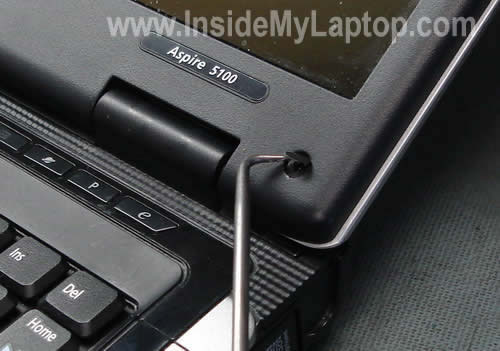
The display bezel has four screws hidden under for seals.
Two rubber seals on the top of the bezel and two plastic seals on the bottom.
You can remove all four screw seals with a sharp object as it shown on the picture below.
Glue removed seals somewhere on the bezel so they don’t get lost.
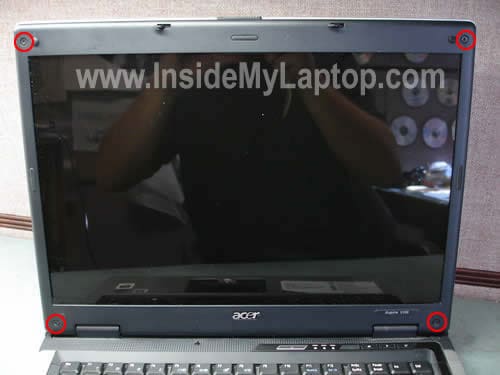
Remove four screws found under seals.
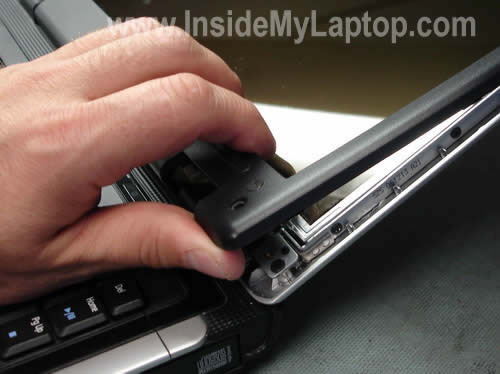
Start removing the bezel with your fingers. Proceed slowly while separating it from the cover.
Continue removing the bezel.
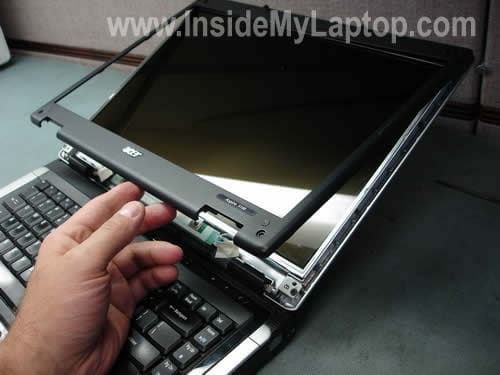
The bezel has been removed.
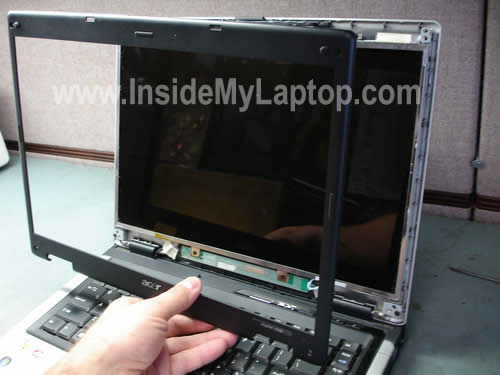
The inverter board is mounted on the lower part of the display assembly.
Remove four screws. Two of them securing display hinges and other two securing the inverter.

Carefully separate the display cover from the screen and access the LCD cable connector.
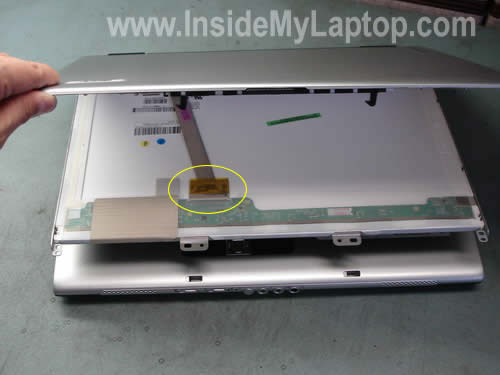
You’ll have to unplug the cable.
1. Remove the clear tape securing the connection.
2. Disconnect the cable.
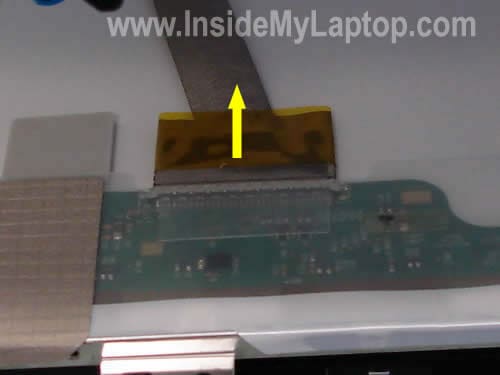
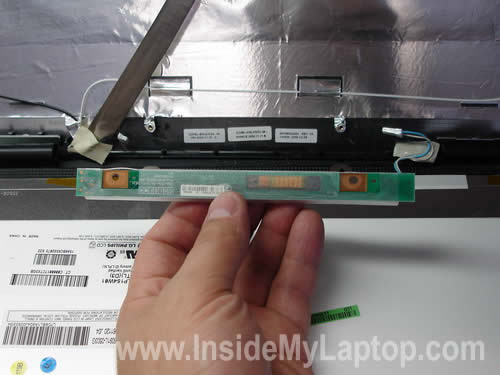
Now you can access the inverter.
Carefully unplug cables from both sides of the board.
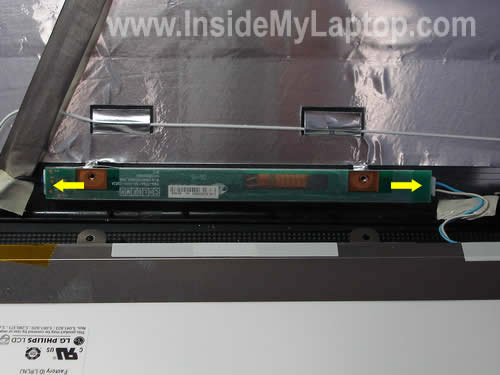
Remove the inverter and replace it with a new one if necessary.
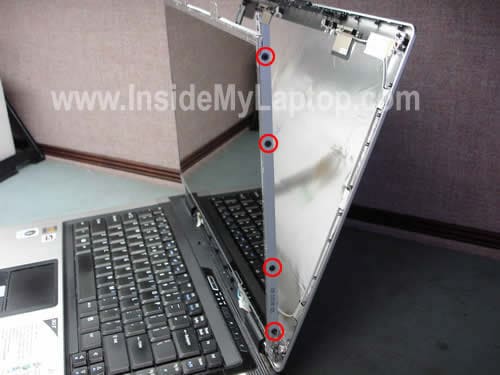
Here’s how you can remove the LCD panel.
Remove four screws securing the screen to the right hinge bracket.
Remove four more screws from the left bracket.
Now you can remove and replace the screen with a new one if necessary.
Andres Kaba
Hi, i have to relace my laptop´s screen and I need help for that. I bought the screen and i have to put it but i think i need more details like if is to much complicated or delicated and how can connect the cables etc.
I need your help.
Thanks a lot
huw
Hiya,
just wondered if you know the connector type connecting the screen to the motherboard? want to extend the screen, but not sure what type the connector is at the end of the ffc…
thanks
Huw
Mentok
Hi!
Your guide helped me fix my LCD, thx very much!
Does anyone know if one can get this silly LCD cable somewhere? Rest is ok, only this cable has a loose contact.
Greets
Mentok
Tony Taylor
Thanks, your guide was more than helpful. I’ll tell everyone about your site!!!
Merry Christmas 2008
Bill Heumann
Thanks a lot for the great information! I have 2 Aspire 5100’s and am making one good one from the 2. Can you help me locate a problem with my screen? It used to have one verticle line on the right side. Then it started going blank. I could wiggle it and it would work. Now all I see is bands of vertical lines. I am wondering if the problem is with the screen or the inverter?
Thanks again for your work.
Bill Heumann
IML Tech
Bill Heumann,
Sounds like a problem with the screen, not the inverter.
Larry Reuter
I have an Acer Aspire 5100. Occasionally, when turning it on the display comes up white and gray with a somewhat cloth looking pattern. Turning it off and the display does not come up or comes up normal. More often, when turning it on, the display just doesn’t come back even after repeated tries. If held up near bright light, there is no sign of anything so I don’t think it is the backlight. I wait until later and it works. The display never stops working once it is up and running. The no display is only at startup. If an external monitor is connected, it always works. Last Monday, during startup, only the external monitor was working until the click on user’s name screen came up when the display came on. This happened Tuesday morning again but Tuesday night the connection of the external monitor did not cause the display to come on at that point. With no external monitor, if the display is dead at power up it will stay dead. It has been suggest that I could have a probem in the BIOS.
Larry Reuter
More info on my Aspire 5100 and the display that does not come up. I found that the probem does not occur if it is started up on the battery only with the AC disconnected. Also, I got this computer two Decembers ago and a similar problem occured in that the mouse and keyboard would not respond. That happened about September. Acer replaced the main board in December. This new problem started around September also. Both times the problem got progressively worse. I don’t know if the keyboard would have worked if I had powered the computer up on battery only.
Paula Roberts
Hello –
I am experience problems with my Acer Aspire 5004 laptop screen. I get a vertical line in the display. Everything above the line is very clear. Everything below the line is lighter and eventually fades out. If I press the back of the screen through the cover, the screen comes out brighter (but still faded) and eventually needs to be manipulated again. There are no visible cracks in the glass or in the computer housing. How can I tell if this is a screen or inverter problem (or some other problem)?
Thank you!
IML Tech
Paula Roberts,
Sounds like a bad screen. I’m 99% sure it’s not related to the inverter board.
Tracey Cyr
I own a Acer Aspire 5100. What happened was my daughter was on Google looking at pictures,When she clicked on a certain picture the screen turned all blue then diffrent writting came on. So she turned off the computer and on again, It seemed that she had gotten a virus.
The screen no longer wants to come on, but the power light, lights on,the fan works,you can hear the cd reading but no picture. what happened? and what do i need to fix to correct this? Can you help?
IML Tech
Tracey Cyr,
That’s a BSOD (Blue Screen of Death) error.
I think in your case that could be a memory related problem. Apparently one of the memory modules went south and because of that the laptop will not turn on.
Here’s what you can try.
Most likely you have two memory modules installed into your laptop. Both modules can be accessed from the bottom of the laptop as you can see in this tutorial I posted before: Taking apart Acer Aspire 5100 laptop.
Try removing memory modules one by one and test the laptop with each module separately. If the laptop starts fine with one module but not with the other, the second one is bad.
You can run the laptop with one working module until you find a replacement for the second one.
Don H
Dear IML Tech,
I have an Acer 5100 that works fine attached to a standalone monitor but the primary LCD does not work. When I boot I see faint lighting of the screen and I can also see (faintly) the irritating Windows messages from the system tray. I’d like to fix it and am guessing Inverter or LCD, can you make any recommendation about what to fix first?
Also, is there a place to find the exact part numbers for those items? The machine is an Acer Aspire 5100 manufactured in December 2006.
Thanks so much,
Don H
IML Tech
Don H,
It’s hard to tell without testing the laptop with another known good inverter board and you’ll have to guess. From my experience, inverter board failures are more common than backlight lamp failures. It’s way easier to replace the inverter board than backlight lamp.
I would try replacing the inverter board first.
Also, check the lid close switch. Make sure it’s not stuck inside the case. When the switch is pressed down, the laptop “thinks” the display is closes and there is no power coming to the inverter/backlight.
I guess you can find the part number somewhere on the inverter board. Access the inverter and google any number strings you can find on it. I don’t know the exact part number.
BrianMay85
Does anyone know what the little switch right to the cable connector on the mainboard is for?
thanks
vince
Charnelle
Hi, I got my husband an Acer 2 years ago. About a year ago the mouse pad stopped working. My husband was skeptical and didn’t want me to try and fix it so he got a wired mouse. We recently the computer started acting funny. Not wanting to come on, etc. Well 3 days ago I was online and they screen just went blank then all these lines came up on it. I shut it off and it wouldn’t come on. I removed the battery and teh lights came on but then it started making a loud noise. After that i removed the battery again and it worked fine. Once we cut it off it comes on but the screen is blank now. What could this possibly be?
Steve
Hello IML Tech,
I am working on an acer 5100 for a friend. It appears to not boot at all. Power LED is on, fan is on, hard drive light flashes for a few seconds but does not come on after, and the display stays black. Also, pressing the caps lock or num lock keys don’t cause the LED’s to illuminate. I fear this is a CPU issue, but am not sure how to test this. I removed the bottom covers and cleaned a fair amount of dust from the fan, vents, and heat sink. Afterwords, the laptop powered up and was working, but quit after it was given back to the owner. Any ideas would be greatly appreciated.
Michelle
I have an Acer 5100. One day (after my 14 year old had it) the screen came up looking as if it had been smashed. I’ve been using my laptop by connecting it to a stand alone monitor. How can I tell if I have to replace something else other than the monitor? How do I know if I need to replace the inverter board?
IML Tech
Steve,
Could be bad memory module and poor connection between the memory module and motherboard.
Try reconnecting memory. If you have two modules installed test the laptop with each memory module separately. Install memory one by one in each slot and test.
IML Tech
Michelle,
.
If I understand correctly the LCD screen is broken. Will it light up at all when you turn on the laptop? If it does, the inverter works properly. All you need is a new screen.
IML Tech
Charnelle,
You mentioned at least different problems with your laptop:
1. Mouse pad stopped working.
2. Laptop will not start.
3. Blank screen with lines.
4. Making loud noise.
Could be anything: bad motherboard, defective LCD, bad fan and hard drive, etc… I cannot tell you what is wrong without looking at the laptop. There are too many different things going on at the same time.
Carl
Have an Acer 3680-2249 with a cracked screen.
Your site was very helpful with very detailed pictures to assist me in replacing the screen.
It took me only 15 mins to replace the screen
christian
I need help regarding my computer.
When I start up my Acer Aspire 1694WLMI I could see the Acer logo on the laptop. But after a while the screen turns black. If I tilt my screen I could see some pictures with say an intensity of a few percentages (very hard to see). But the s-video connected to my TV works perfect. I have also tried to adjust the picture by pressing FN+arrow and FN+F5 but with no picture on the laptop? I have also connected an external monitor but this only shows a picture lasting a second after I have pressed Fn+F5. There after it is black. The only thing that works is the screen on the TV connected to the s-video out! I have tested the above with my battery disconnected.
What is the problem is it the laptop screen or inverter etc? The laptop screen looks normal at start up the first seconds or so then it is totally black.
How to fix this problem?
How much does it cost to fix this problem by Acer
service or my self?
Is it worth fixing the problem (the laptop is 5 years old)?
How to get spare parts if necessary?
I would appreciate a fast response and a detailed answer.
Chris
Rob N
Acer aspire 5610 got water spashed into the video port area. Screen went blank but machine recovered ok. I can see the screen with sunlight or flashlight. I replaced the lcd inverter and backlight bulb. Running an external monitor works just fine. Any ideas? Thanks a lot.
Vue
Thank you, for the directions on how to take it apart, but i was wondering…since I don’t know much about what kind of laptop screen brand i should get to replace it with…and it’s a Aspire 5100, so if you can give some sites on where to grab these tools to replace the items would be nice.
Thanks.
IML Tech
Christian,
Sounds like a problem with the iverter board. I would definately try replacing the ivnerter board first. If a new inverter doesn’t fix the problem, the next part to blame would be the backlight lamp. The backlight lamp is mounted inside the LCD screen and is very hard to replace. From my experience, inverter failures are more common than backlight failures.
Why not? If you can find a cheap inverter and replace it yourself you have very good cahnces to fix it.
IML Tech
Rob N,
So, you replaced LCD inverter and backlight lamp but still experiencing the same problem? Apparently there is something wrong with the motherboard/video card.
IML Tech
Vue,
You can buy a new screen on ebay for less than $70. I linked to the LCD screens in the pos (above the last picture).
christian
Can I check if my inverter board for my Acer aspire 1694wlmi is working correctly?
I have seen two wires coming out from the right part of the inverter board one white and one pink wire. Are these wires connected to the backlight of my laptop? Could I measure the voltage between these wires to see if the inverter board is working correctly and what voltage should I read with a multimeter?
IML Tech
christian,
Yes, these wires are connected to the backlight lamp inside the screen.
No, you cannot. At least it didn’t work for me. I tried it on a few good working laptops and it didn’t work for me.
The only good and reliable way would either replacing the inverter board with a good test board or plug in another working backlight lamp.
I’m testing backlight failures with a known good backlight lamp. I simply unplug two cables from the right side of the inverter and plug in my test backlight instead.
Dave
Hello, I Have an Acre 3690-2900 Laptop Computer i got from a friend of mine, and for whatever reason the screen got broken, i took everything apart needed… replaced the screen and when i put everything together it only works if i put my hand on the upper left hand corner of the screen and pull it in a twisting motion twords me, as long as i hold it like that it works, the minute i let go of it, the thing goes haywire, can anyone help me??
Ian Sechler
Hello, I need some assistance troubleshooting just what’s going on with my 5100’s display…
Not too long ago I installed Vista Ultimate, previously I’d been using XP Pro SP3. I had to go on the “great driver hunt” to obtain everything to get my 5100 working again, and as of three days ago, I found the last piece, drivers for the onboard card reader.
None of this is really crucial to the problem, but it gets us to it.
Upon installation, I was prompted to restart, and did so. I didn’t pay a whole lot of attention while it rebooted, but when Vista finally chimed that it was at the logon screen, and my display was still dark, I knew something wasn’t right. Assuming my laptop was once again behaving poorly, I powered it off and restarted. My screen came back. I assumed all was well, and went about my business, then placed it in hibernation, and returned a few hours later, only to discover upon booting back up, that I had a display ONLY until it finished showing the “windows is resuming” screen. Then it cut off.
I powered down and back up, the screen never came on. Several times I did this, never got the screen back. However placing it in Hibernation and resuming gave me just those few seconds of display during boot.
Over the last few days now I’ve been attempting to solve the problem myself with little success.
The VGA port on the backside works. If I plug a monitor into it, it behaves like the primary screen. This has allowed me to discover that my 5100’s screen (when not working) apparently doesn’t exist anywhere. This also allowed me to discover, much to my relief, that the system itself appears to continue working perfectly fine. My display is just off.
Much googling lead me to your page, and others, mostly pointing to bad inverter boards. Unfortunately a solution beyond possibly sending it in (I’m not under warranty anymore, haven’t been for at least six months now.) and the fact that it could be a problem with my AMD related hardware (I loathe Acer support, I’ve found no documents containing information like this, I’m not even sure where they would be) isn’t available. The fact his laptop is an HP model doesn’t help me much either, but at least the problem is very very similar and contained some interesting information.
All of this in mind, I set back to work on it today.
I initially was going to attempt to reinstall/repair the system, but discovered Vista apparently doesn’t have an option to do that anymore. (I may have missed it if it’s not under Repair Computer) Regardless, I’m beyond thinking this is software related now.
Restarting after attempting this Repair brought my display back. Thinking I may have just struck fear into the circuits of my computer, I attempted several restarts to prove it worked. It did not. But some progress has been made… Unlike initially, now it seems that if left alone long enough, when booted up, my display will work until I shutdown, restart, or hibernate. I’m not 100% sure, I’m not even 50% sure. It does seem that way though.
Following your instructions I’ve cracked open the display. My inverter board looks good, I’ve been lead to believe if it was bad, I’d certainly know about it and be able to tell. All the cables also appear to be in good condition, as does the display itself. While cracked open, I took the opportunity to put the battery back in and power up, just to see if I could tell anything new. The only thing I’ve gained from that, is the theory that my display wasn’t powering up at all is true. You may have seen a small green LED on the bottom left of the panel when it’s on. I’m lead to believe that’s a power LED like on every other monitor, because it was not lit when my display was failing, and was when it worked.
I’ve attempted to research signs and symptoms of laptop displays dying, but haven’t turned up anything useful.
All in all, this has lead me back to your page, posting here for help. I would’ve place all of this in an email, but perhaps other people will benefit from it, and I couldn’t find an address for you.
Do you have any ideas about what’s going on?
Is my display on it’s last legs?
Could it be something else entirely?
The AMD defect perhaps?
I’m going to thank you ahead of time for anything you can do to help. I’d really prefer to not have to spend anything to fix this, and even less so for a new laptop. Nevertheless, if need be, I am considering all my options.
Thank you very, very much. I look forward to your assistance.
IML Tech
Dave,
1. Make sure the new LCD screen is seated correctly and the video cable is properly connected to the screen.
2. Could be a defective LCD screen.
IML Tech
Ian Sechler,
Sounds like you have a hardware related problem and I don’t think it’s related to Vista OS. To confirm that, you can remove the hard dive and start the laptop. If you still have no image/light on the screen even when the hard dive is removed, it’s not a software issue.
So, the laptop works with an external monitor but not with the internal LCD, right? It tells me that most likely the motherboard/video card in your laptop works properly.
Take a closer look on the laptop LCD. Can you see any image at all? If you see a very faint image, your problem could be related to the inverter board OR backlight lamp.
If you cannot see any image on the laptop screen at all, but the external monitor works fine, there could be a problem with the video cable or LCD screen.
Ian Sechler
Alright,
I’ve removed the hard drive, and attempted to boot several times now. No luck with the display.
Yes, the laptop works with an external monitor, but not the internal LCD.
No, there’s no image at all on the LCD. As I stated before in reference to the small green LED on the lower left of it’s housing, I suspect it doesn’t even turn on.
Is it possible to further nail down what the cause is? Can you even replace the video cables if they’re bad?
One last thing I’d like to note… I said in my prior post that if left alone long enough powered down, upon the next boot, there was a chance my display would return. I think I’ve proven this as a fact now. A handful of times over the last few days, I’ve powered it up every so often and checked. I’ve noticed two things… If upon one boot, the display does not power up, if turned back off, and left alone for say… six hours or more, the next boot stands a high chance of the display powering on. And as I’ve said, once it’s on, it’ll stay on for as long as the laptop is running. Once I power down, if I attempt to boot back up, the display will be gone again. But if I wait those six or so hours… you get the idea.
IML Tech
Ian Sechler,
I’m not sure what’s going on with your laptop. My guess would be it’s either a bad video cable or LCD screen.
Joe Bucci
Hey! – Just want to tell you, I’ve found GREAT information on your site! I was able to replace my keyboard on my Acer Aspire 3000 laptop in about 1/2 hour!
Thanks for all your info!
Joe
Darren
Hey, so before the backlight on my lcd decided to not workin anymore, It use to short out (meaning my screen would flicker on and off). I use to have to move the screen around to get it to stay on. Now i turn it on, and half of the screen works for a good 5 seconds then shuts off. I can still barely see that everything is coming up fine but the light will not stay on. My initial guess was wiring, so i took it apart and all wires seemed to be in tact. Im wondering if a new inverter would fix this or if the screen is just junk.
Please let me know what you think.
Thanks
Michael
I have an Acer Aspire 5100, the LCD was replaced less than a year ago, I have had no problems with it since being replaced (I stepped on the lid, totally my fault) A couple weeks ago the screen had trouble turning on, after a few reboots it would turn on. It continued for a few weeks, until yesterday the screen just hasn’t come back on. I have plugged a monitor into it, and it works fine. When I boot the laptop up, it flickers but does nothing. In your opinion would it be just the inverter?
thank you very much, I find your site extremely useful for this useless computer!
ad
excellent tut.. saved my acer 5315…
thx so much….
Blake
Dear Labtop Tech,
My Acer 5100 will not boot.
The Power LED is on, fan is on, hard drive light flashes for a few seconds but does not come on after, and the display stays black.
I have reseated the CPU after I was told the AMD processor may have been an issue.
I have also reconnected both 512mb memory modules, and even tested them one at a time (as you suggested to other posts). There is still no response … just the same symptoms:
-Power LED is on
– fan is on
– hard drive light flashes for a few seconds but does not come on after
– the display stays black.
Do have any other suggestions? Do you think my memory 512MB cards (modules) are both defective?
Or is this something much bigger?
thanks for your time 🙂
~Blake.
Pat
I have an Acer Aspire 3000 Laptop. Everytime I try to boot it up, the screen blanks out with Vertical lines. If I try to Reboot, the Screen stays off, the HDD spins up, but doesn’t read, and the cooling fan starts up. I have to boot it 3 or 4 times before it works a little while on battery. If I try to Plug in my AC Adaptor, the screen blanks out like above. Please Help Me!!
Jake
Is there any way to take the LCD screen out and make it into its own monitor?
mike
Hi, i have an acer aspire 5100-5840 laptop. I’ve been using it for about 2years never had any problems. Recently, i left the laptop on and fell asleep. When i woke up the screen is black, at first i thought maybe it went to hybernation mode but when i try to turn it back on it would still stay black screen. So, i pull the plug and took out the battery and put them back in again hope it would work. Only this time i find that the minute i turn on my laptop the screen would come on for 3 secs and immediately went black. After its booted i could see a faint image on my screen and i tried to press Fn+F6 but the screen would only flashes for 1 sec and back to black. I waited for a few days to try again by keep pressin Fn+f6 and the screen stay normal for about 2 mins and went black again and since then i could never get the screen back to normal again. Theres only faint lights in the background. I tested on my external Monitor and the laptop works fine. My guess maybe its backlight inverter problem??? Or is the lamp? If so any ideas where i can buy the parts or fix it?? Thank you!
1001
Hi, i have an Acer Aspire 1654 WLMI. My laptop screen started flickering, freezing and making some beautiful wallpapers made by colour lines and other fancy stuff. Anyway, depending how i move the screen, it works well. Using an external screen, works perfectly.
Any idea of what’s happening? Anyone having the same creepy problem? Any solution?
Thanks in advance.
ps: i guess it’s some bad cable connection or something… but i don’t know enough about hardware and laptop disassembly to fix it!
IML Tech
Blake,
Sounds like a problem with the motherboard. Did you try installing different memory modules into DIFFERENT slots on the motherboard? You can try minimizing the laptop as much as possible, remove everything except motherboard, CPU and memory. Try turning it on this way. If still nothing, apparently there is a problem with the motherboard. From my experience, CPU failures are very rare.
Doubt it. It’s very unlikely that both modules failed at the same time.
IML Tech
Pat,
You’ll have to test your laptop with an external monitor attached to the VGA port. Can you get video on the external monitor? Do you see same vertical lines?
If lines appear on both internal and external screens, there is a problem with the video card.
IML Tech
Jake,
Nope, you cannot do that.
IML Tech
mike,
Could be bad inverter or backlight lamp. I would try replacing the inverter board first, it’s way easier and you have a good chance to fix the laptop.
Did you search eBay? In my post you’ll find a link to the eBay page with inverters for Acer 5100 laptops (under the 10th image).
IML Tech
1001,
Could be bad video cable or LCD screen. To me your description sounds like a bad/damaged video cable, I would try replacing it first.
If you are not sure about taking it apart, please don’t. You can make it worse. Take it to the repair center.
mcprgirl
Your instructions are great. I have an Acer Aspire 5100 and I bought a new iPhone, during synch it screwed up my laptop. My monitor went black and my computer stopped booting. I replaced the hard drive and decided since I was adding new parts to upgrade the memory. I tried to get my laptop running again with the recovery cd’s my screen would show the acer splash screen and go black. I ordered a new inverter and just replaced that, now my computer boots but I haven’t been able to run the recovery cds as the screen is so dark that I can read what is on the screen. Getting frustrated now. I realized I forgot to disconnect the lcd cable connector before removing the old inverter and replacing it with the new one. Would that have any affect? Any suggestions?
Thanks for writing on this topic.
IML Tech
mcprgirl,
Shouldn’t be a problem.
Can you use the laptop with an external monitor? Can you see external video?
I’m just trying to figure out if your problem is related to the inverter or not.
When you have a bad inverter board, the laptop will work and the screen will be very dim, but you still should be able to use the laptop with an external monitor. Can you?
Blake
Dear IML Tech,
thanks responding to my post.
This site has been very helpful 🙂
~Blake.
1001
Dear LapTech,
hi again,
i’ve figured it out that it may not be the video cable.
The reason why i’m saying this it’s because when i apply pressure over the circuit board behind the lcd screen (upper-left, looking the screen from the right side), it works fine.
Otherwise, when i don’t push the circuit board, it goes white, vertical color lines and other patterns…
am i right?
thanks.
IML Tech
1001,
If the video works fine when you apply pressure on the LCD controller board but it goes bad as soon as you release the pressure, most likely it’s related to the LCD controller board, which means you’ll have to replace the whole LCD screen. I’ve seen failures like that many times before.
You are right, it doesn’t sound like a bad video cable.
1001
you’re right, my screen looks exactly as example 7.
now i know i have to replace the lcd… but probably i won’t, my laptop is too old for that kind of expensive surgery 🙂
anyway, most of the time i use it as a desktop pc with the external monitor.
thanks a lot for your time, you’re a great asset to the DIY community !! ^^
1001
Captain
I was having problems with a Compaq 2100 15″ LCD that would sometimes come on when booting, most of the time not. When it did come on it would start good then get horizontal lines, then sections of horizontal lines then blank, but the back light would remain lit. After messing around with the inverter, I decided it was not that and since the backlite was on, it was good too. After much fiddling, it was discovered that ALL these symptoms were due to a poor connection of the power supply to the laptop’s connector. FYI
Reg
I have an ACER 5100 that while viewing photos the screen went black. When I push the small plunger that senses the laptop screen to be closed the screen will reappear for a second or maybe two but it is dark in the left lower corner. I am able to use an external monitor without any difficulty. Should I start with the inverter? Thank you in advance.
Micky
Thanks again for a great guide. First you helped me change/replace my Acer 5100 keyboard, and now the lcd. I will let you know how I get on when i start work on it.
Thanks again.!
Micky
Robbie
Hi saved me some time to remove hard drive , however need tips how to get at left click button as this does not work anymore thanks Robbie
Karen
Hello,
I am currently using a HP COMPAQ PRESARIO F700 laptop model, which I purchased less than a year ago.
Around three weeks ago, the laptop back light would RANDOMLY dim off all the time. The programs/sound is still functioning in the background– and it can still slightly, but barely be seen.
This would occur even when my battery is charged or even when it is being charged. Adjusting the screen light from the keyboard doesnt help either. Hence I always end up having to reboot the laptop.
Also, adjusting the angle of the laptop screen would also cause the screen to dim off as well.
The laptop still functions perfectly normally, it is just the back light issue that is annoying.
After searching through many websites and comparing the symptoms, I cannot determine whether the problem with my laptop is either with the BACKLIGHT or INVERTER.
In addition, how much would it approximately cost to fix the backlight OR the inverter?
Thanks!
IML Tech
Karen,
Isn’t it still covered by HP warranty?
There is no simple answer to your question. Could be either one. I would say most likely it’s the inverter related problem. The backlight failure is less likely. The only way to find out is installing a known good inverter and hopefully it fixes the problem.
annie
i replaced my lcd & inverter but the screen is still dark. i read that it could be the “inverter id” how do u set the inverter id on an aspire 5100? is there some utility? any help would be greatly appreciated
Ben
Ok I just replaced my Acer 8930-6448 screen with an ew one after my son stepped on it and cracked it. But after the install I do not get a picture at all in fact when I select fn-f5 the only option is the external monitor I have connected to my laptop. What can be the cause of not having my laptop screen as a monitor option?
Karen
Where would you recommend I go to that I get a new inverter installed? As i probably will not be able to put a new one in myself.
I brought my laptop in to ask the info tech guy at my university, but he said he doubts it is a problem with the backlight or inverter, and said it was just my battery options problem.
But even after he fixed the battery options for me, it has occured again.
It seems to occur most of the time when I turn my computer back on from hibernation…
The laptop would work a majority of the time perfectly fine — lately the problem is it randomly starts flickering a lot, and then it would dim off.
Is it expensive to replace the inverter?
IML Tech
annie,
I’ve never heard of that. Not sure what “inverter id” is. If you replace the original inverter with the same or compatible inverter, it should work without any adjustments.
Did you test your laptop with an external monitor? The external video works fine? Maybe your problem is not related to LCD/inverter?
IML Tech
Ben,
Are you sure the new screen is compatible with the old one? If not, it might require a different cable.
Also, make sure the video cable is properly connected to the motherboard. Try reseating the cable just in case.
Finally, could be defective LCD.
IML Tech
Karen,
If you are not sure, do not disassemble the laptop. Most likely you’ll make it worse. Take it to a repair shop.
annie
yes an external monitor works perfectly.
thanks for ur help anyway
Becky
We bought a laptop that had not screen or bezel or any top top to it at all and we have bought two different screens for it and tried to put them on and neither one seems to be recognized by my computer or will come on and yet I can hook my computer up to an external monitor and it runs great. What could be the problem and how do I fix it? Thanks!
Aiden
Hi the screen on my aspire 5100 sometimes flickers when opening and closing the display. I think its the backlight thats coming on and off.
Ive had it repaired by Acer twice under warranty but that has now run out, one time they replaced a cable and the other time they re seated it.
Any ideas on how to sort it?
Thanks
IML Tech
Becky,
I assume you are buying compatible screen/inverter/cable.
Here’s what you can try. Connect the screen and turn on the laptop with an external monitor, make sure it works properly. After that try switching video from the external to internal mode. You can do it by using the keyboard shortcut Fn+F5 (or Fn+F6 I don’t remember).
IML Tech
Aiden,
Does the screen flickers only when you move the display?
How it flickers? Is it loosing backlight or loosing image?
Becky
Yes we did buy compatible and we already tried that suggestion and it didn’t work. It for some reason doesn’t recognize the screen being connected at all. We have heard that it could be the capaloid or something like that on the motherboard but not sure where to find it on there to jump it.
David
Hello,
Recently, after using my Acer 3680, I closed the screen as normal and left. Upon returning, the laptop powered up, but the screen was completely black. Only problem I can recall in the past was occasionally, (and it hasn’t happened for a while) the screen would seem to slightly flicker, and I would lightly tap the screen on the back and it would fix it.
From your comments here, I see you’ve recommended perhaps checking the memory. Is it possible that could be the case here, or might it be something else? Please help, and thank you for your time.
David
After posting, I tried the memory swap. It didn’t work however, I then tried hooking the VGA port up to another monitor, and it worked. The screen works thru the VGA port, and not thru the laptop itself. This would denote a problem with the screen or inverter? Thanks for the help.
David
Sorry for all the messages. After searching the web more, I found a post that suggested to put a flashlight to the screen. I did this, and was able to see the image on the screen. Apparently something is up with the backlight. Is there a way to trouble shoot this, and if so, what should I check. Thanks again so much for your time.
-David
IML Tech
Becky,
In the comment 70 you said the laptop was purchased with no screen installed. Maybe the seller removed the screen because he couldn’t get it to work either?
If you are installing the right LCD and using the right cable, but it’s not detected by the laptop, there could be a problem with the motherboard.
Start the laptop with an external monitor and enter the BIOS setup menu. Check the settings in there, maybe you have to specify the monitor (internal or external) in the BIOS. Try loading default BIOS settings.
IML Tech
David,
Sounds like a problem with the inverter board or backlight.
1. Does your laptop have the lid close switch – a small button located close to one of the hinges? Try tapping on the button, make sure it moved freely. Sometimes, the button gets dirty and might stuck inside the case. The laptop “thinks” the lid is closed and because of that turn off the backlight. Tapping on the lid close switch might fix it.
2. Do you feel comfortable taking your laptop apart? You can remove the screen bezel, access the inverter board and try reconnecting cables. Maybe the connection got oxidized.
3. If reseating the cable doesn’t help I would try replacing the inverter next.
4. If a new inverter doesn’t fix the problem, most likely you have a faulty backlight lamp. If that’s the case, you’ll have to replace the LCD screen. You can attempt to disassemble the screen and replace the backlight bulb but it’s very hard. LCD screens are cheap these days.
5. Finally, if nothing helps, that could be a problem with the motherboard or video cable but this is not common.
David
I did try messing with the button, as well as reconnecting the cables. None of that helped. Just ordered up an inverter, so hopefully that helps. Thanks again!
IML Tech
David,
Let me know if it fixes the problem. It might help other people with the same problem.
Sara
I have a Acer 3690-2900 and am looking at seeling it. I want to either remove the hard drive (need to know how?) or delete EVERYTHING on the hard drive (also need to know how??). Is there anything you can tell me. Have me go get? Anything… Im frustrated!!!!
David
Just received the inverter, and installed it. I still have the same problem. I recall in the past to having the monitor flicker ever so often. Would this indicate the backlight going out?
IML Tech
Sara,
You can use a free version of Active@ Kill Disk – Hard Drive Eraser.
1. Download and ISO image.
2. Burn it on a CD.
3. Boot your laptop from that CD.
4. Run the disk erasing utility.
This will erase everything from the hard drive.
Carl
I have a used Acer aspire 5100, the screen would go all black or black/gray with lines. Restarting the laptop would make it work again. Its back lit and everything. Just trying to figure out how to fix it.
IML Tech
Carl,
First, you’ll have to figure out if the problem is related to the display panel or motherboard/video card.
Start your laptop with an external monitor attached to the VGA port and set the laptop to output video on both screens – internal and external. Now wait until the internal screen fails and goes black or black/gray with lines.
If the external video fails too, your problem is related to the motherboard/video card.
If the external video works fine even though internal fails, most likely it’s related to the LCD screen.
Doug
Hi , the monitor on my Aspire 5610 is intermittent . It works fine when I take it by work where a tech guy I know can see it and malfunctions again when I take it home ! It gets very pixelated and white but then sometimes it works fine so how could it be the screen ? An external monitor works fine but I haven’t run it very long with one so perhaps it might do the same thing given enough time .THANKS!
IML Tech
Doug,
It’s hart to tell without looking at the laptop but…
If the external monitor works fine all the time, but the laptop LCD fails intermittently as you said (gets very pixelated and turns white), most likely it’s related to the LCD screen.
Here’s what you can try. When the laptop LCD fails, grab the LCD by the top left and right corners and carefully torque the screen. Will it go back to normal? If it will, you have a faulty screen.
Charlene
I am having issues with the ACER Aspire 5100 display. I am experiencing a blue flickering in the background. It is not constant, but it comes when I open an application, or if it sits idle for too long. The LCD is still working fine, besides the blue highlights. Do I need a new screen?
IML Tech
Charlene,
Can you test the laptop with an external monitor. Will it do the same on the external screen or the problem appears only on the laptop screen?
Have you tried reinstalling the video driver?
I just noticed that you posted another comment:
If the flickering appears only on the laptop screen but not on the external monitor, your problem could be related to the screen or video cable. I’m not sure which one is failing, I have to see the flickering.
Here’s what I do in cases like that.
I disassemble the display panel so I can access the video cable. After that turn on the laptop and touch/move the video cable. If moving the cable affects video on the screen, most likely the problem is related to the cable.
Charlene
Update: When I plug the laptop into an external monitor, it does not show the blue “highlight” in the background. so, I am guessing that it is truly a LCD screen problem.
Charlene
More information: Sorry, the blue highlight does not show on the external monitor, but it continues to show intermittently the LCD screen.
Don
Do you have any more details to actually replacing only the backlight? I was thinking of ordering one on Ebay and would love some more details on how to replace it as they sell some with or without ends???
Thanks
Jason
I am having issues replacing My Acer 5050 screen, I was able to fit a new screen which I bought according to the instructions but nothing shows up when I turn on the laptop….I then replaced the old half bled one and it doesnt work anymore now???
IML Tech
Jason,
Check connections between the video cable and LCD screen. Will it work with an external monitor attached to the VGA port?
Justin
Excellent guide! I have a 3100 model and it is exactly the same. Thank you very much for the detailed pictures!
I have an issue I am trying to resolve that is similar to many posts I have read here. My screen has been going on and off recently. Most of the time it stays off. But, if I wiggle then sensor that turns the screen off when the lid is closed I can see feint images of the screen and sometimes it even comes back on. This isn’t a permanent fix though.
I have taken the casing apart and wiggled all the screen cables around and made sure they were tight. After closing the case up and turning the laptop back on, it has been working fine (almost an hour so far).
My question is, if the screen goes black again, what part should I replace? Is it the inverter, or the backlight? I am a newbie when it comes to parts.
I have another small issue that I just want to ask to see if anyone knows an answer. The silver casing to the left of the mousepad where my left hand rests while typing has worn off. I have a big black circle there now, lol. Is it possible to replace that casing piece and does anyone know where I can buy one?
Thanks in advance,
Justin
IML Tech
Justin,
Sounds like you have either bad inverter or backligth lamp. Which one is failing? I don’t know. They both fail the same way.
If you have to guess, go with the inverter first.
You’ll have to replace the whole top cover assembly.
coliex
I have a15.4‘ LCD because of water damage. However I have water within the part that labeled LCD (between the frame and the background). Any ideas of how to get rid of that water? Thanks!
IML Tech
coliex,
It’s not easy. You’ll have to disassemble the LCD. Wait for a few days and if this doesn’t go away, I would advice to replace the screen.
Danis
My laptop was spoiled by water from left side of USB port and other sockets, when the laptop was running but i closed the lid.
I tured it off immediately but started it again after a while. It couldn’t work, but the battery light on. I tried again one day later, as it booted, the battery light and AC light blinked (without AC connecting). Nothing appeared on the screen and the system stopped work. The laptop after the spill, worked 4-5 times with proper booting and stuff but shut off after 30-40 mins and now it dosent boot at all:( What can I do now? HELP! Thanks advance.
Jason
I checked all connections and it works through VGA port…………I now notice that one of the screen brackets has broken at the right bottom……..would this be part of the problem?
Silly
My laptop screen is very dim at times and recently started to shut down after I started it but the screen shows dim spots on the left side. Is my screen getting ready to go?
Justin
Followup on Comments #95 and #96
I purchased an inverter from eBay for $8.99.
Shipped pretty quick for being overseas. Easy install, fixed my problem right away. Thanks for the help!
Justin
Well, I spoke too soon. The inverter card seemed to have fix the problem temporarily. After a few more hours of use, the screen began flickering and went out.
Now I’m back to square one, if I wiggle the little sensor that turns the screen off when the lid is closed, the screen flickers a bit.
Should I replace the backlight lamp now? If so, where can I purchase it?
Thanks,
Justin
Roman
Realy strange. I have replaced broken LCD screen and new inverter. I found there another problem. Screen doesn’t light properly. LCD inverter making problems. When I turn on laptop screen doesn’t light up. I found solution, when I slightly touch on inverter connection (metal pins on the plug where going input inverter cable) screen light up and keeping lighting. When I switch off and disconnect power adapter and again connect, screen has again same problem. I have to still touch to the connector if I want to light up screen. I think it’s problem of cable, maybe it’s somewhere broken but I’m not sure and a little bit confused from that. I tried to move with cable, ones I had effect but no more. Had someone similar problem? Is it short circuit what making screen light up?
Brett
I used this guide to replace my Acer Aspire 5580 screen. On boot, the screen is extremely dim. This problem has never occurred before for this laptop. I opened the case up again and wiggled all the connections and made sure they were firmly in place….while doing so, the screen ripped out two of the lower corner screw bores :S Anyways, I assume this is an inverter issue, but I’m not sure? I saw someone mention something about touching things with your fingers….doesn’t the inverter use very high voltage? How safe is it to wiggle live connections and pins?
I tested my old screen with the inverter and it lights up fine….does this mean that my new lcd screen that I bought has a bad back light?
IML Tech
Brett,
If your old screen lights up most likely your new screen is defective. Apparently it has a defective backligth lamp.
Andrew
My acer 5050-5430 is switching on but the screen do not have a light when I place a flash light when I heard vista welcome, I can see images. How much would it costs for me to replace and have the lights fixed?(if it is the problem)
Shannon
I have an Acer 3690 laptop and just replaced the lcd screen according to your instructions. But, when I turn on the laptop i hear the fan, but nothing comes up on the screen. Also, I dont hear any noise, like windows loading up. The only reason I replaced the screen is cause the other one was cracked. I have even tried to hook up an external monitor and nothing, but that doesnt supprise me because even before I changed out the screen I had problems getting the laptop to come up on an external monitor. What can I do to fix this problem? Did I get a bad new lcd screen, or what? I am worried about that because I ordered it off of ebay. Thanks, Shannon
IML Tech
Shannon,
Did the cracked screen light up before the repair?
If for some reason you removed memory modules while replacing the screen make sure they are seated correctly.
Also, take a look inside the video cable connector on the motherboard. I hope you didn’t bent pins inside the connector.
Shannon
Yes, the old screen did light up….up untill the end when it got too cracked…the crack kinda spidered. And I looked at the connections and it doesnt look as though any pins are bent.
Shannon
I just held a light behind the screen to see if I could see anything when I turned the laptop on. All I saw was a bunch of lines flash and that was it. What does this mean? Thanks
Zach W.
Hey I just wanted to put down one of my issues with my screen here and see if anyone knows anything about it. Anyways I have a Acer Aspire 5100 and my screen has a problem. On the very right side of the screen there is random colored bars that go up and down all the way right there for about 1/2 of a centimeter. And it stops after that. Then about 2.5 inches from the rights side of the screen their is one blue bar that goes up and down just like the other bars that are on the right side of the screen. There is only one there though. Sorry if I am not describing well enough. I can better I just don’t have much time to put this down right now. Please help.
Unhomme
I have two problems that are in a way connected.
First, my user interface is gone completely in my Acer Aspire 5100 notebook. No keypad, no key board, no mouse, no touchpad. Everything is blank, even in bios.
Second, in order to have a look at the hardware possibilities I need to get to the motherboard, and all comes off well except a screw located just under the heat sink – cannot get to it unless I remove the copper heat sink attached to the CPU. I cannot get the heat sink off of the CPU – could it just be some sticky paste holding it and I am not pulling enough???
Does anybody have any input on either of these issues? Thanks.
IML Tech
Unhomme,
Not a very clear description. Are you getting any video at all or not?
If there is no video at all, check the memory module. Could be bad memory. Try removing memory modules one by one and test the laptop with each memory module separately.
Paul
i replaced the scrren of my acer 5100 laptop it wrks on a another monitor but screen is vey dim just able to see the icon i got a new invertor say problem. I tried in increase the brightness still no change what do i need to do or did i miss something so simple while replacing the screen and invertor??
IML Tech
Paul,
Why did you replace the screen? Was it broken or had no back light? Maybe the problem wasn’t related to the screen?
Chris
Wonderful site. Thanks for hosting it!
Question: Dell Inspiron 1150. On third inverter card. First lasted 3.5 years. Screen went faint a year ago; got a new one, stuck it in – happiness. Screen started flickering about a month ago. Went faint again – ordered new inverter. Popped it in last night; immediate happiness — for exactly 54 minutes!!
Screen lights up for a second or two when you unseat the inverter and reseat it. Or rock the connector back and forth. Did that last year, too. And with the two I currently have now. But it won’t hold an image.
I had not moved the laptop at all on the latest repair. Did it at a table, and never moved it. Seems to be a connector problem but at the same time doesn’t seem to be, as it’s just a flash of happiness now after 54 minutes of it. Could it be the connector cable from the inverter to the screen (the larger one?)
Paul
i replaced my acer 5100 screen as it was cracked and only half the screen works. the new screen is very dim and i can not change the contrast. i also replaced the invertor same problem still.
IML Tech
Paul,
Try installing the old cracked LCD back into the laptop. Does it light up? Can you see the working half of the screen properly?
If the old screen lights up but the new one doesn’t, most likely the new screen has a defective backlight lamp inside.
I assume you purchased a compatible screen.
xrictod
I changed my LP171WP5 lcd as above and now works fine but there are 3 blue vertical lines when i turn on the laptop.. what is the problem? what can i do??
IML Tech
xrictod,
First of all, check the video cable connection. Make sure the cable is properly connected to the motherboard and LCD screen.
Are they very thin (1 pixel) vertical lines? It’s possible that you got a defective screen.
r1skate
Paul,
You may have a CFFL (bulb) issue. The replacement may have a bad bulb and when you installed the lcd was dark as you wrote. I am working on one (5100) that had a dim, almost black screen. I opened up the lcd screen to find the ccfl and sure enough it was broken.
The problem with replacing the bulb is that it was basically “soldered,” to the connectors. Now I am getting a new cover, lcd, inverter, bulbs, and wiring harnesses. The one I am getting is in good working order.
So it seems you ended up in the same situation you started in. There are lcd screens on Ebay for $69.99 + shipping. Less if you want to trying bidding on one. I would not recommend replacing the ccfl unless you are willing to risk breaking it.
IML Tech
Agree 100%. If you have a bad backlight lamp I would suggest replacing the whole LCD screen. It’s way easier and LCDs are cheap these days.
Lesley
I replaced the screen following your instructions (it’s the 2nd one I’ve replaced) I didn’t replace the inverter board but I can’t get the inverter to fit back in – it’s held in with one screw and fits onto a little receiver at the other end. Also when I have it all back together again the laptop won’t power up and is dead – using connector that works on my Acer so not a power issue. HELP – I’m fixing this for a friend and it looks like I’ve wrecked it.
Gustavo
I have an acer 3010 and the problem that not only gives igane pressing the left superiro strongly the image would not. thanks for your help
onye
please help i have these flat screen monitor “relisys PD-70fa” . when i used generator on the monitor it work for 30 minute and go off, if i remove the power cord and plug again it flicker and and remain blank. but when using direct NEPA light it works perfectly. pls what could be wrong?
AH
Hi, i have an acer aspire one and the screen is damaged. I have just purchased a new screen and would appriciate a tutourial on how to remove and fit a screen to it as i am having difficulty finding out how to do this for this particular model.
Thanks
IML Tech
AH,
Have you tried using instructions I posted here? Step for replacing the LCD screen will be very similar across many different Acer laptops. Maybe some screws will be located in different spots but most general steps will be the same.
Werneck
So… my Acer Aspire 5102 was working perfectly yesterday, but I forgot it turned on during the night with a video playing all the time, so it wouldn’t go into sleep mode or turn the screen off by itself. When I check it at the morning the screen was blank. During reboot I got a quick flash at the boot menu, but then nothing more.
Under some heavy light I can see the LCD is working, and everything works ok plugged in another monitor. From what I read around, it’s not likely to be the backlight lamp, most likely it’s the inverter. I took it apart already and can replace it easily if I can find another one, but I’m a little afraid to buy another one without being sure.
This computer is over 2 years old, but from what I know the backlight lamp wouldn’t die suddenly like that. Any chance the problem is with it and not the inverter?
IML Tech
Werneck,
Can be either bad inverter or backlight. Both have very similar failure symptoms. You cannot tell which one is causing the problem until you test the laptop with a known good inverter. If you have to guess, try replacing the inverter board first. There is a good chance to fix the problem.
Anson
Hello, and thank you in advance for your help.
My Aspire 5100 has a display problem. It has always been opened up from the side. Now it seems to have a short somewhere.
After opening the lcd screen you will see light and colors nothing that you can make out. But when you pull or push the lcd from the side ever so slighty it begins to work but if you move your hand and the lcd screen moves even a little the image goes blank or you will see strange light patterns.
What could this mean?
Thanks,
Anson
IML Tech
Anson,
You’ll have to test the laptop with an external monitor.
If external video works fine and this problem appears only on the laptop screen, it’s possible that you have one of the following:
1. Loose connection between the video cable and motherboard/LCD screen. Try reconnecting the cable.
2. Faulty video cable. Try replacing the cable.
3. Bad LCD screen. You’ll have to replace the screen.
David
Hi, and I must say thanks for such a great site! I have a query and wondered if you could help me with some advice before I buy a new inverter?
I was using the wife’s laptop yesterday (Acer Aspire 5100, 15.4″ screen) when all of a sudden the screen went blank. I restarted, the PC boots into windows fine but nothing on the screen.
So I hooked up the PC to the LCD TV via VGA cable; the PC outputs just fine to the TV. Even when I clone the TV display and laptop display, there’s nothing on the laptop screen.
While WIndows is running, I looked very closely at the PC screen and I could see, very faintly, the outlines of the backdrop. Holding the screen under a bright light meant I could also see edges of the pop-up windows etc.
In your inestimable opinion, would this rather sound like more of a problem with the inverter than the screen itself? I’ve seen some quite cheap inverters for the 5100 that I could pick up but didn’t want to waste money on one if it’s the screen which is up the spout.
Many, many thanks for your advice!
Hugh A
Hi,
Thanks for the great info!…I’ve ordered an inverter and I’m just waiting for it to arrive. I had a quick question though…why do I have to remove the LCD cable? Silly question maybe, maybe I should assume that the inverter has 3 connections…1 one each side of the inverter and another that goes somewhere in the middle for the LCD cable…correct?
Not having removed the inverter yet, I can’t see what else may be behind the inverter that may be connected to it. (ie. the LCD cable)
JS
Hi.. my inverter did not come with the covering(light grey one).. is it ok to use the inverter without that covering?
Rob Leitch
I have an acer aspire 5101 which belonged to my brother. He was told the onboard graphics had failed and gave it to me for spares. However I checked the VGA output and it is fine on my PC LCD monitor. So I believe the problem lies elsewhere and the onboard graphics are OK. The screen is absolutely black, even in a dark room. No lines, nothing however close you look. The only clue is that upon power-on there is a very clear (but not bright) flicker of light on the screen and at the same time a sound (very quiet) like a “pink” – a bit like the sound of a filament light bulb failing. Could you point me in the right direction… thanks, Rob
Robert
Hi! What a great website – I have a problem with my Acer Travelmate 7720g Notebook.
There is no backlight on the screen but the windows page is showing in the background. I have connected an external monitor and it works fine with the notebook.
I also have an Acer Extensa 5220 which is of the same design as the Travelmate. I swapped the invertor and screen from the broken Travelmate along with the LCD cable and it worked fine in the Extensa. I also tried the Extensa invertor and screen and LCD cable in the Travelmate and the screen still didn’t light up…
What could be the problem – The switch for the lid switches off the external display so I assume it is working fine…
Why would the Travelmate not light up the LCD?
Thankyou for any help!!
IML Tech
Robert,
Sounds like a problem with the motherboard. I don’t know what else could be wrong.
Chris
I have the problem similar to post #96 – hitting the close lid switch will bring the screen back to life with some overall discoloration (a not so nice shade of pink) then it fails. While it’s on there is a distinct buzzing from the lower part of the LCD frame until it fails. Torquing the LCD has no effect, and external monitor works fine.
In possibly related issue, prior to the failure, I noticed the bottom on the LCD frame getting very hot. I was also getting hot on the lower left area of the keyboard and to the left of the touch pad. I’ve verified the fan is running at low speed, but will only ramp up to high speed during the power up testing.
Thanks!
IML Tech
Chris,
It’s either bad backight lamp or faulty inverter. I cannot tell without the laptop with a known good backlight lamp. A shade of pink might be a symptom of failing backligth lamp. A noise from the lower part of the screen could be a symptom of failing inverter board. It’s hard to tell which one is causing the problem.
I would definitely try replacing the inverter first. It’s not expensive and will not take more than 20 minutes. If not help, you’ll need a new screen.
This is not related to the screen failure.
Jillygal
Where can I buy a screen for my acer notebook??
IML Tech
Jillygal,
I linked to the eBay page with LCD screens under the last picture. Have you checked eBay?
bri
ok well i relpaced the lcd screen and inverter with no problems at all but now my aspire 3100 is like possesed by the devil.after i did the screen my cpu fan went bad.fixed tht.then the internet decided tht it didnt want to work in vista anymore but when i boot over to my ubuntu partion its fine.now to top off the cake….i had it plugged into the wall last week and all of a sudden it lost power.no idicator lights nothing.so i did everything i could think of to get it to come back from taking the battery out to trying to turn it on without the hard drive switched chargers wall outlets the whole shebang.si i took the whole thing apart down to the motherboard to see if there was any signs of shorts or heat damage which i saw no signs of. decided to put the whole thing back together and pray.well when i was putting the wireless card back in i noticed tht there was alot of slack from the cables tht hadnt been there before i got it put bak the best i could got it to power up and everything and charge only to have the monitor no longer work grrrrrrrrrrrrrrrr help
Angelica
Hello, I have an ACER Aspire 5610Z. I had it plugged in with a universal adapter on 19V, the screen went dark after a few hours and I noticed that my 2 yr old son switched the 19 to 24V! When I power on, I can see the graphics very faint in the background. What could this be? I’m sorry but I’m not computer savvy so any help would be appreciated. Thank yoU!
Larry
Hi, I have an acer 3100 series and that doesn’t work and wanted to know if I could take the acer 3100 series lcd and put it on the base of an acer 5100 series. They look similar from the pics I see on Ebay. Just don’t want to buy something thats not compatible. Thanks for all of your help..
Larry..
ToneEQ
Thanks for the step by step guide. I would have worked it out for myself eventually but I would have lost patience with the screen lid without this page!
brady champion
Hi ,
i have an acer 3680 with some wierd issues , it was shut down im properly with just the power button. after that when you push the power button it does start . you can hear everything running
but no display i mean black as night, im reading all the articles on here and it sounds like i have bad inverter and or lcd . I went ahead and changed the invertor. and still no display should i be looking at replacing the lcd or is there something else i should check
I tried to hook it up on an external monitor with no luck it seems i dont know what keys to push to start the external monitor . any suggestions?
IML Tech
brady champion,
1. Turn off the laptop, unplug the power adapter, remove the battery and wait for a minute or two. Plug the power adapter and try turning it on.
2. If the screen is completely black and blank, it’s not the inverter. Could be memory failure. Try reseating both memory modules. Remove memory modules one by one and test the laptop with each module separately. It will start when you remove the bad module.
April
Hi! Great tutorial. Made it easy to replace the screen in my acer aspire 5515.
But now I have a problem! The first time I powered the laptop after replacing the screen, the screen turned completely white for about 10 seconsd, then went to black and has stayed black since. Pitch black as if there is no power. All of the normal sounds seem to be happening when I power up.. I took the laptop apart again to see if the cables were all connected, but I don’t really feel 100% that the video cable and inverter were reconnected successfully, especially the video cable! I am also unsure if maybe the new screen I bought doesn’t work- although like I said, it did turn white the first time I turned it on.
I can either go to a local computerrepair place (would they tell me if I installed the new screen incorrectly?)buy and replace the inverter, send the screen back and get a new one, or ship the laptop to Acer (even though I think I voided the warrenty by replacing the screen). What should I do? I can’t hook the laptop up to an external monitor because I haven’t a clue about how to do it!
Thanks!
IML Tech
April,
I cannot tell what is wrong without looking at the laptop. It feels like connection related problem. I think the video cable is not plugged correctly.
Will
Hi
I want to turn my aspire 5110 into a tablet pc. i have currently turned the screen around. i want to know if i can get an extender for the video cable or at least for the 7-pin inverter cable.
thanks
IML Tech
Will,
LOL. That’s a funny project. 🙂 Does this laptop come with a touch screen?
Only if you make them yourself.
Will
IML Tech,
This laptop doesn’t come with a touch screen but i found one on ebay that could be installed. I just had the laptop lying around an i wanted a tablet so i thought id try turning it into one. well looks like i have some fun times ahead. i would document it but my camera is broken. I will let you know how it turns out though.
Thanks
IML Tech
Will,
Not sure if it’s going to work. Most likely the touch screen will require a completely different video cable which is not compatible with your motherboard.
But… you’ll get a lot of fun trying that. That’s for sure. 🙂
Will
IML Tech,
The touch screen i am getting is usb one, i was hoping to just use one of the usb ports for it. the touch sensitive part just goes in front of an existing screen so it wont actually need to be plugged into the motherboard through video cable :). im not sure how i can connect it to the usb port while keeping the control board inside the case.
Will
Thomas Heward
I purchased an Acer Aspire 5100 portable second hand for $10 bucks. I have an Acer Aspire 3000 that is pretty shot but still works and has a good screen. (the 3000 works but all screws are missing, have to use external keyboard and mouse because touchpad and keyboard do not work) I started up the 5100 it made all the right sounds but nothing on the screen at all – totally black. So I took off the screen and replaced it with my good LCD from the 3000. This 3000 screen (that works fine on my 3000) does not work on the 5100 but under strong light you can see the screen is working. Then I put the 5100 screen on my 3000 and it worked perfect, bright clear and everything. So what is the problem here? Just guessing I would say the Inverter Board but how come the 3000 screen somewhat works on the 5100 and the 5100 screen that did not work at all now works fine on the 3000?
IML Tech
thomas Heward,
Maybe the video cable on the Aspire 5100 laptop is bad? Maybe someone tried to fix your Aspire and installed a wrong video cable? Just a guess.
earl
The computer was dropped and there is a crack somewhere inside at one of the back corners. I haven’t yet fully deconstructed the system to see the internal damage so I don’t know the extent of it but I know it is there since I can see some damage through one of the screw holes. The system still works though but it has an intermittant issue.
When you boot, it will do the BIOS splash and then cut to black. Looking closely at the monitor shows a jumpy cursor prompt with staticy like lines on the display. You essentially have to open and close the display turn it on and see if it is seated right and boots an keep doing it until it works.
This is no fun and I’ve since replaced the laptop but I’d like to turn this over to the kids to use at a desk. I have an external monitor to use with it so I really want to detach the screen altogether and run it with an external monitor. Anyone know if a laptop will work if you completely remove the screen?
IML Tech
earl,
Yes, it should work with an external monitor attached.
In some models, you’ll have to enter the BIOS setup menu and set the external monitor as a primary screen.
Maddy
Hi,
I have the problem with my right click button on my touchpad. It gets stuck sometimes. Please help me out in replacing the touchpad or atleast fix it.
Also, second issue is recently my USB is not recognizing any of the devices. Looks like also needs replacement if possible
Regards,
Maddy
IML Tech
Maddy,
It’s necessary to remove the top cover assembly and take a closer look at the touch pad button. Most likely this button is located on a separate board (not motherboard). I think this button is stuck and the touch pad board has to be replaced.
It’s either software related problem or the USB controller (located on motherboard) is bad.
1. Uninstall all USB entries from the device manager. Restart the laptop and let it redetect USB ports. It might help, if not move to the step 2.
2. Back up all personal data and reinstall Windows from scratch.
3. If you still cannot detect USB devices, most likely it’s bad USB controller on motherboard. You’ll have to replace the motherboard or use a PCMCIA USB card.
Claudia
IML Tech, so I got an acer aspire 5100. At first my webcam did not work because I had to download the bison diver and it took me a couple times to get it to finally work. It was workng fne for a couple days then all of a sudden the colours were messed up. Any tones of pink and red are now green and blue. But everything else on the computer has the right colours. Someone told me it was that the display needed to be replaced. Can you help me please? Much appreciated!
IML Tech
Claudia,
This problem could be related to:
1. Video card failure.
2. Bad connection between the video cable and motherboard.
3. Bad video cable.
4. Bad LCD screen.
Here are some steps you can take in order to narrow down the problem.
1. Test your laptop with video output on the external monitor. If the external video works fine and this problem appears only on the laptop screen, most likely the video card is working properly.
2. Check connection between the video cable and motherboard. It’s possible that the video cable got loose somehow and reconnecting the cable will fix the problem.
3. If you went though steps 1 and 2 and the problem is still there, it’s either bad LCD screen or faulty video cable. You cannot tell which one is causing the problem without testing the laptop with another working screen (or video cable). Most likely it’s just a bad LCD screen because video cable failures are not very common.
anon
i have an acer aspire 5100 the problem is the dark screen when i put it on external display it works when i put a light on the screen you can faintly see it also i have replaced the inverter board as an attempt to fix it but to no success ive checked cables connecting the monitor up and all appear to be ok as there are only 3 cables that can possibly effect the issue im wondering is it possible its the backlight itself and is there anyway i can test this first and find out before i buy a new one ? thanks
Professor
I have an Aspire 6930. I have replaced the screen. But the replacement screen only lights up. External monitor works. The original screen was broken but i could still see the desktop. Any help with this is greatly appreciated.
thanks
IML Tech
Professor,
1. Make sure the video cable is properly connected to the new LCD screen. Try reconnecting the cable on the back of the screen.
2. Try installing the damaged screen back into the laptop. If the damaged screen still works but the new one shows no image, most likely your new screen is bad or not compatible with the laptop.
I think it’s just bad connection between the video cable and screen.
andrew
the screen on my 5110 aspire suddenly changes into pink,, then after a while it goes back to normal colors but most of the time it goes pink
what should i do? thanks
IML Tech
andrew,
It’s hard to tell what’s going on without testing the laptop. Did you have a chance to test video output on the external monitor? Is it normal?
I think you might have a problem with the video cable.
Dale
Followed your instructions. Finished in 15 minutes and everything working perfectly.
Thanks
Dale
andrew
@IML Tech
yes it worked fine with an external monitor, ok ill check the cable
but what if the pink shades are still there after checking the cable, what do you think i should check next.. thanks
sharon
Hi
my aspire 5315 has a broken screen. I purchased an external monitor which worked great and is bigger. Other day i did a “pc housework” but iv changed something which now does not allow my monitor diplay. Did fn f5 (think) it worked but it is inconvenient having laptop and monitor all on my desk. is it possible to remove laptop screen to use keyboard of laptop with monitor?
Please help regards sharon
IML Tech
sharon,
I think you can do that. I doubt that your laptop requires the internal LCD to be connected in order to work with the external monitor.
You can unplug the internal LCD from the motherboard, remove the display panel and use your laptop as a desktop replacement, with the external monitor.
Here’s the catch. The wireless card antenna cables are running INSIDE the display panel. If you want to remove the display panel, you’ll have to disconnect the antenna cables from the Wi-Fi card. The wireless connection will not work without these cable. It’s not a big deal if you are using wired Internet.
herb
“Hi
my aspire 5315 has a broken screen. I purchased an external monitor which worked great and is bigger. Other day i did a “pc housework†but iv changed something which now does not allow my monitor diplay. Did fn f5 (think) it worked but it is inconvenient having laptop and monitor all on my desk. is it possible to remove laptop screen to use keyboard of laptop with monitor?”
I want to do the same, since a new screen just costs too much. How do I remove the hinges from the laptop case, or at least the long hinge “arms” that the screen was screwed into? I could just break them off, but I have small kids and don’t want any sharp edges sticking out.
Thanks in advance!
Jipster
Hello all,
I hav an almost similar laptop (travelmate 7520)
The cover is breaking af the hinge.
Im looking to buy a spare cover …
Who knows weher I Can get that?
Jip
Jordan
hi,
Acer 5315………driving me insane! Dark screen as though the inverter has gone but have tried 2 new ones, also tried a new screen and still the same…..runs fine on external monitor??? any ideas?? thanks
joeben
Hello All!
I would like to find help here in my Acer Aspire 5102.
1st the laptop is works fine except for bluetooth and one USB port at the left. Unknown device.
I decided to disassemble the unit in order to view some solder problems on the bluetooth switch and the USB port. I resolder all contacts of both section. After that I reassemble the unit and bad things now happen.
When I turn on the unit, power and HDD indicator lights on a few seconds then turn off. Tried to disassemble the unit again several times to review connections but same problem occurred. Power & HDD indicator lights on when press power button then turn off after 6 seconds.
Anybody who can help me with this will be highly appreciated.
Joeben
IML Tech
joeben,
Maybe memory modules are not installed correctly? Check both memory modules. Try reconnecting them.
joeben
Maybe memory modules are not installed correctly? Check both memory modules. Try reconnecting them.
Thanks for quick reply. When I disassemble the unit I did not remove the memory on its original position. Anyway I just remove the 2pcs 1 gig memory and clean the contact with a pencil eraser and reconnect only one memory then try to power on and the same result. “Power on & HDD indicator lights up & cpu fan working and at 5 seconds it turns off. I’ve made also changing of memory from one slot to another even two memory inserted but same results.
I’am not sure if this is motherboard related. Very strange…’
IML Tech
joeben,
You did some soldering job. It’s possible you shorted something accidentally. I cannot tell.
You can try minimizing the laptop to bare bone system. In order to start with basic video (manufacturer’s logo), all you need is the motherboard, CPU and memory. If the laptop doesn’t start when minimized, probably this is motherboard related.
fahmy osman
dear
i have problem in LCD screan when i open my laptop cover i think in right side have problem i see small distroy or seperating between partes and it open hardly but after open laptop the LCD is become black and when i move the desktop it becom brighted i think i have problem between wire that connect LCD screen with latop body in area of bendind what iam make i master student and all my data and software in this laptop
what is make i wont you help me
jelle
hello i hae a acer aspire 5102wlmi were from the backlight broken is now you a cheap option for a new screen i need it it is my new laptop (3 jears old) and i wanna fix it i use now my pc screen
grtz jelle
Bob Badger
Hi,
My problem is an Acer aspire 5100 and after a year, the screen would flicker or go out and if you move the screen it would come back on and eventually flicker or go out, move and back on. When it was under warrentee it happened 3 times they have replaced the lcd screen, the motherboard, and the lcd screen (one thing, each time and called it a different problem so it WAS NOT covered under there office max lemon policy) and each time within a month it did it again. Now its not covered and its there again, it sounds like a bad conection or a bad solder,, or a bad switch, any suggestions would be greatly appreciated.
Great site BTW.
IML Tech
Bob Badger,
It’s hard to tell what is causing the problem.
1. Could be bad connection between the LCD cable and LCD screen/inverter board. You can try reconnecting the cable.
2. Could be faulty inverter board or backlight lamp.
I rally cannot tell without testing the laptop.
avionicselectronictech
For those who have flickers in your screen: it might not be your screen at all or your inverter but your video processor (video card). Sometimes updating your drivers will fix the flickers. I just repaired a laptop for a friend that had the same issue of flickering, going black, purple lines through it, and static. I just updated the drivers and allowed windows to find the right driver (must have interenet connection). If it still does the flicker have someone who knows how to uninstall video processor from the device manager and reinstall it. If you do not have internet, then ask someone who knows how to search the manufacturer’s website for the correct drivers. This may help some of you and may help none of you. Each computer is like a person very different in ways of operations. Enjoy surfing!
Ceri
“For those who have flickers in your screen: it might not be your screen at all or your inverter but your video processor (video card). Sometimes updating your drivers will fix the flickers. I just repaired a laptop for a friend that had the same issue of flickering, going black, purple lines through it, and static. I just updated the drivers and allowed windows to find the right driver (must have interenet connection). If it still does the flicker have someone who knows how to uninstall video processor from the device manager and reinstall it. If you do not have internet, then ask someone who knows how to search the manufacturer’s website for the correct drivers. This may help some of you and may help none of you. Each computer is like a person very different in ways of operations. Enjoy surfing!”
I have this exact problem and it only does it when the power supply is not plugged in. Which drivers do I need to Download and where would i download them from? Thanks
IML Tech
Ceri,
I guess he was talking about updating the video driver (display driver).
You can download drivers from the manufacturer’s website.
John Mack
Hello All
I’ve just done a repair on an Acer 5100, it had similar to the above symptoms; boot up and the display would be fine for a couple of minutes then faint fuzzy lines would start to appear this would gradually get worse and 5 minutes later the whole screen would just be a complete fuzzy mess. External monitor displayed fine so Graphics card working.
It turned out to be the vga/ribbon cable, not so much the connection ends but the middle of it where the hinge is, so replaced it with a new one and problem solved, I could have probably reseated it all and may have been fine also.
Caleb
Hello,
I have an Acer Inspire 3690. Recently, the screen became very dim, virtually unreadable. I toyed with the hibernation button and if I tap it, occasionally, the screen will return to normal. However, it will revert back to dim lighting after about 30 seconds.
I feel as though there’s something wrong with this hibernation button, but it doesn’t seem to be stuck, per se. Do you know how to adjust it? Or, do you think it still might be my inverter or backlight?
IML Tech
Caleb,
Most likely this is either bad inverter or backlight lamp. Try replacing the inverter first. After that try replacing the LCD screen (the backlight lamp is mounted inside the screen).
Adair
So, I followed these instructions to change the inverter, and now my computer is completely unresponsive. It will not charge, or turn on, there are no lights, nothing. I tried discharging static by removing the battery and holding the power button, and there has been no change. Any suggestions?
Sam
I just finished repairing an acer 5100
1) remove long plastic cover across front of laptop …where the power button is
2) reseat the lcd cable to the front left
3) and i believe this is the real solution….there is a tiny switch just to the right of the lcd cable…which is used to power off the screen when you close the laptop(a tiny rubber piece sticks out thru the plastic cover)i believe…..the plastic piece was broken that connected to it ….i took out the broken piece and tapped the switch…presto…screen on….tapped the switch again..back off…tapped again..presto..back on….screen has been on ever since ….JUST remember not to close the laptop without powering off first.
Sal
Hello,
I’m helping a friend fix his Acer Extensa 4620z laptop (we replaced his AC jack after an unfortunate bump), and we’re now putting the whole thing back together again.
However, the problem we are running into is figuring out where the two ‘socket plugs’ coming from the screen enclosure connect to the motherboard. One is on a white cable, and the other is on a black cable, I’m assuming this is for power? They have these small connections on the ends, with a small hole in them, and I clearly remember when unplugging them it was similar to how you’d unplug the posts from a battery in a car…
Do you know where these cables need to be reconnected at? We’re so close to having this thing up and running again, but we’re stuck on this one thing. 🙁
Thanks so much!
IML Tech
Sal,
Wireless card antenna cables maybe? Shouldn’t they connect to the wireless card?
Salah
thaks you for the excellent information you all have provided to me . as a reslut , I am going now to replace my acer lcd for my laptop 5570 which being black at this moment . However, the information I have received are useful and once my laptop lcd is working properly definitely you all will come to know .. wish you all the best of luck .
thanks a lot
Salah
Damian
Ahh!
I just replaced my MB with refurb one and I’m still getting the same problem. The LCD will often not display anything. It will flick in and out. The backlight and computer will continue to work fine, but there’s no image. Doesn’t seem to come on and off with any sort of movement…Seems random. Often it won’t show up at all even at boot.
Any ideas? I don’t think it’s inverter because the backlight is fine. I don’t think it’s the GPU because the computer continues to run fine and there’s no anomalies per say.
Damian
Also should add that when I first encountered the problem again with the refurbed MB, it at one point almost seemed to ‘pulse’ before it would flick out..
Xander
I broke my Acer 5920 G screen and replaced it with a LG LP154WX5 screen. (Dis)assembly went smooth and the acer booted fine and screen functioned well until Windows 7 should have appeared. Windows recognized the replacement, but not the LG screen and a black screen was all that followed. I tried every boot option but received only black screens. Even low resolution safe mode failed. Any suggestions?
IML Tech
Xander,
Maybe the new screen is not compatible and laptop hardware cannot handle resolution required by the screen?
Enter the BIOS setup menu and try loading default settings.
Also, you can try updating the BIOS. Maybe the latest version has support for your screen. This is just a guess.
If the screen works fine until Windows 7 screen, most likely all hardware works properly. Can you boot your laptop with live Linux CD (Ubuntu, Knoppix, etc…) Does it work fine with Linux? If it does, you can try reinstalling Windows 7 from scratch.
Aaron
Just a note on working through this with the ACCER 4620Z laptop:
– The inverter board is secured by only one screw, and pivots off a plastic pin on the other side.
– No need to remove or otherwise reposition the LCD screen.
– I recommend working with the laptop fully open on a flat surface with a book or other solid material holding the screen level with the lower half of the laptop.
Great resource, thanks.
Fuzzy
I have an Acer Aspire 5920 and the display is working but it’s not illuminated, if you look carefully you can see everything but it’s not illuminated, do you think it’s the LCD that is damaged or something else?
Thanks in advance
Sharon
Hi
We have put a new brackedt on an acer aspire 9300, and you can see the windows faintly in the background but is nearly black. Have checked all the connections but the screen still does not connect on the latop – it works perfectly with a screen connected – any ideas ?
IML Tech
Sharon,
What bracket? Why did you replace it?
Was it working fine before the repair?
Are you talking about the external monitor?
Sam
Hi Labtech ,
I have a LCD problem with my aspire 5630 , its quite an old model.
So here’s the problem,
When i boot up my computer, the screen works fine, but when i slightly tilt the screen, the picture is gone, resulting in lines on my screen blinking. Then i would have to close my notebook to go into standby mode, then it will some how back to normal…again when it is slightly tilted.. its all lines again blinking.
Do you know whats the problem is ? its like something loosen inside the lcd, I’m nt sure what the problem is, and its been going on for quite some time.
Thanks in advance !.
IML Tech
Sam,
It could be one of the following: loose connection, bad LCD cable, bad LCD screen.
Here’s how you can narrow down the problem.
1. Try reconnecting LCD cable on the back of the LCD screen.
2. Try moving the LCD cable while the laptop is turned on. If moving the cable affects image on the screen and it starts flickering, most likely there is a short inside the LCD cable and it has to be replaced.
3. If moving the cable doesn’t affect image on the screen at all, most likely you have a faulty LCD screen. In this case replace the screen.
Sam
Thanks alot, I’ve tried it , its most probably the LCD is faulty.
Thanks alot. Lucky I found this site thru google, Its a great site. great job labtop tech !.
You saved my day.
Aaron
Follow-up to my earlier entry RE: fixing my Acer 4620Z screen problem using this page as a guide.
Symptoms were a white-washed screen, sometimes at boot, other times it would fade-to-white as the computer was running. Started initially with horizontal scrambles and such, appeared to be related to repositioning the screen, later it would just happen.
The problem also appeared also to interfere with the OS in some way beyond my skill set, though if I booted with an external monitor, the external monitor would accept and display a good image.
Replacing the inverter did not change the outcome. Replacing the LCD cable appears to have done the trick, however the display was a little squirrely until I had rebooted a second time. Not sure what that was about, but it appears the short in the LCD cable had an OS interference component.
Hope this helps any other DIY person out there. Good luck.
andre
i have an acer aspire 5100 has a thin red line going from top to bottom on right side of screen. will go away if i flex the laptop screen but comes back,, what is wrong?
Bob Tatz
I worked on an Acer 9300 for a friend. His daughter broke the cover at the hinges. The LCD worked but the color was off. I took it apart, moved cables and it worked. Put it back together and it worked. But then the LCD backlight appears to have died. You can see the boot/Windows screen but it’s very dim. The ground through the hinges was broken. Is this likely a backlight problem or an inverter broad problem? Any way to check?
Thanks,
Bob
Julie
Hi
I came across this wonderful site and am hoping someone can advise me, I own a acer aspire 9413ZWSMi which has just developed black lines running across the screen left to right, in a couple of days it has grown in size by a width of around 3-4 inches and has developed vertical and straight lined colors within the body of the box, in navy blues, turquoise, blue etc.
as i am a computer numpty i have been trying to read what to do best on line and theres so much different information, i understand that i need to see if an external monitor plugged into the laptop will show the same lines as then if so i am told it is only my screen that will need replacing (which is quite expensive) and is that information correct?
if the external monitor does not show the lines then i am told its my graphic card? can this be replaced in a laptop? also i found my nvidia details ( i think this is my computers graphic card?) as it said somewhere simply updating them may help and stop the problem, however on the nvidia site it stated that some makes of laptops do not allow it and yet i could not find from acer websites if mine was one of them.
To be honest I am quite scared to try anything much at this point as previous experience tells me that it always ends up in the shop where i spend more money than i have got, and this time is no exception i simply don’t have the 100s it usually costs.
can anyone advise me of the right courses of action here so i don’t end up spending 100s again?
i was also thinking if it was my screen then maybe i would purchase a compatible external lcd flat screen monitor as these seem cheaper and i thought this would do and give me time to save for a better make and tower. when i thought about external monitors does the sound and vision still come from my laptop and can i still use the headphones for music etc, as i use the laptop a lot to watch live tv, videos, music and downloads etc.
sorry to have made such a long post but am quite confused as to what course of action to take.
warm regards
Julie
Koen
Hi,
We kinda had a summer with tons of bugs flying about where I live and somehow a small one is now happily running around INSIDE my screen. I do not know how but it’s there and I want it gone.
My guess is that it’s running between a plastic plate and the actual Crystalbright LCD screen.
My guarantee just expired and I’m not fond to pay a lot to simply remove a bug from inside my screen. So I had the thought to do it myself!
I’ll use this guide to remove the brezel and see myself but are there any tips you could give for an Acer Aspire 9423WSMi since I really don’t want to eff up and have to turn it in >.<
Thanks in advance
~Koen lammertyn~
IML Tech
Koen,
I’m not familiar with Aspire 9423WSMi and don’t know if it has a cover for the LCD screen. If the bug got INSIDE the screen itself, there is not much you can do except replacing the screen.
To make you feel better, the bug doesn’t enjoy being inside the screen either. 🙂
I found this picture for Acer Aspire 9423WSMi.
Does it look like your laptop?
Steps for removing the front bezel should be very similar to the model mentioned in this guide, but… instead of four screw plugs you’ll have to remove eight.
sarah
can the whole screen be replaced on a acer aspire 5570z with the screen from a acer aspire 3680?
Koen
IML Tech,
I’m happy to inform you that the bug somehow found it’s way out again.
I opened the brezel of my acer aspire (the one you showed a picture of) and there was indeed a very thin plastic plate between the brezel and the actual LCD screen.
Thanks for the reply!
SLy
Hi
I have an Acer Aspire 5100. Last time I open it up the screen did like a flash from bottom right corner then become dark (with some outside light or a flashlight we can see a bit but hard to work like that ) so I connect the laptop on an external monitor and it work great . so wondering what’s the problem do I have to replace the inverter board , the screen ? how do I know which part I need to replace?
help me please
thanks for the anwser
LarryG
Wonderful site! Thanks so much for putting it up.
My Acer Aspire 5100 will not boot. Will not POST. No display, no beeps. Fan does power up. It powers up at faster speed, then switches to slower speed but keeps running
Battery appears to charge OK with led lighting up.
I have tried:
external monitor
external keyboard
external headphones
removing battery, CD drive, harddrive, memory
new motherboard, new RAM, new CPU
all possible RAM configurations (even new RAM)
Any ideas? Thanks, LarryG
IML Tech
LarryG,
Looks like you’ve gone thought all main troubleshooting steps.
It’s sounds like you have bad motherboard.
Sly
So do you mean that I have to replace the LCD screen?
IML Tech
SLy,
Did you take it apart while the laptop was turned on??? Did you touch anything when the screen flashed?
It’s hard to tell what is wrong without testing the laptop with a known good inverter board or backlight lamp.
Did you try reconnecting cables on the inverter board? Could be just loose connection.
debashish
my travel mate 290 E gives a long continuous beeping sound stop which does not , no display on screen .
cud u tell me what the problem can be?
any site which can help me repair it , deassemble it and assemble it
with best regards
Debashish
IML Tech
debashish,
It’s hard to tell but… does is sound like a stuck key on the keyboard?
In a case like that, I would disconnect the keyboard from the motherboard and test the laptop again. If it boots fine when the keyboard disconnected, probably you have a bad keyboard and it has to be replaced.
Yeti
Help i need help replacing my acer 6920g screen, i have got the replacement but the bezel wont come off. thanks in advance
matt
hi there …..
i have a problem with my laptop, acer aspire 4715z. The screen flashing with many horizontal line on and off (blinking) ….. a few weeks ago, the blinking problem occur every 2 – 3 minutes … but now whenever i switch on my laptop, the blinking will start too …..
so i tried to connect to external display (projector) and it work … no more blinking problem ….
so what is the problem ?? the screen or the inverter ??
thank in advance … 😀
– Matt –
arslan
hi there
ive an acer aspire
and there are two horizontal lines i dunu where they came from
but they aint seem to be going anywhere
regards
arslan
IML Tech
arslan,
It’s hard to tell what is wrong without some troubleshooting. Most likely this is LCD screen failure but you can try the following steps to narrow down the problem.
1. Try reconnecting video cable on the motherboard and back of the LCD screen. Maybe one of the contentions is loose.
2. Take apart the display panel and try moving the video cable while the laptop is turned on. If moving the cable “fixes” problem temporarily and those lines go away, most likely the video cable is bad and has to be replaced.
3. If reseating connections and moving the cable will not affect video on the screen and two lines are still there, most likely this is LCD related problem. You’ll have to replace the screen.
Thomas
Hi, i have an acer aspire which is dead and bought an hp pavillion dv5. Yesterday it fell and the screen is now smashed. Is it possible that i replace the hp screen with the acer screen? what could go wrong? can i damage parts by doing so? screens are both 54″ 1280×800.
Thanks in advance for your help!
IML Tech
Thomas,
You’ll have to compare both screens. If it’s exactly same size, resolution, and more important, has same type of connector, most likely it will work.
Here’s my guide for taking apart HP Pavilion dv5 notebook. It explains how to remove the LCD screen.
matt
so there’s no answer for my problem … ?? 🙁
IML Tech
matt,
The external video still works fine and it means your problem is somewhere inside the display panel.
It could be one of the following:
1. Bad connection between the video cable and LCD screen/motherboard.
2. Bad video cable.
3. Bad LCD screen.
I don’t think your problem is related to the inverter board. When inverter fails, the screen backlight stops working BUT it shouldn’t cause any lines on the screen.
Here’s what you can try:
1. Try reseating connections on both sides of the video cable. Test the laptop.
2. Take apart the display panel and try moving the video cable while the laptop is turned on. If moving/touching the cable affects video on the screen causing more lines or changing image back to normal, it’s possible the cable is bad. Try replacing the cable.
3. If reseating connecting didn’t help and moving the cable doesn’t affect video at all, probably this is bad LCD screen. Try replacing the screen.
matt
ok .. thanks … i will try it ….
but the problem im already faced was the front bazel wont came out … i already screwed out the screw but it wont like picture no.5 above …..
so any solution on that ??
nick
I’ve broken the screen on my acer aspire 6930g, I’m trying to remove the front bezel but the bottom half is stuck. Even forcing it accomplishing nothing. Can anyone help.
IML Tech
nick,
It looks like your Acer Aspire 6930g is built differently than Asire 5100 (I googled the picture).
I’m not familiar with this model but I think it’s necessary to separate the display panel from the laptop base before you can remove the bezel.
Take a look at this guide (it’s for Dell Inspiron 1440) as an example. Do you see how I removed the display panel in the step 9? I guess you’ll have to do the same with Acer Aspire 6930g. This is my best guess.
Hakes
Hi, I have an Acer Travelmate 7320 and the 6wire connector from the lcd to the inverter accidently got ripped out of it’s socket while replacing the inverter. The problem is that I now have no idea of what order these wires need to go back to. A schematic or blown up picture of the actual wire order on the connector would be of great help. P.S. the colours on those 6 wires are: black, grey, pink, brown, purple and white(in no particular order), thanks!
Mark
I have an Acer 5100. At first the screen had vertical lines, now just black. Pluged it into an external monitor and the Acer logo flashes briefly at reboot on the external, then a curser at the top left of the external black screen. Fan is runnning. LED power light is on. Hard drive light (the one next to the power buttton) flashed at startup or if I open the dvd.
Any ideas? I’d be happy just to get the external monitor to work so I can see what I’m doing to back up my files.
Thanks a lot,
IML Tech
Mark,
I think the laptop might have more than one problem. Can you enter the BIOS setup menu while the laptop connected to the external monitor? Does it work fine in the BIOS?
You can remove the hard drive and install it into the external USB enclosure.
After that you connect this enclosure to any other working PC and backup your data (if the laptop hard drive is good of course).
Angela
How to replace Acer 5534 LCD screen? My 5534 screen is cracked? I would appreiciated if you could give me detail instructions on replacing it.
IML Tech
Angela,
Take a look at this guide for Acer Aspire 3810T. It could be similar to your laptop.
Selo
Hi
I just try to help my friend but now i have a problem )))
Friend has a packerdbell easy note,he had a dark screen problem!
Ofcourse i try to help with my aspire 5100 and now my screen doesnt work
I check his monitor in my aspire 5100 doesnt work later i just change the cables and start to works
but now when i put back my display nothing work,when i move the cable on motherboard starts to play but bad quality .Do i need a new lcd or any solution ?At the moment im using Packerd bell LCD .
Rob
I am so happy I found this forum!!!!
I have an Acer Aspire One 751h.
Last week as I was computing with it on my lap, I leaned forward for a pen and when I leaned back, the screen was totally white. I googled this and it seems like the white screen thing is pretty common. This computer just went out of warranty TWO WEEKS AGO. Acer said they’d fix it for $100.
I took it apart and reseated the video cable to the motherboard and the screen. I still have the same issue. I connected it to an external monitor and it works fine until windows starts and takes over the screen back to the white LCD. I cannot switch it back to the external with the keyboard (fn + f5) so I can’t use this thing at all.
The rest of it seems to work fine. So is this the cable, the inverter board or something I have not thought of? I can get parts online. It just seems like a shame to pay Acer when I am savvy enough to fix it for $30.
Thanks!!!
IML Tech
Rob,
Check out this post where I explain how to remove the LCD screen. My guide was made for an Acer Aspire One A0751h netbook, I guess it’s similar to Acer Asprie One 751h.
I think you should be able to use the laptop with an external monitor if you unplug the video cable from the motherboard. In this case the internal screen will not take over the external monitor.
It’s hard to tell which one is causing the problem. If you have an LED backlight screen installed, there is no inverter board in your laptop. Moreover, your problem doesn’t sound like inverter failure at all.
I doubt this is video cable related failure. To the best of my knowledge, video cables do not fail like that.
I think it’s either LCD screen failure (more likely) or motherboard problem (less likely).
If I would have to guess, I would probably try replacing the screen first. But this is just a guess. 🙂
samsum
Hi
I have ACER Aspire 4920 laptop,one time has fell on the ground since then the LCD is going white and some times black with lines mostly vertical lines only in upright position(90 degrees) .on external display works perfectly…I opened the bezel the problem has solved but when I replace the bezel I will get the same problem…I need your openion plz…
Billy Thorns
I have an acer 5100 and it goes black after 5 minutes. I replaced the inverter from one I got online and it does the exact same thing. Buddy of mine replaced the light inside the screen thinking it could be that but it does the same thing. Even if it sits on BIOS screen after about 5 minutes it goes black. You can barely see the stuff on the screen but the computer is still on. Any ideas? I am about to throw this away with all the money I have put into this.
Dylan
Everyone with blinking lights and lights going off is liquidised screen, happened to me and the retarded thing is acer wont fix it eventhough im under warranty. They say i dropped it, it’s been sitting on my desk for the last year now. Replace the screen and wondering if anyone can help me with getting my documents off it.
DRFUZZYNUTS
Thanks for the help, had a black screen and replaced inverter. Was pretty easy to do since you walked me through it. Laptop is up and running again. Again, thank you.
Debra
I have a acer 5810TZ-4238. My granddautgher stepped on my laptop. When I went to turn it on half the screen is white. The rest of the screen works properly and so does my laptop. I can see everything as long as I keep it on the right side of the lap top screen. Can you please tell me what part I need to replace? Is it the lcd? It looks like the same 4 screws as the 5100 but I don’t want to order a lcd if it’s not the lcd that is broken?
Thanks
Debra
CuriousGuy
I’m fixing a friends laptop. The problem is you power it on, but the screen is black. I tried plugging in an external monitor and it’s still just a black screen. I tried to load safe mode, but still just a black screen. She told me her cousin powered it on and off repeatedly for some unknown reason until she caught her doing that and told her to stop. She didn’t check the laptop till a little while after to discover the screen is black.
Janet
I just followed these directions to replace the lcd screen on my acer aspire 4730z TY! Wish I could donate but really cant afford it right now
quartzap
i hv an aspireone d150 netbook…i get scrmbled screen on startup with a horizontal band at the bottom… 9 out of 10 times after switching it on…resatrting many times gives a normal display at tyms and at tyms doesnt. I am sure that I havenot dropped or hard-knocked the laptop… what can be the problem ?
Jo
My daughter has dropped her laptop and cracked the casing surrounding the keyboard – any ideas where I can obtain a new one? It’s an Acer 5810tz
Florent
Hello
I changed the inverter on my Acer 5610 thanks to this nice guide.
It is working fine for 5 minutes before a buzzing noise begins to happen, the screen is blaking.
If i switch to my second screen for let’s say 5 minutes then going back to the primary screen, it gives me again 5 min credit to use the main screen (connected to the changed inverter)
Is there another piece to change on this laptop ?
IML Tech
Florent,
If you replaced inverter but the screen still losing backlight after a while, most likely this is backlight lamp related failure.
The backlight lamp mounted inside the LCD screen. When backlight fails, the whole LCD screen has to be replaced.
I think your next step is replacing the LCD screen.
It’s possible to replace just the backlight lamp but it’s very hard.
Natalie
hi IML Tech,
I replaced both my inverter and backlight on my dell inspiron e1405 and when I go to start it up, almost the same thing happens as before I replaced them- the screen lights up perfectly fine for about 10 seconds then goes blank. This time, there seems to be a faint line showing up on the screen, and when i went to power it off, it immediately shut off when I hit the power button and it’s never done that before. What could be the problem? I imagine either the inverter board is incompatible or could it be the lcd screen? would it be bad and still light up for a few moments?
thank you!
Natalie
jessica
i have a acer aspire 5517 and replaced the screen and the site i got my screen from had the option to search by computer brand or screen modle number, well long story short i searched by modle # and by computer brand and the results for new possible screens h left me confused. The modle # of my original screen is B156XW01 v.2 made by AU Optronics and cost twice as much as the one i orderd and recieved when i searched by brand of computer . so my question is what is v.2 exactly and how is it different from v.1 or v.0?
IML Tech
jessica,
It sounds like you already purchased a new screen. Did you have a chance to install it? Does it work?
Pierre
Hello
I have a acer aspire 5100, when i boot i see the acer logo but its red, after the screen goes blank. If i play around the close lid switch the screen comes on for a few seconde but its red. If i plug a monitor at the back, the monitor is ok. Do you think its an inverter problem or a lcd screen problem?
gabriel
i dont know how remove the screen of
model: LGPX3
configuration: P310
manufactorer: LG-Electronics
M/N: P310-S.CBRARG
13.3inch
i know how to open the case because chanched hdd
gabriel
Jamie
Hi there,
i have an acer aspire 5920G. the screen went black recently but the laptop works when plugged in to the TV. I suspected an inverter failure and ordered a new one from ebay.
The inverter fitted was AS023172500.
i fitted the new inverter and the screen worked for about 5 minutes although it flickered constantly. Upon closer inspection i realised that i had received the wrong inverter (AS023170775)
i ordered a second inverter this time the same as the original and fitted it but the screen is still not lighting.
I then retried the first one i bought (the wrong part number) and the screen works but still flickers badly and then goes black after about 5 mins. The laptop still works fine on the TV.
I have run out of ideas now, can you suggest anything?
IML Tech
Jamie,
It’s possible you have a problem with the backlight lamp inside the LCD screen. Probably the LCD screen has to be replaced.
It hard to find out what is wrong without testing the laptop with another screen.
Here’s my guess about your inverters. It’s possible the “wrong” inverter outputs higher voltage and makes your faulty backlight lamp to flicker.
john lynd
i have two aspire one laptops by acer on one of them the screen is cracked but it works perfectly and the other one the screen works good but the laptop doesnt work it wont even let me restore it thebuttons wont work in the bootup and it just freezes i was wondering if you could tell me how to replace the goood screen with the bad one i would really apreciate it thank you for the time for reading this and hopeffully the time for telling me how to fix my predicament thanks
Cloud_Sync
On boot-up, my screen will turn on semi-dark for a split-second and then goes exponentially dark.
How does one differentiate between the inverter board and the CCFL bulb in being the root cause of screen problems?
Misti
Dear IML Tech,
my acer may have been left upright and fell over on its top. If I start it up it’s black with lines all over the place while running in the background. The screen looks fine. Is this an inexpensive fix?
IML Tech
@ Misti,
Test your laptop with an external monitor.
If external video works fine, this could be one of the following:
1. Bad connection between the video cable and motherboard.
2. Failed LCD screen.
Try reseating the cable first. Hopefully it will fix the problem. If not, most likely this is bad LCD. You’ll have to replace it. A new replacement screen might cost you about $80-100 on eBay.
IML Tech
@ Cloud_Sync,
You cannot tell if this is inverter failure or LCD failure without testing the laptop with another known good inverter or LCD screen. If you don’t have them, you’ll have to guess. Try replacing the inverter board first. If it doesn’t help, move to the LCD.
Rob
Nice guide
thanks for the write-up the pictures made it easy to replace a friends inverter board
Ati
Hi,
sorry, my english skill not too good. I have a question. I replaced inverter in my acer aspire 5100 laptop. When I turn on laptop it’s works but about 10 minutes I can hear something noise from inverter and very hot. After turn off display. If I change video cabel maybe help me?
Thanks!
IML Tech
@ Ati,
It’s possible your new inverter is defective. Did you but a new or used inverter?
I would probably try replacing it again. If the problem is still there, it’s possible the backlight lamp is failing.
I don’t think this is video cable related issue.
webmasterlc
after i replace the lcd and put it back together, it wont power on with battery or on ac, any ideas?
IML Tech
@ webmasterlc,
Maybe connection related issue? Make sure all cables plugged correctly.
Ati
Thanks your answer! I used a new inverter. I’ll try to change another inverter but not now because I don’t have another it:)
Shawn
A VERY much needed guide, thanks so much for showing me how to disassemble an Acer Aspire, I have already gotten experience disassembling a Gateway G6 so the more brands the better 🙂 Thanks again!
Ashraf
Hello Tech,
I was trying to follow through you instructions and realized that I misplaced the screws that I need. Any suggestions on where I can get the screws? or any place I can find a manual or descriptions on the types of screws that I need to order?
Your help will be greatly appreciated, thank you.
Lori
Hey so my LCD screen has a black jagged like 1 inch long mark at top of screen. Is that a pressure mark, does it mean I have to replace LCD screen? thanks
Massimo
Hi,
I followed your guide to remove the screen.
Now that I have put all back together, the back light does not switch on. I can see faint image, though.
Could it be that I have damaged the inverter?
Thank you,
M
IML Tech
@ Massimo,
Check connection between the cable and inverter. Maybe you forgot to plug it in or the connection is loose.
Tater
Hello im having a issue with a Acer aspire 5733z-4851 laptop
when i first turn the laptop on the backlight on the screen only shows the backlight no txt or images at all.. then the screen will go blank and then i can hear the computer going into the welcome screen to choose which account to logg in.
What seams to be the problem here? Inverter, LCD screen, Backlight, ETc?
Called the manufacturer and they want me to send it in for repair but i don’t have a way to backup my files cause they said they will do a complete restore after the repair. I want to keep from sending it in.
eric
hi! sir i have acer aspire one d150 and when i turn on the unit the led ligth continue to flicker or blink what is really the froblem of my unit? tnx in advance sir…
IML Tech
@ eric,
First, I would try replacing the memory module. If it doesn’t help, probably this is motherboard related failure.
gt23
Sir, my acer aspire a6935g has the screen completely dark,
PC turns on a regular, but you can see the screen only with a strong light in front.
I think it’s a problem of backlighting, perhaps the inverter or lamps. What can I do?
IML Tech
@ gt23,
You are correct. Most likely it’s either failed inverter board or failed backlight lamp inside the screen.
There is no way you can tell which one is failing without testing the laptop with a known good inverter or backlight lamp.
If you don’t have spare parts, try replacing the inverter board first. It shouldn’t be very expensive. There is 50/50 chance it will fix the problem. If not, replace the screen.
Also, this could be motherboard related issue but it’s not very likely.
Kirkaye
The bottom right corner of my screen on my Acer 5336 started getting hot and a black spot appears on the screen. The spot is no bigger than the tip of my thumb but is hot and it smells like something is burning. Could this be an inverter problem? We just got the inverter replaced withing the last 2 months because of the screen going black. Thanks
Martin
Thanks,
this site gave me nice instructions what to do – although slightly different Acer model. Inverter board replaced, no change – then playing with small switch operated by screen lid pushbutton helped ! So happy now 🙂
felix
Im planning on trying to replace the inverter, but can anyone tell me where the small switch operated by the screen lidthat may be stuck is located at?
Ashley
Great tutorial… Mine loaded with a white boot screen (although you can see whats happening whith HDMI plugged in and connected to tv), I took a part and reseated the LCD connection on thop left by keyboard. Now it starts as black with some lines but when i pulve the screen back and forth it will change to what should be there on the bottom but still with lines… could the actual LCD Ribbon be bad?
Meneldur
Excellent tutorial. Replaced a broken inverter in five minutes.
maurice
Merci pour ce tuto. J’ai remplace l’inveter en 5 mn. Thank you
peter
I have replaced screen connect cables it lit when turn on but nothing appear on monitor
I plug a monitor I have for a loptop to the side that work ok but the screen not displaying any data it just stay white
IML Tech
@ peter,
The laptop screen is white when it’s not getting any data signal from the motherboard. Make sure the video cable is connected properly. Try reseating connectors on both ends.
Mary
Hi I have a acer aspire 5738zg laptop. Screen went blank but can see it with tourch. I replaced inverter tapped the connectors worked for 3 minutes then went blank again. Would I need a new screen