

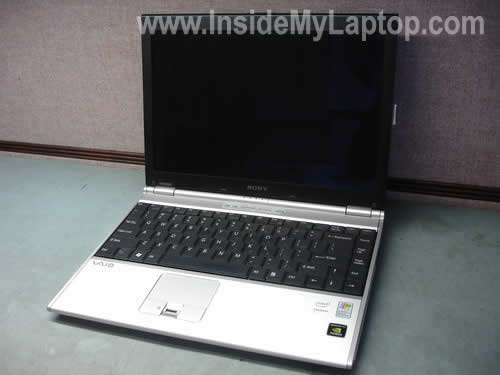
This guide will help you to remove the LCD screen and inverter board from a Sony Vaio VGN-SZ645 laptop display.
I think these instructions will work for many other Sony Vaio models.
Do not forget to remove the battery before you start.
OK, let’s take apart the display panel.
STEP 1.
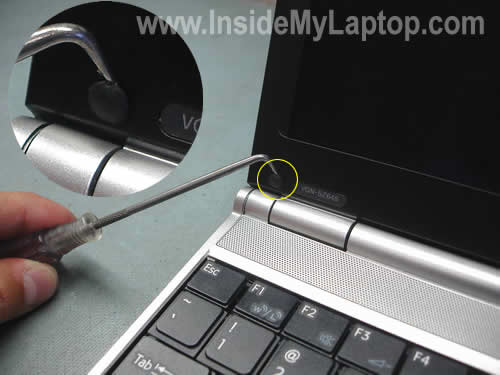
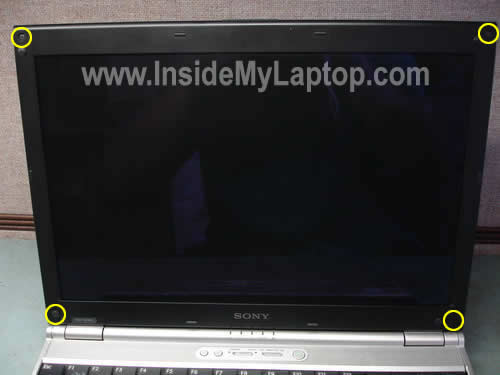
Using a sharp object (or small screwdriver) remove four rubber plugs. There is on plug in each corner of the display bezel.
STEP 2.
Remove four screws found under rubber plugs.
STEP 3.
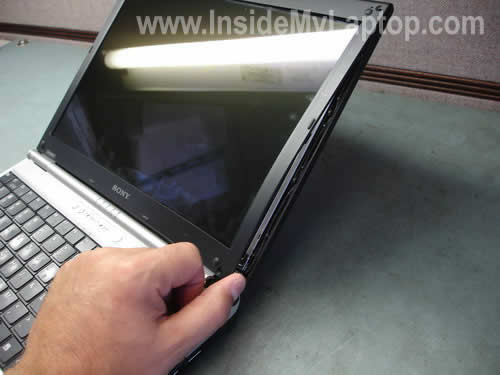
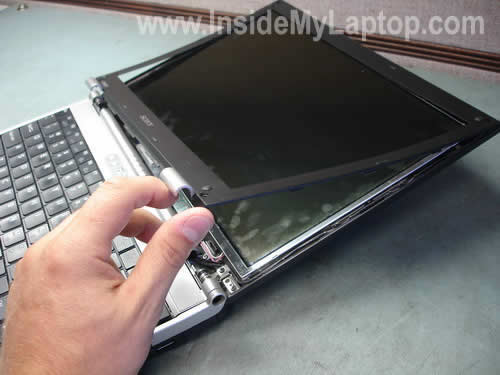
Start removing the bezel as it shown on the picture below.
STEP 4.
Continue removing the bezel. Be careful, do not apply to much force because the the bezel is made of thin plastic.
STEP 5.
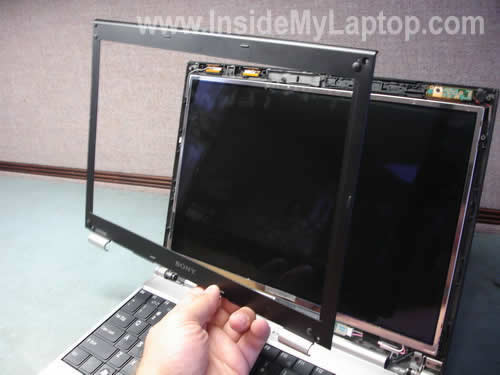
Remove the bezel.
STEP 6.
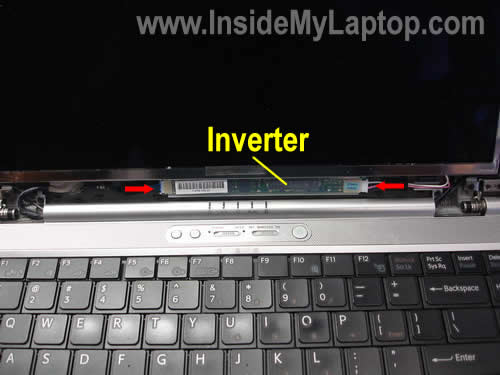
In order to replace the screen inverter you don’t have to disassemble the laptop any further. Simply unplug two cables from both sides of the inverter board. I pointed these cables with two red arrows. Carefully remove the board and replace it with a new one if necessary.
STEP 7.
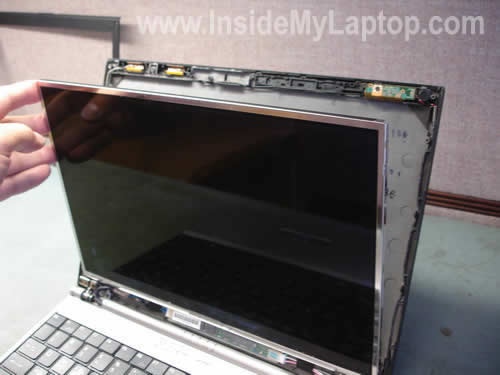
Here’s how you can replace the screen.
Carefully remove the LCD panel from the cover and place it face down on the keyboard.
STEP 8.
In order to remove the LCD panel completely you’ll have to:
1. Unplug the video cable from the connector on the back.
2. Unpug the backlight cable from the right side of the inverter.
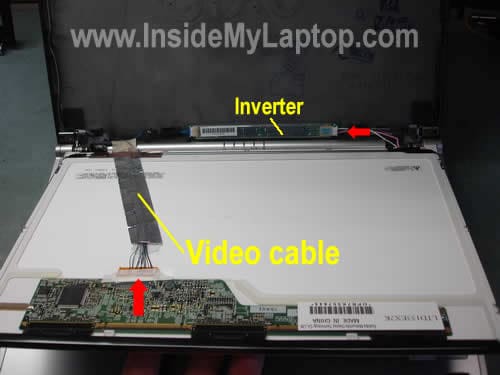
Now you can replace the LCD screen with a new one if needed.
John
Do you have a procedure for replacing the fan in the SZ series. I have cleaned everything the best I can, and have replaced the keyboard using your procedure for the hard drive. Will probably replace that soon too. However, I have pretty bad fan noise. Sounds like a bad bearing. Cleaned repeatedly with compressed air, but does not change anything. Looks like it is in there pretty good and did not want to damage the laptop trying to fix it.
IML Tech
John,
The cooling fan is buried deep inside the laptop. You’ll have to remove the top cover if you want to replace the fan.
Shawn
Thank you for the guide. We used this for the Vaio SZ340 and it was almost identical except that the model number of the removed screen was a Sharp LQ133K1LA4A. We replaced it with the Toshiba LTD133EX2A. They seem interchangeable except that the new inverter wasn’t compatible with the SZ340. However the old inverter seems to be compatible with the new screen so we kept it.
Removing the Bezel was significantly more difficult than the one step shown, but in the end it just required running a screwdriver around the perimeter (carefully).
Ken Rowland
R&R the LCD Inverter using these instrucions without a problem. Nice and clear. Salvaged a laptop that I was told, by a repair shop, would need a new screen and be more expensive than a new laptop. Thanks for the helpful guide to dissambly of the screen/top to access the inverter.
charles adams
I have a Sony SZ48GN_C with a noisy fan (u can hear the bearing when it stops) where can I get an upgraded fan and what model should I ask for? Also the screen on another has lost its backlight but I can clearly see the screen itself is not damaged. I bought a new LTD133EXBY screen when in China but it exhibits the same symptoms, ie no backlight. Both old and new screens seem to have their own attached inverter board attached to it…and there is only one connector…..surely the new screen cannot be faulty….does the screen get its backlight from somewhere I cannot understand?thanks
Charles
IML Tech
charles adams,
I’m not sure if there is an upgraded fan for this laptop.
The backlight lamp installed inside the screen. The backlight lamp gets power from the inverter board. The inverter board gets power from the motherboard via a cable.
I guss in your case it’s either bad cable or motherboard.
Also, do you have a lid close switch on your laptop? When the lid close switch is pressed down, it cuts off power from the inverter/backlight.
Make sure the switch moves freely. When the lid close is dirty it might get stuck inside the laptop case and the laptop “thinks” the display is closed.
Frank Niklas
Have you ever seen a laptop screen that has faint color lines at right angles with black streaks and a “black hole”. If you work the screen hinge a bit you can see the normal desktop icons along the left edge. the laptop is a Sony Vaio PCG-7X2L
Thanks,
Frank
stephen light
Hi, Great info! I have a Sony Vaio VGN-TX770p that has a broken battery release switch. From my research online, it seems that I’ll have to go in from the top down and basically disassemble the whole computer to get at the battery release switch located under the mother board. Would you agree with this?
Stephen
IML Tech
stephen light,
Most likely yes. I’m not familiar with your model but I’m pretty sure that’s hot the latch is assembled. I’ve fixed a few of them on Toshiba laptops and has to remove motherboards.
Erdem
Thanks for the step by step instruction. My screen was barely visible so we suspected either the backligth was gone or the inverter was not working. Luckily, the latter was the case.. A 60$ investment and this page saved my laptop.. THanks so much!!! Btw, Sony asked 100$ only to look at what the problem is. I fixed this by less than half of what they would have charged me.
brutusman
Thanks… great instructions, very easy to change a vgn-txn lcd display.
Leo
Great step-by step instructions, I was able to dis-assemble the lcd of my vaio vgn-fj270 to check for possible loose connections, but unfortunately the problem is still there…
There’s a black strip on the right hand side of my screen which has effectively reduced the resolution to 1000+ x 780+ or so… meaning the entire desktop is still visible on the remaining part of the screen at that reduced resolution most of the time. Strange thing is, when I lift up the screen at a certain angle or push it way back, the screen would sometimes become complete again.
Have you encountered a similar problem before? Thanks
Leo
IML Tech
Leo,
Not sure what’s going on. Sounds like a bad LCD screen. I guess could be a bad cable too, but I think most likely it’s related to the screen.
Nancy
Hi, my little brother recently dropped his laptop, although seemingly very light, the screen cracked. I want to replace the screen for him because it is so incredibly expensive to have sony fix it. His laptop is a VGN-NR498E/S. are the procedures the same? do you think I can personally do it? I’ve never dealt with fixing non-software problems for laptops before. Thank you for helping me out.
IML Tech
Nancy,
The LCD screen removal and replacement procedure is very similar for most laptops.
1. Power off the laptop.
2. Remove the screen bezel.
3. Unplug cable from the LCD and inverter.
4. Unscrew the LCD from the hinges/brackets.
5. Replace the LCD with a new one.
I don’t know, it depends on your technical skills.
Jenny
Hi, I have a Sony Vaio VGN-CR220E the screen turn white when I turn on the laptop, only works if I press the top of the screen (the border). When I release the screen many white points appears and go intesifying until turn white all screen. In addition looks like in standby mode because if I move the mouse or press the keyboard nothing happend.
The notebook have 1yr and 1 month and doesn’t have warranty.
Dan
Hi, thanks for the instructions, they’re really useful. I have recently cracked my VGN-SZ4XWN screen and would like to replace it. Do you have any recommendations on where to purchase a replacement?
The model number is LTD133EXBY and most companies seems to say it has been discontinued. There are a few screen floating around on eBay but some of them quote a different resolution (not 1280×800). Is this the best place to get one?
Thanks!
IML Tech
Jenny,
This description sounds like a problem with the LCD screen.
IML Tech
Dan,
If you cannot find a new screen anywhere else, probably eBay will be the only place to buy it.
Just make sure to buy a new screen with the same resolution as the original one. I’m not sure, but if a new screen has a different resolution, it might require a different video cable. Just a guess.
Cam
Hi,
First, great instructions. You have no idea how happy I am now that i found this site. I had my SZ220 inside my messenger bag and dropped it slightly as I was trying to pick it up (~1 foot drop). It situated and dropped in a way that the laptop was closed, standing up, hinged-side of the laptop was on the bottom and it dropped right in the middle of a platform about 6-in wide (side of my car). I thought I cushioned the laptop really well with 4 layers (bag, notebook bag, and 2-layer cushion that came with the laptop originally), but it seemed like it did not hold up.
Yesterday, I turned on the laptop. I could hear the booting and barely the screen. Basically, the backlight did not go on (you know the computer booted windows but you can’t see too well).
My question is this: Do you know if the backlight of screen is the problem or the inverter? I have not opened up the screen yet, but the initial assessment did not show any cracks (I can barely see the text on the dark background). If opening it up, can you tell even if there’s no apparent/obvious sign of the problem? I am pretty sure that this SZ220 screen is based CCFL, not LED. Thanks in advance for your opinions.
Kevin Manotham
hello there thanks alot for the instructions. i went ahead and removed the screen just as stated on this site. Everything worked great until i turned it on and no backlight. However the screen does come on for a split second after window loads to the desktop. Also After closing it for a few seconds then reopening it will force the backlight to come on and also in the display adjustment resolution screen if you change resolutions it will also come on for a seconds. I initially thought it was the door switch after removing the bezel again and completly taking the screen off the hinges i found no switch whatsoever only see the metal hinges exposing from the body, i notice it going to hibernate mode as it should wen the screen closes aswell. If it is the hinge why does the screen come on for 1 sec after desktop loads and help would please and thank you for such a great tutorial.
IML Tech
Cam,
I think it’s either one of the cables got loose or you’ve damaged the backlight lamp.
First of all, I would try reconnecting the video cable. Remove the screen bezel and make sure that cables on both sides of the inverter board are plugged in and secure.
If reconnecting the cable doesn’t help, most likely it’s the backligth lamp.
IML Tech
Kevin Manotham,
Why did you remove the screen? Did you have any problems with the backlight before removing the screen?
It’s possible that you have a problem with the inverter board.
Kevin Manotham
thank you so much for your response. what had happened was the original screen got closed when there was change on the keyboard and it cracked the screen, the screen worked just big blotches everywhere from the screen being broken. this screen i purchased from ebay it has dual connectors blue and pink the one in the illustration has i plugged it in the same way as the old screen reused all the tape except the big copper tape that was on the back of the old screen to the wire that connects to the back of the screen, i just taped it in the bottom corner. Thank you so much for your assistant.
IML Tech
Kevin Manotham,
OK, if I understand correctly, let me restate your problem.
You accidentally cracked the screen and it still was working fine except the cracked area. You purchased a new screen, replaced the broken screen and now there is problem with the backlight on the new screen. The image is on the screen but the backlight works only of a moment. I hope my description is correct.
First of all, reconnect all cables on the new screen. Maybe it’s just a connection related problem.
You can try connecting the old cracked screen back and see if it still works as before. If the old screen works as before and the backlight is on all the time, apparently the backlight lamp inside the new screen is defective.
I assume the new LCD screen is compatible with your laptop. Right?
Ian Shuman
I have a Vaio VGN-SZ370P with a bad monitor. The laptop computer works because when I extend the screen to an external monitor, it works fine. The laptop monitor itself has a screen full of colored horizontal lines. It would be great if I could send you a JPEG of what this looks like. I took apart the monitor cover but no loose wires. Any suggestions would be appreciated.
J Edwards
As a volunteer, I refurbish laptops for our school system for kids who can’t afford them. I’ve replaced/repaired quite a few SONY’s but this last one has me stymied. I replaced the LCD and the inverter, and the TXN-15P works great. Problem is that when the power block is removed and the laptop operates on battery, the LCD screen light goes out! The laptop still operates fine, just the screen light goes out. In a good light, you can see the normal operation and also on an external monitor.
Suggestions as to where to look? I’m comfortable completely disassembling these small SONY’s.
IML Tech
Ian Shuman,
Sounds like either a bad cable or LCD problem. It’s hard to tell without testing the laptop with another known good working LCD screen.
IML Tech
J Edwards,
Here’s what you can try. Find where you can change the LCD brightness settings and reduce brightness for the battery mode (when AC adapter is unplugged). Let’s say set the brightness to 50%. Does it help? Will it still go off when you unplug the adapter?
Bryan
Great writeup.
I was wondering if you would be familiar with upgrading displays. I have a VGN-FW370S with the XBRITE-ECO Display. I know that there is a superior, optional display, the XBRITE-HD from the factory on a different model number FW series. They are the same size displays, but different resolutions, plus the HD display has 2 lamps vs. the 1 in the ECO-Bright. Do you know if I can simply upgrade mine by changing out the LCD display and inverter and any sequential drivers?
Thanks,
Bryan
Mohd Bahij Ahmad
Dear IML Tech,
I am just wondering whether is it possible if I were to attach a 13.3″ LCD of SZ series to a Sony T2XP/S(UK model equivalent of VGN-T in US) model of 10.6″ lcd series.
I tried to look for replacement of 10.6″ but they are too expensive compared to 13.3″ which are more common.
Assuming the port is the same, is it possible in term of motherboard power or graphic card power or of whatever reason that I do not know of. I am no expert of computer by the way.
Thank you.
Kevin
I have a vgn-sz230p that the dog knocked of the coffee table. The screen looked fine but when I turned on the laptop it goes from bright white to black and back over and over again. I had a new screen so I put it in but it does the same thing.
IML Tech
Mohd Bahij Ahmad,
I’ve never done it myself, but I really doubt that you can do this replacement.
IML Tech
Kevin,
It’s possible that something got loose inside the laptop. I guess you’ll have to open the case and reseat internal cables and components.
By the way, did you have a chance to test the laptop with an external monitor? Will it work?
Sandra
I have a VGN-TX770P. Screen cracked. Replaced it and now it’s dark (even putting back in the old cracked one is now dark). My tech thought is was the cable, got one, still dark. Now he thinks it’s the inverter. Three weeks looking and I can’t find an inverter. The guy in this thread had a similar prob, solved with a $60 inverter. Where can I find this part? I’ve looked online for two weeks, found one, when I went to order it they said it only came with the screen. Any help finding an inverter?
Rajesh Singhvi
I have sony vaoi SZ23GP series from hongkong..13.3′.
due to bang on the screen towards hard pencil box we managed a crack in inner layer of screen.
Outside glass is fine.
I am in netherlands and everything cost hell except sun and air..appreciate if someone can guide me how to get 1st lay my hand on LCD screen …
your steps to fix thereafter seems will work..
thks
Rajesh
IML Tech
Rajesh Singhvi,
Search eBay USA for SZ23GP screen. I found a few for about $75. They ship worldwide.
thanhster
I have a vaio sz660 and the lcd screen has a crack in it because of my brother and was wondering if its possible to replace. If yes, is the procedure similar to that of the one you have posted.
IML Tech
thanhster,
The LCD screen replacement instructions will be almost the same for many different laptops, not only Sony laptop.
Yes, it’s possible.
thanhster
Sorry i have another question. I was searching to find the screen replacement and could not find one, and was wondering if you know where they sell lcd screen replacement. Thank you.
IML Tech
thanhster,
I searched on eBay for Vaio sz660 screen and found a few of them, but it looks like this LCD is very expensive.
DMike
This site is great!!! Finally somebody devoted to SONY!
Here is my issue, I bought a SONY VAIO VGN-N365E/B from a friend of mine because it had a single pixel vertical line on the screen. Tested the video card using an external monitor, beautiful picture. So I figure it’s the LCD screen. My question is, is there much difference between the model you showed in your demo(VGN-S) and the VGN-N series?
Thanks in advance.
D
IML Tech
DMike,
Yep, that’s a bad LCD screen.
I don’t know but the LCD replacement procedure will be very similar for many different laptops.
DMike
Thanks, and you were right. Other than support brackets for the LCD screen, it was quick and easy! Swapped out the screen in about 20 minutes. Thanks for the demo, A+++!!!!
Sith Lord Vader
DMike,
Thanks to this site, I just got done replacing an LCD on a VGN-N365E. The tutorial listed here is pretty similar. The main difference that I noticed, was that once the screen bezel was removed, there are a few screws that actually secure the lcd screen to the back of the bezel. These screws go through arms that are actually screwed to the right and left sides of the LCD. So basically, remove the screws that go through the arms, and at that point you’ll be able to lay the LCD down on the keyboard, like listed in the tutorial, then disconnect the cables as listed in the tutorial, and once you have the old screen free, you can remove the arms from the right and left of the LCD screen, and re-attach them to the new LCD screen. That’s really about the only difference from what’s listed here. I got my new LCD from a merchant off ebay for around $55 after shipping, and after I finished the replacement, it was all good, well, save one dead pixel, but hey, I’m not bitching. This site kicks ass, and whoever wrote this tutorial . . . you’re uber-awesome. Thanks very much for the help, and DMike, I hope that helps.
Sith Lord Vader
DMike,
Sorry, I’m dumb, I didn’t notice your post about successfully performing the replacement.
epp
i have a vgnsz240p it fell to the floor and the screen wont turn on
lovecd
I do have vgn-s460 laptop, and got a white screen recently. How should I identify if the problem is from the video cable or LCD screen itself?
Thanks!
SU
Just got the same white screen today with my Sony VGN Z 11XN..
On E-bay the screen cost 460GBP :O
Actually my lap top fallen form the desk, after I switched it one it had one vertical line. During another session the desiplay perfomance deterioated , first the half of screen beacome blurred, then I got a rainbow like on TV when no program is on air, then I got fully white screen.
In the corner it looks like leaked ink, does it mean LCD is physically damaged?
When PC goes out of temoparary dispaly off regime, when I touch the touchpad, then before truning white I still can see for the moment Windows screen.
My laptop still on warranty, but has been bough in Europe, but I am now in Asia still for a month.
IML Tech
SU,
Yes, if you “leaned ink” inside the screen, it means the LCD is physically damaged and has to be replaced.
If you have a regular warranty the physical damage will not be covered.
paco
hello i have a Sony vaio vgn sz470n/c i open the bizell but there is in not a inverter , I checked your step by step the laptop is very similar the difference is mine has cam and mic the LCD looks that like just one piece
vladhaler
Thanks. Good clear article. Have just successfully changed a screen of a VGN-SZ4MN/B using it as a guide.
Thomas Drake
I have a vaio and under the panel with the speakers and power button there are 2 cables that go the the card reader and one that goes to the power button and speakers from the mother board…anyone know where i can find these cables? they are hair thin and about 6-8 wires in each one. i will paypal over $20 if someone can point me in the right direction.
IML Tech
Thomas Drake,
You you want someone to help you at least mention the laptop model number. Do you think there is only one Sony Vaio out there? 🙂
Looter
I like the tutorial, really helped me get the bezel off my VGN-FE550G. Now my problem is that my new screen only has one plug coming from the LCD and the stock inverter and the old LCD has two. Any suggestions on what to do? Can this be made to work? Anyone know where to find eitehr an LCD that has two plugs or a new inverter that has one plug??
IML Tech
Looter,
That’s the way it should be. The LCD screen should have only one plug. There should be two wires coming from the LCD and they are connected to one plug. Another plug is on the video cable.
Simone
Hi,
I have got a vaio vgn A115B laptop and after a gentle knock the bottom third of the lcd screen is white (horizontal white stripe). It is constantly there, no changes after turning off on etc..
Otherwise laptop works fine and displays the top as usual.
Is this the lcd screen or could it be another problem? (dont have a second monitor to check)
As a total novice would you think it is ok to follow your steps to replace the lcd and give it a go? Found a screen on ebay for around 90US..
Thanks already for all the great information,
simone
IML Tech
Simone,
Could be connection related issue. Try reconnecting the video cable on the motherboard first. If it doesn’t help, most likely it’s bad LCD.
Erik
Have vgn-sz240p and screen become realy dark. What should i do first. LED light, inverter or screen replacement? Thank you
Brian
I have a vgn sz680 and i the screen just went white with vertical streaks then it went blank…is it the lcd that is dead or do you think the hard drive is fried? thanks
IML Tech
Brian,
I don’t think that your problem is related to the hard drive.
Test your laptop with an external monitor. If external video works fine, most likely it’s either bad LCD, bad video cable or poor connection between the cable and LCD.
If external video doesn’t work, there could be a problem with the video card.
Erik
Still waiting for response… Sony Vaio VGN-SZ240P
Dark screen (just went dark – and dark all the time, when you have light over / close to the screen you can see that screen is working but is totally dark), and when connected to external monitor everything works fine
What should i try to replace first LED light, inverter or screen?
Thank you in advance and please reply.
Erik Says:
July 12th, 2009 at 8:18 am
Have vgn-sz240p and screen become realy dark. What should i do first. LED light, inverter or screen replacement? Thank you
Melissa
I have a Sony Vaio VGN-TX770P, I need to remove the hard drive. I am guessing it is under the keyboard. Does anyone know where I can get instructions on how to get it it? What screws, etc. to remove?
Erik
Melissa check guide at http://home.comcast.net/~nw_systems/vgnTX.pdf
I’m still waiting to response…
IML Tech
Erik,
If I understand correctly, the backlight is off all the time but if you look very closely you still can see the image. Most likely it’s either bad inverter board (power supply for the backlight lamp) or bad backlight lamp (mounted inside the LCD screen).
It’s hard to tell which one is causing the problem without testing the laptop with a known good inverter or backlight. Both have very similar failure symptoms.
I would definitely try replacing the inverter board first because they fail more often. It’s easier and cheaper to replace the inverter board than replace the LCD screen.
If replacing the inverter board doesn’t help, try replacing the LCD screen. The backlight lamp is a part of the screen, so you are getting a new lamp when replacing the screen.
In short, try a new inverter first. If it doesn’t help, move to the LCD.
There is a very slight chance that your backlight stopped working because of the motherboard, maybe it’s not putting out correct voltage for the inverter or something like this, but this is a rare failure.
William
Hi,
Does anyone know where the inverter is located on a Vaio VGN-SZ4VWN. I thought it would be located near the screen but is not as I have the spare inverter ready to replace the duff one.
Fahim
hi,
I have a sony vaio VGN CS26S. all the function works well in the laptop, but when i connect the ac adapter to charge the battery the screen goes dark.
Dark screen (just went dark – and dark all the time, when you have light over / close to the screen you can see that screen is working but is totally dark)
i bought the laptop on 5th april this year and the problem started just after using it for a month.
what should i do? please help
Agata
Hi. I need to replace a screen in vaio VGN FE-31H. Does anyone know what other series can use for replacement? Thank you.
IML Tech
Agata,
You can remove the faulty screen, find the LCD model number on the back and google it.
Macdan
This is a great site-thanks for the info. I have a friends Sony vgn-sz370p that seems to be working just fine, except that the screen is dark. I can barely see the Windows logo that comes on at boot up, but it is very dim. Am I right in thinking that the inverter needs to be replaced?
IML Tech
Macdan,
Could be bad inverter or faulty backlight lamp inside the screen. Both have very similar failure symptoms.
I would definitely try replacing the inverter board first. If replacing the inverter doesn’t help, most likely you’ll need a new screen.
Chris
I busted the LCD on my VGN FE790. I bought a new LCD, and had no problem getting the old screen off. However, the new screen has ONE wire set that comes out to go to the inverter. The old one had two. When I plug in the new LCD, it’s dark. The screen works, I can read things, but it’s not lit up. What do I do? The old LCD is actually backlit just fine, it’s just smooshed up, which is why I replaced it.
IML Tech
Chris,
I’m not familiar with your model but it sounds like your new LCD has only one backlight lamp inside but the old one has two backlight lamps. Is my guess correct?
Do you have inverter with dual connector for the old screen?
If that’s the case, you’ll have to purchase the right screen.
Kevin Nguyen
Hi guys,
I have VAIO VGN-FW140E. I was looking through your guide and it is really great, but it seems like my laptop is a little different from the one in the picture above. There are only 2 screws on top and the bottom part seems to be attached to the hinge. If you can provide me with any hint on how to remove the bezel from the hinge, I would really appreciate it.
yan wong
I saw your article on the Sony LCD screen replacement. Cool.
Question: any difference if the laptop has an inbuilt cam on top of the screen?
My model is the SZ43GN
thanks
IML Tech
yan wong,
Shouldn’t be any difference. The webcam is a separate module mounted above the LCD screen.
Susan
I am trying to replace the screen on my Sony Vaio VGN FW450J/T but I can’t even find the
screws (or rubber plugs) on the four corners of the screen bezel. Could they be someplace
else and exactly what do those rubber plugs look like? Any help you can provide would be
greatly appreciated. Many thanks.
IML Tech
Susan,
I’m not familiar with this model but if you cannot find any screw covers or screws, it’s possible that this model doesn’t have any.
It’s possible that the screen bezel is secured by plastic latches under the bezel.
Anthony
Hi, i have a VGN-18Gp which has a LED backlight LCD, Can it be exchange with the VGN-55GN which has a LCD backlight model ? I plan to change the complete LCD housing….Just wonder LED and LCD connector are can be plug in ?
IML Tech
Anthony,
I’ve never done it myself.
I guess you cannot replace the LED backlight LCD with a regular LCD screen. But it’s only a guess.
Mike
Hey, I have a sony vaoi thats sitting at my house been meaning to find a site like this. I used to treat the laptop really rough. One time I grabbed the screen from the top and a black line came down..then i touched more areas of the top and the whole screen went black from every area i touched. ( i grabbed it from the middle, solid black line in the middle, then from the side top (to see if anything else would happen) and the other half went black lol)
Should I replace the whole screen? if i do does it come with the video cable part and the connections (i’m scared that that might be the thing thats damaged)
This laptop is pretty old now, is it even worth replacing? It also makes intense fan noises, and when i tilt it to the side its u can hear the fan randomly cutting something lol
IML Tech
Mike,
It sounds like you damaged the LCD screen and it has to be replaced.
Replace just the screen, do not replace the cable. I don’t think it’s necessary.
Find our how much is a new replacement screen. This will answer your question.
JayTreezy
Thanks for your time on these LCD screens for all of us who need it. I am also having some difficulty removing the bezel from my VAIO SZ-370P. Unlike your SZ-645, I have plastic coverings (or could be stickers to the best of my knowledge) where your bottom rubber plugs are located. I have removed the plugs and screws at the top of the screen, however am reluctant to remove the bottom part since I am afraid of hidden screws. Are there any screws hidden under there? Thanks again for your time.
ruslie
should I replace the sony VGN lcd with lcd from sony also? can I use other brand as long as they are same size?
if not, what are the differences between them?
thank you
UTtheGeek
i hav VGN-SZ430N, there is a problem with my LCD, dead cells are appearing continuously. Can any body tell me how to prevent from dead cells on LCD????
Lorcán
Hi & Happy New Year
I have a Vaio VGN-SZ4XWN/C and it shows similar symptoms to many mentioned above…the screen is very dark but slightly visible (in a strong light) so I guess the inverter or backlight is dead. I opened the screen but didn’t notice the backlight. I assume this model carries a backlight as I see one for sale on ebay.
However I cannot find an inverter available for this model. Is there a generic inverter that would do the job ? Also, I see above that these problems could also be a faulty Motherboard….could the Motherboard be the problem ? I have the Laptop attached to an external monitor and it’s perfect…does this mean the Motherboard is OK ?
Thanks,
Lorcán.
IML Tech
Lorcán,
The backlight lamp is mounted INISIDE the LCD screen. It’s very hard to remove and replace.
I cannot tell if your problem is related to the inverter or backlight failure without testing it.
Here’s what you can do. Test your laptop with a known good backlight lamp.
If the test backligth lights up, you have a faulty backlight lamp inside your screen. If that’s the case, I would suggest replacing the entire LCD screen.
Lorcán
Thanks very much for your detailed reply.
I’ll try your recommendations.
Best wishes
Lorcán.
LimLim
I have VGN-SZ75GN, it has no problem with inverter. But seeing your post, I have question regarding the LCD position. My SZ75GN LCD screen viewable area is not centered, a little bit to the right site. (only about 1mm I guess). But it annoys me each time I look the screen, espesially with light color wallpaper. Can I reposition the LCD panel a little to the left? What does hold the LCD panel from the body? Thanks.
IML Tech
LimLim,
I cannot answer your question without looking at the laptop. It’s necessary to remove the screen bezel to find out what’s going on. Maybe screws on one left side of the screen got loose and the entire screen moved to the right. Just a guess.
Brian
I am trying to repair a sony SZ645. It has no picture but works with an external monitor. I pulle the bezel off and the screen but your photos show a video cable taped to the back of the screen. Mine does not have this. I have had several people tell me this screen has no inverter and they have tried to sell me a bulb. There is a small board taped to the bottom of the screen and I am assuming this is an inverter. Can you confirm this unit is a LCD and not a LED screen?
gord
I have a vaio sz420n. the display has a white horizontal band approximately two inches thick on the bottom side of the display. this band sometimes clears up, wbut there is faint banding and or a thin white horizontal line about half an inch from the bottom. Should i be changing the display or simply the video cable which is ttached to the lcd display. Is it the display at all or possibly a bad driver software?
I look forward to your kind response.
Thanks and Regards
dexxy boy
dear friend,
am very desperate because my sony vaio VGN-FS215E screen is not showing and completely black,it does not show any sign that its on.Although the power shows on and i can also hear its working because the lights on the pc are on but the screen does not show on does it mean that the screen is broken or the screen cables are not working.Can someone help me.Someone told me the chipset is the cause of that and if true what can i do to fix it any idea will help.
IML Tech
dexxy boy,
First of all, you’ll have to test your laptop with an external monitor attached to the VGA port.
If you can get image on the external monitor, most likely your problem is related to the LCD screen or cable.
If there is no image on both, the internal LCD and external monitors, most likely the problem is not related to the LCD screen or cable. Something else is wrong. Could be bad memory module.
Test your laptop with an external monitor and find out if you can see the image. On some laptops you have to force the video output from the internal mode to the external mode using a shortcut on the keyboard. Something like Fn key and F* key.
enzo95
Hi,
I have 2 Vaio notebooks, SZ2XP en SZ1XP, carbon fibre models with razor thin LCD.
Recently, backlight on SZ2XP suddenly died, when connected to an external monitor everything works fine and if you look at the screen closely with a lamp, everything is there.
Following your instructions – razor thin lcd model is a bit different though, does not have a inverter – I opened up both notebooks and swapped the LCD screens. The LCD which was not working on SZ2XP worked fine on SZ1XP, the fine working SZ1XP LCD put on SZ2XP had the same backlight issue. Swapping the LCD cables did not make any difference, bringing me to the conclusion that the SZ2XP LCD and LCD cable are OK but something might be wrong with the motherboard.
However, after assembling the working SZ1XP back, I turned the notebook on and guess what it had the same backlilght issue,ending up with two notebooks having the same problem.
After cooling my head down and doing some internet search I suspect that I might have an issue with the lid close switch causing backlight to stay off but I can not find the switch around the hinges. Do you have any idea where lid switch would be and if my assumption could be correct?
Sorry for the long story,I just wanted to make sure I did not forget anything. Thanks for your time!
Johan Meij
Hello all,
I do nit really have the model above (VGN A197 XP) but your tip on where to find the screws for the display really helped. Just replaced the right hinge for the LCD.. It all worked out!
David
Hi, I have exactly the same problem as Enzo95 posted, SZ2XP/C dim lit screen, I suspect magnetic lid but I have no idea what to do next. Picture is very dim but visible right from the start. There is no inverter on this model. Please let me know what to do…
IML Tech
David,
I think there is no inverter because it’s a LED backlight LCD screen.
You cannot tell what is causing the problem without testing the laptop with another screen.
Julian
I have an VAIO VGN AR590CE. Upon start up there is one Long, and 2 short beeps. The screen is completely black and I cannot see anything. I know the system still works because i can hear the start up sounds. The windows Chime and the Logged in sound. SONY will not help because it is out of warranty. Any thoughts other than bringing it in to a pro?
Many thanks.
AM
my sony vaio on startup bios has several blue vertical bar across lcd.the nvidia GPU is not loading and is diaabled.On booting just before the windws logo screen filled with a pattern of vertical columnof couple of zeroes( 00 ) separated by some gaps>This post as I am writting letters are randomly green .Colour is splashing on pictures .Solid colours as desktop back ground are ok but with slightly different hue.On External monitor everything is OK but the fine lines can be visible though only very slightly,but to all purpose OK..
In a previous similar occasion the problem resolved automatically during a virus scan.
Please suggest.Thanks
shiva
HI, Thank you very much for this demo. This was very helpful. I ordered the screen for $85.00 including shipping and replaced it myself. Sony quoted $450 to $600 range for this.
thank you very much.
bobz
hi..kindly help. i dont know how to fix my the screen of my SONY vgn-cs3gj laptop. there is a horizontal lines at the bottom of the LCD.
IML Tech
bobz,
First of all, test your laptop with an external monitor. Make sure the external video works fine. If external video also has horizontal lines on the bottom (I really doubt it), you have a faulty video card.
If external video works fine, your problem could be related to one of the following:
1. Bad connection between the video cable and motherboard or LCD screen. Try reseating connectors.
2. Bad video cable. Here’s what you can try. Disassemble the laptop display and try moving the video cable while the laptop is turned on. If moving the cable affects video on the screen, it could be bad cable. Replace the cable.
3. If moving the cable doesn’t affect video on the screen and all lines still there, probably you have a faulty LCD screen. Replace the screen.
TZ
Thanks so much for the instructions. I reset the cables, everything now working on my VGN-SZ645
Paulo Kaneko
Hi!
I have a VGN-SZ61MN. I would like to know what kind of LCD I have to buy.
Lawrence Kemp
Sony VGN-SZ645 has a problem with the LEFT side touch pad button.
Sometimes it works….sometimes not.
Can the contact (s) get worn out or dirty??
Any suggestions for repair or replacement??
Thank you!
STNK
Hello,
I have a SONY VAIO VGN-NS325J and the screen started acting up this past weekend. Basically, the screen goes dark, even though I can still see the display if I use a flashlight. Now, this doesn’t happen all the time, right now, I have been using the computer for a good 2 hours without problems. If I close the lid while the laptop is on or the screen saver comes on, or the screen turns off to conserve energy, it probably will go dark again. When I turn it on, it takes a few tries in order to have it the display working properly.
Can you help on what could be wrong, the LCD, backlight or Inverter? I have opened the case this afternoon to check connections and haven’t seen anything wrong, but I don’t know anymore than that. I’m just trying to get the right replacement part the first time, since it seems that A lot of sellers don’t take returns.
Thank you in advance for your help.
IML Tech
STNK,
You cannot tell without testing the laptop with a known good inverter OR backlight lamp.
Most likely this is either bad inverter OR bad backlight lamp inside the LCD screen.
If you have to guess, try replacing the inverter board first. If no help, move to the LCD screen.
bonnie losoya
hi i have a vaio sony vgn-cr510e and my screen is broken or crecked and i want to change my screen so i can use it but im scrared to change it cause it have the camera how would i do it so i wont miss it up
IML Tech
bonnie losoya,
The web camera is not a part of the LCD screen.
When you replace the screen, you just disconnect the web camera cable and connect it back after the LCD replaced.
Anon Posta
Hello, I have a Sony Vaio VGN FJ-270 series. All I need to do is RESET the video cables. I plugged the laptop into an external monitor and the screen is fine, so it is not a motherboard problem. Exactly how do I reset the cables once I have taken apart the screen?
Anon Posta
Also, am I at risk of electric shock even if I take the battery out to do this?
Nike103
hi, white horizontal lines appear on my screen when ever i tilt it. Is that to do with loose wires or do i need to buy a new screen, thanks
fady
hi i have a sony vaio vgn-fw11e and its lcd is broken can u plz provide me with some manual or instructions to replace lcd screen thanks
M.SIVAPRASAD
HI
I am using Sony VGN-SZ680 model laptop and my problem is my laptop is turning off automatically all though the charging is full enough to run.I can observe that the back side of my laptop is very hot when it tuned off.can u tell me any suggestion to over come my problem
IML Tech
M.SIVAPRASAD,
Most likely the laptop shuts down because of overheating. It happens when the cooling module (fan and heatsink) clogged with dust.
Try cleaning the heat sink. Most likely you’ll fix the problem.
Gene
VGN-N370E
I have a very dim screen but other programs will not open either. I can’t access the internet, etc.
The power options don’t work and Norton won’t run.
Will an inverter help this or is it something else?
IML Tech
Gene,
Most likely you have more than one problem. Probably one hardware related and another one software related.
Blair
Trying to replace the inverter on an sz series vaio. what inverter do I need ? Do you have the model number ? Thanks
IML Tech
Blair,
What is laptop model number? VGN-SZxx?
Stephen crash
I have a vgn fs920 I bought a screen off eBay thy said it would work by when I put it in it didn’t so I put the old one back in an now it doesn’t work any help please
Ghobi
hi..i have a vaio VGN-SZ43GN,i was using it for few years and suddenly few days back my laptop screen become dark…it is working i can see the image but juz that the screen is very dark…what is the problem..do i need to change the inverter or the backlight…
IML Tech
Ghobi,
You cannot tell which one is causing the problem without testing the laptop with another working inverter or backlight. Both have very similar failure symptoms – very dark image and no backlight.
If you have to guess, try replacing the inverter board first. If it doesn’t work, move to the LCD screen.
zap
I have a VAIO VGN-C140G. The screen, though still contrasty, is now a bit off-white and on the right side of the screen, a white patch about 1 1/2 inches long and 1/4 inch wide (in the middle) has appeared. The four corners of the screen started showing the same white patch (though still small). Is my laptop screen needs replacing or is the inverter the one needs to be replaced?
IML Tech
zap,
Sounds like LCD screen failure.
Your description doesn’t sound like inverter failure.
I think you’ll have to replace the screen.
Paul
Probably the inverter connector came loose after dropping it, or the inverter is bad. I see that more than the actual backlight going bad.
violist
Hi! The LCD screen of my VAIO A115B stays complete white (sometimes some shadows and stripes) in the lower part for the whole time. Only the upper 10cm of the screen works normal. Extern monitors work fully. Where is the problem? The display, or the graphic card?
Thanks for help
violist
IML Tech
violist,
Sounds like a problem with the LCD screen.
You said external monitor works fully, it means the graphics card works properly.
I guess you’ll have to replace the screen.
Tony
I know I need a new screen. I have checked and can’t find one for a Vaio VGN CS36GJ. Anyone know of a site where I can buy one? Thanks in advance
Creep
VGN-SZ780U – recently verticle blue lines began appearing at the power-on password prompt (followed by a square of dollar signs) followed by a Windows Vista boot screen with just the progress meter showing. I used the Vaio recovery disk and did a restore to an earlier date – something I did fixed the problem – not sure what. Problem reappeared a few days later. I do use a dock most of the time. Regular Windows just will not boot up when the blue lines appear – normal startup just gives a black screen followed by automatic restart after some period of time. Right now I am in Safe Mode with Networking and the screen looks fine, minus the resolution. Read somewhere it might be the video cable connection to the LCD – haven’t tried messing with it yet.
Any thoughts?
IML Tech
Creep,
First of all, I would test laptop with an external monitor. Check out the external video. Does it have lines (or any other problem) too?
If it does, most likely you have a problem with the graphics card.
Creep
thanks for your response. Mind enlightening me how to do that external monitor trick? Have it plugged in now and laptop won’t recognize it when I shift the feed. I’m down to 4-bit graphics which is pretty awesome – Don’t have windows disk – just Sony recovery disks. My Knoppix disk doesn’t get past “PCMCIA cardmgr” prompt… Which is rare as I recall. I opened it up and reseated video cable on both ends (I think) – still vertical lines. Tried original nvidia driver. Maybe it’s time for drive enclosure and a new laptop? Replacing the motherboard seems like a haze.
99leesea
Do you think that by disconnecting the screen on my viao laptop, the external monitor will become the default ?
I ask because my laptop screen has been broken for a while, but an external monitor has always worked fine. Now though I know there is a problem with my OS and it wont boot up automatically, meaning that my external screen wont receive a signal, meaning that as my laptop screen is broken, I cant see anything on either the screen or external monitor.
If anyone can help id be very grateful.
IML Tech
99leesea,
Yes, it’s very likely that disconnecting the internal screen will make the external to be the default screen.
Try disconnecting the video cable from the motherboard and start the laptop with the external screen connected.
If you still cannot get any external image, check laptop memory. Try reseating memory modules, try removing them one by one.
99leesea
Thanks for the reply.
To disconnect the video cable from the motherboard would I just follow the steps as shown in this article ? Or is this something different to what is shown above ?
I’m reasonably competent with things like this but could do with all the help I can get really.
Thanks again for your reply – I really appreciate it.
IML Tech
99leesea,
No, it’s different. The video cable connection located under the keyboard. It’s necessary to remove the keyboard in order to disconnect the cable.
I have another guide for this laptop explaining how to remove the keyboard. Take a look here:
https://www.insidemylaptop.com/how-take-apart-sony-vaio-vgn-sz-series-laptop/
If after disconnecting the video cable from the motherboard you still have no image on the external monitor, there could be a problem with the laptop.
99leesea
thanks for the reply.
Could you tell me how I’d identify the video cable when i’ve removed the keyboard ? (sorry for my incompetence).
The thing is, from the tiny, tiny portion of the laptop screen that I can actually make out, I can see some text, I’m just not sure how to divert the signal to the external monitor while windows xp osnt booting up automatically.
Is there anything that I should remove a well as the video cable ?
Also, how exactly might removing the memory modules work ? (again sorry for my ignorance)
Thanks again.
IML Tech
99leesea,
Follow the harness which is coming from the display panel. The display harness routed though the left hinges.
Locate the harness and find where it’s connected to the motherboard.
It’s possible you’ll have to remove the top cover. I cannot tell for sure because I don’t have this laptop in front of me.
traumaut
Thanks for these great instructions. Got the screen on my SZ450N off in 10 minutes. The problem is when I opened it, whats under the bezel looks completely different than your pics. I don’t think there is an inverter, or atleast I do not see cables running underneath the screen like yours. It looks like the screen and inverter are all one piece attached to only one cable behind the screen, which I’m not even sure is detachable. Do you know how I should treat this? The screen is really dim, and plugged into an external monitor works well.
IML Tech
@ traumaut,
Apparently, your laptop has a LED-backlit LCD screen which doesn’t require the inverter board. The video cable connected directly to the screen.
In order to replace the screen, you simply unplug the video cable from the screen and replace it with a new one.
Take a look at this guide as an example. It shows how to unplug the video cable from a LED-backlit LCD screen.
You can find a new replacement screen if you google the model number from the original screen.
It’s hard to tell what is wrong, probably just a failed screen.
Lauren
Hi,
Thank you for these instructions. After I was finally able to remove the bezel from my VPC-EB33, I saw that the LCD screen was glued to the bezel. What can I do in this case?
Thanks in advance for your response!
madmax
i have a sony vaio laptop model PCG 392L it has vista ultimate OS system wich loads and searches fine and shuts down normally.the problem is that alot of green fluid that resembles ink is coming out of the area of the hard drive cover door.and the screen is mostly clear on first vaio screen with some colored verticle lines.then on second screen as it loads i get red and brown blocks horisontally across the screen then on desktop i get very thin blue and green horiziontal lines making it hard to see desk top icons.have you ever seen this before.i have turned on and shut down normally many times but each and every time the screens are just like ive described.any help would be very welcome.ty
yukiri
@Madmax, if you receive this, I had the same issue and my problem was the screen was receiving too much pressure from the back lid. I simply took the LCD screen out and popped it back in and it’s working beautifully. Hope this works, and best of luck with your hard drive. I don’t presently have that problem but I hope you are able to resolve that.
Revit
Can you tell me if the graphics is in the motherboard or is a separate card? vgn sz 370p
Thanks
RT
Thanks so much for this! I have a VGN-NW180J (PCG-7171L). The screen is extremely dim and cannot be seen under normal circumstances. However if I shine a flashlight on the screen I can make out what is on it. So I am assuming it is either the inverter or the panel (its not the video card because an external monitor works just fine).
Can you please explain how I can test the inverter? I read online that you can test the output from the inverter to see if it is 6v. Is this indeed a valid test? Is it easy to know which two pins for positive and negative to connect to my volt meter?
Also I was told that if I do not have 6v out of the inverter, I should check the input to the inverter to see if it is 19v. Again, is this true? And if so, which pins on the input are for the positive/negative that I should connect my meter to?
I am not handy at all so quite apprehensive about taking about the screen. But the repair costs will be more than what the laptop is worth if I send it out, so I’m going to give it a try.
Any tips are greatly appreciated. Thanks again!
Jeffrey
is it possible to clean the inside of the plastic cover on the veiw screen?
Sony Vaio VGNFE670G
IML Tech
@ Jeffery,
I don’t understand your question. Not sure what you are talking about.
Brian
I have a Sony VAIO VPC-EB33FM/BJ and I stepped on it and broke the screen. I replaced the screen but it is not lighting up. I can see it working in the back ground but it is dark. Should I replace the LCD screen cable? Is so, is it hard to do?
IML Tech
@ Brian,
I don’t think this is video cable related problem.
Did you buy a new screen designed for a Sony laptop? I’ve seen some sellers offering LED screens but they make a note it’s not for Sony laptops.
I guess some Sony laptops might require special screens.
SZ750N
Hi,
My sz750n has a problem with the backlight. The screen is very dark, but still I can use. I can see that win7.
I opened that. But there is no “ccfl backlightâ€,and I think other sz series don’t use ccfl backlight.
I think the problem is LCD cable. is it possible ?
What I can do to repair that ?
“Did I help you $ave some money? Please consider making a donationâ€
Not a problem, I have to repair ! Please Help.
I can take pictures of laptop, if you need more details.
roy
hi, i spilt a little amount of water on my laptop while it was on its side .first the usb was showing un recognisable then shut down and would not power up.
can you give me any starting points to look at.
there were only a few drops of water on the ram
thanks in advance
Lorin
Thanks for these instructions!
I have an SR190. Vertical lines on half of the screen. Pressure on the bottom of the cover or switching screen angle sometimes helps. No problems with external monitors.
Having trouble finding sr190 video cable – which I’m guessing it is based on this feed.
1) Am I likely correct?
2) Any suggestions?
Thx,
Lorin
IML Tech
@ Lorin,
Your description sounds more like the LCD screen failure to me.
Here’s what you can do to narrow down the problem.
Disassemble the display panel so you can access the video cable. Try moving/wiggling just the video cable while the laptop is turned on. Does it affect image on the screen? If not, this is not the video cable failure. After that try moving the screen. If lines change when you move the screen, most likely this is bad LCD screen.
Lorin
Sorry – also, do you believe the SR190 will be similar in disassembling? I’m a newbie to laptop repair. :o)
Thanks again,
Lorin
Skarba
Hi. I have a problem with my Sony Vaio sz series. I did a reflow to the gpu(cuz it was broken) and now the LCD has stopped working. I mean it has no backlight . If i connect an external monitor it works perfectly and the Gpu problem is solved… but now the LCD problem appeared.
Can u give me some solutions ?
Thanks.
Mike
Hey guys. I have a Sony Vaio SZ 330P. I’m not sure how but my screen cracked. I am ready to replace it so I’ve been doing some searching on ebay and came across a screen from a SZ 650. Would anyone know if the SZ 650 screen and all the connectors will fit into my SZ330
Thanks.
IML Tech
@ Mike,
I’m not sure if these two screen are interchangeable, but you should search for a new replacement screen using the model number from the original screen.
Find the screen model number and search on eBay, amazon, google.
You have to be careful when replacing the screen on a Sony laptop. A wrong screen might fry the motherboard.
sipia akhtar
Respected sir,
Pls give the information regarding the location of inverter in SONY vaio vpceh 25en. Is it in the screen side part or mother board side?
When I opened the screen, I found only the wires going on in the mother board side from hinges side.
Thanks in advance.
Akhtar
Robin
I dropped my Sony Laptop (touchscreen) and it cracked the screen. I ordered a replacement screen but the touchscreen doesn’t work. It could possibly not be a touchscreen replacement. How would I know? Thank you Robin
DC414
I am trying to add an external power button to this laptop. i exactly have a VGN-sz330p. It will be installed into a arcade cabinet so i want to be able to turn it on with out access to the computer. the board that works the power button has 4 solder points. do you happen to know which one of the 2 would control the power. Which ones would i have to solder the wires to to add the external button. thanks.
Worry
My lcd has cracks and everything is now white. Can’t see anything. Please tell me how to clean it.