

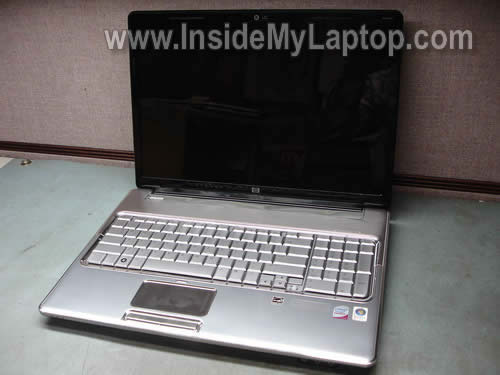
In this post I explain how to disassemble the display panel on an HP Pavilion dv7.
I’m taking apart an HP Pavilion dv7t-1000 notebook PC. I will show how to remove the screen and inverter board.
In the of the previous guides I already explain how to disassemble dv7 body.
I found that HP Pavilion dv7 come in different body types. If yours doesn’t look like one shown in this guide, check out dv7-4000 series disassmbly.
Before you start, turn off the computer and remove the battery.
STEP 1.
There are two screws securing the LCD bezel to the display cover.
They are located in the lower left and right corners and hidden under two rubber covers.
Using a sharp object remove the left screw cover. After that remove the screw.

STEP 2.
Using same technique remove the right screw cover. After that remove the screw.

STEP 3.
Start separating the bezel from the display cover on the top. You can use a guitar pick as a case cracker.
Insert the guitar pick between the bezel and cover and slowly move along display side. Continue removing it with your fingers.

STEP 4.
When removed on the top, move to the lower part.

STEP 5.
The bezel has been removed.

STEP 6.
The inverter board is mounted on the lower part of the display cover. There are no screws securing it to the cover.
Lift up the inverter board and disconnect cables on both ends.
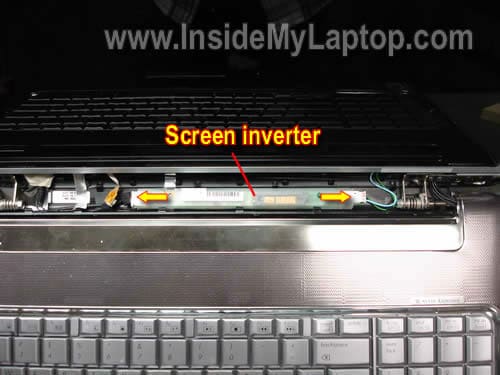
STEP 7.
Remove the inverter board.

STEP 8.
Remove eight screws securing the LCD assembly to the display cover.
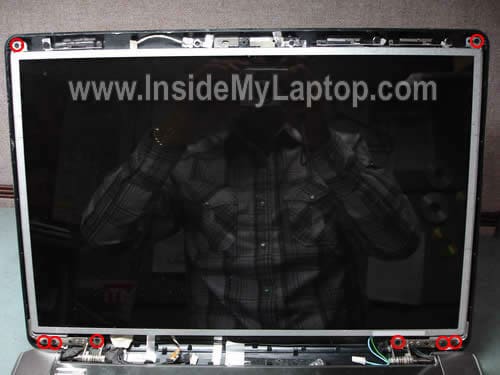
STEP 9.
Separate the LCD from the cover and disconnect one cable from the web camera module.

STEP 10.
Now you can access the video cable connector on the back.

STEP 11.
Unplug the video cable.
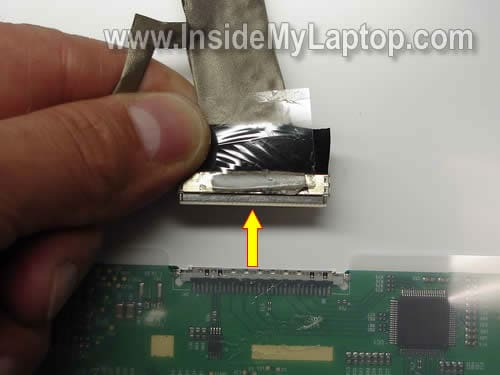
STEP 12.
Remove four screws securing the right hinge bracket.
Remove four more screws from the left hinge bracket.
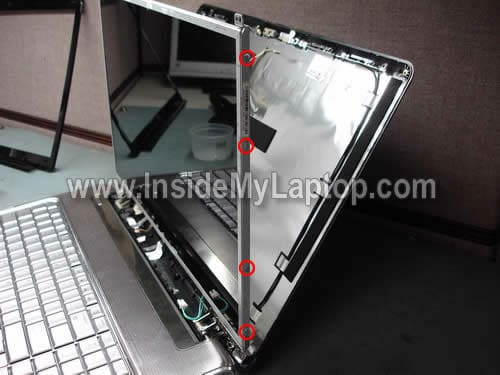
STEP 13.
Carefully remove the LCD screen. Now you can replace it with a new one.

HP Pavilion dv7 series notebook might have two different types of LCD screens installed.
1. LCD with CCFL backlight. This screen has a backlight lamp inside which requires the inverter board (shown in steps 6 and 7).
2. LCD with LED backlight. This one doesn’t require the inverter. If you have LED LCD screen in your laptop, you’ll have to skip steps 6 and 7.
Alin
Hi,
I have a dv7 notebook. It was overheating and I thought that using a vacum cleaner could help, but it created a bigger problem. The cooler is not working at all now. I just used it to get the dust out.
The laptop was unplugged and it didn’t have the battery in it when I tried to clean it.
Do you know what might have happened? Can this problem be solved?
~Alin
IML Tech
Alin,
Did you hear the fan spinning very fast while cleaning it with a vacuum. Maybe you damaged the bearing?
Blow some air into the fan grill on the back side of the notebook and look at the fan. Can you see it spinning at all? Maybe the fan got stuck because of dust builtup.
Nakarti
I’m repairing a higher end DV7 and must say: this one is much more difficult. The bezel includes a screen cover(nice) and has massive amounts of super double-sided tape holding it on(not nice) so I have to work at it from the back side. Not fun either.
Also the aluminum tape is on the lcd instead of on the case (forehead slap.)
Does this company not understand the concept of CONSISTENT??
IML Tech
Nakarti,
In my case the bezel also was glued to the screen. HP likes using double-sided tape inside the display panel.
Ross & Collin
Thank You For Posting A Detailed Do-It-Youself Manual. I Found It Very Helpful & Easy To Follow. Now Do U Have A Manual To Fix My Girlfriend Lol.
IML Tech
Ross & Collin,
In some cases it makes sense to replace the faulty unit with a brand new one because fixing the old one takes too much time. 🙂
dale gann
i bought a new screen went by your website here just like it shows on a dv7 series…had no probs with my laptop before the screen got broke or after it got broke…was using my laptop with my desktop monitor….now since i replaced the screen…my computer has shut off a few times an my screen goes off like when it sets for awhile but cant get it to come back on with out restarting my computer…any ideas on whats goin on here…all i did was replace the screen nothing more
IML Tech
dale gann,
Test your laptop with an external desktop monitor. Set the laptop to output video on both screens and wait until the laptop screen shut off. Can you still see image on the external monitor after the laptop screen goes off?
Also, when the laptop screen shut off, take a closer look at the screen. Maybe the image is till there but it’s very dark?
dale gann
as far as the screen turning off an cant see nothing …its off an i cant see nothin
Bryan Fullerton
Alin,
It is highly unlikely that they vacuum damaged the fan. However you may have a large amount of lint now stuck in that fan. You may have to take it apart to get it cleaned out.
For IML Tech. Know where I can find a good deal on a couple hp dv7 1245 motherboards? I seem to have a couple dead ones here. One doesnt even show any lights or anything. the other has the power light come on but thats it. Looks like it might have been water damaged.
IML Tech
Bryan Fullerton,
The best way to find a replacement motherboard is searching by HP part number.
Find the HP part number first, it looks like XXXXXX-001 (where XXXXXX is a string or numbers) and google the part number.
Usually the part number is printed on a sticker in the memory compartment.
Alin
Thank you for helping me. A few days ago I said that I will give it a try to fix it myself and I have opened it up and indeed it was a lot of dust inside the fan. Now it’s cleaned and it’s working fine now. Thank you again.
IML Tech
Alin,
You are welcome. Overheating is a very common problem with laptops and cleaning the cooling modules solves the problem.
jestjer
I am searching for an internal tv tuner card for the dv7 models, along with a lcd display(1920x1020x59hertz) 17″ . I have found many sites but what is the one you would suggest? any and all replies would be highly appreciated.
Eddie
Works for the HP DV7 – 3165dx
It was alot easier than I thought once I found those damn screws..
Mark
Thank you for posting this guide. It was very helpful in replacing my LCD on my laptop. I do have one problem however: after raplacing the LCD, nothing shows on the LCD. The LCD is new but it is possible that it is DOA. Is there anything I can do to verify this? Thank you!
Mark
Correction….I just realized that the screen is not blank just very, very dim. Is it possible the invertor board is damaged?
Thank you!
Enis Fesci
Hi, I removed the LCD display, and now i want to order a new one from the link that you put to ebay, but are all the 17.3 inch displays compatible with my laptop? if not , hwo can I find out which one is compatible?
Thanks
Jeff
I have a hp dv7 1175-nr. Hp claims i must dissemble the entire top screen from the laptop body in order to change the bezel. Is this true or can i just do it this way?
IML Tech
Jeff,
I don’t get your question. Are you asking about the LCD screen bezel?
As you can see on the picture you can remove the bezel without separating the display panel from the laptop base.
Bob
This exact same procedure works for the HP dv5z-1000, except step 12 only has 2 screws on each side. Everything else is the same.
Damien
I have a dv7-1020us. When removing the tabs at the bottom there is no screw behind it. I am guessing it is held together by bezel clips and sticky? Any info would be greatly appreciated.
GD
Damien, I have a DV7-1262US and found that there is an extra piece of thin black plastic covering the two screws. One you remove the plastic you will see the screws.
Joseph
Ive got a HP 1135ea, and its really hard getting the bezel detached, Im worried about cracking it as it will affect its resale price whcih has already suffered a hit from a the bits of dust under the screen.
Omar
I just finished installing a new LCD screen but it just comes up white I.e. Blank. Is there a separate procedure for reinstalling the screen or is there another solution?
IML Tech
Omar,
Check connection between the video cable and LCD screen, make sure the cable is plugged correctly.
Why did you replace the screen?
Ryan
Thanks for the guide. I had to replace the inverter board and this guide helped a lot. I couldn’t figure out how to get the cover open haha…All my hardware experience is with desktops. =)
Jzxc
Hi i have a hp pavilion dv6-1130tx. it looks very similar to the dv7 series laptops. do u think this guide will work for my laptop?
IML Tech
Jzxc,
Probably you can use this guide.
Just in case, here’s the official service manual for HP Pavilion dv6 notebooks. You’ll find step-by-step disassembly instructions in there.
majok
hi, i had troubleshoot an hp pavillion dv 9000 laptop…the problem is that the hinge is broken because it was fall…at first the laptop still function even if the hinge is broken but later the monitor was not able to function anymore…its screen appears black….i try to connect an external monitor and it displays but the resolution is not fine color is affected and very distorted…question what should be the possible prob..why the monitor of the hp pavillion doesnt work and malfunction?IS IT BECAUSE CRACK HInge?or mabe the inverter is malfunction?i read ur article about how to change the inverter and its seems great tutorial and guide toooo…hoping for ur response!!!!
Joe Connolly
I replaced a display on a DV7-3065DX VM238UA using the information provided on your website, thank you very much! (yes, I will donate) Not as many screws holding the panel in the brackets, but your site is the only information I could find close enough to get the job done. I’m not a HP ASP but these notebooks somehow keep finding their way to me pretty regularly. I wish us “little guys” had access to the service manuals/service library- I don’t think HP realizes we are helping them to keep customers all the time. If someone perhaps had a cross-reference of the document number to model number that we could access- like that DV6 manual you have posted- maybe uf that Cxxxx number were a few digits different, it would connect to a manual for the DV7 etc. etc….
terren
WARNING – not all DV7 lcds open this way. Thanks for helping me break my frame clips off on the left, to match the right (with a pick). My dv7-1025nr display opens BACKWARDS and the above pick technique just breaks the inner clips off both frame and top cover. Mine has a clear cover over the LCD, unlike the one above with no clear cover. Kind-of hard to tell at first.
YES take off the 2 screws first, but then the top/back cover slides UP and completely releases from the back. The LCD is mounted to the narrow front frame. ODD I know. NOT ALL dv7 are the same.
Pc.
yes my dv7-1055ea about 1y 6m old) is the same as above 2 screws, slide it up , then it opens up, only thing is, i need to clean the dust thats in between the screen and the cover but it looks glued together….
q] can i just take the lcd screen off, to get at the cover to clean it , or will i have to cut the tape to seprate the two to get to it???
Thanks in advance
IML Tech
Pc.
Now sure what tape you are asking about.
Pc.
q] can i just take the lcd screen off, to get at the cover to clean it , or will i have to cut the tape to seprate the two to get to it???
once ive taken the back of the screen off, and taken the 8 little screw on the top edge its, kind of like pic 9 but im working from behind and the lcd looks to be glued/stuck on ….to the front cover do i have to cut threw this, or can i just take the lcd out of its housing to get behind it?
ill going to have a play when i get a spare hour… ot see what happens, ill report back!
Auroralaptop
I’m in the process of replacing a broken LCD screen on an hp dv7 1285dx and I found the above instructions very helpful, especially when it came to removing the bezel, which is often broken (or the clips that secure it to the display cover). I found a technique that worked well when it came to releasing the bottom left and right (corner) bezel clips to prevent snapping the bexel.
Thanks for sharing, this was the only information I could find on the topic at the time.
Keep up the good work!
tom baker
It seems like information on these machine is a closely guarded secret. I’m trying to get a broken display out of a dv7 1132nr. This is a glossy, flush mounted model.
I removed the two hidden screws and the back. Disconnected the cables at the screen. Removed numerous tiny screws. Still the display will not come away from the bottom. I cannot see what is holding it.
It looks like the bezel and the screen need to come out as one, but something is holding it from coming. Anyone?
Pc
ted soulds like mine, there stuck on/ glued together to stop the dust getting it, which it still does Grrrrr
tom baker
Okay, folks, allow me to offer some advice.
If you have the machine with the flush mounted screen (plexi cover) it isn’t worth it to try to replace the lcd.
The screen is adhered to the bezel with double sided tape. You can get them apart, but then there is the tape residue that must be completely removed from the bezel before attaching the new screen. This appears to be just about impossible. I have not been able to make much of a dent in it. Also, in the process of scraping off the tape residue you also scrape off the black paint that is underneath the tape. This means that the border must either be repainted or you put up with the display looking like crap around the border.
It ain’t worth the effort.
lauren
How do u know if the screen you are buying is compatible with built-in webcam and microphone? I have the DV7-1444us and I can’t figure out if you have to buy a certain screen or if all screens have a webcam plug-in to attach your existing webcam.
David Sexton
This is pretty much in line with the dv7t-2200 with a few minor differences.
David Sexton
lauren, if you have a bad screen, you just need to buy that. The web cam, mic and all are separate parts that you don’t need unless yours are bad.
Lauren
Do all screens have the plug-in for a webcam? There is a cable for my webcam and I want to know that if I buy a screen that the screen will have the plug-in for my webcam.
Shilo
Hi. I just used this guide to replace the lcd screen in my Pavillion dv7 3165dx. This is the only guide I could find that could help me do the job. (Yes, I will donate – this saved me a bunch of repair bucks!) I was in a bit of a hurry to get this done since I started late in the evening, so I didn’t get a chance to take photos of the steps. But it was almost identical to the photos you posted. To assist those with my model laptop, I want to just illustrate the few differences I noticed during the repair.
1) I used an old credit card to slide around the bezel and pull it off… Worked pretty well. I popped two small clips off across the top of the bezel, but with it now put back together, I don’t notice any slack (they were several clips apart)
2) There was no screen inverter present in the base of the hinge under the bezel to unplug and remove. This is an essential part of the setup for the screen to work, so I’m sure it’s located elsewhere, most likely in the base of the laptop.
3) Both my original and replacement screens have the fideo cable plug and circuit board at the bottom of the screen, as opposed to the top as shown in the pavillion model photos in this article. Also, for my screens, there is no webcam plug to remove. It appears to have been routed behind the screen fastened to the laptop shell. All I had to do was remove the video cable, pulling the piece of tape holding it in place in the opposite direction of the plug. Once that was done, the cable was also stuck by some adhesive along the bottom of the screen. The part stuck with adhesive is in some kind of fabric but is still flexible. Pulling that last part off, the screen is completely unplugged. Once I replaced the screen panel, I just lined up the video cable plug with the socket on the back of the panel, used the tape on the video cable to pull it into the video socket. The tape lost a small portion of its adhesive, so I overlapped a piece of electrical tape onto it to ensure that it stays in place.
4) The screen on my laptop is only held on by 4 screws total on the mounting bracket, although there are holes for the remaining 4, if someone wants to add them for some reason (they’re not necessary)
This was a great breakdown, and again, thanks for posting this. I’ve never tried a screen repair before, and using this I did it with relative ease. Just typed all this using my fixed laptop!
Ari
I just bought my new screen for my HP Pavillion DV7-2111US and when I plug the cable into the new one the hp sign comes up very very lightly and it does not continue with the welcoming of the laptop. What is the reasoning behind this issue? Please if someone can answer me back asap regarding this issue it would be really helpful. Thank you.
David
i have a dv7-1055ea how can i remove the protective plastic screen cover? i have what looks like a dead fruit spider stuck in the middle of my display between my lcd and the protective cover! the cover feels like it;s glued into place!! and i wouldnt like to damage:;(
Cheila
How do I find which screen should I purchase? (My laptop is Dv7- 1267Cl, (17 inches))
I hope you can help me, because I don’t have money to pay for somebody else to fix it.
Thanks
Claudia
IML Tech
Cheila,
You can buy a new screen for HP Pavilion Dv7- 1267C screen on Amazon or eBay. There are two options: glossy and matte.
Shiloh
I have a Pavilion dv7-3169wm and I dropped the laptop and the screen broke. I cant seem to find a screen for it. Please Help.
IML Tech
Shiloh,
I believe your HP Pavilion dv7-3169wm has LCD screen with the following HP part number: 509407-001
This is a 17.3 inch, 1600×900, HD+, BrightView, LED screen.
You can find a new replacement screen on Amazon or eBay.
I would strongly suggest contacting the seller to make sure the screen fits your laptop.
Jeff
The above technique worked on my DV7-1285DX. This laptop had two covers, one on top of the other, over each of the lower screws – no big deal. I used a piece of heavy -packaging plastic (the kind that can only be opened with a sissors) to pry between the tabs. There’s no way around it, but two out of the sixteen small clip receptacles broke, but all of the the lid’s clips were fine. Once started, the remainder slipped open. There was strong double sided tape adhesive around the web cam that I nudged loose with the plastic. Everything worked great – thanks for your help!
Alien
Hi, I’d like to know how many connections does a lcd display cable have? I see the one connection in your image (https://www.insidemylaptop.com/images/HP-Pavilion-dv7-display/remove-lcd-screen-inverter-12.jpg), but where is the other end of the cable? I have a problem where my screen has vertical lines that distort the color and sometimes flicker. But when I push in the lcd screen, it goes away. So I suspect that it’s a loose connection between the lcd cable. But I want to know if there is any other connection other than the one you showed in your picture.
IML Tech
Alien,
The other end of the cable you can see in this guide: https://www.insidemylaptop.com/disassemble-hp-pavilion-dv7-notebook/
It’s shown in the step 14.
Most likely this is LCD screen failure.
Here’s what you can try.
Turn on the laptop and try moving the video cable without touching the screen. If moving the cable affects image on the screen somehow (you get lines, image distortion, etc…), the video cable is bad and has to be replaced.
If moving the cable doesn’t affect image on the screen at all but moving the screen does, most likely you have a bad screen.
Alien
Can I just upload a couple a pics of my screen of how the lines look like so you can see if it is an lcd cable failure or the lcd screen? Or is the method you told me the only way to test it?
Squiel
Great Info mate!! Thanks a lot……IOU
Maximoose
I just need to replace the bezel on the screen, how would you suggest I re-bond the bezle to the screen? Thanks in advance!
IML Tech
Maximoose,
There are small plastic latches securing the screen bezel to the back cover. You don’t have to glue the bezel. Just position it correctly and snap back on place.
Leigh
Thank you so much for this guide. I just replaced my screen on my HP Pavilion dv7-3165dx. Thank you also to Shilo (posting #45) with the extra info. I followed all of the steps – but skipped steps 6 & 7 (no inverter board to remove) as well as part of step 9 (no cable to disconnect from web cam). Very simple to follow, took about 10 minutes!
Lori
This guide was just great! I just replaced my hubby’s 17″ LCD screen on his Pavilion dv7-2301 & it only took me about an hour to get it done. I did not have to disconnect the webcam or the board. I did, however, have to peel the webcam wires off the back of the screen as they were stuck to it. I gently pulled it off & stuck to the back of the new screen. I have this page saved in my favorites….thanks so much!
Argodas
hello this tutorial was very helpfull but the fact is that it dosent work with my computer i have a hp pavillion 1175nr and the screen is diferent. because it comes with a screen protector or something like that. can you please help me, because somehow an ant got stuck between the lcd and the screen protector and it die there. i wanto to retreive the ante. hope you can helpme. thanks.
Jason
Worked perfect !!!!!!!!!!! never done anything like this before and this went smooth. Thanks. It takes a little pressure to get the cover to come off.
Jim
I just removed the screen from my pavilion dx7 3065dx
Bezel removal exactly the same.
Screen was just the 8 screws
Then the 4bracket screws
Intakes the monitor connection and pulled
wow that was easy!
Now ordering a replacement.
We had given up on this laptop
Best buy wanted $500 minimum
Thanks
Jim
Received the new screen $115 delivered.
Followed directions in reverse. A pair of small point tweezers helped get the tiny screw covers back on. Powered her up and she is good as new. Thanks again for sharing your expertise.
Wow was that easy!
Matt
This article worked perfectly for me and my dv7-3164cl. Couple of differences: Like others found, I found on my laptop that the webcam is integrated into the case (no plug to unplug there). The only cable I had to unplug was the video cable (which I found a little scary to unplug because of how fragile it appeared). I pulled straight down with a little bit of wiggle and it came out pretty easily. There was no inverter to unplug either (as shown in step 6). I also found that the 8 screws to be removed in step 8 did not all have to be removed (I wasn’t able to get 1 of the 3 screws on the bottom of each side removed). I removed the two from the top and then was able to pull the screen away from the shell enough to only remove the four mounting bracket screws as described in step 12 (only two on each side on the dv7-3164cl model).
The scariest and hardest part was the removal of the plastic bezel. I found that getting my fingers on both sides of the bezel and slowy applying enough pressure till it popped worked well. I used a credit card to get started and once I was able to get the first tab to pop, it seemed to go pretty easily after that.
Overall the whole process took me 30 minutes. The best thing to do is to do it on a big flat surface, as the screws are tiny and can easily slip out of your hands or pop out. Very simple, just take your time and be very careful and all should go as smoothly as mine did.
Thank you for this article, It saved me a lot of money and time.
Rafael Borowski
Nice tutorial!
But I think it will not suit for my case… I have a little bug on the back of the lcd and he died there. It have 2mm length. Based on the pictures of this tutorial I think that the lcd screen is “sealed”.
Please let me know if there is a way to go further inside the lcd!
regards!
Gudval
Are all Dv7 screens interchangeable? I don’t have to specifically get a Dv7 -1273cl screen?
-T- from Nebraska
I just read this tutorial. I can see someone else was able to do this on their dv7-3065DX. I will be ordering a new screen in two weeks or so. When I replace it I will come back and donate because a tutorial like this deserves it!
I do a lot of Q&A on another site for mechanics, radios and electronics (but never been inside the laptop before), and I know how much effort goes into these tutorials. Thanks again!
mario
I dontt find the two first screws… I have a video problem with my laptop. It is a pavilion DV7-1140es.
I think the video cable is unplugged, or medium disconected.
I hope somebody could help me… I cant take the bezel of, I cant find those screws…
Thank a lot, your previus post helped me.
Have a nice day, grettings from Nicaragua.
Anthony
Thanks for the notes – espeically Matt who had the same exact model as me and posted notes about the differences to help reassure me that I was doing it right. I have the screen off and now know which one to order for a replacement. When I priced this repair the least someone was willing to take it on for was $150 + labor. I think I can get a screen for under $100 for sure.
Henry
I need to source an inverter board for my DV7-3065dx or DV7-2133et and cannot locate the correct HP part number for the inverter. Can anyone kindly provide the HP part number of the inverter board please?
Henry
Louisville, KY
IML Tech
@ Henry,
I checked the service manual (page 3-11) and it looks like this model has a LED-backlit screen installed. LED screens do not use inverters.
When I searched for this model, it took me to a different service manual. There is no inverter mentioned on the page 25. I guess this model also has LED-backlit screen installed.
Henry
I got the screen partially removed and did not find an inverter board, so I presume this model does not have one? Also, for the life of me, I cannot figure out how to get the LCD off of the case top. I unscrewed the LCD from the hinge frame brackets, but it is as if the LCD is glued to the case lid. I don’t believe I have missed any screws. Any one else had this problem removing the LCD from the lid?
IML Tech
@ Henry,
Most likely you are correct. I hope you know how the inverter looks like. 🙂
There shouldn’t be any glue. Usually the LCD screen secured by screws. Take a look at the service manuals I provided earlier. They should have the LCD screen installation diagram or removal instructions.
Most likely you are correct. I think this is LCD screen failure and the screen has to be replaced.
Just in case, test your laptop with an external monitor. How about external video? It should have normal colors.
Henry
OK, I’m learning a lot here about my DV7-3065dx LED screen change. Since the original problem is inverted video (negative images/colors) and this LED has no inverter board, then it would be safe to presume that I need to change the whole LED screen, correct? If I can just figure out how I am missing getting the LED panel off of the lid cover.
Henry
@IML Tech…oops, I’ve been talking about my LED screen replacement for a DV7-3065dx, and it is actually a DV7-2133et (European model). I have both models and exchanged the good DV7-3065dx screen to the DV7-2133et model…had to replace the whole laptop top cover. But now I have the bad LED screen/top cover from the DV7-2133et apart but the LED screen seems stuck to the back of the laptop lid cover and I cannot figure out how it comes off of it. Some of the comments mention double sided tape, but someone else mentioned the LED slides “up” to release? The service manual is not too clear at all. Anyone verify the correct method to get the screen off and out of the lid?
Henry
@IML Tech….thank you so very much for your assistance. I’ll dig back into it this weekend.
Kindest regards,
Henry
JReady71
Installed LED Screen on (DV7 4157 CL). Just like you said and No Inverter. Thanks
Toni
Hello,
I have an Hp dv7 1105eg with poor screen light and i’ve just changed the inverter with a new one,but the screen it’s still darker…i’ve already checked with an external display(LCD,TV)and it’s working fine!
Please,can anyone tell me what can be!?
Thanks!
IML Tech
@ Toni,
Maybe it’s a stupid question but have you checked LCD screen brightness settings in Windows OS?
Normally you should be able to increase/decrease LCD brightness using a keyboard shortcut.
Toni
Hey again!
Yes,i’ve tried that before i decide it to taking apart the entire laptop and display aswell!Normally,this is the first step when you decide to isolate the failure…So,i’ve take it out the lamp,and has the both edges black,so i presume it’s old &burned.
Now,i’m waiting for the new lamp,already ordered from the link you’ve posted.
Thanks a lot for your fastest reply,and i’ll keep you informed.
All the best!
Bastiaan
Thanks for this post. i had a non working webcam on a HP dv7 6e22b model. I reconnected the webcam cable problem solved. thank
GSM-SAIFUL
“GOOD JOB”
THANKS A LOT OF BRO…………………….
Wendy
All I can say is Thank You, Thank You, Thank You!!! I consider myself to be pretty capable of doing most things, but I was feeling a little intimidated after watching a couple of differ youtube video. After finding your instructions, I was able to tackle replacing my screen within 1 hour – mostly because I didn’t have a small enough screwdriver and had to use the end of a sharp knife! My laptop is a dv7-3188 so it was a little differ than the above but easily figured out. I’ve gotten it done and it looks GREAT! Our local computer store was going to charge me $130 for the screen and $66 to put it in. Now I only have a total of $82 into it…so, so excited! I think my husband should let me spend the difference 🙂
Travis
I have a HP Pavilion Qdvt7-3300 and this worked great!!! Thank you Thank you Thank you!!! so much! Nonetheless, I did not find an inverter board when taking out the screen. (Not that this matters for my purposes, but I am still curious.)
Questions:
1) Is it possible for my laptop to not have an inverter board?
2) Is it possible for the inverter board to be somewhere else like closer to the motherboard?
3) There is a square area covered with some sticky foil behind the screen, Is it possible for the inverter board to be square and hidden under this sticky foil?
4) Is it possible for the inverter board to be permanently attached to the screen? (e.g., when I buy a new screen a new inverter board comes with it, because the inverter board is part of the screen.)
My screen model is: LP173WD1(TL)(C2)
IML Tech
Travis,
HP Pavilion dv7 notebook comes with two different types of screens:
1. CCFL backlit LCD screen. This screen requires the inverter board.
2. LED backlit LCD creen. This screen doesn’t require the inverter board.
You have a LED backlit LCD screen installed, so there is no inverter. The video cable runs directly from the motherboard to the LCD screen.
I just updated the post and mentioned two different types of screens at the end.
LukeM
Thanks very much for advice, I fixed my webcam on my DV6 by just peeling the bevel off at the top as you described (with laptop running) and pressing the webcam cable clip (it was a multicoloured clip entering from bottom of webcam to the right hand side)
To see whether it had connected I opened up the Device Manager and looked under “imaging Devices”, before I pressed the cable I had no imaging device, afterwards it came up automatically.
All good now and easier and cheaper than taking it to a technician but would have been good if HP had a better design in the first place as it seems it is a common problem and something they could have fixed.
Perry
I had exactly the same success as LukeM. Thanks, man!!!
Thanks very much for advice, I fixed my webcam on my DV6 by just peeling the bevel off at the top as you described (with laptop running) and pressing the webcam cable clip (it was a multicoloured clip entering from bottom of webcam to the right hand side)
To see whether it had connected I opened up the Device Manager and looked under “imaging Devicesâ€, before I pressed the cable I had no imaging device, afterwards it came up automatically.
All good now and easier and cheaper than taking it to a technician but would have been good if HP had a better design in the first place as it seems it is a common problem and something they could have fixed.
Charlie
I have a 4017nr. I can see the screw covers, but they’re in line with the hinges, which are recessed down about an eighth of an inch. This makes it really hard to get at them. How do I get these screws off? Fantastic site though, once I get these screws out, it looks easy.
IML Tech
@ Charlie,
Is it a HP Pavilion dv7 laptop or a different model?
If you cannot access those screws you’ll have to separate the display panel from the laptop base first as shown on this picture:
https://www.insidemylaptop.com/images/HP-Pavilion-dv7/disassemble-notebook-19.jpg
After that you’ll be able to remove the bezel.
Kate
Thank you so much! My webcam wouldn’t work and this annoying little box kept popping up on the bottom of the screen that the USB wasn’t recognized. I found this site through HP’s message boards and did what you said. I have a newer model, the dv7-6b55dx and the connector runs right below the webcam. You just push it up and click it in and it worked! You’re so awesome that I had to donate. Thanks again!
IML Tech
@ Kate,
Thank you for your donation!
Sadat
Your site is very helpful. I have dust on my screen and after going through with your tutorial i seem to have a problem separating the screen from the bezel. its like the screws are on from behind the lcd and i don’t seem to be able to get it out.
HP Pavilion dv7-1025nr
C/N: CND8311483A
P/N:FF223U#ABA
TIA
Louis
Well I got it out. I have the dv7-3162nr the only difference is that you have to remove two screws from side brackets that are not in your model. These are attached to the hinges that connect the lid to the body. Also the web cam is connected by a wire that runs down the cover and does not need to be disconnected. Thanks for the help. I took a Picture
Thank you
Pavillion DV7 CORE i7 bought at Costco – Webcam not detected.
Thank you for your post, it helped me to reconect my webcam
I just had to do the part where you insert the guitar thing, Actually I used my own nail. and the connector is right there, to the right of the camera, just push it a little bit up and that’s it. The Image Device shows again. I saw a link saying the cable is too short at
http://h30434.www3.hp.com/t5/Notebook-Display-and-Video/Brand-new-Pavilion-dv7-HP-TrueVision-HD-webcam-not-detected/td-p/660307/page/3
HP was asking me to send it for 10 days!!! which none of us can’t aford.
I am sorry that HP has lower their quality i USED to buy HP because of its quality,. Will have to thing again next time.
Dave Tully
I have a hp dv6700 laptop. No display but works with ext monitor. If I shine a flashlight on the lcd, I can see the display. Is this the inverter or the lcd itself the problem?
IML Tech
@ Dave Tully,
You cannot tell if this is bad inverter or LCD without testing the laptop with a known good inverter or screen.
If you have to guess, try replacing the inverter first. It’s cheap and easy to replace.
Check out this guide: https://www.insidemylaptop.com/remove-replace-lcd-screen-inverter-hp-pavilion-dv6000-laptop/
Wayne
I have a HP DV7 1285 and how do you get the inverter board to work everything works just not on the inverter board controls
Nicole
You got me, I do have a few guitar picks handy…way to stereotype!…Seriously, thanks for the information, needed a good writen guide.
Kahlil
Just replaced the screen in a DV7-3186CL but still no backlight. It’s one of the models without an inverter. The display cable plugs into something behind the silver layer on the bezel. There was also corrosion on the motherboard, which I cleaned off with alcohol and a toothbrush.
Mike
Thanks all
Camera on DV7 did not work … just like everyone … HP stated needed to roll back the system … we tried 3 different roll-back dates … NONE WORKED. then they said we would have to restore to FACTORY IMAGE and then send the computer in for service … BTW … (HP SAID) better extend your warranty … HP scheduled a date and time … even if I did not plan to do such a STUPID IDEA … I would get an external webcam instead …
Well instead I found this site … took off Screen bezel and pushed in the webcam connection … 1/64 of an inch … it worked … vibration must have loose.
Thanks again
John
Had the issue of my web cam suddenly not working. Found this site, followed the instructions to remove the bezel and I pushed the connection to the camera back up fully in place and it worked immediately. Awesomeness! Thank you so much.
BTW, I used my fingers to separate the bezel by holding the bottom of the top portion below the web cam and was able to separate it without anything else needed.
@@t
Well dudes i have something astonishing to share………..
Try virtual machine on your laptops….e.g. XP….the Webcam Works there, however it doesnt work in Win 7……tthough its unblievable….but dudes believe me it works and works cool….i think its problem with usb detection technique of both OSs
kostya
thanks a lot!
I’ve got something on my screen that’s looking like a piece of dust and I’m going to disassemble my screen to try to remove it… Now I have an outstanding manual how to do that! thanks again!
Steven
Hi there,
I have a dv7-3105sz which is showing red lines and dots.
I think it’s the LCD inverter who needs to be replaced.
I opend the screen cover as showen above though I didn’t find the Inverter!!!
Where could it be?
thx
IML Tech
@ Steven,
Your laptop has LED screen which doesn’t have an inverter board. Red lines and dots cannot be caused by a failed inverter anyway.
Most likely it’s one of the following:
1. Failed LCD screen.
2. Failed video cable.
3. Failed graphics card on the motherboard.
First thing to try is testing the laptop with an external monitor. If external video appears to be fine, it’s either failed LCD screen or video cable.
Mark
Hi,
Mine is 1464nr which has the inverter which I replaced with a new one and the display still doesn’t work. Is the backlight included with a new lcd screen or is it seperate?
IML Tech
@ Mark,
Yes, the backlight lamp is part of the screen and mounted inside.
Perelandra
Thank you for you guide. It gave me the confidence to disassemble my DV7-3057nr to troubleshoot the display issues I am having.
However, following your bezel removal procedure, and using great care, I managed to break two of the plastic tabs that secure it.
I was able to remove it the HP way without breaking any more tabs…. don’t know yet, but I’m guessing I’m going to have to buy a new bezel to have it attach securely when I replace it. Hope this helps others to not repeat my mistake.
Wilbert L Everhart
Wll I have the no camera problem still. It started I think when I had to change the hard drive because I was getting warning messages that my (2012) hard drive was going to die soon. So I bought a 1Tb hybrid and installed it and used the recovery from a USB stick to rebuild new drive. Of course that set my updates back to 2011 and also my drivers. After updating the drivers and Windows, I noticed I hadnt seen anything for the camera. So I tried Youcam and Skype; sure enough they didn’t detect a camera. Device manager didn’t show anything either. I tried: 1. Factory reset three times, 2. split the bezel and pushed around the plugs and wires, tried to reinstall the original hard drive and checked plugs down in the engine room. You guessed it, I still don’t have a camera. Nor do I have a warranty. I am getting a little old and keep forgetting that I swore never to by another HP product several times, but it still beats me that with all the problems this has caused HP has not come up with a fix.
Mark
I have an HP dv7-1020us, one of the ones where the top cover has to come off and the lcd is glue taped to the bezel. I’ve seen a few posts especially early on from others who have had the same situation, but no one posted any hints/links/etc as to HOW to separate the bezel from the lcd. I’ve done hundreds of lcd replacements but i’ve never run into this before. If anyone has any info/hints/links/etc. Thanks.
IML Tech
@ Mark,
Here’s the service manual I was able to find for HP dv7-1020us laptop.
http://h10032.www1.hp.com/ctg/Manual/c01918142
Display disassembly starts at the page 77.
If the front bezel blued to the screen, I guess you can use a hair dryer to warm up the bezel and soften the adhesive.
Tommy Lee
I have a dv7 1130us and if you look really hard you can see the desktop in the background barely but the external monitor works fine any suggestions would be appreciated thanks and God bless.
Tommy Lee
When i unplug the inverter board and then plug it back in the screen comes on bright for about 5 or 10 seconds then goes back off but you can always see it very very very dim in the back ground any suggestions would be helpful thanks and God bless.
karthik
My hp dv7-1428ca Has Display Flickering Problem. How To Solve It.Please Guide Me.