

In this guide I will remove a broken LCD screen from a Gateway MT6704 (Model MA7) laptop and replace it with a new one.
As I mentioned in my previous article, where I was replacing the keyboard, this guide will work for many other Gateway MT6700 models.
Before you start, turn off the computer, unplug the power adapter and remove the battery.
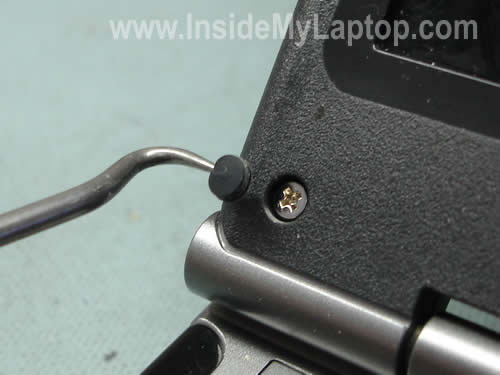
You’ll find six rubber screw seals on the display bezel.
Remove all seals with a sharp object (picture above) and also remove all six screws found under the seals.
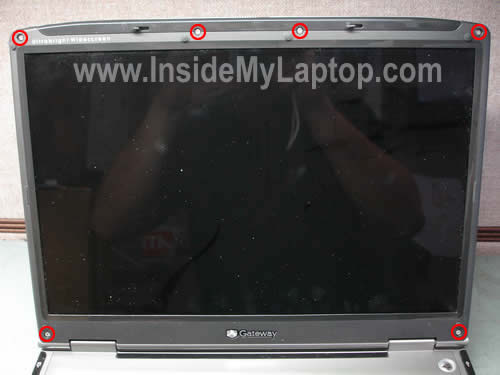
Start separating the bezel from the display cover with your fingers. A piece of soft plastic (I’m using a guitar pick) will help you to separate two parts without breaking them.
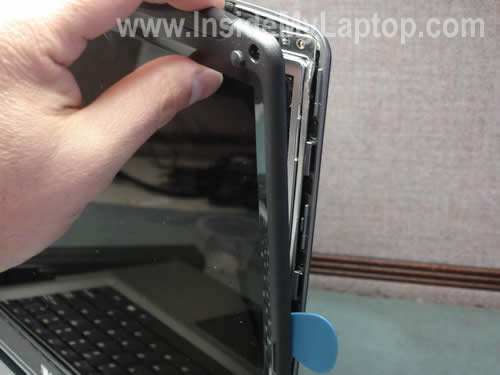
Continue removing the bezel on the top of the display assembly.

The bezel has been removed.
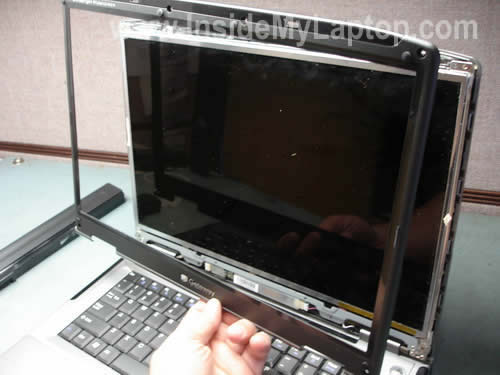
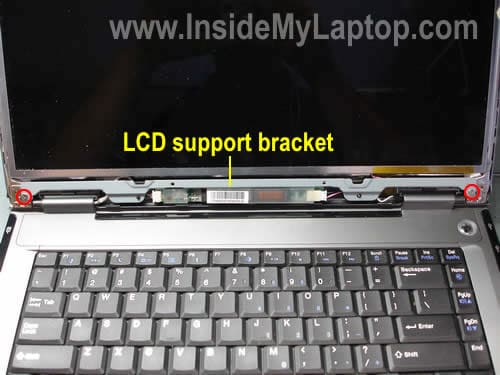
As you see on the picture below, a part of the inverter is covered by the LCD support bracket.
This bracket has to be removed first.
Remove two screws securing the support bracket and after that remove it.
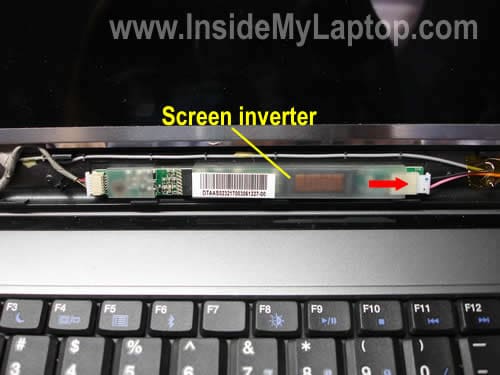
Now you can access the inverter board which is glued to the display cover. Remove it with a caution.
I will not be removing the inverter in this guide, it’s not necessary for replacing the screen. But I have to unplug one cable on the right side of the board.
This cable goes to the backlight lamp inside the screen.
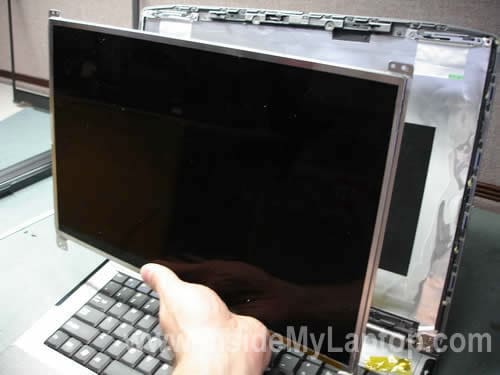
Carefully separate the LCD panel from the cover and place it the front side down on the keyboard.
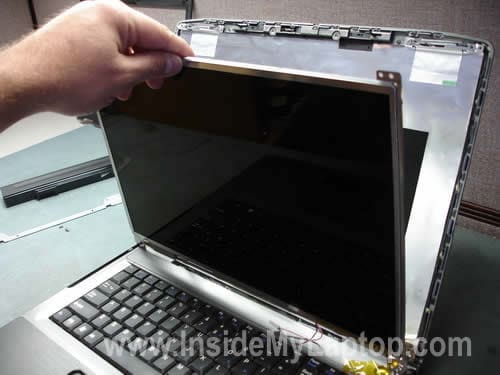
Now you can access the video cable on the back.

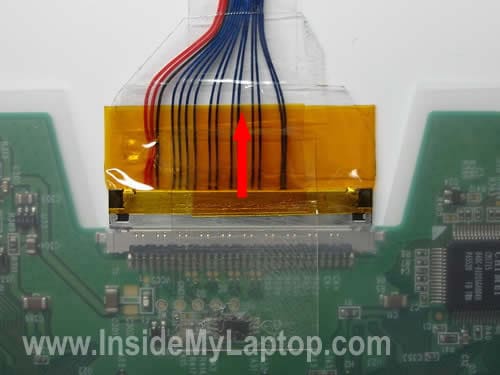
The video cable connector is secured by clear tape.
Remove the tape and unplug the video cable.
Now you can remove the screen. As you see, the mounting brackets are still attached to both sides.
Remove two screws securing the mounting bracket.

Remove one more bracket from the other side.

I found a sticker on the back side of the screen. Apparently, the number above the barcode is the part number used by Gateway.
I was able to find a new replacement screen using this part number.

The broken LCD has been removed and I’m ready to install a new one.

For complete laptop disassembly instructions please take a look at this guide. It’s a different Gateway model but the body is very similar.
Tony
Hi just want to say that i did a motherboard replacement on a Gateway MX 6448 and your site was great it helped me from step 1 to completion for that laptop. do you have a motherboard removal for a Toshiba Laptop model L15-S104
Miguel Ramirez
How you doing sir,
I am looking into replacing my broken lcd screen off My Gateway Model T-620. As you know, these laptops bring a 1.3 Megapixel installed at the top of the screen, so how would I go about doing that?
Please email me a copy of your response, it will be appreciated.. Thank you.
steve
hi there, my screen is broken and i have the gateway mt6705ma7 model. how do i figure out the resolution
IML Tech
Miguel Ramirez,
The web camera is not a part of the LCD screen. The web camera is located on a separate board.
IML Tech
Steve,
1. Remove the LCD screen, find the model number and google it. You’ll find a store selling that screen. Read specifications.
2. Can you check the user’s manual for your laptop? Usually they mention the screen resolution.
For example, when I search on Google for 2MA7LD15457 (part number from my example), the first search result brings me to a store selling this particular screen. It says 15.4″ widescreen lcd display, WXGA 1280×800 utlrabright.
Nathan
I want to thank you so much for putting this information on the web. My 2 year old son destroyed the LCD dsiplay on our Gateway MX6030 and I had no money for a new laptop. I was able to follow your instructions and easily replace the display myself for $59 in parts. Thank you!
IML Tech
Nathan,
You are welcome. I’m here to help.
Taylor
I have one question regarding the magnetic lid close switch as I have tried to replace my laptop screen but the backlight will not turn on. I see the Gateway symbol pop up immediately after I power up, but then I have nothing. I don’t think it is the inverter as I can see the gateway image and if I put a flashlight up to the screen I can see everything else as well. What should I do next?
IML Tech
Taylor,
So, if I understand correctly, when you turn on the laptop the Gateway logo appears for a moment but after that the screen light turns off and you still can see a very faint image on the scree. Is it right? This description does sound like a problem with the inverter. Maybe I’m missing something?
Steve
I have a Gateway 7330, My screen is starting to go on and off when I move the lid. My question is: Is there a cable that feeds the screen that could be starting to break or are there contacts in the hinges that could be dirty? Thanks for any info you can give me..
Benny Rios
Guys you the best thank you ,thank you, i been learned a lot about pc’s ,i waiting for replace my ac jack ,i order a new a ebay , just i want to say thank you for this link ,is very good,awesome,sincerely,Benny.
Sam Kazarany
I have a Gateway W350I. Had to change the screen as it broke. It is working fine now but there is a small magnet. I am not sure where it goes. Please help
Paul W
Can you explain how to repair a broken hinge on a Gateway MA7 / MT6824b
The failed section is at the bottom right of the screen.
Thanks
Paul W
IML Tech
Paul W,
If the hinge is broken, the only way to fix it is replacing the hinge.
1. Remove the display panel.
2. Open up the display panel.
3. Replace the hinge.
Michael
Good stuff! Thanks for sharing!
I just recently figured out on my own how to disassemble the screen and replace the inverter on a Gateway CX2600 series Convertible Notebook (Tablet PC, this particular one is the 2619). I couldn’t find ANYTHING on the web, much less from Gateway, to show specifically what’s going on inside this machine aside from the standard user-serviceable parts (hard drive, memory, wi-fi card, keyboard, etc.). It took some time but I did it without any real destruction. 🙂
Anyway, I would love to share my photos and notes regarding the process. Tablet PCs, particularly Gateway’s, are interesting animals. Even though the concepts and components are similar, the actual removal of the LCD is difficult. This Tablet PC is very similar to the M280, etc.
How can I post my photos and notes like you did? I don’t see a link anywhere to contact the owner/manager of insidemylaptop.com or to submit anything.
Thanks for any help you can provide!
IML Tech
Michael,
I can help you to publish the disassembly guide on www.InsideMyLaptop.com
I already emailed you back.
Thomas
Hey,
I am trying to pix my old gateway nx570xl laptop. The back casing and front casing along with the brackets have all snapped off or broken. My lcd screen is fine but am having troubles finding brackets for this model is there another compatible model that i could be looking at for the same brackets. If anyone has any input or ideas it would be great!
Louise
Hello
We have a Gateway MX6438
The screen is completely dark. If I shine a flashlight onto it, I can see it pretty well. I am told that I need to replace the lcd monitor. my question is, do i also need to replace the cable, the plastic surrounding the lcd and inverter board? Also to do the replacement, could I follow the above instructions, if not, could you provide the instructions. It looks pretty easy so I would like to do the work myself. I would like to have a high gloss monitor.
Chris
Hello, this instruction is very helpful but my laptop is a Gateway MT3707. Will changing the screen be the same or very similar to these instructions?
IML Tech
Chris,
Instructions for replacing LCD screen are similar for most laptop brands.
james
hay my name is james” i just got back my labtop” its a gateway solo 2150′ and i think the guy that worked on it took my hard drive” or should i say he soled my hard drive” dose any one know what it looks like and where is it at in side my computer” and where can i find one for it please help A.S.P.
Dave
Hey the website looks great. I wish I would have found this site earlier when I was taking apart my laptop. I have a broken hindge assembly for a gateway tablet cx2600. I have managed to remove most of the wires that feed through the assembly, but there are two wires that I am having issues with. These wires are very thick black and I am guessing supply power up to the lcd since there is so much insulation. These are the wires I cannot figure out how to detach. On top of the point where they connect into the motherboard is a black ribon with what looks like a place to grab. Let me know if you need a picture. Any help you can provide would really make my life a lot easier.
IML Tech
Dave,
I’m not familiar with this model. You can make a good closeup picture and upload it on a picture sharing site, then post here the link. Maybe I can figure out how to disconnect those cable if I see the picture.
Dave
I wanted to follow up with an earlier post that I submitted in regards to an attachment of a black cable to the motherboard. I still am still not if this is the power for the lcd. On top of the male end connecting into the motherboard was a black strip of tape with a middle section that was thicker and looked like a place designed to be pulled upon. Well I took the chance and pulled on the cord. It turned out that the connection was such that pulling straight up on this cord, instead of to the side like most connections, released the male end from the motherboard. I would have liked to take a picture for other users, but my camera is in for repair as well. Guess it is not my week for electronics but at least things are starting to come back together. My computer is now working great. Good luck to all those people out there who are going through the same headach!!
Paul W
Can you advise how to repair broken hinges on Gateway Laptop / Notebook Model MA7, MT 6824B, 1MA7A000028. Can you suggest source of spare parts or repairers in UK?
Thanks PW
Buz
Hi… …great and helpful site! I hope I’m in the proper thread.
After perusing much of your excellent site I find that my “symptoms” are fairly common, but the problem was precipitated by a somewhat unique accident, and I’m hoping that you might be able to possibly shortcut the diagnosis and repair and save me some unnecessary expense and repairs…
I have a Gateway MX 6453 that’s been treated with proper respect (at least until a few days ago).
A couple of days ago I was rushing around packing and preparing for a business trip, trying to do a half-dozen things at once…
I had a lot of things laid out on one part of the kitchen table trying to get organized; my wife was using the other part of the table to wrap Christmas presents.
I’ve got a large padded waterproof laptop travel bag with a number of compartments (about the size of a large attache case) that was sitting on the floor under the edge of the table with my laptop secured in the case (“hinge side down) and a couple of compartments open) while I was scurrying around assembling the things I needed to take…
Somewhere near the edge of the table sat a 16oz insulated travel mug filled with hot coffee (you can see this coming)…
Somehow, while I was out of the room for a few minutes, something on the overcrowded table got nudged or bumped (evidently by ghosts)…
I returned, and to my horror, the coffe mug was sitting upside down in the laptop compartment slowly leaking probably 2/3 of the contents into the “bottom” of the compartment…
Being waterproof, there was close to 1/2″ of black coffee across the bottom of the compartment until it had reached the level of the zipper (the rest overflowed to the kitchen floor.
…so, picture the laptop standing vertically on it’s spine, hinge down, latch on top, submerged in maybe 1/4 inch of hot coffee (well below the rearmost usb port… …just a small amount of liquid in the battery compartment)…
…hardly any liquid ran out when I picked it up, but it was damp… …no apparent liquid visible when I opened the cover, just a hint of dampness… …but it was “plenty damp” in the battery compartment.
I had to leave; was already running late, but shook, dried, paper-toweled, and used a portable hair drier for about 15 minutes to try to remove any available moisture and hope for the best.
Ended up being about 24 hours before unpacking it for a presentation…
…boots up, but no light behind the image on the screen; faintly visible in ambient light or with a flashlight; everything appears to be “there” but not enough to really operate anything, and can’t find the cursor on the screen…
I can get it to boot ok using the “enter” key and a couple of years of memory in the sequence, but that’s it… …without being able to see the cursor, I can’t get much farther…
…sound is good; makes all the right sounds… …haven’t plugged in an external monitor, but I’m confident that it would work…
So, is it the bulb? …or is it probably the inverter (which is evidently located at or near the bottom of the screen)? …or might I luck out by letting everything dry for a week or so (that worked for me for two cellphones that my wife has a habit of washing for a full cycle in the washing machine)?
What’s the most logical next step?
I’d sure appreciate any help I can get…
Thanks,
Buz
Buz
I suppose I got too wordy…
A much simpler question would have been, “What is the most likely cause of the symptoms I described that would be caused by the moisture/liquid entering that area (“bottom” of the “lid”)?
Although I’m old and somewhat ham-fisted, I pretty sure I can follow those instructions and get things apart and back together somewhat competently if I’m careful and take my time…
…but I don’t have a clue as to how to determine what component needs to be replaced.
I do own a decent digital multimeter… …is there some way to check the bulb or the inverter for proper function?
Dave
Had a similar event with my MT6821, only with water. Replaced the inverter using the instructions here and solved the problem for about $17. Was prepared to replace the LCD ($85) if that hadn’t worked.
With mine, I knew the LCD was still working, as I could see the screen under bright light (and in the sun). The pixels were working…the bulb wasn’t. It also worked when hooked to an external monitor.
Amy
I have a Gateway 7330, My screen is starting to go on and off when I move the lid. My question is: Is there a cable that feeds the screen that could be starting to break or are there contacts in the hinges that could be dirty? Thanks for any info you can give me..
I have a similar problem with a Gateway MA7, when I have the laptop in my lap or on a uneven surface and type the screen glitchs. Likewise when I move the screen it flickers on and off. I know it is not a driver problem. Is it possible that a cable is lose or dirty? I recently had the DC jack replaced by a tech and the screen has glitched since I got it back. I think something might have been pulled lose when the DC jack was replaced.
Bonita Brown
I have replaced the Lcd screen on my gateway laptop W350A and magnet fell off can not find , screen will flash on then screen goes dark you can seen a faint outline on screen. 1. where can I get magnet /. 2. where does it go ?( I believe it came off hte top left hand corner ) please help .
bonita brown
I have replaced the Lcd screen on my gateway laptop W350A When first power up , screen will flash on then screen goes dark you can seen a faint outline on screen. Do you know what the problem may be ?
IML Tech
bonita brown,
First of all, why did you replace the screen?
This could be bad inverter or backlight lamp problem.
Mike Moe
Thank you very much I was able to remove the screen on my Gateway T-Series. T-6339u notebook.
The computer was dropped and the screen backlight worked but did not display anything but some fuzzy colors, hazy colors. I tested with external monitor and this worked fine so I ruled out the video card. I took the screen out, unplugged the connections to the screen and inverter. When I plugged the connections back in the screen works again! Thank YOU!
Will
The magnet belongs on the upper left hand sid of the screen if you look behind the bezel top left hand corner you will see a piece of platic that it sits on. Sometimes you can make out the image of it from the 2 sided tape that it sat on. So upper left hand side right above the screw hole on the bezel (this is the lcd screen front cover.
Yordi
I want to know where can I buy a laptop screen
IML Tech
Yordi,
There are tons of new LCD screens all over the Internet. Just search on Google or eBay.
Ricardo
A guide on how to reassemble it would be useful too.. It just gets a little frustrating having to go through the steps from the ending to beginning.
IML Tech
Ricardo,
If it’s too difficult and frustrating, I think you should bring your laptop to a repair shop, pay some money and just relax. 🙂
Ricardo
I was wondering if this would also work for the MT6730 Model.
IML Tech
Ricardo,
I don’t know all models but most likely it will works.
MT6704 and MT6730 probably engineered same way.
Eric
Replaced a keyboard in 1 MA7 and replaced a complete LCD on another with parts from a dead machine yesterday. Thanks for the info, it was really easy!
Ed
Thanks so much for this guide. I just replaced on screen on an old Gateway MX6440 and it couldn’t have been easier with the photos in this article – Thanks Again!
Aaron
Very helpful. Wish I had found this before I took my whole laptop apart because I ended up with a very small magnet that I don’t know where it goes to. It is about 1/4″x1/8″ and has tape wrapped around it with a piece hanging off as if to use for a handle. I kept good track of everything and put it all back together correctly except for this part I found stuck to the end of a screen bracket and it obviously didn’t belong there.
Thanks in advance for any help!