


In the following guide I will be removing  and replacing the keyboard on a Gateway MT6704 (Model MA7) laptop.
I believe this guide will work for many other Gateway models. Take a look at the sticker on the bottom. If you see Model MA7 under the Gateway logo, most likely you can use this guide.
First of all, turn off the computer, unplug the AC power adapter and remove the battery.
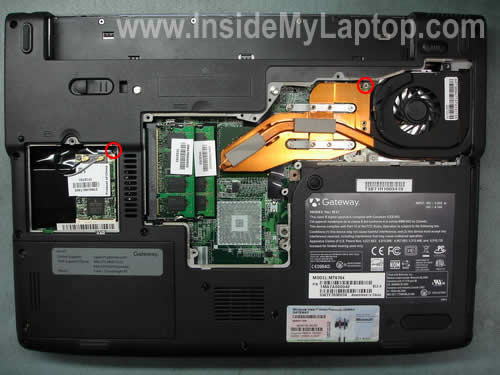
Now remove covers from the wireless card and memory. I mentioned the hard drive cover, but I’m not going to remove it.

There are two screws securing the keyboard. Remove both screws.
Now remove two screws securing the hinge cover.
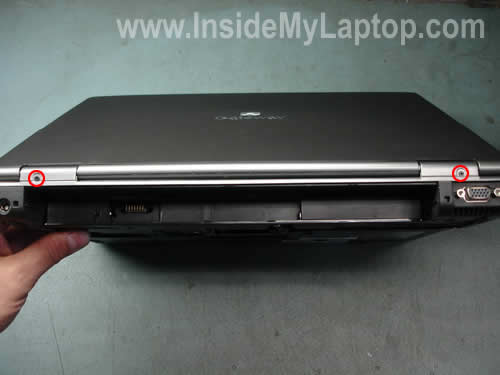
Lift up one side of the hinge cover with a sharp object as it shown on the picture below.
Continue removing the cover with your fingers.

On the picture below you see the hinge cover removed.
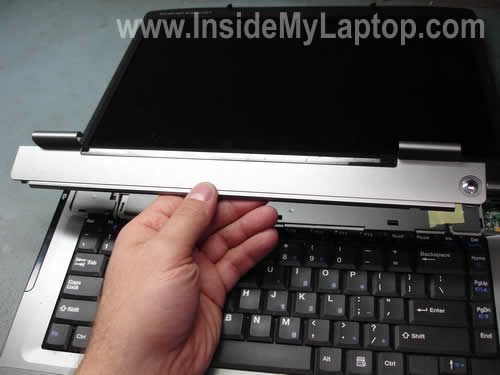
Lift up the keyboard and place it upside down on the palm rest.
Be careful, it is still attached to the motherboard with a cable.

On the picture below I circled the cable connector.
You’ll have to unlock it first.
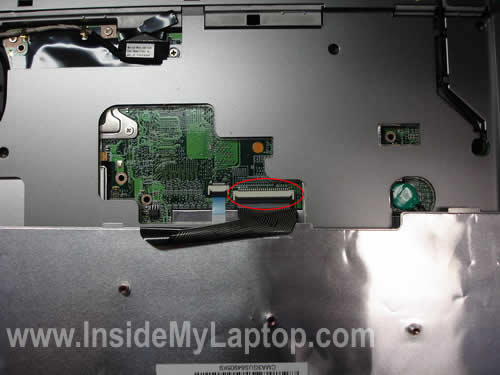
On the picture below you see the connector in the locked position.
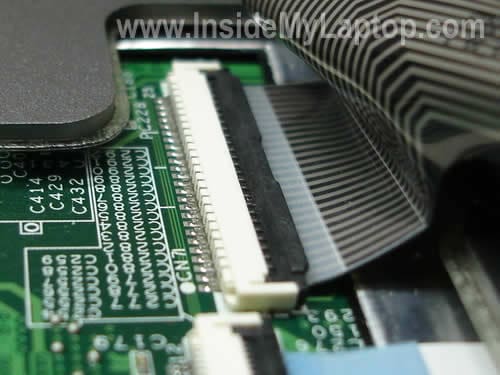
On the next picture, the connector is shown in the unlocked position.

Now you can pull the cable, remove the keyboard and replace it with a new one.

Would you like to know how to remove the motherboard and replace broken power jack? Take a look at the Gateway NX570X disassembly. This laptop has the same body (Model No MA7).
Also, in the next post I explain how to remove the screen.
If you have a different Gateway computer and my guide works for you, please mention the model in comments.
Glenda
Thanks a lot for explaining how to unplug the keyboard. I had 5 broken keys and your guide helped a lot. Saved me money!
David sotelo
Well hey I have this same laptop but the power jack broke on me so I sent it to get repaired and they couldn’t they said that the mother got damaged and now it won’t even turn on with a fullychared battery what exactly is the mother board and if dameged so I’d there a posibilty to fix it
IML Tech
David Sotelo,
The motherboard is the main circuit board in any laptop. All major parts are connected to the motherboard.
If the motherboard is damaged, you’ll have to replace it with a new one. There is not much you can do to fix it.
Hans
the guide worked great for keyboard replacement of the mt6723 model, only the keyboard screw locations were different. thx!!!
Roger
Worked for my MX6920
kim
i brought a new gatway adapter for my ma7 and my computer is not charging up at all the fan on the computer isnt on ither ,i called gateway they told me my battery is fine ,can you tell me what might be a problem.
kim
were is the power jack on a laptop?model ma7
IML Tech
kim,
The power jack is soldered to the motherboard. In order to access and replace the jack you’ll have to remove the motherboard first.
Ben Masten
I broke the Black thing that keeps the keyboard tape in the connector. Anyone know how I can get a new one of those?
Dontaye Williams
My hard drive burnt out a few months ago on my Gateway MT6828 Notebook. I have recently purchased a new Fujitsu Hard Drive but cannot access the BIOS to configure the new drive. When I hit F2 at boot, it asks for a BIOS PASSWORD….never seen this before! I looked online for Phoenix BIOS and tried the ‘default’ password, no luck. I’ve seen that I can reset the CMOS, but I cannot locate it on my motherboard. What to do? Thank you in advance!
Dontaye Williams
“To me, giving up is way harder than trying.” ~Knowledge
IML Tech
Dontaye Williams,
Sorry, cannot help you to clear the BIOS password on this model.
Is it necessary to access the BIOS in order to configure the hard drive? What if you just install the new drive and boot from the recovery disc?
Mackel
MT6821
MA7
The Computer Chic
This also mostly works for ML6732. There three other screws in the bottom that have to come out, but otherwise, it’s the same.
rk
Thanks for your guidance ! help is appreciated!
Lisa Keck
This looks like good info. I’m hoping to find a tutorial for replacing the keyboard although I suspect I just reverse the steps. You should move the warning about using an anti-static bracelet to the top. I almost missed it because of ads. I’m excited to be able to repair my laptop so it doesn’t end up in a landfill.
Ron
Worked on the MT6705. Now I have to replace the DC-IN jack.
Chris
Hi, my charging hinge is loose, do you have a guide to fix that? Ive had it fixed by gateway once before but dont feel like having them do it again. Thx
IML Tech
Chris,
I don’t know what the charging hinge is.
Neil
This job is even simpler on a Gateway NX500S. You don’t have to remove the covers from the bottom. There is a single screw hole labeled “K”. Just remove this screw & then proceed with the two hinge screws and so on.
minaharker64@yahoo.com
hi, i have here a gateway ma1 model no. m460e.started having problems with shift ctrl alt everytime these keys were touched a loud beep would sound but not from the motherboard system speaker the sound came from the laptop audio.so i ran system restore, now laptop freezes if any keys are touched.what can i do to fix it?i undid my last system restore to see if that caused it to freeze but was not the case.any ideas?please let me know i’ll try anything!help!
Cindy
YAY!!! i know how to het to the hindge now how can i change it my leftmhindge broke on my gateway mt6821?!?!?!
any help would be great!!!!
IML Tech
Cindy,
Check out this guide:
https://www.insidemylaptop.com/replace-broken-lcd-screen-gateway-m-series-laptop/
The guide explains how to take apart the display panel. Maybe using this guide you’ll figure out how to replace the broken hinge.
Tony
Also works for MT6451…Thanks been working on trying to get this a part for a while
Shaymus
Help!!! I replaced my keyboard (Gateway ML6720) as per the instructions. I re-assembled it and now it won’t power up at all. I put the old keyboard back in and nothing. Please help! Thank You
IML Tech
Shaymus,
What else did you remove besides the keyboard? Did you remove memory modules?
Make sure memory modules are installed correctly.
Rich
Your instructions worked great for Gateway MX8738
Jeff peterson
Any response to question ben’s number 10 about the broken white connector that holds the keyboard tape in place…
RA
Where is the CMOS battery on the MA7?
IML Tech
RA,
Take a look on the last picture. You can see it right under the lower right corner of the keyboard.
Dave Smith
Worked on MA8 ML6720. One keyboard screw under large memory cover, other screw labeled with “K” on bottom of laptop. All other instructions perfect!
Thanks much!
David
I find the webside so interesting,please help me send. ( How to removed keyboard from HP dv5 1153ei). Thanks.
Nick
Great Information!!!! Have a gateway ml-6720 laptop and followed the instructions without issue up to the point of removing the ribbon cable from the connector. Can someone explain exactly how to do this….don’t want to break the connector. It appears the black part does not flip up ( like a hinge) but is pulled up vertically….but how is that done? Do you put a small screwdriver and pry it up vertical. Is there some sort of release? Put a flat head screwdriver on each side and prior upwards?
Also I need to replace the wifi internal antenna….any thoughts….one of the connectors broke. thanks
IML Tech
Nick,
I guess you have a different type of connector in your laptop.
I wouldn’t use a screwdriver. Use your fingernails instead, it this case you’ll get a better feel of the connector.
Move the locking tab about 1-2 millimeters up. Do not apply too much force. The locking tab must stay attached to the connector base.
After that you should be able to pull the cable from the connector.
Something like it shown on the following picture, the only difference your connector is vertical.
Jonathan
I had a my power button break, and i’ve been wondering if there is supposed to be any metal underneath the button that is missing. do you have any upclose pictures of underneath the power button and hinge bezel?
ellen_yvr
Thanks for this site! I just replaced the screen in my MX8734 and the instructions for that worked very well. Now I need to replace the palmrest/touchpad for a broken left mouse button (have to press it REALLY hard for it to work). I’m no longer afraid to take things apart but do you have any suggestions of things I should look out for?
IML Tech
@ ellen_yvr,
I guess you’ll have to replace the entire top cover assembly. The touchpad and both buttons are part of the top cover.
richard
thanks for all the info… worked out very well.
Mesquite PC
Great information thank you! Just what I needed to complete my repair.
Omar
hello! good day! Sorry, I’m looking for drivers to run my SD card reader, I search the Gateway support, but did not find them or rather did not know which to download, can you help me please?
Jeff
I got a couple of laptops from a friend who was downsizing before a move. One of them was a Gateway MT6848. I messed with it a bit but had to set it aside for some real life interferences. I recently got back to it, intending to restore it. When I started it up this time, everything worked fine but it wouldn’t take keyboard input. I tried a USB keyboard and everything worked fine and I was able to restore it to factory new condition.
I was advised that, since the USB keyboard worked, it probably wasn’t a motherboard problem, just a bad keyboard. So, using the guide here, I removed the existing keyboard. I couldn’t tell if the ribbon cable was already unplugged or not but there were spots on the cable that seemed rubbed off, so I ordered a replacement.
Now, here’s my issue… the connector on the motherboard doesn’t have the black locking mechanism that is shown in the guide above. And, the end of my ribbon cable doesn’t have the plastic piece stuck to it. (I wish the guide had continued with info on how to get the new ribbon cable properly installed.)
Am I out of luck? Is there a way to re-add the locking mechanism? If I get the ribbon cable inserted, can I tape it in place and be OK?
Thanks in advance for any help.