


In this guide I explain how to remove the keyboard and clean the cooling fan in an HP Compaq 6515b laptop.
Most likely this guide will work for some other HP Compaq model. If it works for you, please mention the model number in the comments below.
Also, you can use this guide for accessing and replacing the memory module installed in the hidden slot under the keyboard.
STEP 1.
Turn off the computer and remove the battery.
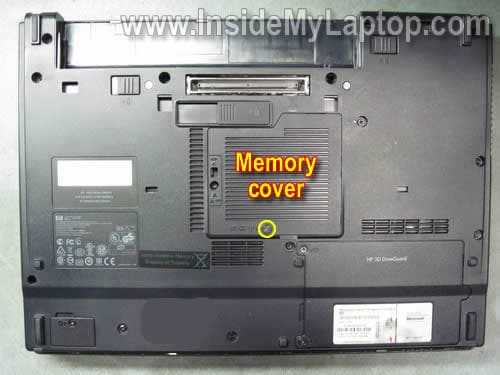
Remove one screw securing the memory cover. Remove the cover.
STEP 2.
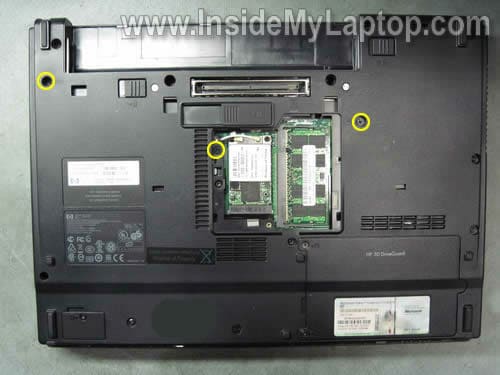
Loosen three screws securing the keyboard on the bottom of the laptop.
STEP 3.
There are four latches in the top row.
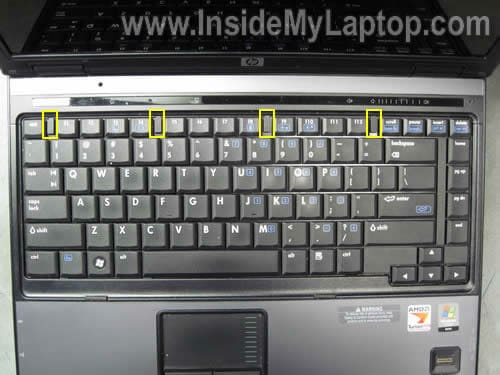
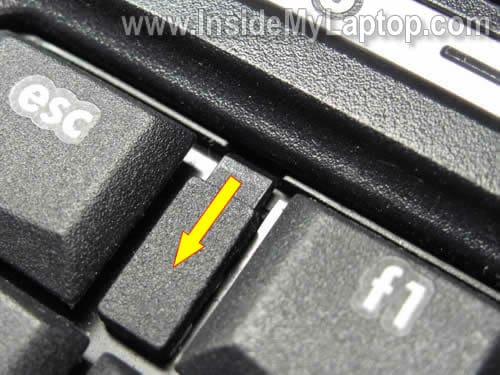
Unlock the latch by moving it towards the touch pad.
STEP 4.
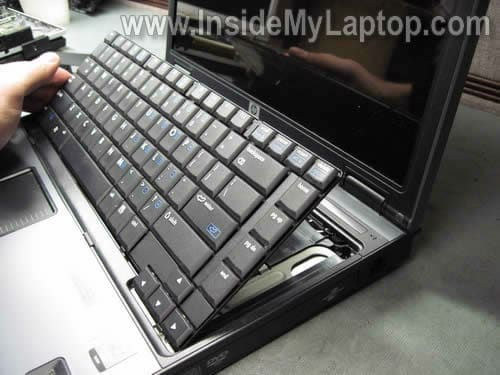
Lift up the keyboard and place it upside down on the palm rest. It is not necessary to disconnect the cable from the motherboard.
You disconnect the keyboard cable only if you want to replace it.
STEP 5.
The cooling fan is located in the top left corner.
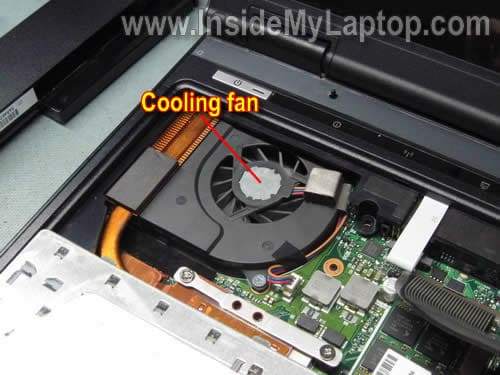
If the cooling fan and heat sink are dusty, you can clean them using canned air or air compressor. Blow air inside the fan until all dust is gone.

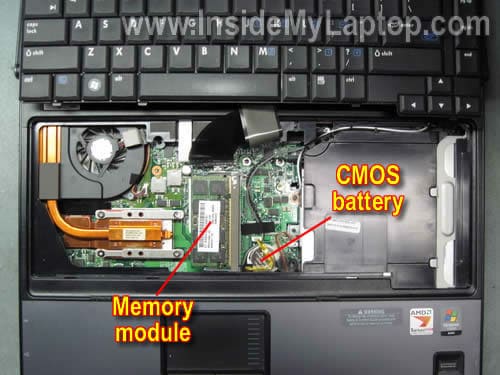
Also, under the keyboard you can access the hidden memory slot and CMOS battery.
RAVEN
Mine is HP DV2855EE, can you show me how to remove the keyboard in order to clean inside?
Kevin Szabo
I used these instructions on my compaq nx6110. My screws were different in number and in location, but the basic premise was the same, that is, remove a couple of screws and flip the latches and you are done. The article gave me the confidence to finally lift the keyboard and install a one gig sodimm that I had lying around for two months. I also blew out the heat exchanger (cooler-fan). That was a good move since there was a lot of dust in there that was completely invisible from the outside. Thanks a lot for the article!
kiki
mines a pavillion dv6000 could you possibly show me how to clean the fan please?
IML Tech
kiki,
If you remove the keyboard bezel, you’ll get access to the cooling fan. Spray compressed air into the fan. This will remove most dust from the cooling module.
It’s not necessary to disassemble the entire notebook.
Here are instructions for removing the keyboard bezel from a HP Pavilion dv6000 notebook: https://www.insidemylaptop.com/take-apart-hp-pavilion-dv6000-laptop/
Jeah
I would like to know how to clean the fan in HP Pavilion dv5 1035eo. Could you please help me?
Melissa
Hey guys, i tried this and i was able to clean the interior of my laptop, but i’v come across a small problem after closing the whole things up. Now when i turn on the entire laptop it works fine except the quick play buttons and that whole LED panel doesnt light up. i have a feeling the ZIF cable that is connected to the quick touch buttons has got lose or come out of its socket or is broken. i have no idea where it needs to be connected. can someone pls help me and tell me exactly where i need to connect it to my laptop is a dv4-1125nr… thanx so much url are a great help!
IML Tech
Melissa,
I does sound like a connection related problem but I cannot tell which cable is loose without looking at the laptop.
Here’s the service manual with laptop disassembly steps. Go through the disassembly steps and compare it to your laptop. Find the missing cable.
http://h10032.www1.hp.com/ctg/Manual/c01597750.pdf
fitrijohari
hi….can u show the step by step guide on how to disassemble compaq v3000 laptop (actually i want to clean its fan because my laptop is too hot already)tq…
IML Tech
fitrijohari,
You can use this official service manual for Compaq Presario v3000 Notebook PC and follow HP instructions.
LOst
I have a dv5t-1000 and it seems that once i get to the point of taking off the keyboard i hit this ceramic heat plate and i can’t get any further
LOst
i accidentally sent that, but what i need to say is my laptop is getting extra heated and the fans run on high and i need to clean the laptop fans out ASAp
IML Tech
LOst,
Find an air compressor and blow air into the fan intake on the bottom of the laptop. This should be enough to clean the fan and heat sink.
Jaffe
mine is a compaq 6715b and it worked
Sam
This is a great start however the fan is still very loud, i was wondering if you had a forum on how to replace the fan rather than just cleaning it. I seem to be getting stuck on removing the shell by the monitor and the power supply. It’s the HP-Compaq 6715b
Thanks
IML Tech
Sam,
Download and use this service manual for HP Compaq 6715b notebook.
You’ll find step by step notebook disassembly instructions in the manual.
Harry Pabla
Hey I did as directed. And got great results!! 🙂
One thing I want to know is that the laptop blows out air from the left side but from where does it suck air inside? Majority laptops have air sucking openings at the bottom. But what about ours? 6515b? Is it near the speakers in the front of the laptop? Kindly reply!!
Ranjeev Rai
Man you rock ! your instructions are so simple that even a kid can understand…… I was able to change the CMOS battery and my computer was up and running as new…….. Love you for this.
Stef
The fan gets its air from the bottom of the laptop (nx6110) and blows it through a heatsink. This heatsink collects all the dust and at last the dust will form an isolating blanket and your laptop runs too hot.
Blowing just air through the fan is not enough, unmount the fan and remove the dust from the heatsink (I used a vacuum cleaner).
Anyway, thanks for the instructions for opening my laptop! Its running smoothly again (Very silent and no display dropouts anymore)
george
Thanks for posting service manual link!
Federico
I took out the bottom screws of my Presario F505 but still cannot take the keyboard out. It does not have latches to move. I removed battery and memory: should I also take out the HDD?
IML Tech
Federico,
Take a look at this service manual for Compaq Presario F500 laptops: http://h10032.www1.hp.com/ctg/Manual/c01095493.pdf
The keyboard removal instructions shown on the page 40. It looks like all you have to do is remove three screws on the bottom.
M. Möhling
Did it with my HP Compaq 6715s. Didn’t have compressed air, just gave it some thorough whiffs (that almost left me with silicosis :-), the fan’s noise went back to normal, yay! Will buy me a can of compressed air on Monday, though, it’s worth it certainly.
> Loosen three screws securing the
> keyboard on the bottom of the laptop
No need to pull them out which is a hassle (as I did). Just loosen them till the first resistance is gone.
nikolas_dmx
Thank you very much! An excellent guide.
Autumn
so here’s the question. i used my laptop (compaq) as usual to surf internet and play online games. there’s nothing problem when for web browsing. but when i turn on games, the screen suddenly turned black and after few seconds, laptop shutdown. it happened many times. so i asked friends bout it. they all said the same answer :” need to clean your cooling fan” . So yeah sir, is it true? if it is, i’ll open my lappy and clean the cooling fan lol 😀
IML Tech
@ Autumn,
I think your friends are correct. Most likely this is heat related issue. Blow off the fan and see if this fixes the issue.
Autumn
and also Sir, my laptop’s brand is Compaq Presario CQ41. thankyou! 😀
Janay
I have a HP Compaq nc6400 laptop and this guide was perfect! I actually went to 5 different stores to get canned air so I could clean my fan, my computer had become very noise seeing that the fan was running constantly because it was so dusty in there. I just followed your directions and my computer no longer sounds like a helicopter is landing in my living room. Thanks for the help!!!
Karol
Thanks man. very helpful guide. i disconnected the fan. because it’s noisy. do you have any good suggestion which I can do for the mean time. just to cool down my laptop nx6310
Kimberly
Ok hi I replaced my fan with some help and we’re pretty sure we put everything right back in it’s place but the fan wont turn on can anybody suggest what else might be wrong with it. Or just a suggestion as to what it could be would be really helpful. Thanks.
Per Bjorkhem
Thanks alot! You really helped me. This guide works perfect for Compaq 6715s also.
Stoyan Petkov
It helped me a lot. Simple and comprehensive guide. Thank you!
Tom
Thanks ! This guide works for Compaq 6715b also.
edwin ulep
is hp compaq 6910p keyboard screw same with 6515b. thanks
Sabbather
Thanks a lot, works perfectly for 6715b 🙂
Michael Beer
Thanks. This guide was close enough to work for my nx6325. (But I actually wanted to get at the power connector.)
Victorique
I don’t understand how to move forward after step 3. How do I remove the keyboard? I can’t seem to get a grip on it.
Victorique
I have a compaq 6715b and can’t seem to move past step 3.
IML Tech
@ Victorique,
What is wrong? You cannot lift up the keyboard or what?
Victorique
Ive seen semi-successful in doing it. But not really. No access to beneath the keyboard anyway. With screw drivers but i cant lift it up completely. Where and how are you supposed to grab ?
IML Tech
@ Victorique,
Take a look at the official service manual on the page 69.
Maybe it has a better explanation.
Victorique
I must sound like a total idiot for not figuring it out. I’ll get there. Thanks
Victorique
Theres just nowhere on the keyboard that is gonna help me lift it up.
IML Tech
@ Victorique,
You can use a guitar pick or any other piece of plastic to lift up the keyboard.
Insert it between the keyboard and top cover and lift up.
It’s possible (I’m not sure 100%) that there is sticky tape securing the keyboard to the top cover. Maybe that’s why you cannot remove the keyboard.
Harry
Excellent! Eveb better than the instructions on the HP site.
David
It worked fine for a Cq 6735b
I Dex
Hi
Ace instructions, as requested also works identically for the Compaq 6715s.
Ian 🙂
Johannes
Thanks!
Works also for 6715b.
Johannes
sal
this guide is fully compatible with HP Compaq 6910p Notebook PC.