

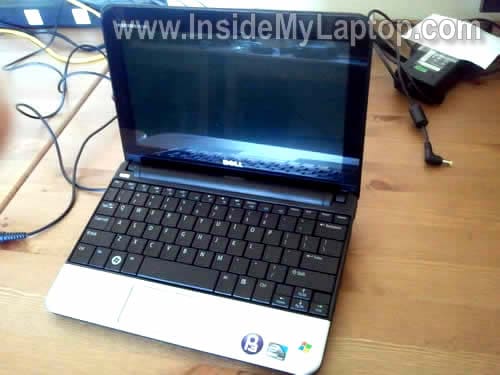
In the following guide I explain how to remove the hard drive from a Dell Inspiron Mini 10 (1010)Â netbook.
There is no easy way to access it from the bottom. The drive is mounted inside the case under the keyboard.
STEP 1.
Turn off the laptop, unplug the AC adapter and remove the battery.
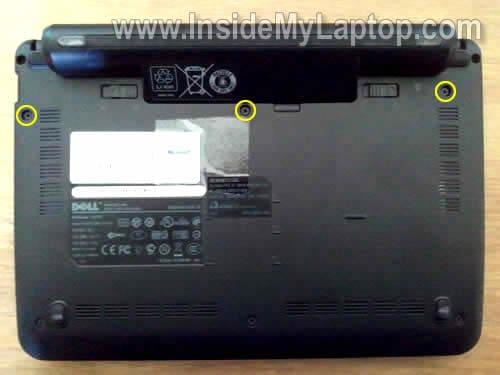
Remove three screws from the bottom. These screws secure the keyboard.
STEP 2.
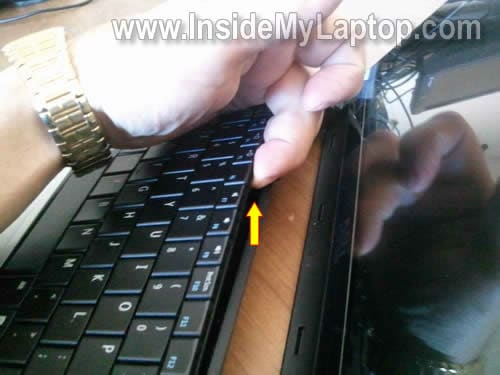
Insert a thin object between the top side of the keyboard and laptop case.
Lift up the keyboard and continue removing it with your fingers.
STEP 3.
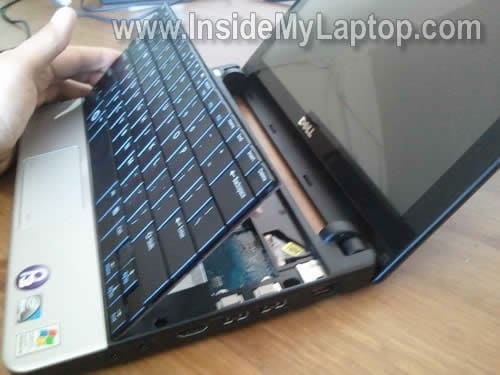
Lift up the keyboard as it shown on the picture below and flip upside down on the palm rest.
STEP 4.
Now you can access the hard drive assembly.
The wireless card also located here.
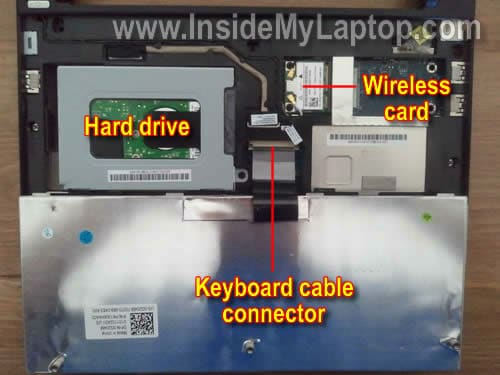
If you would like to replace the keyboard, you’ll have to unlock the connector and release the cable.
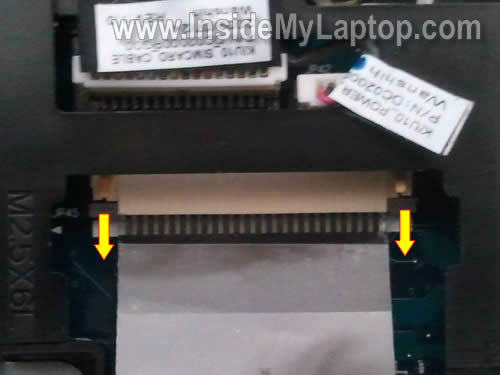
In order to unlock the connector, very carefully move the brown lock about 2 millimeters towards the touch pad.
The lock must stay attached to the connector base.
When the connector unlocked, you can pull the cable and remove the keyboard.
STEP 5.
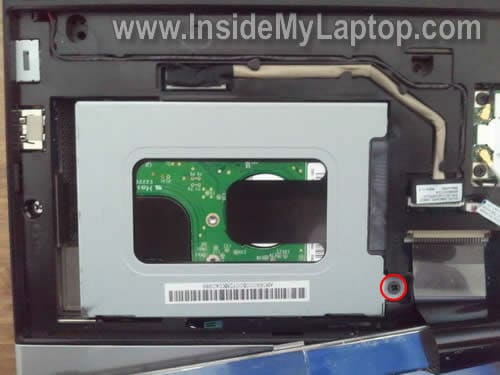
Remove one screw securing the hard drive assembly.
STEP 6.
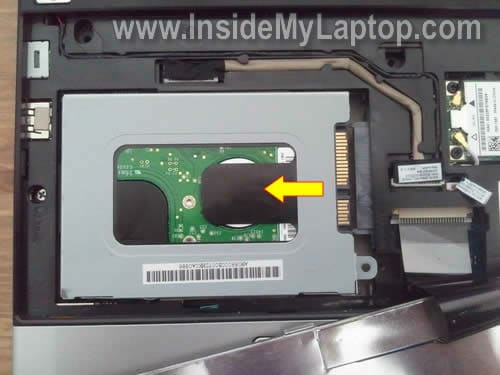
Slide the assembly to the left and disconnect it from the motherboard.
STEP 7.
Remove the hard drive assembly.

Now remove four screws securing the caddy, remove it and transfer to the new drive.
In my case I had a regular 160GB 2.5″ SATA HDD installed. This drive can be upgraded with any larger 2.5″ SATA HDD.
Tamara
Thank You! Dell should be paying you for not only a great step by step guide but for being able to easily find it online!
IML Tech
Tamara,
🙂
Thanks.
SF
Dell paying for this advice? Completly counterproductive. If people don’t know how to replace the hard-drive they will buy a new netbook 😉
IML Tech
Or take laptop to a local computer shop and pay $$$ to replace the hard drive. 🙂
Alternatively, you can use my guide and replace it yourself and pay just for the hard drive.
Patty Pierson
This is a wonderful step by step guide to installing the hard drive.
Thank you very much it is installed. Only took about 20 minutes.
Martha
Thank you so much I was totally lost and the Dell website was way confusing. You are the greatest.
llerks
From one tech to another..my thanks, & gratitude, & donation on the way….worth every penny… saved me a ton of time & headaches….now if I can just figgure out how to split the bottom case on the d620 ??? 🙂 Bet you have a “how to” on that as well….thanks again Tekkie !!
IML Tech
llerks,
I have two different guides for Dell Latitude D620 notebook. Here they are:
https://www.insidemylaptop.com/remove-replace-keyboard-dell-latitude-d620-laptop/
https://www.insidemylaptop.com/remove-replace-lcd-screen-dell-latitude-d620-laptop/
If it’s not enough, check out this official service manual. It has full disassembly instructions.
IML Tech
llerks,
Thank you for the donation. Got it. 🙂
charlene
I cannot reinstall WinXp – Mini 10 wants me to “insert disk in Drive A” – which does not exist. What can I do to trick the net book in letting me install Win Xp? Frustrating because it loads on the external CD/DVD rom but wont take further action until this DRIVE A is used. PLease help!!! Thanks.
IML Tech
charlene,
If I understand correctly, you are trying to boot from an external CD/DVD drive but it’s asking for Drive A?
Can you enter the BIOS setup menu and load default settings. Try again after that.
Can you see the hard drive in the BIOS?
sours
thanks alot !!
Joseph
Thanks so much for this helpful guide! Saved me lots of $$$ for the holidays. I’ve had to replace the hard drive in a dell mini 10 netbook with no cd rom drive available, how can I get this loaded with an OS?
IML Tech
Joseph,
You need an external USB DVD drive.
Dorman
I have something hard under the ‘i’ key. How do I remove it to clean under it?
Kayara
I can’t put my keyboard back on van yu plz walk me thru it
Freshmufin
Hey dude, thanks for posting the link to replacing keyboard keys, I couldn’t find a way anywhere else.
Ricky
My screen got wet and faded away.. Ever since that its still the same everytime i turn it on it slowly fades away snd stays blackish/grayish.. Please how do i fix this????
IML Tech
Ricky,
Can you get image on the external monitor?
Ricky
No the screen just stays the same. Its like a grayish/black color i can hear the buttons when i press the keys it beeps the moniter got wet barley by like little rain drops and thats how
Max
What a great guide, thanks. I believe my hard drive is, for lack of a better word, f**ed. I quite experienced with the operation of computers and such, but am lacking in experience with hard drives. How would i know for sure that the hard drive is “f**ed”?
Thanks in advance
Max
IML Tech
Max,
Does your laptop still boot?
If it boots, you can test hard drive with HDTune utility. Run error scan.
If the laptop doesn’t boot, you can remove the hard drive and test it on a working PC. I usually test hard drive with SeaTools utility (frim Seagate.
Dusty
Thank you so much!!! I installed the new hard drive in less than 10 minutes. A first time replacement!!!
Ravi
i have a dell mini and lost the plug. i bought a aftermarket one and it made a popping noise and arked at the wall socket, now thw computer will not boot, just a dark screen
Nathan
the soldering for where the power switch is connected to the mother board broke apart. I re-soldered it, but the two pins ended up being soldered together in one large solder as opposed to the two small ones previously. My computer won’t turn on. Do the pins need to be soldered separately?
Thanks!
Ravi
how can you test the dc power jack on a dell mini, we used a after market plug and it arked at the plug in wall socket, now the computer will not boot, just a black screen. the power light is on but nothing comes up. i was told it may have fried my mother board. what do you think
RobMan
Thanks a million Inside-Team 🙂 Your site is really awesome – Thumbs up 😉
confused laptop owner
is this a sata I or sata II
Owen
Where can I find a Dell Inspiron Mini 10 Hard Drive? Can someone give me a link?
Christien Gagnier
Hello. Great guide for removing the keyboard and replacing the hard drive. I have a Dell mini with a broken audio output jack. Do you have instructions on how to fix it?
IML Tech
@ Christien Gagnier,
I don’t have this guide.
Most likely the audio jack soldered directly to the motherboard. You’ll have to remove the motherboard and find someone who can desolder the broken jack and solder a new one.
WeWe
hi thank you for this tutorial can you make a full taking apart for this one because am having screen problems thank you again
IML Tech
@ WeWe,
Here’s service manual for this model. Should help.
Tony
Please could you tell me how to install windows on a dell mini.
My old one dont work properly so was adviced to buy a new one, but it happens to be blank. How do i go about it, l will make a donation please. Thanks
IML Tech
Tony,
Do you have Windows installation dics?
Do you have an external USB DVD drive?
Jaime Obed
Hello!
My question was whether the Dell Mini Laptop or has no hard drive.
I wanted to see if by chance something is badly connected and up to test out the disc because it is giving error message: Operating System not found.
riyajain
my dell mini battery shorted and damaged two adapters while trying to charge as adapter light continuously blink and finally off permanently during battery charging but lapy fine works directly on adapter without battery, pls help any solution for battery shortage problem?
IML Tech
@ jiyajain,
Have you tried replacing the battery?
jcokebaby
wow you are awesome. thank you!!
Jiatek solutions
Dear Tony,
You can install windows on these netbooks in one of two ways.
1. External CD/DVD drive
2. Bootable USB pen drive.
with the first option, all you do is take your normal installation disk and put this into the external drive and go into your BIOS settings and boot from the external drive first.
The second option is a little more time consuming to setup. It involves copying your installation disk as a bootable ISO format and then using PowerISO, you can convert the disk files onto your pen drive, the software will also allow you to make the USB device bootable.
In either case, going onto google will be the best way to get the relevant knowledge and also the software tha you will need.
I hope this information helps you and do let e know on here how you get on.
Yours sincerely
Jianglong Wang
JIATEK SOLUTIONS
ddog
I have got a dell mini and my HDD password is lock also I press f2on startup also ask for password how can I unlock it .
IML Tech
@ ddog,
If you forgot the HDD password you will not be able to remove it. You’ll need a new HDD.
I’m not sure if there is an easy way to clear the BIOS password. What is your laptop model?
shahid
BOOTMGR is croupt . the system can not boot
please give solution of thi problem