

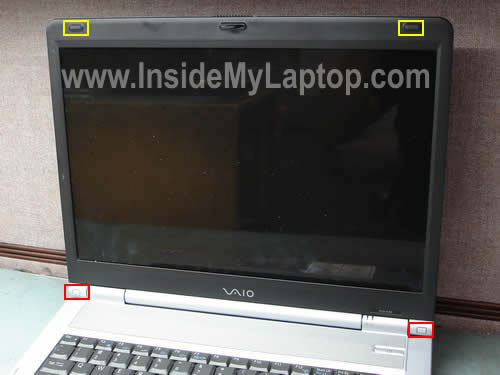
In the following guide I will open up the display panel to remove and replace the screen on a Sony Vaio PCG-K series laptop.
As an example I’ll be taking apart a Sony Vaio PCG-K33 model. These instructions should work for many other models in the PCG-K line.
There are four screws securing the display bezel (mask) to the LCD cover. These screws are hidden under four rubber covers. Two black covers on the top of the bezel (marked with yellow squares) and two white covers on the bottom (marked with red squares).
Remove two white covers on the bottom.
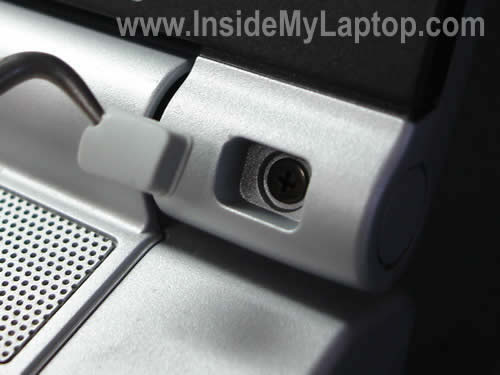
Remove two black covers on the top.
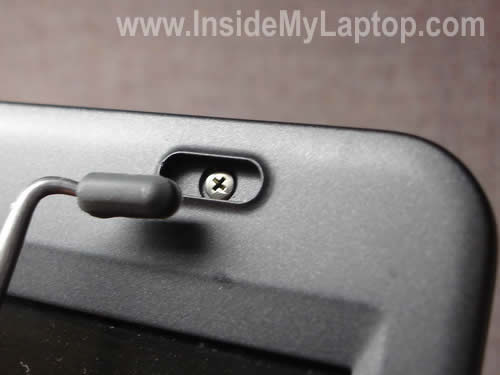
Remove four screws found under the covers.
Now you can start removing the display bezel as it shown on the picture below.
Carefully release the bezel from under the hing cover with your fingers.
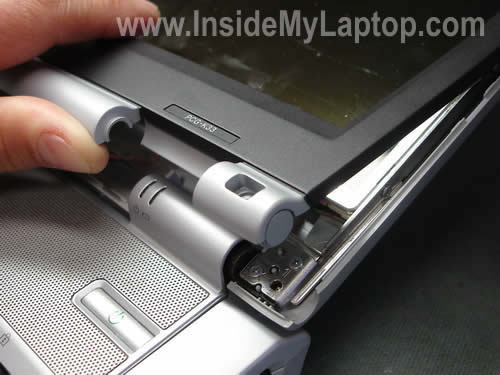
Continue removing the display bezel.
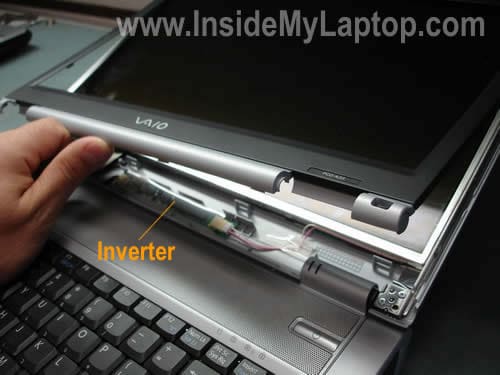
Finally, the bezel has been removed.
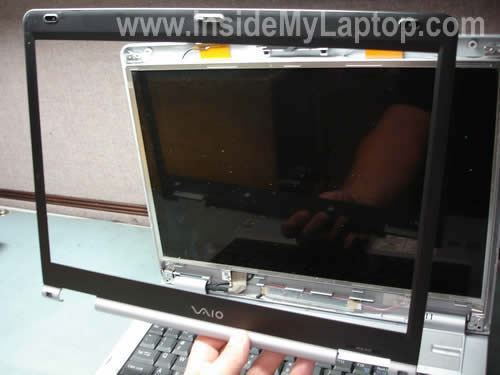
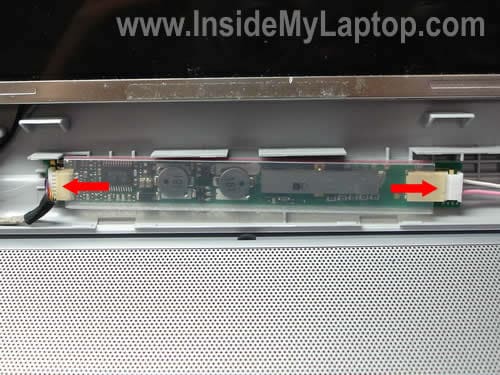
The screen inverter is mounted on the bottom side of the display cover.
There are no screws securing the inverter in this model, it’s simply glued to the cover.
Carefully unplug cables from both sides of the inverter.
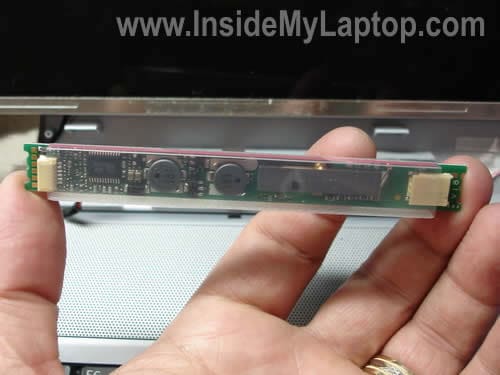
The inverter board has been removed.
Now I’m going to remove the LCD screen.
Remove six screws securing the display assembly to the cover.

Now you can separate the LCD panel from the cover and access the video cable on the back.
The video cable has to be disconnected.

Remove the yellow tape securing the connection.
Carefully push on latches securing the connector and pull the cable out.
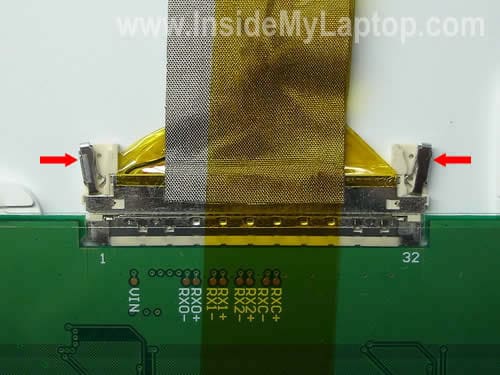
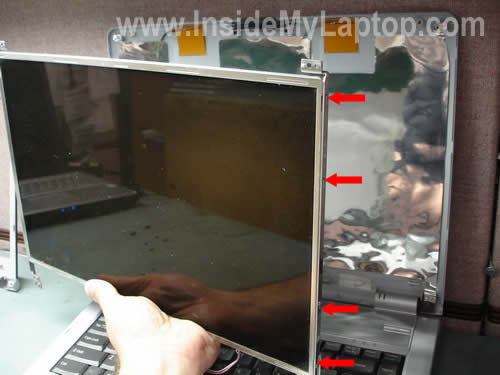
After that you can separate the LCD panel from the cover.
As you see on the picture below, the mounting brackets are still attached to the screen by four screws on each side.
Finally, you can replace the failed or damaged screen with a new one and assemble everything back together.
By the way, in one of the previous posts I explain how to access the power jack.
Rick
Thanks!
Worked like a charm. I have a different Sony laptop but went through same steps.
eddy
hey, i was wondering that if i just opened up my viao s series to do some cleaning, when i put everything back, the lcd should work right?
however i have checked again and again i find no reason for the lcd to not have power, i have checked it has totally no information displayed, but on an external one it works
could it be a broken latch detector?
how do i locate it by the way
Geovanny
Hello, could you tell me please how i can replace the inverter of my Laptop Dell Inspiron 1525, i
don,t know how to take out. Thank you.
IML Tech
Geovanny,
In Dell laptops the inverter board is mounted to the bottom side of the LCD screen.
First, you’ll have to remove the LCD screen. After that you separate inverter from the screen.
Chandar
Ethernet adaptor on my Sony Vaio VGN-TX series stopped working. How do I replace it?
Barnabas
I reviewed both these instructions and also the one about disassembling a PCG-K series laptop; your instructions are very helpfull.
I have a PCG-K23. I have noticed, on occassion, that the screen will start to get jiggly and produce multi-colored lines. This has been continuing now for about 1 year and has happened only about 6-8 times. Initially I was able to use the Start/Shut Down command, wait a couple of minutes and then re-boot sucesssfully. Lately the screen turns so bad that I have to shut down with the power button, and it’s more frequent.
I read in a previous post that you believe this type of problem could be the LCD cable, Given that my problem is intermittent and that the screen display recovers completely after a re-start I intend to use your instructions, open up the screen to access the cable and then disconnect, use contact cleaner, and then re-connect. Does this make sense? If the problem persists which components dou you believe I should replace?
Thanks,
Graeme Pearce
Hey. I have a PCG-K series laptop. When I move the screen, it ‘flickers’ in the sense that it goes black and then back to picture. ONCE it has gone completely black and went into hibernation or suspend or whatever, and I had to turnit back on – when i did the screen was fine. Only seems to happen when i move the screen from open to closed numerous times. Does this sound like an inverter/cable problem, or an actual backlight problem?
IML Tech
Graeme Pearce,
It’s hard to tell without looking at the laptop. Could be bad connection, bad cable, failing inverter board, etc…
In cases like that, I disassemble the display panel and try moving/wiggling the video cable while the laptop is turned on. If moving the video cable affects video on the screen, most likely the cable is bad.
Also, I try reseating cable connectors on the inverter board and back of the LCD screen.
Grizla
I have a PCG-K15 series laptop and I reviewed both these instructions about disassembling a PCG-K series laptop; your instructions are very helpful. The problem i’m having is that the LCD screen flickers on startup and get jiggly and produce multi-colored lines. After a while it stabilize then goes black. i replaced the inverter board with a factory new inverter and it does the same thing. Should i replace the LCD screen?
Greg
Wow! What a helpful site! You’re one of the real pros on the web!
I’ve got an old Vaio PCG FR-130. The screen started fading, looking like a dim amber color. It would blink out after 10 minutes but if I used a paper clip or closed the cover on the cover latch it would appear again, although less than optimum brightness. I did some study and found out it might be the inverter. Any at home diagnostics I can use to test it, repair it? Thanks.
IML Tech
Greg,
It’s either bad inverter board OR backlight lamp problem.
For some reason I think your failure is related to the backlight lamp, not the inverter. This is just a guess but from your description if feels like the backlight failure.
In order to find out if your problem is related to the inverter or backlight, you’ll have to test the laptop with another known good inverter or backlight. There is no other reliable way.
Dick J. Lagerwaard
Hello, I find your site very helpful and I would like tot ask you an question: I’ve got a PCG-K115Z and I want to put 2 x 512 MB memory into it and a larger & faster HDD. But I can’t let the BIOS recognize the changes: memory never comes above 768 MB and the new HDD does not work. I updated the BIOS to version R0110X1 but no result.
The old HDD is: Hitachi DK23FB 60 and the new one: Samsung Spinpoint HM160HC.
I thought the BIOS would recognize the changes in hardware automatically but it can’t forget about the old configuration. How can I “clean” the BIOS without damaging everything?
Thank you for your answer!
Dick
michael
I ordered a replacement screen for my PCG-7112L. It came with an inverter attached but uses a larger connection pin for power. Should I just remove and use my old inverter or should I seek to change the power cable from the laptop to match the new inverter?
IML Tech
michael,
I think you should use your original inverter. It’s just a different type of connector.
Andy
Great site and found the photos of disassembly a useful guide even though my machine is a Sony PCG-GRT896HP.
My screen started flickering when moving it a few months ago, so suspecting the screen cable, I left the screen up, since I never move the laptop. Everything was fine until this morning – blank screen! Removed trim and checked cable and inverter connections – no joy.
Found that after closing lid and opening, screen would be okay (albeit with a red cast) for about 3 seconds, flicker, then go blank. An image is barely visible and it still displays to an external monitor.
Realised problem is associated with the microswitch that dims the screen, but have no idea how to proceed.
Any suggestions would be really appreciated.
Joseph
Hi, I have a Sony Vaio E Series and my display got cracked and I need a replacement. Do you know if the procedure to change the display is different?
IML Tech
Joseph,
I haven’t created instructions for Sony Vaio E series yet.
Could be similar to this one: https://www.insidemylaptop.com/replace-lcd-screen-sony-vaio-nw235f-laptop/
But this is just a guess.
Atul
I have a Sony Vaio PCG-614xxx with VPCCW21FX screen. My laptop screen got cracked, and to repair the screen, I was asked by Sony rep to find the screen model by opening the screen but had no clue how to. Thanks to this post, I am able to open the screen, find the model number, and take my next steps.
Thanks.
Ivy
How to disassemble Sony Vaio VGN-TX770P/W series laptop
Alex
Thank you!!
Very helpful guide