

Let’s say you have an IBM ThinkPad laptop and when you turn it on all you get is a black screen with “Fan error” message. What could be wrong?
A few weeks ago, the fan in my trusty IBM T42 bought the farm. This resulted in the unit heating up considerably, as well as numerous “fan error” messages on bootup. It eventually became so bad that to boot up at all, I had to blow compressed air into the fan’s exhaust grill for 5-10 seconds, in order to fool the BIOS and make it believe the fan was actually spinning.
According to the IBM hardware maintenance guide (HMM) for ThinkPad T40, T40p, T41, T41p, T42, T42p this error message indicates a problem with the fan, you can find symptom-to-FRU index on the page58.
The symptom-to-FRU index in this section lists symptoms and errors and their possible causes.
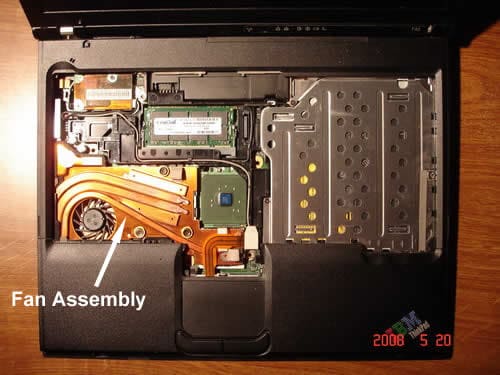
Apparently it’s time to replace the fan assembly. The cooling fan comes together with the heat sink, that’s why you’ll have to replace the whole fan assembly.
You can easily replace the assembly after you remove the palm rest and keyboard.
1. Remove the battery and unplug the AC adapter.
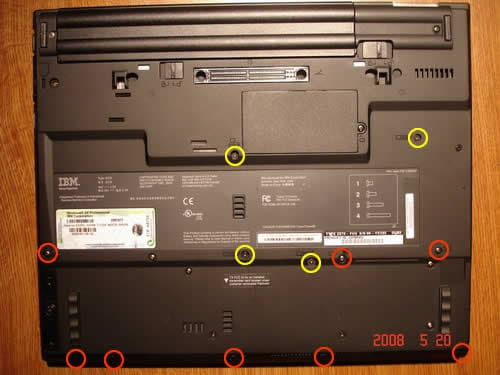
2. Remove four screws marked with yellow circles. These screws securing the keyboard.
3. Remove eight screws marked with orange circles. These screws securing the palm rest.
4. Lift up the keyboard and upnlug the keyboard cable from the motherboard.
5. Lift up the palm rest and unplug the touchpad cable from the motherboard.
6. Remove three screws securing the fan assembly, unplug the fan cable from the motherboard. Lift up and replace the fan assembly.
You’ll find step-by-step laptop disassembly and fan replacement instructions in the HMM in the chapter “Removing and replacing a FRU” on the page 70.
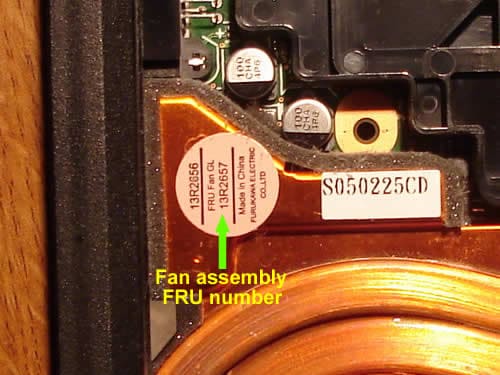
You can find a new fan assembly using the FRU number located on your failed fan, it might look like 91P8393, 26R7860, 13R2919, 13N5442, or 13R2657. Just google the FRU number and find a place to buy it from. Different laptop types with different screen sizes use different fans, so you have to find the correct one witch fits your model. If for some reason your fan assembly doesn’t have the FRU number, you’ll have to refer to the HMM page 216-217. On these pages you’ll find witch fan belongs to your laptop.
For example, if have a type 2378-FVU laptop with 15.0″ LCD screen, then you need a fan assembly with FRU: 13R2657
Pilou
Hi guys
I have a Fan Error on my T40p since this week end. I think I could repair by myself thanks to your Tuto.
But I can’t download the IBM hardware maintenance guide. i guess their FTP is down. Do you have this document? Could you send me back this doc?
Many thanks
Pilou
IML Tech
Pilou,
It works fine for me, the site is working. It takes some time to download the maintenance manual because it’s a 5MB file. Maybe you just have to wait for a while.
erika b
I just finished replacing the fan (under warranty) for my 1-month old refurbished T42p. The photos and explanation were great, except I had a major problem getting my fan assembly out and could not figure it out until i searched several other forums. I finally found where some people had to use a hairdryer to heat up lower right corner of fan (square area) that seemed to be glued on (apparently this is Thermal paste). According to the manual, i have a LONG fan assembly. I used a hairdryer for at least 5+ minutes (very close to fan) until it got hot enough to gently pry off with a small flathead screwdriver. Once it started to loosen it was easy to come off; before that it seemed impossible to get off. I was concerned the hairdryer would damage other parts, but all seems to be fine. It was not obvious what part was even going to come off as this section of the fan sits on top of a separate do-dad. The manual also says to take pink plastic piece off before installing, however the fan I was replacing still had it on and other people mentioned leaving it on so i did. I do not know which was correct.
Thanks for this posting!
Nina
I just finished replacing the fan in my wonderful 4 year old t42p thinkpad after getting the “Fan Error” screen. I’d been expecting something like this to happen because my computer had started to sometimes click and also get very hot. I bought the fan through the Lenovo number on the manual and it was actually cheaper than best buy (I called both). It arrived 1 day DHL which was obviously more money but worth it for me. Anyway, thank you for the hair dryer advice. I held the hair dryer on the glued part for a good 10 minutes before the thermal paste gave way. At first it really didn’t seem like it was going to budge but as soon as it came loose the fan slid out nicely. My old one also still had the pink plastic on and it was stuck on there very firmly so I didn’t peel it off the new one either, as the manual says to. Now my laptop is running smoothly, thanks for all the info!
gerard
can you tell me if 00191 is a fan error message on thinkpad 600e
edy6767
Thanks everyone for posting this information. My local PC repair shop couldn’t fix it, but I was able to do it myself with everyone’s help. Couple updates, FRU 13R2657 is now known as 41W5204. I ordered it from IBM 800-388-7080 option 2-1-1. It costs $32.94 + tax + shipping = $51.08.
Joseph
nice article, it got me through this fan removal/replacement. Thank you.
Jerry
Well, I managed to purchase the fan that promply arrived one day later. However even after replacing the Fan I get the same Fan Error and still wont boot… Anybody else ever see this ?
IML Tech
Jerry,
Make sure your new fan is plugged into the motherboard. Make sure there is thermal grease between the heatsink and CPU surface.
If you replaced the old fan with a know good new one but still get the same error message, apparently there is a problem with the motherboard.
maureen
After replacing the fan (I have rec’d the dreaded black screen with fan error), will I have lost any data once the fan is replaced?
Maureen
IML Tech
maureen,
You will not loose any data when you replace the fan. All personal data is stored on the hard drive no on the fan. 🙂
maureen
Thank you!!! Maureen
Stevi
Yeehah! Worked like a charm. Thanks a bunch.
Ana
I have a T30 its old but has always worked. I have that same problem
Mona
I have a thinkpad R51 and it kept giving me the fan error message. I replaced the fan today just as described here, and now the screen won’t turn on at all! It used to turn on to tell me about the fan error at least before!
I don’t understand what could be wrong, I can hear the fan when I press the power button and it stays on until I press the power button again to turn it off.
Please help me!
(I also hear a buzz sound twice when I first turn it on, I used to assume it was the fan trying to turn on – I hope it’s not the hard disk)
IML Tech
Mona,
Did you touch or remove the memory module by any chance? If you did, make sure the memory module is seated correctly.
Try installing the old defective heat sink assembly back. Can you boot the laptop back to “Fan Error” message? It’s possible the new fan is defective and is halting the whole system.
Lauri
I just bought a IBM ThinkPad Laptop (WXP) on Ebay a few weeks ago and it recently got here. I just got it and set it up and all, but for some reason it keeps saying “FAN ERROR” when I turn it on. I read your thing on this site but am VERY confused. I have no clue what a “FAN ERROR” is and know very little of computers. I just turned it one for about ten minutes ocne, but then it shut off and began to say “FAN ERROR”, again. Please tell me what to do.
My email posted below:
schwarze5055@yahoo.com
IML Tech
Lauri,
Apparently, there is a problem with the fan and you’ll have to replace it.
If you still getting the same “Fan Error” after replacing the fan, there could be a problem with the system board.
Jaimie
I have a fan error and my brother is going to be replacing the fan for me. In an effort to find all the required manuals, I have run into a really silly question.
My machine type is 2378…where do I find out if it is a T40p, etc.??
Jaimie
IML Tech
Jaimie,
Take a look at the lower right corner of the LCD bezel, can you see T42 in there?
I have a 2378-FVU myself and it’s a ThinkPad T42.
Here’s another way. Go to this site http://www-307.ibm.com/pc/support/site.wss/homeLenovo.do
and type the machine type number in the search box (for example 2378-FVU and click go).
You’ll see the laptop model in the results.
Andreea
Hi! How much time will it work without replacing the fan after I received the error for the first time? It works normally…but it makes noise and I receive the error…
10x in advance!
IML Tech
Andrea,
I don’t know. Days, weeks, months…
I guess it’ll work until you burn the CPU.
Caroline
My IBM T40 is getting Fan error,
Where I can buy a new fan in Australia?
T40
Maybe you don`t have to buy a new fan.
I had a fan error on my T40, disasembled the notebook
as descibed here and tried to rotate the fan by hand.
it felt like it was blocked by something, so
i blew it out with compressed air. After that i could easily
rotate the fan by hand .
Obviously the fan had just sucked in some dirt or dust.
The T40 works fine again.
Kamesh
I have a IBM Thinkpad T41 for 3 and a half years, and it started to overheat and shut down unexpectedly and quite frequently as in India the normal day (room) temp are around 36C. I did take this to the IBM Service folks in India and they initially said it’s a motherboard problem later today they said there is a workaround to have the heat sink paste replaced.
Though I have asked to do the service I’m still not sure if this could be a motherboard problem bcos I’m dreading if the problem is with mother board the laptop repair cost as to a new one.
Looking for suggestions.
Thanks
Joe
Unlikely as this may sound, I got the same thing a couple of days ago on my T42. I shut it off, closed the lid, held the fan outlet to my mouth and blew as hard as i could. some dust etc came out of the inlets (wherever they are.. i can’t actually work it out) and it’s been fine ever since. If I wanted to do it properly I guess I should take it to bits and clean it properly and clean out all the intakes. Could also be a loose contact etc.. the machine will not allow itself to be started unless the fan has been tested positively by the BIOS.
Hope this solution helps
Juha
I just finished this job few days ago.
I got sometimes the “fan error” message at startup too, because the fan didnt spin. Bearings were broken. (It did a strange noise.) I bought a new one, installed it by youtube “guides” and now its there spinning and working well. =D Not hard to swap at all.
“How much time will it work without replacing the fan after I received the error for the first time? It works normally…but it makes noise and I receive the error…”
It depends. I think my old fan might work for long more, but read above. If it does a strange noise, it’s the bearings. New one is not so expensive, and easy to install.
“My IBM T40 is getting Fan error,
Where I can buy a new fan in Australia?”
I dont really know, because i live in Finland. But check out their site, i think they have own shop selling replacement parts like fans =o
I got one from a computer shop for 40euros. (50-55$)
For those who are worrying about which they would buy, short/long:
Long is for the more powerful graphics card (ati m radeon 9000 if i remember correct) and short for ati m radeon 7500. But long will also go for both. As i have the 7500, and my new fan is long. (Old was short)
Long is as the name tells, a bit longer, putting a gel thing on the graphic card.
Martin
Forgive me if this has already been noted. But you can press ESC when the fan error comes up to bypass to Windows. Then you can at least get info off of pc. That’s if the old fan switcheroo does not work. Like in my case. Bad fuse on MB.
jhirsch123
This just happened to me and the canned air trick doesn’t work. I am debating on wether to get one off Ebay or go new. New ones are around 75$, no tax or shipping and I can get a used one WITH THERMAL PASTE, shipped for less than $50.
My question is, how important is the thermal paste? Is it completely necessary because if so, I’ll probably just go with used….
Thanks,
Jon
Steve
Hey guys,
I had this same problem with my T60. I opened it up and blew air in the fan to clean it (man was it dusty!). I also blew some air in a few other places and blew with my mouth to clear out some dust.
Now my laptop won’t start in normal windows mode. When I turn it on there is a green bar along the right side of the screen and vertical lines behind the windows logo and any words. After a while the screen just goes black.
I can still boot up in Safe Mode and VGA mode. But as soon as I try to increase the resolution, the screen goes black and I can’t get anything to happen.
Anybody have any idea what I could have done to cause this?? Am I going to have to replace the motherboard??
Thanks,
Steve
IML Tech
jhirsch123,
You must apply thermal paste on the CPU, it’s important.
IML Tech
Steve,
Sounds like a problem with the motherboard.
Did you accidentally spit on the motherboard? It could cause a short.
Do you know if the video card in your laptop is a discrete unit? If it is, carefully push on the video card. Maybe it’s not making good connection with the motherboard.
Monika
Greetings – took apart my laptop according to the above instructions – which are AWESOME = my fru # is 91P8393. will a fan/heatsink assembly with fru # 91P8253 work for me? Please let me know – thanks 🙂
Monika
oh, and I have a T-40.
IML Tech
Monika,
I would recommend replacing it with the same FRU.
William
My T42p fan just went out. It sounded like a chainsaw revving up just before doing so. My question is, are there 3 parts needed here? The fan, the heatsink, and the thermal paste? Also, has anyone had any bad experiences with used fans?
One other thing I saw elsewhere online was that sometime you will get the FAN ERROR on startup if there’s an issue with the battery. Just a thought to try out if you happen to have an extra battery laying around. Great forum here!!!
Stere0123
i have a thinkpad r40, it started showing fan error EVERY time i started it up. Solution: 1.Get 1 Bobby Pin. 2.Put It Into Vent.(This Might Not Work On Any Model Other Than R Series) 3. Move Around, Trying To Spin Fan.(BEFORE Starting Up!) 4. Boot Your ThinkPad.
(*I Found This Out By Improvising*)
Willaim
Could someone kindly answer me? I can’t buy a fan on eBay until I get an answer and I can’t wait any longer. Thank you.
IML Tech
William,
You should replace the whole assembly (fan and heatsink). I don’t know if you can find the fan separately.
If you search eBay for t42p fan, you’ll find it.
I would suggest buying a new assembly because it comes with thermal grease applied to the heatsink.
If you decide to buy a used heatsink assembly, make sure to buy thermal grease too.
LewInMadrid
The same problem just happened to a fellow worker. While I was reading the advice on this page, our boss came over, lifted it up and gave it a good smack and it now boots OK. He’s that sort of boss, spare the rod and spoil the laptop. I would guess that this is not a long term solution.
IML Tech
LewlnMadrid,
I’ll try that technique tomorrow. I have a couple of laptops I cannot fix, maybe it will work. 🙂
Vineet
I have a refurbished IBM Thinkpad T40. Many a times it gets its screen shut apparently and then the CPU stops working in next 15 seconds. I have to manually shut it off and when try to restart sometimes it does but sometimes it does not. Then after 10 minutes (after shut) I am able to start it again. Some times i get stuck at boot time with black sreen but no error messages. Can this be problem with Fan Assembly? Should i try replacing the same?
IML Tech
Vineet,
Could be bad memory. Do you have two RAM modules installed into your laptop? Try removing them one by one. Test your laptop with each RAM modules separately. Find the faulty module.
If the laptop fails the same way with each module separately, apparently it’s not related to memory.
Can you hear the cooling fan working? Maybe the fan doesn’t work and the laptop shuts down because of overheating?
Could be bad motherboard.
thinkpad x40
Hi guys,
I opened up my t41 due to the fan error. I took out the whole heat sink, tested the fan and is in working condition. So I put everything back. Now the problem is that when you install a software and in the process of installation the fan kicks in for a couple of seconds and then the laptop completely shuts down. I turn it back on again and repeat the same process and same result. The laptop runs fine and the fan is fine when I dont try installing something, like surfing the web. Any advise? I’m thinking I might need to replace the whole heat sink and fan. Then I could be wrong so I need advice, please.
IML Tech
thinkpad x40,
When you removed the heat sink, did you remove thermal grease? Did you apply new thermal grease before installing the heat sink?
If there is not thermal grease between the heat sink and processor, the CPU will overheat and the laptop will shut down. Maybe that’s your problem?
James
Hi all…burning question…
What about the PINK SHEET that comes on the new assembly?? On my old fan, it was still stuck on, so I just left it on on my new one, like some others have done. But logically, it doesn’t make sense to have it on there, does it? It seems like it would interfere with heat transfer to the fan/heat sink. Perhaps many T42’s were assembled incorrectly, and they didn’t peel off the pink sheet when they were supposed to?
Has anyone taken apart a T42 that did NOT have the pink sheet? Any experienced computer hardware people here who can confirm or negate what I’m thinking?
IML Tech
James,
The Pink Sheet is the thermal pad which HELPS to transfer heat from one of the chips to the heat sink. Do not remove the pink sheet from the heat sink.
IBM do not do this kind of mistakes. 🙂
prasannan
Dear sir. In my IBM thinkpad laptop facing some problem. When it is on give an error massage, error code is 0189 invalied RFID configration information area.
and also an anather massage is press ibm blue button for nornal intrupt
Ryan
Great instructions! I took my R-series laptop apart and found a huge ball of lint that was causing the “fan error.” The computer wouldn’t even boot before, but now it is running fine!
Thanks!
tk
hi. i have a t41p with heatsink 13N5347. I am seeing many “long heatsinks” on ebay that aren’t the same FRU #. I read, in an earlier post of yours, that you recommend using the same FRU # part…..what would do you think could happen if I used a “newer” fan ?
another question i have is, what would happen if I used a short heatsink? I mean, obviously my upgraded vid card should have the long heatsink…but just wondering ’cause I have a t42 with a short heatsink that I could throw in as a temp fix until I get a new long heatsink.
if the the video card overheats, will the OS or something warn me? or will I just unknowingly cause irreparable damage to the video card?
thanks!
IML Tech
tk,
No problem as long as your new fan is a legitimate replacement for the older fan. In fact, many IBM parts have multiple part number and can be substitute. Just make sure to find the right substitute for your older fan.
I think if you use a short heat sink instead of a long heat sink (which covers the video chip too), you might overheat and damage the video chip. I wouldn’t try that.
I don’t know, never tried it myself. I think it might just shut down and never start again.
Enrique Trejo
Hello y’all. I have a problem. My t42 went out so I bought on ebay a “t42” heatsink and fan assembly. The problem is that the seller sent me a short fan assembly and when the technician opened my laptop we found out it needs the long heatsink, the one that cools the video card… so my question is if I can install the short heatsink and expect my laptop to work properly and without problems or should I just buy another one and throw away this short heatsink?
Thanx.
IML Tech
Enrique Trejo,
I would go with the long heat sink. IBM installed a long heat sink not just for fun. You don’t want to overheat the video chip. If you burn the video chip, you’ll have to replace the whole motherboard.
JaeH
I just replaced fan and heat sink ( I bought used on ebay)on my T42. The laptop starts up, but after about 10 mins shuts down. It doesn’t shut down when i run in safe mode. Could this be a software problem or is the other issues?
Greenie
Thanks everyone for your inputs to this thread. I have th fan error on my T42. Guaranteed the fan is no longer spinning. I found however, that i can still get a boot out of my machine, if i remove external power, remove battery and put it back on, turn on and press esc lots of times while it starts. It still gives the fan error but can continue and can open windows.
At least now i can get my backup before i send it in 🙂
Alan
This is all very interesting. I started getting fan errors on my T40 recently and began smacking the laptop. I also vaccumed the whole thing out and it seemed to work – for a while. One day, I got a blue screen and the computer would not restart, not even in diagnostic mode. Rebooting 25 times, it finally was successful, but froze starting up.
I figured out that if I got it running and tapped on the fan assembly, it would freeze. What to do? I stuffed paper between the keyboard and fan (not covering the fan, just the heat sync). Holding down the fan unit allows it to operate normally, so something is intermittant somewhere.
Is this likely a cracked motherboard, loose solder joint or would a bad fan cause this? Anybody got any reccomendations? I can kind of use the computer for a while, but it’s obviously not a great solution.
Thanks,
Alan
IML Tech
Alan,
Try using the laptop with only one memory module installed. Try both memory slots. It’s possible that one of the slots is failing and because of that the laptop is failing.
Try cleaning contacts on memory modules and reconnecting them.
If the laptop fails anyway and still starts intermittently when you apply pressure on the motherboard, apparently it’s bad motherboard. There is not much you can do to fix that. You’ll have to replace the motherboard.
Alan
IML Tech
I had alread tried removing the 2nd memory module, but I hadn’t tried the main one (I’ll have to find it). I’ll try cleaning them.
So you don’t think the fan error (intermittant) and the freezing (intermittant and can create by pressing fan) is caused by the fan assembly?
Thanks.
Harshit
Great Forum. I faced the same Fan Error in my think pad.. I guess my fan is not rotating… I tried pressing Esc multiple times after switching on th laptop… it bypasses the fan Error and starts normally…!
Doing this for taking backup is ok.. But can I run my machine this way for ever?? Will it affted my laptop? I tried putting in Air from the vent using a hair drier… but could not fool the bios by making it feel that the fan is running..?
domingo garcia
re: fan failure — To press ESC while the T42 boots…. great tip!!! It saved me and my data….!!! I put a real fan (ventilator) right next to the laptop (the cooler opening) and so far no problem backing up everything. TKS for the post!!
Ron G
My laptop would freeze every once in a while and not respond to anything. Whenever this happened I would unplug it, remove the battery, wait a few seconds, replace the battery, plug it in and then restart the unit.
My younger son, internet addict, had the same problem and just left the computer alone. Whatever applications he had running continued to run and when I found it the next day it gave me the Fan Error upon start up.
I figured that the laptop ran until it overheated and the fan went out. The machine is 3 years old.
After several failed attempts at starting the laptop, I pressed ESC immediately upon seeing the Fan Error message. I was fortunate enough to have an external laptop fan (about $20 at Fry’s) and immediately installed it.
I ended up permanently attaching the fan using velcro and the machine works like a charm. I never shut the laptop off, I have it set up to go into stand-by when I close the lid.
If for whatever reason I have to shut the laptop off, I just know to press ESC when as soon as I see the Fan Error message.
The reason I’m here is to find a more permanent solution. Buying a replacement (internal) fan seems to be what I was looking for.
Ryan M
A quick question for anyone who has an answer…
I am currently experiencing this very issue, but I notice that the fan actually works once the computer is booted up (which I do by hitting escape and blowing in the vent…) Is it possible that the fan error during the boot process stems from a software problem and not a mechanical malfunction?
jj
The instructions are perfect!
When I removed the fan assembly I saw that it was full of gunk. I cleaned it and now my laptop works again. I didn’t even need to replace the fan!
Thanks so much!
(Now I’ll try that with my old HP that’s overheating).
Torquil Sørensen
I fixed the fan on my T42 using some “Oxide clean” and lubricating spray:
I took it out and connected a 5V source, but it didn’t rotate at all. I think it was the red and blue wire that corresponded to the 5V input for the motor but I’m not completely sure. There was too much resistance in the fan. From one side of the fan it is possible to see the PCB card with some electrical components on it. The ball bearings for the fan seem to be located under this card, so I put some lubrucation oil in under the PCB card by letting it run along a thin knife blade (a Stanley knife) and putting the tip of the knife into the thin gap under the PCB card. Thus I was able to not spill any lubricating oil onto the PCB card. Then I rotated the fan by hand and noticed that it moved more easily than before after a few turns.
Then I sprayed some electrical oxide cleaner onto the PCB card where one can see the electronical components inside the fan, and then I let it rest until the spray had done its job.
After that it worked great again. No more overheating and no more “FAN ERROR” on startup 🙂 However, I have only used the laptop now for one hour after the repair, but I hope it is “permanent”.
Btw, I anyone wants to try this, I think it is a good idea to use the spray sparingly.
Midlifemack
I recently replaced the fan assembly, which includes the heat sink, in my ThinkPad R40-2897 after almost five years of good service. Symptoms over the past few months included an increasingly noisy fan that ran almost constantly, freeze-ups, slowdowns, unexpected shutdowns, finally ending with the dreaded “Fan error” message and not booting up. I did not know about the ESC trick but went ahead and purchased a new assembly (www.impactcomputers.com), which I was able to install on my own using the instructions from the manual. Finding out about that last screw to loosen the right side of the rear bezel took some doing (found under “Replacing the LCD”) but I did it. My bigger issue was whether or not to apply thermal grease. The failed unit did not appear to have any on the heat sink, so I did not apply any. The fan and machine are running fine so far. What I found out later is that the heat sink for this fan assembly (46P3099) has thermal tape applied and apparently does not require thermal grease. The instructions also DID NOT call for the application of thermal grease so I’m hoping I did the right thing. Hope you find this minor essay helpful.
IML Tech
Midlifemack,
Apparently they assume you are going to use a factory replacement heat sink which comes with thermal grease pre-applied.
Midlifemack
IML Tech,
As far as I can tell, I did purchase a new, factory replacement part. But, your comments raise another question. What I am calling “thermal tape” is covering a material applied along the outer edges of the copper heatsink that could be the thermal grease. The tape is clear and very thin and has a very strong adhesive on the side facing the heatsink. I did not remove this tape because it had not been removed from the original part. I did buy this computer brand new (5 years ago) so I did what it appears the OEM did. The other confusing part of this is that the tech person at Impact said this part came without thermal grease applied.
Regardless, thanks for your comments. I learned a few things from this experience, and so far, things are working well.
Brenda
This is my exact laptop and I was able to replace my fan no problems, and it worked! Thanks for this post!!!
Nick
Thanks for the post. I have an X61 that just got this problem.
I have one question: I opened her up and noticed 2 fans. I tried starting up.. and one fan spins during BIOS for a small period of time while the smaller fan does not spin at all. Im guessing that the fan not spinning at all is the problem??? I wanted to double check with you before I dropped the $90 for this mini fan.
Thanks!
IML Tech
Nick,
Not sure about that. It might be normal that the smaller fan doesn’t spin on startup. Maybe the smaller fan (GPU fan?) starts only when the GPU is hot.
You’ll have to find someone with the same model and ask them.
I think Notebookreview (Lenovo/IBM discussion) site will be a good place for that. Someone with an X61 has to be willing to remove the keyboard and take a look inside.
Danny
I opened up my laptop, but the three screws securing the fan are extremely stubborn and would not come off, even after wearing some of the metal off my screwdriver. I don’t want to risk damaging the laptop.
Any suggestions for me?
Thanks.
Pedro Prado
Just here to say it worked for me too, without replacing the fan. Cleaning the whole laptop internals did the trick. The fan was noisy (as if something was touching the fan blades), but I found only dirt (and I mean DIRT) on it.
Blows and proper cleaning (isopropyl alcohol, which evaporates without harming contacts) fixed it. I was able to see that the fan was in very good condition – it was just what must be from some battlefield that was preventing it from spinning correctly.
I did stop the fan for a moment with my finger to test, and the laptop said “Fan Error” too. So I guess that’s why the blowing cures the error – blowing though there does move the blades.
HOWEVER, make sure your external blower does blow in the same direction as the internal fan, or you will be counter-acting the fan motor, which does not sound good…
Jacob
A parts and a technical question:
First, I want to be sure that the fan is fried, and not the circuit on the motherboard. The fan in my T42 is clearly not operating at all. Without removing the heatsink, I plugged in a scavenged laptop fan where the T42’s fan had been plugged in. This fan failed to turn on its own, but clearly would spin longer than friction would normally let it. It is two years old and may itself be on its last leg. It is labeled DC5V .2A, where the T42’s original fan is a DC5V 0.4A–but my understanding stays a fan with a lower ampere should spin where a higher one was. Am I wrong about this electrical power issue? What does this tell us about the motherboard’s ability to power the fan properly?
I am confident that I can replace the fan only, separating the old fan from the copper base and attaching a new one. (already tested the theory) I am having GREAT difficulty finding the exact replacement fan: MCF-207AM05. I can find 208’s and 205’s, but they appear to have .195A fans–will these be acceptable replacements?
fix
same problem with fan I would WD 40 work too
Kristen
Same error with my T42. Replaced both the fan AND the motherboard, and I’m STILL GETTING THE ERROR!!!!!! Any ideas?? This is making me crazy.
Thanks, Kristen
IML Tech
Kristen,
It’s hard to tell what’s going on. Did you purchase parts from a reliable source?
Can you see the cooling fan spinning at all? Did you apply thermal grease on the CPU before installing the heatsink (if the heat sink didn’t have thermal grease pre-applied)?
Dante
hitting escape does the trick, thus dont think its the fan, must be something more software wise. Any suggestions for bios changes? Ive already have the latest update for my A31 (get113).
Cheerio,
Dante
Rob
I have a t41p. I ordered a new fan and installed it today. If I am on battery power, no problems. Fan spins (at low speeds) fine. But the instant I plug in AC power, the fan revs up dramatically, then the whole computer shuts down. It also does the same thing if I try to boot up on AC power. I’ve read a few others advising tweaking the thermal management settings in BIOS, but the t41p doesn’t have that option. Any help????
IML Tech
Rob,
Is the AC adapter you are using is the right one for your laptop?
Rob
IML Tech,
Actually, no, I was using the ac adapter for my docking station, but plugging it directly into my laptop (original adapter for laptop was very touchy and would cut in and out all the time). I looked at it and noticed the output is 4.5a while the adapter for the laptop is 3.5a. I tried the original 3.5a after booting up on battery power. Although it took much longer (around 1 minute, as opposed to 10 seconds), eventually the fan did start speeding up and right when it kicked into top speed, the laptop shutdown.
I started to experiment with different combinations of the two adapters, running power through the docking station…and still would always eventually shut off. Strange thing now: I just installed SpeedFan so that I could monitor the CPU temp and test if it was actually getting hot when the AC power was plugged in (I think it is unlikely since this laptop has been left off and unplugged overnight and this autoshutoff is occuring only a couple minutes after bootup). At the same time, I decided to plug my AC adapters into a powerstrip/surge protector rather than directly into the wall. I don’t know which, if either, of these things made a difference, but so far I have been running on AC power (through the powerstrip and the docking station) for about 10 minutes now. The fan revved up once but not to full speed. It has been softly humming, and SpeedFan actually showed a drop from 52C to 43C the moment I plugged in AC power (which seems counterintuitive to me). For now it’s ok, but it’s only been a few minutes. I will post again if this doesn’t last. [Also, SpeedFan says it can control fan speed depending on hardware capabilites, but I don’t believe my T41p is allowing that. I don’t see where the program has recognized any fans on this laptop.)
Thanks for the suggestion about the wrong adapter.
IML Tech
Rob,
Using more powerful adapter shouldn’t be a problem. You can safely use the 4.5A adapter.
Maybe your problem is heat related.
In some laptops you can set the CPU speed to be different for battery and AC mode. Maybe that’s true for your laptop?
When you run your laptop using the battery, the CPU runs at low speed and do not overheat. But as soon as you plug the AC adapter, the CPU runs full speed and the laptop shuts down because of overheating.
Look inside the heat sink. Does it look dirty? Try cleaning the heat sink with compressed air. Maybe cleaning the cooling module will help.
Rob
So, of course, just after posting my last comment I opened another window and began a download. The fan started to speed up and I was able to quickly look at the SpeedFan monitor. It jumped from 43C to 95C, then shutdown about half a second later. I wouldn’t think it possible for a big jump in temp to happen so suddenly. Could it really be getting that hot, or just a bad read?
I’ve cleaned out all the insides of the laptop pretty good when I switched out the fans, so I don’t think it’s dirt or dust. If the CPU really is getting to 95C, then it is being triggered only when powered by AC and only when the resources of the CPU are being pushed up to 100% usage. This sounds like something has gone wrong with the amount energy the laptop is allowing the CPU to receive. Perhaps the chip itself has some kind of electrical resistance that has failed? I’m just guessing here based on the results I have. I went into BIOS and changed two settings under CONFIG>POWER. Both were related to settings when AC power is connected. I changed them to read “Maximum Battery” which is the same setting for when Battery Power is used, which is the only time the laptop is working appropriately. This didn’t help. I plugged in AC, began a download, the fan revved up and the laptop shutdown. Only this time I didn’t see the temperature reading jump up above 46C. It all happens so quickly, though.
It looks like I’m stuck unless someone can figure out how to prevent AC from sending too much power to the CPU. I suppose I will mess with the BIOS settings some more. I saw some settings for “Minimum power” and “Always slow” processing speed, but a super slow computer doesn’t do me much good anyway.
Rob
I think my issue has been fixed. I had purposely left my touchpad disconnected and removed so that I could see the new fan and check if it was working properly. After I put the entire laptop back together, including the touchpad panel, there were no more problems with the AC power surge to the CPU. It seems the touchpad is an important part of the circuit and if it is disconnected, there is excess current supplied to the CPU, which overheats it. Lesson learned.
nilesh bhatt
if fan working fine than processor is faulty , replace cpu set will be ok
AzizaVFR
The issue comes from two different areas. If you have not blown all the debris blocking the cooling fins, do that. The next step is to clean the internals of the fan rotor and shaft. You will need to have some canned air, aluminum tape, a razor knife, 91% Isopropyl alcohol, cotton swabs, thermal grease, and really light oil like Rem Oil. You will have to follow the instructions on how to removed the fan/heatsink assembly. Once you have it removed, cut the aluminum tape and bend the copper tabs holding the fan to the heatsink. The fan rotor will come out vertically.
Take your canned blowing out the rest of the heatsink, and also the rotor blades. Using the Isopropyl alcohol and swabs to clean the inside of the rotor, the shaft and the armature area, wiping clean and dry. While you are at it, clean the heatsink, CPU, and GPU of the residual thermal grease. Put a new thin even layer thermal grease on the CPU and GPU.
When you have the rotor clean, apply one small drop of Rem Oil to the fan shaft, then replace it on top of the armature. Spin to verify the fan speeds freely and noise free. Replace the fan in the heatsink, recovering your cuts with the aluminum tape.
At this point, follow the reassembly instructions per service manual. I just completed this operation on my work T61. It took approximately two hours from start to finish being careful especially with reinstalling the heatsink and torquing the mounting screws.
SME
I had this problem a while back and took it to a shop where they were going to replace the FRU. They found that the FRU is soldered to the motherboard!!! They couldn’t get it loose. Has anyone seen this?
They cleaned the fan assembly and its been working for a couple of months, but I just got another fan error. I started the PC using the compressed air method mentioned above (thanks!), then went out and bought a laptop cooling pad so hopefully it won’t overheat and shutdown.
Does anyone know how to disable the fan check in the BIOS?
IML Tech
SME,
What part do you call FRU? I’m not sure what you are asking about.
I really doubt that you can disable the fan check.
SME
IML Tech, Its kind of hard for me to describe, but my laptop seems to be different than the maintenance manual and the picture above. Mine looks like the picture above but what you call the “fan assembly” is connected to that heat sink on the right of it (grey with blue center). This is connected to the mother board by some type of hardened glue or solder. Making the fan assembly and heat synch all one piece and un removeable.
IML Tech
SME,
Here’s a list of manuals for IBM/Lenovo laptops: http://www-307.ibm.com/pc/support/site.wss/MIGR-39298.html.
Find your model and look in the service manual. Maybe you can find help in there.
delton
Hey,
I was able to bypass this problem using a combination of F1 and ESC to load the boot menu.
Alternatively, you can hold ESC and go Lenovo rescue and recovery, and then select “boot from another device”
IML Tech
delton,
You were able to bypass the PROBLEM or the ERROR MESSAGE?
Anton
The same problem as SME described bellow:
I can’t disconnect a heatsink from a motherboard because it seems glued to a cheap on a motherboard.
IML Tech
Anton,
Apparently thermal grease dried out and glued the heat sink. You’ll have to use some force but be very careful.
After removing the heat sink don’t forget to reseat the processor.
Leo
I replaced the fan in my T42, and it seems to be working (the fan), but now the computer shuts off after 10 seconds when I turn it on. This happens when I reconnect the old dysfunctional fan as well now (I pass the fan error by blowing air with my mouth and the fan spins for a few seconds). It doesn’t matter what I do at startup – within 10 seconds it will shut down. While playing around and changing fans back and forth, once it actually went into safe mode for a little while. Then suddenly it shut off (after about an hour). Then it didn’t go on at all (the power on button didn’t do anything). Next morning, I plugged in the new fan again and while the computer goes on, the problem is still there – within 10 seconds it shuts down. I think something else than the fan just moved around a little bit and screwing up the startup but all the wires seem to be connected and everything looks OK. Any advice?
THANKS!
IML Tech
Leo,
Did you replace the entire cooling module (heat sink and fan)?
Did you apply thermal grease on the CPU?
Did you notice if your new cooling module had thermal pad for another chip?
It’s possible that your laptop shuts down because of overheating. Make sure that thermal grease is applied correctly.
George
Hi, I have a t42 15″ with the long fan. fan went out. Person using comp continued to run it at about 15-35 minute intervals. somewhere along the way the screen was cracked. Replaced the fan and screen. Computer shuts down while booting or after booting to desktop. I did apply new grease and fan and display work fine. Just cannot get to boot to desktop and stay. Suspect heat has damaged cpu and or mobo. Was hoping to fix it cheap. Can anybody give me some pointers?
Patrick
Can I just mail you my T43 which is having fan issues so you can replace it for me? For some reason, taking apart my laptop is not something that I am inspired to do.
Mark
Hi, I have t43p. It had a noisy fan so I took apart the laptop to try to clean it (I did have the glued / stuck thermal grease issue as mentioned elsewhere here, but a firm hands got it off). When I reassembled I started to get “fan error”. Thus, upon startup, the fan pulses, starts then stops then starts again etc never really getting going and a couple of seconds later the fan error message comes up and the pc shuts down. I installed a new fan, thinking the fan was the problem but still the same issue (fan is quieter, but still the pulsing). Any thoughts? Thanks! Mark.
IML Tech
Mark,
Not sure what’s going on. Did you apply thermal grease on the CPU before installing the heat sink?
Ty
Leo,
I have the exact same problem. My T43p with new fan will power on but after 15 seconds it shuts off without warning. No error, no over heating, just shuts off.
So I put back my old fan without thermal grease and it works. It seems the my new fan, I purchased a refurbished one from e-bay, has some issues.
jeman
I have an ibm thinkpad T42 notebook, when i turn on the power button I got a black screen, the power turns on the power light, battery light, and the z light, no hard drive light, and on the screen nothing comes on, not even a fun error message or the post bios test, all is black and blank.
Any advice from a friend.
IML Tech
jeman,
Possible memory failure.
Try removing memory modules one by one and test the laptop with each module separately. Try using different slots. One of the memory modules could be bad.
Hector
Hey!
I have an ibm T42 thinkpad notebook. Recently, its given me the ‘fan error message at the top left corner of my screen. Its shutting down just after I boot it. I’ve read a number of forums on the fan error issue. Anyway, I have another thinkpad (T29 – which has its own issues by the way) so I took the fan from the T42 and tried it on the T29 – its running smoothly. I then tried running the fan from the T29 on the T42….it didnt run. coz of this, im not entirely certain that my problem has to do with the fan.
I’m considering shelving the T42 till I can get another notebook but I dont want to coz I really love the notebook i was using.
Help someone before I empty my pockets unnecessarily
kwaksinator
thanks for IML Tech, i was able to start my IBM T42 as you prescribed. But definitely, i have to change the fan to work it better. it sucks everytime i blew the fan using my mouth just to start. hehe.
Anyways, thanks again.
Kwaksinator
Clayton
I have my T42 open, and can easily see the FRU. What I cannot do is get it out. It is glued to the chip in the middle of the motherboard, and I cannot get it out. What should I do?
Thanks in advance.
IML Tech
Calyton,
Make sure you loosened all screws securing the heat sink. If the heat sink is glued to the chip by the thermal grease, I guess you’ll have to use some reasonable force to remove the heat sink.
shivasyif
hi.. I really need help,, i have IBM Thinkpad G40.. but likely some trouble in start up,, show fan errors then it turn off self, but if I press Escape then it will loading again like normal start up..how it is fixed?? please help.. T_T
thank for your help
IML Tech
shivasyif,
Take a closer look at the fan. Does it work at all?
If you are getting “fan error” messages, most likely you have to replace the fan.
shahbh
Worked for me … scratched my head a bit but then stumbled on this page … used hair dryer for ~5min to heat the part glued to the motherboard and from there on was easy …. Thx
Scott
Clayton,
I had the same problem with my T42. The M10 Long FU was “glued” to the heat sink. I gave up and bought a new computer, but now that I don’t really need the laptop anymore (btw: I kept it alive thanks to this article by blowing compressed air into the fan during startup)… anyway, I took it apart and used a razor knife to carefully cut unter the copper fan plate and the heat sink. I used a small vacume to clean up the debris and eventually I cut far enouph into it that it released and I was able to remove the fan unit. I have ordered a new one and hopefully will have it running soon.
Good luck!
TechDude
I was able to bypass the Fan Error message with a combination of F1/ESC which dropped me into the bios setup screen and then from there I was able to boot into windows. It did take a few attempts before this worked. I don’t know what the magic combination of key presses is, but I decided to give it a try based on an earlier comment that mentioned this technique.
Once in windows I did a full backup. While running I pointed a fan directly at laptop in hopes of keeping it cool while I was backing it up. But I’m not running it this way for daily use as I don’t want it to overheat. I’ll replace the fan as soon as I can find one.
Terje`S
Hello! I have just replaced my old fan with a new one, and have the same problem problem “fan error” may it be something else, that is wrong??? Please help me! IBM ThinkPad T42.
IML Tech
Terje’S
Does the fan spin on startup?
If not, there could be a problem with the motherboard.
Mike
Thanks. Another successful fan replacement from info on this page. Much appreciated.
Mike
REBECCA
Replacing THIRD Fan on ThinkPad T41 with your helpful article — Rebecca
drew pompa
Greetings IML Tech,
I also received a “fan error” message. After reading through this forum, I decided that I would go ahead and order the fan part and fix the computer myself.
However, when I received my fan, I noticed it was not exactly the same as the original fan. The fan that I ordered didn’t consist of piece that covered my graphics cards. Therefore, my graphics cards in now exposed.
Is this okay, or should I send back the fan and re-order another?
IML Tech
drew pompa,
Do not use the short heat sink. Send it back and order the correct one.
Using a wrong heat sink assembly will cause motherboard damage.
drew pompa
Thanks IML Tech…. kind of thought so.
ashtay
Hi, anybody knows where to purchase the IBM laptop fan in Singapore? Thanks.
Bob
My wife’s T41 got the dreaded “Fan Error” message the other day…I wasn’t there but she said it started to make a buzzing sound so she rebooted it and it came up with the blue screen fan error message, so she shut it off.
I followed your directions to get to the fan (short fan in this case) and it was a bit dirty but spun ok when I physically moved it.
I wanted to see if it would boot at all, so with the keyboard and touch pad still plugged in to the board I put the battery in and started the computer.
The fan starting spinning immediately but had a buzzing sound which it hadn’t had before. The boot started and went to the “Welcome to Microsoft Windows XP” screen like a normal bootup, but it just hung on that screen and wouldn’t finish…the little slider window on that screen that shows the computer ‘thinking’ would move then stop, with no hard drive activity.
Is this normal for a dead fan (the bootup sequence stopping in mid stream)??
I want to make sure based on my description that it indeed sounds like the fan is bad before I invest in a new one only to find something else happened?
It never did get to the blue screen with the fan error message.
Thank you and great directions on how to get inside a T41.
Bob
DANIELSON
I HAVE AN IBMTHINKPAD LAPTOP .OF LATE WHEN I SWITCH IT ON ,IT CANT EVEN STAND ON FOR A MINUTE .I LEARNT THAT ITS FROM THE PROCESSOR. I WANNA KNOW IF THIS IS TRUE AND IF SO WHAT SHOULD I DO.
LongShiKong
Instead of purchasing from IBM Canada at $60 CDN, I bought one on eBay from babypi521 at half the price $32 USD and free shipping and it arrived in just over a week. I didn’t need to apply much force to get it loose from the CPU and the superb manual is useful to even the beginner DIY.
chuck
hello can you please help me i have a ibm t43 when i open it up it shows fan error and it shutdown,
when i check the fan and open it again the fan spins and it stop.and then the fan error words shows my loptop shutdown again..i wonder if the fan was the problem or it on the motherboard..
btw sorry im still not good in english..^_^ please help me..i miss my ibmt43….thank you.
Don
“Fan Error” means the fan is not spinning up. Sometimes the problem can be a sticky fan or sticky grease in the fan, and rarely you’ll get lucky and the fan will un-stick and start working again.
More likely, however, is that the fan is burned out and is not working any more. You need a new fan. It’s a 60-minute repair job, using the thinkpad manual from the IBM website.
The motherboard has a sensor that detects how much power the fan is drawing. If you blow on the fan at startup, you might fool the sensor but when you stop blowing, the fan will stop turning and your CPU will overheat.
It’s extremely cheap to put a thermistor on a CPU made in VLSI, and I’m virtually certain that the Pentiums on Thinkpad laptops have a CPU overheating sensor, and that’s why your laptop might shut down a short time later after it has booted up. Your fan is not working and so the CPU shuts down.
When you replace the fan, you need to add thermal paste so there is good conductivity between the fan and the CPU. The fan is not just a fan, but also a liquid-cooled set of pipes from the CPU to the fins that the fan cools. If the heat doesn’t get to the liquid pipes (via thermal paste), no amount of fan blowing will help !! You can get 2 syringes of thermal paste from Hong Kong for about $2.00 on ebay (shipped) if you shop around. Or you can use zinc oxide (sunblock), white silicone grease, or even toothpaste – all 3 are nearly as effective as each other.
http://www.dansdata.com/goop.htm
So, if you replaced your fan and the CPU starts up and shuts a short time later, chances are good that you didn’t properly connect the fan to the CPU (or the graphics engine) via thermal paste. you will need to disassemble, reapply thermal paste, and reassemble the laptop.
======
My problem is that I replaced my T42 fan, and now 3 months later the brand-new fan is not working again. I am desperately hoping I got a bad fan, because the alternative (something inside the laptop is killing the fan) will murder my laptop. Anyone have any ideas ??
sandra
hello everybody,
i had an “fan error” in my IBM thinkpad z60m. so i cleaned it and now it is working fine. but now by ethernet port does not work anymore. none of the two LEDs are blinking – it s kind of dead. all drivers are okay and windows tells me that the Broadcom NetXtreme Gigabit Ethernet device is okay and ready to use.
has anybody an idea what has happened?
IML Tech
sandra,
I don’t think that cleaning the fan related to the LAN port failure. Probably just a coincidence.
Have you tried a different Ethernet cable. Your cable could be bad.
Raj
Thanks for the solution, blowing air through the vents. It really worked in a crisis situation. Thanks alot! 🙂
Nido
i have ibm T43 laptop and i change the hard drive
i face the problem an error message come on startup hardrive not detected
i need the framework to update
please guide me
IML Tech
Nido,
Is it detected in the BIOS?
What the error message says?
yambe
hello i have a ibm thinkpad laptop, when i press the power button, it shows no sign at all, no power or hd sign,
anyone has any help
IML Tech
yambe,
Did you check the AC adapter? Does it output correct voltage?
It’s possible the adapter is dead and battery has no charge.
Al
I have a T43P and the fan started making some noise so rather than wait for the error message I decided to go ahead and replace it. Went ahead and took it apart to get the exact part number and like a few others here I cannot get the fan out becasue it is glued to the graphics chip. I saw one person used a razor to chip away and finally got it out. Any other ideas because there is so much paste/glue you cannot even get a screw driver between the chip and fan to even try to pry it loose. If not guess I’ll try chipping away the paste….
IML Tech
Al,
I have an idea. Run your laptop for a while before removing the heatsink. Play some videos to hit up the CPU/GPU and heatsink.
It could be easier to separate the heatsink from GPU when it’s hot.
dimension
I FIXED IT WITH WD40 !!!
I had the same problem with my 6 year old T41p; “fan-error” at bootup.
I dissasambled the fan like it is described here and sprayed some WD40 in the fan bearing, then blewed some air-pressure in it to clean it and repeated this procedure 2 times.
Put the fan assambly back in my t41p and it worked again like on the first day, without having to purchase a new fan!
chick
Hi,
I have aT42 with fan error I change the fan but the same message come on the screen.Where are the sensor for the fan power? The fan do not get power.
jeman
My Compaq Presario V2000 (S/N: C NF6200KYJ) cannot receive the power, the Power light, HD light, etc, don’t give out light when pressing on the power button, even the fan is not spinning like the notebook is dead. I bought a new multi power adaptor but the problem still persists.
Need you advice on this.
IML Tech
jeman,
Could be bad/broken DC jack but you cannot tell without laptop disassembly.
It’s necessary to disassemble the laptop and test voltage on terminals where DC jack connected to the motherboard. If there is no voltage going though the DC jack, probably it’s bad jack (I assume your new AC adapter works properly).
If the motherboard gets voltage though the DC jack but has no power light, probably this is motherboard failure.
Garry
Taking out battery and putting it back also helps.
littletimmy
hey bros, i have a thinkpad. the battery went dead and stopped charging. soon after i could not get the fan to work upon boot. I removed the battery and restarted and was good to go. still running my thinkpad t61 without a battery. fan works fine. solid.
patricia
I am trying to get to the fan assembly but the screws are stripped. I have tried a box cutter, mail clippers….Any suggestions?
IML Tech
@ patricia,
Probably you need a screw extractor. https://www.insidemylaptop.com/laptop-repair-tools/
4th tool from the top.
Dave
WD40 & compressed air after removing the fan assembly worked for me, too. Thanks for the tip!!!!!!
Alex
Hi guys, I’ve recently replaced the complete cooling block on my T41p after I got a error about the not working fan at start-up. Although the new one seems to work properly, the board can still get overheated even when using Skype :-] and it switches off unexpectively. But sometimes it works without any problems. Can this strange behavior be caused by the lack of thermo-grease, or I should look anything else, e.g. replace the fan with a new one again? Oops, I guess I’m overheating again when typing it, so I’m clicking quickly on “Submit Comment” now :-] Thanks for any advices in advance!
CedarCreekVic
My fan spins(fast enough I think), makes no noise, but the “fan error” remains. I have air blown clear and it is cool to touch. The fan heat sink is stuck solid to the boards in the area under the three screws and the extension, so I have not yet removed. Help!
Also while working on the laptop, I attempted to “straighten” a component located in the extreme lower left corner and it came off, disconnected in eight places. It is a black coffin shape 1/3 inch long with two half orbs on top “(6102 5U3” on the side). What have I done?
Taz
My t61 lenovo has suddenly started showing the ‘fan error’ message after turning it on and instantly shuts down.
I know next to nothing about computers.
PLEASE HELP ME
IML Tech
@ Taz,
Most likely your laptop showing “Fan Error” because the cooling fan stopped working and doesn’t spin. It means you’ll have to replace the fan.
I explained how to replace the cooling fan on Lenovo T61 laptop in the following guide:
https://www.insidemylaptop.com/replace-cooling-fan-lenovo-thinkpad-t61-laptop/
If it looks difficult, I suggest taking it to the repair shop.
Julie
I have a Thinkpad R60. I disassembled and found the FRU (part#) and am searching for a new part. I found a few to choose from with varying prices but one of them mentions using “Thermal Paste”. “Thermal paste is a very high heat conductive paste that is used when you install a heatsink on a CPU or a video card, you always have to apply thermal paste. It is very crucial to the performance of the heatsink. You could get a very high-end heatsink, and without thermal paste, it will fail to work in the way it was designed too.”
Is this thermal paste required or recommended to use when replacing?
Thank you! Julie
IML Tech
Julie,
You must apply thermal paste on chips before installing the heat sink. Without thermal paste the laptop will overheat.
If you buy a brand new heatsink assembly, usually it comes with thermal paste and thermal pads pre-applied. If that’s the case, you simply remove the old heat sink and replace it with a new one.
If you decide to buy a used heatsink assembly, most likely you’ll have to apply thermal paste yourself.
Raj
Hey guys just, to let you know I had the fan error message come up on my Lenovo T61 laptop and after taking it to an IT engineer I found out the cause of the problem was a massive dust piece stuck in the fan. After a clean my laptop is back to normal.
suchismita sahoo
i have ibm lenovo r-60 ,yesterday unfortunately some files had been deleted. now after i restarted it is showing an error msg dat “c_nls” is miising and need a cd rom to fix it.press r for repair.after pressing r tthe msg is showing again
Dave
Hi Guys,
My wife has a Thinkpad issued by her company and recieved this error. I read Raj’s comment (on May 16, 2012) about the dustball, so I blew hard into the exhaust port and watched as dust came out the intake. I then blew into the intake and a bit more dust came out. I then powered it up and it now works! I told my wife to get some compressed air, because it’s probably pretty gunky inside. But this was literally a 5 second fix.
Phil
“Fan Error”, Lenovo Think Pad, error message came on then it turned off. I read “Dave, June 9, 2012”, put my mouth over intake then exhaust rectangular openings (on left-rear sides, under ESC key), blew hard into each a few times….. it worked!! My wife thinks I’m a tech genius :-)).
THANK YOU!!
Joshua
My ibm laptop was freez and its not working now.
eric
hey guyz, I have an ibm think pad that I subjected to some blowing recently. however, after blowing it with a blower machine, I tried booting it and it gave me a message on the top left corner: fan error. am not sure if the blowing might have caused this but I really need some assistance.
IML Tech
@ eric,
It’s possible you have damaged the fan. Normally you get “Fan error” message when the fan doesn’t spin.
Also, there is chance it got blocked with a dust bunny. I think you can remove the keyboard and take a closer look at the fan.
Vas
I got an error message one day on my PC, after I dusted the air vents with a leaf blower (don’t ask me why 🙂
Anyway, I bought a new fan assembly, replaced it – but then found a piece of paper that got stuck in the old fan. Most likely this is what was causing the problem.
Mohannad Masoud
Resolved : 1:- i turned the laptop on
2:- turn around the laptop make it stands at 90 degree
3:- the try to hit the fan cover
finally the fan worked immediately and i discover that there was a small screw ,
and i heard the sound of the fan hits the screw so i have to resolve it by a surgical operation
Felinfou
I have done same thing, and it is working now. Well done, Phil and thanks you to Dave too
Phil Says:
July 8th, 2012 at 2:57 pm
“Fan Errorâ€, Lenovo Think Pad, error message came on then it turned off. I read “Dave, June 9, 2012″, put my mouth over intake then exhaust rectangular openings (on left-rear sides, under ESC key), blew hard into each a few times….. it worked!! My wife thinks I’m a tech genius ).
THANK YOU!!
kris
ThinkPad Z61m
I had the Fan Error message. Bought a new Fan unit with heat sink(whole Orange color part) from Amazon. Fought very hard to remove screws from old Fan. Fixed new Fan myself.
Output- Now there is no Fan Error message. and there is no display. New Fan spins for 2 secs and goes off.
IBM Folkers make laptops to survive for 5 years only. Have to buy new one, so that they can show there Q1 results.
Janpier
I had the same problem, i open the back of the cumputer, clean every thing with airspray, it works for a couple times.
Then i had that message again,
I pull the dvd disk out and then with a hair dryer at cold, i blew some cold air in the dvd opening while pushing the power button
it’s works. 🙂
Joe
Just did it, there was a piece of tape that said Assembled in China on it. It was stuck in the blades. Had to remove it with tweezer.
hava g
thanks for this clear review.
Helge Sverre
Haha, thanks mate, I just got one of these for free off of work, we had a day cleaning our old computer equipment, got me a laptop a docking and a charger ^^
This will do nicely as a Lubuntu Computer.
Angie
Thanx alot, its exactly the info I needed. My IBM ThinkPad T43 has been giving me major problems “fan error” but now I know what to do
GEORGE MYINGA
the “fan error” appear (not allways) durig switiching on laptop. then i switch off and reopen without any problem. this problem started after technician was changing screen of my laptop which was broken before.
titus geekandi
i have a hp envy 15.when i put on the wifi hot key it mute the sound?any idea
McDonald Asi
I got fan error messages on my IBM T41 ThinkPad several times.Never replaced it ,what I usually do is press the ESC key and it just goes away.Did that until I finally came to a point where now my ThinkPad is telling me upon start up that “operating system not found”.I think I must have screwed the whole thing up.Would have any idea has to go about.with this?
IML Tech
@ McDonald Asi,
Did the laptop shut down by itself (because of overheating) while if use? It it did, it’s possible the OS got corrupted.
Also, there is a chance this is just another issue. Could be related to the hard drive failure.
Here’s what I would do in this case.
1. Replace the failed fan.
2. Test the hard drive. If the drive fails test, replace it.
Rachel
had Same issue on t230 hit F12 reset and saved bios an so far it has not done so again afer several starts.try this You have to hit F 12 before the Error message
moses
i had the same problem with my lenovo thinkpad laptop. An abnormal sound could be heard coming from where the fan is located, so i opened the back of my laptop, three screws could not open coz i didn’t have the right screw-drivers. I decided to screw them back and open them the following day with the right tools. when i finished, i turned it on and the irking message (FAN ERROR) was not there. I guess there is something that is preventing the fan from rotating well.
julius
Hell, i have lenovo thinkpad x301 it had the same problem, i went to my local pc mechanic and replaced the fan set. after a period of less than a month, it heats but does not go off but then when i try switching it on, it refuses to go on! not until i use a blower to help it start. But after it goes on, it does not go off.. it only refuses to turn on at the beginning.
John_r
I have a Thinkpad T400 which developed the “Fan Error” a year ago. Fitted new fan even though the old fan tested ok on a seprate power supply. The new fan did however cure the problem for a while but now the fan error problem is reappearing again. The OS obviously checks that the fan will rotate during start up and if not aborts the boot. The fan also has a speed control mechanism which varies the voltage from around 3V to 5V depending on how hot the microprocessor is. In cool conditions at start up the fan voltage will be low and more likely to fail to start. From my experence with brushless motors the start procedure should be to start them initially on full voltage and then drop the voltage back to give the desired speed. This seems not to be happening.
Temporarily to get over the problem I go to the start up control panel (windows 7 – Ctrl S during boot ) and leave it running in this state for a few minutes to warm up the machine. Then reboot and the higher voltage allows the fan to start and boots fine.
When I have more time I will strip the m/c down again and do a more thorough investigation on the fan behaviour and if necessary implement a hardware fix but meanwhile these comments may be a help to somone. I am intrigued to know if this is a one off issue or a general problem.