

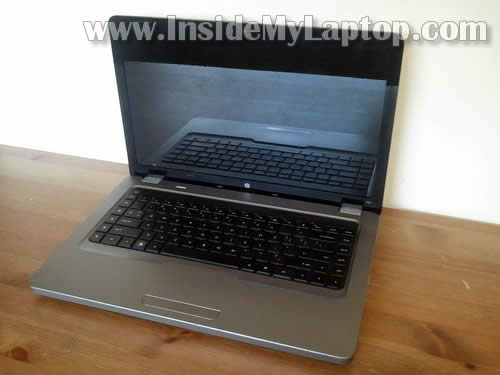
In this guide I explain how to disassemble a HP G62 or Compaq Presario CQ62 laptop.
HP G62 and Compaq Presario CQ62 are very similar (if not completely identical).
Before you start, make sure the laptop is turned off and battery removed. Let’s take it apart.
STEP 1.
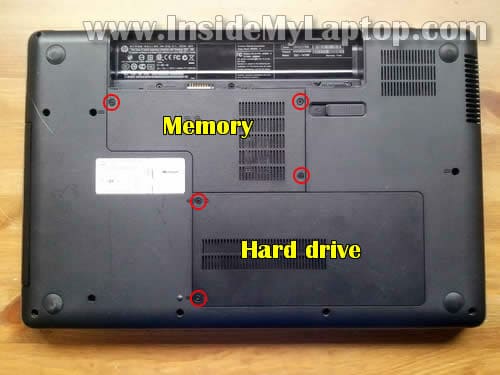
Loosen five screws securing the hard drive and memory covers. Remove both covers.
STEP 2.
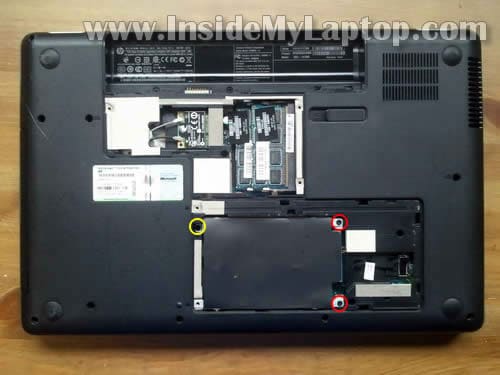
Remove three screws securing the hard drive assembly.
The left screw (yellow) also securing the DVD drive.
By the way, both memory modules can be accessed on the bottom.
STEP 3.
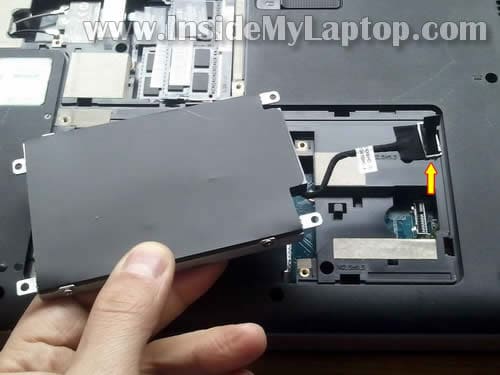
Lift up the hard drive assembly.
Disconnect hard drive cable from the motherboard.
Remove the hard drive assembly.
STEP 4.
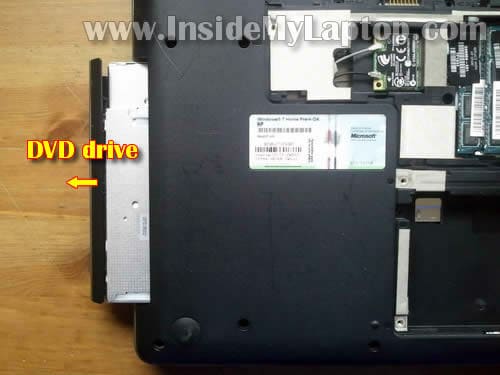
Pull DVD drive to the left and remove it.
STEP 5.
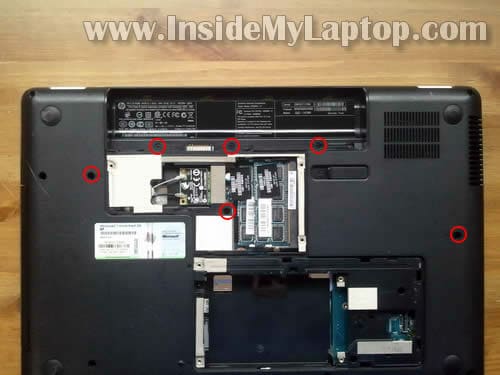
Remove six screws securing the keyboard on the bottom.
STEP 6.
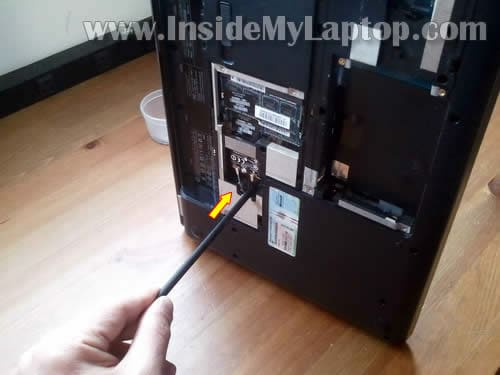
In order to remove the keyboard, you’ll have to push it through the opening near the wireless card.
You can use a pen or any other stick.
STEP 7.
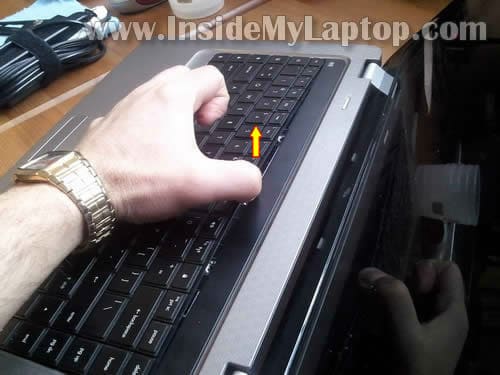
While pushing on the keyboard through the opening by the wireless card, grab the top side somewhere in the middle and lift it up.
STEP 8.
Turn the keyboard over and place face down on the palm rest.
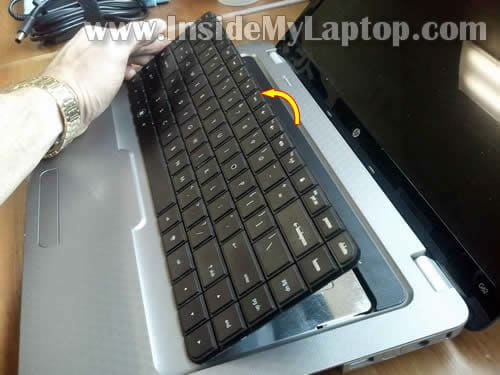
STEP 9.
Now you can access the keyboard cable connector.
Before you can remove the keyboard, you’ll have to unlock the connector and release the cable.
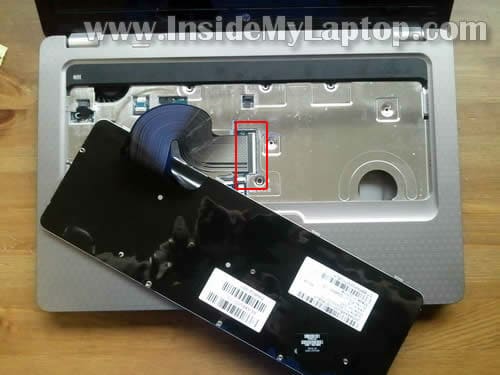
STEP 10.
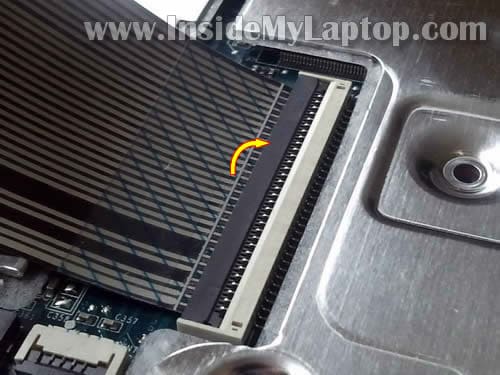
Here’ how to unlock the keyboard connector.
Lift up the brown tab with your fingernail. The tab opens up at a 90 degree angle.
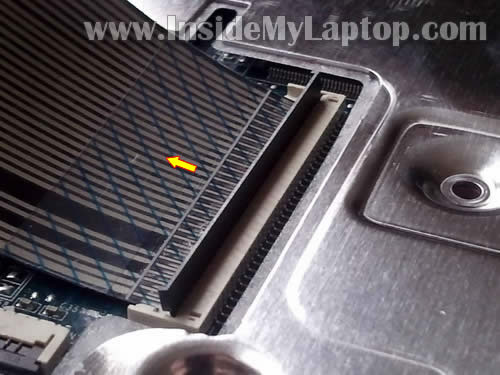
STEP 11.
On the following photo the connector shown in the unlocked position.
Now you can release the keyboard cable.
STEP 12.
Remove the keyboard.
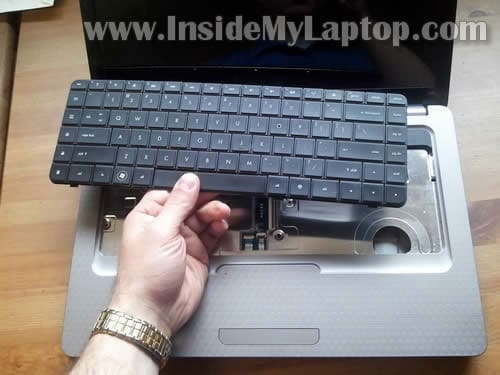
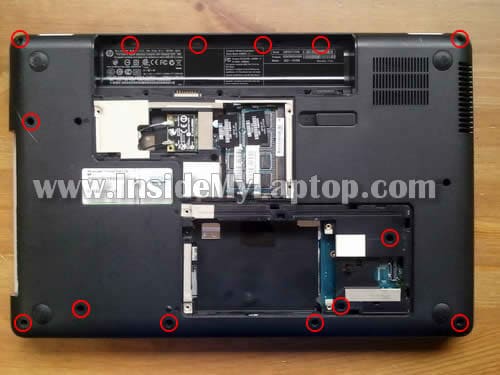
STEP 13.
Remove all marked screws from the bottom case.
These screws securing the top cover assembly.
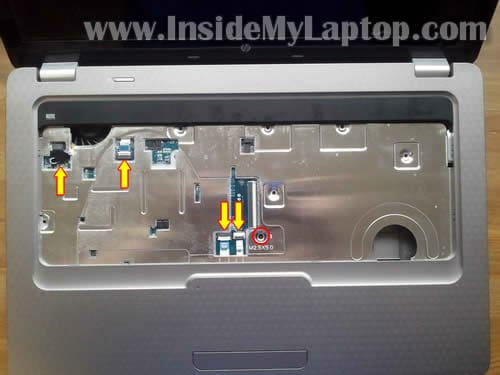
STEP 14.
Remove one screw securing the top cover.
Disconnect four cables from the motherboard.
STEP 15.
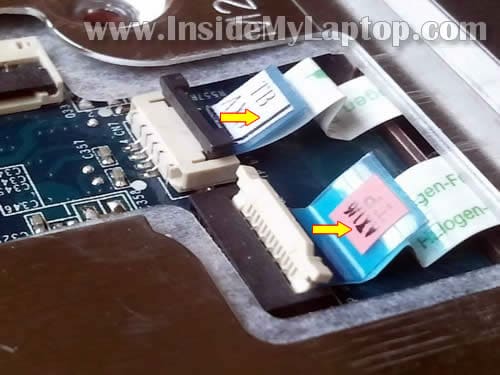
Unlock the touch pad cable connector same you unlocked the keyboard connector.
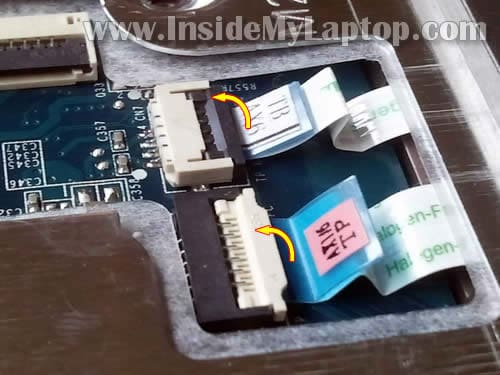
STEP 16.
After the connector unlocked, pull the cable from the connector.
STEP 17.
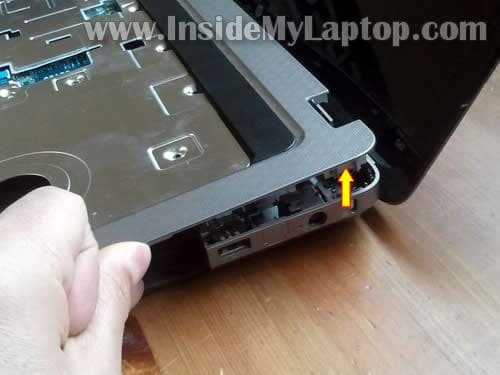
Separate the top cover assembly from the bottom assembly.
Continue removing the top cover assembly with your fingers.
STEP 18.
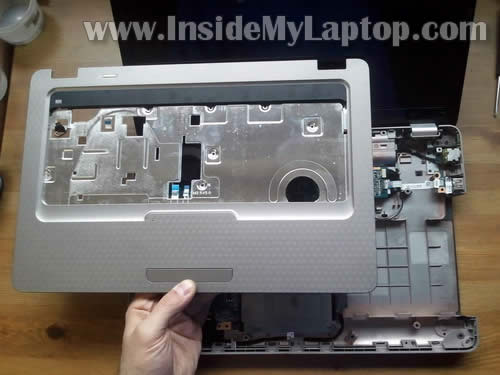
Remove the top cover assembly.
STEP 19.
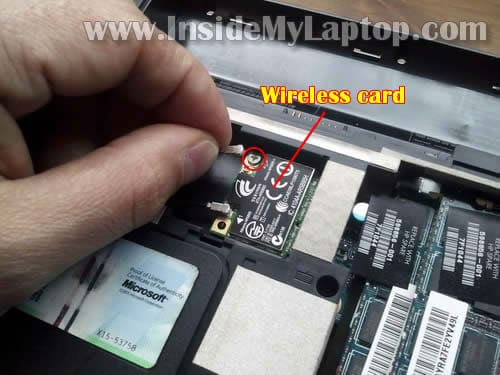
In order to remove the display panel, you’ll have to disconnect both antenna cables from the wireless card.
Also, you can remove the wireless card. Simply remove one screw securing the card and pull it from the slot.
STEP 20.
Disconnect display cables from the motherboard.
Remove four screws securing display hinges.
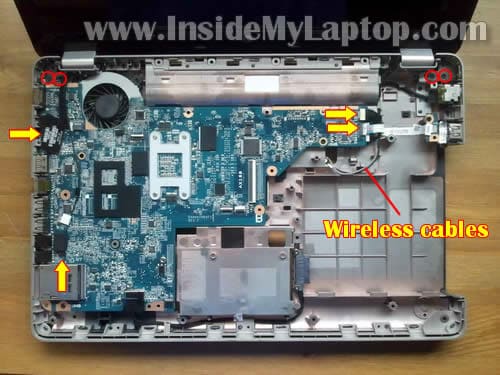
STEP 21.
Lift up and remove the display panel.
In the next guides I’ll explain how to remove the LCD screen.
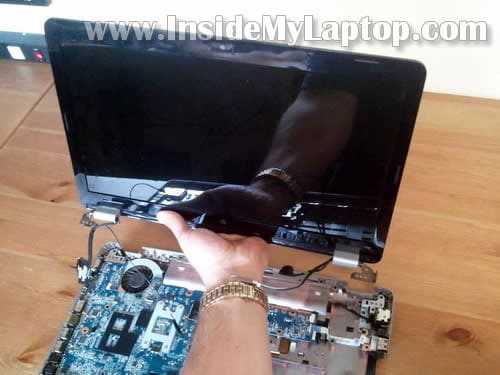
STEP 22.
Disconnect two cables from the motherboard.
Remove three screws securing the motherboard.
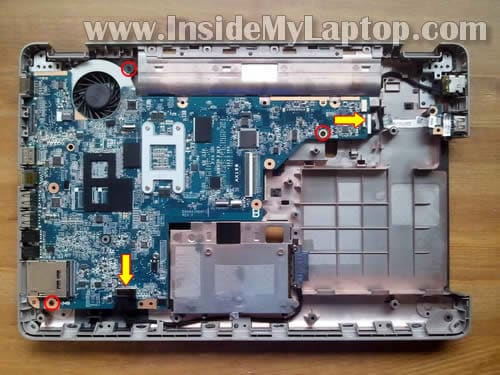
STEP 23.
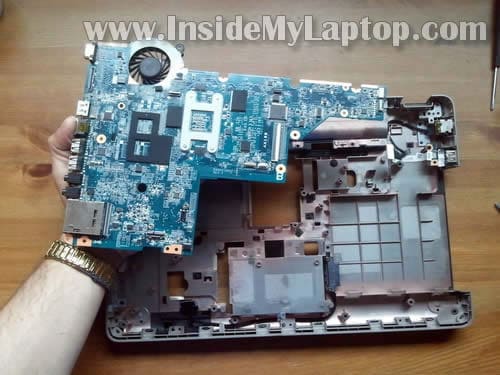
Start removing the motherboard as it shown on the following picture.
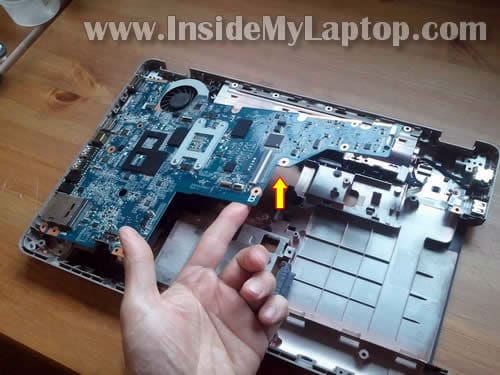
STEP 24.
Lift up and remove the motherboard.
STEP 25.
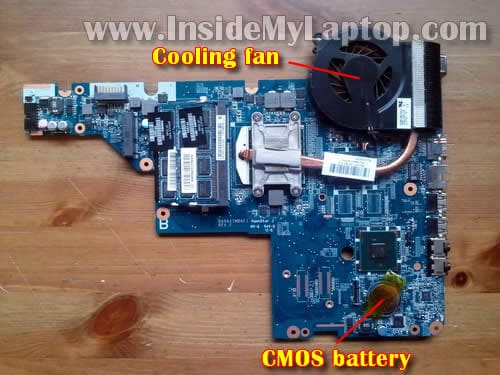
On the other side of the motherboard and you access the cooling module (cooling fan and heatsink) and CMOS battery.
Now you can clean up the cooling module or replace the fan if it failed.
STEP 26.
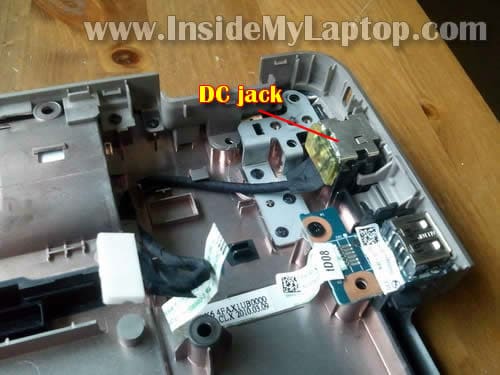
The DC jack is not soldered to the motherboard. It’s attached to the harness which can be unplugged from the motherboard.
If your DC jack failed, simply disconnect the failed harness and replace it with a new DC jack harness (again, it should be same part for both HP G62 and Compaq Presario CQ62 laptops).
ADI
Great article, thanks
Ricardo
Would you have a step-by-step images of disassembly of HP G60 series 530US Notebook? I need to change a DC jack and determine if it was or needs soddering.
elie
hi i have 2 laptops, ibm g40 and hp g62 b31, if i remove the dvd for the hp and put it in ibm will it work?
angelus
i have problem when i try to clean cooling fan from inside i made everything like here but when i put all together, the “i” “k” “,” and “8” dont work, the same is with quick launch buttons… Do you know what i screwed up? Sorry for eng.
IML Tech
Richardo,
Take a look at this guide:
https://www.insidemylaptop.com/remove-replace-damaged-lcd-screen-hp-g50-g60-g70-notebook/
The guide explains how to remove keyboard and display cover. After that it’s not hard to remove to top cover assembly.
Also, at the end of the guide you’ll find links to laptop service manuals with disassembly instructions.
IML Tech
elie,
Most likely the drive will not work or even will not fit.
IBM laptops use preparatory parts designed for IBM laptops.
IML Tech
angelus,
If the keyboard worked before and stopped working after disassembly, I think the problem could be related to bad connection between the keyboard cable and motherboard.
Try reconnecting the keyboard cable on the motherboard. Make sure the keyboard cable is clean and there is no dirt inside the connector.
angelus
i made everything again but is still don’t work, i clean cable and connector but no result, im little bit nervous because i dont wanna buy a new keyboard, any ideas?
LISA
Such a Great Article. it solves my problem, thanks…………
Ahmed Esam
Plz Any One Can Help Me
I Have HP G62
i can’t remove my battery
DennisB
Saved My Life
Zia
Thax Alot .You Saved me a $100.
Joseph
I was given a Compaq Presario CQ62 from a friend as a gift, it’s used btw. Are there different models of this same laptop? And if I wanted to replace, say the heatsink will one that says it’s for CQ62 work for all CQ62 models if that’s the case? I’ve also been wanting to replace the processor with an AMD Phenom 2 N620 or N660. The processor that’s in this machine now is an AMD V120, so will the CQ62 be able to run a 35w processor if my current one is 25w? Also, if I just want to change the processor do I absolutely have to take off the screen? One last thing, is the graphics card for this machine changeable too?
IML Tech
@ Joseph,
There are different models in CQ62 line but they are very similar. I guess the main difference will be amount of installed RAM, size and maybe speed of the hard drive, speed of the processor.
There are different fans. They are listed in this service manual for Compaq Presario CQ62 notebooks. You’ll have to figure out which model you have and which fan to use.
Don’t know. There are lots of different AMD processors listed in the same service manual on the page 23.
Yes, you’ll have to disassemble the whole thing and remove the motherboard.
I don’t think so. I believe the graphics card built into the motherboard.
Joseph
Thank you very much for the help, I appreciate it a lot.
bg
Nice demo! Wish there was an easier way to get to the fan.
Hawk
first of all, great tutorial
is there any way to install LEDs under the keyboard and put some sort of power supply in the case
if there is a method, how much money it would cost, maybe you can make tutorial about that it would be appreciated
Sami
Hi tanxs for the blog. I have one question. I have hp g62 notebook and the screen turn off randomely when i touch it in the back(screen back) it turns on. pls tell me the problem. Is it the video cable problem? Thank u.
rob
nice , but i have cq70
Josh
Wow, Thanks a lot!!
This helped so much!!!
Mark
Thanks, I’ve taken a lot of laptops apart but this one was different than most. Had to look it up to figure out how to get the keyboard out without breaking something. As usual the heat sink was completely clogged up. You’d think laptop manufacturers would address this issue. If not a complete redesign at least make it easier to access and clean.
Vasu
Hi,
Thanks for the clear procedure to fix my laptop. I owe you.
Vasu
jp
Thank you this helped a lot with screen repair of g62
much appreciated
burt
just wanted to let you know that your tutorial enabled me to fix my G62 laptop (cooling fan took a dump)…i would have NEVER attempted this fix (even though i have built, serviced and upgraded MANY desktop computers over the years) without the guidance from this excellent article.
amazing how simple laptops really are….you just have to be extra careful with the connectors and label the screws as you take them out….other than that, they really are very similar to desktop computers.
thank you again for your tutorial…it was spot on!
Kevin
Hi
Looks like a great article, I have a big concern before trying to clean out the fan though. You say pull out DVD drawer and remove. It doesn’t seem to be that straight forward to me, for example there is a tape that runs inside preventing coming out too far. Can you tell me how to remove the DVD drawer please, or anyone on the site who has done this.
thanks
Mar
Hi
After the disassembly of my HP G62 120-EG with without a tutorial i was looking for someone who made one. I had a plastic piece in my fan which made a nice clattering sound. Otherwise i would made one. So here it is a great tutorial, detailed, illustrated and with all difficulties this disassembly had.
newertheless thanks
Y-not
hakns .. look like cooling fan is a big problem for hp , not only this model bot many of hp’s machine :/
Y-not
Charles
Hi, tried too follow this guide in order to disassemble my laptop.
I found one huge problem though, there is pretty much no way I can remove my motherboard like that without breaking it, it just seems to require way too much force.
Anyone can give some additional tips on how to remove the mobo?
Himanshu Gupta
Hi,
I follow the above mentioned step however I’ve successfully Re-Assembled my Laptop.
Thanks
loukas
can someone tell me on hp G62 what could caused
the burn of the resistance pc522 on the back of the
fan 5 cm on the right is the first from top , in the same
place on front is an high voltage bridge IR0. the
problem is what could cause this ? overheat? Bad
tension administration? someone can help to know if
worth to change the resistance or not.
N.S.Devagiri
I was interested in converting Laptop to digital photo frame. But I was facing trouble in dismentling the laptop. this article will help me very much. I am very much thankfull to you.
Melissa
Charles,
The reason you cannot remove the mother board is because you have to detach the wireless card shown above. I made that mistake too.
Jrdn Hannah
Hi, thanks for the article, was a definite help in changing my girlfriends busted DC jack.
Was an HP G62, but there seemed to be some differences in screw placements, and I think there were a few more screws in the machine I opened up, but it wasn’t difficult to work out what to do!
Thanks again for the article, saved about $150!
– Jrdn
savage199two
this was incredibly helpful as my lappy kept having issues in this heat… it gets heaps hotter than it should running simple programs. and as such becomes a issue with burning things.
anyhow the the hdd had a bit of a failure and as im useto desktops i had no idea where to begin… all sort of working now 🙂 just got compaq’s back up junk to do now lol
Sean
I found this a great help in fixing the fan in my HP. It was noisy and not moving much air. We dismantled it and cleaned it out and everything seems to be working great. I couldn’t have taken it apart without these instructions. These seems to be built so you have to take it to a service tech, or risk breaking something!
Dino
Thank you. This was very helpful to me. I needed to be sure that my cooling fan was good and cleaned. I was abled to clean the dust out of there good.
farhan
great dis assembly guide man. thanks
Graham
ty man….
saved my daughters laptop…… a pad of dust was blocking the cooling vents……
Now it over heats no more cheers
Labes
Love you !
Bob
This is a great guide my cq62 is getting hot and I need to put some artic silver on that cpu, the gpu, and clean the fan.
I wish it was a little easier but it has to be done.
Alf
Hi everyone..pls can someone tell me my g61 just stoppped working ..when i plug my dc in the fan spins but nothing els happens and my wireless led stays on anyone pls help me???
Jim
thank you for the step by step. helped to get wife’s HP apart unfortinately
I guess during assy they stripped the head on the screw holding wireless card
so I can’t remove mb to grease the the heat sink on prosesser thank you hp
Michael
is there anyway to remove the fan from the heat sink or are they made together?
Cian
You sir are a life saver! I downloaded the service manule from HP and it was full of errors. This made life a whole lot easier.
kenny
You are impossible, God bless you real good, so accurate you just safe a life.
irene
Hi my friend, I have the problem for hp 530 which is not display, I tried to change th ram but I was not success in case that I need your idea
thank u
Michael
Hi there,
Indeed this is a fantastic guide. My G62 usually stops due to overheat and i manage to clean the dust inside.
However i made a mistake. When removing the keyboard connector i forgot to lift the holder and broke it, im afraid. No surprises, after putting all together, my keyboard doesnt work anymore.
Still it’s well secured and connected to the junction, but does the lift forces the connector to work?
Is there any way i can go around this issue?
Thanks in advance.
IML Tech
@ Michael,
Why do you think the connector is broken? It sounds like the holder still connected to the connector.
Try reconnecting the cable. Make sure it’s seated correctly, all the way into the connector.
MIchael
@IML Tech
Thx for the quick reply. Since im now carrying a wireless keyboard, i tried the laptop keys today and discovered they do work, not all but some.
About the lift and the connector, you see the image from step 11? the black piece you lift with your nail, is broken in my case. The cable is suited all the way, even put some tape to hold it in place.
However cant figure out a solution for it.
Many thanks for your attention on backing me up. Much apreciated.
Eli
Hi, are there multiple replacement fans for the G62 notebook? or do only the HP fans work?
Johanne
Hi why is it when I lift the lid on my HP G62 I have to move it back and forth in order tor the picture to show up?
DVLnBGYpnts
how does the LCD turn off when you close the lid on a G62? is there a lid switch or does the left hinge contact the mother board? i replaced the lcd and can only get it to work when the lid is 3/4 closed. before i buy a new video cable i was looking for a switch to test.
andy
Sorry to bother you but i have a question: On my G62 looks like the HDMI port broke off finally it is still there of course but no connection any more / last few months i had to “wiggle’ to make it work / the HDMI cable is too heavy and pulls the port downward so even with a little support under the connector is no connection now so it is phisically broken. So how can i fix this? Could you advise please? Thank you for your time.
IML Tech
@ andy,
The HDMI port is soldered to the motherboard. It’s necessary to disassemble the laptop and take a closer look at the port. Maybe resoldering the port will fix it.
Mladen
I followed your great set of instructions and came to Step.20 (Disconnect display cables from the motherboard.). When I tried to disconnect the very last cable (bottom left on your photo) – I pulled tinny wires out of their plastic connector 🙁
The dimensions of the connector does not give me any confidence that I could solder two things together – is there any way to do it or even buy the cable and replace the one with the broken end?
Thank you for your help,
Mladen
IML Tech
@ Maden,
I don’t remember what kind of connector it is. Look inside the connector. Can you see pins inside? Is it possible to connect wires directly to those pins?
Mladen
Thank you for an advice. The end connector of G62 microphone mic cable looks exactly the one I damaged during the procedure.
Regards,
Mladen
Michelle
Hi, I am trying to fix my Compaq CQ62, but i’m not 100% sure what I need. I am presuming the fault is with the left hinge, which seems to have either broken, or come loose somehow. This is causing the base to come apart at the top, left hand area, above the keyboard and a small corner shaped part has come out. The top part of the laptop base is now lifting up in that area & some of the keys don’t work. I don’t know which tutorial to follow and which part I need so could you please let me know what you suggest for this problem? Thank you very much.
IML Tech
@ Michelle,
There is no way I can tell what’s going on without taking it apart.
It’s necessary to remove the top cover assembly as it shown on the step 18 and take a closer look inside.
Maybe hinge screws shown in the step 20 are loose.
HanishGC
Can i use this disassembling process for HP G42 ? I think it is similar to this one….. Please Reply….
IML Tech
@ HanishGC,
This will be one of the next guides. I already took pictures while taking apart a HP G42 laptop. Now I have to compile them into a guide.
HanishGC
thanks man for the reply…… but can u make the guide fast……… i m facing the overheat problem so i would be better for me if u do it fast…….. anyway thanks again…
Robert
I need to replace my keyboard, I am also not a big fan of the stock keyboard that this model comes withg, are there other keyboards that will fit and configure properly? Please reply.
Thanks
IML Tech
@ HanishGC,
Here it is. Disassembly guide for HP G42 or Compaq Presario CQ42 laptop:
https://www.insidemylaptop.com/disassemble-hp-g42-or-compaq-presario-cq42-laptop/
Mark Bain
Fan Replacement – First off, THANKYOU for this indepth guide. I’m going to provide a little more detail about my fan problem and replacing the fan to help other readers:
My G62 fan was not coming on and I was getting the fan error 90B during start up. I had already cleaned out the fan area by lifting the keyboard (steps 1-8) and blowing air into it which had a large amount of dust. This allowed the fan to work on but it did not always start after pressing the power button. I used the ebay link step 25 and ordered from seller ny-citi-com for $11 with shipping and it got to me in 4 days. (Note, it included the thermal paste for the processor)
I followed the guide above, but I did not need to remove the display panel. On step 20, I removed the cables but I did NOT remove the screws for the hinges. I skipped step 21 but did the remaining steps through 25. The only thing you have to look for is on the left side hinge for the display there is a tab that sits on top of the Mother board but you can still get it out.
To remove the old fan, unscrew the 4 spring screws on top of the processor so that the heatsink holder is freed up. Unplug the fan wire. The fan and fan housing is simlpy stuck to the mother board with very strong tape. I used a very small flat blad screw driver and rotated it side by side until it popped loose. I did this on the top edge of the mother next to the video port. Look at the top right of the picture on step 25. The fan, fan housing, and heatsink are now free of the mother board. Now unscrew the 4 tiny screws that hold the fan to the fan housing (the houseing is a very then piece of metal that closes up the top side of the fan and is connected to the side vent and head sink. The bottom of the fan is shown in picture 25). Screw the new fan on.
I meantioned before, that the fan vendor sent me the gray thermal paste for the processors so I cleaned the old paste off the processors and the heatsink holder. If you don’t have this, just leave orignal on there. I put a small drop on each processor chip, lined up the screws and screwed it down using a crossing pattern to ensure it was on snuggly. Now put it all back together in the opposite order.
Again, Thanks for this great article.
Eric Watt
Thanks so much for this guide!
Started off wanting to replace the fan on my G62-340US but didn’t realize it was all the way at the bottom! After getting down there decided to upgrade to a Phenom II as well and my computer is running like a champ! This guide made it quick and easy, so hat’s off to you.
Once again, thanks!
mike
Can this work for my HP Pavilion DV6t SE
Please help i’m having a problem ” system fan 90B” Will the above steps work for my laptop?
Thanks 🙂
Anthony
I followed all of these instructions to the T, I replaced the fan and housing unit, and now my fan starts every time I turn the laptop on, but when I try to play video games or play a large MKV movie file my laptop abruptly shuts off. Before, my laptop would get too hot and it would slowly shut down since the fan wasn’t working properly… could i have reassembled something wrong? did I screw the heatsink back on too tight or too loose? Maybe I need to replace the thermal paste? Please help!
anonymous
hey, i have compaq cq62 (i5 , 4GB,…).
does this laptop has any graphics card slot.
and if yes then where is located ,with respect to above pics.
IML Tech
@ anonymous,
No, it doesn’t have it.
tekrn
while removing keboard,keyboad connector was damged,how to replace that….
dean
Thanks for the guide. Dust bunnies accumulated in my fan, prompting thermal shutdown. I opened up the fan, removed the bunnies, cleaned off old thermal paste and applied new stuff. Yay!
Jonny Carlberg
SHOULD MAKE A GUIDE ON HOW TO DISAMBLE THE BATTERY PACK, ONE CELL IN MINE IS DEAD AND I DONT HAVE THE MONEY TO REPLACE THE ENTIRE PACK.
WOULD DONATE FOR SHURE.
J
Just replaced laptop screen using your step by step instructions . Wow thank you so very much!
Josh
Have just pulled apart laptop to clean out CPU fan and replace the thermal paste. It used to get hot and slow down when being used for a while or doing some real work. Sure enough quite a bit of dust clogging up the fins.
Used isopropyl to clean, Arctic Silver 5 paste. Checked HSF mounting, all connections etc..
Started up, loaded into windows no probs. Restarted it and loaded into bios but it shut down a few seconds later. Now when trying to restart it gives overheating warning from previous shut down and shuts down 5-10 seconds later.
I’m confident its all back together fine, CPU fan is working.
I read Arctic silver takes a while to reach optimum efficiency but only a few degrees. One thing they recommend is slightly rotating the HSF but you can’t do that in this case. Might pull it apart and check the HSF and cpu have made good contact but im sure they will.
What else could’ve gone wrong here?
James
I want to try replacing the fuse, because my g62 computer will not power on nor will it light when plugged in. Is that the fuse or is it the motherboard? Where is the fuse?
Josh
Have resolved the issue now.
It turns out that the factory thermal pad is quite thick for the graphics chip. When you replace this with thermal paste, the heatsink barely touches the graphics chip. It looks like it is making full contact once on, but I removed the heatsink again and only a small amount of thermal paste had contacted the heatsink. The CPU was making great contact with its part of the heatsink.
So I applied more thermal paste (more than arctic silver recommends) and attached the heatsink, screwing down the CPU screws tightly first, then tightening the screws for the graphics part of the heatsink. This will make the most contact possible with the graphics chip, I hope.
This seems to have worked. Has been running for a few days now with no issues.
Is there a way to monitor the temp of the Ati HD 545v chip? Installed Open Hardware Monitor and it gives graphics voltage and clock speeds but not temp.
Josh
@ James,
Have you confirmed the external power supply is working? An electrical appliance store can easily test it. Takes one minute with a multimeter.
If that is working, next thing to try is step 26, replace the DC jack.
Check those two things first
ilias a
hello and thanks for suplying us an excellent job!!! i have a g62 hp laptop -135EV
can i upgrade the processor from intel core i3 to i7? and if yes how
thanks a lot!!!!
Tom
Nice procedure. According to the skimpy HP docs I read to replace my optical drive you remove hard drive which I did. then I read there is a release for the optical drive that you access with a screwdriver. Your procedure says to pull out the optical drive after removing the 3 hard drive screws. What secures the optical drive in the laptop? thanks
brian
Just got done with your guide, and the problem with my girlfriend’s cooling fan is completely fixed.
You rock and HELL YEAHHHH!!!
[been a problem for 8 months.]
Dan
@James Did replacing the DC jack work?
I am having same problem with my CQ62, it will not power up at all. When AC Adapter is first plugged in LED is orange/red then goes to solid white but pushing the power button does nothing.
Anyone have any ideas?
Dan
BryanSays
You are a life saver! Thanks so much for publishing this! Saved me alot of pain and agony to replace the fan in a friend’s HP compaq G62 laptop.
Gary
Ohh my god,,,,,,,,,, thanx for publishing this its a great help……………I changed the fan and battery by myself………amazing Thanks
Brandon
I am assembling a presario CQ62 and cannot locate where to connect the 2 black and grey cables from the monitor to the mobo. Step 21. I am taking your steps and reversing them to reassemble, i did not disasemble the laptop. can you help?
IML Tech
@ Brandon,
These are wireless antenna cables. You disconnected them from the wireless card in the step 19.
Luis
Hello, thanks for all hard work.
Question is, on this motherboard, here is power fuse?? cant find hem, is near to white power connector on motherboard, is the brown one??
Please, picture it…Please…
Regards.
Karl
Hi I replaced a bad motherboard (with hp replacement). The laptop turns on now, however, the screen is fuzzy and at start up there is a red vertical line that appears about 4 inches from the right side of the screen. It then goes away, however, all the colors are a bit off and blurry. Like what ever is supposed to be white, it now a bright blueish green color. Can you please help?
Warren
Thank you so much! I learned something new and saved money in the process!
Harry
Thanks for the tutorial, I was able to remove big dust clump from my Laptop. The donation is thanks for the help.
Teresa
Presario-CQ62 that is 2 1/2 years old. Had a 2 year extended warranty. Did not use the computer until the last 5 months. I noticed one day when turning on with the on/off button it didn’t seem to want to turn on. Then about a week later…it just won’t come on. I took it to Best Buy, they tested the power cord (it was fine) and they removed the battery to power with cord (wouldn’t power up). So…I am seeing it is probably the mother board. I am seeing some reference to a fuse replacement in inquiries. Is that inside the laptop? Any other thoughts? It never heated up. It is stored when not in use in a case. Just, stopped powering up. Is it possible the on/off button is no good? Why is it, when I buy a warranty the product always becomes junk within 6 months of the expiration? Bummed severely.
IML Tech
@ Teresa,
Remove the laptop battery. Plug in the AC adapter. Can you see any LED light on the laptop when the AC adapter plugged in?
There is a change you have a problem with the AC adapter. When you test voltage on the AC adapter without connecting it to the laptop it’s not always accurate. There is a change the AC adapter shows correct voltage when not loaded but when it plugged in the laptop (loaded) it fails to provide the required voltage. In short, before doing anything with the motherboard I would test the laptop with another known good AC adapter. If the laptop doesn’t work with another adapter most likely the motherboard failed.
Yes, it’s possible. If the laptop shows lights when the AC adapter plugged in but doesn’t turn on there is a chance of failed power button board.
This board is mounted to the bottom side of the top cover.
In order to replace the power button board you’ll have to remove the top cover assembly as it shown in this HP CQ62 disassembly guide in step 18. Remove the top cover, remove the power button board and replace it with a new board.
nachman
Hi there,
I’ve successfully disassembled the top cover, and replaced the DC jack. Need a new power button ribbon (tech seems to have broken the original one), but I’m having trouble attaching the touchpad ribbon cables to the motherboard. The little offwhite connector ‘locks’ came off, and it’s not obvious how to get them to stay back on. Also, it’s not clear whether the ribbon cables go on top of the pins, or beneath them.
Can anyone help?
hadi
Great step by step guide!!
Thanks so much for such good quality illustration and efforts!
QUESTION Please: Does it fit any bluetooth module slot?
Thanks again.
Richard
Just wanted to say thanks for ths. Excellent tutorial. I will donate and hope others do too. I scoured hp/compaq website and couldn’t find anything close to this.
FRANK
to replace the cooling fan, to what step do I need to dissemble to access and replace.
thanks
Said
i need an urgent answer please, i have a PC laptop HP G62-b16st with a microprocessor Intel core 3i and a graphic card switchable ATI Mobility radeon HD 5470 , and i have problem with the ati driver causes a black screen sometimes blue screen with atikmpag.sys error after many times of re-installing and updating with no chance.i hope its not a hardware issue. and if the ati card is damaged is it possible to replace it easily with a new one ?
thanks and wait your answer
Marko
Hi Karl, it sounds like the graphics on the new motherboard are defective, so you very possible got an DOA (dead on arrival) part. since its like 4 months since u’ve posted this, i hope it worked fine for you! 😛
Tom
Thanks. for the great guide. I need some tips on removing the motherboard connectors. On the one nearest the single screw (pic with step 14) I popped off a small rectangle of beige plastic. Any hints for reassembly. The one nearest the fan I have off.. The other two I’m stumped. Any help? Thanks.
Tom
Follow-up to my July 22 post. I got this all apart and back together OK. Works fine after fan replacement. One of the motherboard connectors was different. More like a plastic comb piece that wedges the ribbon cable in place, rather than rotates up to open?
Thanks again. This saved about a $100+ repair bill. Got the fan and paste for $9.00 on Amazon. Compaq CQ62.
Milt
I just reassembled my laptop, but the keyboard isn’t going all the way in. The top left corner lifts back up, so it’s sticking out a bit. I tried removing the keyboard screws and redoing it several times, but it’s just not staying in. Anyone have any ideas on how to fix it?
It’s not really a major issue, it’s just a little annoying.
Milt
Ok, so I just completely disassembled the laptop again, and I think the fan is what’s pushing the keyboard out. I took the fan off in order to reapply thermal paste, but the original tape isn’t strong enough to hold it down so the fan pops up a bit.
IML Tech
@ Milt,
I don’t think so. The fan mounted under the motherboard and cannot push the keyboard out.
I think something else isn’t in place. Cannot tell what is causing the problem without looking at the laptop.
Maybe the whole motherboard not seated properly?
ed
hello
Have you ever heard of a dc jack shorting and causing laptop to heatup and shutdown.
My laptop after 30 min’s running gets very hot at the dc jack area. (this is with ext. plug in)
without ext, plug in 30 min’s not as hot? help please asap your thinking
IML Tech
Ed,
Could be defective DC power jack or AC adapter plug. Probably one of them has bad connection inside.
Test the laptop with another AC adapter. If the problem still there and DC jack gets hot, replace the jack.
I cannot tell which one is causing the problem without testing the laptop with a known good AC adapter.
Col_Panek
Mine ran HOT until I blew the dust out with an air compressor (wasn’t that much) and now the fan loafs along.
I had a power input problem and disassembled down to the power board, wiggled a wire, and it started working again. That was a year ago.
RogerJazz
Hello. I have followed this guide, but when I assembled the computer one of the usb ports doesn’t work and I’m having https\sst issues. Can’t seem to access any https sites… Did i do something wrong somewhere?
Pete
I follow your guide and replaced the fan and power jack. Now, when I start the computer, it does not boot up. the fan runs, the power button, cap locks key, and wireless led illuminate, but nothing on the screen. Any advice?
John Martun
Is there any other way to access the cmos batter than completely disassembling the laptop?
Danko
Hi! My friend has HP G62 laptop. Few months ago laptop after start and “Press ESC for BIOS” start to shut down just after few seconds. I disassembled and assembled it again, but without WiFi card plugged in. Now laptop stays on and gives me an error (with code) and notifies me that WiFI card is not plugged in. Option is to press ENTER to continue, and after I press ENTER or leave it for 10 sec it again shuts down.
Does someone have any suggestion where is the problem, its not CPU because laptop powers on and gives me at least some message, but it seems when it tries to go to BIOS or execute BIOS commands it powers off??? Or can it be problem with GPU/Northbridge? Maybe with display (I will try to disconnect laptop display and get a screen on external monitor???)
Can anyone please help me, I am puzzled :((
david
hallo
Let me thank you for the advice you give on this website.
But i have a problem with my cq62 the screen sometimes fuzz but after moving the screen abit it stops for a while then starts again. i was wondering what could be the problem is it the screen or the inverter which has a problem. Its really annoying .
please advice.
IML Tech
@ david,
This model has LED backlit screen, so there is no inverter.
Most likely it’s one of the following:
1. The LCD cable is loose and makes bad connection with the motherboard or LCD screen. Reseating the cable on both ends might fix the issue. It’s not very likely that LCD cable is loose but reseating it doesn’t require any spare parts, so it worth trying.
2. Defective or failing LCD cable. I think this is your problem. You can try replacing the cable. I think you have good chanced to fix the laptop by doing that.
3. If new cable doesn’t help, probably you have a problem with the LCD screen itself. If that’s the case you’ll have to replace the screen.
Marko
I have the problem with this laptop,when i turn it on,I’t cant boot bios or nothing(Black screen)Cant turn display,i tried to go into bios even whit the hard disk removed,it cant.Do u know what it could be? ps.Two lights flashing for shut down button and f12(wierless button) Thx u.
IML Tech
@ Marko,
This could be RAM failure.
Try removing RAM modules one by one. Test the laptop with only one RAM module installed. Try different RAM/slot configurations.
Ðртем
доброго времени Ñуток! ÐžÑ‚Ð»Ð¸Ñ‡Ð½Ð°Ñ Ð¸ Ð¿Ð¾Ð´Ñ€Ð¾Ð±Ð½Ð°Ñ ÑÑ‚Ð°Ñ‚ÑŒÑ Ð¿Ð¾ разборке! 5+ еÑли не затруднит дайте маркировку конденÑатора (С 372) на шаге 22 где нужно открутить винты он находитьÑÑ Ñ Ð¿Ñ€Ð°Ð²Ð° от Ñтрелочки ÐºÐ¾Ñ‚Ð¾Ñ€Ð°Ñ Ð¿Ð¾ÐºÐ°Ð·Ñ‹Ð²Ð°ÐµÑ‚ в низ!
IML Tech
@ Ðртем,
К Ñожалению Ñ Ð¼Ð°Ñ€ÐºÐ¸Ñ€Ð¾Ð²ÐºÐ¸ не знаю но может быть Ñта Ñхема Ð´Ð»Ñ HP Pavilion G62 поможет.
Adam
I got to the part where you remove the motherboard but my motherboard seems to be really tough to remove easily as you did in the video. Is it usually hard the first time or am I doing something wrong? Please reply.
IML Tech
@ Adam,
Make sure all screws shown in the step 22 are removed. Also, make sure all cables disconnected.
Also, I believe you have to remove the wireless card shown in the step 19 before removing the motherboard.
Try that.
Adam
@IML Tech
I removed all cables and all 4 screws and it was still hard to pull off. I didn’t want to yank it off fearing I would break the motherboard.
IML Tech
@ Adam,
Try applying some pressure on the left wall of the case, where the ports located.
Maybe flexing the case will help to release the ports and remove the motherboard.
Blair
DO you have to remove the lcd screen to remove the motherboard? I realize you proabbly have to remove wireless card cables and card?
IML Tech
@ Blair,
You don’t have to remove the LCD panel, just disconnect display cable from the motherboard.
Yes, you have to remove the wireless card and disconnect antenna cables. Otherwise you cannot remove the motherboard from the case.
Jay
Thanks for the guide.
I disassembled the laptop in under 40 minutes, using this beautiful guide.
My laptop had died playing online flash video full screen. And I was seeing Caps Lock beeps to indicate CPU error.
I reflowed my laptop by removing everything removable from motherboard including heat-sink-fan assembly and CPU and RAM. And then I put it in Oven which was preheated to 385F for 8 minutes. Then I opened the Oven doors and switched off oven and let it cool slowly (around 30 minutes).
I reassembled and was Wowed when laptop came back.
IML Tech
@ Jay,
Congratulations! Just don’t trust this laptop and don’t keep any important data on it.
This repair is not permanent. 🙂
I believe reflowing the GPU chip with a heat gun is more reliable method.
khaled
hi
i did all and cleaned the fan and the overheat problem is solved now
but now the light in power button and wifi both don’t have lights now .. caps lock is fine
the keyboard now is working fine but when i hold something sometimes the keyboard stop working or it stop working by nothing and i have to restart my laptop to make keyboard work again .. when i press all buttons on the above left side the power button show light !! i can use my laptop with this but it may stop any time and that is annoying and when i play a game i have to hold some keys and if keyboard stops for seconds that will be annoying 🙁
i don’t know what is going on here
i put every thing in it’s place and my keyboard is mad now
i don’t want to go to repair shop now they may replace the keyboard even this problem has solution
all screw are strong i check them .. i tried to disassemble my laptop many times but the problem isn’t solved
please help
sorry for my bad english
IML Tech
@ kahled,
Take a look inside the keyboard connector on the motherboard. Maybe something stuck in there and because of that the cable makes bad connection with the motherboard.
Try reseating the keyboard, make sure the cable is plugged correctly.
khaled
sorry i missed another problem
when i press buttons near decrease brightness button the brightness will be lower then higher in a sec like decrease then increase brightness in 1 sec
i wish i could sent my real problem to you
sorry for my bad english
khaled
hey
i solved my problem .. it was because the power cable wasn’t locked well
connector locked was break because when i first disassemble my laptop i didn’t know how to unlock it .. after disassemble now my pad touch isn’t working even it’s two cables are in it’s place .. and a screw place is now destroyed idk why ..even there is something broken in battery place .. so i put battery with a Adhesive !!!! and i am thankful that these are just the problems because they don’t affect me .. i have a mouse so no need pad .. and the battery is locked with Adhesive and the lost screw doesn’t do any problem
thanks for guild but i advice you guys so put some money and send your laptop to a professional to repair it for you … i just wanted to clean the fan and my laptop has too many problems now and broken sites (maybe because mine is “made in china”) and i regret that i disassembled it i could just sent my laptop to a company and clean it for 6$
guys don’t do that if you are noob in it and didn’t disassembled any laptop before
JayS
What is the second cable on the right side of the monitor. I don’t have that and it’s freaking me out. I have the cq62 215DX. There is a socket for it on my mobo, but I don’t have that cable.
Sim
JayS:
The socket should be labelled on the board. I assume you’re talking about the black one that does not have the lever lock closest to the screen. That’s for the webcam, which the CQ62-215DX does not come with, so you can just ignore it.
klaus hellrigl
Thanks a lot for this guide!
Lois
Thank you so much For this!! My son has kept his laptop in great shape for years and all of a sudden black screen. Everything else works fine. Took it to a repair place and they shrugged their shoulders??!! I’m pretty crafty when it comes to fixing our computers and this one stumped me. I have the laptop apart already (hp g62), and was considering a reflow because the screen is fine. However, I’ve never done a reflow on an hp. Any advice on what I should take off before I do the reflow? Any advice is welcomed! Thanks and have a great day!!
lin
I done all this and replaced the screen but npw the whole laptop doesnt start, wish I need that the screen can be replaced without removing the whole frame. No more g62
Slappy
This tutorial helped a lot. I am still having a problem getting my uncles HP G62-219CA to get any power. I’ve replaced the bios battery and the power jack and still no joy. Could the motherboard be dead?
Thanks…
craig
Hi Sim,
Could you tell me how to locate the lid switch for hp easynote te g62?
Your guide is great for getting into lap top but my issue, so im told is a faulty lid switch.
Laptop wont boot unless lid is at third open.
Thanks.
Candice
In your step 14 says to disconnect 4 cables, can you please tell me how to reconnect the first cable on the left and what its supposed to connect to to.
jslx
my cooling fan has stopped working, what should i do?? or i should go to repair shop??
IML Tech
@ jslx,
It’s up to you. 🙂
Do you feel confident taking it apart and replacing the fan yourself?
It’s not an easy one. The entire laptop has to be disassembled for that.
Abbas
@Kevin to release the DVDrom there’s screw near Cmos. Look at this anyway
http://s28.postimg.org/jdfv0wrot/IMG_20141207_085959.jpg
Oleg
This tutorial helped a lot.
It is just great!
Thanks a lot!
marcus
your tutorial is very concise and helpful. great work.
ron ron
I’m about to take apart my HP g60 laptop to replace the cooling fan,I feel as though the instructions are very clear compared to other videos.
Jim
Of all the tutorials on how to disassemble/reassemble laptops, yours are far and away the best I’ve ever seen. I repair computers for a living and whenever a laptop comes in with serious problems I always hope I’ll find it covered on one of your pages. You make my life easier! Thank you so much!
NILESH SAWANT
REALLY ITS GREATE. THIS IS VERY HELPFUL ME. LOTS OF THANKS.
Fiona
Great guide!
When I disassembled the notebook, I saw that the motherboard has a black connector with this written “WIRE CN1 6 PINS”. This module BT BCM9207MD working in laptop?
Regards
Fiona
maddie
In step 4, right behind where the label on the cord is, there is a hole that looks like it should have a screw in it. You never say to take it out and I don’t remember removing one. I didn’t notice it until I was putting it back together. I didn’t have a screw left over, so hoping everything is ok.
This was a great tutorial. I need a new motherboard due to failed gpu. I took it all apart for practice to make sure I could put it back together before I order the board. Seems a success, I can still start it up using the blanket trick.
bright
i have hp g62 notebook and the following key stop working after cleaning the fan.( b, v, f, g, r, t,)
cari
I purchased this notebook brand new years ago. It began having problems from the start. My mother was the only user and she recalls having to replace the battery as instructed by hp, seeing it was still under warranty. To no surprise the problems persisted, in way of, extreme heat expelling from the underside, as well as when powering on, the caps lock blinking, fan operating, power and battery light on, but black screen, and sometimes not powering on at all. She being completely computer illiterate, and easily frustrated, gave up and it’s been sitting in a closet ever since.
I came across it today, and decided to give it a look over, to see what the problem is and whether it’s even worth attempting to fix. Upon searching the said issues, I came across countless other owners of the same hp g62 model, with identical issues. Obviously, my search also led me to your page this page, in which I couldn’t thank you enough for by the way. From what I’ve gathered, the problem seems to be with the cooling system/fan. My question to you is, is it absolutely necessary, take the entire machine apart, only to clean the fan? I am not familiar with any part of dismantling a computer, and fear I would do more harm than good. Which seems quite odd considering I live in San Jose, the ⤠of silicon valley, and am less than a block from IBM is located (now a historic landmark). Anyway, I read that other people have cleaned their fans simply by putting a vacuum up to the holes where the air is supposed to circulate to and from. Apparently doing so, did initially rectify at least some of the overheating issues. However, the great majority of these posts I read date back from ’11-’13. With all, the lengthy information I’ve given you. 😮 Can you please give me some advice as to what I should do? In your opinion is it even worth attempting to correct the problem. I appreciate any feedback you can give me. Thank you in advance!!! Truly, Cari
Francisco
I have a Compaq cq62, I misplaced the screws holding the keyboard (6 I believe). Where could I get them, I checked eBay but with no luck. Also I would need to know the size. Links would be great.
Thank you
washingtone
wonderful work Be blessed
fkshafi
I did all of the above and followed in reverse too to get the laptop running again. My problem is the single screw for WiFi card wont fit in. I desperately tried different screws, but to no avail. What did I do wrong?
dudey
Hi I did something very stupid. I disassembled the chip for the power button, and now i cant remember where and how to insert it back. It is not shown in this guide. Anyone help..
Ethan
Thank you soooooo much. This was awesome step by step instructions. My laptop had been making grinding noises coming from the fan and I had no idea how to take it apart. I have to admit once everything was apart including the screen, motherboard, keyboard, wireless card, hard drive and more, I was a bit panicked, but I just followed each step and then after blowing out my fan with compressed air, I followed the instructions backwards and it now works great!! thanks
Stephen P
Thanks – really, really great guide; really helped with daughter’s G62 – fan was full of dust. Some corrections / observations:
– The DVD drive on my model was fixed in with a screw not shown on yours; (I nearly busted trying to pull it out).
– You _have_ to remove the wireless card if you are removing the main board.
– nearly all the screws are M2.5 x 6 except the rear screws in the battery compartment which are M2.5 x 4 and the rear corners which are much longer M2.5, and the Wireless which is smaller – worth noting if you get your screws in a muddle.
– My model has the stock Intel integrated graphics. It is connected to a laughably small aluminium (?) case-mounted heat sink via a scrappy thermal pad. I am going to try replacing the pad with a copper shim and some thermal paste. Hopefully this will solve any remaining overheat problems.
Ashley
Ok i have a compaq presario cq62-211he i replaced the keyboard after liquid was spilt in it, before i replaced keyboard following all steps above, the computer wpuld turn on and function properly except for most of my keys didnt work some did, but now after replacing keyboard im getting power from my power cord light indicating so but my power button will not turn the computer on, what could this be? Please help as i and my husband are very frustrated!!!
TheFox
Hey there. Great tutorial. I followed most of it to get the keyboard changed out (something wrong with ctrl key, doesn’t turn off), but now for some reason, the laptop doesn’t power on. Did i put the screws in wrong? Is there a screw that’s supposed to be a ground? Just can’t figure it out. I have the COMPAQ CQ62.
Vladek
Brillllliant!!!
Samuel Lee
Which screws did you take off from where, because this laptop has four different sizes and I dont want to break anything.
baki
Hi , g62 won’t power up. nothing when pressed power button. When i put charger, white led light appear for 1 sec than became red. If i remove battery red change to white. That is all after i boot from usb stick in the middle of botting ? What to try? Thanks , amazing info here!
baki
To add: red lamp became white upon couple hours of charging. Its look like power button stuck . but now, using this manual , i disconect it from board and recconect, (in case that power button remains engaged) and nothing. Like there is no power. But charging indicate white led.
baki
YES! I will first share with you than reassemble computer back: i simply recconect ribbon cable from power button assembly, but not on motherboard but on button part itself – and now powering for the first time. !!! i didn’t put cable right on original location but clamp it half mm out , and its working.
sajad
Hi … my speaker doesn’t work after I disassembly my Hp G62 !
Do you know what is my mistake ?
Sonnyck
Thank you so much. You made my day. My mom’s laptop didn’t react at all, but I could see the power jack light going on. It seems one of the cables from STEP 14 (the second one from the left) was out of it’s place…