

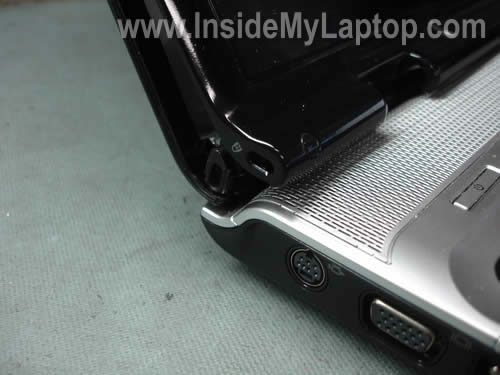
In the following guide I explain how to replace the left hinge in a HP Pavilion dv9000 laptop.
Broken left hinge is a known issue with HP Pavilion dv9000/dv9100/dv9200/dv9400 series laptops. A while ago HP was fixing this issue at no charge under the service enhancement program. This program has expired on May 31, 2009 and now you are on your own.
I believe this guide will work with some other HP Pavilion laptops even though replacement part numbers can be different. If it works for you, please mention the laptop model number in the comments below.
I will explain how to find correct parts for this repair at the end of the guide.
STEP 1.
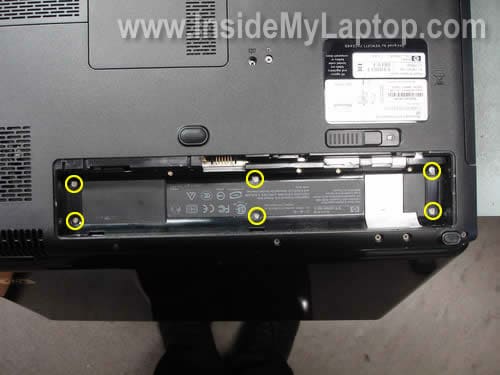
Remove six screws located in the battery compartment. These screws secure the switch cover.
STEP 2.
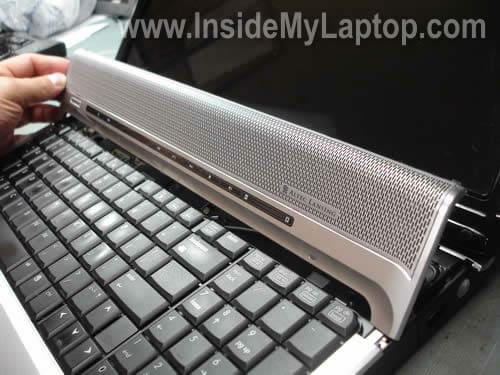
Remove the switch cover and place it upside down on the keyboard. Be careful because the switch cover is attached to the motherboard via a flat ribbon cable.
For more detailed instructions for removing the switch cover please check out my previous guide about removing the keyboard
STEP 3.
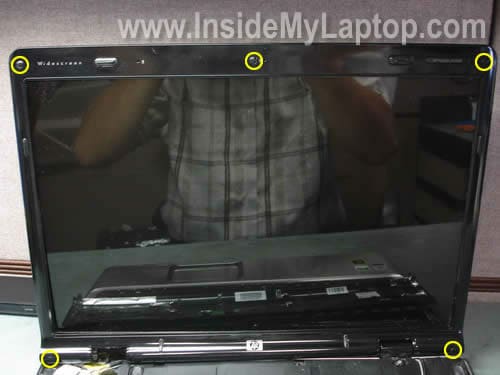
Remove five screws seals from the display bezel.
Remove all five screws found under these seals.
STEP 4.
Remove display bezel.
You’ll find more detailed instructions for removing the bezel in my previous post about removing and replacing the LCD screen.
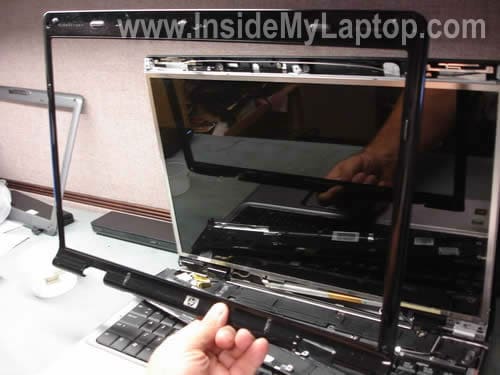
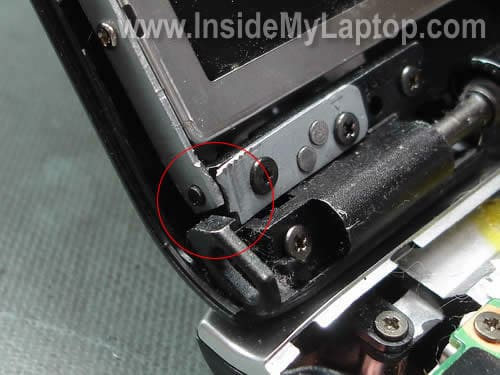
When you remove the display bezel, you can take a closer look at the left hinge damage.
STEP 5.
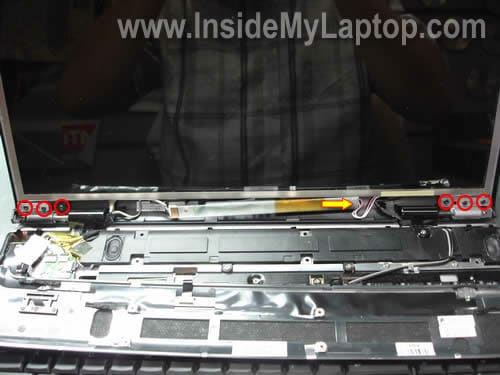
Disconnect the screen backlight connector from the right side of the inverter board.
Remove six screws securing display hinges. Three screws from each hinge.
STEP 6.
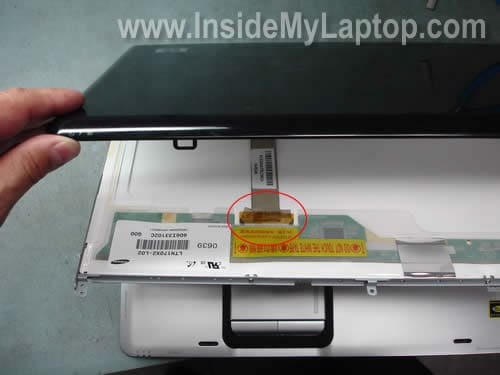
Now you can separate the display cover from the LCD screen and access the video cable.
Remove sticky tape securing the connection and unplug the video cable from the LCD screen.
STEP 7.
Remove two screws from each side of the screen. These screws securing the LCD screen to the hinge brackets.
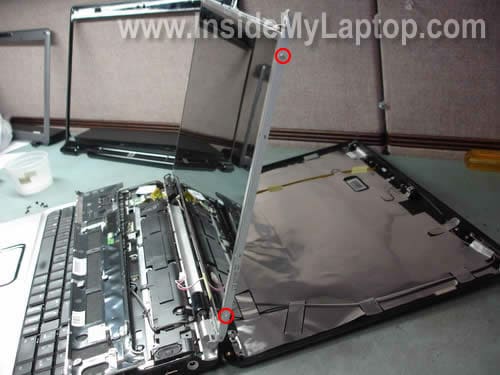
STEP 8.
Remove the LCD screen.
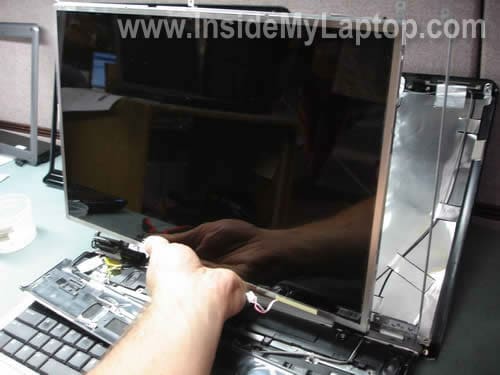
STEP 9.
Remove three screws securing the left hinge.
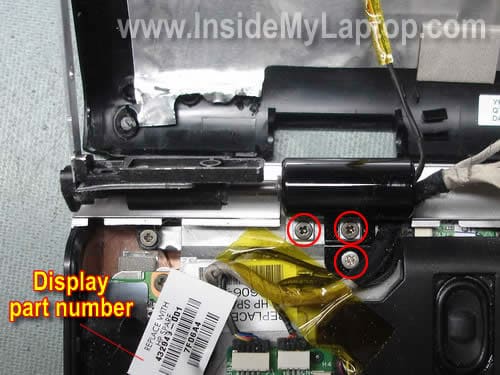
By the way, the display part number is located on a sticker glued to the video cable connector. Write down the display part number because you’ll need it later in order to find correct hinges for your laptop. In my laptop the display part number is 432949-001.
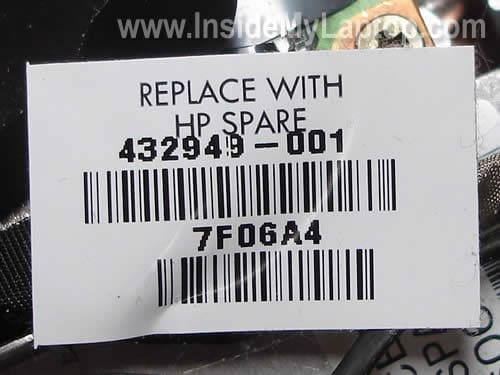
STEP 10.
Remove the left hinge assembly from the laptop.
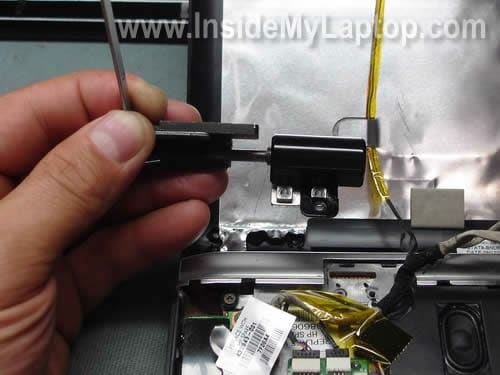
STEP 11.
Separate the hinge cover from the hinge.
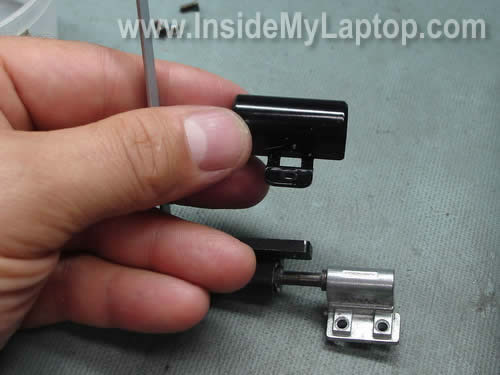
The broken left hinge is removed and ready to be replaced with a new one.
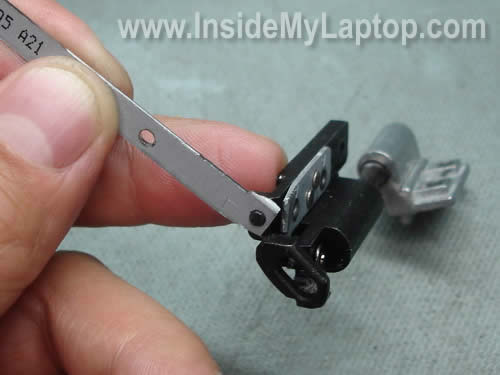
Unfortunately, in my laptop I found another damaged part, it’s the display cover.
All four screw anchors are missing and if I assemble the display panel like that, I will not be able to screw the left hinge to the display cover. The display cover has to be replaced too.
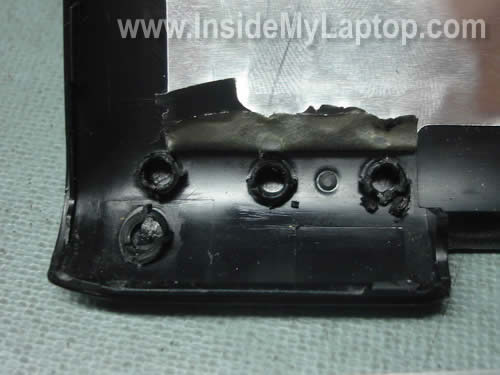
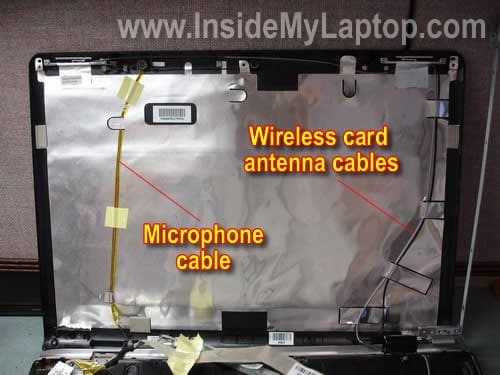
After you remove the LCD screen, it’s very easy to replace the display cover. Simply unglue the wireless card antenna cables, microphone cable, webcam cable (if you have any) from the cover and replace the cover with a new one.
How to find new hinges and display cover.
HP uses different LCD screens in Pavilion dv9000/dv9100/dv9200/dv9400 laptops. Some LCD screens come with single lamp, others come with dual lamp.
I found all LCDs listed in the service manual for HP Pavilion dv9000 and dv9200 on the page 151. By the way, for dv9100 and dv9400 HP links to the same manual and I assume you can use same part number for these models too.
Display Assembly Spare Part Number Information
For use with full-featured computer models (includes camera, camera cable, and microphones)
17.0-inch, SXGA+, TFT Single Lamp with BrightView – 432947-001
17.0-inch, WXGA+, TFT Single Lamp with BrightView – 432946-001
17.0-inch, WXGA+, TFT Dual Lamp with BrightView – 432948-001For use with de-featured computer models (includes microphones)
17.0-inch, SXGA+, TFT Single Lamp with BrightView – 432950-001
17.0-inch, WXGA+, TFT Single Lamp with BrightView – 432949-001
17.0-inch, WXGA+, TFT Dual Lamp with BrightView – 432951-001
In the step 9 I found that I have 432949-001 screen installed in my laptop, so I have to use hinges and cover for screens with single lamp.
You’ll find part numbers for display hinges and display cover (enclosure) on the page 87 in the same manual.
Display Hinge Kit (includes left and right display hinges)
For use with Dual Lamp display panels – 432964-001
For use with Single Lamp display panels – 432963-001Display enclosures
For use with Dual Lamp display panels – 432958-001
For use with Single Lamp display panel – 432957-001
I already ordered new hinges and display cover and install them soon.
redz
hi!!
I want to how to disamble my hp dv 3500 laptop, if there any guide of other laptop which are similar yo dv3500. can u plese show me.
Jay
Hello I’m disassembling my DV9202EA. I have the same problem. The left hing is damaged and the backcover of the DV9202EA is damaged. The screwholes were broken.
Also the LCD screen gives many stripes when I turned it on. Could anyone tell me what kind a problem I have. Before I order new parts?
I can leave a picture of the bootscreen. Many thanks for the answers in advance.
Best regards jay
Vladimir
Hello. I have model Pavilion DV 9308 nr. The both hinges are broken 🙁 How to know what kind of Display enclosures I have? Single Lamp or Dual Lamp ?
IML Tech
Vladimir,
I guess you didn’t read though the entire guide? I explained that at the end.
1. Find part number for the display assembly.
2. Look up the part number in the service manual and find out if you have dual or single lamp LCD installed.
Vladimir
Yes, I read the entrie guide , but I don’t understand.
1. I go on page 151 and I have “For use with de-featured computer models
(includes microphones)” .
There are 3 options, how to know wich one is my lap-top (SXGA+, WXGA+ , etc) ?
Mitko
Can somebody explain me how to change right hinge? It is not same as left.
Regards
IML Tech
Mitko,
The right hinge is different but the replacement procedure is very similar.
Remove the plastic hinge cover and unscrew the hinge from the base.
IML Tech
Vladimir,
I’ll try to make it more clear.
1. Remove switch cover as it shown in the step 2.
2. Find display part number as it shown in the step 9.
3. Compare your part number with all part numbers listed at the end of this guide and find out if it belongs to LCD with single or dual lamp.
Still not clear?
All you need to know if your LCD has single lamp or dual lamp.
Kevin
Tech,
Awesome write-up, really appreciate the help. I’ll add that in the laptop I was disassembling, there was no part number on the LCD screen cables. I found the part number for the display enclosure up near the webcam/microphone underneath the LCD screen, then matched that up with the part numbers you listed.
I had another question: All of these replacement hinges on eBay say they are OEM original — but we don’t want the original ones again, as they’re just going to break! Are these all redesigned hinges, with different part numbers than the original hinges? Some of them seem super cheap, but the more expensive ones don’t say they’ve been redesigned either.
Thanks,
Kevin
IML Tech
Kevin,
To be honest, I don’t know. I used original HP part number to find replacement hinges. Will it break again? I don’t know.
Miguel
Hi Tech, I just got both right and left hinges and replacing them. Only problem is that they are really stiff and can’t move them to the correct position to installed them. Are they supposed to be this stiff? Thank you.
IML Tech
Miguel,
New hinges are usually stiff.
Chris
Hello, This is a awesome write up! I have a screen with some lines through it when i move my LCD to view it better, so i’ll most likely be replacing the screen soon. My question to you is, #1, what do you mean when you say you have to replace the cover, in order to re-install the lcd? You mean the shiny peice that looks like it’s aluminum? Is this a must or can i skip it? (Actually re-reading everything, it sounds like you only replaced the cover because you needed to in order to replace your hinge, correct?)
#2, I have a loose left hinge, is their any issues with leaving it loose? It really looks like a simple task but I’d really rather just not fix it at all if it’s not going to effect my laptops performance, and/or mess up any connections to the LCD itself. Thank you for your time!
IML Tech
Chris,
I replaced the cover only because it had damaged screw anchors. Otherwise, I wouldn’t replace the cover.
If you have a failing screen, replace just the screen.
I cannot tell without looking at the laptop. If the hinge is still in good condition, do not replace it. But if it fills like the hinge is going to fail soon, replace it with a new one so you don’t have to disassemble the laptop two times.
Paul
I think you are my hero, really. I have the same problem that you explain very well with photos.
I was very disappointed when I discovered that HP closed the SML (service media library) where was uploaded a lot of video for disassembling Pavillion series. Now you have to be a registered partner to take access to library.
So today I decide to replace broken part alone, without any guide and at the end I found your very great page!!!, I believe that my dv9059ea has the bezel screwholes broken on the left. Hinge and enclosure too, by the same side, of sure.
So two question:
1 how can I find the part number for bezel?
2 do you suggest to buy it on ebay?
I hope you answer mw.
sorry for my english, i’m italian
paul
IML Tech
Paul,
When I search HP website for dv9059ea, it brings me to the service manual for the entire dv9000 line. I believe you can use same parts as in dv9000 notebook.
Here’s the manual: http://h10032.www1.hp.com/ctg/Manual/c01311536.pdf
Go to the page 5-39 with the display disassembly instructions. You’ll find display part numbers in there. Just google the part number and find where you can buy it.
joel
GREAT WRITE UP!!! KUDOS to YOU!!
Caveats: The display spare part number was not indicated anywhere. But, since I also needed to replace the display enclosure (like everyone else), I noticed the spare part for the enclosure was for single lamp LCD. VOILA
francoise
Hello, I’m french, sorry for the language. I bought the hinges left and right dv9000 on EBAY. They are completely different, is this normal? , they are stiff, is this normal too? I have not yet installed THANK YOU
Michelle
I just finished replacing both hinges – they both broke. I bought them from ebay for $20. They seem to be working fine. My back cover had the damaged screw anchors, but I am going to see if I can hold off replacing. So far it is working. A few notes:
– The right hinge’s screws are on the bottom of my laptop.
– look to see how the wires for the screen are when taking it apart (they are under the black cover of the hinge) or you can not get the bezel on correctly
– make sure you plug the video cable back in correctly or you will have to take your laptop back apart!
Good Luck!
Greg
I did this, but after I finished and turned the laptop back on, my display will only work on an external monitor. I checked to make sure that all the connections were good, but still nothing. the backlight turns on like it is going to work, but that is all it ever does. It just leaves me with a bright, black screen. I hooked it to my tv however and it works just fine. This is not really ideal for me since it’s a laptop and I would like to be able to use it anywhere. Anyway, if you can think of anything else I should check into let me know. Otherwise, I’ll try and take it somewhere or just trash it.
IML Tech
Greg,
Take a look into the video connector on the motherboard. Maybe you accidentally bent one of the pins? Make sure there are no bent pins inside the connector.
Also, have you reconnected video cable on the back of the LCD screen? Maybe you accidentally pulled the cable from the connector?
Dave D
I had a broken right hinge, and hinge cover. The actual hinge didn’t break, but the little rectangle shape protusion on the bottom that locks the hinge in place had broken off. I tightened up the two right hinge screws that come up from the bottom and it is nice and tight now. I plan on ordering a replacement hinge so I can make a proper repair. The only problem is that now my screen is black, totally black, like there is no power going to the screen. An external monitor works fine. I didn’t disconnect the cables, so that’s shouldn’t be the problem. I even went back and checked them, they are still in place. I’m getting real good at taking the case appart and putting it back together. I wish there was a way to test it before I put everythign back together! I tried pressing the Function+F4 keys, but all that does is make the remote monitor flicker, then give me to option to choose the remote monitor.
Any suggestions?????
IML Tech
Dave D,
If the laptop has video on the external monitor but not on the internal LCD screen, the problem is related to the display panel somehow.
1. Is it possible that you accidentally pulled the cable from the back of the LCD screen?
2. Is it possible that you accidentally damaged the video cable?
3. Did you use right size screws? Maybe the screw is too long and shorting the motherboard. Just a guess.
Dean S
I have a broken left hinge. I am having someone come and repair the laptop once I get the parts…the problem is I don’t know which part to order. How can I tell (without taking the thing apart to see the part sticker) if i have the single or duel lamp display?
I have a HP Pavillion dv9000 with a webcam built in to the screen.
IML Tech
Dean S,
That’s exactly why you pay someone for service.
You cannot.
Andrew
Wow what a write up. Broken Hinge left side which I’m going to do weekend.
If it goes to plan I will donate a tenner to you for the effort that you have put into this site.
Good on you mate.
Have a beer you deserve it.
IML Tech
Andrew,
I hope it works well for you, I’m ready for beer. 🙂
Thom
Thanks for the writeup. I fixed my (completely broken) left hinge and was even able to salvage a couple of the screw anchors with some epoxy. I used some chinese hinges I bought off ebay. I compared the new hinges to the factory installed ones and I can verify that the ebay ones are much more robust. If you use “dv9000 hinge” in your search on ebay, you can find a set for around $10 shipped. Just expect to wait a few weeks for them to get to you from China. Thanks again!
Ken
help!
got the computer apart like your instructions and everything but the hinge is broken on the left side.
what do I do?
Here are photos of what is broken.
http://s144.photobucket.com/albums/r183/mentorken/?action=view¤t=broke1.jpg
http://s144.photobucket.com/albums/r183/mentorken/?action=view¤t=broke2.jpg
http://s144.photobucket.com/albums/r183/mentorken/?action=view¤t=broke3.jpg
http://s144.photobucket.com/albums/r183/mentorken/?action=view¤t=broke4.jpg
I already called HP and they said sorry but it’s not our problem.
Ken
IML Tech
Ken,
If the hinge is broken you have to replace it with a new one. I think that was the main purpose of my guide, wasn’t it?
Ken
I need clarification on what is the HINGE. Your pictures seem to show the metal thing that goes around the edge of the LCD screen. That is not what is broken on my HP.
What broke on my PC is the black thing that holds the LCD lid to the metal spindle. Is that called the hinge too.
I took the part number off of the computer 448014-001 and it looks like it is the part number for the metal frame around the LCD. I don’t need that.
Take a look at this pic for more clarity.
http://s144.photobucket.com/albums/r183/mentorken/?action=view¤t=broke2.jpg
Ken
IML Tech
Ken,
The HINGE is the whole thing shown on the second picture in the step 11.
It includes the LCD mounting bracket (gray metal) which was broken in my case AND the hinge itself (black metal) which is broken in your case.
The whole think shown in the step 11 is called HINGE.
Ken
Hey thanks a bunch. If I can pull this off ANYONE CAN DO THIS. I couldn,t find the sticker with the numbers on it but I found that the actual broken hinge has a number on it that I used to make sure I got the right one. For a single lamp the number is 3JAT9HATP05 or 25. It’s stamped on the hinge arm.
My wife’s gona sh** when she sees the laptop spread all over the kitchen table. I hope to get the hinges in a couple of days and I’ll let you know if I get it put together correctly again.
Ken
Mike
I have a broken right hinge on a HP Pavilion DV6000.
I need to know where and how to order the correct parts for replacements.
IML Tech
Mike,
You’ll find this information in the maintenance and service guide for HP Pavilion dv6000 notebook. Follow the link. It’s a pdf file.
Kevin
Hello There,
I seem to have run into the EXACT same problem you had. After pulling it apart (making use of the guide, thanks a lot), I have the left hinge broken in the exact same place as well as the back cover screw mounts broken.
I’ve already ordered a new hinge from eBay, but the prices on the back cover are ridiculous. I just paid nearly $500.00 last month to have the motherboard on this thing replaced after the video card fried it (not covered by extended waranty for my particular product number, hmmmmm), and I’m tired of throwing money away. Do you think it would be functional to just replace the hinge and then put it all back together, maybe with some krazy glue holding the enclosure screw mounts on or something?
I’m ready to run this thing over with a truck pretty soon…
Again, thanks A LOT for the guide, it made life a lot easier than if I were trying to follow the maintenance guide.
Cheers
IML Tech
Kevin,
I think it’s possible and I’ve don something like that before but it really depends on the kind of damage. I cannot give you a good advice without looking at the laptop.
Ken
got it all back together and it’s running fine. I ordered the hinge from battery-adaptor.com and found out after the order that it shipped from Hong Kong. Took about 3 weeks to get here.
But guess what? Followed the instructions in reverse and now my laptop is almost as good as new. When the left hinge broke it took out the screw that fastens the cover to the back. I used a little black electricians tape and it holds the cover together.
There was one problem that I ran across when I was trying to put everything back together after 3 weeks of having it on the table in pieces. There is a black cable that runs along the left hinge that I l left over the hinge when I put it all back together. Couldn’t get the cover back on, had to tear it apart to put the black cable under the hinge cover then it all worked fine.
Thanks a million.
Ken
IML Tech
Ken,
Thank you for your generous donation.
Jason
Hi I really need help. I have the same model HP as the one in the above demonstration. A couple days ago the sound stopped working. It started while i was playing halo on my computer. The sound became distorted then just stopped, i quit halo rebooted my computer, then the sound worked untill Then when i started halo again the same process occurred, the sound became distorted and just stopped working. But then after i restarted the computer the sound didn’t work. It doesent even work with headphones. When i look at the volume icon in the corner there is a big red x on it and when i hover the mouse on top it says “No audio Out put device is installed” however re-installing the sound driver did not work at all. I’m not sure but i think this this might be actually a hardware problem. Do you have any advice or suggestions my Laptop now has absolutely no sound now which is breaking my heart because really need sound for my language study.
-jason
IML Tech
Jason,
Your description sounds like a problem with hardware. I think the sound card went bad. If that’s the case, you’ll have to replace the motherboard because the sound card is integrated into the motherboard.
Brandon
My HP notebook is not affected (that’s what HP says) and its not cracked, but the hinge is loose. Do you know if I open it up, is there a way to tighten it?
robby
hey my right hinge of my laptop is broken, is it the same procedure as this one to fix it.
IML Tech
robby,
It looks like Shari answered your question in the comment 44.
Shari
I just fixed mine with these instructions and everything is fixed!! I have a dv9000 and the RIGHT hinge was broken. The hardest part was taking apart (instructions were bang on, just nervous to tear into it and do some damage along the way). I was also perplexed with the single versus dual issue. Mine was a single. As I took apart, I labelled everything in separate ziplocs and numbered each bag as I went, so I could reverse the order easier. 3 weeks later, I thought it would be daunting to remember what I had done, but it actually went together way easier than it came apart. My advice is to pay attention to where the wires lay as you remove the hinges. As someone else wrote, if you don’t lay them back in the right place, screwing the hinge back on feels wrong. Everything works, sound, camera, monitor, keyboard, mouse, and IT OPENS AND CLOSES now. Thank you sooooo much for these instructions.
Gilbert
I replaced my hinges – but now my battery does not charge – do you know what cable is the battery cable are do you might know what I did wrong to make my battery stop working?
Kopacabana
Hi there
I bought my DV9000 in March 2007 and the left hinge broke in October 2008, meaning the screen would no longer shut properly. I contacted HP about this and they said there was nothing they could do. I came across this website completely by accident only to find that the fault WAS covered up to 31 May 2009. Why didn’t they tell me?
More importantly, if this is a ‘known issue’ then surely the manufacturer is bound to rectify it for any customer, regardless of any deadline it wants to set.
When buying all sorts of other household items, if the manufacturer recognises a known fault then all customers are notified and the products are either recalled or repaired. What makes this all the more frustrating is that I registered my laptop with HP when I bought it. So, HP have known all along the particular model I own. Why, when ‘known issues’ or problems relating to certain models have HP not contacted their customers directly?
It’s a disgrace and I shall be taking this up with HP.
Dave
Thanks for the very helpful guide!
I ordered a hinge replacement for from “SunTek” store out of HK. It took a couple weeks to get it, but it was cheap, and worked!
They claim that it will “work with all HP Pavilion DV9000 series laptops”, so I ordered it before taking my laptop apart – it was worth the risk!
Marcelo
I am the unfortunated owner of a DV9000, besides the Hinges problem, my unit had the WiFi chip NVidia blown up by temperature, and the the wel known problem of erratic Boot caused by temperature too, all of them design problems, so after a couple of years I have a completely unusable unit which I am sendind to the trash basket, and believe me ” I WILL NEVER BUY ANOTHER HP PRODUCT AGAIN”
Dave
I have a problem with my HP DV9000 the motherboard to screen conection has bent pins on the motherboard is it possible to repair or can it cables be solderd across from the bent pins to the screen cable. Every where I take it they say send it back to HP for repair but I cant find out howmuch it would cost if they fixed it, please can you help.
martin nnachi
my model is the dv9605ea and i seem to have the EXACT same problem yours had. tried to shut it one day and i heard a crack! my laptop cant close anymore. so its not just the hinge but also the black display cover for the lcd screen.
pls i would like to know where i can get a new cover for the screen.
oh, and i live in the uk
cheers
IML Tech
martin mmachi,
The screen cover a.k.a. display enclosure. I mentioned part number for the enclosure at the end of the post.
You can confirm the part number in the maintenance and service guide.
Google the part number or search on eBay. Find out who is selling them in UK.
ned
try araldite. it worked for me!
also, update your bios to fix the fan problems or your graphics card will probably blow 🙂
martin nnachi
ok i’ve found where i can purchase the hinges but my laptop poses another issue. my nephew tried to shut my laptop (bearing in mind that it couldn’t close initially due to the broken hinges) and now the screen’s not coming on; its just black. have to connect my laptop to another VDU. what could be the problem?
thanx
martin nnachi
also, whats the difference btw single lamp and dual lamp lcds. my model is pavilion dv9605ea. How can i know if mine’s dual lamp or not.
cheers
Carrie
Thank you so much for going taking the time to make this guide. This just happened to my laptop last night (although strangely on the opposite side of the lock, the right hinge) and I’m going to use your guide to take it apart and hopefully fix the problem. THANK YOU!
Isabel
Hi I have a Hp laptop dv9000 my monitor keep’s going out and the flat pannel where the different lights are have went out but not the power switch. I’ll start the computer see nothing on my screen. The computer will shut down, then start up and etc. What could I do…?
Kevin
Just as a heads up for folks, I purchased a replacement hinge from a vendor named laptopz-outlet on eBay back in November, and they have now broken again after only 2 months of use. The vendor has refused to return any messages or e-mails… I guess the message is “buyer beware” on eBay, but hopefully I can get a new set from a different vendor and repair them the same way.
Carlos
I wanted to know if instead of doing this myself if there is a store or somewhere were you mail it and fix it for you?
shane
hello, I have a HP Pavilion dv9000, and my left hinge broke but i have follow your instructions on how to find your part number but it is not in here and i can’t find it i will take a picture of it if you want.
the only number i can find is 432919-001 can you help me on finding how i can figure out what i need to get and how i can find out if it has Dual Lamp or Single Lamp display panels?
Stan the person
Here’s a variation I’ve not seen addressed… My HP Pavilion was a Costco unit. Now to get the LCD to function I have to grip the top left corner, squeeze just right, and apply some downward pressure. I feel like the Fonz and the jukebox – and as long as I don’t flex or move, I can type away. The innards appear to be fine – I can attach the external screen and Function F4 and things are great. I removed the bezel – wires seem ok. It opens and closes smoothly. Any help or an estimate of in-shop repairs is appreciated
IML Tech
Stan the person,
Sounds like a problem with the LCD screen. I think your LCD screen is going bad and you’ll have to replace it soon.
Vitaliy
I have hp dv9533eg . I have this problem but broken right hinge. Is the solution the same?
Thank’s!
Vitaliy
#
56
Carrie Says:
February 17th, 2010 at 7:14 am
Thank you so much for going taking the time to make this guide. This just happened to my laptop last night (although strangely on the opposite side of the lock, the right hinge) and I’m going to use your guide to take it apart and hopefully fix the problem. THANK YOU!
Carrie please write here how it was(fixing), I have the same problem, but now I need my laptop in usage and I am going to replace new right hinge 1-2 weeks later! I hope I will find the part number inside. I worry about it, cause I don’t know what type I have single or dual 🙂
IML Tech respect!!!
Manjeet Singh
Hi Thanks for giving all these steps in so detail but as i think the new pair of Hinges are near about 3000 Rs. So better to replace this with new one you can get the sam job done by having “Breez Weld” for your broken hinges. It will cost only 20-30 Rs. As i had done the same to my laptop for both the Two broken Hinges.
Chris
I did not have the hinge issue. I have a screen that all the white portions are pink but if I flex the left hinge area it goes back to white. So I used your guide to take it apart and discovered that if I push on the wire harness that passes under the left hinge cover I can make the pink come and go. So my question is can I buy this harness and replace it myself? If so where do I order it from. The part number is 432948-001 for a dual lamp LCD screen.
Thank you for such a great site.
IML Tech
Chris,
Sounds like a problem with the LCD cable (harness).
Yes, you can.
Take a look at this maintenance and service guide for HP Pavilion dv9000 notebooks.
There are internal display parts listed on the page 3-21.
HP doesn’t mention the LCD cable separately, but they have a part number for the display cable kit (432962-001). I think the LCD cable is included into this kit. Try searching on the Internet using this part number.
Mitko
I can’t find Display Cover. I tryed on Ebay , but there isn’t results 🙁
IML Tech
Mitko,
Google the cover part number and you’ll find it.
Stargazor
Hi,
I have a DV9000, or rather 9022ea, and need to replace the front bezel (item 1) and the display enclosure (item10).
How can I tell if I have a single or dual lamo display? and also where did you go to purchase your parts?
Thanks
HARCHARN SAINI
Hello,Thanks for change of left side hinge all view, but i can not replace for new hinge only breez weld done.a perfect welder can do it or my hinge base screw are also damege mounted on display cover. I politly drill the base cover (same place where the DAMAGE SCREW HOLE )and mounted large screw with washer and tight the hinge on display cover, now i cover the out screw with sticker nobody can see it.
Dan
Thanks for your website. I was able to successfully install the left hinge on a dv9230us. Your instructions were both accurate and helpful.
The only problem I still have is the front bezel was damaged due to the hinge break. I was unable to put the normal screw back. When looking for a new bezel, I saw prices as high as over $100. I found a larger screw with a larger head and got the corner secure. Much cheaper than a new bezel.
Can you find the bezel at a reasonable price?
Ray
I got the parts for the right hinges and it look nothing like the left hinges…… could you advise me on what other component that I need to unscrew. Thanks!
Robert Burkhall
Hi All,
I agree that HP has really dropped the ball with the hinge design in the DV9XXX series. My laptop, dv9720us broke three parts, front and rear bezel, and the right hinge. $171 bucks to fix the laptop back to new. So HP is not at the top of my list when it comes to my next laptop. I should get one more part and the system would be considered new again, the top bezel where the keyboard resides has corners that are chipped and cracking.
Dell has been a great designer of systems in the past and I think I’m going back to them after my experience with HP. Also, I’m going with an Intel based processor, AMD just doesn’t appear to be keeping up with the Jone’s.
Robert
BigD
I have a problem with my Pavilion Dv9610us laptop. The screw on the lowest right corner of the screen/bezel is broken off. SEE STEP 4. actually not the screw that is broken, but the metal block that includes the thread where that screw is supposed to go into is broken off, Hope I’m not losing you. So I need to get it fix cuz I think it’s also causing my lcd screen problems. often, There is a blue transparent film appear on the screen. it may have caused by that thing broken which open a gap of the bezel that causes electrical interference or a loose wire, I dunno. now I think if I replace the hinge, it would fix the problem. but I’m not sure if the hinges is the one that needs replacing. Does that screw screwed into the right hinge? I need to make sure and I hope you could help me.
IML Tech
BigD,
This metal block originally attached to the top cover assembly. In my case I had the same problem. Take a look at the 3rd picture in the step 11.
I guess you’ll have to replace the LCD cover.
I don’t think this would cause the LCD screen problem.
Stephanie
Your instructions helped me a whole lot. They were accurate and well written. I had exactly the same problems as the person who wrote these instructions. My laptop was broken at the hinges and the back bezel. I found hinges BRAND NEW in the back with 1 year warranty on ebay for $10 and the back bezel for about $80. So for under $100 I was able to fix this (a lot less then what HP was gonna charge me $250). My laptop is a DV9000 CTO and was purchased new about 3-4 yrs ago. I was a little pissed that the hinges broke after the free replacement program but then again I hate having to send it off to other places (HP) to fix it only to come back all scratched up. That really erks my nerve.
BigD
@IML Tech:
thanks for the advice. I got to look at it more deeply and found it it was the screwhole that is broken off, and I took a look at the laptop cover and ur right, it is located on the cover. thanks for your help. but I don’t know if I’ll still have to replace the hinges, I can’t tell. what do you think? I mean, does the screw pass thru the hole in the hinges to screw into the screwhole attached to the cover assy.? maybe my hinges are fine?
btw, I’d been reading some other comments and some have similar problems like me, only mind is blue, not pink. Also I can see whatever on my screen fine, it’s just often there is the annoying thin, blue film that covers it, like a blue-stringed net covers my entire screen, but I can still see thru it. If, as you said, the open-end cover on the right did not cause it, what is? I hope to find out. please reply. thank you.
IML Tech
BigD,
It’s hard for me to tell without looking at the laptop. 🙂
If your hinge looks like one shown on the second picture in the step 11, it definitely has to be replaced.
dyde
Thanks for your website. I was able to install the left hinge successfully on a dv9700. Your instructions were both accurate and helpful. I need now to replace the right hinge, but i don’t understant how to, could you give me few instructions please ???? (dyde from france)
IML Tech
dyde,
Isn’t it similar to replacing left hinge?
Brittany Micco
Thanks. My Right hinge broke on my hp pavilion 9700. I ordered the replacement part of of ebay for half the price of hp and used your directions. I fixed it myself and only spent $38 on the part by doing it myself. Thanks a bunch.
izzy
So if you’re also replacing the right hinge: It’s a little different. Only one screw in front during step 9. 2 more screws underneath the hinge, in the battery compartment. I really had to wrench the plastic hinge cover off too. But all other instructions should stay the same.
David Remo
Completed repair August 29, 2010….your pics were identical to what I found inside my HP Pavillion dv9000, including the bottom left side LCD cover damage where the fastners are placed.. Well done with these instructions as I would not have attempted such a repair without your guide. I also used your guide to order the new LCD cover, again would not have known the correct part to order without your guide.
Chapeau Messr InsidMyLaptop.com!!
DR
anna
Hello, I am trying to fix my laptop with new hinges. I got them for the second time which I purchased on ebay. They seem to fit but they are hard and lock, they don’t rotate at all so I don’t know how the cover will close. Are the hinges suppose to be like this or they are totally a waste. Could you let me know if I have to put some oil or do something different. Thanks
yli
how to know if i use single lamp or dual lamp?
Joe Dub
Although the same directions were in the service manual, seeing actual pictures was a gigantic help!
Aymon
Hi,guys,i got HP Pavillion dv9000 laptop,my hp laptop left hinge were broken,and i still used it for few days,it worked fine no problem.after replacing hinge when i start my laptop i can hear windows starting sound but nothing appear on da screen,screen stay blank.
any one can help me plz.
IML Tech
Aymon,
Test your laptop with an external monitor. Can you get image on the external monitor?
Maybe the video cable is not plugged correctly into the motherboard?
Check connection between the video cable and motherboard. Disconnect the cable and take a closer look inside the connector. I hope you didn’t bent pins while connecting the video cable. If all pins are good, try reconnecting the cable.
Aymon
Thanks,mate
The Reason my laptop screen stay blank was, weneva i tried to put cover on its pressed the video cable which cudnl’t allow screen to work,i gave bit more space to video cable it work.
Thanx
IML Tech
Aymon,
Sounds like bad video cable. I think you’ll have to replace it in the future.
dan h
Hi, Everything was working fine before I replaced the hinge. Now the backlight does not seem to be coming on. When the computer starts I can faintly see the HP logo. I took it back apart and didn’t see anything wrong. Any help would be greatly appreciated.
IML Tech
dan h,
Maybe you accidentally pulled the video cable and disconnected it from the inverter board? Check cable connections.
Dave D
Just wanted to thank you, this site helped me a ton. I unfortunately had to replace the whole monitor unit, but just from this page I was able to do that with minimal issues. I didn’t really even consider doing this work myself to be a possibility before finding this page. Even with a fair amount of hardware experience, I was kinda intimidated by the laptop(everything before was towers). So thanks again, you were a life saver.
Nhat
Hello,
I just have a small question.
How do you connect to an external monitor to check if the lcd is the source of the problem ?
do you have to disconect the lcd screen in the rear and just plug the vga output to an external monitor ?
Thank you
IML Tech
Nhat,
On most laptops you just connect an external monitor to the VGA port. After that you turn on the laptop and if the external monitor not detected, you switch video from the internal to external mode using a keyboard shortcut. Something like Fn key + one of the Fx keys.
On some laptops you can switch to the external monitor only after laptop booted to the desktop. It means if the laptop not bootable, it might not output to the external monitor. In cases like that I usually unplug the laptop video cable from motherboard and start with an external monitor. With unplugged cable the laptop should show image on the external screen.
Jeremy
i thought this might be my problem. thanks to your very helpful “how to” write-ups, i was able to tighten the screws to the hinge assembly, but it didn’t solve my issue.
the lower third portion of my screen slowly turns black. if i put light pressure on the lower left part of the screen by pinching it, the distortion clears up.
do you think i just need a new screen?
thanks for all your help!
IML Tech
Jeremy,
Sounds like LCD screen failure.
Jeremy
oh, one more question. I previously had the screen replaced under warranty (the screen hinges were loose and was having a red tint to it too).
After HP replaced the screen, The webcam didnt work. when i try to use the “youcam” program it says that there is no device detected. so im thinking maybe they didnt connect the wires to the camera when they replaced the screen?
again, thanks!
IML Tech
Jeremy,
When you remove the screen bezel as it shown in the step 4, take a closer look at the webcam module on the top. It’s possible they forgot to connect the cable.
Jeremy
IML Tech,
I did actually check the cable where it connects to the camera and it was securely connected.
after they did the screen replacement, they recommended i do a full system recovery and return the computer to the factory settings to make sure everything works properly.
i didnt really think that it would be necessary so i didnt do it. do you think that if i restored the computer to the factory settings it would get the computer/youcam program linked back up to the camera?
Thanks for all your help
Jeremy
sorry, one more question.
i know that you described how tell if your screen is a dual backlit by looking at the inverter, but i wanted to know what that means. is it the computers that have lighting on the display cover. like the HP logo that is illuminated on the display cover.
Thank you…
IML Tech
Jeremy,
It means the screen has two backlight lamps inside instead of just one. Most screens have only one backlight.
trav
guide worked perfect!!! A++++
It was kinda tricky to fix the RIGHT side HINGE but with further investigation it was handled.
Thanks
P1matt
Hey, My GF’s DV9000 has all of a sudden started displaying black as a green colour and is distorting the screen image, i have ruled out the graphics card and noticed when light pressure is applied in the top left corner (by left hinge) this can return the display to normal, I was wondering if anyone else out there thinks it sounds like a a faulty video cable. I am happy to take the laptop to bits to check but my GF would rather I didn’t (women! tut!) unless necessary. Is this something anyone has come across with these laptops??
IML Tech
P1matt,
Could be faulty video cable or bad connection between the video cable and motherboard.
You don’t have to disassemble the entire laptop but there is not much you can do without removing the keyboard cover.
1. Try reconnecting the video cable plug.
2. If reconnecting the cable doesn’t help, try moving the cable while the laptop is turned on. If moving the cable affects image on the screen and you get more lines or the image clears, most likely the video cable is bad. Replace the cable.
p1matt
@IML Tech; Thanks for that, ‘ve now tried it and unplugging the video cable hasn’t done anything, moving while the laptop is on doesn’t effect the display either. it has resolved it self for breif periods but ultimately i think that the graphics card may need replacing. Just as a quick thought, we have been using the laptop on a belkin cooling pad, which doesn’t fully support the bottom, do you think this (coupled with the fact that it has over heated a few times and shut itself down) could have caused a connection to have broken internally? really don’t want to have to replace the laptop. so any ideas or advice would be greatly appreciated.
IML Tech
p1matt,
You cannot replace the graphics card, it’s integrated into the motherboard.
I guess it’s not the video cable failure. If it’s not the cable, most likely it’s either bad LCD screen or motherboard (graphics card) failure.
Test your laptop with an external monitor. If the problem appears only on the laptop screen but external works fine, this is LCD screen failure. If problem appears on both, the internal LCD and external monitors, this is graphics card failure.
Amanda
Hi,
I have a dv2000 laptop that has a broken right hinge…. well at least i thought it was just the right until the whole screen snapped and wont stay up on its own. Where do you order parts from and does anyone have any tips for me bc its the right side?
IML Tech
Amanda,
You can download service manual for HP Pavilion dv2000 notebook from HP website.
The service manual has HP part numbers for hinges. Find HP part number and google it or search on eBay.
Kelly Stelzer
Hello – need your help please. My husband and I are following your directions and came to a big stop sign. There’s not a part no. tag on the video cable connector. I suspect the first time I had the left hinge repaired on HP’s dime it was removed somehow. Anyway… trying to determine how I would figure out which hinge I need without it? Single versus dual lamp? I really appreciate your site!
IML Tech
Kelly Stelzer,
You can see the inverter board when you remove the screen bezel. The single lamp LCD screen has only one connector plugged into the right side of the inverter (most common screens). On the other hand dual lamp LCDs have two connectors plugged into the right side of the inverter.
Just look at the inverter and you’ll see if you have single or dual lamp LCD installed.
Brian Wurtzel
Hi, thanks for the information you provided here and the inverter board information. This is my second HP laptop (DV9700) and probably my last with the various issues and poor support I’ve received from them in the past.
I had the issue where the screen was very faint on bootup and every now and then showed the screen, so I did replace the inverter board based on the inverter suggestions you made on the removing the display post. However, I really don’t think that’s the issue as when I wiggle the left cable connector, the picture flickers and it did with the last board as well. My question to you is where can one buy a replacement cable? This is the one that is 6 pin and connects to the left side of the inverter board. Thanks for your very helpful guides!
IML Tech
Brian Wurtzel,
Sounds like the video cable failure.
These cables available online. You can search on eBay.
This is part of the video cable harness. You can find the video cable part number in the service manual which I mentioned in the guide and after that search for a new cable by the HP part number.
Brian Wurtzel
Thanks for the info. Unfortunately, replacing the video cable and the inverter board did not fix the issue. I’m wondering if the two cables on the other side are to blame. Other than the screen and replacing those cables, I don’t know whate else it could be.
PatM
Found your site. Great instructions. Ordered hinges (both left and right broken) before I opened the laptop up. Got started yesterday. 7 of 8 screw mounts in the cover were broken 3 of them completely destroyed.
Got some 1/4″ styrene tubing from a hobby shop and rebuilt the mount points with 5 minute epoxy and a dremel tool. Put it back together and the thing works like a champ. Everything snaps together and the screen is like new. Probably took me 4 hours total time and about $5 worth of materials to fix the lid mount points and the cracked bezel too!
Brian Wurtzel
UPDATE: So, if I wiggle the video cable, it works, but it does not work when I fully plug it in. I had the display up all last night to reinstall Windows (a different issue). But, if I power the laptop off for awhile and power it back on, the screen appears, then goes very dim. So, I played with the two backlight cables on the right. The top most one seems very bright if plugged in my itself, but when I remove it and plug the bottom in and wiggle the video cable, it seems very dim. I’m thinking I now have at least one bad backlight or I should just replace the entire screen? Thoughts?
IML Tech
Brian Wurtzel,
Sounds like you have a dual lamp LCD screen.
What if you plug both backlight cables into the inverter, does the screen still go completely black? I mean BOTH backlight lamps go off, not just one?
The backlight lamp located inside the screen and it’s very hard to replaced this lamp. If the backlight lamp goes bad, I would suggest replacing the whole screen.
In one of the previous comments you said:
When I read your comments again, it sounds like you have either defective backlight cables (attached to the screen) or the screen itself going bad.
I guess replacing the screen should be your next step. This is my guess.
Brian Wurtzel
Yes, if I plug in both backlight cables with the video cable plugged in, I have a VERY dim screen. If I still wiggle the new video cable or half plug it in, I will see my screen fully bright, but it either stays on or goes off in a few seconds (usually the latter). the bottom cable seems to be the one that is dim if you only leave it plugged in. The top one by itself is bright. Hwever, even when all are plugged in, still a dim screen. I hope the video cable/inverter board I ordered from Vivo Technology isn’t bad. I don’t think it is, but I will go forward with the screen replacement anyway.
Is there a particular order for the colored backlight cables to be plugged into the inverter board? I noticed that the display works either way, no matter the order you plug the cables into.
I found my screen model with the two backlight cables for $144.00 on laptopscreen.com but they are temp out of stock. I will continue to search around, but I am “hoping” this is the last thing to try. After this and if it doesn’t work, I think this is a good excuse for a new, non-HP laptop 🙂
Vince
I popped off my switch cover to see which part number hinge set I need to get. The tag on my video cable has the number “447986-001” which is not a hinge set at all. It’s the part number to a single lamp display w/o microphone or webcam. The problem is that I DO have a microphone and a webcam on my laptop which corresponds to either part numbers 447989-001, 447990-001, or 447991-001. I guess all I need to know is whether or not I have dual or single lamps inside. Could anyone help me out, since my parts tags aren’t helping? Thanks very much in advance!
And this is a great step by step guide! People like you need to be hoisted up for the help you give people like us!!
Vince
Sorry to spam…
My notebook is a dv9000z, if that helps any. I just don’t understand why none of my part numbers match up with the service manual you provided.
Vince
Alright, I figured it out. I had to do some extended searching. Could you maybe get rid of my past two posts? I searched my model number on http://www.ambry.com/index.asp because HP’s website was no help at all. I had a dv9815nr, so that’s probably why my display nos. weren’t helping. I also read the post from the woman and her husband and learned how to check the inverter for dual/single and I have single. So thanks again for everything! You’re awesome here!
Helio
I have a DV9000 and the left hinge has been broken for quite some time. If I’d have found this article sooner i would have fixed it.
Now I have a worse problem there are little light blue line that streak vertically in every other pixel only noticeable in the white sections of the screen.
It seems to be a wiring problem because at times you can wiggle the broken left hinge and it will work perfectly then flash back and forth then settle on the little blue lines.
Do you know how to fix this? Or even where to start, the local computer guys won’t work on HP Laptops unless they are the business edition.
Mary
I have bought replacement hinges but hope to avoid the cost of buying a new display cover. Is there any way to make up for the broken screw anchors, perhaps by gluing a wood or plastic pice to the display cover and anchor the hinge screws to that?
Joe
Your web-site has been very helpful. This is the first time I taken apart my laptop. The back cover part number of my dv9000 HP is 432957-001 the only place I can find it is on E-Bay, the lowest price 75. plus shipping from UK. Is there any other places to find this item. The432958-001 seem to be rely available and a lot less costly, but that does not help.
Thanks
JRI
Roxane
u are a laptop repair wizard for sure! followed ur instructions to a tee and found to my dismay i also need a new display cover b/c the screwposts for the hinge cracked-ugh. all apart now until replacement can be found. thank you SO MUCH for sharing this info with us – ur the BEST!!! will b back to complete repair when new cover arrives – as long as i can find one.
J rowe
my right hinge was the one to break (the hinge rod broke) but this guide made the installation of my new hinges a piece of cake!
Thanks!
Tom O'Connor
I have a broken left hinge on my dv9000. The problem is the lid closed by itself and when i opened it back up it made a fizzle noise and went dead. Cannot get it to turn back on. Power source and battery are new, blue light comes on at adapter plug in port. Any suggestions on why it will not power up?
Malcolm Foster
Are you able to help? After 2 or 3 years satisfactory service from my HP Pavilion dv9600 I am dismayed to now have a bad RH hinge problem although very pleased to have come across this very helpful website.
The hinges do not appear to be to be broken but have gone very stiff. The immediate problem is that the stiffness is causing the lid cover to split and open at the bottom outside RH edge as the lid is closed from vertical threatening further damage to case lid/screen.
Having found some unidentifiable small pieces of black plastic under the lid at this hinge I started to try and remove the lid/hinges but gave up. With the help shown here, I can now tackle it. I guess the best course of action is to follow the dismantling instructions and investigate further. I am thinking the problematical internal tapped bosses for securing the hinge screws have broken to part company with the hinge.
Having read of the aftersales problems experienced by others with defective HP goods, I don’t intend buying HP again although most similar companies seem to have the same image.
Thanks.
J. Sayer
i sent my hp dv9005 in yo a shop to have the hindge repaired(before I found your site of course). The shop fixes the hindge gives me the laptop back and it will now not start . it posts, says no hard drive present and then tries to re-post again. This is a continous loop. Do you have any ideas what they might have done? they say the MB is bad, but it was working fine until they touched it. thanks Jim
IML Tech
J. Sayer,
Did you check if the hard drive actually installed?
Enter the BIOS setup menu and check if the hard drive detected by the BIOS.
Try reconnecting the hard drive. Maybe it’s just not connected properly.
Andy
Thanks so much for your excellent photo presentation! With your website and the HP service manual, I was easily able to repair my laptop, an HP DV9543CL originally purchased from Costco. For my unit, the replacement parts were as follws, my display was labeled 447989-002, but a substitute listed was 507418-001 (single-lamp WXGA+):
Hinge Set = 432963-001
Hinge Covers = 432965-001
Display Enclosure (back) = 448000-001
Display Bezel (front) = 447997-001
Unfortunately, in my case the broken hinge had caused damage to all of these parts but now that they are replaced, the laptop is better than new!
Brethran
Your guide is excellent. The pictures help alot. The problem I have is not a broken hinge. It seems like the screws that attach the hinge to the base of the laptop came out. i have only one of the screws and it wont screw into either one of the holes. Dow i try and use a longer screw and if so were would I get a screw like that? Please advise.
IML Tech
Brethran,
Using longer screws will not help. You have to figure out which part is broken and replace it.
It’s hard to give you a good advise without seeing the laptop.
Sunil
Have the no operating system found
Reconnected hard drive and tried in both bays and found hard drive is not detected by the BIOS
Inserted a known working hard drive with same fault and tried to reinstall windows which could not locate any drive.
Also tried to run the hard drive diagnostic from the BIOS but cant as test status: No IDE Device
Thanks
IML Tech
Sunil,
First, I would go to the BIOS setup menu and load default factory settings (probably F9 key). Save settings (probably F10 key).
Test after that.
If the hard drive still not detected, most likely this is motherboard failure. Could be fried hard drive controller.
The hard drive connected to the motherboard via a small connector. There is chance this connector is bad but I’ve never seen this connector going bad.
Probably it’s just motherboard failure.
Jason
Can you tell me how to establish whether its dual or single lamp
James
i would also like to know how i can tell if my laptop is single or dual lamp
IML Tech
@ James and Jason,
Here’s the easiest way.
Carefully separate the bottom part of the screen bezel from the screen and look at right side of the inverter board.
If there is only one plug (with two cables) connected to the right side of the inverter, your screen has one backlight.
If you see two plugs (each has two cables), your screen has two backlights.
icwatudid
I just realized that I’m a few moths late for the NVIDIA class action settlement. I’m not too upset because the replacement computer was a piece of crap and I’d rather get my laptop repaired.
Thing is, the hinge has been cracked for some time. A while back, I had monitor issues and it was repaired, but now I’m having issues again. My monitor works for a split second. So, if I have to replace anything else (I kept reading about a video wire or cable of some sort), I’d like to know now instead of having to crack it open twice.
Reading all the comments has given me faith that I can do this! I’m not scared to get messy!
By the way, my laptop is a DV2000 model.Thanks for all your help and patience!
icwatudid
Never mind; after some research and prying my laptop open, I found a few things:
1) My hinge BRACE is cracked. For peace of mind, I’m replacing both hinges and braces.
2) II thought that my hinge issues damaged the video card, but it may have damaged the inverter (or, it just went bad over time).
3) I’ve gotten the LCD replaced about a year ago, so I’m hoping it isn’t an LCD/backlight issue.
4) I couldn’t find replacement number stickers on ANYTHING, most likely because of the guy who repaired it. I couldn’t find the specific video cable I needed (not in the service manual), so I’m actually hoping it’s the inverter.
Thanks for your awesome guides!
Emerald
Hello,
I have a DV9700t laptop and I think both hinges are broken. The laptop display will not sit upright on its own (for about two months I’ve had it simply leaning against the wall; I haven’t needed to move it). When I do try to close the lid, the front and back pieces of the display cover come apart. It is even possible to see that the hinge is broken.
Does the fact that the front and back display pieces come apart mean that they need to be replaced, as well? Or could that simply be due to the broken hinge?
And most importantly, I have never done any type of computer repair before aside adding and removing hard drives – which is very easy thanks to hard drive bays. Do you think that somenoe with no experience could carry this out properly?
You have done an awesome job providing great detail and photos, but I am not sure if this is something I should attempt or if I should go to a pro. I don’t want to make anything worse.
Prem
I am about to replace the right hinge on my wife’s DV9610 for the second time (good laptop, bad hinge design from HP).
As an IT Professional, I’m accustomed to fairly good documentation, but your instructions and clear pictures are exceptional. The variations between each laptop model offer lots of opportunites to do more damage as you open the laptop, and these directions save you from that. I urge anyone who has benefited from these instructions to be generous and donate something. This takes time and effort and few can do it so well. Thanks IML Tech.
curt shumaker
I found the following part number on the repair sticker in my computer: 432946-001.
I read this to mean that I have a single light model. What hinge set should I buy – the 432963-001?
Thanks!
Curt
Michael
Hi. I replaced the hidges, but now when I turn the unit back on, the screen is garbled. When I press the inverter, it gets better, or it blanks out or it gets worse. Could I have done something to the inverter?
Travis
I followed the instructions and everything went fine until after I had put the DV9000 laptop back together. Now the laptop will not boot!! I’ve tried with the battery in it and out of it with the AC plugged in but it just sits there and nothing happens!! Please help!! Any ideas? Could I have damaged something when I was removing the bezels?
Travis
A tip for anyone that is going to do this process. Be very careful removing the speaker bezel, especially around the power button onthe left side. Once you get it up a little bit with something you should pretty much just be able to use your fingers the rest of the way. I was using a flat head screw driver and managed to damage the power button board that sits directly under the plastic power button. I had to replace that and thankfully everything seems to be running good again. Just a helpful tip for anyone who is reading!
Loretta
I would like to know if my HP Pavilion G60 will not close down completely the screen against the keyboard to clarify, not meaning close down as in shuting the computer down, is that a broken hinge as described here?
Jeni
Thank you! I was able to fix the hinge. I did have to make a second repair because I ended up crimping my video cable when I put the hinge cover back on. I had the additional symptom of a black screen when booting (but the backlight still engaged). I could get an image with an external monitor I replaced the video cable and it is good. Also, if the screen turns white…. you didn’t plug the video cable back in firmly (I had this happen too)
Thank you so much! I was able to spend $50 and get my laptop fully functional again instead of shelling out a grand for a new one!
ank
Hi
How do I know if my HP dv9815nr is Dual Lamp display panels or Single Lamp display panels ?
thx
IML Tech
@ ank,
Remove the screen bezel and you’ll see the inverter board mounted under the screen.
Take a look at the right side of the inverter.
If there is only one white connector plugged into the inverter on the right side, this is single CCFL screen.
If there are two white connectors, this is dual CCFL screen.
Siva
Thank you for your clear directions. I was able to replace the broken left hinge on my HP dv 9000. Your step by step directions were extremely helpful in the repair and getting my system back working…
Steve Wilent
Well written instructions! Very helpful photos. Hinge replaced, all works well. One thing I did not do: replace the broken display cover. Didn’t seem worth the ~$35 to $40 for a new one. That may come back to haunt me, but so far, so good. Thank you!
Runner
Hi curt shumaker!
Right you are! Use 432963-001.
L K Tucker
Any suggestion on how to repair a broken plastic boss the hinge screws go into? My HP has metal inserts in those plastic bosses that are still on the hinge screws.
I need a product that will mold around the broken boss and fill space so the insert can’t break out.
I used such a product years ago. Epoxy won’t work because it creates heat as it cures.
KUH
@ LK Tucker
Jeder Vorschlag, wie ein gebrochenes Kunststoff Chef die Scharnierschrauben in gehen zu reparieren? Mein HP hat Metalleinsätze in diesen Kunststoff Bosse, die noch auf den Scharnierschrauben.
Ich brauche ein Produkt, das rund um den gebrochenen Chef formen wird, und füllen Raum, so dass die Einlage nicht brechen kann.
Versuch es mit Flash bonder Reparaturknetmasse von Henkel. Erst stück abschneiden dann kneten und dann drumformen, Wird hart und ist dann bearbeitbar mit Bohrer, Feile,usw.
Hat bei mir wunderbar funktioniert.
Chris J W
I found the following comment on another forum (and another HP laptop) that I thought might be a more helpful way to determine if a laptop has a single or dual lamp. Would this be an appropriate method for a DV9000?
“I recently repaired a computer just like this and it was almost the same model. Remove screen bezel by first removing the screws and screw covers (5 each). Carefully use a small flathead screwdriver to pry open the bezel (wrap tape over the head using regular scotch tape to protect the bezel and cover finish) from around the screen. Underneath the screen, you will see an electronic board (Inverter) and it will have a 4-wire connector on the left side and either a 2-wire connector with a white and pink wire going into it (single lamp) or two separate connectors (one with white/pink wires and another with black/blue wires). This would be a dual lamp.”
My DV9000 has a single connector with black/blue wires on the right side so I would have a single lamp display.
Maryjo
I got to this site looking to check how to replace the wiring on the left side hinge. It seems that it has a short and can’t open the whole display unless I press the wires manually. They are right under the hinge and the opening of the lid/screen mechanism has fried the wiring. Is that the so called flex? how can I replace them?
Larry Laptop
Well done, this is a very thorough tutorial. I have some computer repair experience, but I think even a beginner could figure it out with a little effort. Thanks!!
Monica
hello,
HPhinge replacement is very good, but i am still not sure, in such case where can i take my HP Pavillion dv4 for repair in north east of uk?As PC World is not able to fix it.
Please help.
many Thanks.
Aaron S
One thing to consider when ordering a replacement part is whether or not the laptop has a webcam or not. This will change the front bezel part number which may or may not be included with the back bezel.
Burt
STEP 2.
Remove the switch cover and place it upside down on the keyboard. Be careful because the switch cover is attached to the motherboard via a flat ribbon cable.
OOPS !!!
Now what? It seems that it was way to short to flip it upside down on the keyboard. I can’t even get enough slack to replace the ribbon into the slot without micro fingers or eyes.
mark
I did the hinge, broke the cover bezel, but hinge is good now
giuseppe
Right hinge in HP laptop pavilion dv 9000 broke twice — the same hinge. I sent it to HP for repair and I was charged $190. The second time the same hinge broke, HP did not want to fix it. Later I found out that there was a RECALL due to defective hinge in my model, and I requested my money refunded for the first time, but HP did not want to refund it. I talked numerous times and hours with Case Managers but it was futile (waste of my time). So, recently I bought a hinge through Amazon for $9.50 and fixed it myself using this tutorial. Thanks for posting it. And I will never buy another HP product, and will dissuade many buyers to avoid HP computers. In sum, HP CEO Meg Whitman does not know the meaning of “corporate good will”, that’s why I predict HP will soon go out of business !!!
Epoxy
LK Tucker, the product youre thinking of is J-B Weld the Original Cold Weld Formula
Steel Reinforced Epoxy.
Worked good for me, with same issue as you, the little copper screw cups were attached to the screws, with some broken plastic that i removed.
Nice specs on the 9000’s but between this hinge (funny that the hinge that breaks for everyone is also where they decided to place the chain lock, which i have never used, but broke anyway) and the nvidia overheatting issues… HP should stand for Help Product, cause some of them really need some help.