

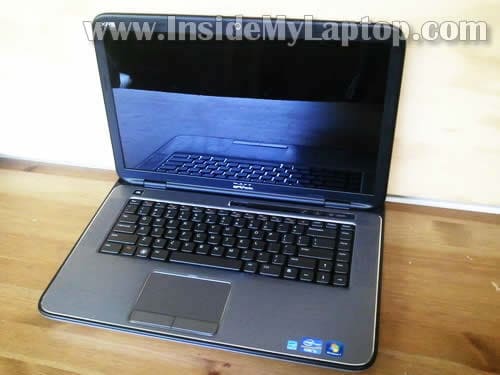
In this tutorial I explain how to disassemble a Dell XPS 15 L502X laptop. My goal is removing and replacing broken DC jack.
I’ll go though the following major disassembly steps:
STEP 1-4: Accessing both memory modules and wireless card. Removing the DVD drive.
STEP 5–9: Disconnecting and removing the palmrest assembly.
STEP 10-12: Removing the hard drive.
STEP 13-17: Disconnecting and removing the keyboard.
STEP 18-21: Removing the screen assembly.
STEP 22-27: Removing the bottom cover. Accessing the cooling fan.
STEP 28- 29: Disconnecting and removing DC jack cable.
UPDATE: all disassembly steps should be the same for a Dell XPS L501X model.
STEP 1.
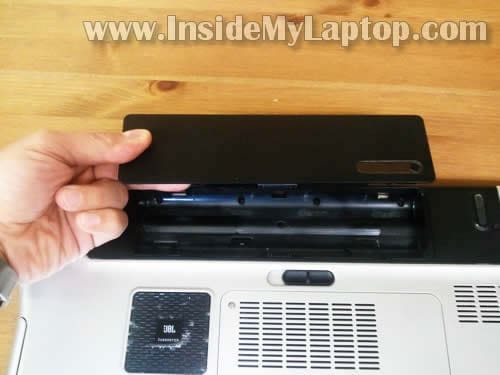
Before you start, make sure the computer is turned off.
Remove the battery.
STEP 2.
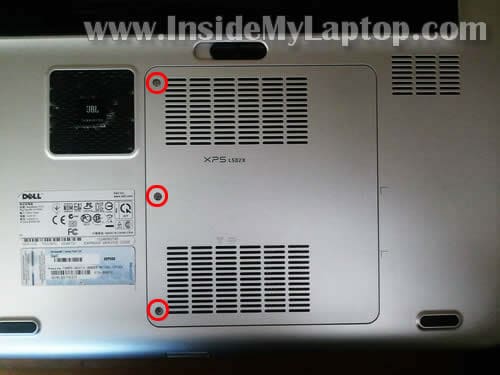
Loosen/remove three screws securing the memory and wireless card cover.
Lift up and remove the cover.
STEP 3.
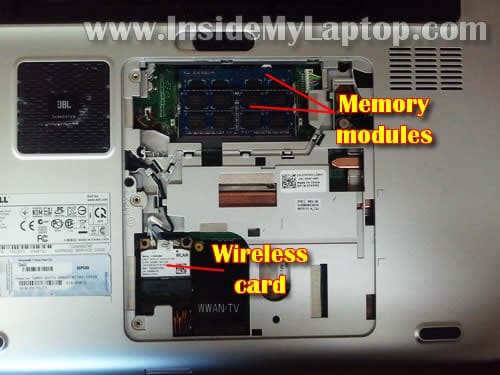
Under the cover you can access both memory modules and wireless card.
It’s not necessary to remove memory modules for the purpose of my tutorial. I’ll leave them connected to the motherboard.
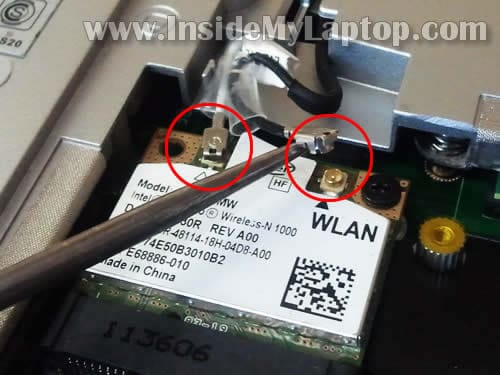
We’ll disconnect wireless card antenna cables later (step 19) when we remove the display panel.
STEP 4.
Remove one screw securing the DVD optical drive.
Pull DVD drive from the laptop and remove it.

STEP 5.
Remove one screw securing the palmrest assembly. This screw located in the battery compartment.
Release two latches securing the palmrest assembly.
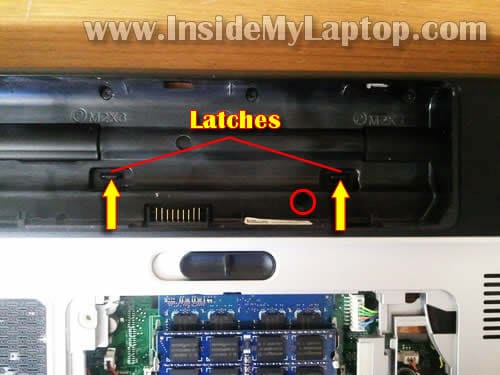
STEP 6.
Turn the laptop over and start lifting up the palmrest assembly.
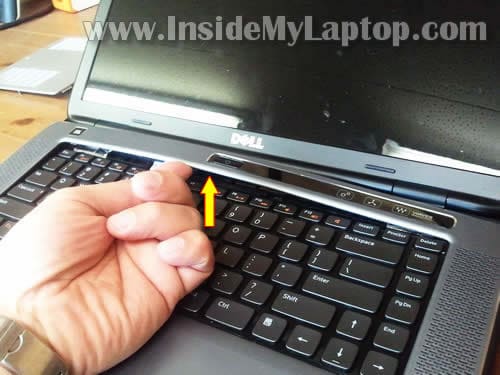
STEP 7.
I’m using the guitar pick to separate the palmrest assembly from the base.
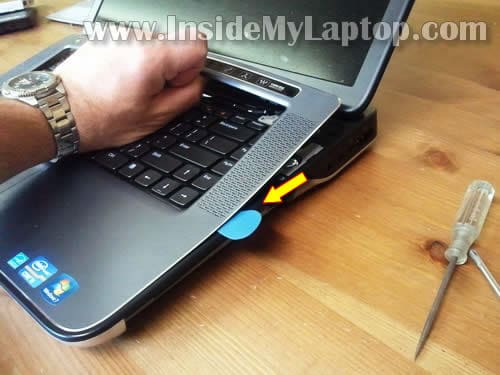
STEP 8.
Be careful while removing the palmrest assembly, it’s still connected to the motherboard.
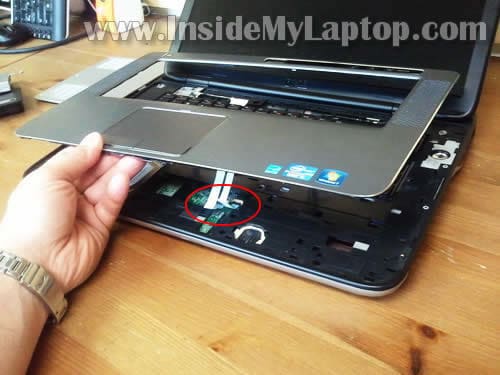
STEP 9.
Turn the palmrest upside down so you can access the touch pad cable (left arrow) and power button cable (right arrow).
In the following two steps I explain how to unlock connectors and release cables.
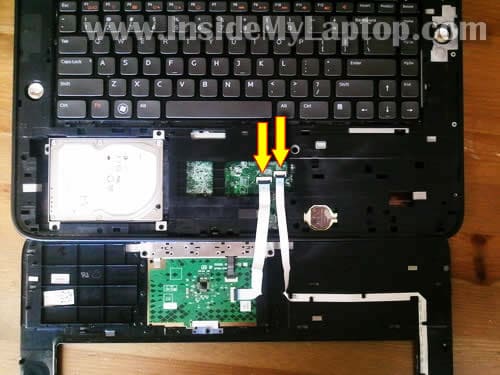
Very carefully lift up the left side of the locking tab with your fingernail. The locking tab will open up at a 90 degree angle.
The locking tab must remain attached to the connector base.
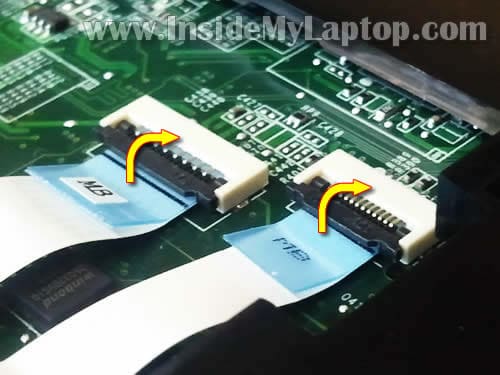
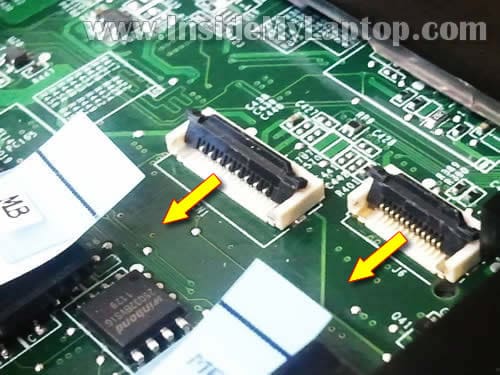
On the following picture both connectors shown in the unlocked position.
Now you can pull cables.
STEP 10.
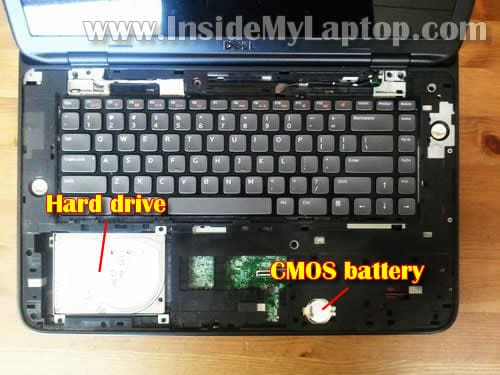
When the palmrest removed you can access the hard drive and CMOS battery.
STEP 11.
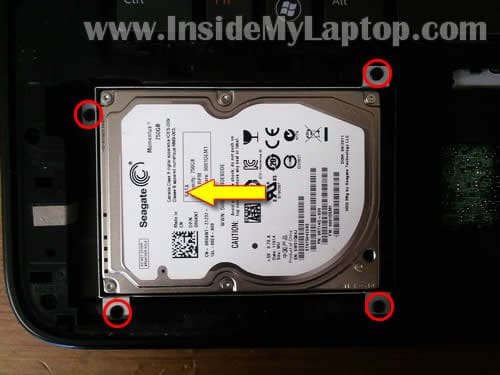
Remove four screws securing the hard drive mounting bracket to the base.
Slide the hard drive assembly to the left to disconnect it from the motherboard.
STEP 12.
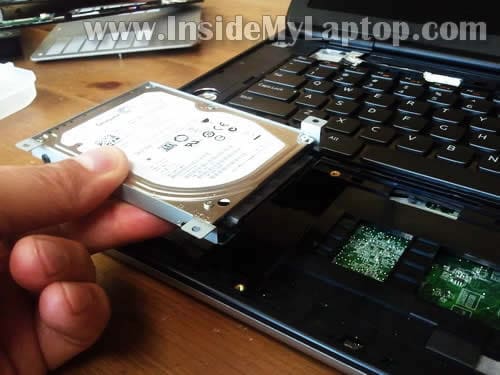
Lift up and remove the hard drive.
STEP 13.
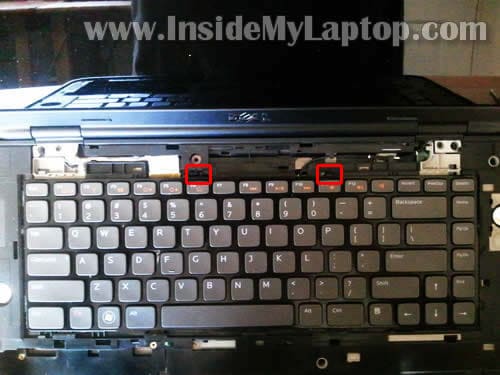
There are two small plastic tabs securing the keyboard on the top.
STEP 14.
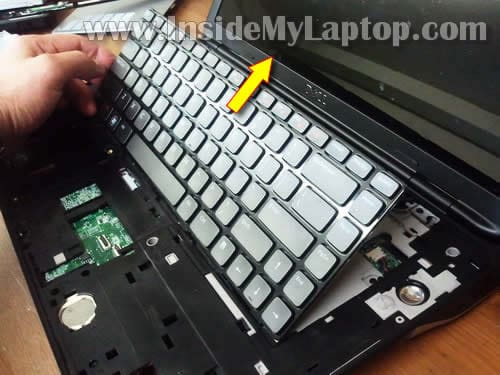
Lift up the upper side of the keyboard and move towards the screen.
STEP 15.
Turn the keyboard upside down.
Now you can access the main keyboard cable connector (1) and keyboard backlight cable connector (2).
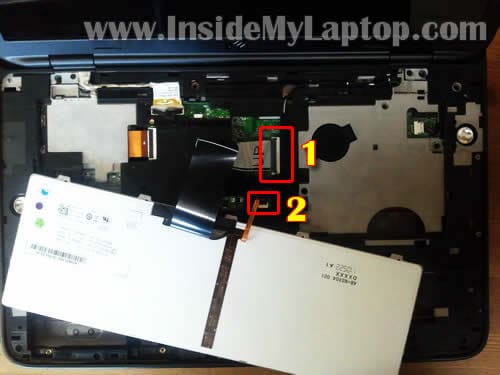
STEP 16.
Disconnect both cables as I explained in the step 9.
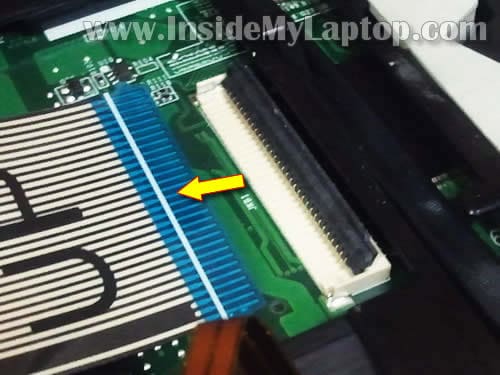
STEP 17.
Remove the keyboard.
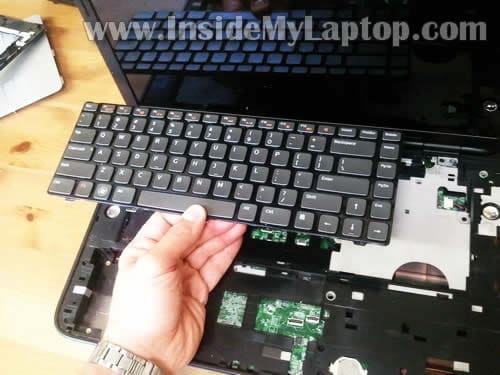
STEP 18.
Remove two screws securing display hinges on the bottom of the laptop.
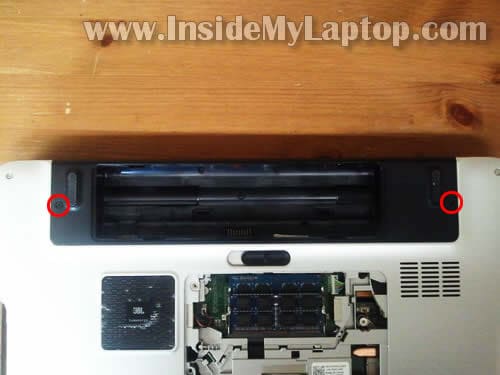
STEP 19.
Disconnect white and black antenna cables from the wireless card.
STEP 20.
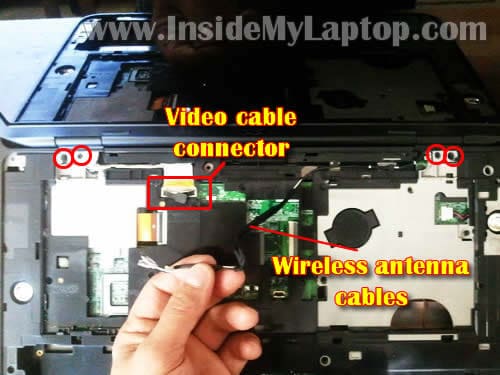
Pull both wireless card antenna cables though the opening.
Remove four screws securing display hinges.
Disconnect video cable from the motherboard.
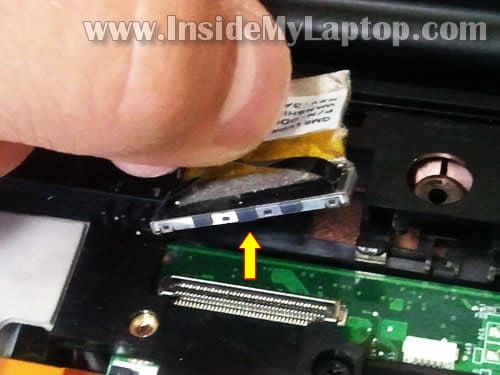
Here’s how to disconnect the video cable. Simply pull the connector by the black belt attached to it.
STEP 21.
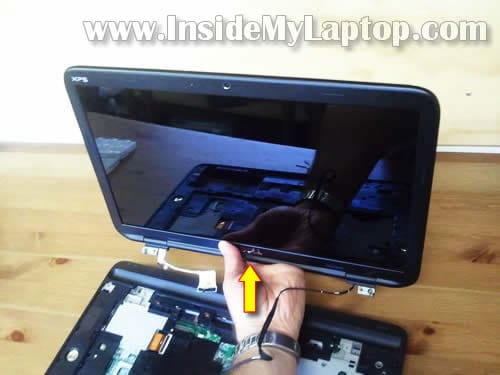
Lift up and remove the display (LCD screen) assembly.
STEP 22.
Remove six screws from the bottom.
Disconnect the subwoofer cable (left arrow) and cooling fan cable (right arrow).
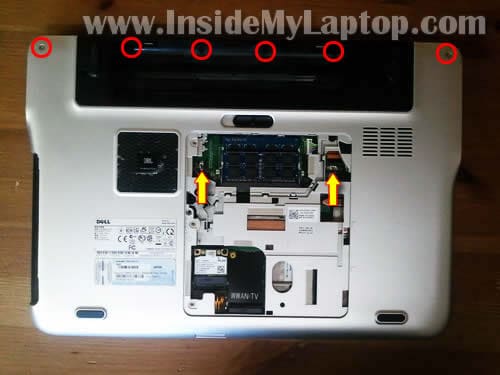
STEP 23.
Remove three more screws located in the DVD drive bay.
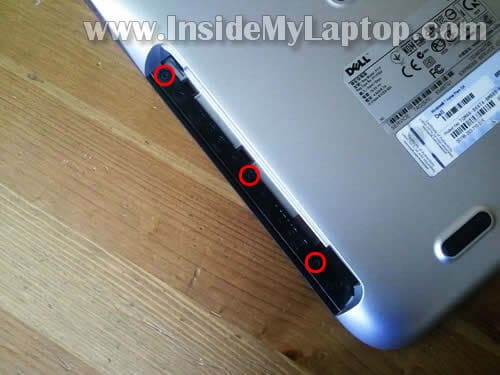
Here’s how to unplug the subwoofer and fan cable from the motherboard.
It’s a regular male-female type connector.
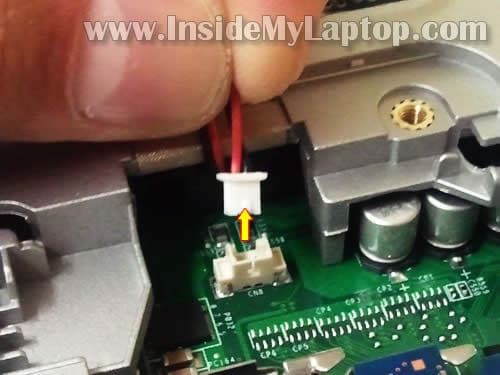
STEP 24.
Remove all screws securing the top and bottom covers together.
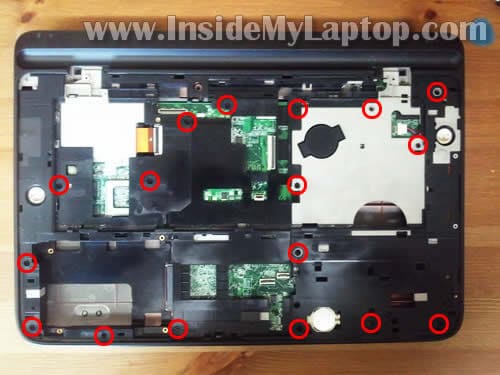
STEP 25.
Start separating the top cover assembly from the bottom cover.
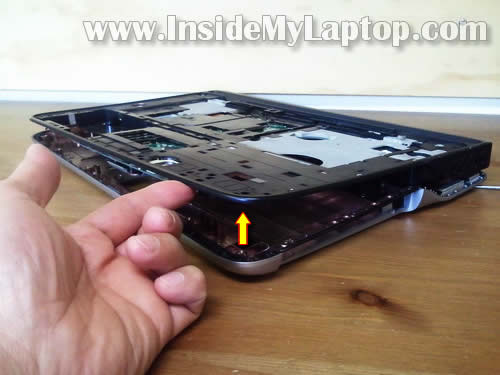
STEP 26.
In Dell XPS 15 L502X the motherboard is attached to the top cover assembly.
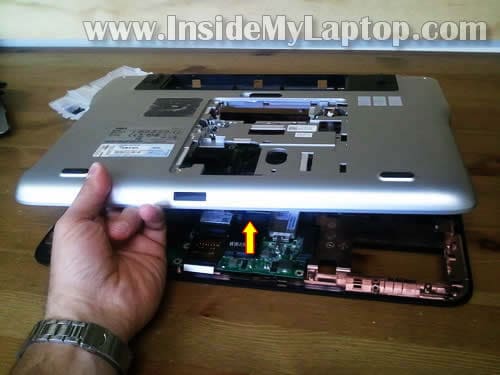
STEP 27.
The cooling fan attached to the bottom cover.
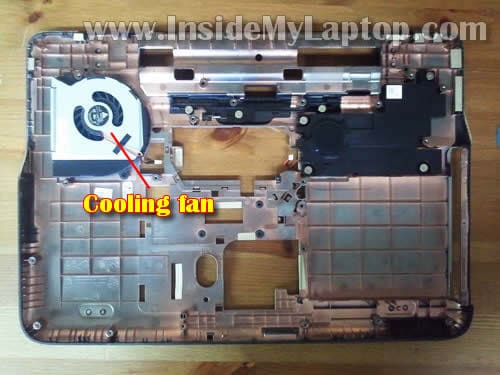
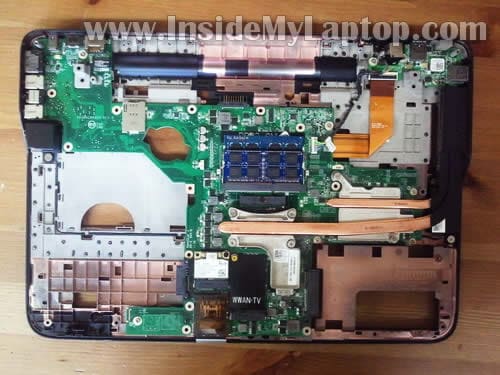
Here’s the bottom side of the top cover assembly.
As I mentioned before, the motherboard is attached to the top cover.
STEP 28.
Remove one screw securing the DC jack to the case.
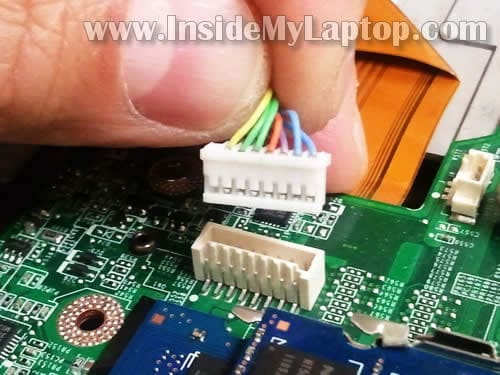
Disconnect DC jack cable from the motherboard.
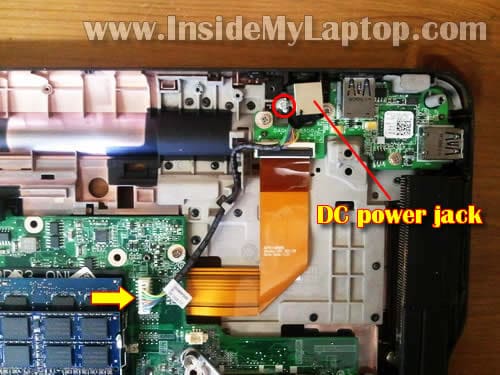
Here’s how to unplug the DC jack cable connector from the motherboard.
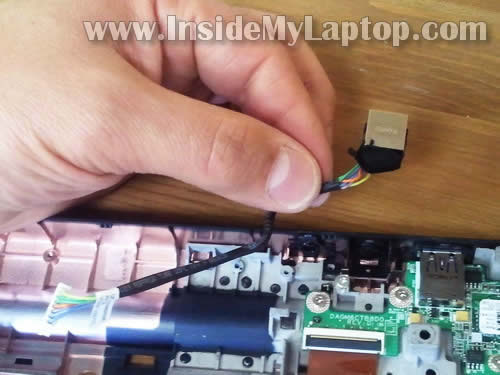
STEP 29.
Finally lift up and remove the DC jack cable. It’s ready for the replacement.
Lou Sciancalepore
If I need to replace my fan (I have the same laptop), do I still need to disassemble the whole laptop, or can I just remove the battery and rom drive, then do step’s 22 thru 27?
IML Tech
@ Lou Sciancalepore,
I think you can do it this way. The fan is attached to the bottom cover and the motherboard to the top cover.
Going through steps 22-27 will help you to remove the bottom cover.
Let me know how it goes.
chris
Hi, I got to the step 20 and found that my screen didn’t pop off. I didn’t want to force it so I plug everything is as it was and put it back together. Whe I went to turn my laptop back on I found that the LCD screen had stopped turning on. The PC part is running fine as I plugged it into the TV via HDMI. Do you have any idea what the problem might be?
As I said all I did was remove the connector but I plugged it straight back without actually remove the screen. Do you have anyway that I could test the screen at home? or will i need a new LCD screen?
Thanks
Afaque KHAN
Hi,
I need to replace the left hinge of my Dell XPS. I ordered it from dell. Can you just brief me out as to what steps I should follow. I am a bit nervous to open my laptop.
Thanks
IML Tech
@ Afaque KHAN,
Is it XPS 15 L502x model or a different XPS?
Afaque KHAN
It is dell xps 15 L502x. The same as in the photo. I recieved a screen back cover with wifi antena and hinges attached. I’ll need detach the screen i suppose. Can you help me out with the steps.
Thanks in advance.
IML Tech
@ Afaque KHAN,
Sure. Here’s how to take apart the display panel on a Dell XPS 15 L502x laptop.
Afaque KHAN
Thanks a lot. It worked!
It is seeming as new. Just for info if you’d care :D. The hinge broke automatically, the laptop did not fall not even a jerk. I am used to keeping it in the same position without moving the screen a lot.
Actually the screen is fixed to the cover with 10 screws and three of them exactly next to the left hinge(which broke) were missing, leaving it weak and thus and finally it broke. How cunning! I think they did it on purpose.
amit kumar banra
ohhh thanx a lot, we are greattfull to you that how easily we have leant to dissamble it.
by the way i wanna ask u what are the possible upgrades that can be made in dell xps 15 l502x.
such as HDD to SDD,RAM,PROCESSOR.etc
IML Tech
@ amit kumar banra,
That’s all. You can upgrade HDD to SSD, install max RAM and probably find a faster CPU but nothing else. The graphics card integrated into the motherboard so you cannot upgrade it.
Bishnu
hey , i want to remove my xps back lcd lid cover by a new one, i.e want to change my laptop colour using a new one which is www.parts-people.com/index.php?action=item&id=9138
plzzzzzz tell me is it possible.. if yes then what should i do, should i do it my own or hand it over to an expert… plzz reply.. waitin’
IML Tech
@ Bishnu,
In the comment 7 I posted a link to the display disassembly instructions.
Joachim
Hello
Thanks for this great manuel.
I plan to remove the whole display from my xps15 and putt the laptop in front of a 22″ lcd display because my eyes are not more so good.
Works the xps without the original display?
My old hp xe3 does:-)
Best regards from germany
Joachim
Alberto
Hi,
I want to know if it’s possible to replace tha NVIDIA graphic card which I coudn’t here but my notebook is a XPS L502X and I want to know the location of the cart.
Thanks
chris k
I was wondering i have the xps15 l502x and wanted to know if i can upgrade the nvidea gt 525m to something mutch better and also what kind of prossesor can i upgrade to i have the i7-2760 QM
Nisharudeen
i want to know if it’s possible to replace tha NVIDIA graphic card geforce 540m my notebook is a XPS L502X and I want to know the location…. please help me….
Pratik Agarwal
Very very helful! I needed to clean the fan and filter — thought would be a 10 minute job, but on this beast you need to strip it completely open 🙁
Joe
Could anyone tell me the part model # or a link so I could purchase the DC jack replacement? Thanks I’ve had trouble finding it on amazon/ebay
IML Tech
@ Joe,
Try the following part numbers: 0XFT6Y or XFT6Y. I think it’s for your DC jack harness.
ChadMacA
I would like to ask how you knew the power jack was bad. I have the problem where I plug in the AC adapter, and the blue light goes out immediately. My understanding is that either the power jack is bad, or some part of the motherboard is bad. Is there any way for me to determine if the jack is the bad part? I took the jack out of the computer and tried plugging the AC adapter into it, and the blue light stayed on. I don’t know if this means anything or not.
sidhik
how repare dell latitude E5500 laptop’s power problem
teresa norberg
Hello. Can i fix the touchpad, without replacing the whole front? I see they’re refurbished, so can I just refurbish mine?
Charlie
Hello!
I just want to clean the dust out of my machine in the areas where it will have an impact of performance.
I am thinking the fan area? Does this mean I have to follow all the steps or is there a faster way that following all the steps from 1-28?
DEEP
Hi, there was a recent power surge and i think my ethernet port is damaged. I called up the Dell XPS techsupport and after some checking they concluded that the Ethernet port is damaged. now they want me to replace the entire motherboard….and my warranty period just expired. is there a way to repair the port or replace just the port?? please advise…..thanks
var
Hi,
I split coke on my laptop keyboard. And the keys were stuck. but if I press them hard, they seem to work as of now. But then as advised by a friend, i used acetone n cleaned the keyboard. Which allowed it to work well for a while, the problem keeps resurfacing.Is there a way i can remove the keyboard without literally dismantling the entire laptop?
ANy help wil be appreciated. Thanks in advance.
Mike
Hi,
Have you guys experienced some weird sounds from the left side of the laptop, from around the cooler system of the machine? Cause it happened for me and I found a string coming out of it.
It’s just extremely strange.
Any ideas what would it be? Have you seen stuff like this happening on a laptop?
I would really appreciate some feedback.
Thanks a lot!!!
David
Thanks man, a lot, i have donated 0,5$ (all i have on my cc right now is 0,79$ :D)
(i was cleaning dust from my fan because i was hitting 100 degrees celsius when cpu load was high, now it is around 85 max)
chukki1
The instructions are very clear and helpful. I replaced the screen in my Dell XPS L502X laptop without any trouble following the instructions.
Vishal
Hey man.My xps l502x is only charging when it is turned off.when i turn it on the led on power adapter goes off. has my dc jack gone kaput? or is it the power adapter?
sindri
Hello I am having some trouble with my webcam (its connected to the system by USB internally). Do you have any pictures of the inside of the screen assembly? Is this on a system with the FHD screen option?
The issue I have is that there might be some kind of bad connection between the webcam and the motherboard, I don’t see anywhere in your photos where you disconnect the webcam so I am going to guess that is connected to the motherboard through the video cable? (Its pretty funny, if I barely adjust the angle of the screen the system registers a connection with an USB device and plays the notification sound…)
Farnor
Hello,
First, thanks for the guide. I wanted to know the following:
What is the easiest way to access and clean the cooling system on the l502x? My processor is running on 50°- 60° celsius just browsing the web, with one or a few tabs open. It heats up to 90° – 95° celsius with plain old world of warcraft. The fan is almost always blowing hot air, sometimes less and sometimes more but it’s never off for more than a few seconds.
I’m asking because I don’t really know what components you removed to show us and which ones were necessary to remove, from example I don’t dare to remove my screen, and even the palmrest is making me uneasy. I’ve opened and cleaned other notebooks but all I had to do was unscrew the bottom.
Thanks.
vitor
hello there! really nice guide, good job.
I want to remove only the keyboard (and perhaps switch for a new one). I’m not familiar with fixing notebooks, even though I used to do a lot of things on my old desktop. Anyway, I’d like to know how difficult it is to remove/switch ONLY the keyboard, e.g is there anything that requires special manual abilities?
Also, what’s the easiest way to do that without screwing things around too much? Looking at the pics maybe it’s doing steps 5, 6, 7, 8, 13, 14, but could you confirm that for me? If I manage to do this I’m sending you a good donation, since Dell support for this is waaay too much expensive.
Thanks, and good job again
allan keston
i will make a donation if u can help
igot my 135KG body out of bed and because of arthritis in my knee which was stiff i put my hand and weight on the lid of my Dell XPS15 L502x and left a small dent about the size of a dime or 10p piece if you are US.
Is there any way i can fix this and put a new Ali lid on or is it i a big job, it is tiny and has not caused any probs workwise but i am a perfectionist and it has really bugged me.
anything i can do?i have only had it 5 months from brand new
cheers
Allan
london UK
will reed
I’ll donate 5 bucks if you make one on how to put it back 😉
alex
Just wondering if you can help out as im at my wits end with deli support. i upgraded the hdd on the XPS 15 (L502x) h2vzzp1 and forgot there was a supervisor password. i typed it wrong too many times now im being faced with password / unlock key screen and it wont go no further than that. deli support couldnt get this and im now stuck with a brick. iv tried all the password gens and stuff but still nothing is working.
do you know if there is any way to wipe the security rom or bios completely? iv tried removing the cmos battery too for over 24hours still nothing.
id totally be making a decent donation if you can help us out.
regards
alex
jonathan
I just wanted to say thank you for your detail in the disassembly. It saved my ass in replacing the DC Charging jack.
Barbara
Can you replace the Black and White Antenna cables connected to the Wireless Card in a Dell XPS 15 (L502x)? I have been looking everywhere. When I was putting it back together, cause I had to replace the LED Display, I accidentally broke off the White Cable Connector that Connects to the Wireless Card. I need only to Replace the Antenna Cables, not wireless card, nor another display, It looks as if they run up around the Display to a small 2″ rectangle board, which looks like it can be replaced, but I can’t seem to find this anywhere?
I hope the person who did this dissembly of this laptop will answer me.
phill
bloody useful i was able to replace the ac power input with ease thank you very much you saved me $200 🙂
Bobby
Know where I can get a new connector from step 9? The little black piece on mine snapped when I opened it.
IML Tech
@ Bobby,
I doubt you can find it separately from the board.
Mogau
great tutorial bru!
completely disassambled my L502x and did a clean up on the heat sink and fan to give it a perfomance boost.
thanks a lot!
Aarti
Hi.I have a Dell XPS L502X Laptop.About 5 days ago I noticed a crack on the frame surrounding the screen on the right hand side close to the hinge.The crack goes all the way from the edge of the frame upto the hinge.The warranty for the laptop is no more valid.
Could you please advise me as to how to get it fixed?Can the frame be replaced?
vasilios
Hello. I disassembled yesterday, so I can clean the dust. Unfortunately, when I got all back in place, I turned on the lap top. I had an alarming beeping and a black screen. Nothing happend. Could please be so kind and give a tip?
I thought it have not plugged in, correct the video cable, the one which lifted by the black strip. I did again and nothing happened.
Please help.
Ankhaa
Hi, just dissmantled it, cleaned the fan and put new thermal paste on the gpu and cpu, after cleaning with soft tissue and alc. Then put it all back in, started the machine, but i only have a beeping sound, the fan runs wild, black screen, nothing happens. Pls help me, i’m totally frustrated and confused now.
IML Tech
@ Ankhaa,
Check RAM modules. Probably one of them or both not seated properly. Try reseating them.
Ankhaa
Thanks, it was in fact the RAM, not seated proper. But i still have a beeping sound, and at starting the machine gave this message: Realtime clock error….and some stuff isn’t displaying like before….
Ankhaa
I think the Nvidia gpu isn’t detected and working..don’t know why.
IML Tech
@ Ankhaa,
Did you remove the CPU from the socket for any reason?
It’s possible your laptop not booting properly because the CPU is not seated properly.
Even if you didn’t remove the CPU, it’s possible you pulled it out of the socket while removing the heat sink.
I know it’s a lot of work, but I would check if the CPU seated properly.
You can unlock the socket, reseat the CPU and lock it again. Test the laptop after that.
This is just a guess. I’m not sure this will help but I think it worth trying.
Avinash
Hi,
I just dismantled and reassembled my Dell XPS L502X and cleaned the fan, changed thermal paste and reassembled, the left side USB ports are not working. Just the eSata one is working. I think it has something to do with the power not reaching it, but I don’t remember messing with any of those wires. Any suggestions?
IML Tech
@ Avinash,
I’m not sure what’s going on with your USB ports.
Ports on the left side built into the motherboard. The right side USB ports connected via a cable but not the left side.
I guess you can remove the bottom cover and take a closer look at the motherboard. Maybe something shorting it.
Helen
I REPLACED MY DELL XPS L502X LAPTOP BATTERY, BUT ON TURN ON THE LAPTOP,IT DISPLAYED THIS WRITE UP ‘This system cannot charge this battery,press F1 to continue and F2 to go to setup”.but when i pressed F1, the system continued and was charging fine.the battery last for almost 2 hours without charge before it went off. what could be wrong with the battery? and is there any way i can disable that display when the system is turn on.
IML Tech
@ Helen,
1. What was wrong with the original battery? Why did you replace it?
2. Is your new battery a generic one or it’s an OEM Dell battery?
Amit
@Helen,
I am having the same issue as of yours, though I am using L501X laptop.
The issue for me is due to bad charger. Many times due to wear and tear, the capacitor of the charger (the round knot near the charger’s connector) is screwed and the system is not able to identify the charger properly.
I am facing this issue from last 2-3 years and using the ‘F1’ key stuff. It works fine, no issues till now. Battery gives a backup of ~3 hours.
Alan Tammeniit
Hi there,i have a problem with my xps l502x.when i turn it on the cooling fan is making much higer noise like it on full power and there is no picture also on screen,the keylights go on and the lights on top right.And also when i i press the power button it will shot down immediately.
Computer still chargers.
some time back it was also giving a electrik shoks on the front of the computer.
Not sure what happen with computer it may fallen down or or it just over hited when it was in my computer bag and turned on…
Can i please have a feedback what can be reason of that so i can repair it,tnx alot
IML Tech
@ Alan Tammeniit,
Check RAM modules. Make sure both modules are seated correctly. Try reseating both.
Also, try removing RAMs one by one and test the laptop with each one separately.
tracy
hi there.
I have the xps502x and its begun acting strangely. it started with what looked like someone taking over control of my screen it was scrolling all over and clicking random options and in search typing screens it would just rapidly type bnbbnbnbnbn/ bnbnbn without me even touching the machine and the caps lock led would turn off and on and if I tried to move into a field and type it would not respond. I scanned for spyware and viruses and its clean. I did a system restore to before it was happening things functioned ok for a day and then went south again. and sometimes when I power it on it starts at a screen like my system is a duel boot system asking me what operating system I want to run and in this screen the caps lock button is auto turning on and off over and over sometimes the keyboard is responsive sometimes it isn’t. At first I thought this was viral but when the caps button light thing started happening before OS boot up I became concerned it was hard ware. I tried to disassemble to clean it but cant get the screw holding the rom drive in out have you ever seen or heard of this and any ideas as to what might be going on here?
Aloke
i wrongly updated my Dell XPS 521 laptop with 64bit windows 7 loaded on it, with WINDOWS XP BIOS. Now laptop doesn’t start at all. I removed CMOS Battery but no help. Is there a way i can troubleshoot my system (i dont have BIOS Backup). Please Help.
Raul
Hi there,
I have been having a problem with my xps involving the sound card, The speakers are not damaged and neither is the entry. Actually it works, only sometimes it doesn’t. I believe it is a connection problem or something but I don’t know how to check it. What can I do? (I don’t want to pay for service and it doesn’t have the garranty anymore)
IML Tech
@ Raul,
First of all, I would test the laptop with headphones or external speakers. Do you have the same intermittent issue with the external sound?
Darren Brake
Just need to take out fans, are there steps I can skip?
(I want to clean out the dust in my fans/vents).
IML Tech
@ Darren Brake,
Find an air compressor and blow air into the fan grill on the bottom. After that blow air into the fan grill on the side. This should be enough to remove most dust from the fan.
If the fan clogged so badly that it’s necessary to disassemble the laptop, you’ll have to go though all steps.
It’s attached to the bottom cover and there is no shortcut to remove it.
Animesh Paul
Its a really nice tutorials but i have a problem..i cant move my lcd lid up or down…its stuck badly.. cant move it…please help
IML Tech
@ Animesh Paul,
Probably the display will not move because hinges are broken.
If that’s the case, you’ll have to replace the hinges.
Chris S
Nice tutorial. That’s, what I was looking for. Thank you 🙂
Maarten
THANKS!!
Without this instruction i wasn’t able to replace the harddisk with ssd.
Edgar
Muchas gracias!! Me ha sido de gran ayuda 🙂
mpa
Excellent guide. I hadn’t disassembled any of our XPS’ before (we’ve got three of them running currently) and was pleased to find the shortcut to HDD replacement for my personal notebook when it started acting up on cold temperature boot attempts.
Note to everyone: Do not do what I did often, which was to heat the notebook up in front of a quartz heater in my workspace when it wouldn’t boot after getting a little cold.
Anyhow, your guide turned what could have been several hours of investigating and slowly tearing down the machine into a five minute breeze. Best of all, I took this opportunity with the new HDD to finally ditch those Windows 7 partitions. My main notebook is now Ubuntu-only. My only regret is not springing for the SDD, but they are so small in capacity.
My first i7 XPS15, now at least 5 years old and still in service, may get an overhaul in the coming weeks as well, thanks to your excellent guide.
RobM
Re: XPS 501L 15″
Hi. Thanks for the great tutorial and support.
One of the screen hinges on my laptop has broken so I’m unable to close the lid. I’ve seen some instructions on how to replace it (note, the screen itself is not damaged) but unless I’m mistaken, I need to take the laptop completely apart to do so.
Is there a way of changing just one hinge without having to dismantle the whole laptop as I don’t have the expertise, even with clear instructions, to carry out a repair by this method.
Thanks and all the best.
yaks
Thanks for the great guide.
Is it possible to replace the DC jack without disconnecting the screen? I want to replace the jack with the minimum risk of putting it back together.
Thanks
Unosimpleman
Thank you for this great tutorial. Very helpful.
My XPS L502X ethernet port was damaged in a power surge. Is there anyway to replace it without replacing the whole motherboard? The laptop powers up and functions normally otherwise.
Thanks again.
IML Tech
@ Unosimpleman,
If the port was damaged in a power surge it’s likely that some motherboard components were fried too.
I guess the port itself can be replaced (soldering job) but it’s not easy.
You can use a USB Ethernet adapter to connect to the internet.
Unosimpleman
Thank you for the advice and quick response. Was considering USB Ethernet adapter as an option. Now it seems to be the most practical solution.
edmilson
estou com problemas na minha webcam e gostaria de saber onde estão os pontos de conexão dela para testa-los. Voce poderia me ajudar nisso ? grato.
I’m in trouble in my webcam and would like to know where the connection points of it to test them . Could you help me with this ?
Robert
I must applaud you sir, your illustrations and very clear and easy to follow, thank you for the good work and the effort that you put into this, it helped me replace a hard drive for the same model of laptop.
Best regards,
Robert, Uganda East Africa
Gabriel
I wanna thank the author of this guide, it was really helpful. I think I would not be able to disassemble the L502x of my client without it. Please, keep up the good work.
If I may, I think I can contribute advising others about the palmrest assembly and the ease to deform the metal on top of it. Take very good care when lifting the whole piece with the guitar pick (in my case I used a credit card) – don’t force it up. Just go putting the pick between the palmrest and the chassis, and lift gently the piece untill you hear a pop sound in the area you’re trying. There will be various points to do this untill the piece is freed from the chassis.
If you force it, the metal will deform and will be very hard to level it again, because it is glued into the plastic structure that composes this whole piece.
rv
Awesome explanation, man. Great work. Thanks a lot!
Firstlast
Hi,
My laptop has overheating problem, I want to open it up and clean it.
Can you recommend me an effective method Instead of disassembling everything off my laptop.
Ephraim
Very clear instructions … Thanks
I had a problem though… When I was changing my LCD screen, I think the LCD cable shorted and now the cable doesn’t work. I started using a the mini display port for an external monitor and the computer still works but my sound was gone (says no audio device is installed) … My question … Is the sound card somehow connected to the display cable or has the short somehow affected the sound card… Any suggestion is greatly welcome since I am out of ideas… Thanx