

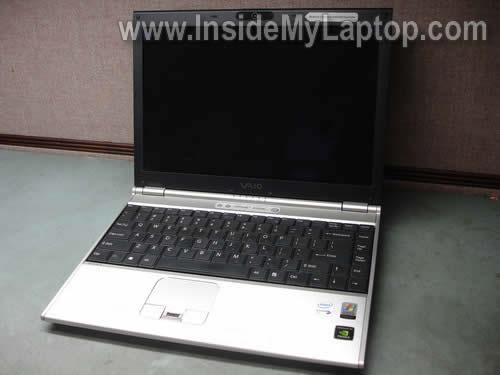
In this guide I will be taking apart a Sony Vaio VGN-SZ series laptop. In my case I’m working with a Sony Vaio VGN-SZ330p laptop but the guide should work for the entire VGN-SZ line.
STEP 1.
Turn off the laptop, unplug AC adapter and remove battery.
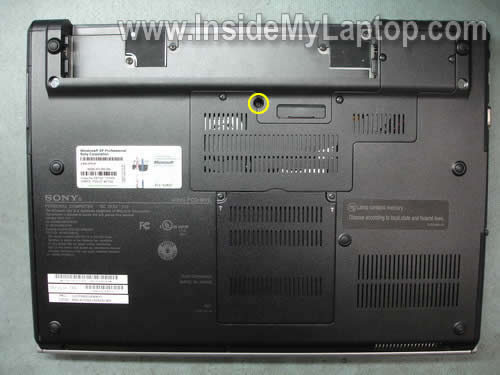
Remove one screw securing the keyboard.
STEP 2.
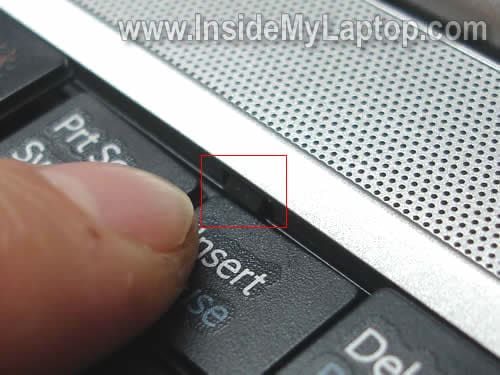
There are two latches securing the keyboard. They are located above the F2 and Insert keys.
STEP 3.
Using a small screwdriver press on the locking latch above the Insert key and lift up the right side of the keyboard.
STEP 4.
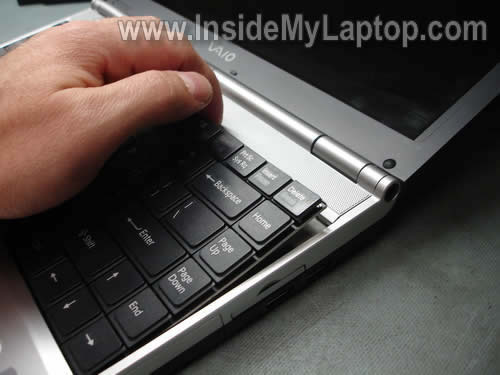
Do the same with the second latch and lift up the keyboard from the laptop base.
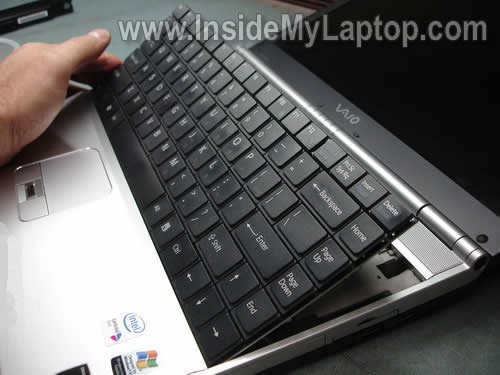
STEP 5.
Place the keyboard upside down on the palm rest so you can access the cable connector underneath.
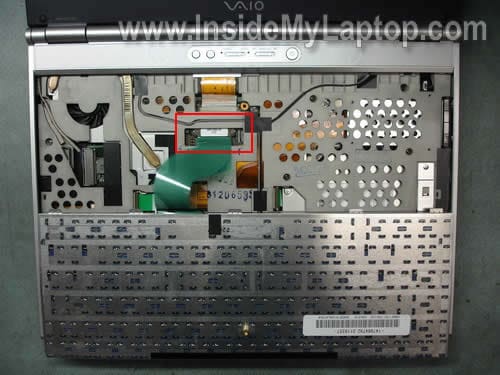
STEP 5.
In order to unlock the cable connector move the black clip about 2 millimeters towards the touch pad. The clip must stay attached to the connector base.
If you break the connector, you’ll have to remove the motherboard. Work very carefully.
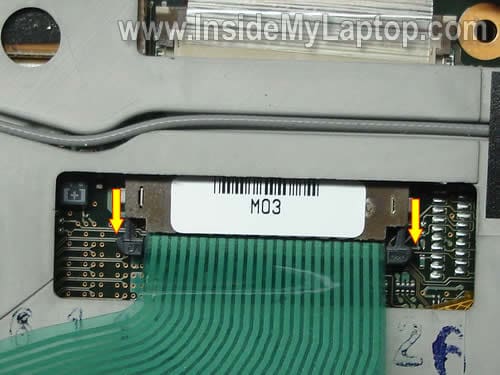
STEP 6.
Release the keyboard cable. Remove the keyboard and replace it with a new one if needed.

STEP 7.
Remove four screw securing the heat sink cover. Remove the cover.
Remove two screws securing the memory cover. Remove the cover.
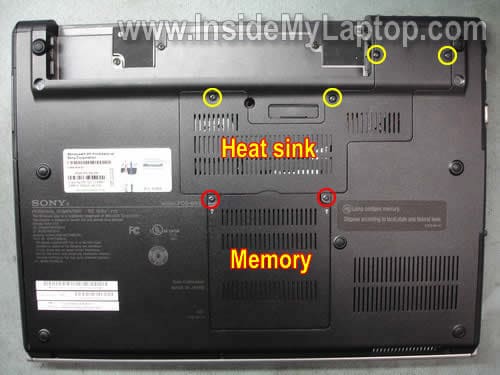
STEP 8.
Remove two screw securing the CPU heat sink.
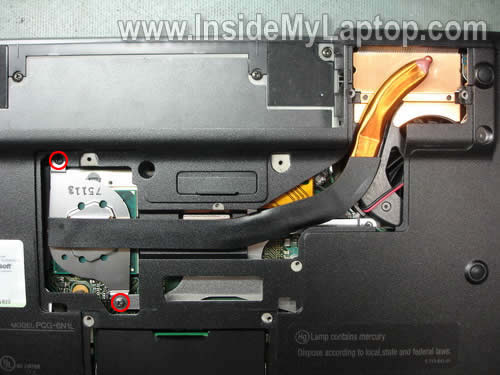
STEP 9.
Remove heat sink from the laptop.
Now you can clean the cooling fan and heat sink with compressed air.
Also, you get an access to the CPU.
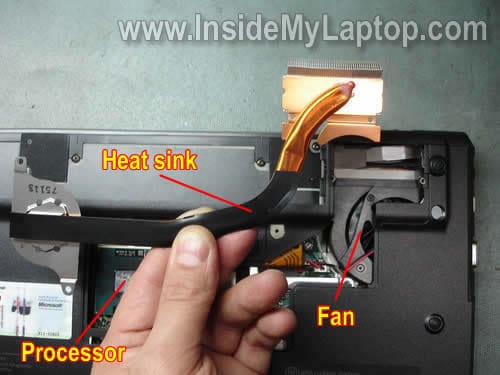
STEP 10.
Both memory modules could be access through the door on the bottom of the laptop.
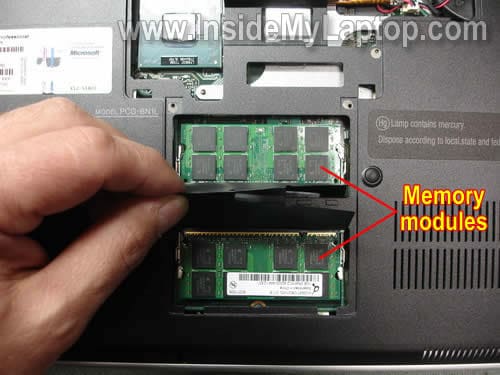
STEP 11.
Remove four red screws securing the switch cover.
Remove three yellow screws securing the palm rest.
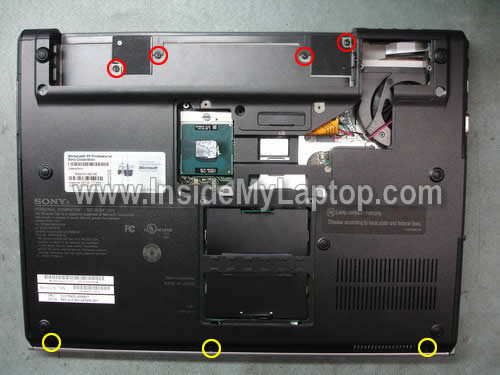
STEP 12.
Carefully lift up and remove the switch cover.
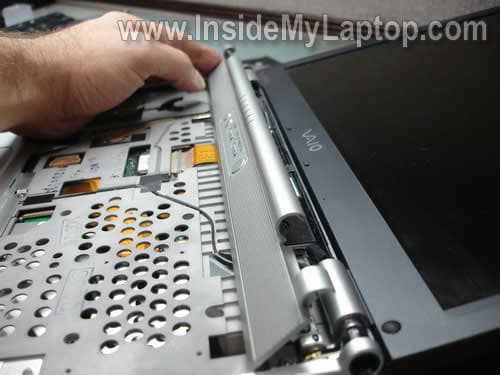
STEP 13.
Remove three screw securing the palm rest.
Unlock the touch pad cable connector and release the cable.
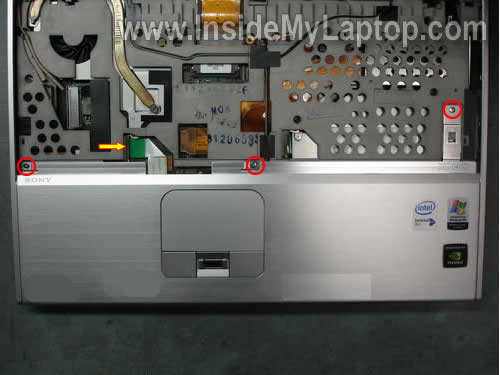
In order to unlock the connector simply lift up the right side of the locking clip with your finger nail.
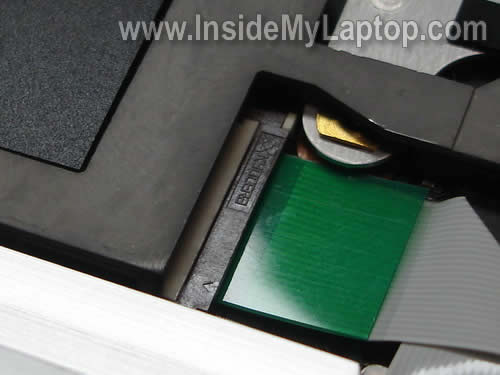
On the picture below the connector is shown in the unlocked state.
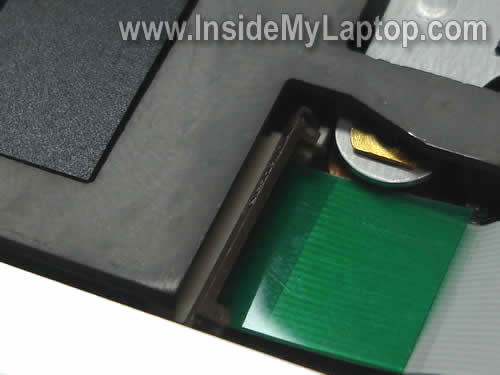
STEP 14.
Release the touch pad cable and remove the palm rest assembly.
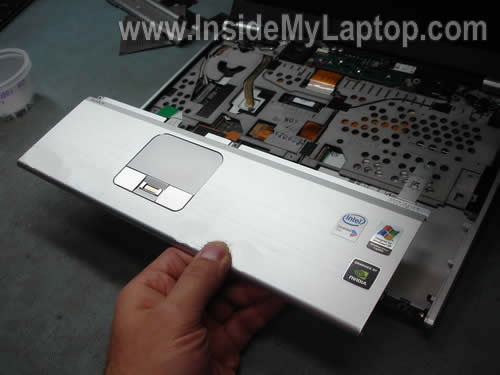
When the palm rest assembly is removed you get an access to the hard drive, DVD drive, wireless card and CMOS battery.
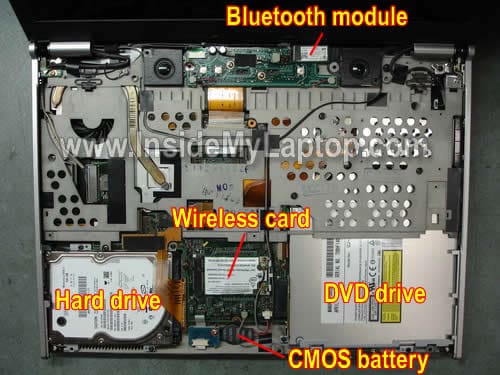
STEP 15.
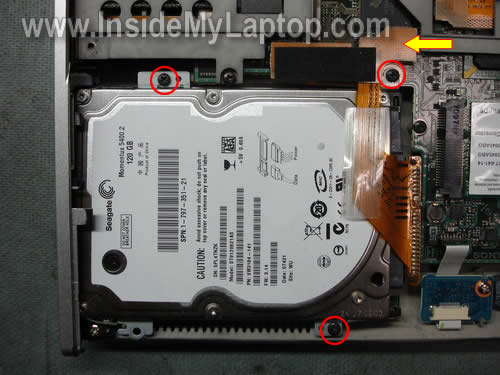
Remove three screws securing the hard drive assembly.
Disconnect the hard drive cable connector from the motherboard.
STEP 16.
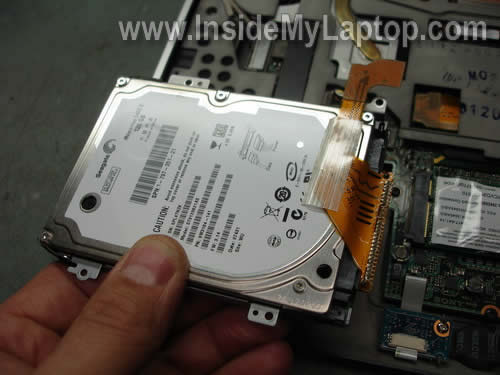
Remove the hard drive assembly from the laptop.
If you are replacing or upgrading the hard drive you’ll have to transfer the mounting bracket and cable from the old drive to a new one.
STEP 17.
Remove one screw securing the DVD drive.
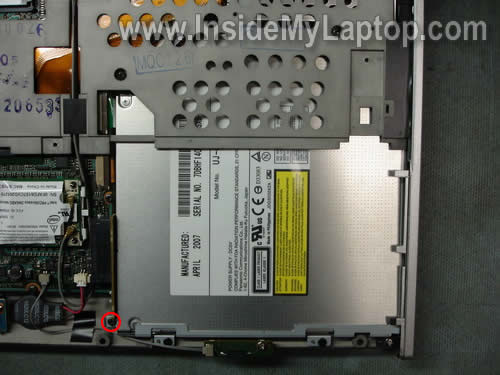
STEP 18.
Slid the DVD drive to the right to disconnect it from the motherboard.
There is an adapter between the DVD drive and motherboard. This adapter has to stay attached to the motherboard.
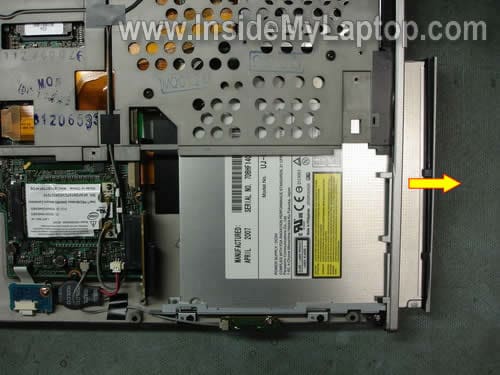
STEP 19.
Remove DVD drive from the laptop.
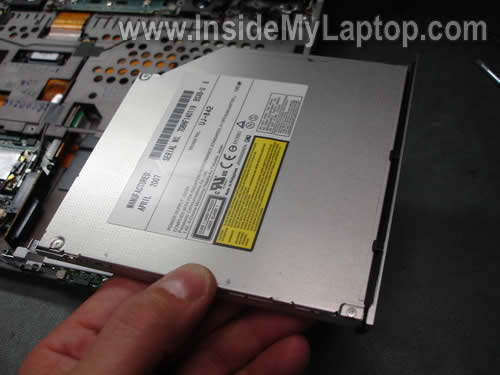
STEP 20.
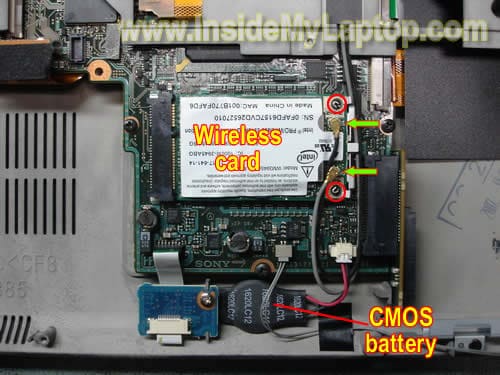
In order to remove the wireless card, disconnect two antenna cable from the card, remove two screws securing the card and pull the card from the slot on the motherboard.
If you would like to replace the CMOS battery, simply unplug it from the motherboard and replace with a new one.
In one of the previous guides I explain how to remove the LCD screen and inverter board from a Sony Vaio VGN-SZ series laptop.
Brandy Thompson
At last, finally got I’ve looking for..cheers
Derek
Brilliant! Thanks
Douglas
My fan is doing a terrible noise. Do you know how to fix it, or how to replace the fan?
James
How do you go about replacing the fan?
Roger Shaw
The instructions provide are absolutely fantastic. However I have the same issue as Douglas and James of December 7th. I really need to replace the cooling fan on my Sony Vaio VGN-SZ series laptop and it is not at all obvious how to get from the point where your guidance stops to the point where the entire mother board can be removed – I’m assuming that’s what’s needed since there are screws going in both directions on the fan unit mount. If you can provide some pointers on that it would be absolutely great.
Roger
For those looking for fan removal instructions for the Sony Vaio VGN-SZ laptops, you can find a link to a manual that goes all the way to motherboard removal at http://forum.notebookreview.com/showthread.php?t=176866
Good luck!
Stephen
Thanks for the instruction.
I just cleaned the heat sink which is full of dust! Now the computer should be cooler.
Thanks brillant info.
UTtheGeek
i hav VGN-SZ430N, there is a problem with my LCD, dead cells are appearing continuously. Can any body tell me how to prevent from dead cells on LCD????
David
I’d like to add my thanks for taking the time to put up this guide. Need to sort out my noisy fan
Many Thanks!
David
Serdal
Sound card doesn’t works , so is there any way to change sound card on this motherboard, i opened it but I couldn’t found sound card.
Any ideas ?
Thanks
Sergiy
Hi,
I have put together a DIY for replacing the fan in Sony Vaio VGN-SZ series. Please check it here: http://forum.notebookreview.com/showthread.php?t=457860
IML Tech
Sergiy,
Nice work!!!
206
Very nice..easy to follow with these excellent pics! Thank you very much..
Nino
@UTtheGeek
I have the same problem, seems like the VGA 8400GS has failed, I don’t know if it have a single replacable module or onboard. but you should sacrifice graphic performance and switch to stamina mode, it should switch the 8400 to intel GMA 3100 and will run just fine. but you cant utilize the 8400 anymore. I heard that this chipset has many troubles.
anyone knows how to replace the 8400GS dedicated VGA? I need to replace this to play games
IML Tech
Nino,
I think it’s onboard.
I don’t see any discrete video card on the pictures of the motherboard posted here:
http://forum.notebookreview.com/showthread.php?t=457860
You cannot replace onboard video card. If the video card failed, you’ll have to replace the entire motherboard.
Eric
These instructions are fabulous. I had to replace a DVD drive and a display. Right on.
ammar
hello admin..nice works..
but could u help me..i want to know where is the cmos battery for asus f series located?
i’ve going crazy becouse of this cmos batt. located..can u place a picture of it?
Dennis King
I read a posting for the wrong model when I went to replace the keyboard on my vgn-sz240 laptop and messed up. I wish to God I had seen your site first. Anyway, I did snap the connector and now I’m wondering what my options are. I had just finished upgrading this puppy with new memory and a blazing fast hard drive and it was running great. Now I can’t even log on.
A tech at Sony Style suggested a USB keyboard and it may come to that. Is it possible that I might find a new clip assembly from an old mother board. You say that the mother board has to be removed if that clip is broken. Is it actually possible to fix this puppy without buying a whole new mother board. Obviously, I would be better putting that money toward a new computer.
At any rate, anyone’s experience or help with this would be greatly appreciated.
Thanks so much in advance. Dennis
Mahmoud
Hi everyone
Very happy to have found this great website. I have a VGN-SZ340P and the speed of the hard drive is killing me. I have bought a new Intel X-25M SDD and now with these instructions, I can easily replace it. My question however might be silly to you. I want to know how can I transfer the windows and sony softwares to the new SDD? Can I replace it first and then use the recovery DVD I made earlier by sony recovery program? Or I need to use the Norton Ghost? I already know about the transfer kits lijke Apricot, but not an option for me!
Mahmoud
I successfully changed my old hard disk with a new Intel X-25M G2 80GIG and used the recovery disks to recover the OS and other sony applications, thanks the excellent instructions provided by you.
Janet
I can’t seem to find the instructions to replace the rtc or cmos battery on the Sony VGN-NR120E can you help?
IML Tech
Janet,
Take a look at this manual for Sony Vaio VGN-R series, maybe it’s similar to Vaio VGN-NR series.
You can see the CMOS battery on the page 14, it’s plugged into the motherboard.
Lio Mendonca
I have just been reading your fantastic guide on removing the VGN vaio series heat sink and cooling fan, I have thePCG-6G4L which I believe is the VGN-S460. I cannot get the fan to run but I am not sure if there is a heat sensor which may be the problem instead of the fan itself. But my point your guide is so encouraging and informative which is a stark contrast to others who offer help such as “take it to a service center” or even sites such as fix fixya.com. Great, I hope you get your reward in the satisfaction of helping other people or go on to financial benefit.
Lenthy but thank you
IML Tech
Lio Mendonca,
You cannot tell without trying another fan. A new fan shouldn’t be very expensive.
Aaron G
Please help I have this Sony Vaio Vgn-sz430n And My sound is not working at all I no 100% my driver is correct. Its weird because i can only hear very little noise with my headphone plugged in and the volume all the way up? If anybody has figured out this issue or knows how to fix this please let me no.
Also When i Connect to my wifi it connects and disconnects at any time. I downgraded from vista to Xp pro thinking it would solve these problems but i am still having these issues. Let me no Anything .
Thank You
IML Tech
Aaron G,
It looks like you already tried reinstalling the operating system (downgrading from Vista to XP) and it didn’t fix it.
It tells me there is a problem with hardware. If there is no sound from external speakers and headphones, most likely it’s related to the sound card problem. In most laptop the sound card integrated into the motherboard and cannot be replaced separately. I guess you’ll have to use the laptop as is without sound, or replace the motherboard.
Did you test your laptop with another Wi-Fi router?
I had a similar problem at home. I have two different routers but my laptop was disconnecting from one of them all the time. Reinstalling the Wi-Fi driver and upgrading router firmware didn’t help. Finally, I changed security type from WPA2-Personal to WPA-Personal and it fixed the problem. Try changing the security type in the connection properties.
Curtis
Anyone replaced a motherboard in an SZ series? I bought a faulty battery off of ebay (1800emart.com BAD do not buy from!!!! ). Anyway, I have to replace the motherboards of TWO laptops (SZ480 and S260). S260 is not hard, but SZ480 looks like a major pain. I can’t even figure out how to get to the model number off of the laptop… anyone?
Santosh J
Thanks a ton. need to pull out my noisy fan from sz650n. been web hunting for days and finally, thanks to you all guys…….i do a lot of web hunting for such stuff for my frds and family, and have been lucky to have found the solutions every time. So if you are stuck and need some help do drop me mail on gmail (santoshajadhav)…..
Dave
I’m looking for a way to replace or fix a faulty headphone jack, but didn’t see it on here. Any tips/direction would be appreciated. My laptop is the one pictured here, a VGN SZ330P
Tebla
Thanks for your excellent step by step tutorial. I have an SZ330 that has to be plugged in to AC power to work. I have tried several new batteries to no avail. I think there is a faulty charging system. Do you have any idea as to how to fix such on the mother board. I have also changed my charging adapter so i’m certain it is not the cause.
IML Tech
Tebla,
Most likely it’s either bad DC jack (probably soldered to the motherboard) or motherboard failure.
I cannot tell without testing the laptop.
It’s necessary to disassemble the laptop and take a closer look at the DC jack. If the jack is loose, it has to be resoldered.
If resoldering the jack doesn’t help or it looks normal, most likely this is motherboard failure.
Ely
Hi all, I have this VGN-SZ330p since december 2006 and I am still completely happy with its performance! The fan is really noise since new and now I can’t use the touchpad. It is completely crazy and does crazy things by its own if I touch it. In consequence, I need to use an external mouse. Two questions: some of you changed the fan, are the replacements working with lower noise? had anybody the same problem with the touchpad? where can I buy one? It have been impossible to find one. Thanks a lot!
Elaine
Hi, I have a PCG-6Q1L, which I believe is the equivalent of the SZ-430N. The laptop was running extremely hot and shutting down. I found that the heatsink had been previously removed and the thermal paste had not been replaced. After replacing the thermal paste, it no longer overheats to the point of shutting down. However it is still gets quite hot.
I noticed that in the time that I have had it, the fan has never turned on.
When should the fan be running? Whenever the laptop is on?
Is there any way to test the fan without buying a new one and replacing it? I’m up to the task if that’s the problem. But it does look complicated and I’d like to avoid it if possible.
Thanks for your great instructions and any help you can offer here.
Tom
Hiya. First of all, thanks for all the advice; it’s been very handy. However my model of laptop doesn’t appear to be covered anywhere online, and I’ve been looking for instructions on how to clean the fan off. It’s a VGN-AW21M; on the bottom it’s also referred to as a PCG-8141M. Any advice on how to reach the fan would be much appreciated. Cheers!
IML Tech
Tom,
Do you have any fan grill on the bottom or side of the laptop?
Buy a can of compressed air and blow air inside the fan grill. This will remove most dust from the fan/heatsink assembly. Try this first.
Scott
Hello,
I have a series of about 8-10 multicolored vertical thin lines on the far left of my lcd display. They run from top to bottom completely. They have been there for quite a while. Sometimes it seem like they are not as bright as others. Otherwise, they don’t seem to be effecting anything. I have a VAIO VGN-N320E. Could this be a lose connection to the motherboard? Thanks,
Scott
IML Tech
Scott,
If these lines appear only on one side of the screen, most likely this is LCD screen failure.
When the video cable fails, usually it affects image on the entire screen, not just part of the screen.
Just in case, test your laptop with an external monitor. If external image looks normal (no vertical lines), it’s not the motherboard related problem.
Again, I think it’s just a failing LCD screen.
Steve Brown
Largest hard drive?; replacement USB port;
Two questions please.
First excellent guide. Spoke with Sonystyle and they were no help. Their suggestion was to buy a new Vaio.
1st question:
I tried to replace the hard drive with a 500gig Seagate Momentus 7200.4 drive but even though the BIOS saw it I couldn’t load XP onto the new drive. Do I need to stay with a 5400rpm drive or a smaller drive? Any recommendations?
I need to replace one of the two USB female ports on my VGN SZ-370p but haven’t been able to find where I can buy the parts. Any suggestions?
Again thanks very much for this very helpful website.
simon
Hi,
I have a Vaio SZ4VWN and it seems that the LCD backlight (led) is failing.
I’m askingyou for a technical advise because here in Colombia, vaio service has really bad reputation (third party firm which is known to charge a lot for some tests they do not even make).
Well, I read in various websites that a LCD failure could come from the motherboard but i’m not sure about the test one should do to identify the problem.
The symptoms are:
the LCD still works (one can see a picture) but is VERY dark
pluging an external screen to the VGA gives a good picture, nothing strange
I m not sure that one can make a diagnostic with these symptoms and maybe I will need someone who has a LCD to make the test, the problem is it’s really difficult to find one here in colombia…
Maybe you’ll have an idea on this point, another way to test and identify the problem…
Best regards,
Simon
PS : I had some overheating problems so maybe this could explain/cause a motherboard damage???
Tony
Aaron G, did you ever find a solution?
Rosario
Hi
have 2 problems with SZ that will not detect AC charge, therefore will not charge battery. Plug seem to go directly onto MOBO.
Other is mics will not work, both Internal & External. Tried reinstall drivers…but NO
Can U please advice
Thanks Lot
IML Tech
Rosario,
1. Make sure you are using the right AC adapter.
2. Test AC adapter with a voltmeter. Make sure it outputs correct voltage.
3. It’s necessary to remove the motherboard and take a closer look at the DC jack. It’s possible the jack is bad and has to be replaced.
It’s hard to answer to this one. This could be software related problem. Not just drivers, but something wrong with the OS.
Try reinstalling the OS.
David
Hi Sergiy,
I don’t know you can help me.
I just had a fan replaced from outside country and today I want to use 2nd monitor but my notebook cannot detect any monitors. Can you tell me what they are miss or not connect cable?
Thank you!
IML Tech
David,
Were you able to use second monitor before?
Have you tried a keyboard shortcut to switch from internal to external monitor? (Most likely it’s the Fn key plus one of the F* keys).
marco
just took apart my laptop completely. fan was so dirty and the casing was dirty too. all cleaned and fine. now trying to re-essemble everything.. what a pain but like everyone says. slowly but shurely.
good reminder of not quiting my dayjob 🙂
Frederico Pereira
Hi there, excelent manual, i took a cuple of days to find how to remove some hiden parts, that you explain very well here.
But i have another question, i need to replace the CPU COOLER FAN, how can i do that?
Can you post some pictures or procedures to change it?.
Best regards
altaf
This is great! Thanks for posting this. My SZ-340P has always had issues with random freezing, requiring hard reset, followed by failure to boot/POST, more hard resets, before it can load the OS (XP-SP2) successfully. Once started and stabilized, it seems to work just fine. This happens with both battery and adapter — I have two sets of each, as well as a spare set of RAMs. Not sure if the motherboard is dying or not, perhaps voltage regulation issue, or IR drop under load. Could be the fan.. Any idea what to troubleshoot inside the machine?
Thanks!
Tim D
Great, Fantastic repair guides. Have VGN-SZ491N the WANN hardware switch is not functioning. In your guide, after pulling out switch panel, can the switch be replaced or repair? Is there a configuration methds to work around. Much Thanks. Tim D
Tim D
Repair Complete! Got the switch panel out, the plastic molding of the feet to move the slider switch were deformed, set the switch to permanently on. Thanks for the clear directions. Tim
Thomas
As a hint you can add a second screen through the VGA port via cable. All you need to do is press FN Key and F7 to select dual screen mode. Make sure you do this before a disk is entered in the disk drive as it will not work if you try to change the mode after the notebook detects a disk in the disk drive.
PO
Thanks really useful instruction
ZUBA!R
I am facing a problem in SONY VAIO VGN-Z12GN of DVD Drive.
how it can be disassembled. plz send me the instruction step by step.
Thanks
slickcondo
Quick question please as I am stuck trying to remove the cable ribbon.
On picture below Step 15, is the yellow arrow pointing to where the ribbon cable connecting to the hard drive is to be removed to lift out the hard drive or should this be done on the hard drive end itself ? I can’t lift up the hard drive and I am not sure if I should diconeect the cable from the hard drive end and which part on the hard dirve end should I be disconnecting – the black plastic part of the thin white part after the black plastic part. The thin white strip seems to be holding the cable on top of the black plastic part. Which of these 3 parts should I be trying to disconnect the cable from ?
There don’t seem to be a lot of room to try and disconnect the cable if it is on the hard drive end as the hard drive can’t be lifted out.
I hope you can clarify this as I am stuck at this stage. Many thanks
Nat
I want to replace my cpu in mine. What i wanted to ask is do i need a specific one or can i use any processor for it. And also can i replace it or not? Thanks i need an answer asap. Will be really grateful
alan davies
To remove the keyboard on my VGN-SZ330P, prior to your step2, you have to undo a recessed screw underneath the notebook. This is located immediately to the left of the docking socket looking from underneath. Also the left hand latch (step4) is under the F1 key.
Hope this is useful.
Prokopas
My vgn-sz71xn/c makes strange sounds from its hard drive and i’m thinking of replacing it. I can use a regular 2,5″ HDD SATA 5400 rpm such as WD 320GB WD3200BPVT SCORPIO BLUE SATA
or is there anything else i have to look for?
Lawrence Kemp
Have a SZ645 and the RIGHT-side mouse button has died.
Suggestions on locating entire NEW palm rest with mouse??
Great site with excellent pictures and descriptions!
Thank you.
khaled
your site has been extremely helpful. i have been able to open up my laptop, no problem, i have a sony vgn-sz330p, and i love it. the issue i am having is gaining access to the fan, mine stopped working a while ago and i am trying to replace it, but im having problems getting to it…any help would be greatly appreciated. thanks
IML Tech
@ khaled,
I don’t cover fan replacement procedure in this guide.
It will be necessary to go though all steps in my disassemble and after that remove the top cover assembly.
Bongbiemi
Hi, I ordered a replacement palmrest for a sony vaio fw 160d laptop n it came without a trackpad. Thought it was included. Do I have to order the trackpad separate?
Thanks
Bongbiemi
Dzonis
yet again, this web page helped me a lot. Makes my work sometimes easy 🙂 Thnx!
Kyung Tae
Hi,
Recently I accidentally dropped my laptop and now there is no sound. I think the sound card has some problem. Could you tell me where the sound card is located at?
IML Tech
@ Kyung Tae,
I don’t remember this. If this model has a sound card, it’s located under the top cover assembly. It’s necessary to remove the top cover and take a closer look inside.
It’s possible there is nothing wrong with the sound card. Could be just loose cable connection.
GIovanni
hi, my sony vaio VGN-SZ61MN SERIES are one problem , hdd cable is different ? can i send a pictures ?
Paul
I need to replace the fan. If you get it this far, is it easy to replace the fan?. I’ve taken the heat sink off the back and sprayed air, etc. but it’s too far gone.(Fan-very noisy)
IML Tech
@ Paul,
Unfortunately it’s not easy. In looks like in this laptop the fan is mounted on the bottom of the motherboard.
It means you’ll have to figure out how to remove the palm rest assembly and remove the motherboard. Only after that you’ll be able to replace the fan.
Jon E
Have a Vaio VGN-SZ3VWP/x, & keep getting disk errors, as it’s over 4 years old, I decided to replace the hard disk. Got as far a your step 15, but don’t know how to disconnect the orange cable from the hard drive to the motherboard. Tried removing from hard drive without disconnecting at the motherboard but seem to be stuck in with adhesive tape. I’m a bit wary about breaking something so any tips on disconnecting cable would be appreciated. Thanks.
IML Tech
Jon E,
Can you lift up the hard drive as it shown on the step 16?
Disconnect the orange cable from the hard drive.
Grab the hard drive cable connector and carefully pull the hard drive to the left.
John
I have an old (2007) SZ that still works well for me. It had been rattling and sounding like an airplane for the past year, with high CPU temps. So I ordered a spare fan and followed your and Sergiy’s guide to replace the fan. I followed everthing to the letter and it worked! THe biggest challenge was not dropping screws into the computer and keeping track of the sequence. Thank you!
Joe
John,
Did you replace the fan and heatsink or just the fan? I think I am having the same issues you are and need to do the same thing, but I was wondering if I should just order the fan or fan and heatsink.
John
Thanks for the step-by-step pictures. Very clear instructions. Found your site after I took apart and reassembled my SZ491N to clean the fan. I removed the keyboard and palm rest (did not remove the cables) and tried to get to expose more of the fan, but gave up. I the process of finding a way to expose the fan, I must have disconnected something (although all connections look intact) because the display does not work. Computer otherwise seems to work (Windows sound plays when it starts). Any thoughts as to what i may have disconnected?
John
Joe,
For fan replacement, follow Sergiy’s link (search posts below) which starts with the instructions above and then follows throughwith additional insructions to the fan replacement. It is a difficult and stressful process, but it works if you’re careful enough.
My laptop works fine now, but I do have occassional random shutdowns. I think my replacement fan was too crappy as it looked cheaper than the original fan I took out. Maybe I should have spent more money and bought a higher quality fan. Or maybe I need more thermal compound on the CPU than what I actually applied. I’ll try adding more compound and see if that fixes the issue. Otherwise everything works great and the laptop is whisper quiet.
Debbie
I just want to say a BIG THANK YOU!
I used these instructions to change the HDD on my laptop. It is the first time I have ever disassembled a laptop, but am pleased to say, thanks to your instructions, it worked!
The instructions were concise and the images made each step simple to do.
I cant thank you enough 🙂
Martin
This is a great explanation, any idea how could I download a recovery disks for vgn-sz330p
David Lam
Nice work. Very clear instructions and photos are excellent. Thanks.
When it overheats because the fan has stopped, the screen goes off. then a smell of burning emerges. I take it that the motherboard has had its days. Is there a lot to change the motherboard and where do one get a motherboard for the SZ3VWP from? Are they different to the SZ3XWP?
Thanks in anticipation.
David
Javiero
Sin tu ayuda no lo hubiera podido hacer.
Saludos
Paul G.
Thanks for posting this. I have an SZ120P/B exactly like the one pictured in your instructions. It cost $2200 back in 2006. The clock kept losing time, then I realized the CMOS battery was dead. Thanks to you, I now know where it is and how to replace it. I also disabled bluetooth since its a battery drain and I never use it anyway. Thanks again and God bless you!
Jason
Can you skip the removing the heatsink step and just leave the heatsink attached (so that we won’t have to re apply thermal paste?)
And still remove the rest of the components all the way the fan?
Oscar
Excellent! I was able to make upgrades on my laptop
Thanks for the guide
Jeff
Thanks tons for this guide – I’ve used it twice now. I replaced the DVD a couple years ago and I just swapped in a new SSD
To those who had trouble replacing the hard drive, here is what I did:
* In step 15, I couldn’t figure out how to get the hard drive cable disconnected from the motherboard either; not sure how it’s done
* Instead, I disconnected the cable from the hard drive
* CAREFULLY bend the side of the case outward so that the drive can be lifted past the black tab that secures the palm rest assembly. It took a little fiddling – you basically bend the case out to the left, slide the drive a little right while lifting, and flip the drive over to expose the bottom
* The connector is taped to the drive! Carefully remove it. This site gave that important piece of information: http://blog.jovinomargathe.com/2009/10/10/how-to-change-sony-vaio-sz-series-hard-drive/
* Remove the mounting brackets and attach correctly to your new SSD drive
* Tape the connector back to the new hard drive, as it looks like it will easily shake loose. I used regular scotch packing tape
* Enjoy!
Cecilia
Thanks for sharing useful information and clear steps. My laptop was making a noise and I thought I needed to change the hard drive, well, I took it apart and clean it. Now is running like a new one. THANK YOU!
Kourosh
@Laptopfixed
I just want to say thank you for this tutorial! I’ve had a Vaio SZ330P since Spring 2007, when I purchased it refurbished from Sony.com for $1,300. Later on, in the summer of 2010, I finally got around to cleaning the poor fan and updating the hard drive to 7200 rpm, in part thanks to your guide here! The graphics are flickering, and CPU temps hang out in the 90’s Celsius these days, so it’s finally time to retire the old faithful. I’m practically nostalgic about it. Thanks again.
Rolf
Thank you for this guide. Could not have replaced my HD with a SSD without it!
Lorenz Schmitt
Thank your verry much for this outstanding instruction. I was afraid to change the HD-Drive on my Vaio SZ1 VP C because of the roomers how dificult this would be. After finding your side I coult see the steps and so I looked forward so much to do it.
And it worked verry good. The Vaio is running as well as it was before with it´s new HDD. Again thanks for your help!
Alex
I too would like to know if I can replace the fan without removing the CPU heatsink. My screws are stripped from several bad attempts at removing them so I can’t get the heatsink off. Is this a deal breaker?
guest2011
I’m trying to mount this board inside a standard matx case or on plexiglass. Any way to get smaller diameter risers for the screws?
Liviu
Hi,
I’d like to repair my motherboard. If you have your motherboard handy, could you please tell me the label on the burned circuit (encircled in red) from my motherboard. Also, the items encircled in blue could be could to know if there is any label on them, in case I need to change them also.
Thanks!
Liviu
BTW, this is for VAIO VGN-SZ320 series, motherboard 1-869-773-13 MBX-147
Kevin hillyer
Thanks for excellent guide. My SZ1 laptop will not run on mains power and althought the computer says it is charging the battery level is falling, it is not charging. Even when shutdown the battery LED blinks to show a discharge. Without the battery connected even on mains power it will not start. The mains charger is putting out 19V and the DC jack seems secure.
So the battery is now fully discharged. Any suggestions? My thought was if I could locate a circuit diagram for the 6 slots which connect the laptop to the battery then I could rig a power source direct to replace the now flat battery. Or perhaps make myself a battery charger to recharge the battery.
I repeat that the laptop runs on battery power but will not charge it’s battery or start up when connected to the mains but with a flat or missing battery!
Any help or suggestions very gratefully received. Thank you.
Kevin
alejandro
Tengo una consulta antes de desarmar la sony vaio, cuando la prendo no me anda bien la imagen se ve como distorsionada, tiene alguna placa de vide o esta incorporado en la placa madre? desde ya gracias por tan buena información que dejaste en esta pagina.
Joe Wise
how to re-seat a key on the keyboard. i.e. the “Q” key on vgn-sz230p just stuck and then popped up and loose.
Thanks
IML Tech
@ Joe Wise,
Here’s an example or installing key on a keyboard.
You’ll have to examine the key and retainer very closely to find out if one of them is damaged.
If there is no damage, you should be able to click the key back on the retainer (hinges).
Michael A
Hi does anyone have a guide on how to remove the motherboard in these laptops?